added 186 characters in body
Source Link
pkamb
  • 35.5k
  • 27
  • 174
  • 207

To fixget around the process launch failed: Security issue and immediately launch the app on your device, tap the app icon on your iOS device after running the app via Xcode.

This will allow you to immediately run the app. It may not actually "fix" the root issue that is causing these permission alerts.

Be sure to tap the app icon while the Xcode alert is still shown. Otherwise the app will not run. I continually forget this vital step and am unable to run the app on my device. Thus I am documenting it here for myself and everyone else :)

  1. Run the app via Xcode. You will see the security alert below. Do not press OK.
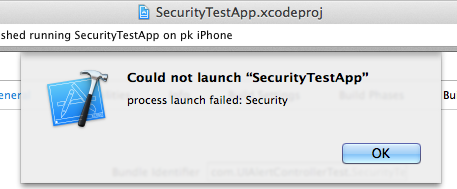
Could not launch "AppName" process launch failed: Security

  1. On your iOS device, tap the newly installed app icon:

tap the app icon on your iOS device

  1. After tapping the icon, you should now see an alert asking you to "Trust" the Untrusted App Developer. After doing so the app will immediately run, unconnected to the Xcode debugger.
  • If you do not see this "Trust" alert, you likely pressed "OK" in Xcode too soon. Do not press "OK" on the Xcode alert until after trusting the developer.

Trust this developer?

  1. Finally, go back and press "OK" on the Xcode alert. You will have to re-run the app to connect the running app on your iOS device to the Xcode debugger.

Now press OK in Xcode.

To fix the process launch failed: Security issue, tap the app icon on your iOS device after running the app via Xcode.

Be sure to tap the app icon while the Xcode alert is still shown. Otherwise the app will not run. I continually forget this vital step and am unable to run the app on my device. Thus I am documenting it here for myself and everyone else :)

  1. Run the app via Xcode. You will see the security alert below. Do not press OK.

Could not launch "AppName" process launch failed: Security

  1. On your iOS device, tap the newly installed app icon:

tap the app icon on your iOS device

  1. After tapping the icon, you should now see an alert asking you to "Trust" the Untrusted App Developer. After doing so the app will immediately run, unconnected to the Xcode debugger.
  • If you do not see this "Trust" alert, you likely pressed "OK" in Xcode too soon. Do not press "OK" on the Xcode alert until after trusting the developer.

Trust this developer?

  1. Finally, go back and press "OK" on the Xcode alert. You will have to re-run the app to connect the running app on your iOS device to the Xcode debugger.

Now press OK in Xcode.

To get around the process launch failed: Security issue and immediately launch the app on your device, tap the app icon on your iOS device after running the app via Xcode.

This will allow you to immediately run the app. It may not actually "fix" the root issue that is causing these permission alerts.

Be sure to tap the app icon while the Xcode alert is still shown. Otherwise the app will not run. I continually forget this vital step and am unable to run the app on my device. Thus I am documenting it here for myself and everyone else :)

  1. Run the app via Xcode. You will see the security alert below. Do not press OK.

Could not launch "AppName" process launch failed: Security

  1. On your iOS device, tap the newly installed app icon:

tap the app icon on your iOS device

  1. After tapping the icon, you should now see an alert asking you to "Trust" the Untrusted App Developer. After doing so the app will immediately run, unconnected to the Xcode debugger.
  • If you do not see this "Trust" alert, you likely pressed "OK" in Xcode too soon. Do not press "OK" on the Xcode alert until after trusting the developer.

Trust this developer?

  1. Finally, go back and press "OK" on the Xcode alert. You will have to re-run the app to connect the running app on your iOS device to the Xcode debugger.

Now press OK in Xcode.

added 142 characters in body
Source Link
pkamb
  • 35.5k
  • 27
  • 174
  • 207

To fix the process launch failed: Security issue, tap the app icon on your iOS device after running the app via Xcode.

Be sure to tap the app icon while the Xcode alert is still shown. Otherwise the app will not run. I continually forget this vital step and am unable to run the app on my device. Thus I am documenting it here for myself and everyone else :)

  1. Run the app via Xcode. You will see the security alert below. Do not press OK.

Could not launch "AppName" process launch failed: Security

  1. On your iOS device, tap the newly installed app icon:

tap the app icon on your iOS device

  1. After tapping the icon, you should now see an alert asking you to "Trust" the Untrusted App Developer. After doing so the app will immediately run, unconnected to the Xcode debugger.
  • If you do not see this "Trust" alert, you likely pressed "OK" in Xcode too soon. Do not press "OK" on the Xcode alert until after trusting the developer.

Trust this developer?

  1. Finally, go back and press "OK" on the Xcode alert. You will have to re-run the app to connect the running app on your iOS device to the Xcode debugger.

Now press OK in Xcode.

To fix the process launch failed: Security issue, tap the app icon on your iOS device after running the app via Xcode.

Be sure to tap the app icon while the Xcode alert is still shown. Otherwise the app will not run.

  1. Run the app via Xcode. You will see the security alert below. Do not press OK.

Could not launch "AppName" process launch failed: Security

  1. On your iOS device, tap the newly installed app icon:

tap the app icon on your iOS device

  1. After tapping the icon, you should now see an alert asking you to "Trust" the Untrusted App Developer. After doing so the app will immediately run, unconnected to the Xcode debugger.
  • If you do not see this "Trust" alert, you likely pressed "OK" in Xcode too soon. Do not press "OK" on the Xcode alert until after trusting the developer.

Trust this developer?

  1. Finally, go back and press "OK" on the Xcode alert. You will have to re-run the app to connect the running app on your iOS device to the Xcode debugger.

Now press OK in Xcode.

To fix the process launch failed: Security issue, tap the app icon on your iOS device after running the app via Xcode.

Be sure to tap the app icon while the Xcode alert is still shown. Otherwise the app will not run. I continually forget this vital step and am unable to run the app on my device. Thus I am documenting it here for myself and everyone else :)

  1. Run the app via Xcode. You will see the security alert below. Do not press OK.

Could not launch "AppName" process launch failed: Security

  1. On your iOS device, tap the newly installed app icon:

tap the app icon on your iOS device

  1. After tapping the icon, you should now see an alert asking you to "Trust" the Untrusted App Developer. After doing so the app will immediately run, unconnected to the Xcode debugger.
  • If you do not see this "Trust" alert, you likely pressed "OK" in Xcode too soon. Do not press "OK" on the Xcode alert until after trusting the developer.

Trust this developer?

  1. Finally, go back and press "OK" on the Xcode alert. You will have to re-run the app to connect the running app on your iOS device to the Xcode debugger.

Now press OK in Xcode.

added 2 characters in body
Source Link
pkamb
  • 35.5k
  • 27
  • 174
  • 207

To fix the process launch failed: Security issue, tap the app icon on your iOS device after running the app via Xcode.

Be sure to tap the app icon while the Xcode alert is still shownwhile the Xcode alert is still shown. Otherwise the app will not run.

  1. Run the app via Xcode. You will see the security alert below. Do not press OK.

Could not launch "AppName" process launch failed: Security

  1. On your iOS device, tap the newly installed app icon:

tap the app icon on your iOS device

  1. After tapping the icon, you should now see an alert asking you to "Trust" the Untrusted App Developer. After doing so the app will immediately run, unconnected to the Xcode debugger.
  • If you do not see this "Trust" alert, you likely pressed "OK" in Xcode too soon. Do not press "OK" on the Xcode alert until after trusting the developer.

Trust this developer?

  1. Finally, go back and press "OK" on the Xcode alert. You will have to re-run the app to connect the running app on your iOS device to the Xcode debugger.

Now press OK in Xcode.

To fix the process launch failed: Security issue, tap the app icon on your iOS device after running the app via Xcode.

Be sure to tap the app icon while the Xcode alert is still shown. Otherwise the app will not run.

  1. Run the app via Xcode. You will see the security alert below. Do not press OK.

Could not launch "AppName" process launch failed: Security

  1. On your iOS device, tap the newly installed app icon:

tap the app icon on your iOS device

  1. After tapping the icon, you should now see an alert asking you to "Trust" the Untrusted App Developer. After doing so the app will immediately run, unconnected to the Xcode debugger.
  • If you do not see this "Trust" alert, you likely pressed "OK" in Xcode too soon. Do not press "OK" on the Xcode alert until after trusting the developer.

Trust this developer?

  1. Finally, go back and press "OK" on the Xcode alert. You will have to re-run the app to connect the running app on your iOS device to the Xcode debugger.

Now press OK in Xcode.

To fix the process launch failed: Security issue, tap the app icon on your iOS device after running the app via Xcode.

Be sure to tap the app icon while the Xcode alert is still shown. Otherwise the app will not run.

  1. Run the app via Xcode. You will see the security alert below. Do not press OK.

Could not launch "AppName" process launch failed: Security

  1. On your iOS device, tap the newly installed app icon:

tap the app icon on your iOS device

  1. After tapping the icon, you should now see an alert asking you to "Trust" the Untrusted App Developer. After doing so the app will immediately run, unconnected to the Xcode debugger.
  • If you do not see this "Trust" alert, you likely pressed "OK" in Xcode too soon. Do not press "OK" on the Xcode alert until after trusting the developer.

Trust this developer?

  1. Finally, go back and press "OK" on the Xcode alert. You will have to re-run the app to connect the running app on your iOS device to the Xcode debugger.

Now press OK in Xcode.

added 2 characters in body
Source Link
pkamb
  • 35.5k
  • 27
  • 174
  • 207
Loading
Source Link
pkamb
  • 35.5k
  • 27
  • 174
  • 207
Loading