202

For my Ubuntu machine, I downloaded the latest version of Android SDK from this page.

After extracting the downloaded .tgz file, I was trying to search for installation instructions and found:

To get started on Linux:

Unpack the .zip file you've downloaded. The SDK files are download separately to a user-specified directory.

Make a note of the name and location of the SDK directory on your system—you will need to refer to the SDK directory later when using the SDK tools from the command line.

What exactly are we supposed to do?

7
  • 1
    there's an easy install paolorotolo.github.io/android-studio -- or check this tutorial on how do it manualy -- youtube.com/watch?v=qfinKxwYYZs Commented Jan 1, 2016 at 14:41
  • @Tasos Any idea about the maintenance and long term support paolorotolo's Android studio? This looks more of a personal project :( Commented Jan 1, 2016 at 15:00
  • Android Studio itself alerts you when there is a new update/upgrade so you do it from there. I dont think the person modified AS Commented Jan 1, 2016 at 15:33
  • from my last comment -- however you can ask that question directly to the person here -- github.com/PaoloRotolo/android-studio/issues Commented Jan 1, 2016 at 15:43
  • 1
    After using sudo apt install android-sdk on Ubuntu, the location is /usr/lib/android-sdk Commented Dec 3, 2022 at 0:04

11 Answers 11

278

Option 1:

sudo apt update && sudo apt install android-sdk 

The location of Android SDK on Linux can be any of the following:

  • /home/AccountName/Android/Sdk

  • /usr/lib/android-sdk

  • /Library/Android/sdk/

  • /Users/[USER]/Library/Android/sdk

Option 2:

  • Download the Android Studio.

  • Extract downloaded .zip file.

    The extracted folder name will read somewhat like android-studio

To keep navigation easy, move this folder to Home directory.

  • After moving, copy the moved folder by right clicking it. This action will place folder's location to clipboard.

  • Use Ctrl Alt T to open a terminal

  • Go to this folder's directory using cd /home/(USER NAME)/android-studio/bin/

  • Type this command to make studio.sh executable: chmod +x studio.sh

  • Type ./studio.sh

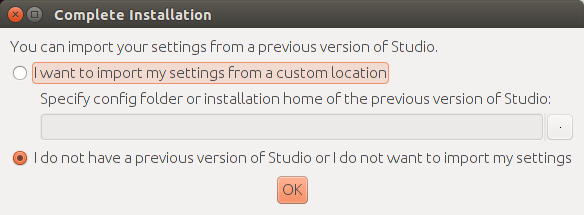
A pop up will be shown asking for installation settings. In my particular case, it is a fresh install so I'll go with selecting I do not have a previous version of Studio or I do not want to import my settings.

If you choose to import settings anyway, you may need to close any old project which is opened in order to get a working Android SDK.

./studio.sh popup

From now onwards, setup wizard will guide you.

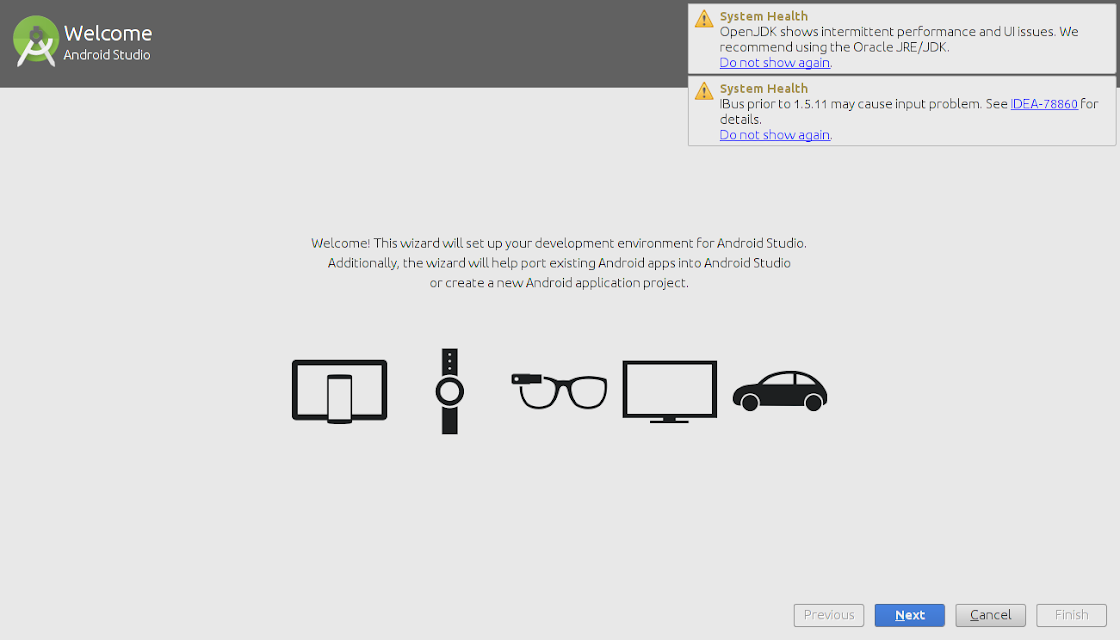
Android studio setup wizard

Android Studio can work with both Open JDK and Oracle's JDK (recommended). Incase, Open JDK is installed the wizard will recommend installing Oracle Java JDK because some UI and performance issues are reported while using OpenJDK.

The downside with Oracle's JDK is that it won't update with the rest of your system like OpenJDK will.

The wizard may also prompt about the input problems with IDEA .

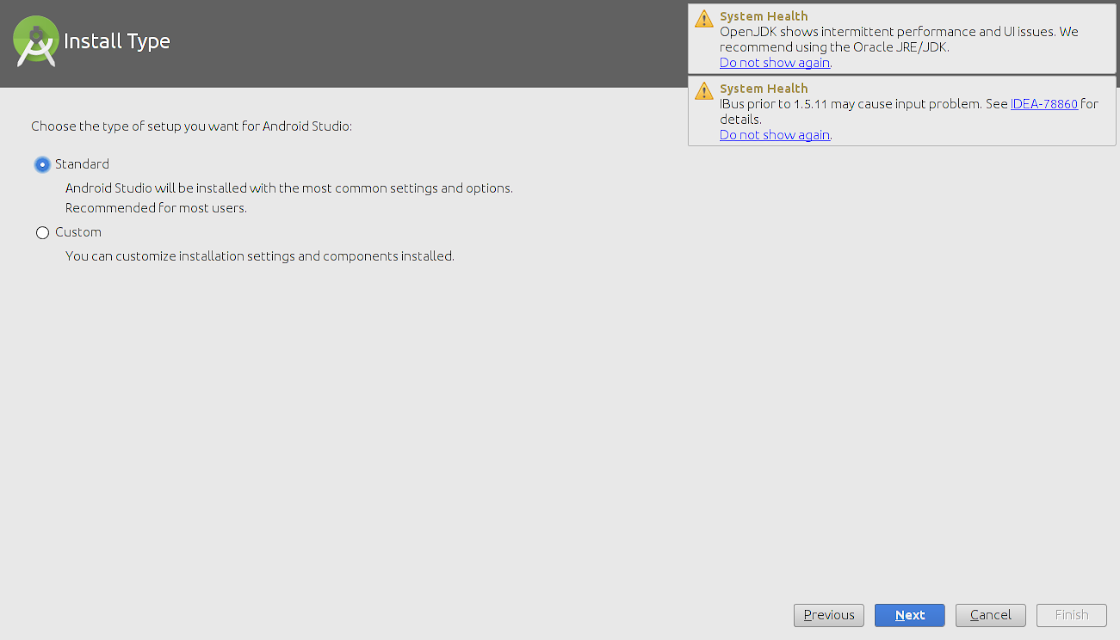
Select install type

Select Android studio install type

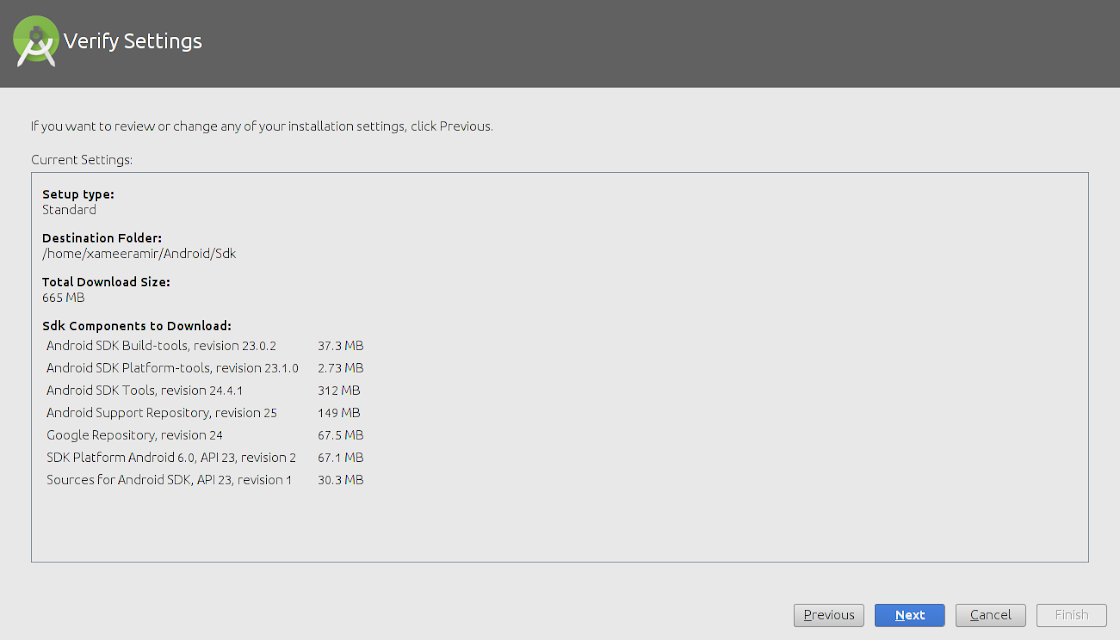
Verify installation settings

Verify Android studio installation settings

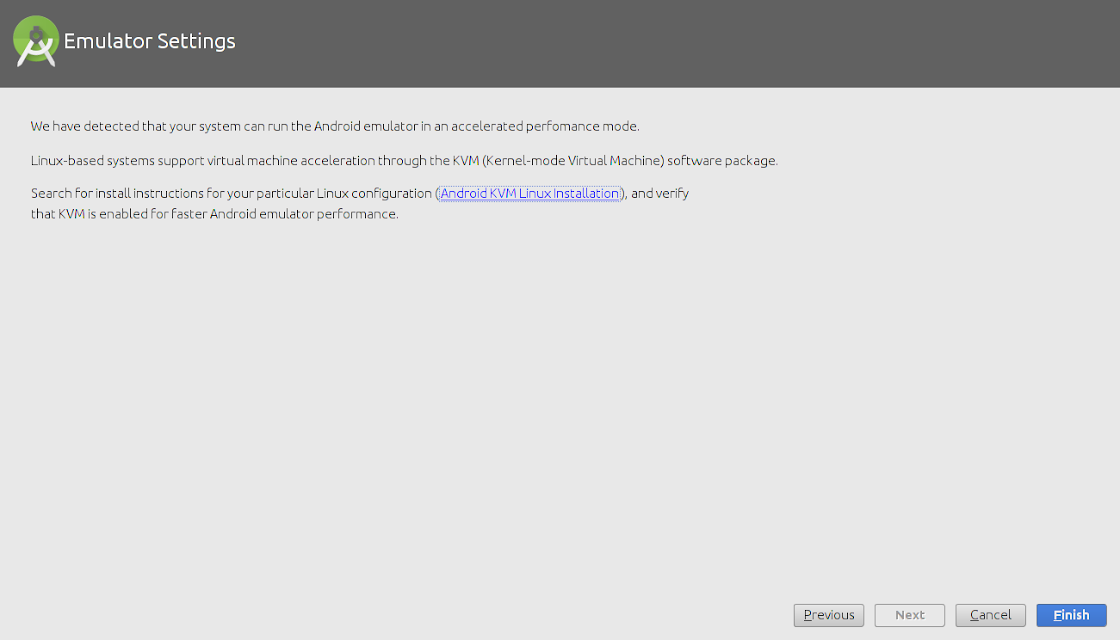
An emulator can also be configured as needed.

Android studio emulator configuration prompt

The wizard will start downloading the necessary SDK tools

The wizard may also show an error about Linux 32 Bit Libraries, which can be solved by using the below command:

sudo apt-get install libc6:i386 libncurses5:i386 libstdc++6:i386 lib32z1

After this, all the required components will be downloaded and installed automatically.

After everything is upto the mark, just click finish

Completed installation of Android studio

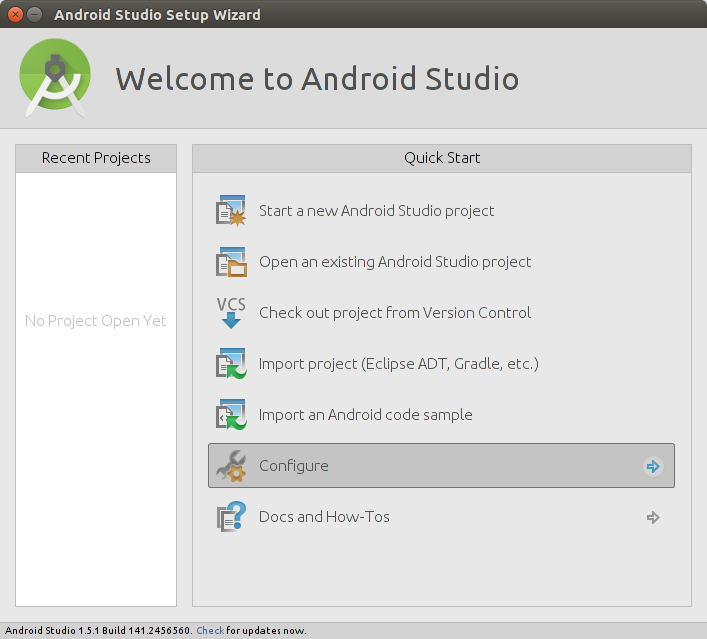
To make a Desktop icon, go to 'Configure' and then click 'Create Desktop Entry'

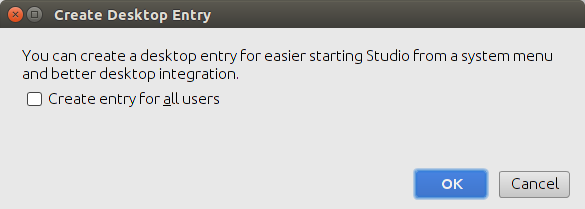
Creating Android studio desktop icon

Creating Android studio desktop icon for one or multiple users

source

Sign up to request clarification or add additional context in comments.

16 Comments

@NiklasRosencrantz We did not tried importing settings so can't say anything about it.
what is the install location of Android SDK, if we use the option 1 ?
@PratikSinghal Mostly this /home/AccountName/Android/Sdk
@student i use option 1 but cant find it in /home/accountname any idea ?
For Ubuntu, with option 1, I found the sdk there: /usr/lib/android-sdk
|
111

To install it on a Debian based system simply do

# Install latest JDK sudo apt install default-jdk # get latest sdk tools - link will change. go to https://developer.android.com/studio/#downloads and look for "Command line tools only" download from webpage as you will need to accept terms. Then extract. mkdir cmdline-tools mv <folder-you-extracted> android-sdk/cmdline-tools # So after this step is done you will have ~/cmdline-tools/tools with bin/ and lib/ in it. 

Then add the Android SDK to your PATH, open ~/.bashrc in editor and add the following lines into the file

# Export the Android SDK path export ANDROID_HOME=$HOME/cmdline-tools export PATH=$PATH:$ANDROID_HOME/tools/bin export PATH=$PATH:$ANDROID_HOME/platform-tools 

Run

source ~/.bashrc 

Show all available sdk packages

sdkmanager --list 

Identify latest android platform (here it's 33) and run

sdkmanager "platform-tools" "platforms;android-33" 

Now you have adb, fastboot and the latest sdk tools installed

6 Comments

The export JAVA_OPTS=.... caused an error when running sdkmanager : "Error: Could not find or load main class java.se.ee". Removing it fixed the issue.
Absolutely nowhere else mentions the sdk-tools download. Thank you!
In case this would prove useful to anyone passing by, if you do not want to include export JAVA_OPTS=... for some reason (like sdkmanager still failing even with it in the startup files, e.g. .bashrc and .zshrc, already, which happened to me in my other machine), you could use SDKman to install different versions of Java and use Java 8 only when you run sdkmanager.
sudo apt install android-sdk put the sdk into /usr/lib/android-sdk
It seems that the current folder name for the "tools" should be cmdline-tools/latest now.
|
47

Android SDK Manager

Get it from the Snap Store

sudo snap install androidsdk 

Usage

You can use the sdkmanager to perform the following tasks.

List installed and available packages

androidsdk --list [options] 

Install packages

androidsdk packages [options] 

The packages argument is an SDK-style path as shown with the --list command, wrapped in quotes (for example, "build-tools;29.0.0" or "platforms;android-28"). You can pass multiple package paths, separated with a space, but they must each be wrapped in their own set of quotes.

For example, here's how to install the latest platform tools (which includes adb and fastboot) and the SDK tools for API level 28:

androidsdk "platform-tools" "platforms;android-28" 

Alternatively, you can pass a text file that specifies all packages:

androidsdk --package_file=package_file [options] 

The package_file argument is the location of a text file in which each line is an SDK-style path of a package to install (without quotes).

To uninstall, simply add the --uninstall flag:

androidsdk --uninstall packages [options] androidsdk --uninstall --package_file=package_file [options] 

Update all installed packages

androidsdk --update [options] 

Note

androidsdk it is snap wraper of sdkmanager all options of sdkmanager work with androidsdk

Location of installed android sdk files : /home/user/AndroidSDK

See all sdkmanager options in google documentation

About outdated cmdline-tools inner snap package.

The androidsdk contains cmdline-tools inner snap package. Developers try to keep snap's "cmdline-tools" up to date by periodically updating the snap package. So some time it can be outdated. If you detect outdated cmdline-tools you can create issue on GitHub repository of androidsdk.

4 Comments

for Ubuntu21.04 snap package works beautifully! for flutter development, complete this with flutter config --android-sdk ~/AndroidSDK; androidsdk "platform-tools" "platforms;android-32" "build-tools;30.0.3" "cmdline-tools;latest"
This is the best answer, as it doesn't require you to manually download and extract stuff, can be used without any GUI, and doesn't run into "licenses not accepted" issues. You could even run androidsdk "cmdline-tools;latest" to install the "real" sdkmanager, which might be a later version than the one in snap (it will be installed to ~/AndroidSDK/cmdline-tools/bin)
I try to keep snap's "cmdline-tools" up to date by periodically updating the snap package.
Please, put this answer to the top!
37

UPDATE: This method is no longer recommended and installation is as easy as downloading it from the official website, then running the downloaded binary.

ORIGINAL ANSWER:

There is no need to download any binaries or files or follow difficult installation instructions.

All you really needed to do is:

sudo apt update && sudo apt install android-sdk 

Update: Ubuntu 18.04 only

10 Comments

says I need to accept the licence... I have no idea how to do this :C
How to accept license? there's no sdkmanager and android files.
where will the sdk be placed btw?
@thekucays Mine went into /usr/lib/android-sdk/ on Ubuntu 18.04
This seems very incomplete; sdkmanager is missing so we cannot install any components or platforms.
|
32

I can tell you the steps for installing purely via command line from scratch. I tested it on Ubuntu on 22 Feb 2021.

create sdk folder

export ANDROID_SDK_ROOT=/usr/lib/android-sdk sudo mkdir -p $ANDROID_SDK_ROOT 

install openjdk

sudo apt-get install openjdk-8-jdk 

download android sdk

Go to https://developer.android.com/studio/index.html Then down to Command line tools only Click on Linux link, accept the agreement and instead of downloading right click and copy link address

cd $ANDROID_SDK_ROOT sudo wget https://dl.google.com/android/repository/commandlinetools-linux-6858069_latest.zip sudo unzip commandlinetools-linux-6858069_latest.zip 

move folders

Rename the unpacked directory from cmdline-tools to tools, and place it under $ANDROID_SDK_ROOT/cmdline-tools, so now it should look like: $ANDROID_SDK_ROOT/cmdline-tools/tools. And inside it, you should have: NOTICE.txt bin lib source.properties.

set path

PATH=$PATH:$ANDROID_SDK_ROOT/cmdline-tools/latest/bin:$ANDROID_SDK_ROOT/cmdline-tools/tools/bin 

This had no effect for me, hence the next step

browse to sdkmanager

cd $ANDROID_SDK_ROOT/cmdline-tools/tools/bin 

accept licenses

yes | sudo sdkmanager --licenses 

create build

Finally, run this inside your project

chmod 777 gradlew sudo ./gradlew assembleDebug 

This creates an APK named -debug.apk at //build/outputs/apk/debug The file is already signed with the debug key and aligned with zipalign, so you can immediately install it on a device.

REFERENCES

https://gist.github.com/guipmourao/3e7edc951b043f6de30ca15a5cc2be40

Android Command line tools sdkmanager always shows: Warning: Could not create settings

"Failed to install the following Android SDK packages as some licences have not been accepted" error

https://developer.android.com/studio/build/building-cmdline#sign_cmdline

1 Comment

stackoverflow.com/questions/65262340/… if anybody has error while accepting the licenses.
13

If you are on Ubuntu 17.04 (Zesty), and you literally just need the SDK (no Android Studio), you can install it like on Debian:

  • sudo apt install android-sdk android-sdk-platform-23
  • export ANDROID_HOME=/usr/lib/android-sdk
  • In build.gradle, change compileSdkVersion to 23 and buildToolsVersion to 24.0.0
  • run gradle build

Comments

8

install the android SDK for me was not the problem, having the right JRE and JDK was the problem.

To solve this install the JVM 8 (the last fully compatible, for now):

sudo apt-get install openjdk-8-jre 

Next use update-alternative to switch to the jre-8 version:

sudo update-alternatives --config java 

You can revert JVM version when you want with the same update-alternatives command

Note that you problably have to do the same after this with javac also (now you have only java command at version 8)

first do:

sudo apt-get install openjdk-8-jdk 

next:

sudo update-alternatives --config javac 

After this you can install android SDK that require this specific Java version

Comments

4

This is specifically for EAS local builds and keep the Android SDK files on your home directory. Execute the following commands

sudo apt install \ sdkmanager \ android-sdk \ android-sdk-helper mkdir -p $HOME/.android/sdk export ANDROID_SDK_ROOT=$HOME/.android/sdk sdkmanager --install 'ndk;23.1.7779620' 'platforms;android-33' 'build-tools;30.0.3' sdkmanager --license 

From there you can do

eas build --local -p android 

3 Comments

This works on WSL2
Really? I never tried on WSL2 before
ANDROID_SDK_ROOT, which also points to the SDK installation directory, is deprecated. developer.android.com/tools/variables#set
1
sudo add-apt-repository -y ppa:webupd8team/java sudo apt-get update sudo apt-get install oracle-java7-installer oracle-java7-set-default wget https://dl.google.com/dl/android/studio/ide-zips/2.2.0.12/android-studio-ide-145.3276617-linux.zip unzip android-studio-ide-145.3276617-linux.zip cd android-studio/bin ./studio.sh 

1 Comment

Java 8 can be installed instead. Line 3: sudo apt-get install oracle-java8-installer oracle-java8-set-default
1

Install Android Studio with

sudo snap install android-studio --classic

when you open it for the first time it will install the SDK for you (with options) .

Comments

1

I'm using the android studio hedgehog, and you can go through the process installing/configuring the sdk via:

  • Project Settings > Search SDK
  • Side to the android sdk path that shows up and currently empty, click the edit button
  • The editor now shows the wizard to install and configure the sdk which is pretty straightforward

Comments

Start asking to get answers

Find the answer to your question by asking.

Ask question

Explore related questions

See similar questions with these tags.