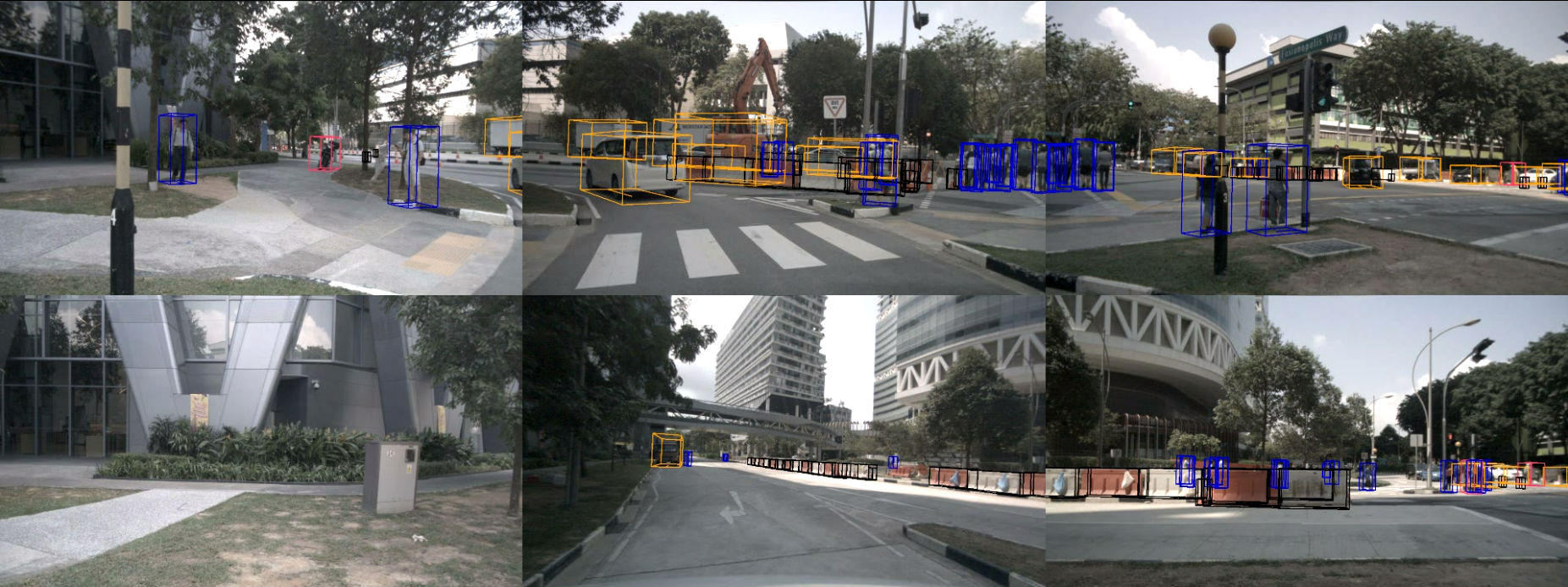
Welcome to the devkit of the nuScenes dataset.
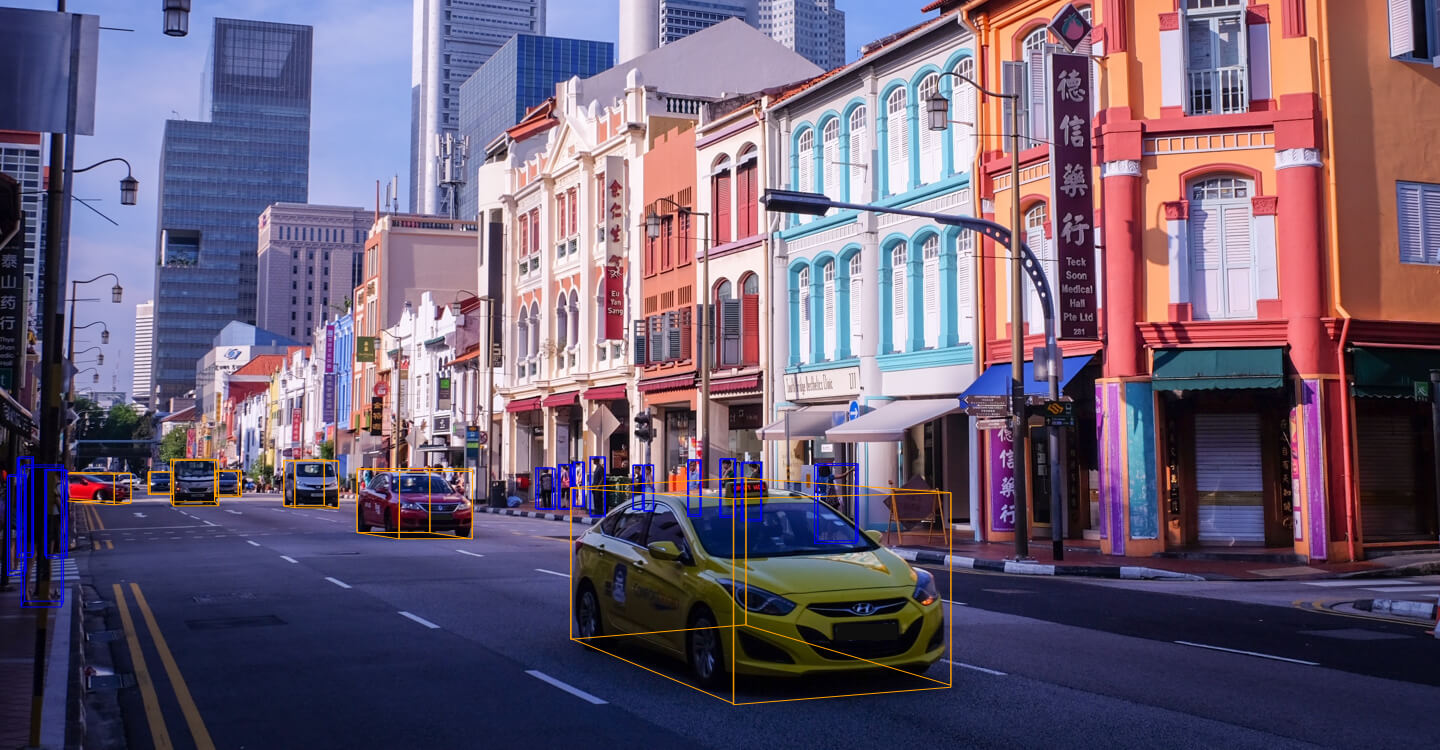
To download nuScenes you need to go to the Download page, create an account and confirm the nuScenes Terms of Use. After logging in you will see multiple archives for images, pointclouds and meta data. For the devkit to work you will need to download all archives. Please unpack the archives to the /data/nuscenes folder *without* overwriting folders that occur in multiple archives. Eventually you should have the following folder structure:
/data/nuscenes maps - Large image files (~500 Gigapixel) that depict the drivable surface and sidewalks in the scene samples - Sensor data for keyframes sweeps - Sensor data for intermediate frames v0.1 - JSON tables that include all the meta data and annotations If you want to use another folder, specify the dataroot parameter of the NuScenes class below.
Download the devkit to your home directory using:
cd && git clone https://github.com/nutonomy/nuscenes-devkit.git The devkit is tested for Python 3.7. We may add backward compatibility in future releases. To install the required packages, run the following command in your favourite virtual environment. If you need help in installing Python 3.7 or in setting up a new virtual environment, you can look at these instructions:
pip install -r requirements.txt Also add the python-sdk directory to your PYTHONPATH environmental variable, e.g. by adding the following to your ~/.virtualenvs/nuscenes/bin/postactivate (virtual environment) or ~/.bashrc (global):
export PYTHONPATH="${PYTHONPATH}:$HOME/nuscenes-devkit/python-sdk" To get started with the nuScenes devkit, please run the tutorial as an IPython notebook:
jupyter notebook $HOME/nuscenes-devkit/python-sdk/tutorial.ipynb In case you want to avoid downloading and setting up the data, you can also take a look at the same notebook on Github.
It is recommended to install the devkit in a new virtual environment. Here are the steps you can follow to create one:
If you don't have Python 3.7 on your system, you can use the following steps to install it.
Ubuntu:
sudo add-apt-repository ppa:deadsnakes/ppa sudo apt-get update sudo apt-get install python3.7 Mac OS: Download from https://www.python.org/downloads/mac-osx/ and install.
pip install virtualenvwrapper Add these two lines to ~/.bashrc (~/.bash_profile on MAC OS) to set the location where the virtual environments should live and the location of the script installed with this package:
export WORKON_HOME=$HOME/.virtualenvs source [VIRTUAL_ENV_LOCATION] Replace [VIRTUAL_ENV_LOCATION] with either /usr/local/bin/virtualenvwrapper.sh or ~/.local/bin/virtualenvwrapper.sh depending on where it is installed on your system.
After editing it, reload the shell startup file by running e.g. source ~/.bashrc.
mkvirtualenv nuscenes --python [PYTHON_BINARIES] PYTHON_BINARIES are typically at either /usr/local/bin/python3.7 or /usr/bin/python3.7.
If you are inside the virtual environment, your shell prompt should look like: (nuscenes) user@computer:~$ If that is not the case, you can enable the virtual environment using:
workon nuscenes To deactivate the virtual environment, use:
deactivate