added 154 characters in body
Source Link
Szabolcs
  • 238.9k
  • 32
  • 653
  • 1.3k

Update: I maintain the latest version of this function on my blog.


SaveToCell is a convenience-minded implementation of Vitaliy's idea. The code is at the end.

Description

SaveToCell[var] creates an input cell that re-assigns the value of var. The right-hand-side of the assignment is displayed concisely in the notebook.

Usage example

range = Range[1000]; SaveToCell[range] 

This creates a new input cell:

Mathematica graphics

Evaluating it re-assigns the value of range. The small panel with the label "data" can also be copied and pasted somewhere else in the notebook. It contains all the data in compressed form.

We can set a custom label instead of the default "data", using the second argument:

SaveToCell[range, Short[range]] 

Mathematica graphics

Hovering the panel shows the time when it was saved.
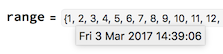
enter image description here

Any options will be passed down to the generated cell, so if you are worried about accidentally deleting your data, you can use

SaveToCell[var, Deletable -> False] 

(To delete such a cell, select its bracket, press Ctrl-Shift-E or Command-Shift-E on Mac to show its expression, and remove the Deletable option.)

Possible issues

SaveToCell re-evaluates the contents of the variable. Thus the following

var = {1, a}; a = 5; SaveToCell[var] 

will save {1,5} instead of {1,a} where a is a symbol.

In fact, the little panel is equivalent not even to {1,5} but to Uncompress["1:eJxTTMoPSmNiYGAoZgESPpnFJZmMQEYmK5AAAE4GBJg="]. This means that it will behave differently if copied and pasted inside of a Hold[...].

Code

ClearAll[SaveToCell] SaveToCell::usage = "SaveToCell[variable] creates an input cell that reassigns the current value of variable.\n" <> "SaveToCell[variables, display] shows 'display' on the right-hand-side of the assignment."; SetAttributes[SaveToCell, HoldFirst] SaveToCell[var_, name : Except[_?OptionQ] : "data", opt : OptionsPattern[]] := With[{data = Compress[var], panel = ToBoxes@Tooltip[Panel[name, FrameMargins -> Small], DateString[]]}, CellPrint@Cell[ BoxData@RowBox[{ MakeBoxes[var], "=", InterpretationBox[panel, Uncompress[data]], ";" }], "Input", GeneratedCell -> False opt, CellLabel -> "(saved)", CellLabelAutoDelete -> False ] ] 

SaveToCell is a convenience-minded implementation of Vitaliy's idea. The code is at the end.

Description

SaveToCell[var] creates an input cell that re-assigns the value of var. The right-hand-side of the assignment is displayed concisely in the notebook.

Usage example

range = Range[1000]; SaveToCell[range] 

This creates a new input cell:

Mathematica graphics

Evaluating it re-assigns the value of range. The small panel with the label "data" can also be copied and pasted somewhere else in the notebook. It contains all the data in compressed form.

We can set a custom label instead of the default "data", using the second argument:

SaveToCell[range, Short[range]] 

Mathematica graphics

Hovering the panel shows the time when it was saved.

enter image description here

Any options will be passed down to the generated cell, so if you are worried about accidentally deleting your data, you can use

SaveToCell[var, Deletable -> False] 

(To delete such a cell, select its bracket, press Ctrl-Shift-E or Command-Shift-E on Mac to show its expression, and remove the Deletable option.)

Possible issues

SaveToCell re-evaluates the contents of the variable. Thus the following

var = {1, a}; a = 5; SaveToCell[var] 

will save {1,5} instead of {1,a} where a is a symbol.

In fact, the little panel is equivalent not even to {1,5} but to Uncompress["1:eJxTTMoPSmNiYGAoZgESPpnFJZmMQEYmK5AAAE4GBJg="]. This means that it will behave differently if copied and pasted inside of a Hold[...].

Code

ClearAll[SaveToCell] SaveToCell::usage = "SaveToCell[variable] creates an input cell that reassigns the current value of variable.\n" <> "SaveToCell[variables, display] shows 'display' on the right-hand-side of the assignment."; SetAttributes[SaveToCell, HoldFirst] SaveToCell[var_, name : Except[_?OptionQ] : "data", opt : OptionsPattern[]] := With[{data = Compress[var], panel = ToBoxes@Tooltip[Panel[name, FrameMargins -> Small], DateString[]]}, CellPrint@Cell[ BoxData@RowBox[{ MakeBoxes[var], "=", InterpretationBox[panel, Uncompress[data]], ";" }], "Input", GeneratedCell -> False opt, CellLabel -> "(saved)", CellLabelAutoDelete -> False ] ] 

Update: I maintain the latest version of this function on my blog.


SaveToCell is a convenience-minded implementation of Vitaliy's idea. The code is at the end.

Description

SaveToCell[var] creates an input cell that re-assigns the value of var. The right-hand-side of the assignment is displayed concisely in the notebook.

Usage example

range = Range[1000]; SaveToCell[range] 

This creates a new input cell:

Mathematica graphics

Evaluating it re-assigns the value of range. The small panel with the label "data" can also be copied and pasted somewhere else in the notebook. It contains all the data in compressed form.

We can set a custom label instead of the default "data", using the second argument:

SaveToCell[range, Short[range]] 

Mathematica graphics

Hovering the panel shows the time when it was saved.

enter image description here

Any options will be passed down to the generated cell, so if you are worried about accidentally deleting your data, you can use

SaveToCell[var, Deletable -> False] 

(To delete such a cell, select its bracket, press Ctrl-Shift-E or Command-Shift-E on Mac to show its expression, and remove the Deletable option.)

Possible issues

SaveToCell re-evaluates the contents of the variable. Thus the following

var = {1, a}; a = 5; SaveToCell[var] 

will save {1,5} instead of {1,a} where a is a symbol.

In fact, the little panel is equivalent not even to {1,5} but to Uncompress["1:eJxTTMoPSmNiYGAoZgESPpnFJZmMQEYmK5AAAE4GBJg="]. This means that it will behave differently if copied and pasted inside of a Hold[...].

Code

ClearAll[SaveToCell] SaveToCell::usage = "SaveToCell[variable] creates an input cell that reassigns the current value of variable.\n" <> "SaveToCell[variables, display] shows 'display' on the right-hand-side of the assignment."; SetAttributes[SaveToCell, HoldFirst] SaveToCell[var_, name : Except[_?OptionQ] : "data", opt : OptionsPattern[]] := With[{data = Compress[var], panel = ToBoxes@Tooltip[Panel[name, FrameMargins -> Small], DateString[]]}, CellPrint@Cell[ BoxData@RowBox[{ MakeBoxes[var], "=", InterpretationBox[panel, Uncompress[data]], ";" }], "Input", GeneratedCell -> False opt, CellLabel -> "(saved)", CellLabelAutoDelete -> False ] ] 
added 1 character in body
Source Link
Szabolcs
  • 238.9k
  • 32
  • 653
  • 1.3k

SaveToCell is a convenience-minded implementation of Vitaliy's idea. The code is at the end.

Description

SaveToCell[var] creates an input cell that re-assigns the value of var. The right-hand-side of the assignment is displayed concisely in the notebook.

Usage example

range = Range[1000]; SaveToCell[range] 

This creates a new input cell:

Mathematica graphics

Evaluating it re-assigns the value of range. The small panel with the label "data" can also be copied and pasted somewhere else in the notebook. It contains all the data in compressed form.

We can set a custom label instead of the default "data", using the second argument:

SaveToCell[range, Short[range]] 

Mathematica graphics

Hovering the panel shows the time when it was saved.

enter image description here

Any options will be passed down to the generated cell, so if you are worried about accidentally deleting your data, you can use

SaveToCell[var, Deletable -> False] 

(To delete such a cell, select its bracket, press Ctrl-Shift-E or Command-Shift-E on Mac, to show its expression, and remove the DeletableDeletable option.)

Possible issues

SaveToCell re-evaluates the contents of the variable. Thus the following

var = {1, a}; a = 5; SaveToCell[var] 

will save {1,5} instead of {1,a} where a is a symbol.

In fact, the little panel is equivalent not even to {1,5} but to Uncompress["1:eJxTTMoPSmNiYGAoZgESPpnFJZmMQEYmK5AAAE4GBJg="]. This means that it will behave differently if copied and pasted inside of a Hold[...].

Code

ClearAll[SaveToCell] SaveToCell::usage = "SaveToCell[variable] creates an input cell that reassigns the current value of variable.\n" <> "SaveToCell[variables, display] shows 'display' on the right-hand-side of the assignment."; SetAttributes[SaveToCell, HoldFirst] SaveToCell[var_, name : Except[_?OptionQ] : "data", opt : OptionsPattern[]] := With[{data = Compress[var], panel = ToBoxes@Tooltip[Panel[name, FrameMargins -> Small], DateString[]]}, CellPrint@Cell[ BoxData@RowBox[{ MakeBoxes[var], "=", InterpretationBox[panel, Uncompress[data]], ";" }], "Input", GeneratedCell -> False opt, CellLabel -> "(saved)", CellLabelAutoDelete -> False ] ] 

SaveToCell is a convenience-minded implementation of Vitaliy's idea. The code is at the end.

Description

SaveToCell[var] creates an input cell that re-assigns the value of var. The right-hand-side of the assignment is displayed concisely in the notebook.

Usage example

range = Range[1000]; SaveToCell[range] 

This creates a new input cell:

Mathematica graphics

Evaluating it re-assigns the value of range. The small panel with the label "data" can also be copied and pasted somewhere else in the notebook. It contains all the data in compressed form.

We can set a custom label instead of the default "data", using the second argument:

SaveToCell[range, Short[range]] 

Mathematica graphics

Hovering the panel shows the time when it was saved.

enter image description here

Any options will be passed down to the generated cell, so if you are worried about accidentally deleting your data, you can use

SaveToCell[var, Deletable -> False] 

(To delete such a cell, select its bracket, press Ctrl-Shift-E or Command-Shift-E on Mac, to show its expression, and remove the Deletable option.)

Possible issues

SaveToCell re-evaluates the contents of the variable. Thus the following

var = {1, a}; a = 5; SaveToCell[var] 

will save {1,5} instead of {1,a} where a is a symbol.

In fact, the little panel is equivalent not even to {1,5} but to Uncompress["1:eJxTTMoPSmNiYGAoZgESPpnFJZmMQEYmK5AAAE4GBJg="]. This means that it will behave differently if copied and pasted inside of a Hold[...].

Code

ClearAll[SaveToCell] SaveToCell::usage = "SaveToCell[variable] creates an input cell that reassigns the current value of variable.\n" <> "SaveToCell[variables, display] shows 'display' on the right-hand-side of the assignment."; SetAttributes[SaveToCell, HoldFirst] SaveToCell[var_, name : Except[_?OptionQ] : "data", opt : OptionsPattern[]] := With[{data = Compress[var], panel = ToBoxes@Tooltip[Panel[name, FrameMargins -> Small], DateString[]]}, CellPrint@Cell[ BoxData@RowBox[{ MakeBoxes[var], "=", InterpretationBox[panel, Uncompress[data]], ";" }], "Input", GeneratedCell -> False opt, CellLabel -> "(saved)", CellLabelAutoDelete -> False ] ] 

SaveToCell is a convenience-minded implementation of Vitaliy's idea. The code is at the end.

Description

SaveToCell[var] creates an input cell that re-assigns the value of var. The right-hand-side of the assignment is displayed concisely in the notebook.

Usage example

range = Range[1000]; SaveToCell[range] 

This creates a new input cell:

Mathematica graphics

Evaluating it re-assigns the value of range. The small panel with the label "data" can also be copied and pasted somewhere else in the notebook. It contains all the data in compressed form.

We can set a custom label instead of the default "data", using the second argument:

SaveToCell[range, Short[range]] 

Mathematica graphics

Hovering the panel shows the time when it was saved.

enter image description here

Any options will be passed down to the generated cell, so if you are worried about accidentally deleting your data, you can use

SaveToCell[var, Deletable -> False] 

(To delete such a cell, select its bracket, press Ctrl-Shift-E or Command-Shift-E on Mac to show its expression, and remove the Deletable option.)

Possible issues

SaveToCell re-evaluates the contents of the variable. Thus the following

var = {1, a}; a = 5; SaveToCell[var] 

will save {1,5} instead of {1,a} where a is a symbol.

In fact, the little panel is equivalent not even to {1,5} but to Uncompress["1:eJxTTMoPSmNiYGAoZgESPpnFJZmMQEYmK5AAAE4GBJg="]. This means that it will behave differently if copied and pasted inside of a Hold[...].

Code

ClearAll[SaveToCell] SaveToCell::usage = "SaveToCell[variable] creates an input cell that reassigns the current value of variable.\n" <> "SaveToCell[variables, display] shows 'display' on the right-hand-side of the assignment."; SetAttributes[SaveToCell, HoldFirst] SaveToCell[var_, name : Except[_?OptionQ] : "data", opt : OptionsPattern[]] := With[{data = Compress[var], panel = ToBoxes@Tooltip[Panel[name, FrameMargins -> Small], DateString[]]}, CellPrint@Cell[ BoxData@RowBox[{ MakeBoxes[var], "=", InterpretationBox[panel, Uncompress[data]], ";" }], "Input", GeneratedCell -> False opt, CellLabel -> "(saved)", CellLabelAutoDelete -> False ] ] 
added 452 characters in body
Source Link
Szabolcs
  • 238.9k
  • 32
  • 653
  • 1.3k

SaveToCell is a convenience-minded implementation of Vitaliy's idea. The code is at the end.

Description

SaveToCell[var] creates an input cell that re-assigns the value of var. The right-hand-side of the assignment is displayed concisely in the notebook.

Usage example

range = Range[1000]; SaveToCell[range] 

This creates a new input cell:

Mathematica graphics

Evaluating it re-assigns the value of range. The small panel with the label "data" can also be copied and pasted somewhere else in the notebook. It contains all the data in compressed form.

We can set a custom label instead of the default "data", using the second argument:

SaveToCell[range, Short[range]] 

Mathematica graphics

Hovering the panel shows the time when it was saved.

enter image description here

Any options will be passed down to the generated cell, so if you are worried about accidentally deleting your data, you can use

SaveToCell[var, Deletable -> False] 

(To delete such a cell, select its bracket, press Ctrl-Shift-E or Command-Shift-E on Mac, to show its expression, and remove the Deletable option.)

Possible issues

SaveToCell re-evaluates the contents of the variable. Thus the following

var = {1, a}; a = 5; SaveToCell[var] 

will save {1,5} instead of {1,a} where a is a symbol.

In fact, the little panel is equivalent not even to {1,5} but to Uncompress["1:eJxTTMoPSmNiYGAoZgESPpnFJZmMQEYmK5AAAE4GBJg="]. This means that it will behave differently if copied and pasted inside of a Hold[...].

Code

ClearAll[SaveToCell] SaveToCell::usage = "SaveToCell[variable] creates an input cell that reassigns the current value of variable.\n" <> "SaveToCell[variables, display] shows 'display' on the right-hand-side of the assignment."; SetAttributes[SaveToCell, HoldFirst] SaveToCell[var_, name_name : "data"]Except[_?OptionQ] : "data", opt : OptionsPattern[]] := With[{data = Compress[var], panel = ToBoxes@Tooltip[Panel[name, FrameMargins -> Small], DateString[]]}, CellPrint@Cell[ BoxData@RowBox[{ MakeBoxes[var], "=", InterpretationBox[panel, Uncompress[data]], ";" }], "Input", GeneratedCell -> False opt, CellLabel -> "(saved)", CellLabelAutoDelete -> False ] ] 

SaveToCell is a convenience-minded implementation of Vitaliy's idea. The code is at the end.

Description

SaveToCell[var] creates an input cell that re-assigns the value of var. The right-hand-side of the assignment is displayed concisely in the notebook.

Usage example

range = Range[1000]; SaveToCell[range] 

This creates a new input cell:

Mathematica graphics

Evaluating it re-assigns the value of range. The small panel with the label "data" can also be copied and pasted somewhere else in the notebook. It contains all the data in compressed form.

We can set a custom label instead of the default "data", using the second argument:

SaveToCell[range, Short[range]] 

Mathematica graphics

Hovering the panel shows the time when it was saved.

enter image description here

Possible issues

SaveToCell re-evaluates the contents of the variable. Thus the following

var = {1, a}; a = 5; SaveToCell[var] 

will save {1,5} instead of {1,a} where a is a symbol.

In fact, the little panel is equivalent not even to {1,5} but to Uncompress["1:eJxTTMoPSmNiYGAoZgESPpnFJZmMQEYmK5AAAE4GBJg="]. This means that it will behave differently if copied and pasted inside of a Hold[...].

Code

ClearAll[SaveToCell] SaveToCell::usage = "SaveToCell[variable] creates an input cell that reassigns the current value of variable.\n" <> "SaveToCell[variables, display] shows 'display' on the right-hand-side of the assignment."; SetAttributes[SaveToCell, HoldFirst] SaveToCell[var_, name_ : "data"] := With[{data = Compress[var], panel = ToBoxes@Tooltip[Panel[name, FrameMargins -> Small], DateString[]]}, CellPrint@Cell[ BoxData@RowBox[{ MakeBoxes[var], "=", InterpretationBox[panel, Uncompress[data]], ";" }], "Input", GeneratedCell -> False ] ] 

SaveToCell is a convenience-minded implementation of Vitaliy's idea. The code is at the end.

Description

SaveToCell[var] creates an input cell that re-assigns the value of var. The right-hand-side of the assignment is displayed concisely in the notebook.

Usage example

range = Range[1000]; SaveToCell[range] 

This creates a new input cell:

Mathematica graphics

Evaluating it re-assigns the value of range. The small panel with the label "data" can also be copied and pasted somewhere else in the notebook. It contains all the data in compressed form.

We can set a custom label instead of the default "data", using the second argument:

SaveToCell[range, Short[range]] 

Mathematica graphics

Hovering the panel shows the time when it was saved.

enter image description here

Any options will be passed down to the generated cell, so if you are worried about accidentally deleting your data, you can use

SaveToCell[var, Deletable -> False] 

(To delete such a cell, select its bracket, press Ctrl-Shift-E or Command-Shift-E on Mac, to show its expression, and remove the Deletable option.)

Possible issues

SaveToCell re-evaluates the contents of the variable. Thus the following

var = {1, a}; a = 5; SaveToCell[var] 

will save {1,5} instead of {1,a} where a is a symbol.

In fact, the little panel is equivalent not even to {1,5} but to Uncompress["1:eJxTTMoPSmNiYGAoZgESPpnFJZmMQEYmK5AAAE4GBJg="]. This means that it will behave differently if copied and pasted inside of a Hold[...].

Code

ClearAll[SaveToCell] SaveToCell::usage = "SaveToCell[variable] creates an input cell that reassigns the current value of variable.\n" <> "SaveToCell[variables, display] shows 'display' on the right-hand-side of the assignment."; SetAttributes[SaveToCell, HoldFirst] SaveToCell[var_, name : Except[_?OptionQ] : "data", opt : OptionsPattern[]] := With[{data = Compress[var], panel = ToBoxes@Tooltip[Panel[name, FrameMargins -> Small], DateString[]]}, CellPrint@Cell[ BoxData@RowBox[{ MakeBoxes[var], "=", InterpretationBox[panel, Uncompress[data]], ";" }], "Input", GeneratedCell -> False opt, CellLabel -> "(saved)", CellLabelAutoDelete -> False ] ] 
Source Link
Szabolcs
  • 238.9k
  • 32
  • 653
  • 1.3k
Loading