Troubleshooting
Run into trouble with Cloud Scripting? Here are some helpful tips and specific suggestions for troubleshooting as follows:
-
Log in to your Virtuozzo Application Platform dashboard and open the link of the following type in a new browser tab.
http://app.{HOSTER_URL}/console/
Here, substitute {HOSTER_URL} with the platform domain of your hosting provider (see the last column of the table within the Hosters Info page).
-
In the opened browser tab, you will see the Cloud Scripting execution log.
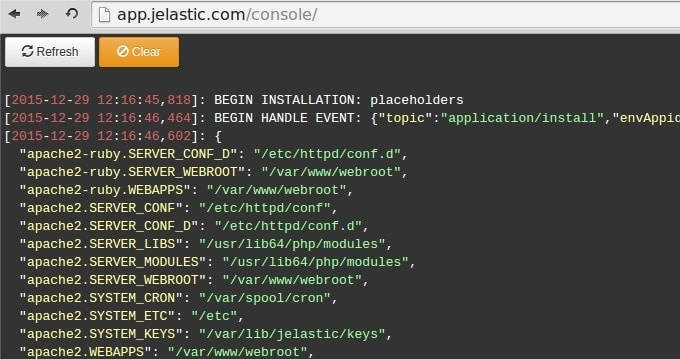
Note
The maximum size of the log is 1 MB. The log will be truncated or overwritten, if this limit is exceeded.
Below, you can find some samples of editing custom information to the log:
- outputting a single placeholder value
type: update name: LogTest onInstall: log: - Hello - ${user.email} { "type": "update", "name": "LogTest", "onInstall": { "log": [ "Hello", "${user.email}" ] } } - outputting all the placeholders
type: update name: LogTest onInstall: log: ${placeholders} { "type": "update", "name": "LogTest", "onInstall": { "log": "${placeholders}" } } All dynamic placeholders in ${placeholders} value are updated immediately after any action. Also placeholders will be updated automatically before displaying ${placeholders} value into console.
- outputting from a script
type: update name: LogTest onInstall: script: type: js script: "http://example.com/script.js" actions: - myaction: log: ${this.message} { "type": "update", "name": "LogTest", "onInstall": { "script": { "type": "js", "script": "http://example.com/script.js" } }, "actions": [ { "myaction": { "log": "${this.message}" } } ] } script.js body:
var message = 'Hello'; return { result: 0, onAfterReturn: { call: [{ action: 'myaction', params: { message: message } }, { action: 'myaction', params: { message: 'World !' } }] } }; loggerName
When installing any JPS, the logger name is displayed next to the time in each line of the log. By default, the name of the logger is determined by the parameter name inside the JPS manifest:

If the parameter name consists of more than two words, the name of the logger is formed by the first and last word with a dot as a delimiter:

If you start the asynchronous installation of several identical JPSs, the name of logger may be overridden with loggerName parameter for each JPS in order to distinguish different JPS installation logs.
- inside install action: Example 1
install: - jps: https://example.com/manifest.jps loggerName: Test 1 - jps: https://example.com/manifest.jps loggerName: Test 2 Example 2
install: - loggerName: Test 1 jps: type: install name: test onInstall: log: Test - loggerName: Test 2 jps: type: install name: test onInstall: log: Test 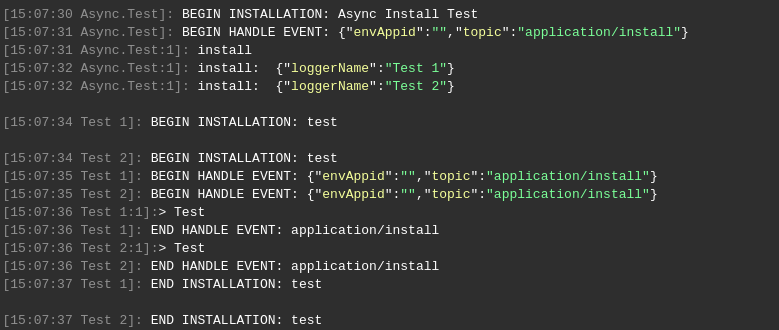
- with parameter of API request:
api.marketplace.jps.Install({ jps: "https://example.com/manifest.jps", loggerName: "Test 1" }); Current Step
To simplify debugging, the number of the current step is added to the logs. As you can see from the examples above, the step number follows the logger name and a colon.
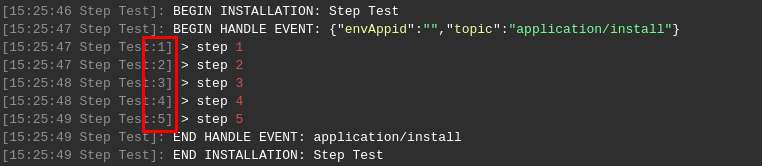
separate log for each node in group
In case the engine splits action execution into separate requests, the logging is performed for each node separately. For example:
- asynchronous execution
cmd [cp, bl]: echo test 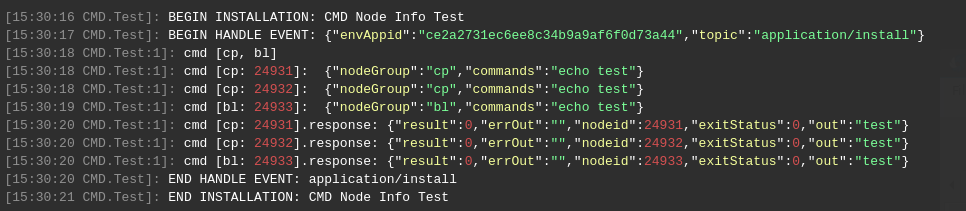
- synchronous execution
sync: true cmd [cp, bl]: echo test 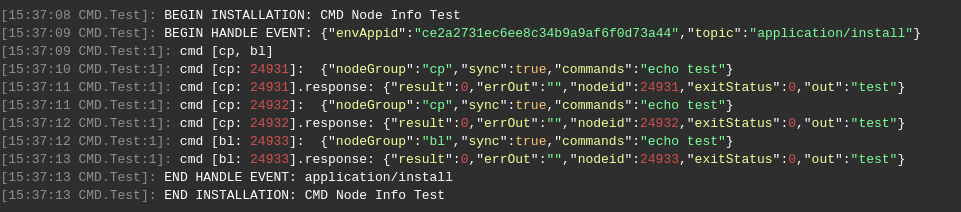
warning
The warnings are highlighted with orange.
onInstall: return: type: warning message: Warning message! 
What's next?
-
Read Realese Notes to find out about the recent CS improvements
-
Find out the correspondence between CS & Virtuozzo Application Platform Versions