






















Arduino Quick Start
2. Devices & Examples
3. M5Unified
4. M5GFX
5. Extensions
Unit
Base
Cap
IoT
Accessories
Chain Joystick Tutorial
1. Preparation
- Environment setup: Refer to Arduino IDE Quick Start to complete IDE installation, and install the corresponding board manager and necessary driver libraries according to the actual development board used.
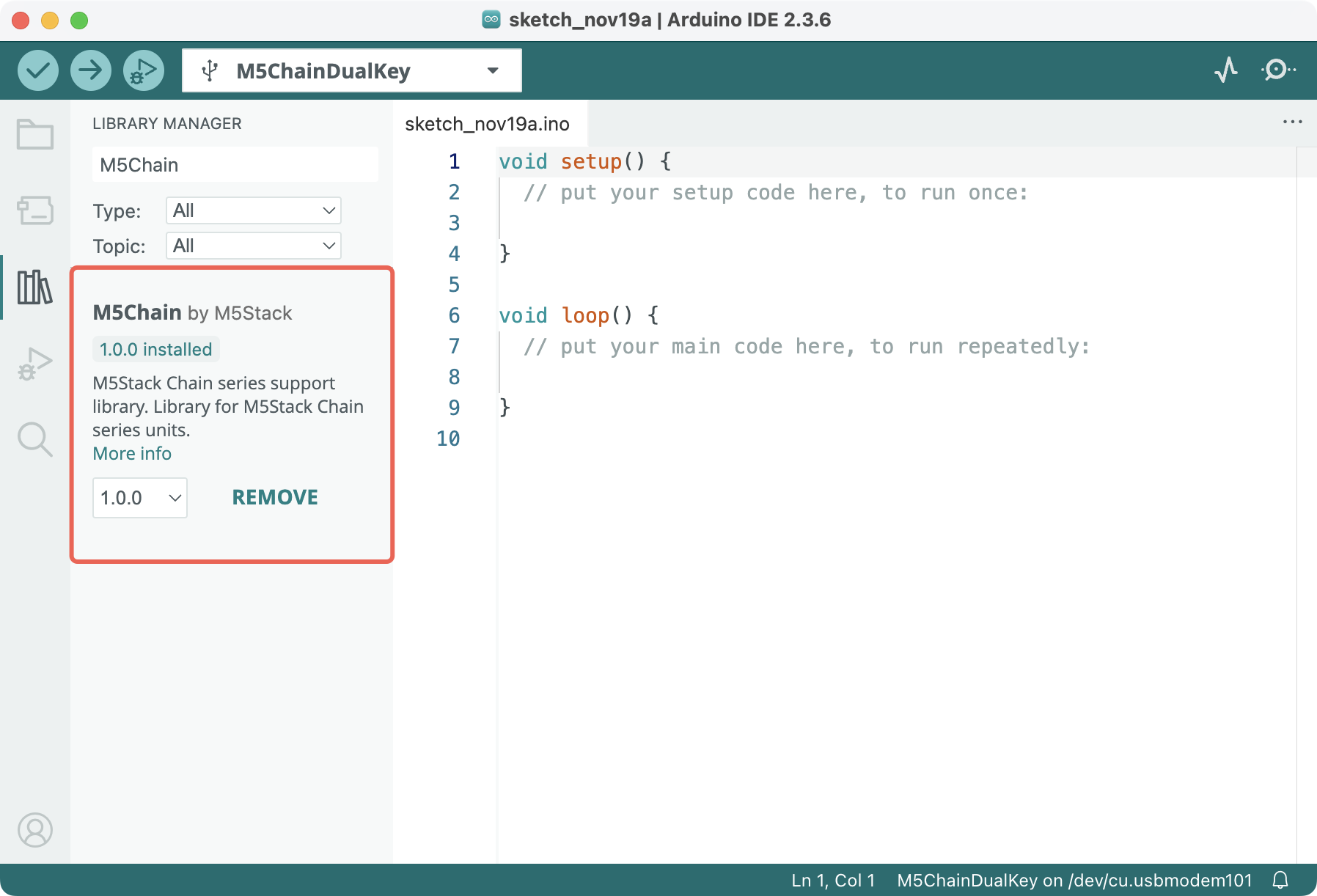
- Libraries used:
- Hardware used:
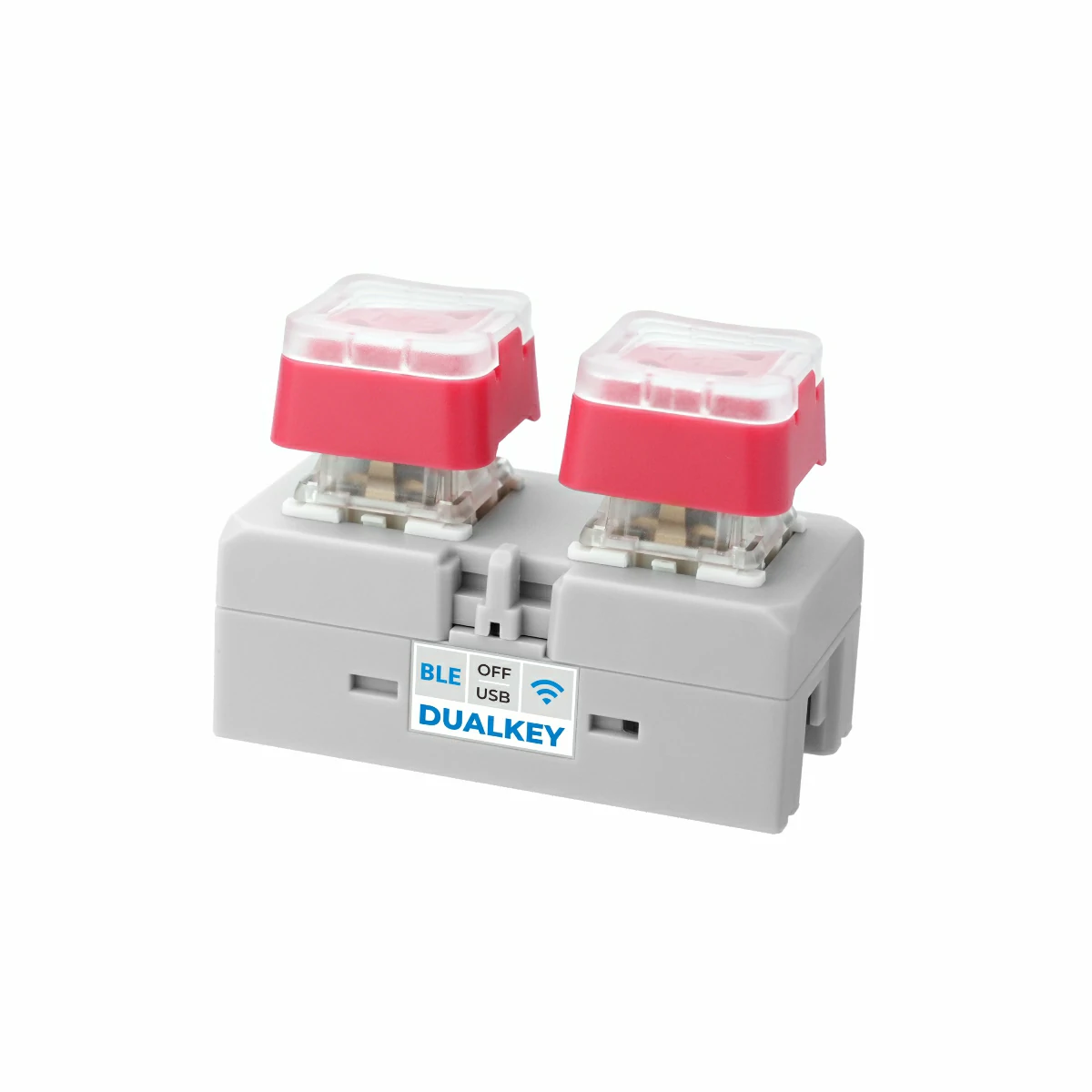
- Chain DualKey
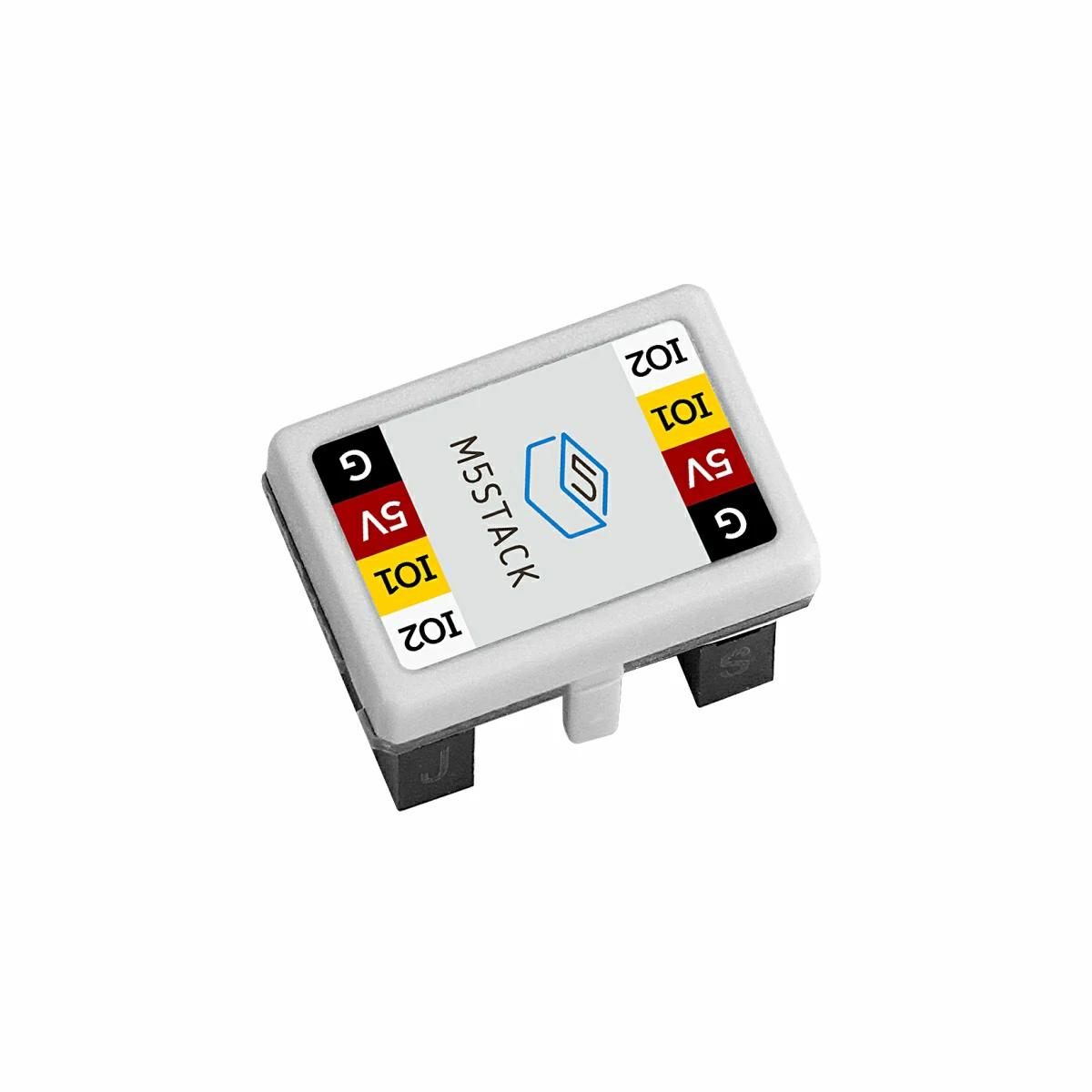
- Chain series connectors, such as Chain Bridge or Chain Return
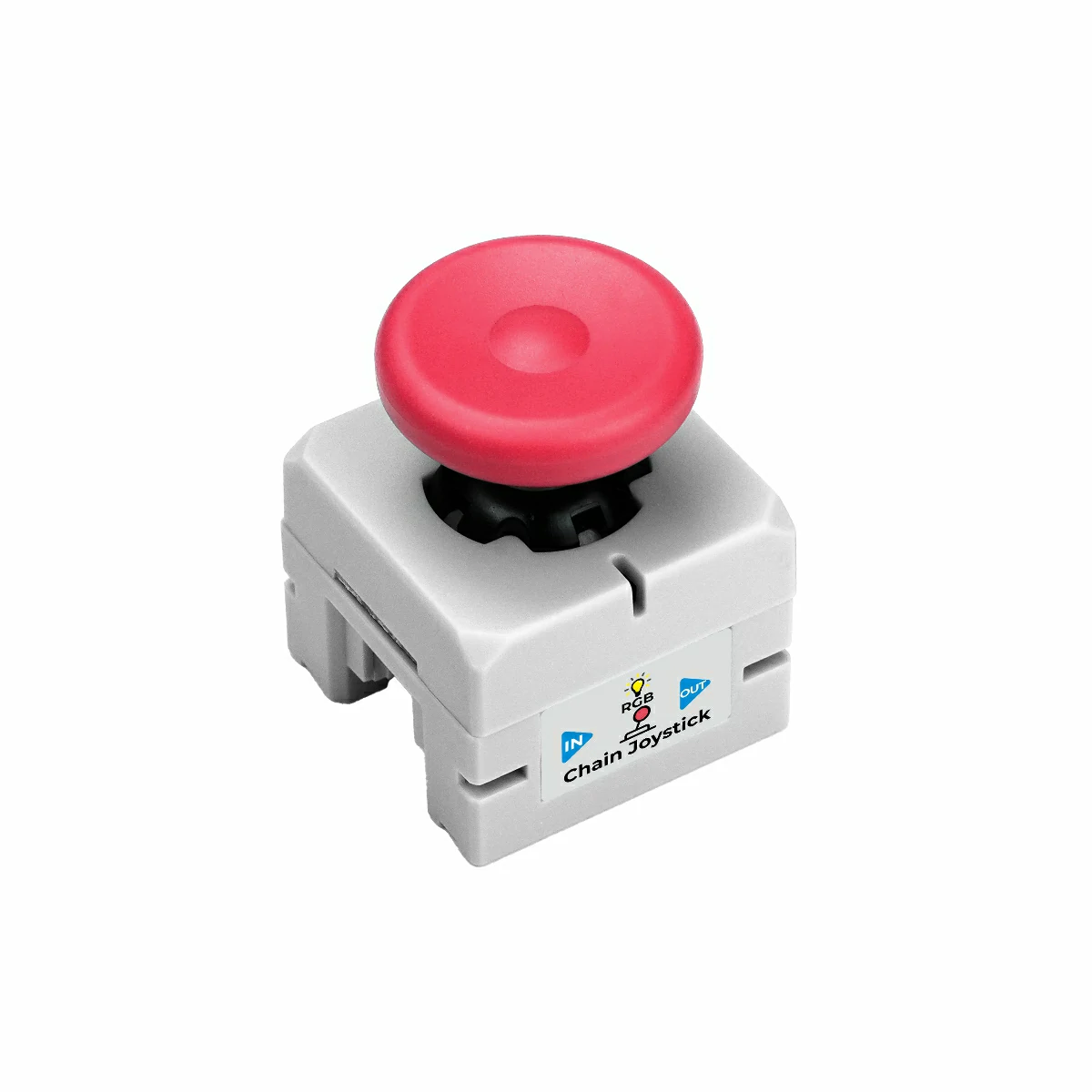
- Chain Joystick
2. Example Program
Compilation Requirements
M5Stack board management version >= 3.2.4
M5Chain library version >= 1.0.0
M5Chain library version >= 1.0.0
cpp
1 2 3 4 5 6 7 8 9 10 11 12 13 14 15 16 17 18 19 20 21 22 23 24 25 26 27 28 29 30 31 32 33 34 35 36 37 38 39 40 41 42 43 44 45 46 47 48 49 50 51 52 53 54 55 56 57 58 59 60 61 62
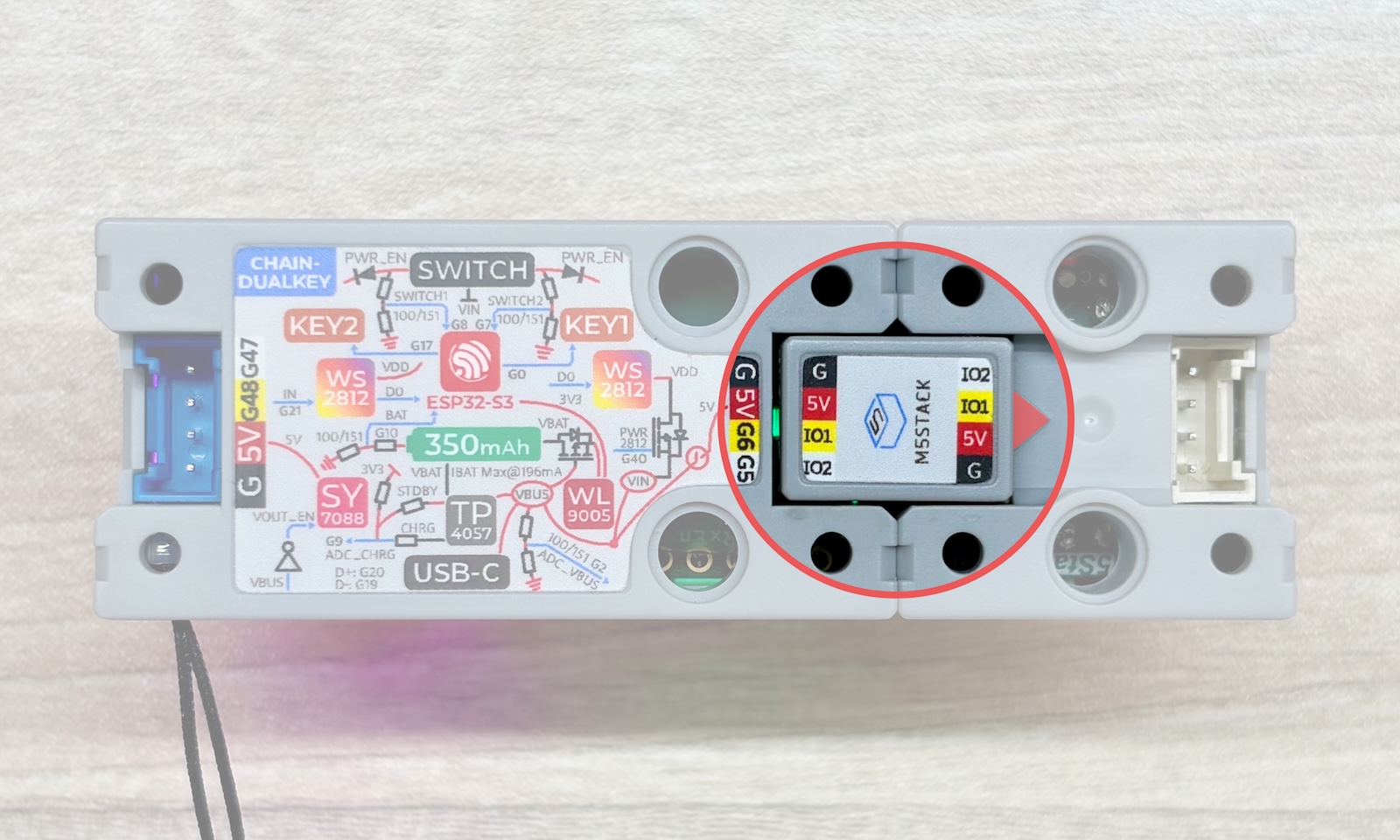
#include "M5Chain.h" #define RXD_PIN GPIO_NUM_5 // 47 for the other side of Chain DualKey #define TXD_PIN GPIO_NUM_6 // 48 for the other side of Chain DualKey Chain M5Chain; device_list_t *device_list = NULL; uint16_t device_count = 0; int16_t x_value, y_value; uint8_t button_status; chain_button_press_type_t button_press_type; void setup() { Serial.begin(115200); delay(1000); Serial.println("==========================="); Serial.println("M5Stack Chain Joystick Test"); M5Chain.begin(&Serial2, 115200, RXD_PIN, TXD_PIN); M5Chain.getDeviceNum(&device_count); device_list = (device_list_t *)malloc(sizeof(device_list_t)); device_list->count = device_count; device_list->devices = (device_info_t *)malloc(sizeof(device_info_t) * device_count); M5Chain.getDeviceList(device_list); if (device_list->devices[0].device_type == CHAIN_JOYSTICK_TYPE_CODE) { Serial.println("ID[1] is Chain Joystick\n"); delay(1000); } else { Serial.println("ID[1] is NOT Chain Joystick\n"); return; } } void loop() { M5Chain.getJoystickMappedInt16Value(1, &x_value, &y_value); // Device ID Serial.print("x_value:"); Serial.println(x_value); Serial.print("y_value:"); Serial.println(y_value); M5Chain.getJoystickButtonStatus(1, &button_status); // Device ID Serial.print("button_status:"); Serial.println(button_status); while (M5Chain.getJoystickButtonPressStatus(1, &button_press_type)) { // Device ID switch (button_press_type) { case CHAIN_BUTTON_PRESS_SINGLE: Serial.println("Single pressed"); break; case CHAIN_BUTTON_PRESS_DOUBLE: Serial.println("Double pressed"); break; case CHAIN_BUTTON_PRESS_LONG: Serial.println("Long pressed"); break; } } }Use the Chain Bridge connector to connect the main controller Chain DualKey and Chain Joystick. Pay attention to the direction when connecting — the triangular arrow should point outward from the main controller Chain DualKey, as shown below:
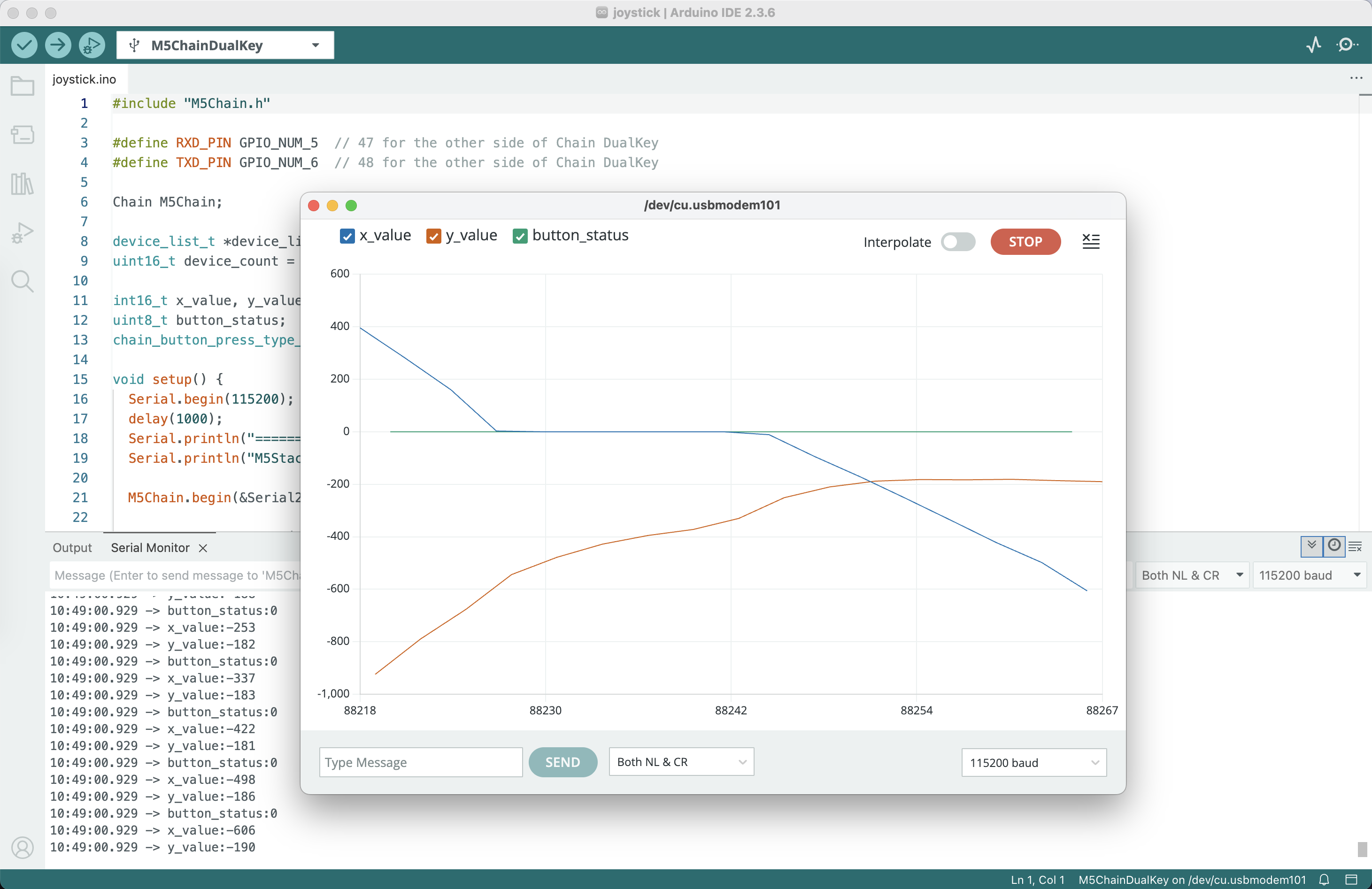
Compile and upload the above program to the device. Click the Serial Plotter button in the upper right corner of Arduino IDE. Move the joystick on the Chain Joystick; the X and Y values will be displayed in real time on the chart:
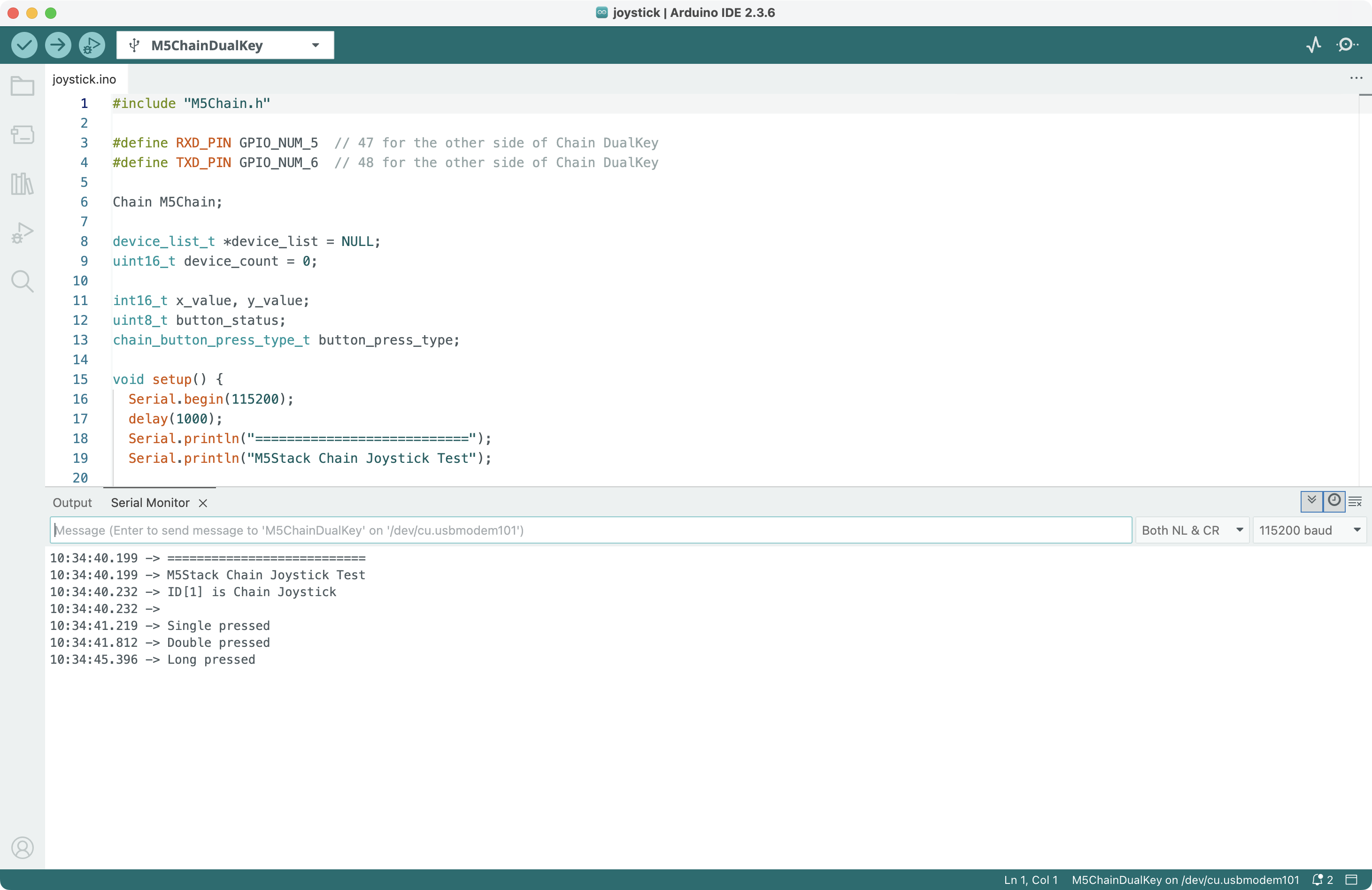
Comment out the first two code segments in the loop section (lines 39–47) of the above program and upload again. Open the serial monitor — the program will detect joystick press events (single press, double press, long press) and output messages: