


Programming Gambas from Zip/SQLite
SQLite Databases
[edit | edit source]
A database is a file on the hard drive that has a structure to it so that it can hold large amounts of information and access it quickly.
SQLite is one type of database. It was written by Dwayne Richard Hipp (born 1961 in North Carolina). It was first released in August 2000. It is public domain, meaning anyone can use it free of charge. Google Chrome, Firefox, the Android operating system for smartphones, Skype, Adobe Reader and the iPhone all use SQLite. It’s just nice. And you pronounce it “S Q L Lite”, so saith Wikipedia.
Databases store information in tables. Gambas has a tableview. This, too, has rows and columns. You can think of a database table as an invisible tableview in the database file.
- Rows are called Records. Columns are called Fields.
For example, a teaching might have a database with a Students table. In that table there is a row for every student. Looking across the row you see StudentID, FirstName, LastName, Sex, DateOfBirth, Address, PhoneNumber. These are the fields. They are the columns.
| StudentID | FirstName | LastName | Sex | DateOfBirth | Address | PhoneNumber |
| 2019001 | Mary | Smith | F | 2008-06-23 | 21 Holly Crt, Bundaberg | 07324657 |
| 2019002 | Jim | Jones | M | 2003-02-19 | 14 Primrose St, Bundaberg | 07123456 |
| 2019003 | Lucy | Watkins | F | 2003-10-05 | 5 Flower St, Bundaberg | 07938276 |
This could be a TableView, or a Table in a Database file.
Every database table has to have a Primary Key. Every record must have a unique value for this field: one that no one else shares. The simplest is to call it RecID and number 1, 2, 3... etc. In the table above, the primary key is going to be the StudentID and it is an integer. The first four digits are the year of enrolment. (We could have another column for YearOfEnrolment and just use a sequence number for the StudentID.)
In SQLite all data is stored as strings, even though you might specify some columns as integers, others as strings and others as dates. SQLite is very forgiving: you can put things that aren’t numbers into integer columns and so on, but try not to. Empty cells are NULL. Try to avoid those, too. When you make a new blank record, initialise values to the empty string, “”.
Including the Database Facility
[edit | edit source]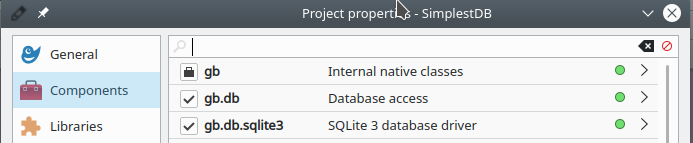
SQLite is a component (optional part) of Gambas. There is also a Database access component. On the Project Menu > Properties… > Components page, be sure to tick gb.db and gb.db.sqlite3. Without these components in your project you will get errors as soon as you try to run your program.
SQL — Structured Query Language
[edit | edit source]You send messages to SQLite and it sends answers back to you using a special language called SQL (“S Q L” or “sequel”, pronounce it either way.) This means learning another language, but the simple statements that are used most frequently are not difficult to learn. They are the only ones I know, anyway. SQL was invented by Donald D. Chamberlin and Raymond F. Boyce and first appeared in 1974. SQL is so universal that everyone who writes databases knows of it. It is an international standard. SQLite is one implementation of it.
For example, you might send a message to SQLite saying
SELECT * FROM Students This says, “select everything from the Students table”. This gives you the whole table. Or you might only want the students who are male:
SELECT * FROM Students WHERE Sex = 'M' Perhaps you want everyone, but you want the females first and the males second:
SELECT * FROM Students ORDER BY Sex That will get the females first, because “F” comes before “M”. The females will all be in random order and likewise the males unless you write
SELECT * FROM Students ORDER BY Sex DESC, LastName ASCSELECT * FROM Students ORDER BY Sex DESC, LastName ASC This returns a table to you with males first (alphabetically by surname) followed by females (alphabetically by surname). You might only want the students names, so you could write
SELECT FirstName, LastName FROM Students ORDER BY LastName Perhaps you want only those students who were enrolled in 2019. Now, this is part of the StudentID. You want only those students whose StudentID number starts with “2019”. You use a “wildcard”. The percent (%) sign means “anything here will do”.
SELECT FirstName, LastName FROM Students WHERE StudentID LIKE '2019%' When you send these SELECT statements to the database, SQLite will send you back a table. Gambas calls it a RESULT. Suppose you have a database called db1 (as far as Gambas is concerned) and it is attached to MyStudentDatabase.sqlite which is the actual database file on your hard drive. You need a result to store the reply:
Dim res as Result res = db1.exec("SELECT * FROM Students") res has the information you asked for. You might want to print the information, or show it in a tableview, or hold it internally in arrays so you can do calculations on it. You need to cycle through the records thus:
While res.Available 'do something with res!FirstName, res!LastName and res!DateOfBirth etc res.MoveNext Wend For displaying information in a tableview there is a special event that is triggered each time a cell has to have its contents painted on the screen. It is particularly useful if your set of records is large. The tableview does not have to hold all the information from all the records in itself. It can get the information as it needs it for when it has to be displayed. Be a little careful here: if you are depending on all the information being in the tableview, it may or it may not be all there. This is an example of using the _Data event, getting the information from the result table res when it is needed to display a particular cell in the tableview:
Public Sub TableView1_Data(Row As Integer, Column As Integer) res.MoveTo(row) If Column = 0 Then TableView1.Data.Text = res!FirstName Else TableView1.Data.Text = res!LastName Endif End Notice the use of TableView1.Data.Text , which represents the text in the cell.
Notice we have result.MoveTo to go to a particular record, result.MoveNext if we are stepping through them one at a time, and result.Available to check to see if there is another record to MoveNext to. Useful in setting the number of rows to have in your tableview is result.RecordCount.
Besides accessing the information in the database, with databases you want to be able to:
- Add records
- Delete records
- Modify records
All but the simplest databases have more than one table in them. Tables can be linked to each other, so records can have signposts in them to indicate lines in other tables that apply. The signpost is the record ID or other primary key of a record in another table. For example, a database of political candidates might have a signpost to the party they belong to. SQL is so smart it can look up the two tables at once to provide you with the information you need, for example this ‘join’ of two tables. (Candidates are in a particular party, and it is the parties that have policies on a variety of issues.)
SELECT Candidate,PolicyOnPensions FROM Candidates,Parties WHERE Candidate.PartyID = Parties.PartyID AND Candidates.Electorate="Fairfax" Database with a Single Table, to be filled with Random Numbers
[edit | edit source]The next program comes from https://kalaharix.wordpress.com/Gambas/creating-a-databases-and-tables-from-Gambas/ slightly rearranged. It creates a database in your home folder called Test.sqlite, fills it with random two-digit numbers, then accesses the database to show them in a tableview.
You need a form with a tableview called tv1. Make it long and thin, as it has 2 columns.
The code is
' Gambas class file Private db1 As New Connection Private rs As Result Public Sub SetupTableView() tv1.header = GridView.Horizontal tv1.grid = True tv1.Rows.count = 0 tv1.Columns.count = 2 tv1.Columns[0].text = "RecID" tv1.Columns[1].text = "Value" tv1.Columns[0].width = 55 tv1.Columns[1].width = 55 End Public Sub CreateDatabase() db1.Type = "sqlite" db1.host = User.home db1.name = "" 'delete an existing test.sqlite If Exist(User.home & "/Test.sqlite") Then Kill User.home & "/Test.sqlite" Endif 'create test.sqlite db1.Open db1.Databases.Add("Test.sqlite") db1.Close End Public Sub MakeTable() Dim hTable As Table db1.name = "Test.sqlite" db1.Open hTable = db1.Tables.Add("RandomNumbers") hTable.Fields.Add("RecID", db.Integer) hTable.Fields.Add("Value", db.Integer) hTable.PrimaryKey = ["RecID"] hTable.Update End Public Sub FillTable() Dim i As Integer Dim rs1 As Result db1.Begin rs1 = db1.Create("RandomNumbers") For i = 1 To 10000 rs1!RecID = i rs1!Value = Rand(10, 99) rs1.Update Next db1.Commit Catch db1.Rollback Message.Error(Error.Text) End Public Sub ReadData() 'read the database Dim SQL As String = "SELECT * FROM RandomNumbers" rs = db1.Exec(SQL) End Public Sub Form_Open() SetupTableView CreateDatabase MakeTable FillTable ReadData End Public Sub Form_Activate() 'change the rowcount of the gridview from 0 to the number of records. 'This triggers the data handling event tv1.Rows.Count = rs.Count End Public Sub tv1_Data(Row As Integer, Column As Integer) rs.moveTo(row) If Column = 0 Then tv1.Data.Text = rs!RecID Else tv1.Data.Text = rs!Value 'If Column = 0 Then tv1.Data.Text = Str(rs["RecID"]) Else tv1.Data.Text = Str(rs["Value"]) 'Either of these two lines will do it. End Public Sub Form_Close() db1.Close End When you work with a database a temporary “journal” file is created. That file is incorporated into the database when it is “committed”. If you don’t want to commit, you “rollback” the database to what it was before you made these latest changes. The temporary file contains the “transaction”, meaning the latest work you have just done to change the database. That is what the db1.Begin, db1.Commit and db1.Rollback mean.
The above program is a good template to adapt when making a database.
A Cash Spending Application
[edit | edit source]This application saves records of cash spending. You can allocate each expenditure to a category. Each time you allocate to a category, totals are worked out for the categories and you can see what fraction of your spending went to each of the categories.
If you know you spent, say, €100, and you can only account for, say €85, you can distribute the remaining €15 among the categories.
Before letting loose on the code and after a look at the form we shall take a look at the process of designing such an application.
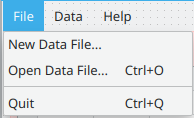
The File menu has items MenuNewDatabase, MenuOpen and MenuQuit.
The Data Menu has items MenuNewSpending, MenuNewCategory, MenuClearSpending, MenuClearCategories, MenuRound, MenuUnselectAll, MenuCalculate and MenuCopy.
The Help menu is optional.
The textbox whose name you cannot quite see above is tbDistribute.

The program starts by opening the last database file that was open, or prompting to make a new one if it is the first time, or locating it if you sneakily moved it since the last time it was open. It also starts with a blank row in the Spending and Categories tableviews.
When a category is chosen for the selected spending line (click a category line anywhere except in the name column and press Enter) the category totals and percentages are recalculated.
Typing in the Target textbox is optional. If there is a number in it, “Still to do” will be calculated.
Internally, the database has two tables called Spending and Categories. You can see two tableviews corresponding to the two database tables. These are the fields in each table:
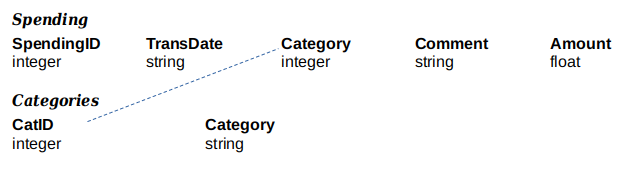
The two primary keys are SpendingID and CatID. They number the records in sequence (1, 2, 3...)
The Spending table’s Category field contains a number which, when you look it up in the Categories table, gives you the category name. This is good: if you change the spelling of a category name you only have to change it once.
Hidden Columns
[edit | edit source]The user does not need to see the record IDs. They are internal to the database. They have to be unique: each record must have its own record ID. They are the primary keys of the Spending and Categories tables. They will be the very first columns in the tableviews, but they will be hidden from view (zero width). Also, in the Spending table, the user does not want to see the Category ID (the reference to one of the categories). It will be the last column in the Spending table, and also zero width. The columns start from zero, so it is column 5, just to the right of the Amount column.
List the Jobs
[edit | edit source]Having sketched out a form design and planned the tables and fields with pencil and paper, we next think of what we want the program to do. It is good to keep in mind the things databases do: Add, Delete, Modify (as well as display the data). Here is a list. These are going to be the subs.
| Database | |
| NewDatabase | Create a new database file on disk with its two tables |
| OpenDatabase | Open the database and display what is in it on startup |
| General | |
| Calculate | Add up totals and work out percentages for each category |
| DoTotals | Grand totals for amounts in spending and categories tables |
| SetupTableViews | The right number of rows and columns and column headings |
| Spending Table | |
| NewSpending | Add a record to the Spending table |
| ShowSpending | Display what is in the Spending table in tv1, the tableview |
| TidySpendingTable | The final part of ShowSpending, really. Alternating blue lines |
| SumSpending | Part of “DoTotals”; add up all the spending totals |
| Clear a category (make it a right-click menu) | |
| Delete a record when you press DEL or BACKSPACE on a selected line | |
| Categories Table | |
| NewCategory | Add a record to the Categories table |
| ShowCategories | Display what is in the Categories table in tvCategories |
| TidyCategoriesTable | The final part of ShowCategories. Alternating blue lines. |
| SumCategories | Part of “DoTotals”; add up all the category amounts |
| Insert default categories into the categories table (a menu item) | |
| EnterOnCategoryLine | Enter on a line inserts category on the selected spending line. |
| Delete a record when you press DEL or BACKSPACE on a selected line | |
| Other Features | |
| Work out how much is left to allocate | |
| Distribute what is left among the categories | |
| A Help window | |
| Save what database we are using in Settings for next time | |
| Copy everything as text, to paste into a word processing document | |
| Round numbers to whole euros (and check totals are not out by one) | |
| A Quit menu item to close the program | |
| Useful Functions | |
| CategoryNameFromID | Given the CatID number, return the Category Name (a string) |
| Massage | Given the user’s choice of filename, remove bad characters |
Now it is time to program. Write the subs. Work out when they will be called on to do their work. Some can be consigned to menus. Some can happen when you click things. You are the one who is going to use this program: Do you want to click buttons? Do you want windows to pop up when you add a new category or a new spending transaction? Are there nice ways of doing things—intuitive ways—so things can happen naturally, as a new user might expect them to happen? We do some thinking and come up with some ideas:
- We can do with a blank row in each table to start with, that you can type in.
- When you finish typing in a cell, save that cell. Avoid having to click a Save button.
- When you press Enter in the last cell of the line, make a new line.
- When a category line is selected and the user presses Enter, put that category into whatever line in the spending table that is selected (highlighted). Move to the next spending line that doesn’t have a category so you can click a category line and Enter it. So you can enter categories for all the lines at the end, after you have entered everything else.
- When you start, open the same database you had open last time. If none, give a choice of creating a new database or browsing to find the database that you moved or somebody may have given to you on a USB or in an email.
- Edit a category by clicking on it.
- Edit a cell in the spending table by clicking on it (except the category — just Enter on a line in the categories table to put a new one in.)
- When you allocate a spending line to a category, recalculate the percentages for all categories.
- When you change the total in the Target textbox, do a subtraction to find out how much you still have left to allocate.
- Put blanks into cells that have nothing in them rather than zeros.
- Pressing Delete or backspace in either of the tableviews will delete the selected (highlighted) line and delete its record from the database. No questions, no confirmation request—it just does it. Only one line can be deleted at a time, and it is easy enough to re-enter if you press Delete by mistake.
- If the first cell on a tableview row has a record ID number in it, the record exists and saving just has to update it. If it is blank, the database has to first create a new record, giving it the next highest record number, put its record number in the first cell, and then update it.
Here are the names of the objects on the form FMain:
Panels: Panel1 (pink), Panel2 (blue)
Labels saying “Spending”, “Categories”, “Target:”, “= Done:”, “+ Still to do:”, “Amount:”
Labels called “LabSpendingTotal” and “LabCategoriesTotal” top right of the tableviews.
TableViews: tv1 for spending and tvCategories
TextBoxes: tbTarget, tbDone, tbToDo, tbDistribute
Button: bDistribute
File Menu: MenuNewDatabase, MenuOpen (Ctrl-O), MenuQuit (Ctrl-Q)
Data Menu: MenuNewSpending (Ctrl-N), MenuNewCategory (Ctrl-K), MenuClearSpending, MenuClearCategories, MenuDefaultCategories, MenuRound (Ctrl-R), MenuUnselectAll (Ctrl-Space), MenuCalculate (F4), MenuCopy (Ctrl-C)
Help Menu: Help and Instructions (F1) (Opens a separate form called Help. Put on it what you like.)
Category Menu (invisible, so it is not on the main menubar): MenuClearCategory (This one pops up with you right-click a category cell in the spending table.)
Here is the code. Following it is an explanation of the SQL statements.
Public fdb As New Connection 'finance database Public rs As Result 'result set after querying database Public SQL As String Public Sub Form_Open() SetUpTableViews If IsNull(Settings["Database/host"]) Then Select Case Message.Question("Create a new data file, or open an existing one?", "New...", "Open...", "Quit") Case 1 'new NewDatabase Case 2 'open OpenDatabase(Null, Null) Case Else Quit End Select Else OpenDatabase(Settings["Database/host"], Settings["Database/name"]) Endif End Public Sub Form_Close() fdb.Close 'close connection End Public Sub OpenDatabase(dbHost As String, dbName As String) 'if these are null, ask where the database is If Not Exist(dbHost &/ dbName) Or IsNull(dbHost) Then 'it's not where it was last time, or path not supplied Dialog.Title = "Where is the database?" Dialog.Filter = ["*.db"] Dialog.Path = User.Home &/ "Documents/" If Dialog.OpenFile() Then Return ' User pressed Cancel; still can't open a database Dim s As String = Dialog.Path Dim p As Integer = RInStr(s, "/") 'position of last slash fdb.host = Left(s, p) fdb.Name = Mid(s, p + 1) Else fdb.host = dbHost fdb.Name = dbName End If Try fdb.Close fdb.type = "sqlite3" Try fdb.Open If fdb.Opened Then FMain.Caption = fdb.host &/ fdb.Name Settings["Database/host"] = fdb.host Settings["Database/name"] = fdb.Name Else Message.Info("<b>Couldn't connect.</b><br><br>... please try again or create a new database.") Return Endif ShowSpending ShowCategories Calculate End Public Sub NewDatabase() Dialog.Path = User.Home & "/" 'setting it to "~/" doesn't work Dialog.Title = "Create a New Database" If Dialog.SaveFile() Then Return 'clicked Cancel Dim s As String = Dialog.Path & ".db" Dim p As Integer = RInStr(s, "/") 'position of last slash Dim FName As String = Mid(s, p + 1) fdb.host = Left(s, p) fdb.Name = "" 'This MUST be left blank. If not, database file will not be created fdb.Type = "sqlite3" If Exist(s) Then Kill s 'delete existing file of that name fdb.Close Try fdb.Open 'opens a connection to the database; do this after setting properties and before creating If Error Then Message("Unable to open the database file<br><br>" & Error.Text) Return Endif fdb.Databases.Add(fName) 'does the creating fdb.Close Dim dbTable As Table fdb.name = fName Try fdb.Open If Not fdb.opened Then Message("Unable to open the data file") Return Endif dbTable = fdb.Tables.Add("Spending") dbTable.Fields.Add("SpendingID", db.Integer) dbTable.Fields.Add("TransDate", db.String) dbTable.Fields.Add("Category", db.Integer) dbTable.Fields.Add("Comment", db.String) dbTable.Fields.Add("Amount", db.Float) dbTable.PrimaryKey = ["SpendingID"] dbTable.Update rs = fdb.Create("Spending") If fdb.Error Then Message("Couldn't create the Spending table.<br><br>: " & Error.Text) Return Endif rs!SpendingID = 1 rs!TransDate = "" rs!Category = 0 rs!Comment = "" rs!Amount = 0.0 rs.Update fdb.Commit If fdb.Error Then Message("Couldn't save a first record in the Spending table.<br><br>: " & Error.Text) Return Endif fdb.Close fdb.name = fName Try fdb.Open If Not fdb.opened Then Message("Unable to open the data file") Return Endif dbTable = fdb.Tables.Add("Categories") dbTable.Fields.Add("CatID", db.Integer) dbTable.Fields.Add("Category", db.String) dbTable.PrimaryKey = ["CatID"] dbTable.Update rs = fdb.Create("Categories") If fdb.Error Then Message("Couldn't create the Categories table.<br><br>: " & Error.Text) Return Endif rs!CatID = 1 rs!Category = "" rs.Update fdb.Commit If fdb.Error Then Message("Couldn't save a first record in the Categories table.<br><br>: " & Error.Text) Return Endif End Public Sub DoTotals() labCategoriesTotal.Text = SumTheCategories() labSpendingTotal.text = SumTheSpending() tbDone.Text = labSpendingTotal.Text End Public Sub ShowSpending() rs = fdb.Exec("SELECT * FROM Spending") Dim L, CatID As Integer Dim CatName As String tv1.Rows.Count = 0 'clear If Not IsNull(rs) Then While rs.Available tv1.Rows.Count += 1 L = tv1.Rows.max tv1[L, 0].text = rs!SpendingID tv1[L, 1].Text = rs!TransDate tv1[L, 2].Text = Format(rs!Amount, "0.00") CatName = rs!Category If Not IsNull(CatName) Then CatID = If(IsNull(Val(CatName)), -1, Val(CatName)) If CatID > -1 Then tv1[L, 3].Text = CategoryNameFromID(CatID) Endif tv1[L, 4].Text = rs!Comment tv1[L, 5].Text = rs!Category 'Category ID in this hidden column rs.MoveNext Wend Endif If tv1.Rows.Count = 0 Then tv1.Rows.Count = 1 TidySpendingTable End Public Sub ShowCategories() rs = fdb.Exec("SELECT * FROM Categories") Dim L As Integer Dim t As Float tvCategories.Rows.Count = 0 'clear If Not IsNull(rs) Then While rs.Available tvCategories.Rows.Count += 1 L = tvCategories.Rows.max tvCategories[L, 0].text = rs!CatID tvCategories[L, 3].Text = rs!Category rs.MoveNext Wend Endif If tvCategories.Rows.Count = 0 Then tvCategories.Rows.Count = 1 TidyCategoriesTable End Public Sub NewSpending() tv1.Rows.count = tv1.Rows.count + 1 tv1.MoveTo(tv1.Rows.Max, 1) tv1.Edit End Public Sub NewCategory() tvCategories.Rows.count = tvCategories.Rows.count + 1 tvCategories.row += 1 tvCategories.Edit End Public Sub tv1_Insert() NewSpending End Public Sub tvCategories_Insert() NewCategory End Public Sub tv1_Click() Select Case tv1.Column Case 1, 2, 4 tv1.Edit Case 3 If tvCategories.Rows.Count > 0 Then tvCategories.SetFocus tvCategories.Rows[0].Selected = True Endif End Select End Public Sub tvCategories_Click() If tvCategories.Column = 3 Then tvCategories.Edit End Public Sub SetUpTableViews() Dim i As Integer tv1.Columns.count = 6 tv1.Rows.count = 1 tv1.Columns[0].Width = 0 tv1.Columns[1].Alignment = Align.Center tv1.Columns[2].Alignment = Align.Right For i = 1 To tv1.Columns.Max - 1 tv1.Columns[i].Width = Choose(i, 80, 80, 130, tv1.Width - tv1.ClientW - 306) tv1.Columns[i].Text = Choose(i, "Date", "Amount", "Category", "Comment") Next tvCategories.Columns.count = 4 tvCategories.Rows.count = 1 tvCategories.Columns[0].Width = 0 For i = 1 To tvCategories.Columns.Max tvCategories.Columns[i].Width = Choose(i, 60, 60, tvCategories.Width - tvCategories.ClientW - 350) tvCategories.Columns[i].Text = Choose(i, "Total", "%", "Category") Next tvCategories.Columns[1].Alignment = Align.right tvCategories.Columns[2].Alignment = Align.Center tv1.Columns[5].Width = 0 End Public Sub TidySpendingTable() For i As Integer = 0 To tv1.Rows.Max For j As Integer = 0 To tv1.Columns.Max If j = 2 Or j = 3 Then tv1[i, j].Padding = 4 If i Mod 2 = 1 Then tv1[i, j].Background = &hF0F0FF Next Next End Public Sub TidyCategoriesTable() For i As Integer = 0 To tvCategories.Rows.Max For j As Integer = 1 To tvCategories.Columns.Max tvCategories[i, j].Padding = 4 If i Mod 2 = 1 Then tvCategories[i, j].Background = &hF0F0FF Next Next End Public Sub Massage(s As String) As String 'Doesn't like spaces or hyphens in file names. Doesn't complain; just doesn't create the file. Dim z As String For i As Integer = 0 To Len(s) - 1 If IsLetter(s[i]) Or IsDigit(s[i]) Or s[i] = "_" Or s[i] = "." Then z &= s[i] Else z &= "_" Next Return z End Public Sub tvCategories_Save(Row As Integer, Column As Integer, Value As String) Dim RecID As Integer Dim OriginalValue As String = tvCategories[Row, Column].Text tvCategories[Row, Column].Text = Value If IsNull(tvCategories[Row, 0].Text) Then 'no record ID, so we need a new record Dim Res As Result SQL = "SELECT MAX(CatID) as 'TheMax' FROM Categories" Res = fdb.Exec(SQL) If IsNull(Res!TheMax) Then RecID = 1 Else RecID = Res!TheMax + 1 tvCategories[Row, 0].Text = RecID SQL = "INSERT INTO Categories(CatID,Category) VALUES(" & RecID & ",'')" fdb.Exec(SQL) If fdb.Error Then Message("Couldn't save:<br><br>" & SQL & "<br><br>" & Error.Text) Endif 'update the record RecID = tvCategories[Row, 0].Text SQL = "UPDATE Categories SET Category = '" & Value & "' WHERE CatID='" & RecID & "'" Try fdb.Exec(SQL) If fdb.Error Then Message("Couldn't save:" & SQL & "<br><br>" & Error.Text) If Value <> OriginalValue Then ShowSpending 'category name was changed End Public Sub tv1_Save(Row As Integer, Column As Integer, Value As String) Dim RecID As Integer Dim FieldName As String = Choose(Column, "TransDate", "Amount", "Category", "Comment") If IsNull(tv1[Row, 0].Text) Then 'There's no Record ID, so insert a new record Dim Res As Result SQL = "SELECT MAX(SpendingID) as 'TheMax' FROM Spending" Try Res = fdb.Exec(SQL) If IsNull(Res!TheMax) Then RecID = 1 Else RecID = Res!TheMax + 1 tv1[Row, 0].Text = RecID SQL = "INSERT INTO Spending(SpendingID,TransDate,Amount,Category,Comment) VALUES('" & RecID & "',' ',' ',' ',' ')" Try fdb.Exec(SQL) If Error Then Message("Couldn't save: " & Error.Text) Return Endif Endif 'update record RecID = tv1[Row, 0].Text SQL = "UPDATE Spending SET " & FieldName & " = '" & Value & "' WHERE SpendingID='" & RecID & "'" Try fdb.Exec(SQL) If Error Then Message("Couldn't save:" & SQL & "<br><br>" & Error.Text) Return Endif If Column = 2 Then tv1[Row, Column].Text = Format(Val(Value), "###0.00") Calculate 'amount has changed Else tv1[Row, Column].Text = Value Endif Catch Message("Couldn't save ... have you created and opened a database yet?") Stop Event 'Don't go automatically to the next cell. If you do, you'll get this message twice. End Public Sub tv1_KeyPress() Select Case Key.Code Case Key.BackSpace, Key.Del 'remove record Dim RecID As Integer = tv1[tv1.Row, 0].Text SQL = "DELETE FROM Spending WHERE SpendingID='" & RecID & "'" Try fdb.Exec(SQL) If Error Then Message("Couldn't delete<br><br>" & Error.Text) Else tv1.Rows.Remove(tv1.Row) If tv1.Rows.Count = 0 Then tv1.Rows.Count = 1 Endif Case Key.Enter, Key.Return If tvCategories.Rows.Count > 0 Then tvCategories.SetFocus tvCategories.Rows[0].Selected = True Endif End Select End Public Sub tvCategories_KeyPress() Select Case Key.Code Case Key.BackSpace, Key.Del 'remove record Dim RecID As Integer = tvCategories[tvCategories.Row, 0].Text SQL = "DELETE FROM Categories WHERE CatID='" & RecID & "'" Try fdb.Exec(SQL) If Error Then Message("Couldn't delete<br><br>" & Error.Text) Else tvCategories.Rows.Remove(tvCategories.Row) Endif Case Key.Enter, Key.Return EnterOnCategoryLine 'action on pressing Enter tvCategories.UnSelectAll End Select End Public Sub MenuClearSpending_Click() fdb.Exec("DELETE FROM Spending") tv1.Rows.count = 1 tv1.Clear End Public Sub MenuClearCategories_Click() fdb.Exec("DELETE FROM Categories") tvCategories.Rows.count = 1 tvCategories.Clear End Public Sub CategoryNameFromID(ID As Integer) As String Dim res As Result = fdb.Exec("SELECT Category FROM Categories WHERE CatID=" & ID) If Not res.Available Then Return "?" If IsNull(res!Category) Then Return "-" Return res!Category End Public Sub EnterOnCategoryLine() 'apply this category to the selected Spending line If tv1.row < 0 Then Return If IsNull(tv1[tv1.row, 0].text) Then Message("Please save this spending record first by entering some other item of data; there's no record ID yet.") Return Endif tv1[tv1.row, 3].text = tvCategories[tvCategories.row, 3].Text Dim CategoryID As String = tvCategories[tvCategories.row, 0].Text Dim SpendingID As String = tv1[tv1.row, 0].text tv1[tv1.row, 5].text = CategoryID SQL = "UPDATE Spending SET Category='" & CategoryID & "' WHERE SpendingID='" & SpendingID & "'" Try fdb.Exec(SQL) If Error Then Message("Couldn't save the category<br><br>" & SQL & "<br><br>" & Error.text) Return Endif Calculate For i As Integer = tv1.row To tv1.Rows.Max If IsNull(tv1[i, 3].text) Then tv1.Rows[i].Selected = True 'select the next Spending row that needs a category tvCategories.SetFocus Return Endif Next tv1.SetFocus End Public Sub Calculate() Dim i, j, CategoryID As Integer Dim t, GrandTotal As Float Dim res As Result Dim s As String For i = 0 To tvCategories.Rows.Max 'every category If IsNull(tvCategories[i, 0].Text) Then Continue CategoryID = tvCategories[i, 0].Text Try Res = fdb.Exec("SELECT Total(Amount) AS TotalAmount FROM Spending WHERE Category=" & CategoryID) If Error Then Message("Couldn't total<br><br>" & Error.Text) Continue Endif While res.Available t = res!TotalAmount GrandTotal += t If t = 0 Then tvCategories[i, 1].Text = "" Else tvCategories[i, 1].Text = Format(t, "##0.00") res.MoveNext Wend Next If GrandTotal = 0 Then Return For i = 0 To tvCategories.Rows.Max s = tvCategories[i, 1].Text If Not IsNull(s) And If Val(s) > 0 Then tvCategories[i, 2].Text = Format(100 * Val(s) / GrandTotal, "##0.##") Else tvCategories[i, 2].Text = "" Next tbDone.Text = Format(GrandTotal, "##0.00") labSpendingTotal.Text = tbDone.Text labCategoriesTotal.Text = SumTheCategories() If Not IsNull(tbTarget.text) Then tbToDo.Text = Format(Val(tbTarget.Text) - GrandTotal, "##0.00") tbDistribute.Text = tbToDo.Text Endif End Public Sub SaveCategoriesTable() For i As Integer = 0 To tvCategories.Rows.Max SaveCategoryLine(i) Next End Public Sub SaveCategoryLine(i As Integer) 'i is the line number Dim RecID As Integer Dim t, pct As Float Dim s, CategoryName As String Dim res As Result RecID = Val(tvCategories[i, 0].Text) CategoryName = tvCategories[i, 3].Text t = If(IsNull(tvCategories[i, 1].Text), 0, Val(tvCategories[i, 1].Text)) s = tvCategories[i, 2].Text pct = If(IsNull(s), 0, Val(s)) If IsNull(RecID) Then 'new record needed res = fdb.Exec("SELECT Max(CatID) AS MaxCatID FROM Categories") RecID = res!MaxCatID + 1 SQL = "INSERT INTO Categories(CatID,Category) VALUES(" & RecID & "," & CategoryName & ")" fdb.Exec(SQL) If Error Then Message("Couldn't insert a new record<br><br>" & SQL & "<br><br>" & Error.text) Return Endif Else SQL = "UPDATE Categories SET Category='" & CategoryName & "' WHERE CatID=" & RecID Try fdb.Exec(SQL) 'before checking Error, don't forget to use TRY. Otherwise Error will be set and you'll seem to have an error when you don't If Error Then Message("Couldn't update a record<br><br>" & SQL & "<br><br>" & Error.text) Return Endif Endif End Public Sub SumTheCategories() As String Dim t As Float Dim s As String For i As Integer = 0 To tvCategories.Rows.Max s = tvCategories[i, 1].Text If Not IsNull(s) Then t += Val(s) Next Return Format(t, "##0.00") End Public Sub SumTheSpending() As String Dim t As Float Dim s As String For i As Integer = 0 To tv1.Rows.Max s = tv1[i, 2].Text If Not IsNull(s) Then t += Val(s) Next Return Format(t, "##0.00") End Public Sub MenuCalculate_Click() Calculate End Public Sub tbTarget_LostFocus() If Not IsNull(tbTarget.text) Then tbTarget.Text = Format(Val(tbTarget.Text), "##0.00") Else tbTarget.Text = "" Calculate End Public Sub tbTarget_KeyPress() If Key.Code = Key.Enter Or Key.Code = Key.Return Then FMain.SetFocus End Public Sub bDistribute_Click() Dim t, pct, y, z As Float If IsNull(tbDistribute.Text) Then Return Dim x As Float = Val(tbDistribute.Text) For i As Integer = 0 To tvCategories.Rows.Max If IsNull(tvCategories[i, 1].Text) Then Continue If IsNull(tvCategories[i, 2].Text) Then Continue t = Val(tvCategories[i, 1].Text) pct = Val(tvCategories[i, 2].Text) y = t + pct / 100 * x z += y 'running total If y = 0 Then tvCategories[i, 1].Text = "" Else tvCategories[i, 1].Text = Format(y, "##0.00") SaveCategoryLine(i) Next labCategoriesTotal.text = Format(z, "##0.00") FMain.SetFocus End Public Sub tbDistribute_LostFocus() 'when leaving, fix the appearance If Not IsNull(tbDistribute.text) Then tbDistribute.Text = Format(Val(tbDistribute.Text), "##0.00") Else tbDistribute.Text = "" End Public Sub tbDistribute_KeyPress() 'enter leaves the textbox If Key.Code = Key.Enter Or Key.Code = Key.Return Then FMain.SetFocus End Public Sub MenuDefaultCategories_Click() Try fdb.Exec("DELETE FROM Categories") 'it might be already cleared tvCategories.Rows.Count = 9 tvCategories.Clear Dim s As String For i As Integer = 0 To 8 s = Choose(i + 1, "Provisions", "Travel", "Medical", "Donations", "Papers etc", "Clothes", "Personal", "Phone", "Repairs") tvCategories[i, 3].text = s tvCategories[i, 0].text = i + 1 SQL = "INSERT INTO Categories(CatID,Category) VALUES(" & Str(i + 1) & ",'" & s & "')" Try fdb.Exec(SQL) If Error Then Message("Couldn't insert a new record in the categories table.<br><br>" & SQL & "<br><br>" & Error.Text) Next labCategoriesTotal.text = "" End Public Sub MenuRound_Click() Dim s As String Dim x, t As Float For i As Integer = 0 To tvCategories.Rows.Max s = tvCategories[i, 1].Text If IsNull(s) Then tvCategories[i, 1].Text = "" Else x = Round(Val(s)) t = t + x tvCategories[i, 1].Text = x Endif Next labCategoriesTotal.Text = Format(t, "##0.00") For i As Integer = 0 To tvCategories.Rows.Max s = tvCategories[i, 2].Text If Not IsNull(s) Then tvCategories[i, 2].Text = Round(Val(s)) Next End Public Sub MenuOpen_Click() OpenDatabase(Null, Null) End Public Sub MenuNewDatabase_Click() NewDatabase End Public Sub MenuNewSpending_Click() NewSpending End Public Sub MenuNewCategory_Click() NewCategory End Public Sub MenuQuit_Click() Quit End Public Sub MenuCopy_Click() Dim s, z As String Dim i, j As Integer For i = 0 To tv1.Rows.Max s = tv1[i, 1].Text For j = 2 To 4 s &= gb.Tab & tv1[i, j].Text Next z &= If(IsNull(z), "", gb.NewLine) & s Next z &= gb.NewLine For i = 0 To tvCategories.Rows.Max s = tvCategories[i, 1].Text For j = 2 To 3 s &= gb.Tab & tvCategories[i, j].Text Next z &= If(IsNull(z), "", gb.NewLine) & s Next z &= gb.NewLine & gb.NewLine & "Total Withdrawn: " & tbTarget.Text & gb.tab & " = Total Accounted For: " & tbDone.Text & gb.tab & " + Cash on hand: " & tbToDo.Text Clipboard.Copy(z) End Public Sub MenuShowHelp_Click() Help.ShowModal End Public Sub MenuClearCategory_Click() Dim RecID As Integer = tv1[tv1.row, 0].Text fdb.Exec("UPDATE Spending Set Category=' ' WHERE SpendingID=" & RecID) tv1[tv1.row, 3].Text = "" 'Cat text tv1[tv1.row, 5].Text = "" 'Cat ID Calculate End Public Sub MenuUnselectAll_Click() tv1.Rows.UnSelectAll tvCategories.Rows.UnSelectAll End SQL Statements
[edit | edit source]Some of these statements are used as they appear. Others are a string that is built up from parts. You might see SQL = … . Bits of the statement are SQL and the field name might be added to it in the right place and be stored in a variable, for example. Or perhaps the record ID might be in a variable called RecID. Use single quotes in the string that is sent to SQLite. Use double quotes when assembling the statement in Gambas.
| SELECT * FROM Spending | Select everything from the Spending table |
| SELECT * FROM Categories | Select everything from the Categories table |
| SELECT MAX(CatID) as 'TheMax' FROM Categories | Get the highest CatID from the Categories table and call it “TheMax”. |
| INSERT INTO Categories(CatID,Category) VALUES(123,'Entertainment') | Create a new record in the Categories table. Put 123 into the CatID field and Entertainment into the Category field. |
| UPDATE Categories SET Category = 'Entertainment' WHERE CatID='123' | The Categories table has to be updated. In the record with CatID equal to 123, put Entertainment in the Category field. |
| SELECT MAX(SpendingID) as 'TheMax' FROM Spending | Find the biggest SpendingID in the Spending table and call it “TheMax”. |
| INSERT INTO Spending(SpendingID,TransDate,Amount,Category,Comment) VALUES('123',' ',' ',' ',' ') | Create a new record in the Spending table. SpendingID = 123 TransDate = a blank Amount = a blank Category = a blank Comment = a blank |
| UPDATE Spending SET TransDate = '4-11-2019' WHERE SpendingID='123' | Put “4-11-2019” into the TransDate field of the record in the Spending table that has a SpendingID of 123. |
| DELETE FROM Spending WHERE SpendingID='123' | Delete the record in the Spending table that has a record ID of 123. |
| DELETE FROM Categories WHERE CatID='123' | Delete the record in the Categories table that has a record ID of 123. |
| DELETE FROM Spending | Delete every record from the Spending table. All the data disappears, never to be seen again. |
| DELETE FROM Categories | Delete every record from the Categories table. All the category records, gone forever. |
| SELECT Category FROM Categories WHERE CatID=123 | Give me the name of the category that goes with the CatID record number 123. |
| UPDATE Spending SET Category='4' WHERE SpendingID='123' | Set the Category field of record 123 of the Spending table to 4. This spending item goes into the fourth category, whatever that is. To find out what the fourth category is, look up the Categories table and find the record with CatID=4 |
| SELECT Total(Amount) AS TotalAmount FROM Spending WHERE Category='4' | Get the sum of all the numbers in the Amount fields of all the records in the Spending table that have 4 in their Category field. Simply, add up all the amounts spent in category 4. Call the answer “TotalAmount” |
| SELECT Max(CatID) AS MaxCatID FROM Categories | Get the highest CatID from the Categories table. Call it MaxCatID. |
| SQL = "INSERT INTO Categories(CatID,Category) VALUES(4,Travel)" | Create a new Categories record. Set the CatID field equal to 4 and the Category to “Travel”. |
| UPDATE Categories SET Category='Travel' WHERE CatID=4 | Update the Categories record that has a record ID of 4. Put “Travel” into the Category field. |
| UPDATE Spending Set Category=' ' WHERE SpendingID=123 | Put a blank into the Category field of Spending record 123 |
The statements are either SELECT, INSERT, DELETE or UPDATE.
The patterns are:
SELECT fields FROM table SELECT fields FROM table WHERE field = something SELECT * FROM table SELECT Total(field) AS nameForIt FROM table SELECT Max(field) AS nameForIt FROM table INSERT INTO table(fields) VALUES(values) DELETE FROM table DELETE FROM table WHERE field = something UPDATE table SET field = something WHERE keyfield = something These are not the only SQL statements: there are many more. They are enough to get a working knowledge of SQL. Online help for SQLite can be found at
http://www.sqlitetutorial.net/
https://www.w3schools.com/sql/
A most important point about using the UPDATE statement:
| Be careful when updating records. If you omit the WHERE clause, ALL records will be updated! |
|---|
For example, do not write this: UPDATE Spending SET Amount=12.50 .This puts 12.50 into the Amount field of every record. All amounts become 12.50. You should say UPDATE Spending SET Amount=12.50 WHERE SpendingID=42 .