This material was adapted from work by The Hacker Within as well as Software Carpentry.
Wolfman and Dracula have been hired by Universal Missions (a space services spinoff from Euphoric State University) to figure out where the company should send its next planetary lander. They want to be able to work on the plans at the same time, but they have run into problems doing this in the past. If they take turns, each one will spend a lot of time waiting for the other to finish, but if they work on their own copies and email changes back and forth things will be lost, overwritten, or duplicated.
The right solution is to use version control to manage their work. Version control is better than mailing files back and forth because:
- Nothing that is committed to version control is ever lost. This means it can be used like the "undo" feature in an editor, and since all old versions of files are saved it's always possible to go back in time to see exactly who wrote what on a particular day, or what version of a program was used to generate a particular set of results.
- It keeps a record of who made what changes when, so that if people have questions later on, they know who to ask.
- It's hard (but not impossible) to accidentally overlook or overwrite someone's changes, because the version control system highlights them automatically.
This lesson shows how to use a popular open source version control system called Git. It is more complex than some alternatives, but it is widely used, primarily because of a hosting site called GitHub. No matter which version control system you use, the most important thing to learn is not the details of their more obscure commands, but the workflow that they encourage.
The first time we use Git on a new machine, we need to configure a few things (we'll insert blank lines between groups of shell commands to make them easier to read):
$ git config --global user.name "Vlad Dracula" $ git config --global user.email "vlad@tran.sylvan.ia" $ git config --global color.ui "auto" $ git config --global core.editor "nano" (Please use your own name and email address instead of Dracula's, and please make sure you choose an editor that's actually on your system rather than nano.)
Git commands are written git verb, where verb is what we actually want it to do. In this case, we're telling Git:
- our name and email address,
- to colorize output,
- what our favorite text editor is, and
- that we want to use these settings globally (i.e., for every project),
The four commands above only need to be run once: Git will remember the settings until we change them.
Once Git is configured, we can start using Git. Let's create a directory for our work:
$ mkdir planets $ cd planets and tell Git to make it a repository:
$ git init If we use ls to show the directory's contents, it appears that nothing has changed:
$ ls But if we add the -a flag to show everything, we can see that Git has created a hidden directory called .git:
$ ls -a . .. .git Git stores information about the project in this special sub-directory. If we ever delete it, we will lose the project's history.
We can ask Git for the status of our project at any time like this:
$ git status # On branch master # # Initial commit # nothing to commit (create/copy files and use "git add" to track) We'll explain what branch master means later. For the moment, let's add some notes about Mars's suitability as a base. (We'll cat the text in the file after we edit it so that you can see what we're doing, but in real life this isn't necessary.)
$ nano mars.txt $ cat mars.txt Cold and dry, but everything is my favorite color $ ls mars.txt $ git status # On branch master # # Initial commit # # Untracked files: # (use "git add <file>..." to include in what will be committed) # # mars.txt nothing added to commit but untracked files present (use "git add" to track) The "untracked files" message means that there's a file in the directory that Git isn't keeping track of. We can tell Git that it should do so like this:
$ git add mars.txt and check that the right thing happened like this:
$ git status # On branch master # # Initial commit # # Changes to be committed: # (use "git rm --cached <file>..." to unstage) # # new file: mars.txt # Git now knows that it's supposed to keep track of this file, but it hasn't yet recorded any changes for posterity. To get it to do that, we need to run one more command:
$ git commit -m "Starting to think about Mars" [master (root-commit) f22b25e] Starting to think about Mars 1 file changed, 1 insertion(+) create mode 100644 mars.txt When we run git commit, Git takes everything we have told it to save using git add and stores a copy permanently inside the special .git directory. This permanent copy is called a revision and in this case it is identify by f22b25e (your revision will have another identifier). We use the -m flag (for "message") to record a comment that will help us remember later on what we did and why. If we just run git commit without the -m option, Git will launch nano (or whatever other editor we configured at the start) so that we can write a longer message.
If we run git status now:
$ git status # On branch master nothing to commit, working directory clean it tells us everything is up to date.
If we want to know what we've done recently, we can ask Git to show us the project's history:
$ git log commit f22b25e3233b4645dabd0d81e651fe074bd8e73b Author: Vlad Dracula <vlad@tran.sylvan.ia> Date: Thu Aug 22 09:51:46 2013 -0400 Starting to think about Mars Now suppose Dracula adds more information to the file:
$ nano mars.txt $ cat mars.txt Cold and dry, but everything is my favorite color The two moons may be a problem for Wolfman We don't need to run git add again, because Git already knows this file is on the list of things it's managing. If we run git status, it tells us the file has been modified:
$ git status # On branch master # Changes not staged for commit: # (use "git add <file>..." to update what will be committed) # (use "git checkout -- <file>..." to discard changes in working directory) # # modified: mars.txt # no changes added to commit (use "git add" and/or "git commit -a") The last line is the key phrase: "no changes added to commit". We have changed this file, but we haven't committed to making those changes yet. Let's double-check our work using git diff, which shows us the differences between the current state of the file and the most recently saved version:
$ git diff diff --git a/mars.txt b/mars.txt index df0654a..315bf3a 100644 --- a/mars.txt +++ b/mars.txt @@ -1 +1,2 @@ Cold and dry, but everything is my favorite color +The two moons may be a problem for Wolfman The output is cryptic because it is actually a series of commands for tools like editors and patch telling them how to reconstruct one file given the other. If we can break it down into pieces:
- The first line tells us that Git is using the Unix
diffcommand to compare the old and new versions of the file. - The second line tells exactly which revisions of the file Git is comparing;
df0654aand315bf3aare unique computer-generated labels for those revisions. - The remaining lines show us the actual differences and the lines on which they occur. The numbers between the
@@markers indicate which lines we're changing; the+on the lines below show that we are adding lines.
Let's commit our change:
$ git commit -m "Concerns about Mars's moons on my furry friend" # On branch master # Changes not staged for commit: # (use "git add <file>..." to update what will be committed) # (use "git checkout -- <file>..." to discard changes in working directory) # # modified: mars.txt # no changes added to commit (use "git add" and/or "git commit -a") Whoops: Git won't commit because we didn't use git add first. Let's do that:
$ git add mars.txt $ git commit -m "Concerns about Mars's moons on my furry friend" [master 34961b1] Concerns about Mars's moons on my furry friend 1 file changed, 1 insertion(+) Git insists that we add files to the set we want to commit before actually committing anything because we often won't commit everything at once. For example, suppose we're adding a few citations to our supervisor's work to our thesis. We might want to commit those additions, and the corresponding addition to the bibliography, but not commit the work we've been doing on the conclusion. To allow for this, Git has a special staging area where it keeps track of things that have been added to the current change set but not yet committed. git add puts things in this area, and git commit then copies them to long-term storage:
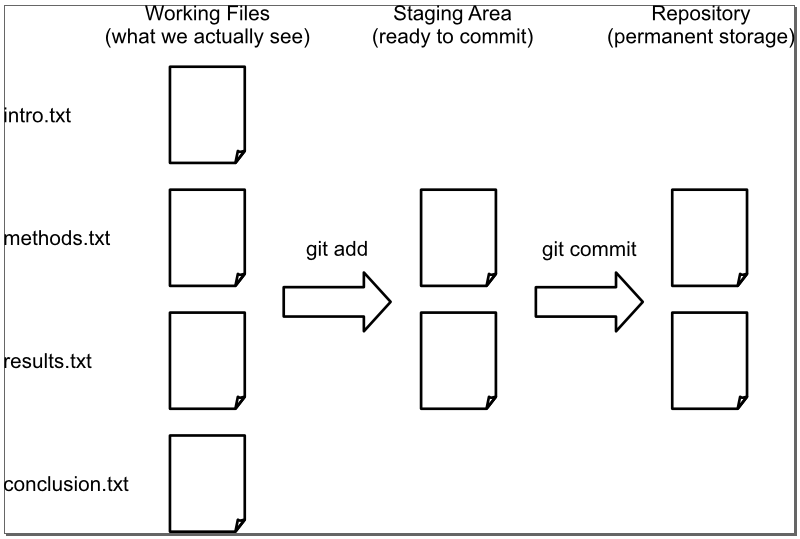
The following commands show this in action:
$ nano mars.txt $ cat mars.txt Cold and dry, but everything is my favorite color The two moons may be a problem for Wolfman But the Mummy will appreciate the lack of humidity $ git diff diff --git a/mars.txt b/mars.txt index 315bf3a..b36abfd 100644 --- a/mars.txt +++ b/mars.txt @@ -1,2 +1,3 @@ Cold and dry, but everything is my favorite color The two moons may be a problem for Wolfman +But the Mummy will appreciate the lack of humidity So far, so good: we've made a change, and git diff tells us what it is. Now let's put that change in the staging area and see what git diff reports:
$ git add mars.txt $ git diff There is no output: as far as Git can tell, there's no difference between what it's been asked to save permanently and what's currently in the directory. However, if we do this:
$ git diff --staged diff --git a/mars.txt b/mars.txt index 315bf3a..b36abfd 100644 --- a/mars.txt +++ b/mars.txt @@ -1,2 +1,3 @@ Cold and dry, but everything is my favorite color The two moons may be a problem for Wolfman +But the Mummy will appreciate the lack of humidity it shows us the difference between the last committed change and what's in the staging area. Let's save our changes:
$ git commit -m "Thoughts about the climate" [master 005937f] Thoughts about the climate 1 file changed, 1 insertion(+) check our status:
$ git status # On branch master nothing to commit, working directory clean and look at the history of what we've done so far:
$ git log git log commit 005937fbe2a98fb83f0ade869025dc2636b4dad5 Author: Vlad Dracula <vlad@tran.sylvan.ia> Date: Thu Aug 22 10:14:07 2013 -0400 Thoughts about the climate commit 34961b159c27df3b475cfe4415d94a6d1fcd064d Author: Vlad Dracula <vlad@tran.sylvan.ia> Date: Thu Aug 22 10:07:21 2013 -0400 Concerns about Mars's moons on my furry friend commit f22b25e3233b4645dabd0d81e651fe074bd8e73b Author: Vlad Dracula <vlad@tran.sylvan.ia> Date: Thu Aug 22 09:51:46 2013 -0400 Starting to think about Mars If we want to see what we changed when, we use git diff again, but refer to old versions using the notation HEAD~1, HEAD~2, and so on:
$ git diff HEAD~1 mars.txt diff --git a/mars.txt b/mars.txt index 315bf3a..b36abfd 100644 --- a/mars.txt +++ b/mars.txt @@ -1,2 +1,3 @@ Cold and dry, but everything is my favorite color The two moons may be a problem for Wolfman +But the Mummy will appreciate the lack of humidity $ git diff HEAD~2 mars.txt diff --git a/mars.txt b/mars.txt index df0654a..b36abfd 100644 --- a/mars.txt +++ b/mars.txt @@ -1 +1,3 @@ Cold and dry, but everything is my favorite color +The two moons may be a problem for Wolfman +But the Mummy will appreciate the lack of humidity HEAD means "the most recently saved version". HEAD~1 (pronounced "head minus one") means "the previous revision". We can also refer to revisions using those long strings of digits and letters that git log displays. These are unique IDs for the changes, and "unique" really does mean unique: every change to any set of files on any machine has a unique 40-character identifier. Our first commit was given the ID f22b25e3233b4645dabd0d81e651fe074bd8e73b, so let's try this:
$ git diff f22b25e3233b4645dabd0d81e651fe074bd8e73b mars.txt diff --git a/mars.txt b/mars.txt index df0654a..b36abfd 100644 --- a/mars.txt +++ b/mars.txt @@ -1 +1,3 @@ Cold and dry, but everything is my favorite color +The two moons may be a problem for Wolfman +But the Mummy will appreciate the lack of humidity That's the right answer, but typing random 40-character strings is annoying, so Git lets us use just the first few:
$ git diff f22b25e mars.txt diff --git a/mars.txt b/mars.txt index df0654a..b36abfd 100644 --- a/mars.txt +++ b/mars.txt @@ -1 +1,3 @@ Cold and dry, but everything is my favorite color +The two moons may be a problem for Wolfman +But the Mummy will appreciate the lack of humidity All right: we can save changes to files and see what we've changed---how can we restore older versions of things? Let's suppose we accidentally overwrite our file:
$ nano mars.txt $ cat mars.txt We will need to manufacture our own oxygen git status now tells us that the file has been changed, but those changes haven't been staged:
$ git status # On branch master # Changes not staged for commit: # (use "git add <file>..." to update what will be committed) # (use "git checkout -- <file>..." to discard changes in working directory) # # modified: mars.txt # no changes added to commit (use "git add" and/or "git commit -a") We can put things back the way they were like this:
$ git reset --hard HEAD HEAD is now at 005937f Thoughts about the climate $ cat mars.txt Cold and dry, but everything is my favorite color The two moons may be a problem for Wolfman But the Mummy will appreciate the lack of humidity The --hard argument to git reset tells it to throw away local changes: without that, git reset won't destroy our work. HEAD tells git reset that we want to put things back to the way they were recorded in the HEAD revision. (Remember, we haven't done a git commit with these changes yet, so HEAD is still where it was.) We can use git reset --hard HEAD~55 and so on to back up to earlier revisions, git reset --hard 34961b1 to back up to a particular revision, and so on.
But what if we want to recover somes files without losing other work we've done since? For example, what if we have added some material to the conclusion of our paper that we'd like to keep, but we want to get back an earlier version of the introduction? In that case, we want to check out an older revision of the file, so we do something like this:
$ git checkout 123456 mars.txt but use the first few digits of an actual revision number instead of 123456. To get the right answer, we must use the revision number that identifies the state of the repository before the change we're trying to undo. A common mistake is to use the revision number of the commit in which we made the change we're trying to get rid of:

The fact that files can be reverted one by one tends to change the way people organize their work. If everything is in one large document, it's hard (but not impossible) to undo changes to the introduction without also undoing changes made later to the conclusion. If the introduction and conclusion are stored in separate files, on the other hand, moving backward and forward in time becomes much easier.
What if we have files that we do not want Git to track for us? For example, we might have backup files created by the editor, or result files or intermediate data files that we do not need to track, and these can clutter up our git status output.
Let's create some data files that we don't want to track:
$ touch a.dat b.dat c.dat $ mkdir results $ touch results/a.out results/b.out Then, we can look at the status:
$ git status # On branch master # # Initial commit # # Untracked files: # (use "git add <file>..." to include in what will be committed) # # a.dat # b.dat # c.dat # results/ nothing added to commit but untracked files present (use "git add" to track) Seeing all of these files can be annoying, and worse, the clutter can hide important files from us. Let's tell Git to ignore those files.
Git has a powerful mechanism for ignoring files. We will look at a basic example. In a repository, the file .gitignore is used to specify files to ignore.
$ nano .gitignore $ cat .gitignore *.dat /results/ This tells Git to ignore any file ending with .dat, and all files under the results directory. (If any of these files were already being tracked, they would not be affected by .gitginore.)
Now, we have a much cleaner status.
# On branch master # # Initial commit # # Untracked files: # (use "git add <file>..." to include in what will be committed) # # .gitignore nothing added to commit but untracked files present (use "git add" to track) Now Git notices the .gitignore file. You might think we wouldn't want to track this file, but if our programs are creating these extra data files, all users of this repository will probably want to ignore them too. So, we can add the ignore file to the repository and check it in.
$ git add .gitignore $ git commit -m "Add the ignore file" $ git status # On branch master nothing to commit, working directory clean When git status is clean, it is much easier to tell that all of our work is checked in.
We can see the ignored files in the status if we want. That can be helpful when making sure that no files were accidentally ignored.
$ git status --ignored # On branch master # Ignored files: # (use "git add -f <file>..." to include in what will be committed) # # a.dat # b.dat # c.dat # results/ nothing to commit, working directory clean Finally, the ignore file helps us avoid accidentally adding files to the repository that we don't want.
$ git add a.dat The following paths are ignored by one of your .gitignore files: a.dat Use -f if you really want to add them. fatal: no files added Git notices that a.dat would be excluded by the rules given in the .gitignore file and doesn't automatically include it. We can override this by using the -f flag.
As shown here, the .gitignore file just works on a specific repository, but you can also set global rules for git ignore using a .gitginore file in your home directory.