



















There is no built-in tool to split tables in Google Docs, but there is a simple workaround available for the same.
We commonly use tables in word processors such as Google Docs and MS Word to organize data and information in a structured manner.
For example, when you want to submit a claim for work done to a client, you can create the cover letter and invoice within one Google Docs document and download it as a PDF to send.
For the invoice part of the document, you may want to make use of the table feature in Google Docs.
One of the challenges with tables is that they are not easily manageable. Although Google has introduced new features such as pinning headers to repeat the header row, basic features such as splitting a table into two parts, and basic calculations like the one available in MS Word, are still missing.
Let’s organize this tutorial into three parts: Inserting multiple tables, merging tables, and splitting tables.
How to Insert a Table in Google Docs
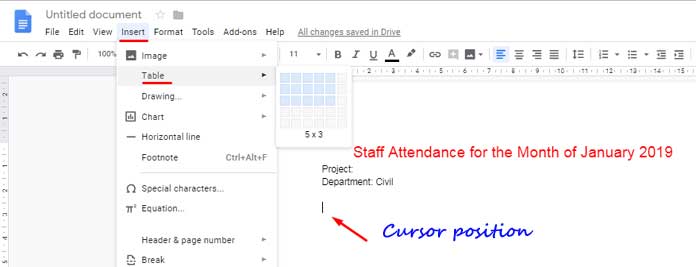
To insert a table in Google Docs at the cursor position, navigate to the menu Insert > Table.
Select the desired number of columns and rows. For instance, a 5×3 table would have 5 columns and 3 rows. Yes, you heard me right. It’s not the other way around like 5 rows and 3 columns. Please see the below image.
To insert another table, click outside the bottom-left corner of the existing table and follow the same steps as before.
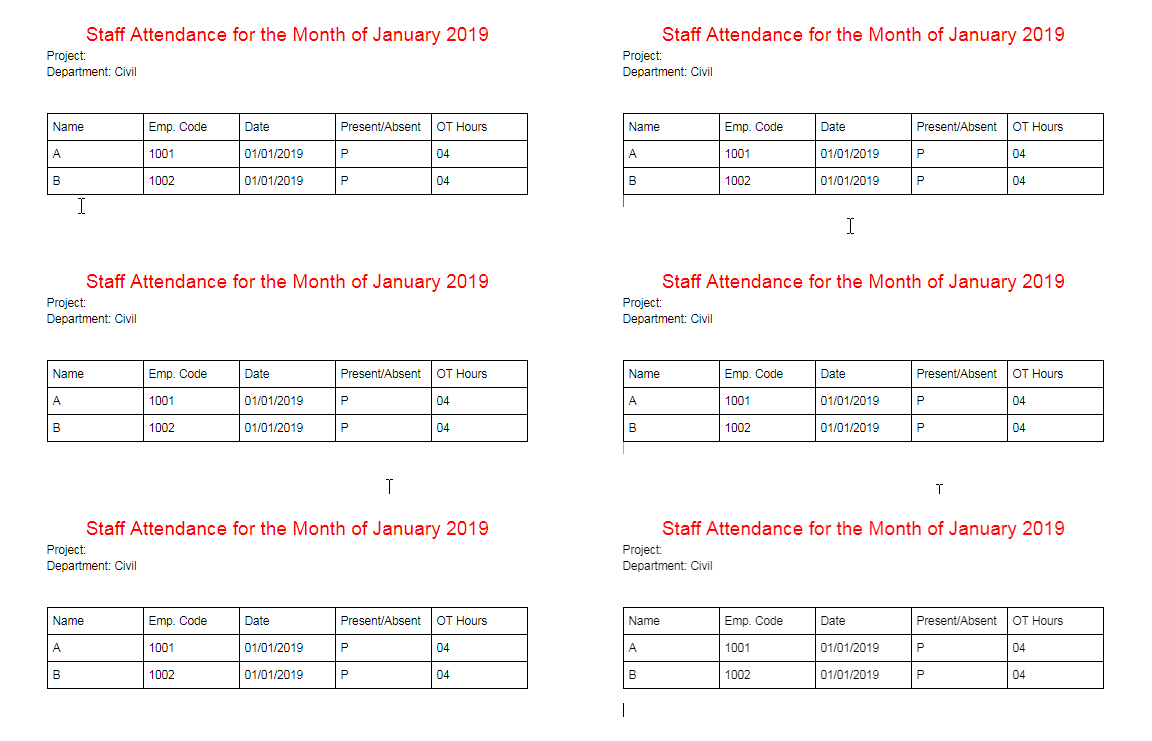
Now that we have two tables, before explaining how to split a table in Google Docs, let’s first explore how to merge them.
How to Merge Two Tables in Google Docs
Simply hitting the delete button between the tables may not merge them.
To merge two tables in Google Docs, follow these steps:
Add a new row in the first table. To do this, navigate to the last column in the first table and press the tab button.
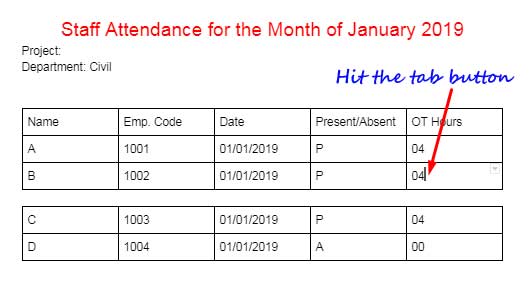
Select the entire second table and cut it (Ctrl+X in Windows or Command+X in Mac).
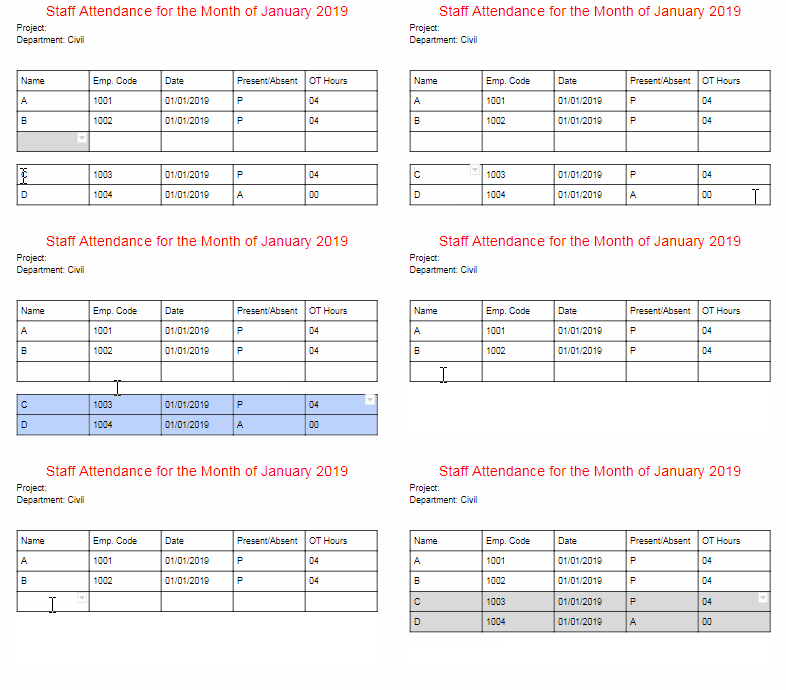
In the first table, navigate to the first column in the last blank row and paste the second table (Ctrl+V in Windows or Command+V in Mac).
By following these steps, you can effectively merge two tables in Google Docs.
What if the tables have a different number of columns?
Even if your tables have different numbers of columns, you can still follow the same steps mentioned above.
Google Docs will automatically insert additional columns if required in either of the tables.
Now, let’s discuss how to split a table.
How to Split a Table in Google Docs
To split a table in Google Docs, follow these steps:
First, highlight the rows that you want to split. Typically, we split the last few rows.
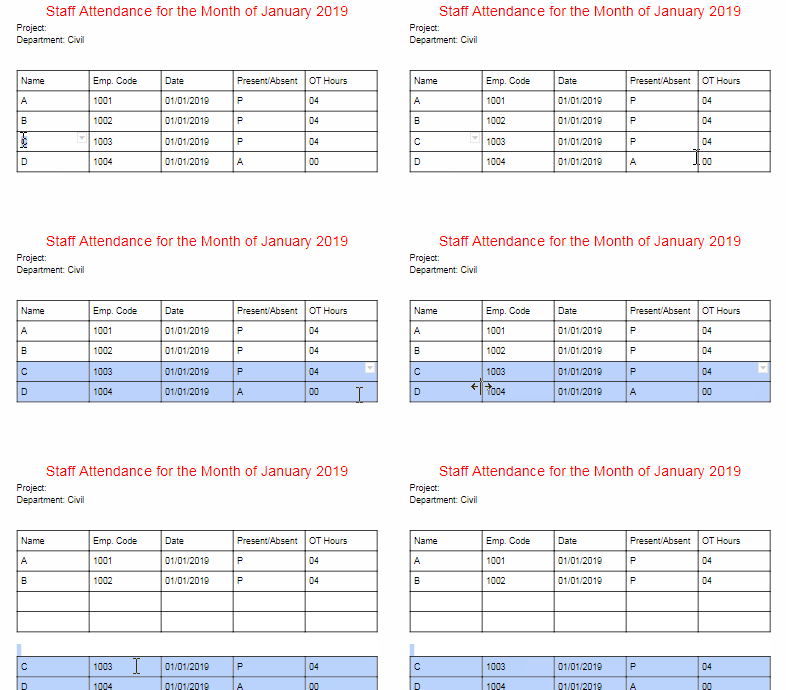
Then, point your mouse over any of the columns in the selected rows and drag them down.
This action will split the table into two, leaving blank rows in the first table matching the number of rows in the split part. To delete these blank rows:
Highlight the blank rows, right-click, and select “Delete N Rows”.
That’s all there is to it.


