













Note: Obsei is still in alpha stage hence carefully use it in Production. Also, as it is constantly undergoing development hence master branch may contain many breaking changes. Please use released version.
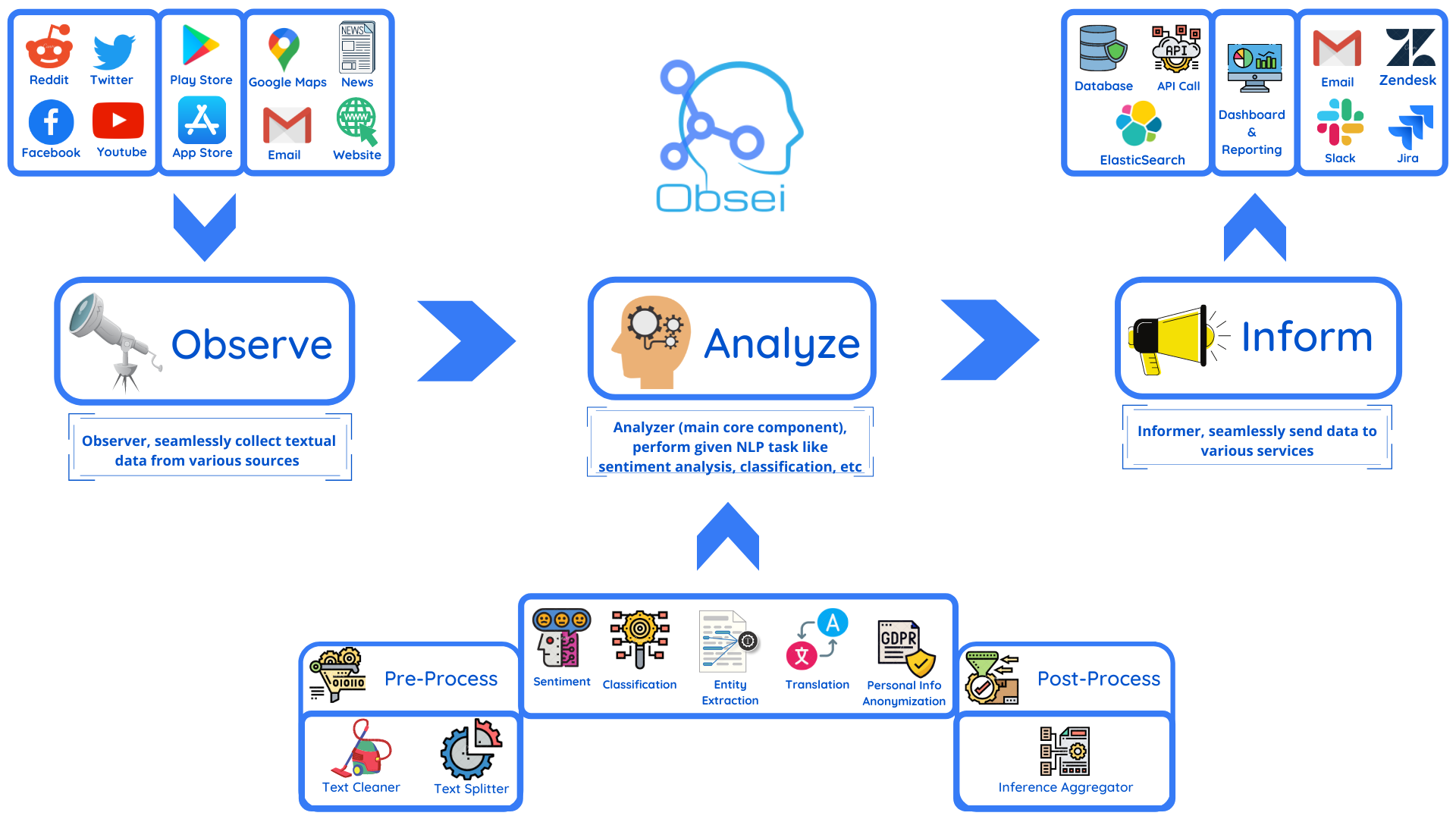
Obsei (pronounced “Ob see” | /əb-’sē/) is an open-source, low-code, AI powered automation tool. Obsei consists of -
- Observer: Collect unstructured data from various sources like tweets from Twitter, Subreddit comments on Reddit, page post’s comments from Facebook, App Stores reviews, Google reviews, Amazon reviews, News, Website, etc.
- Analyzer: Analyze unstructured data collected with various AI tasks like classification, sentiment analysis, translation, PII, etc.
- Informer: Send analyzed data to various destinations like ticketing platforms, data storage, dataframe, etc so that the user can take further actions and perform analysis on the data.
All the Observers can store their state in databases (Sqlite, Postgres, MySQL, etc.), making Obsei suitable for scheduled jobs or serverless applications.
Future direction -
- Text, Image, Audio, Documents and Video oriented workflows
- Collect data from every possible private and public channels
- Add every possible workflow to an AI downstream application to automate manual cognitive workflows
Use cases
Obsei use cases are following, but not limited to -
- Social listening: Listening about social media posts, comments, customer feedback, etc.
- Alerting/Notification: To get auto-alerts for events such as customer complaints, qualified sales leads, etc.
- Automatic customer issue creation based on customer complaints on Social Media, Email, etc.
- Automatic assignment of proper tags to tickets based content of customer complaint for example login issue, sign up issue, delivery issue, etc.
- Extraction of deeper insight from feedbacks on various platforms
- Market research
- Creation of dataset for various AI tasks
- Many more based on creativity 💡
Installation
Prerequisite
Install the following (if not present already) -
Install Obsei
You can install Obsei either via PIP or Conda based on your preference. To install latest released version -
Install from master branch (if you want to try the latest features) -
git clone https://github.com/obsei/obsei.git cd obsei pip install --editable .[all]
Note: all option will install all the dependencies which might not be needed for your workflow, alternatively following options are available to install minimal dependencies as per need -
pip install obsei[source]: To install dependencies related to all observerspip install obsei[sink]: To install dependencies related to all informerspip install obsei[analyzer]: To install dependencies related to all analyzers, it will install pytorch as wellpip install obsei[twitter-api]: To install dependencies related to Twitter observerpip install obsei[google-play-scraper]: To install dependencies related to Play Store review scrapper observerpip install obsei[google-play-api]: To install dependencies related to Google official play store review API based observerpip install obsei[app-store-scraper]: To install dependencies related to Apple App Store review scrapper observerpip install obsei[reddit-scraper]: To install dependencies related to Reddit post and comment scrapper observerpip install obsei[reddit-api]: To install dependencies related to Reddit official api based observerpip install obsei[pandas]: To install dependencies related to TSV/CSV/Pandas based observer and informerpip install obsei[google-news-scraper]: To install dependencies related to Google news scrapper observerpip install obsei[facebook-api]: To install dependencies related to Facebook official page post and comments api based observerpip install obsei[atlassian-api]: To install dependencies related to Jira official api based informerpip install obsei[elasticsearch]: To install dependencies related to elasticsearch informerpip install obsei[slack-api]:To install dependencies related to Slack official api based informer
You can also mix multiple dependencies together in single installation command. For example to install dependencies Twitter observer, all analyzer, and Slack informer use following command -
pip install obsei[twitter-api, analyzer, slack-api]
How to use
Expand the following steps and create a workflow -
Step 1: Configure Source/Observer
|
 Twitter Twitter
from obsei.source.twitter_source import TwitterCredentials, TwitterSource, TwitterSourceConfig # initialize twitter source config source_config = TwitterSourceConfig( keywords=["issue"], # Keywords, @user or #hashtags lookup_period="1h", # Lookup period from current time, format: `<number><d|h|m>` (day|hour|minute) cred_info=TwitterCredentials( # Enter your twitter consumer key and secret. Get it from https://developer.twitter.com/en/apply-for-access consumer_key="<twitter_consumer_key>", consumer_secret="<twitter_consumer_secret>", bearer_token='<ENTER BEARER TOKEN>', ) ) # initialize tweets retriever source = TwitterSource()
|
 Youtube Scrapper Youtube Scrapper
from obsei.source.youtube_scrapper import YoutubeScrapperSource, YoutubeScrapperConfig # initialize Youtube source config source_config = YoutubeScrapperConfig( video_url="https://www.youtube.com/watch?v=uZfns0JIlFk", # Youtube video URL fetch_replies=True, # Fetch replies to comments max_comments=10, # Total number of comments and replies to fetch lookup_period="1Y", # Lookup period from current time, format: `<number><d|h|m|M|Y>` (day|hour|minute|month|year) ) # initialize Youtube comments retriever source = YoutubeScrapperSource()
|
 Facebook Facebook
from obsei.source.facebook_source import FacebookCredentials, FacebookSource, FacebookSourceConfig # initialize facebook source config source_config = FacebookSourceConfig( page_id="110844591144719", # Facebook page id, for example this one for Obsei lookup_period="1h", # Lookup period from current time, format: `<number><d|h|m>` (day|hour|minute) cred_info=FacebookCredentials( # Enter your facebook app_id, app_secret and long_term_token. Get it from https://developers.facebook.com/apps/ app_id="<facebook_app_id>", app_secret="<facebook_app_secret>", long_term_token="<facebook_long_term_token>", ) ) # initialize facebook post comments retriever source = FacebookSource()
|
 Email Email
from obsei.source.email_source import EmailConfig, EmailCredInfo, EmailSource # initialize email source config source_config = EmailConfig( # List of IMAP servers for most commonly used email providers # https://www.systoolsgroup.com/imap/ # Also, if you're using a Gmail account then make sure you allow less secure apps on your account - # https://myaccount.google.com/lesssecureapps?pli=1 # Also enable IMAP access - # https://mail.google.com/mail/u/0/#settings/fwdandpop imap_server="imap.gmail.com", # Enter IMAP server cred_info=EmailCredInfo( # Enter your email account username and password username="<email_username>", password="<email_password>" ), lookup_period="1h" # Lookup period from current time, format: `<number><d|h|m>` (day|hour|minute) ) # initialize email retriever source = EmailSource()
|
 Google Maps Reviews Scrapper Google Maps Reviews Scrapper
from obsei.source.google_maps_reviews import OSGoogleMapsReviewsSource, OSGoogleMapsReviewsConfig # initialize Outscrapper Maps review source config source_config = OSGoogleMapsReviewsConfig( # Collect API key from https://outscraper.com/ api_key="<Enter Your API Key>", # Enter Google Maps link or place id # For example below is for the "Taj Mahal" queries=["https://www.google.co.in/maps/place/Taj+Mahal/@27.1751496,78.0399535,17z/data=!4m5!3m4!1s0x39747121d702ff6d:0xdd2ae4803f767dde!8m2!3d27.1751448!4d78.0421422"], number_of_reviews=10, ) # initialize Outscrapper Maps review retriever source = OSGoogleMapsReviewsSource()
|
 AppStore Reviews Scrapper AppStore Reviews Scrapper
from obsei.source.appstore_scrapper import AppStoreScrapperConfig, AppStoreScrapperSource # initialize app store source config source_config = AppStoreScrapperConfig( # Need two parameters app_id and country. # `app_id` can be found at the end of the url of app in app store. # For example - https://apps.apple.com/us/app/xcode/id497799835 # `310633997` is the app_id for xcode and `us` is country. countries=["us"], app_id="310633997", lookup_period="1h" # Lookup period from current time, format: `<number><d|h|m>` (day|hour|minute) ) # initialize app store reviews retriever source = AppStoreScrapperSource()
|
 Play Store Reviews Scrapper Play Store Reviews Scrapper
from obsei.source.playstore_scrapper import PlayStoreScrapperConfig, PlayStoreScrapperSource # initialize play store source config source_config = PlayStoreScrapperConfig( # Need two parameters package_name and country. # `package_name` can be found at the end of the url of app in play store. # For example - https://play.google.com/store/apps/details?id=com.google.android.gm&hl=en&gl=US # `com.google.android.gm` is the package_name for xcode and `us` is country. countries=["us"], package_name="com.google.android.gm", lookup_period="1h" # Lookup period from current time, format: `<number><d|h|m>` (day|hour|minute) ) # initialize play store reviews retriever source = PlayStoreScrapperSource()
|
 Reddit Reddit
from obsei.source.reddit_source import RedditConfig, RedditSource, RedditCredInfo # initialize reddit source config source_config = RedditConfig( subreddits=["wallstreetbets"], # List of subreddits # Reddit account username and password # You can also enter reddit client_id and client_secret or refresh_token # Create credential at https://www.reddit.com/prefs/apps # Also refer https://praw.readthedocs.io/en/latest/getting_started/authentication.html # Currently Password Flow, Read Only Mode and Saved Refresh Token Mode are supported cred_info=RedditCredInfo( username="<reddit_username>", password="<reddit_password>" ), lookup_period="1h" # Lookup period from current time, format: `<number><d|h|m>` (day|hour|minute) ) # initialize reddit retriever source = RedditSource()
|
Reddit Scrapper
Note: Reddit heavily rate limit scrappers, hence use it to fetch small data during long period from obsei.source.reddit_scrapper import RedditScrapperConfig, RedditScrapperSource # initialize reddit scrapper source config source_config = RedditScrapperConfig( # Reddit subreddit, search etc rss url. For proper url refer following link - # Refer https://www.reddit.com/r/pathogendavid/comments/tv8m9/pathogendavids_guide_to_rss_and_reddit/ url="https://www.reddit.com/r/wallstreetbets/comments/.rss?sort=new", lookup_period="1h" # Lookup period from current time, format: `<number><d|h|m>` (day|hour|minute) ) # initialize reddit retriever source = RedditScrapperSource()
|
 Google News Google News
from obsei.source.google_news_source import GoogleNewsConfig, GoogleNewsSource # initialize Google News source config source_config = GoogleNewsConfig( query='bitcoin', max_results=5, # To fetch full article text enable `fetch_article` flag # By default google news gives title and highlight fetch_article=True, # proxy='http://127.0.0.1:8080' ) # initialize Google News retriever source = GoogleNewsSource()
|
 Web Crawler Web Crawler
from obsei.source.website_crawler_source import TrafilaturaCrawlerConfig, TrafilaturaCrawlerSource # initialize website crawler source config source_config = TrafilaturaCrawlerConfig( urls=['https://obsei.github.io/obsei/'] ) # initialize website text retriever source = TrafilaturaCrawlerSource()
|
 Pandas DataFrame Pandas DataFrame
import pandas as pd from obsei.source.pandas_source import PandasSource, PandasSourceConfig # Initialize your Pandas DataFrame from your sources like csv, excel, sql etc # In following example we are reading csv which have two columns title and text csv_file = "https://raw.githubusercontent.com/deepset-ai/haystack/master/tutorials/small_generator_dataset.csv" dataframe = pd.read_csv(csv_file) # initialize pandas sink config sink_config = PandasSourceConfig( dataframe=dataframe, include_columns=["score"], text_columns=["name", "degree"], ) # initialize pandas sink sink = PandasSource()
|
Step 2: Configure Analyzer
Note: To run transformers in an offline mode, check transformers offline mode.
Some analyzer support GPU and to utilize pass device parameter. List of possible values of device parameter (default value auto):
- auto: GPU (cuda:0) will be used if available otherwise CPU will be used
- cpu: CPU will be used
- cuda:{id} - GPU will be used with provided CUDA device id
|
 Text Classification Text Classification
Text classification: Classify text into user provided categories. from obsei.analyzer.classification_analyzer import ClassificationAnalyzerConfig, ZeroShotClassificationAnalyzer # initialize classification analyzer config # It can also detect sentiments if "positive" and "negative" labels are added. analyzer_config=ClassificationAnalyzerConfig( labels=["service", "delay", "performance"], ) # initialize classification analyzer # For supported models refer https://huggingface.co/models?filter=zero-shot-classification text_analyzer = ZeroShotClassificationAnalyzer( model_name_or_path="typeform/mobilebert-uncased-mnli", device="auto" )
|
 Sentiment Analyzer Sentiment Analyzer
Sentiment Analyzer: Detect the sentiment of the text. Text classification can also perform sentiment analysis but if you don’t want to use heavy-duty NLP model then use less resource hungry dictionary based Vader Sentiment detector. from obsei.analyzer.sentiment_analyzer import VaderSentimentAnalyzer # Vader does not need any configuration settings analyzer_config=None # initialize vader sentiment analyzer text_analyzer = VaderSentimentAnalyzer()
|
 NER Analyzer NER Analyzer
NER (Named-Entity Recognition) Analyzer: Extract information and classify named entities mentioned in text into pre-defined categories such as person names, organizations, locations, medical codes, time expressions, quantities, monetary values, percentages, etc from obsei.analyzer.ner_analyzer import NERAnalyzer # NER analyzer does not need configuration settings analyzer_config=None # initialize ner analyzer # For supported models refer https://huggingface.co/models?filter=token-classification text_analyzer = NERAnalyzer( model_name_or_path="elastic/distilbert-base-cased-finetuned-conll03-english", device = "auto" )
|
 Translator Translator
from obsei.analyzer.translation_analyzer import TranslationAnalyzer # Translator does not need analyzer config analyzer_config = None # initialize translator # For supported models refer https://huggingface.co/models?pipeline_tag=translation analyzer = TranslationAnalyzer( model_name_or_path="Helsinki-NLP/opus-mt-hi-en", device = "auto" )
|
 PII Anonymizer PII Anonymizer
from obsei.analyzer.pii_analyzer import PresidioEngineConfig, PresidioModelConfig, \ PresidioPIIAnalyzer, PresidioPIIAnalyzerConfig # initialize pii analyzer's config analyzer_config = PresidioPIIAnalyzerConfig( # Whether to return only pii analysis or anonymize text analyze_only=False, # Whether to return detail information about anonymization decision return_decision_process=True ) # initialize pii analyzer analyzer = PresidioPIIAnalyzer( engine_config=PresidioEngineConfig( # spacy and stanza nlp engines are supported # For more info refer # https://microsoft.github.io/presidio/analyzer/developing_recognizers/#utilize-spacy-or-stanza nlp_engine_name="spacy", # Update desired spacy model and language models=[PresidioModelConfig(model_name="en_core_web_lg", lang_code="en")] ) )
|
 Dummy Analyzer Dummy Analyzer
Dummy Analyzer: Does nothing. Its simply used for transforming the input (TextPayload) to output (TextPayload) and adding the user supplied dummy data. from obsei.analyzer.dummy_analyzer import DummyAnalyzer, DummyAnalyzerConfig # initialize dummy analyzer's configuration settings analyzer_config = DummyAnalyzerConfig() # initialize dummy analyzer analyzer = DummyAnalyzer()
|
Step 3: Configure Sink/Informer
|
 Slack Slack
from obsei.sink.slack_sink import SlackSink, SlackSinkConfig # initialize slack sink config sink_config = SlackSinkConfig( # Provide slack bot/app token # For more detail refer https://slack.com/intl/en-de/help/articles/215770388-Create-and-regenerate-API-tokens slack_token="<Slack_app_token>", # To get channel id refer https://stackoverflow.com/questions/40940327/what-is-the-simplest-way-to-find-a-slack-team-id-and-a-channel-id channel_id="C01LRS6CT9Q" ) # initialize slack sink sink = SlackSink()
|
 Zendesk Zendesk
from obsei.sink.zendesk_sink import ZendeskSink, ZendeskSinkConfig, ZendeskCredInfo # initialize zendesk sink config sink_config = ZendeskSinkConfig( # provide zendesk domain domain="zendesk.com", # provide subdomain if you have one subdomain=None, # Enter zendesk user details cred_info=ZendeskCredInfo( email="<zendesk_user_email>", password="<zendesk_password>" ) ) # initialize zendesk sink sink = ZendeskSink()
|
 Jira Jira
from obsei.sink.jira_sink import JiraSink, JiraSinkConfig # For testing purpose you can start jira server locally # Refer https://developer.atlassian.com/server/framework/atlassian-sdk/atlas-run-standalone/ # initialize Jira sink config sink_config = JiraSinkConfig( url="http://localhost:2990/jira", # Jira server url # Jira username & password for user who have permission to create issue username="<username>", password="<password>", # Which type of issue to be created # For more information refer https://support.atlassian.com/jira-cloud-administration/docs/what-are-issue-types/ issue_type={"name": "Task"}, # Under which project issue to be created # For more information refer https://support.atlassian.com/jira-software-cloud/docs/what-is-a-jira-software-project/ project={"key": "CUS"}, ) # initialize Jira sink sink = JiraSink()
|
 ElasticSearch ElasticSearch
from obsei.sink.elasticsearch_sink import ElasticSearchSink, ElasticSearchSinkConfig # For testing purpose you can start Elasticsearch server locally via docker # `docker run -d --name elasticsearch -p 9200:9200 -e "discovery.type=single-node" elasticsearch:8.5.0` # initialize Elasticsearch sink config sink_config = ElasticSearchSinkConfig( # Elasticsearch server hosts="http://localhost:9200", # Index name, it will create if not exist index_name="test", ) # initialize Elasticsearch sink sink = ElasticSearchSink()
|
 Http Http
from obsei.sink.http_sink import HttpSink, HttpSinkConfig # For testing purpose you can create mock http server via postman # For more details refer https://learning.postman.com/docs/designing-and-developing-your-api/mocking-data/setting-up-mock/ # initialize http sink config (Currently only POST call is supported) sink_config = HttpSinkConfig( # provide http server url url="https://localhost:8080/api/path", # Here you can add headers you would like to pass with request headers={ "Content-type": "application/json" } ) # To modify or converting the payload, create convertor class # Refer obsei.sink.dailyget_sink.PayloadConvertor for example # initialize http sink sink = HttpSink()
|
Pandas DataFrame
from pandas import DataFrame from obsei.sink.pandas_sink import PandasSink, PandasSinkConfig # initialize pandas sink config sink_config = PandasSinkConfig( dataframe=DataFrame() ) # initialize pandas sink sink = PandasSink()
|
 Logger Logger
This is useful for testing and dry running the pipeline. from obsei.sink.logger_sink import LoggerSink, LoggerSinkConfig import logging import sys logger = logging.getLogger("Obsei") logging.basicConfig(stream=sys.stdout, level=logging.INFO) # initialize logger sink config sink_config = LoggerSinkConfig( logger=logger, level=logging.INFO ) # initialize logger sink sink = LoggerSink()
|
Step 4: Join and create workflow
source will fetch data from the selected source, then feed it to the analyzer for processing, whose output we feed into a sink to get notified at that sink.
# Uncomment if you want logger # import logging # import sys # logger = logging.getLogger(__name__) # logging.basicConfig(stream=sys.stdout, level=logging.INFO) # This will fetch information from configured source ie twitter, app store etc source_response_list = source.lookup(source_config) # Uncomment if you want to log source response # for idx, source_response in enumerate(source_response_list): # logger.info(f"source_response#'{idx}'='{source_response.__dict__}'") # This will execute analyzer (Sentiment, classification etc) on source data with provided analyzer_config analyzer_response_list = text_analyzer.analyze_input( source_response_list=source_response_list, analyzer_config=analyzer_config ) # Uncomment if you want to log analyzer response # for idx, an_response in enumerate(analyzer_response_list): # logger.info(f"analyzer_response#'{idx}'='{an_response.__dict__}'") # Analyzer output added to segmented_data # Uncomment to log it # for idx, an_response in enumerate(analyzer_response_list): # logger.info(f"analyzed_data#'{idx}'='{an_response.segmented_data.__dict__}'") # This will send analyzed output to configure sink ie Slack, Zendesk etc sink_response_list = sink.send_data(analyzer_response_list, sink_config) # Uncomment if you want to log sink response # for sink_response in sink_response_list: # if sink_response is not None: # logger.info(f"sink_response='{sink_response}'")
Step 5: Execute workflow
Copy the code snippets from Steps 1 to 4 into a python file, for example example.py and execute the following command - Demo
We have a minimal streamlit based UI that you can use to test Obsei.
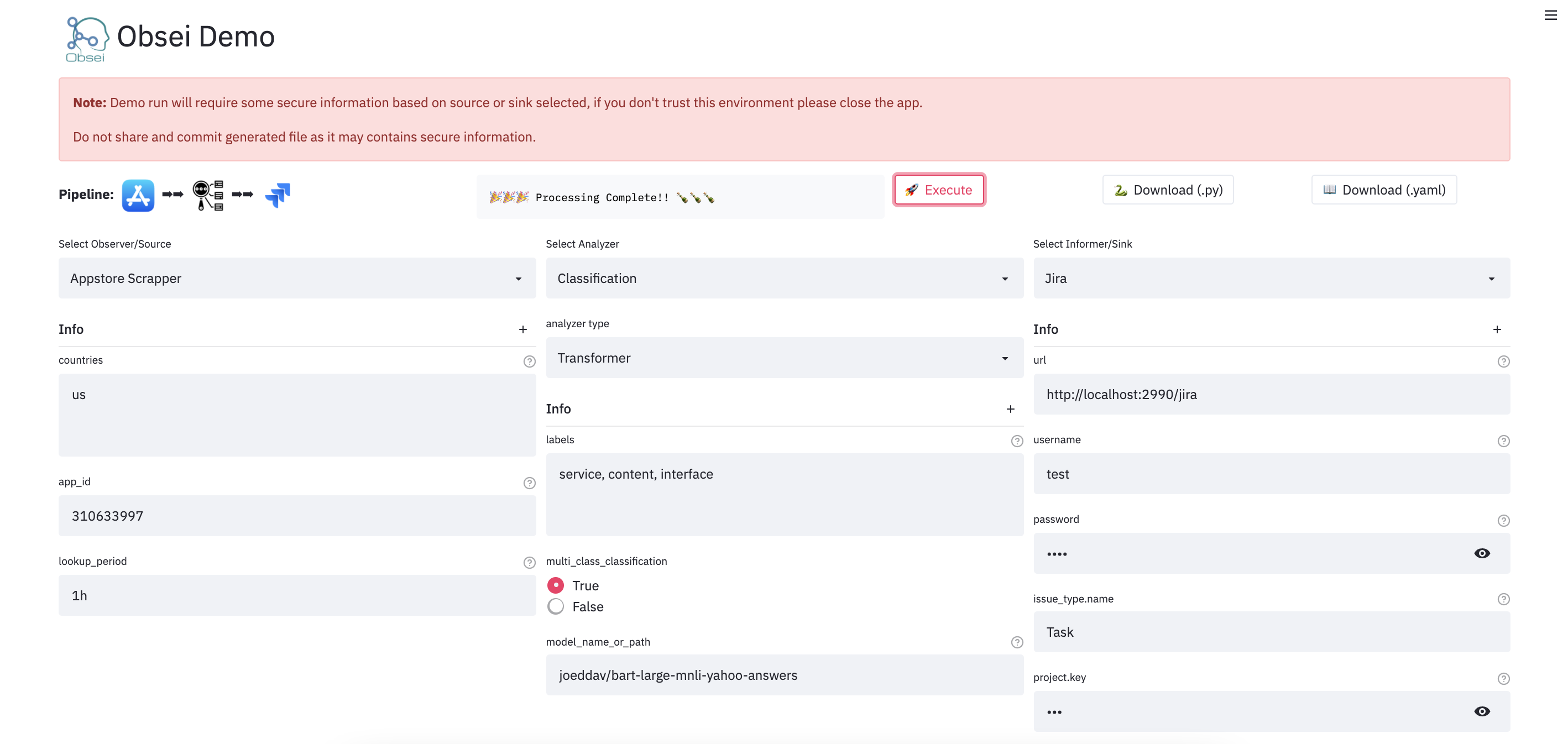
Watch UI demo video
Check demo at
(Note: Sometimes the Streamlit demo might not work due to rate limiting, use the docker image (locally) in such cases.)
To test locally, just run
docker run -d --name obesi-ui -p 8501:8501 obsei/obsei-ui-demo # You can find the UI at http://localhost:8501
To run Obsei workflow easily using GitHub Actions (no sign ups and cloud hosting required), refer to this repo.
Companies/Projects using Obsei
Here are some companies/projects (alphabetical order) using Obsei. To add your company/project to the list, please raise a PR or contact us via email.
- Oraika: Contextually understand customer feedback
- 1Page: Giving a better context in meetings and calls
- Spacepulse: The operating system for spaces
- Superblog: A blazing fast alternative to WordPress and Medium
- Zolve: Creating a financial world beyond borders
- Utilize: No-code app builder for businesses with a deskless workforce
Articles
Tutorials
| 1 | Observe app reviews from Google play store, Analyze them by performing text classification and then Inform them on console via logger |
| PlayStore Reviews → Classification → Logger |  |  |
| 2 | Observe app reviews from Google play store, PreProcess text via various text cleaning functions, Analyze them by performing text classification, Inform them to Pandas DataFrame and store resultant CSV to Google Drive |
| PlayStore Reviews → PreProcessing → Classification → Pandas DataFrame → CSV in Google Drive | | |
| 3 | Observe app reviews from Apple app store, PreProcess text via various text cleaning function, Analyze them by performing text classification, Inform them to Pandas DataFrame and store resultant CSV to Google Drive |
| AppStore Reviews → PreProcessing → Classification → Pandas DataFrame → CSV in Google Drive | | |
| 4 | Observe news article from Google news, PreProcess text via various text cleaning function, Analyze them via performing text classification while splitting text in small chunks and later computing final inference using given formula |
| Google News → Text Cleaner → Text Splitter → Classification → Inference Aggregator | | |
💡Tips: Handle large text classification via Obsei

Documentation
For detailed installation instructions, usages and examples, refer to our documentation.
Support and Release Matrix
| Tests | ✅ | ✅ | ✅ | Low Coverage as difficult to test 3rd party libs |
| PIP | ✅ | ✅ | ✅ | Fully Supported |
| Conda | ❌ | ❌ | ❌ | Not Supported |
Discussion forum
Discussion about Obsei can be done at community forum
Changelogs
Refer releases for changelogs
Security Issue
For any security issue please contact us via email
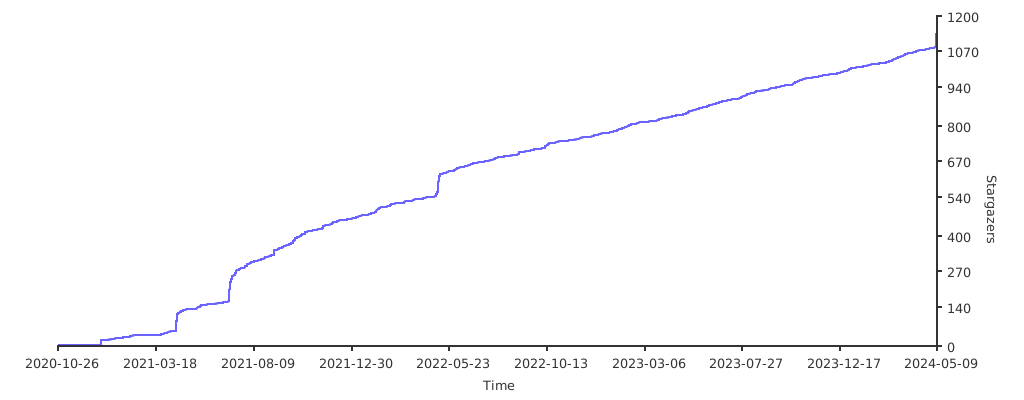
Stargazers over time
Maintainers
This project is being maintained by Oraika Technologies. Lalit Pagaria and Girish Patel are maintainers of this project.
License
- Copyright holder: Oraika Technologies
- Overall Apache 2.0 and you can read License file.
- Multiple other secondary permissive or weak copyleft licenses (LGPL, MIT, BSD etc.) for third-party components refer Attribution.
- To make project more commercial friendly, we void third party components which have strong copyleft licenses (GPL, AGPL etc.) into the project.
Attribution
This could not have been possible without these open source softwares.
Contribution
First off, thank you for even considering contributing to this package, every contribution big or small is greatly appreciated. Please refer our Contribution Guideline and Code of Conduct.
Thanks so much to all our contributors
