
Descripcion
Make Your Website Accessible with Accessibility Checker
Equalize Digital Accessibility Checker helps you find and fix accessibility issues in WordPress. Scan posts and pages as you edit, review WCAG-based issues inside WordPress, apply automated fixes for common barriers, and generate an accessibility statement to support your compliance efforts.
Whether you’re improving compliance with accessibility laws, working toward Web Content Accessibility Guidelines (WCAG) conformance, or making your website easier for everyone to use, Accessibility Checker gives your team a practical workflow for ongoing accessibility testing and remediation.
Plugin Website | Live Demo | Documentation | Compare Free to Pro | Get Pro | WP Accessibility Meetup | WP Accessibility Facebook Group
Why Make Your Website Accessible
Laws around the world, such as the European Accessibility Act (EAA), Americans with Disabilities Act (ADA), and Section 508, among others, require websites to be accessible and usable by people with disabilities. Accessibility may be required for your website to be legally compliant.
Accessibility fixes on websites often translate to better overall usability on the site and can improve search engine ranking and conversions.
Including Accessibility Checker on your website and fixing identified problems can help you to:
- Reduce legal risk.
- Improve SEO and increase reach.
- Increase sales and conversions.
- Reduce operational costs by allowing more people to self-serve on your website.
- Live your organizational values.
Real-Time WordPress Accessibility Scanning
Accessibility Checker scans your content each time you save or publish and shows accessibility problems directly in the WordPress editor. You can review issues without leaving the edit screen, or switch to a front-end view to see exactly which elements need attention.
Accessibility Checker runs over 40 automated checks based on Web Content Accessibility Guidelines (WCAG) 2.2 and provides documentation for every issue so content creators, site owners, and developers can fix problems faster.
Automated Accessibility Fixes
Need help resolving accessibility issues on your website? Accessibility Checker includes one-click fixes for common accessibility barriers in themes and plugins.
- Add skip links
- Add focus outlines
- Block links from opening new windows
- Force links to be underlined
- Label comment fields
- Label search fields
- Add missing
lang&dirattributes - Make the viewport scalable
- Remove positive tab index to fix incorrect focus order
- Remove title attributes from elements with preferred accessible names
- Add warnings to links that open in new tabs
- Show error message for empty search submissions
- Add file size & type to links [Pro]
- Add missing page titles [Pro]
- Block PDF uploads [Pro]
- Label form fields [Pro]
Supports Accessibility Compliance Efforts
Laws and policies around the world require websites to be accessible. Accessibility Checker helps teams identify issues early, document progress, and support conformance work related to ADA, Section 508, AODA, EAA, WCAG, and more.
- Find problems faster.
- Learn accessibility as you go.
- Apply automated fixes for common barriers.
- Track changes over time. [Pro]
- Get personalized support and custom plans for more complex remediation needs. [Pro]
Accessibility Checker scans run on your server. This means there are no URL-based scanning limits or API-usage fees. Get unlimited scanning of posts and pages without worrying about costs each time you scan.
Why Accessibility Checker
Accessibility Checker is designed to support both day-to-day publishing and broader accessibility initiatives.
- No limits on pages scanned. Scan as many posts and pages as your site contains.
- Built by accessibility professionals. Equalize Digital team members include certified accessibility professionals and experienced WordPress accessibility practitioners.
- WCAG 2.2 A, AA, and AAA guidance. Review issues against current WCAG success criteria.
- Readability analysis and simplified summary support. Check Flesch-Kincaid grade level and add a simplified summary for WCAG Success Criterion 3.1.5 Reading Level.
- Remove issues from reports. Dismiss items that have been manually reviewed and found not relevant or remediated, with notes, usernames, and timestamps.
- Accessibility statement generator. Draft an accessibility statement that you can customize and publish on your website.
- Footer accessibility statement. Insert an accessibility statement into your footer with one click.
- Detailed documentation. Use help articles and instructions for every issue to guide remediation.
- [Pro] Bulk scanning. Scan all posts and pages in bulk for a site-wide overview.
- [Pro] Scan additional post types. Extend in-editor accessibility checks to more content types.
- [Pro] Admin columns. View accessibility status at a glance in content lists.
- [Pro] Full-site reports. See existing issues in one place for faster remediation.
- [Pro] Dismissed Log. Review dismissed issues, who dismissed them, and when.
- [Pro] User restrictions on Dismiss. Limit which roles can dismiss issues.
Additional paid add-ons include:
- Audit History add-on: track and report on changes over time.
- CSV Export add-on: export issues to CSV for management in a spreadsheet or project management tool.
- Multisite add-on: see accessibility status and manage settings for all sites in your network.
How It Works
To get started with Accessibility Checker or learn more about how it works, see our Getting Started Quick Guide or watch this video demonstration. Please note that the video includes some features available only in the paid version.
Support
The Equalize Digital team provides regular support for Accessibility Checker on the WordPress.org forums. If you have a question about the plugin or its use, please post in the support forum and the team will do its best to respond quickly. Support hours are Monday through Friday, 9:00 AM to 5:00 PM U.S. Central.
If you need one-on-one email support, please consider purchasing Accessibility Checker Pro. Pro customers receive unlimited personal support on plugin usage and features.
Join our WordPress Accessibility Facebook Group for community support and to connect with other developers, designers, and content creators working to make websites more accessible.
For paid Accessibility Checker customers on a small business plan or above, we provide two accessibility office hours calls each month to answer remediation questions.
Compatibility
Accessibility Checker supports multiple WordPress editing and site-building workflows and has been tested with:
- Gutenberg Block Editor
- The Classic Editor
- Advanced Custom Fields
- Avada
- Beaver Builder
- Divi
- Elementor
- Oxygen
- WP Bakery
- [Pro] WooCommerce
Learn Accessibility
Want to learn more about accessibility and stay on-top of accessibility best practices? Attend an official WordPress Accessibility Meetup!
These free virtual meetups are held twice per month via Zoom and are live captioned. Learn more about WP Accessibility Meetup
About Us
Equalize Digital is a mission-driven organization striving to create a world where all people have equal access to products and tools on web, regardless of ability. Our team has been building custom WordPress websites, themes, and plugins since 2010. We’re the trusted accessibility auditing team for WordPress plugin developers and organizations worldwide, including government, higher education, nonprofit, and enterprise businesses.
Screenshots
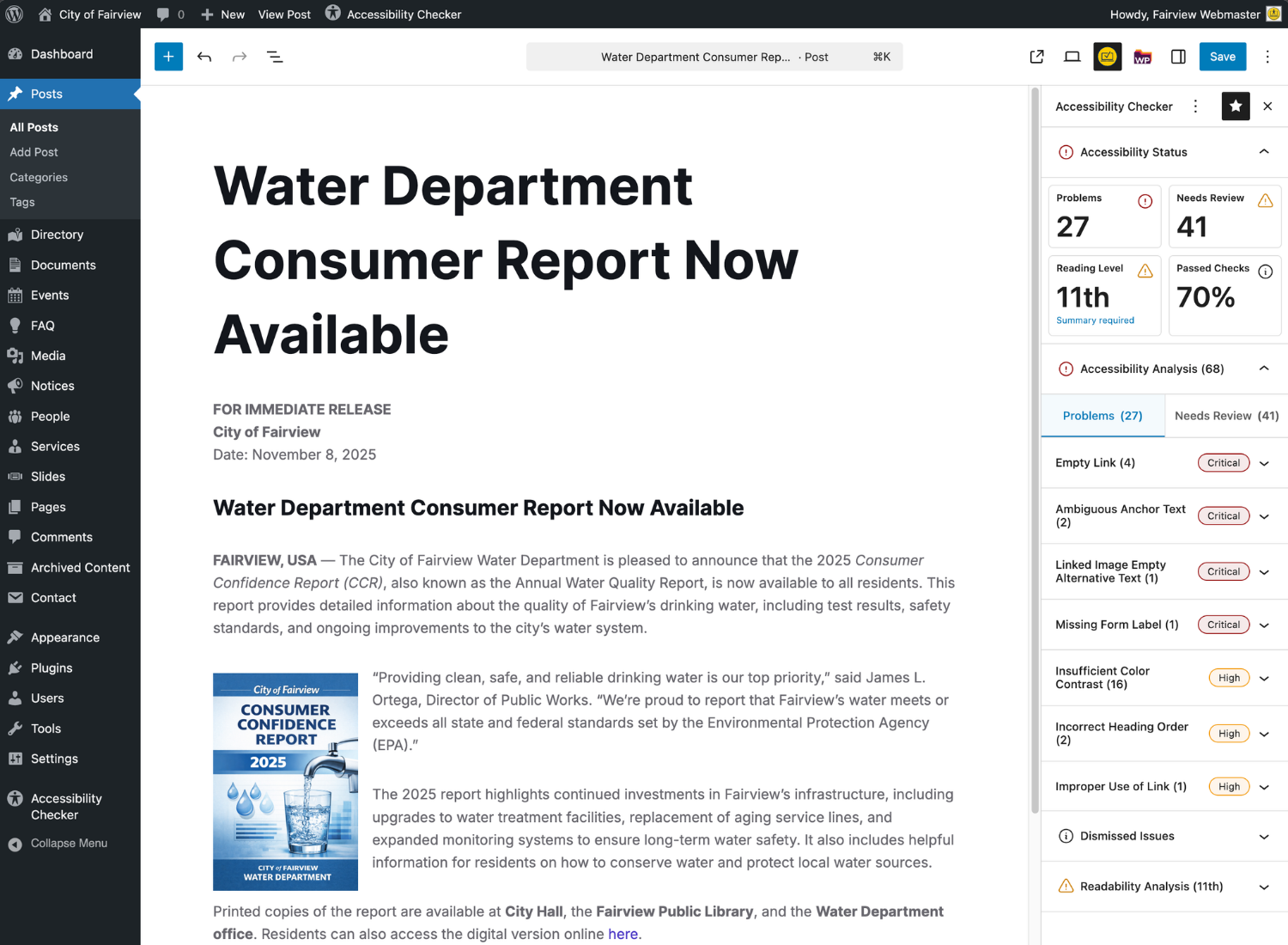
WordPress post editor showing the Accessibility Checker sidebar panel expanded reporting 27 problems, 41 Needs Review, 11th grade reading level and a Passed Checks score of 70%. Issues identified include empty links, ambiguous anchor text, linked image empty alternative text, missing form label, insufficient color contrast, incorrect heading order, and improper use of link. 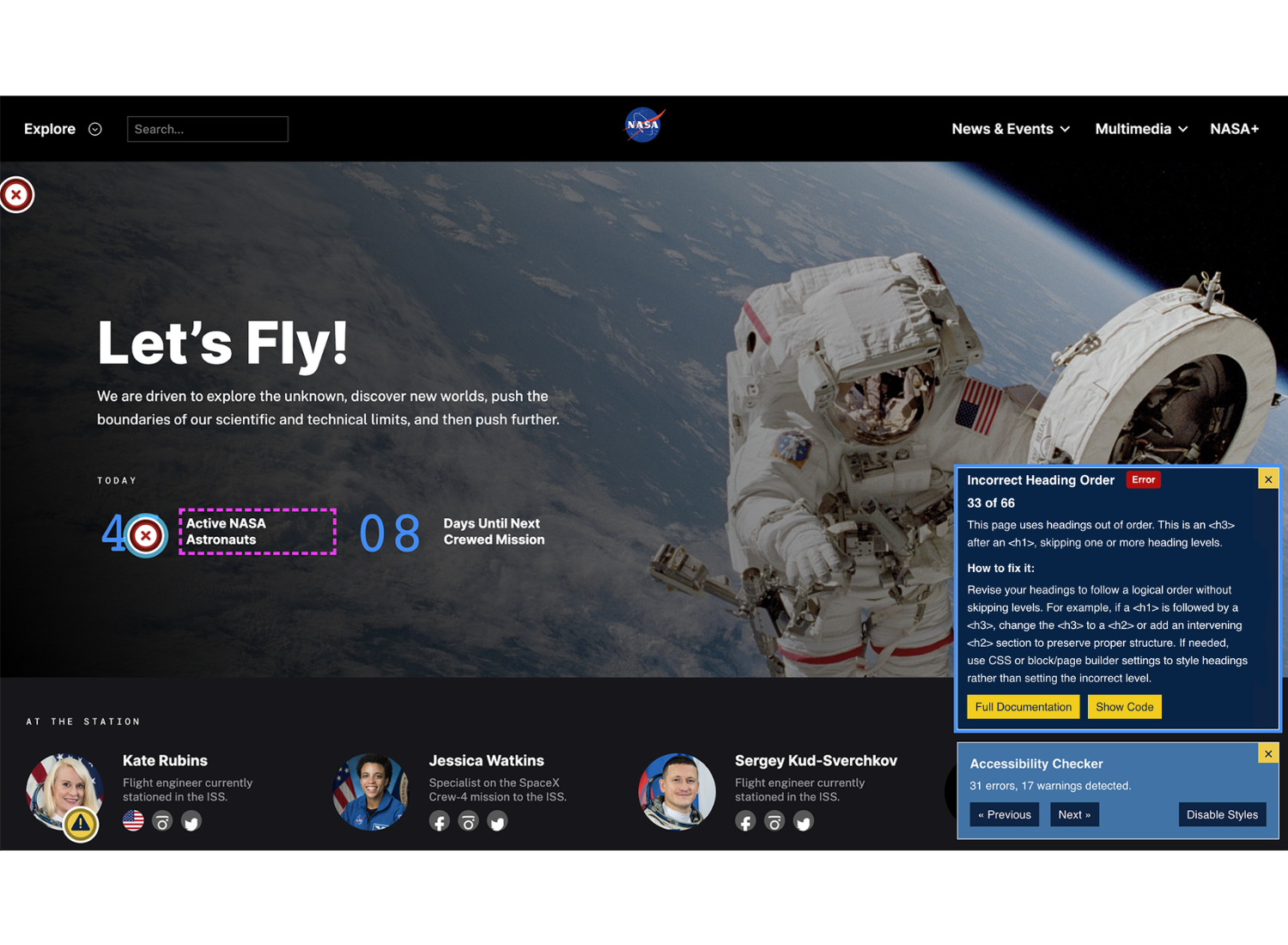
Accessibility problems can be viewed on the front end of the website, as shown on the NASA website, with a dashed pink outline around the element and explanation of the issue and how to fix it. 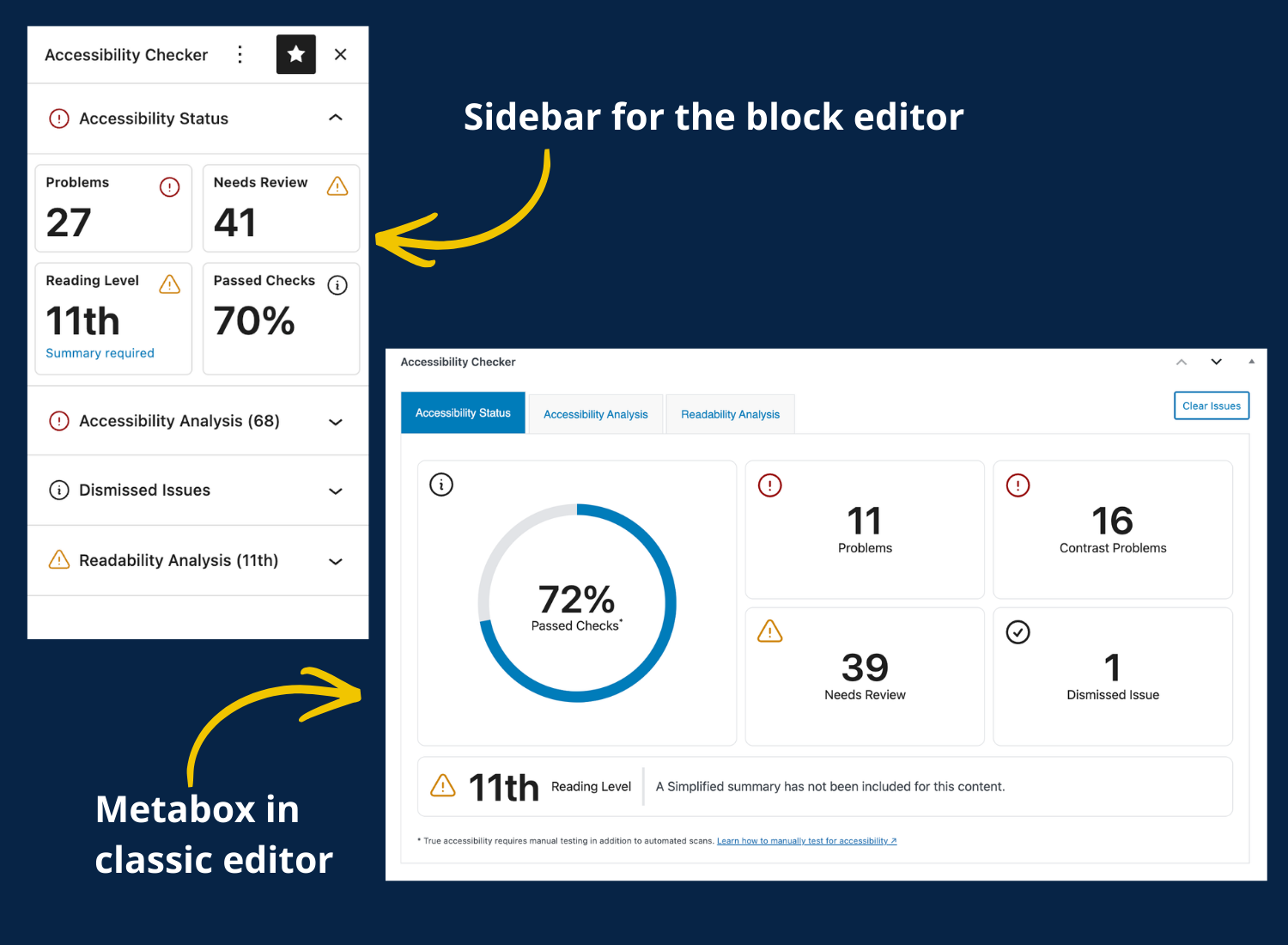
Accessibility Checker sidebar for the block editor and metabox in the classic editor. Two different ways to view accessibility scan reports. 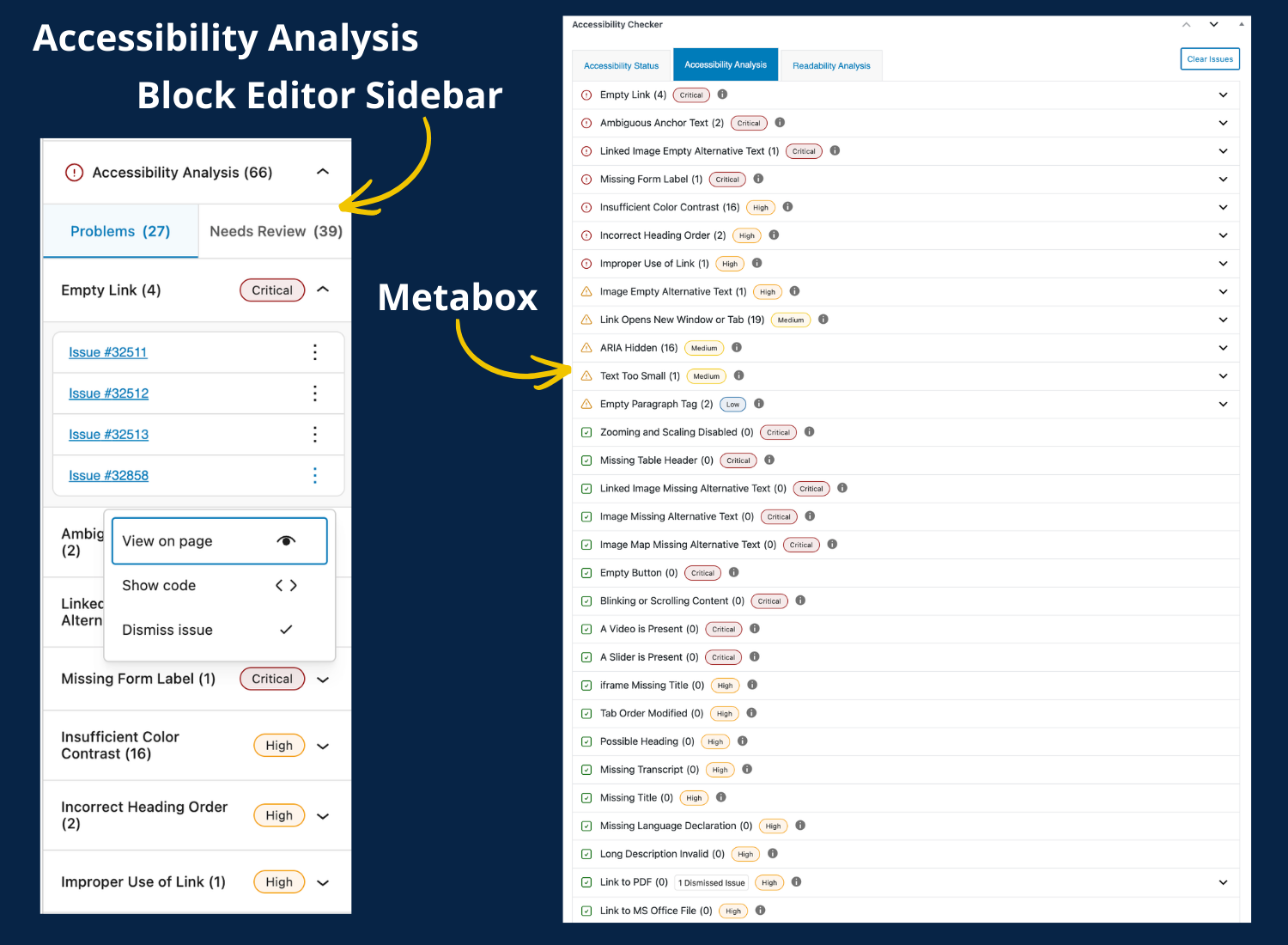
Accessibility Analysis opened in the sidebar and metabox. Actions for issues are « View on page, » « Show code, » and « Dismiss issue ». 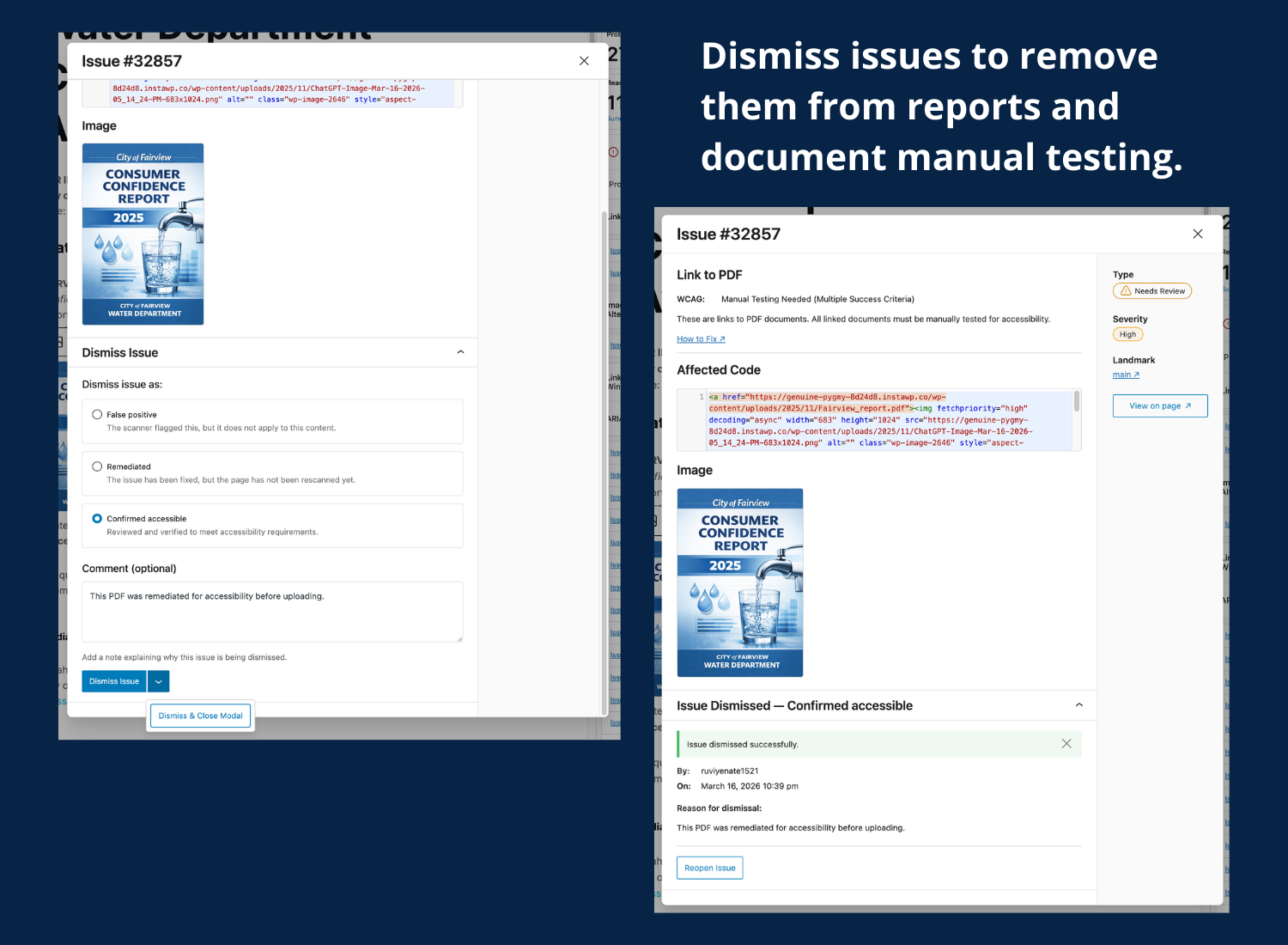
Dismiss issues to remove them from reports and document manual testing. Document reasons for dismissing issues as False positive, Remediated, or Confirmed accessible and add an optional comment. Dismissed issues show who they were dismissed by, when, and why. Dismissed issues can be reopened. 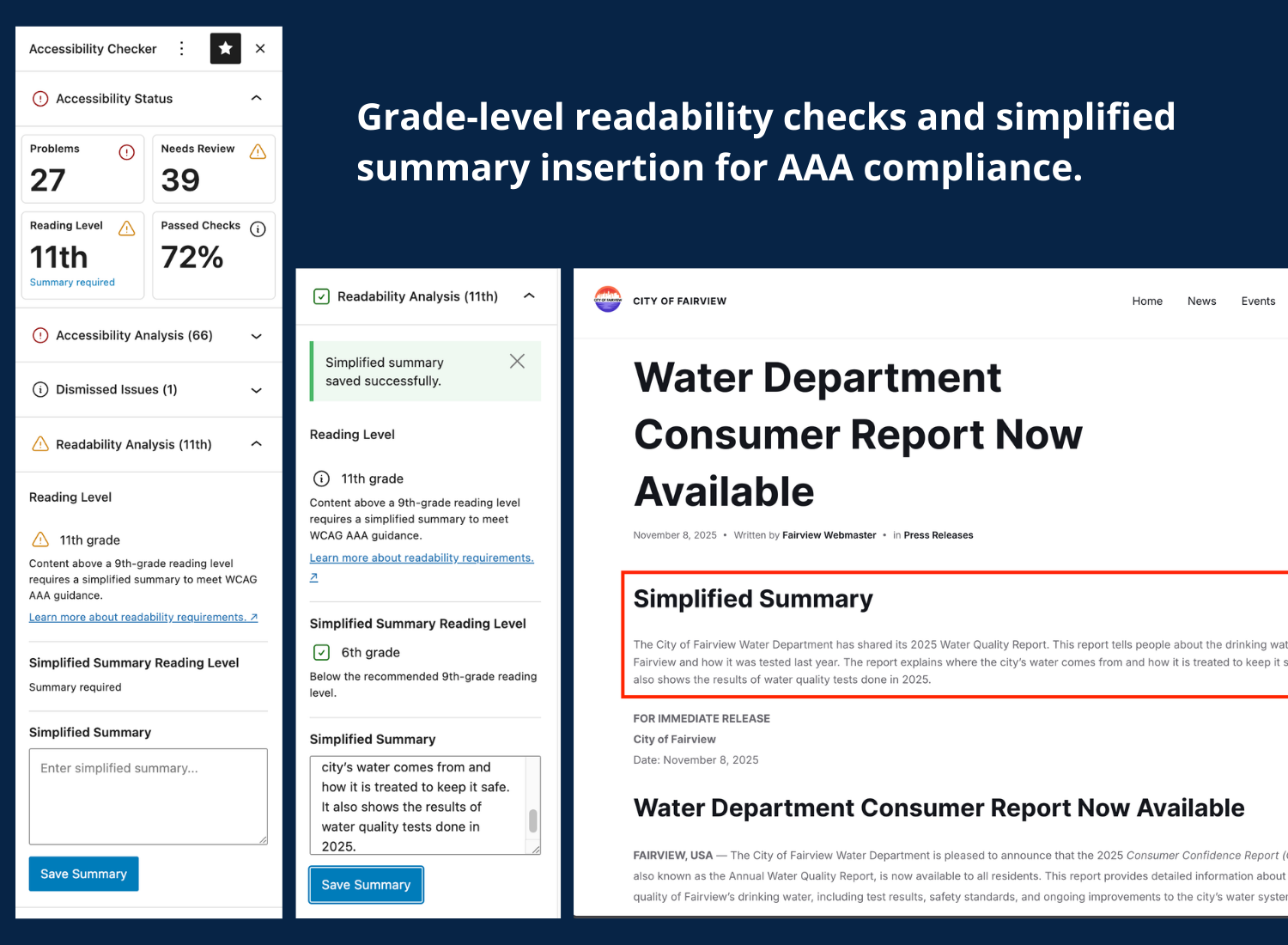
Grade-level readability checks and simplified summary insertion for AAA compliance. Reading level for the post and the simplified summary is reported. Simplified summary shown automatically inserted before the post content. 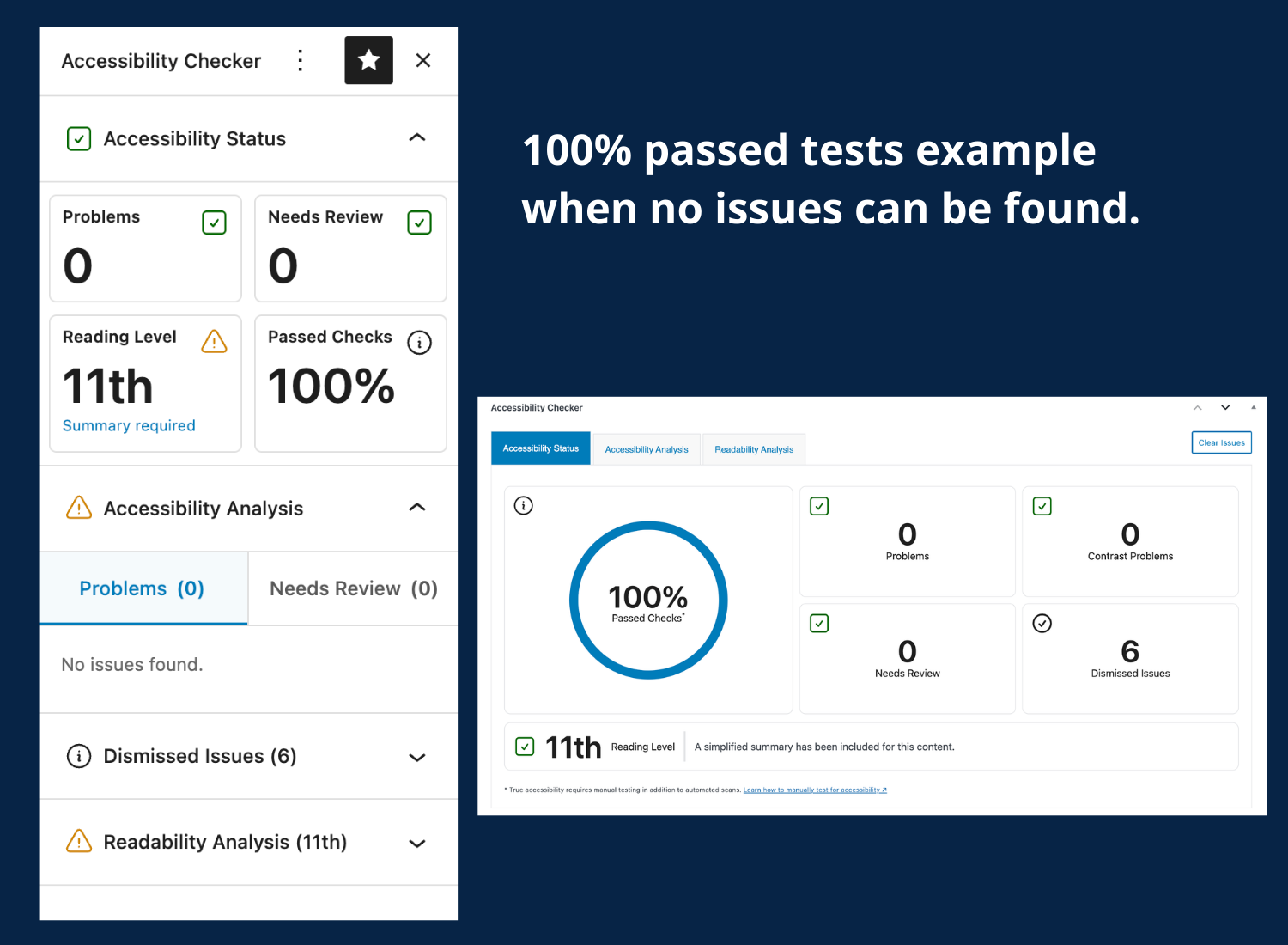
Accessibility Checker 100% passed checks example when no issues can be found or only dismissed issues exist, shown in both the sidebar and metabox. 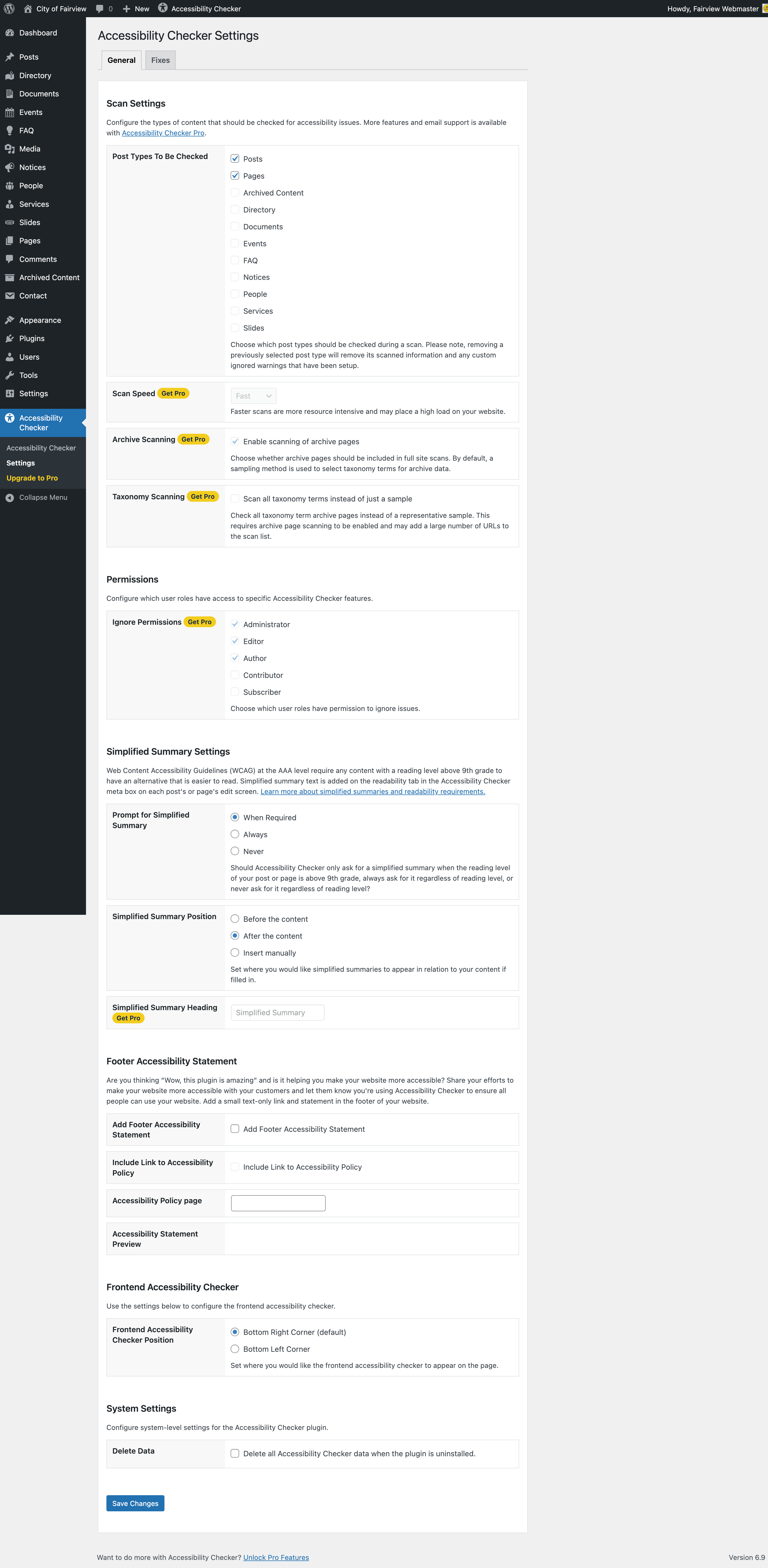
Accessibility Checker general settings: post types to be checked, simplified summary settings, footer accessibility statement settings, and data deletion. 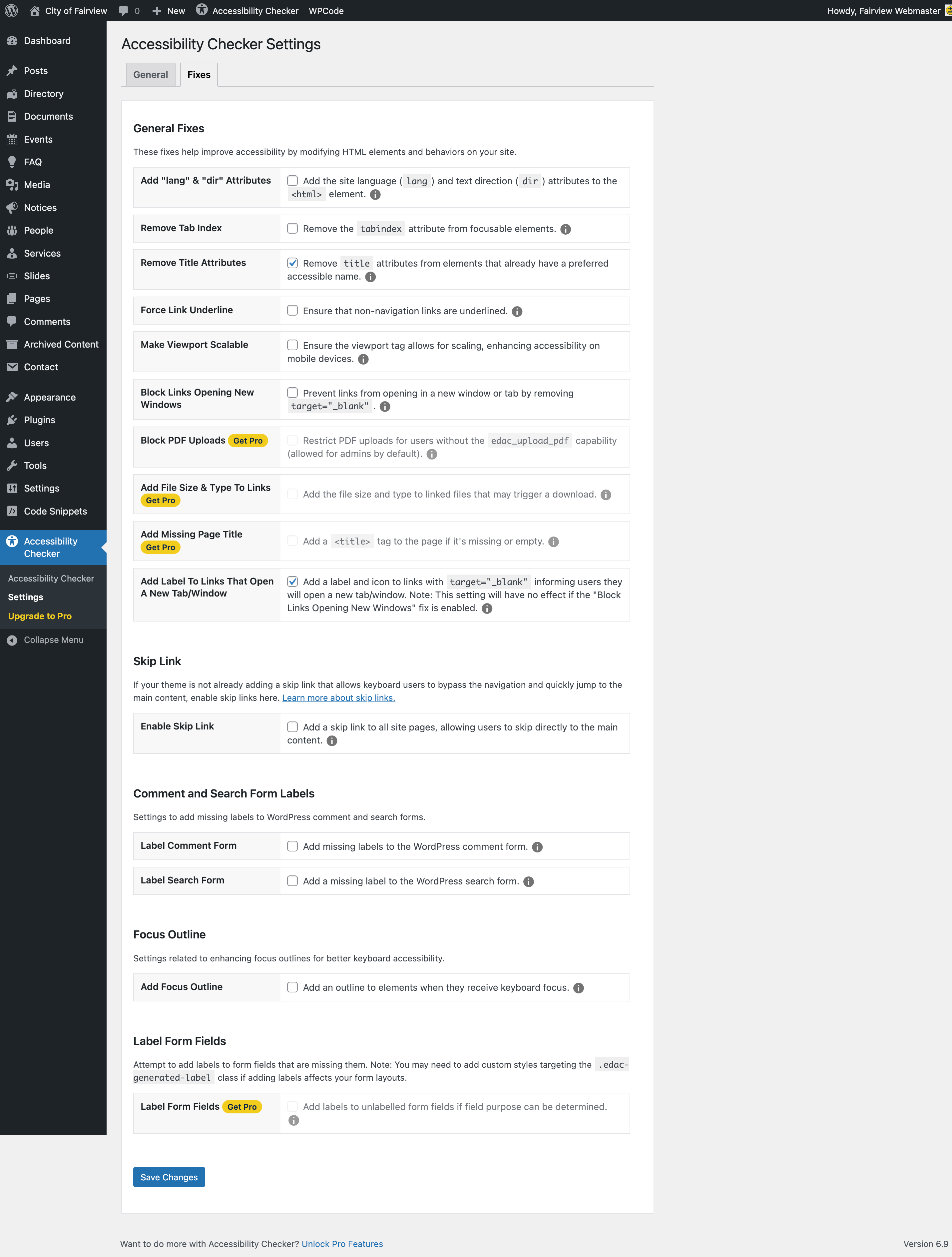
Accessibility Checker fixes settings: 12 automated fixes for common accessibility issues on WordPress websites.
Installacion
Getting started with Accessibility Checker is simple.
Install Within WordPress
- In your WordPress dashboard, go to Plugins > Add New.
- Search for
Accessibility Checker. - Click Install Now on Accessibility Checker.
- Activate the plugin from the Plugins page.
- Follow the after-activation steps below.
Installing Manually
- Download the current plugin zip from WordPress.org.
- Upload the unzipped
accessibility-checkerfolder to/wp-content/plugins/using FTP or your hosting file manager. - Activate Accessibility Checker from the Plugins page in WordPress.
- Follow the after-activation steps below.
After Activation
After activating the plugin, open the Accessibility Checker settings page in your WordPress admin at /wp-admin/admin.php?page=accessibility_checker_settings to configure the plugin.
Current settings in the free plugin include:
- Control if you want scans to run on both pages and posts.
- Control when the plugin prompts for a simplified summary.
- Choose the position of the simplified summary above content, below content, or manually in a template.
- Add footer accessibility statement.
- Choose positioning for the front-end Accessibility Checker.
- Show or hide the Accessibility Checker metabox in the block editor.
- Enable 12 automated fixes for common accessibility problems.
How to Start Testing
After activating the plugin and configuring settings, you can see reports on posts or pages in three ways:
- On the front-end view (as a logged-in user), click the Accessibility Checker button to open the report for that page.
- In the block editor, open the Accessibility Checker sidebar panel or (if enabled) in a metabox below the content.
- In the classic editor, view the Accessibility Checker metabox below the content.
Any time you save the post (save draft, publish, update), Accessibility Checker will re-scan your page and update the report to reflect changes. The block editor sidebar panel and front-end view also include a button to scan a post without requiring a save.
FAQ
-
Does this plugin make my website accessible?
-
Accessibility Checker will fix common accessibility problems, but it will not make your website 100% accessible on its own. Despite what other plugins, integrations, or overlay products might tell you, there is NO way for any automated tool or plugin to ensure your website is fully accessible.
True accessibility can only be achieved through a combination of automated scans, manual review, and remediation of identified problems. Some accessibility problems may require you to switch themes or plugins, or hire a developer. If you don’t have a developer and need help with accessibility remediation, we can help: See our remediation plans.
-
Is this an accessibility overlay or toolbar like AccessiBe, Userway, AudioEye, etc.?
-
No. Accessibility Checker is a testing tool that scans for problems and presents reports in the WordPress admin dashboard. It includes targeted fixes for some issues, but it does not add overlays, toolbars, or widgets to the front end of your website.
Accessibility Checker helps you identify issues so that you can make your website accessible the right way, and includes smart automated fixes that are optimized for WordPress and tested to confirm functionality.
-
Does Accessibility Checker scan all of my content?
-
Accessibility Checker Free scans blog posts and pages, including the header, content area, sidebar, and footer on those pages. There is no limit to the number of pages or posts you can scan or the number of times any page or post can be scanned.
If your website includes custom post types such as portfolios, team member pages, or WooCommerce products, the free version will not scan those post types.
For bulk full-site scanning or to check custom post types for accessibility, please upgrade to Accessibility Checker Pro.
-
What accessibility standards does Accessibility Checker test for?
-
Accessibility Checker identifies issues related to Web Content Accessibility Guidelines (WCAG), which are the international standard for web accessibility and the basis for many accessibility laws.
The plugin flags issues related primarily to WCAG Level A and AA success criteria, which are the most commonly required conformance levels. You can find a full list of Accessibility Checker checks in our documentation. Each check is mapped to a WCAG success criterion.
-
Do I need coding knowledge to use Accessibility Checker?
-
Accessibility Checker is designed for content creators and site owners, not just developers. We continually improve the plugin to make it easy for non-coders to use.
Many issues can be fixed directly in the WordPress editor, such as:
- Adding missing alt text to images
- Fixing heading order
- Improving link text
- Correcting color contrast issues
- Adding headings to tables
Some issues may require changes to your theme, plugins, or custom code, but that shouldn’t stop you from fixing what you’re able to fix. If your site has issues that need a code fix, Accessibility Checker provides enough information for you to report the problem to the developer of your theme or plugins.
-
How do I know how to fix accessibility problems on my website?
-
Every issue in Accessibility Checker includes short information about the identified problem and links to detailed help articles that explain the issue, its accessibility impact, and how to fix or resolve it.
Generally, these help articles provide sufficient information to point you in the right direction, but if you still have questions, here are some ways to get help:
- Ask a question in our WP Accessibility Facebook Group.
- Upgrade to a small business plan, which includes an onboarding call and bi-weekly office hours.
- Purchase a remediation plan if you want direct help fixing issues.
-
Can you help me fix accessibility problems on my website?
-
Yes. If you need accessibility fixes custom-coded for your site, we offer website accessibility remediation services to help bring your site into compliance. Learn more about Website Accessibility Remediation
-
What if there are accessibility problems in my theme or a plugin that I cannot fix?
-
If Accessibility Checker identifies problems in your theme or a plugin and you’re not sure how to fix them, contact the theme or plugin developer first. If that does not solve the problem, we can help.
More guidance:
-
Does Accessibility Checker work with my page builder?
-
Accessibility Checker scans the rendered content of your posts and pages, which allows it to detect accessibility issues created by any page builder, plugin, or theme.
For some page builders such as Elementor and Beaver Builder, Accessibility Checker’s front-end view can be used in the page builder editor. Even if Accessibility Checker reports are not visible in your page builder’s editor, you can still access reports when viewing your pages on the front-end or in the WordPress editor view.
-
Will Accessibility Checker slow down my website?
-
Accessibility Checker was built with performance in mind and should not slow down your website. Unless you enable a fix, it does not load anything on the front end for logged-out users. If you enable a fix, only the code required for that fix will load. In the editor, scans typically take only fractions of a second.
-
Do I have to connect to any third-party APIs?
-
No. Accessibility Checker runs completely on your server and does not require external APIs or services for scans. This helps control costs and keeps your website data under your control.
-
How can I report security bugs?
-
You can report security bugs through the Patchstack Vulnerability Disclosure Program. The Patchstack team helps validate, triage and handle any security vulnerabilities. Report a security vulnerability.
Reviews


Contributors & Developers
“Equalize Digital Accessibility Checker – WCAG, ADA, EAA and Section 508 compliance” is open source software. The following people have contributed to this plugin.
Contributors


“Equalize Digital Accessibility Checker – WCAG, ADA, EAA and Section 508 compliance” has been translated into 4 locales. Thank you to the translators for their contributions.
Interested in development?
Browse the code, check out the SVN repository, or subscribe to the development log by RSS.
Changelog
2026-03-17 – version 1.39.0
* New – CSS modifier classes to opt out of the New Window Warning icon and tooltip.
* New – Setting to hide the legacy metabox in the Block Editor.
* New – Fix to allow empty search results to display a meaningful message instead of a 404.
* Fix – Orphaned settings labels on the options page.
* Fix – Issue modal content clipped when affected code contains long URLs.
* Fix – Undefined help_id notice in help link generation.
* Updated – Welcome dashboard UI updated to bring it in line with other UI changes.
* Updated – Made more strings translatable – particularly those returned by ajax.
* Enhanced – Missing transcript detection now searches 2 additional levels up.
2026-03-04 – version 1.38.0
* New – Block Editor Sidebar with accessibility scan data, issues, and quick access panel for faster navigation.
* New – Dismissed issues now have assignable reasons for the dismissal.
* New – Dismiss reason and severity now visible on issues (in both sidebar and classic metabox).
* New – Ability to reopen issues that were dismissed with one click from the sidebar.
* Updated – Classic Editor metabox visual design to match sidebar styling.
* Updated – Terminology: « Errors » now « Problems ».
* Updated – Terminology: « Warnings » now « Needs Review ».
* Updated – Terminology: « Ignore » now « Dismiss ».
* Updated – Terminology: « Passed Tests » now « Passed Checks ».
* Updated – in the sidebar contrast errors are now included in the « Problems » sections.
* Enhanced – Using both color and shape now indicate state of found issues and readability.
* Fix – Make sure that summary needed is flagged for above 9th grade. Some instances it could flag for summary at 9th.
* Fix – prevent welcome modal on the first visit from overriding other events on the page load.
* Fix – various type safety and existed checks in places to prevent edge case errors.
2026-01-23 – version 1.37.0
* Fix – Duplicate markup on the page can now be properly identified as an issue.
* Fix – Restrict global ignore management link and fix button label span closure.
* Fix – Update database schema to use selector as unique identifier for issues.
* Enhanced – Frontend issue matching with stable selectors and DOM ordering.
* Enhanced – Better handling of frontend highlighter positioning.
* Improved – More accurate restoration of styles after deactivating them in frontend highlighter.
* Improved – When closing frontend highlighter it won’t re-render unless needed.
2025-12-15 – version 1.36.0
* Fix – passed tests percentage logic now accounts times no posts are scanned
* Fix – don’t prevent scan speed saving when pro plugin is enabled.
* Add – new trigger for invalid alt text – « an image ».
* Add – allow role= »menuitem » with aria-expanded in link validation checks
* New – visit welcome screen on plugin activation.
Older versions can be found in the plugins changelog.txt.