Aseprite Command Line Interface
You can convert or export your sprites to other formats (or textures+json data) from the command line. See Platform-specific Details section to know how to use the command line.
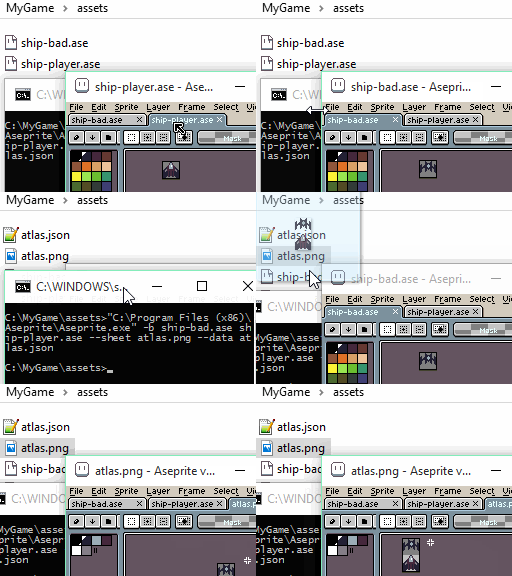
Options
Usage: aseprite.exe [OPTIONS] [FILES]... Options: --shell Start an interactive console to execute scripts -b, --batch Do not start the UI -p, --preview Do not execute actions, just print what will be done --save-as <filename> Save the last given sprite with other format --palette <filename> Change the palette of the last given sprite --scale <factor> Resize all previously opened sprites --dithering-algorithm <algorithm> Dithering algorithm used in --color-mode to convert images from RGB to Indexed --dithering-matrix <matrix> Matrix used in ordered dithering algorithm --color-mode <mode> Change color mode of all previously opened sprites: rgb grayscale indexed --data <filename.json> File to store the sprite sheet metadata --format <format> Format to export the data file (json-hash, json-array) --sheet <filename.png> Image file to save the texture --sheet-type Algorithm to create the sprite sheet: horizontal vertical rows columns packed --sheet-width <pixels> Sprite sheet width --sheet-height <pixels> Sprite sheet height --sheet-columns <columns> --sheet-rows <rows> --sheet-pack Use a packing algorithm to avoid waste of space in the texture --split-layers Import each layer of the next given sprite as a separated image in the sheet --split-tags Save each tag as a separated file --split-slices Save each slice as a separated file --split-grid Save each grid tile as a separated file --layer <name> or --import-layer <name> Include just the given layer in the sheet --all-layers Make all layers visible By default hidden layers will be ignored --ignore-layer <name> Exclude the given layer in the sheet or save as operation --tag <name> --frame-tag <name> Include tagged frames in the sheet --frame-range from,to Only export frames in the [from,to] range --ignore-empty Do not export empty frames/cels --merge-duplicates Merge all duplicate frames into one in the sprite sheet --border-padding <value> Add padding on the texture borders --shape-padding <value> Add padding between frames --inner-padding <value> Add padding inside each frame --trim Trim whole sprite for --save-as or individual frames for --sheet --trim-sprite Trim the whole sprite (for --save-as and --sheet) --trim-by-grid Trim all images by its correspondent grid boundaries before exporting --extrude Extrude all images duplicating all edges one pixel --crop x,y,width,height Crop all the images to the given rectangle --slice <name> Crop the sprite to the given slice area --filename-format <fmt> Special format to generate filenames --tagname-format <fmt> Special format to generate tagnames in JSON data --script <filename> Execute a specific script --script-param name=value Parameter for a script executed from the CLI that you can access with app.params --list-layers List layers of the next given sprite or include layers in JSON data --list-layer-hierarchy List layers with groups of the next given sprite or include layers hierarchy in JSON data --list-tags List tags of the next given sprite sprite or include frame tags in JSON data --list-slices List slices of the next given sprite sprite or include slices in JSON data --oneframe Load just the first frame --export-tileset Export only tilesets from visible tilemap layers -v, --verbose Explain what is being done --debug Extreme verbose mode and copy log to desktop --noinapp Disable "in game" visibility on Steam Doesn't count playtime -?, --help Display this help and exits --version Output version information and exit
--shell
Executes Aseprite in a REPL mode. You can write Lua code in this mode using the scripting API.
--batch
Runs Aseprite only to process command line options, then finishes. It's specially useful if you are running Aseprite from a script to automate sprite sheet generation, image conversion, etc. Example:
aseprite --batch Or you can use the shorter form:
aseprite -b --preview
On v1.2-beta2: Only show what will be done (doesn't modify files in disk).
aseprite --preview ... --save-as
Saves the latest opened document with the given file name. It's like calling File > Save As from the interface. Example:
aseprite -b sprite.ase --save-as frame001.png Will generate frame001.png, frame002.png, etc. for each frame in sprite.ase.
On v1.2-beta1: You can specify --filename-format parameters in the filename directly. For example:
aseprite -b sprite.ase --save-as layer-{layer}-frame-{frame01}.png It's like using --split-layers and --filename-format implicitly.
--palette
On v1.2-beta2: Changes the color palette of the last given sprite in the command. It can be used to save one sprite with different color palettes:
aseprite -b ryu-template.png --palette pal1.png --save-as ryu1.png --palette pal2.png --save-as ryu2.png On v1.1 this parameter was used to change the default program palette, but it can be done now using the Save as Default Palette menu option.
--scale
aseprite ... --scale FACTOR Resizes all images with the given FACTOR specified before --scale option in the command line. Example:
aseprite -b original.png --scale 2 --save-as image-x2.png --dithering-algorithm
aseprite -b sprite.ase --dithering-algorithm ALGORITHM Dithering algorithm used in --color-mode indexed to convert images from RGB to Indexed.
--dithering-algorithm none--dithering-algorithm ordered--dithering-algorithm old
--dithering-matrix
aseprite -b sprite.ase --dithering-matrix MATRIX Dithering matrix used for --dithering-algorithm and --color-mode indexed to convert images from RGB to Indexed. The MATRIX can be:
--dithering-matrix bayer8x8--dithering-matrix bayer4x4--dithering-matrix bayer2x2- Or the identifier (
id) of other dithering matrices in installed extensions.
These default dithering matrices (bayer8x8, etc.) are in the bayer-matrices extension of Aseprite, and these ids in its packages.json file.
--color-mode
aseprite -b sprite.ase --color-mode MODE Changes the color mode to the given MODE of all previously opened sprites. The MODE can be:
--color-mode rgb--color-mode grayscale--color-mode indexed
Remember that --dithering-algorithm and --dithering-matrix will affect the RGB → Indexed conversion.
Examples:
aseprite -b idx-sprite.ase --color-mode rgb --save-as rgb-output.png aseprite -b rgb-sprite.ase --dithering-algorithm ordered --dithering-matrix bayer8x8 --color-mode indexed --save-as idx-output.png --data
aseprite.exe ... --sheet file.png --data file.json Saves information about the exported sprite sheet in a JSON format. Output example.
See --sheet option to change the destination of the sprite sheet image.
The JSON data can also be written directly to stdout, by explicitly using an empty filename, i.e. --data="".
aseprite.exe ... --data="" animations.ase --format
Changes the format used to shave the sprite sheet data specified in --data option. Available formats are:
--sheet
aseprite ... --sheet SPRITESHEET.png Exports all images specified in the command line before the --sheet option in the SPRITESHEET.png image (the file will be overwritten).
See --data option to change the destination of the sprite sheet JSON data.
--sheet-width
Specifies a fixed width (in pixels) for the sprite sheet in --sheet.
--sheet-height
Specifies a fixed height (in pixels) for the sprite sheet in --sheet.
--sheet-type
Type of sprite sheet when --sheet is used:
horizontalverticalrowscolumnspacked(same as --sheet-pack)
--sheet-pack
Use a special packing algorithm to avoid waste of space in the sprite sheet.
--split-layers
Splits the visible layers of the next document in the command line, so then you can save each layer as an independent image/item. It affects --sheet and --save-as options. Warning: The --split-layers option must be before your sprite.
-
Example:
aseprite.exe -b --split-layers with-layers.ase --save-as output1.pngCheck that
--split-layersmust be beforewith-layers.ase. In this example, ifwith-layers.asecontains 3 frames and layersBackgroundandLayer 1, the following command will generate 6 files (one for each frame/layer):output (Background) 1.png output (Background) 2.png output (Background) 3.png output (Layer 1) 1.png output (Layer 1) 2.png output (Layer 1) 3.png
Since v1.2-beta1: If you specify {layer} in the --save-as filename, the --split-layers is implicitly used. For example
aseprite.exe -b with-layers.ase --save-as output-{layer}-{frame}.png To save hidden layers, you can combine this with the --all-layers option:
aseprite.exe -b --all-layers with-layers.ase --save-as output-{layer}-{frame}.png --split-tags
Since v1.2-beta8, splits next document tags into different files. It affects the --save-as option. Same as doing:
aseprite.exe -b animations.ase --save-as animations-{tag}.gif --split-slices
Since v1.2-beta8, splits next document slices into different files. It affects the --save-as option. Same as doing:
aseprite.exe -b sheet.ase --save-as part-{slice}.png --split-grid
aseprite -b --split-grid tilemaps.png --sheet tiles.png Since v1.3-beta21: Indicates that --sheet should export each grid cell of the given file as a separate sprite in the sprite sheet.
--layer
Selects just one layer to be exported (hides all other layers). It affects --sheet and --save-as options.
aseprite.exe -b --layer "Body Layer" with-layers.ase --save-as body-layer.gif Saves a body-layer.gif animation showing only the layer called Body Layer.
On v1.2-beta2 you can specify multiple layers and/or groups:
aseprite.exe -b --layer "head/hat" --layer "body/gloves" player.ase --save-as clothes.gif Will save a clothes.gif animation showing only the hat layer (which is a child of head group) and gloves layer which is a child of body group.
--all-layers
aseprite -b ... --all-layers ... Includes/shows all layers for a --save-as/--sheet operation. If your sprite contains hidden layers but you want to export those layers too, you can use this option.
Example:
aseprite -b --all-layers player.aseprite --save-as player-{layer}-{frame}.png --ignore-layer
aseprite -b ... --ignore-layer LAYERNAME ... Hides a specific layer for the final result/render in a --save-as/--sheet operation.
You must specify this parameter before opening the .aseprite file. Example:
aseprite -b --ignore-layer "Guides Layer" player.aseprite --save-as player.gif --tag
Exports the frames inside the given tag only. It works for --sheet on v1.1, and it works for --save-as since v1.2-beta1.
Example:
aseprite -b --tag "Run Cycle" several-animations.ase --save-as run-cycle.gif --frame-range
Exports the frames inside the given [from, to] range only.
--ignore-empty
Ignores empty frames/layers. It affects --sheet option.
On v1.2.10-beta3: It affects --save-as too.
--border-padding
aseprite ... --border-padding N ... Includes a border for the whole sheet of N pixels. It affects --sheet option only.

--shape-padding
aseprite ... --shape-padding N ... Includes a separation between each frame of N pixels. It affects --sheet option only.

--inner-padding
aseprite ... --inner-padding N ... Includes a border to each frame of N pixels. It affects --sheet option only.

--trim
Removes borders from sprites/layers/cels before save them. (I.e. executes the Edit > Trim option for each image to be exported.) It affects --sheet and --save-as options.
--crop
aseprite ... --crop X,Y,WIDTH,HEIGHT Exports only the specified rectangle from all sprites/layers/cels. It affects --sheet and --save-as options.
--extrude
Since v1.2-beta21: Extrudes all images/sprites that are going to be exported with --sheet duplicating all edges one pixel.
--slice
Since v1.2-beta8:
aseprite ... --slice SLICE Exports only the area specified by the given slice. It affects --save-as option.
--filename-format
aseprite --filename-format FORMAT This option specifies the special string used to format filenames generated in sprite sheets on --sheet or files generated on --save-as.
The FORMAT string can contain some special values:
{fullname}: Original sprite full filename (path + file + extension).{path}: Path of the filename. E.g. If the sprite filename isC:\game-assets\file.asethis will beC:\game-assets.{name}: Name (including extension) of the filename. E.g. If the sprite filename isC:\game-assets\file.asethis will befile.ase.{title}: Name without extension of the filename. E.g. If the sprite filename isC:\game-assets\file.asethis will befile.{extension}: Extension of the filename. E.g. If the sprite filename isC:\game-assets\file.asethis will bease.{layer}: Current layer name.{tag}: Current tag name.{innertag}: Smallest/inner current tag name.{outertag}: Largest/outer current tag name.{frame}: Current frame (starting from0). You can use{frame1}to start from 1, or other formats like{frame000}, or{frame001}, etc.{tagframe}: The current frame in the current tag. It's0for the first frame of the tag, and so on. Same as{frame}, it accepts variants like{tagframe000}.{duration}The duration of the current frame.
For example, if animation-with-layers.ase contains three frames with two layers (named Face and Background):
aseprite -b animation-with-layers.ase --filename-format '{path}/{title}-{layer}-{frame}.{extension}' --save-as output.png Will generate files like:
output-Face-0.png output-Face-1.png output-Face-2.png output-Background-0.png output-Background-1.png output-Background-2.png On v1.2-beta1: You can specify the filename format in the same --save-as argument.
--script
aseprite -script filename.lua Executes the given script from the command line.
--script-param
This is a way to add elements to the app.params table:
aseprite -b -script-param key1=value1 -script test.lua And then test.lua
if app.params["key1"] == "value1" then ... end --list-layers
aseprite --list-layers file.ase Prints the list of layers in the given file from bottom to top. E.g.

C:\....> aseprite -b --list-layers file.ase Background Layer 1 Layer 2 When used with --data, the layers will be available in the JSON output in the meta attribute. E.g.
{ "frames": [ ... ], "meta": { ..., "layers": [ { "name": "Background" }, { "name": "Layer 1" }, { "name": "Layer 2" } ] } } --list-layer-hierarchy
aseprite --list-layer-hierarchy file.ase Prints the list of layers with groups in the given file from bottom to top. E.g.

C:\....> aseprite -b --list-layer-hierarchy file.ase Layer 2 Group 1/ Layer 1.1 When used with --data, the layers will be available in the JSON output in the meta attribute. Same as --list-layers E.g.
{ "frames": [ ... ], "meta": { ..., "layers": [ { "name": "Layer 2" }, { "name": "Layer 1.1", "group": "Group 1"} ] } } --list-tags
aseprite --list-tags file.ase Prints the list of tags in the given file from the first one to the last one. E.g.

C:\....> aseprite -b --list-tags file.ase Walk Run When used with --data, the tags will be available in the JSON output in the meta attribute. E.g.
{ "frames": [ ... ], "meta": { ..., "frameTags": [ { "name": "Walk", "from": 0, "to": 3 }, { "name": "Run", "from": 4, "to": 6 } ] } } --list-slices
Since v1.2-beta8:
aseprite --list-slices file.ase Prints the list of slices in the given file.
When used with --data, slices will be available in the JSON output in the meta attribute. E.g.
{ "frames": [ ... ], "meta": { ..., "slices": [ { "name": "cursor", "color": "#0000ffff", "keys": [{ "frame": 0, "bounds": {"x": 80, "y": 0, "w": 16, "h": 16 }, "center": {"x": 2, "y": 2, "w": 12, "h": 12 }, "pivot": {"x": 8, "y": 8 } }] }, ... ] } } --oneframe
aseprite -b --oneframe frame1.png --save-as frame1.pcx aseprite -b --oneframe walk-animation.aseprite --save-as walk-thumbnail.png On v1.2-beta4: Load just the first frame of the animation. It's useful to load just one frame in a image sequence (e.g. loading just frame1.png in case that frame2.png, frame3.png, etc. exist) or to load just the first frame of a full animation (e.g. useful to create a thumbnail of the animation).
--export-tileset
aseprite -b --export-tileset tilemaps.aseprite --sheet tilesets-sprite-sheet.png Since v1.3-beta21: Indicates that --sheet should export tilesets of the visible/filtered layers in the given sprite.
--debug
If you execute Aseprite with the --debug parameter in the command line, a special Aseprite-v1.1-dev-DebugOutput.txt file will be created in your desktop with possible useful information to know what problem is going on (e.g. this is useful to know what is going on in case that the program don't start correctly).
On Steam, you can add this --debug option from the Aseprite properties.
--noinapp
Avoid connecting to or launching the Steam client. This disables the "in game" visibility on Steam.
--verbose
aseprite --verbose It will log more information in the aseprite.log file:
- On Windows:
aseprite.logis located in%AppData%\Aseprite\aseprite.log - On macOS and Linux:
aseprite.logis located in~/.config/aseprite/aseprite.log
--help
aseprite --help Shows available command line options in the console output.
--version
aseprite --version Shows Aseprite version.
Use Cases
Convert Aseprite files into PNG, GIF, etc.
aseprite.exe -b image.ase --save-as image.png aseprite.exe -b animation.ase --save-as animation.gif Convert an animation to a sequence of PNG files (frame1.png, frame2.png, etc.)
aseprite.exe -b animation.ase --save-as frame1.png Resize one sprite to several dimensions
aseprite.exe -b original.ase --scale 2 --save-as output-x2.png aseprite.exe -b original.ase --scale 4 --save-as output-x4.png aseprite.exe -b original.ase --scale 6 --save-as output-x6.png aseprite.exe -b original.ase --scale 8 --save-as output-x8.png Export one layers to PNG/GIF files
aseprite.exe -b --layer "Layer 1" animation.ase --save-as output-Layer-1.gif Export all layers into different PNG/GIF files
If animation.ase contains 3 frames and layers Background and Layer 1, the following command will generate 6 files (one for each frame/layer):
aseprite.exe -b --split-layers animation.ase --save-as output1.png Generated files will be:
output (Background) 1.png output (Background) 2.png output (Background) 3.png output (Layer 1) 1.png output (Layer 1) 2.png output (Layer 1) 3.png On v1.2-beta1: You can specify --split-layers and --filename-format implicity using something like:
aseprite.exe -b animation.ase --save-as output-{layer}.png Export an animation to a sprite sheet
aseprite.exe -b animation.ase --sheet sheet.png --data sheet.json Export each layer as a different animation in the same sprite sheet
aseprite.exe -b --split-layers animation-with-layers.ase --sheet sheet.png --data sheet.json Export a specific layer from a sprite
aseprite.exe -b --layer=Background sprite.ase --sheet sheet.png --data sheet.json Create a texture atlas from several sprites
aseprite.exe -b *.ase --sheet-pack --sheet atlas-bestfit.png --data atlas-bestfit.json aseprite.exe -b *.ase --sheet-pack --sheet-width=1024 --sheet-height=1024 --sheet atlas-1024x1024.png --data atlas-1024x1024.json Platform-specific Details
On Windows, if you've installed the program it should be located Program Files folder, try this command:
"C:\Program Files (x86)\Aseprite\Aseprite.exe" --help Or
"C:\Program Files\Aseprite\Aseprite.exe" --help On macOS, if you've installed the program in /Applications, try the following command:
/Applications/Aseprite.app/Contents/MacOS/aseprite --help Automating the process
If Aseprite was installed directly
You could create a convert.bat text file in your assets directory (i.e. where your .ase files are located) with some lines like these:
@set ASEPRITE="C:\Program Files\Aseprite\aseprite.exe" %ASEPRITE% -b animation.ase --scale 2 --save-as animation-x2.gif %ASEPRITE% -b animation.ase --scale 4 --save-as animation-x4.gif So each time you modify the original animation in animation.ase, double clicking the .bat file you could generate animation-x2.gif and animation-x4.gif automatically from the new content.
For Mac users, you could create a convert.sh:
ASEPRITE="/Applications/Aseprite.app/Contents/MacOS/aseprite" $ASEPRITE -b animation.ase --scale 2 --save-as animation-x2.gif $ASEPRITE -b animation.ase --scale 4 --save-as animation-x4.gif In the case of Steam
Aseprite binary is installed in the following directories.
- Mac
~/Library/Application Support/Steam/steamapps/common/Aseprite/Aseprite.app/Contents/MacOS/aseprite - Windows
C:\Program Files (x86)\Steam\steamapps\common\Aseprite\Aseprite.exe - Ubuntu
~/.steam/debian-installation/steamapps/common/Aseprite/aseprite