How to Build a Simple Music Player App Using Android Studio
Last Updated : 12 Jul, 2025
This is a very simple app suitable for beginners to learn the concepts. The following things you will learn in this article:
- Implementing MediaPlayer class and using its methods like pause, play and stop.
- Using external files ( images, audio, etc ) in our project.
- Building the interface of our Music Player Android App.
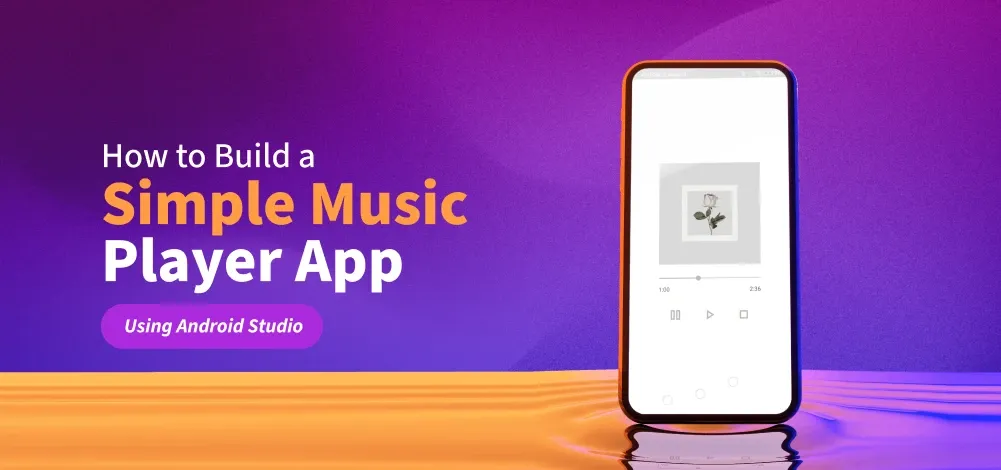
Step By Step Implementation
Step 1: Create a New Android Project
To create a new project in Android Studio please refer to How to Create/Start a New Project in Android Studio.
Note: Select Java as the programming language.
Step 2: Designing the User Interface of the app
In this app, we have used 4 components:
- ImageView - to display the album cover of the song
- 3 ImageViews (used as buttons) :
- a play button to play our song
- a pause button to pause our song
- a stop button to stop our song
- A SeekBar - to keep track of the progress of the music
- 2 TextViews
- to show current time
- to show total time of the song
Note: if we press play after pressing the pause then our song will continue playing immediately after where it was paused but if we press play button after stop then our song will play from the beginning
These components are implemented on the below two layouts:
- Vertical LinearLayout
- Horizontal LinearLayout
activity_main.xml
activity_main.xml <?xml version="1.0" encoding="utf-8"?> <LinearLayout xmlns:android="http://schemas.android.com/apk/res/android" xmlns:app="http://schemas.android.com/apk/res-auto" xmlns:tools="http://schemas.android.com/tools" android:id="@+id/activity_main" android:layout_width="match_parent" android:layout_height="match_parent" android:background="@color/white" android:gravity="center" android:orientation="vertical" android:padding="16dp" tools:context=".MainActivity"> <ImageView android:id="@+id/imageView" android:layout_width="250dp" android:layout_height="250dp" android:scaleType="centerCrop" android:src="@drawable/album_cover" /> <SeekBar android:id="@+id/seekBar" android:layout_width="280dp" android:layout_height="wrap_content" android:layout_marginTop="24dp" android:layout_marginBottom="8dp" android:progress="33" android:progressTint="@color/darker_grey" android:thumbTint="@color/darker_grey" /> <LinearLayout android:layout_width="250dp" android:layout_height="wrap_content" android:orientation="horizontal" android:weightSum="2"> <TextView android:id="@+id/textCurrentTime" android:layout_width="match_parent" android:layout_height="wrap_content" android:layout_weight="1" android:gravity="start" android:text="0:00" /> <TextView android:id="@+id/textTotalTime" android:layout_width="match_parent" android:layout_height="wrap_content" android:layout_weight="1" android:gravity="end" android:text="0:00" /> </LinearLayout> <LinearLayout android:layout_width="250dp" android:layout_height="wrap_content" android:layout_marginTop="32dp" android:orientation="horizontal" android:weightSum="3"> <ImageView android:id="@+id/buttonPause" android:layout_width="0dp" android:layout_height="40dp" android:layout_weight="1" android:clickable="true" android:src="@drawable/pause" app:tint="@color/darker_grey" /> <ImageView android:id="@+id/buttonPlay" android:layout_width="0dp" android:layout_height="40dp" android:layout_weight="1" android:src="@drawable/play" app:tint="@color/darker_grey" /> <ImageView android:id="@+id/buttonStop" android:layout_width="0dp" android:layout_height="40dp" android:layout_weight="1" android:src="@drawable/stop" app:tint="@color/darker_grey" /> </LinearLayout> </LinearLayout>
Step 3: Adding the music file to our app
Add the mp3 file to the raw folder. You can reach there by:
app > res > raw
If there is no raw folder, then create it by right-clicking on res directory then:
res > new > Android Resource Directory
Name the newly created directory as raw and add all the audio files in this folder. Make sure that the new name contains all small alphabets. The only valid characters are (a-z and 0-9 and _ )
Step 4: Adding drawable
Navigate to app > res > drawable, right click on the folder and choose New > Drawable Resource File and create 3 such files and name them play.xml, pause.xml and stop.xml
play.xml <vector xmlns:android="http://schemas.android.com/apk/res/android" android:width="24dp" android:height="24dp" android:viewportWidth="960" android:viewportHeight="960"> <path android:pathData="M320,760v-560l440,280 -440,280ZM400,480ZM400,614 L610,480 400,346v268Z" android:fillColor="#e8eaed"/> </vector>
<vector xmlns:android="http://schemas.android.com/apk/res/android" android:width="24dp" android:height="24dp" android:viewportWidth="960" android:viewportHeight="960"> <path android:pathData="M520,760v-560h240v560L520,760ZM200,760v-560h240v560L200,760ZM600,680h80v-400h-80v400ZM280,680h80v-400h-80v400ZM280,280v400,-400ZM600,280v400,-400Z" android:fillColor="#e8eaed"/> </vector>
<vector xmlns:android="http://schemas.android.com/apk/res/android" android:width="24dp" android:height="24dp" android:viewportWidth="960" android:viewportHeight="960"> <path android:pathData="M320,320v320,-320ZM240,720v-480h480v480L240,720ZM320,640h320v-320L320,320v320Z" android:fillColor="#e8eaed"/> </vector>
Step 5: Let's code the functionality of our App
Make a object of MediaPlayer class named music. It is an inbuilt class in android package. All the properties of the MediaPlayer class can be used by this music object:
MediaPlayer music
We will add our music file to this newly created object by using create function :
music = MediaPlayer.create(this, R.raw.sound);
Note: that there is no need to add .mp3 or .wav or whatever filetype you are using. Just add the name of the file. (I have named my file as sound.mp3 so used R.raw.sound)
MediaPlayer class has an inbuilt function called start we will use this function for play button. It will start the song.
public void playSong(View v){
 music.start();
}
For pause button we will use the inbuilt function pause. This will pause the song.
public void pauseSong(View v) {
 mp.pause(); }
For stop button we will use the inbuilt stop function. This function also deletes the object (music), so we create a new object with the same name.
public void stopSong(View v) {
 mp.stop();
}

music = MediaPlayer.create(this, R.raw.sound);
MainActivity.java:
MainActivity.java package org.geeksforgeeks.demo; import android.media.MediaPlayer; import android.os.Bundle; import android.os.Handler; import android.os.Looper; import android.widget.ImageView; import android.widget.SeekBar; import android.widget.TextView; import androidx.appcompat.app.AppCompatActivity; import java.util.concurrent.TimeUnit; public class MainActivity extends AppCompatActivity { // Declare MediaPlayer for audio playback private MediaPlayer mediaPlayer; // Declare UI elements private SeekBar seekBar; private TextView textCurrentTime; private TextView textTotalTime; private ImageView buttonPlay; private ImageView buttonPause; private ImageView buttonStop; // Handler to update SeekBar and current time text every second private final Handler handler = new Handler(Looper.getMainLooper()); // Runnable task that updates SeekBar and current playback time private final Runnable updateSeekBar = new Runnable() { @Override public void run() { if (mediaPlayer != null && mediaPlayer.isPlaying()) { // Update SeekBar progress and current time text seekBar.setProgress(mediaPlayer.getCurrentPosition()); textCurrentTime.setText(formatTime(mediaPlayer.getCurrentPosition())); // Repeat this task every 1 second handler.postDelayed(this, 1000); } } }; @Override protected void onCreate(Bundle savedInstanceState) { super.onCreate(savedInstanceState); // Set layout for the activity setContentView(R.layout.activity_main); // Initialize views from layout seekBar = findViewById(R.id.seekBar); textCurrentTime = findViewById(R.id.textCurrentTime); textTotalTime = findViewById(R.id.textTotalTime); buttonPlay = findViewById(R.id.buttonPlay); buttonPause = findViewById(R.id.buttonPause); buttonStop = findViewById(R.id.buttonStop); // Create MediaPlayer instance with a raw audio resource mediaPlayer = MediaPlayer.create(this, R.raw.sound); // Set listener to configure SeekBar and total time after MediaPlayer is ready mediaPlayer.setOnPreparedListener(mp -> { seekBar.setMax(mp.getDuration()); textTotalTime.setText(formatTime(mp.getDuration())); }); // Play button starts the audio and begins updating UI buttonPlay.setOnClickListener(v -> { mediaPlayer.start(); handler.post(updateSeekBar); }); // Pause button pauses the audio playback buttonPause.setOnClickListener(v -> mediaPlayer.pause()); // Stop button stops playback and resets UI and MediaPlayer buttonStop.setOnClickListener(v -> { mediaPlayer.stop(); mediaPlayer = MediaPlayer.create(this, R.raw.sound); seekBar.setProgress(0); textCurrentTime.setText("0:00"); textTotalTime.setText(formatTime(mediaPlayer.getDuration())); }); // Listen for SeekBar user interaction seekBar.setOnSeekBarChangeListener(new SeekBar.OnSeekBarChangeListener() { // Called when progress is changed @Override public void onProgressChanged(SeekBar seekBar, int progress, boolean fromUser) { if (fromUser && mediaPlayer != null) { // Seek MediaPlayer to new position and update current time mediaPlayer.seekTo(progress); textCurrentTime.setText(formatTime(progress)); } } // Not used, but required to override @Override public void onStartTrackingTouch(SeekBar seekBar) {} // Not used, but required to override @Override public void onStopTrackingTouch(SeekBar seekBar) {} }); } // Format milliseconds into minutes:seconds format (e.g., 1:05) private String formatTime(int milliseconds) { long minutes = TimeUnit.MILLISECONDS.toMinutes(milliseconds); long seconds = TimeUnit.MILLISECONDS.toSeconds(milliseconds) % 60; return String.format("%d:%02d", minutes, seconds); } // Clean up MediaPlayer and handler when activity is destroyed @Override protected void onDestroy() { super.onDestroy(); handler.removeCallbacks(updateSeekBar); if (mediaPlayer != null) { mediaPlayer.release(); } } }
Output:
How to build a simple music player app using Android Studio
Explore
Basics
Software Setup and Configuration
Android Studio Tutorial
9 min read
File Structure & Components
Core Topics
Layout & View
Button
Intent and Intent Filters
Toast & RecyclerView
Fragments & Adapters