How to Add Audio File in Flutter Application?
Last Updated : 23 Jul, 2025
Flutter is a well-known tool for developing cross-platform applications. It is considered a good choice among developers because of the single code base policy for all types of OS and devices. Flutter engine provides support for a vast library and file types, making it easy to develop beautiful UI by adding fonts, images, and widgets.
Flutter engine doesn't support audio files, hence playing audio is not as easy as viewing the image from the assets folder. Every cloud has a silver lining - but no worries, Flutter provides the solution too. Many plugins can be integrated within the app to play audio. In this article, we will learn to use the audio files from the asset folder using the audioplayers plugin.
Step-by-Step Implementation of Audio Player Application
Step 1: Create a new Flutter Application
Create a new Flutter application using the command Prompt. To create a new app, write the following command and run it.
flutter create app_name
To know more about it refer this article: Creating a Simple Application in Flutter
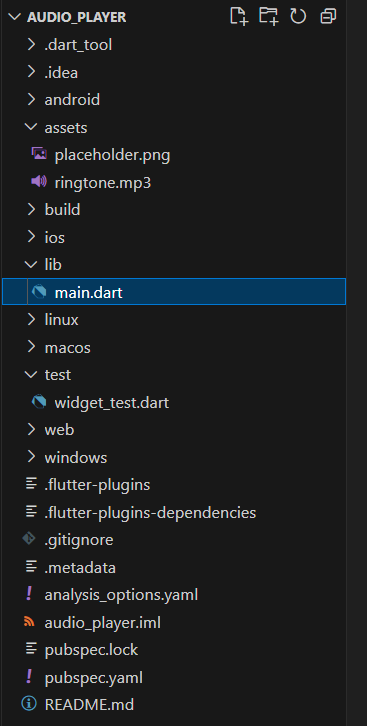
Project Structure
Step 2: Adding the Dependency
To add the dependency to the pubspec.yaml file, add audioplayers as a dependency in the dependencies part of the pubspec.yaml file, as shown below:
Dart dependencies: flutter: sdk: flutter audioplayers: ^6.4.0
Now, run the below command in the terminal.
flutter pub get
Or
Run the below command in the terminal.
flutter pub add audioplayers
As the project is created, you will find the main.dart file inside the lib folder, create an assets folder as mentioned in the above project structure. Also, upload any audio name ringtone.mp3 and image name placeholder.png to the assets folder. Import the asset in pubspec.yaml.
flutter:
 assets:
 - assets/ringtone.mp3
Or you can run the following command to load the dependency.
flutter pub get
Step 3: Code for main.dart
The UI consists of a static image and buttons to play and stop audio. The code integrates the functions _playAudio and _stopAudio from the plugin to play and stop the audio file.
main.dart:
main.dart import 'package:flutter/material.dart'; import 'package:audioplayers/audioplayers.dart'; void main() { runApp(MyApp()); } class MyApp extends StatelessWidget { @override Widget build(BuildContext context) { return MaterialApp(debugShowCheckedModeBanner: false, home: audio()); } } class audio extends StatefulWidget { @override _audioState createState() => _audioState(); } class _audioState extends State<audio> { // Audio player for background music final AudioPlayer audioPlayer = AudioPlayer(); // Play audio void _playAudio() { // Play background music audioPlayer.play(AssetSource("ringtone.mp3")); } // Stop audio void _stopAudio() { // Pause background music audioPlayer.pause(); } @override void dispose() { // Dispose audio player audioPlayer.dispose(); super.dispose(); } @override Widget build(BuildContext context) { return Scaffold( appBar: AppBar( centerTitle: true, title: const Text( 'Audio player Application', style: TextStyle(fontSize: 25), ), backgroundColor: Colors.green[700], foregroundColor: Colors.white, ), body: Center( child: Column( mainAxisAlignment: MainAxisAlignment.center, children: <Widget>[ ElevatedButton( onPressed: _playAudio, child: const Text( 'Play', style: TextStyle( fontSize: 16, fontWeight: FontWeight.bold, color: Colors.white, ), textAlign: TextAlign.center, ), style: ElevatedButton.styleFrom( backgroundColor: Colors.green[700], shape: RoundedRectangleBorder( borderRadius: BorderRadius.circular(10), ), padding: EdgeInsets.all(8), ), ), SizedBox(height: 20), ElevatedButton( onPressed: _stopAudio, child: const Text( 'Stop', style: TextStyle( fontSize: 16, fontWeight: FontWeight.bold, color: Colors.white, ), textAlign: TextAlign.center, ), style: ElevatedButton.styleFrom( backgroundColor: Colors.green[700], shape: RoundedRectangleBorder( borderRadius: BorderRadius.circular(10), ), padding: EdgeInsets.all(8), ), ), ], ), ), ); } } Step 4: Run the application
Save the project and enter below command to run the application.
flutter run
Output:
Explore
Basics
Key Widgets
UI Components
Design & Animations
Forms & Gestures
Navigation & Routing
Hardware Interaction
Sample Flutter Apps
Advance Concepts