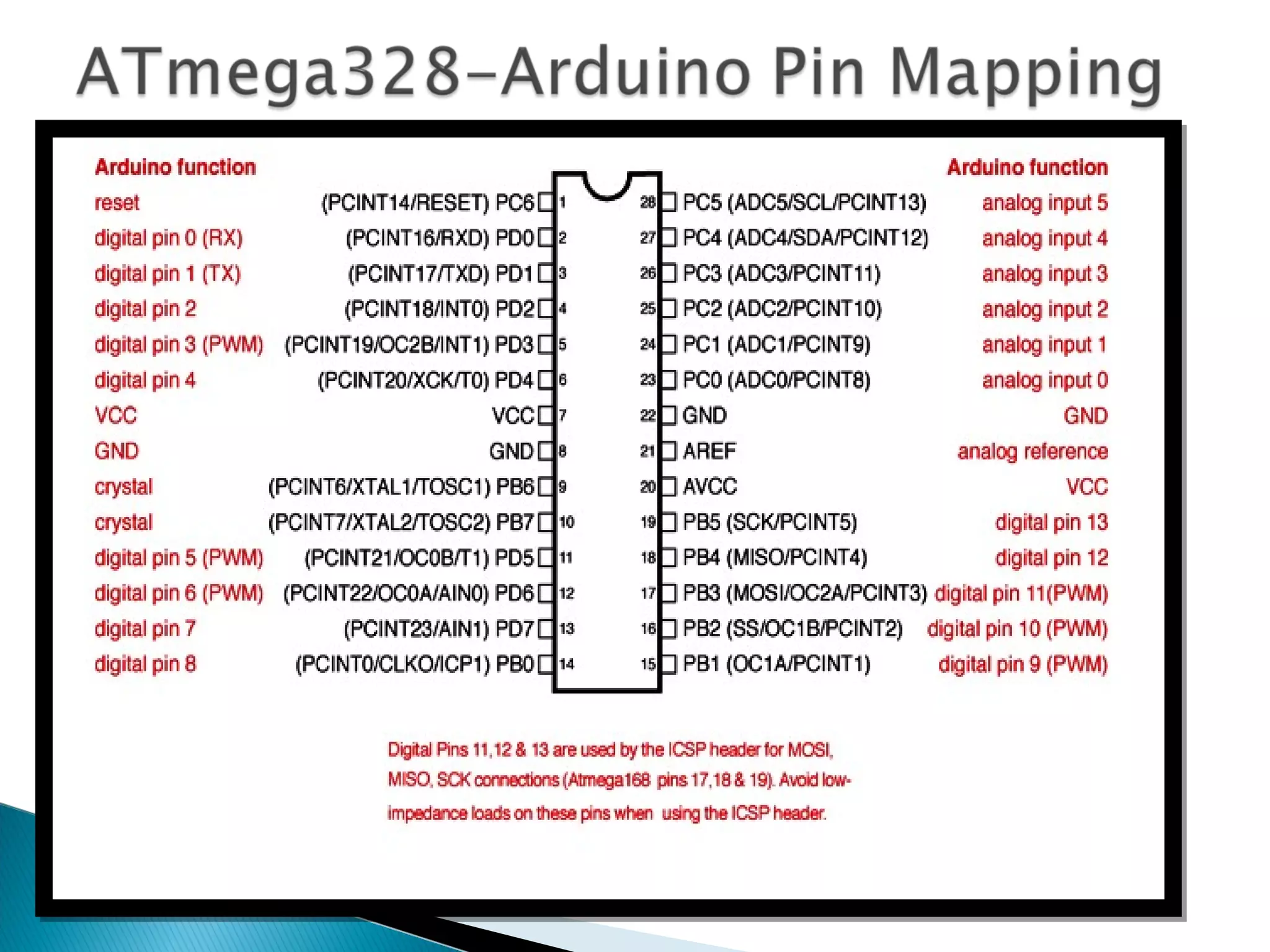
 Introduction to arduino  Architechture of arduino  Pin configuration to arduino  Serial communication  Atmega 328-arduino pin mapping
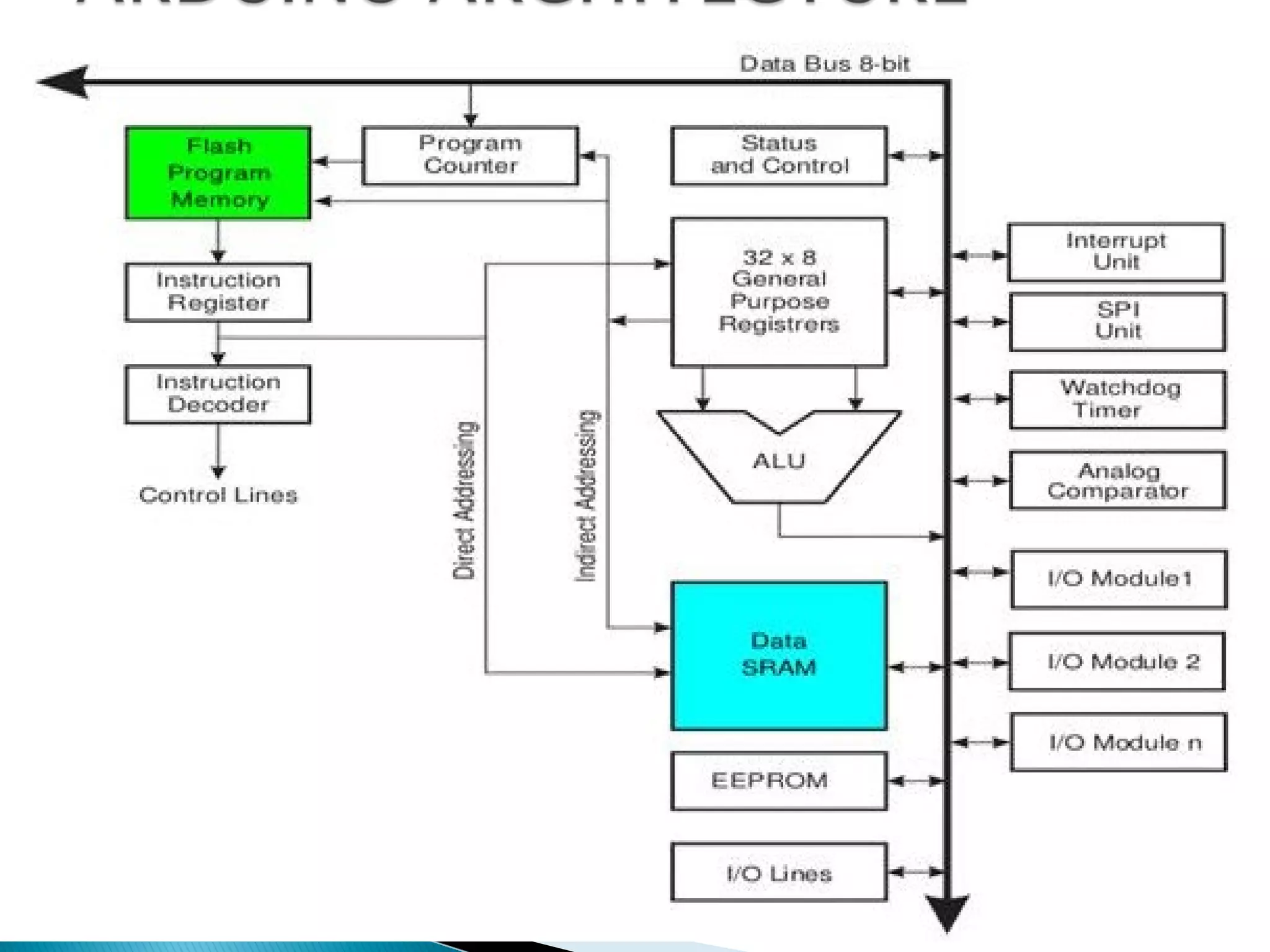
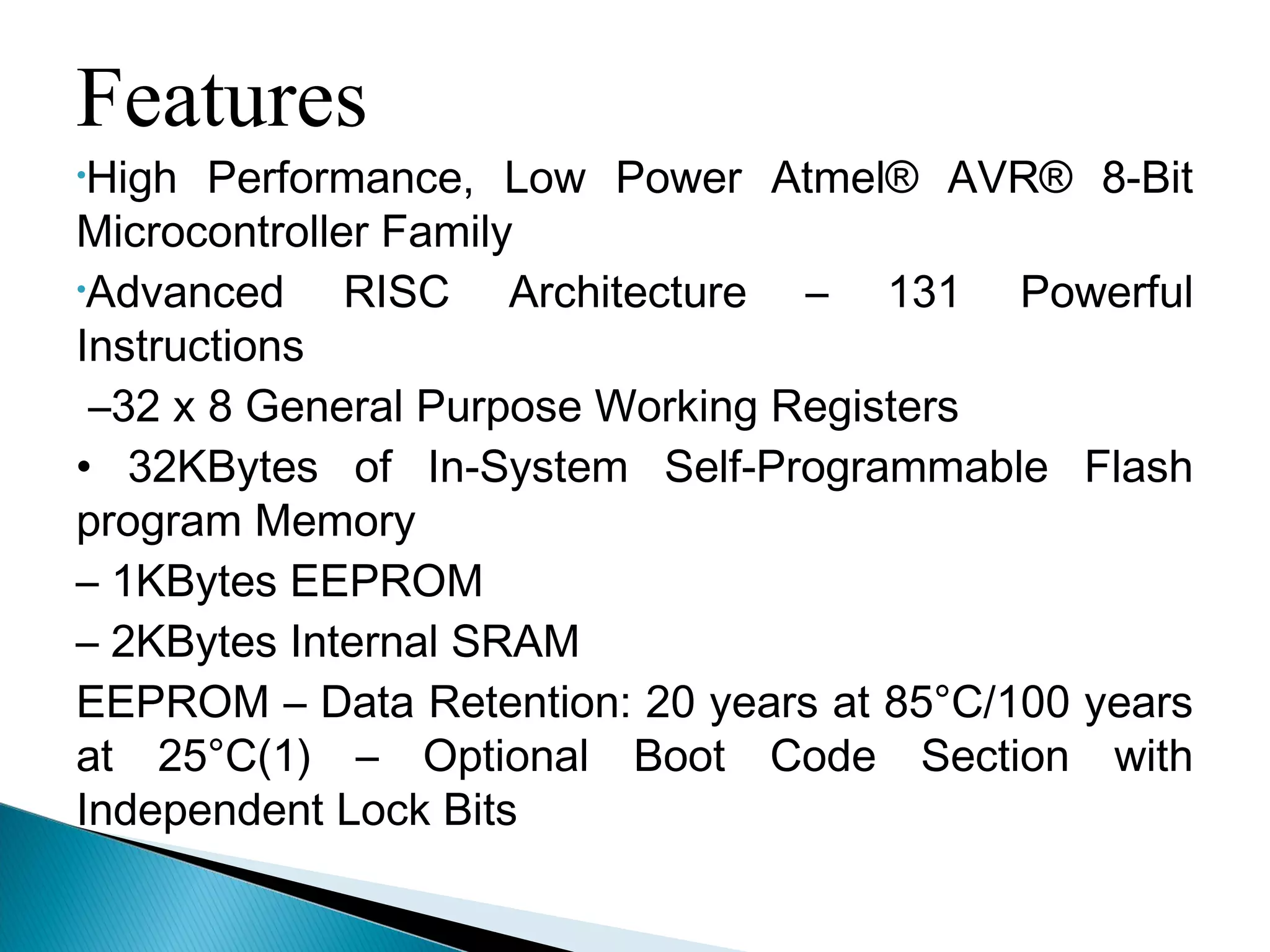
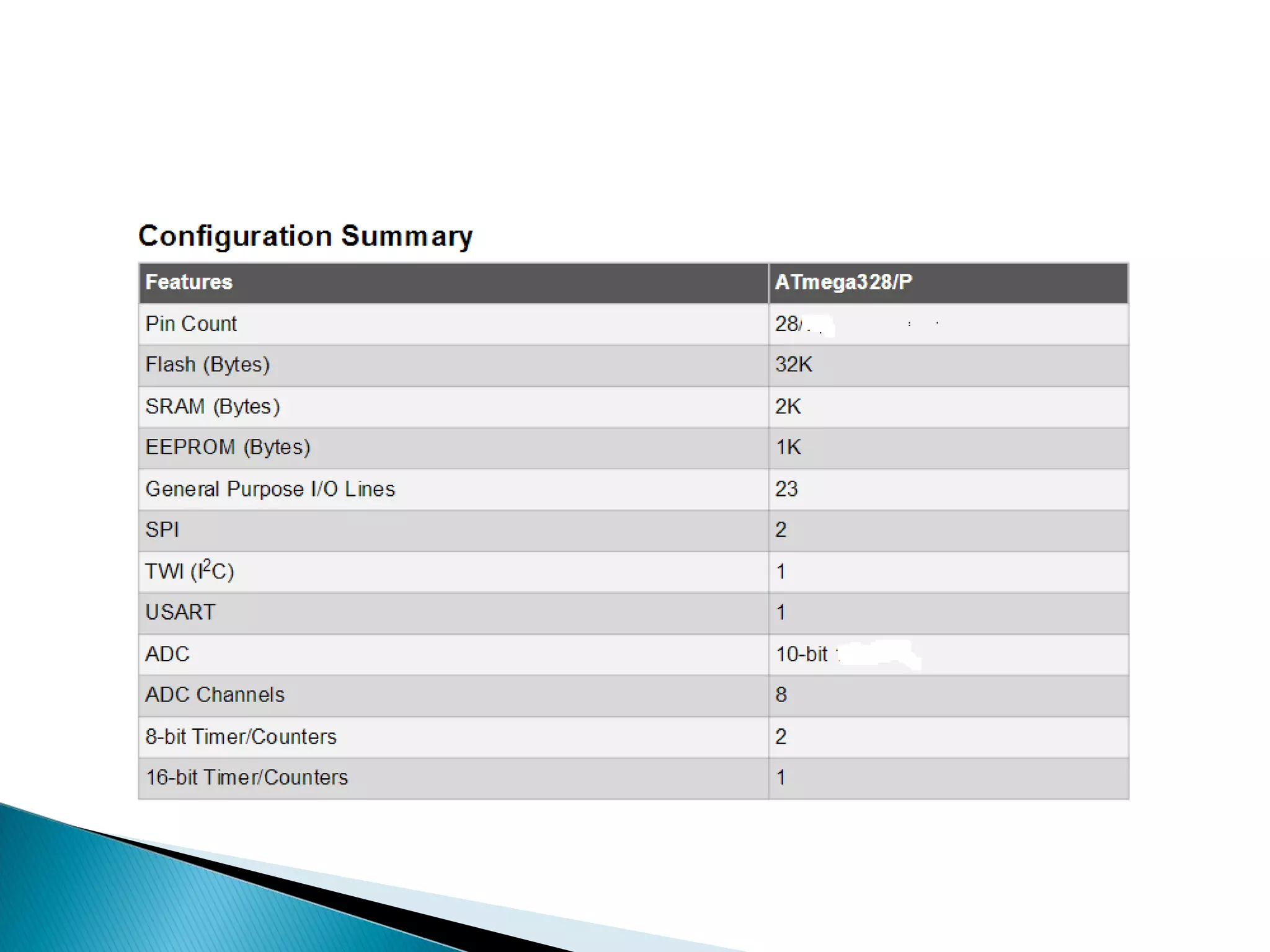
Features •High Performance, Low Power Atmel® AVR® 8-Bit Microcontroller Family •Advanced RISC Architecture – 131 Powerful Instructions –32 x 8 General Purpose Working Registers • 32KBytes of In-System Self-Programmable Flash program Memory – 1KBytes EEPROM – 2KBytes Internal SRAM EEPROM – Data Retention: 20 years at 85°C/100 years at 25°C(1) – Optional Boot Code Section with Independent Lock Bits
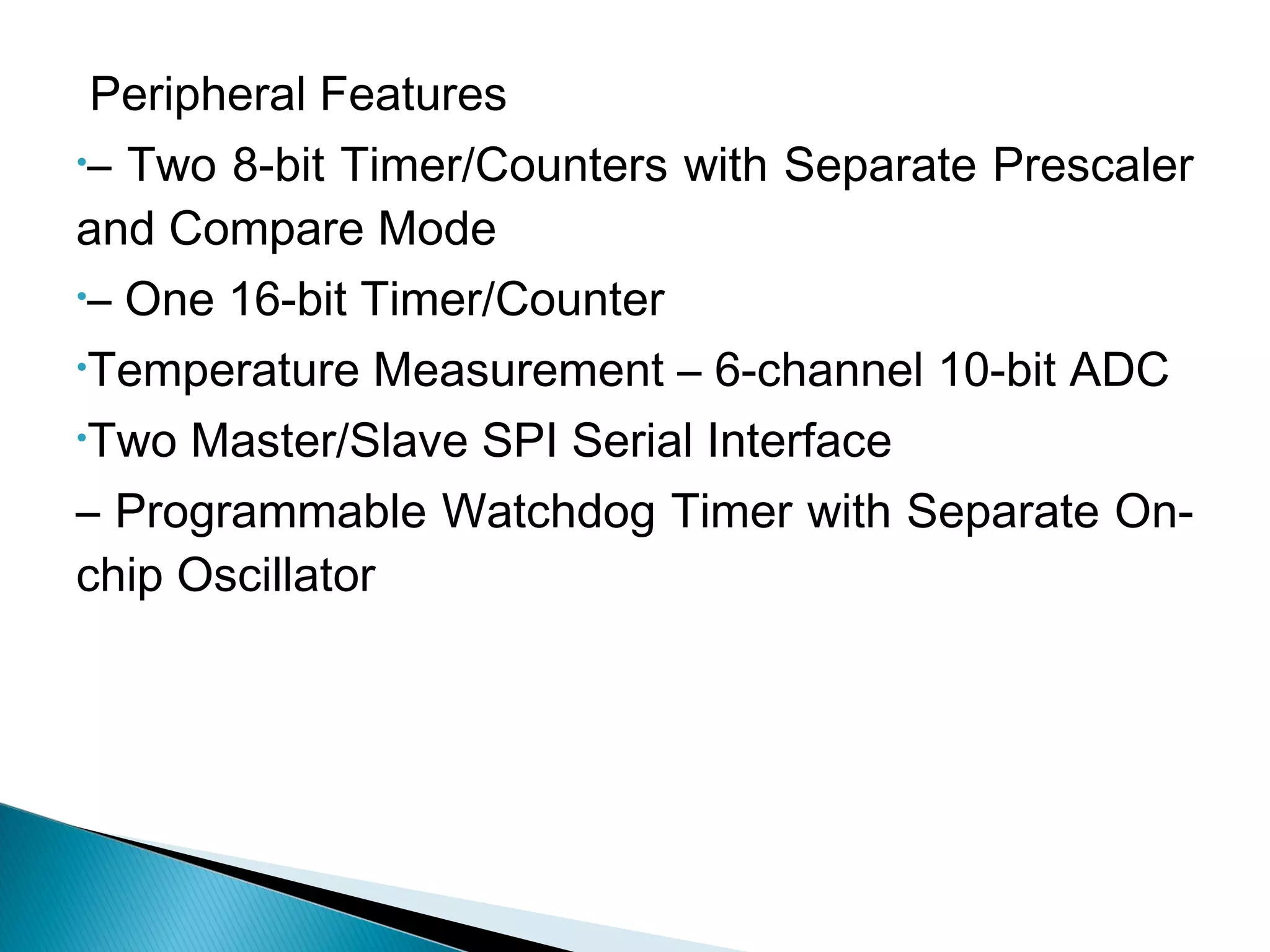
Peripheral Features •– Two 8-bit Timer/Counters with Separate Prescaler and Compare Mode •– One 16-bit Timer/Counter •Temperature Measurement – 6-channel 10-bit ADC •Two Master/Slave SPI Serial Interface – Programmable Watchdog Timer with Separate On- chip Oscillator
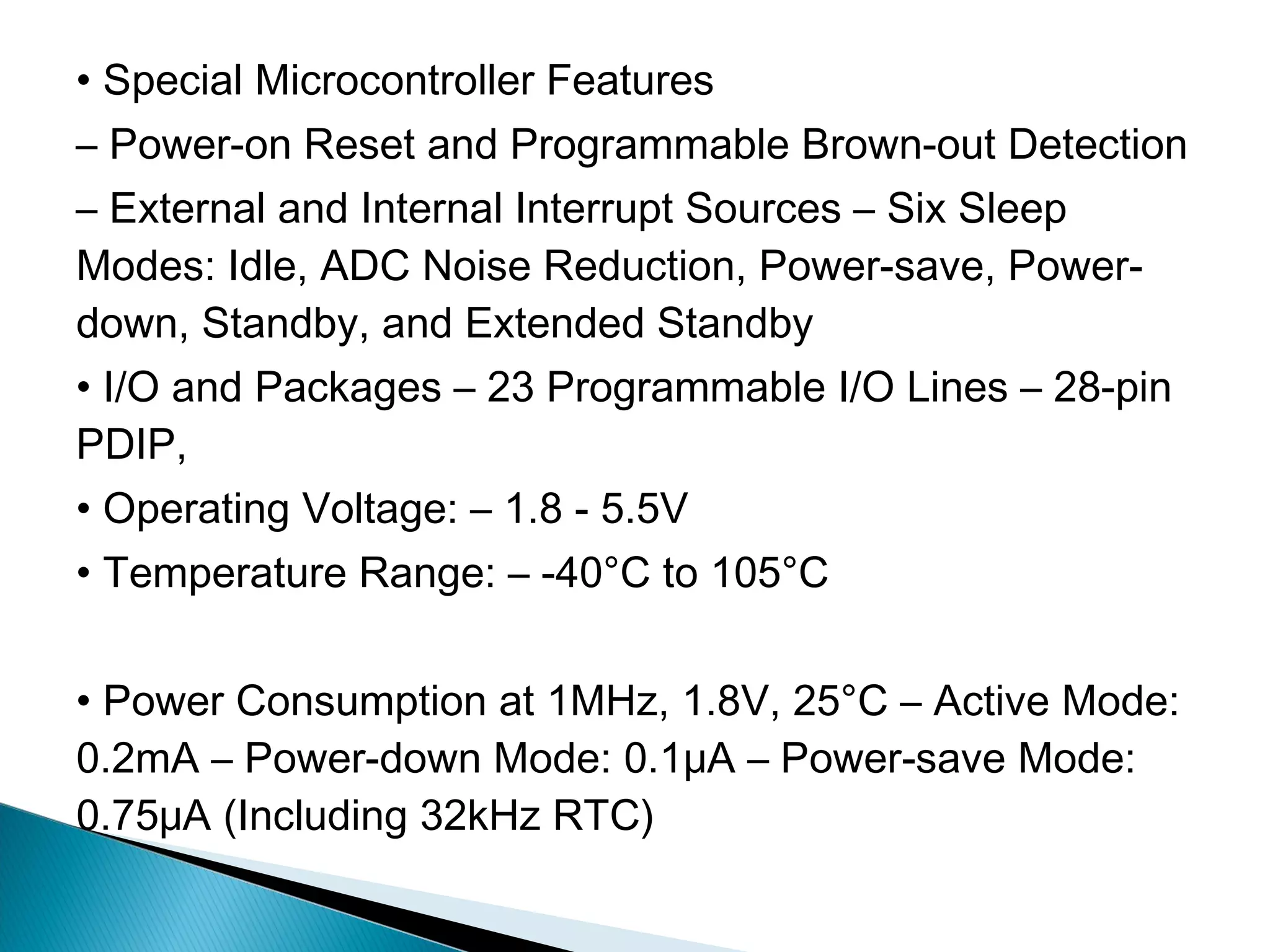
• Special Microcontroller Features – Power-on Reset and Programmable Brown-out Detection – External and Internal Interrupt Sources – Six Sleep Modes: Idle, ADC Noise Reduction, Power-save, Power- down, Standby, and Extended Standby • I/O and Packages – 23 Programmable I/O Lines – 28-pin PDIP, • Operating Voltage: – 1.8 - 5.5V • Temperature Range: – -40°C to 105°C • Power Consumption at 1MHz, 1.8V, 25°C – Active Mode: 0.2mA – Power-down Mode: 0.1μA – Power-save Mode: 0.75μA (Including 32kHz RTC)
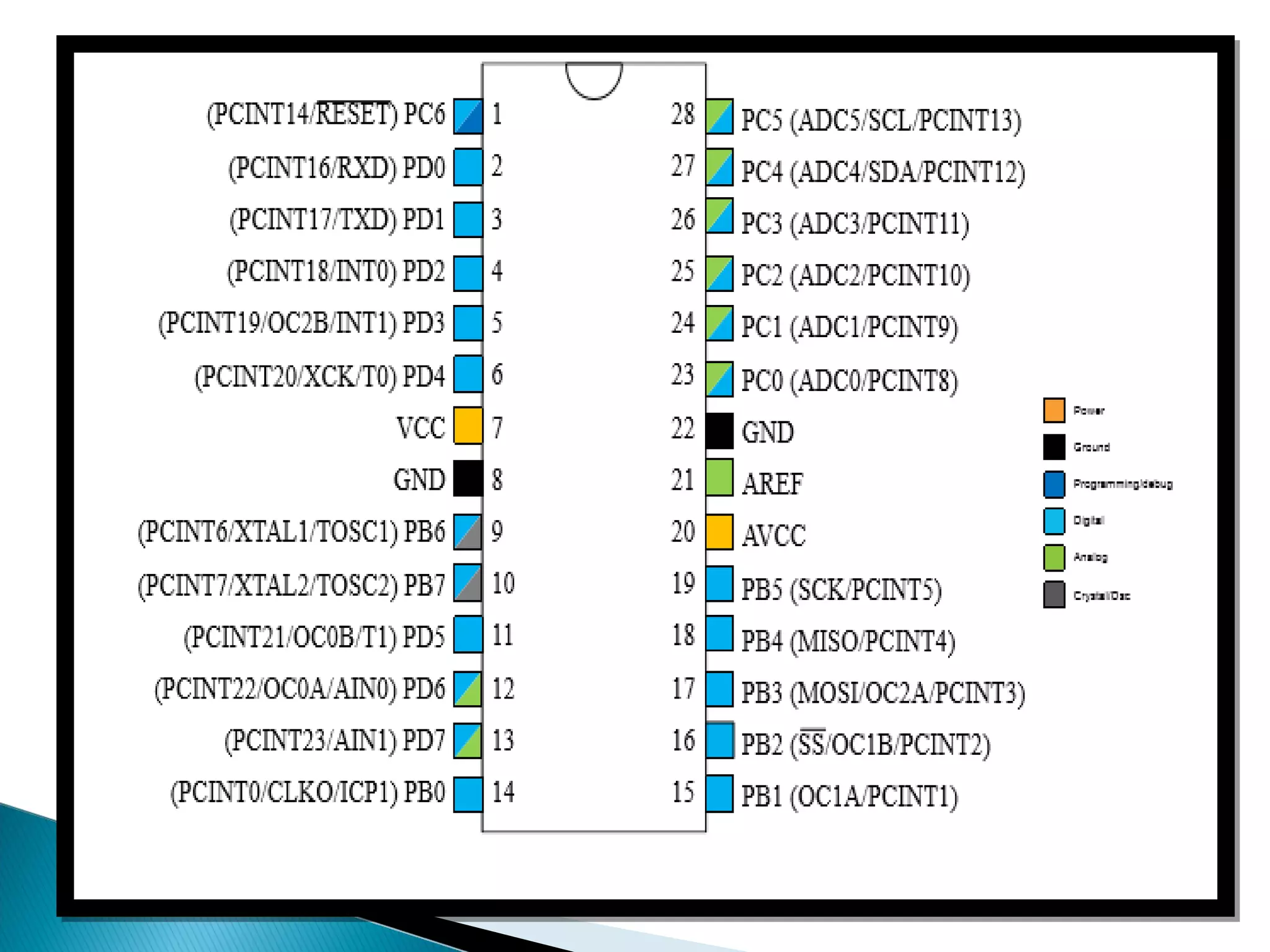
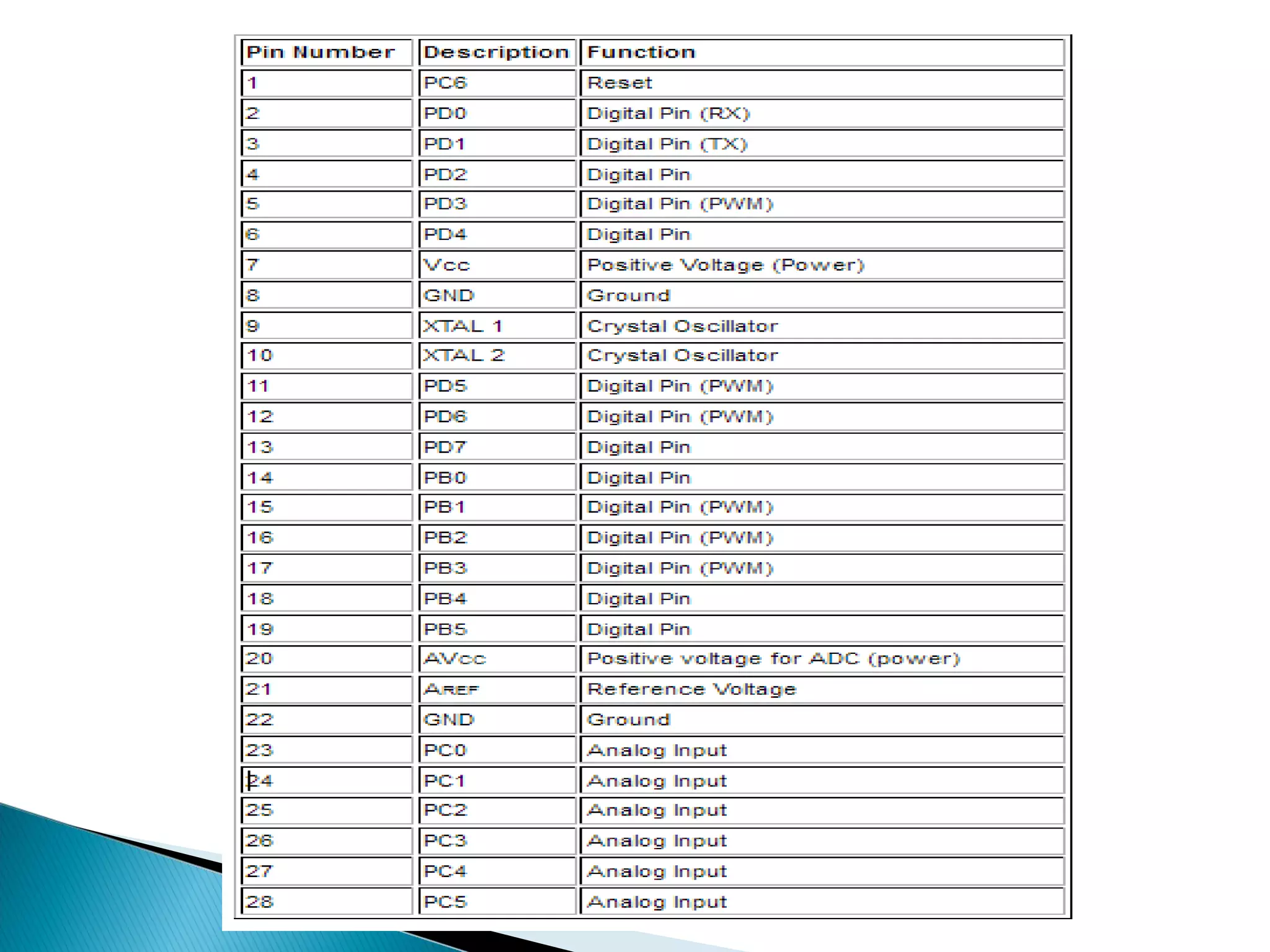
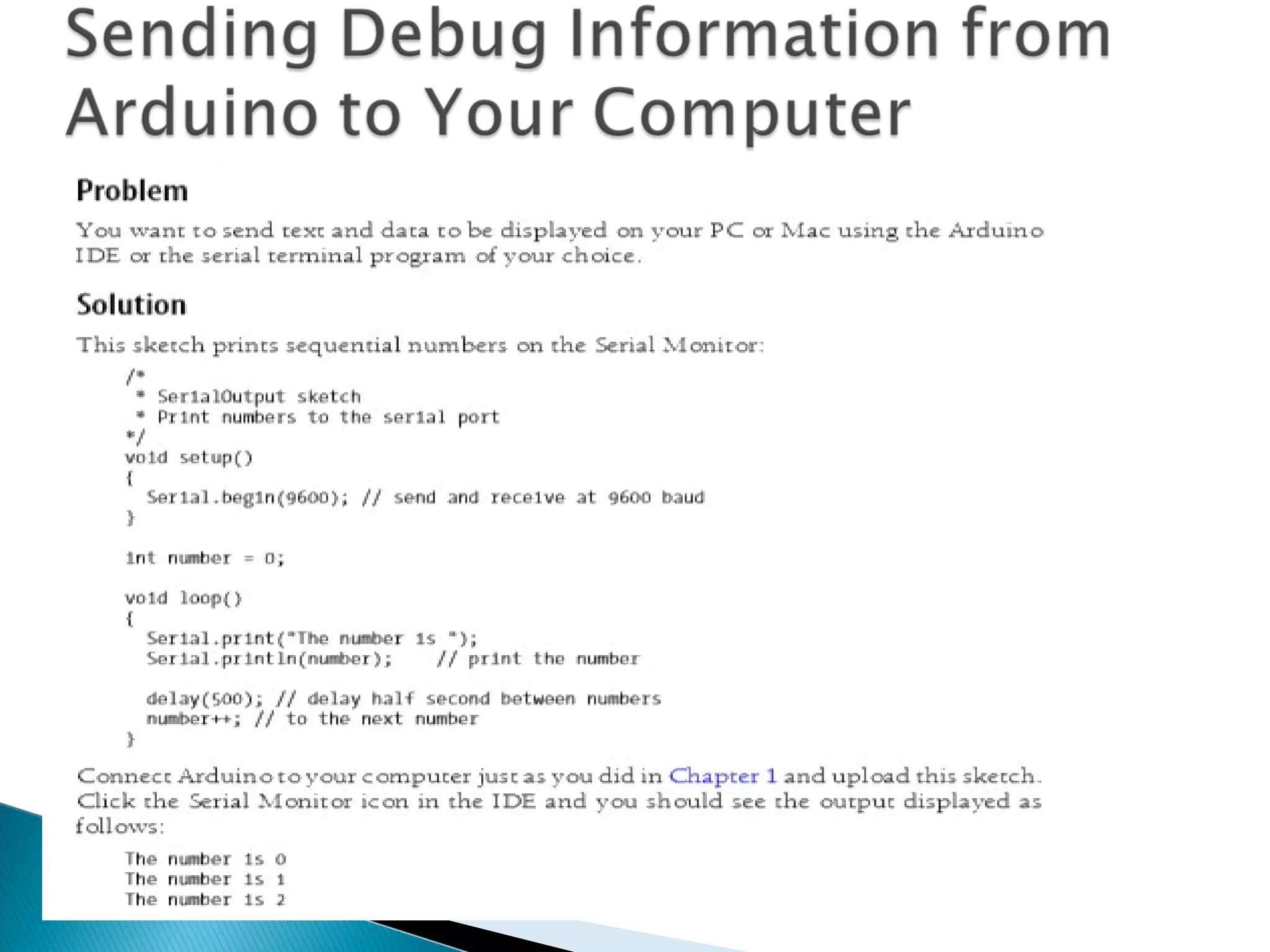
 VCC Digital supply voltage.  GND Ground.  Port B (PB[7:0]) XTAL1/XTAL2/TOSC1/TOSC2 Port B is an 8-bit bi-directional I/O port with internal pull-up resistors (selected for each bit).
PB[7:6] is used as TOSC[2:1] input for the Asynchronous Timer/Counter2 Port C (PC[5:0]) Port C is a 7-bit bi-directional I/O port with internal pull-up resistors (selected for each bit).  PC6/RESET If the RSTDISBL Fuse is programmed, PC6 is used as an I/O pin. .Port D (PD[7:0]) Port D is an 8-bit bi-directional I/O port with internal pull-up resistors (selected for each bit). AVCC is the supply voltage pin for the A/D Converter AREF is the analog reference pin for the A/D Converter.
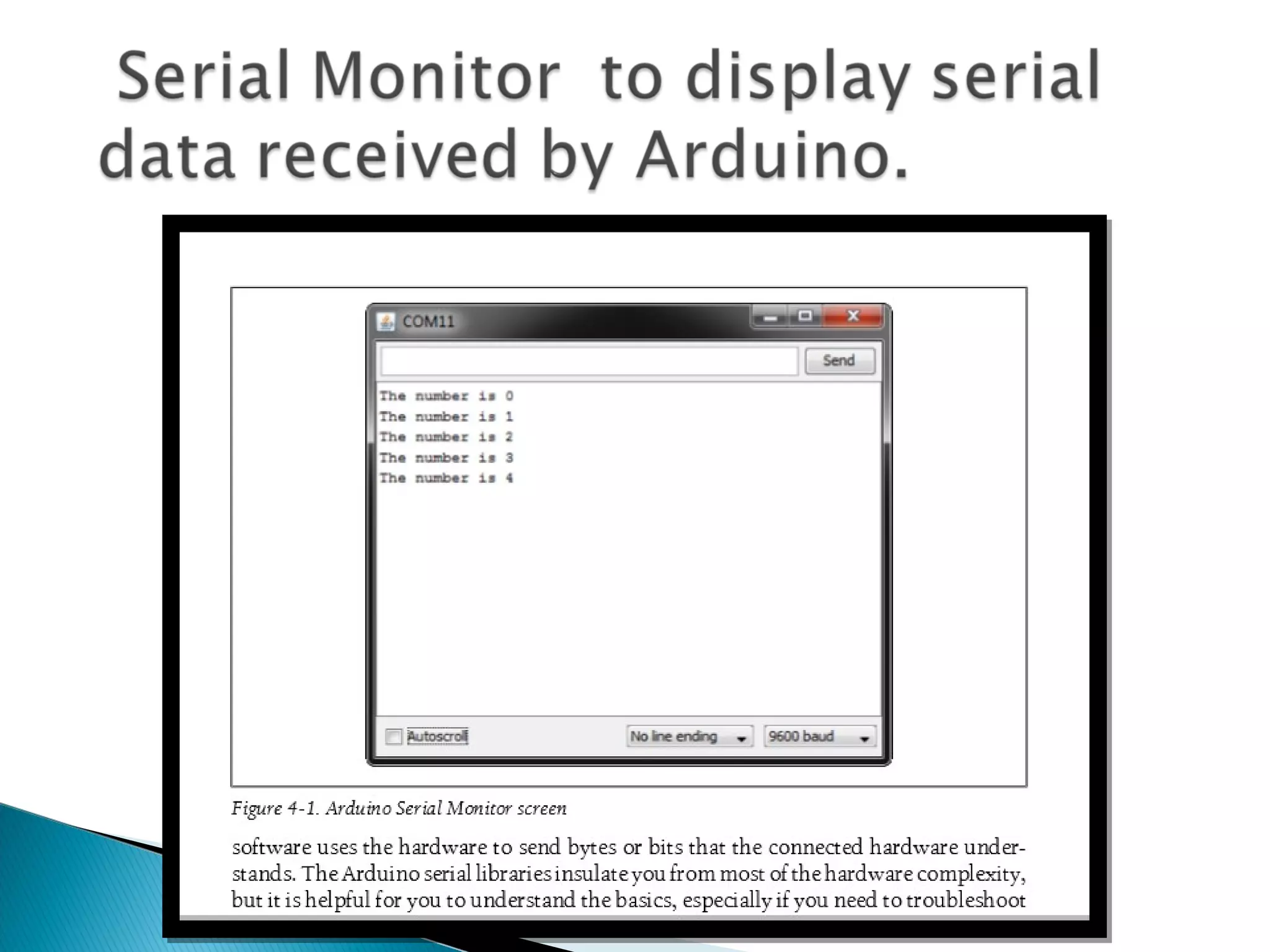
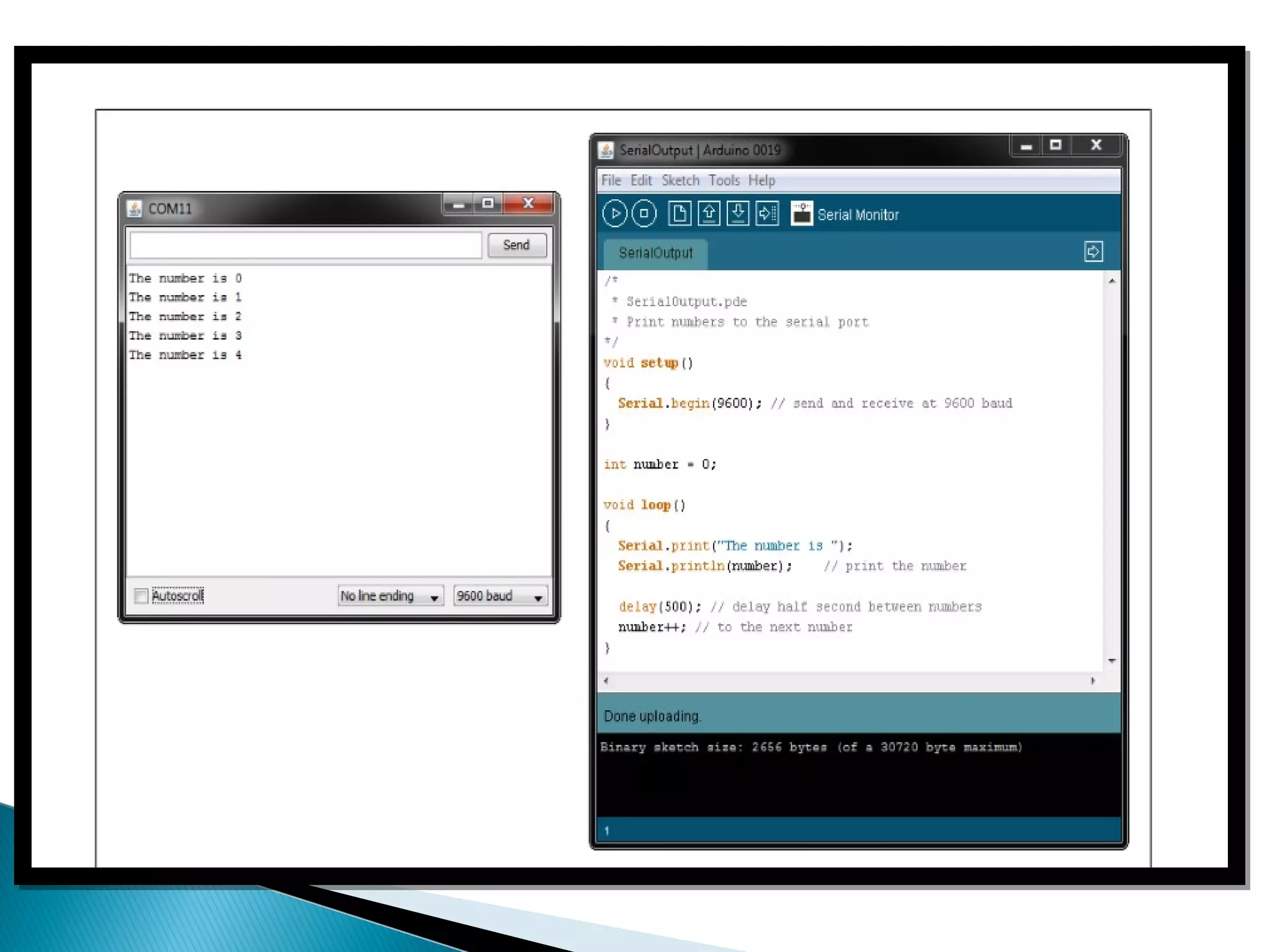
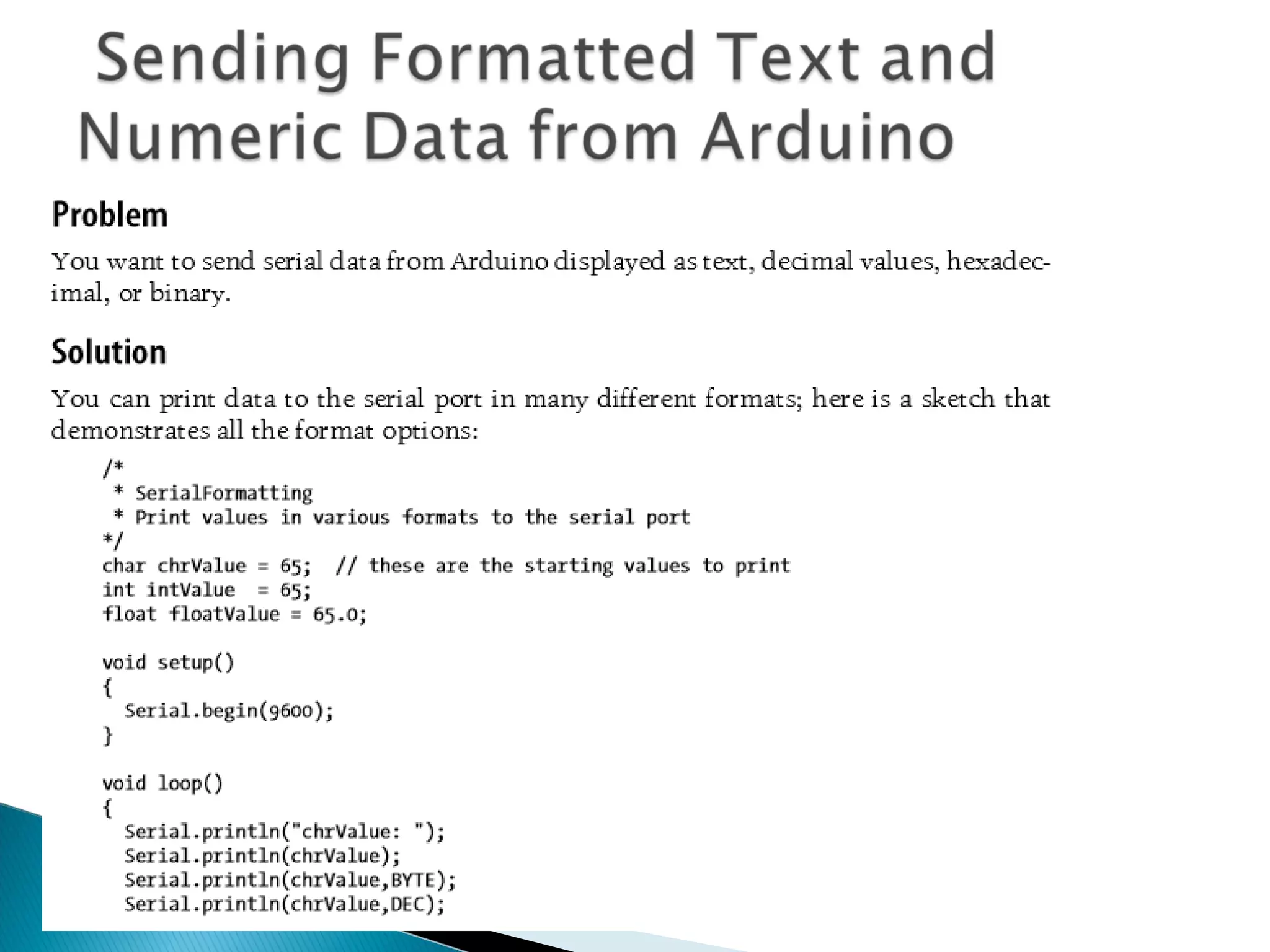
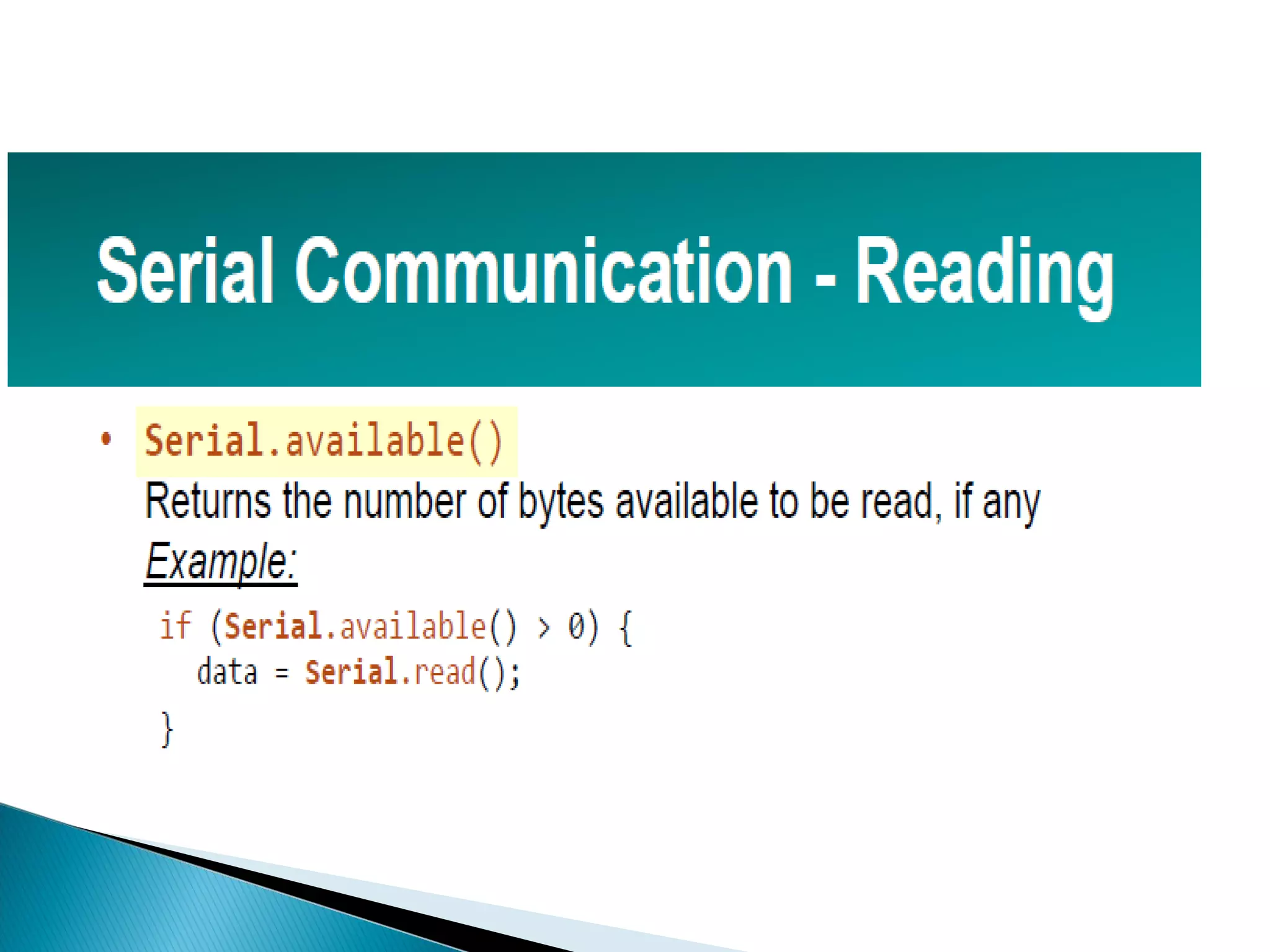
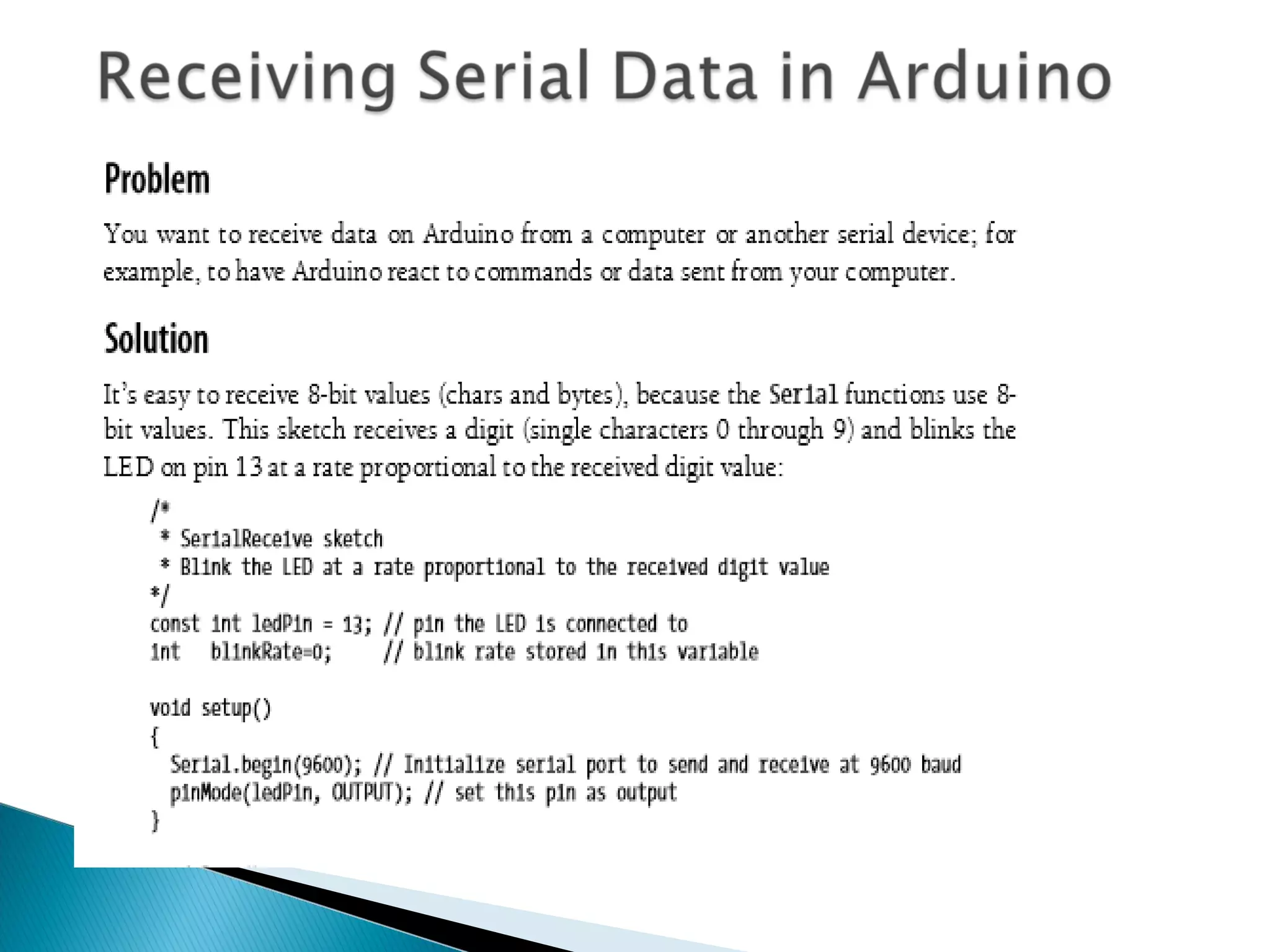
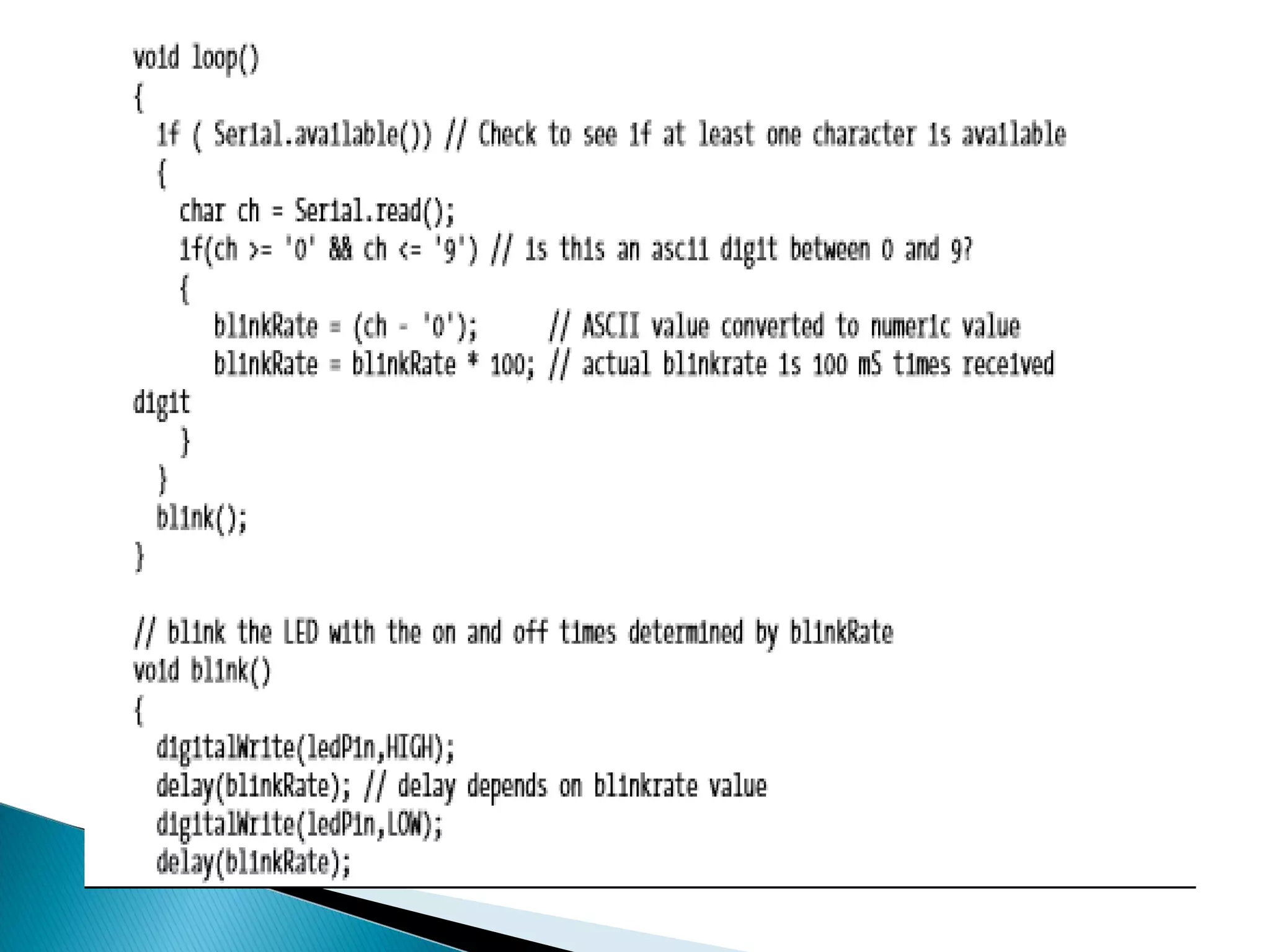
 Serial communications provide an easy and flexible way for your Arduino board to interact with your computer and other devices. This chapter explains how to send and receive information using this capability.  You can also send data from the Serial Monitor to Arduino by entering text in the text box to the left of the Send button.  Baud rate is selected using the drop-down box on the bottom right. You can use the drop down labeled “No line ending” to automatically send a carriage return or a combination of a carriage return and a line at the end of each message sent when clicking the Send button.  Your Arduino sketch can use the serial port to indirectly access (usually via a proxy program written in a language like Processing) all the resources (memory, screen, keyboard, mouse, network connectivity, etc.) that your computer has. Your computer can also use the serial link to interact with sensors or other devices connected to Arduino.
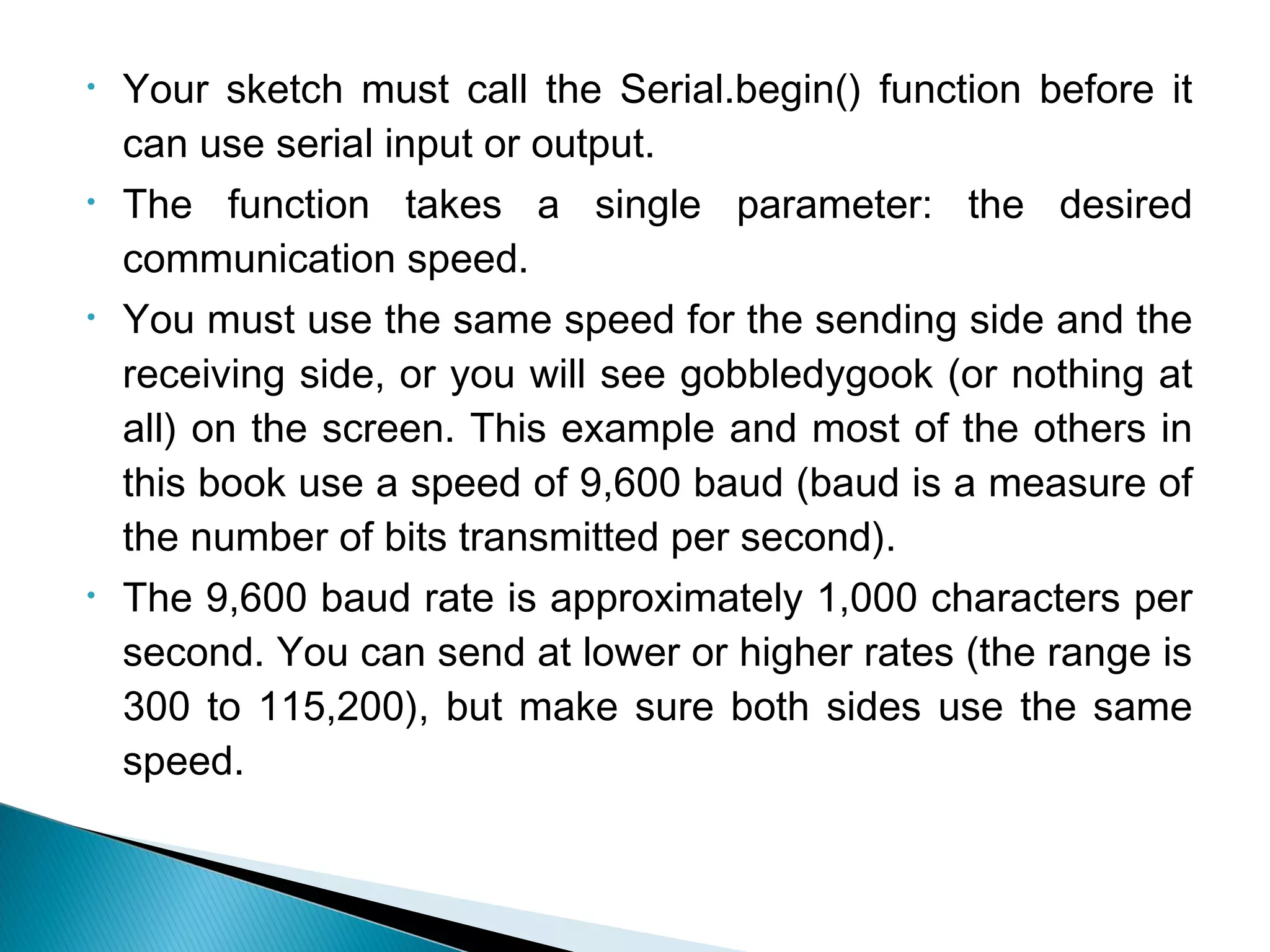
• Your sketch must call the Serial.begin() function before it can use serial input or output. • The function takes a single parameter: the desired communication speed. • You must use the same speed for the sending side and the receiving side, or you will see gobbledygook (or nothing at all) on the screen. This example and most of the others in this book use a speed of 9,600 baud (baud is a measure of the number of bits transmitted per second). • The 9,600 baud rate is approximately 1,000 characters per second. You can send at lower or higher rates (the range is 300 to 115,200), but make sure both sides use the same speed.
int incomingByte = 0;   void setup() {         Serial.begin(9600);     // opens serial port, sets data rate to 9600 bps } void loop() {         // send data only when you receive data:         if (Serial.available() > 0) {                 // read the incoming byte:                 incomingByte = Serial.read();                 // say what you got:                 Serial.print("I received: ");                 Serial.println(incomingByte, DEC);         } }  
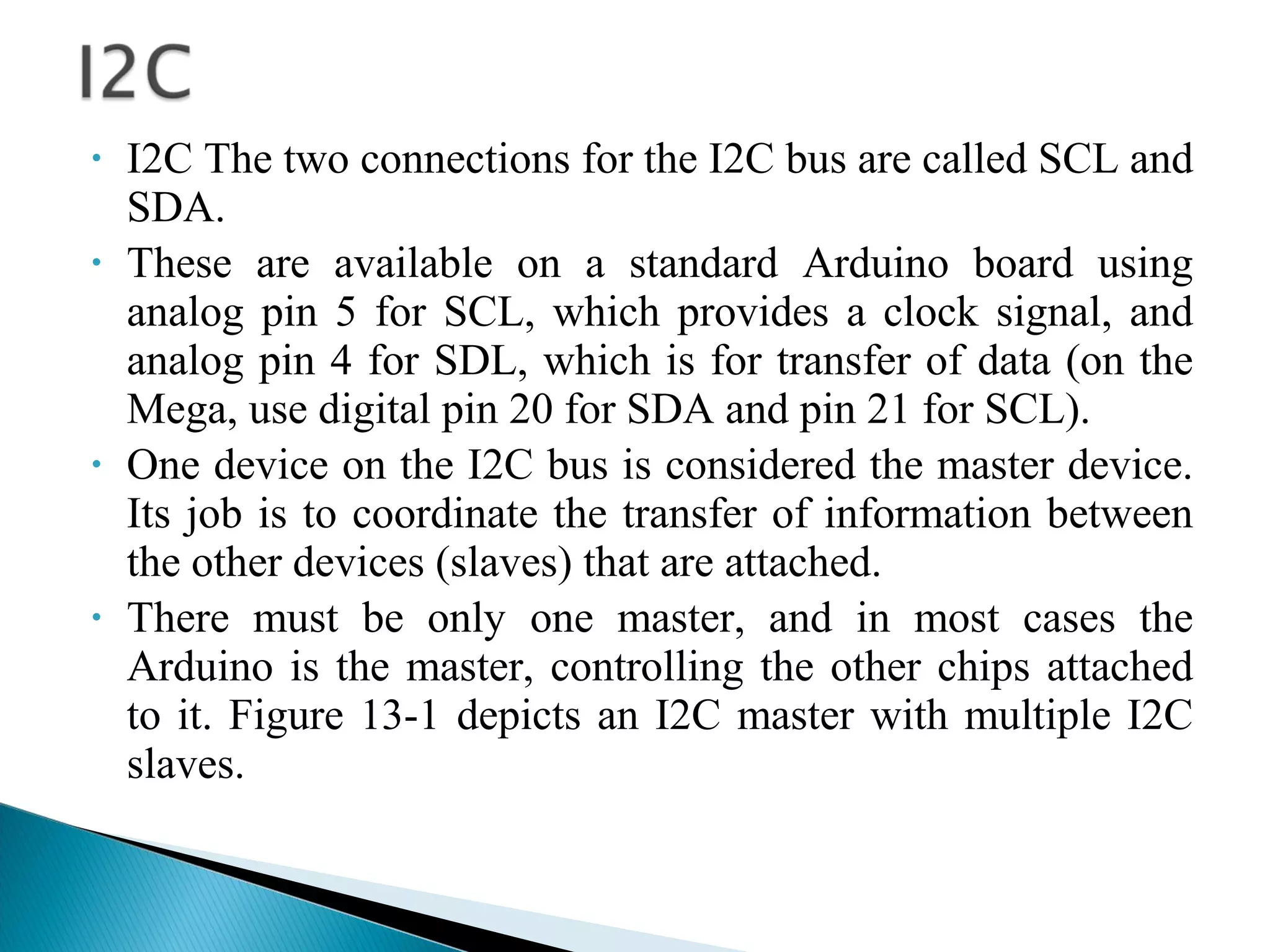
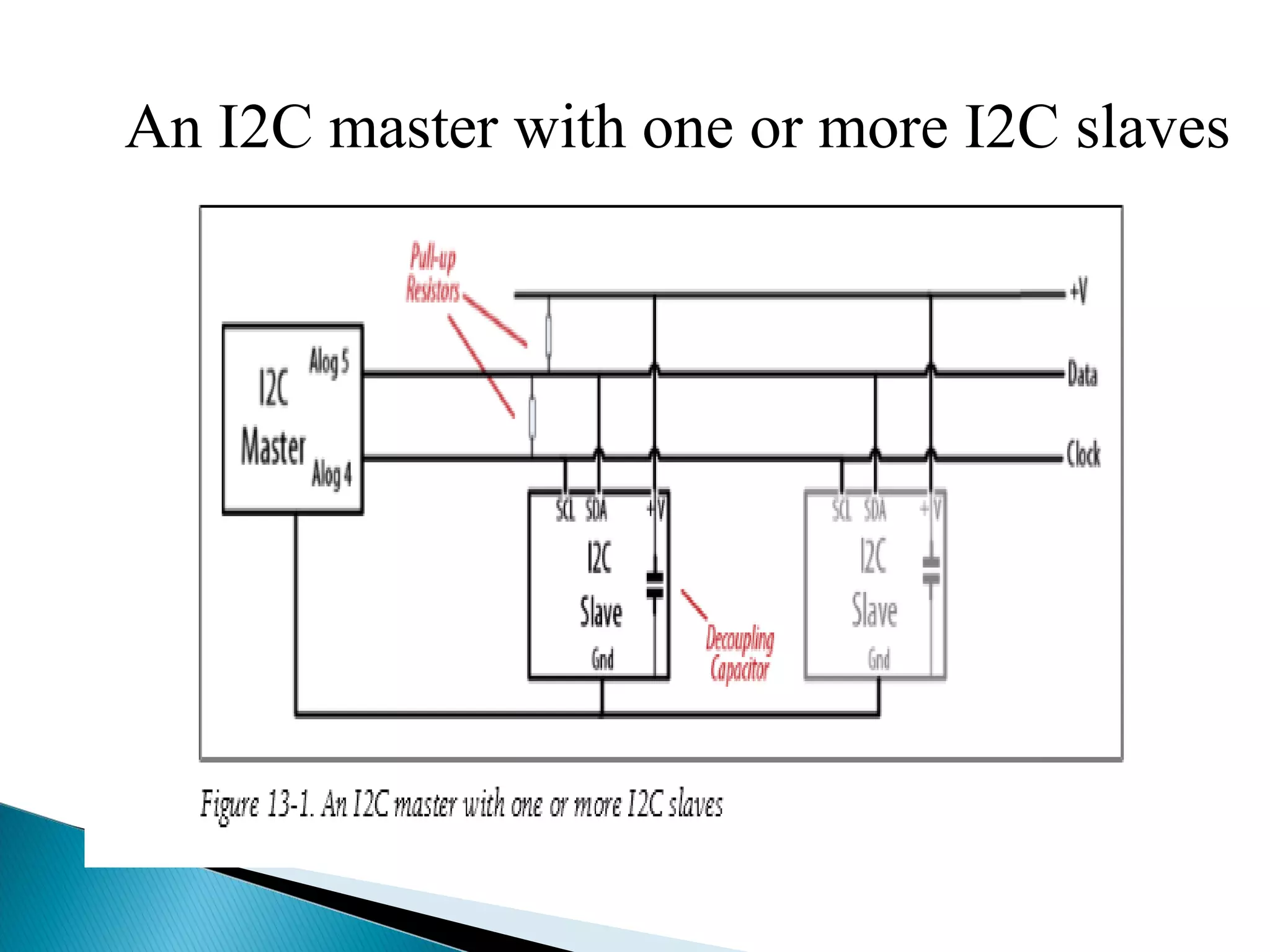
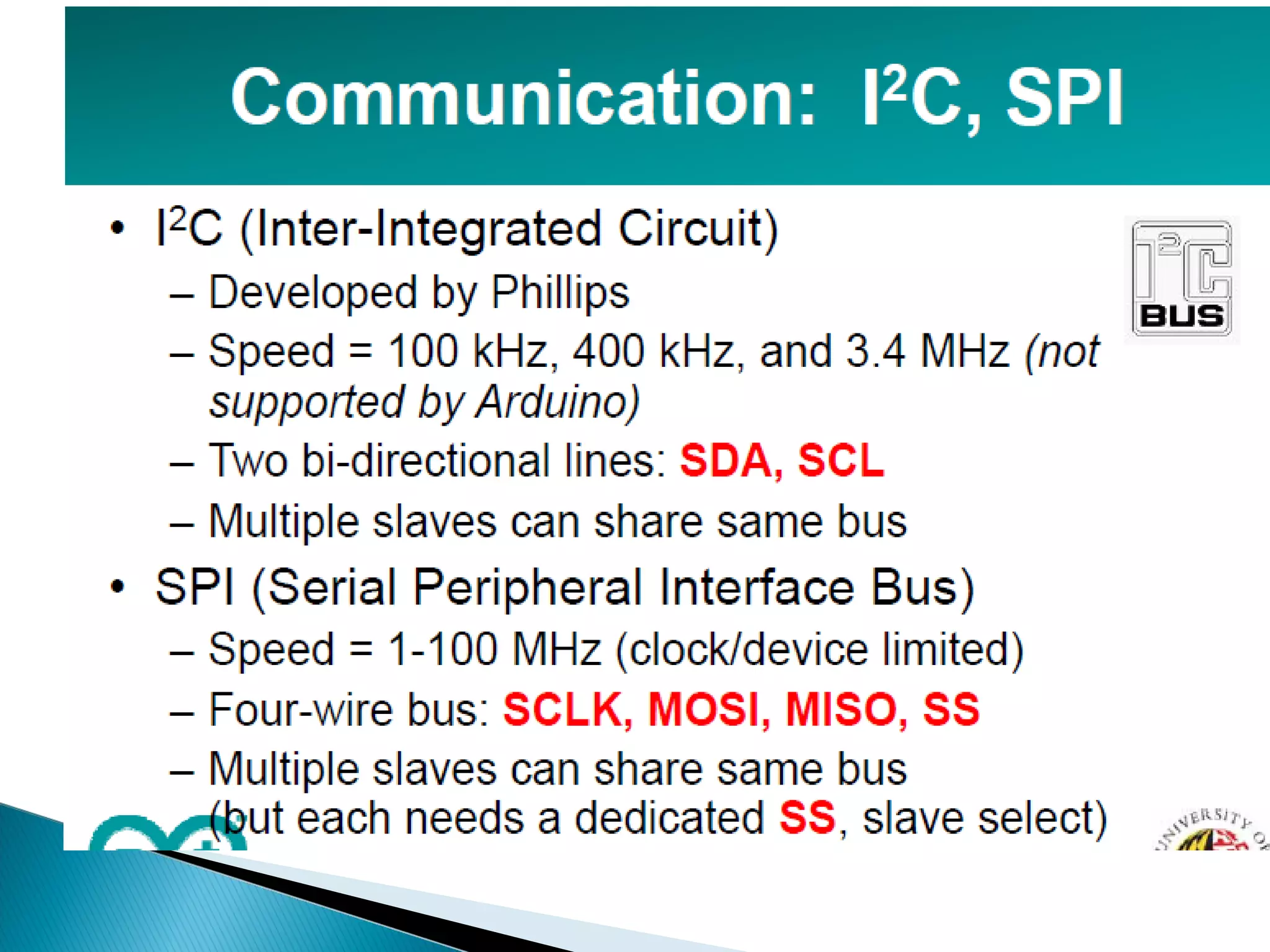
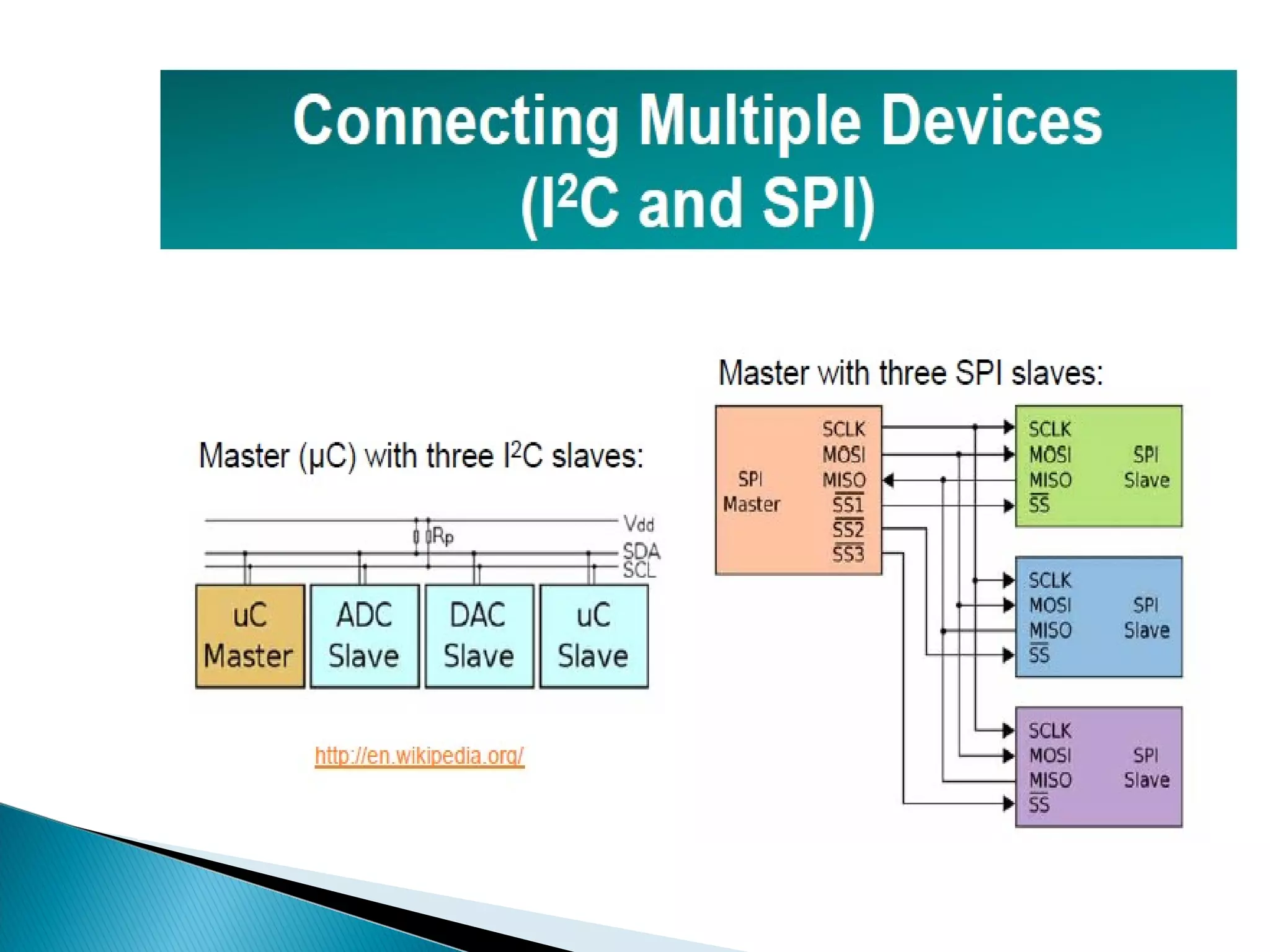
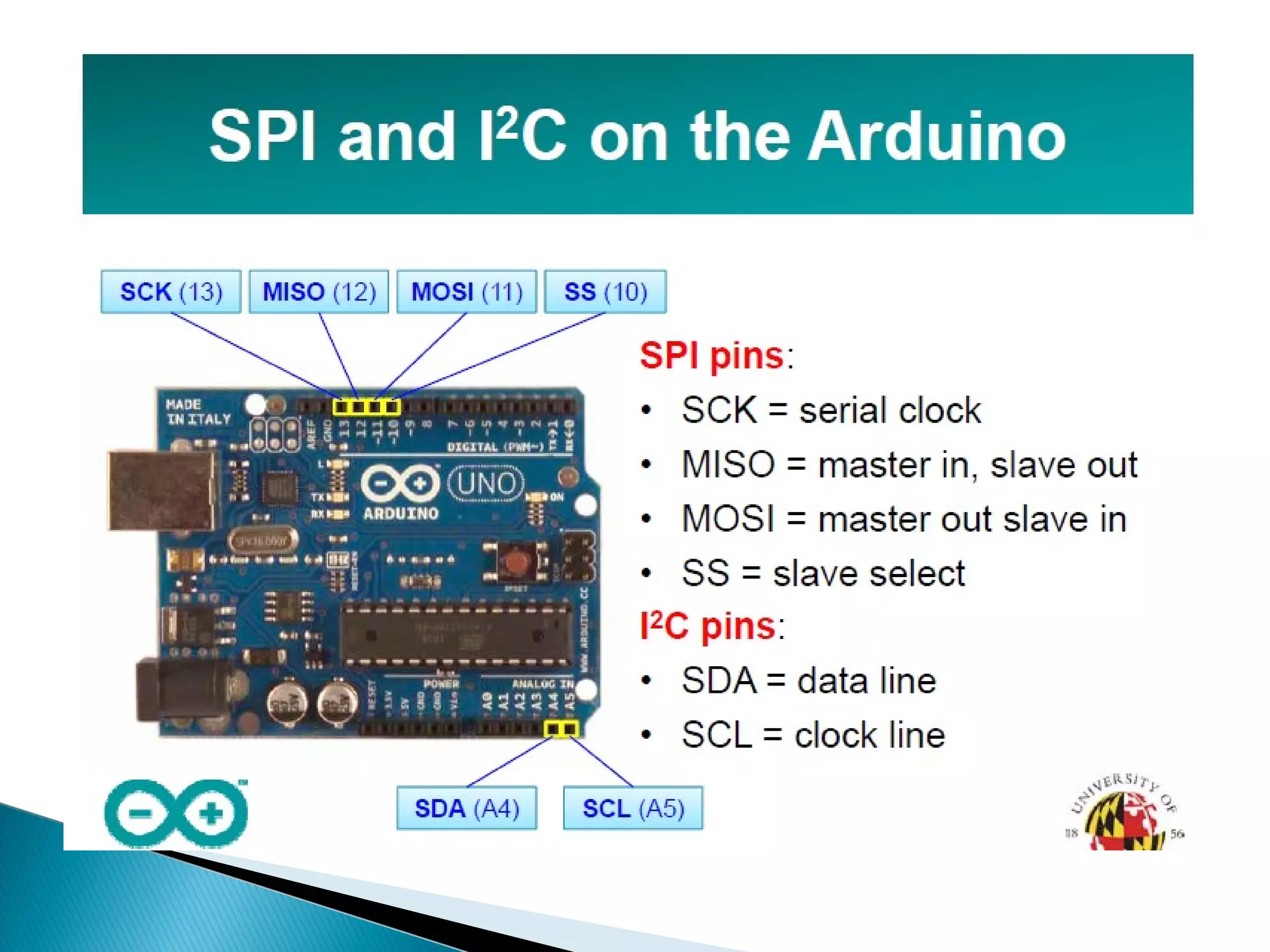
• I2C The two connections for the I2C bus are called SCL and SDA. • These are available on a standard Arduino board using analog pin 5 for SCL, which provides a clock signal, and analog pin 4 for SDL, which is for transfer of data (on the Mega, use digital pin 20 for SDA and pin 21 for SCL). • One device on the I2C bus is considered the master device. Its job is to coordinate the transfer of information between the other devices (slaves) that are attached. • There must be only one master, and in most cases the Arduino is the master, controlling the other chips attached to it. Figure 13-1 depicts an I2C master with multiple I2C slaves.
An I2C master with one or more I2C slaves
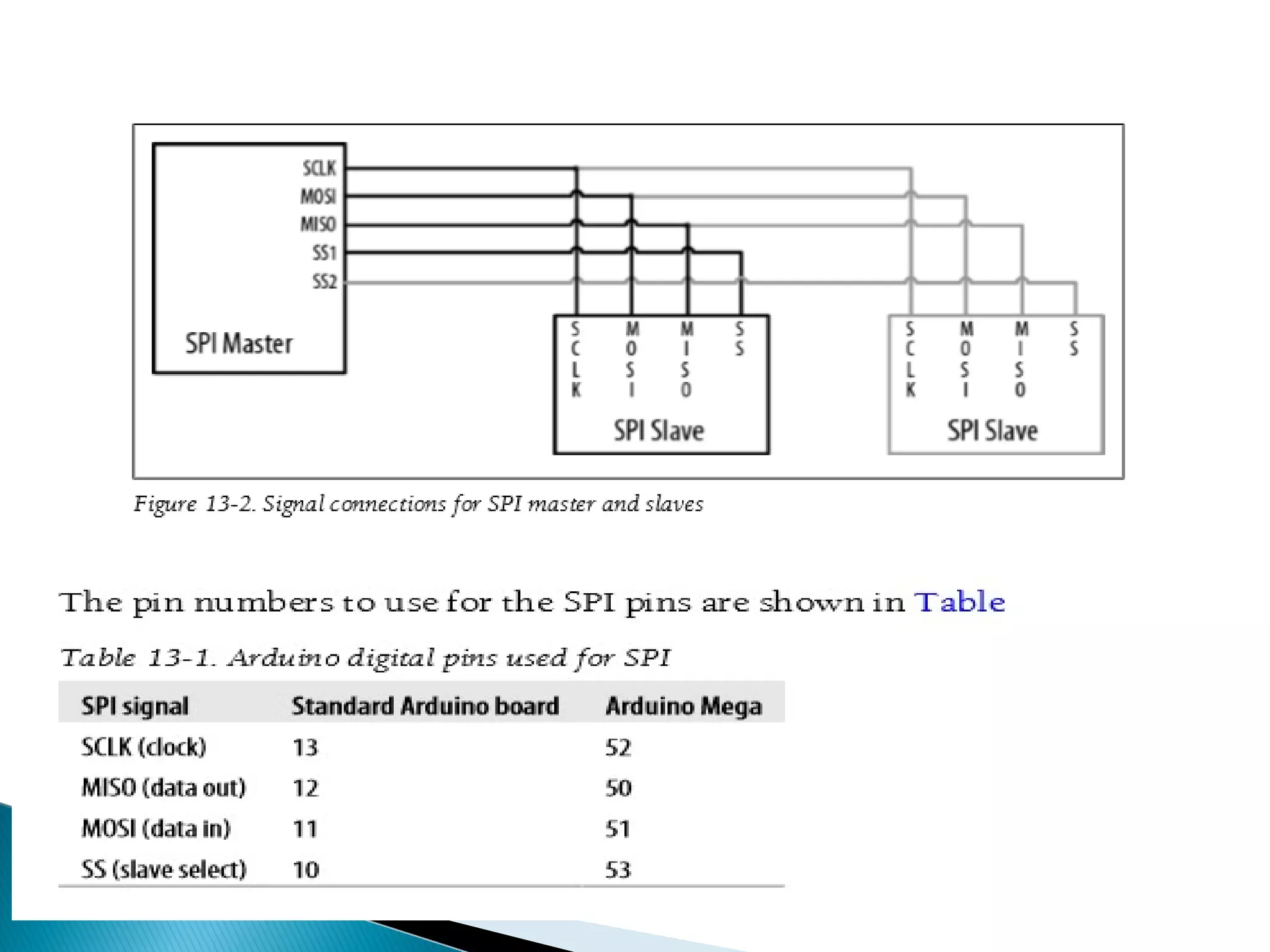
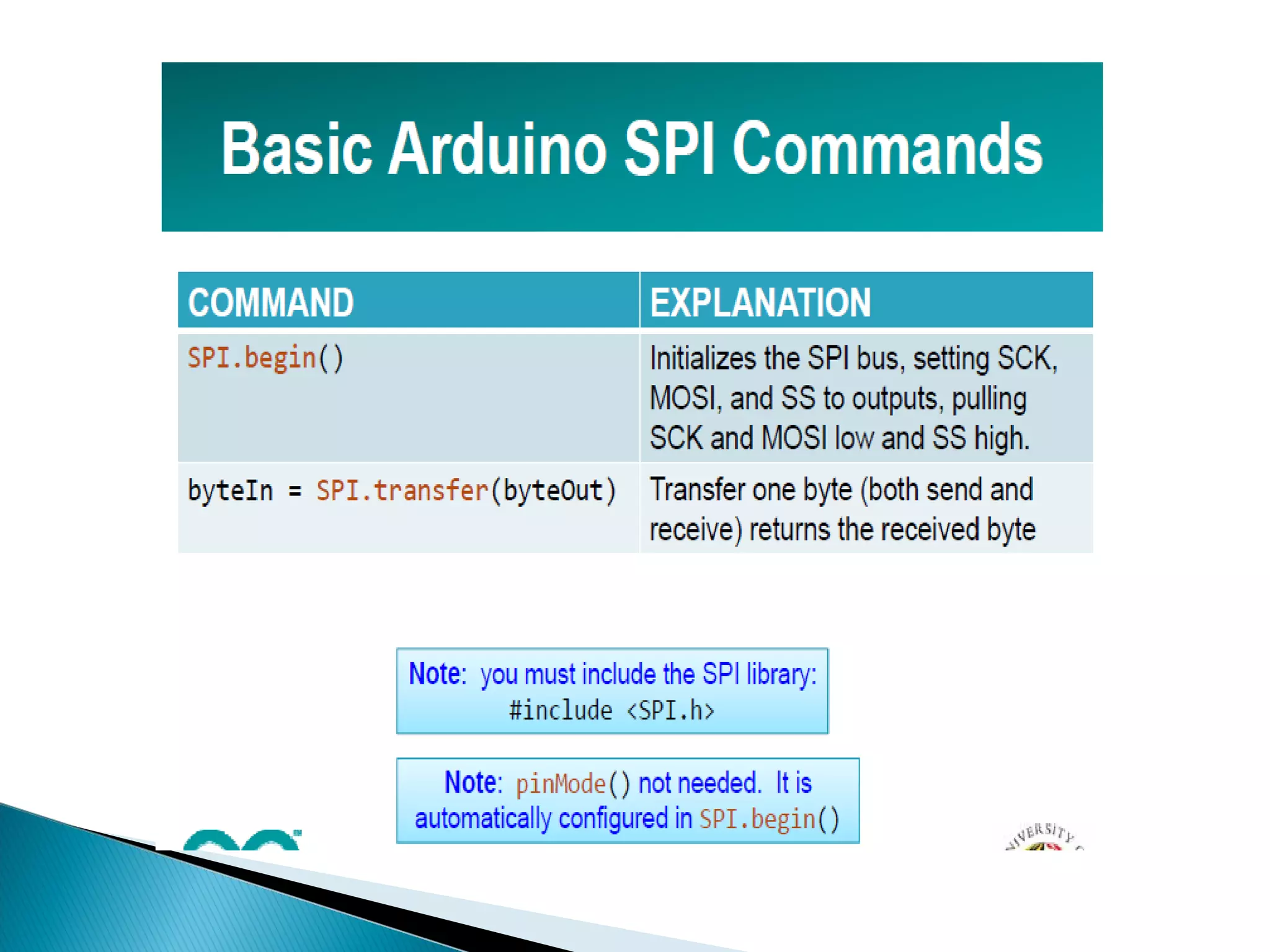
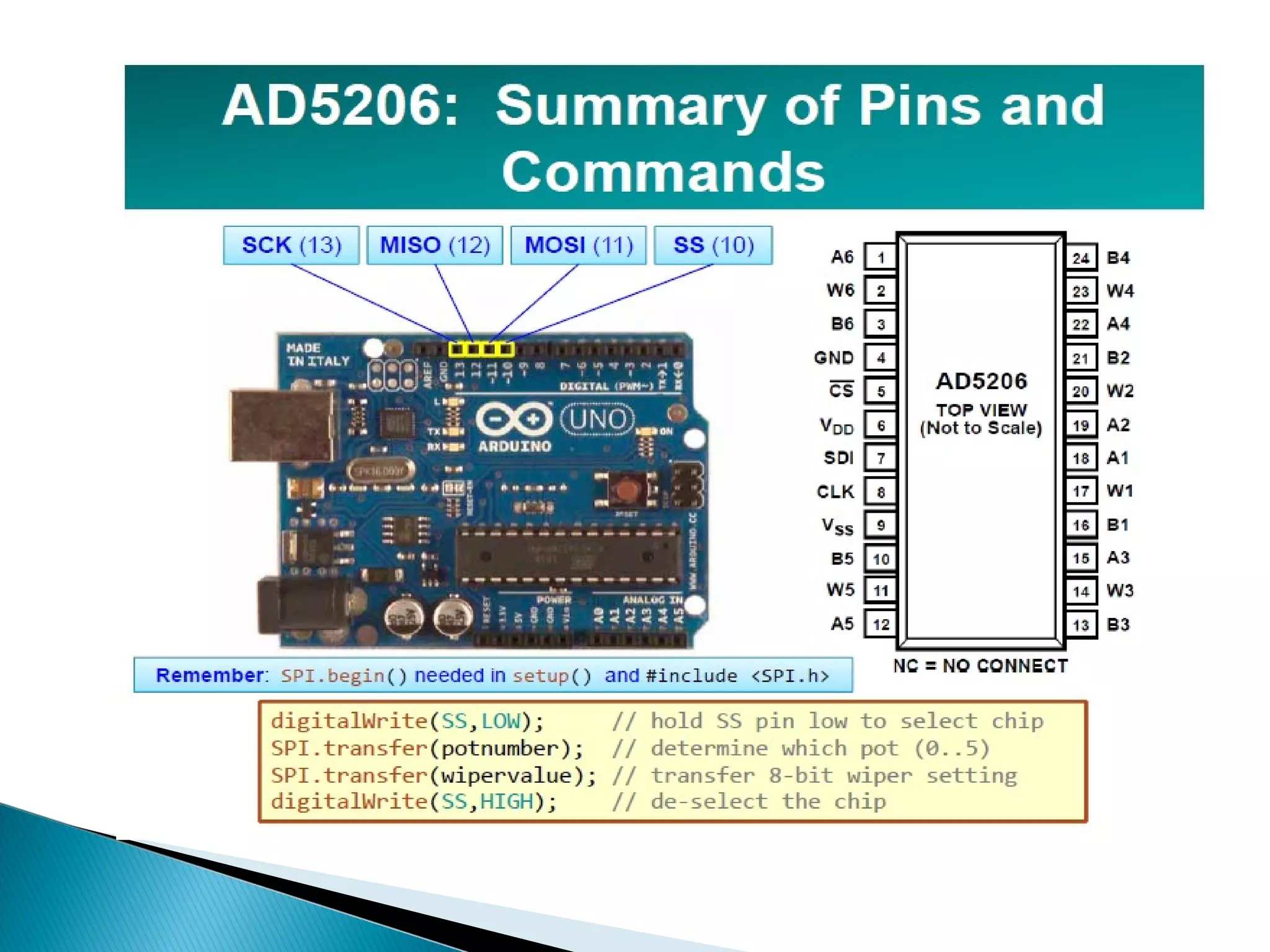
 SPI Recent Arduino releases (from release 0019) include a library that allows communication with SPI devices. SPI has separate input (labelled “MOSI”) and output (labelled “MISO”) lines and a clock line. These three lines are connected to the respective lines on one or more slaves. Slaves are identified by signalling with the Slave Select (SS) line. Figure shows the SPI connections.
 ARDUINO AND ITS PIN CONFIGURATION
 ARDUINO AND ITS PIN CONFIGURATION
 ARDUINO AND ITS PIN CONFIGURATION
 ARDUINO AND ITS PIN CONFIGURATION
 ARDUINO AND ITS PIN CONFIGURATION
 ARDUINO AND ITS PIN CONFIGURATION
 ARDUINO AND ITS PIN CONFIGURATION

ARDUINO AND ITS PIN CONFIGURATION

  • 1.
     Introduction toarduino  Architechture of arduino  Pin configuration to arduino  Serial communication  Atmega 328-arduino pin mapping
  • 4.
    Features •High Performance, LowPower Atmel® AVR® 8-Bit Microcontroller Family •Advanced RISC Architecture – 131 Powerful Instructions –32 x 8 General Purpose Working Registers • 32KBytes of In-System Self-Programmable Flash program Memory – 1KBytes EEPROM – 2KBytes Internal SRAM EEPROM – Data Retention: 20 years at 85°C/100 years at 25°C(1) – Optional Boot Code Section with Independent Lock Bits
  • 5.
    Peripheral Features •– Two8-bit Timer/Counters with Separate Prescaler and Compare Mode •– One 16-bit Timer/Counter •Temperature Measurement – 6-channel 10-bit ADC •Two Master/Slave SPI Serial Interface – Programmable Watchdog Timer with Separate On- chip Oscillator
  • 6.
    • Special MicrocontrollerFeatures – Power-on Reset and Programmable Brown-out Detection – External and Internal Interrupt Sources – Six Sleep Modes: Idle, ADC Noise Reduction, Power-save, Power- down, Standby, and Extended Standby • I/O and Packages – 23 Programmable I/O Lines – 28-pin PDIP, • Operating Voltage: – 1.8 - 5.5V • Temperature Range: – -40°C to 105°C • Power Consumption at 1MHz, 1.8V, 25°C – Active Mode: 0.2mA – Power-down Mode: 0.1μA – Power-save Mode: 0.75μA (Including 32kHz RTC)
  • 10.
     VCC Digitalsupply voltage.  GND Ground.  Port B (PB[7:0]) XTAL1/XTAL2/TOSC1/TOSC2 Port B is an 8-bit bi-directional I/O port with internal pull-up resistors (selected for each bit).
  • 11.
    PB[7:6] is usedas TOSC[2:1] input for the Asynchronous Timer/Counter2 Port C (PC[5:0]) Port C is a 7-bit bi-directional I/O port with internal pull-up resistors (selected for each bit).  PC6/RESET If the RSTDISBL Fuse is programmed, PC6 is used as an I/O pin. .Port D (PD[7:0]) Port D is an 8-bit bi-directional I/O port with internal pull-up resistors (selected for each bit). AVCC is the supply voltage pin for the A/D Converter AREF is the analog reference pin for the A/D Converter.
  • 13.
     Serial communicationsprovide an easy and flexible way for your Arduino board to interact with your computer and other devices. This chapter explains how to send and receive information using this capability.  You can also send data from the Serial Monitor to Arduino by entering text in the text box to the left of the Send button.  Baud rate is selected using the drop-down box on the bottom right. You can use the drop down labeled “No line ending” to automatically send a carriage return or a combination of a carriage return and a line at the end of each message sent when clicking the Send button.  Your Arduino sketch can use the serial port to indirectly access (usually via a proxy program written in a language like Processing) all the resources (memory, screen, keyboard, mouse, network connectivity, etc.) that your computer has. Your computer can also use the serial link to interact with sensors or other devices connected to Arduino.
  • 17.
    • Your sketchmust call the Serial.begin() function before it can use serial input or output. • The function takes a single parameter: the desired communication speed. • You must use the same speed for the sending side and the receiving side, or you will see gobbledygook (or nothing at all) on the screen. This example and most of the others in this book use a speed of 9,600 baud (baud is a measure of the number of bits transmitted per second). • The 9,600 baud rate is approximately 1,000 characters per second. You can send at lower or higher rates (the range is 300 to 115,200), but make sure both sides use the same speed.
  • 21.
    int incomingByte =0;   void setup() {         Serial.begin(9600);     // opens serial port, sets data rate to 9600 bps } void loop() {         // send data only when you receive data:         if (Serial.available() > 0) {                 // read the incoming byte:                 incomingByte = Serial.read();                 // say what you got:                 Serial.print("I received: ");                 Serial.println(incomingByte, DEC);         } }  
  • 24.
    • I2C Thetwo connections for the I2C bus are called SCL and SDA. • These are available on a standard Arduino board using analog pin 5 for SCL, which provides a clock signal, and analog pin 4 for SDL, which is for transfer of data (on the Mega, use digital pin 20 for SDA and pin 21 for SCL). • One device on the I2C bus is considered the master device. Its job is to coordinate the transfer of information between the other devices (slaves) that are attached. • There must be only one master, and in most cases the Arduino is the master, controlling the other chips attached to it. Figure 13-1 depicts an I2C master with multiple I2C slaves.
  • 25.
    An I2C masterwith one or more I2C slaves
  • 26.
     SPI RecentArduino releases (from release 0019) include a library that allows communication with SPI devices. SPI has separate input (labelled “MOSI”) and output (labelled “MISO”) lines and a clock line. These three lines are connected to the respective lines on one or more slaves. Slaves are identified by signalling with the Slave Select (SS) line. Figure shows the SPI connections.