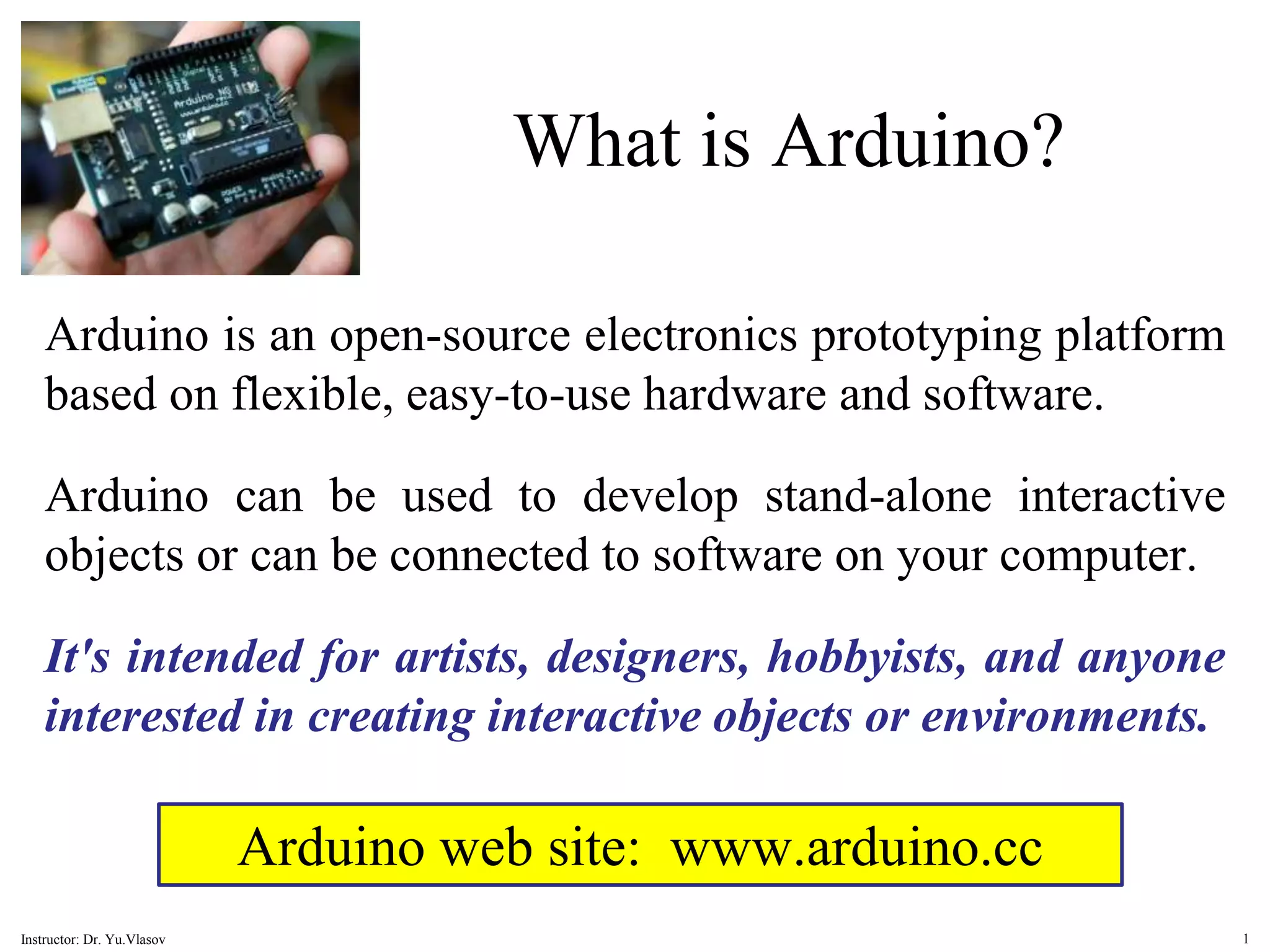
What is Arduino? Arduino is an open-source electronics prototyping platform based on flexible, easy-to-use hardware and software. Arduino can be used to develop stand-alone interactive objects or can be connected to software on your computer. It's intended for artists, designers, hobbyists, and anyone interested in creating interactive objects or environments. Arduino web site: www.arduino.cc 1 Instructor: Dr. Yu.Vlasov
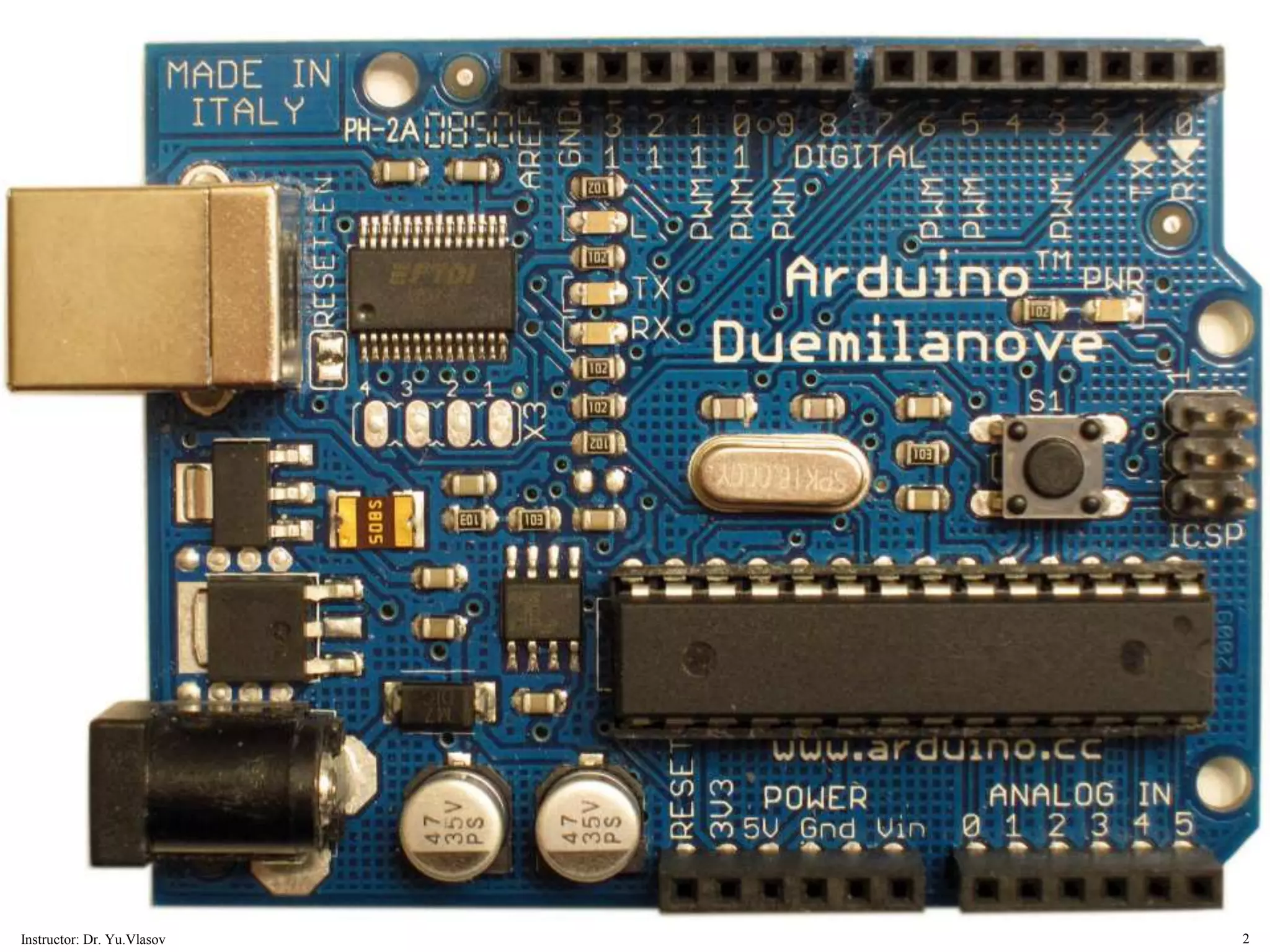
2 Instructor: Dr. Yu.Vlasov
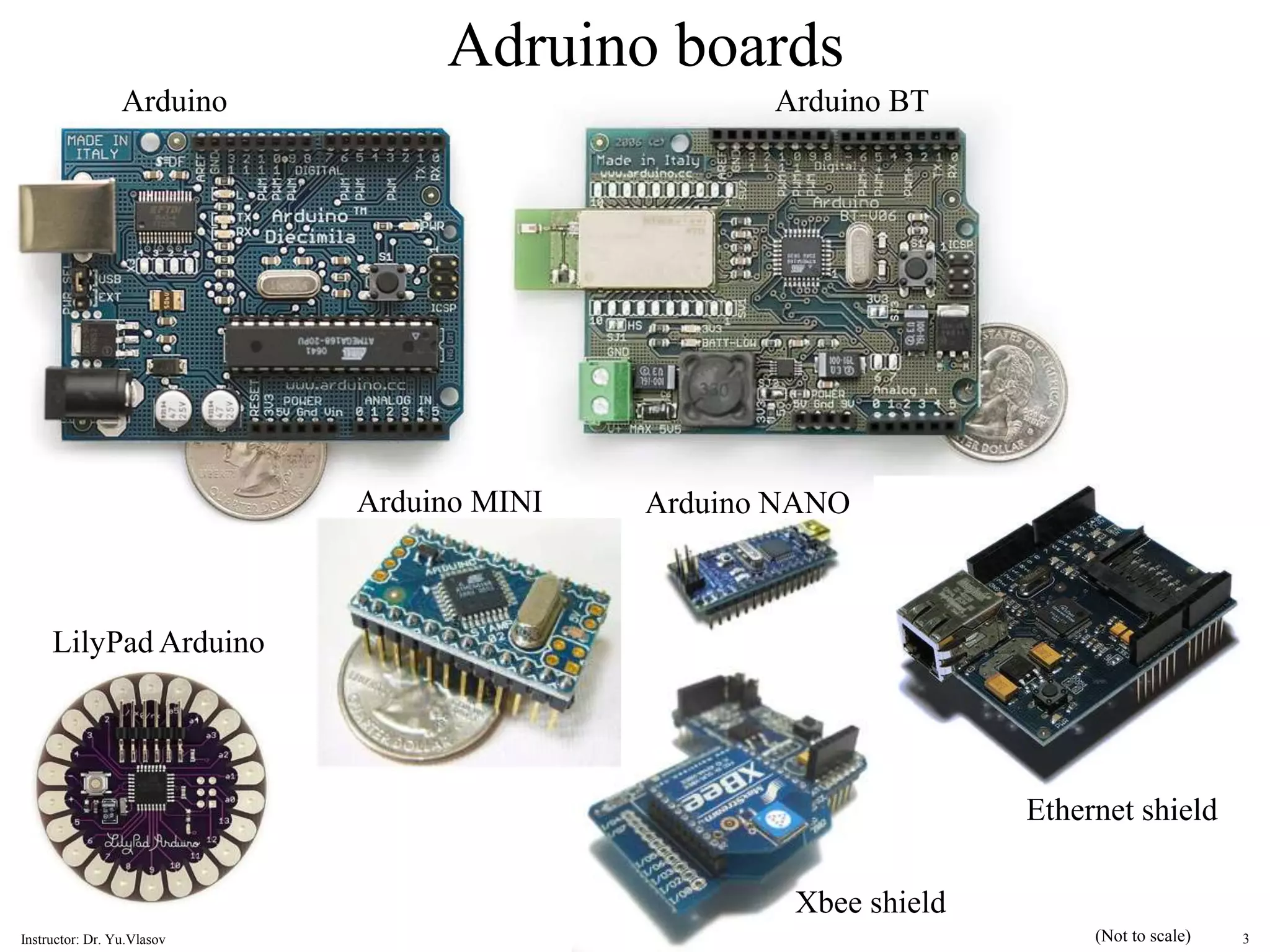
Adruino boards Arduino BT Arduino MINI Arduino Arduino NANO LilyPad Arduino Xbee shield Ethernet shield (Not to scale) 3 Instructor: Dr. Yu.Vlasov
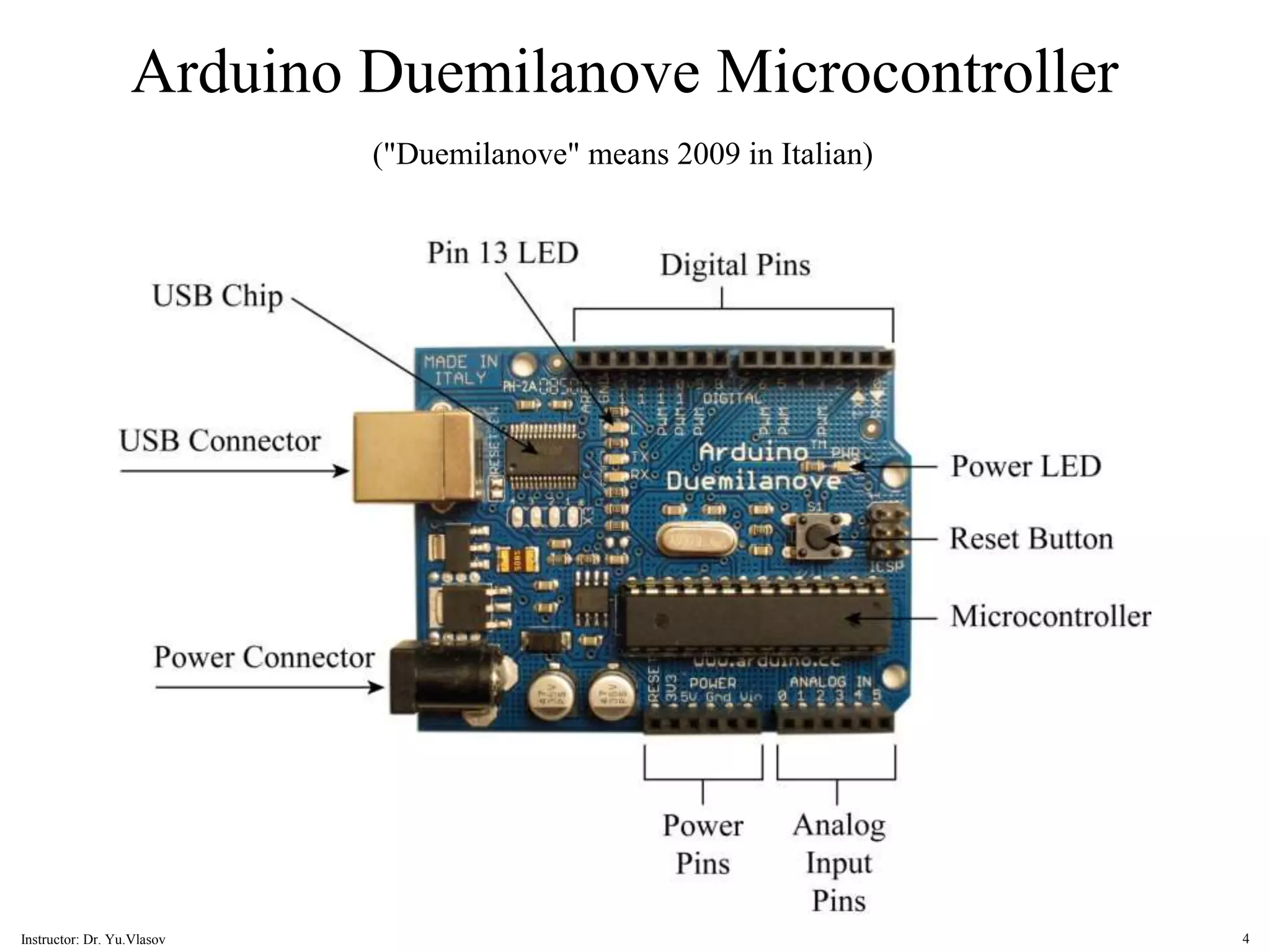
Arduino Duemilanove Microcontroller ("Duemilanove" means 2009 in Italian) 4 Instructor: Dr. Yu.Vlasov
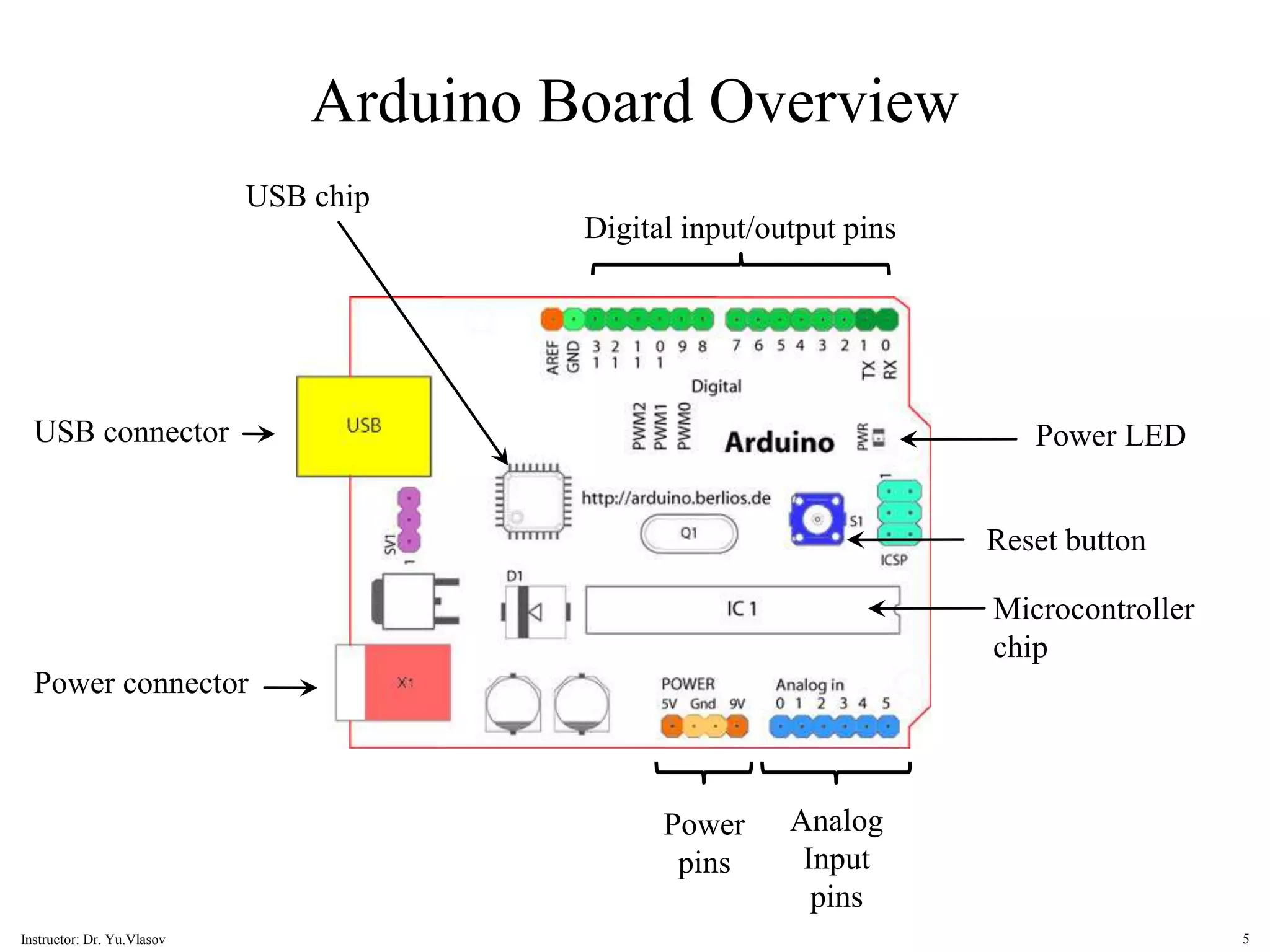
Arduino Board Overview Microcontroller chip Power pins Digital input/output pins Power LED Reset button Analog Input pins Power connector USB connector USB chip 5 Instructor: Dr. Yu.Vlasov
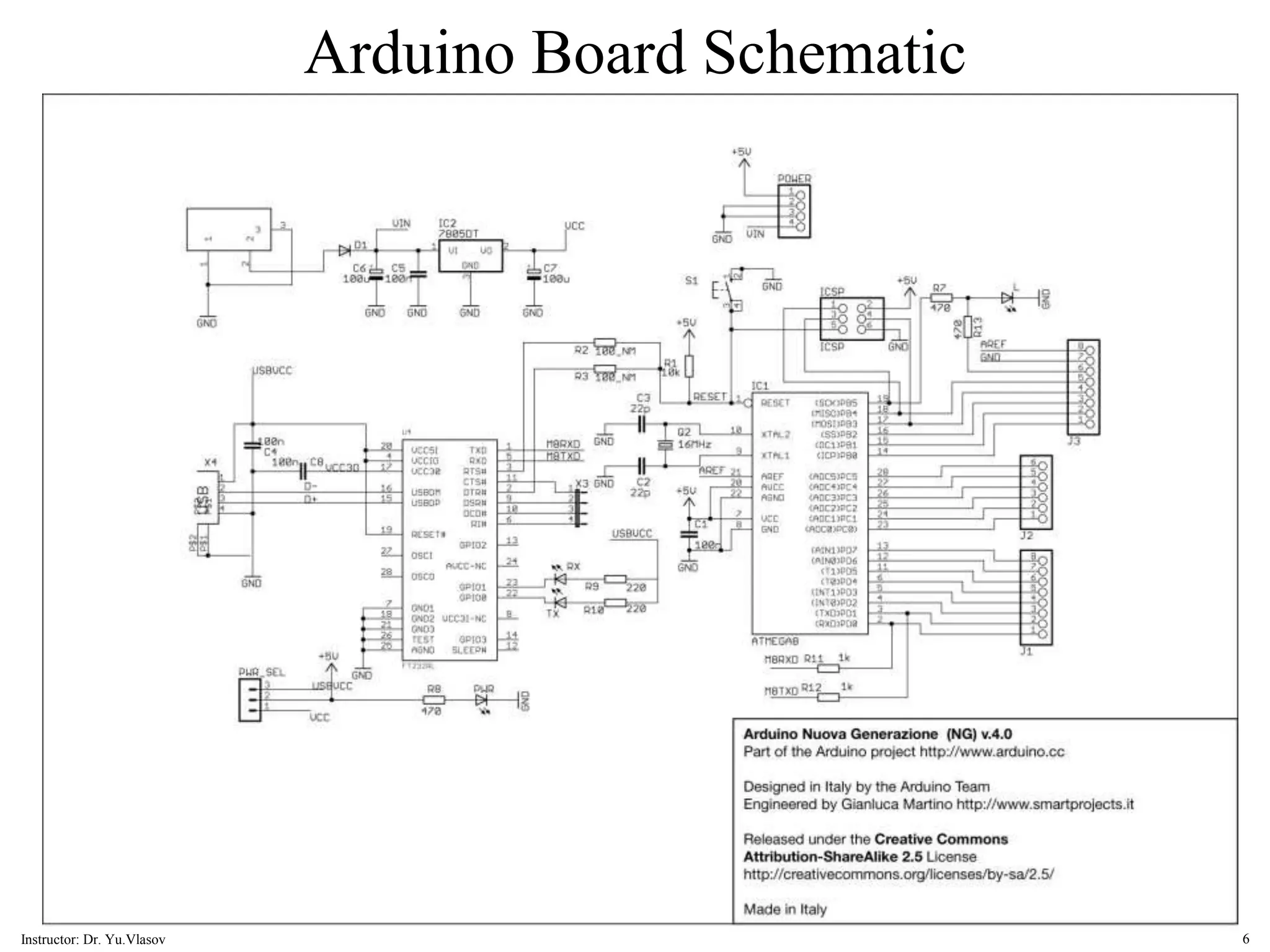
Arduino Board Schematic 6 Instructor: Dr. Yu.Vlasov
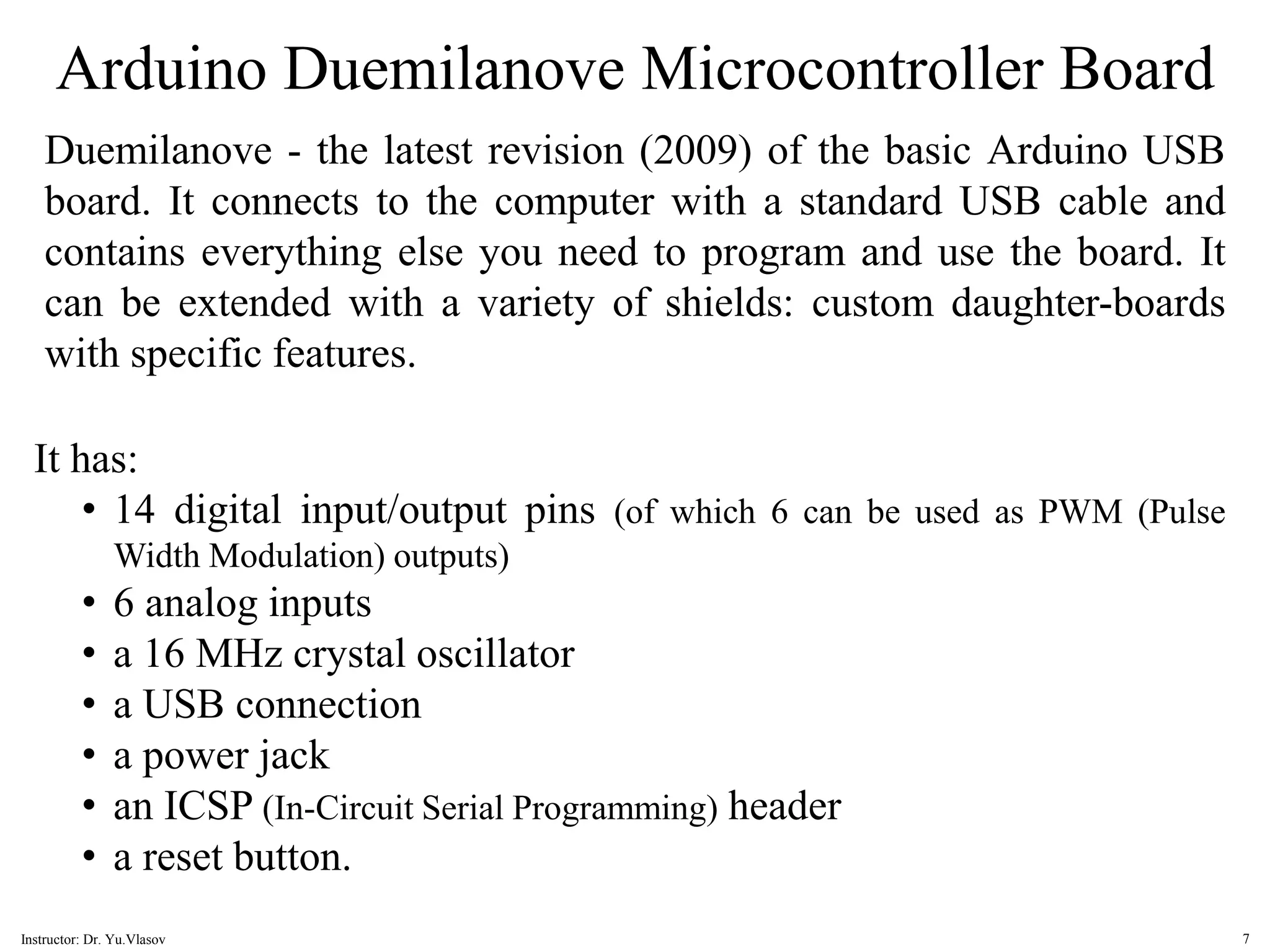
Arduino Duemilanove Microcontroller Board Duemilanove - the latest revision (2009) of the basic Arduino USB board. It connects to the computer with a standard USB cable and contains everything else you need to program and use the board. It can be extended with a variety of shields: custom daughter-boards with specific features. It has: • 14 digital input/output pins (of which 6 can be used as PWM (Pulse Width Modulation) outputs) • 6 analog inputs • a 16 MHz crystal oscillator • a USB connection • a power jack • an ICSP (In-Circuit Serial Programming) header • a reset button. 7 Instructor: Dr. Yu.Vlasov
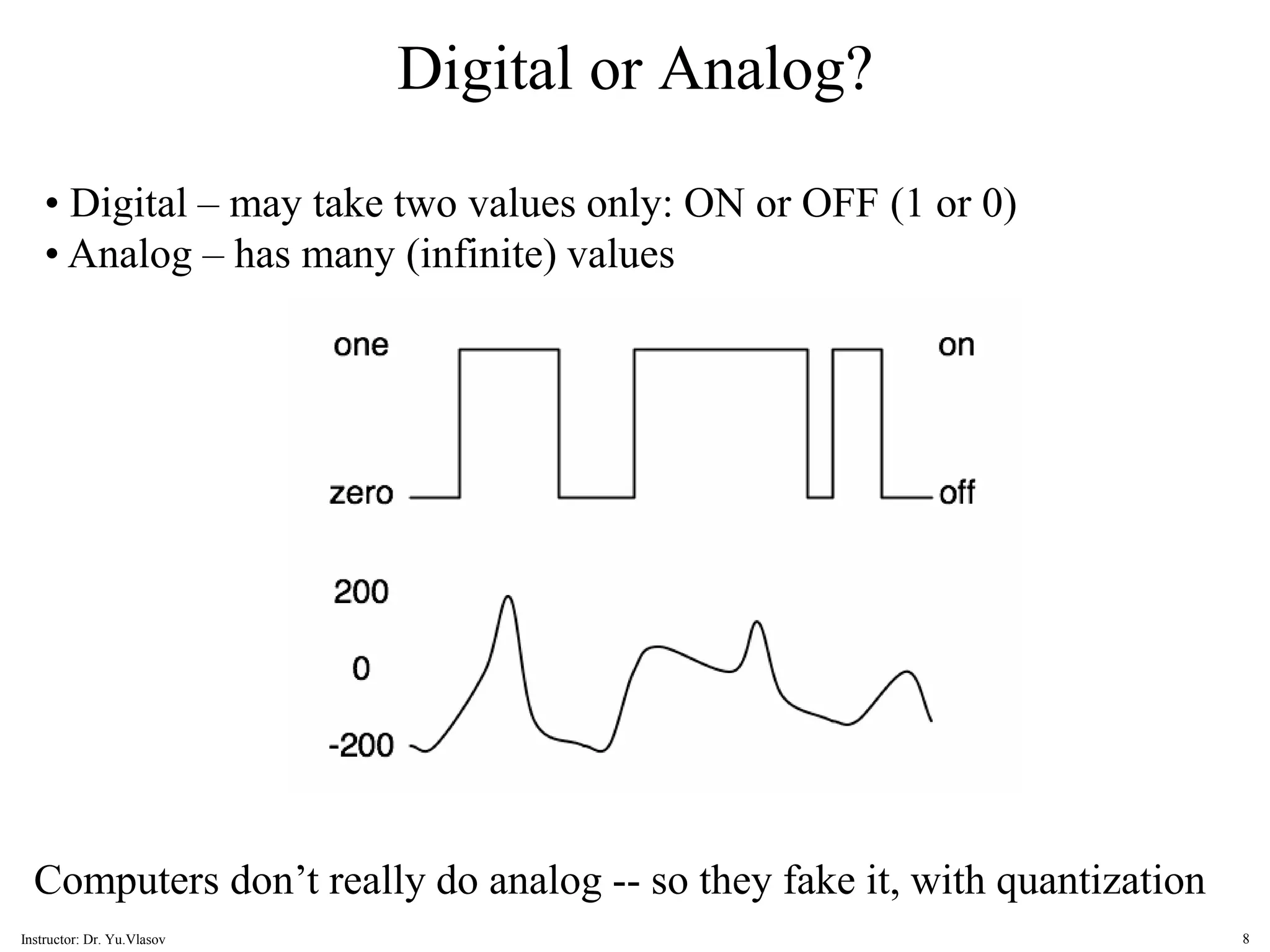
Digital or Analog? • Digital – may take two values only: ON or OFF (1 or 0) • Analog – has many (infinite) values Computers don’t really do analog -- so they fake it, with quantization 8 Instructor: Dr. Yu.Vlasov
Power: The Arduino Duemilanove can be powered via the USB connection or with an external power supply. The power source is selected automatically. External (non-USB) power can come either from an AC-to-DC adapter (wall-wart) or battery. The adapter can be connected by plugging a 2.1 mm center-positive plug into the board's power jack. Leads from a battery can be inserted in the Gnd and Vin pin headers of the POWER connector. The board can operate on an external supply of 6 to 20 volts. If supplied with less than 7 V, however, the 5 V pin may supply less than five volts and the board may be unstable. If using more than 12 V, the voltage regulator may overheat and damage the board. The recommended range is 7 to 12 volts. Arduino Duemilanove Microcontroller Board 9 Instructor: Dr. Yu.Vlasov
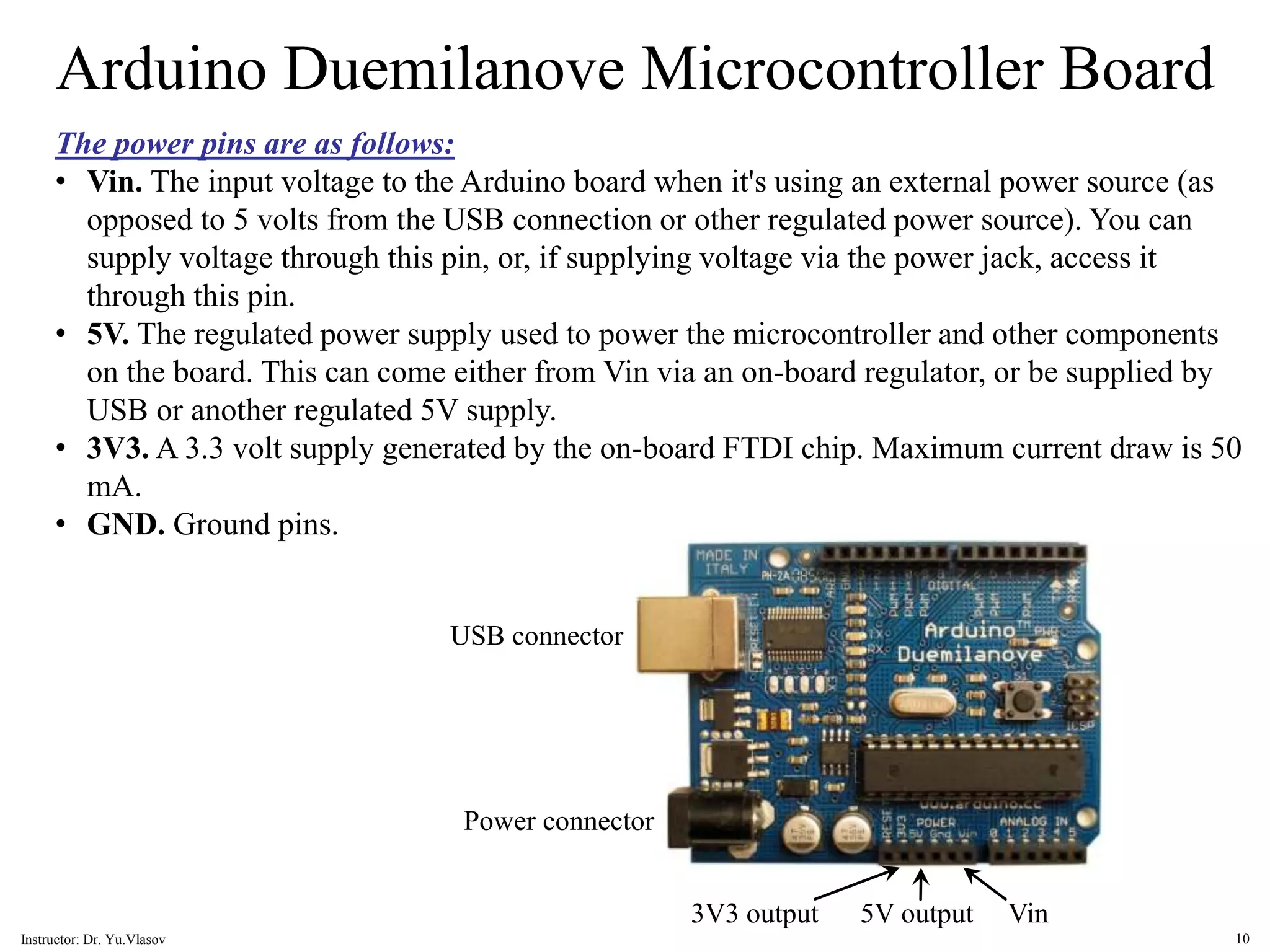
The power pins are as follows: • Vin. The input voltage to the Arduino board when it's using an external power source (as opposed to 5 volts from the USB connection or other regulated power source). You can supply voltage through this pin, or, if supplying voltage via the power jack, access it through this pin. • 5V. The regulated power supply used to power the microcontroller and other components on the board. This can come either from Vin via an on-board regulator, or be supplied by USB or another regulated 5V supply. • 3V3. A 3.3 volt supply generated by the on-board FTDI chip. Maximum current draw is 50 mA. • GND. Ground pins. Arduino Duemilanove Microcontroller Board Power connector USB connector Vin 5V output 3V3 output 10 Instructor: Dr. Yu.Vlasov
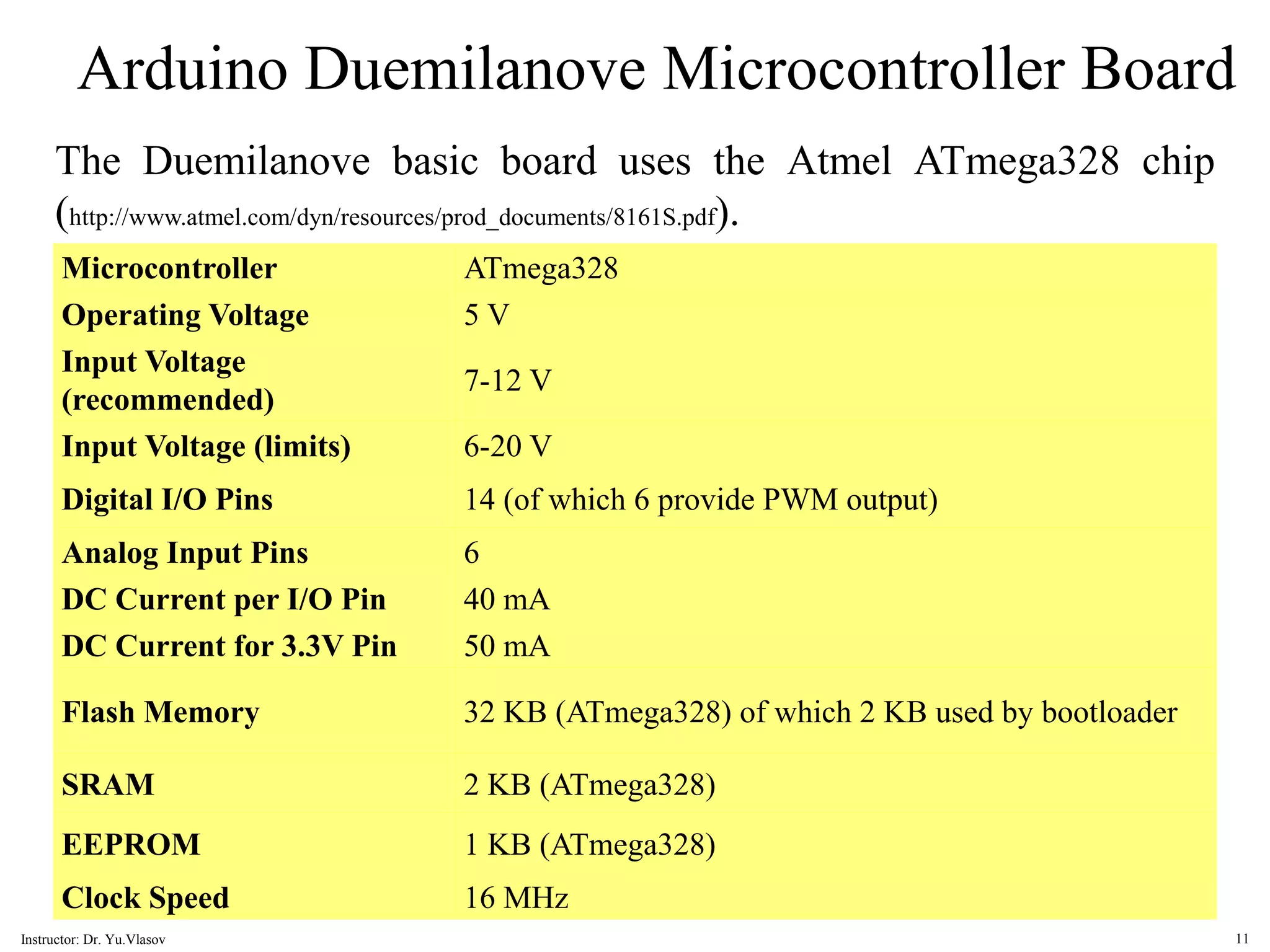
Arduino Duemilanove Microcontroller Board Microcontroller ATmega328 Operating Voltage 5 V Input Voltage (recommended) 7-12 V Input Voltage (limits) 6-20 V Digital I/O Pins 14 (of which 6 provide PWM output) Analog Input Pins 6 DC Current per I/O Pin 40 mA DC Current for 3.3V Pin 50 mA Flash Memory 32 KB (ATmega328) of which 2 KB used by bootloader SRAM 2 KB (ATmega328) EEPROM 1 KB (ATmega328) Clock Speed 16 MHz The Duemilanove basic board uses the Atmel ATmega328 chip (http://www.atmel.com/dyn/resources/prod_documents/8161S.pdf). 11 Instructor: Dr. Yu.Vlasov
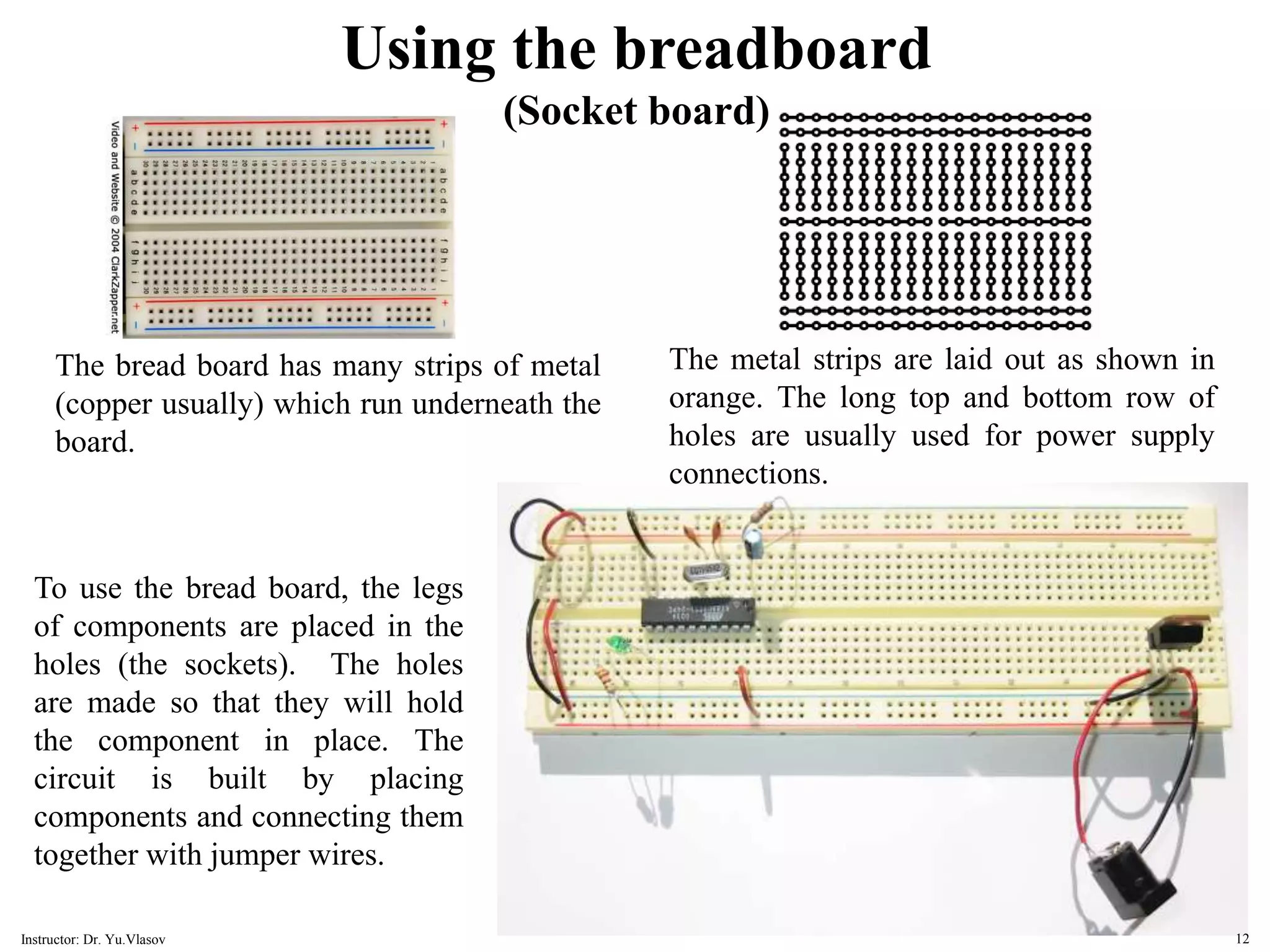
Using the breadboard (Socket board) The bread board has many strips of metal (copper usually) which run underneath the board. The metal strips are laid out as shown in orange. The long top and bottom row of holes are usually used for power supply connections. To use the bread board, the legs of components are placed in the holes (the sockets). The holes are made so that they will hold the component in place. The circuit is built by placing components and connecting them together with jumper wires. 12 Instructor: Dr. Yu.Vlasov
What do you need to start working with Arduino? 1. Arduino board – will be provided 2. USB cable – will be provided 3. Computer with USB interface 4. USB driver and Arduino application – to be downloaded from (http://arduino.cc/en/Main/Software) 13 Instructor: Dr. Yu.Vlasov
Download the Arduino environment To program the Arduino board you need the Arduino environment. Download the latest version from the page: http://arduino.cc/en/Main/Software When the download finishes, unzip the downloaded file. Make sure to preserve the folder structure. Double-click the folder to open it. There should be a few files and sub- folders inside. Doubleclick -- it will start Arduino software 14 Instructor: Dr. Yu.Vlasov
Download USB drivers To connect your Arduino board to computer you need USB drivers for the FTDI chip on the board. You'll want to install the USB drivers before plugging in the Arduino for the first time. Download the latest version from the page: http://www.ftdichip.com/Drivers/VCP.htm (You can download executable file http://www.ftdichip.com/Drivers/CDM/CDM%202.04.16.exe running which will install drivers) Install the drivers. 15 Instructor: Dr. Yu.Vlasov
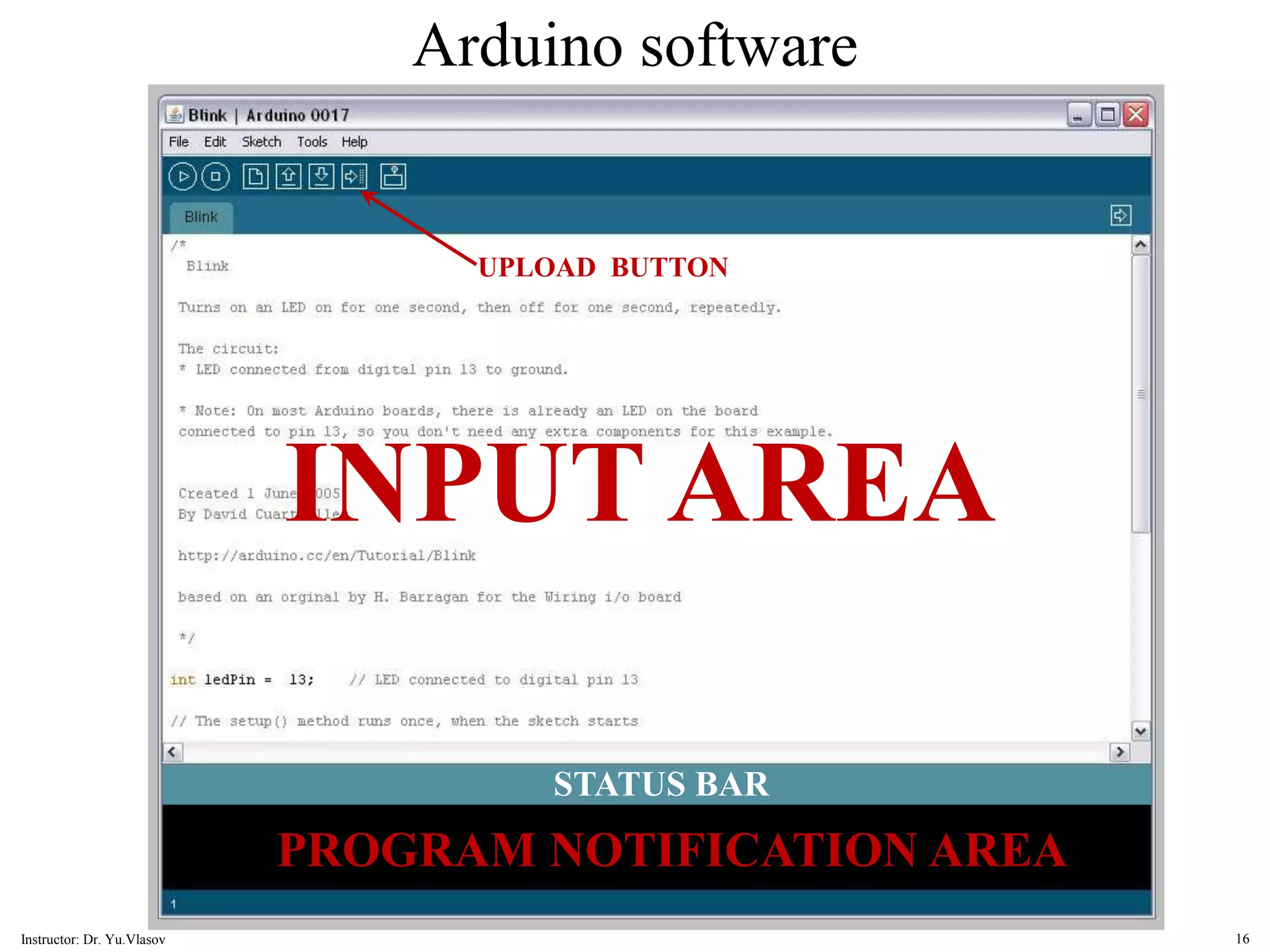
Arduino software INPUT AREA STATUS BAR PROGRAM NOTIFICATION AREA UPLOAD BUTTON 16 Instructor: Dr. Yu.Vlasov
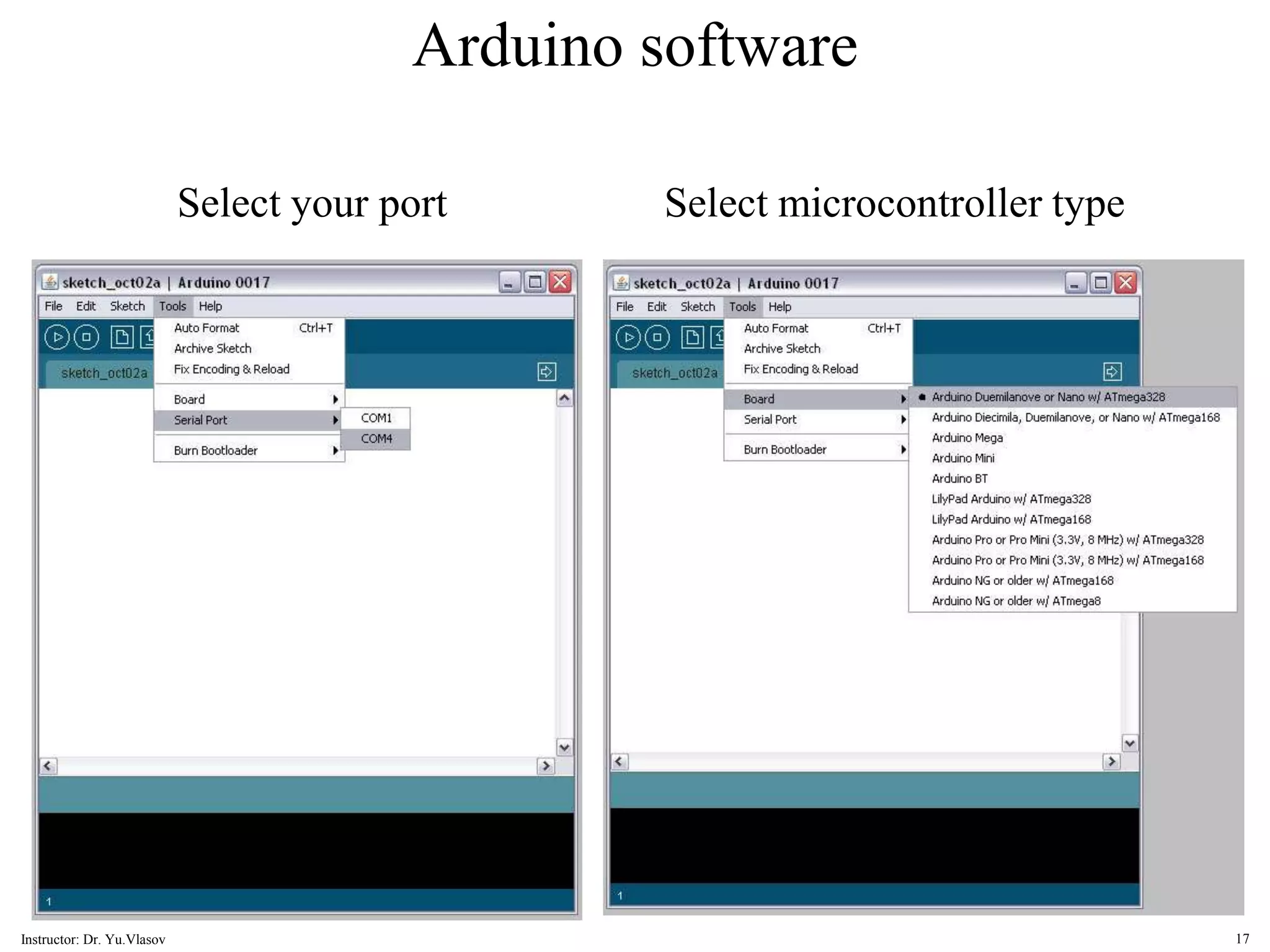
Arduino software Select your port Select microcontroller type 17 Instructor: Dr. Yu.Vlasov
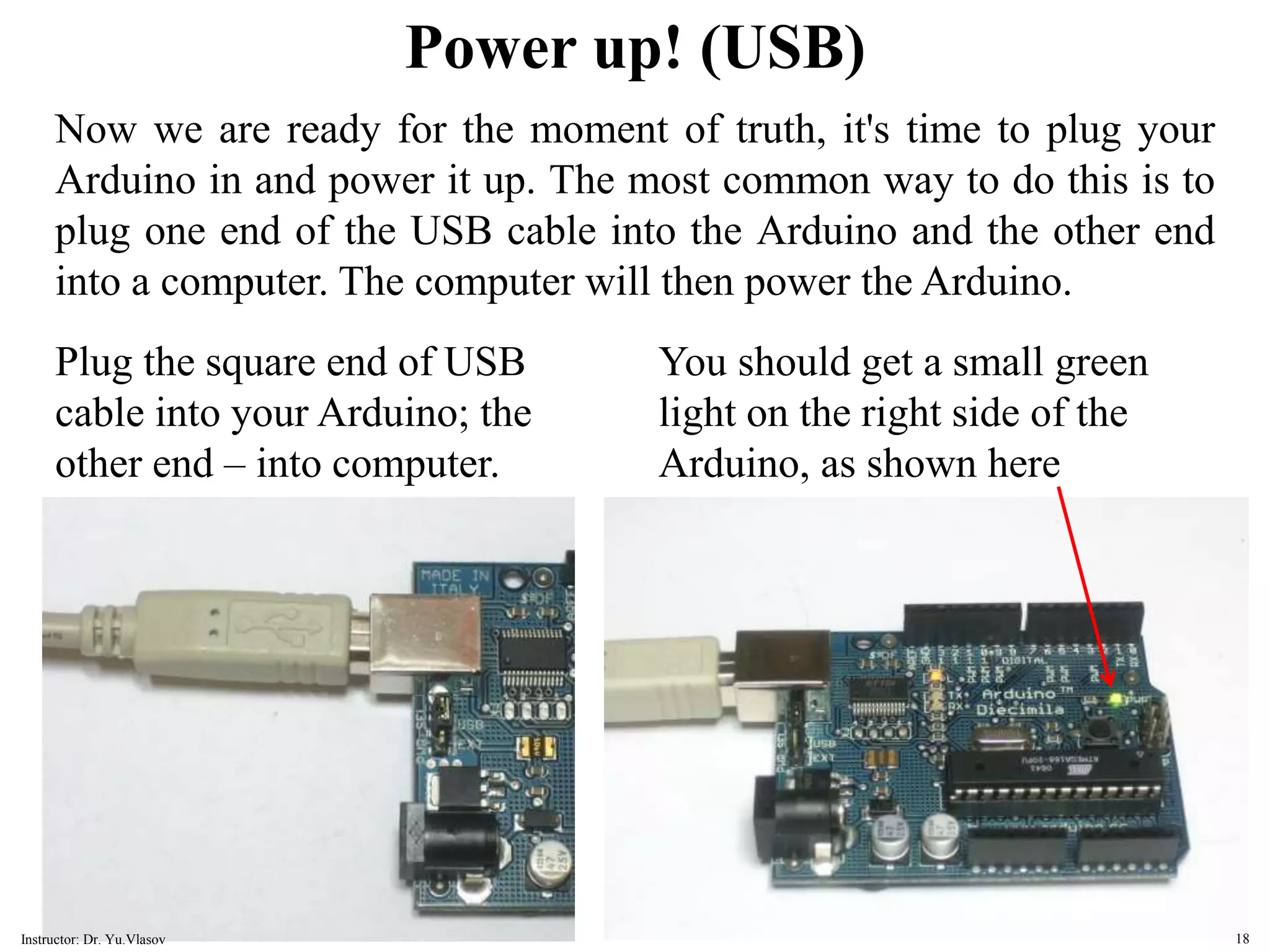
Power up! (USB) Now we are ready for the moment of truth, it's time to plug your Arduino in and power it up. The most common way to do this is to plug one end of the USB cable into the Arduino and the other end into a computer. The computer will then power the Arduino. Plug the square end of USB cable into your Arduino; the other end – into computer. You should get a small green light on the right side of the Arduino, as shown here 18 Instructor: Dr. Yu.Vlasov
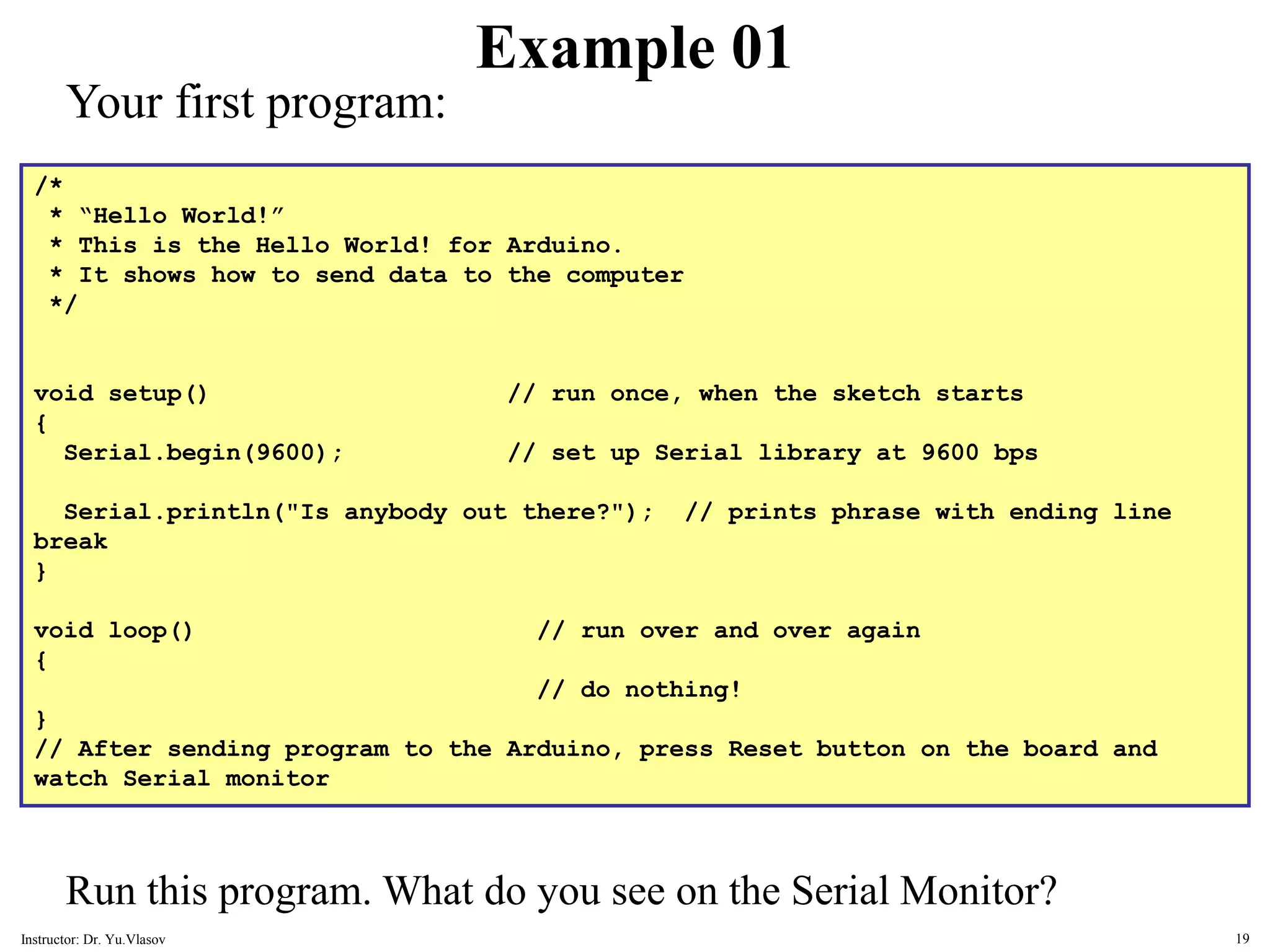
/* * “Hello World!” * This is the Hello World! for Arduino. * It shows how to send data to the computer */ void setup() // run once, when the sketch starts { Serial.begin(9600); // set up Serial library at 9600 bps Serial.println("Is anybody out there?"); // prints phrase with ending line break } void loop() // run over and over again { // do nothing! } // After sending program to the Arduino, press Reset button on the board and watch Serial monitor Example 01 Your first program: Run this program. What do you see on the Serial Monitor? 19 Instructor: Dr. Yu.Vlasov
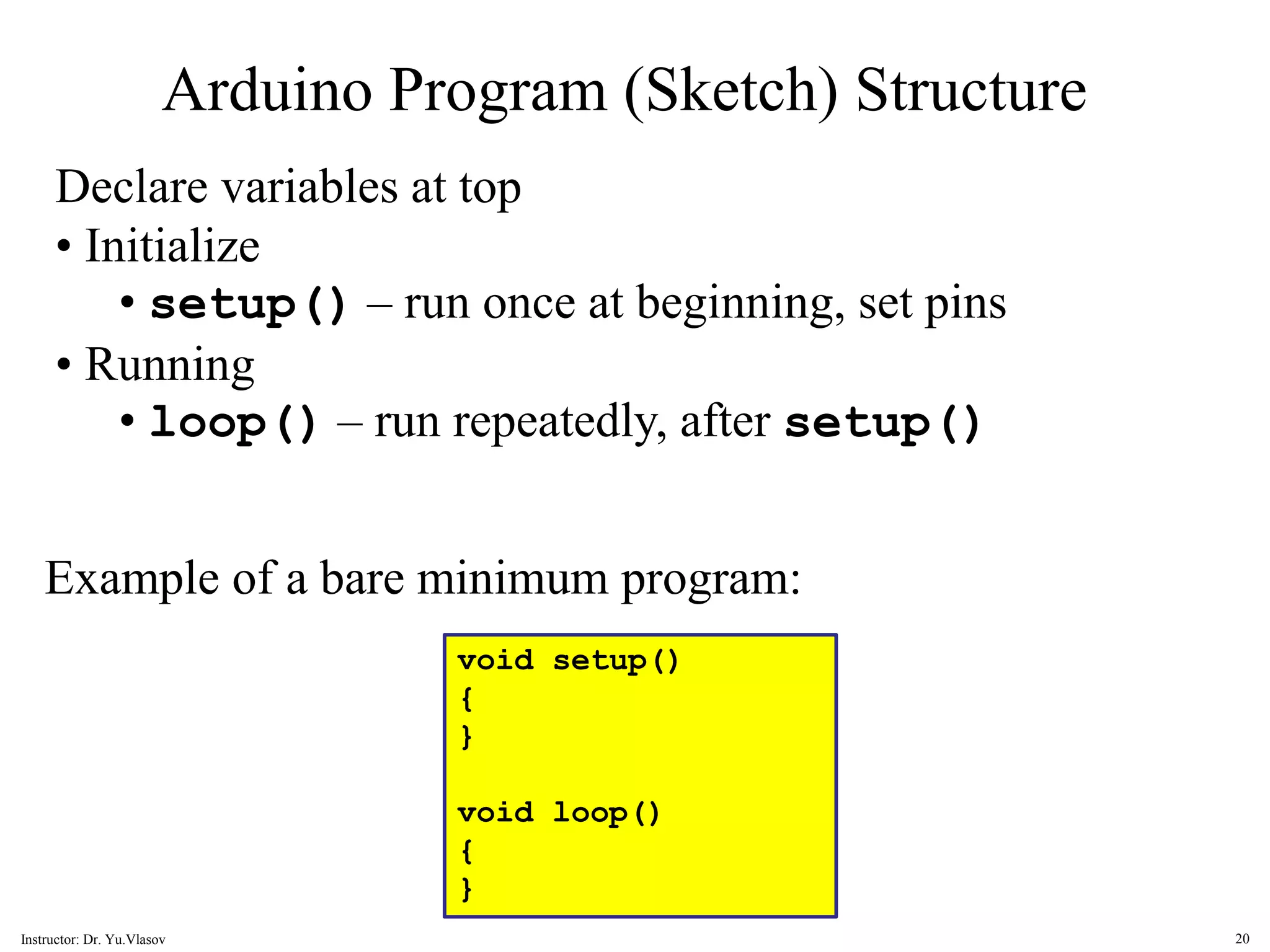
Arduino Program (Sketch) Structure Declare variables at top • Initialize • setup() – run once at beginning, set pins • Running • loop() – run repeatedly, after setup() void setup() { } void loop() { } Example of a bare minimum program: 20 Instructor: Dr. Yu.Vlasov
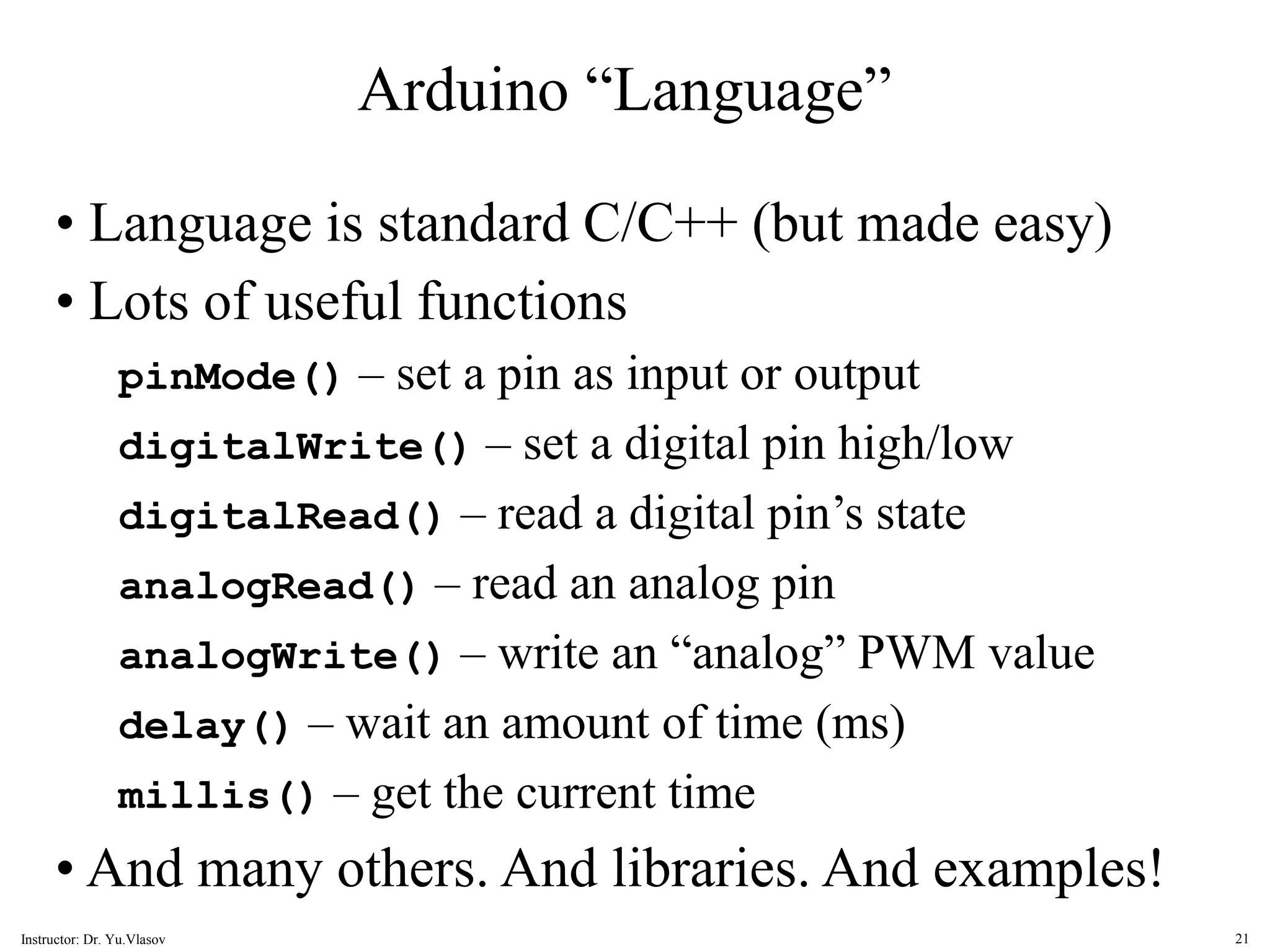
Arduino “Language” • Language is standard C/C++ (but made easy) • Lots of useful functions pinMode() – set a pin as input or output digitalWrite() – set a digital pin high/low digitalRead() – read a digital pin’s state analogRead() – read an analog pin analogWrite() – write an “analog” PWM value delay() – wait an amount of time (ms) millis() – get the current time • And many others. And libraries. And examples! 21 Instructor: Dr. Yu.Vlasov
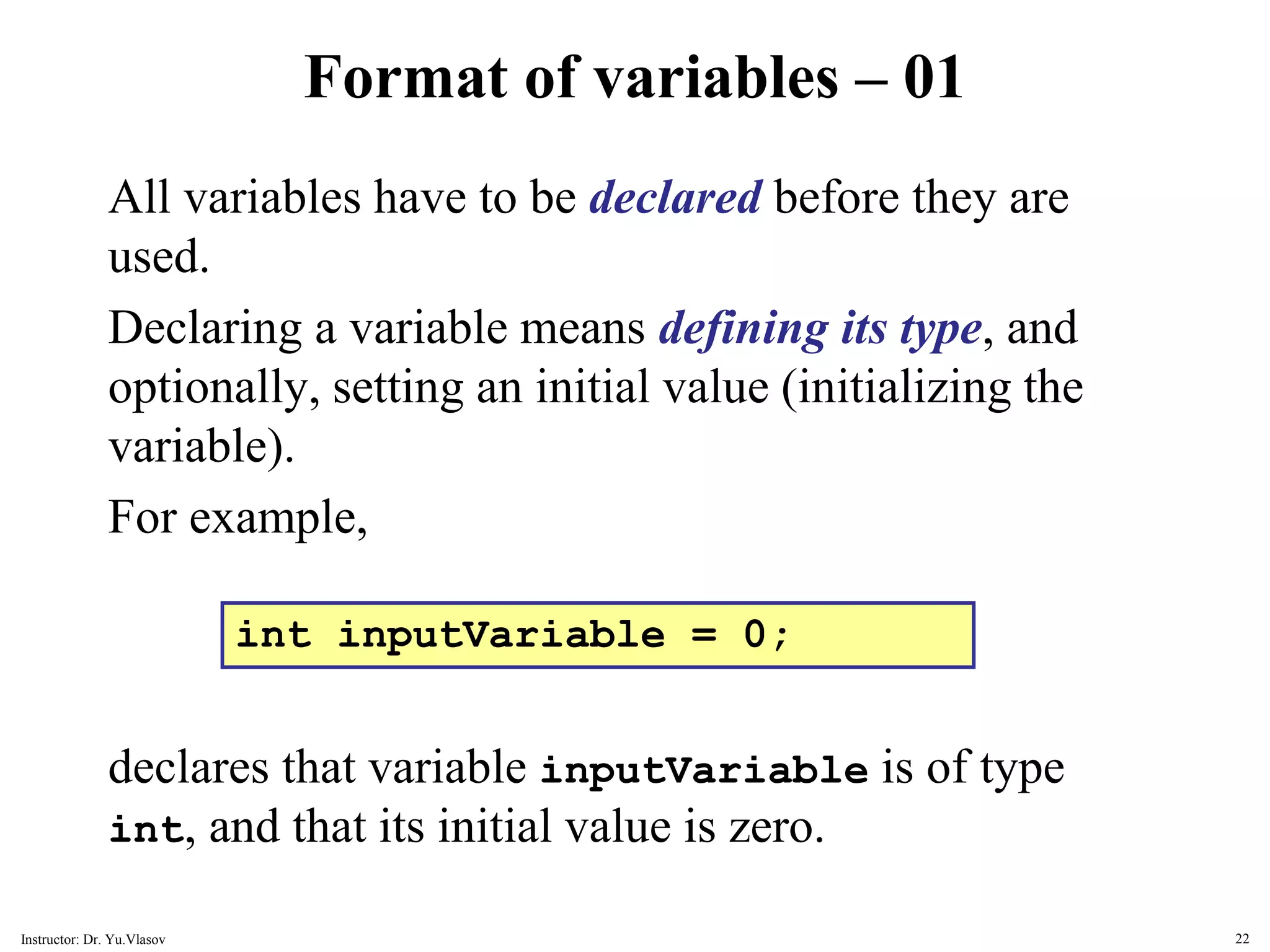
Format of variables – 01 All variables have to be declared before they are used. Declaring a variable means defining its type, and optionally, setting an initial value (initializing the variable). For example, int inputVariable = 0; declares that variable inputVariable is of type int, and that its initial value is zero. 22 Instructor: Dr. Yu.Vlasov
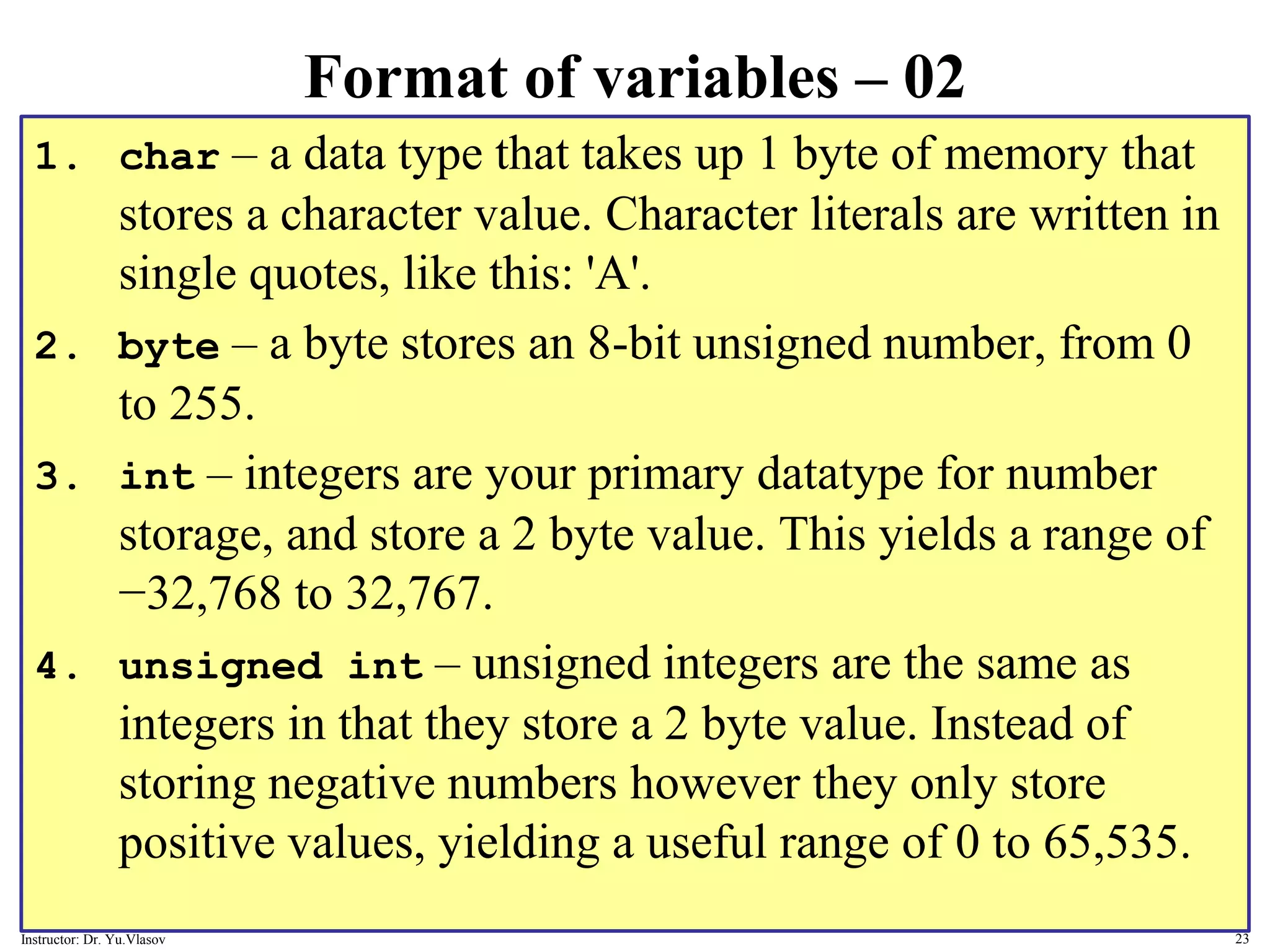
Format of variables – 02 1. char – a data type that takes up 1 byte of memory that stores a character value. Character literals are written in single quotes, like this: 'A'. 2. byte – a byte stores an 8-bit unsigned number, from 0 to 255. 3. int – integers are your primary datatype for number storage, and store a 2 byte value. This yields a range of −32,768 to 32,767. 4. unsigned int – unsigned integers are the same as integers in that they store a 2 byte value. Instead of storing negative numbers however they only store positive values, yielding a useful range of 0 to 65,535. 23 Instructor: Dr. Yu.Vlasov
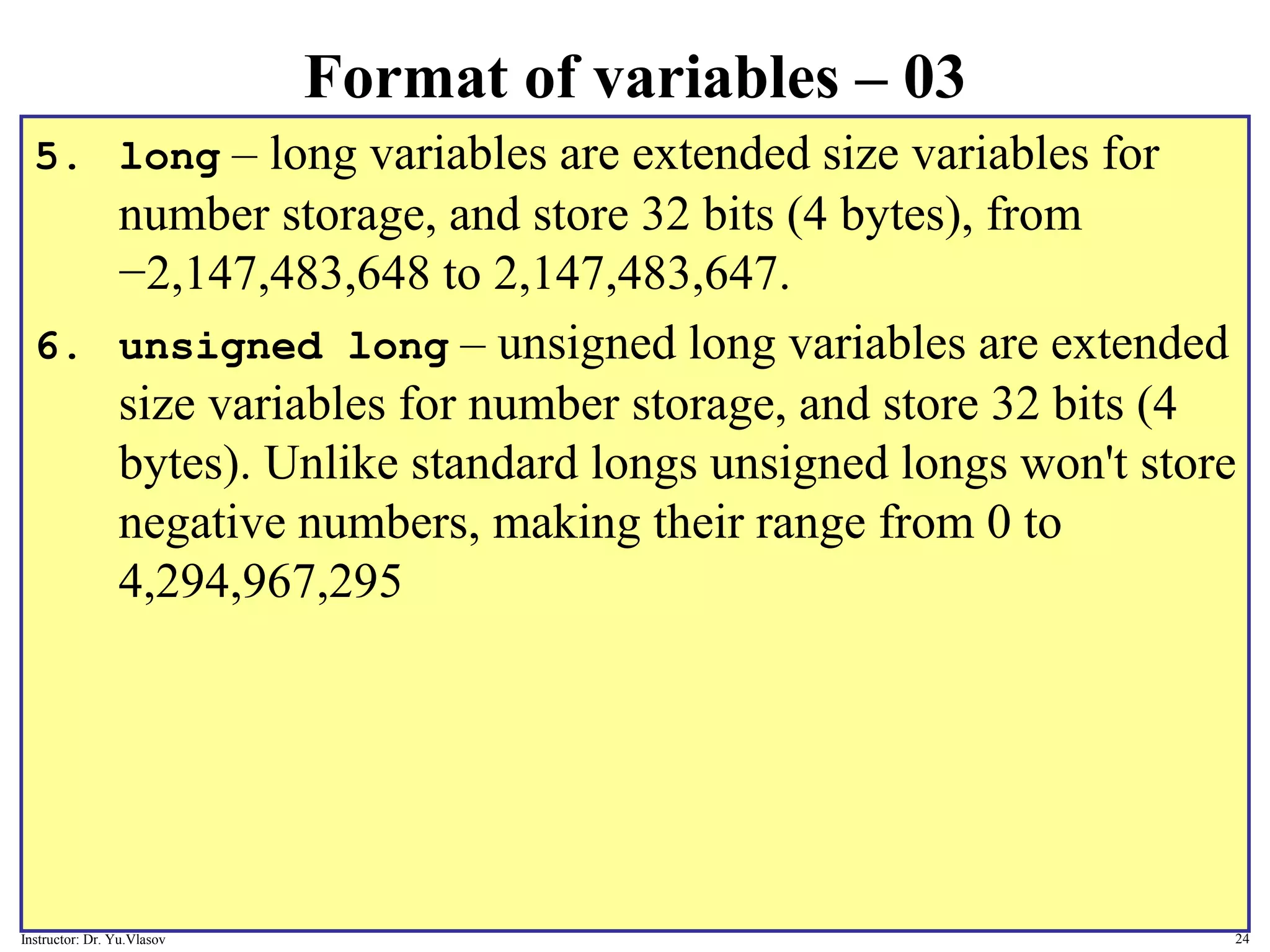
Format of variables – 03 5. long – long variables are extended size variables for number storage, and store 32 bits (4 bytes), from −2,147,483,648 to 2,147,483,647. 6. unsigned long – unsigned long variables are extended size variables for number storage, and store 32 bits (4 bytes). Unlike standard longs unsigned longs won't store negative numbers, making their range from 0 to 4,294,967,295 24 Instructor: Dr. Yu.Vlasov
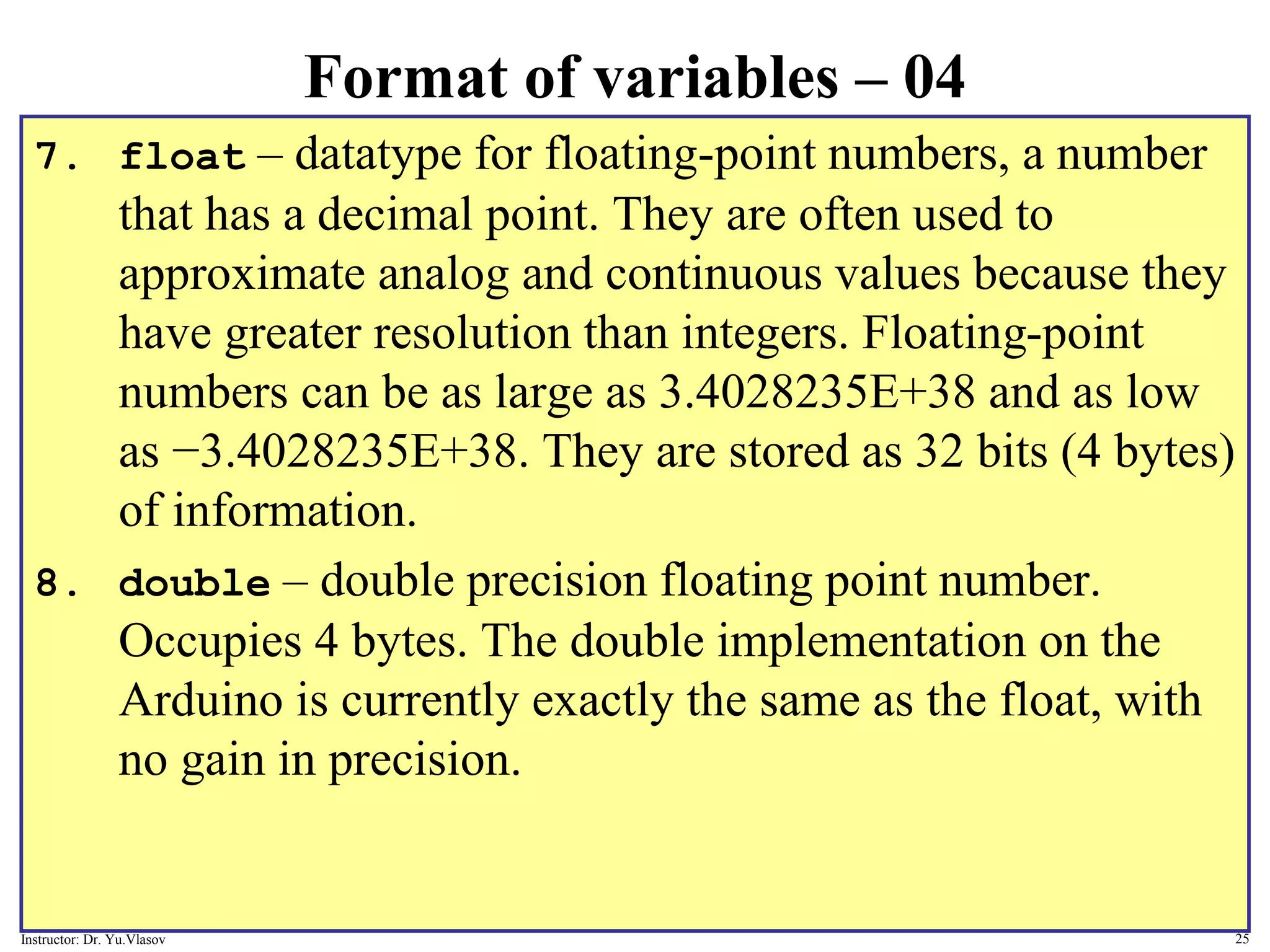
Format of variables – 04 7. float – datatype for floating-point numbers, a number that has a decimal point. They are often used to approximate analog and continuous values because they have greater resolution than integers. Floating-point numbers can be as large as 3.4028235E+38 and as low as −3.4028235E+38. They are stored as 32 bits (4 bytes) of information. 8. double – double precision floating point number. Occupies 4 bytes. The double implementation on the Arduino is currently exactly the same as the float, with no gain in precision. 25 Instructor: Dr. Yu.Vlasov
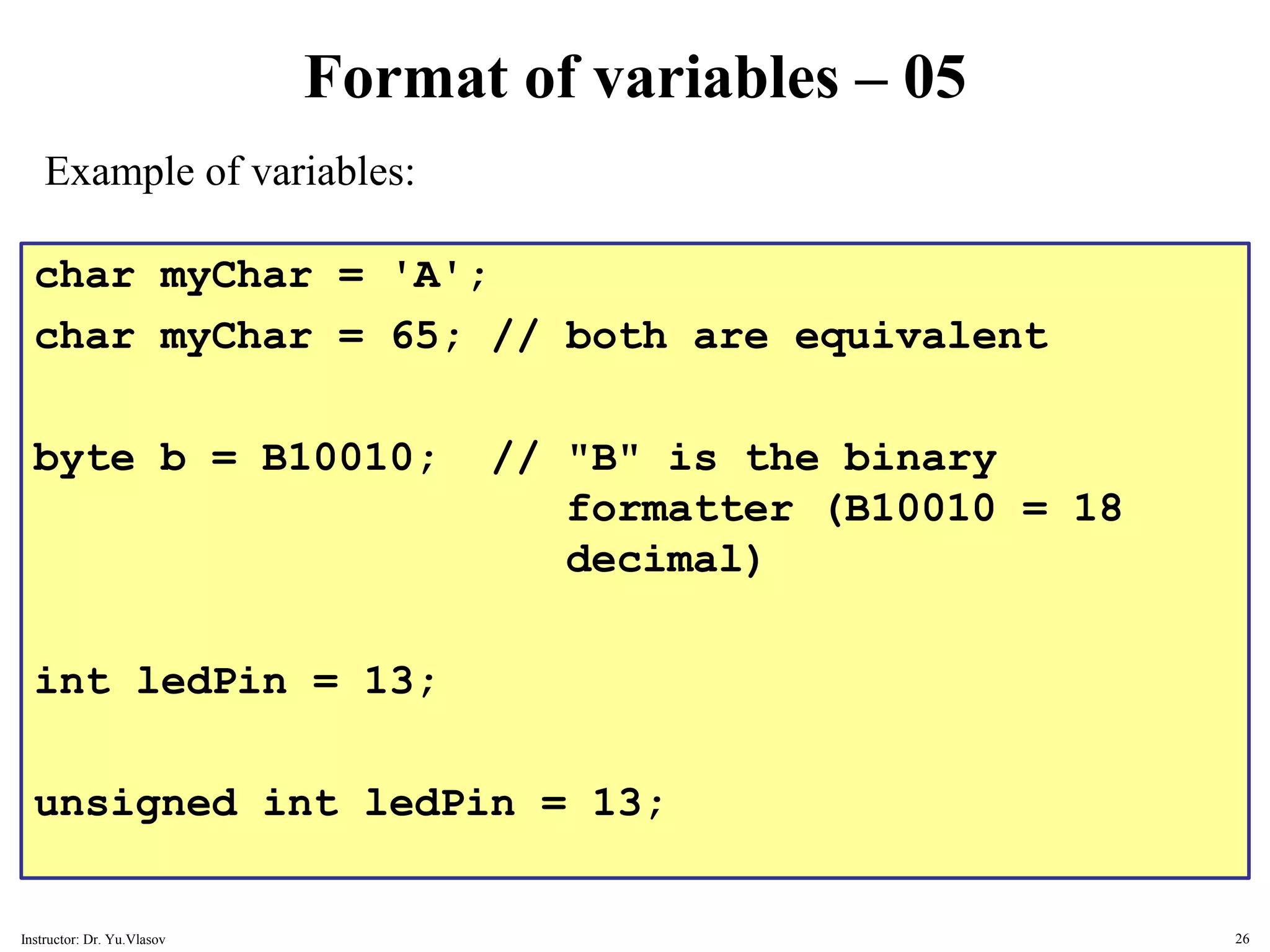
Format of variables – 05 char myChar = 'A'; char myChar = 65; // both are equivalent byte b = B10010; // "B" is the binary formatter (B10010 = 18 decimal) int ledPin = 13; unsigned int ledPin = 13; Example of variables: 26 Instructor: Dr. Yu.Vlasov
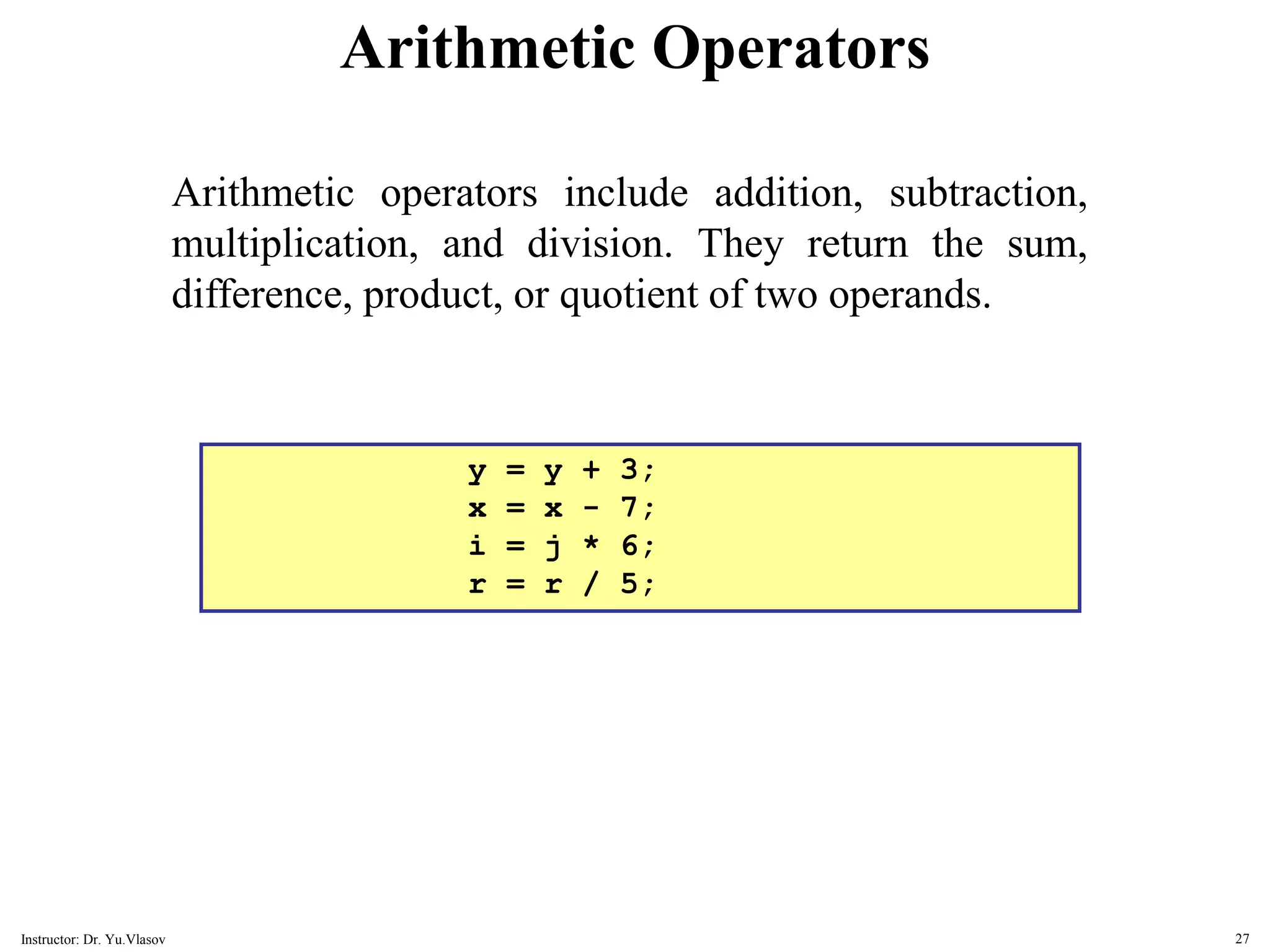
y = y + 3; x = x - 7; i = j * 6; r = r / 5; Arithmetic Operators Arithmetic operators include addition, subtraction, multiplication, and division. They return the sum, difference, product, or quotient of two operands. 27 Instructor: Dr. Yu.Vlasov
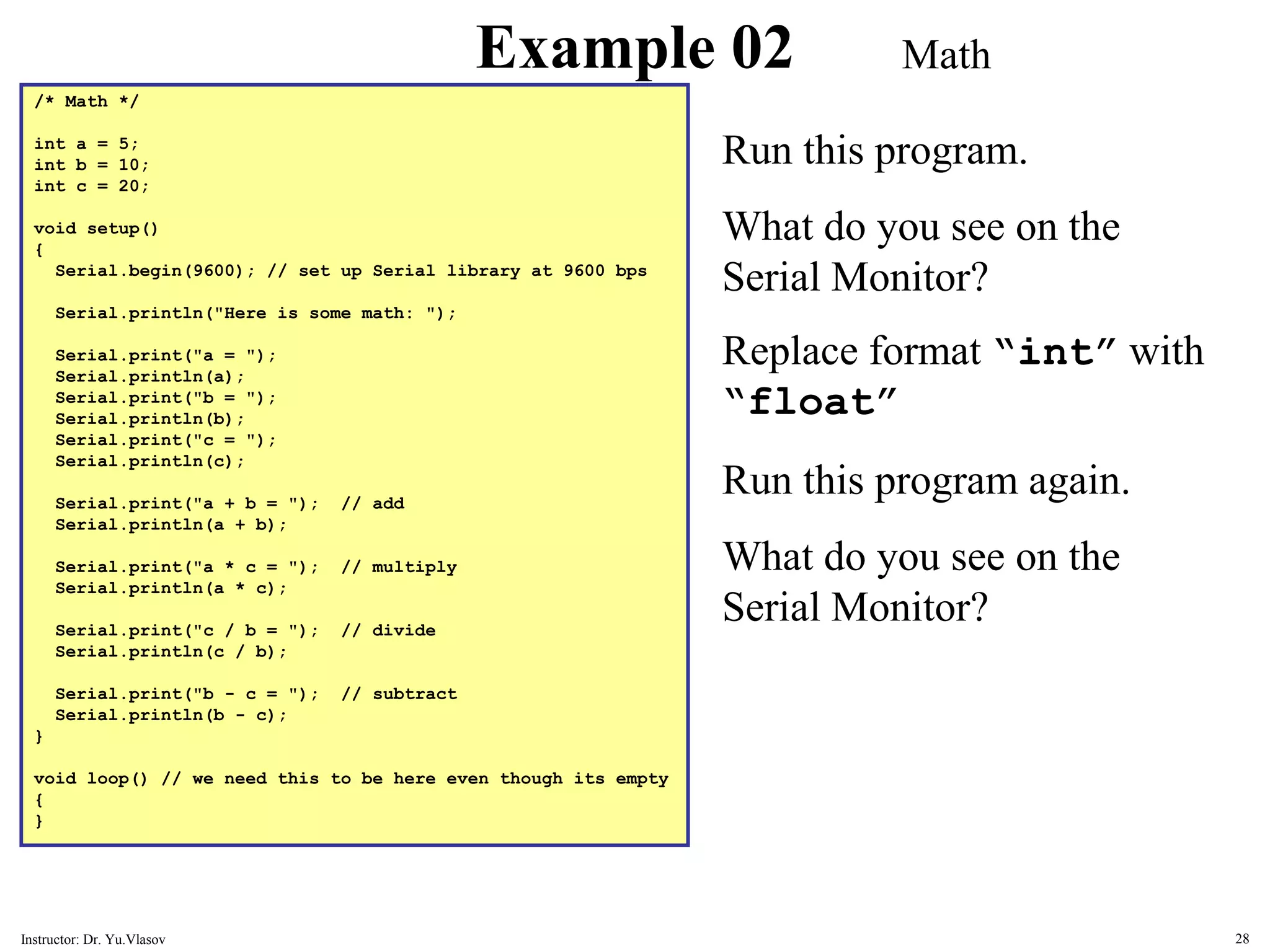
/* Math */ int a = 5; int b = 10; int c = 20; void setup() { Serial.begin(9600); // set up Serial library at 9600 bps Serial.println("Here is some math: "); Serial.print("a = "); Serial.println(a); Serial.print("b = "); Serial.println(b); Serial.print("c = "); Serial.println(c); Serial.print("a + b = "); // add Serial.println(a + b); Serial.print("a * c = "); // multiply Serial.println(a * c); Serial.print("c / b = "); // divide Serial.println(c / b); Serial.print("b - c = "); // subtract Serial.println(b - c); } void loop() // we need this to be here even though its empty { } Example 02 Run this program. What do you see on the Serial Monitor? Replace format “int” with “float” Run this program again. What do you see on the Serial Monitor? Math 28 Instructor: Dr. Yu.Vlasov
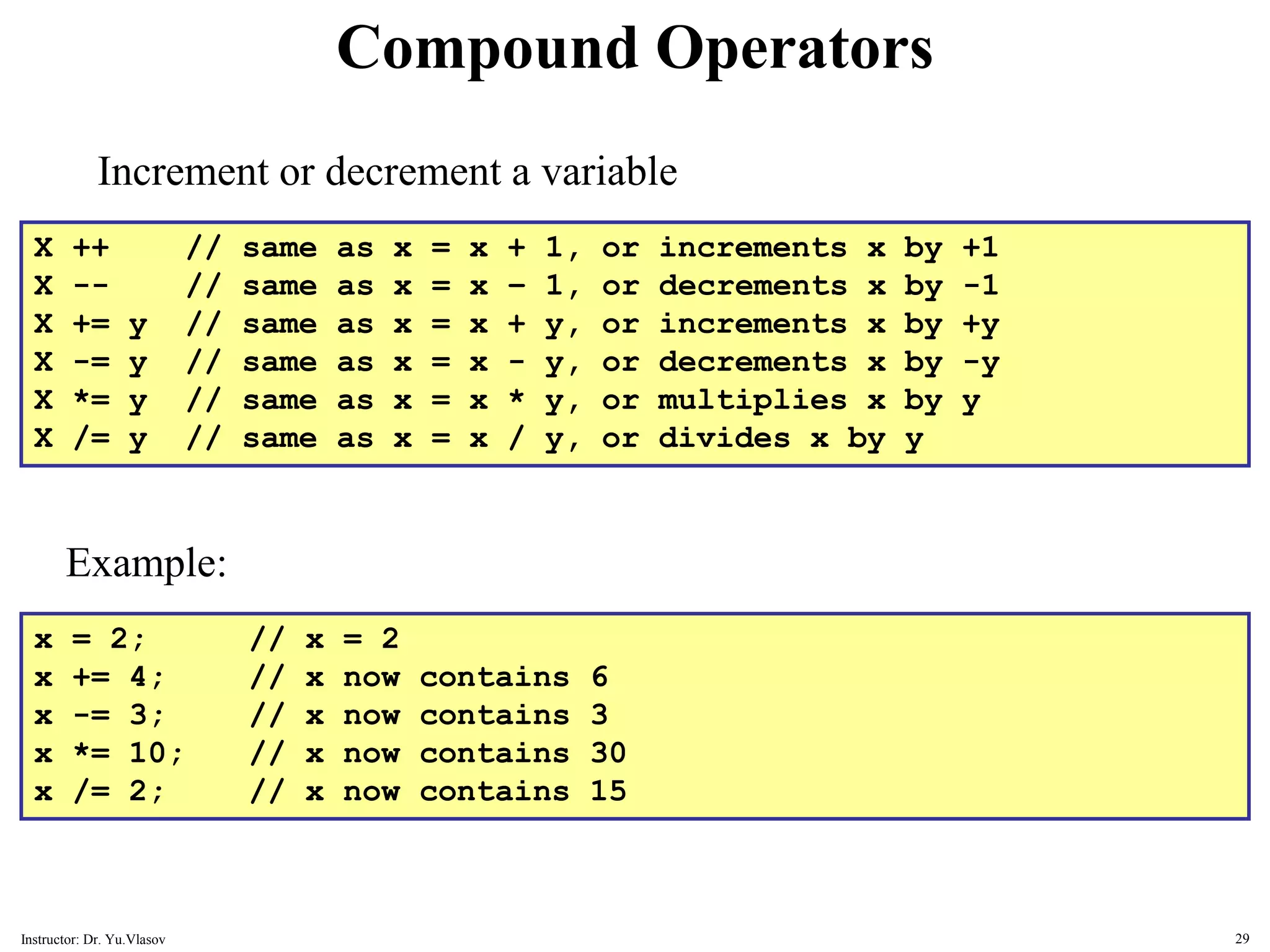
X ++ // same as x = x + 1, or increments x by +1 X -- // same as x = x – 1, or decrements x by -1 X += y // same as x = x + y, or increments x by +y X -= y // same as x = x - y, or decrements x by -y X *= y // same as x = x * y, or multiplies x by y X /= y // same as x = x / y, or divides x by y Compound Operators Increment or decrement a variable Example: x = 2; // x = 2 x += 4; // x now contains 6 x -= 3; // x now contains 3 x *= 10; // x now contains 30 x /= 2; // x now contains 15 29 Instructor: Dr. Yu.Vlasov
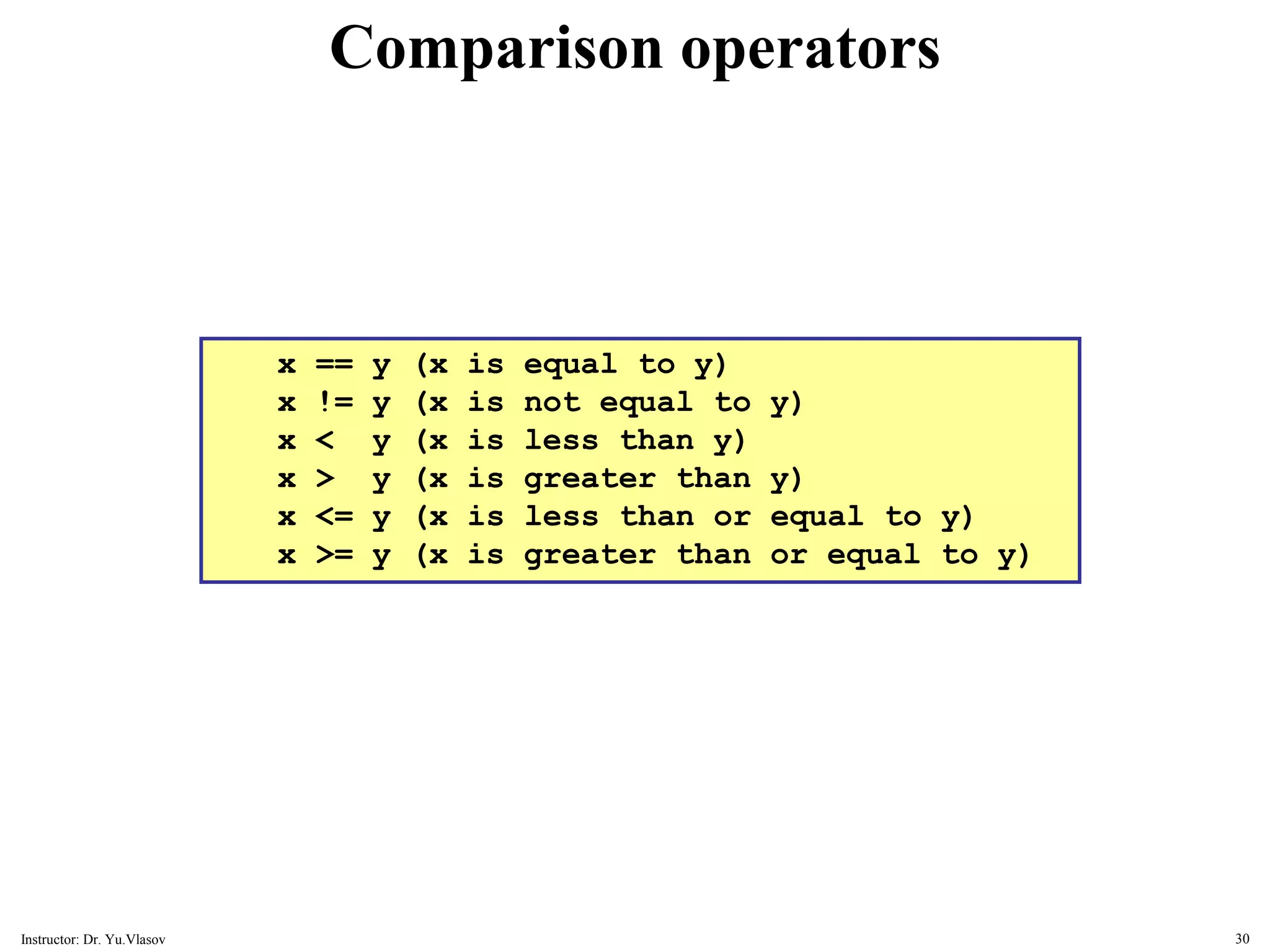
x == y (x is equal to y) x != y (x is not equal to y) x < y (x is less than y) x > y (x is greater than y) x <= y (x is less than or equal to y) x >= y (x is greater than or equal to y) Comparison operators 30 Instructor: Dr. Yu.Vlasov
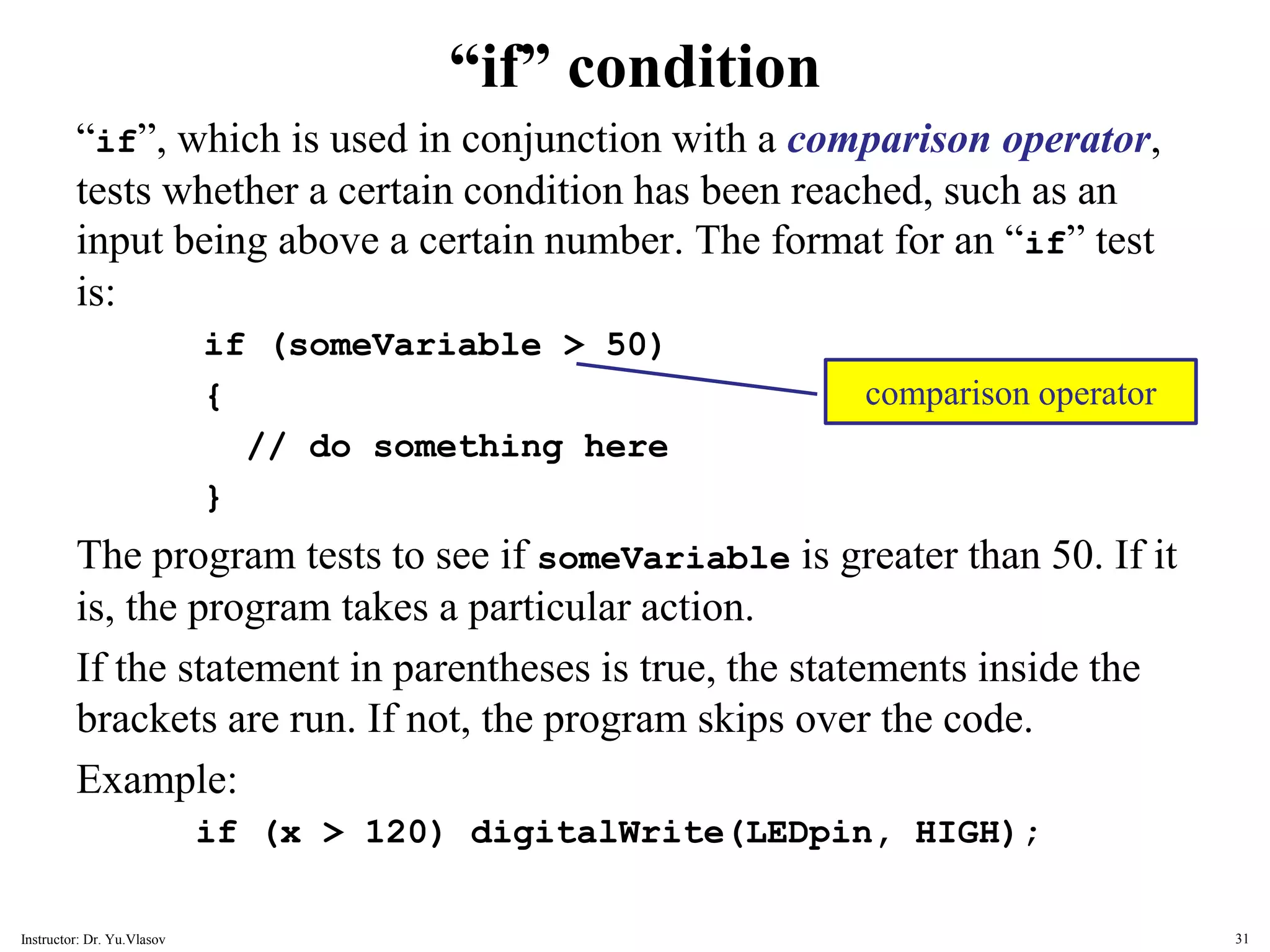
“if” condition “if”, which is used in conjunction with a comparison operator, tests whether a certain condition has been reached, such as an input being above a certain number. The format for an “if” test is: if (someVariable > 50) { // do something here } The program tests to see if someVariable is greater than 50. If it is, the program takes a particular action. If the statement in parentheses is true, the statements inside the brackets are run. If not, the program skips over the code. Example: if (x > 120) digitalWrite(LEDpin, HIGH); comparison operator 31 Instructor: Dr. Yu.Vlasov
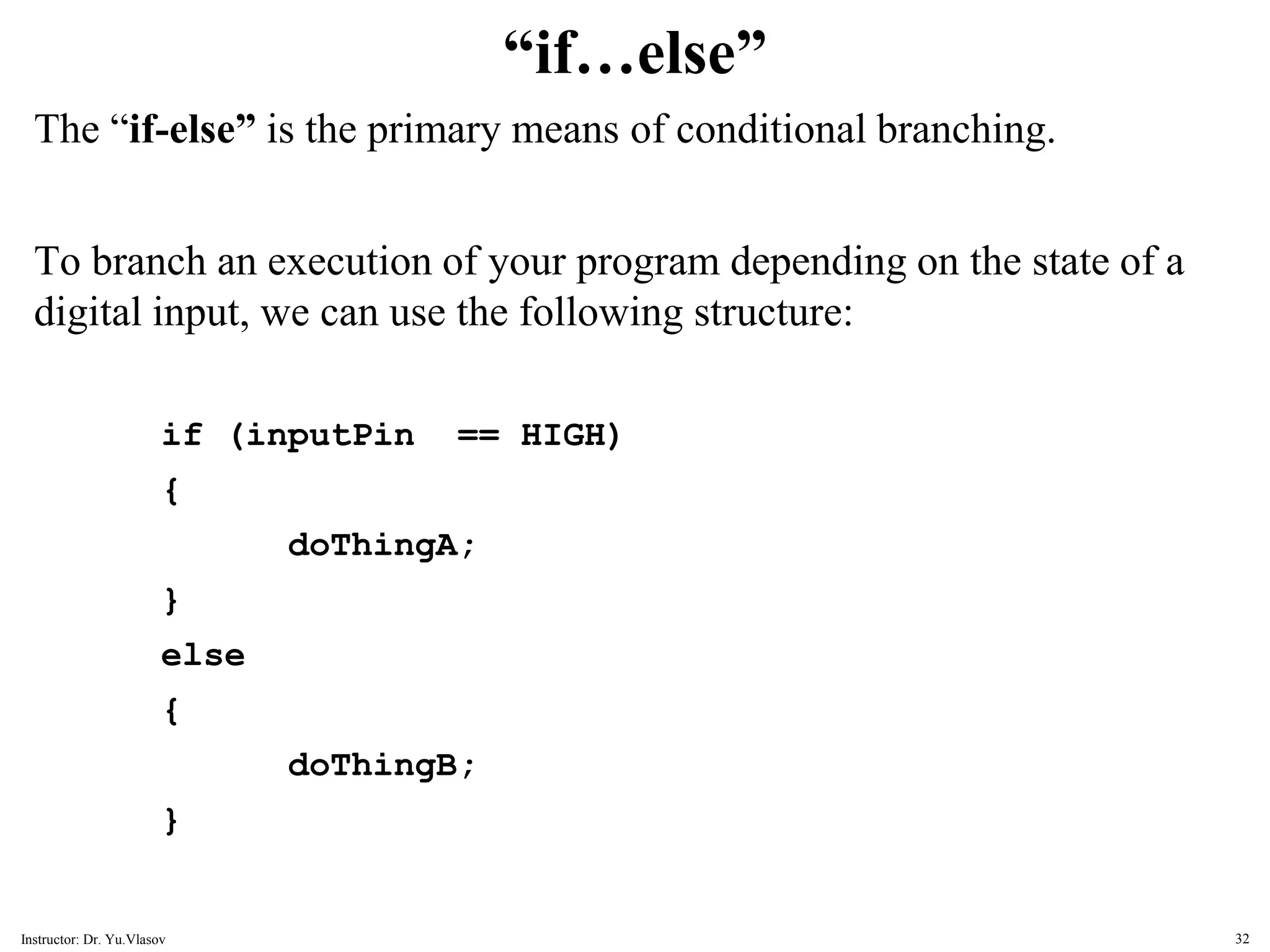
“if…else” The “if-else” is the primary means of conditional branching. To branch an execution of your program depending on the state of a digital input, we can use the following structure: if (inputPin == HIGH) { doThingA; } else { doThingB; } 32 Instructor: Dr. Yu.Vlasov
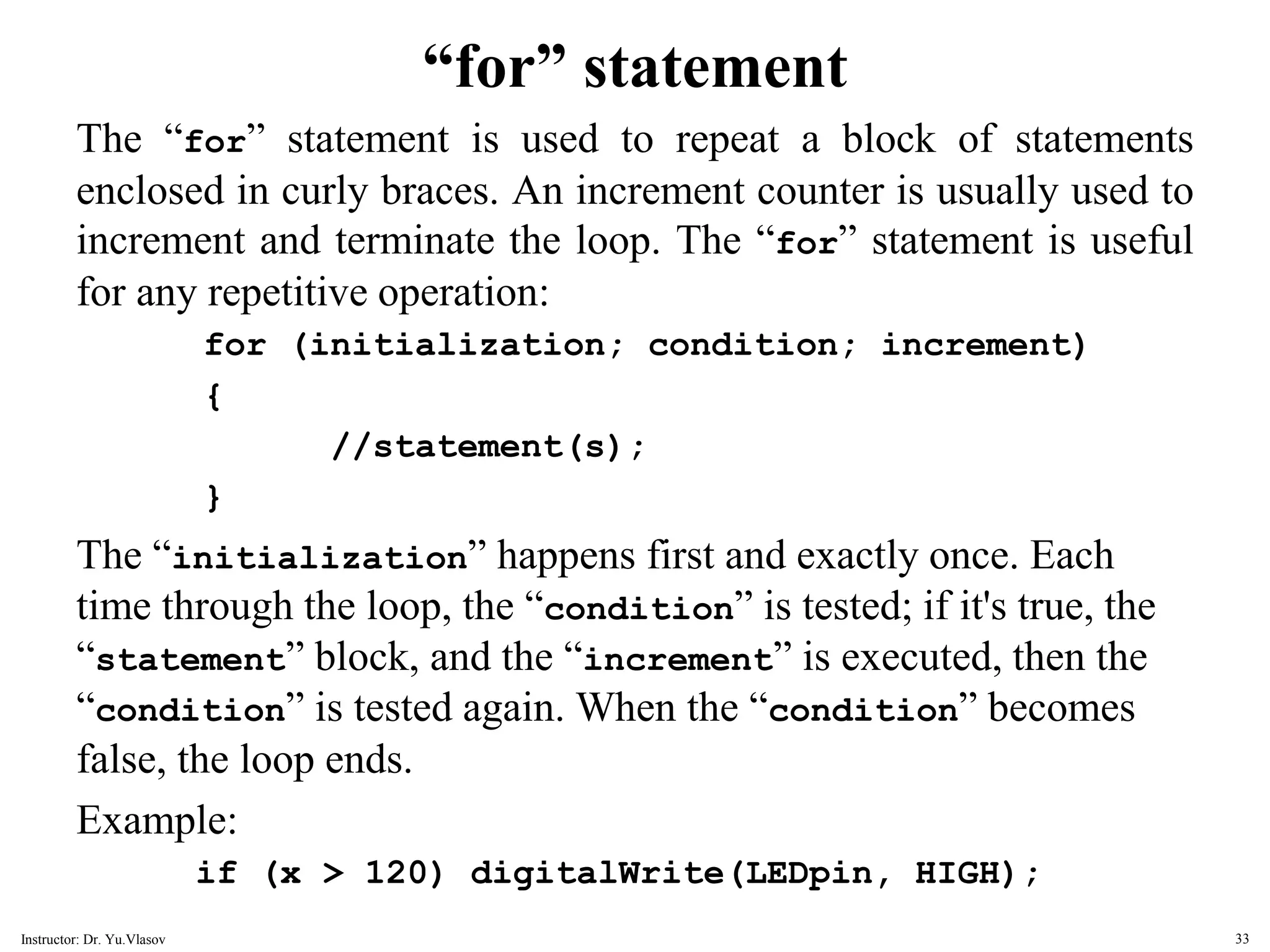
“for” statement The “for” statement is used to repeat a block of statements enclosed in curly braces. An increment counter is usually used to increment and terminate the loop. The “for” statement is useful for any repetitive operation: for (initialization; condition; increment) { //statement(s); } The “initialization” happens first and exactly once. Each time through the loop, the “condition” is tested; if it's true, the “statement” block, and the “increment” is executed, then the “condition” is tested again. When the “condition” becomes false, the loop ends. Example: if (x > 120) digitalWrite(LEDpin, HIGH); 33 Instructor: Dr. Yu.Vlasov
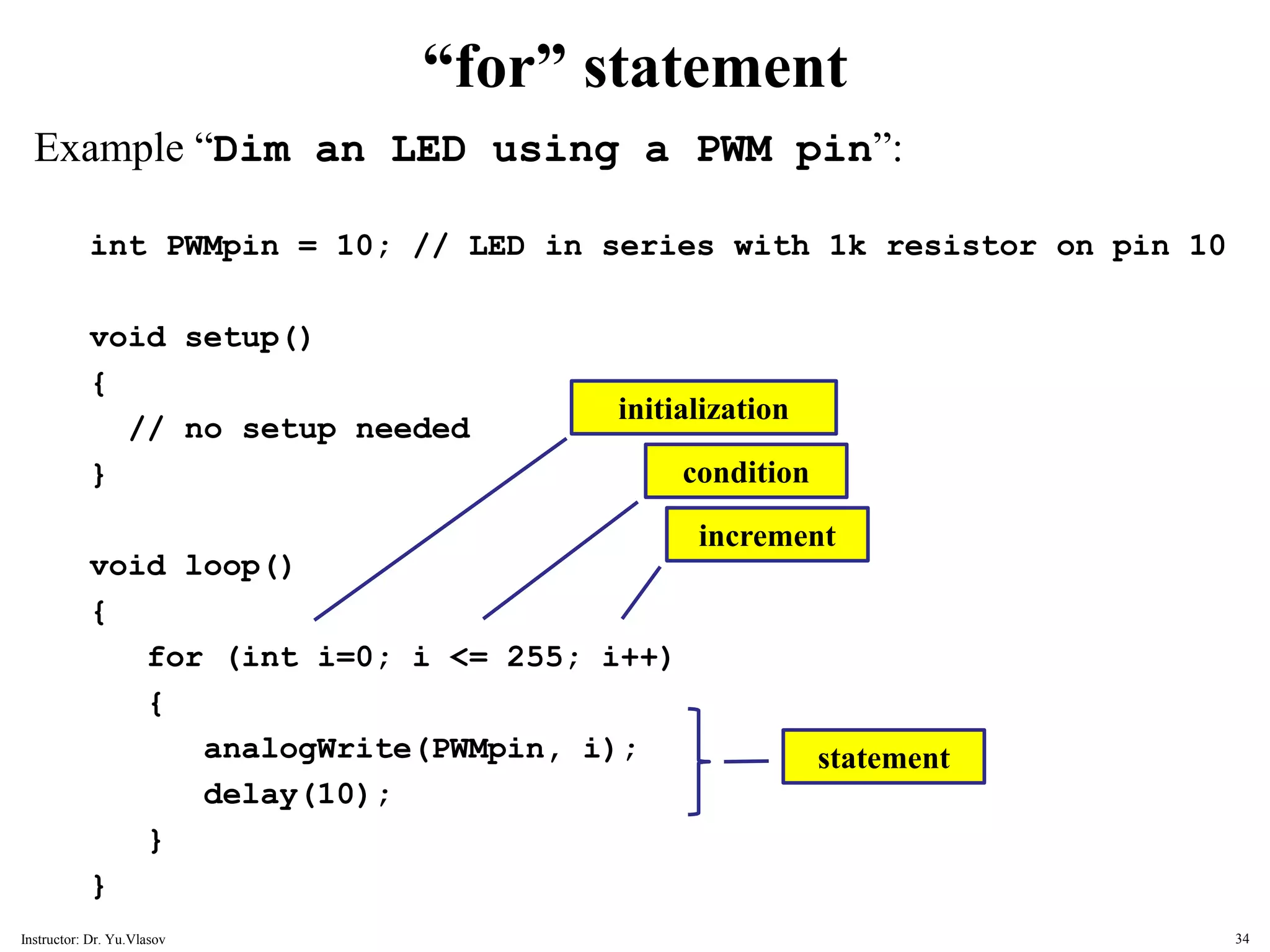
“for” statement Example “Dim an LED using a PWM pin”: int PWMpin = 10; // LED in series with 1k resistor on pin 10 void setup() { // no setup needed } void loop() { for (int i=0; i <= 255; i++) { analogWrite(PWMpin, i); delay(10); } } initialization condition increment statement 34 Instructor: Dr. Yu.Vlasov
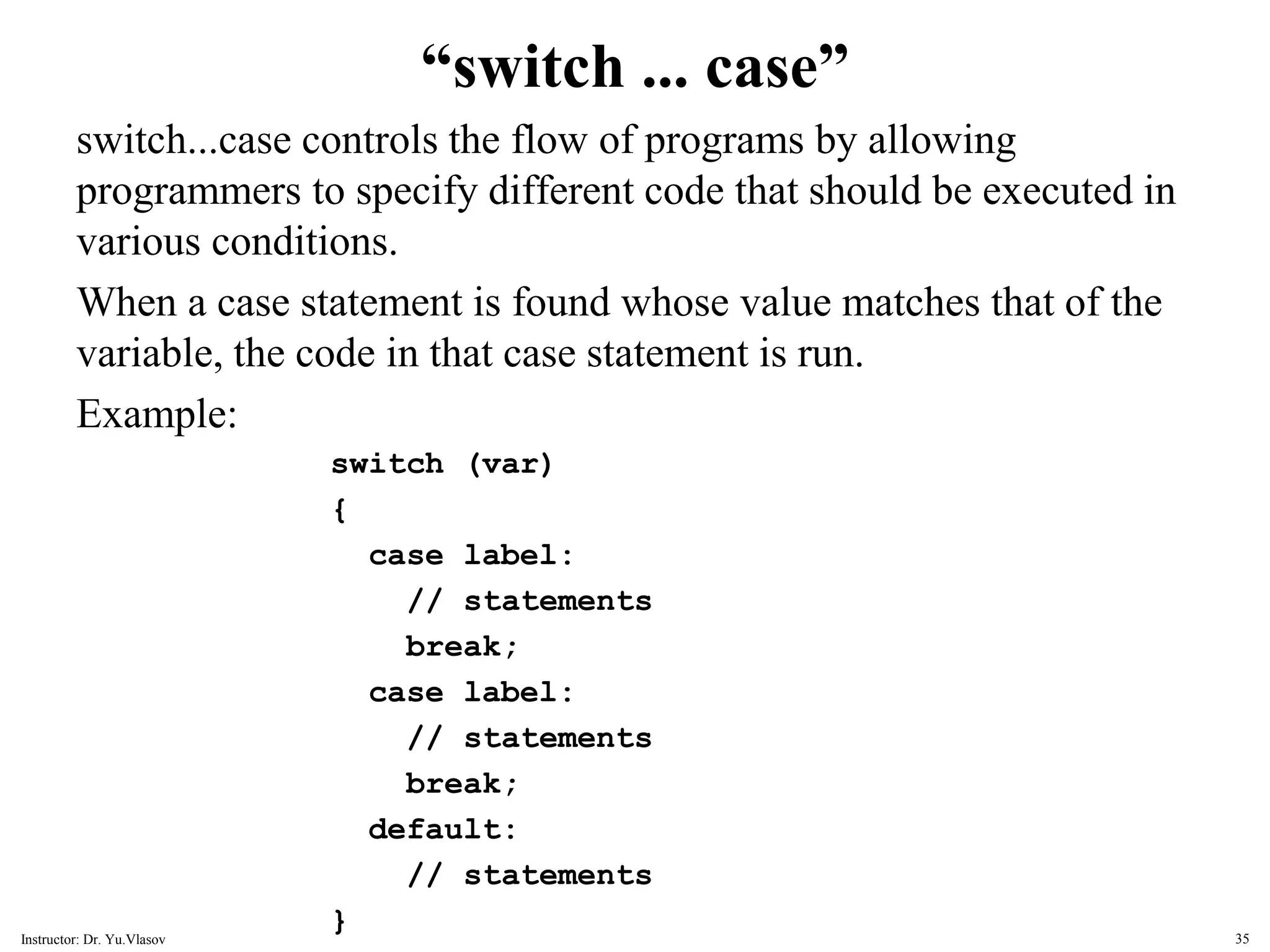
“switch ... case” switch...case controls the flow of programs by allowing programmers to specify different code that should be executed in various conditions. When a case statement is found whose value matches that of the variable, the code in that case statement is run. Example: switch (var) { case label: // statements break; case label: // statements break; default: // statements } 35 Instructor: Dr. Yu.Vlasov
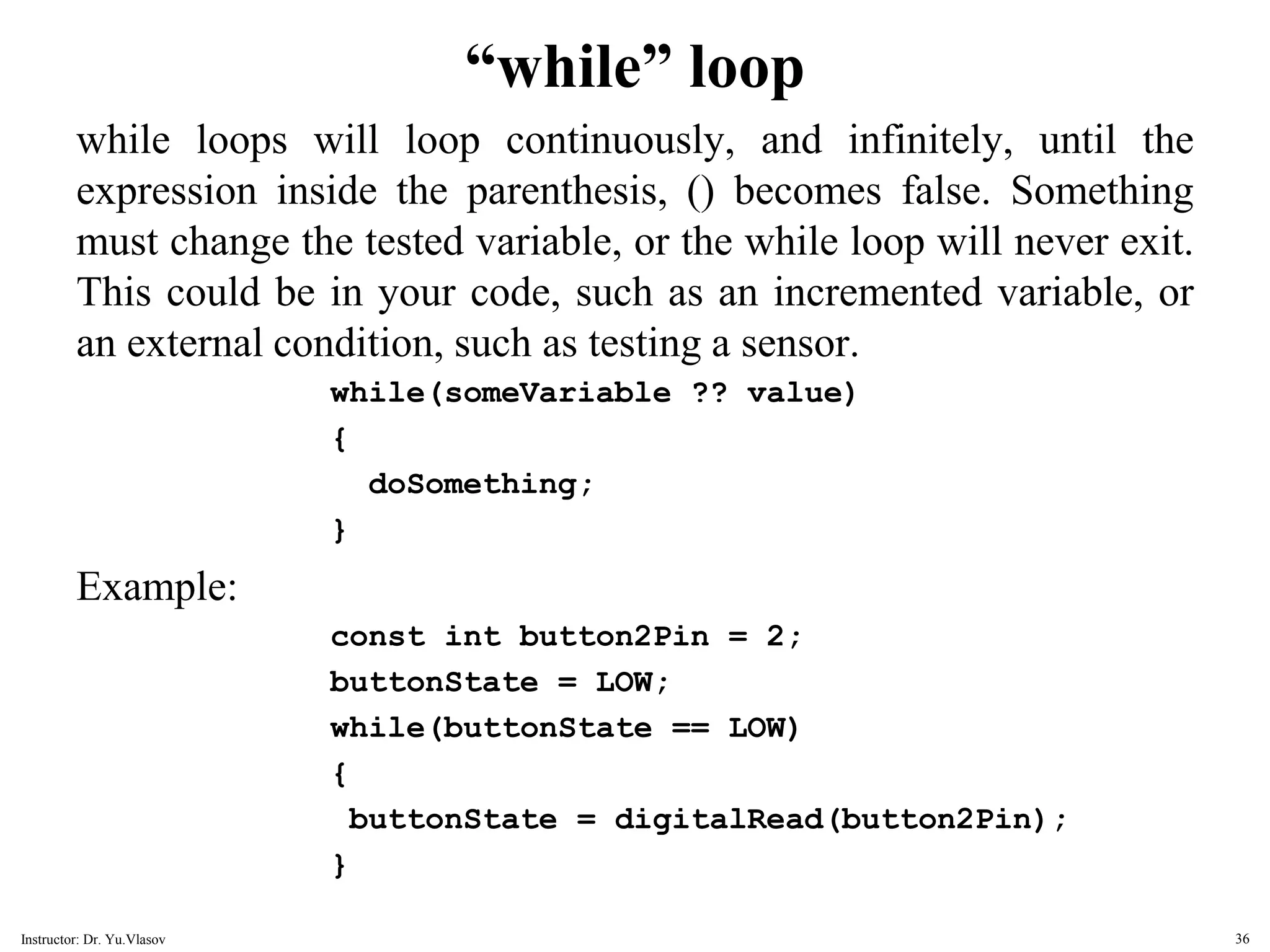
“while” loop while loops will loop continuously, and infinitely, until the expression inside the parenthesis, () becomes false. Something must change the tested variable, or the while loop will never exit. This could be in your code, such as an incremented variable, or an external condition, such as testing a sensor. while(someVariable ?? value) { doSomething; } Example: const int button2Pin = 2; buttonState = LOW; while(buttonState == LOW) { buttonState = digitalRead(button2Pin); } 36 Instructor: Dr. Yu.Vlasov
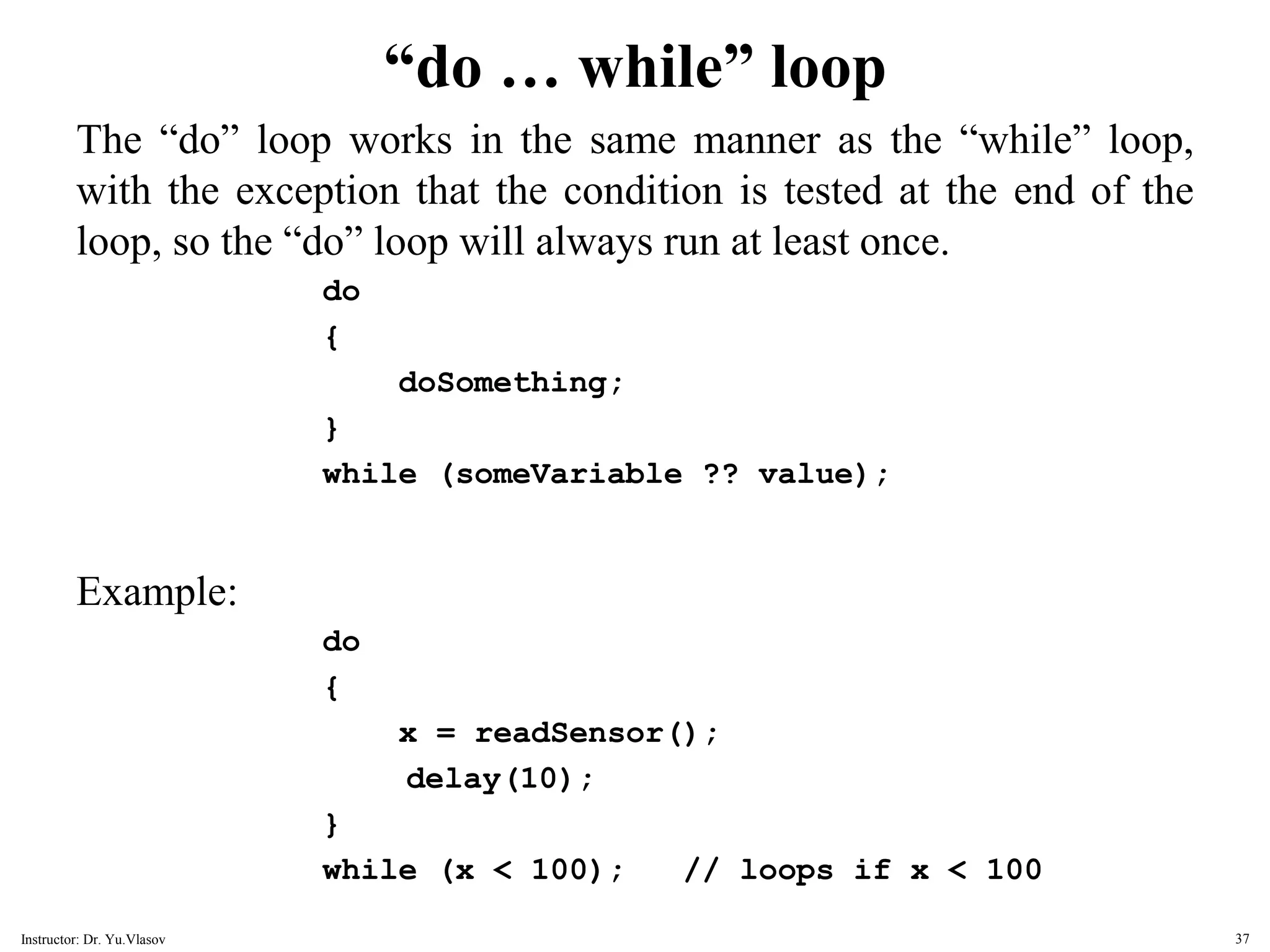
“do … while” loop The “do” loop works in the same manner as the “while” loop, with the exception that the condition is tested at the end of the loop, so the “do” loop will always run at least once. do { doSomething; } while (someVariable ?? value); Example: do { x = readSensor(); delay(10); } while (x < 100); // loops if x < 100 37 Instructor: Dr. Yu.Vlasov
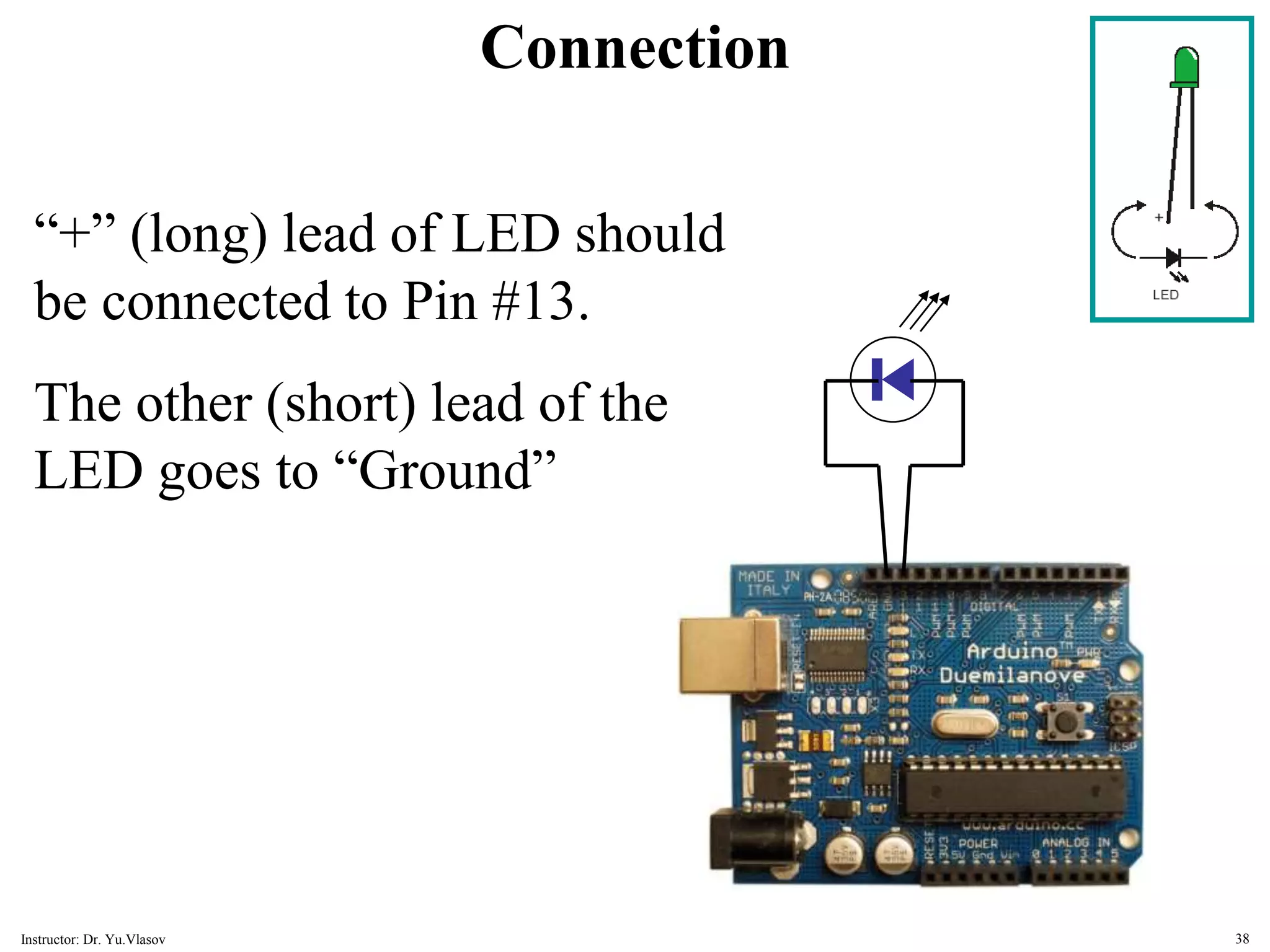
Connection “+” (long) lead of LED should be connected to Pin #13. The other (short) lead of the LED goes to “Ground” 38 Instructor: Dr. Yu.Vlasov
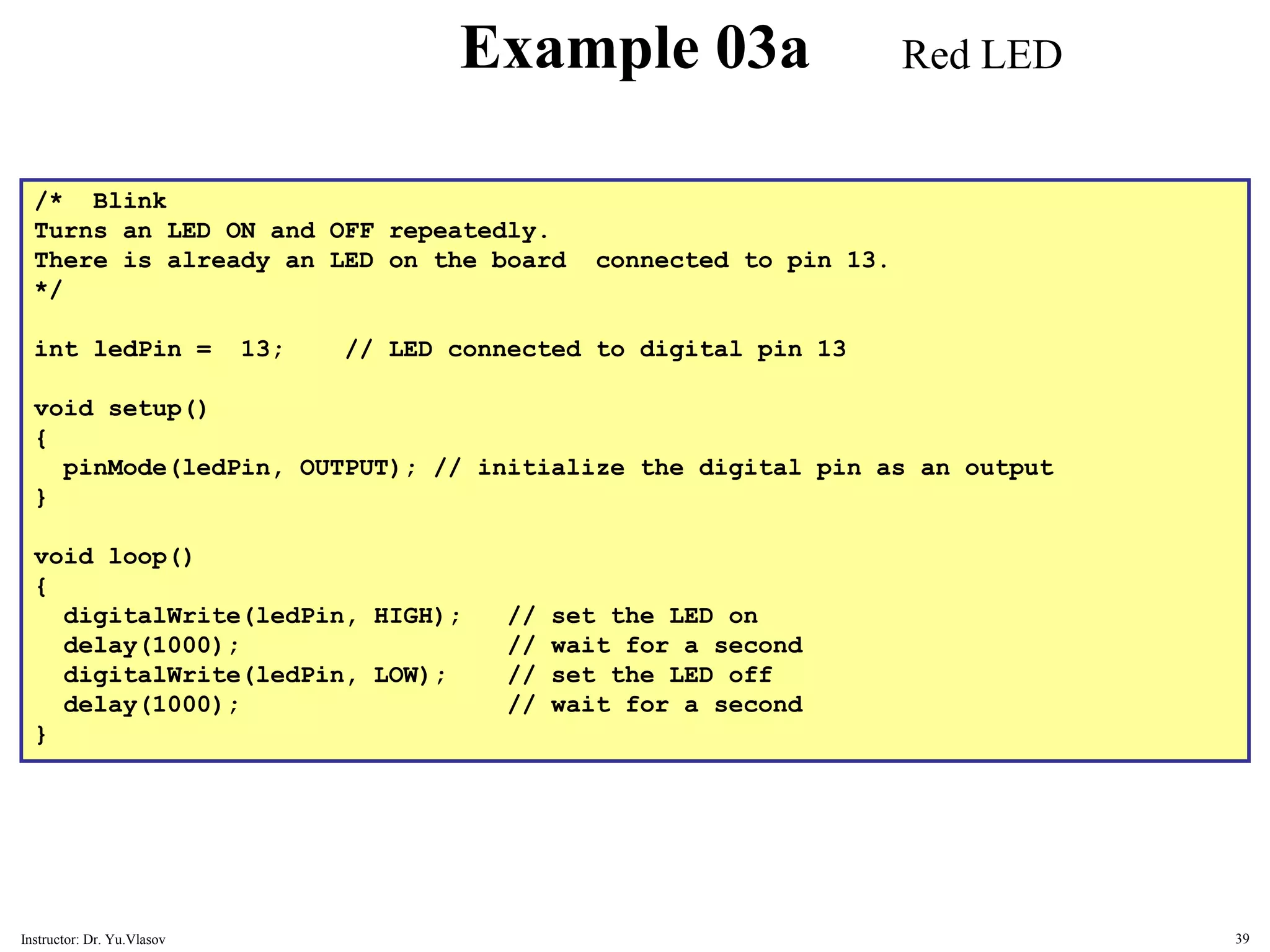
/* Blink Turns an LED ON and OFF repeatedly. There is already an LED on the board connected to pin 13. */ int ledPin = 13; // LED connected to digital pin 13 void setup() { pinMode(ledPin, OUTPUT); // initialize the digital pin as an output } void loop() { digitalWrite(ledPin, HIGH); // set the LED on delay(1000); // wait for a second digitalWrite(ledPin, LOW); // set the LED off delay(1000); // wait for a second } Example 03a Red LED 39 Instructor: Dr. Yu.Vlasov
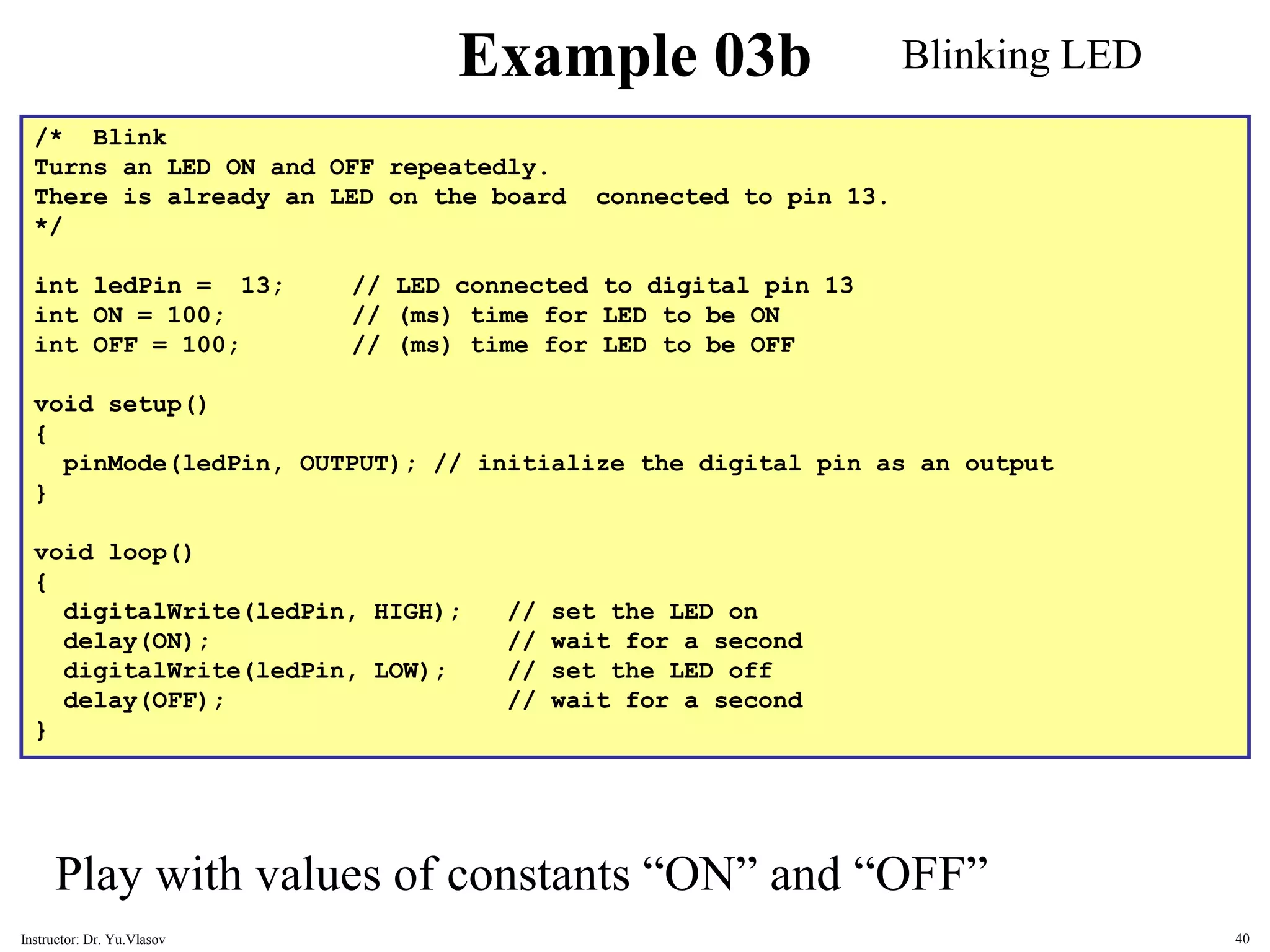
/* Blink Turns an LED ON and OFF repeatedly. There is already an LED on the board connected to pin 13. */ int ledPin = 13; // LED connected to digital pin 13 int ON = 100; // (ms) time for LED to be ON int OFF = 100; // (ms) time for LED to be OFF void setup() { pinMode(ledPin, OUTPUT); // initialize the digital pin as an output } void loop() { digitalWrite(ledPin, HIGH); // set the LED on delay(ON); // wait for a second digitalWrite(ledPin, LOW); // set the LED off delay(OFF); // wait for a second } Example 03b Blinking LED Play with values of constants “ON” and “OFF” 40 Instructor: Dr. Yu.Vlasov
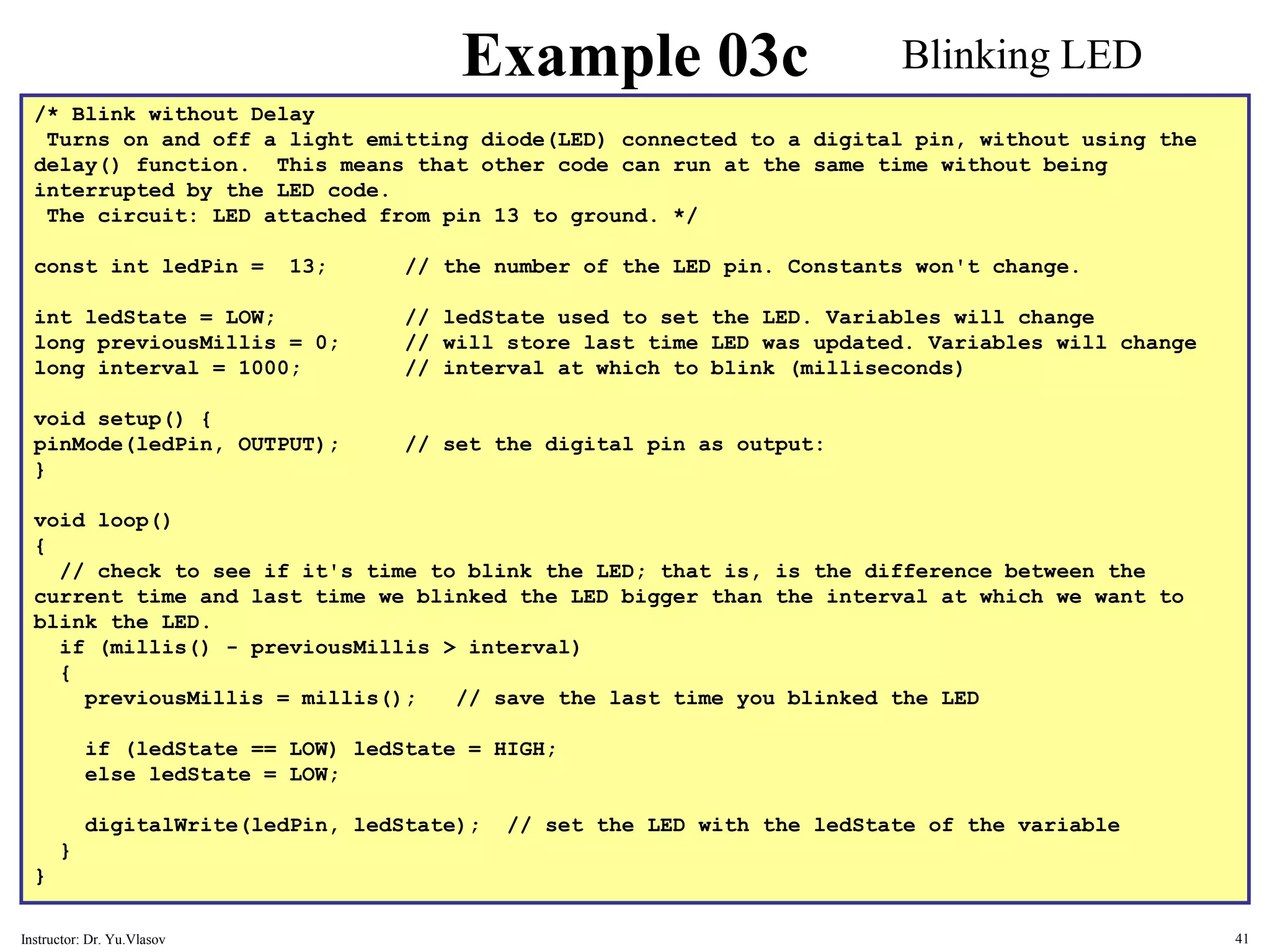
/* Blink without Delay Turns on and off a light emitting diode(LED) connected to a digital pin, without using the delay() function. This means that other code can run at the same time without being interrupted by the LED code. The circuit: LED attached from pin 13 to ground. */ const int ledPin = 13; // the number of the LED pin. Constants won't change. int ledState = LOW; // ledState used to set the LED. Variables will change long previousMillis = 0; // will store last time LED was updated. Variables will change long interval = 1000; // interval at which to blink (milliseconds) void setup() { pinMode(ledPin, OUTPUT); // set the digital pin as output: } void loop() { // check to see if it's time to blink the LED; that is, is the difference between the current time and last time we blinked the LED bigger than the interval at which we want to blink the LED. if (millis() - previousMillis > interval) { previousMillis = millis(); // save the last time you blinked the LED if (ledState == LOW) ledState = HIGH; else ledState = LOW; digitalWrite(ledPin, ledState); // set the LED with the ledState of the variable } } Example 03c Blinking LED 41 Instructor: Dr. Yu.Vlasov
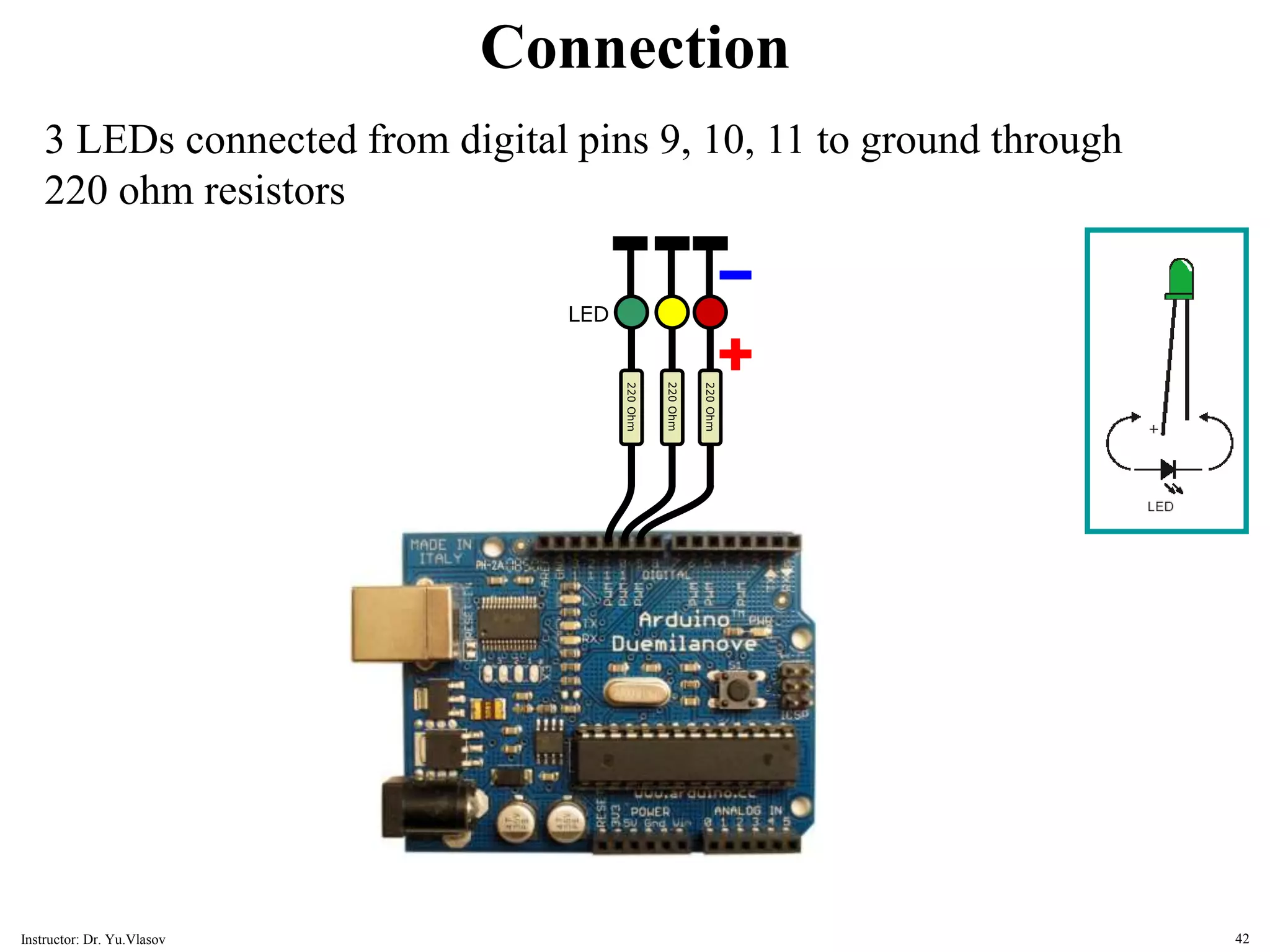
220 Ohm LED 220 Ohm 220 Ohm Connection 3 LEDs connected from digital pins 9, 10, 11 to ground through 220 ohm resistors 42 Instructor: Dr. Yu.Vlasov
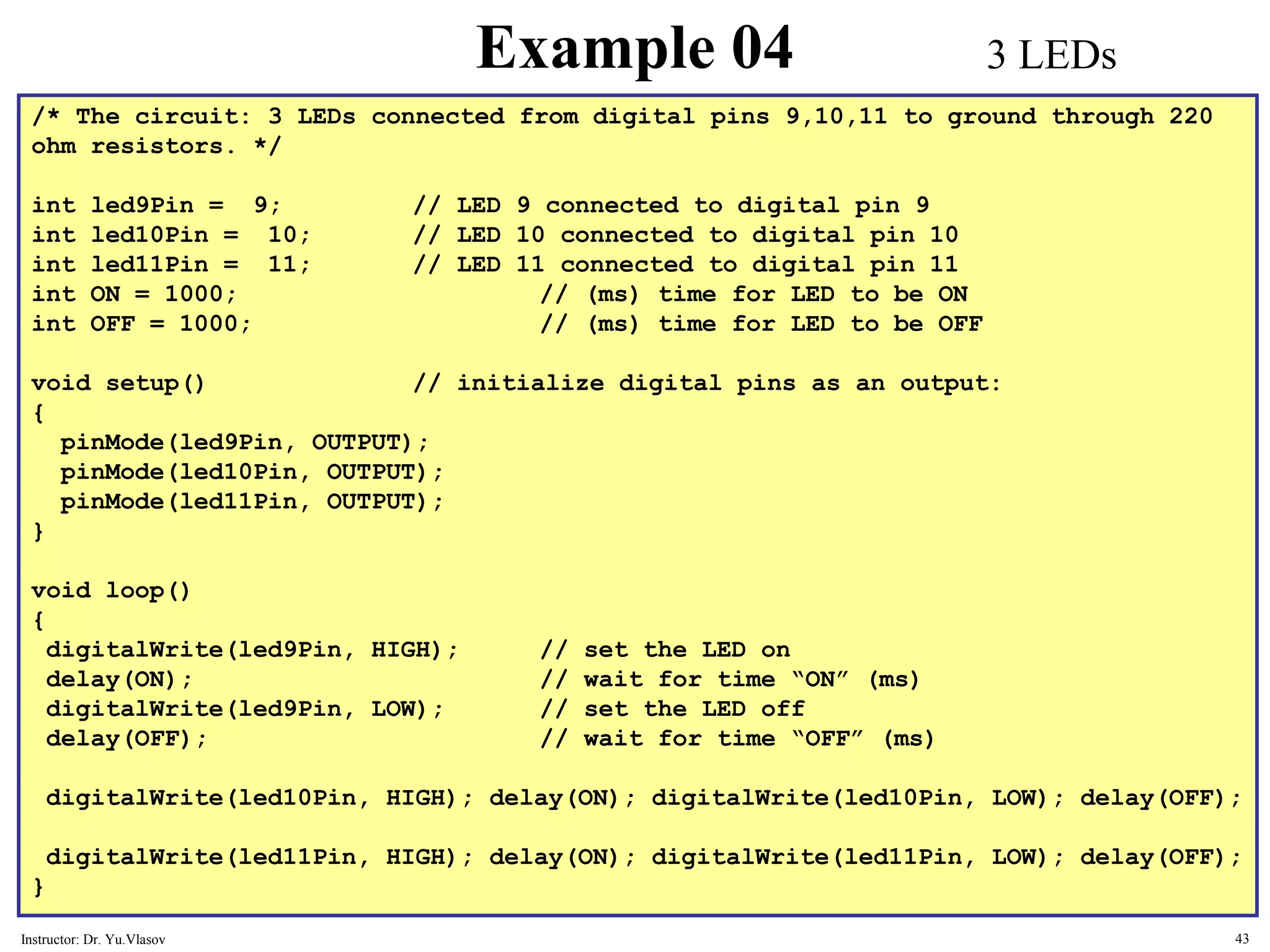
/* The circuit: 3 LEDs connected from digital pins 9,10,11 to ground through 220 ohm resistors. */ int led9Pin = 9; // LED 9 connected to digital pin 9 int led10Pin = 10; // LED 10 connected to digital pin 10 int led11Pin = 11; // LED 11 connected to digital pin 11 int ON = 1000; // (ms) time for LED to be ON int OFF = 1000; // (ms) time for LED to be OFF void setup() // initialize digital pins as an output: { pinMode(led9Pin, OUTPUT); pinMode(led10Pin, OUTPUT); pinMode(led11Pin, OUTPUT); } void loop() { digitalWrite(led9Pin, HIGH); // set the LED on delay(ON); // wait for time “ON” (ms) digitalWrite(led9Pin, LOW); // set the LED off delay(OFF); // wait for time “OFF” (ms) digitalWrite(led10Pin, HIGH); delay(ON); digitalWrite(led10Pin, LOW); delay(OFF); digitalWrite(led11Pin, HIGH); delay(ON); digitalWrite(led11Pin, LOW); delay(OFF); } Example 04 3 LEDs 43 Instructor: Dr. Yu.Vlasov
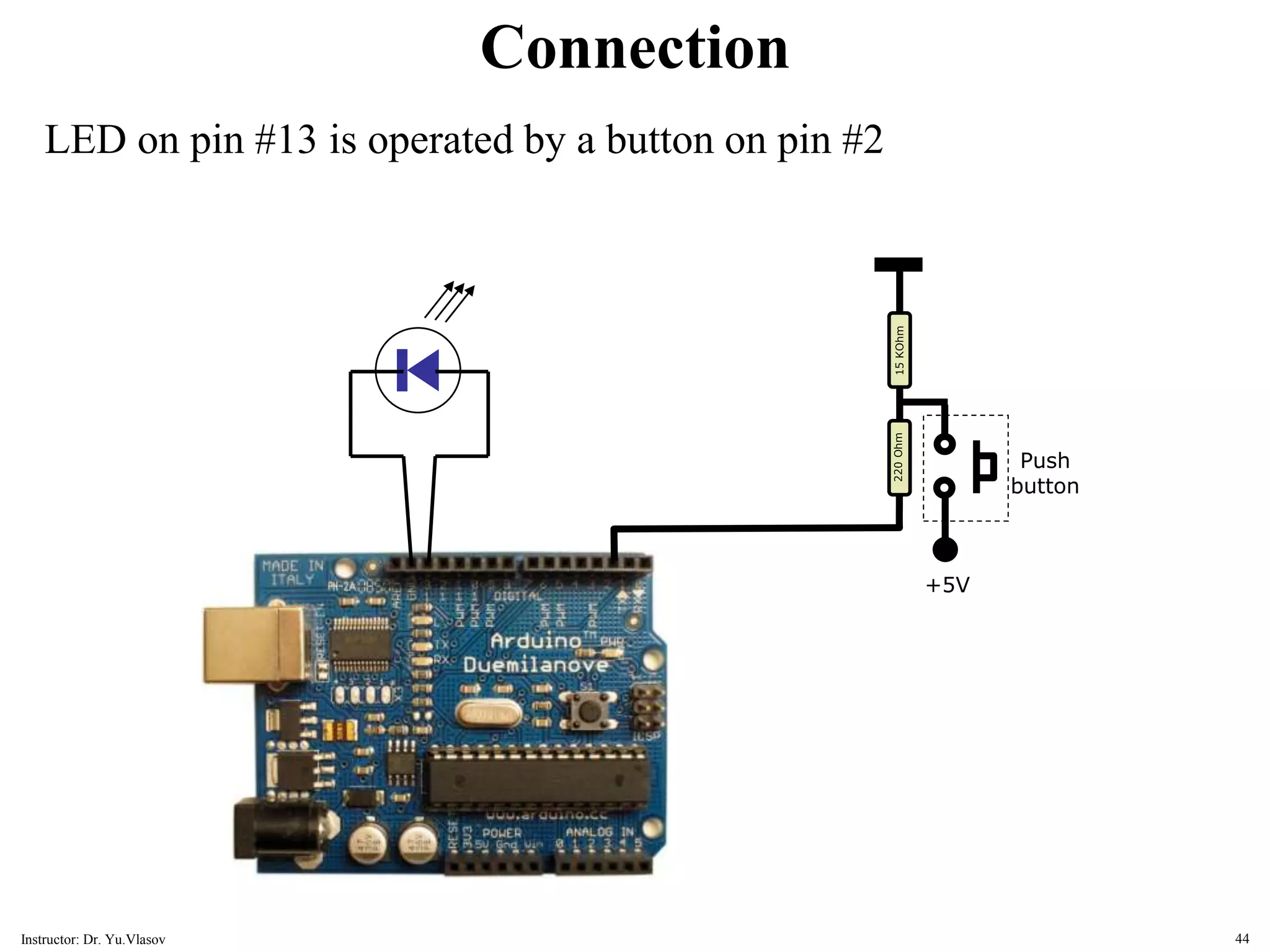
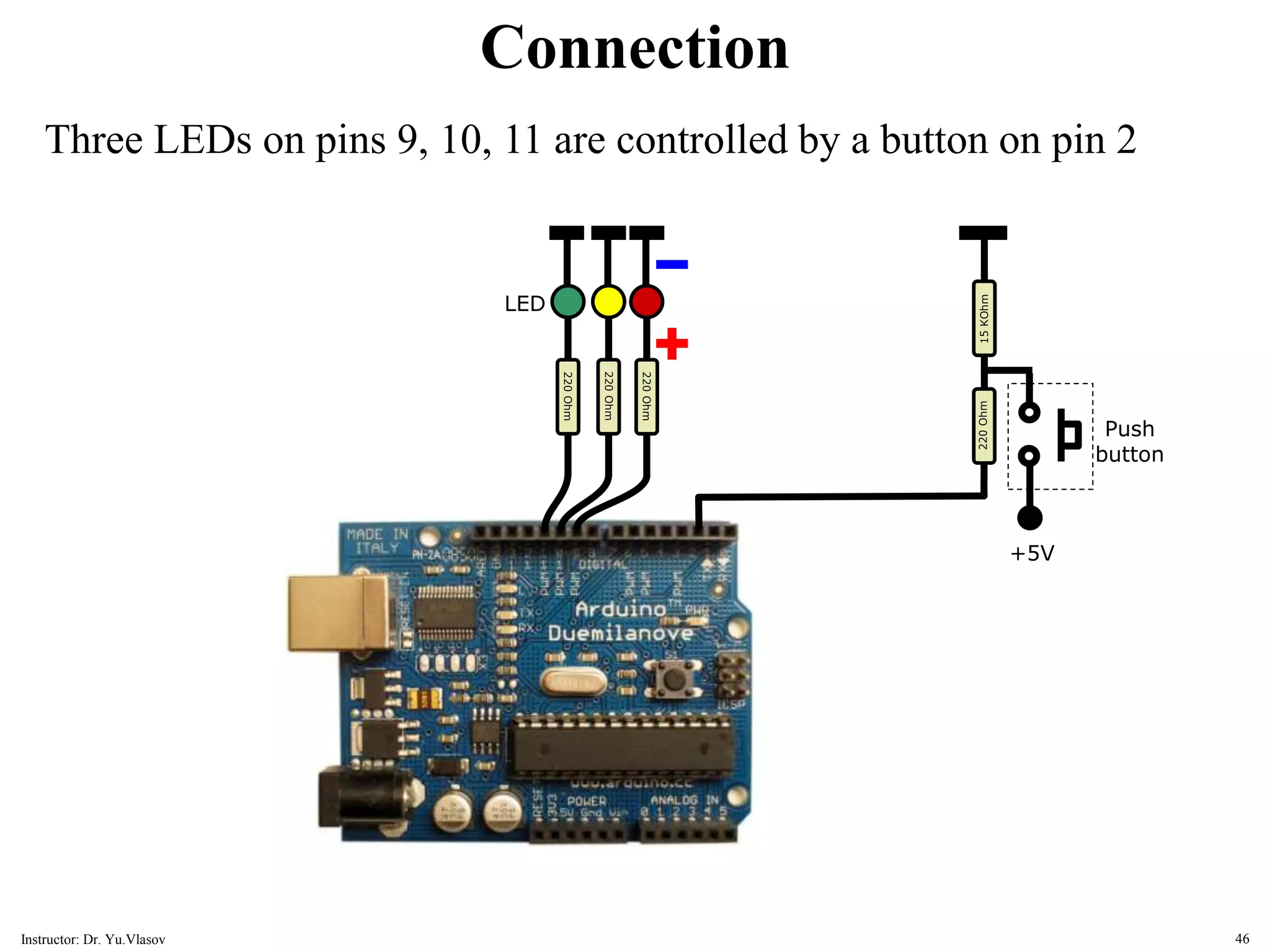
15 KOhm Push button 220 Ohm +5V Connection LED on pin #13 is operated by a button on pin #2 44 Instructor: Dr. Yu.Vlasov
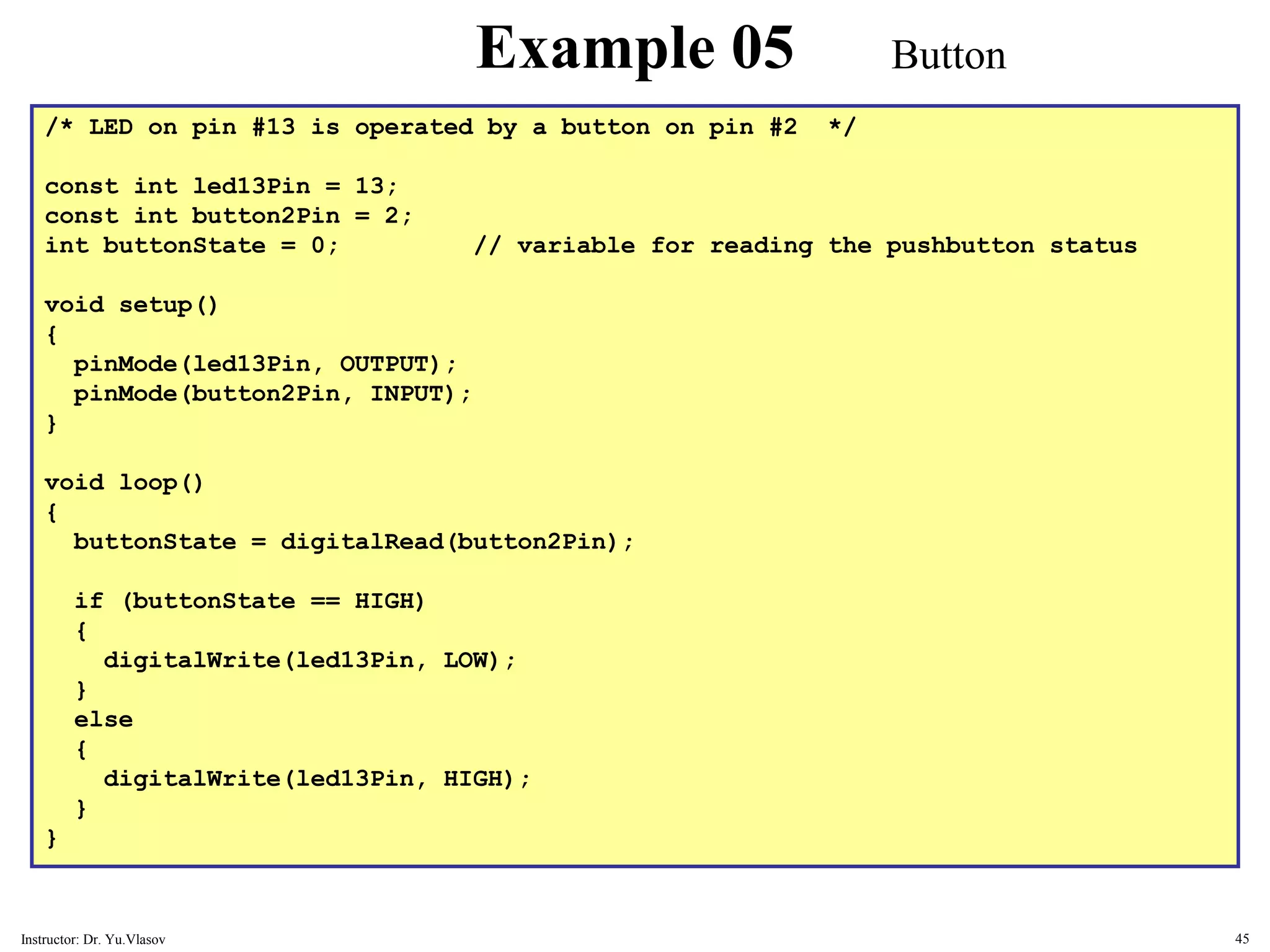
/* LED on pin #13 is operated by a button on pin #2 */ const int led13Pin = 13; const int button2Pin = 2; int buttonState = 0; // variable for reading the pushbutton status void setup() { pinMode(led13Pin, OUTPUT); pinMode(button2Pin, INPUT); } void loop() { buttonState = digitalRead(button2Pin); if (buttonState == HIGH) { digitalWrite(led13Pin, LOW); } else { digitalWrite(led13Pin, HIGH); } } Example 05 Button 45 Instructor: Dr. Yu.Vlasov
15 KOhm 220 Ohm LED 220 Ohm 220 Ohm Push button 220 Ohm +5V Connection Three LEDs on pins 9, 10, 11 are controlled by a button on pin 2 46 Instructor: Dr. Yu.Vlasov
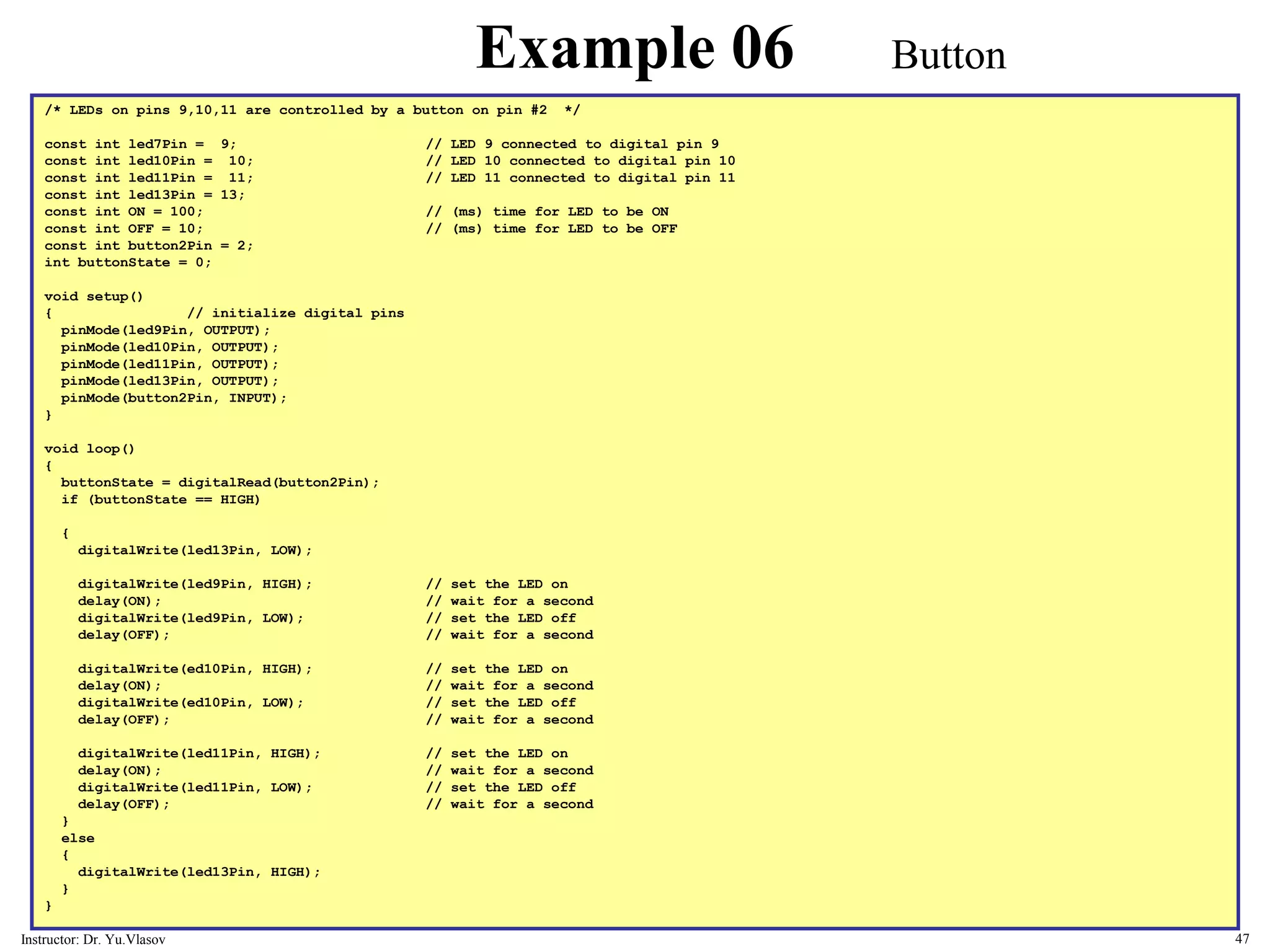
/* LEDs on pins 9,10,11 are controlled by a button on pin #2 */ const int led7Pin = 9; // LED 9 connected to digital pin 9 const int led10Pin = 10; // LED 10 connected to digital pin 10 const int led11Pin = 11; // LED 11 connected to digital pin 11 const int led13Pin = 13; const int ON = 100; // (ms) time for LED to be ON const int OFF = 10; // (ms) time for LED to be OFF const int button2Pin = 2; int buttonState = 0; void setup() { // initialize digital pins pinMode(led9Pin, OUTPUT); pinMode(led10Pin, OUTPUT); pinMode(led11Pin, OUTPUT); pinMode(led13Pin, OUTPUT); pinMode(button2Pin, INPUT); } void loop() { buttonState = digitalRead(button2Pin); if (buttonState == HIGH) { digitalWrite(led13Pin, LOW); digitalWrite(led9Pin, HIGH); // set the LED on delay(ON); // wait for a second digitalWrite(led9Pin, LOW); // set the LED off delay(OFF); // wait for a second digitalWrite(ed10Pin, HIGH); // set the LED on delay(ON); // wait for a second digitalWrite(ed10Pin, LOW); // set the LED off delay(OFF); // wait for a second digitalWrite(led11Pin, HIGH); // set the LED on delay(ON); // wait for a second digitalWrite(led11Pin, LOW); // set the LED off delay(OFF); // wait for a second } else { digitalWrite(led13Pin, HIGH); } } Example 06 Button 47 Instructor: Dr. Yu.Vlasov
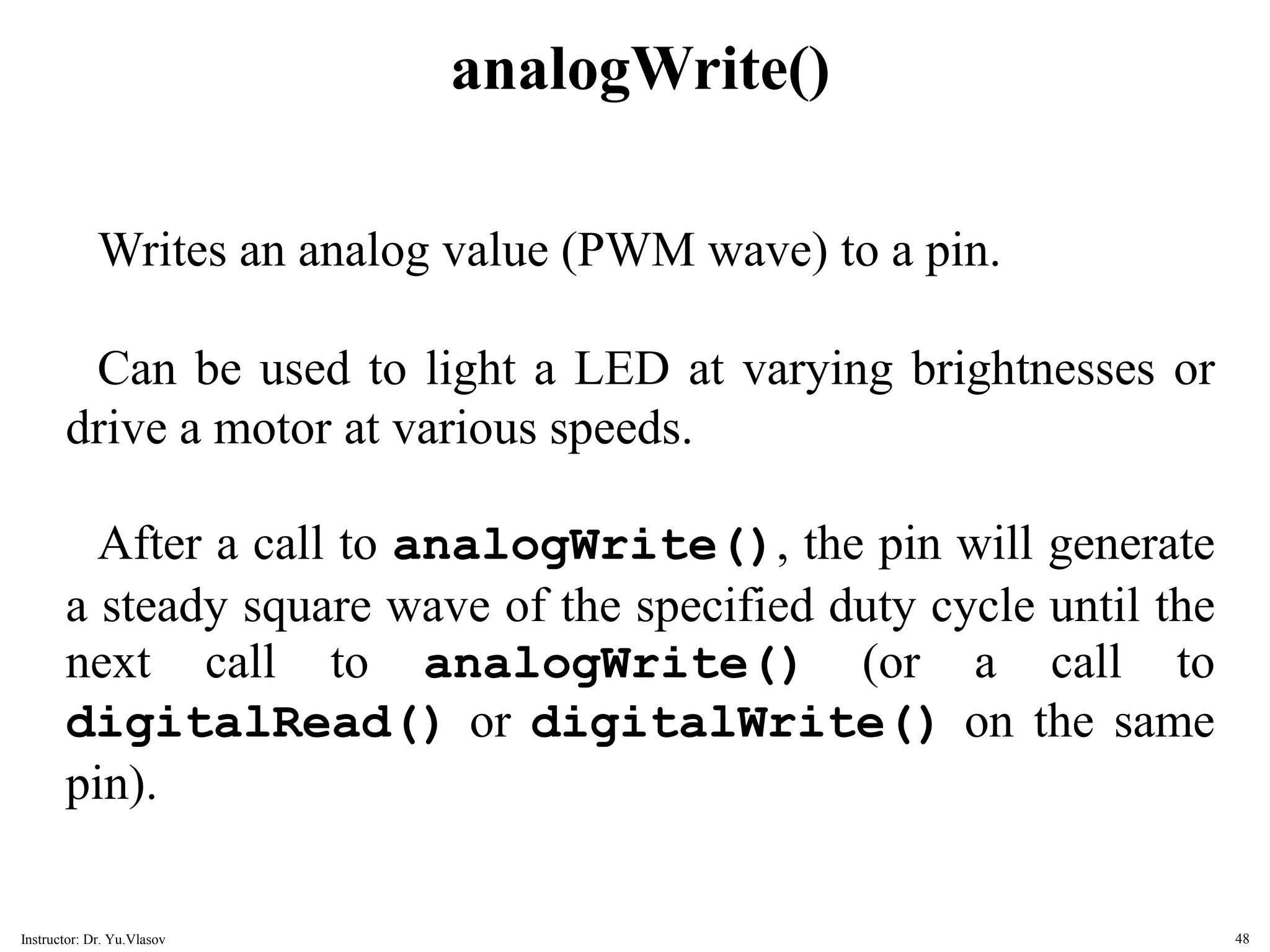
analogWrite() Writes an analog value (PWM wave) to a pin. Can be used to light a LED at varying brightnesses or drive a motor at various speeds. After a call to analogWrite(), the pin will generate a steady square wave of the specified duty cycle until the next call to analogWrite() (or a call to digitalRead() or digitalWrite() on the same pin). 48 Instructor: Dr. Yu.Vlasov
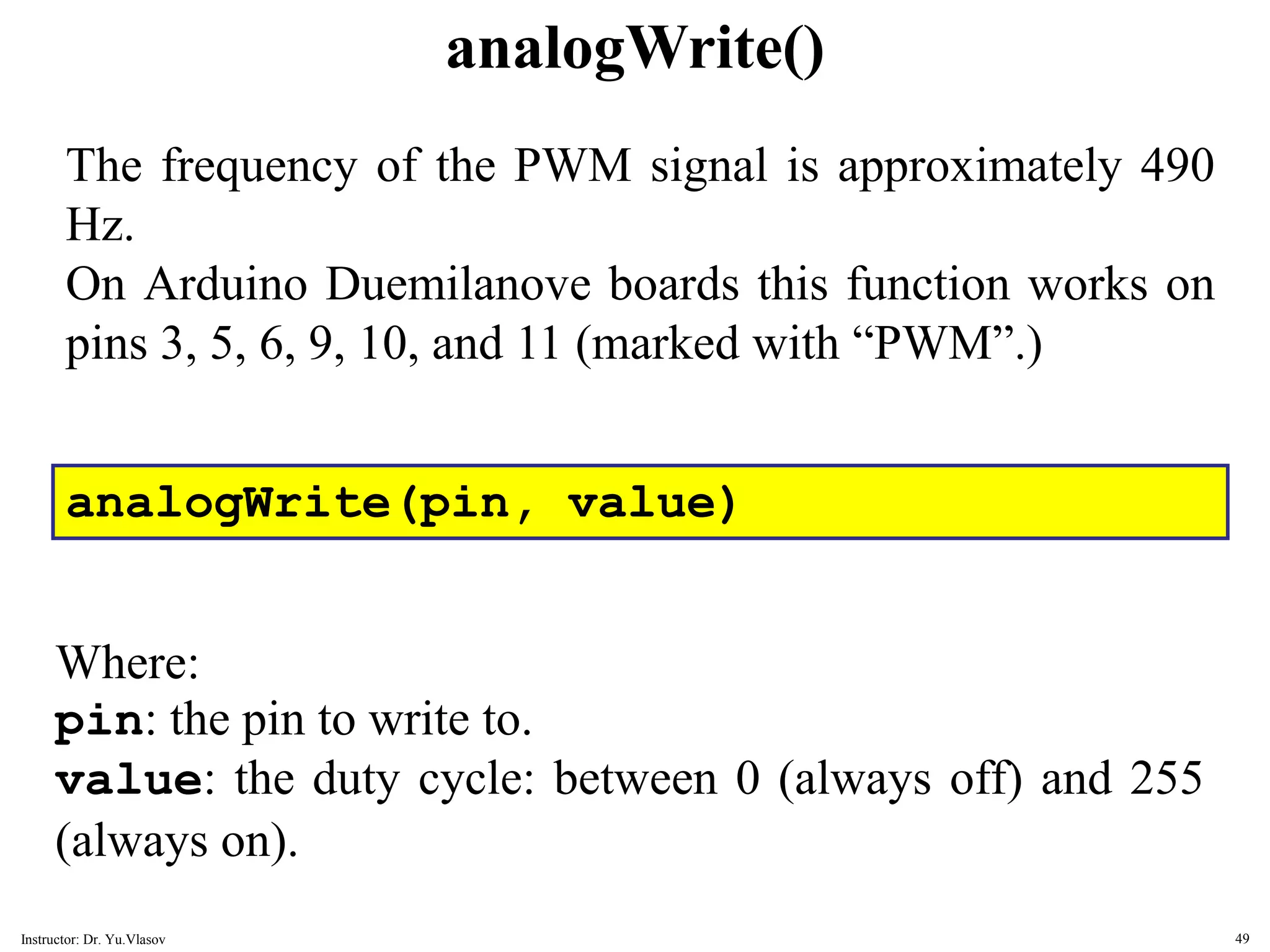
analogWrite() analogWrite(pin, value) Where: pin: the pin to write to. value: the duty cycle: between 0 (always off) and 255 (always on). The frequency of the PWM signal is approximately 490 Hz. On Arduino Duemilanove boards this function works on pins 3, 5, 6, 9, 10, and 11 (marked with “PWM”.) 49 Instructor: Dr. Yu.Vlasov
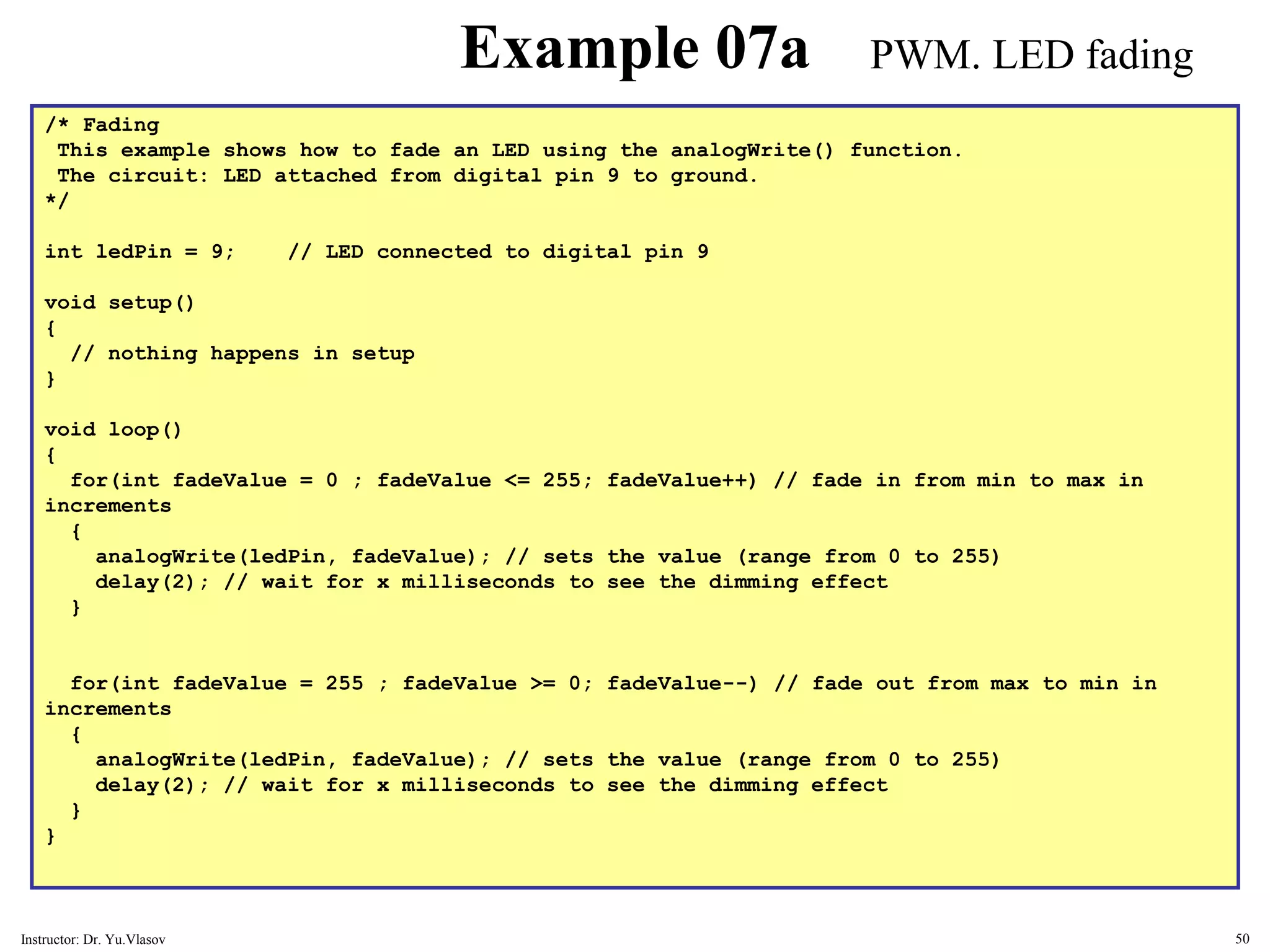
/* Fading This example shows how to fade an LED using the analogWrite() function. The circuit: LED attached from digital pin 9 to ground. */ int ledPin = 9; // LED connected to digital pin 9 void setup() { // nothing happens in setup } void loop() { for(int fadeValue = 0 ; fadeValue <= 255; fadeValue++) // fade in from min to max in increments { analogWrite(ledPin, fadeValue); // sets the value (range from 0 to 255) delay(2); // wait for x milliseconds to see the dimming effect } for(int fadeValue = 255 ; fadeValue >= 0; fadeValue--) // fade out from max to min in increments { analogWrite(ledPin, fadeValue); // sets the value (range from 0 to 255) delay(2); // wait for x milliseconds to see the dimming effect } } Example 07a PWM. LED fading 50 Instructor: Dr. Yu.Vlasov
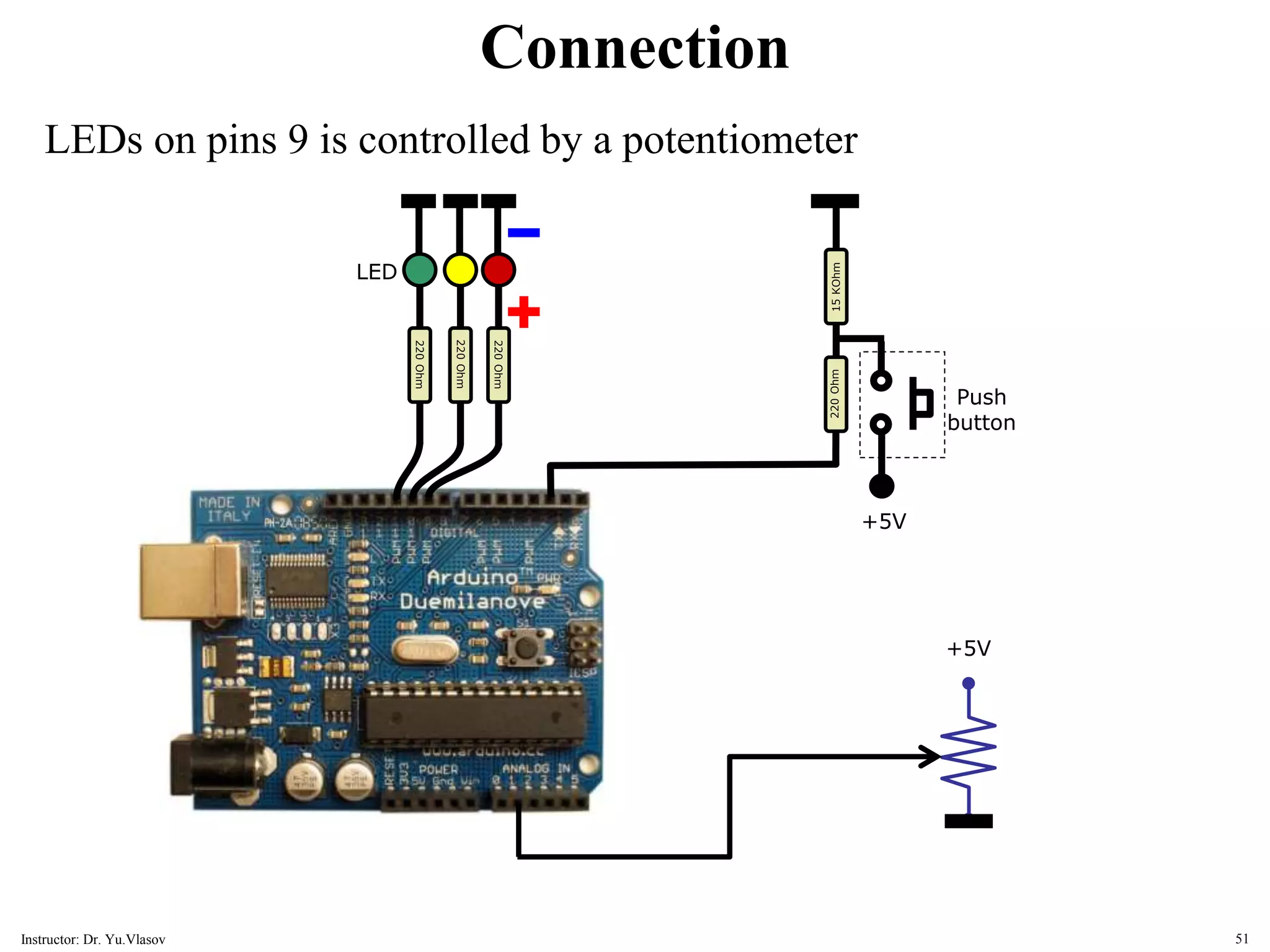
15 KOhm 220 Ohm LED 220 Ohm 220 Ohm Push button 220 Ohm +5V Connection LEDs on pins 9 is controlled by a potentiometer +5V 51 Instructor: Dr. Yu.Vlasov
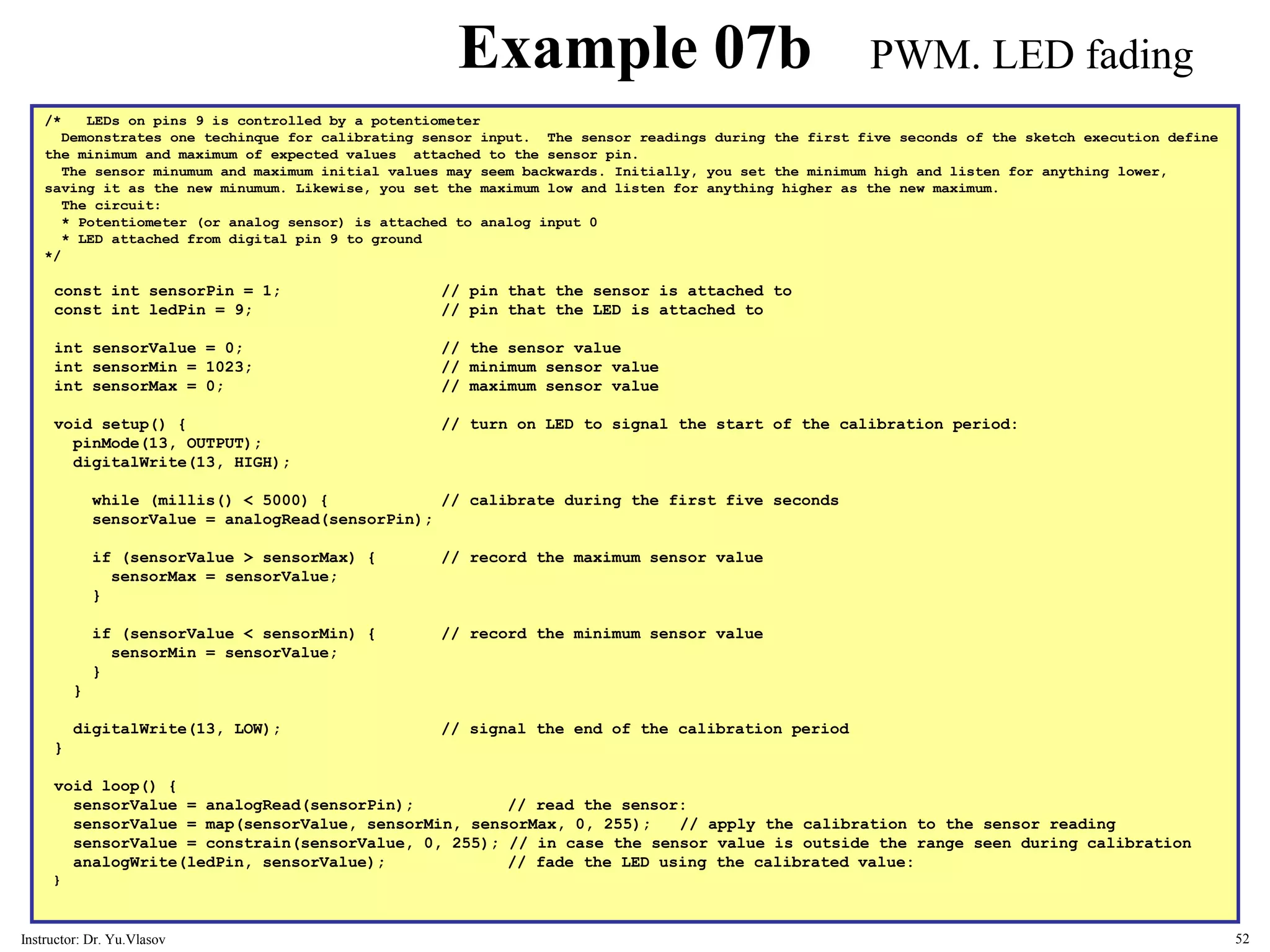
/* LEDs on pins 9 is controlled by a potentiometer Demonstrates one techinque for calibrating sensor input. The sensor readings during the first five seconds of the sketch execution define the minimum and maximum of expected values attached to the sensor pin. The sensor minumum and maximum initial values may seem backwards. Initially, you set the minimum high and listen for anything lower, saving it as the new minumum. Likewise, you set the maximum low and listen for anything higher as the new maximum. The circuit: * Potentiometer (or analog sensor) is attached to analog input 0 * LED attached from digital pin 9 to ground */ const int sensorPin = 1; // pin that the sensor is attached to const int ledPin = 9; // pin that the LED is attached to int sensorValue = 0; // the sensor value int sensorMin = 1023; // minimum sensor value int sensorMax = 0; // maximum sensor value void setup() { // turn on LED to signal the start of the calibration period: pinMode(13, OUTPUT); digitalWrite(13, HIGH); while (millis() < 5000) { // calibrate during the first five seconds sensorValue = analogRead(sensorPin); if (sensorValue > sensorMax) { // record the maximum sensor value sensorMax = sensorValue; } if (sensorValue < sensorMin) { // record the minimum sensor value sensorMin = sensorValue; } } digitalWrite(13, LOW); // signal the end of the calibration period } void loop() { sensorValue = analogRead(sensorPin); // read the sensor: sensorValue = map(sensorValue, sensorMin, sensorMax, 0, 255); // apply the calibration to the sensor reading sensorValue = constrain(sensorValue, 0, 255); // in case the sensor value is outside the range seen during calibration analogWrite(ledPin, sensorValue); // fade the LED using the calibrated value: } Example 07b PWM. LED fading 52 Instructor: Dr. Yu.Vlasov
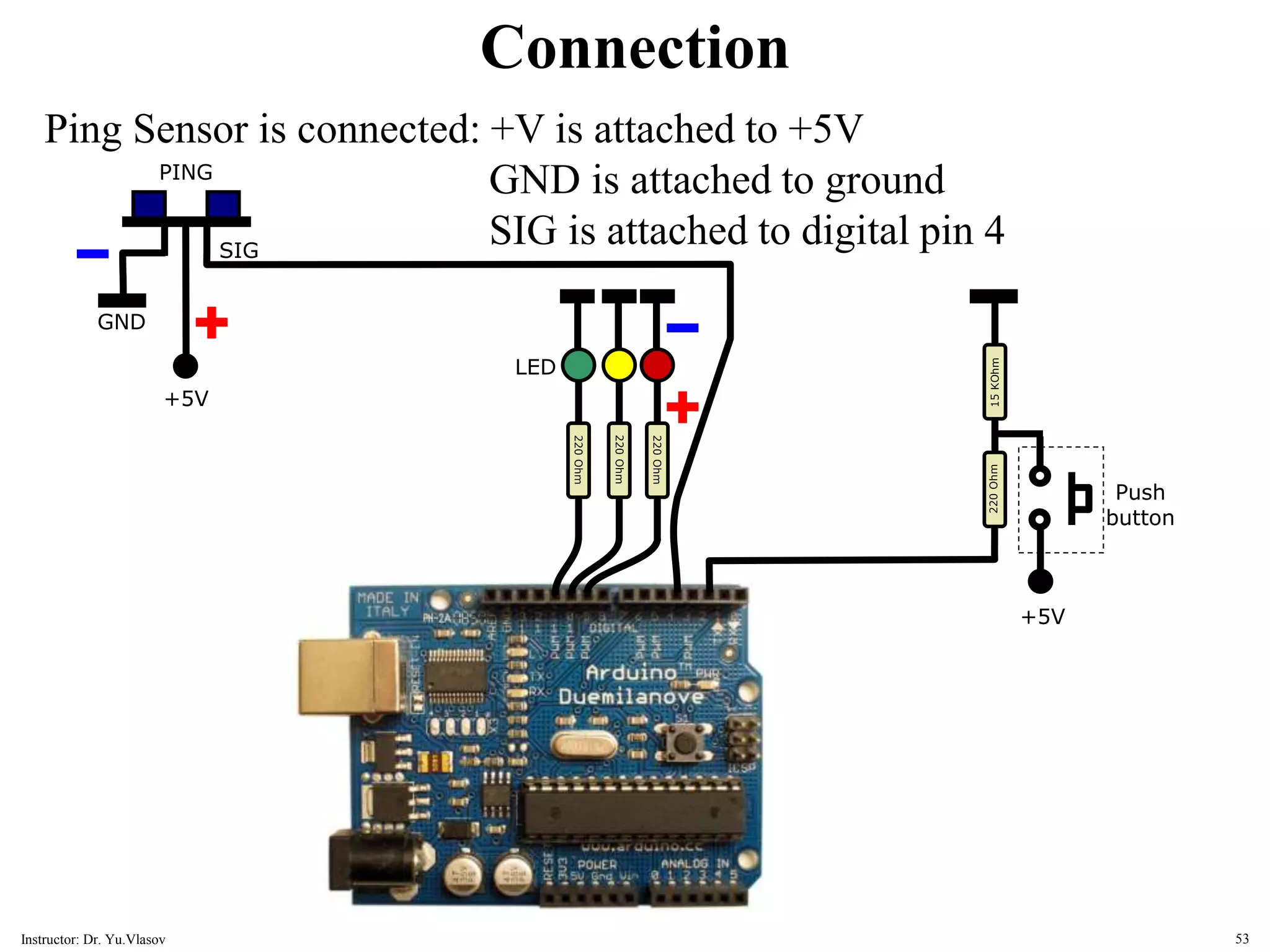
15 KOhm 220 Ohm LED 220 Ohm 220 Ohm Push button 220 Ohm +5V PING SIG GND +5V Connection Ping Sensor is connected: +V is attached to +5V GND is attached to ground SIG is attached to digital pin 4 53 Instructor: Dr. Yu.Vlasov
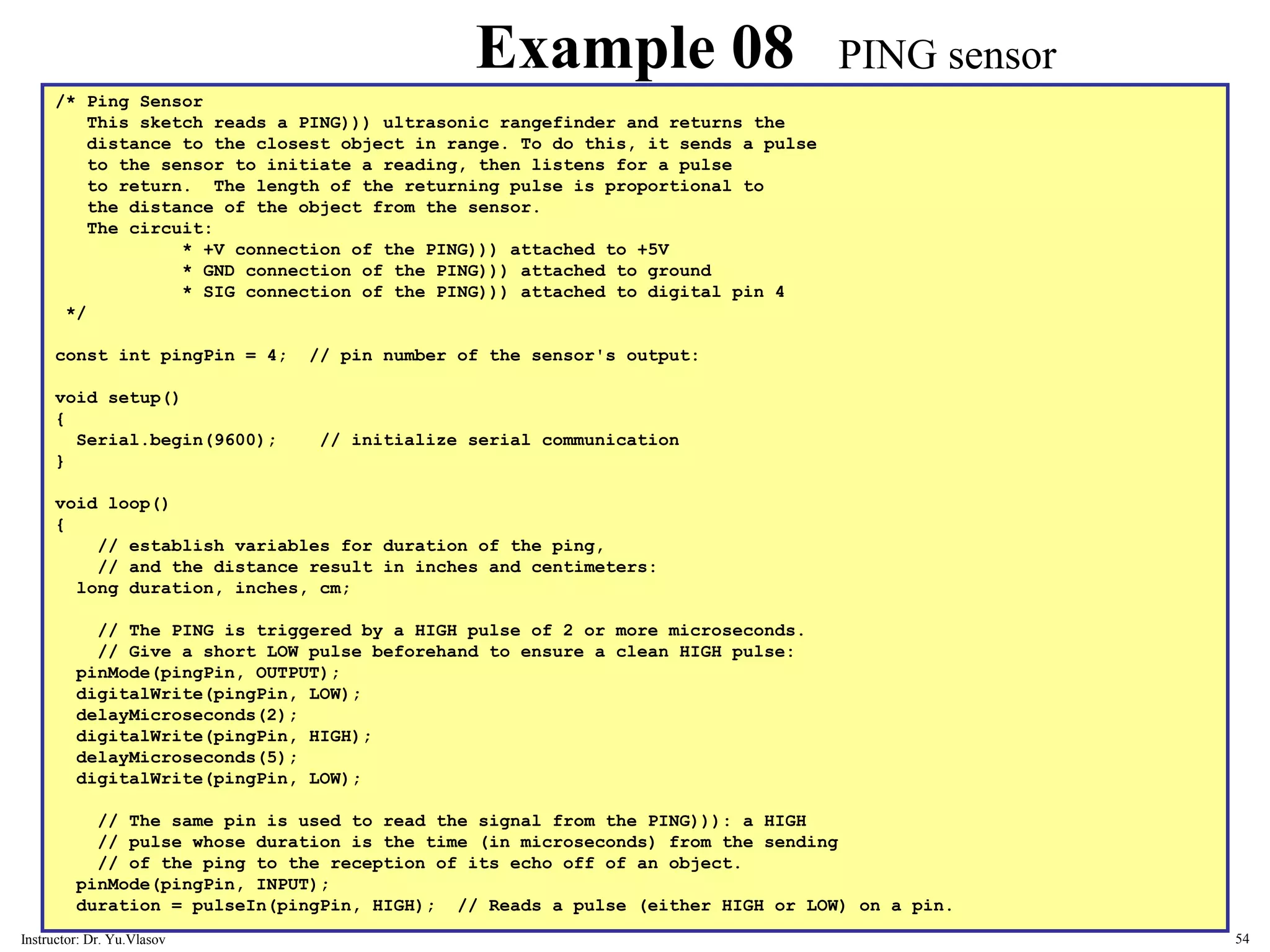
/* Ping Sensor This sketch reads a PING))) ultrasonic rangefinder and returns the distance to the closest object in range. To do this, it sends a pulse to the sensor to initiate a reading, then listens for a pulse to return. The length of the returning pulse is proportional to the distance of the object from the sensor. The circuit: * +V connection of the PING))) attached to +5V * GND connection of the PING))) attached to ground * SIG connection of the PING))) attached to digital pin 4 */ const int pingPin = 4; // pin number of the sensor's output: void setup() { Serial.begin(9600); // initialize serial communication } void loop() { // establish variables for duration of the ping, // and the distance result in inches and centimeters: long duration, inches, cm; // The PING is triggered by a HIGH pulse of 2 or more microseconds. // Give a short LOW pulse beforehand to ensure a clean HIGH pulse: pinMode(pingPin, OUTPUT); digitalWrite(pingPin, LOW); delayMicroseconds(2); digitalWrite(pingPin, HIGH); delayMicroseconds(5); digitalWrite(pingPin, LOW); // The same pin is used to read the signal from the PING))): a HIGH // pulse whose duration is the time (in microseconds) from the sending // of the ping to the reception of its echo off of an object. pinMode(pingPin, INPUT); duration = pulseIn(pingPin, HIGH); // Reads a pulse (either HIGH or LOW) on a pin. Example 08 PING sensor 54 Instructor: Dr. Yu.Vlasov
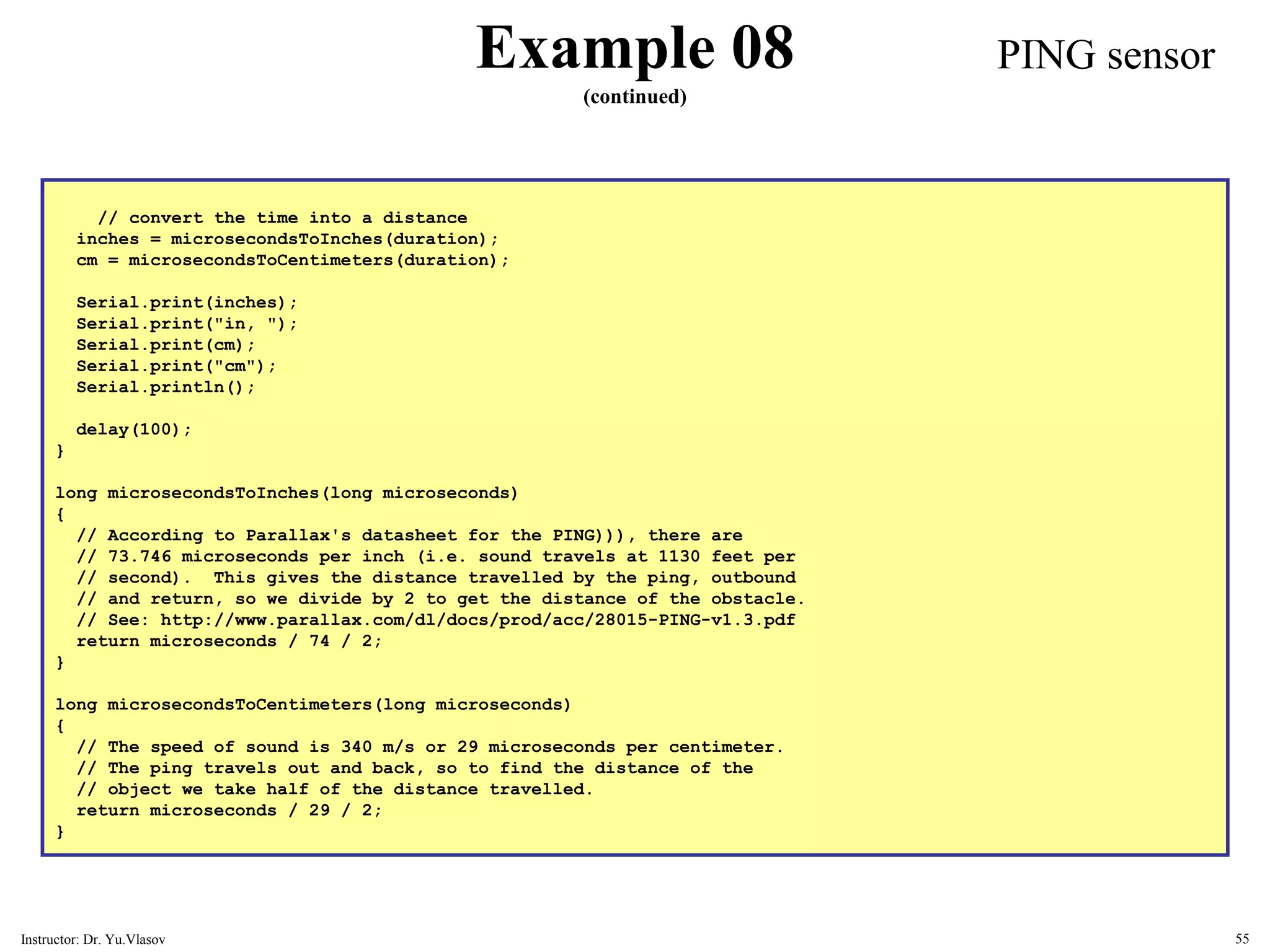
// convert the time into a distance inches = microsecondsToInches(duration); cm = microsecondsToCentimeters(duration); Serial.print(inches); Serial.print("in, "); Serial.print(cm); Serial.print("cm"); Serial.println(); delay(100); } long microsecondsToInches(long microseconds) { // According to Parallax's datasheet for the PING))), there are // 73.746 microseconds per inch (i.e. sound travels at 1130 feet per // second). This gives the distance travelled by the ping, outbound // and return, so we divide by 2 to get the distance of the obstacle. // See: http://www.parallax.com/dl/docs/prod/acc/28015-PING-v1.3.pdf return microseconds / 74 / 2; } long microsecondsToCentimeters(long microseconds) { // The speed of sound is 340 m/s or 29 microseconds per centimeter. // The ping travels out and back, so to find the distance of the // object we take half of the distance travelled. return microseconds / 29 / 2; } Example 08 (continued) PING sensor 55 Instructor: Dr. Yu.Vlasov
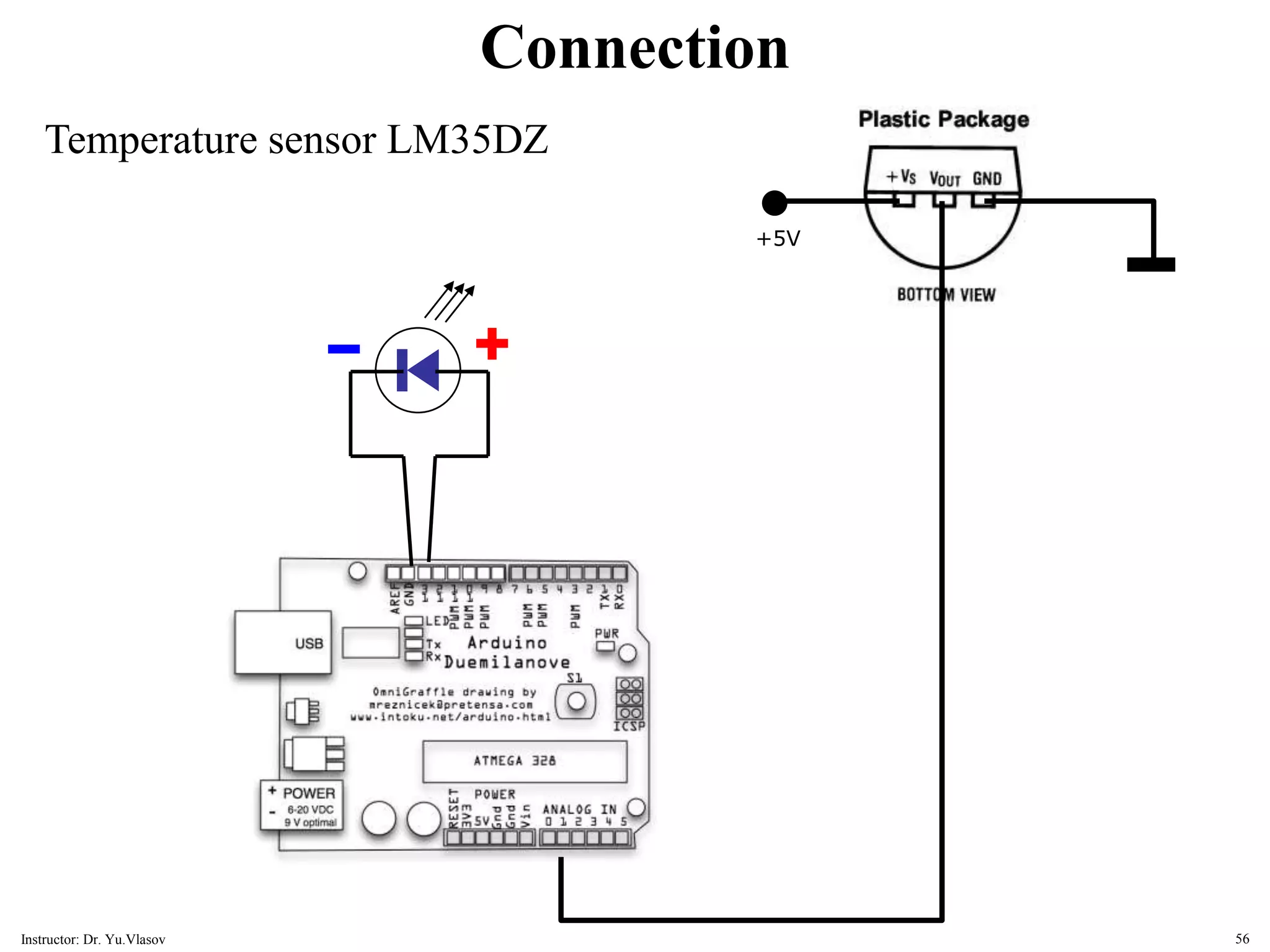
Connection Temperature sensor LM35DZ +5V 56 Instructor: Dr. Yu.Vlasov
// LM35DZ Temperature Sensor for Arduino. // (cc) by Daniel Spillere Andrade , http://www.danielandrade.net int pin = 0; // analog input pin int tempc = 0,tempf=0; // temperature variables int samples[8]; // variables to make a better precision int maxi = -100,mini = 100; // to start max/min temperature int i; void setup() { Serial.begin(9600); // start serial communication } void loop() { for(i = 0; i<=7; i++) { // gets 8 samples of temperature samples[i] = ( 5.0 * analogRead(pin) * 100.0) / 1024.0; tempc = tempc + samples[i]; delay(10); } tempc = tempc/8; // better precision tempf = (tempc * 9)/ 5 + 32; // converts to fahrenheit if(tempc > maxi) {maxi = tempc;} // set max temperature if(tempc < mini) {mini = tempc;} // set min temperature Serial.print(tempc,DEC); Serial.print(" Celsius, "); Serial.print(tempf,DEC); Serial.print(" fahrenheit -> "); Serial.print(maxi,DEC); Serial.print(" Max, "); Serial.print(mini,DEC); Serial.println(" Min"); tempc = 0; delay(1000); // delay before loop } Example 09 LM35DZ temperature sensor 57 Instructor: Dr. Yu.Vlasov
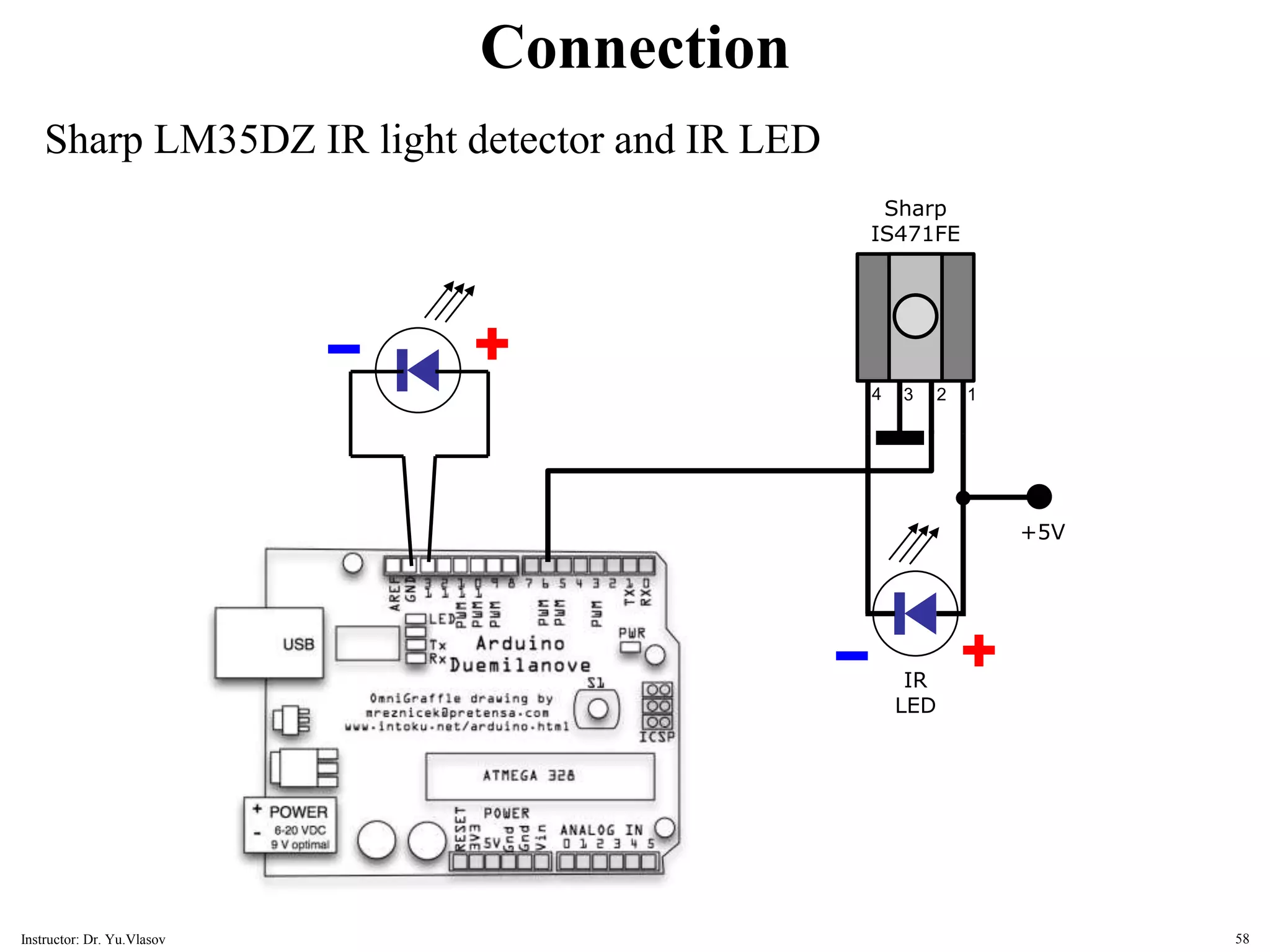
Connection Sharp LM35DZ IR light detector and IR LED 1 2 3 4 +5V IR LED Sharp IS471FE 58 Instructor: Dr. Yu.Vlasov
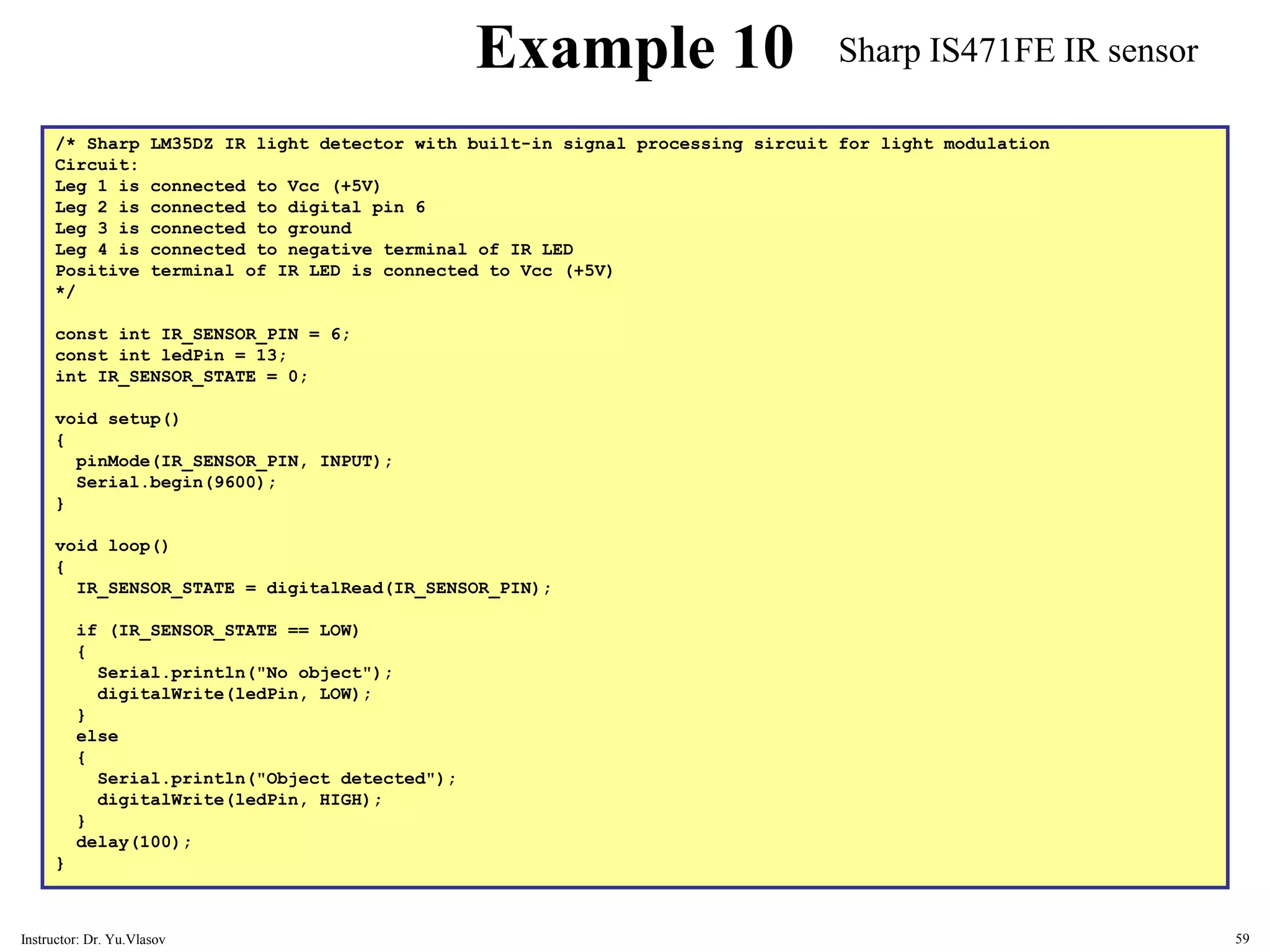
/* Sharp LM35DZ IR light detector with built-in signal processing sircuit for light modulation Circuit: Leg 1 is connected to Vcc (+5V) Leg 2 is connected to digital pin 6 Leg 3 is connected to ground Leg 4 is connected to negative terminal of IR LED Positive terminal of IR LED is connected to Vcc (+5V) */ const int IR_SENSOR_PIN = 6; const int ledPin = 13; int IR_SENSOR_STATE = 0; void setup() { pinMode(IR_SENSOR_PIN, INPUT); Serial.begin(9600); } void loop() { IR_SENSOR_STATE = digitalRead(IR_SENSOR_PIN); if (IR_SENSOR_STATE == LOW) { Serial.println("No object"); digitalWrite(ledPin, LOW); } else { Serial.println("Object detected"); digitalWrite(ledPin, HIGH); } delay(100); } Example 10 Sharp IS471FE IR sensor 59 Instructor: Dr. Yu.Vlasov
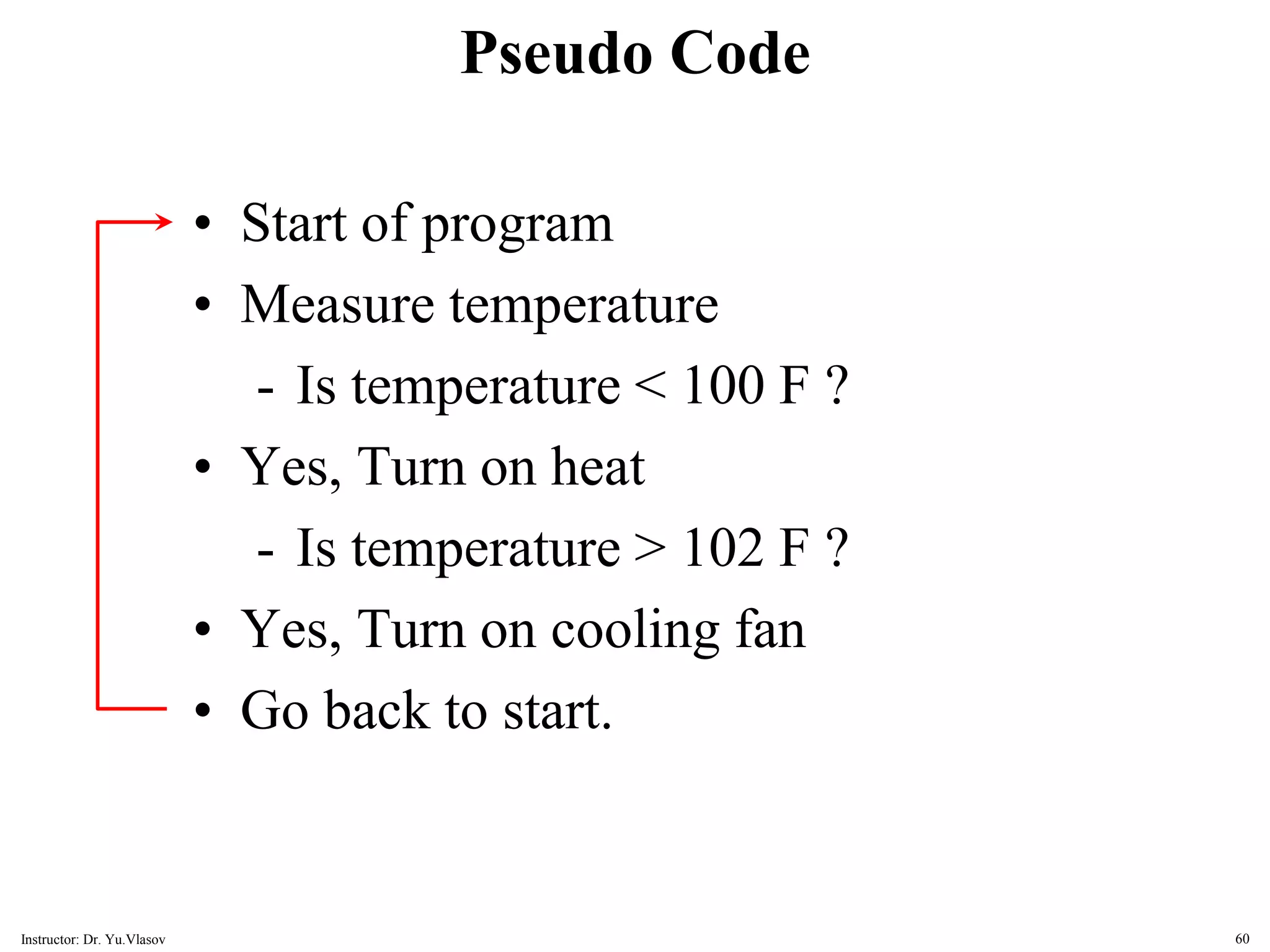
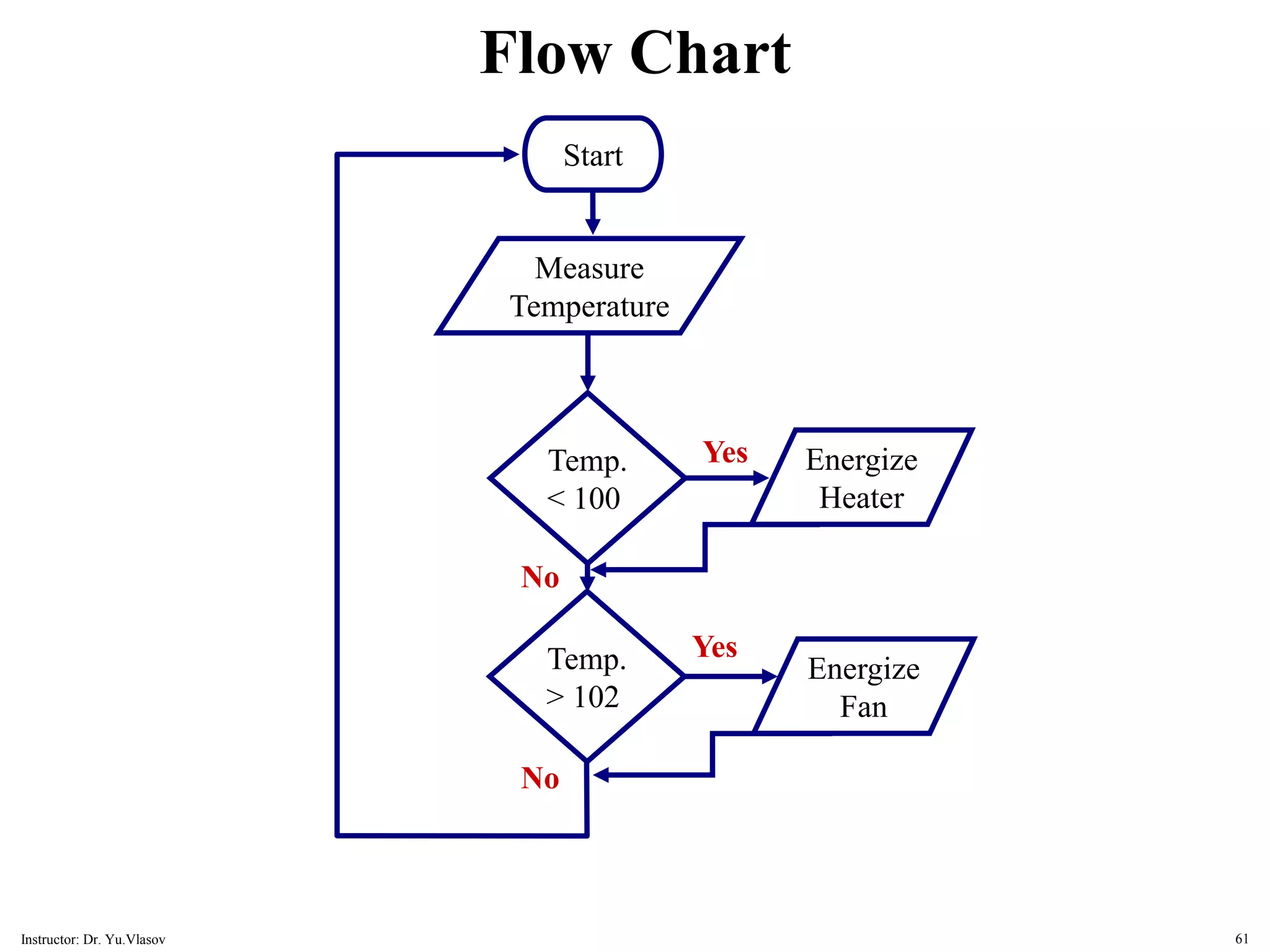
Pseudo Code • Start of program • Measure temperature - Is temperature < 100 F ? • Yes, Turn on heat - Is temperature > 102 F ? • Yes, Turn on cooling fan • Go back to start. 60 Instructor: Dr. Yu.Vlasov
Start Measure Temperature Temp. < 100 Energize Heater Temp. > 102 Energize Fan Yes No Yes No Flow Chart 61 Instructor: Dr. Yu.Vlasov
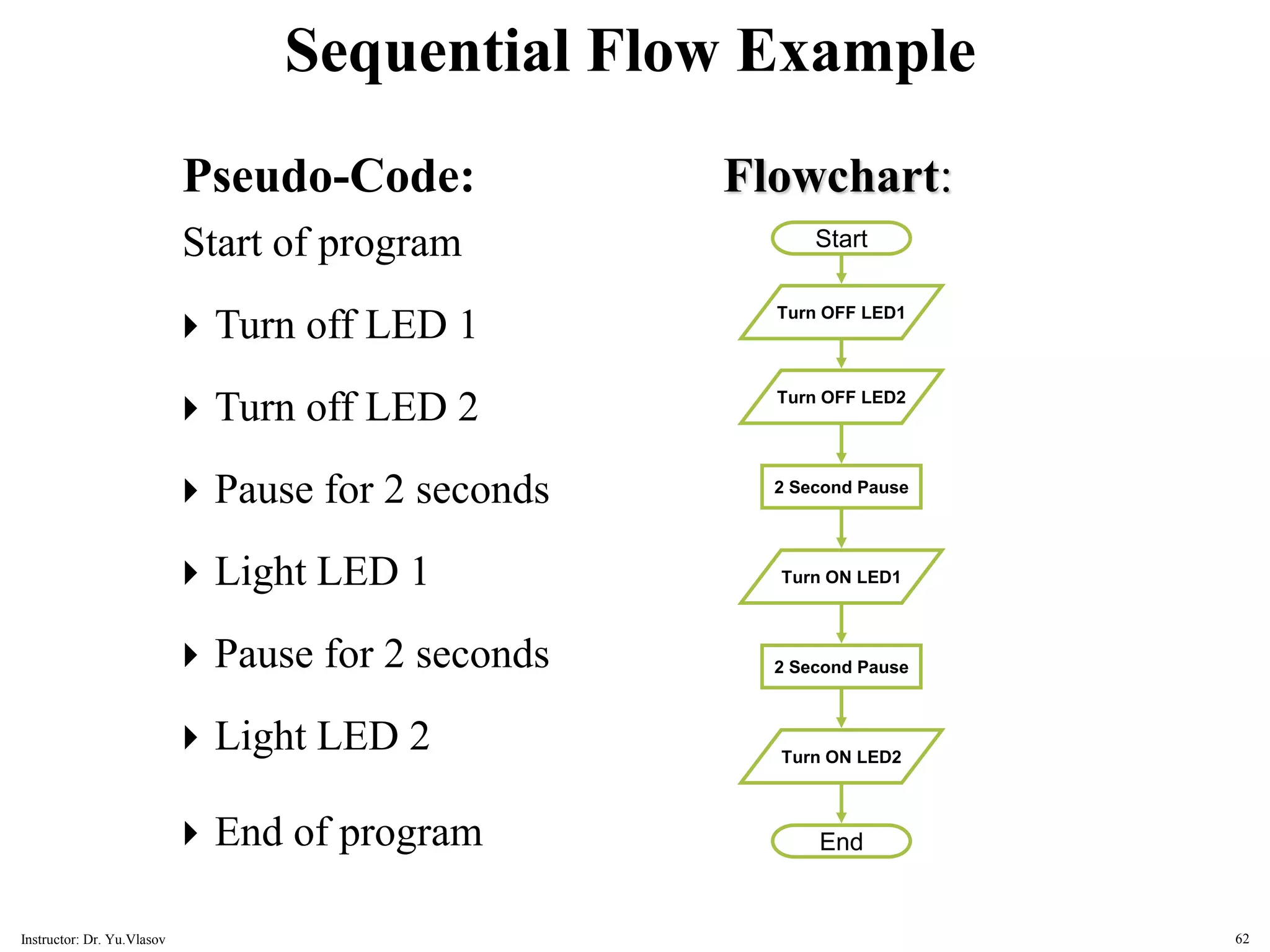
Sequential Flow Example Pseudo-Code: Start of program  Turn off LED 1  Turn off LED 2  Pause for 2 seconds  Light LED 1  Pause for 2 seconds  Light LED 2  End of program Flowchart: Start Turn OFF LED1 Turn OFF LED2 2 Second Pause Turn ON LED1 Turn ON LED2 2 Second Pause End 62 Instructor: Dr. Yu.Vlasov
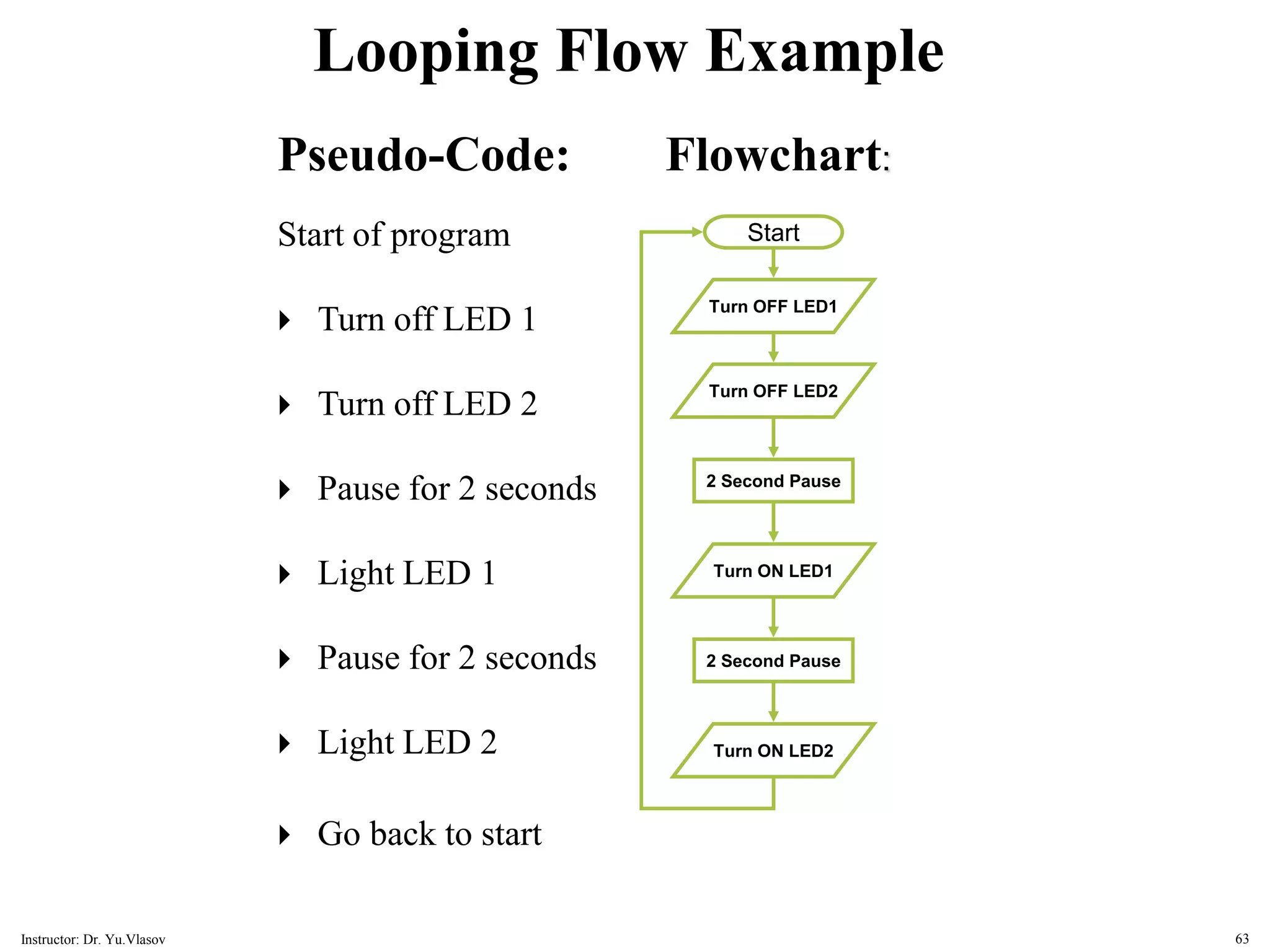
Looping Flow Example Pseudo-Code: Start of program  Turn off LED 1  Turn off LED 2  Pause for 2 seconds  Light LED 1  Pause for 2 seconds  Light LED 2  Go back to start Flowchart: Start Turn OFF LED1 Turn OFF LED2 2 Second Pause Turn ON LED1 Turn ON LED2 2 Second Pause 63 Instructor: Dr. Yu.Vlasov
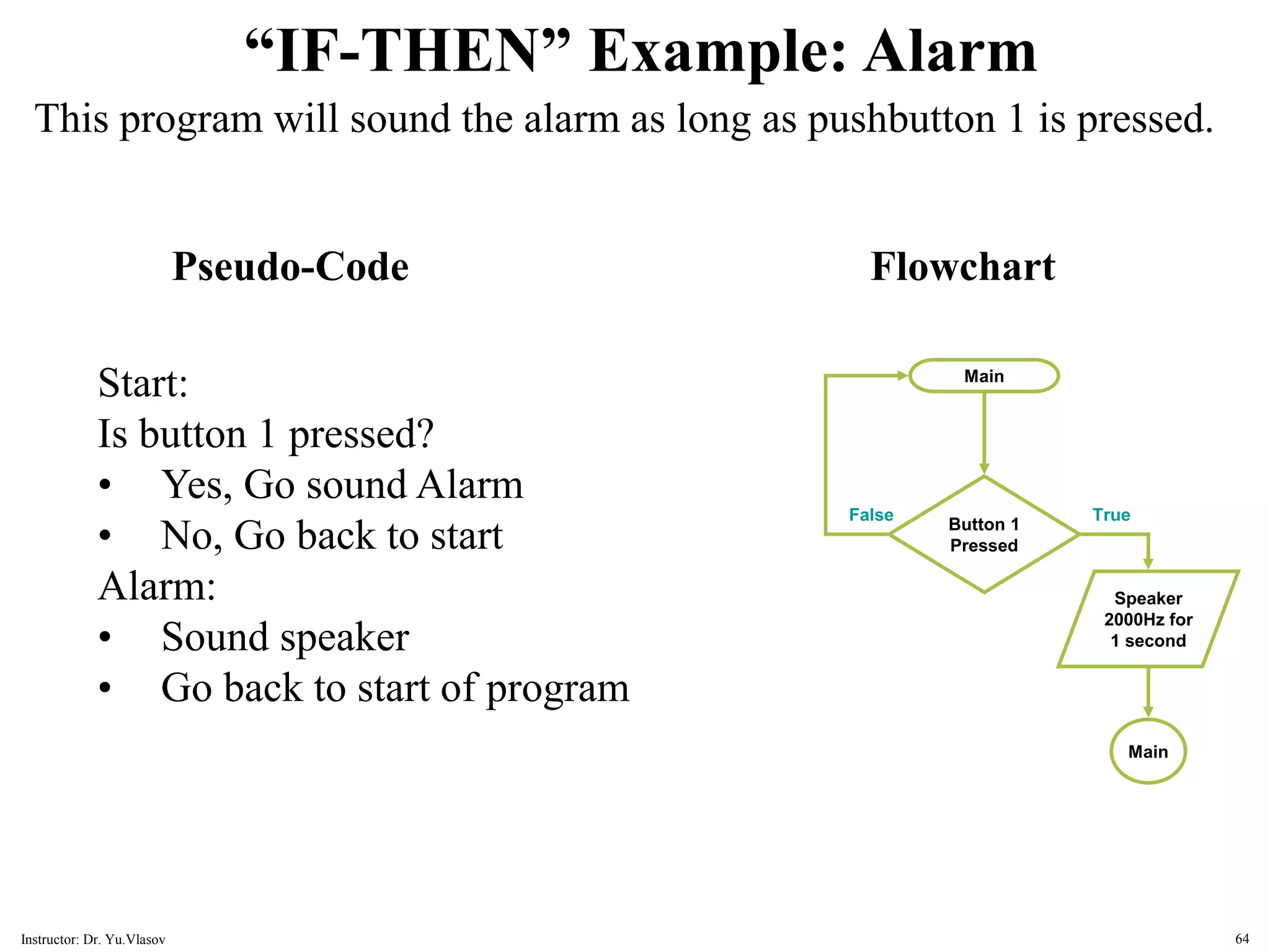
“IF-THEN” Example: Alarm This program will sound the alarm as long as pushbutton 1 is pressed. Start: Is button 1 pressed? • Yes, Go sound Alarm • No, Go back to start Alarm: • Sound speaker • Go back to start of program Pseudo-Code Flowchart Button 1 Pressed Main Speaker 2000Hz for 1 second Main True False 64 Instructor: Dr. Yu.Vlasov
References 1. http://www.arduino.cc/en/Tutorial/HomePage 2. http://www.arduino.cc/en/Guide/HomePage 3. http://www.ladyada.net/learn/arduino/index.html -- an introduction to programming, input / output, communication, etc. using Arduino 4. http://arduino.cc/en/Reference/HomePage -- Programming Language Reference 5. http://todbot.com/blog/spookyarduino/ 6. http://dma.ucla.edu/senselab/topics/tags/arduino 7. http://www.freeduino.org/ 8. http://www.arduino.cc/cgi-bin/yabb2/YaBB.pl -- Arduino forum 65 Instructor: Dr. Yu.Vlasov
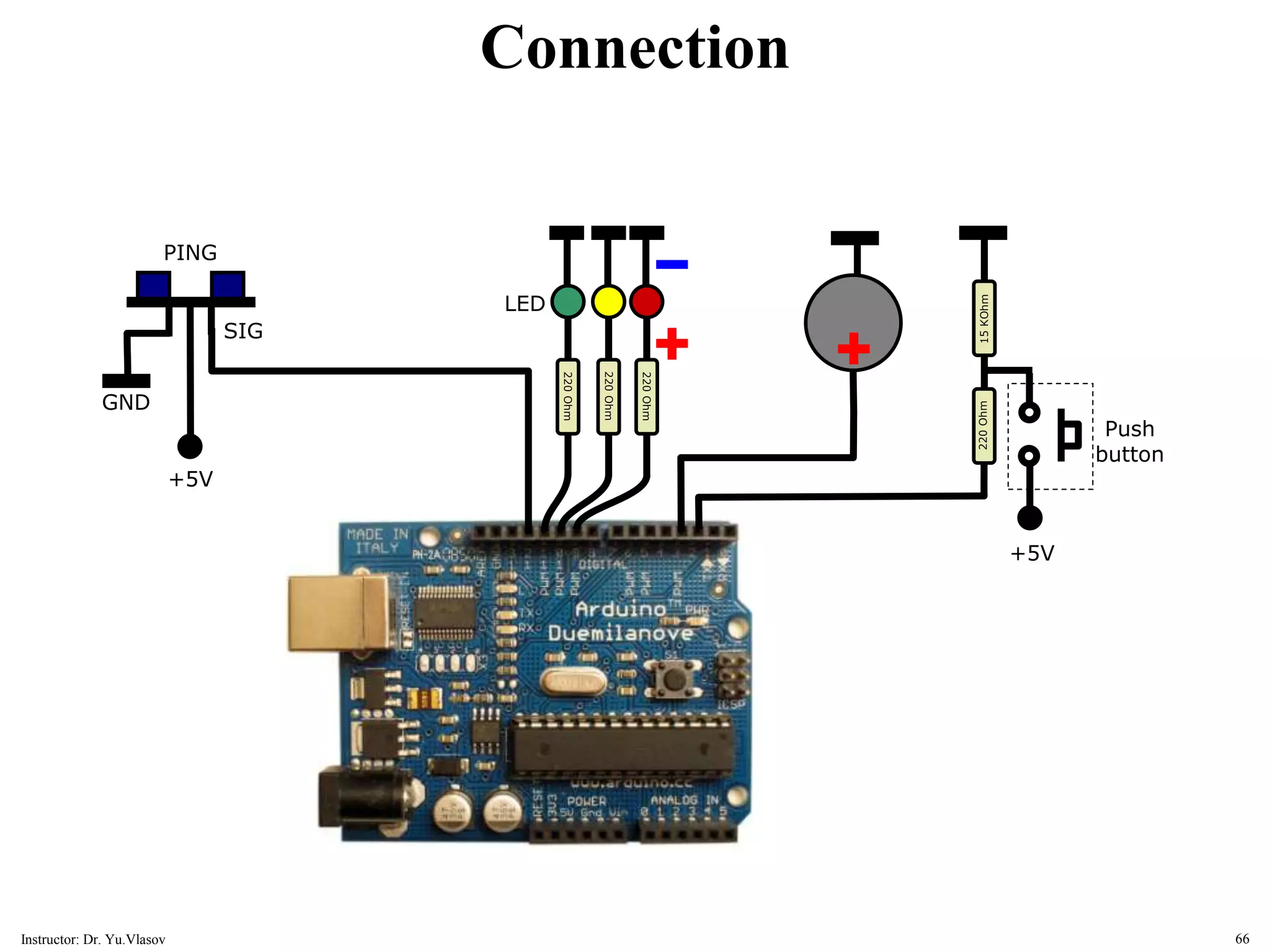
15 KOhm 220 Ohm LED 220 Ohm 220 Ohm Push button 220 Ohm +5V PING SIG GND +5V Connection 66 Instructor: Dr. Yu.Vlasov

Arduino_Code.ppt

  • 1.
    What is Arduino? Arduinois an open-source electronics prototyping platform based on flexible, easy-to-use hardware and software. Arduino can be used to develop stand-alone interactive objects or can be connected to software on your computer. It's intended for artists, designers, hobbyists, and anyone interested in creating interactive objects or environments. Arduino web site: www.arduino.cc 1 Instructor: Dr. Yu.Vlasov
  • 2.
  • 3.
    Adruino boards Arduino BT ArduinoMINI Arduino Arduino NANO LilyPad Arduino Xbee shield Ethernet shield (Not to scale) 3 Instructor: Dr. Yu.Vlasov
  • 4.
    Arduino Duemilanove Microcontroller ("Duemilanove"means 2009 in Italian) 4 Instructor: Dr. Yu.Vlasov
  • 5.
    Arduino Board Overview Microcontroller chip Power pins Digitalinput/output pins Power LED Reset button Analog Input pins Power connector USB connector USB chip 5 Instructor: Dr. Yu.Vlasov
  • 6.
  • 7.
    Arduino Duemilanove MicrocontrollerBoard Duemilanove - the latest revision (2009) of the basic Arduino USB board. It connects to the computer with a standard USB cable and contains everything else you need to program and use the board. It can be extended with a variety of shields: custom daughter-boards with specific features. It has: • 14 digital input/output pins (of which 6 can be used as PWM (Pulse Width Modulation) outputs) • 6 analog inputs • a 16 MHz crystal oscillator • a USB connection • a power jack • an ICSP (In-Circuit Serial Programming) header • a reset button. 7 Instructor: Dr. Yu.Vlasov
  • 8.
    Digital or Analog? •Digital – may take two values only: ON or OFF (1 or 0) • Analog – has many (infinite) values Computers don’t really do analog -- so they fake it, with quantization 8 Instructor: Dr. Yu.Vlasov
  • 9.
    Power: The Arduino Duemilanovecan be powered via the USB connection or with an external power supply. The power source is selected automatically. External (non-USB) power can come either from an AC-to-DC adapter (wall-wart) or battery. The adapter can be connected by plugging a 2.1 mm center-positive plug into the board's power jack. Leads from a battery can be inserted in the Gnd and Vin pin headers of the POWER connector. The board can operate on an external supply of 6 to 20 volts. If supplied with less than 7 V, however, the 5 V pin may supply less than five volts and the board may be unstable. If using more than 12 V, the voltage regulator may overheat and damage the board. The recommended range is 7 to 12 volts. Arduino Duemilanove Microcontroller Board 9 Instructor: Dr. Yu.Vlasov
  • 10.
    The power pinsare as follows: • Vin. The input voltage to the Arduino board when it's using an external power source (as opposed to 5 volts from the USB connection or other regulated power source). You can supply voltage through this pin, or, if supplying voltage via the power jack, access it through this pin. • 5V. The regulated power supply used to power the microcontroller and other components on the board. This can come either from Vin via an on-board regulator, or be supplied by USB or another regulated 5V supply. • 3V3. A 3.3 volt supply generated by the on-board FTDI chip. Maximum current draw is 50 mA. • GND. Ground pins. Arduino Duemilanove Microcontroller Board Power connector USB connector Vin 5V output 3V3 output 10 Instructor: Dr. Yu.Vlasov
  • 11.
    Arduino Duemilanove MicrocontrollerBoard Microcontroller ATmega328 Operating Voltage 5 V Input Voltage (recommended) 7-12 V Input Voltage (limits) 6-20 V Digital I/O Pins 14 (of which 6 provide PWM output) Analog Input Pins 6 DC Current per I/O Pin 40 mA DC Current for 3.3V Pin 50 mA Flash Memory 32 KB (ATmega328) of which 2 KB used by bootloader SRAM 2 KB (ATmega328) EEPROM 1 KB (ATmega328) Clock Speed 16 MHz The Duemilanove basic board uses the Atmel ATmega328 chip (http://www.atmel.com/dyn/resources/prod_documents/8161S.pdf). 11 Instructor: Dr. Yu.Vlasov
  • 12.
    Using the breadboard (Socketboard) The bread board has many strips of metal (copper usually) which run underneath the board. The metal strips are laid out as shown in orange. The long top and bottom row of holes are usually used for power supply connections. To use the bread board, the legs of components are placed in the holes (the sockets). The holes are made so that they will hold the component in place. The circuit is built by placing components and connecting them together with jumper wires. 12 Instructor: Dr. Yu.Vlasov
  • 13.
    What do youneed to start working with Arduino? 1. Arduino board – will be provided 2. USB cable – will be provided 3. Computer with USB interface 4. USB driver and Arduino application – to be downloaded from (http://arduino.cc/en/Main/Software) 13 Instructor: Dr. Yu.Vlasov
  • 14.
    Download the Arduinoenvironment To program the Arduino board you need the Arduino environment. Download the latest version from the page: http://arduino.cc/en/Main/Software When the download finishes, unzip the downloaded file. Make sure to preserve the folder structure. Double-click the folder to open it. There should be a few files and sub- folders inside. Doubleclick -- it will start Arduino software 14 Instructor: Dr. Yu.Vlasov
  • 15.
    Download USB drivers Toconnect your Arduino board to computer you need USB drivers for the FTDI chip on the board. You'll want to install the USB drivers before plugging in the Arduino for the first time. Download the latest version from the page: http://www.ftdichip.com/Drivers/VCP.htm (You can download executable file http://www.ftdichip.com/Drivers/CDM/CDM%202.04.16.exe running which will install drivers) Install the drivers. 15 Instructor: Dr. Yu.Vlasov
  • 16.
    Arduino software INPUT AREA STATUSBAR PROGRAM NOTIFICATION AREA UPLOAD BUTTON 16 Instructor: Dr. Yu.Vlasov
  • 17.
    Arduino software Select yourport Select microcontroller type 17 Instructor: Dr. Yu.Vlasov
  • 18.
    Power up! (USB) Nowwe are ready for the moment of truth, it's time to plug your Arduino in and power it up. The most common way to do this is to plug one end of the USB cable into the Arduino and the other end into a computer. The computer will then power the Arduino. Plug the square end of USB cable into your Arduino; the other end – into computer. You should get a small green light on the right side of the Arduino, as shown here 18 Instructor: Dr. Yu.Vlasov
  • 19.
    /* * “Hello World!” *This is the Hello World! for Arduino. * It shows how to send data to the computer */ void setup() // run once, when the sketch starts { Serial.begin(9600); // set up Serial library at 9600 bps Serial.println("Is anybody out there?"); // prints phrase with ending line break } void loop() // run over and over again { // do nothing! } // After sending program to the Arduino, press Reset button on the board and watch Serial monitor Example 01 Your first program: Run this program. What do you see on the Serial Monitor? 19 Instructor: Dr. Yu.Vlasov
  • 20.
    Arduino Program (Sketch)Structure Declare variables at top • Initialize • setup() – run once at beginning, set pins • Running • loop() – run repeatedly, after setup() void setup() { } void loop() { } Example of a bare minimum program: 20 Instructor: Dr. Yu.Vlasov
  • 21.
    Arduino “Language” • Languageis standard C/C++ (but made easy) • Lots of useful functions pinMode() – set a pin as input or output digitalWrite() – set a digital pin high/low digitalRead() – read a digital pin’s state analogRead() – read an analog pin analogWrite() – write an “analog” PWM value delay() – wait an amount of time (ms) millis() – get the current time • And many others. And libraries. And examples! 21 Instructor: Dr. Yu.Vlasov
  • 22.
    Format of variables– 01 All variables have to be declared before they are used. Declaring a variable means defining its type, and optionally, setting an initial value (initializing the variable). For example, int inputVariable = 0; declares that variable inputVariable is of type int, and that its initial value is zero. 22 Instructor: Dr. Yu.Vlasov
  • 23.
    Format of variables– 02 1. char – a data type that takes up 1 byte of memory that stores a character value. Character literals are written in single quotes, like this: 'A'. 2. byte – a byte stores an 8-bit unsigned number, from 0 to 255. 3. int – integers are your primary datatype for number storage, and store a 2 byte value. This yields a range of −32,768 to 32,767. 4. unsigned int – unsigned integers are the same as integers in that they store a 2 byte value. Instead of storing negative numbers however they only store positive values, yielding a useful range of 0 to 65,535. 23 Instructor: Dr. Yu.Vlasov
  • 24.
    Format of variables– 03 5. long – long variables are extended size variables for number storage, and store 32 bits (4 bytes), from −2,147,483,648 to 2,147,483,647. 6. unsigned long – unsigned long variables are extended size variables for number storage, and store 32 bits (4 bytes). Unlike standard longs unsigned longs won't store negative numbers, making their range from 0 to 4,294,967,295 24 Instructor: Dr. Yu.Vlasov
  • 25.
    Format of variables– 04 7. float – datatype for floating-point numbers, a number that has a decimal point. They are often used to approximate analog and continuous values because they have greater resolution than integers. Floating-point numbers can be as large as 3.4028235E+38 and as low as −3.4028235E+38. They are stored as 32 bits (4 bytes) of information. 8. double – double precision floating point number. Occupies 4 bytes. The double implementation on the Arduino is currently exactly the same as the float, with no gain in precision. 25 Instructor: Dr. Yu.Vlasov
  • 26.
    Format of variables– 05 char myChar = 'A'; char myChar = 65; // both are equivalent byte b = B10010; // "B" is the binary formatter (B10010 = 18 decimal) int ledPin = 13; unsigned int ledPin = 13; Example of variables: 26 Instructor: Dr. Yu.Vlasov
  • 27.
    y = y+ 3; x = x - 7; i = j * 6; r = r / 5; Arithmetic Operators Arithmetic operators include addition, subtraction, multiplication, and division. They return the sum, difference, product, or quotient of two operands. 27 Instructor: Dr. Yu.Vlasov
  • 28.
    /* Math */ inta = 5; int b = 10; int c = 20; void setup() { Serial.begin(9600); // set up Serial library at 9600 bps Serial.println("Here is some math: "); Serial.print("a = "); Serial.println(a); Serial.print("b = "); Serial.println(b); Serial.print("c = "); Serial.println(c); Serial.print("a + b = "); // add Serial.println(a + b); Serial.print("a * c = "); // multiply Serial.println(a * c); Serial.print("c / b = "); // divide Serial.println(c / b); Serial.print("b - c = "); // subtract Serial.println(b - c); } void loop() // we need this to be here even though its empty { } Example 02 Run this program. What do you see on the Serial Monitor? Replace format “int” with “float” Run this program again. What do you see on the Serial Monitor? Math 28 Instructor: Dr. Yu.Vlasov
  • 29.
    X ++ //same as x = x + 1, or increments x by +1 X -- // same as x = x – 1, or decrements x by -1 X += y // same as x = x + y, or increments x by +y X -= y // same as x = x - y, or decrements x by -y X *= y // same as x = x * y, or multiplies x by y X /= y // same as x = x / y, or divides x by y Compound Operators Increment or decrement a variable Example: x = 2; // x = 2 x += 4; // x now contains 6 x -= 3; // x now contains 3 x *= 10; // x now contains 30 x /= 2; // x now contains 15 29 Instructor: Dr. Yu.Vlasov
  • 30.
    x == y(x is equal to y) x != y (x is not equal to y) x < y (x is less than y) x > y (x is greater than y) x <= y (x is less than or equal to y) x >= y (x is greater than or equal to y) Comparison operators 30 Instructor: Dr. Yu.Vlasov
  • 31.
    “if” condition “if”, whichis used in conjunction with a comparison operator, tests whether a certain condition has been reached, such as an input being above a certain number. The format for an “if” test is: if (someVariable > 50) { // do something here } The program tests to see if someVariable is greater than 50. If it is, the program takes a particular action. If the statement in parentheses is true, the statements inside the brackets are run. If not, the program skips over the code. Example: if (x > 120) digitalWrite(LEDpin, HIGH); comparison operator 31 Instructor: Dr. Yu.Vlasov
  • 32.
    “if…else” The “if-else” isthe primary means of conditional branching. To branch an execution of your program depending on the state of a digital input, we can use the following structure: if (inputPin == HIGH) { doThingA; } else { doThingB; } 32 Instructor: Dr. Yu.Vlasov
  • 33.
    “for” statement The “for”statement is used to repeat a block of statements enclosed in curly braces. An increment counter is usually used to increment and terminate the loop. The “for” statement is useful for any repetitive operation: for (initialization; condition; increment) { //statement(s); } The “initialization” happens first and exactly once. Each time through the loop, the “condition” is tested; if it's true, the “statement” block, and the “increment” is executed, then the “condition” is tested again. When the “condition” becomes false, the loop ends. Example: if (x > 120) digitalWrite(LEDpin, HIGH); 33 Instructor: Dr. Yu.Vlasov
  • 34.
    “for” statement Example “Diman LED using a PWM pin”: int PWMpin = 10; // LED in series with 1k resistor on pin 10 void setup() { // no setup needed } void loop() { for (int i=0; i <= 255; i++) { analogWrite(PWMpin, i); delay(10); } } initialization condition increment statement 34 Instructor: Dr. Yu.Vlasov
  • 35.
    “switch ... case” switch...casecontrols the flow of programs by allowing programmers to specify different code that should be executed in various conditions. When a case statement is found whose value matches that of the variable, the code in that case statement is run. Example: switch (var) { case label: // statements break; case label: // statements break; default: // statements } 35 Instructor: Dr. Yu.Vlasov
  • 36.
    “while” loop while loopswill loop continuously, and infinitely, until the expression inside the parenthesis, () becomes false. Something must change the tested variable, or the while loop will never exit. This could be in your code, such as an incremented variable, or an external condition, such as testing a sensor. while(someVariable ?? value) { doSomething; } Example: const int button2Pin = 2; buttonState = LOW; while(buttonState == LOW) { buttonState = digitalRead(button2Pin); } 36 Instructor: Dr. Yu.Vlasov
  • 37.
    “do … while”loop The “do” loop works in the same manner as the “while” loop, with the exception that the condition is tested at the end of the loop, so the “do” loop will always run at least once. do { doSomething; } while (someVariable ?? value); Example: do { x = readSensor(); delay(10); } while (x < 100); // loops if x < 100 37 Instructor: Dr. Yu.Vlasov
  • 38.
    Connection “+” (long) leadof LED should be connected to Pin #13. The other (short) lead of the LED goes to “Ground” 38 Instructor: Dr. Yu.Vlasov
  • 39.
    /* Blink Turns anLED ON and OFF repeatedly. There is already an LED on the board connected to pin 13. */ int ledPin = 13; // LED connected to digital pin 13 void setup() { pinMode(ledPin, OUTPUT); // initialize the digital pin as an output } void loop() { digitalWrite(ledPin, HIGH); // set the LED on delay(1000); // wait for a second digitalWrite(ledPin, LOW); // set the LED off delay(1000); // wait for a second } Example 03a Red LED 39 Instructor: Dr. Yu.Vlasov
  • 40.
    /* Blink Turns anLED ON and OFF repeatedly. There is already an LED on the board connected to pin 13. */ int ledPin = 13; // LED connected to digital pin 13 int ON = 100; // (ms) time for LED to be ON int OFF = 100; // (ms) time for LED to be OFF void setup() { pinMode(ledPin, OUTPUT); // initialize the digital pin as an output } void loop() { digitalWrite(ledPin, HIGH); // set the LED on delay(ON); // wait for a second digitalWrite(ledPin, LOW); // set the LED off delay(OFF); // wait for a second } Example 03b Blinking LED Play with values of constants “ON” and “OFF” 40 Instructor: Dr. Yu.Vlasov
  • 41.
    /* Blink withoutDelay Turns on and off a light emitting diode(LED) connected to a digital pin, without using the delay() function. This means that other code can run at the same time without being interrupted by the LED code. The circuit: LED attached from pin 13 to ground. */ const int ledPin = 13; // the number of the LED pin. Constants won't change. int ledState = LOW; // ledState used to set the LED. Variables will change long previousMillis = 0; // will store last time LED was updated. Variables will change long interval = 1000; // interval at which to blink (milliseconds) void setup() { pinMode(ledPin, OUTPUT); // set the digital pin as output: } void loop() { // check to see if it's time to blink the LED; that is, is the difference between the current time and last time we blinked the LED bigger than the interval at which we want to blink the LED. if (millis() - previousMillis > interval) { previousMillis = millis(); // save the last time you blinked the LED if (ledState == LOW) ledState = HIGH; else ledState = LOW; digitalWrite(ledPin, ledState); // set the LED with the ledState of the variable } } Example 03c Blinking LED 41 Instructor: Dr. Yu.Vlasov
  • 42.
    220 Ohm LED 220 Ohm 220 Ohm Connection 3 LEDs connectedfrom digital pins 9, 10, 11 to ground through 220 ohm resistors 42 Instructor: Dr. Yu.Vlasov
  • 43.
    /* The circuit:3 LEDs connected from digital pins 9,10,11 to ground through 220 ohm resistors. */ int led9Pin = 9; // LED 9 connected to digital pin 9 int led10Pin = 10; // LED 10 connected to digital pin 10 int led11Pin = 11; // LED 11 connected to digital pin 11 int ON = 1000; // (ms) time for LED to be ON int OFF = 1000; // (ms) time for LED to be OFF void setup() // initialize digital pins as an output: { pinMode(led9Pin, OUTPUT); pinMode(led10Pin, OUTPUT); pinMode(led11Pin, OUTPUT); } void loop() { digitalWrite(led9Pin, HIGH); // set the LED on delay(ON); // wait for time “ON” (ms) digitalWrite(led9Pin, LOW); // set the LED off delay(OFF); // wait for time “OFF” (ms) digitalWrite(led10Pin, HIGH); delay(ON); digitalWrite(led10Pin, LOW); delay(OFF); digitalWrite(led11Pin, HIGH); delay(ON); digitalWrite(led11Pin, LOW); delay(OFF); } Example 04 3 LEDs 43 Instructor: Dr. Yu.Vlasov
  • 44.
    15 KOhm Push button 220 Ohm +5V Connection LED on pin#13 is operated by a button on pin #2 44 Instructor: Dr. Yu.Vlasov
  • 45.
    /* LED onpin #13 is operated by a button on pin #2 */ const int led13Pin = 13; const int button2Pin = 2; int buttonState = 0; // variable for reading the pushbutton status void setup() { pinMode(led13Pin, OUTPUT); pinMode(button2Pin, INPUT); } void loop() { buttonState = digitalRead(button2Pin); if (buttonState == HIGH) { digitalWrite(led13Pin, LOW); } else { digitalWrite(led13Pin, HIGH); } } Example 05 Button 45 Instructor: Dr. Yu.Vlasov
  • 46.
    15 KOhm 220 Ohm LED 220 Ohm 220 Ohm Push button 220 Ohm +5V Connection Three LEDs onpins 9, 10, 11 are controlled by a button on pin 2 46 Instructor: Dr. Yu.Vlasov
  • 47.
    /* LEDs onpins 9,10,11 are controlled by a button on pin #2 */ const int led7Pin = 9; // LED 9 connected to digital pin 9 const int led10Pin = 10; // LED 10 connected to digital pin 10 const int led11Pin = 11; // LED 11 connected to digital pin 11 const int led13Pin = 13; const int ON = 100; // (ms) time for LED to be ON const int OFF = 10; // (ms) time for LED to be OFF const int button2Pin = 2; int buttonState = 0; void setup() { // initialize digital pins pinMode(led9Pin, OUTPUT); pinMode(led10Pin, OUTPUT); pinMode(led11Pin, OUTPUT); pinMode(led13Pin, OUTPUT); pinMode(button2Pin, INPUT); } void loop() { buttonState = digitalRead(button2Pin); if (buttonState == HIGH) { digitalWrite(led13Pin, LOW); digitalWrite(led9Pin, HIGH); // set the LED on delay(ON); // wait for a second digitalWrite(led9Pin, LOW); // set the LED off delay(OFF); // wait for a second digitalWrite(ed10Pin, HIGH); // set the LED on delay(ON); // wait for a second digitalWrite(ed10Pin, LOW); // set the LED off delay(OFF); // wait for a second digitalWrite(led11Pin, HIGH); // set the LED on delay(ON); // wait for a second digitalWrite(led11Pin, LOW); // set the LED off delay(OFF); // wait for a second } else { digitalWrite(led13Pin, HIGH); } } Example 06 Button 47 Instructor: Dr. Yu.Vlasov
  • 48.
    analogWrite() Writes an analogvalue (PWM wave) to a pin. Can be used to light a LED at varying brightnesses or drive a motor at various speeds. After a call to analogWrite(), the pin will generate a steady square wave of the specified duty cycle until the next call to analogWrite() (or a call to digitalRead() or digitalWrite() on the same pin). 48 Instructor: Dr. Yu.Vlasov
  • 49.
    analogWrite() analogWrite(pin, value) Where: pin: thepin to write to. value: the duty cycle: between 0 (always off) and 255 (always on). The frequency of the PWM signal is approximately 490 Hz. On Arduino Duemilanove boards this function works on pins 3, 5, 6, 9, 10, and 11 (marked with “PWM”.) 49 Instructor: Dr. Yu.Vlasov
  • 50.
    /* Fading This exampleshows how to fade an LED using the analogWrite() function. The circuit: LED attached from digital pin 9 to ground. */ int ledPin = 9; // LED connected to digital pin 9 void setup() { // nothing happens in setup } void loop() { for(int fadeValue = 0 ; fadeValue <= 255; fadeValue++) // fade in from min to max in increments { analogWrite(ledPin, fadeValue); // sets the value (range from 0 to 255) delay(2); // wait for x milliseconds to see the dimming effect } for(int fadeValue = 255 ; fadeValue >= 0; fadeValue--) // fade out from max to min in increments { analogWrite(ledPin, fadeValue); // sets the value (range from 0 to 255) delay(2); // wait for x milliseconds to see the dimming effect } } Example 07a PWM. LED fading 50 Instructor: Dr. Yu.Vlasov
  • 51.
    15 KOhm 220 Ohm LED 220 Ohm 220 Ohm Push button 220 Ohm +5V Connection LEDs on pins9 is controlled by a potentiometer +5V 51 Instructor: Dr. Yu.Vlasov
  • 52.
    /* LEDs onpins 9 is controlled by a potentiometer Demonstrates one techinque for calibrating sensor input. The sensor readings during the first five seconds of the sketch execution define the minimum and maximum of expected values attached to the sensor pin. The sensor minumum and maximum initial values may seem backwards. Initially, you set the minimum high and listen for anything lower, saving it as the new minumum. Likewise, you set the maximum low and listen for anything higher as the new maximum. The circuit: * Potentiometer (or analog sensor) is attached to analog input 0 * LED attached from digital pin 9 to ground */ const int sensorPin = 1; // pin that the sensor is attached to const int ledPin = 9; // pin that the LED is attached to int sensorValue = 0; // the sensor value int sensorMin = 1023; // minimum sensor value int sensorMax = 0; // maximum sensor value void setup() { // turn on LED to signal the start of the calibration period: pinMode(13, OUTPUT); digitalWrite(13, HIGH); while (millis() < 5000) { // calibrate during the first five seconds sensorValue = analogRead(sensorPin); if (sensorValue > sensorMax) { // record the maximum sensor value sensorMax = sensorValue; } if (sensorValue < sensorMin) { // record the minimum sensor value sensorMin = sensorValue; } } digitalWrite(13, LOW); // signal the end of the calibration period } void loop() { sensorValue = analogRead(sensorPin); // read the sensor: sensorValue = map(sensorValue, sensorMin, sensorMax, 0, 255); // apply the calibration to the sensor reading sensorValue = constrain(sensorValue, 0, 255); // in case the sensor value is outside the range seen during calibration analogWrite(ledPin, sensorValue); // fade the LED using the calibrated value: } Example 07b PWM. LED fading 52 Instructor: Dr. Yu.Vlasov
  • 53.
    15 KOhm 220 Ohm LED 220 Ohm 220 Ohm Push button 220 Ohm +5V PING SIG GND +5V Connection Ping Sensor isconnected: +V is attached to +5V GND is attached to ground SIG is attached to digital pin 4 53 Instructor: Dr. Yu.Vlasov
  • 54.
    /* Ping Sensor Thissketch reads a PING))) ultrasonic rangefinder and returns the distance to the closest object in range. To do this, it sends a pulse to the sensor to initiate a reading, then listens for a pulse to return. The length of the returning pulse is proportional to the distance of the object from the sensor. The circuit: * +V connection of the PING))) attached to +5V * GND connection of the PING))) attached to ground * SIG connection of the PING))) attached to digital pin 4 */ const int pingPin = 4; // pin number of the sensor's output: void setup() { Serial.begin(9600); // initialize serial communication } void loop() { // establish variables for duration of the ping, // and the distance result in inches and centimeters: long duration, inches, cm; // The PING is triggered by a HIGH pulse of 2 or more microseconds. // Give a short LOW pulse beforehand to ensure a clean HIGH pulse: pinMode(pingPin, OUTPUT); digitalWrite(pingPin, LOW); delayMicroseconds(2); digitalWrite(pingPin, HIGH); delayMicroseconds(5); digitalWrite(pingPin, LOW); // The same pin is used to read the signal from the PING))): a HIGH // pulse whose duration is the time (in microseconds) from the sending // of the ping to the reception of its echo off of an object. pinMode(pingPin, INPUT); duration = pulseIn(pingPin, HIGH); // Reads a pulse (either HIGH or LOW) on a pin. Example 08 PING sensor 54 Instructor: Dr. Yu.Vlasov
  • 55.
    // convert thetime into a distance inches = microsecondsToInches(duration); cm = microsecondsToCentimeters(duration); Serial.print(inches); Serial.print("in, "); Serial.print(cm); Serial.print("cm"); Serial.println(); delay(100); } long microsecondsToInches(long microseconds) { // According to Parallax's datasheet for the PING))), there are // 73.746 microseconds per inch (i.e. sound travels at 1130 feet per // second). This gives the distance travelled by the ping, outbound // and return, so we divide by 2 to get the distance of the obstacle. // See: http://www.parallax.com/dl/docs/prod/acc/28015-PING-v1.3.pdf return microseconds / 74 / 2; } long microsecondsToCentimeters(long microseconds) { // The speed of sound is 340 m/s or 29 microseconds per centimeter. // The ping travels out and back, so to find the distance of the // object we take half of the distance travelled. return microseconds / 29 / 2; } Example 08 (continued) PING sensor 55 Instructor: Dr. Yu.Vlasov
  • 56.
  • 57.
    // LM35DZ TemperatureSensor for Arduino. // (cc) by Daniel Spillere Andrade , http://www.danielandrade.net int pin = 0; // analog input pin int tempc = 0,tempf=0; // temperature variables int samples[8]; // variables to make a better precision int maxi = -100,mini = 100; // to start max/min temperature int i; void setup() { Serial.begin(9600); // start serial communication } void loop() { for(i = 0; i<=7; i++) { // gets 8 samples of temperature samples[i] = ( 5.0 * analogRead(pin) * 100.0) / 1024.0; tempc = tempc + samples[i]; delay(10); } tempc = tempc/8; // better precision tempf = (tempc * 9)/ 5 + 32; // converts to fahrenheit if(tempc > maxi) {maxi = tempc;} // set max temperature if(tempc < mini) {mini = tempc;} // set min temperature Serial.print(tempc,DEC); Serial.print(" Celsius, "); Serial.print(tempf,DEC); Serial.print(" fahrenheit -> "); Serial.print(maxi,DEC); Serial.print(" Max, "); Serial.print(mini,DEC); Serial.println(" Min"); tempc = 0; delay(1000); // delay before loop } Example 09 LM35DZ temperature sensor 57 Instructor: Dr. Yu.Vlasov
  • 58.
    Connection Sharp LM35DZ IRlight detector and IR LED 1 2 3 4 +5V IR LED Sharp IS471FE 58 Instructor: Dr. Yu.Vlasov
  • 59.
    /* Sharp LM35DZIR light detector with built-in signal processing sircuit for light modulation Circuit: Leg 1 is connected to Vcc (+5V) Leg 2 is connected to digital pin 6 Leg 3 is connected to ground Leg 4 is connected to negative terminal of IR LED Positive terminal of IR LED is connected to Vcc (+5V) */ const int IR_SENSOR_PIN = 6; const int ledPin = 13; int IR_SENSOR_STATE = 0; void setup() { pinMode(IR_SENSOR_PIN, INPUT); Serial.begin(9600); } void loop() { IR_SENSOR_STATE = digitalRead(IR_SENSOR_PIN); if (IR_SENSOR_STATE == LOW) { Serial.println("No object"); digitalWrite(ledPin, LOW); } else { Serial.println("Object detected"); digitalWrite(ledPin, HIGH); } delay(100); } Example 10 Sharp IS471FE IR sensor 59 Instructor: Dr. Yu.Vlasov
  • 60.
    Pseudo Code • Startof program • Measure temperature - Is temperature < 100 F ? • Yes, Turn on heat - Is temperature > 102 F ? • Yes, Turn on cooling fan • Go back to start. 60 Instructor: Dr. Yu.Vlasov
  • 61.
  • 62.
    Sequential Flow Example Pseudo-Code: Startof program  Turn off LED 1  Turn off LED 2  Pause for 2 seconds  Light LED 1  Pause for 2 seconds  Light LED 2  End of program Flowchart: Start Turn OFF LED1 Turn OFF LED2 2 Second Pause Turn ON LED1 Turn ON LED2 2 Second Pause End 62 Instructor: Dr. Yu.Vlasov
  • 63.
    Looping Flow Example Pseudo-Code: Startof program  Turn off LED 1  Turn off LED 2  Pause for 2 seconds  Light LED 1  Pause for 2 seconds  Light LED 2  Go back to start Flowchart: Start Turn OFF LED1 Turn OFF LED2 2 Second Pause Turn ON LED1 Turn ON LED2 2 Second Pause 63 Instructor: Dr. Yu.Vlasov
  • 64.
    “IF-THEN” Example: Alarm Thisprogram will sound the alarm as long as pushbutton 1 is pressed. Start: Is button 1 pressed? • Yes, Go sound Alarm • No, Go back to start Alarm: • Sound speaker • Go back to start of program Pseudo-Code Flowchart Button 1 Pressed Main Speaker 2000Hz for 1 second Main True False 64 Instructor: Dr. Yu.Vlasov
  • 65.
    References 1. http://www.arduino.cc/en/Tutorial/HomePage 2. http://www.arduino.cc/en/Guide/HomePage 3.http://www.ladyada.net/learn/arduino/index.html -- an introduction to programming, input / output, communication, etc. using Arduino 4. http://arduino.cc/en/Reference/HomePage -- Programming Language Reference 5. http://todbot.com/blog/spookyarduino/ 6. http://dma.ucla.edu/senselab/topics/tags/arduino 7. http://www.freeduino.org/ 8. http://www.arduino.cc/cgi-bin/yabb2/YaBB.pl -- Arduino forum 65 Instructor: Dr. Yu.Vlasov
  • 66.