standard Arduino workshop 2017 Hands-on Arduino introduction Tom Tobback www.cassiopeia.hk 2017
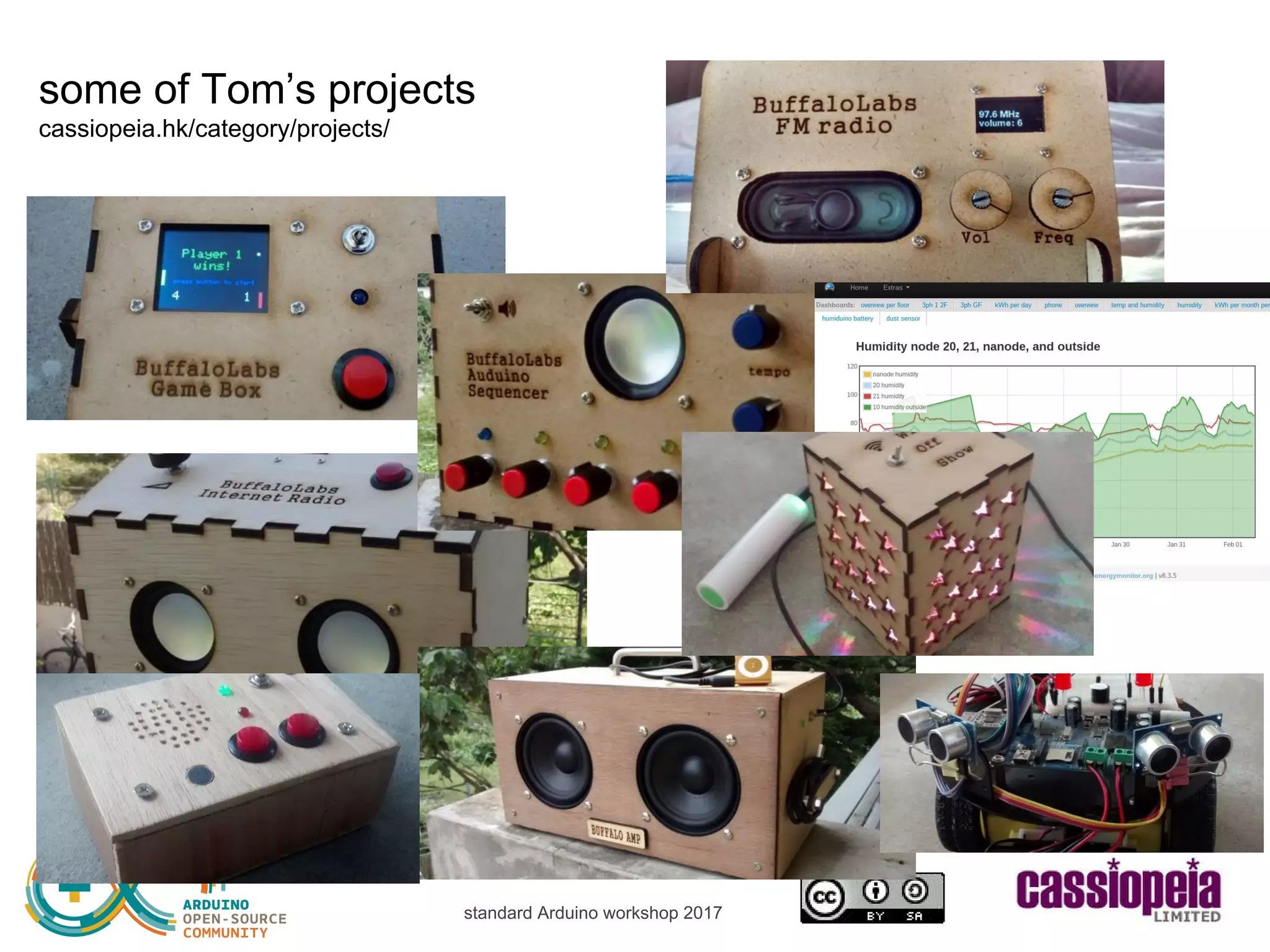
standard Arduino workshop 2017 some of Tom’s projects cassiopeia.hk/category/projects/
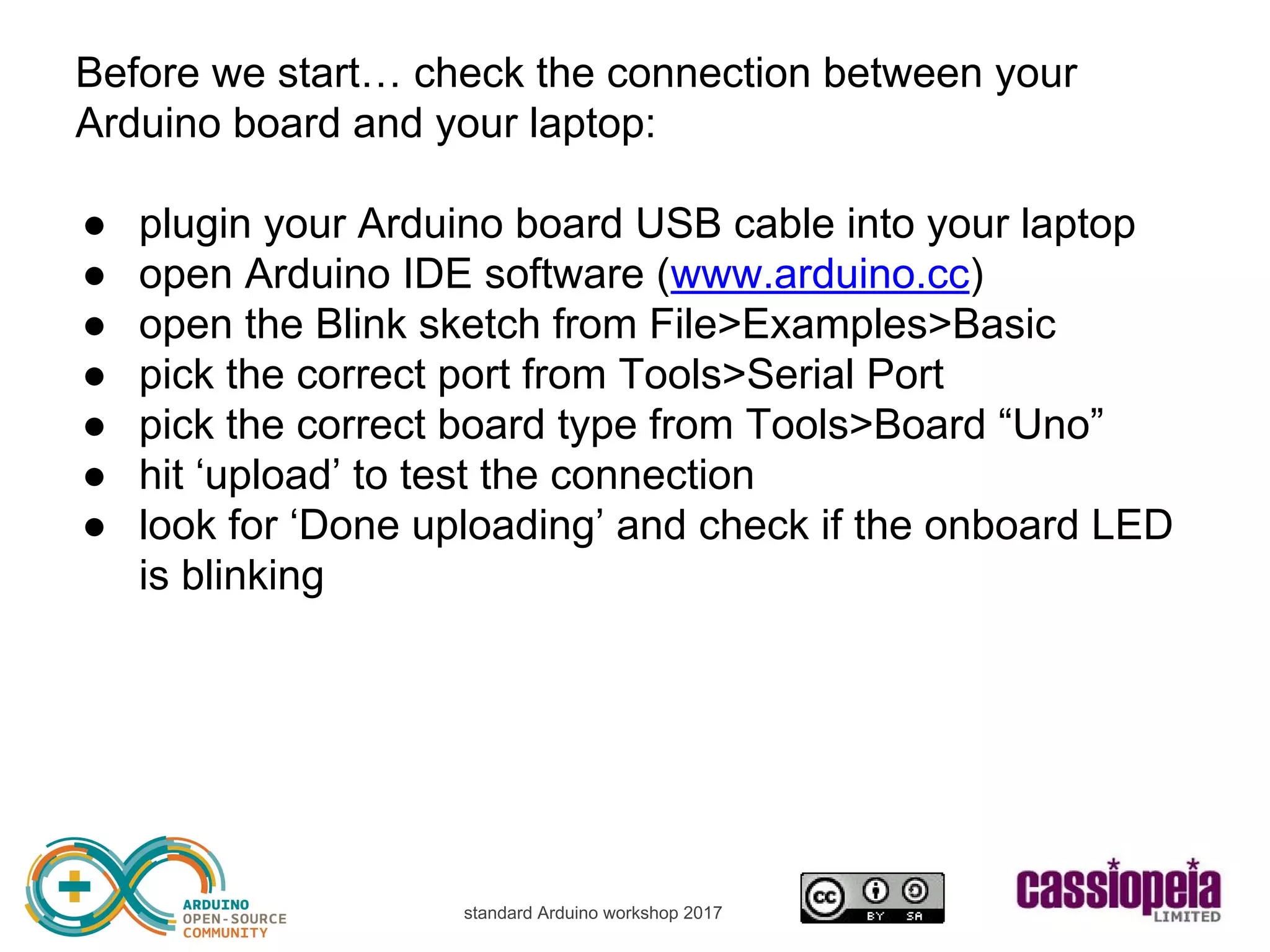
standard Arduino workshop 2017 Before we start… check the connection between your Arduino board and your laptop: ● plugin your Arduino board USB cable into your laptop ● open Arduino IDE software (www.arduino.cc) ● open the Blink sketch from File>Examples>Basic ● pick the correct port from Tools>Serial Port ● pick the correct board type from Tools>Board “Uno” ● hit ‘upload’ to test the connection ● look for ‘Done uploading’ and check if the onboard LED is blinking
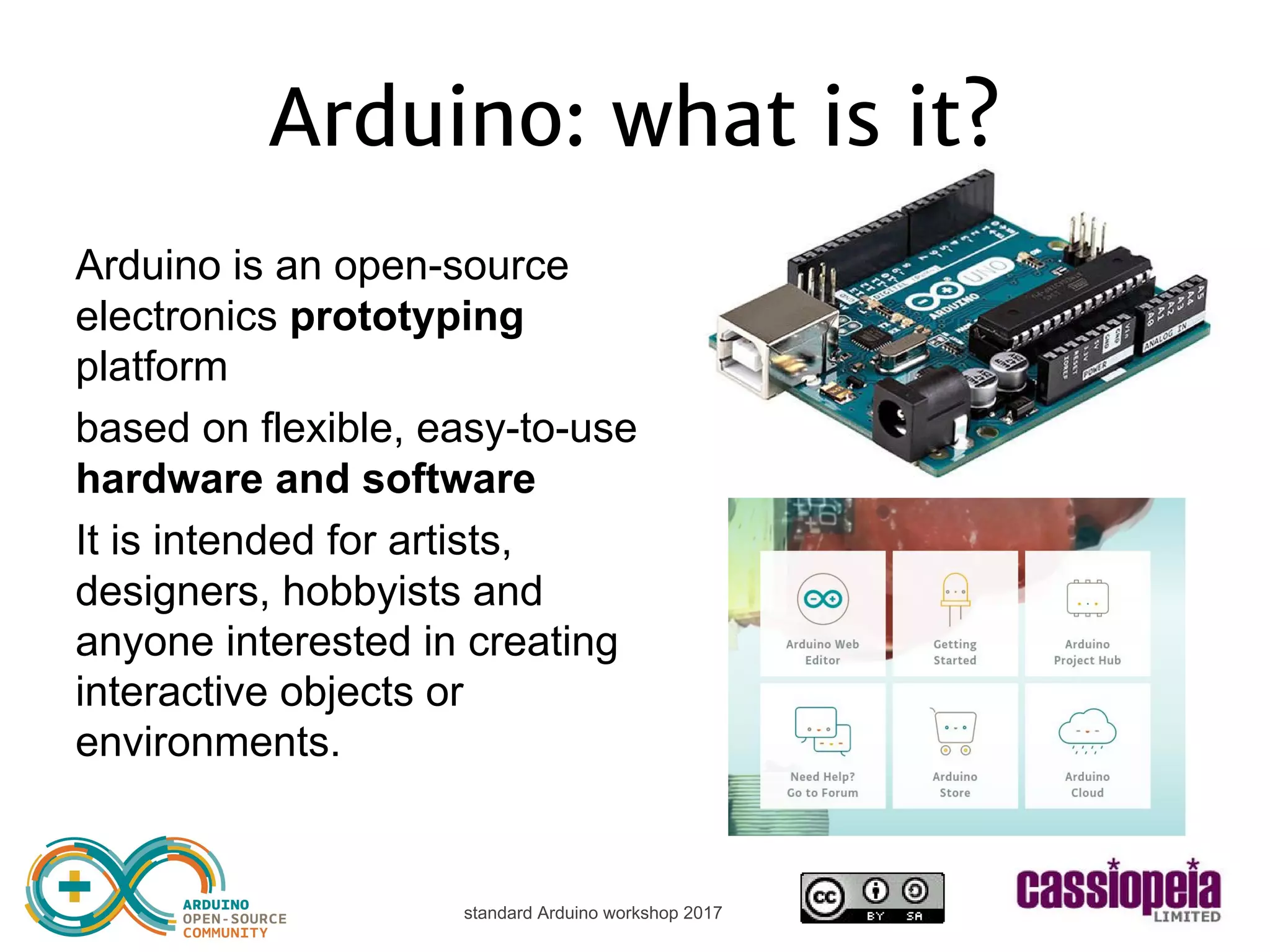
standard Arduino workshop 2017 Arduino: what is it? Arduino is an open-source electronics prototyping platform based on flexible, easy-to-use hardware and software It is intended for artists, designers, hobbyists and anyone interested in creating interactive objects or environments • sensors • sound • light • wifi • ...
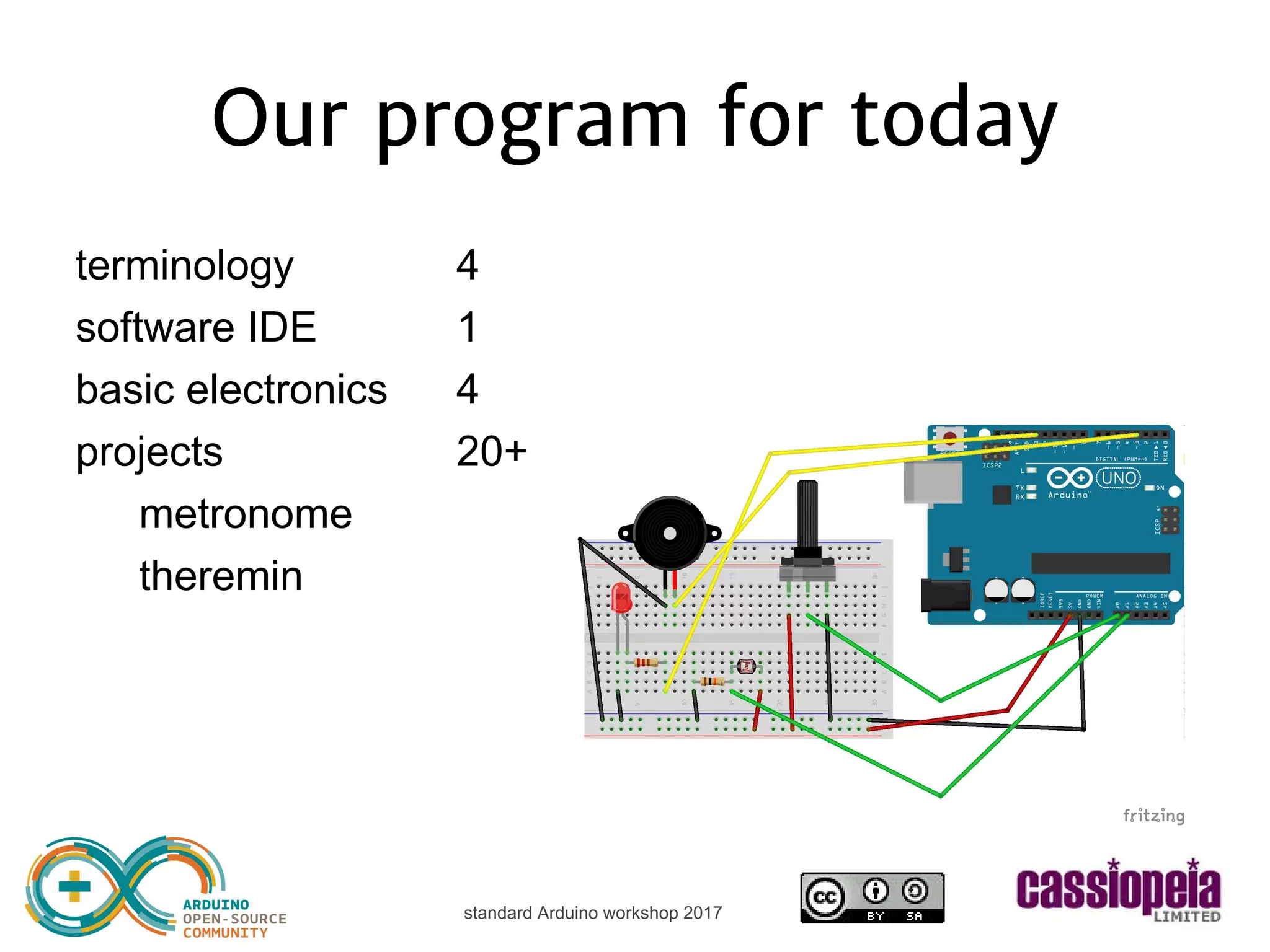
standard Arduino workshop 2017 Our program for today terminology 4 software 2 basic electronics 4 projects 20+ metronome theremin
standard Arduino workshop 2017 Arduino terminology software: • IDE • web editor • sketch • uploading hardware: • board • microcontroller (mcu) • pin headers • input • output • digital/analog • breadboard • jumper wires • components
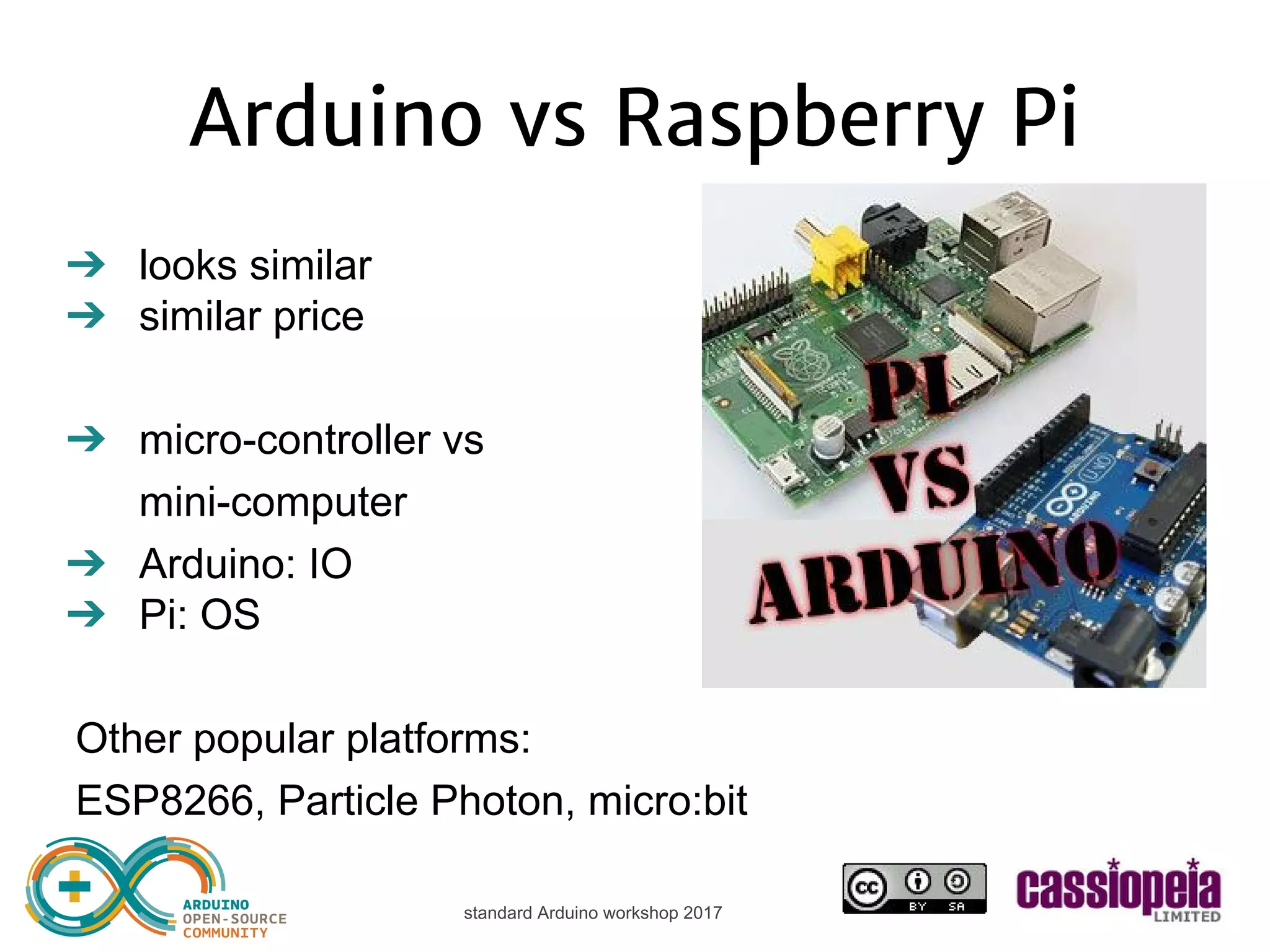
standard Arduino workshop 2017 Arduino vs Raspberry Pi ➔ looks similar ➔ similar price ➔ micro-controller vs mini-computer ➔ Arduino: IO ➔ Pi: OS Other popular platforms: ESP8266, Particle Photon, micro:bit
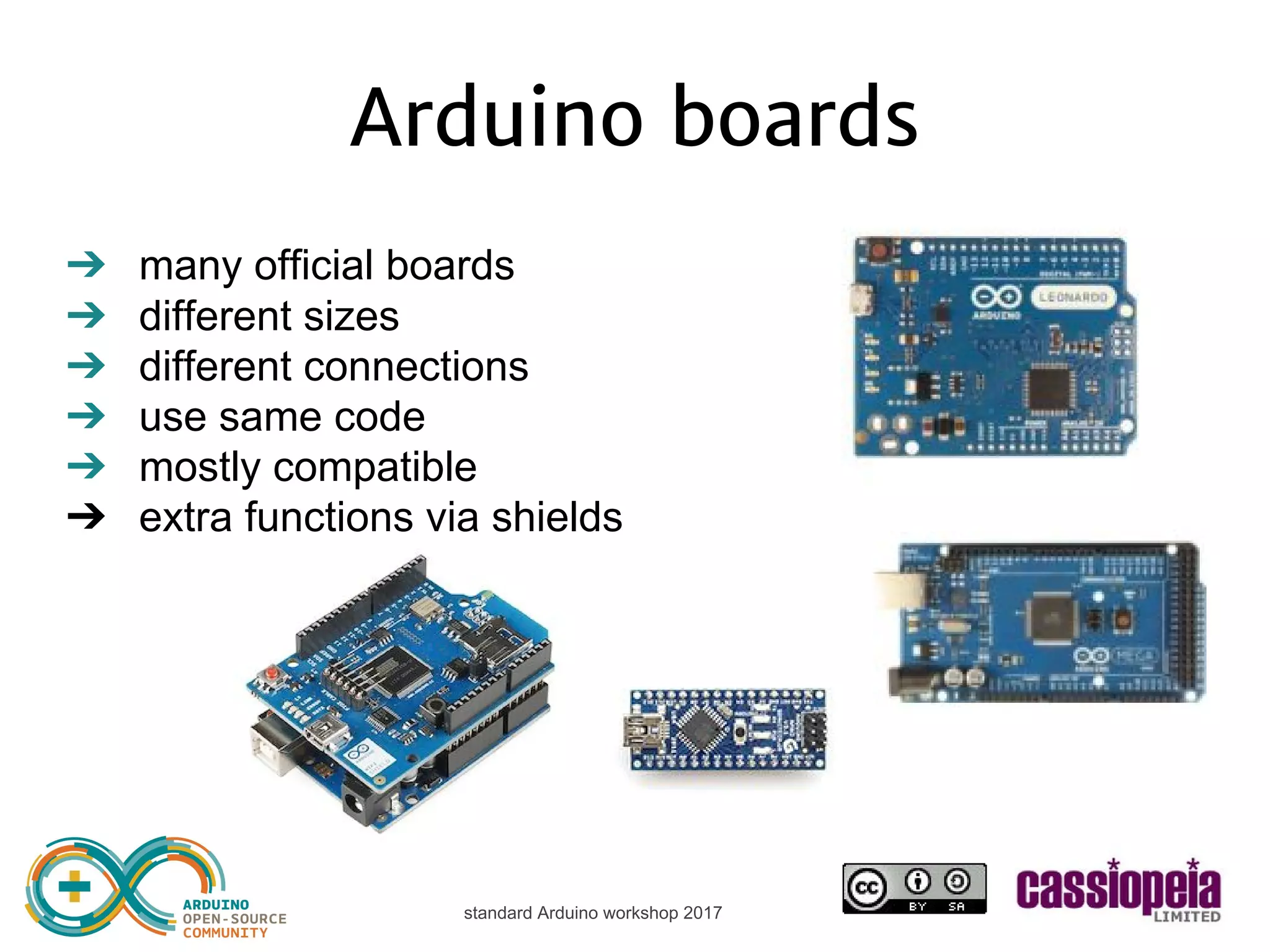
standard Arduino workshop 2017 Arduino boards ➔ many official boards ➔ different sizes ➔ different connections ➔ use same code ➔ mostly compatible ➔ extra functions via shields
standard Arduino workshop 2017 Arduino UNO
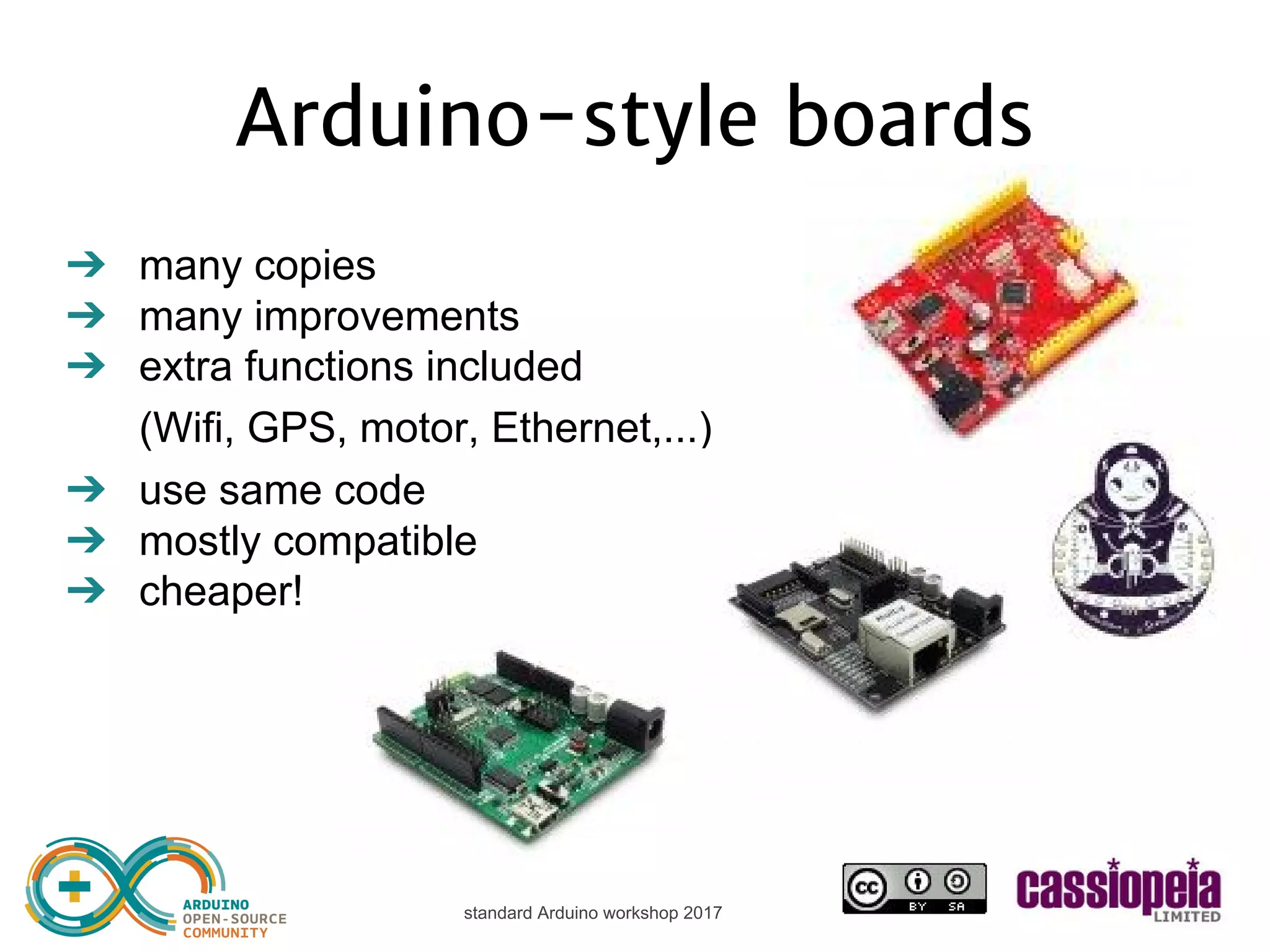
standard Arduino workshop 2017 Arduino-style boards ➔ many copies ➔ many improvements ➔ extra functions included (Wifi, GPS, motor, Ethernet,...) ➔ use same code ➔ mostly compatible ➔ cheaper!
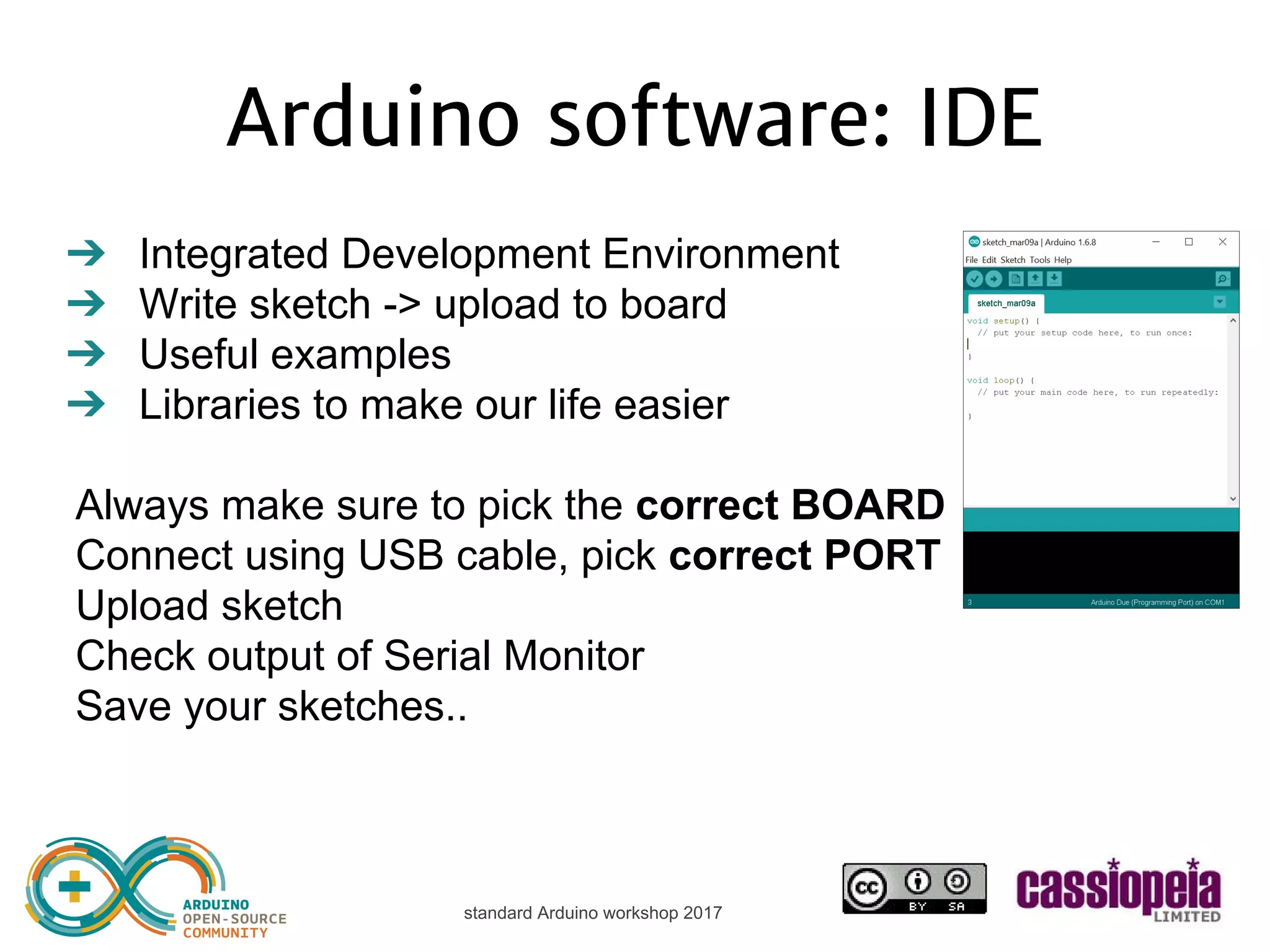
standard Arduino workshop 2017 Arduino software: IDE ➔ Integrated Development Environment ➔ Write sketch -> upload to board ➔ Useful examples ➔ ‘Libraries’ to make our life easier Always make sure to pick the correct BOARD ➔ Connect using USB cable, pick correct PORT ➔ Upload sketch ➔ Check output of Serial Monitor ➔ Save your sketches..
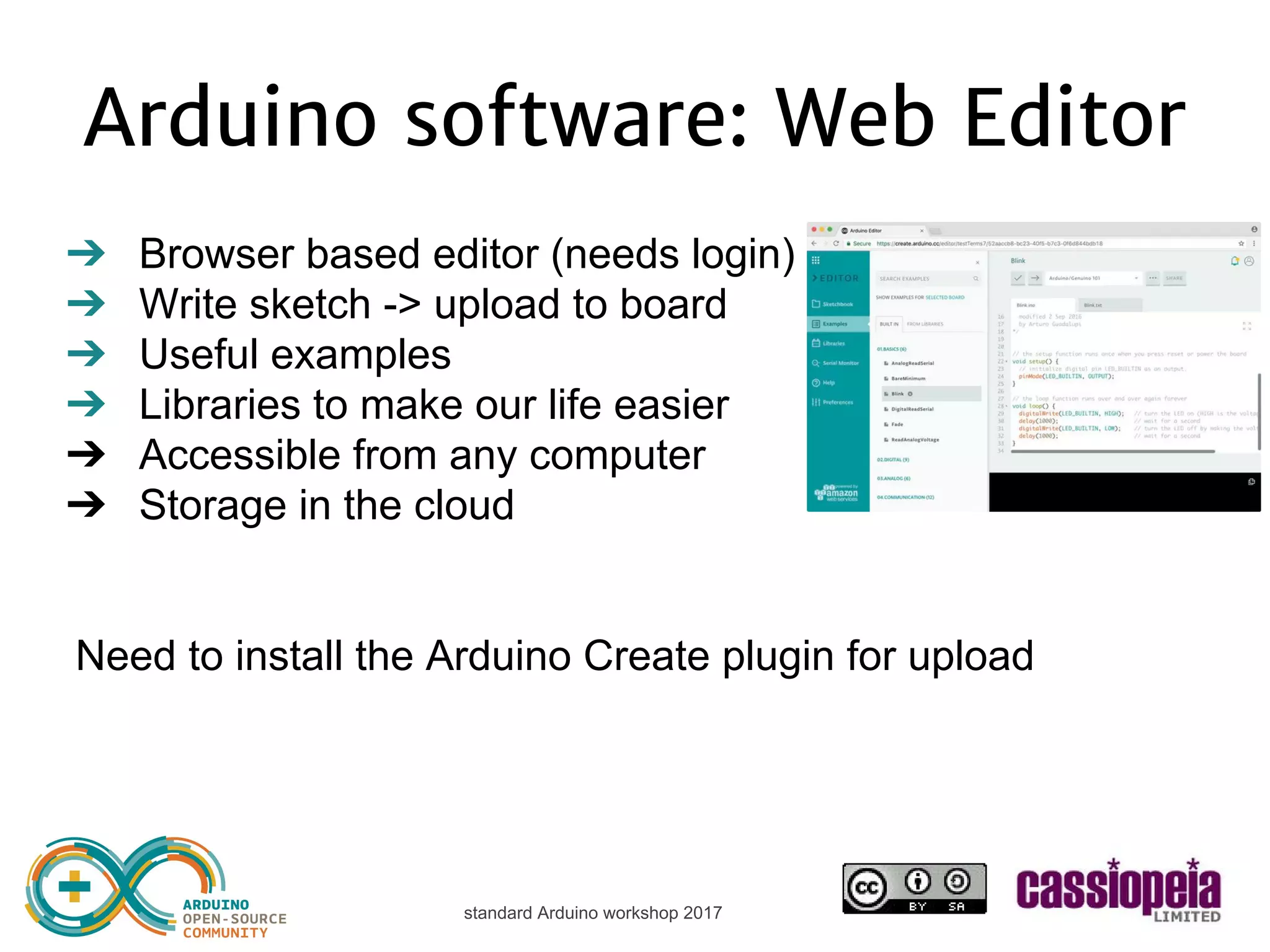
standard Arduino workshop 2017 Arduino software: Web Editor Same functionality with: ➔ Browser based editor (needs login) ➔ Accessible from any computer ➔ Storage in the cloud ➔ Need to sign up for username ➔ Need to install the Arduino Create plugin for upload
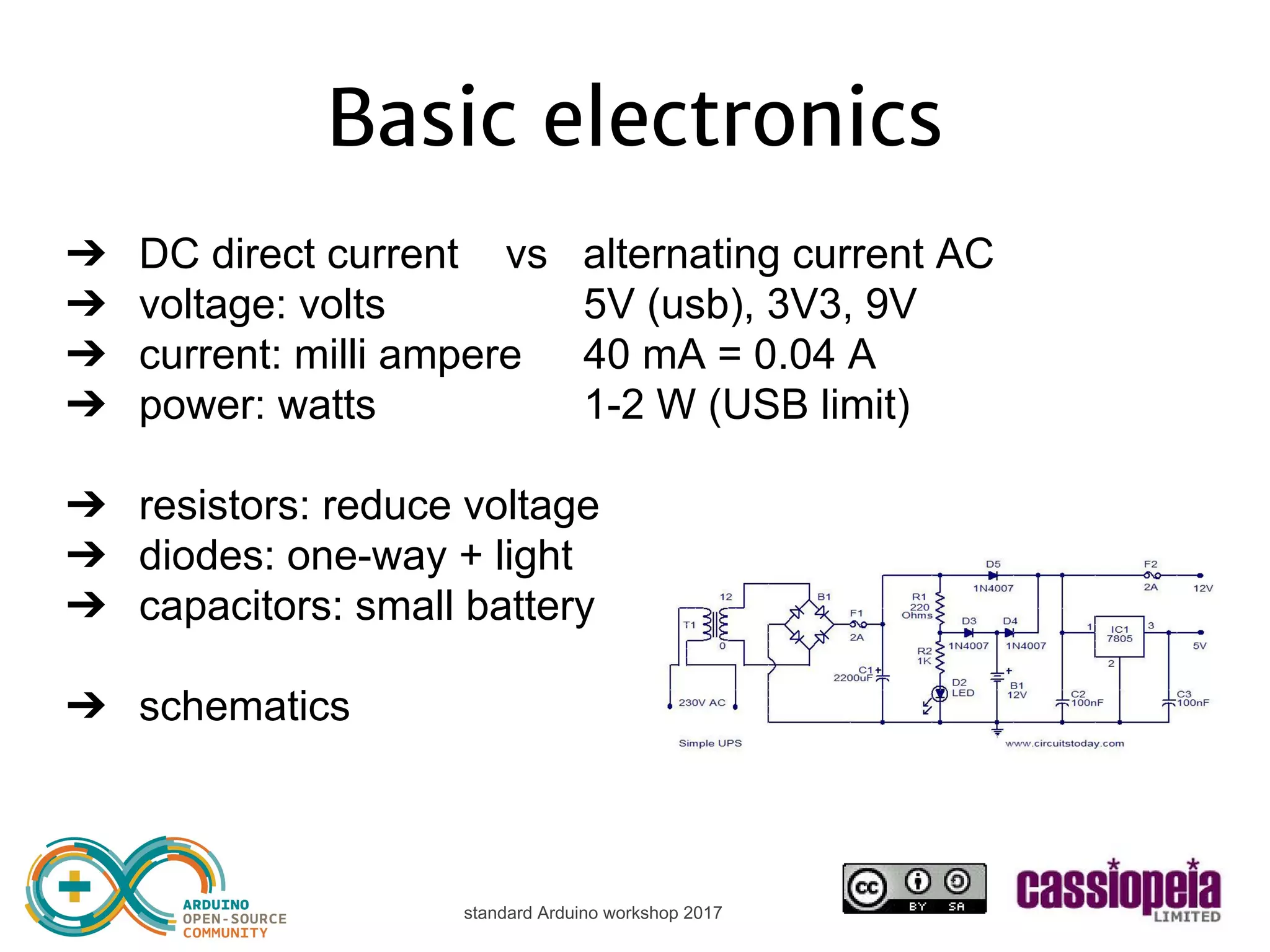
standard Arduino workshop 2017 Basic electronics ➔ DC direct current vs alternating current AC ➔ voltage: volts 5V (usb), 3V3, 9V ➔ current: milli ampere 40 mA = 0.04 A ➔ power: watts 1-2 W (USB limit) ➔ resistors: reduce voltage ➔ diodes: one-way + light ➔ capacitors: small battery ➔ schematics
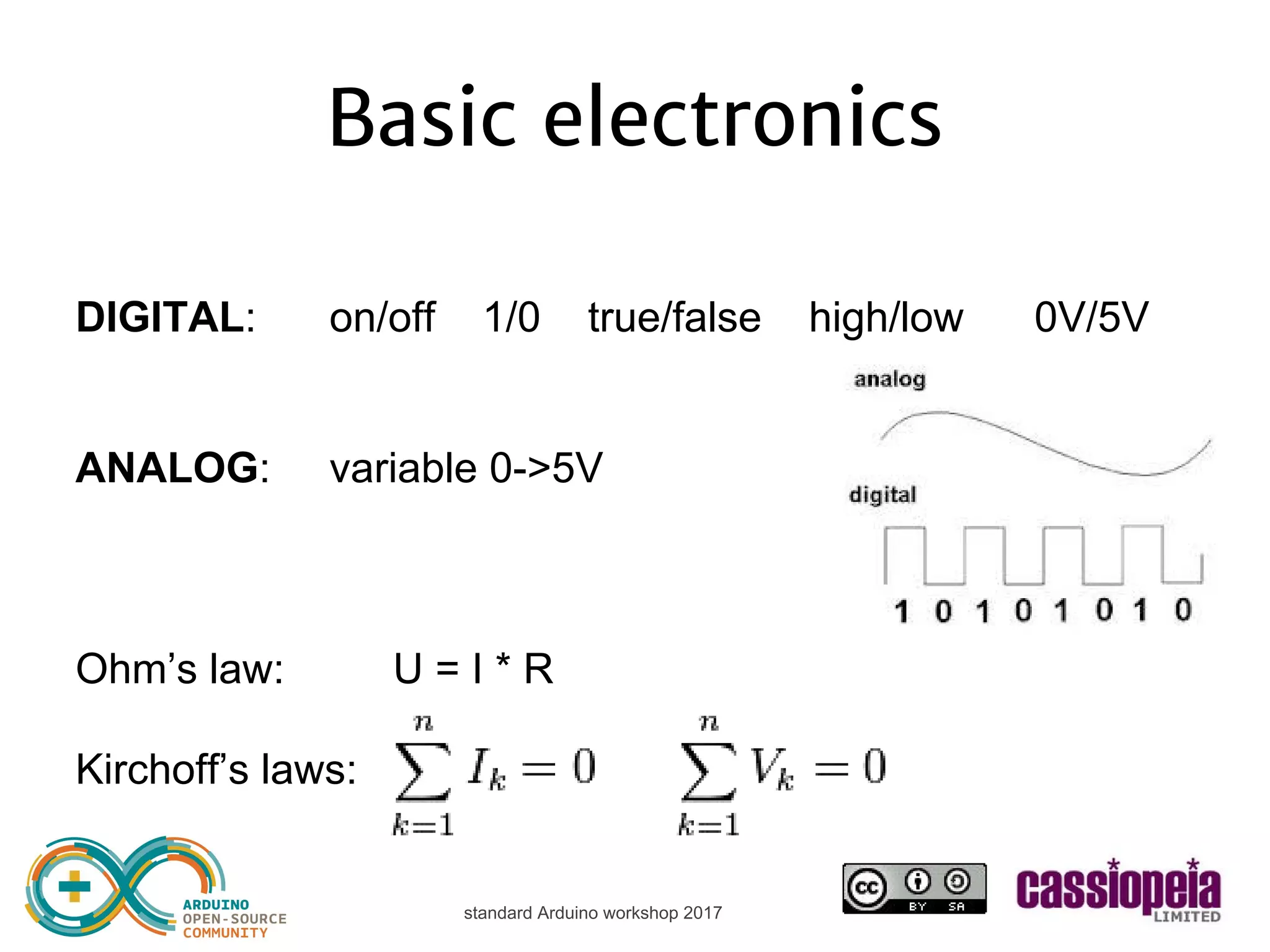
standard Arduino workshop 2017 Basic electronics DIGITAL: on/off 1/0 true/false high/low 0V/5V ANALOG: variable 0->5V Ohm’s law: U = I * R Kirchoff’s laws:
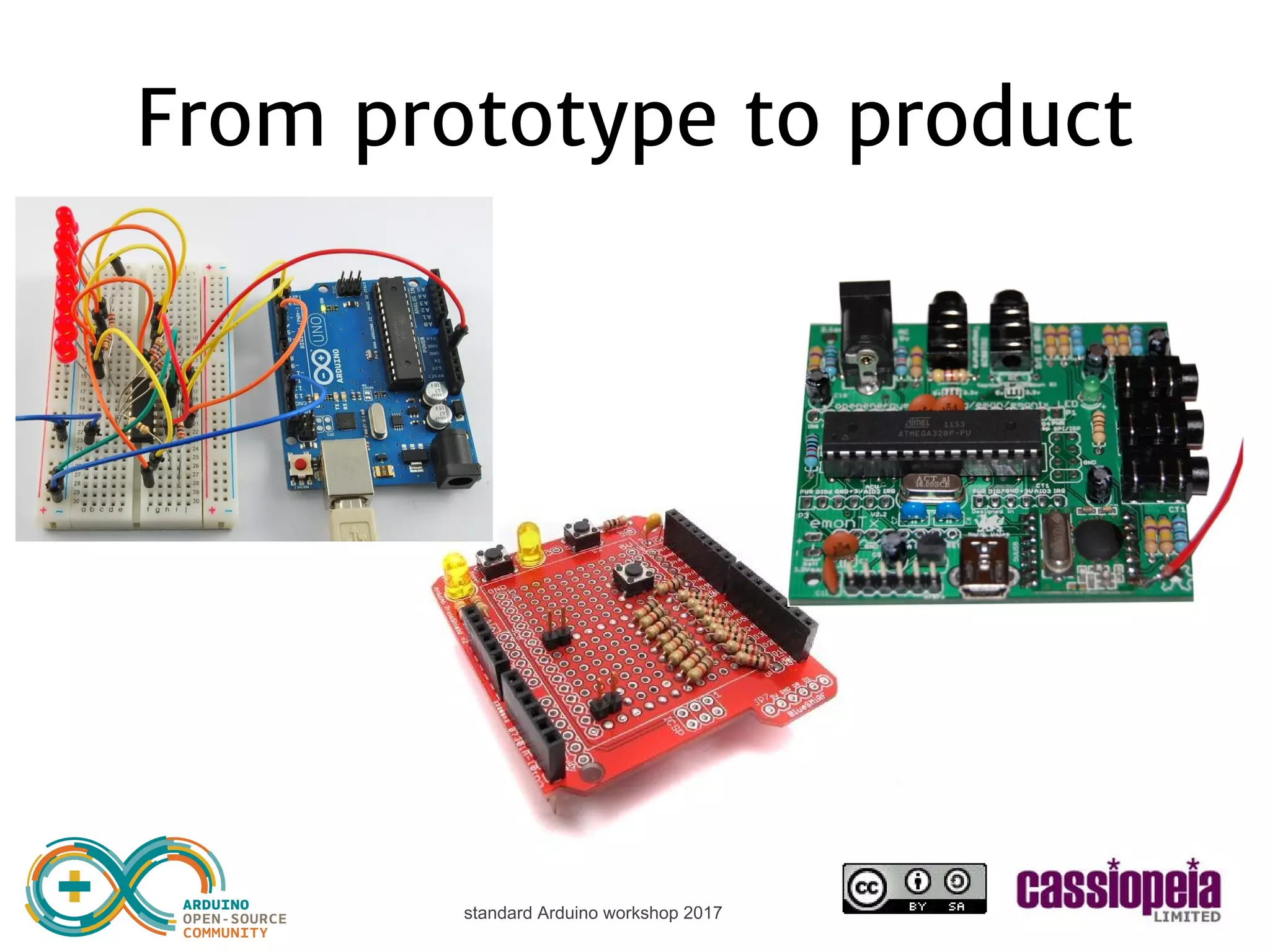
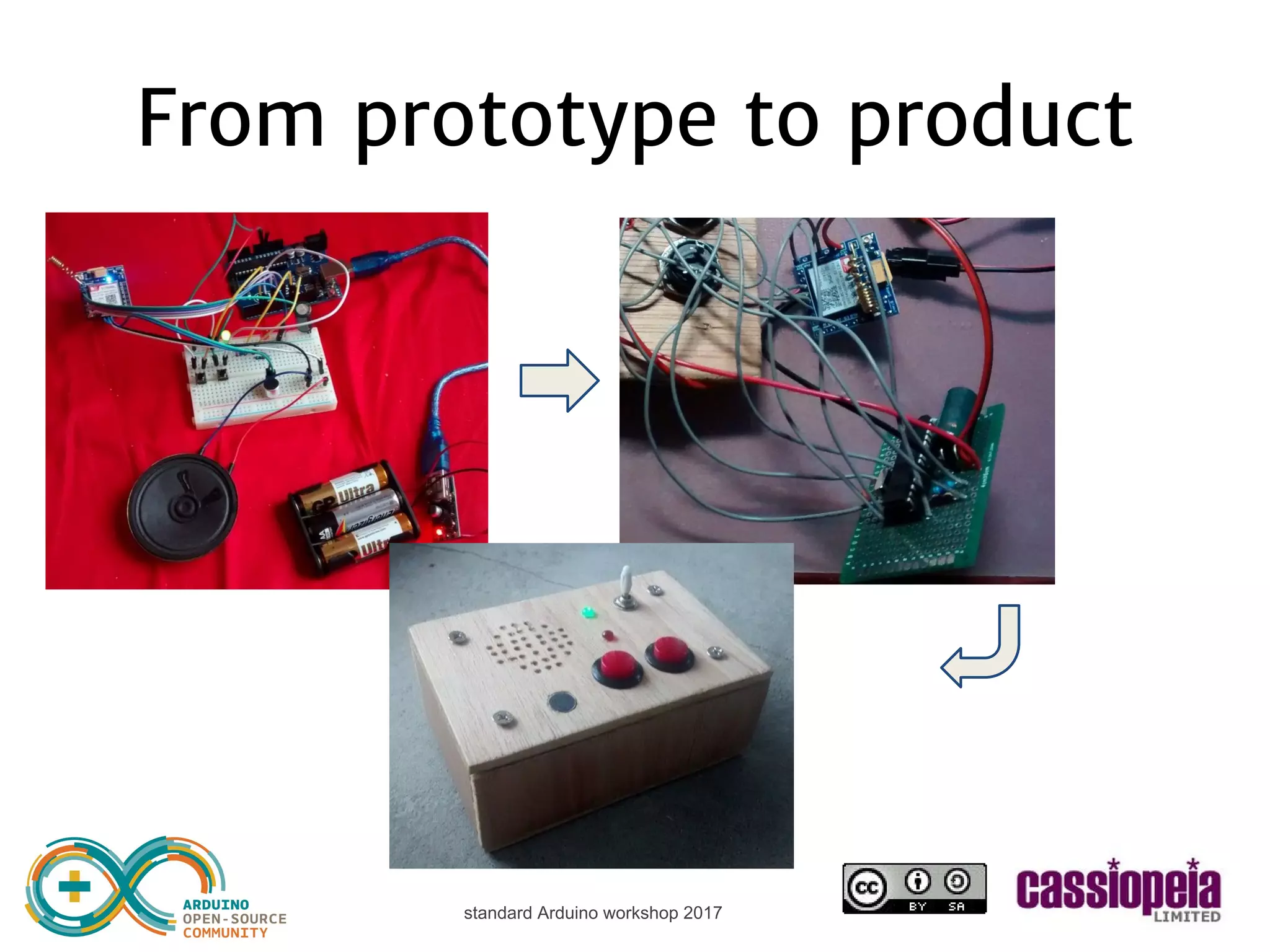
standard Arduino workshop 2017 From prototype to product
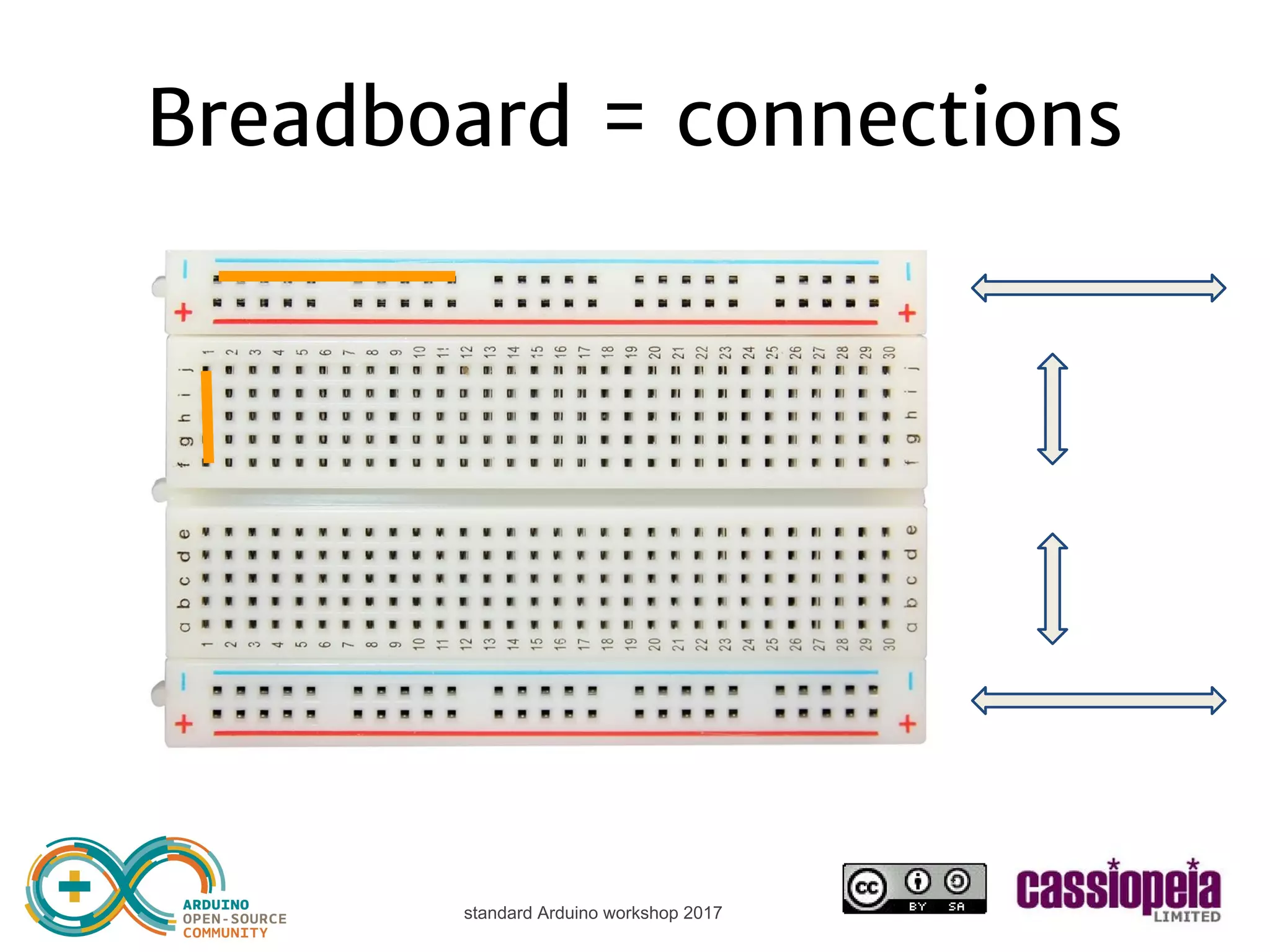
standard Arduino workshop 2017 Breadboard = connections
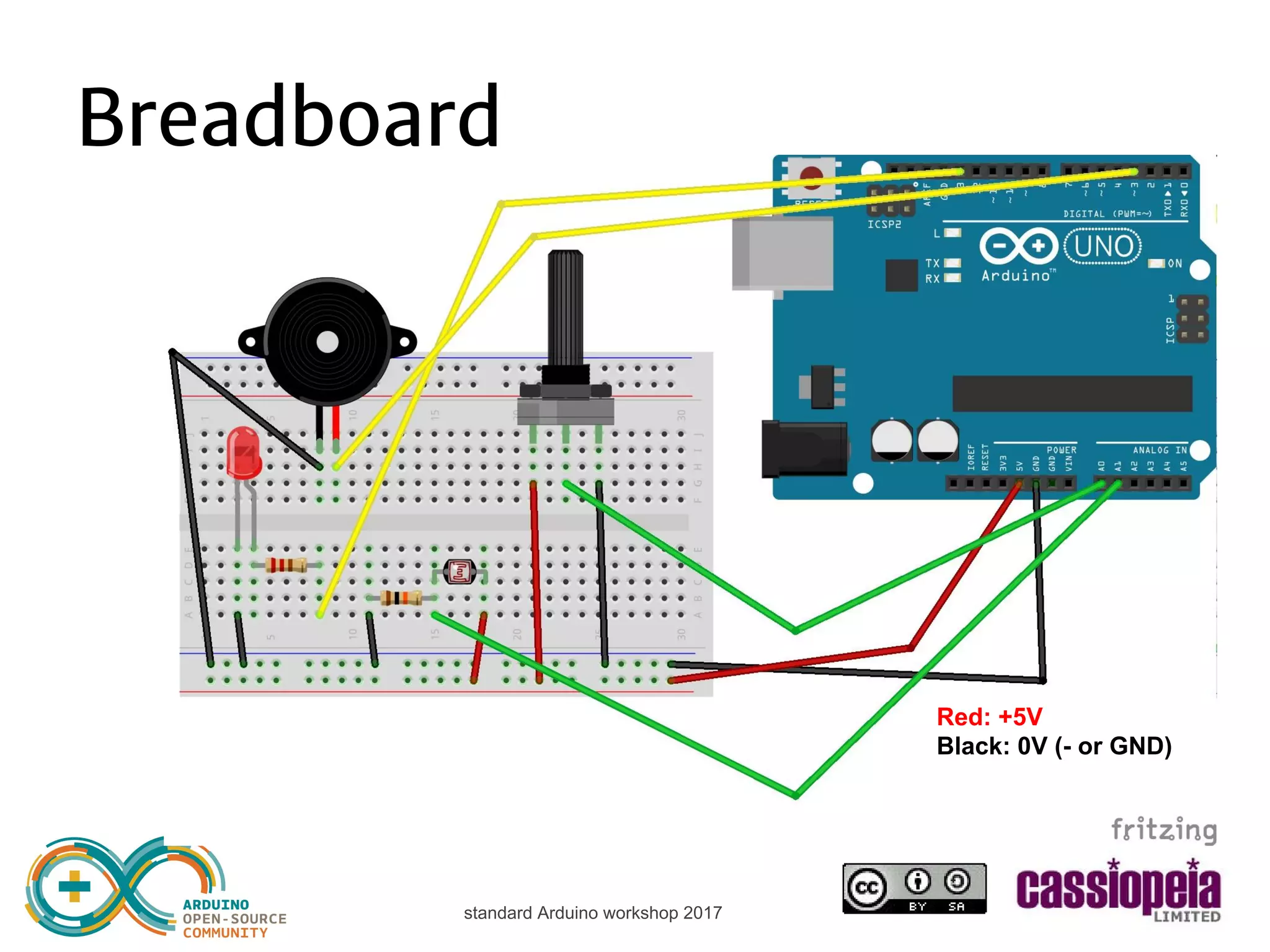
standard Arduino workshop 2017 Breadboard power rails 5V to red line GND to blue line Optional: connect to other side
standard Arduino workshop 2017 Breadboard
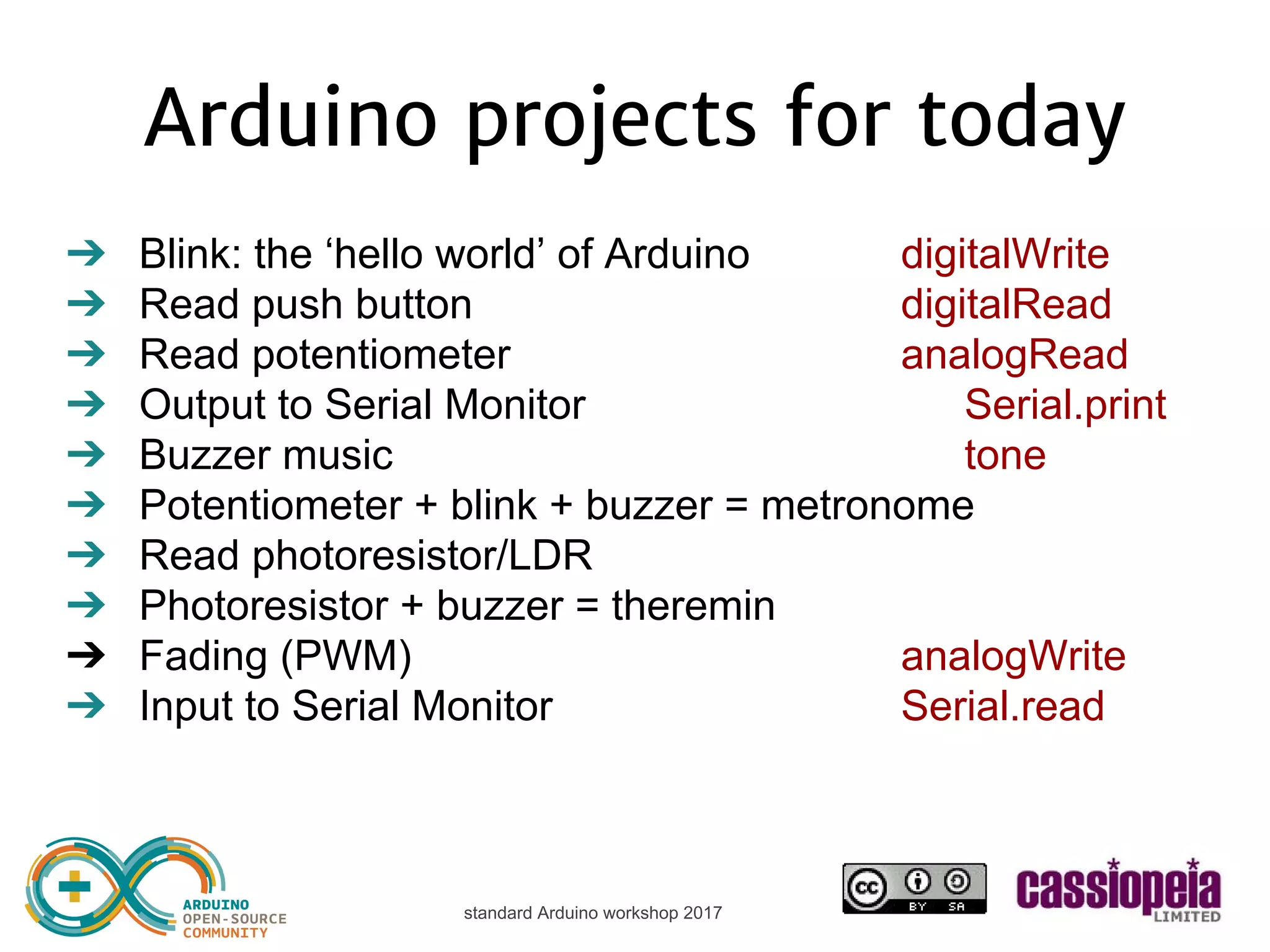
standard Arduino workshop 2017 Arduino projects for today ➔ Blink: the ‘hello world’ of Arduino pinMode digitalWrite delay ➔ Read push button digitalRead ➔ Read potentiometer analogRead ➔ Output to Serial Monitor Serial.print ➔ Buzzer music tone ➔ Potentiometer + blink + buzzer = metronome ➔ Read photoresistor/LDR ➔ Fading (PWM) analogWrite ➔ Input to Serial Monitor Serial.read
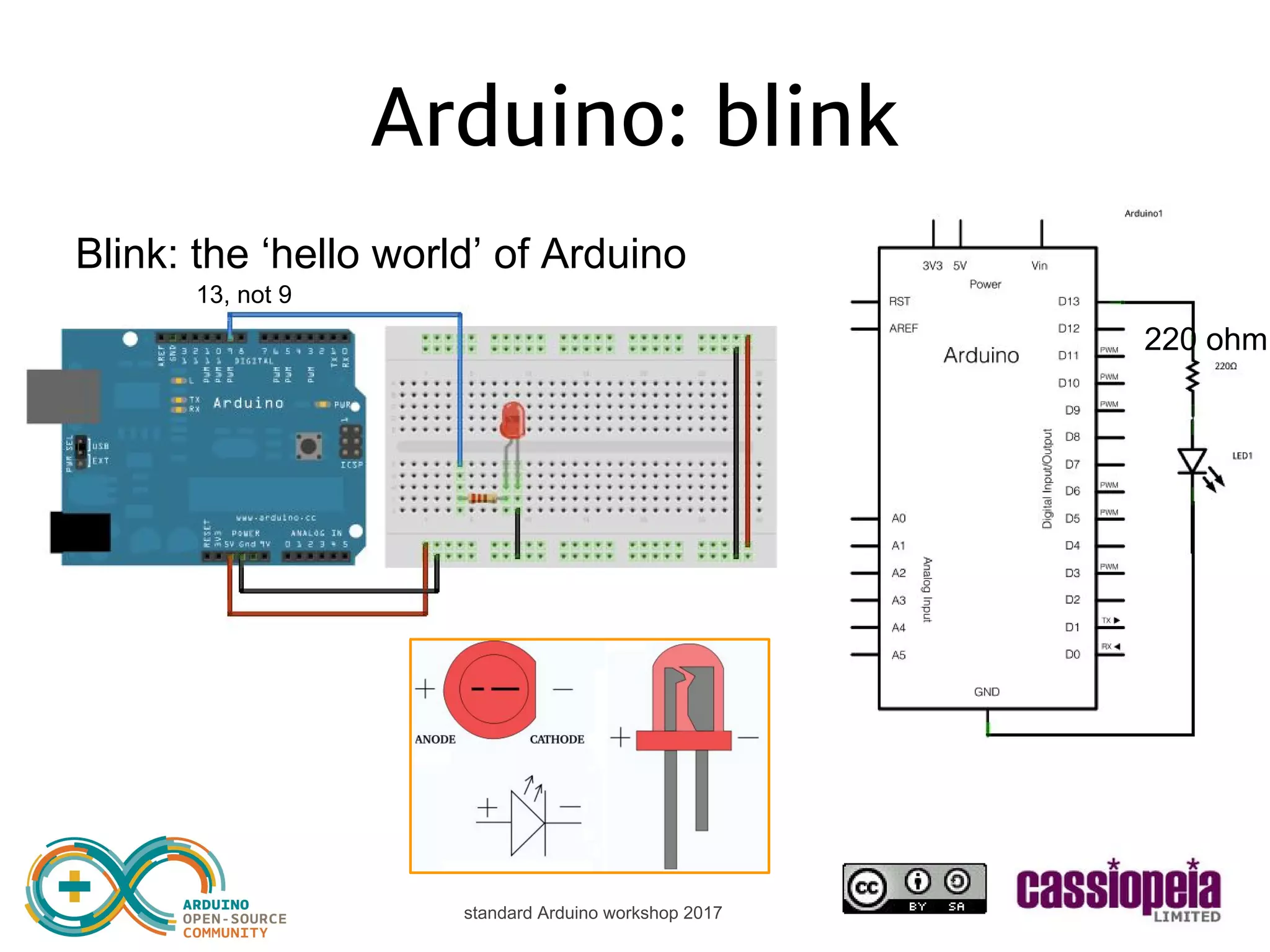
standard Arduino workshop 2017 Arduino: blink Blink: the ‘hello world’ of Arduino 220 ohm
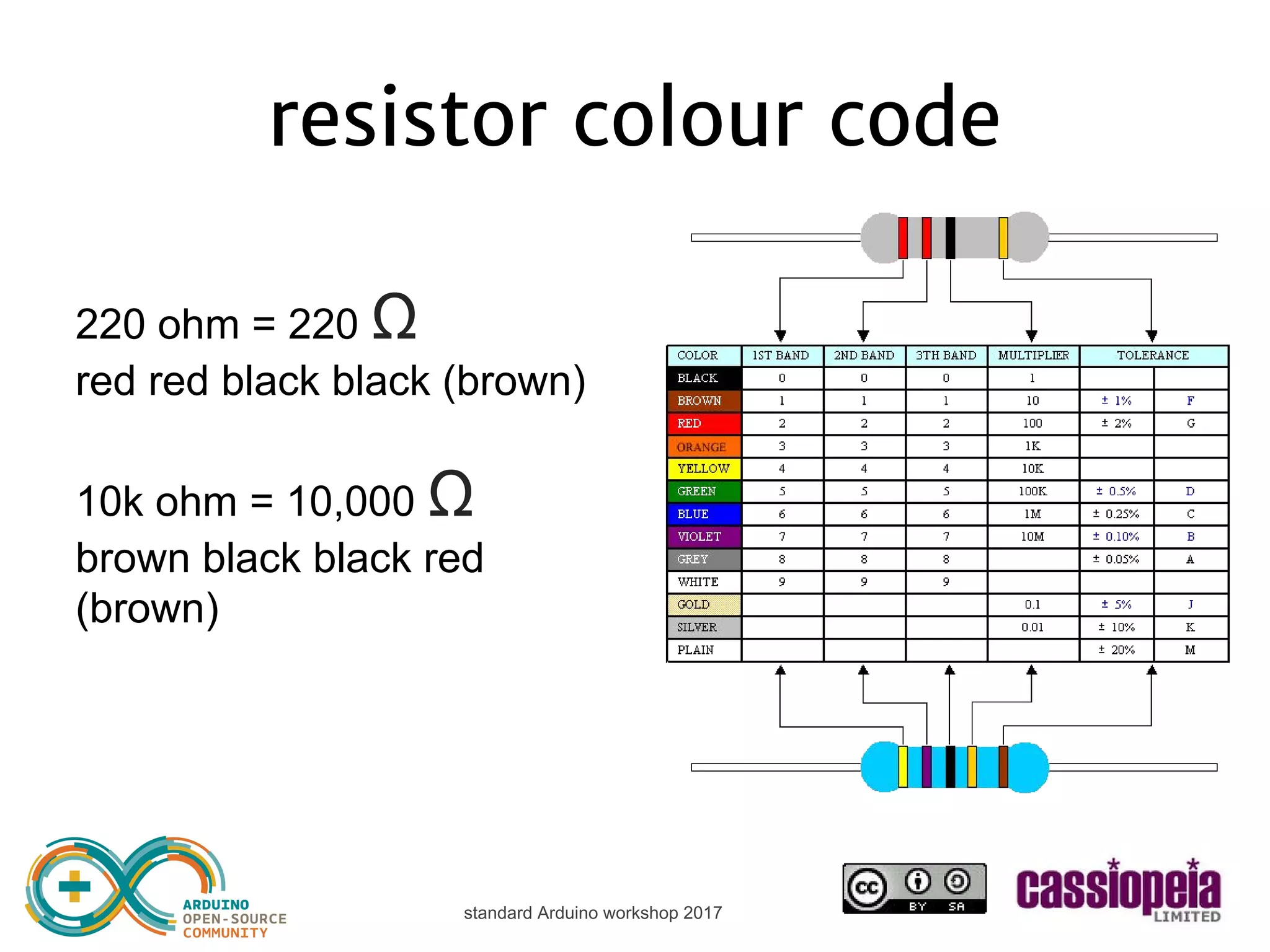
standard Arduino workshop 2017 resistor colour code 220 ohm = 220 Ω red red black black (brown) 10k ohm = 10,000 Ω brown black black red (brown)
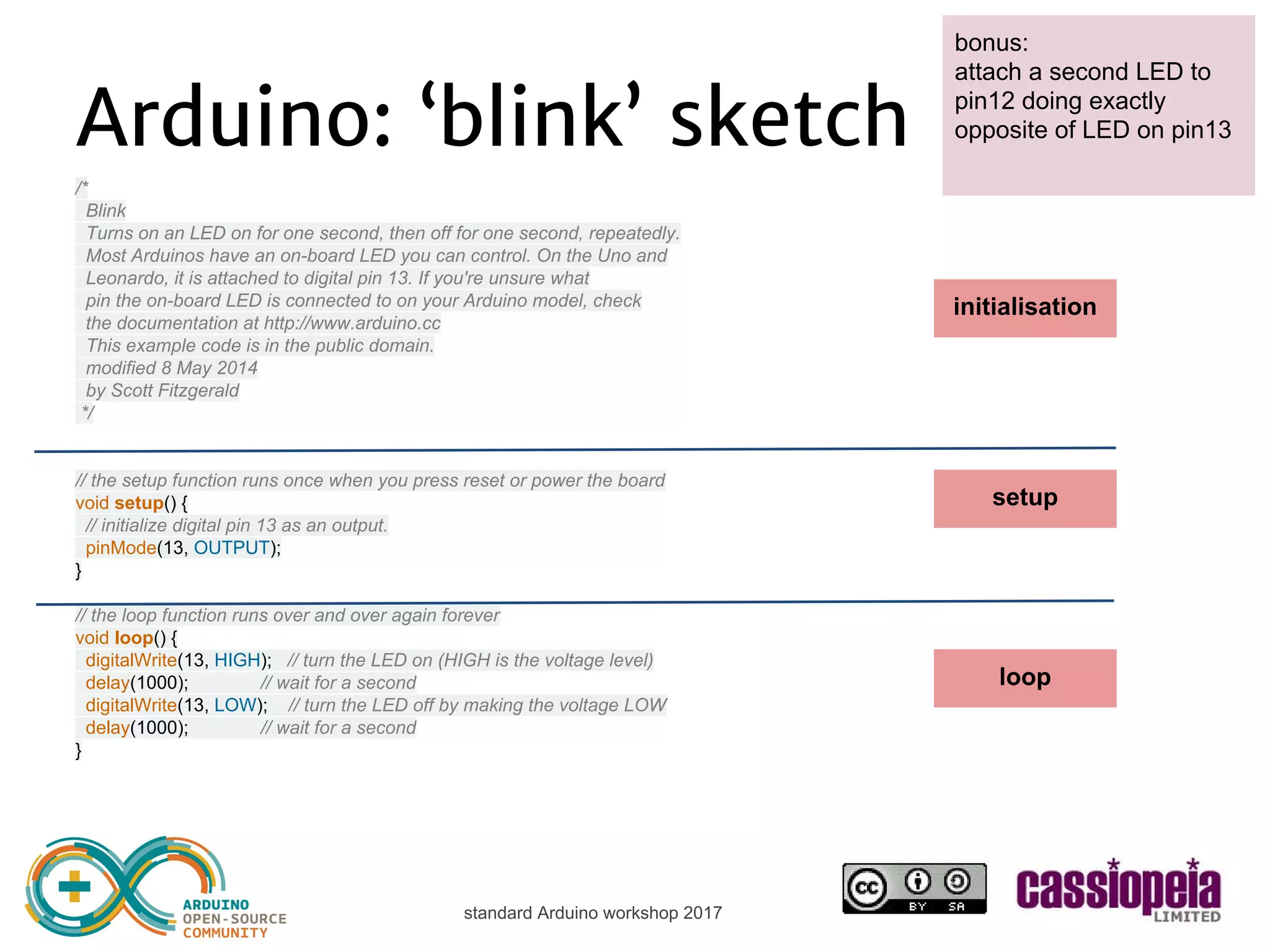
standard Arduino workshop 2017 Arduino: ‘blink’ sketch /* Blink Turns on an LED on for one second, then off for one second, repeatedly. Most Arduinos have an on-board LED you can control. On the Uno and Leonardo, it is attached to digital pin 13. If you're unsure what pin the on-board LED is connected to on your Arduino model, check the documentation at http://www.arduino.cc This example code is in the public domain. modified 8 May 2014 by Scott Fitzgerald */ // the setup function runs once when you press reset or power the board void setup() { // initialize digital pin 13 as an output. pinMode(13, OUTPUT); } // the loop function runs over and over again forever void loop() { digitalWrite(13, HIGH); // turn the LED on (HIGH is the voltage level) delay(1000); // wait for a second digitalWrite(13, LOW); // turn the LED off by making the voltage LOW delay(1000); // wait for a second } initialisation setup { } loop { } bonus: attach a second LED to pin12 doing exactly opposite of LED on pin13
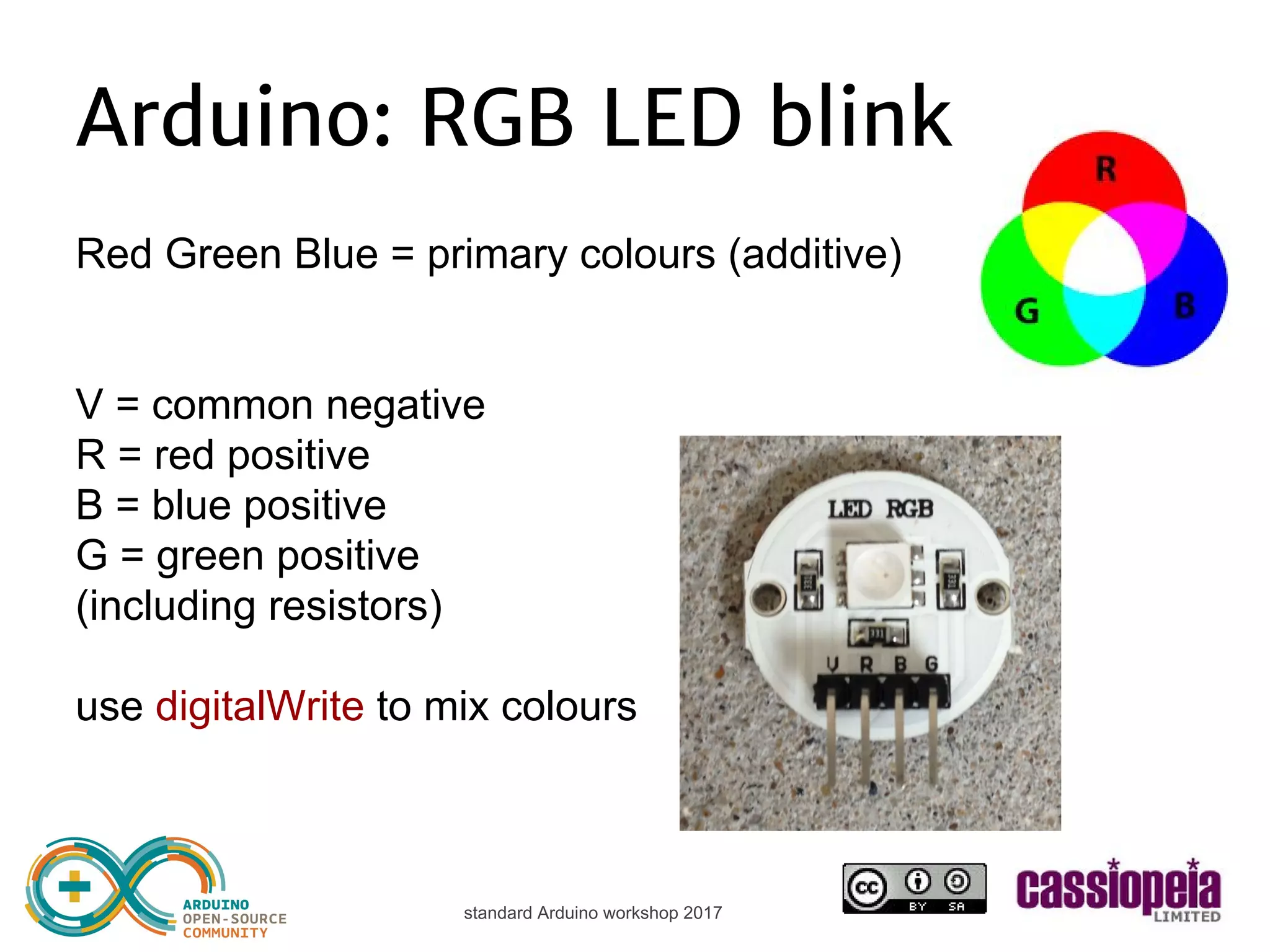
standard Arduino workshop 2017 Arduino: RGB LED blink Red Green Blue = primary colours (additive) V = common negative R = red positive B = blue positive G = green positive (including resistors) use digitalWrite to mix colours e.g. on pin 10, 11, 12
standard Arduino workshop 2017 Arduino: RGB LED blink
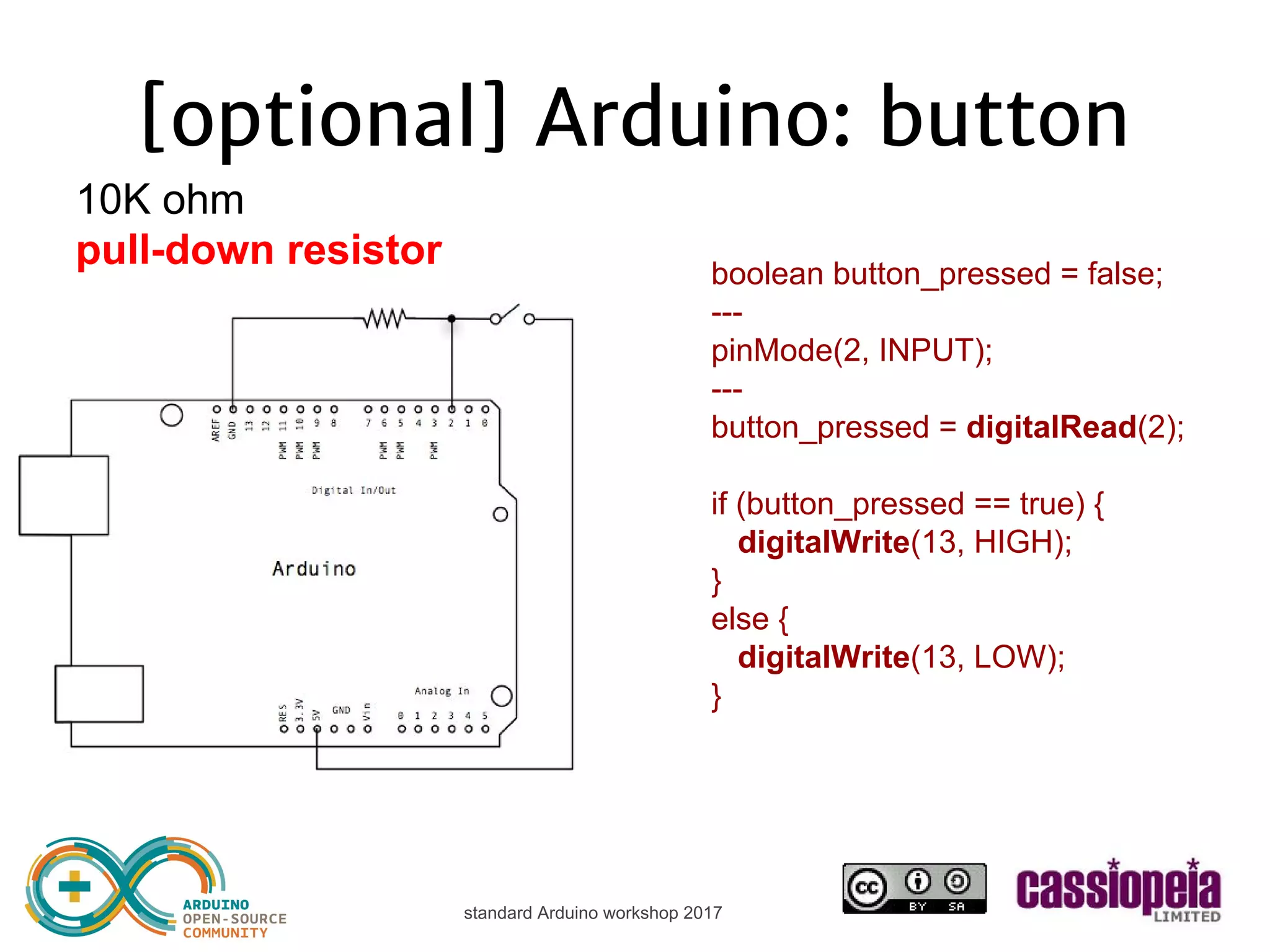
standard Arduino workshop 2017 [optional] Arduino: button boolean button_pressed = false; --- pinMode(2, INPUT); --- button_pressed = digitalRead(2); if (button_pressed == true) { digitalWrite(13, HIGH); } else { digitalWrite(13, LOW); } use pinMode(2, INPUT_PULLUP); or: pull-down resistor (e.g. 10kΩ)
standard Arduino workshop 2017 Arduino: potentiometer
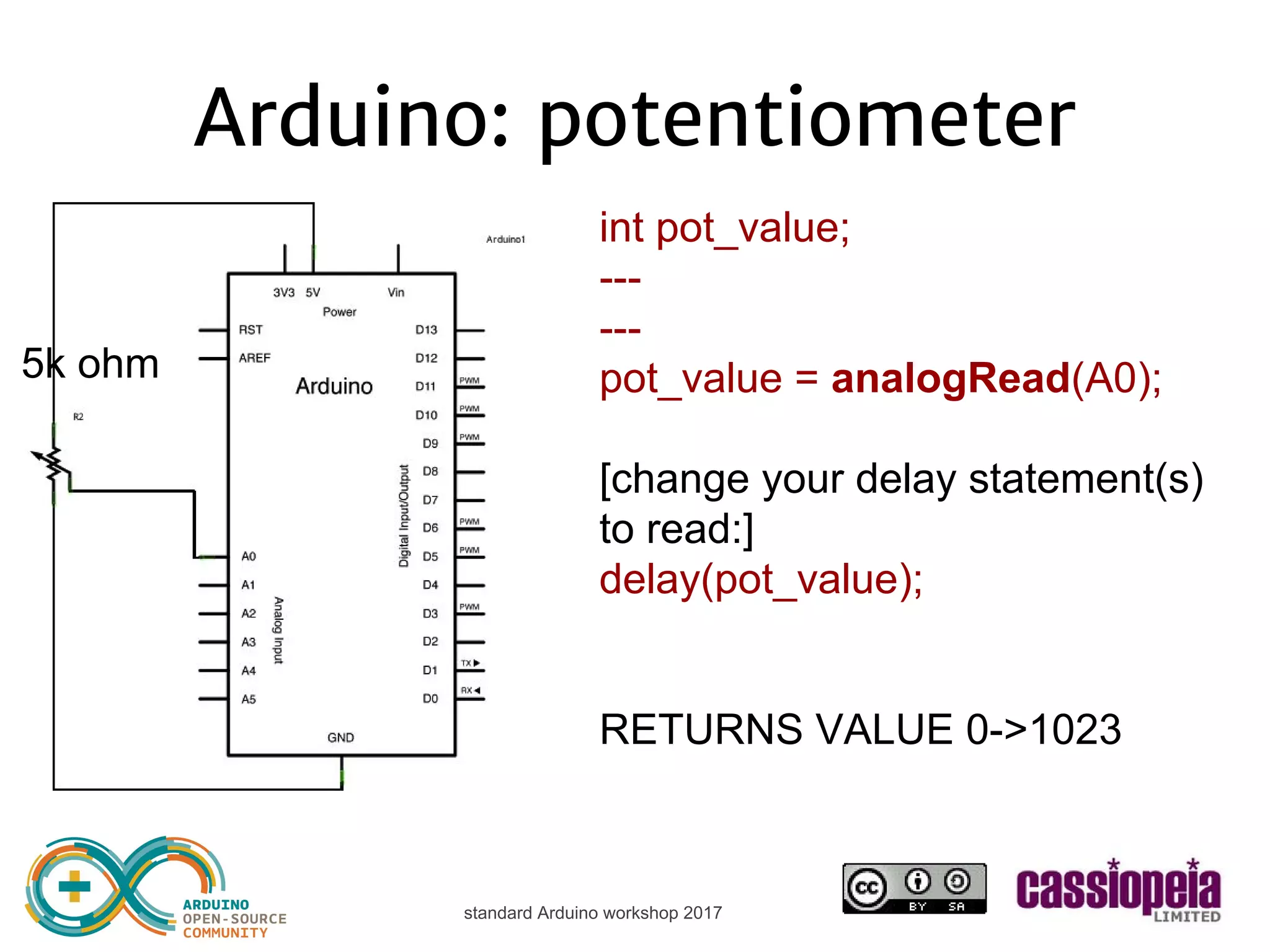
standard Arduino workshop 2017 Arduino: potentiometer int pot_value; [VARIABLE] [SETUP] [LOOP] pot_value = analogRead(A0); [change your delay to:] delay(pot_value); [analogRead returns 0->1023] 5k ohm
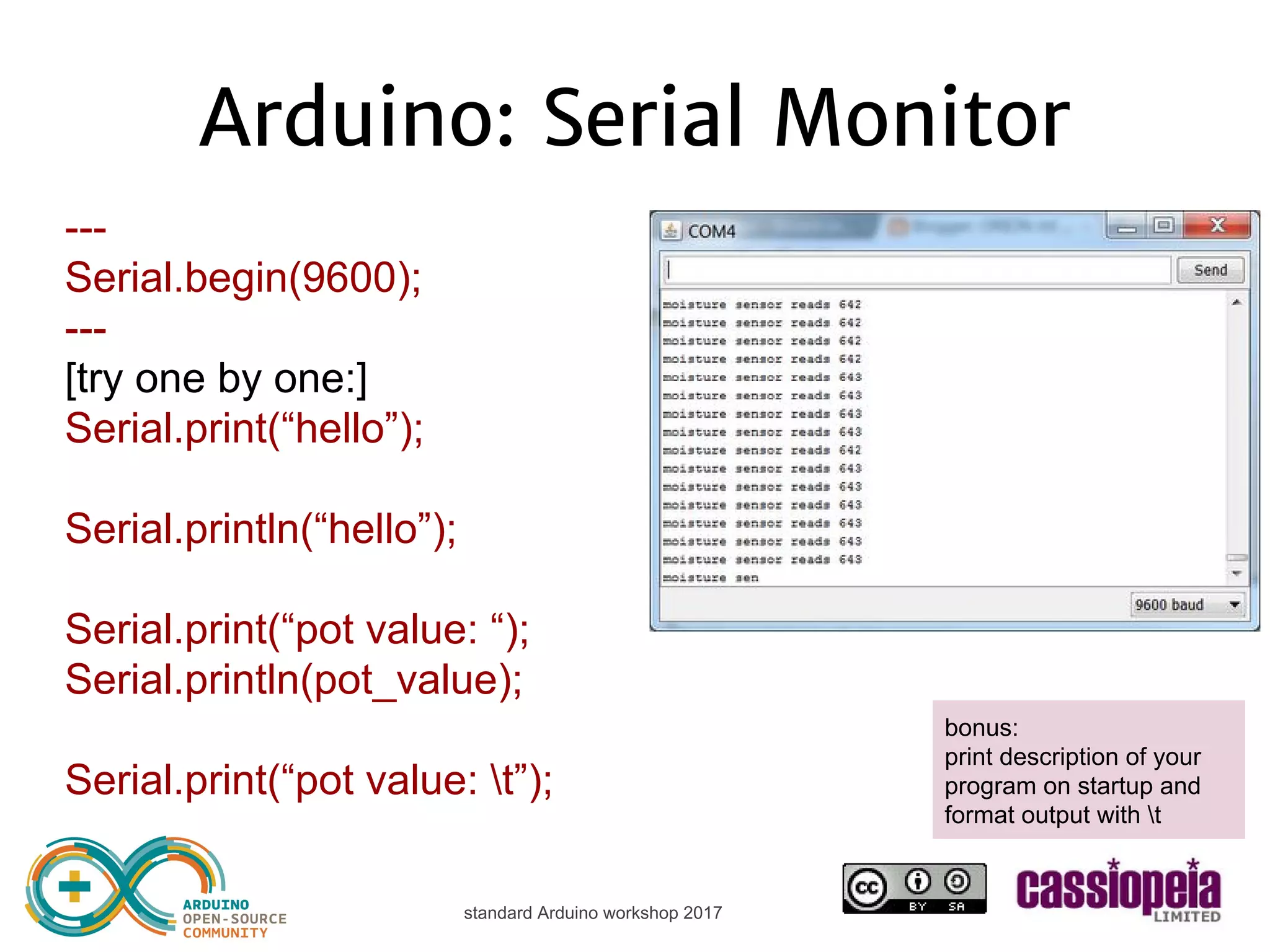
standard Arduino workshop 2017 Arduino: Serial Monitor [SETUP] Serial.begin(9600); [LOOP] [try one by one:] Serial.print(“hello”); [or] Serial.println(“hello”); [or] Serial.print(“pot value: “); Serial.println(pot_value); bonus: print description of your program on startup and format output with t
standard Arduino workshop 2017 Arduino: Serial Plotter [LOOP] Serial.println(pot_value);
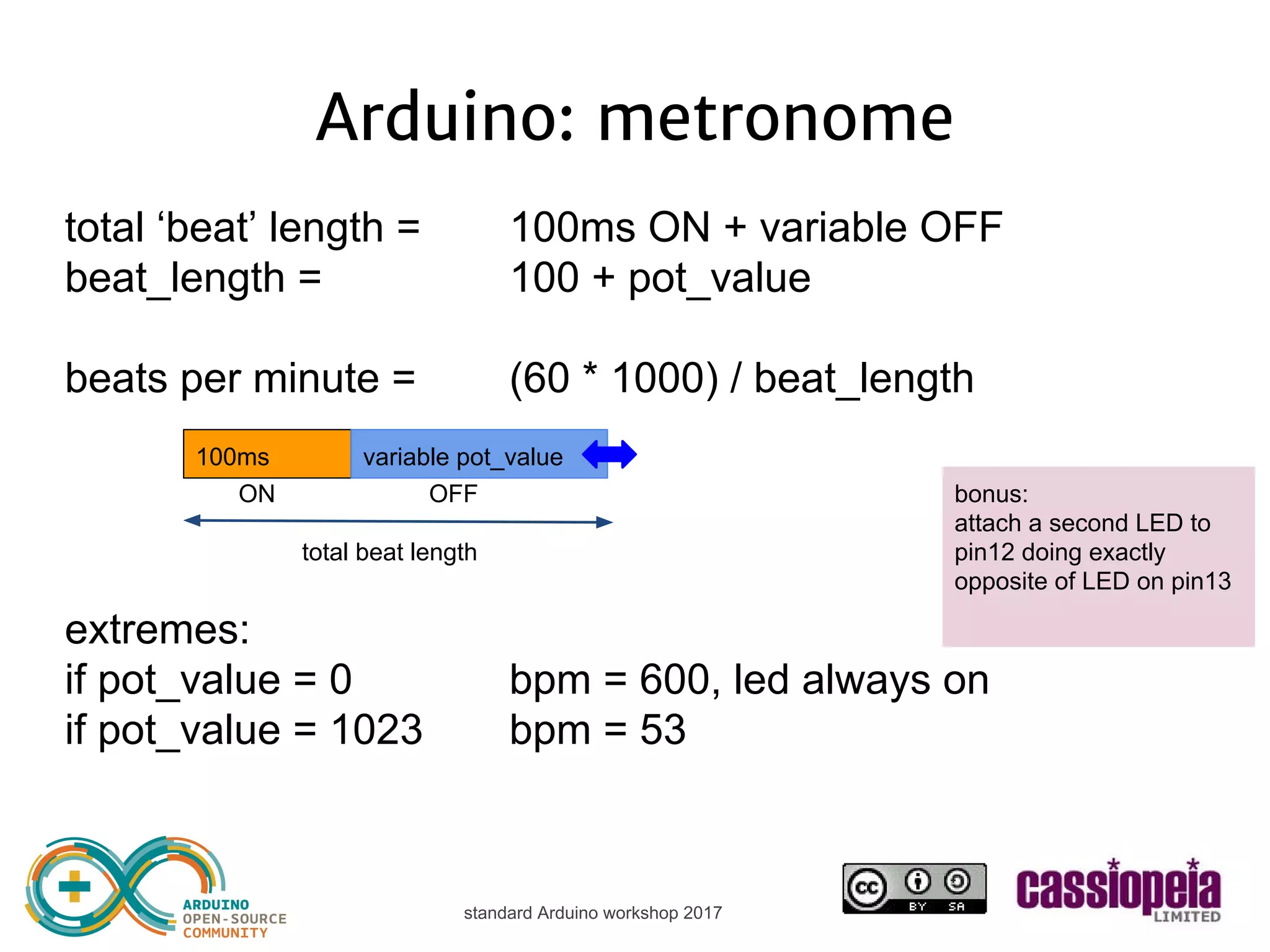
standard Arduino workshop 2017 Arduino: metronome Blink with variable speed, and bpm in serial monitor How? read pot_value (analogRead) print pot_value (Serial.print) calculate beats per minute (=) print BPM (Serial.print) LED ON for 100ms (digitalWrite) LED OFF for variable time: pot_value 100ms variable pot_value ON OFF
standard Arduino workshop 2017 Arduino: metronome total ‘beat’ length = 100ms ON + variable OFF beat_length = 100 + pot_value beats per minute = (60 * 1000) / beat_length BPM will vary from 53 to 600 100ms variable pot_value bonus: attach a second LED to pin12 doing exactly opposite of LED on pin13 ON OFF total beat length
standard Arduino workshop 2017 Arduino: metronome ‘int’ type does not work with large numbers (larger than around 32000, 16 bits) type to use = ‘long’ long bpm; [SETUP] [LOOP] bpm = (60 * 1000L) / (100 + pot_value); bonus: format your output with t
standard Arduino workshop 2017 Arduino: sound Piezo buzzer = speaker SYNTAX: tone(pin, freq); tone(pin, freq, duration); noTone(pin); [SETUP] [LOOP] tone(3, 261); [put in correct place!] noTone(3); [put in correct place!]
standard Arduino workshop 2017 Arduino: metronome + sound ● LED on and beep (100ms) + LED off and no beep ● variable speed with potentiometer ● serial monitor BPM frequency examples (Hz): C 261 D 293 E 329 G 392 bonus: try different frequencies
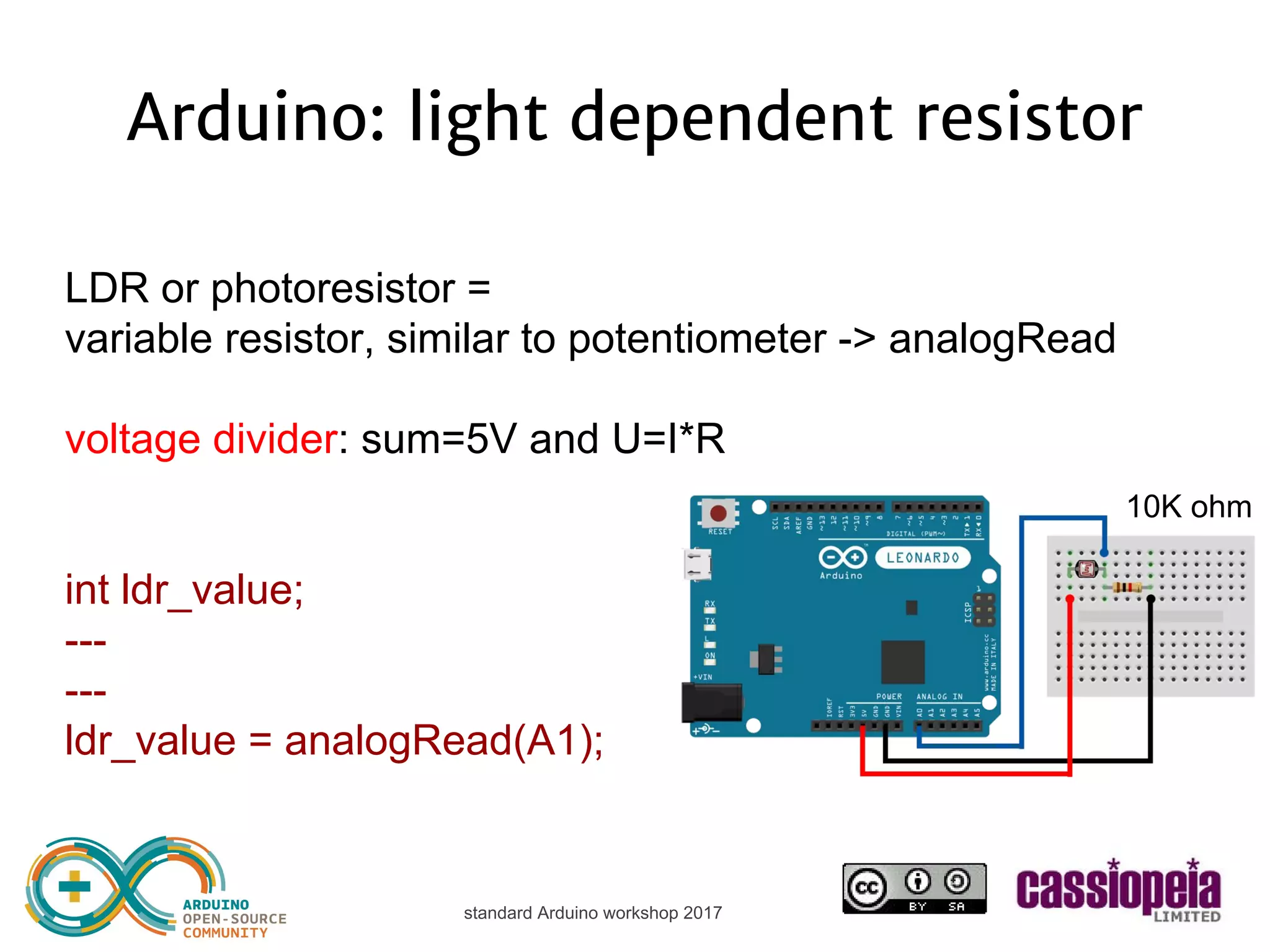
standard Arduino workshop 2017 Arduino: light dependent resistor LDR or photoresistor = variable resistor, similar to potentiometer -> analogRead voltage divider: sum=5V and analog input sees 0->5V 1K ohm
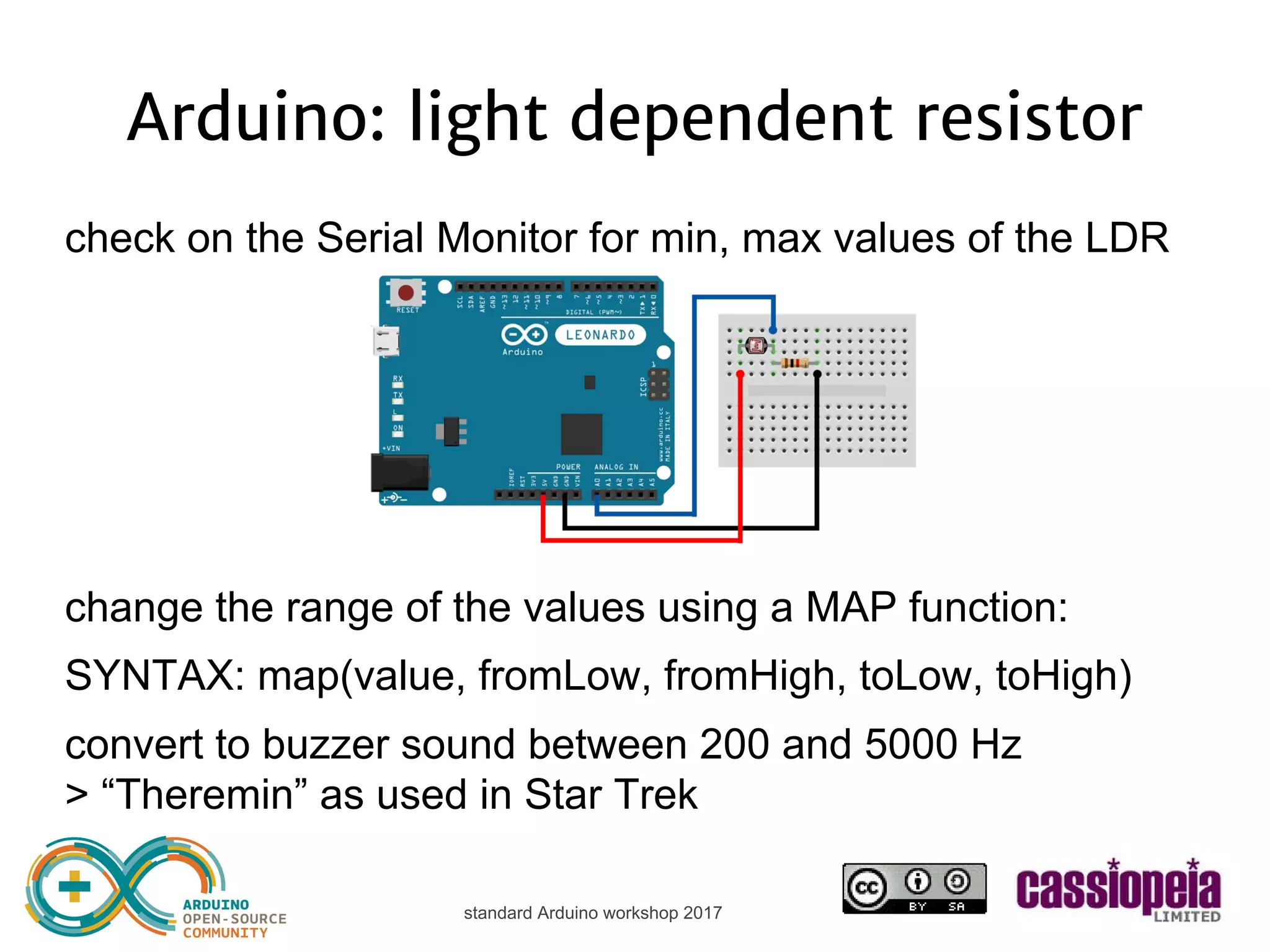
standard Arduino workshop 2017 Arduino: light dependent resistor int ldr_value; [SETUP] [LOOP] ldr_value = analogRead(A1); Serial.println(ldr_value); check on the Serial Monitor for min, max values of the LDR how to go from e.g. 50-500 values to 200-5000Hz frequencies? use ‘map’ function
standard Arduino workshop 2017 Arduino: light dependent resistor int freq; [SETUP] [LOOP] freq = map(ldr_value, 50, 500, 200, 5000); tone(3, freq); [just update this line] SYNTAX: map(value, fromLow, fromHigh, toLow, toHigh)
standard Arduino workshop 2017 Basic theremin
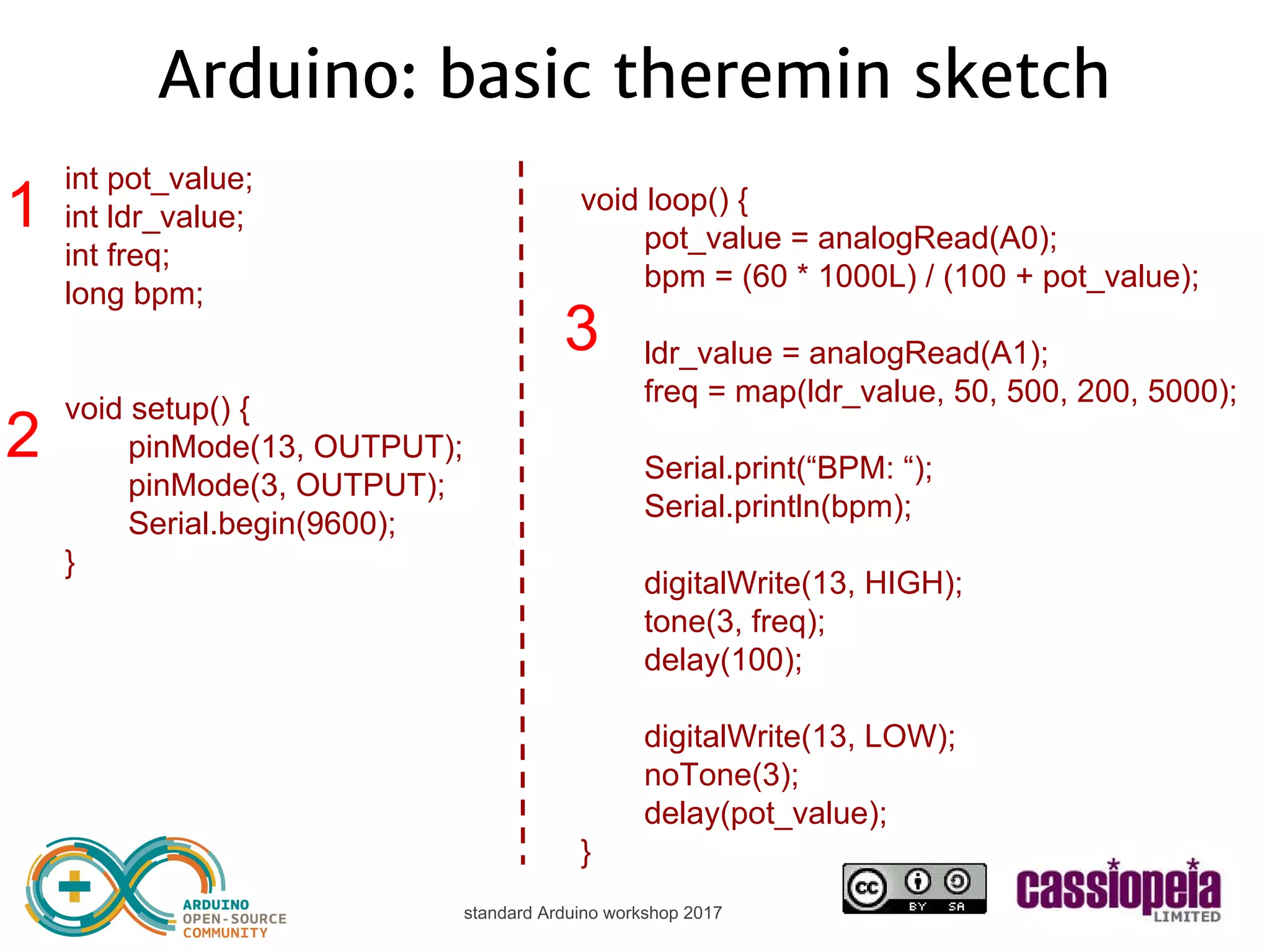
standard Arduino workshop 2017 Arduino: basic theremin sketch int pot_value; int ldr_value; int freq; long bpm; void setup() { pinMode(13, OUTPUT); Serial.begin(9600); } void loop() { pot_value = analogRead(A0); bpm = (60 * 1000L) / (100 + pot_value); ldr_value = analogRead(A1); freq = map(ldr_value, 50, 500, 200, 5000); Serial.print(“BPM: “); Serial.println(bpm); digitalWrite(13, HIGH); tone(3, freq); delay(100); digitalWrite(13, LOW); noTone(3); delay(pot_value); } 1 2 3
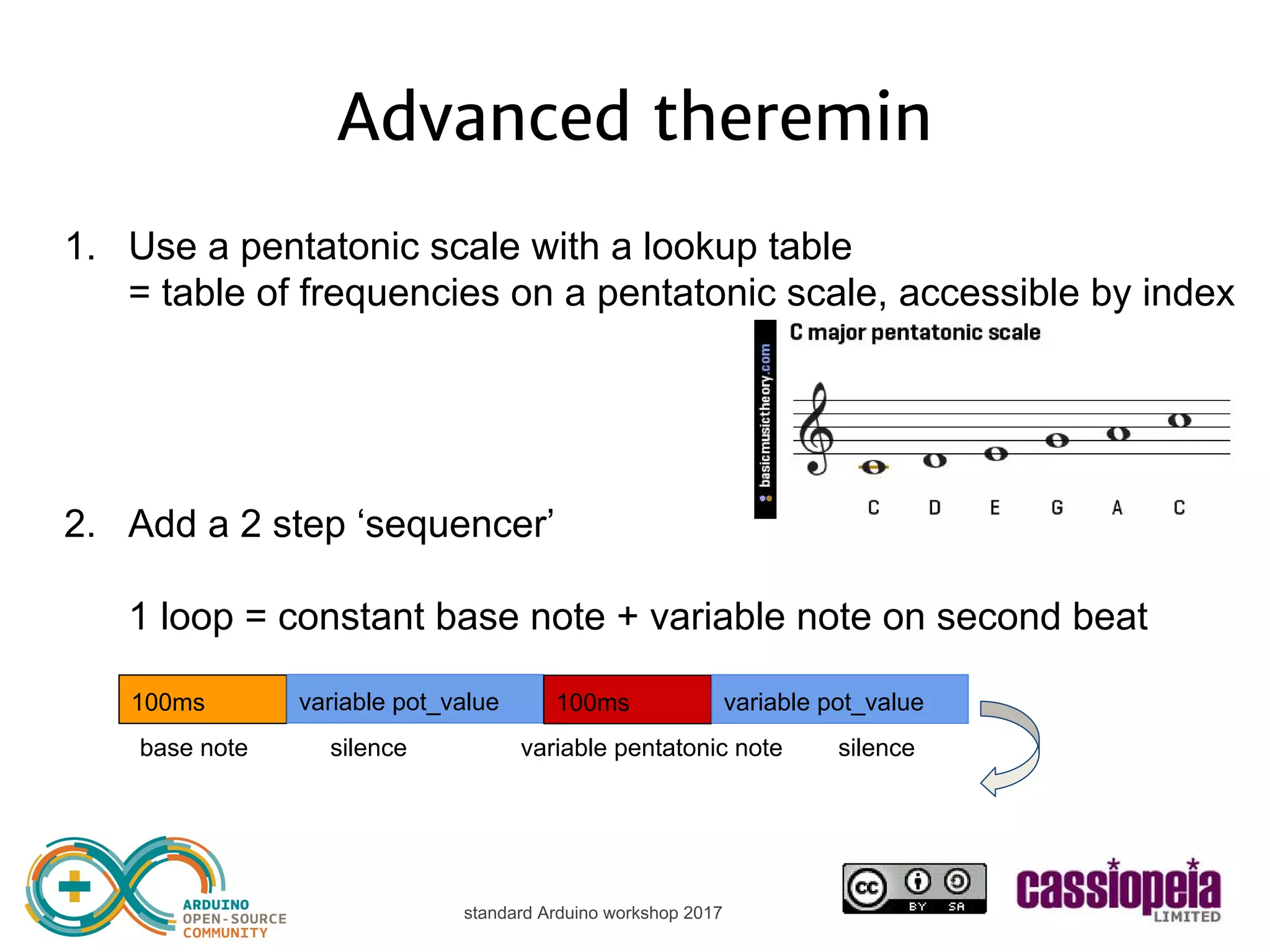
standard Arduino workshop 2017 Advanced theremin 1. Use a pentatonic scale with a lookup table = table of frequencies on a pentatonic scale, accessible by index 2. Add a 2 step ‘sequencer’ 1 loop = constant base note + variable note on second beat 100ms variable pot_value 100ms variable pot_value base note silence variable pentatonic note silence
standard Arduino workshop 2017 Pentatonic theremin Pentatonic scale with a lookup table int pentatonicTable[50] = { 0, 19, 22, 26, 29, 32, 38, 43, 51, 58, 65, 77, 86, 103, 115, 129, 154, 173, 206, 231, 259, 308, 346, 411, 461, 518, 616, 691, 822, 923, 1036, 1232, 1383, 1644, 1845, 2071, 2463, 2765, 3288, 3691, 4143, 4927, 5530, 6577, 7382, 8286, 9854, 11060, 13153, 14764 }; OLD: freq = map(ldr_value, 50, 500, 200, 5000); NEW: freq = pentatonicTable[map(ldr_value, 50, 500, 20, 45)];
standard Arduino workshop 2017 2 step sequencer theremin 1 loop = constant base note + variable note on second beat tone(3, 206); noTone(3); tone(3, freq); noTone(3); delay(100); delay(pot_value); delay(100); delay(pot_value); Now you can add steps, change length of steps etc... 100ms variable pot_value 100ms variable pot_value base note silence variable pentatonic note silence
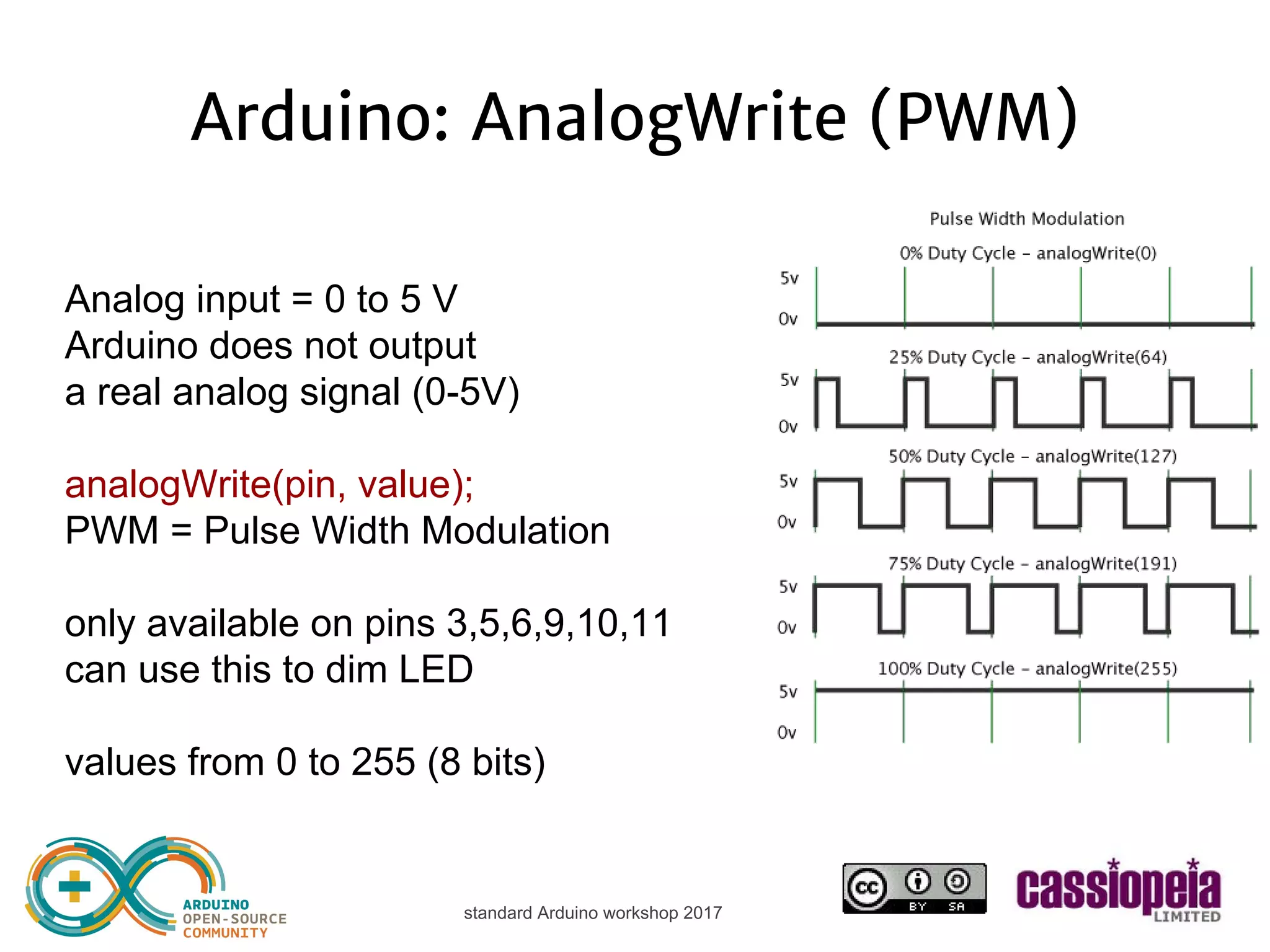
standard Arduino workshop 2017 Arduino: AnalogWrite (PWM) Analog input = 0 to 5 V Arduino does not output a real analog signal (0-5V) analogWrite(pin, value); PWM = Pulse Width Modulation only available on pins 3,5,6,9,10,11 can use this to fade LED values from 0 to 255 (8 bits)
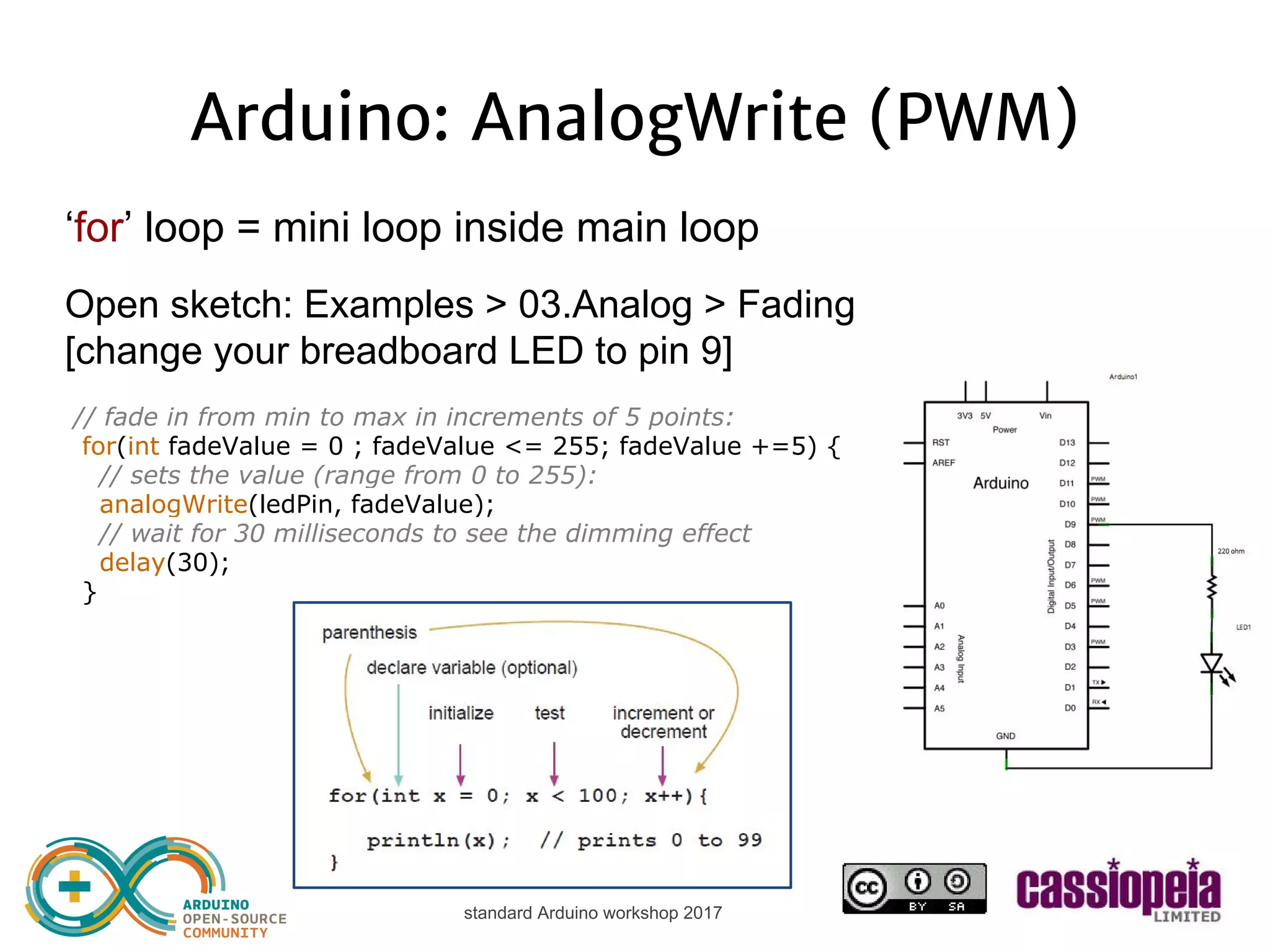
standard Arduino workshop 2017 Arduino: AnalogWrite (PWM) ‘for’ structure = loop for X times Open sketch: Examples > 03.Analog > Fading [change your breadboard LED to pin 9] // fade in from min to max in increments of 5 points: for(int fadeValue = 0 ; fadeValue <= 255; fadeValue +=5) { // sets the value (range from 0 to 255): analogWrite(ledPin, fadeValue); // wait for 30 milliseconds to see the dimming effect delay(30); }
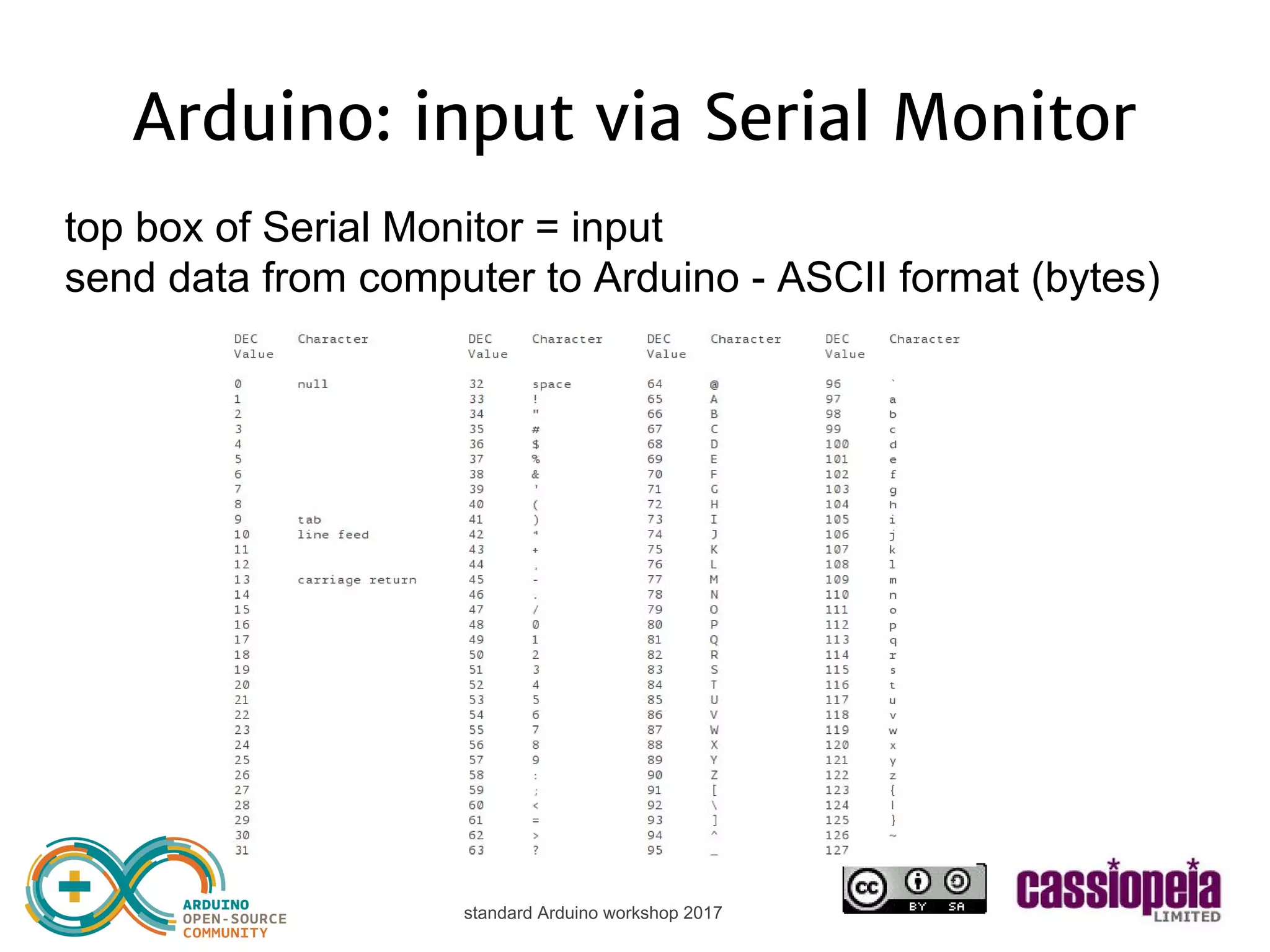
standard Arduino workshop 2017 Arduino: input via Serial Monitor top box of Serial Monitor = input send data from computer to Arduino - ASCII format (bytes)
standard Arduino workshop 2017 Arduino: input via Serial Monitor Let’s read a number 0-9 for intensity of LED [remove all commands from loop] int brightness; [SETUP] Serial.begin(9600); [LOOP] if (Serial.available()) { brightness = Serial.read(); Serial.print("Arduino received: "); Serial.println(brightness); } [switch to ‘No line ending’ at bottom of Serial Monitor?]
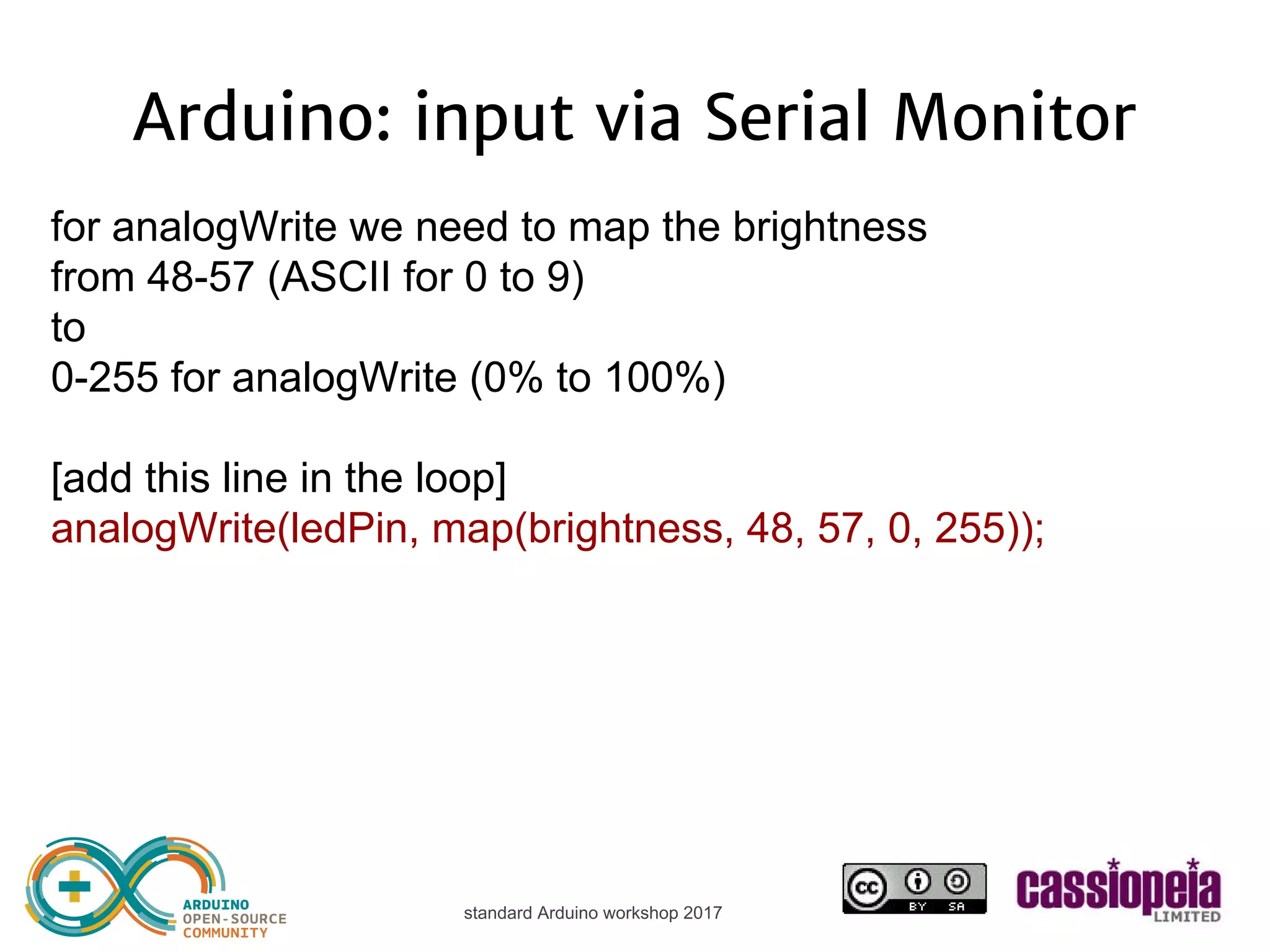
standard Arduino workshop 2017 Arduino: input via Serial Monitor for analogWrite we need to map the brightness from 48-57 (ASCII for 0 to 9) to 0-255 for analogWrite (0% to 100%) [add this line in the loop] analogWrite(ledPin, map(brightness, 48, 57, 0, 255));
standard Arduino workshop 2017 Arduino: suppliers ONLINE ➔ Official Arduino shop: http://arduino.cc/ great documentation, projects, forum ➔ Seeedstudio: http://www.seeedstudio.com/depot/ ➔ Telesky: https://telesky.world.tmall.com/ ➔ Adafruit: http://www.adafruit.com/ great documentation IN HONG KONG - Apliu St ➔ WECL http://www.weclonline.com/wecl_eng/index.html ➔ Tell How http://tellhow-tech.com/
standard Arduino workshop 2017 Arduino: kits ➔ Seeedstudio Sidekick Arduino kit ➔ Arduino Starter Kit
standard Arduino workshop 2017 Dimsum Labs the hackerspace of HK www.dimsumlabs.com/ community of technology enthusiasts space for creativity in Sheung Wan Tuesday evening HackJam www.facebook.com/groups/hackjamhk/
standard Arduino workshop 2017 Thank you www.cassiopeia.hk Happy tinkering!

Cassiopeia Ltd - standard Arduino workshop

  • 1.
    standard Arduino workshop2017 Hands-on Arduino introduction Tom Tobback www.cassiopeia.hk 2017
  • 2.
    standard Arduino workshop2017 some of Tom’s projects cassiopeia.hk/category/projects/
  • 3.
    standard Arduino workshop2017 Before we start… check the connection between your Arduino board and your laptop: ● plugin your Arduino board USB cable into your laptop ● open Arduino IDE software (www.arduino.cc) ● open the Blink sketch from File>Examples>Basic ● pick the correct port from Tools>Serial Port ● pick the correct board type from Tools>Board “Uno” ● hit ‘upload’ to test the connection ● look for ‘Done uploading’ and check if the onboard LED is blinking
  • 4.
    standard Arduino workshop2017 Arduino: what is it? Arduino is an open-source electronics prototyping platform based on flexible, easy-to-use hardware and software It is intended for artists, designers, hobbyists and anyone interested in creating interactive objects or environments • sensors • sound • light • wifi • ...
  • 5.
    standard Arduino workshop2017 Our program for today terminology 4 software 2 basic electronics 4 projects 20+ metronome theremin
  • 6.
    standard Arduino workshop2017 Arduino terminology software: • IDE • web editor • sketch • uploading hardware: • board • microcontroller (mcu) • pin headers • input • output • digital/analog • breadboard • jumper wires • components
  • 7.
    standard Arduino workshop2017 Arduino vs Raspberry Pi ➔ looks similar ➔ similar price ➔ micro-controller vs mini-computer ➔ Arduino: IO ➔ Pi: OS Other popular platforms: ESP8266, Particle Photon, micro:bit
  • 8.
    standard Arduino workshop2017 Arduino boards ➔ many official boards ➔ different sizes ➔ different connections ➔ use same code ➔ mostly compatible ➔ extra functions via shields
  • 9.
    standard Arduino workshop2017 Arduino UNO
  • 10.
    standard Arduino workshop2017 Arduino-style boards ➔ many copies ➔ many improvements ➔ extra functions included (Wifi, GPS, motor, Ethernet,...) ➔ use same code ➔ mostly compatible ➔ cheaper!
  • 11.
    standard Arduino workshop2017 Arduino software: IDE ➔ Integrated Development Environment ➔ Write sketch -> upload to board ➔ Useful examples ➔ ‘Libraries’ to make our life easier Always make sure to pick the correct BOARD ➔ Connect using USB cable, pick correct PORT ➔ Upload sketch ➔ Check output of Serial Monitor ➔ Save your sketches..
  • 12.
    standard Arduino workshop2017 Arduino software: Web Editor Same functionality with: ➔ Browser based editor (needs login) ➔ Accessible from any computer ➔ Storage in the cloud ➔ Need to sign up for username ➔ Need to install the Arduino Create plugin for upload
  • 13.
    standard Arduino workshop2017 Basic electronics ➔ DC direct current vs alternating current AC ➔ voltage: volts 5V (usb), 3V3, 9V ➔ current: milli ampere 40 mA = 0.04 A ➔ power: watts 1-2 W (USB limit) ➔ resistors: reduce voltage ➔ diodes: one-way + light ➔ capacitors: small battery ➔ schematics
  • 14.
    standard Arduino workshop2017 Basic electronics DIGITAL: on/off 1/0 true/false high/low 0V/5V ANALOG: variable 0->5V Ohm’s law: U = I * R Kirchoff’s laws:
  • 15.
    standard Arduino workshop2017 From prototype to product
  • 16.
    standard Arduino workshop2017 From prototype to product
  • 17.
    standard Arduino workshop2017 Breadboard = connections
  • 18.
    standard Arduino workshop2017 Breadboard power rails 5V to red line GND to blue line Optional: connect to other side
  • 19.
  • 20.
    standard Arduino workshop2017 Arduino projects for today ➔ Blink: the ‘hello world’ of Arduino pinMode digitalWrite delay ➔ Read push button digitalRead ➔ Read potentiometer analogRead ➔ Output to Serial Monitor Serial.print ➔ Buzzer music tone ➔ Potentiometer + blink + buzzer = metronome ➔ Read photoresistor/LDR ➔ Fading (PWM) analogWrite ➔ Input to Serial Monitor Serial.read
  • 21.
    standard Arduino workshop2017 Arduino: blink Blink: the ‘hello world’ of Arduino 220 ohm
  • 22.
    standard Arduino workshop2017 resistor colour code 220 ohm = 220 Ω red red black black (brown) 10k ohm = 10,000 Ω brown black black red (brown)
  • 23.
    standard Arduino workshop2017 Arduino: ‘blink’ sketch /* Blink Turns on an LED on for one second, then off for one second, repeatedly. Most Arduinos have an on-board LED you can control. On the Uno and Leonardo, it is attached to digital pin 13. If you're unsure what pin the on-board LED is connected to on your Arduino model, check the documentation at http://www.arduino.cc This example code is in the public domain. modified 8 May 2014 by Scott Fitzgerald */ // the setup function runs once when you press reset or power the board void setup() { // initialize digital pin 13 as an output. pinMode(13, OUTPUT); } // the loop function runs over and over again forever void loop() { digitalWrite(13, HIGH); // turn the LED on (HIGH is the voltage level) delay(1000); // wait for a second digitalWrite(13, LOW); // turn the LED off by making the voltage LOW delay(1000); // wait for a second } initialisation setup { } loop { } bonus: attach a second LED to pin12 doing exactly opposite of LED on pin13
  • 24.
    standard Arduino workshop2017 Arduino: RGB LED blink Red Green Blue = primary colours (additive) V = common negative R = red positive B = blue positive G = green positive (including resistors) use digitalWrite to mix colours e.g. on pin 10, 11, 12
  • 25.
    standard Arduino workshop2017 Arduino: RGB LED blink
  • 26.
    standard Arduino workshop2017 [optional] Arduino: button boolean button_pressed = false; --- pinMode(2, INPUT); --- button_pressed = digitalRead(2); if (button_pressed == true) { digitalWrite(13, HIGH); } else { digitalWrite(13, LOW); } use pinMode(2, INPUT_PULLUP); or: pull-down resistor (e.g. 10kΩ)
  • 27.
    standard Arduino workshop2017 Arduino: potentiometer
  • 28.
    standard Arduino workshop2017 Arduino: potentiometer int pot_value; [VARIABLE] [SETUP] [LOOP] pot_value = analogRead(A0); [change your delay to:] delay(pot_value); [analogRead returns 0->1023] 5k ohm
  • 29.
    standard Arduino workshop2017 Arduino: Serial Monitor [SETUP] Serial.begin(9600); [LOOP] [try one by one:] Serial.print(“hello”); [or] Serial.println(“hello”); [or] Serial.print(“pot value: “); Serial.println(pot_value); bonus: print description of your program on startup and format output with t
  • 30.
    standard Arduino workshop2017 Arduino: Serial Plotter [LOOP] Serial.println(pot_value);
  • 31.
    standard Arduino workshop2017 Arduino: metronome Blink with variable speed, and bpm in serial monitor How? read pot_value (analogRead) print pot_value (Serial.print) calculate beats per minute (=) print BPM (Serial.print) LED ON for 100ms (digitalWrite) LED OFF for variable time: pot_value 100ms variable pot_value ON OFF
  • 32.
    standard Arduino workshop2017 Arduino: metronome total ‘beat’ length = 100ms ON + variable OFF beat_length = 100 + pot_value beats per minute = (60 * 1000) / beat_length BPM will vary from 53 to 600 100ms variable pot_value bonus: attach a second LED to pin12 doing exactly opposite of LED on pin13 ON OFF total beat length
  • 33.
    standard Arduino workshop2017 Arduino: metronome ‘int’ type does not work with large numbers (larger than around 32000, 16 bits) type to use = ‘long’ long bpm; [SETUP] [LOOP] bpm = (60 * 1000L) / (100 + pot_value); bonus: format your output with t
  • 34.
    standard Arduino workshop2017 Arduino: sound Piezo buzzer = speaker SYNTAX: tone(pin, freq); tone(pin, freq, duration); noTone(pin); [SETUP] [LOOP] tone(3, 261); [put in correct place!] noTone(3); [put in correct place!]
  • 35.
    standard Arduino workshop2017 Arduino: metronome + sound ● LED on and beep (100ms) + LED off and no beep ● variable speed with potentiometer ● serial monitor BPM frequency examples (Hz): C 261 D 293 E 329 G 392 bonus: try different frequencies
  • 36.
    standard Arduino workshop2017 Arduino: light dependent resistor LDR or photoresistor = variable resistor, similar to potentiometer -> analogRead voltage divider: sum=5V and analog input sees 0->5V 1K ohm
  • 37.
    standard Arduino workshop2017 Arduino: light dependent resistor int ldr_value; [SETUP] [LOOP] ldr_value = analogRead(A1); Serial.println(ldr_value); check on the Serial Monitor for min, max values of the LDR how to go from e.g. 50-500 values to 200-5000Hz frequencies? use ‘map’ function
  • 38.
    standard Arduino workshop2017 Arduino: light dependent resistor int freq; [SETUP] [LOOP] freq = map(ldr_value, 50, 500, 200, 5000); tone(3, freq); [just update this line] SYNTAX: map(value, fromLow, fromHigh, toLow, toHigh)
  • 39.
    standard Arduino workshop2017 Basic theremin
  • 40.
    standard Arduino workshop2017 Arduino: basic theremin sketch int pot_value; int ldr_value; int freq; long bpm; void setup() { pinMode(13, OUTPUT); Serial.begin(9600); } void loop() { pot_value = analogRead(A0); bpm = (60 * 1000L) / (100 + pot_value); ldr_value = analogRead(A1); freq = map(ldr_value, 50, 500, 200, 5000); Serial.print(“BPM: “); Serial.println(bpm); digitalWrite(13, HIGH); tone(3, freq); delay(100); digitalWrite(13, LOW); noTone(3); delay(pot_value); } 1 2 3
  • 41.
    standard Arduino workshop2017 Advanced theremin 1. Use a pentatonic scale with a lookup table = table of frequencies on a pentatonic scale, accessible by index 2. Add a 2 step ‘sequencer’ 1 loop = constant base note + variable note on second beat 100ms variable pot_value 100ms variable pot_value base note silence variable pentatonic note silence
  • 42.
    standard Arduino workshop2017 Pentatonic theremin Pentatonic scale with a lookup table int pentatonicTable[50] = { 0, 19, 22, 26, 29, 32, 38, 43, 51, 58, 65, 77, 86, 103, 115, 129, 154, 173, 206, 231, 259, 308, 346, 411, 461, 518, 616, 691, 822, 923, 1036, 1232, 1383, 1644, 1845, 2071, 2463, 2765, 3288, 3691, 4143, 4927, 5530, 6577, 7382, 8286, 9854, 11060, 13153, 14764 }; OLD: freq = map(ldr_value, 50, 500, 200, 5000); NEW: freq = pentatonicTable[map(ldr_value, 50, 500, 20, 45)];
  • 43.
    standard Arduino workshop2017 2 step sequencer theremin 1 loop = constant base note + variable note on second beat tone(3, 206); noTone(3); tone(3, freq); noTone(3); delay(100); delay(pot_value); delay(100); delay(pot_value); Now you can add steps, change length of steps etc... 100ms variable pot_value 100ms variable pot_value base note silence variable pentatonic note silence
  • 44.
    standard Arduino workshop2017 Arduino: AnalogWrite (PWM) Analog input = 0 to 5 V Arduino does not output a real analog signal (0-5V) analogWrite(pin, value); PWM = Pulse Width Modulation only available on pins 3,5,6,9,10,11 can use this to fade LED values from 0 to 255 (8 bits)
  • 45.
    standard Arduino workshop2017 Arduino: AnalogWrite (PWM) ‘for’ structure = loop for X times Open sketch: Examples > 03.Analog > Fading [change your breadboard LED to pin 9] // fade in from min to max in increments of 5 points: for(int fadeValue = 0 ; fadeValue <= 255; fadeValue +=5) { // sets the value (range from 0 to 255): analogWrite(ledPin, fadeValue); // wait for 30 milliseconds to see the dimming effect delay(30); }
  • 46.
    standard Arduino workshop2017 Arduino: input via Serial Monitor top box of Serial Monitor = input send data from computer to Arduino - ASCII format (bytes)
  • 47.
    standard Arduino workshop2017 Arduino: input via Serial Monitor Let’s read a number 0-9 for intensity of LED [remove all commands from loop] int brightness; [SETUP] Serial.begin(9600); [LOOP] if (Serial.available()) { brightness = Serial.read(); Serial.print("Arduino received: "); Serial.println(brightness); } [switch to ‘No line ending’ at bottom of Serial Monitor?]
  • 48.
    standard Arduino workshop2017 Arduino: input via Serial Monitor for analogWrite we need to map the brightness from 48-57 (ASCII for 0 to 9) to 0-255 for analogWrite (0% to 100%) [add this line in the loop] analogWrite(ledPin, map(brightness, 48, 57, 0, 255));
  • 49.
    standard Arduino workshop2017 Arduino: suppliers ONLINE ➔ Official Arduino shop: http://arduino.cc/ great documentation, projects, forum ➔ Seeedstudio: http://www.seeedstudio.com/depot/ ➔ Telesky: https://telesky.world.tmall.com/ ➔ Adafruit: http://www.adafruit.com/ great documentation IN HONG KONG - Apliu St ➔ WECL http://www.weclonline.com/wecl_eng/index.html ➔ Tell How http://tellhow-tech.com/
  • 50.
    standard Arduino workshop2017 Arduino: kits ➔ Seeedstudio Sidekick Arduino kit ➔ Arduino Starter Kit
  • 51.
    standard Arduino workshop2017 Dimsum Labs the hackerspace of HK www.dimsumlabs.com/ community of technology enthusiasts space for creativity in Sheung Wan Tuesday evening HackJam www.facebook.com/groups/hackjamhk/
  • 52.
    standard Arduino workshop2017 Thank you www.cassiopeia.hk Happy tinkering!