Introduction to Digital Image Processing Using MATLAB
The document is a presentation by Ph.D. candidate Raymond Phan on digital image processing using MATLAB, covering topics such as basic image manipulation, pixel access, and image enhancement techniques. It discusses the structure of digital images, including color representation, basic MATLAB commands for image I/O, and image resizing methods, complemented by personal background and research interests of the presenter. The presentation aims to provide foundational knowledge for working with digital images in MATLAB, including practical demonstrations and resources for further learning.
Introduction to Digital Image Processing Using MATLAB
1.
Raymond Phan –Ph.D. Candidate Department of Electrical and Computer Engineering Distributed Multimedia Computing Research Lab EPH 408 rphan@ee.ryerson.ca Some slides were taken from Prof. R. A. Peters PPT slides: http://www.archive.org/details/Lectures_on_Image_Processing
2.
Topics Covered inthis Presentation 1st Hour: 6:10 p.m. – 7:00 p.m. Introduction to Digital Images and in MATLAB Quick intro to myself What is MATLAB? Where to get MATLAB and how to run Basic I/O Reading and writing images Accessing pixels and groups of pixels Resizing Images Rotating Images …break for 10 minutes!
3.
Topics Covered inthis Presentation 2nd Hour: 7:10 p.m. – 8:00 p.m. Operations on Digital Images Simple contrast and brightness enhancing Intro to image histograms Advanced enhancing using image histograms Intro to convolution in images Blurring / Smoothing images Edge detection Sharpening images …break for 10 minutes!
4.
Topics Covered inthis Presentation 3rd Hour: 8:10 p.m. – 9:00 p.m. Applications of Image Processing Segmenting simple objects Noise Filtering Simple image stitching using template matching NOTE! For a more comprehensive MATLAB tutorial, check: http://www.ee.ryerson.ca/~rphan/ele532/MATLABTutorial.ppt You can access the slides, images and code at: http://www.rnet.ryerson.ca/~rphan/IEEEDIPTalk
5.
Topics Covered inthis Presentation 1st Hour: 6:10 p.m. – 7:00 p.m. Introduction to Digital Images and in MATLAB Quick intro to myself What is MATLAB and where do I get it / find it? Intro to Digital Images Basic I/O Reading and writing images Accessing pixels and groups of pixels Resizing Images Rotating Images …break for 10 minutes!
6.
Introduction of Myself Started in 2002 in the B.Eng. – Computer Engineering program Program only started at this time Relatively new Graduated in 2006 Started my M.A.Sc. in 2006 – ELCE Finished in 2008 Winner – Ryerson Gold Medal (2008 – SGS) Started my Ph.D. in 2008 – ELCE Will finish before my back gives out Currently a 4th year Ph.D. Candidate 2010 NSERC Vanier Canada Graduate Scholar
7.
Introduction of Myself(2) Research Interests Digital Image Processing, Signal Processing, Multimedia, Computer Vision, Stereo Vision, 3DTV, etc. M.A.Sc. Thesis – Content-Based Image Retrieval System Featured in the Toronto Star (January 4th, 2008) Searching for images using actual images, rather than keywords Current Ph.D. Thesis – Faster and more accurate 2D to 3D conversion
8.
Topics Covered inthis Presentation 1st Hour: 6:10 p.m. – 7:00 p.m. Introduction to Digital Images and in MATLAB Quick intro to myself What is MATLAB and where do I get it / find it? Intro to Digital Images Basic I/O Reading and writing images Accessing pixels and groups of pixels Resizing Images Rotating Images …break for 10 minutes!
9.
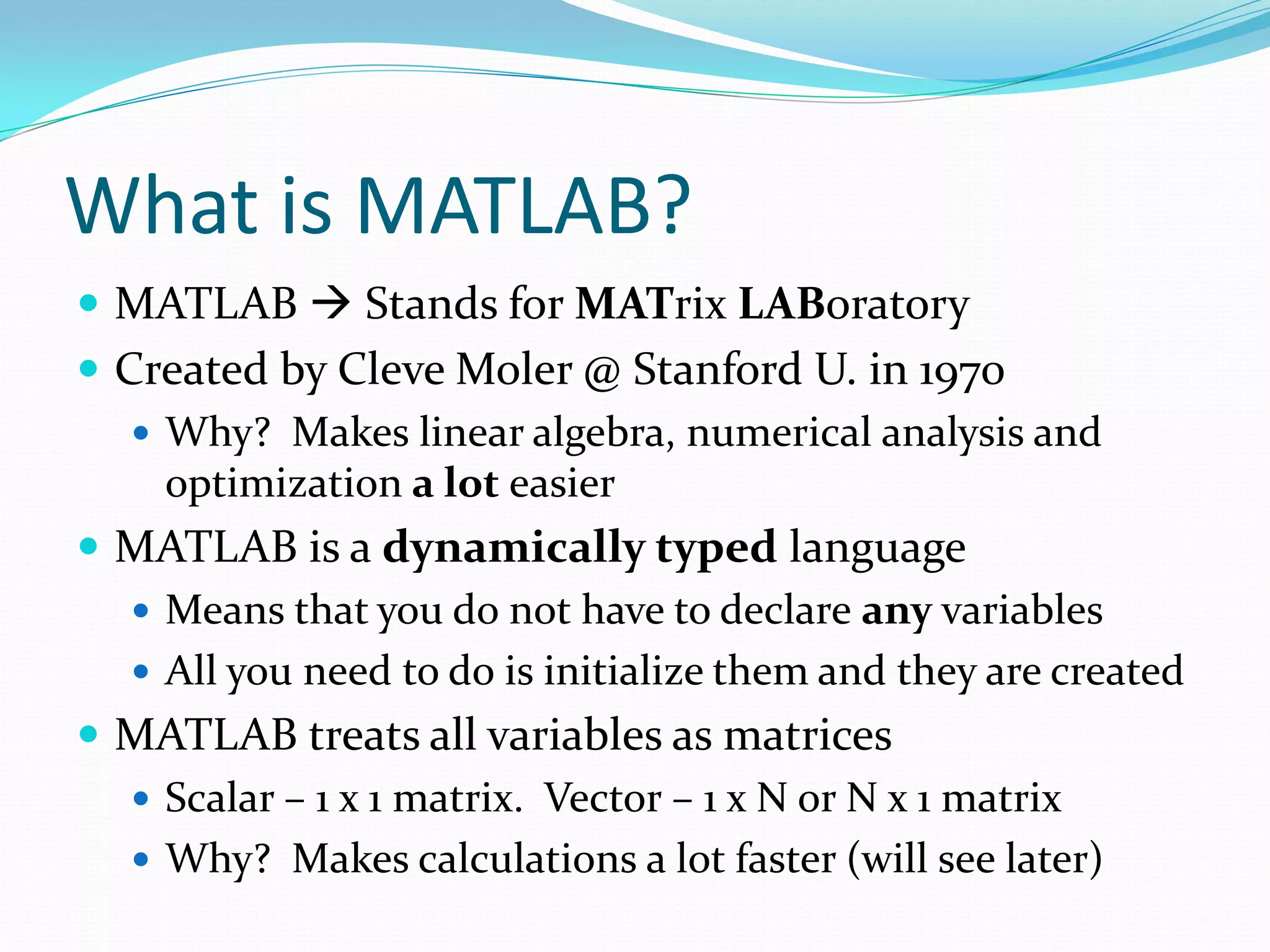
What is MATLAB? MATLAB Stands for MATrix LABoratory Created by Cleve Moler @ Stanford U. in 1970 Why? Makes linear algebra, numerical analysis and optimization a lot easier MATLAB is a dynamically typed language Means that you do not have to declare any variables All you need to do is initialize them and they are created MATLAB treats all variables as matrices Scalar – 1 x 1 matrix. Vector – 1 x N or N x 1 matrix Why? Makes calculations a lot faster (will see later)
10.
What is MATLAB?(2) How can I get and/or use MATLAB? 3 ways: 1) Find it on any of the ELCE departmental computers Log in to your account, go to Applications Math MATLAB R2010b 2) Use any Ryerson computer on to the ACS network Log in with your Matrix ID and Password, then go to Start MATLAB R2010b 3) Install it on your own laptop Go to http://www.ee.ryerson.ca/matlab for more details You must be on the Ryerson network to sign up for an account After, you can download MATLAB from anywhere MATLAB uses the Image Processing Toolbox (IPT) Should already be installed with MATLAB!
11.
Topics Covered inthis Presentation 1st Hour: 6:10 p.m. – 7:00 p.m. Introduction to Digital Images and in MATLAB Quick intro to myself What is MATLAB and where do I get it / find it? Intro to Digital Images Basic I/O Reading and writing images Accessing pixels and groups of pixels Resizing Images Rotating Images …break for 10 minutes!
12.
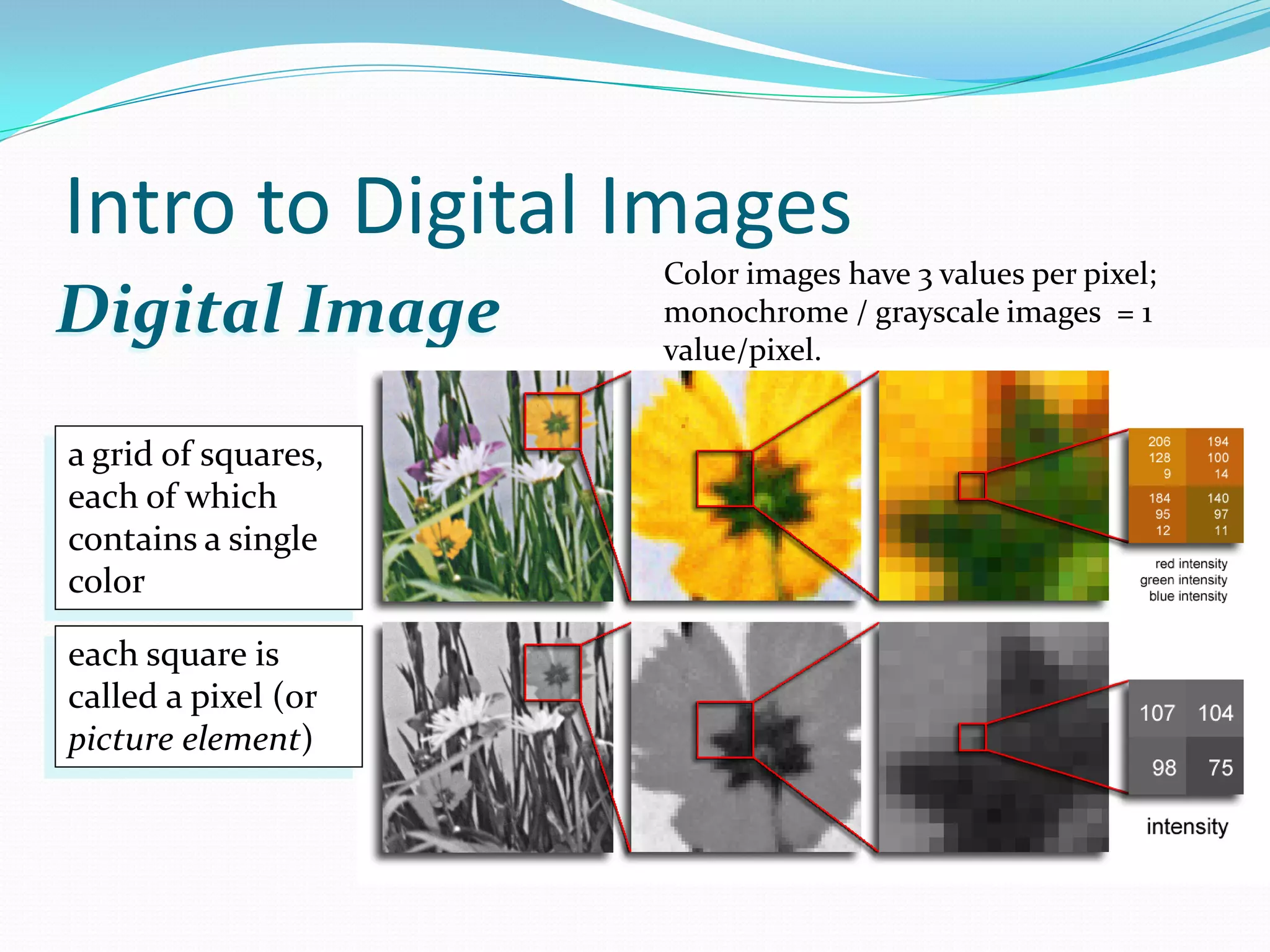
Intro to DigitalImages Color images have 3 values per pixel; Digital Image monochrome / grayscale images = 1 value/pixel. a grid of squares, each of which contains a single color each square is called a pixel (or picture element)
13.
Intro to DigitalImages – (2) Pixels A digital image, I, is a mapping from a 2D grid of uniformly spaced discrete points, {p = (r,c)}, into a set of positive integer values, {I( p)}, or a set of vector values, e.g., {[R G B]T(p)}. Each column location of each row in I has a value The pair (p, I(p)) is a “pixel” (for picture element) p = (r,c) pixel location indexed by row r & column c I(p) = I(r,c) Value of the pixel at location p If I(p) is a single number I is monochrome (B&W) If I(p) is a 3 element vector I is a colour (RGB) image
14.
Intro to DigitalImages – (3) Monochromatic Case: We call the values at each pixel intensities Smaller intensities denote a darker pixel Bigger intensities denote a lighter pixel Colour Case: Think of a colour image as a 3D matrix First layer is red, second layer is green, third layer is blue Why RGB? Trichromacy theory All colours found in nature can naturally be decomposed into Red, Green and Blue This is basically how CCD cameras work! The three element vector tells you how much red, green and blue the pixel is compromised of (i.e. [R G B]T = [0 255 0] No red, no blue, all green
15.
Intro to DigitalImages – (4) Pixel : [ p, I(p)] p = (r, c ) red 12 Pixel Location: p = (r , c) = (row # , col # ) I ( p ) = green = 43 Pixel Value: I(p) = I(r , c) = (272, 277) blue 61
16.
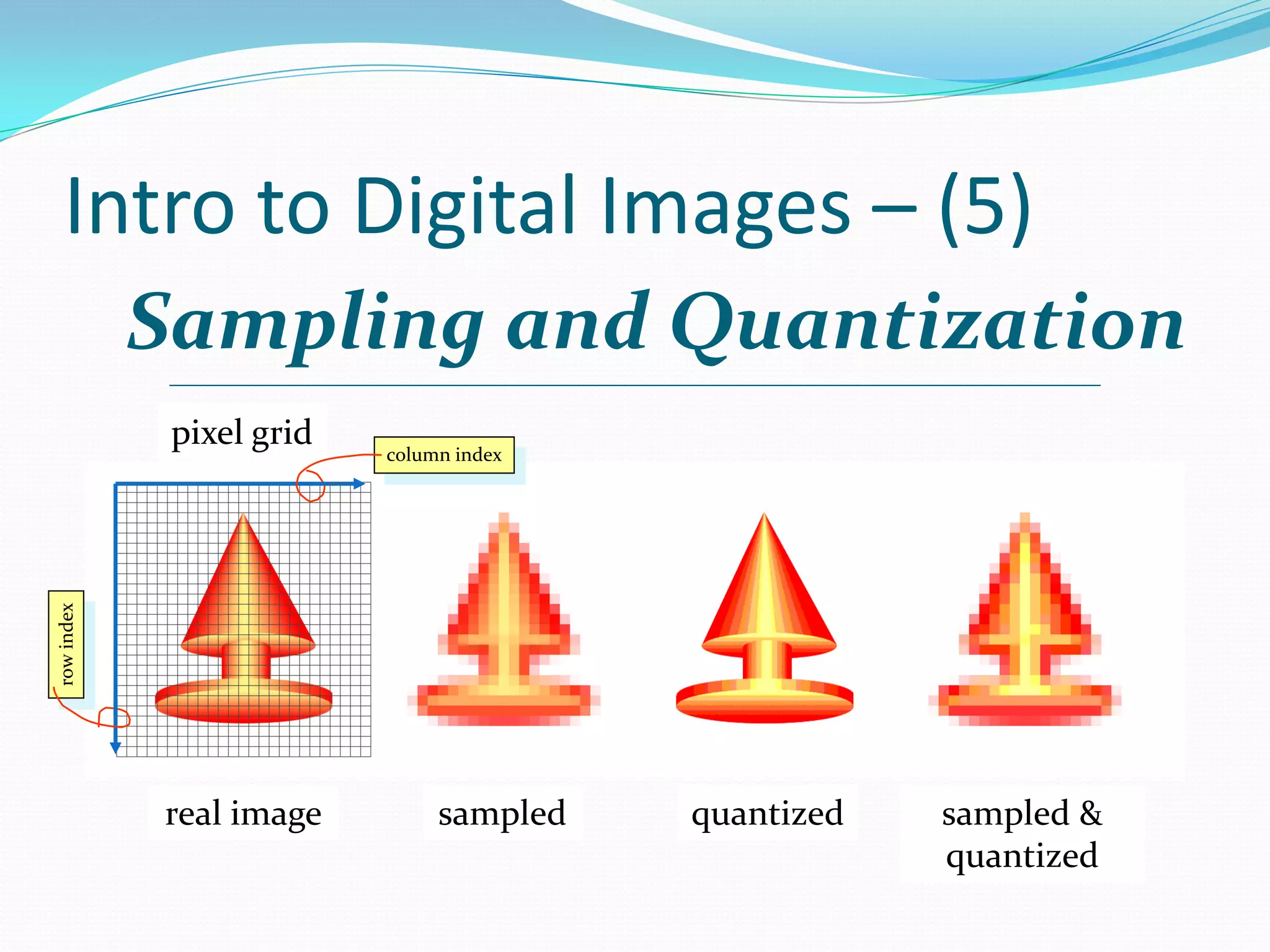
Intro to DigitalImages – (5) How do digital cameras take images (very basic)? Uses sampling and quantization What we see now through our eyes is continuous There is essentially an infinite amount of points that comprise our field of view (FoV) Not good, because we want to store this information! We first need to sample the FoV Transfer the FoV to a rectangular grid, and grab the colour in each location of the grid
17.
Intro to DigitalImages – (5) Sampling and Quantization pixel grid column index row index real image sampled quantized sampled & quantized
18.
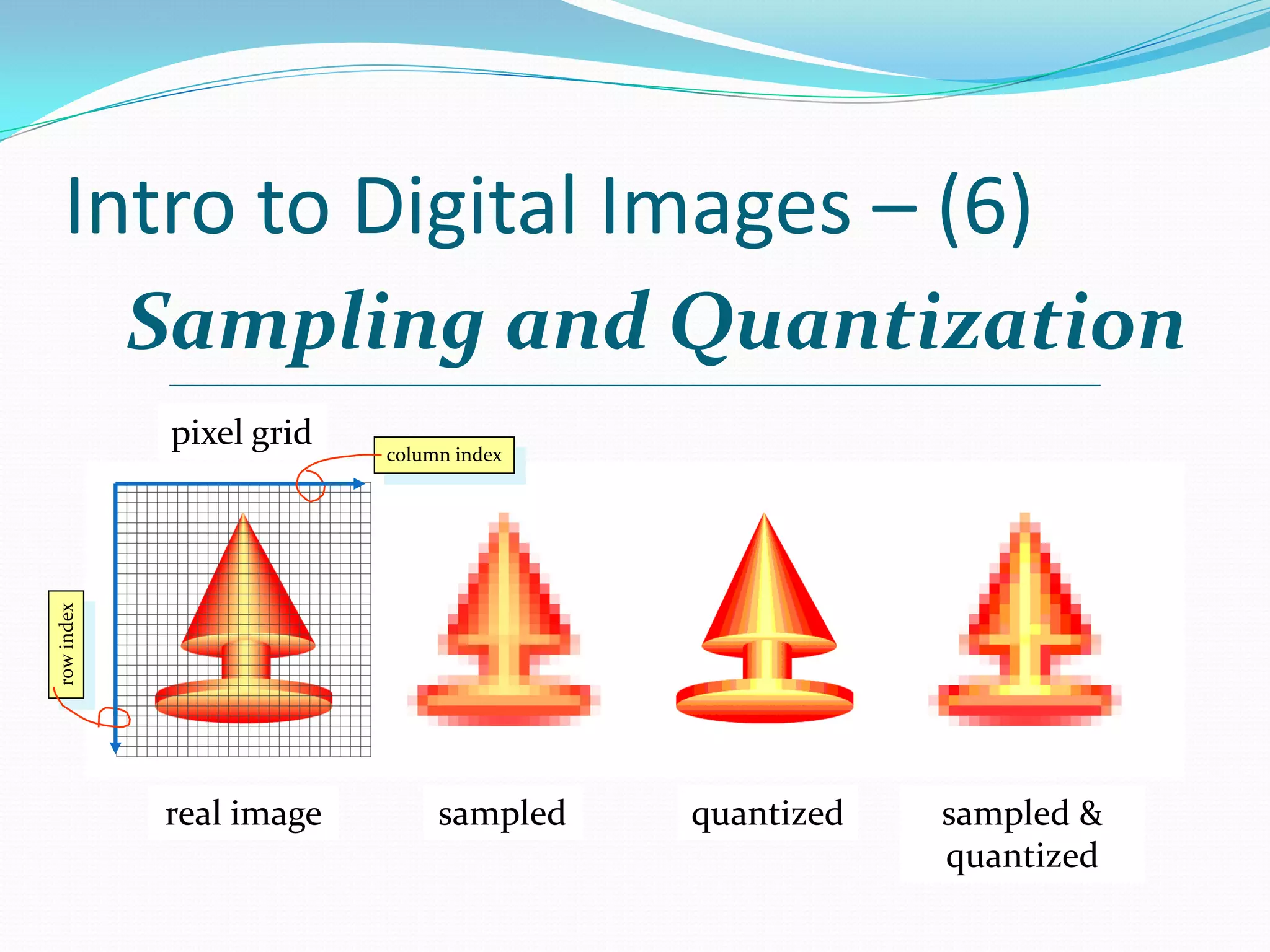
Intro to DigitalImages – (6) We’re not done yet! There are also an infinite number of possible colours We will now need to quantize the colours Quantizing will reduce the total number of colours to a smaller amount Key Quantize accurately so that we can’t tell much difference between the original image and the quantized one A digital image is essentially taking our FoV and performing a sampling and quantization Values are now discrete and positive
19.
Intro to DigitalImages – (6) Sampling and Quantization pixel grid column index row index real image sampled quantized sampled & quantized
20.
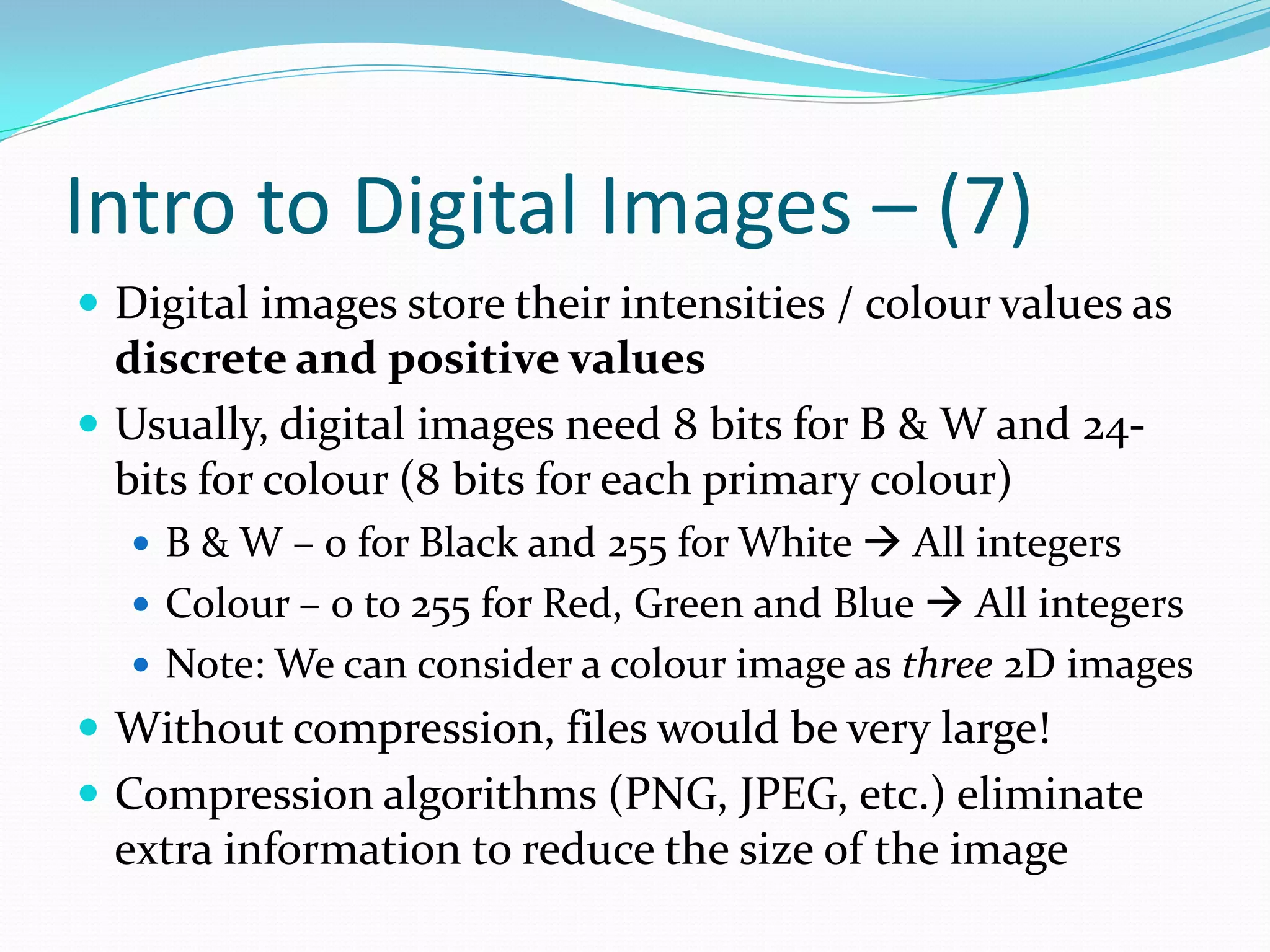
Intro to DigitalImages – (7) Digital images store their intensities / colour values as discrete and positive values Usually, digital images need 8 bits for B & W and 24- bits for colour (8 bits for each primary colour) B & W – 0 for Black and 255 for White All integers Colour – 0 to 255 for Red, Green and Blue All integers Note: We can consider a colour image as three 2D images Without compression, files would be very large! Compression algorithms (PNG, JPEG, etc.) eliminate extra information to reduce the size of the image
21.
Topics Covered inthis Presentation 1st Hour: 6:10 p.m. – 7:00 p.m. Introduction to Digital Images and in MATLAB Quick intro to myself What is MATLAB and where do I get it / find it? Intro to Digital Images Basic I/O Reading and writing images Accessing pixels and groups of pixels Resizing Images Rotating Images …break for 10 minutes!
22.
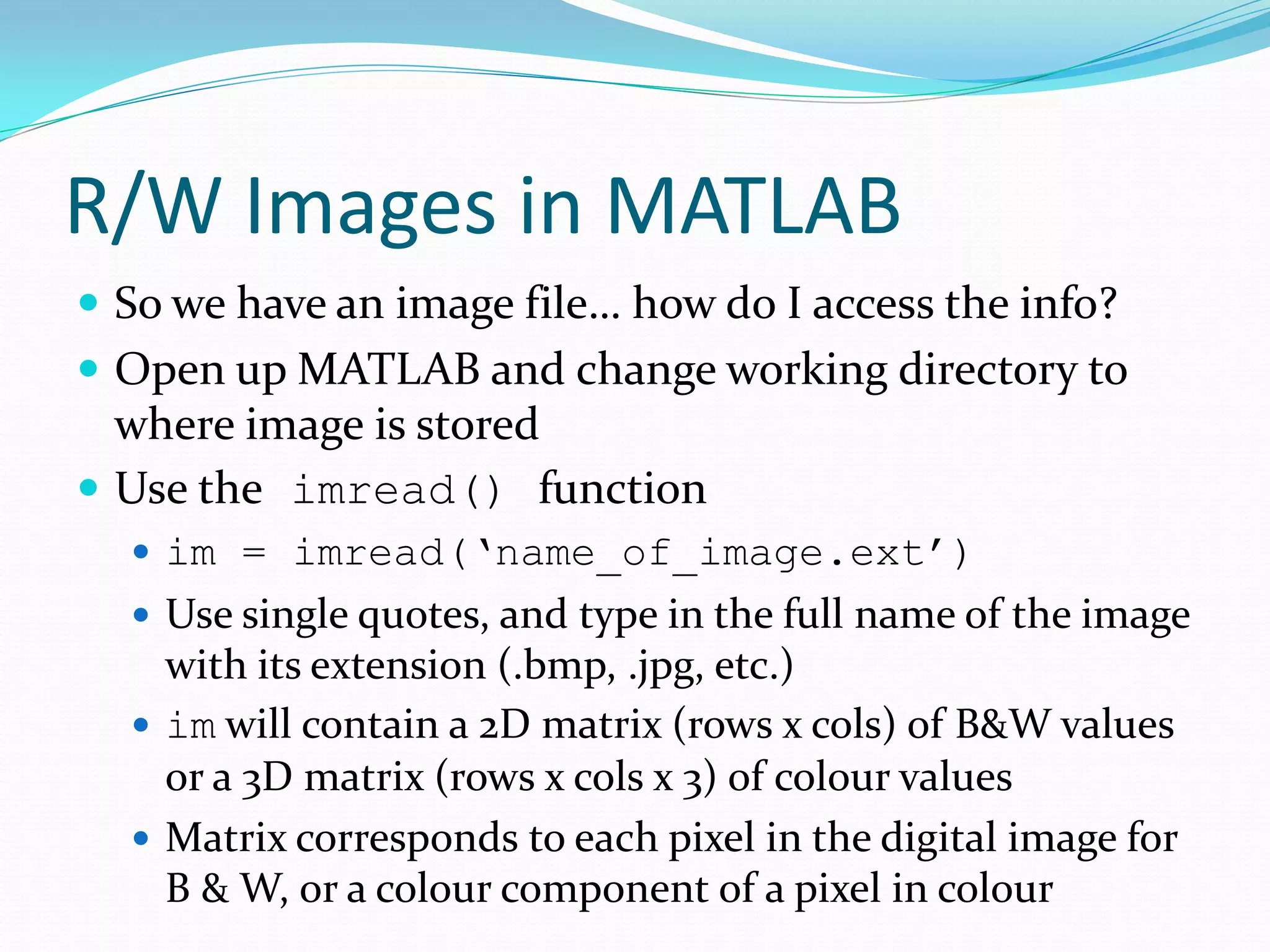
R/W Images inMATLAB So we have an image file… how do I access the info? Open up MATLAB and change working directory to where image is stored Use the imread() function im = imread(‘name_of_image.ext’) Use single quotes, and type in the full name of the image with its extension (.bmp, .jpg, etc.) im will contain a 2D matrix (rows x cols) of B&W values or a 3D matrix (rows x cols x 3) of colour values Matrix corresponds to each pixel in the digital image for B & W, or a colour component of a pixel in colour
23.
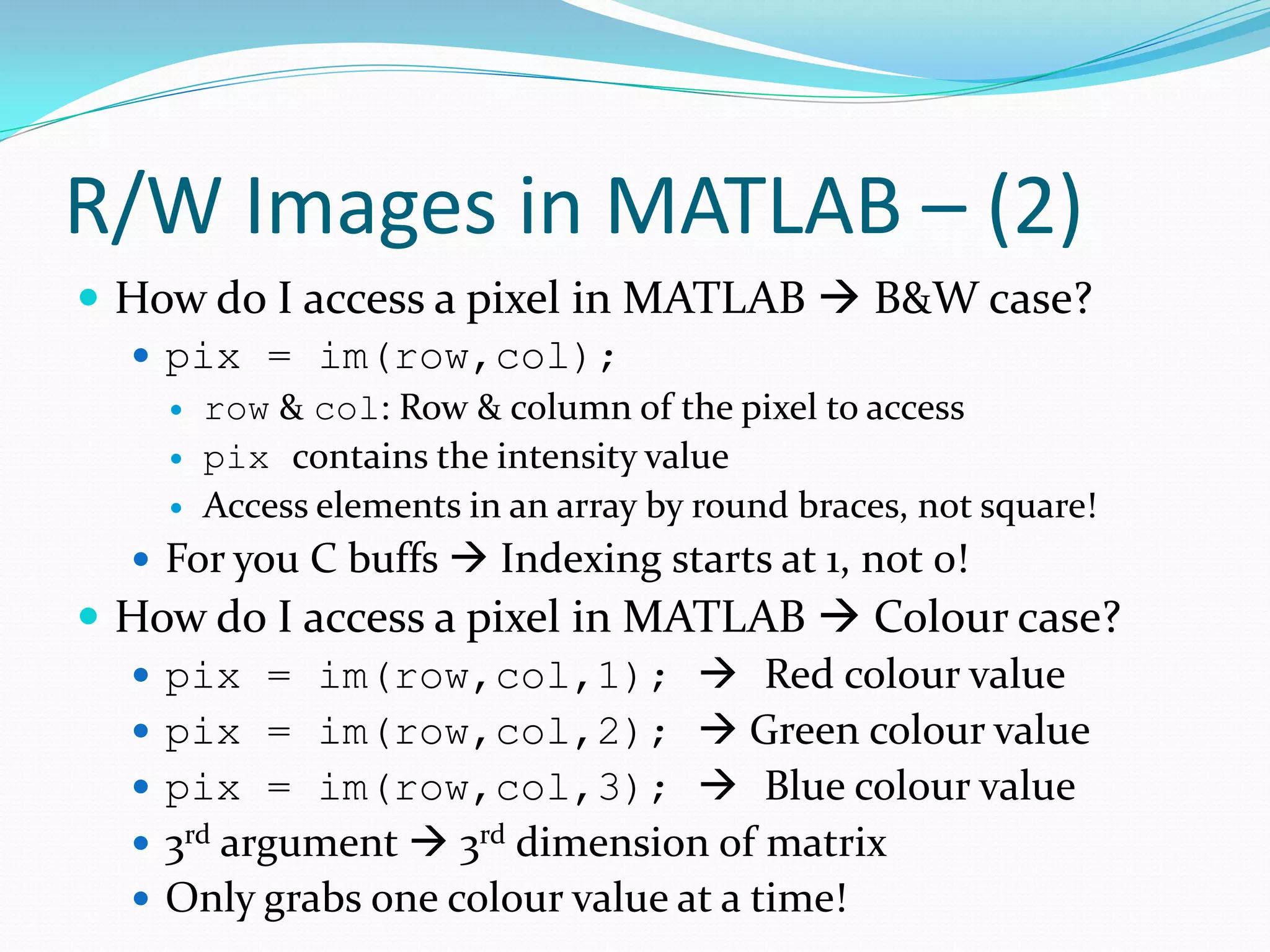
R/W Images inMATLAB – (2) How do I access a pixel in MATLAB B&W case? pix = im(row,col); row & col: Row & column of the pixel to access pix contains the intensity value Access elements in an array by round braces, not square! For you C buffs Indexing starts at 1, not 0! How do I access a pixel in MATLAB Colour case? pix = im(row,col,1); Red colour value pix = im(row,col,2); Green colour value pix = im(row,col,3); Blue colour value 3rd argument 3rd dimension of matrix Only grabs one colour value at a time!
24.
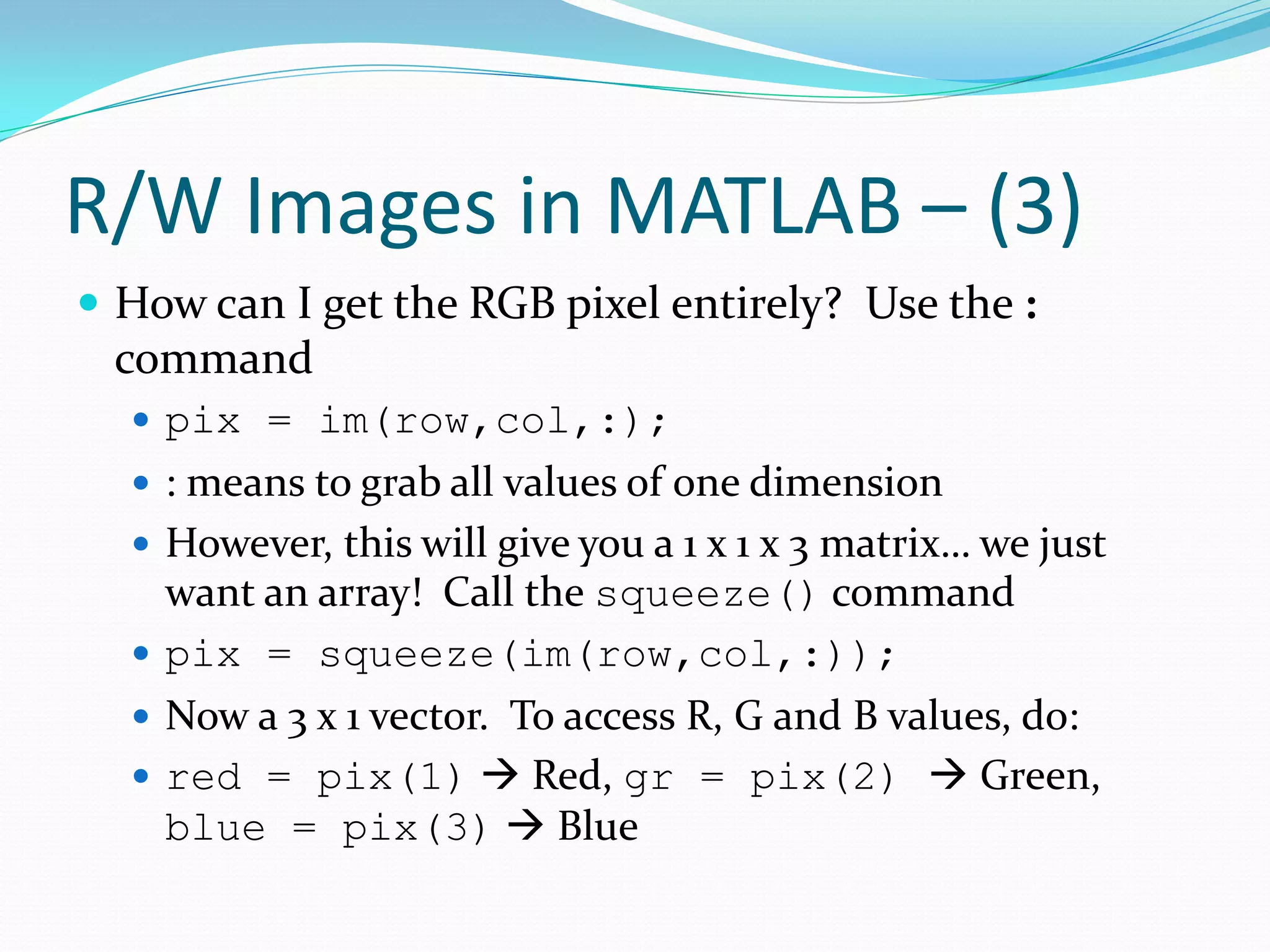
R/W Images inMATLAB – (3) How can I get the RGB pixel entirely? Use the : command pix = im(row,col,:); : means to grab all values of one dimension However, this will give you a 1 x 1 x 3 matrix… we just want an array! Call the squeeze() command pix = squeeze(im(row,col,:)); Now a 3 x 1 vector. To access R, G and B values, do: red = pix(1) Red, gr = pix(2) Green, blue = pix(3) Blue
25.
R/W Images inMATLAB – (4) So I know how to get pixels; how can I modify them in the image? Easy! Just go backwards For a B & W Image do: im(row,col) = pix; For a colour image, do either: im(row,col,1) = red; im(row,col,2) = green; im(row,col,3) = blue; or im(row,col,:) = [red; green; blue] or im(row,col,:) = rgb; %rgb - 3 x 1 vector
26.
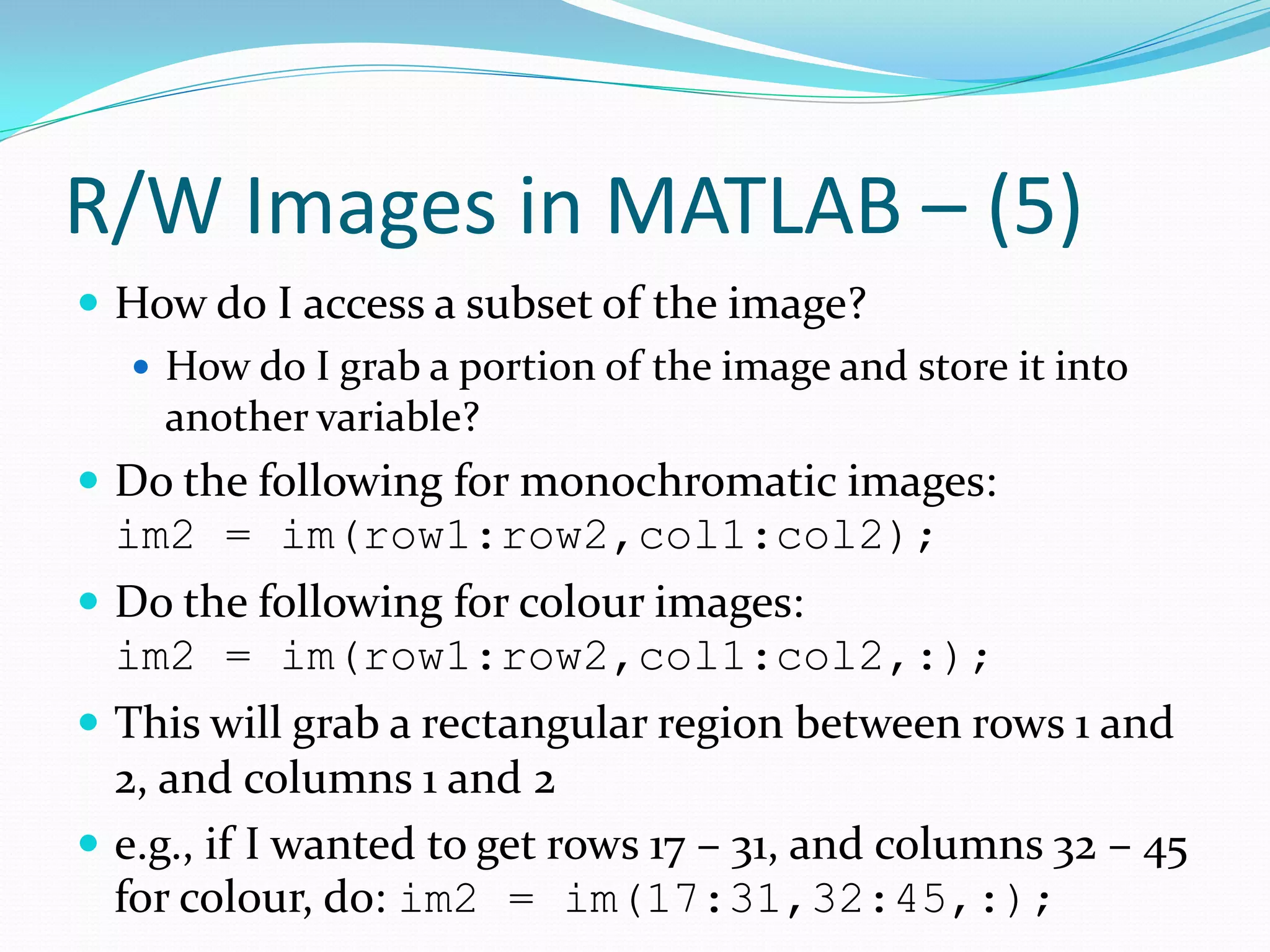
R/W Images inMATLAB – (5) How do I access a subset of the image? How do I grab a portion of the image and store it into another variable? Do the following for monochromatic images: im2 = im(row1:row2,col1:col2); Do the following for colour images: im2 = im(row1:row2,col1:col2,:); This will grab a rectangular region between rows 1 and 2, and columns 1 and 2 e.g., if I wanted to get rows 17 – 31, and columns 32 – 45 for colour, do: im2 = im(17:31,32:45,:);
27.
R/W Images inMATLAB – (6) So I know how to get pixels; how can I display images? Use the imshow() command imshow(im); im: Image loaded into MATLAB Shows a new window with the image in it If you do: imshow(im,[]) For monochromatic: Smallest intensity becomes 0 and largest intensity becomes 255 for display For colour: Apply the above for each colour channel Every time you use imshow, the image you want to display is put in the same window… so what do you do?
28.
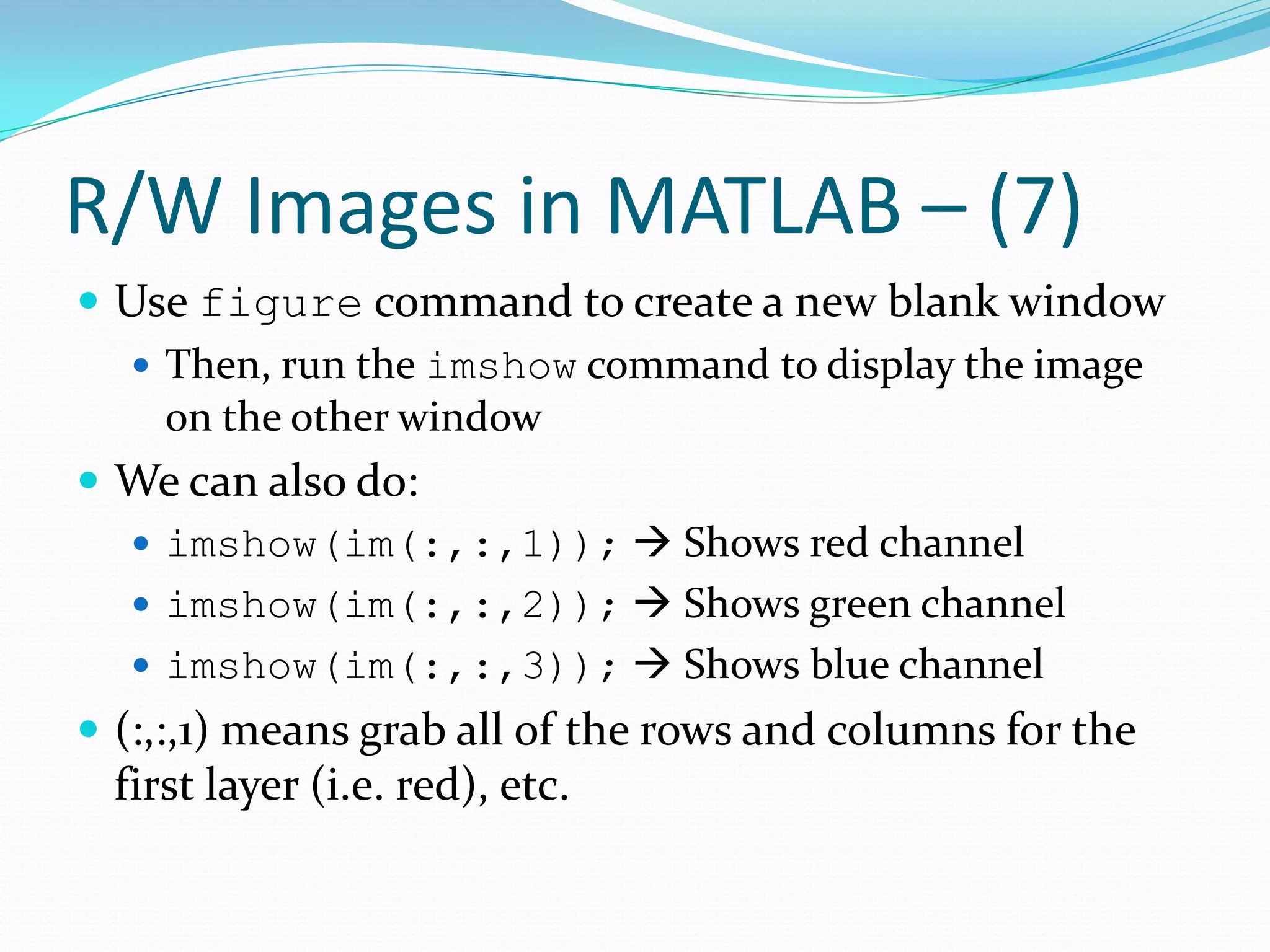
R/W Images inMATLAB – (7) Use figure command to create a new blank window Then, run the imshow command to display the image on the other window We can also do: imshow(im(:,:,1)); Shows red channel imshow(im(:,:,2)); Shows green channel imshow(im(:,:,3)); Shows blue channel (:,:,1) means grab all of the rows and columns for the first layer (i.e. red), etc.
29.
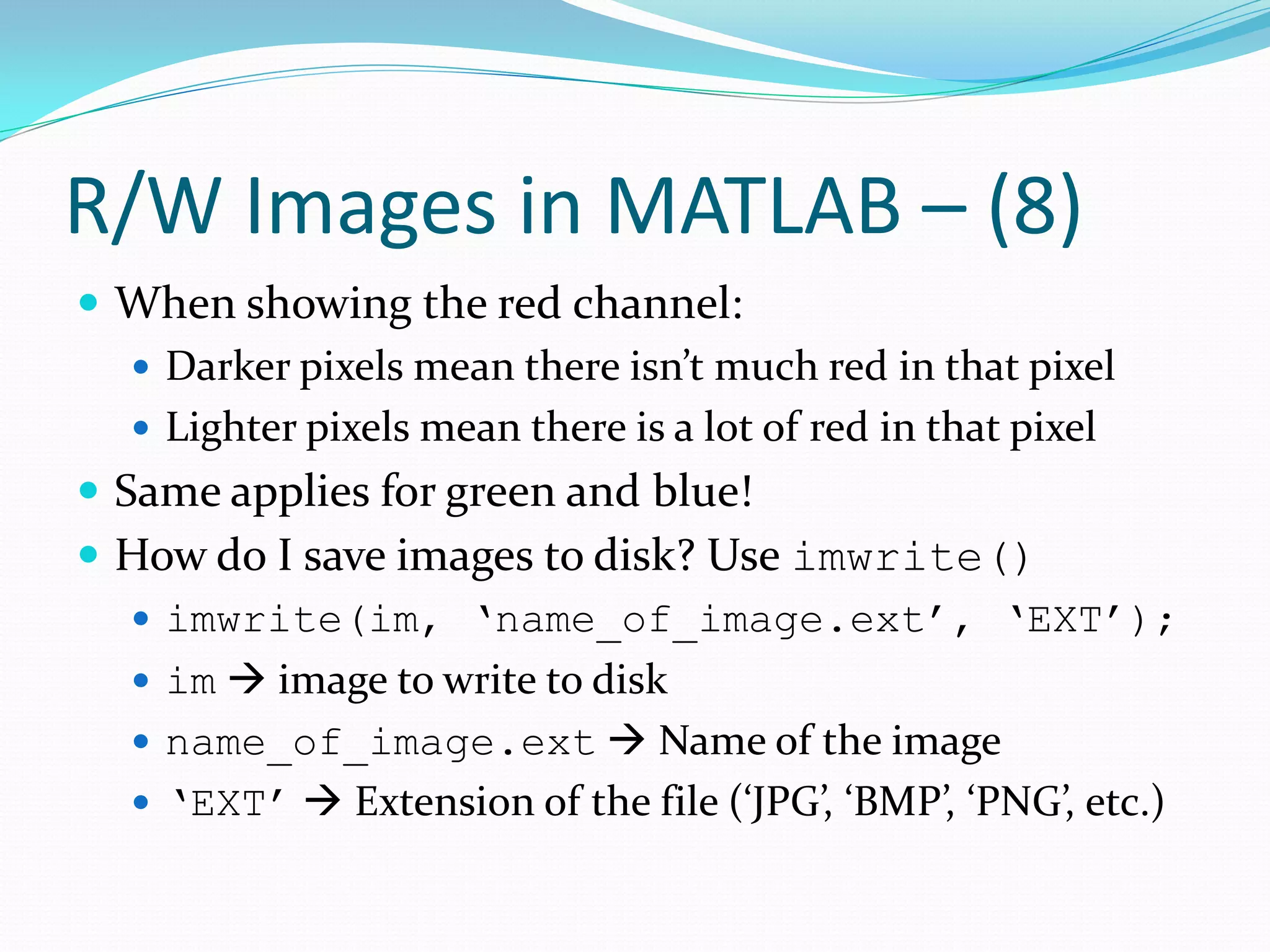
R/W Images inMATLAB – (8) When showing the red channel: Darker pixels mean there isn’t much red in that pixel Lighter pixels mean there is a lot of red in that pixel Same applies for green and blue! How do I save images to disk? Use imwrite() imwrite(im, ‘name_of_image.ext’, ‘EXT’); im image to write to disk name_of_image.ext Name of the image ‘EXT’ Extension of the file (‘JPG’, ‘BMP’, ‘PNG’, etc.)
30.
Demo Time #1! Reading in Images Accessing Pixels Changing Image Pixels Obtaining a Subset Display Images Monochromatic and Colour Displaying Colour Channels Separately Writing Images to File
31.
Topics Covered inthis Presentation 1st Hour: 6:10 p.m. – 7:00 p.m. Introduction to Digital Images and in MATLAB Quick intro to myself What is MATLAB and where do I get it / find it? Intro to Digital Images Basic I/O Reading and writing images Accessing pixels and groups of pixels Resizing Images Rotating Images …break for 10 minutes!
32.
Resizing Images Onecommon thing that many people do is resize images i.e. Make an image bigger from a smaller image, or make an image smaller from a larger image How do we resize images in MATLAB? Use the imresize command How do we use it? out = imresize(im, scale, ‘method’); or out = imresize(im, [r c], ‘method’); For both methods im is the image we want to resize, and out is the resized image
33.
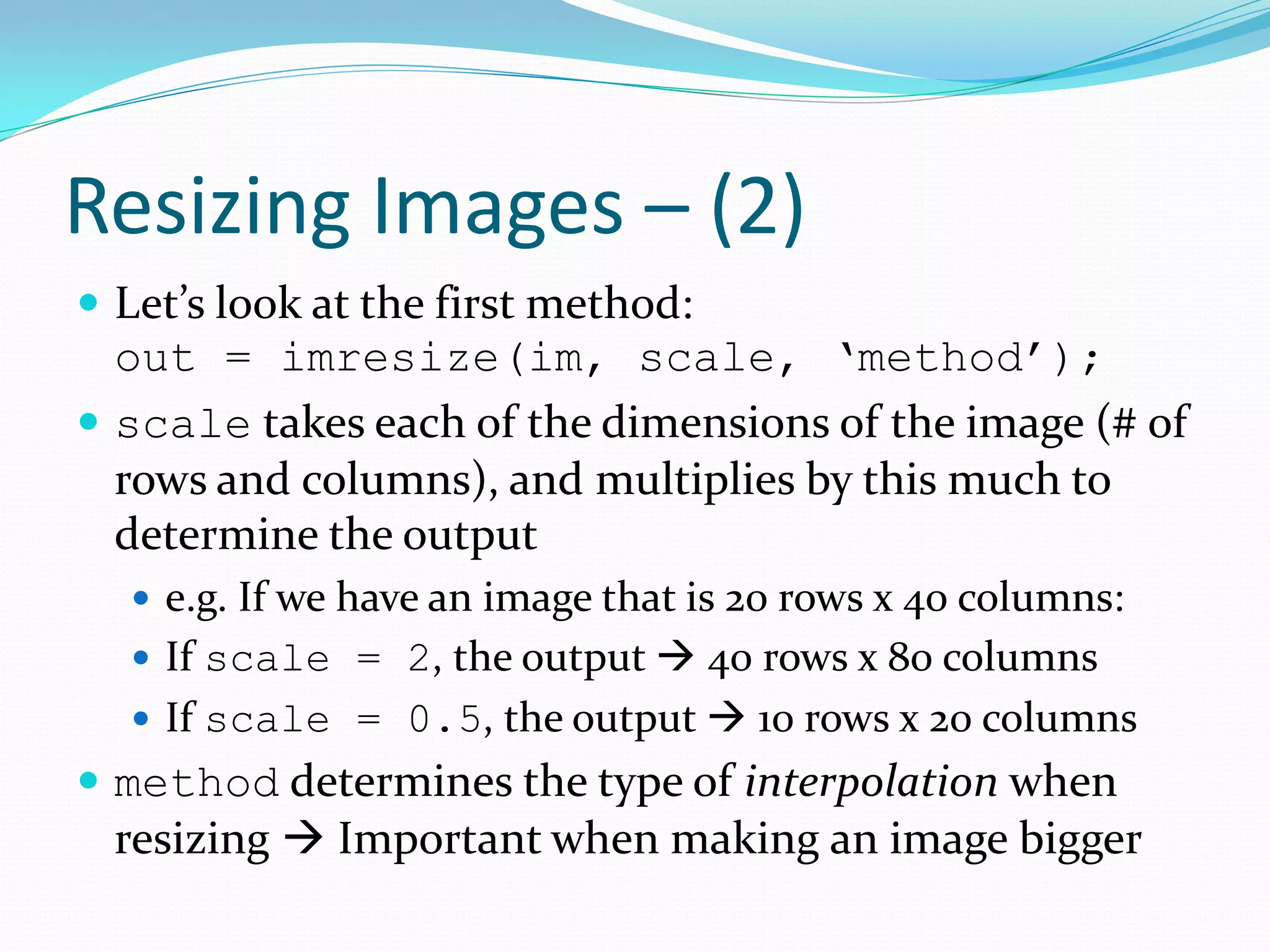
Resizing Images –(2) Let’s look at the first method: out = imresize(im, scale, ‘method’); scale takes each of the dimensions of the image (# of rows and columns), and multiplies by this much to determine the output e.g. If we have an image that is 20 rows x 40 columns: If scale = 2, the output 40 rows x 80 columns If scale = 0.5, the output 10 rows x 20 columns method determines the type of interpolation when resizing Important when making an image bigger
34.
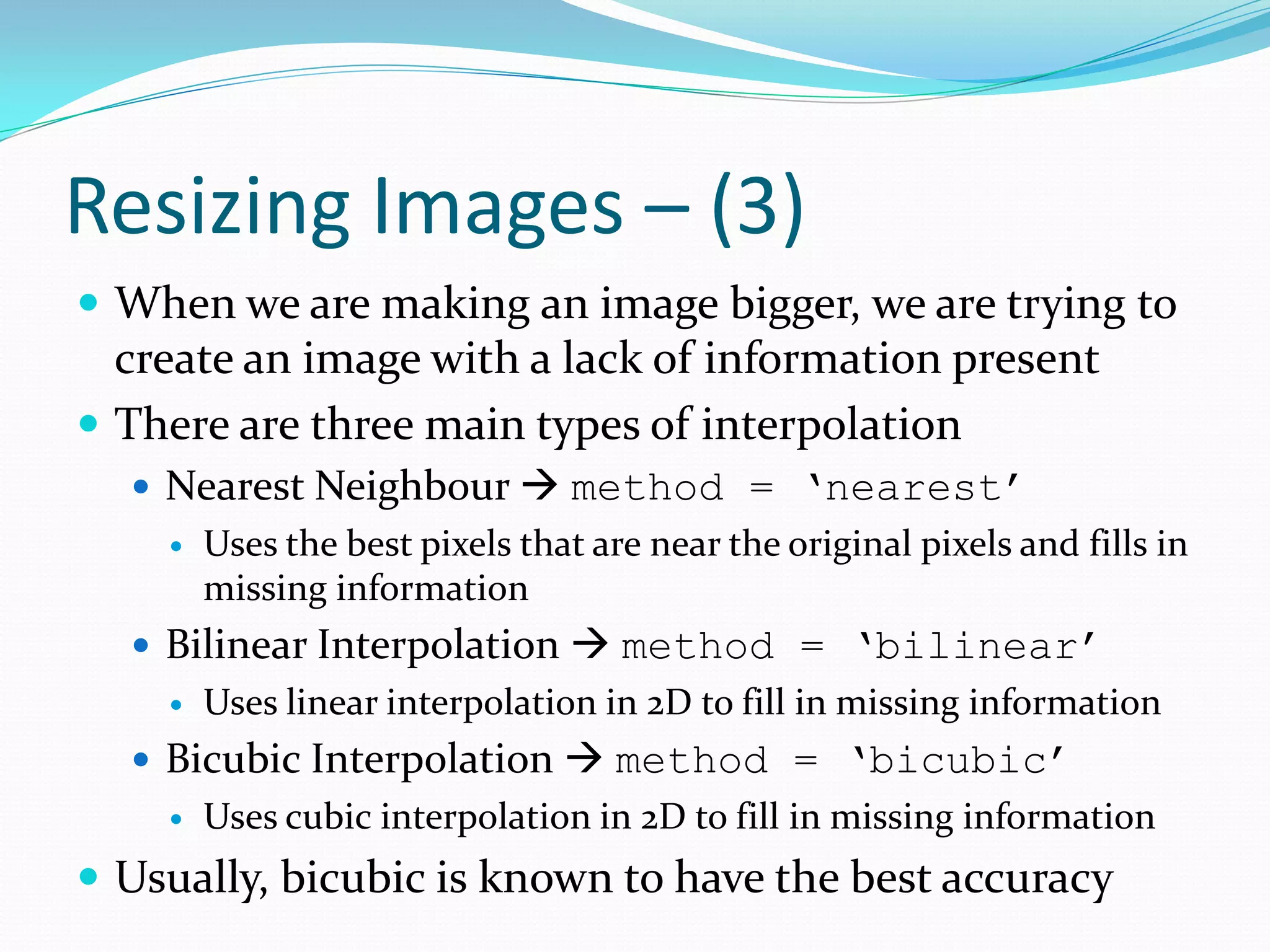
Resizing Images –(3) When we are making an image bigger, we are trying to create an image with a lack of information present There are three main types of interpolation Nearest Neighbour method = ‘nearest’ Uses the best pixels that are near the original pixels and fills in missing information Bilinear Interpolation method = ‘bilinear’ Uses linear interpolation in 2D to fill in missing information Bicubic Interpolation method = ‘bicubic’ Uses cubic interpolation in 2D to fill in missing information Usually, bicubic is known to have the best accuracy
35.
Resizing Images –(4) Now, let’s take a look at the second method for resizing out = imresize(im, [r c], ‘method’); This routine will resize the image to any desired dimensions you want You can customize how many rows and columns the final image will have Example: To resize a 130 rows x 180 columns image to 65 rows x 90 columns, with bilinear interpolation, do: out = imresize(im, [65 90], ‘bilinear’); We can also do! out = imresize(im, 0.5, ‘bilinear’);
36.
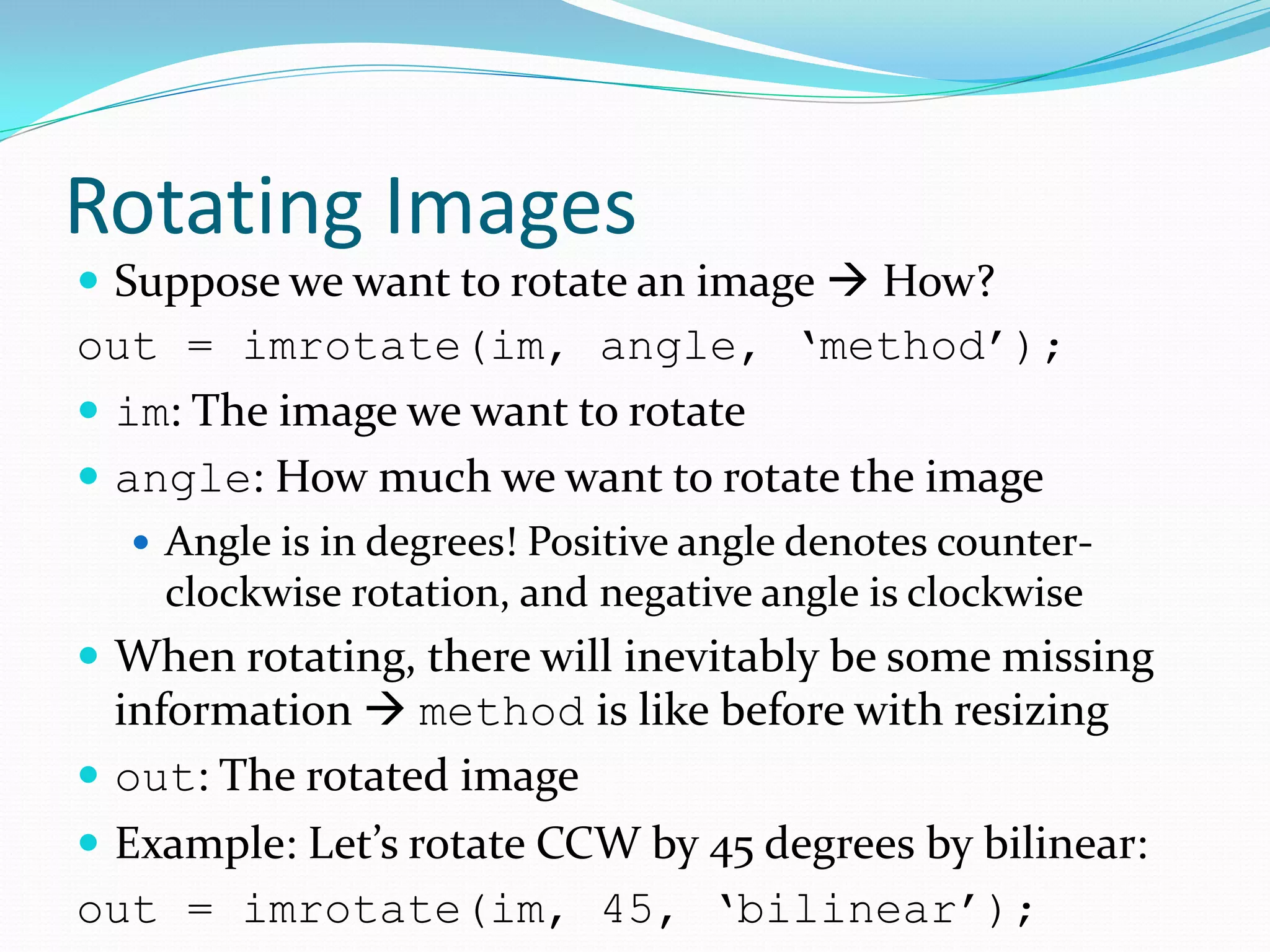
Rotating Images Supposewe want to rotate an image How? out = imrotate(im, angle, ‘method’); im: The image we want to rotate angle: How much we want to rotate the image Angle is in degrees! Positive angle denotes counter- clockwise rotation, and negative angle is clockwise When rotating, there will inevitably be some missing information method is like before with resizing out: The rotated image Example: Let’s rotate CCW by 45 degrees by bilinear: out = imrotate(im, 45, ‘bilinear’);
37.
Demo Time #2! Enlarging Images Shrinking Images Rotating Images
38.
Topics Covered inthis Presentation 2nd Hour: 7:10 p.m. – 8:00 p.m. Operations on Digital Images Simple contrast and brightness enhancing Intro to image histograms Advanced enhancing using image histograms Intro to convolution in images Blurring / Smoothing images Edge detection Sharpening images …break for 10 minutes!
39.
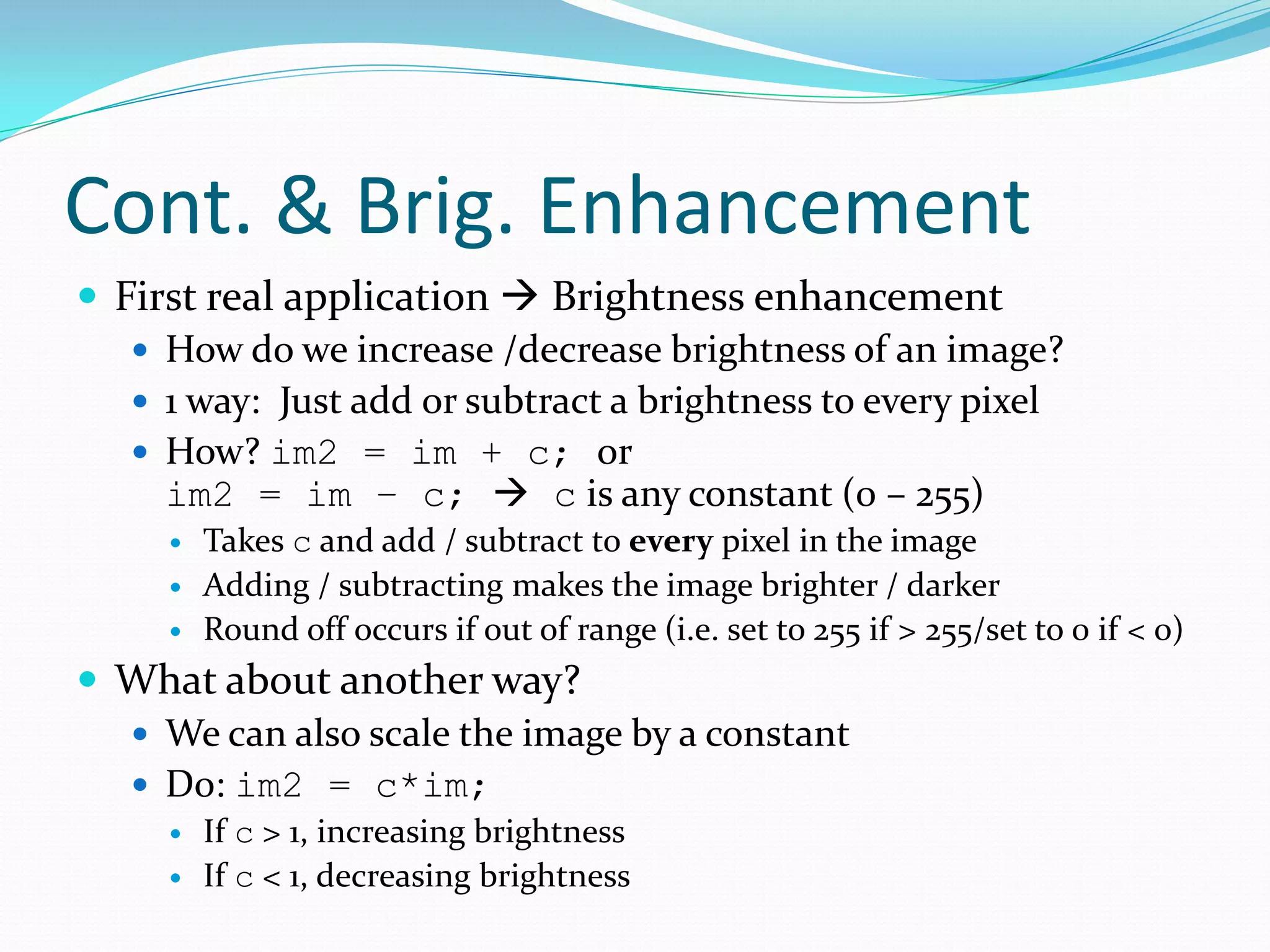
Cont. & Brig.Enhancement First real application Brightness enhancement How do we increase /decrease brightness of an image? 1 way: Just add or subtract a brightness to every pixel How? im2 = im + c; or im2 = im – c; c is any constant (0 – 255) Takes c and add / subtract to every pixel in the image Adding / subtracting makes the image brighter / darker Round off occurs if out of range (i.e. set to 255 if > 255/set to 0 if < 0) What about another way? We can also scale the image by a constant Do: im2 = c*im; If c > 1, increasing brightness If c < 1, decreasing brightness
40.
Cont. & Brig.Enhancement (2) So we covered brightness… what about contrast? Contrast How well you can see the objects from the background When performing brightness enhancing, you’ll notice that it looks “white washed out” Poor contrast We can do a contrast enhancement to make objects look better, leaving background relatively unaffected How? Use the power law s = rγ r is the input pixel intensity / colour and s is the output intensity / colour
41.
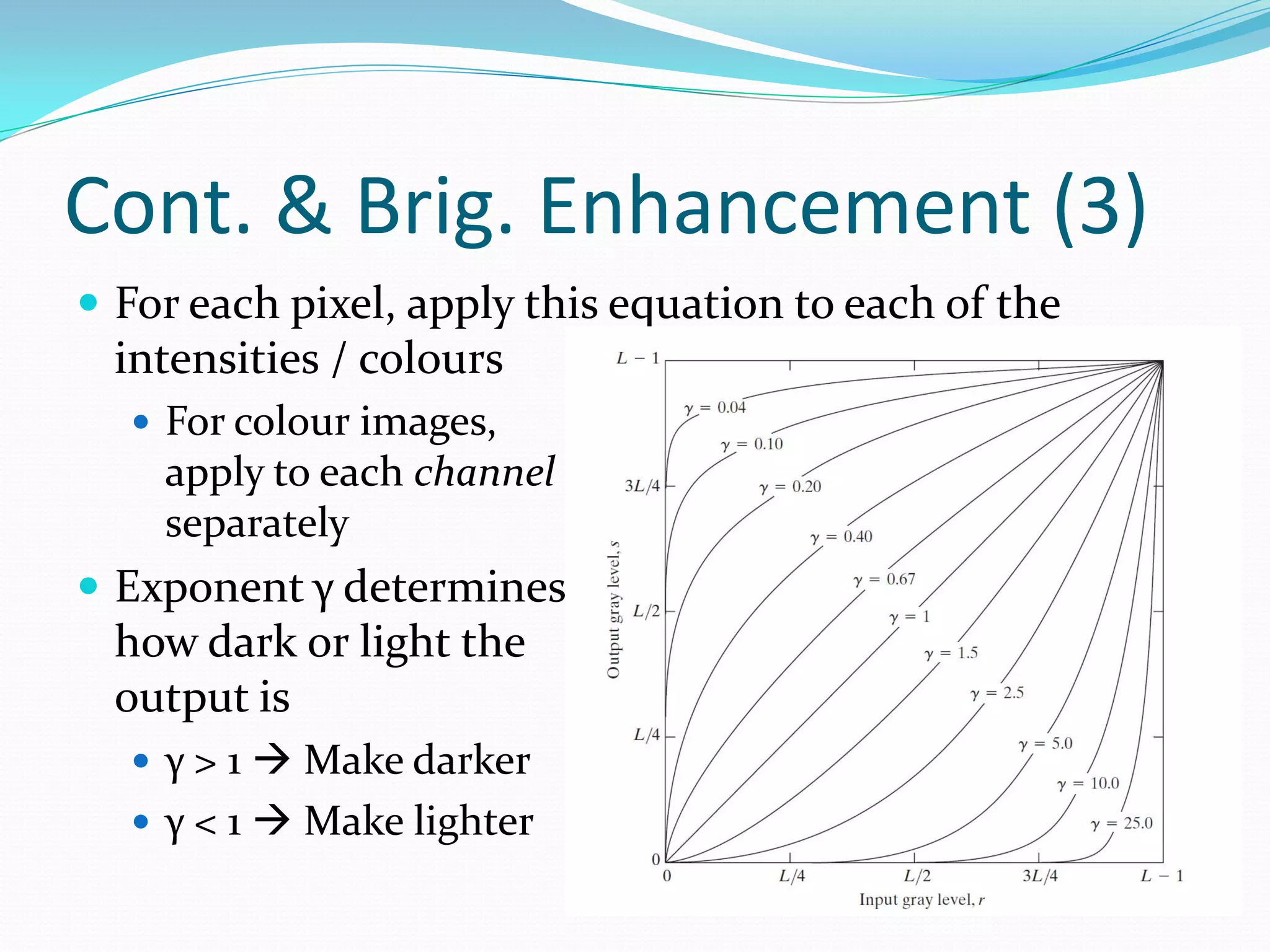
Cont. & Brig.Enhancement (3) For each pixel, apply this equation to each of the intensities / colours For colour images, apply to each channel separately Exponent γ determines how dark or light the output is γ > 1 Make darker γ < 1 Make lighter
42.
Cont. & Brig.Enhancement (4) How do we apply the power law in MATLAB? Use imadjust out = imadjust(im, [], [], gamma); im: Input image to contrast adjust Ignore 2nd and 3rd parameters Beyond the scope of our talk gamma: The γ exponent that we’ve seen earlier out: The contrast adjusted image Example use: If γ = 1.4, we do: out = imadjust(im, [], [], 1.4);
Topics Covered inthis Presentation 2nd Hour: 7:10 p.m. – 8:00 p.m. Operations on Digital Images Simple contrast and brightness enhancing Intro to image histograms Advanced enhancing using image histograms Intro to convolution in images Blurring / Smoothing images Edge detection Sharpening images …break for 10 minutes!
45.
Intro to ImageHistograms We can perform more advanced image enhancement using histograms Before we cover this… we should probably cover what histograms are! So, what’s a histogram? It measures the frequency, or how often, something occurs Let’s look at a grayscale image for now Expressed as H(x) = q, x is an intensity- [0,255] for 8 bits This tells us that we see the intensity value of x for a total of q times
46.
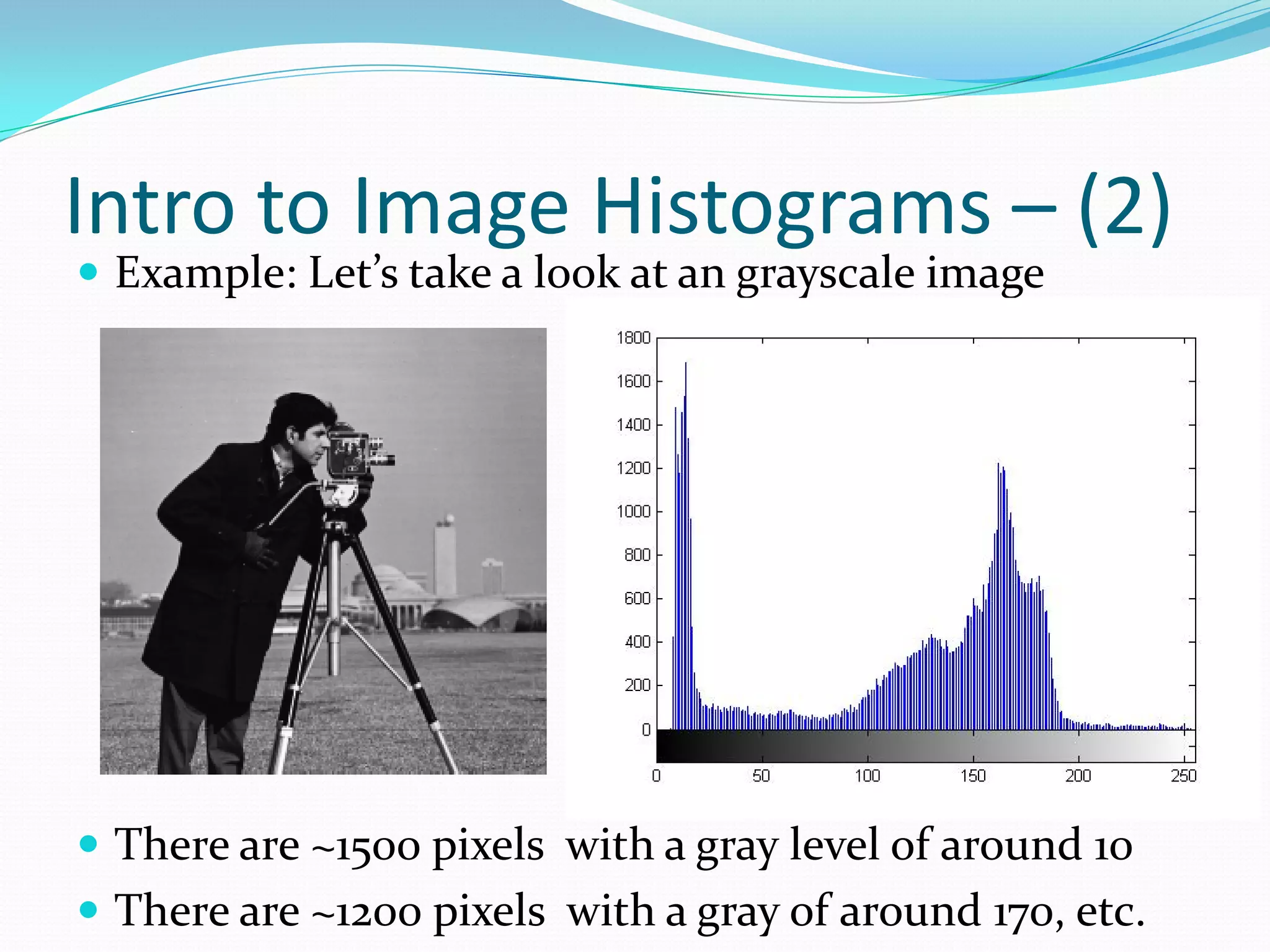
Intro to ImageHistograms – (2) Example: Let’s take a look at an grayscale image There are ~1500 pixels with a gray level of around 10 There are ~1200 pixels with a gray of around 170, etc.
47.
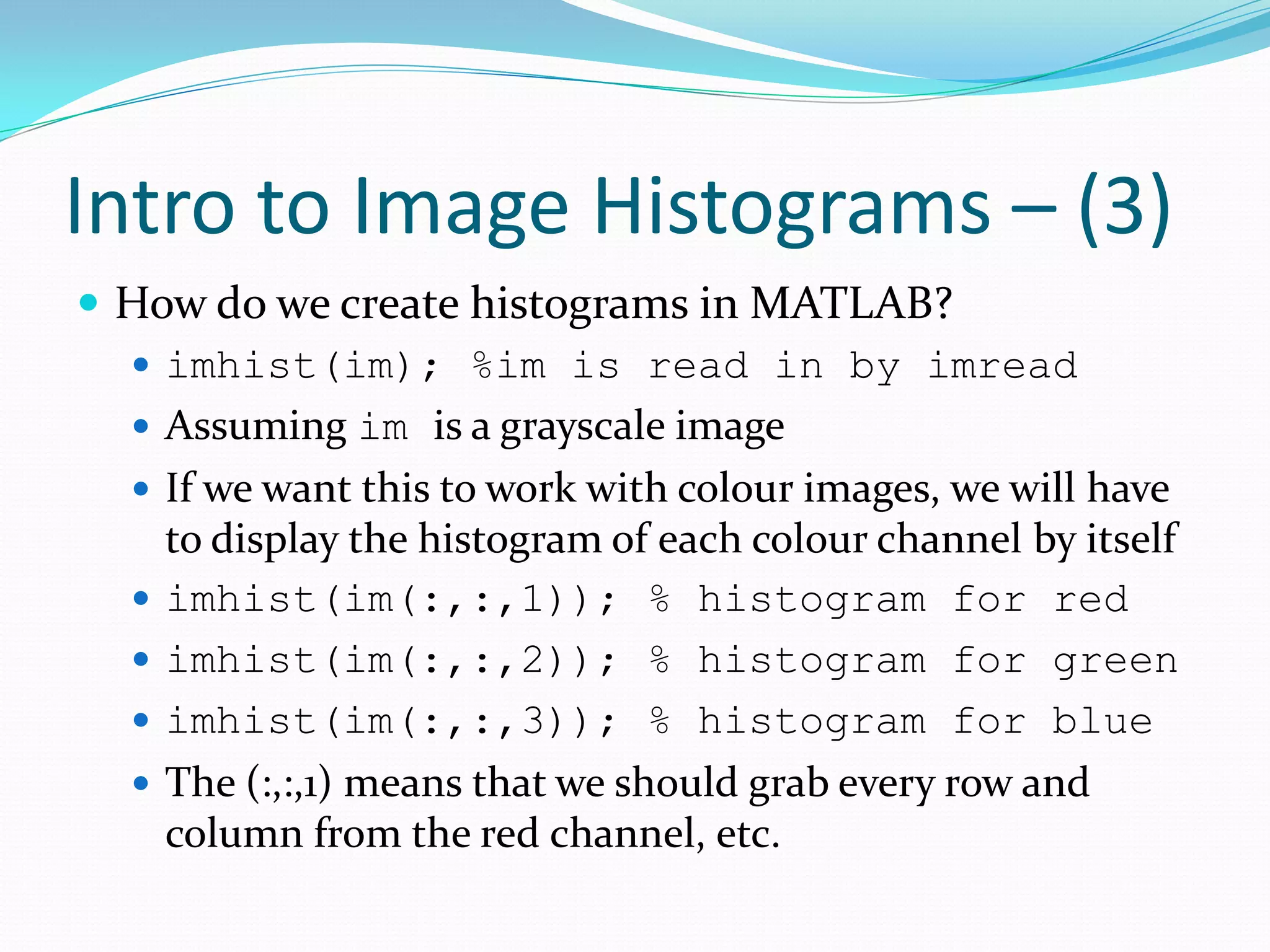
Intro to ImageHistograms – (3) How do we create histograms in MATLAB? imhist(im); %im is read in by imread Assuming im is a grayscale image If we want this to work with colour images, we will have to display the histogram of each colour channel by itself imhist(im(:,:,1)); % histogram for red imhist(im(:,:,2)); % histogram for green imhist(im(:,:,3)); % histogram for blue The (:,:,1) means that we should grab every row and column from the red channel, etc.
48.
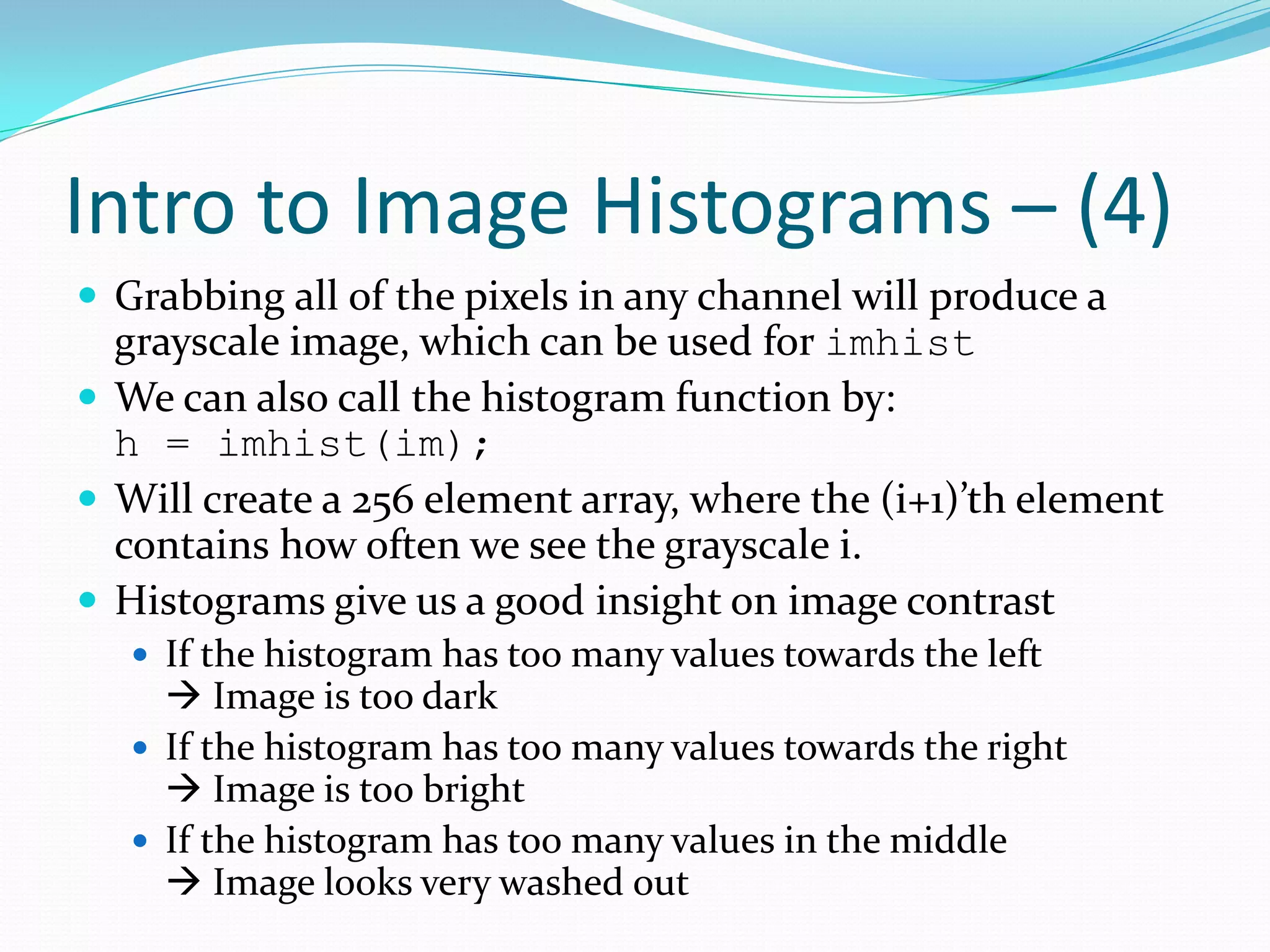
Intro to ImageHistograms – (4) Grabbing all of the pixels in any channel will produce a grayscale image, which can be used for imhist We can also call the histogram function by: h = imhist(im); Will create a 256 element array, where the (i+1)’th element contains how often we see the grayscale i. Histograms give us a good insight on image contrast If the histogram has too many values towards the left Image is too dark If the histogram has too many values towards the right Image is too bright If the histogram has too many values in the middle Image looks very washed out
49.
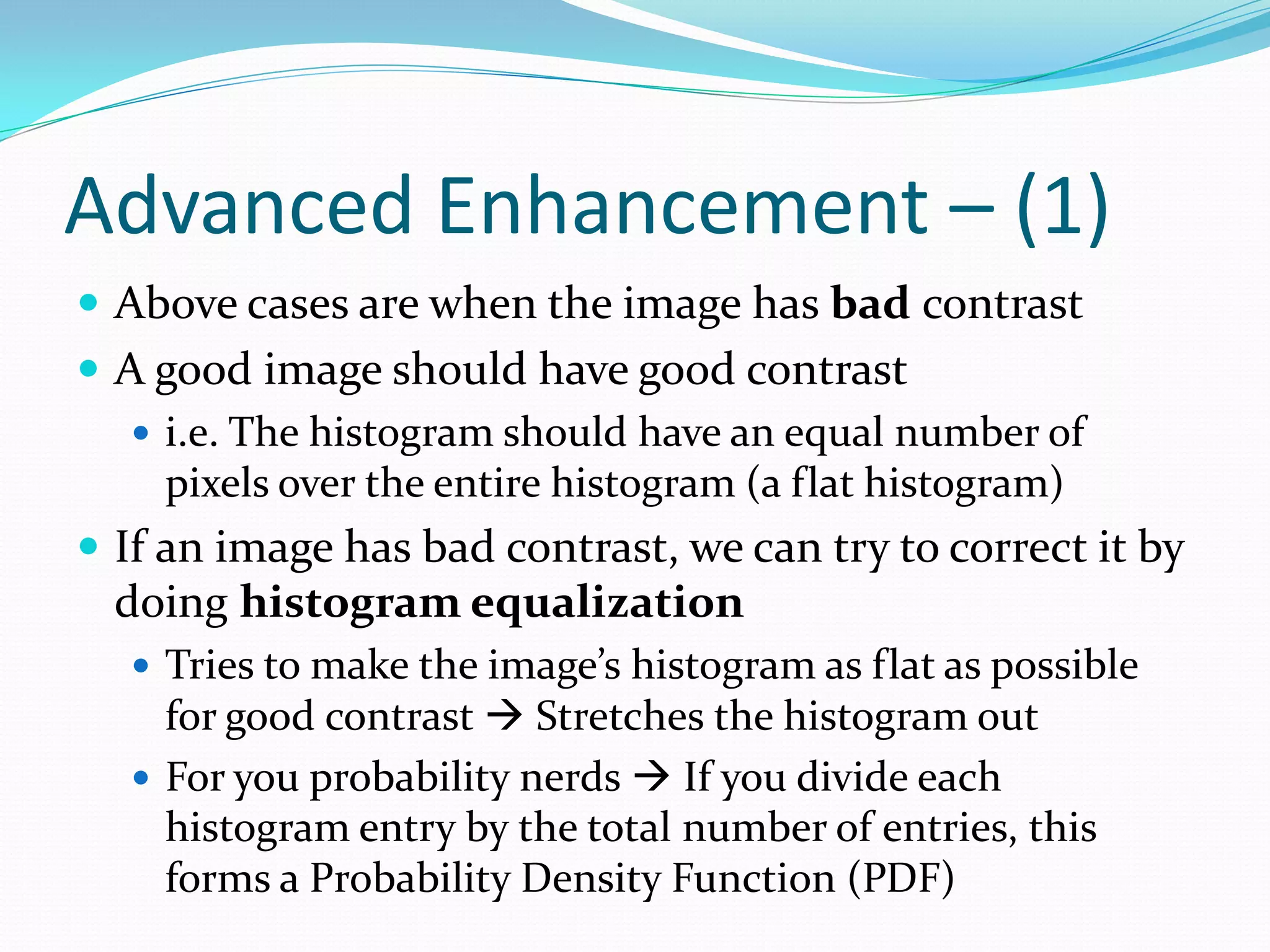
Advanced Enhancement –(1) Above cases are when the image has bad contrast A good image should have good contrast i.e. The histogram should have an equal number of pixels over the entire histogram (a flat histogram) If an image has bad contrast, we can try to correct it by doing histogram equalization Tries to make the image’s histogram as flat as possible for good contrast Stretches the histogram out For you probability nerds If you divide each histogram entry by the total number of entries, this forms a Probability Density Function (PDF)
50.
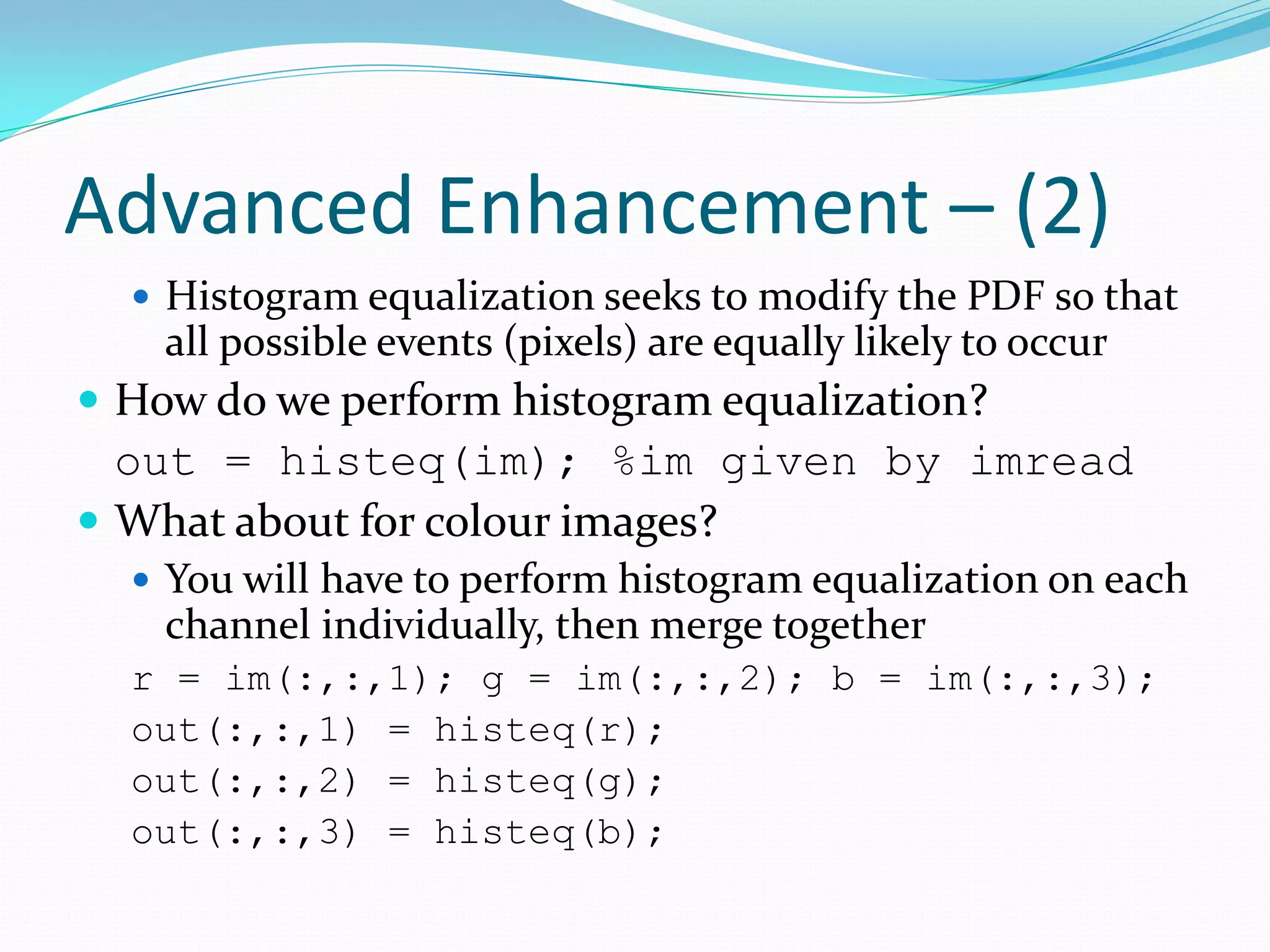
Advanced Enhancement –(2) Histogram equalization seeks to modify the PDF so that all possible events (pixels) are equally likely to occur How do we perform histogram equalization? out = histeq(im); %im given by imread What about for colour images? You will have to perform histogram equalization on each channel individually, then merge together r = im(:,:,1); g = im(:,:,2); b = im(:,:,3); out(:,:,1) = histeq(r); out(:,:,2) = histeq(g); out(:,:,3) = histeq(b);
51.
Demo Time #4! Displaying and Calculating Histograms Contrast and Brightness Enhancement by Histograms
52.
Topics Covered inthis Presentation 2nd Hour: 7:10 p.m. – 8:00 p.m. Operations on Digital Images Simple contrast and brightness enhancing Intro to image histograms Advanced enhancing using image histograms Intro to convolution in images Blurring / Smoothing images Edge detection Sharpening images …break for 10 minutes!
53.
Intro to Convolution Before we proceed, we need to understand what convolution is for a digital image Probably learned in ELE/BME 532, ELE 792, etc…. Bleck! But! Actually very simple when dealing with 2D images Preliminaries: First, we need to create an N x N matrix called a mask The numbers inside the mask will help us control the kind of operation we’re doing Different #s allow us to blur, sharpen, find edges, etc. We need to master convolution first, and the rest is easy!
54.
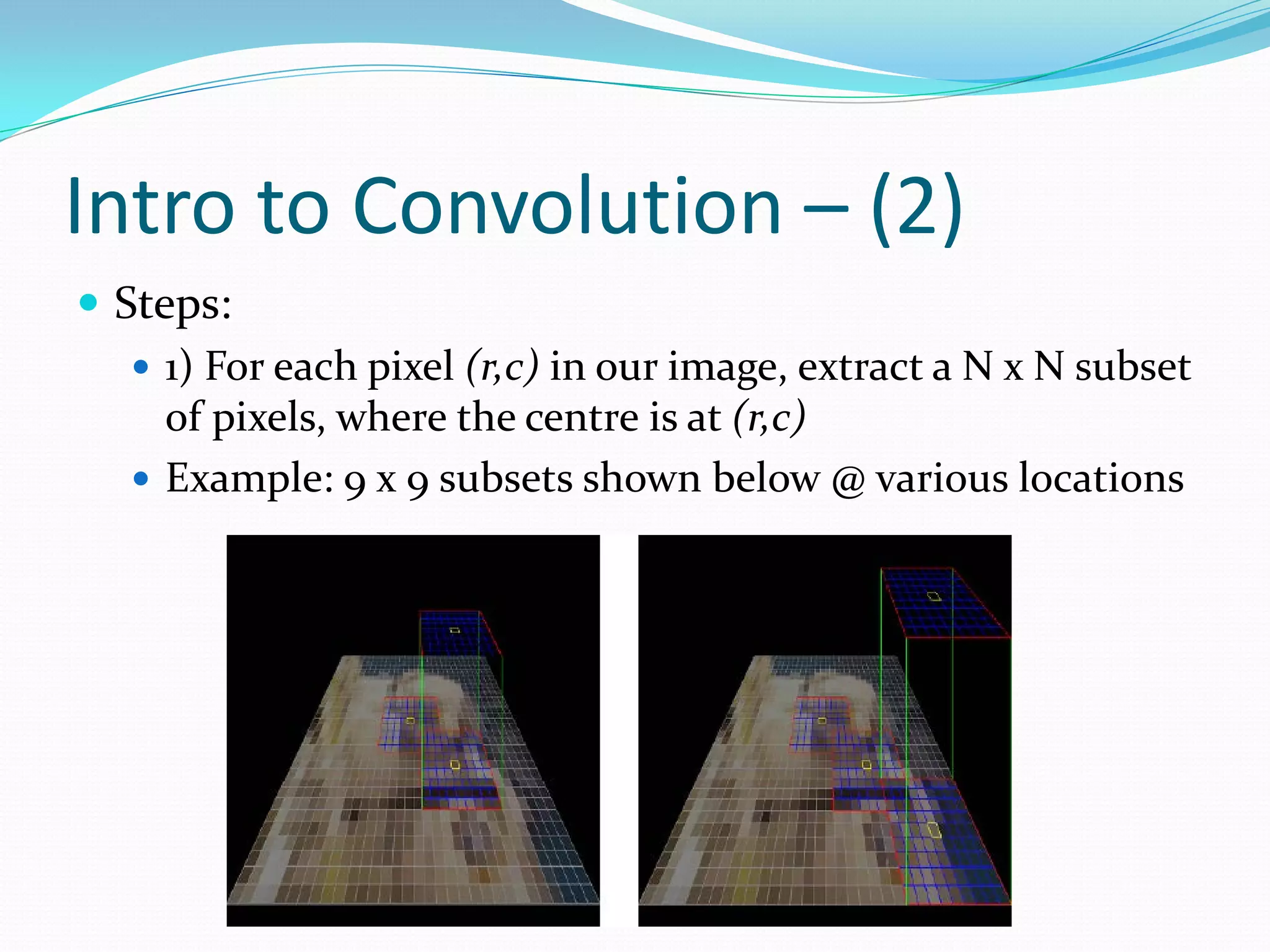
Intro to Convolution– (2) Steps: 1) For each pixel (r,c) in our image, extract a N x N subset of pixels, where the centre is at (r,c) Example: 9 x 9 subsets shown below @ various locations
55.
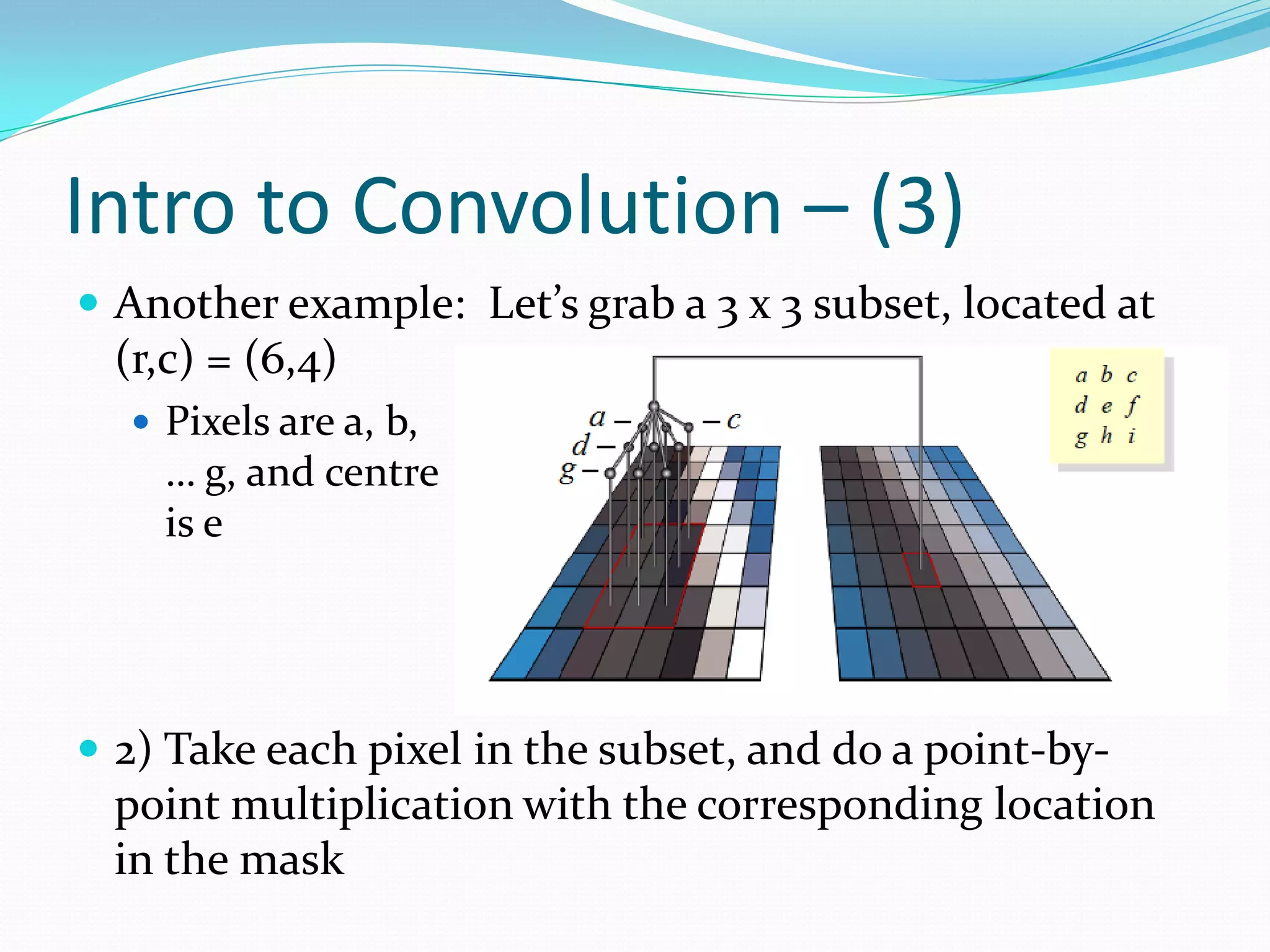
Intro to Convolution– (3) Another example: Let’s grab a 3 x 3 subset, located at (r,c) = (6,4) Pixels are a, b, … g, and centre is e 2) Take each pixel in the subset, and do a point-by- point multiplication with the corresponding location in the mask
56.
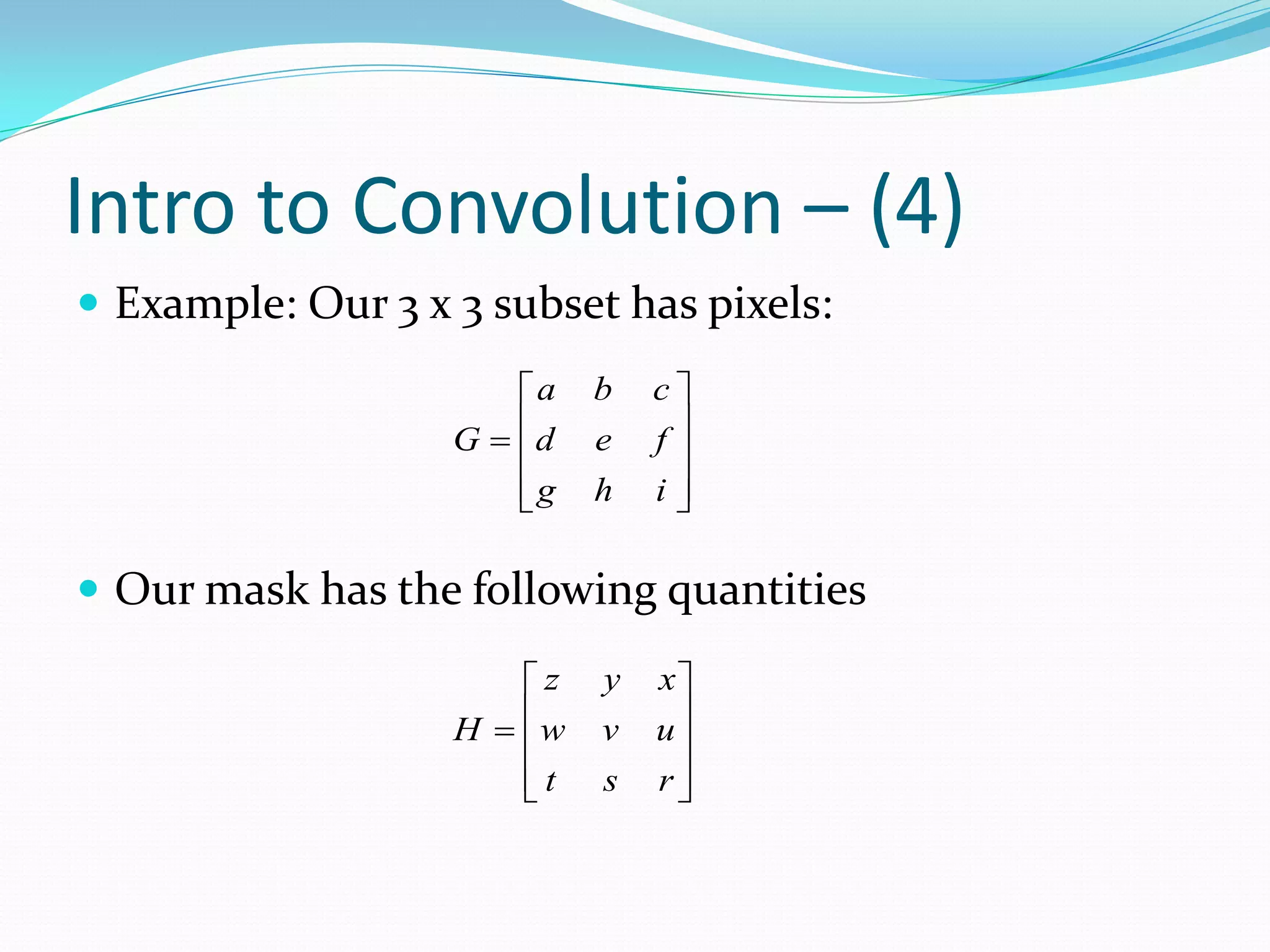
Intro to Convolution– (4) Example: Our 3 x 3 subset has pixels: a b c G = d e f g h i Our mask has the following quantities z y x H = w v u t s r
57.
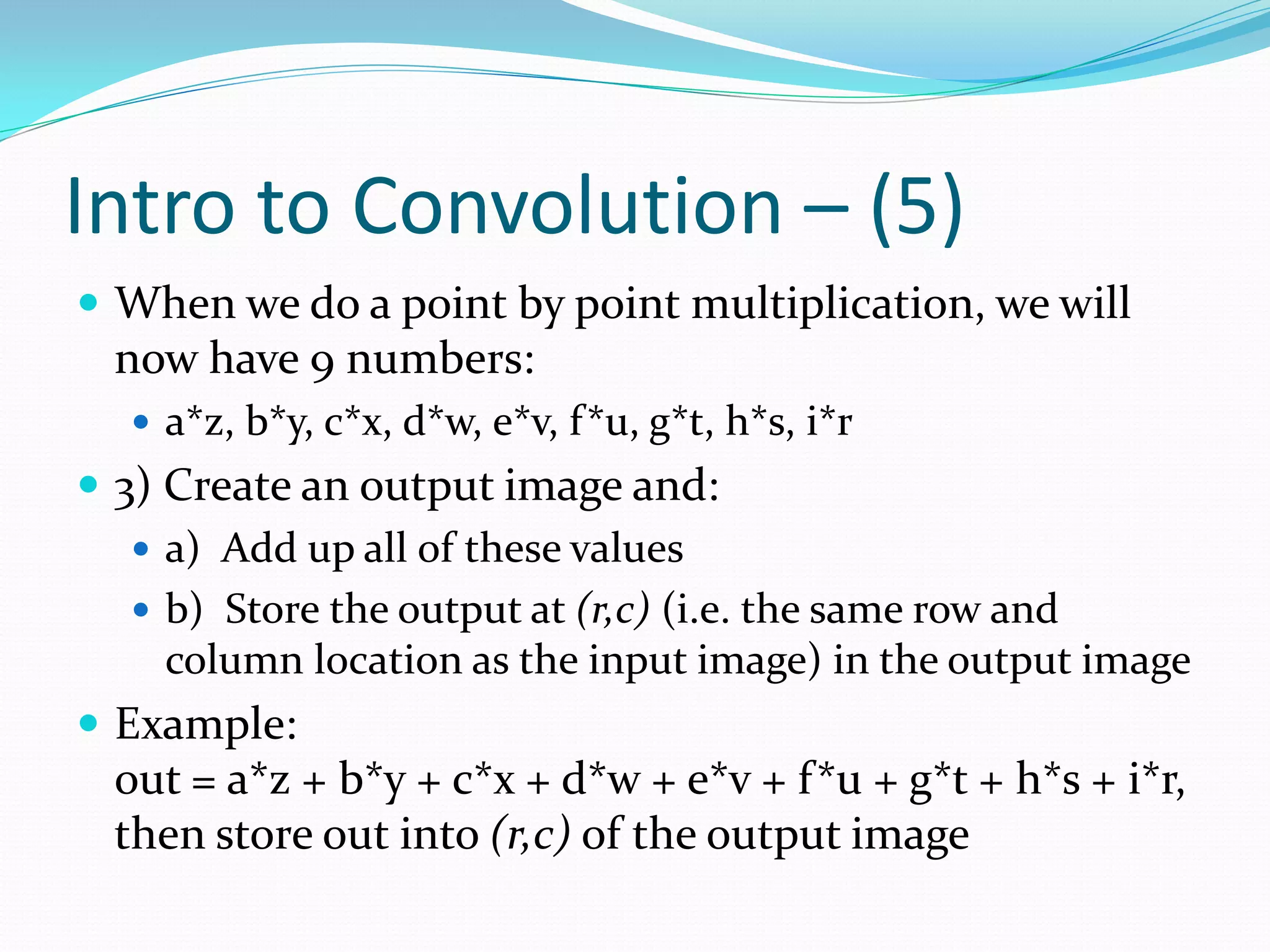
Intro to Convolution– (5) When we do a point by point multiplication, we will now have 9 numbers: a*z, b*y, c*x, d*w, e*v, f*u, g*t, h*s, i*r 3) Create an output image and: a) Add up all of these values b) Store the output at (r,c) (i.e. the same row and column location as the input image) in the output image Example: out = a*z + b*y + c*x + d*w + e*v + f*u + g*t + h*s + i*r, then store out into (r,c) of the output image
58.
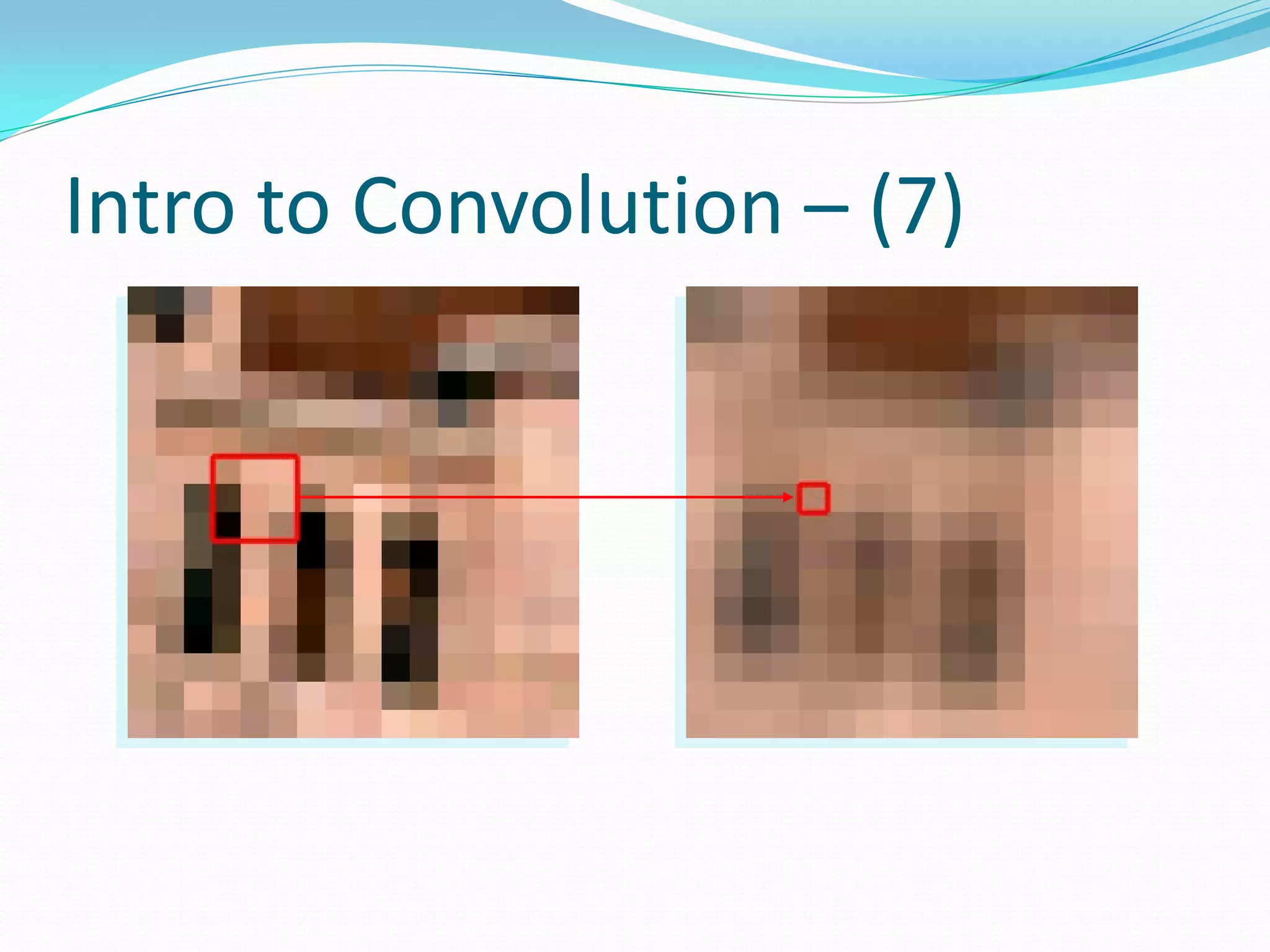
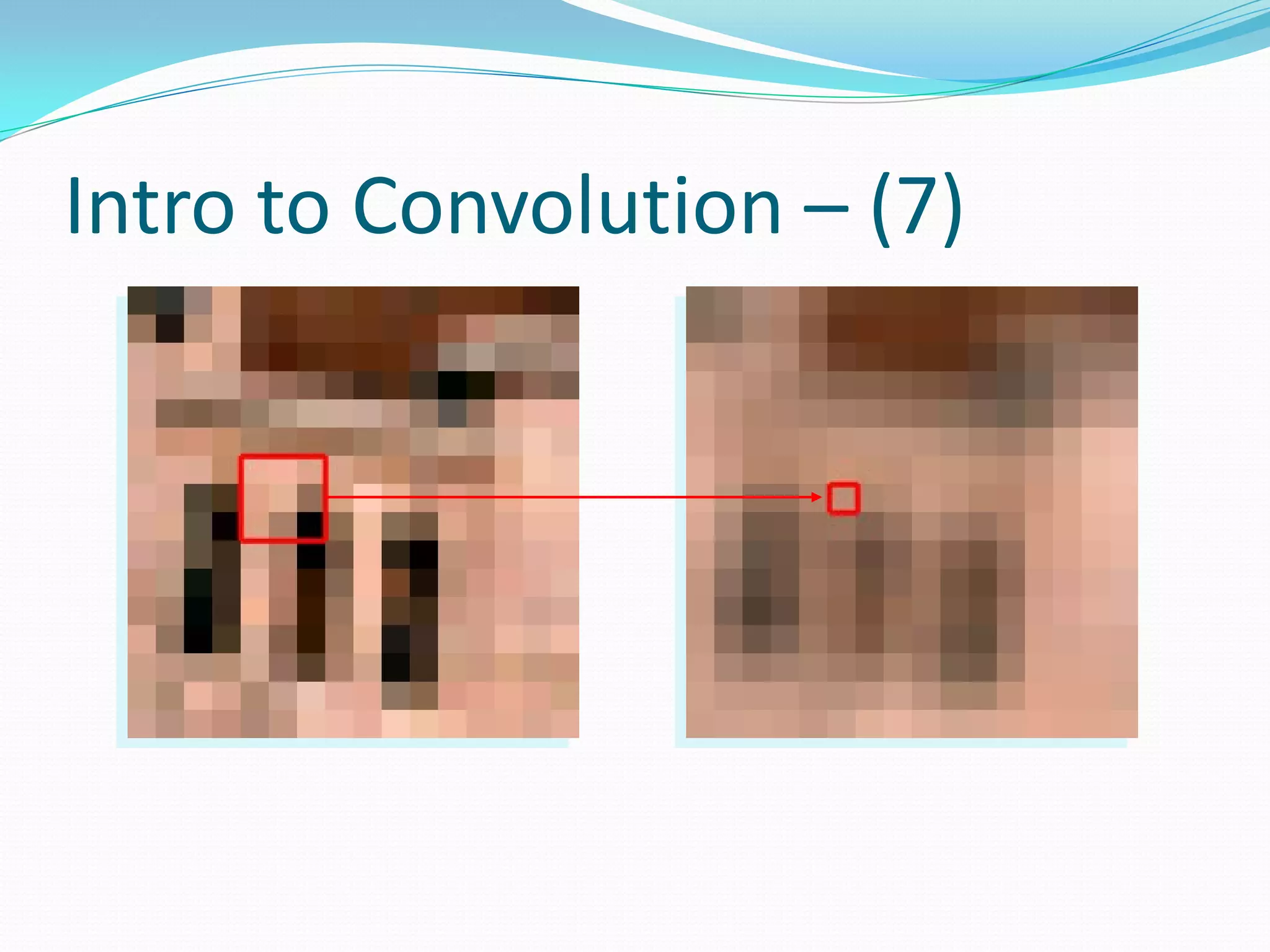
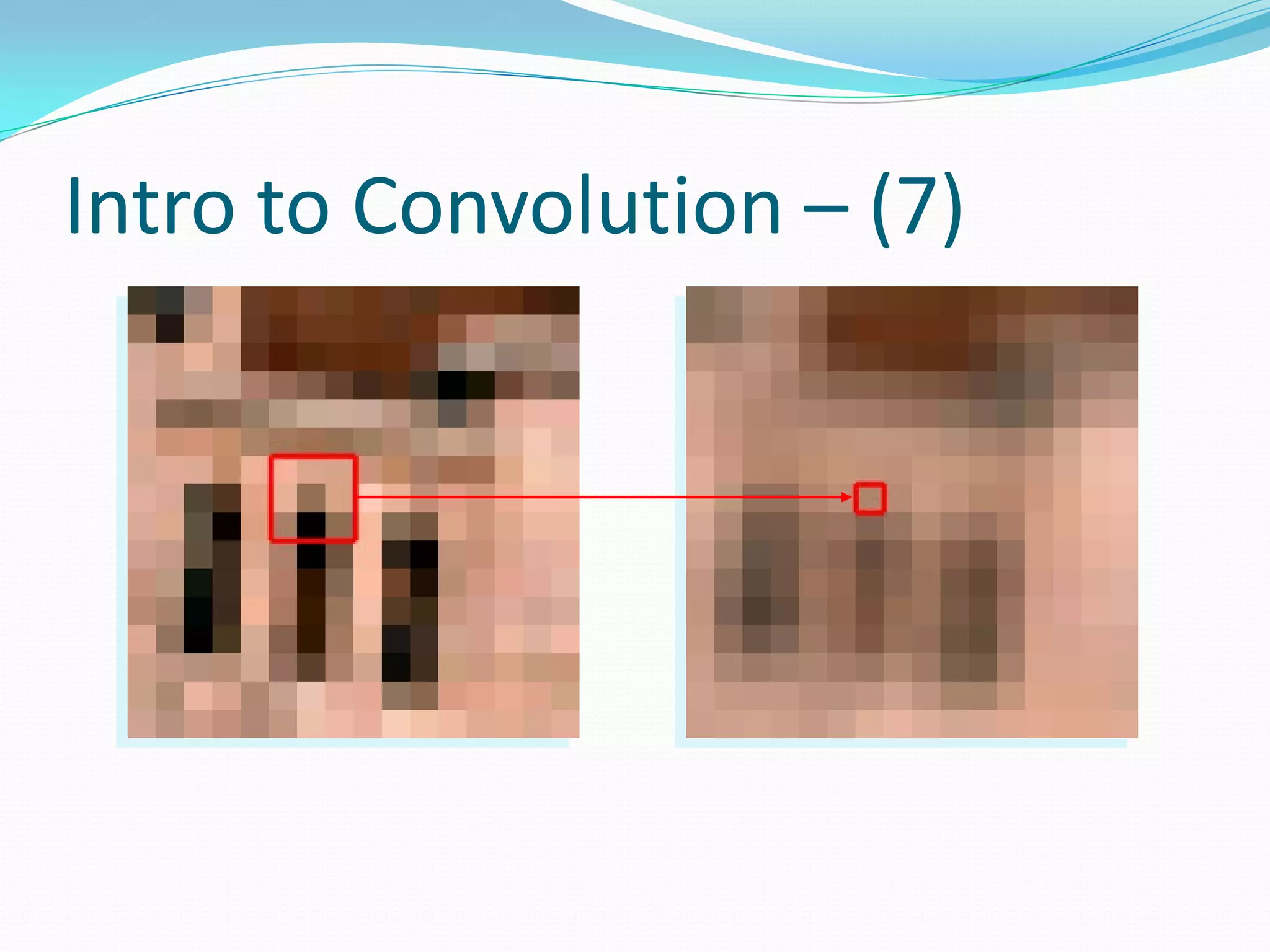
Intro to Convolution– (6) Essentially, convolution is a weighted sum of pixels from the input image within the subset Weighted by the numbers in your mask Each pixel in the output image is this weighted sum Do this for each location of the input image and assign to same location in the output image What about for colour!? Do convolution on each channel separately Note: If the output value is floating point (decimal), we must round in order to make this an 8-bit number Here’s one more example to be sure you understand…
Topics Covered inthis Presentation 2nd Hour: 7:10 p.m. – 8:00 p.m. Operations on Digital Images Simple contrast and brightness enhancing Intro to image histograms Advanced enhancing using image histograms Intro to convolution in images Blurring / Smoothing images Edge detection Sharpening images …break for 10 minutes!
63.
Blur / SmoothImages So now what? Let’s try blurring/smoothing images Blurring? Think of a camera that is out of focus Why should we blur? Minimize sensor noise Noise High Frequency When we blur, we are essentially low-pass filtering, eliminating high frequency content High frequency content Edges By getting rid of the edges, we blur the image How do we blur an image? Try an averaging filter
64.
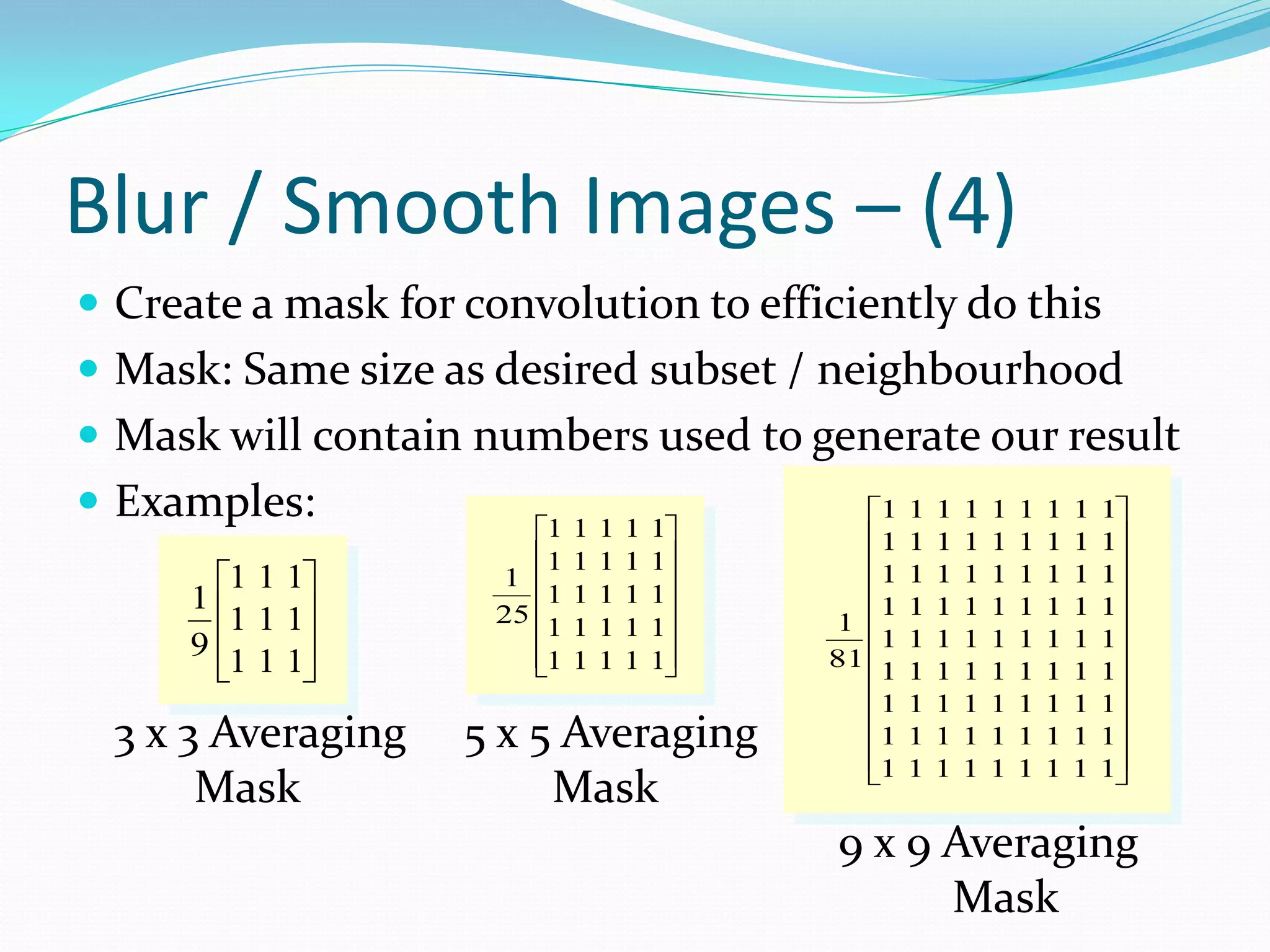
Blur / SmoothImages – (2) Averaging? 1st, create an output image to store results 1) For each pixel (r,c) in the image, look at a N x N neighbourhood / subset of pixels that surround (r,c) 2) Add up all pixel values in the neighbourhood and divide by N2 (number of pixels in neighbourhood) 3) Take this new value and store it into same (r,c) location Notes: This works for B & W images What about for colour images?
65.
Blur / SmoothImages – (3) Remember, colour image can be seen as a 3D matrix 3D matrix 2D matrices with layers 1st layer Red values 2nd layer Green values 3rd layer Blue values So, we can blur each layer independently, and use the RGB values after the blurring of each colour layer The bigger the neighbourhood, the more the blurring How can we efficiently implement this?
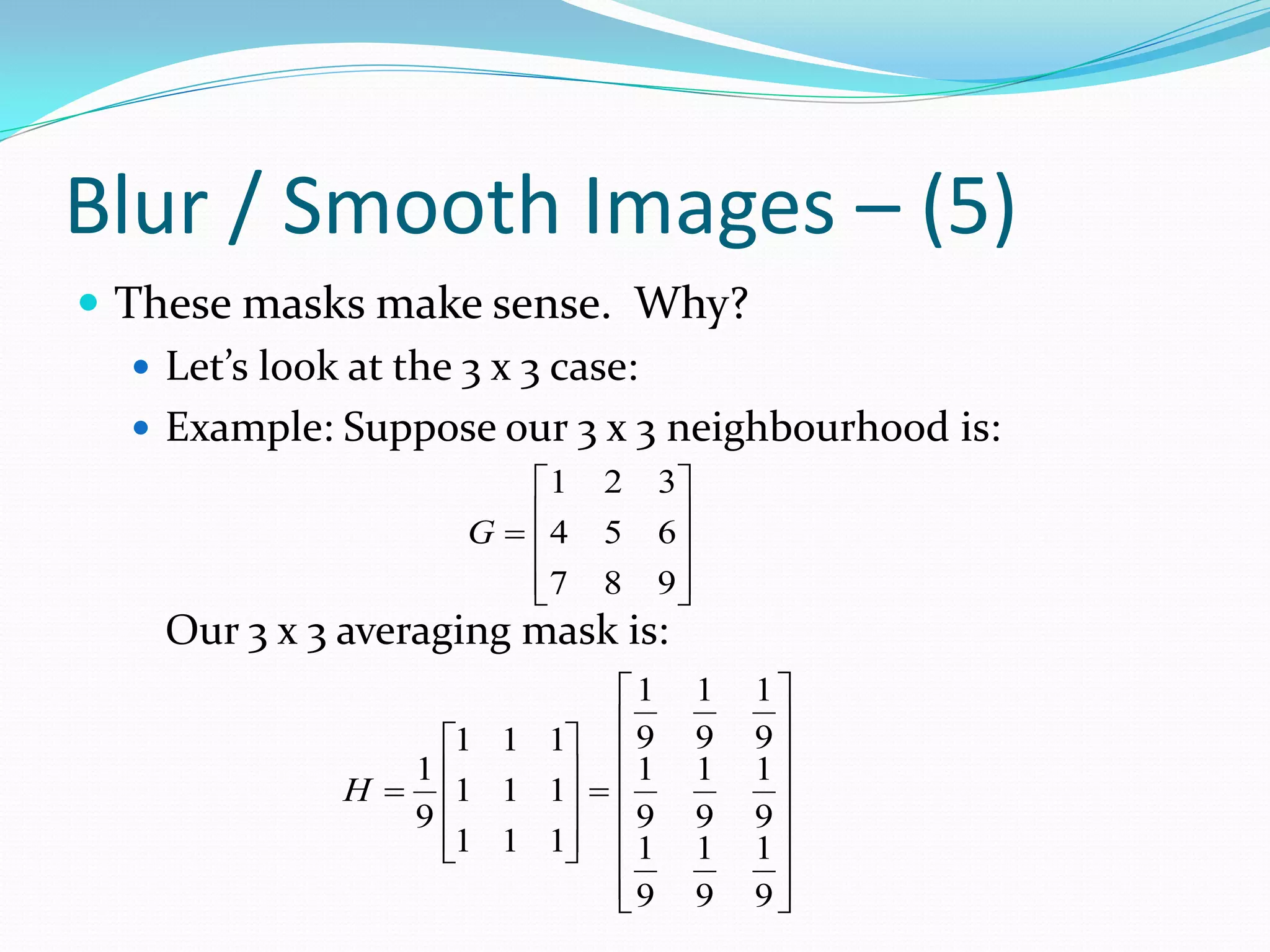
Blur / SmoothImages – (5) These masks make sense. Why? Let’s look at the 3 x 3 case: Example: Suppose our 3 x 3 neighbourhood is: 1 2 3 G = 4 5 6 7 8 9 Our 3 x 3 averaging mask is: 1 1 1 1 1 1 9 9 9 1 H = 1 1 1 = 1 1 1 9 9 9 9 1 1 1 1 1 1 9 9 9
68.
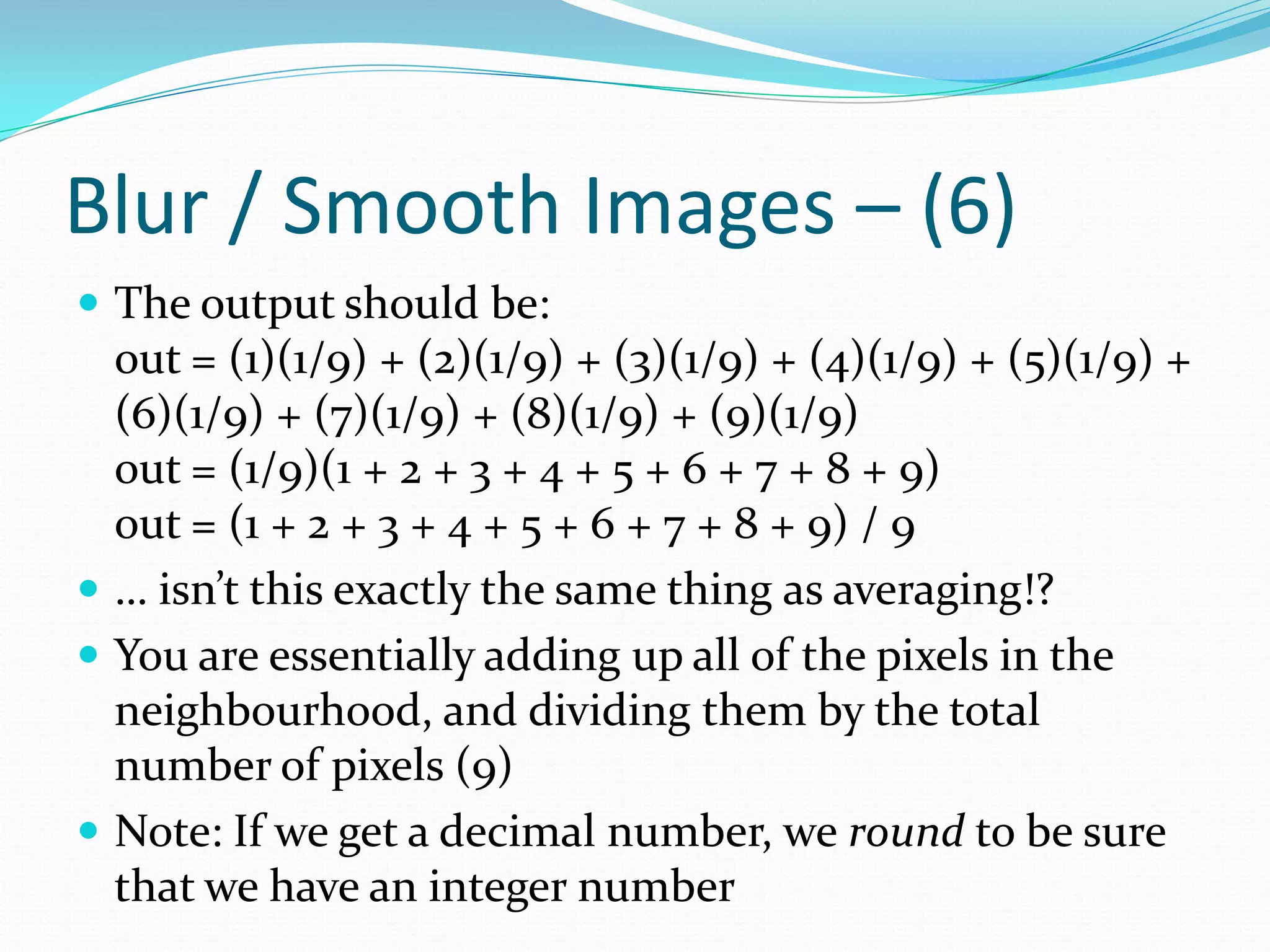
Blur / SmoothImages – (6) The output should be: out = (1)(1/9) + (2)(1/9) + (3)(1/9) + (4)(1/9) + (5)(1/9) + (6)(1/9) + (7)(1/9) + (8)(1/9) + (9)(1/9) out = (1/9)(1 + 2 + 3 + 4 + 5 + 6 + 7 + 8 + 9) out = (1 + 2 + 3 + 4 + 5 + 6 + 7 + 8 + 9) / 9 … isn’t this exactly the same thing as averaging!? You are essentially adding up all of the pixels in the neighbourhood, and dividing them by the total number of pixels (9) Note: If we get a decimal number, we round to be sure that we have an integer number
69.
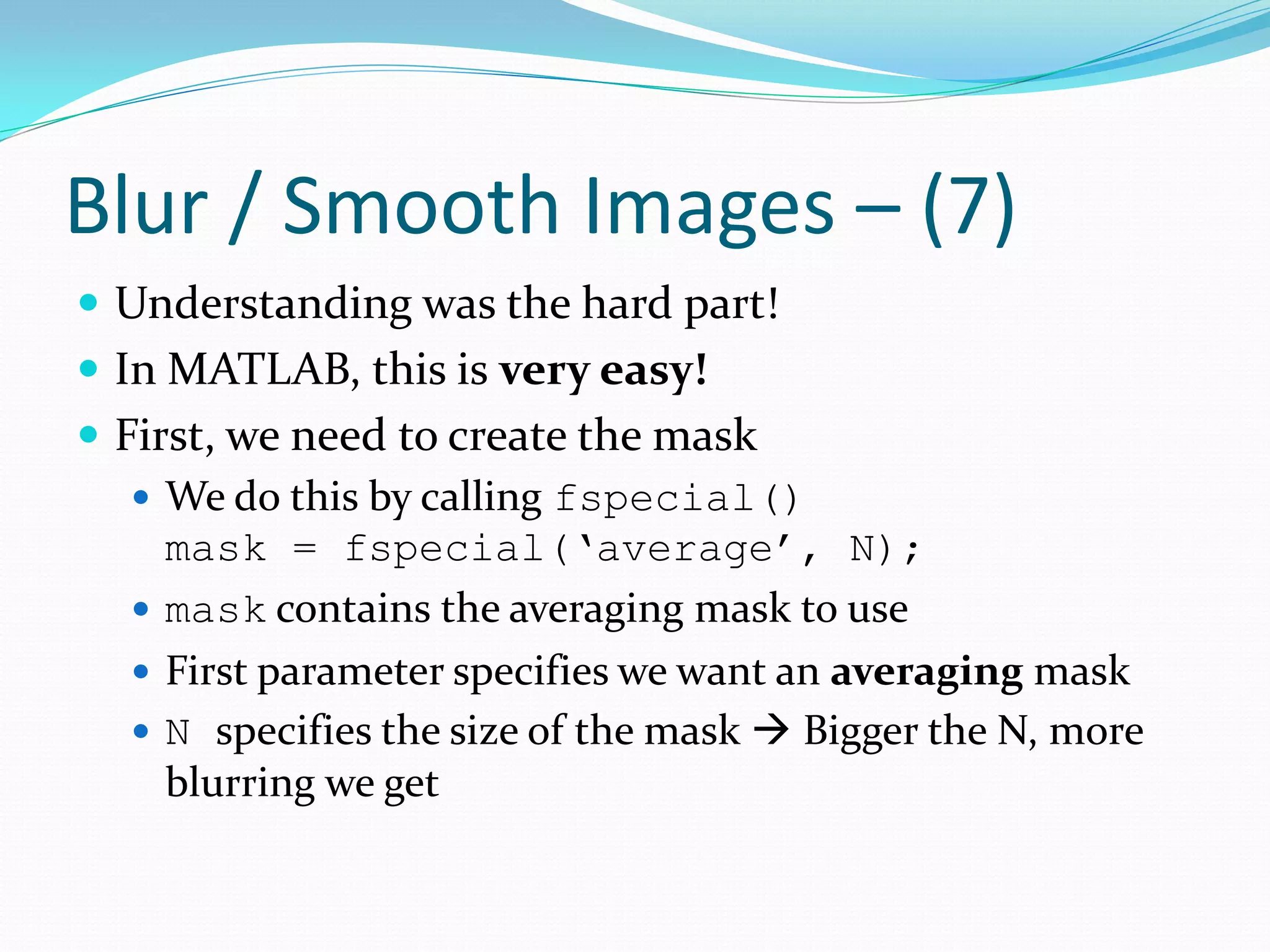
Blur / SmoothImages – (7) Understanding was the hard part! In MATLAB, this is very easy! First, we need to create the mask We do this by calling fspecial() mask = fspecial(‘average’, N); mask contains the averaging mask to use First parameter specifies we want an averaging mask N specifies the size of the mask Bigger the N, more blurring we get
70.
Blur / SmoothImages – (8) Next, call a command that will perform this multiply and sum command for each pixel in the image Use the imfilter() command out = imfilter(im, mask); out: output image (this case averaged output) im contains the image we want to blur mask: Convolution mask to use (this case averaging) Nice little note imfilter() works on both grayscale and colour images For colour, this automatically performs convolution on each channel individually and combines after
71.
Blur / SmoothImages – (9) imfilter() performs image filtering using masks Essentially convolution Filtering Produce an output image that changes the frequency content of the image Blurring, Sharpening, Detecting Edges, etc. Why are masks important? You change the size of the mask, and values in the mask and you get different results! Essentially how most filters in Adobe Photoshop and GIMP work
Topics Covered inthis Presentation 2nd Hour: 7:10 p.m. – 8:00 p.m. Operations on Digital Images Simple contrast and brightness enhancing Intro to image histograms Advanced enhancing using image histograms Intro to convolution in images Blurring / Smoothing images Edge detection Sharpening images …break for 10 minutes!
74.
Edge Detection Next?Edge detection… what is an edge? Edges are sudden discontinuities appearing in images A.K.A. sudden jumps in intensity or colour in images How can we detect edges? Very simple: Think Calc. Find the derivative of each point in the image When slope is very high, that means you found an edge But, derivative is only for 1D signals… what about 2D!? You must take the gradient Derivative in both the x and y directions You combine both of these directions to create your final derivative function
75.
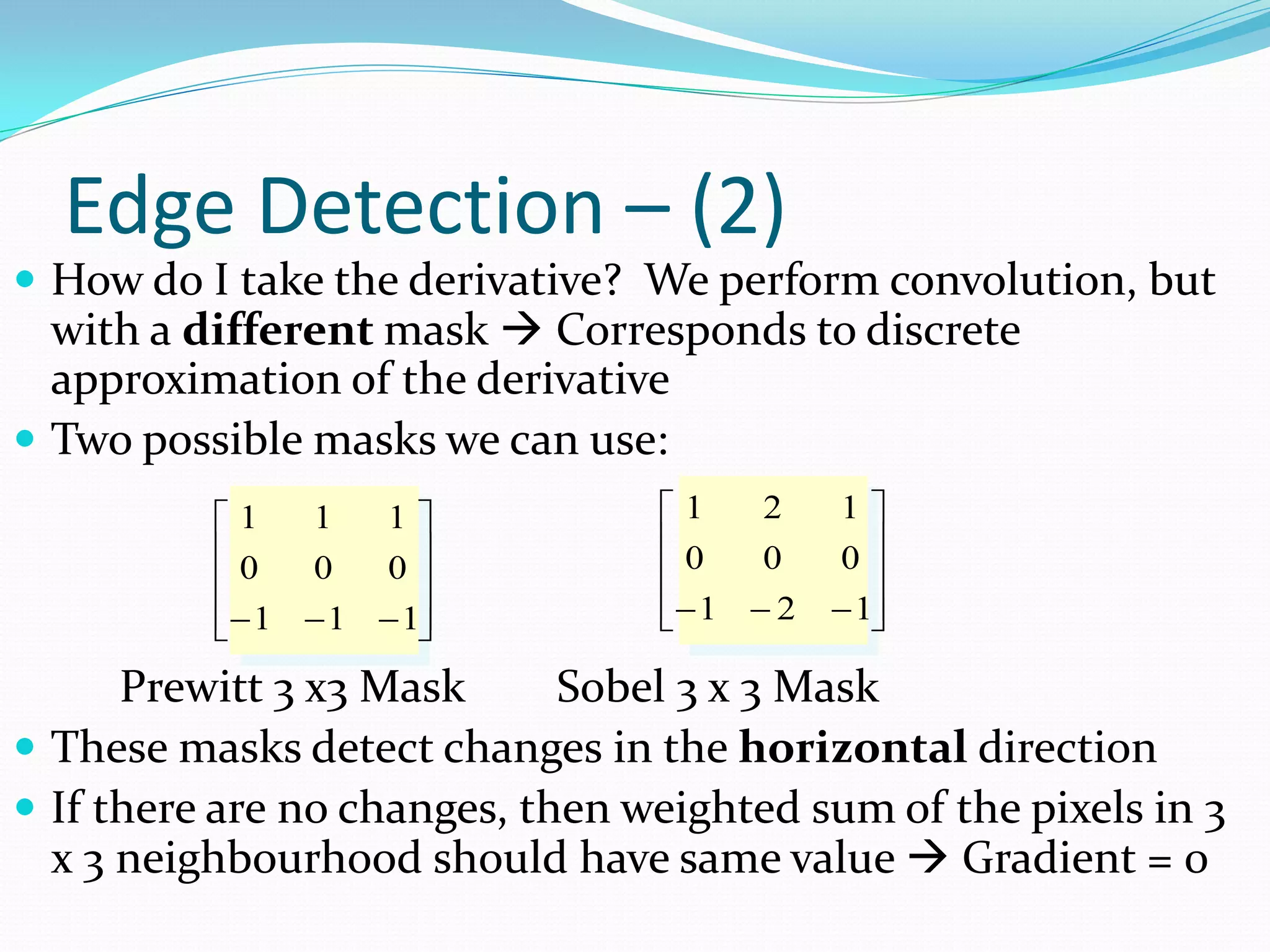
Edge Detection –(2) How do I take the derivative? We perform convolution, but with a different mask Corresponds to discrete approximation of the derivative Two possible masks we can use: 1 1 1 1 2 1 0 0 0 0 0 0 − 1 − 1 − 1 − 1 − 2 − 1 Prewitt 3 x3 Mask Sobel 3 x 3 Mask These masks detect changes in the horizontal direction If there are no changes, then weighted sum of the pixels in 3 x 3 neighbourhood should have same value Gradient = 0
76.
Edge Detection –(3) Prewitt Mask Normal derivative Sobel Mask Puts more weight on the central pixels How does this detect horizontal changes? When using the mask, if there is a change, there is a huge change above the zero line, and below the zero line So when performing correlation, it can detect horizontal changes How do we detect vertical changes? Take the transpose of each mask! Tranpose Interchange rows & columns of the mask
77.
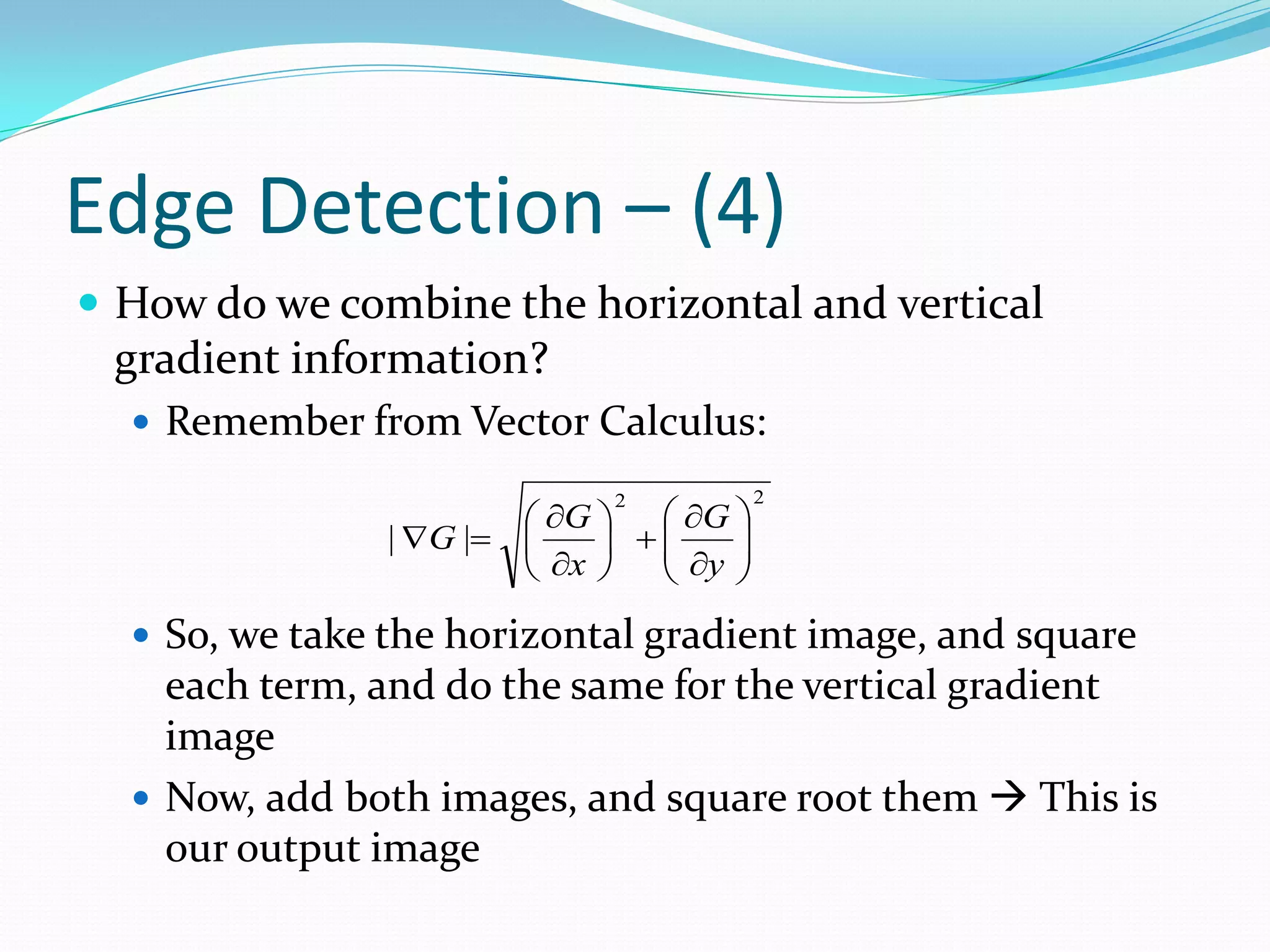
Edge Detection –(4) How do we combine the horizontal and vertical gradient information? Remember from Vector Calculus: 2 ∂G ∂G 2 | ∇G |= + ∂y ∂x So, we take the horizontal gradient image, and square each term, and do the same for the vertical gradient image Now, add both images, and square root them This is our output image
78.
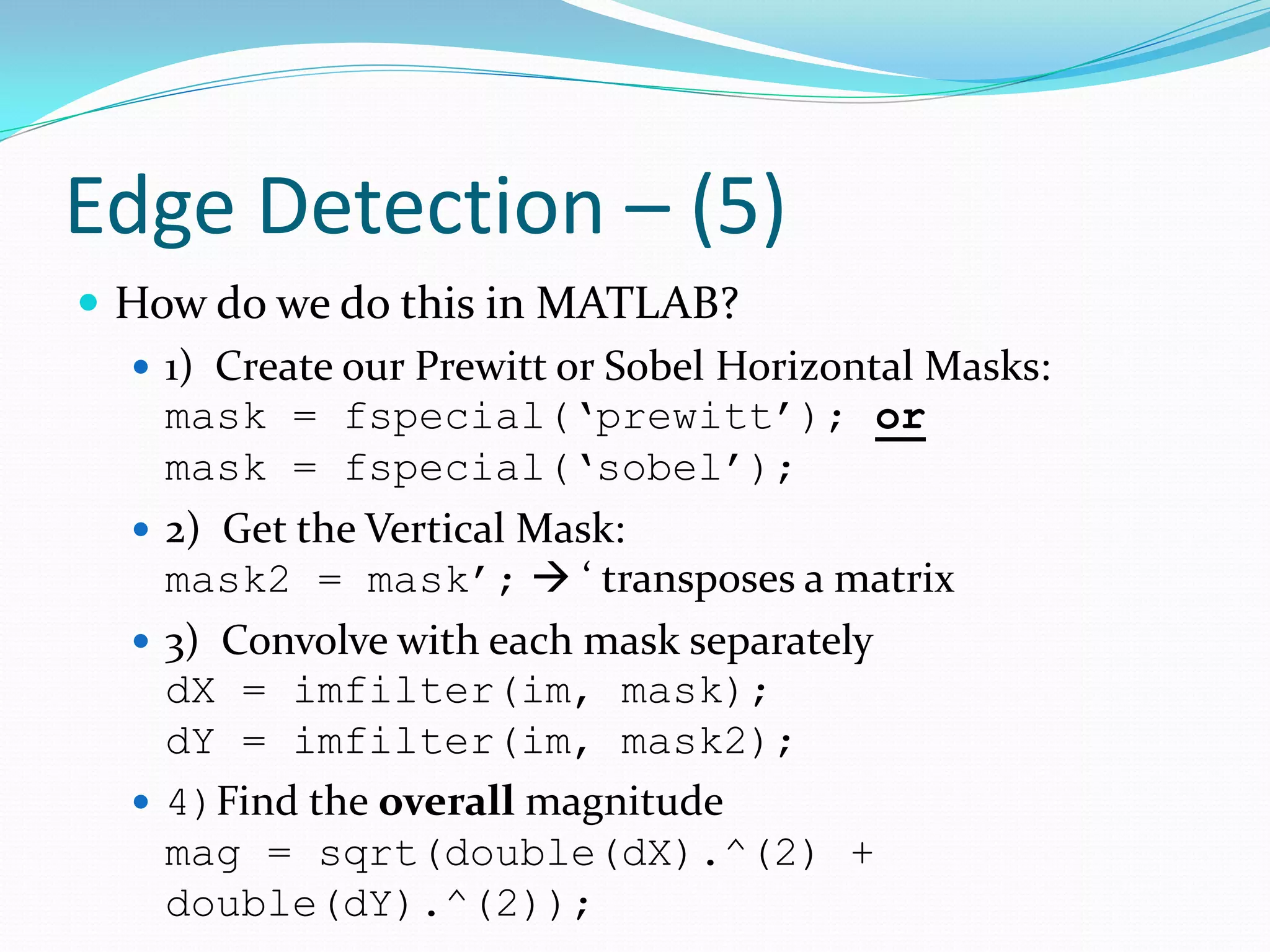
Edge Detection –(5) How do we do this in MATLAB? 1) Create our Prewitt or Sobel Horizontal Masks: mask = fspecial(‘prewitt’); or mask = fspecial(‘sobel’); 2) Get the Vertical Mask: mask2 = mask’; ‘ transposes a matrix 3) Convolve with each mask separately dX = imfilter(im, mask); dY = imfilter(im, mask2); 4)Find the overall magnitude mag = sqrt(double(dX).^(2) + double(dY).^(2));
79.
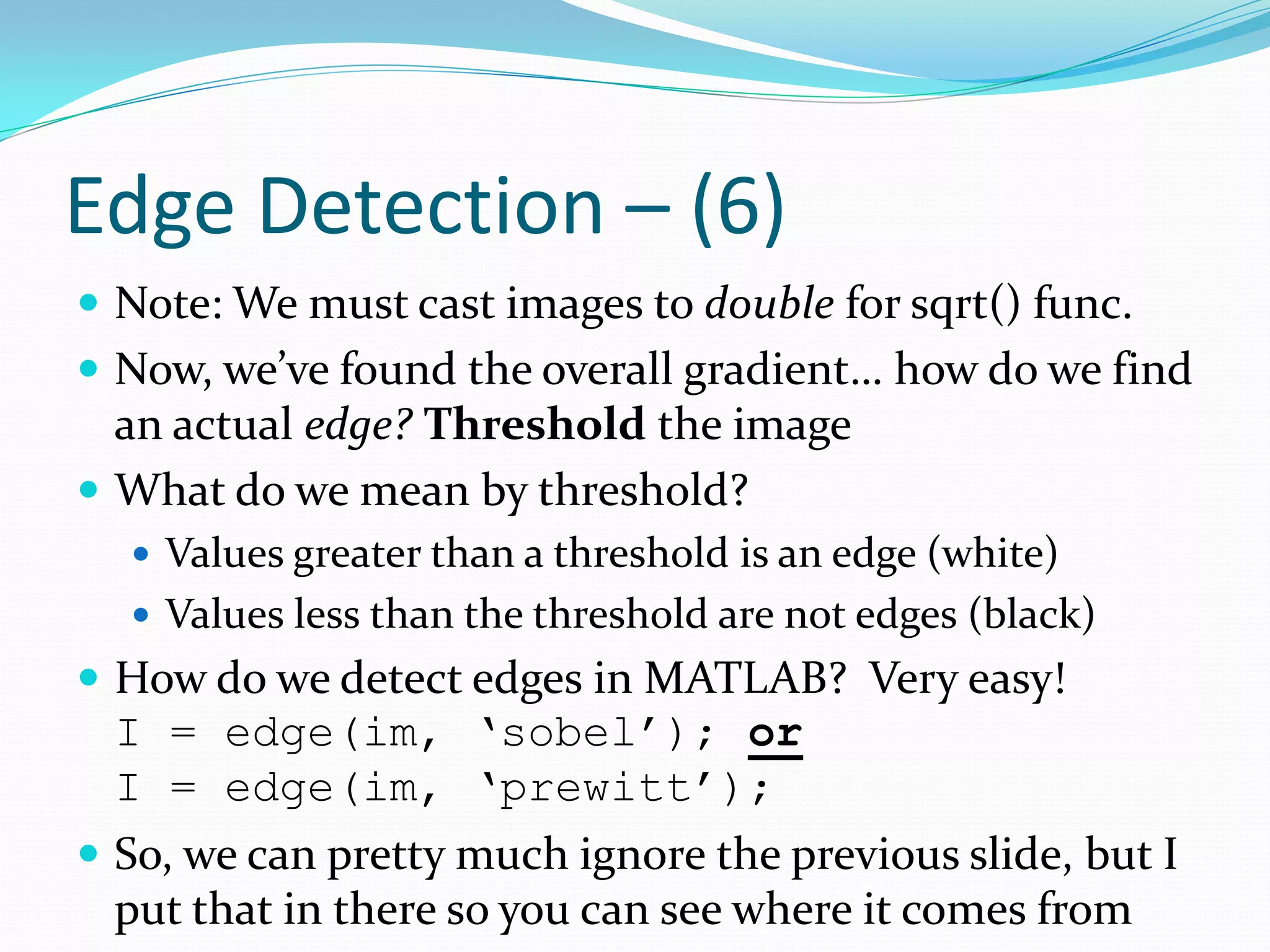
Edge Detection –(6) Note: We must cast images to double for sqrt() func. Now, we’ve found the overall gradient… how do we find an actual edge? Threshold the image What do we mean by threshold? Values greater than a threshold is an edge (white) Values less than the threshold are not edges (black) How do we detect edges in MATLAB? Very easy! I = edge(im, ‘sobel’); or I = edge(im, ‘prewitt’); So, we can pretty much ignore the previous slide, but I put that in there so you can see where it comes from
80.
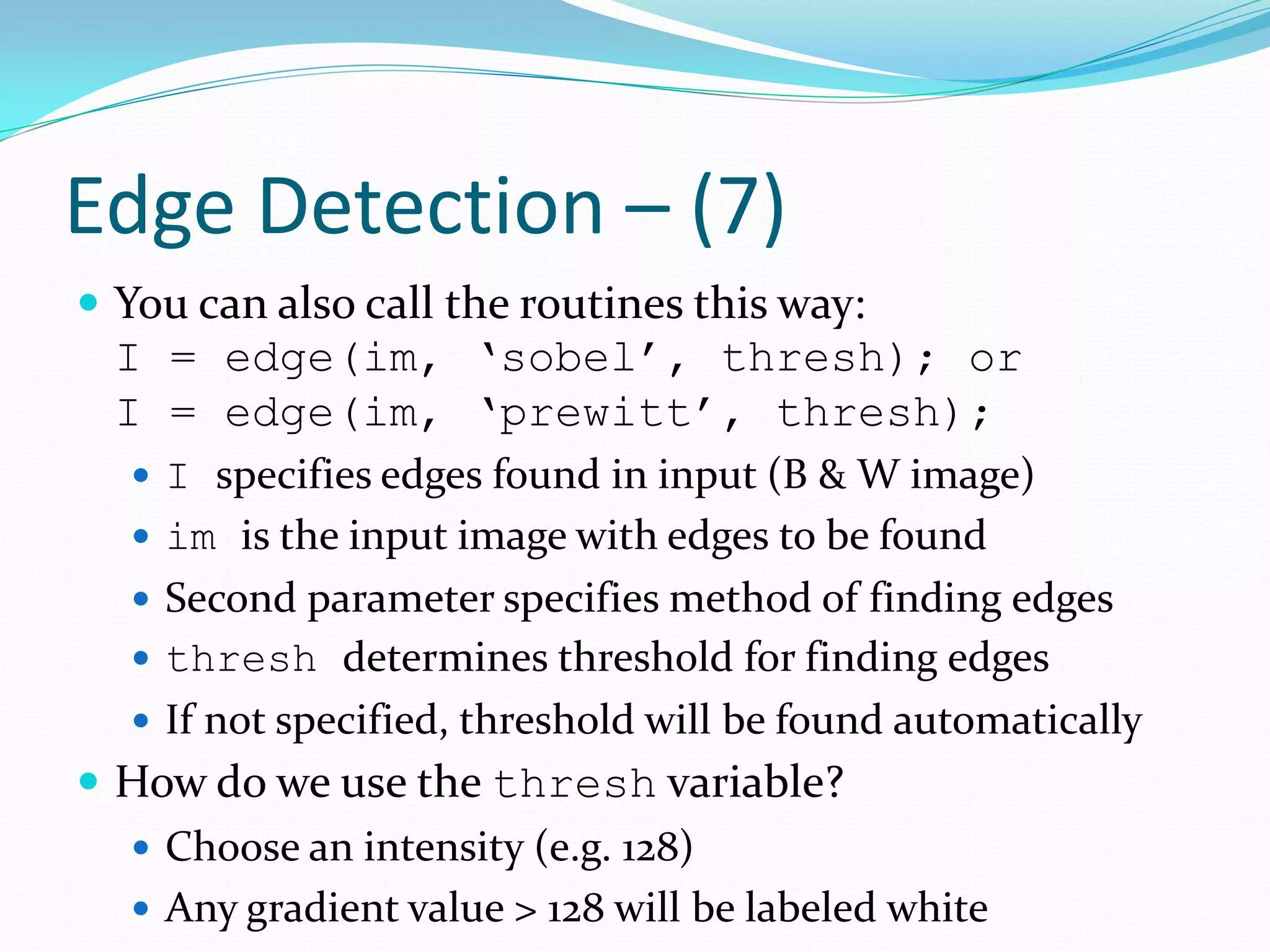
Edge Detection –(7) You can also call the routines this way: I = edge(im, ‘sobel’, thresh); or I = edge(im, ‘prewitt’, thresh); I specifies edges found in input (B & W image) im is the input image with edges to be found Second parameter specifies method of finding edges thresh determines threshold for finding edges If not specified, threshold will be found automatically How do we use the thresh variable? Choose an intensity (e.g. 128) Any gradient value > 128 will be labeled white
81.
Edge Detection –(8) Any gradient value < 128 is labelled black thresh is between [0,1], so take your threshold and divide by 255 to use i.e. I = edge(im, ‘prewitt’, 128/255); Output image will give you a black and white image White is an edge, black is not an edge Only works for B & W images. To find edges for colour images, convert the colour image to a B & W image Use gray = rgb2gray(im); rgb2gray converts a colour image into B & W by doing: I = (R + G + B) / 3 Each colour pixel is the average of the red, green and blue components
82.
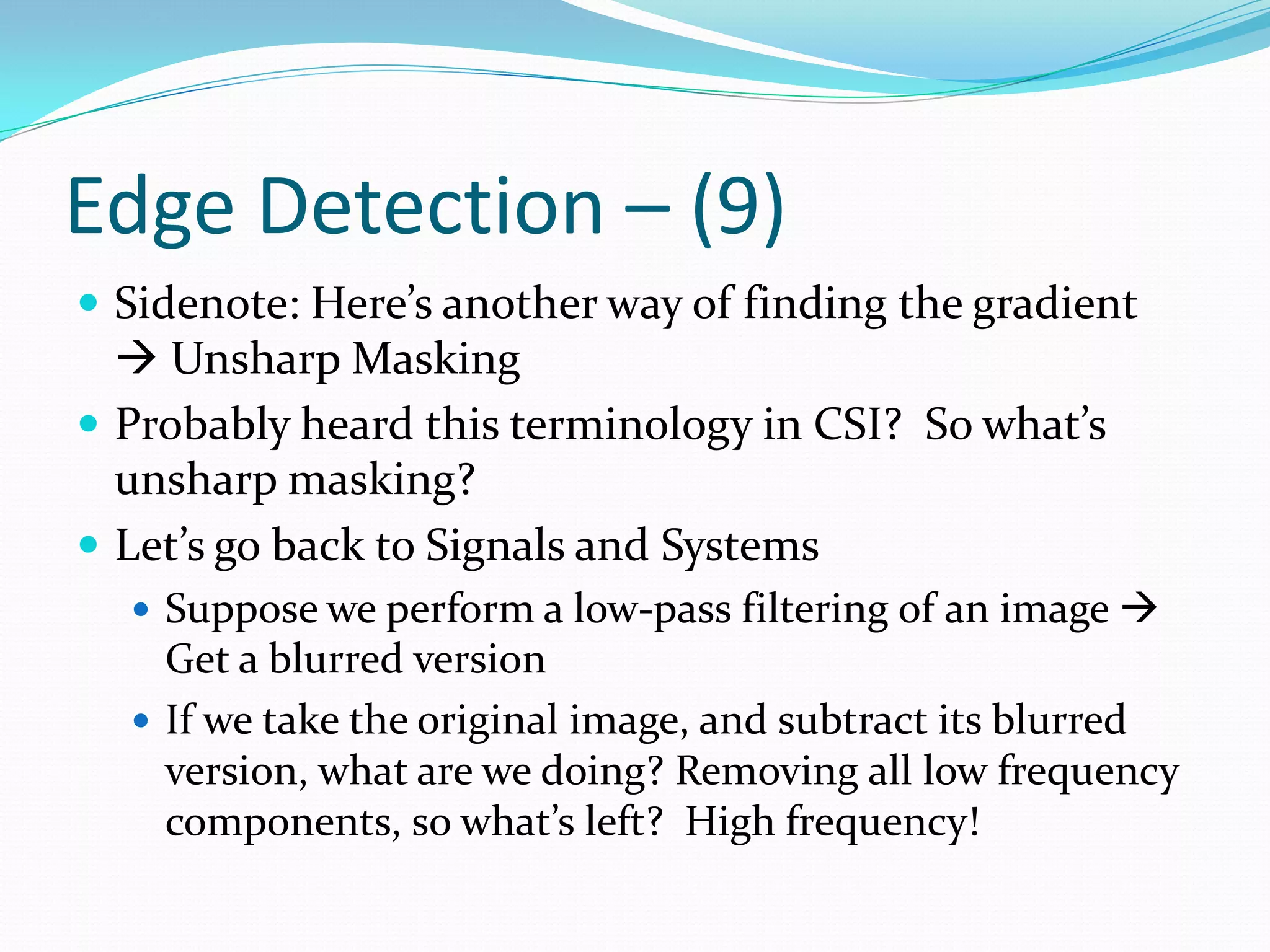
Edge Detection –(9) Sidenote: Here’s another way of finding the gradient Unsharp Masking Probably heard this terminology in CSI? So what’s unsharp masking? Let’s go back to Signals and Systems Suppose we perform a low-pass filtering of an image Get a blurred version If we take the original image, and subtract its blurred version, what are we doing? Removing all low frequency components, so what’s left? High frequency!
83.
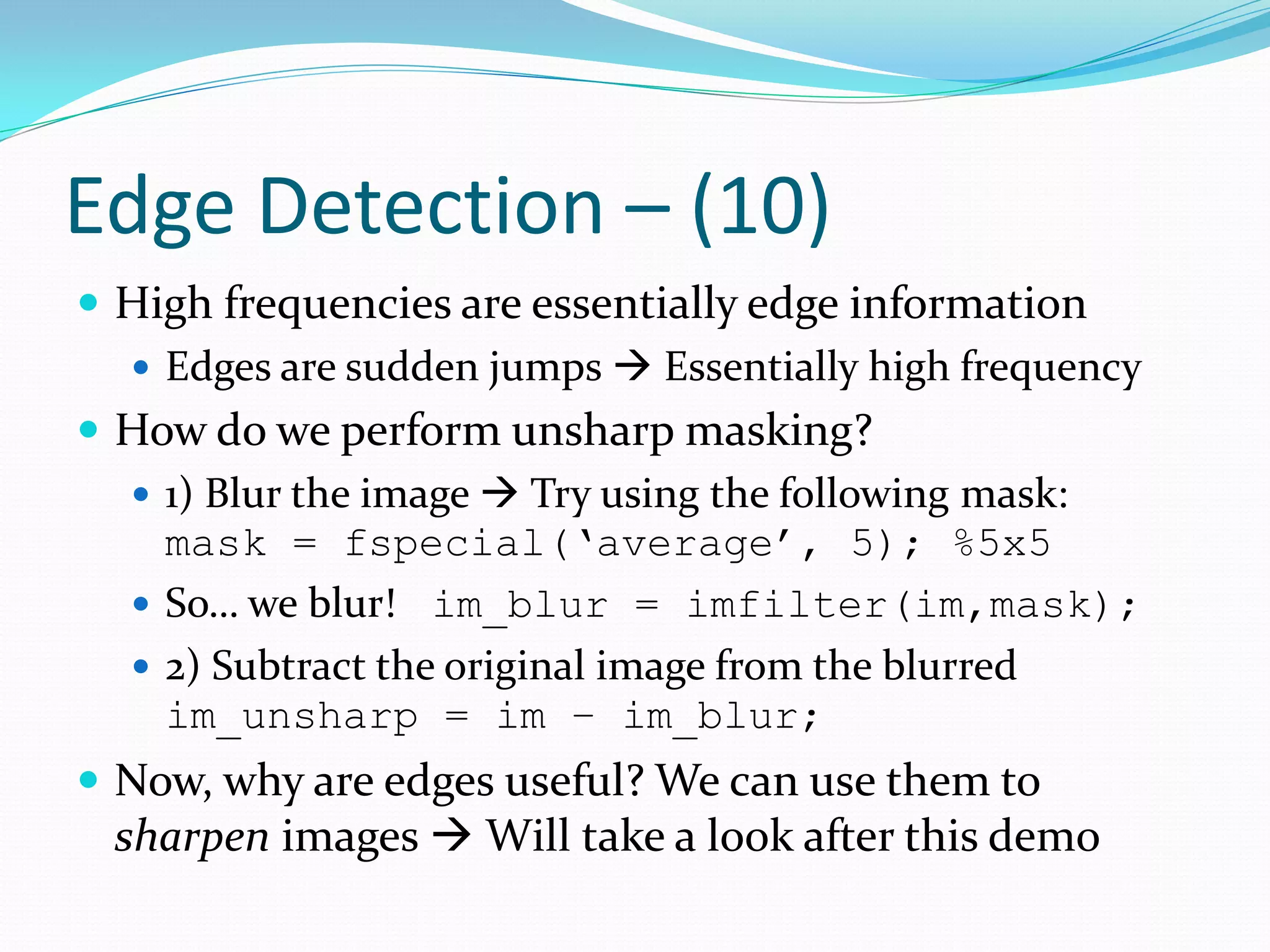
Edge Detection –(10) High frequencies are essentially edge information Edges are sudden jumps Essentially high frequency How do we perform unsharp masking? 1) Blur the image Try using the following mask: mask = fspecial(‘average’, 5); %5x5 So… we blur! im_blur = imfilter(im,mask); 2) Subtract the original image from the blurred im_unsharp = im – im_blur; Now, why are edges useful? We can use them to sharpen images Will take a look after this demo
84.
Demo Time #6! Edge Detection in Images Calculating an Unsharp Mask
85.
Topics Covered inthis Presentation 2nd Hour: 7:10 p.m. – 8:00 p.m. Operations on Digital Images Simple contrast and brightness enhancing Intro to image histograms Advanced enhancing using image histograms Intro to convolution in images Blurring / Smoothing images Edge detection Sharpening images …break for 10 minutes!
86.
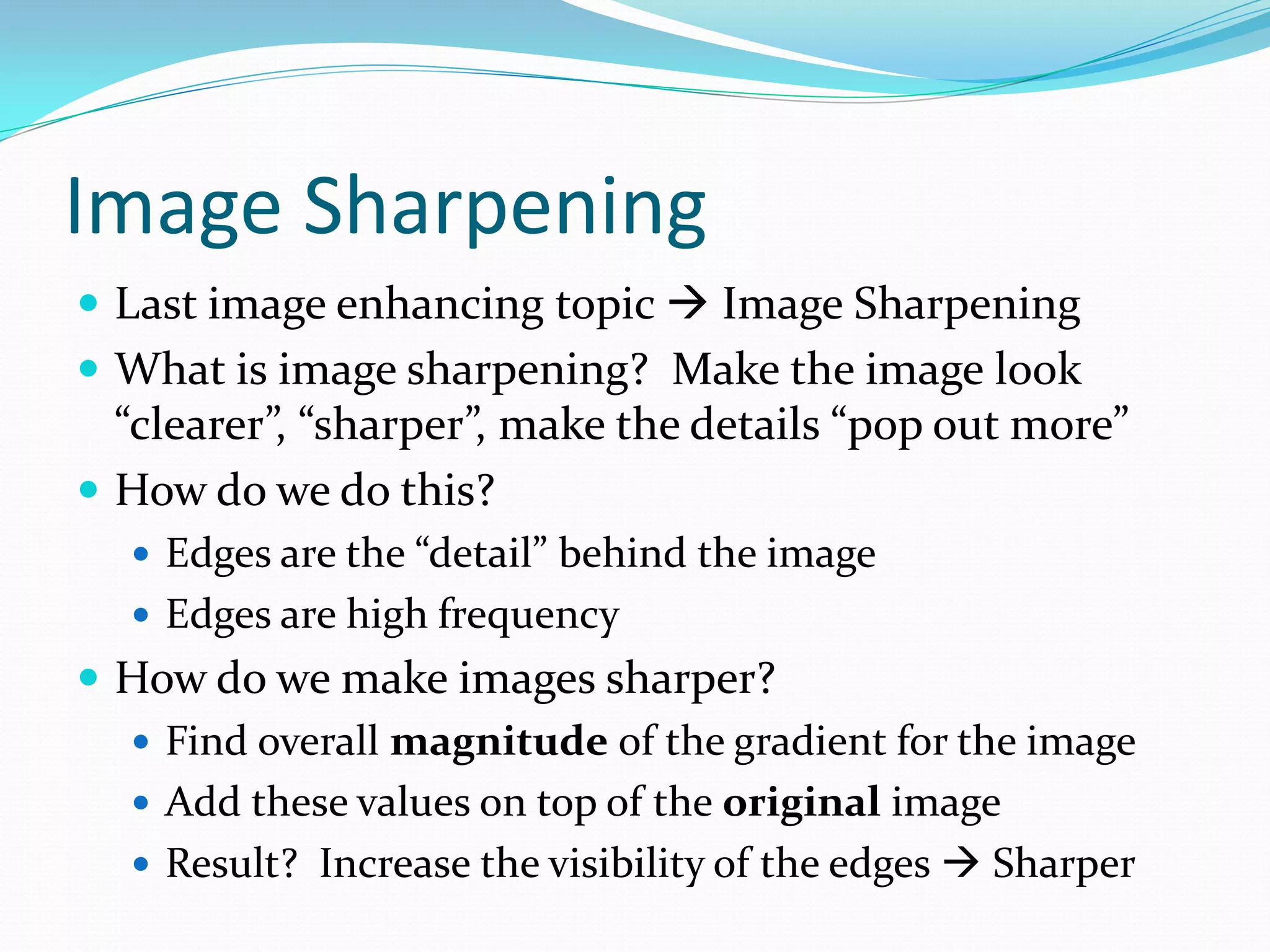
Image Sharpening Lastimage enhancing topic Image Sharpening What is image sharpening? Make the image look “clearer”, “sharper”, make the details “pop out more” How do we do this? Edges are the “detail” behind the image Edges are high frequency How do we make images sharper? Find overall magnitude of the gradient for the image Add these values on top of the original image Result? Increase the visibility of the edges Sharper
87.
Image Sharpening –(2) Use imfilter with unsharp masking mask = fspecial(‘unsharp’); The above syntax creates an unsharp mask in such a way where when you convolve, it will automatically subtract the image with a blurred version of itself and add the original image on top Good for both x and y direction changes How? mask = fspecial(‘unsharp’); sharp = imfilter(im, mask); This will perform the detection of abrupt changes, and adding them on top of the image all in one go.
Segmentation via Thresholding There are times when we want to separate objects (the things we want) from the background Segmentation To make this easier, we convert to a B & W image first if the image is in colour. Else just leave it alone After conversion, most of the time the intensities of the objects are distinctly different from background We can write code to save the pixels that match these intensities, and disregard the rest Pixels that match Set to white, else set to black Output image will be binary White belonging to object, and black belonging to background We can use this to mask out the background pixels
91.
Segmentation via Thresholding(2) What do we do? Take a look at the histogram, and see which pixels are predominantly belonging to the object, and of the background We threshold the image using this information We then use this threshold map to figure out what pixels we want to keep, and what we want to disregard
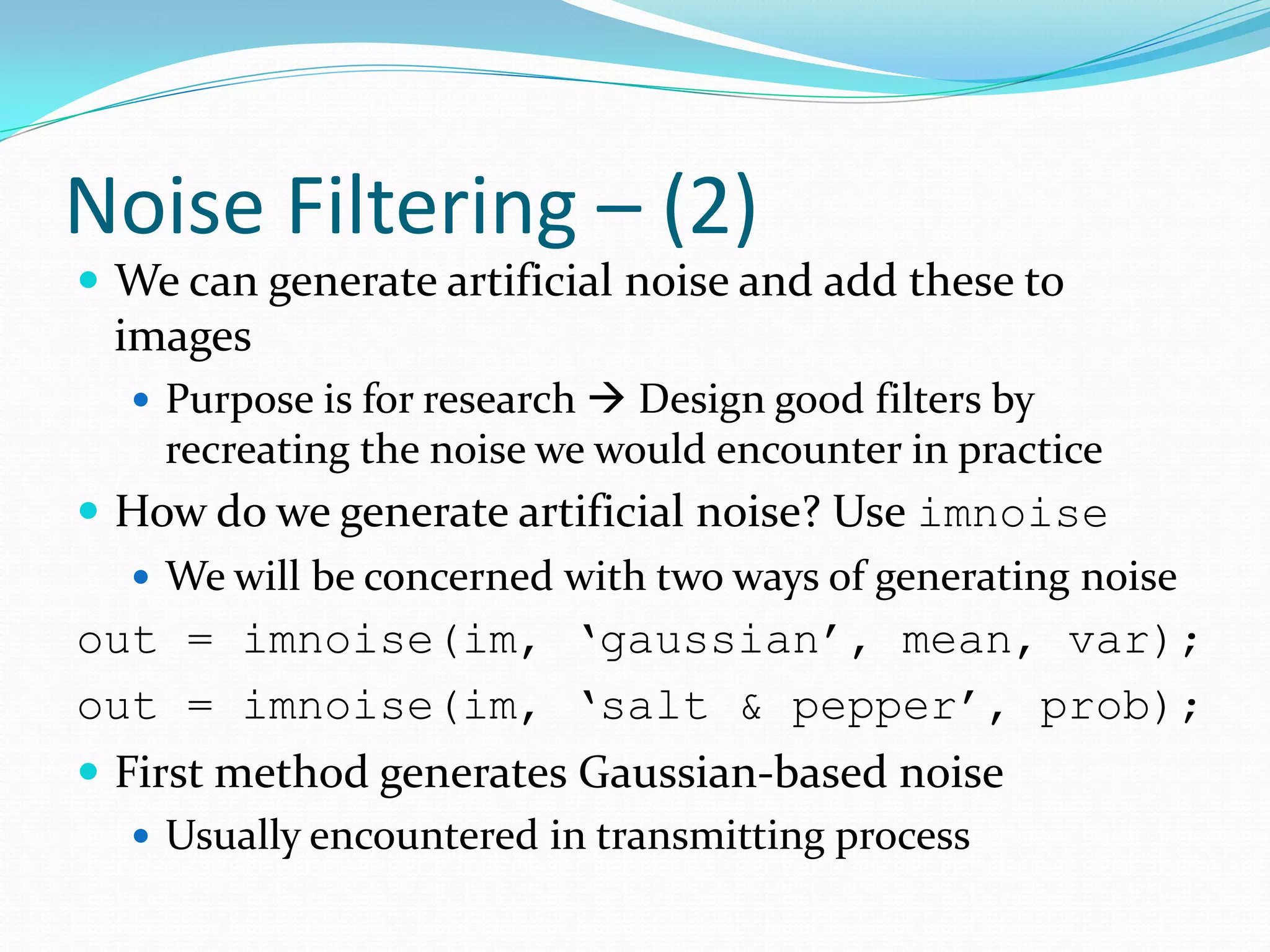
Noise Filtering Acommon task in image processing is to eliminate or reduce image noise from an image Image Noise: Pixels in an image that are corrupted undesirably Pixels could be corrupted in the acquisition process, or in transmitting, etc. How do we reduce image noise? Think in the frequency domain Noise is essentially high-frequency information If we blur the image, we would eliminate the noise, but the quality would reduce blurring details
95.
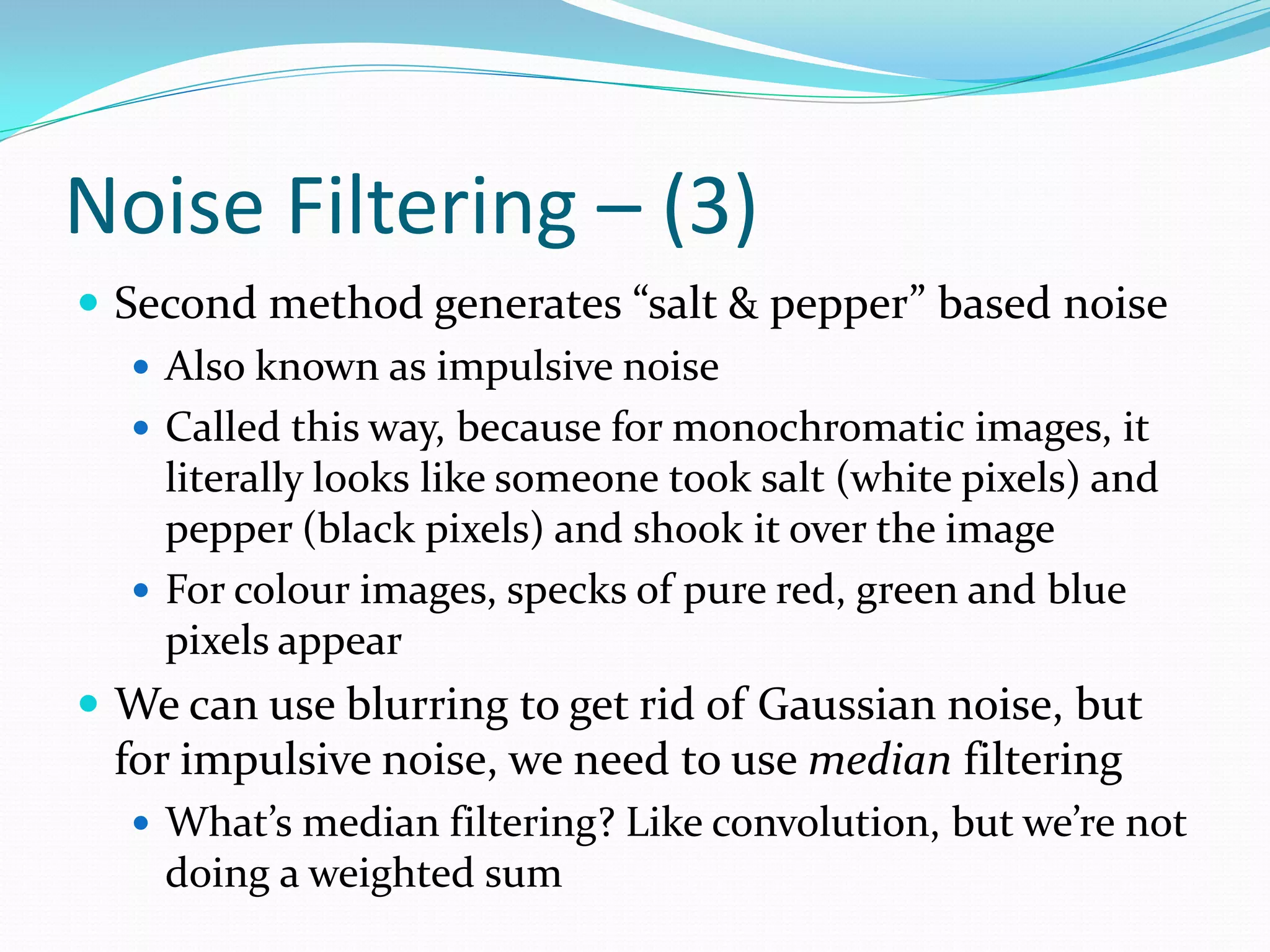
Noise Filtering –(2) We can generate artificial noise and add these to images Purpose is for research Design good filters by recreating the noise we would encounter in practice How do we generate artificial noise? Use imnoise We will be concerned with two ways of generating noise out = imnoise(im, ‘gaussian’, mean, var); out = imnoise(im, ‘salt & pepper’, prob); First method generates Gaussian-based noise Usually encountered in transmitting process
96.
Noise Filtering –(3) Second method generates “salt & pepper” based noise Also known as impulsive noise Called this way, because for monochromatic images, it literally looks like someone took salt (white pixels) and pepper (black pixels) and shook it over the image For colour images, specks of pure red, green and blue pixels appear We can use blurring to get rid of Gaussian noise, but for impulsive noise, we need to use median filtering What’s median filtering? Like convolution, but we’re not doing a weighted sum
97.
Noise Filtering –(4) For each pixel (r,c) in the image, extract an M x N subset of pixels centered at (r,c) Sort these pixels in ascending order, and grab the median value The output image at (r,c) is this value How do we perform median filtering in MATLAB? out = medfilt2(im, [M N]);
Template Matching Templatematching is using a small test image, which we’ll call a patch Objective is to automatically find the location of where this patch is in the entire image Useful in a variety of applications: Image Retrieval, Eye Detection, etc. What I’ll show you today is to do some basic image stitching We will have two images of the same scene, that have been taken at slightly different perspectives Only horizontal shifting is concentrated on here
101.
Template Matching –(2) What’s the best way to do template matching? 1) For each pixel (r,c) in the image, extract a subset that is the same size as the template with its centre at (r,c) 2) Perform a cross-correlation between the patch and this subset 3) Take this value and assign it to location (r,c) for the output 4) The best location of where the template is, is where the maximum cross-correlation is We can perform (1) to (3) by doing: C = normxcorr2(template, im);
102.
Template Matching –(3) Output is a correlation map To find the row and column co-ordinates of where the template best matches, do the following: [row col] = find(C == max(C(:))); So, how do we do image stitching? 1) Extract a region in either image that is common between both Template 2) Find the co-ordinates of where this template is in both images 3) Determine how much vertical and horizontal displacement there is between the two images
103.
Template Matching –(4) 4) Create an output image with dimensions that encapsulate both images together 5) Place one image on the left, then place the other image by displacing it over by the horizontal and vertical shift OK… let’s do some code!
Conclusion MATLAB isa great tool for digital image processing Very easy to use This is not an exhaustive tutorial! There are many more things you can do with MATLAB For more image processing demos, check out: http://www.mathworks.com/products/image/demos.html Lots of cool image processing stuff you can find here For a more comprehensive MATLAB tutorial, check: http://www.ee.ryerson.ca/~rphan/ele532/MATLABTutorial.ppt You can access the slides, images and code at: http://www.rnet.ryerson.ca/~rphan/IEEEDIPTalk