1 Learn Powershell Scripting Tutorial Full Course
1. Basics of Powershell 2. Unit Testing with Pester
Powershell Basics • What is Powershell ? ✓ It is a simple and powerful scripting language created by Microsoft ✓ It is built on the .NET framework. ✓ Powerful tool for Automation and designed especially for the system administrators. ✓ It is an object based ✓ The commands in the Windows PowerShell are called cmdlets, which allow you to manage the computer from the command line ✓ Its analogue in Linux OS is called as a Bash scripting
✓ Why use PowerShell? ✓ It is both a scripting language and a command-line Shell. ✓ It can interact with a different number of technologies. ✓ Windows PowerShell allows complete access to all the types in the .NET framework. ✓ PowerShell is object-based. ✓ Many interfaces of GUI that Microsoft designed for its various products are front end interfaces to PowerShell. ✓ It is more secure than running VBScript or other scripting languages. ✓ It allows performing repetitive tasks more efficiently by combining multiple commands and by writing scripts. Suppose, a system administrator wants to create hundreds of active directory users, he can achieve this with the help of only some PowerShell cmdlets placed in a script. ✓ Many complex and time-consuming configurations and tasks can be done in a second with simple cmdlets of PowerShell. Powershell Basics
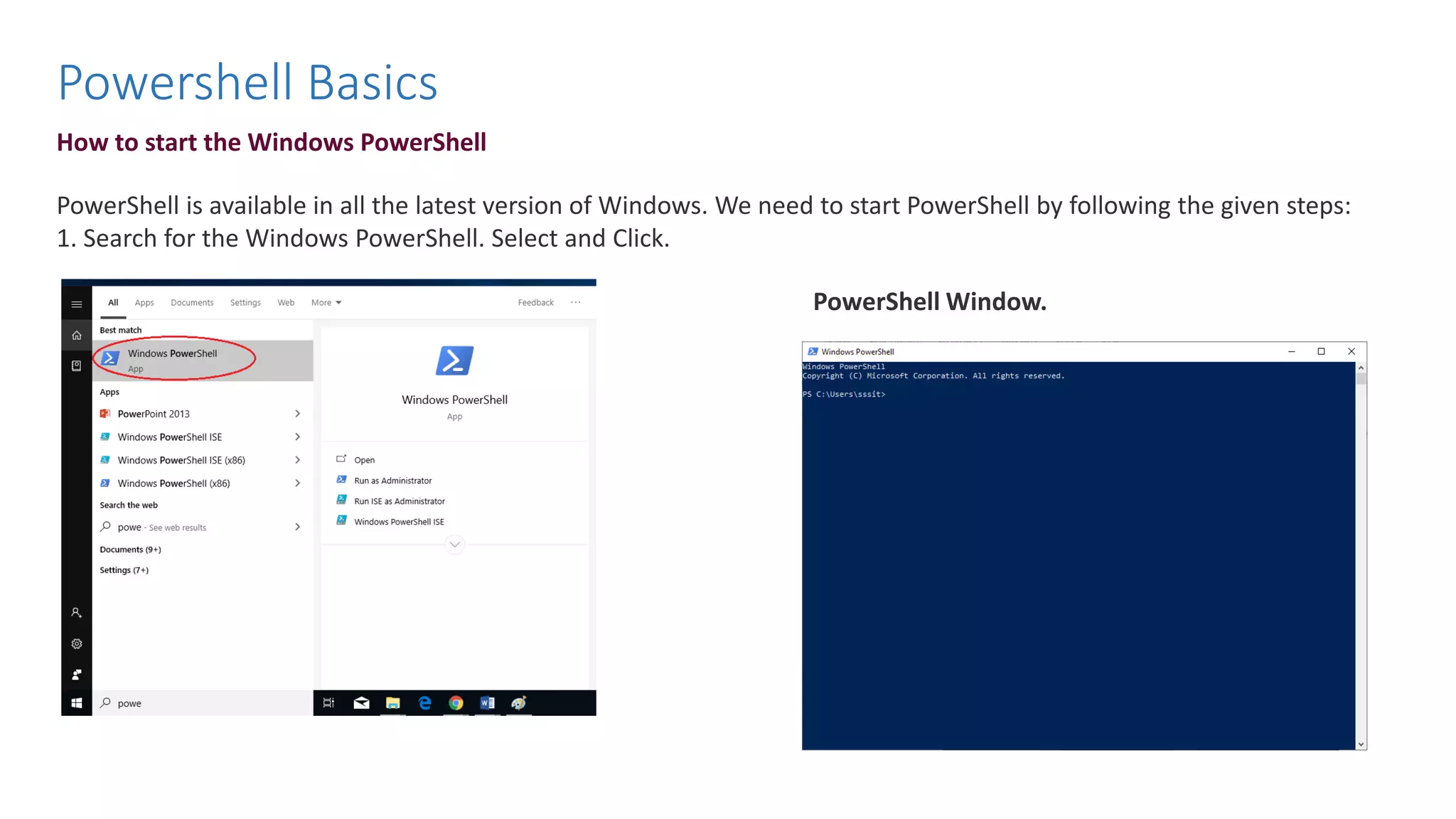
How to start the Windows PowerShell PowerShell is available in all the latest version of Windows. We need to start PowerShell by following the given steps: 1. Search for the Windows PowerShell. Select and Click. PowerShell Window. Powershell Basics
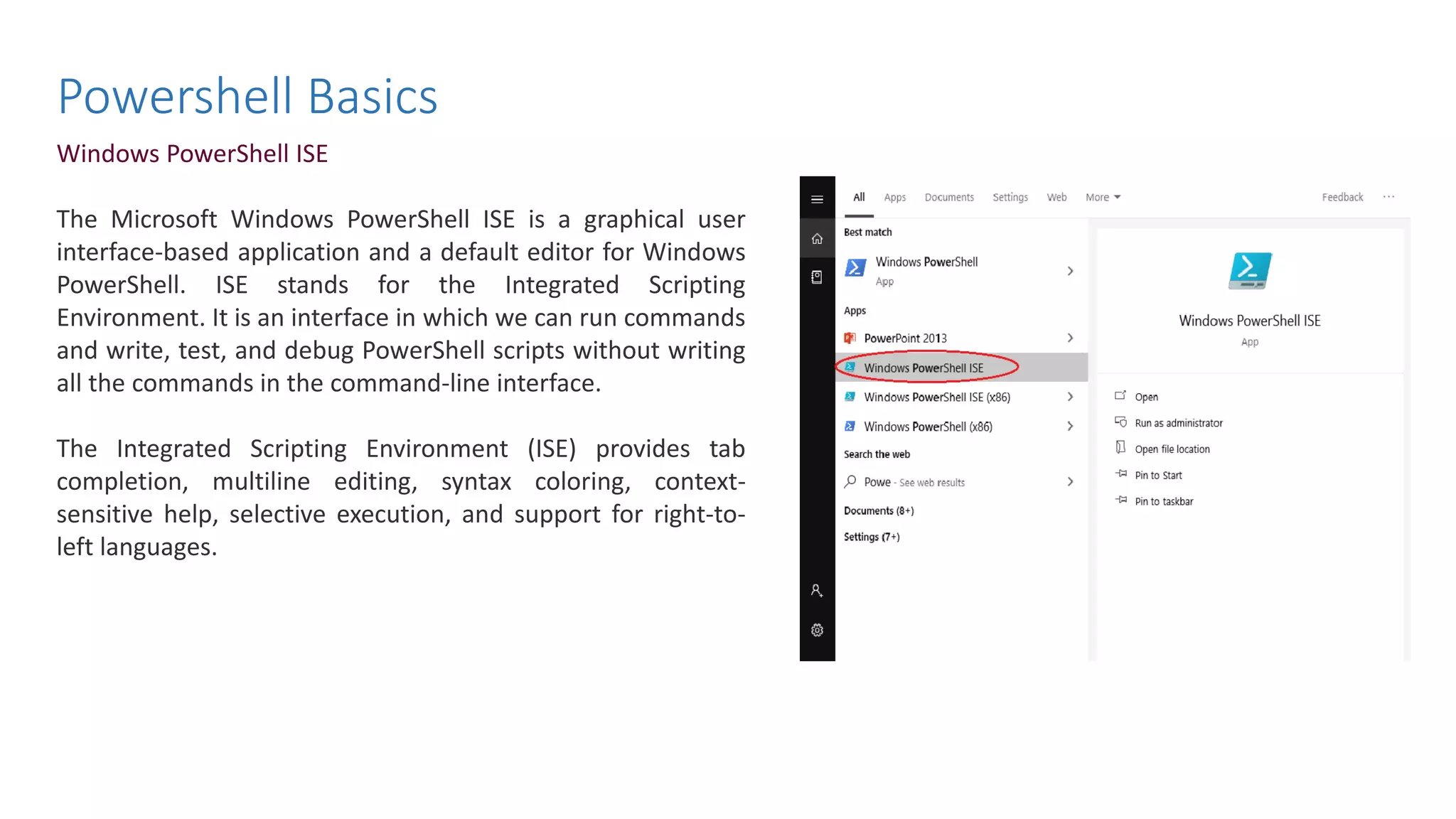
Powershell Basics Windows PowerShell ISE The Microsoft Windows PowerShell ISE is a graphical user interface-based application and a default editor for Windows PowerShell. ISE stands for the Integrated Scripting Environment. It is an interface in which we can run commands and write, test, and debug PowerShell scripts without writing all the commands in the command-line interface. The Integrated Scripting Environment (ISE) provides tab completion, multiline editing, syntax coloring, context- sensitive help, selective execution, and support for right-to- left languages.
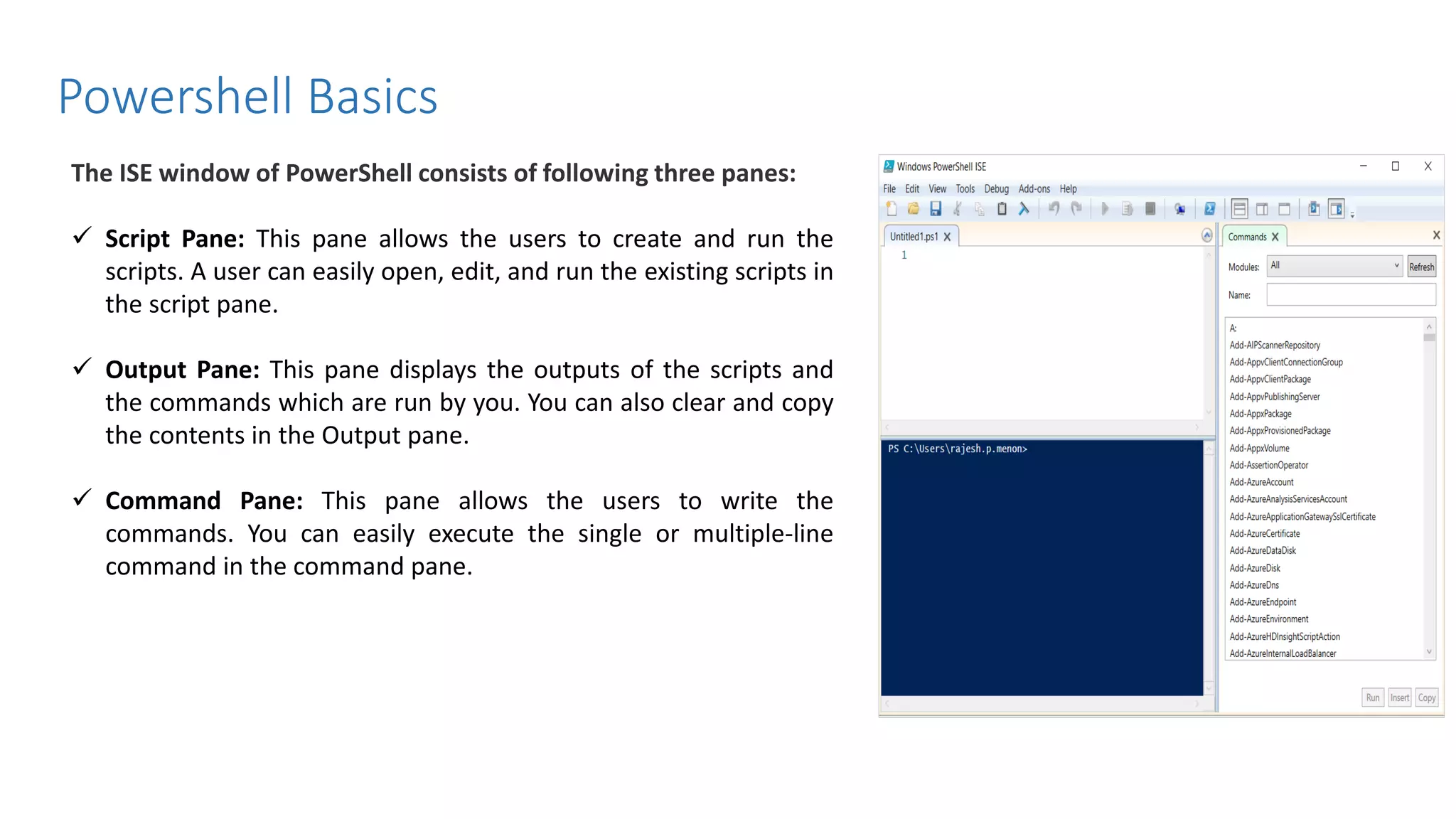
Powershell Basics The ISE window of PowerShell consists of following three panes: ✓ Script Pane: This pane allows the users to create and run the scripts. A user can easily open, edit, and run the existing scripts in the script pane. ✓ Output Pane: This pane displays the outputs of the scripts and the commands which are run by you. You can also clear and copy the contents in the Output pane. ✓ Command Pane: This pane allows the users to write the commands. You can easily execute the single or multiple-line command in the command pane.
Powershell Basics Enable PowerShell Scripts When we start the PowerShell in a computer system, the default execution policy does not allow us to execute or run the scripts. There are four different types of execution policy in PowerShell: ✓ Restricted: In this policy, no script is executed. ✓ RemoteSigned: In this policy, only those scripts are run, which are downloaded from the Internet, and these must be signed by the trusted publisher. ✓ Unrestricted: All the scripts of Windows PowerShell are run. ✓ AllSigned: Only those scripts can be run, which are signed by a trusted publisher Example : Set-ExecutionPolicy Unrestricted
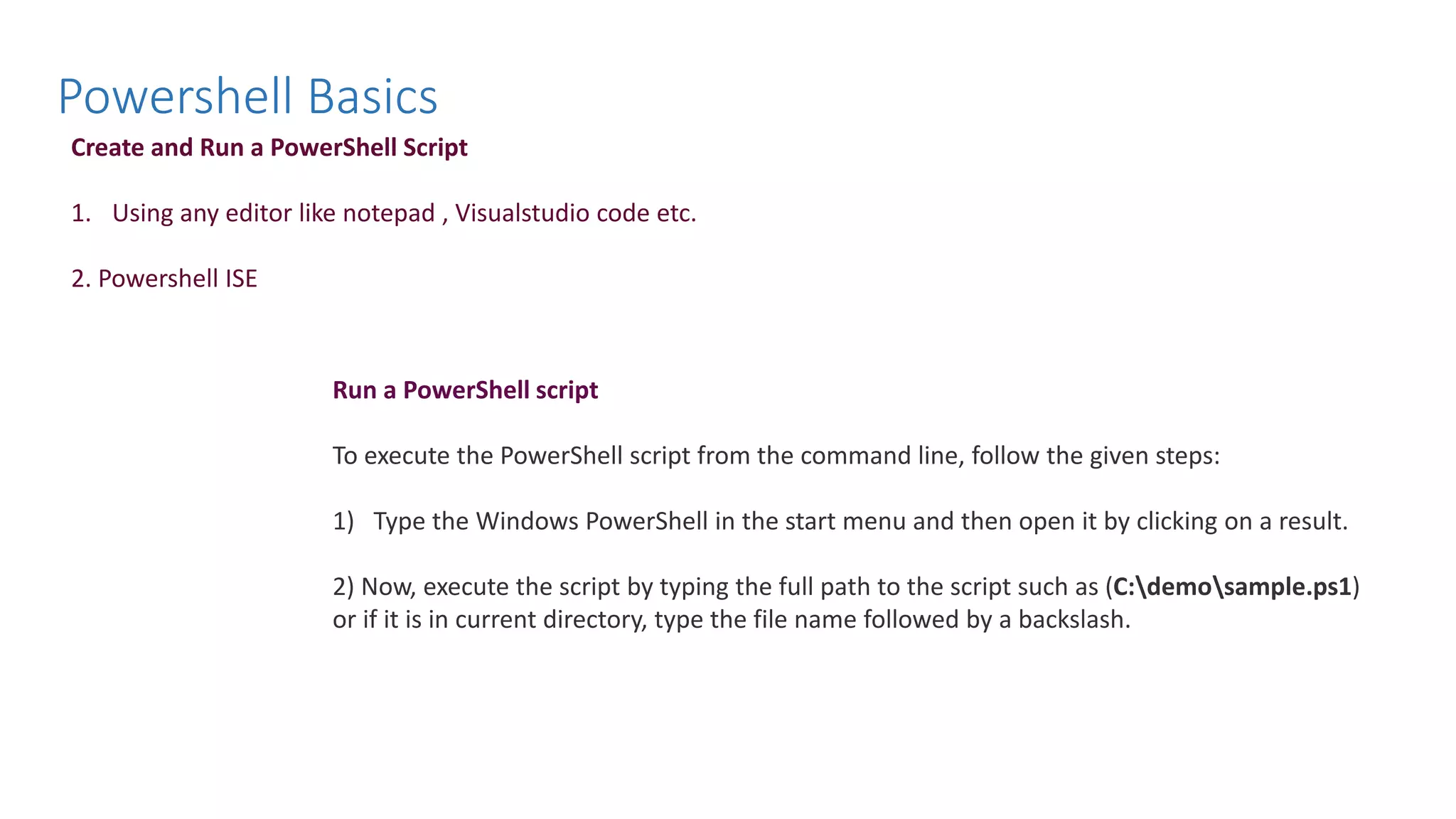
Powershell Basics Run a PowerShell script To execute the PowerShell script from the command line, follow the given steps: 1) Type the Windows PowerShell in the start menu and then open it by clicking on a result. 2) Now, execute the script by typing the full path to the script such as (C:demosample.ps1) or if it is in current directory, type the file name followed by a backslash. Create and Run a PowerShell Script 1. Using any editor like notepad , Visualstudio code etc. 2. Powershell ISE
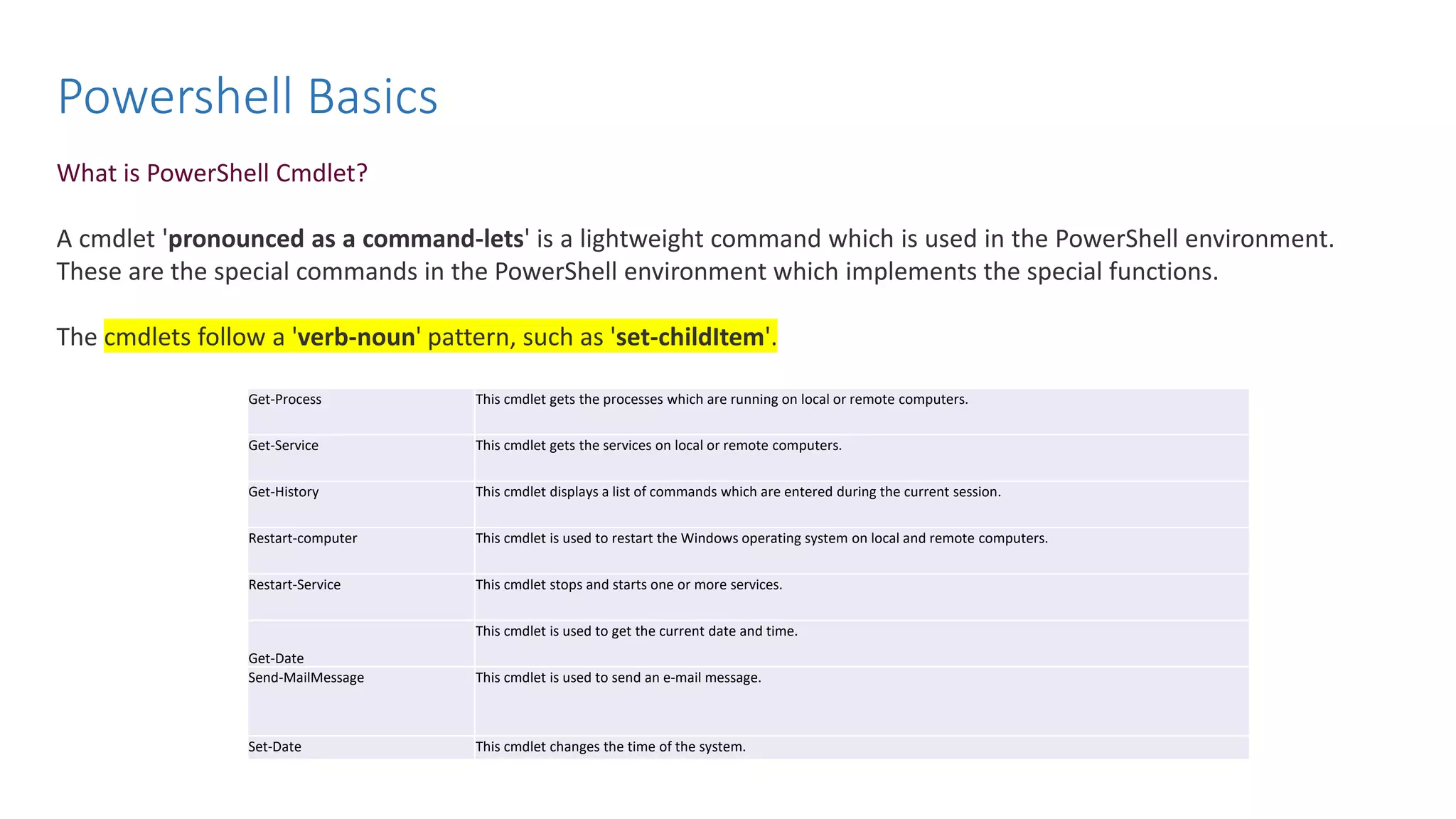
Powershell Basics What is PowerShell Cmdlet? A cmdlet 'pronounced as a command-lets' is a lightweight command which is used in the PowerShell environment. These are the special commands in the PowerShell environment which implements the special functions. The cmdlets follow a 'verb-noun' pattern, such as 'set-childItem'. Get-Process This cmdlet gets the processes which are running on local or remote computers. Get-Service This cmdlet gets the services on local or remote computers. Get-History This cmdlet displays a list of commands which are entered during the current session. Restart-computer This cmdlet is used to restart the Windows operating system on local and remote computers. Restart-Service This cmdlet stops and starts one or more services. Get-Date This cmdlet is used to get the current date and time. Send-MailMessage This cmdlet is used to send an e-mail message. Set-Date This cmdlet changes the time of the system.
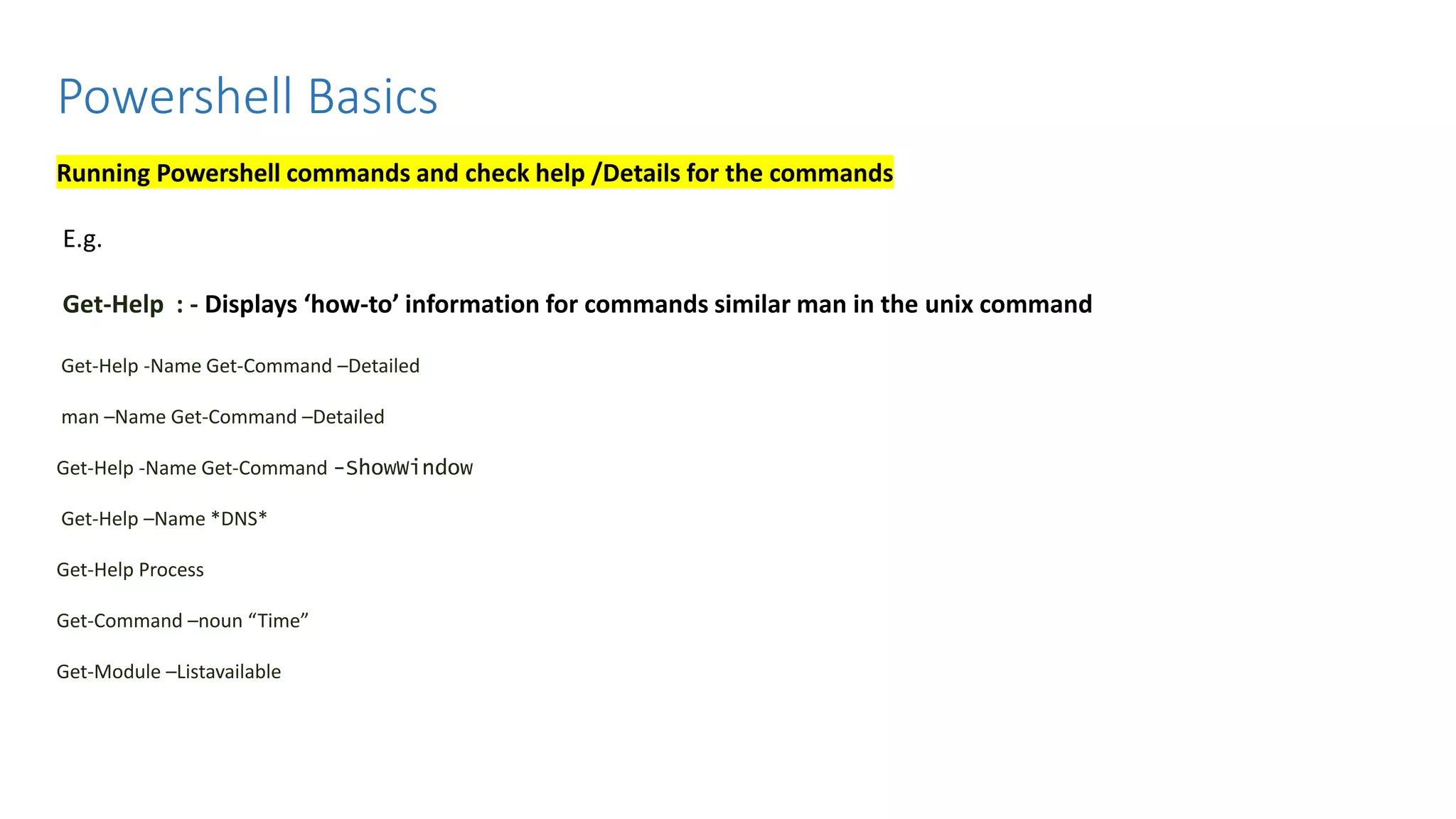
Powershell Basics Running Powershell commands and check help /Details for the commands E.g. Get-Help : - Displays ‘how-to’ information for commands similar man in the unix command Get-Help -Name Get-Command –Detailed man –Name Get-Command –Detailed Get-Help -Name Get-Command -ShowWindow Get-Help –Name *DNS* Get-Help Process Get-Command –noun “Time” Get-Module –Listavailable
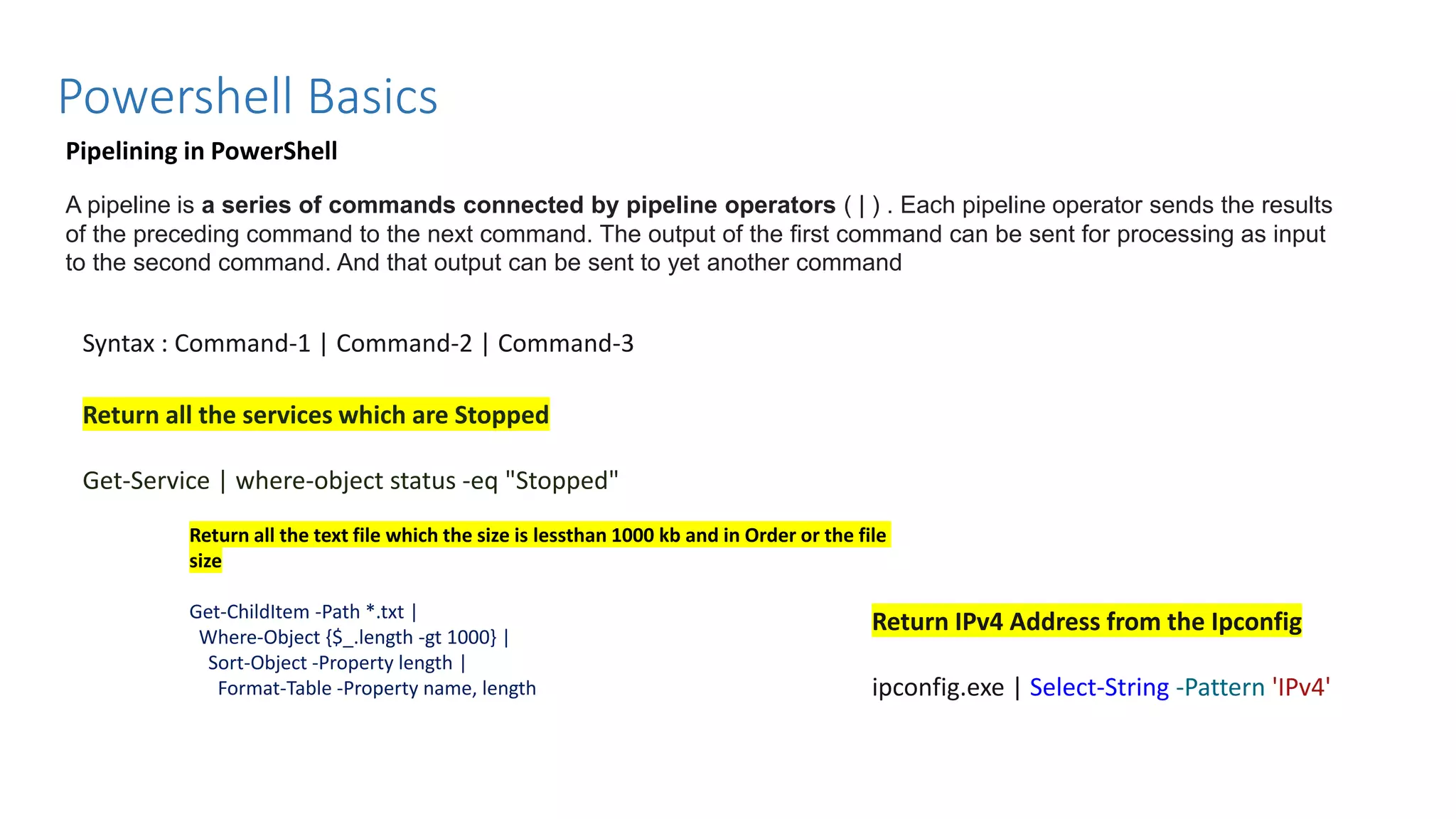
Powershell Basics Pipelining in PowerShell Return all the services which are Stopped Get-Service | where-object status -eq "Stopped" A pipeline is a series of commands connected by pipeline operators ( | ) . Each pipeline operator sends the results of the preceding command to the next command. The output of the first command can be sent for processing as input to the second command. And that output can be sent to yet another command Syntax : Command-1 | Command-2 | Command-3 Return all the text file which the size is lessthan 1000 kb and in Order or the file size Get-ChildItem -Path *.txt | Where-Object {$_.length -gt 1000} | Sort-Object -Property length | Format-Table -Property name, length Return IPv4 Address from the Ipconfig ipconfig.exe | Select-String -Pattern 'IPv4'
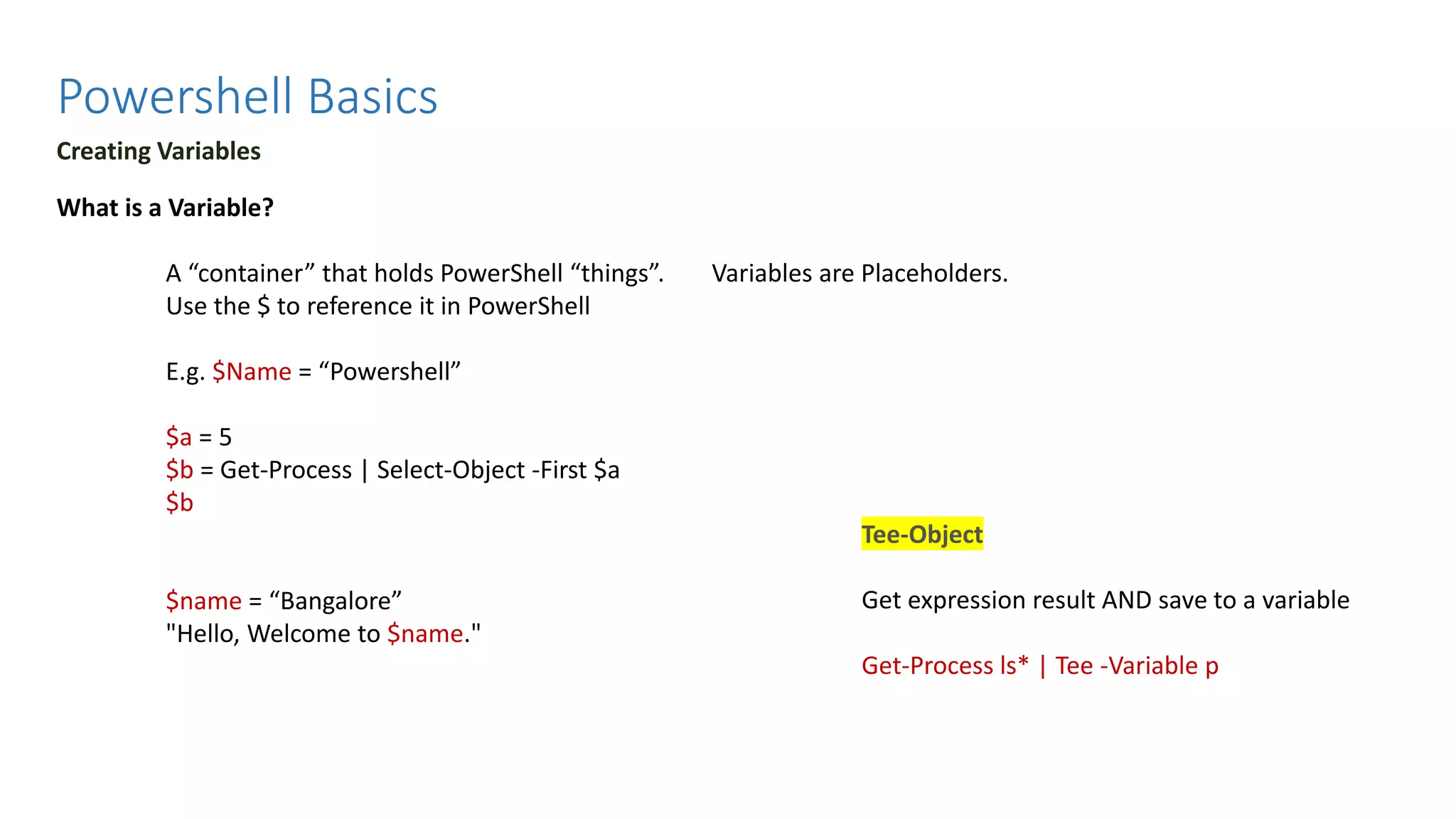
Powershell Basics Creating Variables What is a Variable? A “container” that holds PowerShell “things”. Variables are Placeholders. Use the $ to reference it in PowerShell E.g. $Name = “Powershell” $a = 5 $b = Get-Process | Select-Object -First $a $b $name = “Bangalore” "Hello, Welcome to $name." Tee-Object Get expression result AND save to a variable Get-Process ls* | Tee -Variable p
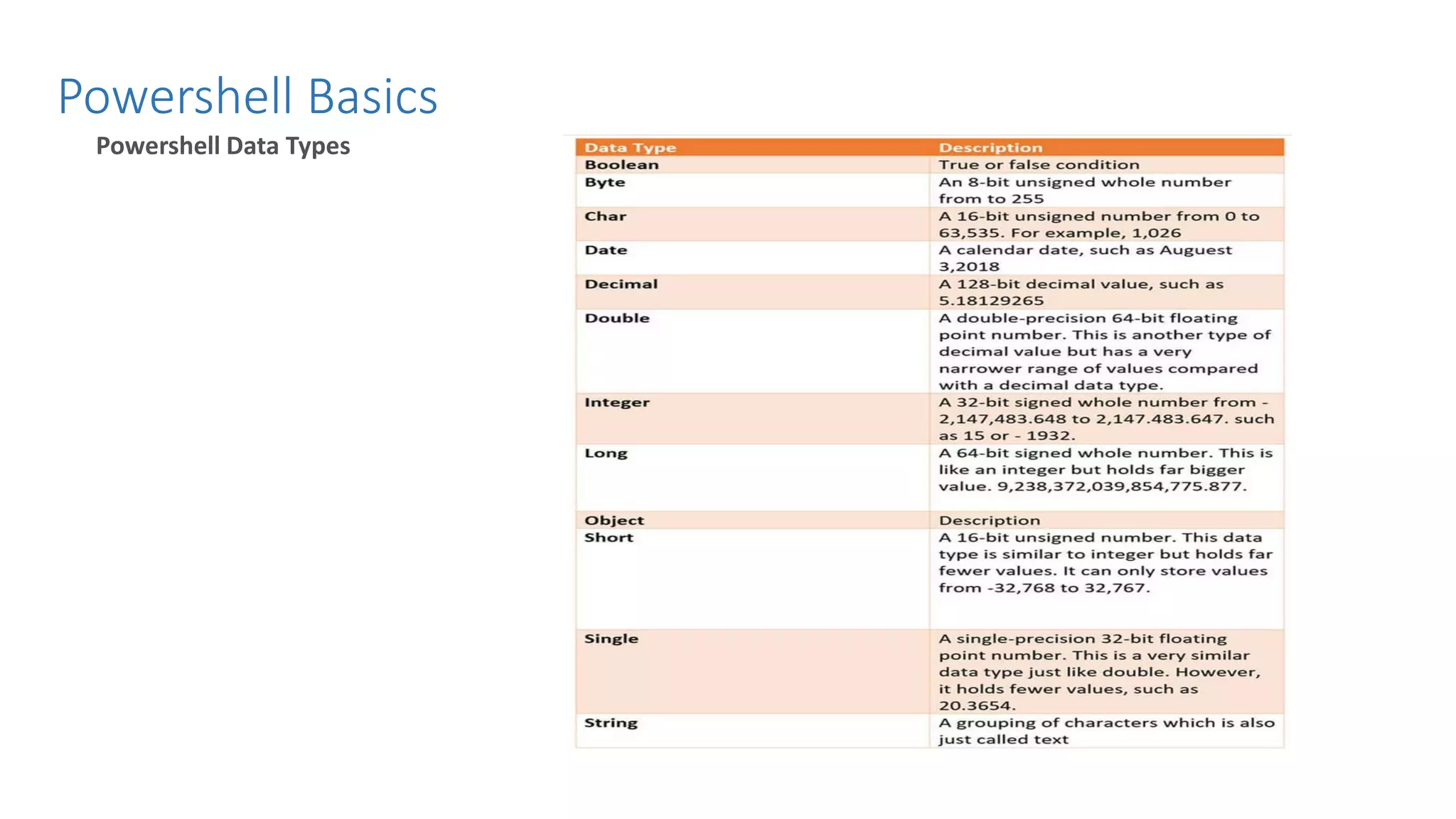
Powershell Basics Powershell Data Types
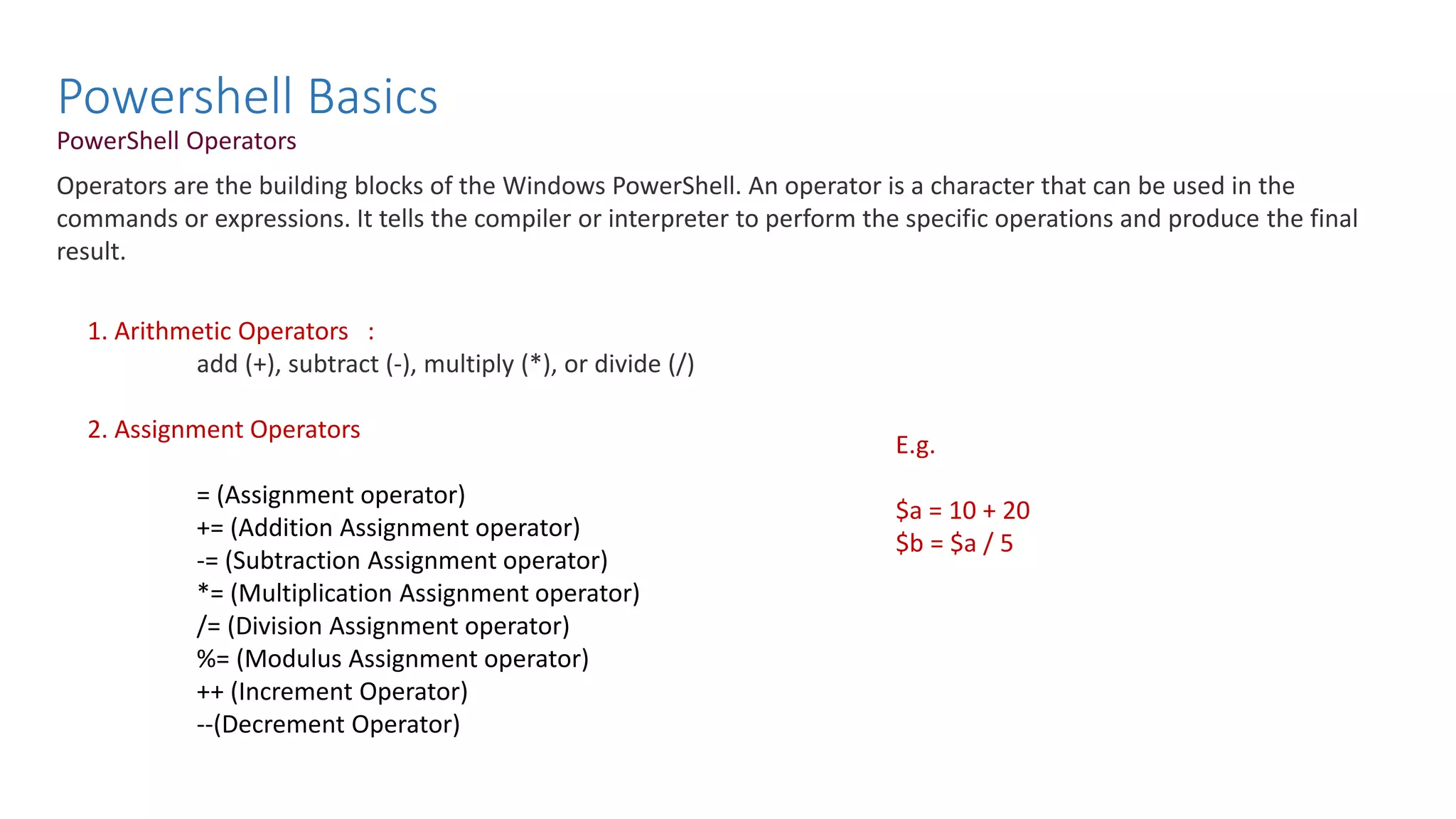
Powershell Basics PowerShell Operators Operators are the building blocks of the Windows PowerShell. An operator is a character that can be used in the commands or expressions. It tells the compiler or interpreter to perform the specific operations and produce the final result. 1. Arithmetic Operators : add (+), subtract (-), multiply (*), or divide (/) 2. Assignment Operators = (Assignment operator) += (Addition Assignment operator) -= (Subtraction Assignment operator) *= (Multiplication Assignment operator) /= (Division Assignment operator) %= (Modulus Assignment operator) ++ (Increment Operator) --(Decrement Operator) E.g. $a = 10 + 20 $b = $a / 5
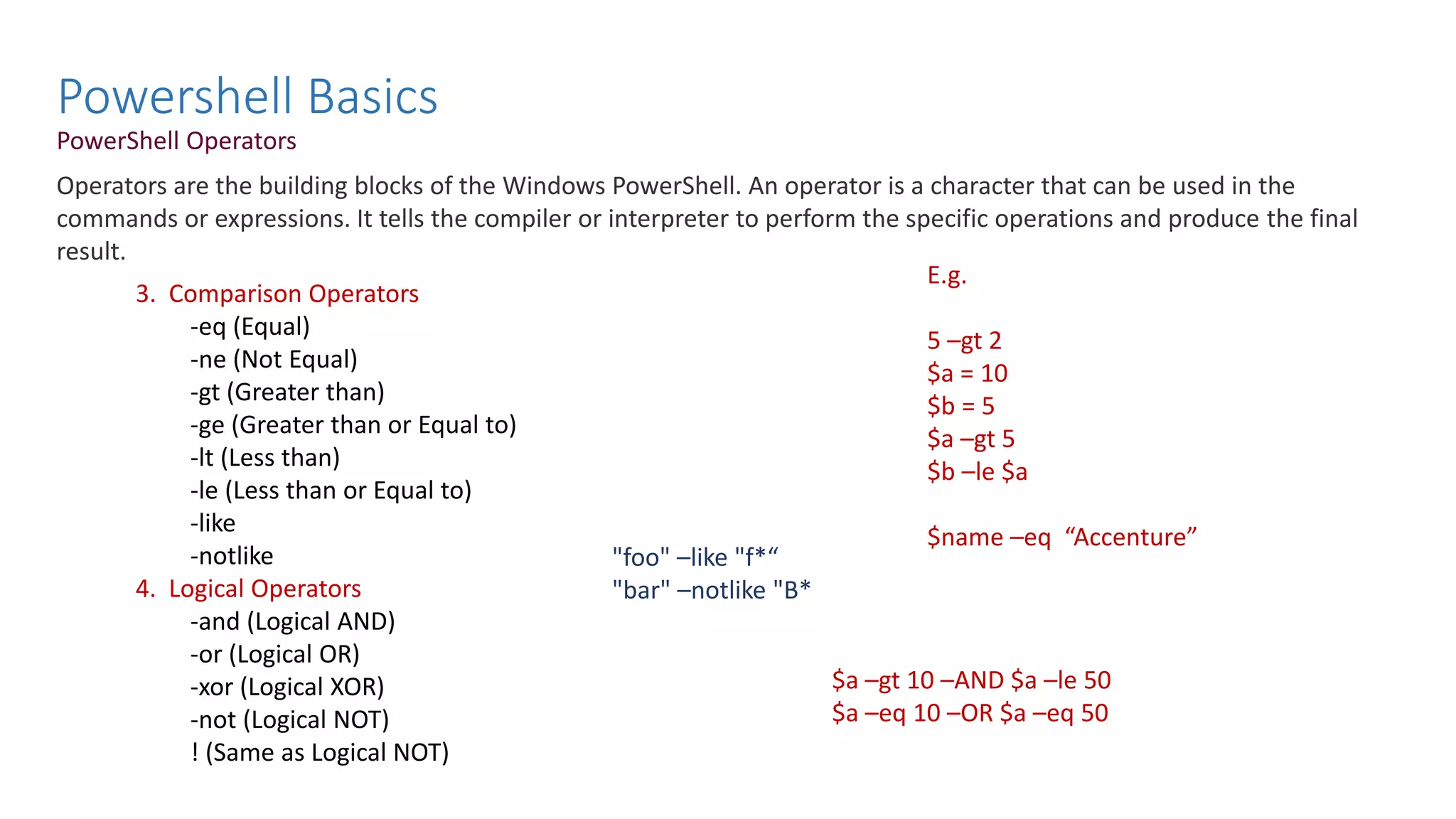
Powershell Basics PowerShell Operators Operators are the building blocks of the Windows PowerShell. An operator is a character that can be used in the commands or expressions. It tells the compiler or interpreter to perform the specific operations and produce the final result. 3. Comparison Operators -eq (Equal) -ne (Not Equal) -gt (Greater than) -ge (Greater than or Equal to) -lt (Less than) -le (Less than or Equal to) -like -notlike 4. Logical Operators -and (Logical AND) -or (Logical OR) -xor (Logical XOR) -not (Logical NOT) ! (Same as Logical NOT) E.g. 5 –gt 2 $a = 10 $b = 5 $a –gt 5 $b –le $a $name –eq “Accenture” "foo" –like "f*“ "bar" –notlike "B* $a –gt 10 –AND $a –le 50 $a –eq 10 –OR $a –eq 50
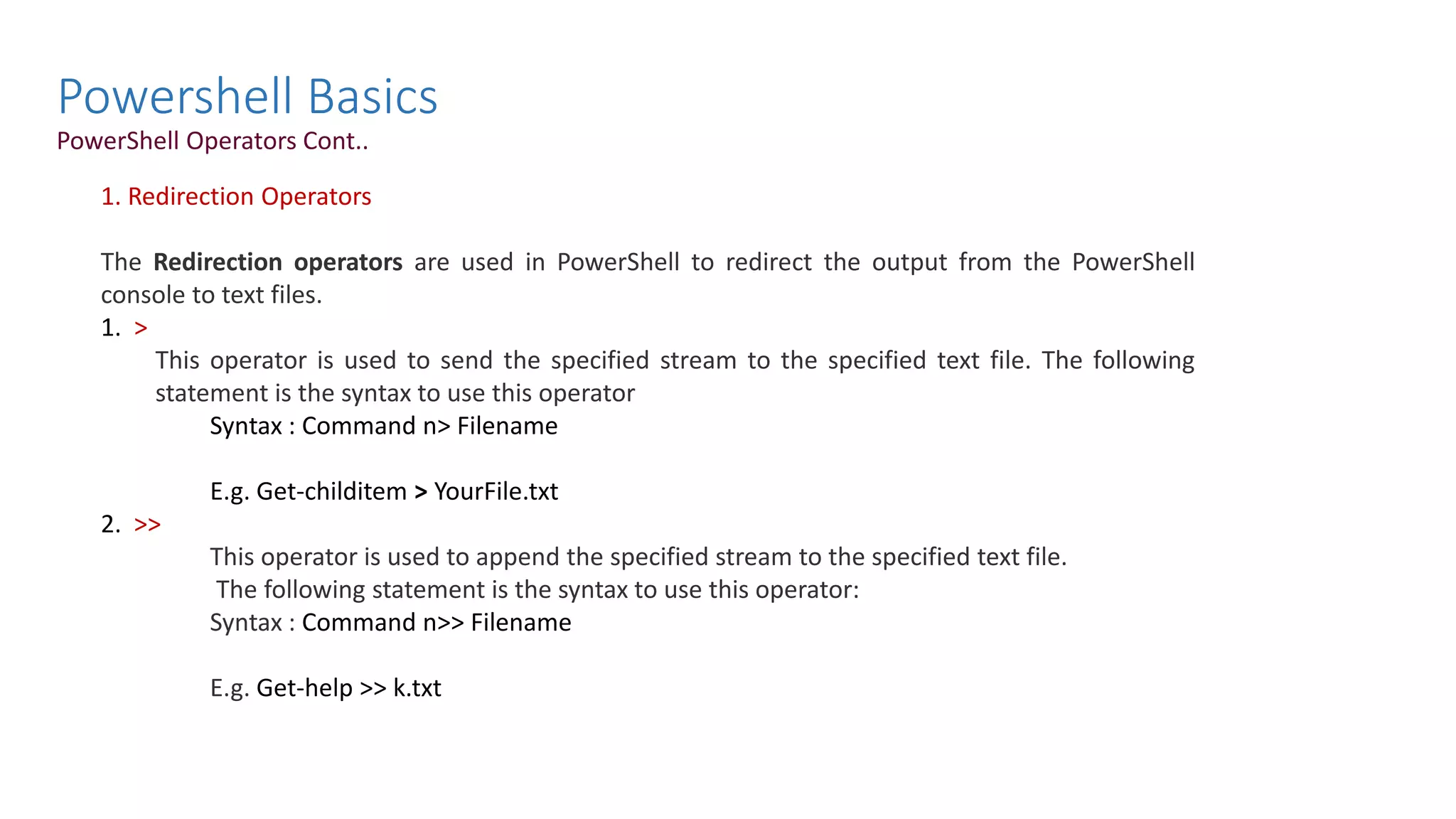
Powershell Basics PowerShell Operators Cont.. 1. Redirection Operators The Redirection operators are used in PowerShell to redirect the output from the PowerShell console to text files. 1. > This operator is used to send the specified stream to the specified text file. The following statement is the syntax to use this operator Syntax : Command n> Filename E.g. Get-childitem > YourFile.txt 2. >> This operator is used to append the specified stream to the specified text file. The following statement is the syntax to use this operator: Syntax : Command n>> Filename E.g. Get-help >> k.txt
Powershell Basics 1. Split and Join Operators The Split and Join operators are used in PowerShell to divide and combine the substrings. -Join Operator The -Join operator is used in PowerShell to combine the set of strings into a single string. The strings are combined in the same order in which they appear in the command. E.g. - Join "windows","Operating","System" The following two statements are the syntax to use the Join operator: -Join <String> <String> -Join <Delimiter> -Split Operator The -Split operator is used in PowerShell to divide the one or more strings into the substrings. Syntax: 1.-Split <String> 2.-Split (<String[]>) 3.<String>-Split <Delimiter> [,<Maxsubstrings> [,"<Options>"]] 1.<String> -Split {<ScriptBlock>} [,<Max-substrings>] E.g. $a = "a b c d e f g h" -split $a
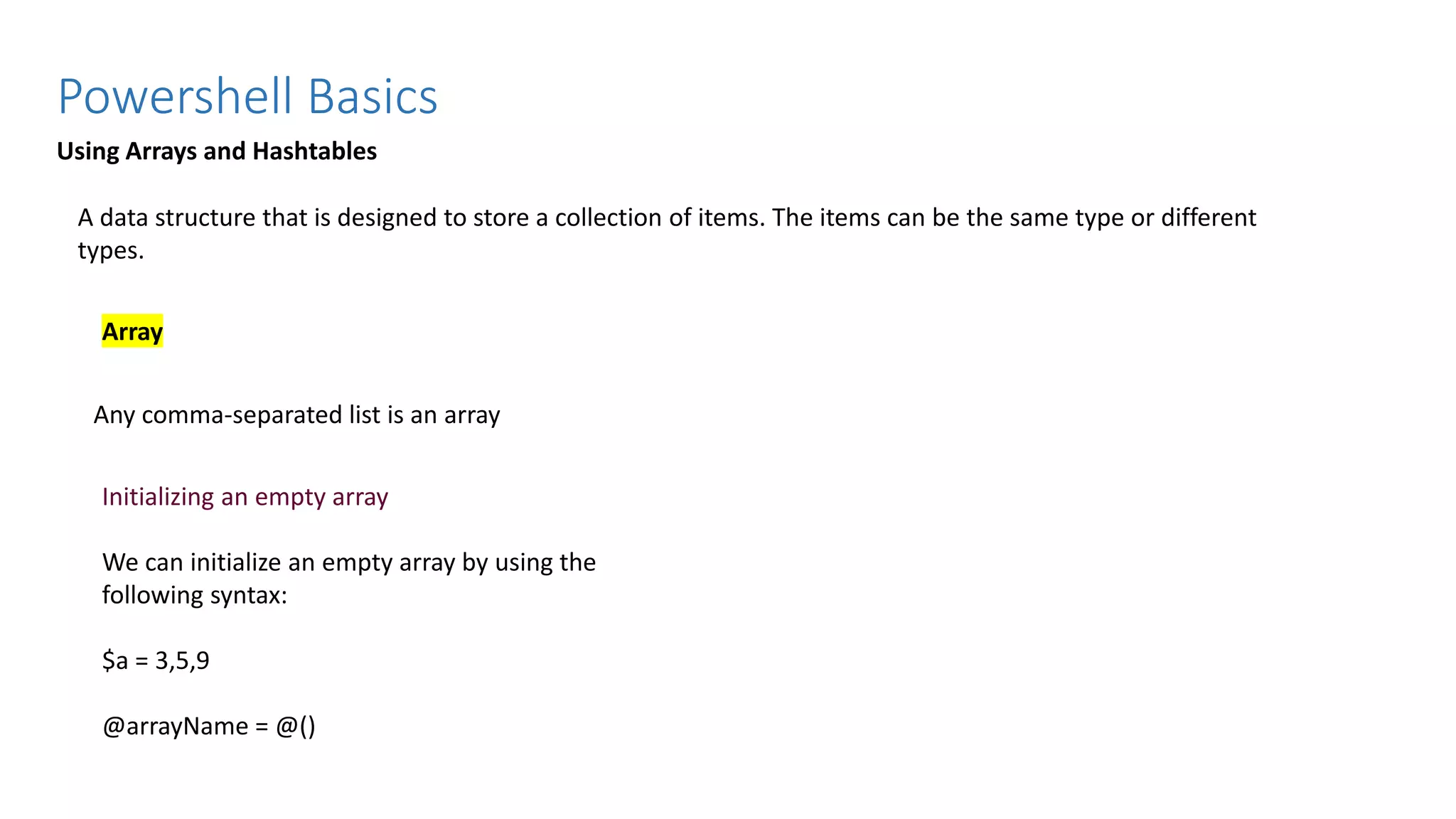
Powershell Basics Using Arrays and Hashtables A data structure that is designed to store a collection of items. The items can be the same type or different types. Any comma-separated list is an array Initializing an empty array We can initialize an empty array by using the following syntax: $a = 3,5,9 @arrayName = @() Array
Powershell Basics Using Arrays and Hashtables Manipulation of an Array We can change the value of specific index value in an array by specifying the name of the array and the index number of value to change. $p[2]=20 $a = 3,5,9 Accessing Array Elements You can display all the values of an array on the PowerShell console by typing the name of an array followed by a dollar ($) sign. $p or $p[1] or $p[2..5]
Powershell Basics PowerShell Hast table The PowerShell Hashtable is a data structure that stores one or more key/value pairs. It is also known as the dictionary or an associative array. The hashtable name is the key Syntax : $variable_name = @{ <key1> = <value1> ; < key2> = <value2> ; ..... ; < keyN> = <valueN>;} The following statement is the syntax to create an ordered dictionary: $variable_name = [ordered] @{ < key1> = <value1> ; < key2> = <value2> ; ..... ; < keyN> = <valueN>;} $variablename = @{} $student = @{ name = "Abhay" ; Course = "BCA" ; Age= 19 } Display a Hash table $Student
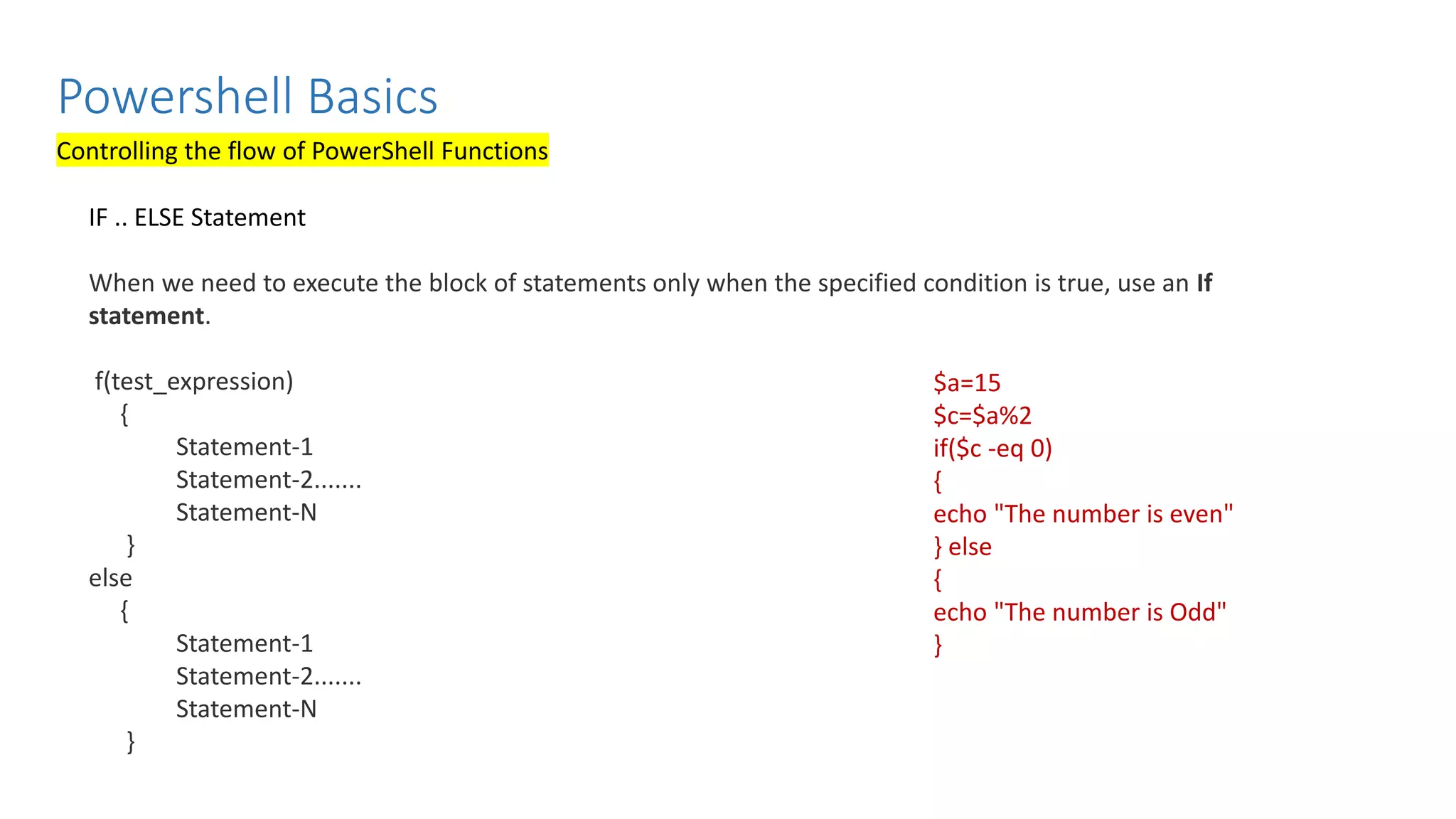
Powershell Basics Controlling the flow of PowerShell Functions IF .. ELSE Statement When we need to execute the block of statements only when the specified condition is true, use an If statement. f(test_expression) { Statement-1 Statement-2....... Statement-N } else { Statement-1 Statement-2....... Statement-N } $a=15 $c=$a%2 if($c -eq 0) { echo "The number is even" } else { echo "The number is Odd" }
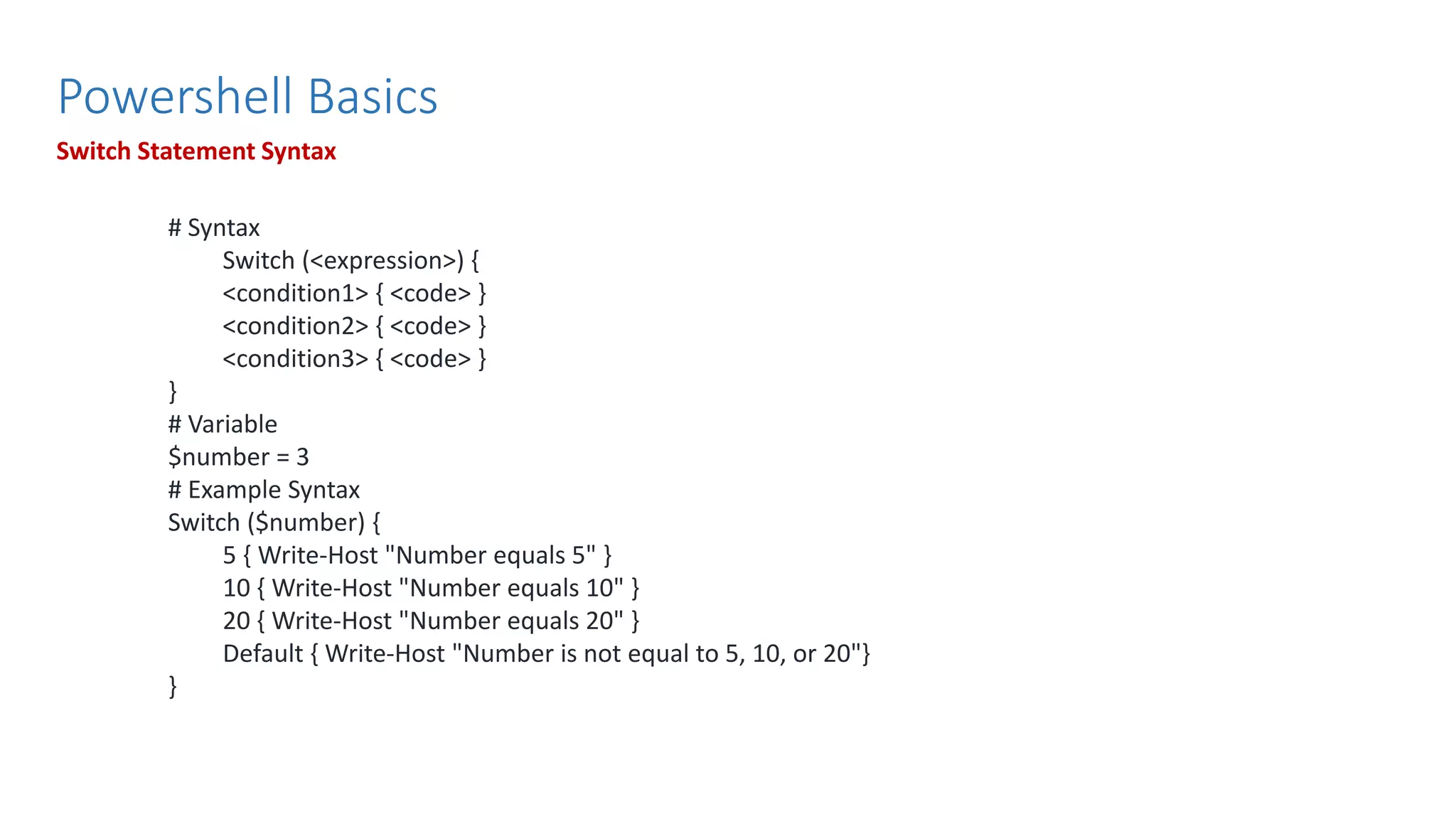
Powershell Basics Switch Statement Syntax # Syntax Switch (<expression>) { <condition1> { <code> } <condition2> { <code> } <condition3> { <code> } } # Variable $number = 3 # Example Syntax Switch ($number) { 5 { Write-Host "Number equals 5" } 10 { Write-Host "Number equals 10" } 20 { Write-Host "Number equals 20" } Default { Write-Host "Number is not equal to 5, 10, or 20"} }
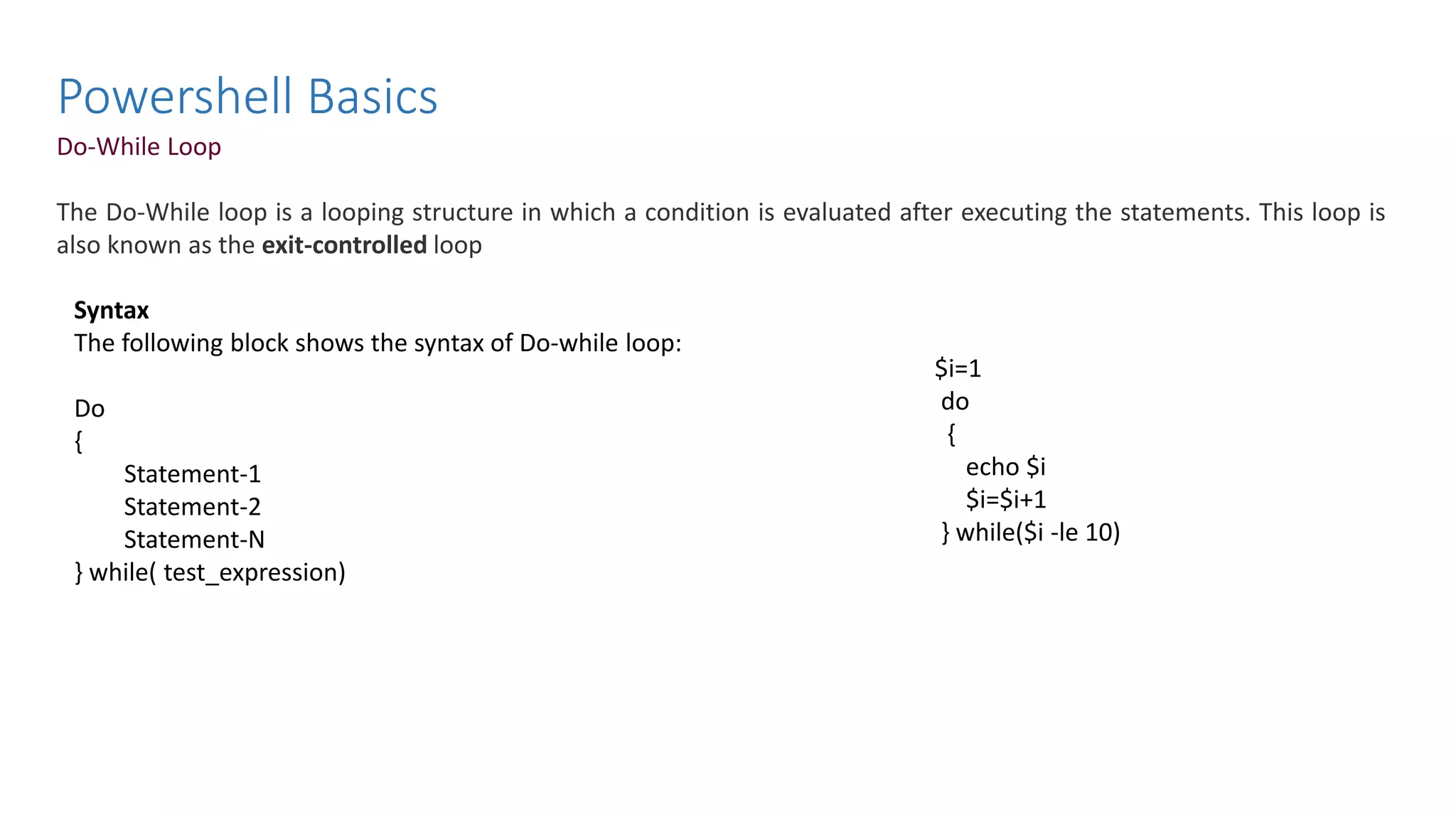
Powershell Basics Do-While Loop The Do-While loop is a looping structure in which a condition is evaluated after executing the statements. This loop is also known as the exit-controlled loop Syntax The following block shows the syntax of Do-while loop: Do { Statement-1 Statement-2 Statement-N } while( test_expression) $i=1 do { echo $i $i=$i+1 } while($i -le 10)
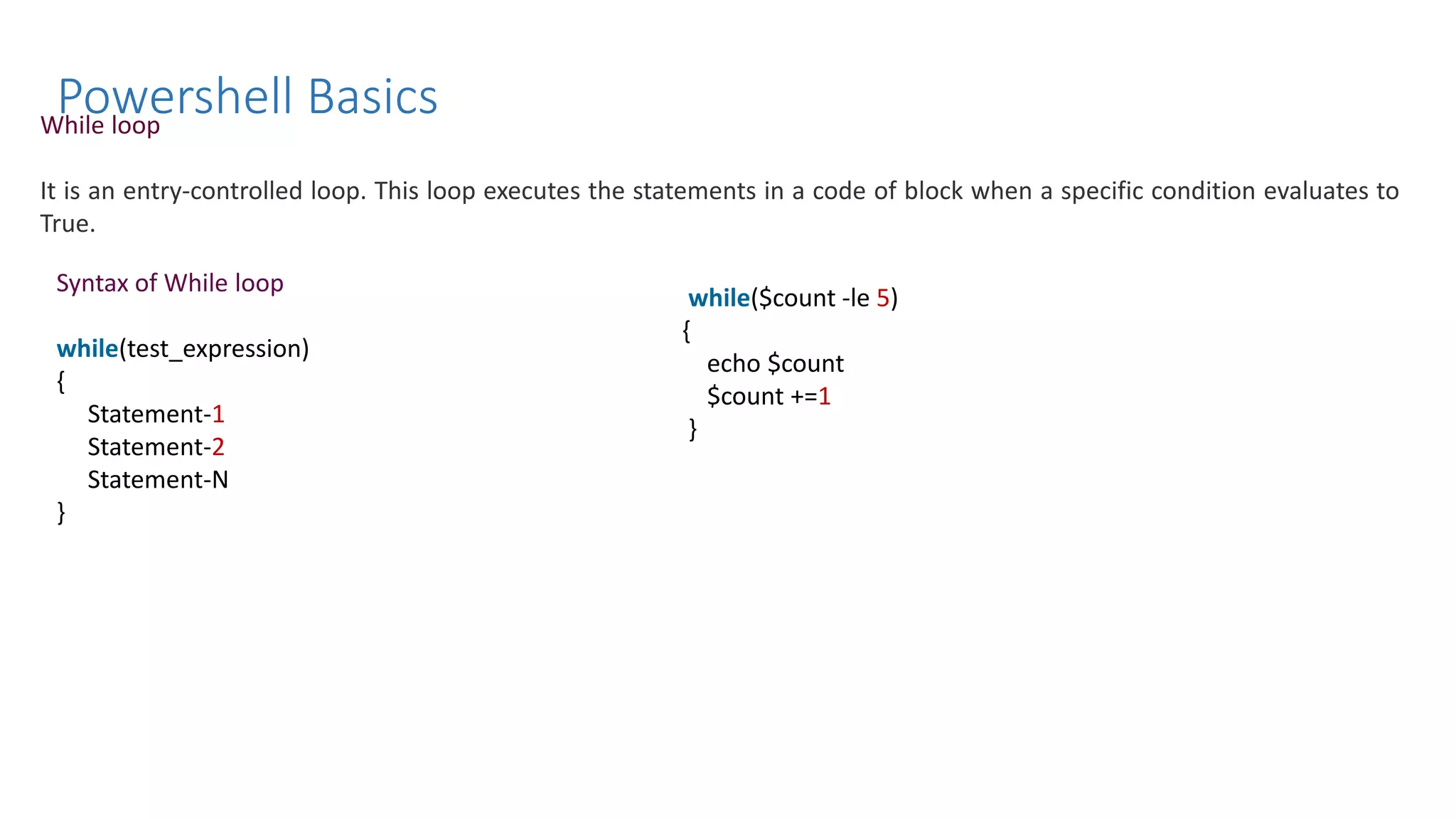
Powershell Basics While loop It is an entry-controlled loop. This loop executes the statements in a code of block when a specific condition evaluates to True. Syntax of While loop while(test_expression) { Statement-1 Statement-2 Statement-N } while($count -le 5) { echo $count $count +=1 }
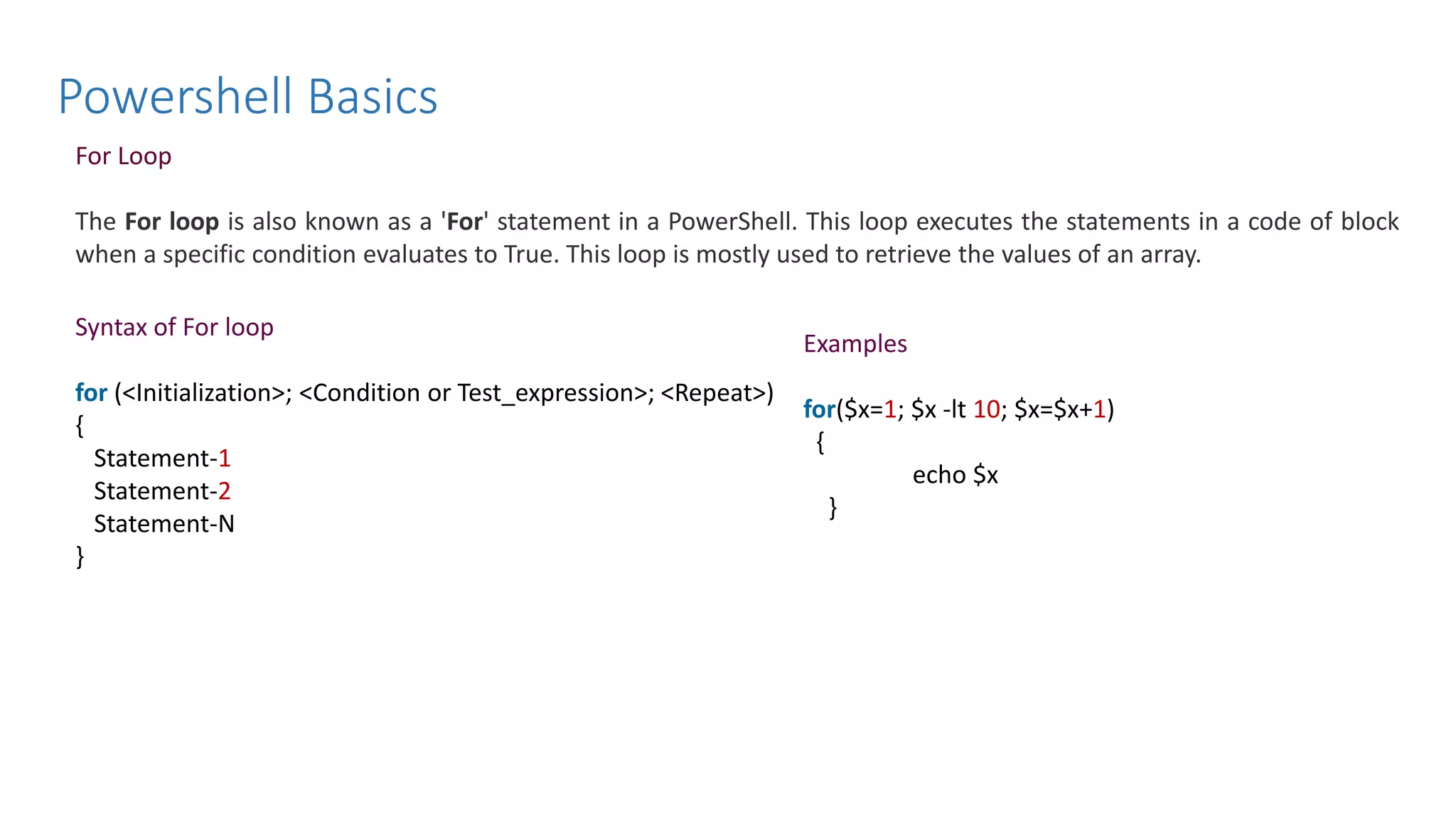
Powershell Basics For Loop The For loop is also known as a 'For' statement in a PowerShell. This loop executes the statements in a code of block when a specific condition evaluates to True. This loop is mostly used to retrieve the values of an array. Syntax of For loop for (<Initialization>; <Condition or Test_expression>; <Repeat>) { Statement-1 Statement-2 Statement-N } Examples for($x=1; $x -lt 10; $x=$x+1) { echo $x }
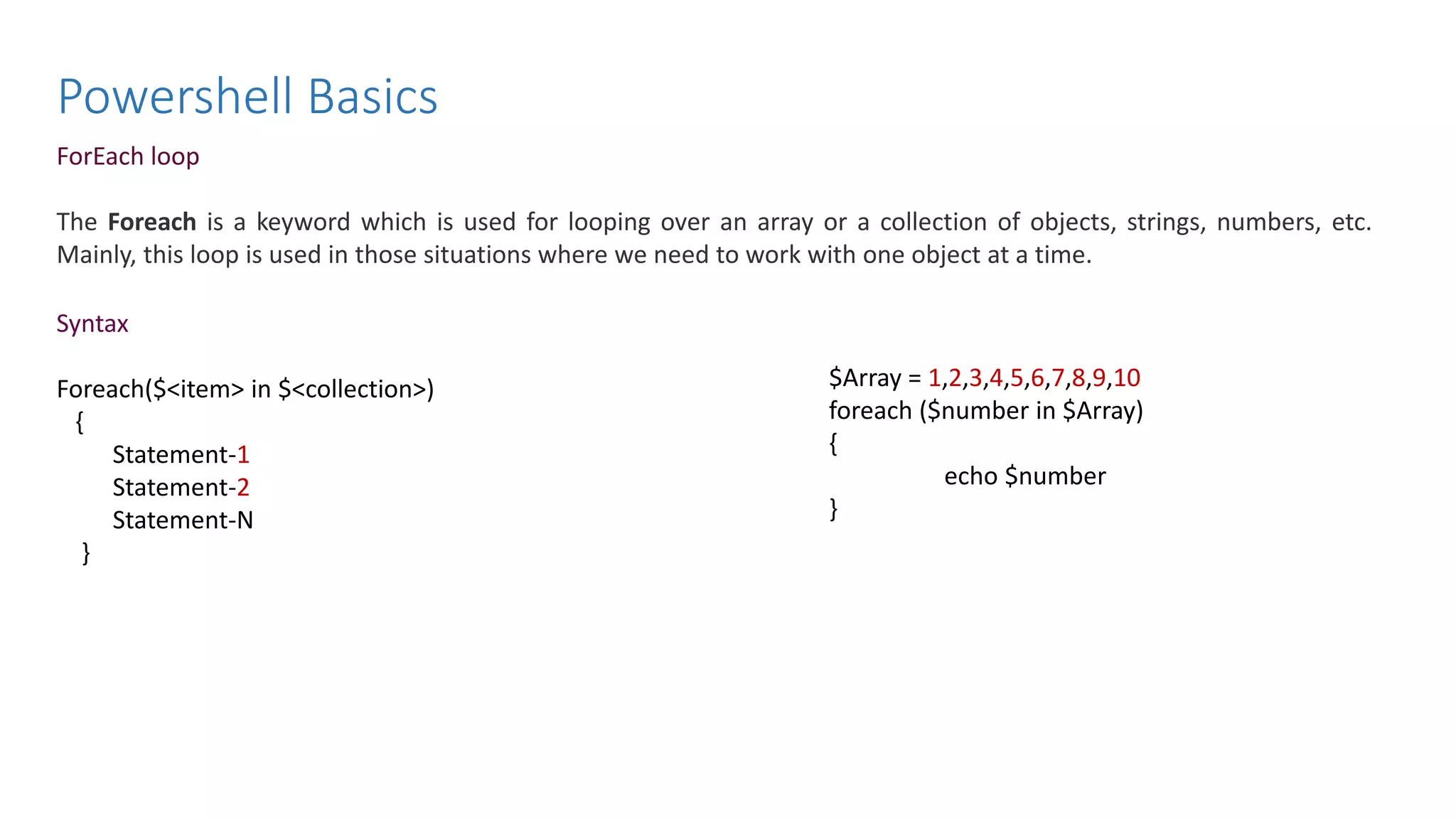
Powershell Basics ForEach loop The Foreach is a keyword which is used for looping over an array or a collection of objects, strings, numbers, etc. Mainly, this loop is used in those situations where we need to work with one object at a time. Syntax Foreach($<item> in $<collection>) { Statement-1 Statement-2 Statement-N } $Array = 1,2,3,4,5,6,7,8,9,10 foreach ($number in $Array) { echo $number }
Powershell Functions , Exception Handling, Unit Testing with Pester
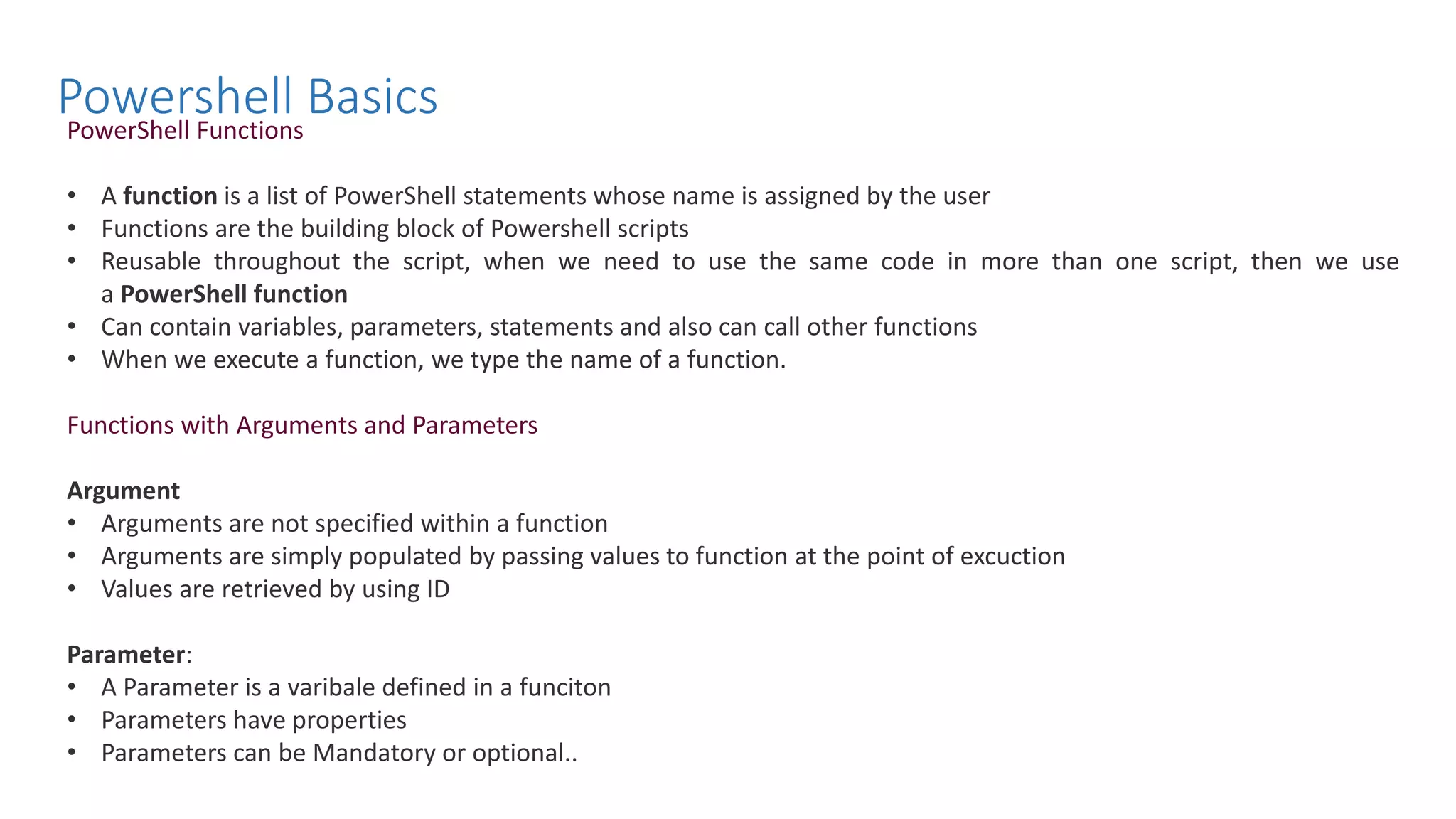
Powershell Basics PowerShell Functions • A function is a list of PowerShell statements whose name is assigned by the user • Functions are the building block of Powershell scripts • Reusable throughout the script, when we need to use the same code in more than one script, then we use a PowerShell function • Can contain variables, parameters, statements and also can call other functions • When we execute a function, we type the name of a function. Functions with Arguments and Parameters Argument • Arguments are not specified within a function • Arguments are simply populated by passing values to function at the point of excuction • Values are retrieved by using ID Parameter: • A Parameter is a varibale defined in a funciton • Parameters have properties • Parameters can be Mandatory or optional..
Powershell Basics Syntax function <name> [([type]$parameter1[,[type]$parameter2])] { param([type]$parameter1 [,[type]$parameter2]) dynamicparam {<statement list>} begin {<statement list>} process {<statement list>} end {<statement list>} }
Powershell Basics #Create Function without Arguments Function Find-SquareRoot() { $number = Read-Host “Enter any positive Number “ $number =[convert]::ToInt32($number) return $number * $number } Find-SquareRoot #Creating Function with Arguments Function Find-SquareRoot() { $number1 = $args[0] $number2 = $args[1] $result =[convert]::ToInt32($number1) * [convert]::ToInt32($number2) return $result } Find-SquareRoot 25 2
Powershell Basics #Create function with Variable Function Find-SquareRoot($num) { $number =[convert]::ToInt32($num) return $number * $number } Find-SquareRoot 20 #Create function with Variable function add ([int]$num1, [int]$num2) { $c = $num1 + $num2 echo $c } #invoking Function Add 1 2
Powershell Basics #Creating Function with Parameter Function Find-Capital() { Param( [Parameter(Mandatory=$true)] [string]$Country ) if($Country -eq "India") { Write-Host "The Capital of $Country is New Delhi" -ForegroundColor Green } else { Write-Host "Sorry, Capital not Found!!" -ForegroundColor Red } } Find-Capital -Country "India"
Powershell Basics Comment PowerShell Scripts Single-Line PowerShell Comments Begins with the number/hash character (#). Everything on the same line after it is ignored by PowerShell Block Comments / Multiline Comments Comment blocks in PowerShell begin with "<#" and end with "#>“
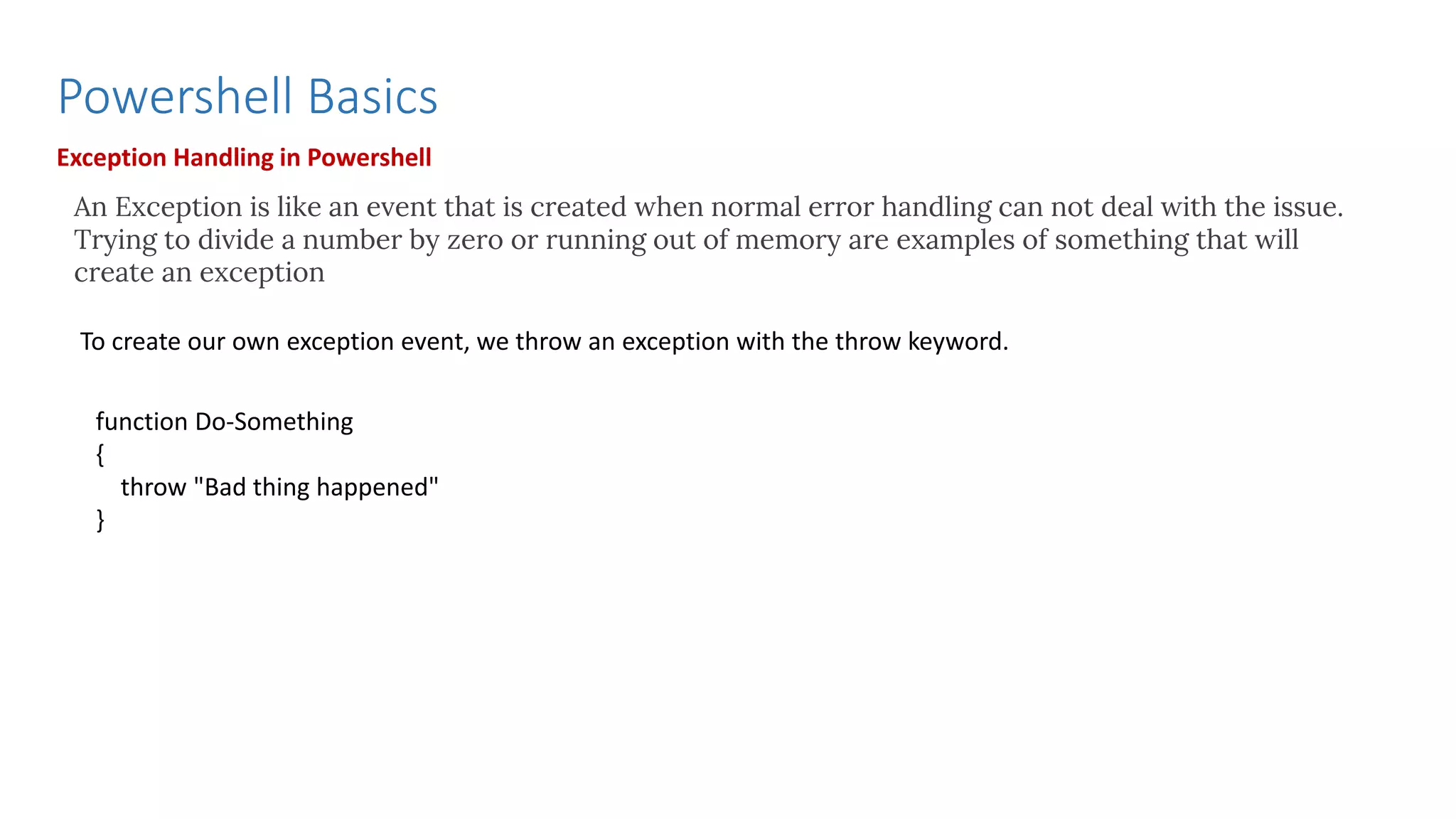
Powershell Basics Exception Handling in Powershell An Exception is like an event that is created when normal error handling can not deal with the issue. Trying to divide a number by zero or running out of memory are examples of something that will create an exception To create our own exception event, we throw an exception with the throw keyword. function Do-Something { throw "Bad thing happened" }
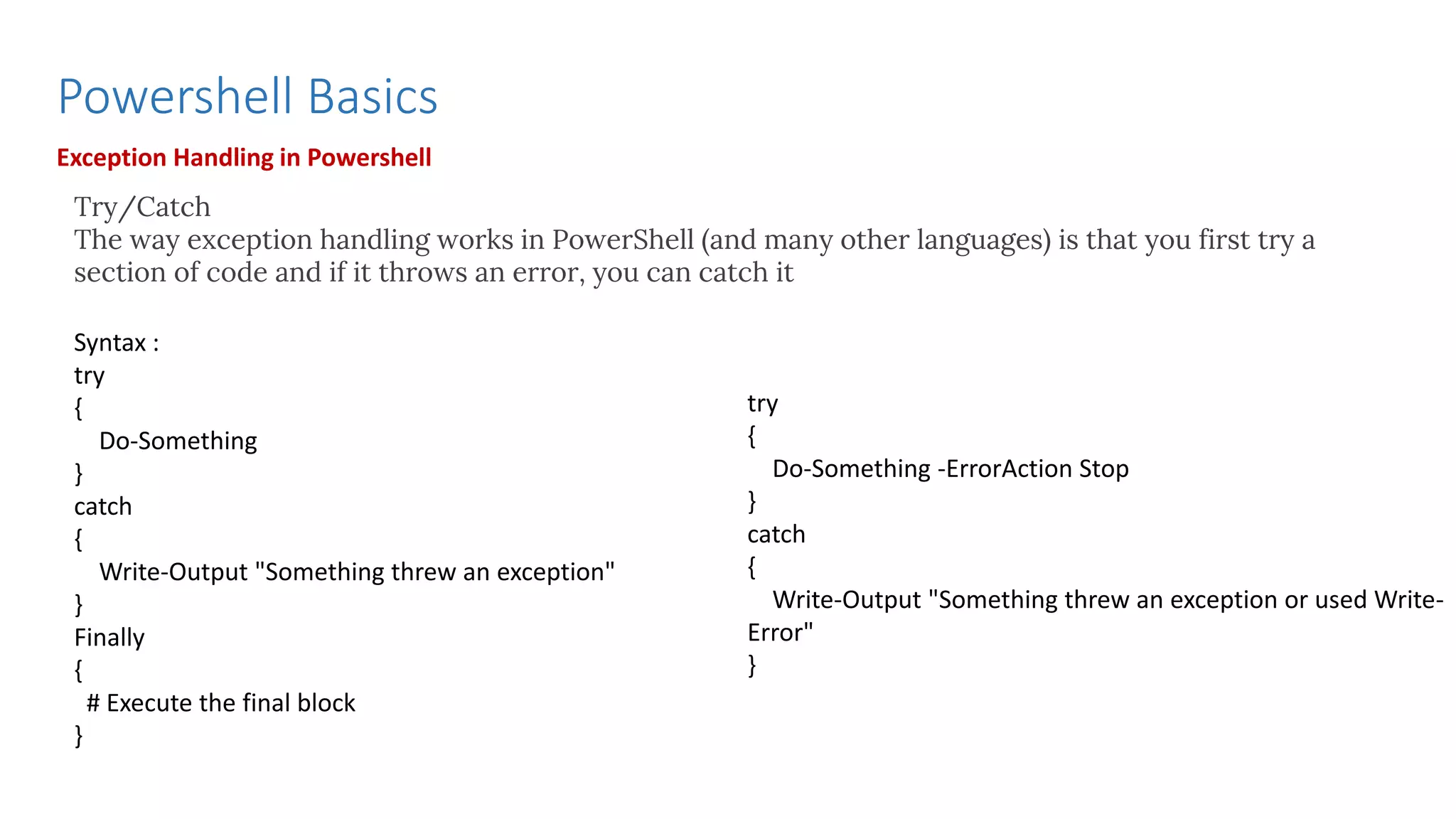
Powershell Basics Exception Handling in Powershell Try/Catch The way exception handling works in PowerShell (and many other languages) is that you first try a section of code and if it throws an error, you can catch it Syntax : try { Do-Something } catch { Write-Output "Something threw an exception" } Finally { # Execute the final block } try { Do-Something -ErrorAction Stop } catch { Write-Output "Something threw an exception or used Write- Error" }
Powershell Basics Exception Handling in Powershell Catching typed exceptions You can be selective with the exceptions that you catch. Exceptions have a type and you can specify the type of exception you want to catch. try { Do-Something -Path $path } catch [System.IO.FileNotFoundException] { Write-Output "Could not find $path" } catch [System.IO.IOException] { Write-Output "IO error with the file: $path" }
Unit Testing with Pester
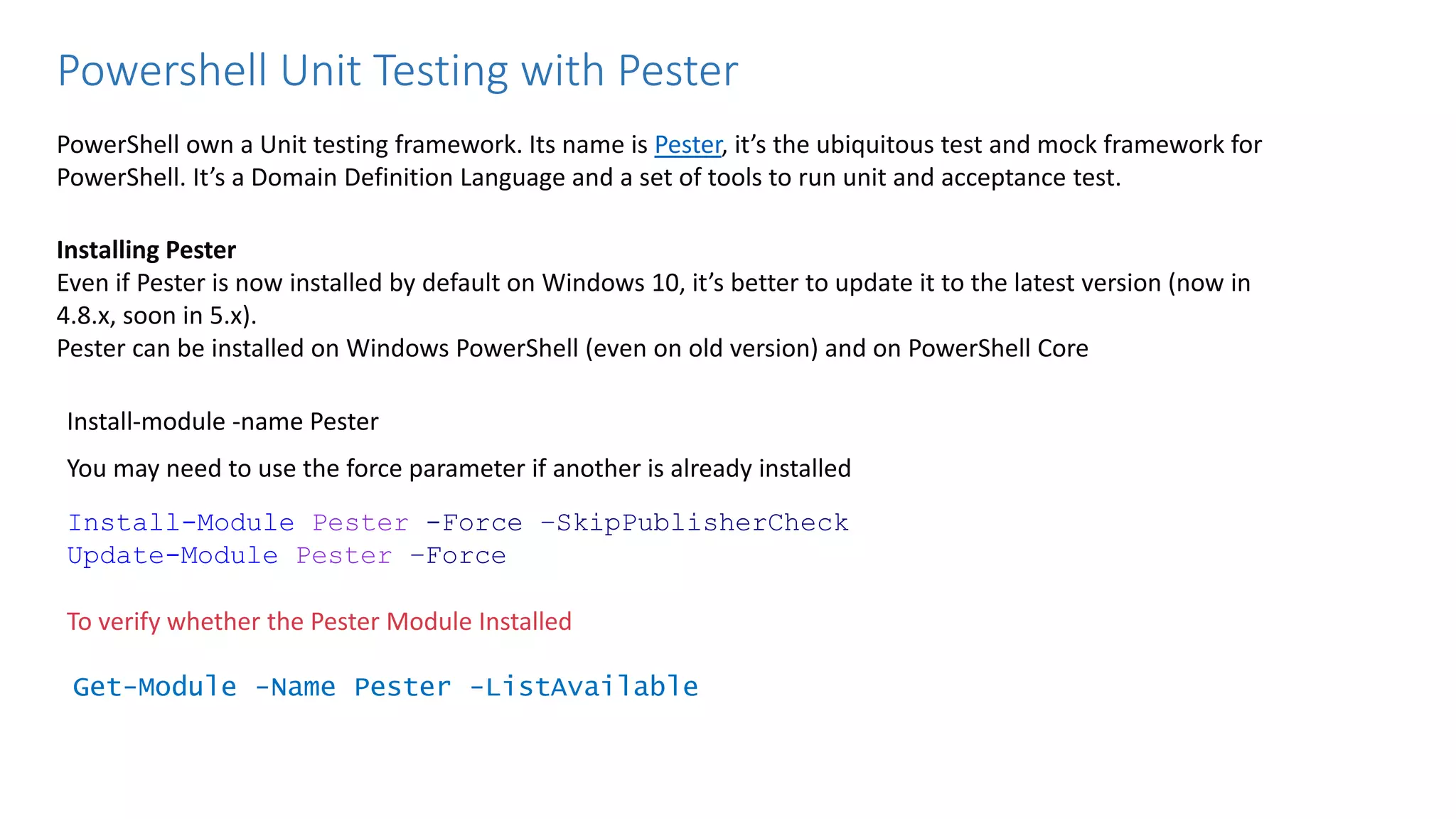
Powershell Unit Testing with Pester PowerShell own a Unit testing framework. Its name is Pester, it’s the ubiquitous test and mock framework for PowerShell. It’s a Domain Definition Language and a set of tools to run unit and acceptance test. Installing Pester Even if Pester is now installed by default on Windows 10, it’s better to update it to the latest version (now in 4.8.x, soon in 5.x). Pester can be installed on Windows PowerShell (even on old version) and on PowerShell Core Install-module -name Pester You may need to use the force parameter if another is already installed Install-Module Pester -Force –SkipPublisherCheck Update-Module Pester –Force To verify whether the Pester Module Installed Get-Module -Name Pester -ListAvailable
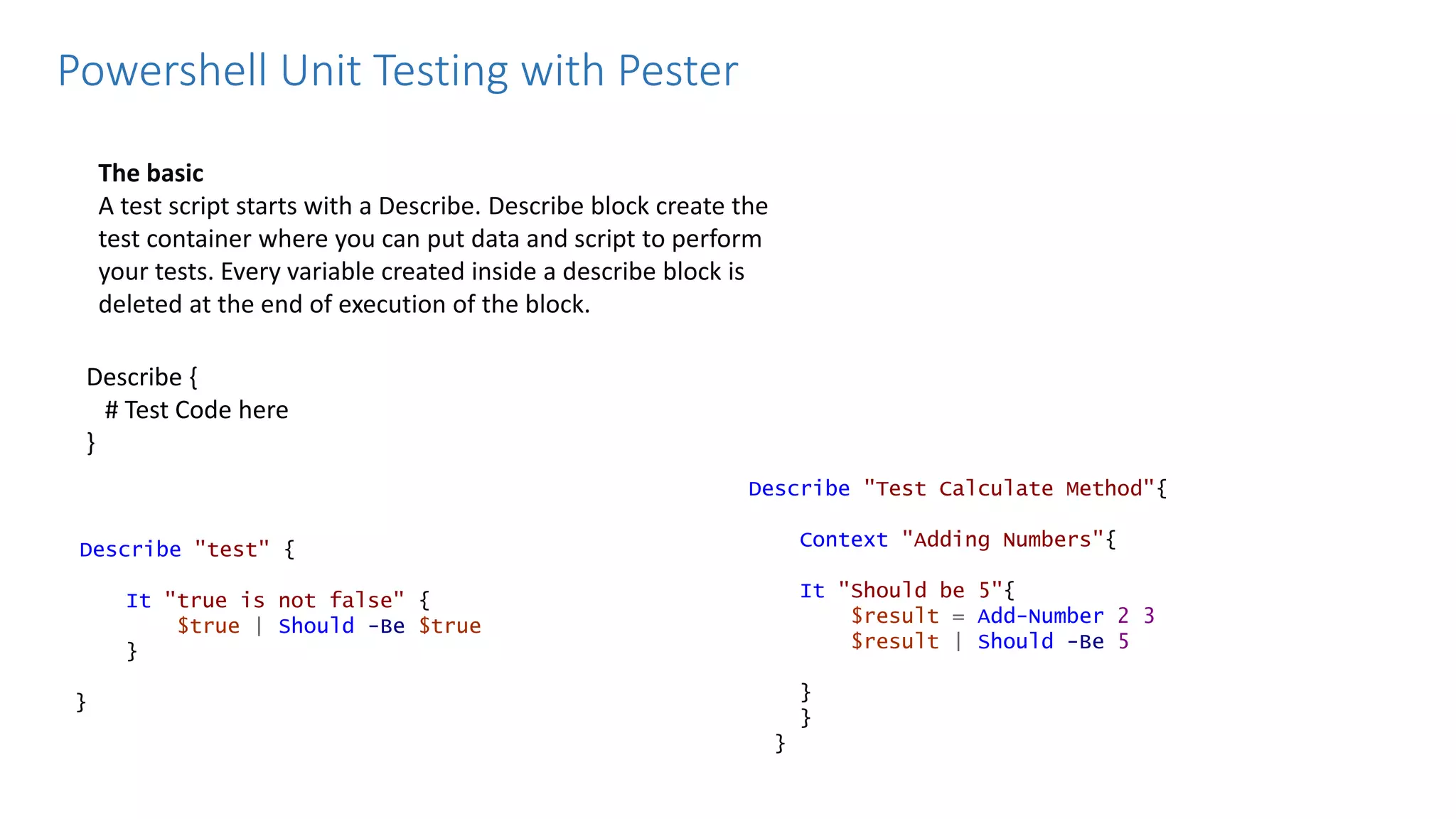
The basic A test script starts with a Describe. Describe block create the test container where you can put data and script to perform your tests. Every variable created inside a describe block is deleted at the end of execution of the block. Describe { # Test Code here } Powershell Unit Testing with Pester Describe "test" { It "true is not false" { $true | Should -Be $true } } Describe "Test Calculate Method"{ Context "Adding Numbers"{ It "Should be 5"{ $result = Add-Number 2 3 $result | Should -Be 5 } } }
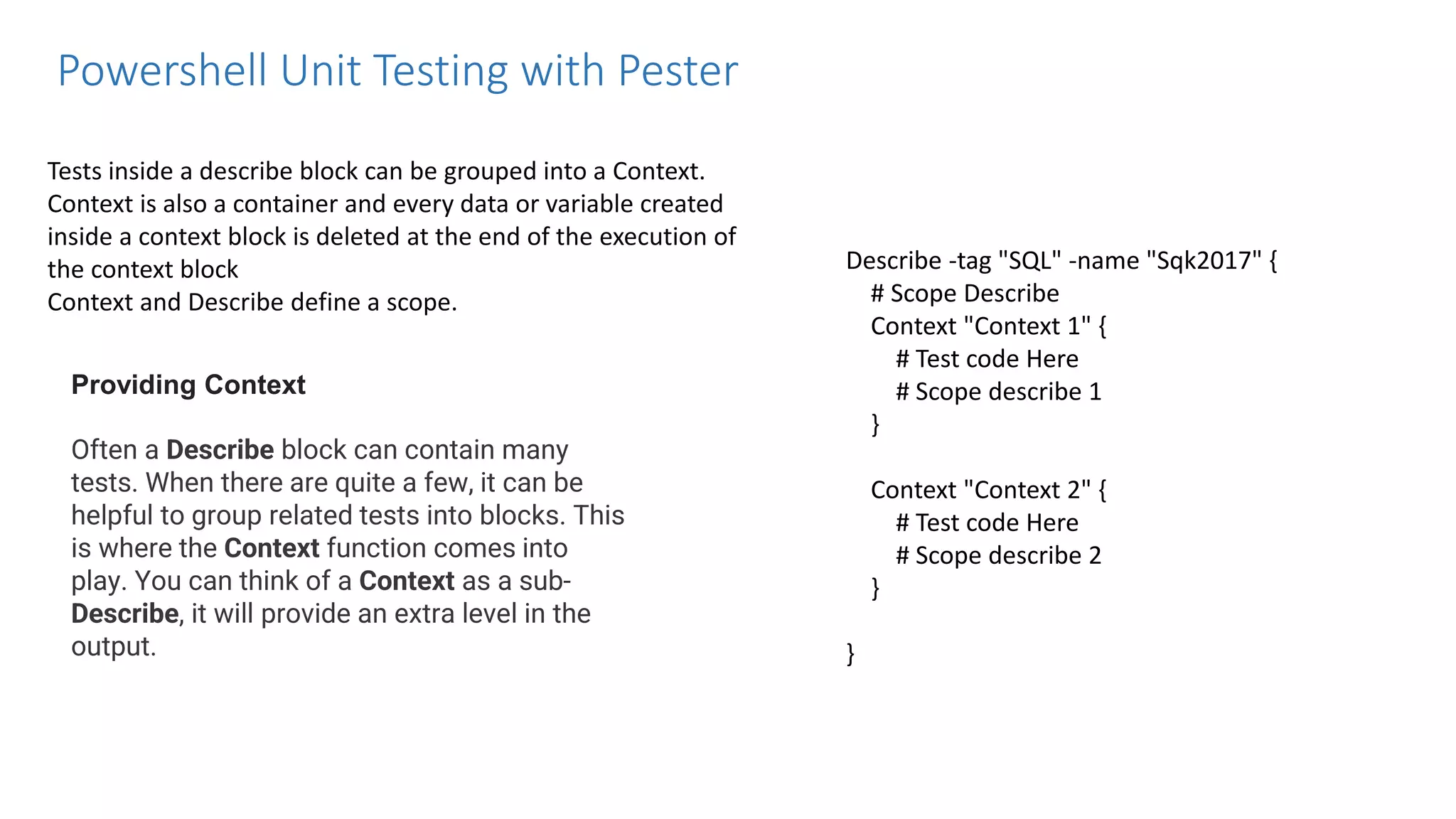
Tests inside a describe block can be grouped into a Context. Context is also a container and every data or variable created inside a context block is deleted at the end of the execution of the context block Context and Describe define a scope. Describe -tag "SQL" -name "Sqk2017" { # Scope Describe Context "Context 1" { # Test code Here # Scope describe 1 } Context "Context 2" { # Test code Here # Scope describe 2 } } Providing Context Often a Describe block can contain many tests. When there are quite a few, it can be helpful to group related tests into blocks. This is where the Context function comes into play. You can think of a Context as a sub- Describe, it will provide an extra level in the output. Powershell Unit Testing with Pester
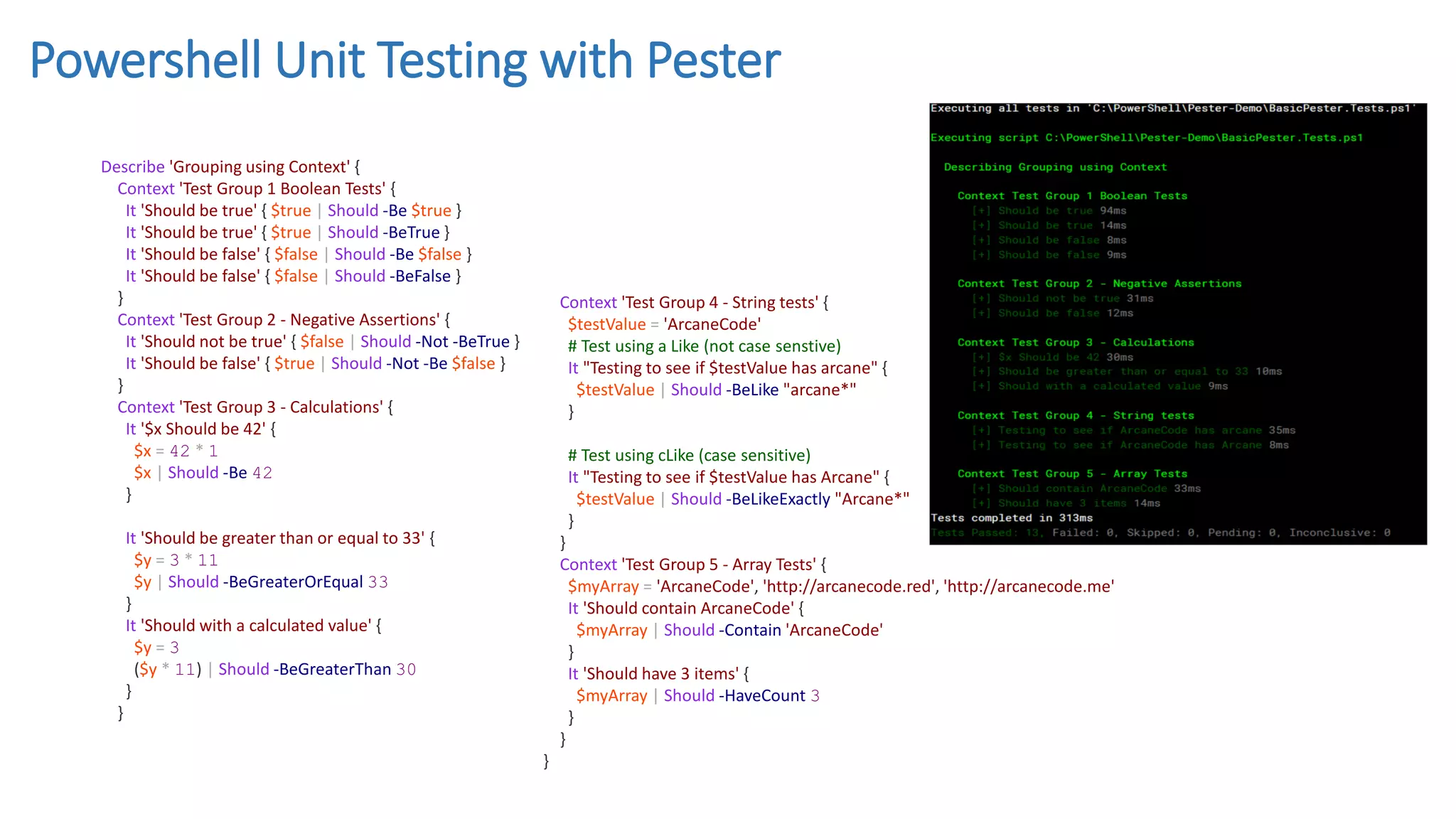
Describe 'Grouping using Context' { Context 'Test Group 1 Boolean Tests' { It 'Should be true' { $true | Should -Be $true } It 'Should be true' { $true | Should -BeTrue } It 'Should be false' { $false | Should -Be $false } It 'Should be false' { $false | Should -BeFalse } } Context 'Test Group 2 - Negative Assertions' { It 'Should not be true' { $false | Should -Not -BeTrue } It 'Should be false' { $true | Should -Not -Be $false } } Context 'Test Group 3 - Calculations' { It '$x Should be 42' { $x = 42 * 1 $x | Should -Be 42 } It 'Should be greater than or equal to 33' { $y = 3 * 11 $y | Should -BeGreaterOrEqual 33 } It 'Should with a calculated value' { $y = 3 ($y * 11) | Should -BeGreaterThan 30 } } Context 'Test Group 4 - String tests' { $testValue = 'ArcaneCode' # Test using a Like (not case senstive) It "Testing to see if $testValue has arcane" { $testValue | Should -BeLike "arcane*" } # Test using cLike (case sensitive) It "Testing to see if $testValue has Arcane" { $testValue | Should -BeLikeExactly "Arcane*" } } Context 'Test Group 5 - Array Tests' { $myArray = 'ArcaneCode', 'http://arcanecode.red', 'http://arcanecode.me' It 'Should contain ArcaneCode' { $myArray | Should -Contain 'ArcaneCode' } It 'Should have 3 items' { $myArray | Should -HaveCount 3 } } } Powershell Unit Testing with Pester
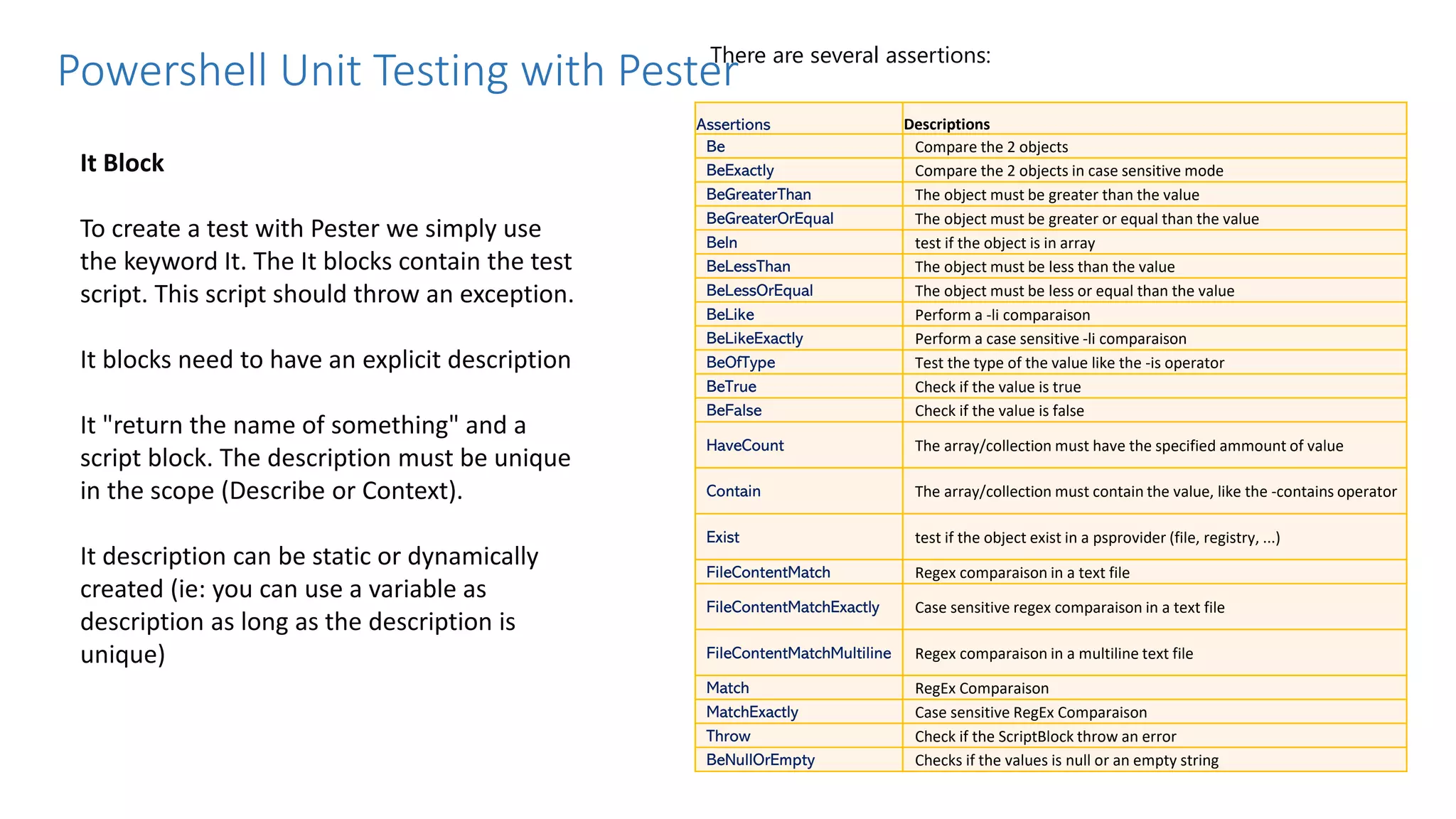
It Block To create a test with Pester we simply use the keyword It. The It blocks contain the test script. This script should throw an exception. It blocks need to have an explicit description It "return the name of something" and a script block. The description must be unique in the scope (Describe or Context). It description can be static or dynamically created (ie: you can use a variable as description as long as the description is unique) There are several assertions: Assertions Descriptions Be Compare the 2 objects BeExactly Compare the 2 objects in case sensitive mode BeGreaterThan The object must be greater than the value BeGreaterOrEqual The object must be greater or equal than the value BeIn test if the object is in array BeLessThan The object must be less than the value BeLessOrEqual The object must be less or equal than the value BeLike Perform a -li comparaison BeLikeExactly Perform a case sensitive -li comparaison BeOfType Test the type of the value like the -is operator BeTrue Check if the value is true BeFalse Check if the value is false HaveCount The array/collection must have the specified ammount of value Contain The array/collection must contain the value, like the -contains operator Exist test if the object exist in a psprovider (file, registry, ...) FileContentMatch Regex comparaison in a text file FileContentMatchExactly Case sensitive regex comparaison in a text file FileContentMatchMultiline Regex comparaison in a multiline text file Match RegEx Comparaison MatchExactly Case sensitive RegEx Comparaison Throw Check if the ScriptBlock throw an error BeNullOrEmpty Checks if the values is null or an empty string Powershell Unit Testing with Pester
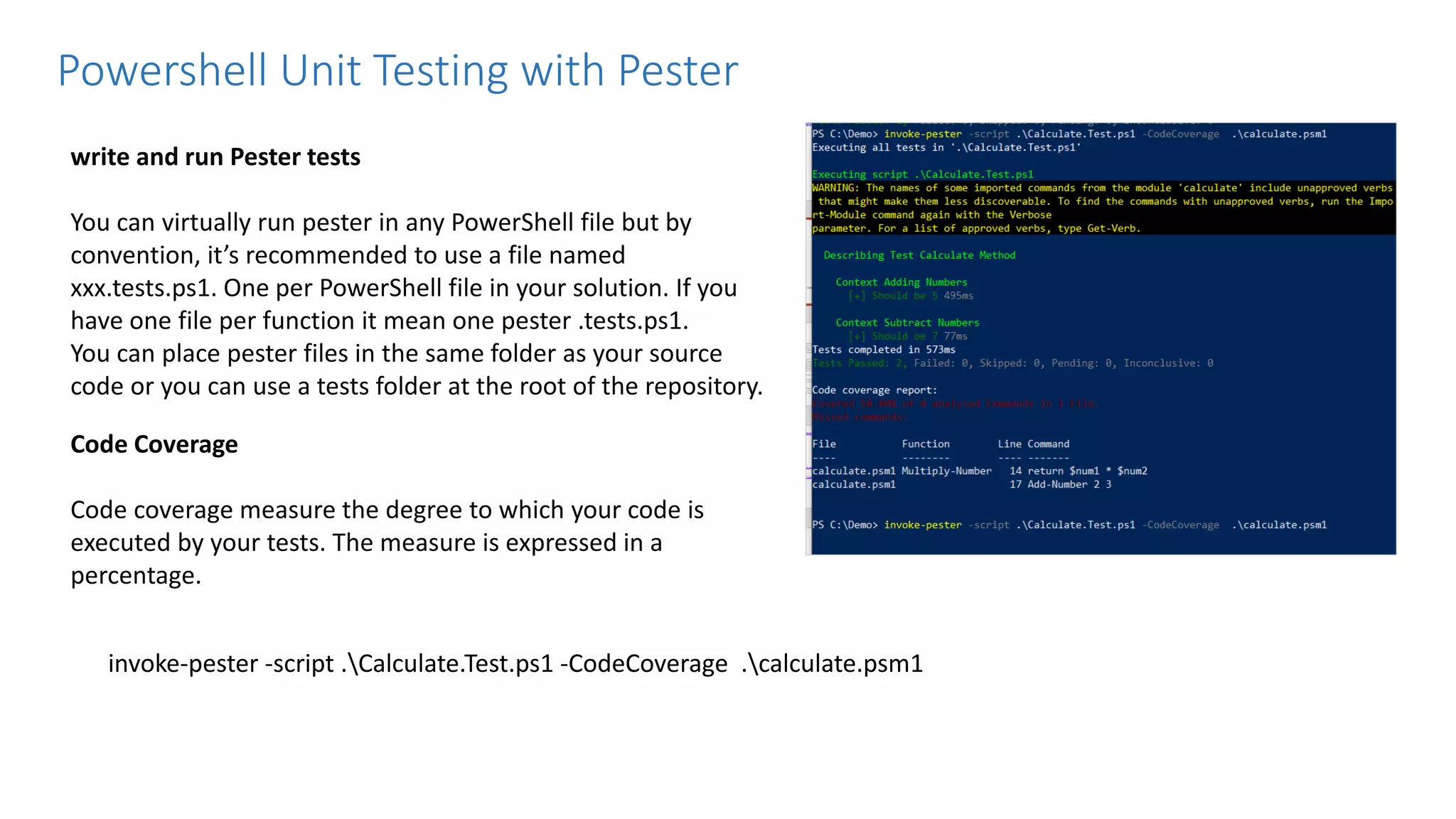
write and run Pester tests You can virtually run pester in any PowerShell file but by convention, it’s recommended to use a file named xxx.tests.ps1. One per PowerShell file in your solution. If you have one file per function it mean one pester .tests.ps1. You can place pester files in the same folder as your source code or you can use a tests folder at the root of the repository. Code Coverage Code coverage measure the degree to which your code is executed by your tests. The measure is expressed in a percentage. invoke-pester -script .Calculate.Test.ps1 -CodeCoverage .calculate.psm1 Powershell Unit Testing with Pester
BeforeAll { # your function function Get-Planet ([string]$Name='*') { $planets = @( @{ Name = 'Mercury' } @{ Name = 'Venus' } @{ Name = 'Earth' } @{ Name = 'Mars' } @{ Name = 'Jupiter' } @{ Name = 'Saturn' } @{ Name = 'Uranus' } @{ Name = 'Neptune' } ) | foreach { [PSCustomObject]$_ } $planets | where { $_.Name -like $Name } } } # Pester tests Describe 'Get-Planet' { It "Given no parameters, it lists all 8 planets" { $allPlanets = Get-Planet $allPlanets.Count | Should -Be 8 } Context "Filtering by Name" { It "Given valid -Name '<Filter>', it returns '<Expected>'" -TestCases @( @{ Filter = 'Earth'; Expected = 'Earth' } @{ Filter = 'ne*' ; Expected = 'Neptune' } @{ Filter = 'ur*' ; Expected = 'Uranus' } @{ Filter = 'm*' ; Expected = 'Mercury', 'Mars' } ) { param ($Filter, $Expected) $planets = Get-Planet -Name $Filter $planets.Name | Should -Be $Expected } It "Given invalid parameter -Name 'Alpha Centauri', it returns `$null" { $planets = Get-Planet -Name 'Alpha Centauri' $planets | Should -Be $null } } } Powershell Unit Testing with Pester
Powershell Reference Unit testing in PowerShell, introduction to Pester - DEV Community Run Pester tests on Azure Pipelines – Cloud Notes GitHub - pester/Pester: Pester is the ubiquitous test and mock framework for PowerShell. Quick Start | Pester (pester-docs.netlify.app)

Learn Powershell Scripting Tutorial Full Course 1dollarcart.com.pdf

  • 1.
  • 2.
    1. Basics ofPowershell 2. Unit Testing with Pester
  • 3.
    Powershell Basics • Whatis Powershell ? ✓ It is a simple and powerful scripting language created by Microsoft ✓ It is built on the .NET framework. ✓ Powerful tool for Automation and designed especially for the system administrators. ✓ It is an object based ✓ The commands in the Windows PowerShell are called cmdlets, which allow you to manage the computer from the command line ✓ Its analogue in Linux OS is called as a Bash scripting
  • 4.
    ✓ Why usePowerShell? ✓ It is both a scripting language and a command-line Shell. ✓ It can interact with a different number of technologies. ✓ Windows PowerShell allows complete access to all the types in the .NET framework. ✓ PowerShell is object-based. ✓ Many interfaces of GUI that Microsoft designed for its various products are front end interfaces to PowerShell. ✓ It is more secure than running VBScript or other scripting languages. ✓ It allows performing repetitive tasks more efficiently by combining multiple commands and by writing scripts. Suppose, a system administrator wants to create hundreds of active directory users, he can achieve this with the help of only some PowerShell cmdlets placed in a script. ✓ Many complex and time-consuming configurations and tasks can be done in a second with simple cmdlets of PowerShell. Powershell Basics
  • 5.
    How to startthe Windows PowerShell PowerShell is available in all the latest version of Windows. We need to start PowerShell by following the given steps: 1. Search for the Windows PowerShell. Select and Click. PowerShell Window. Powershell Basics
  • 6.
    Powershell Basics Windows PowerShellISE The Microsoft Windows PowerShell ISE is a graphical user interface-based application and a default editor for Windows PowerShell. ISE stands for the Integrated Scripting Environment. It is an interface in which we can run commands and write, test, and debug PowerShell scripts without writing all the commands in the command-line interface. The Integrated Scripting Environment (ISE) provides tab completion, multiline editing, syntax coloring, context- sensitive help, selective execution, and support for right-to- left languages.
  • 7.
    Powershell Basics The ISEwindow of PowerShell consists of following three panes: ✓ Script Pane: This pane allows the users to create and run the scripts. A user can easily open, edit, and run the existing scripts in the script pane. ✓ Output Pane: This pane displays the outputs of the scripts and the commands which are run by you. You can also clear and copy the contents in the Output pane. ✓ Command Pane: This pane allows the users to write the commands. You can easily execute the single or multiple-line command in the command pane.
  • 8.
    Powershell Basics Enable PowerShellScripts When we start the PowerShell in a computer system, the default execution policy does not allow us to execute or run the scripts. There are four different types of execution policy in PowerShell: ✓ Restricted: In this policy, no script is executed. ✓ RemoteSigned: In this policy, only those scripts are run, which are downloaded from the Internet, and these must be signed by the trusted publisher. ✓ Unrestricted: All the scripts of Windows PowerShell are run. ✓ AllSigned: Only those scripts can be run, which are signed by a trusted publisher Example : Set-ExecutionPolicy Unrestricted
  • 9.
    Powershell Basics Run aPowerShell script To execute the PowerShell script from the command line, follow the given steps: 1) Type the Windows PowerShell in the start menu and then open it by clicking on a result. 2) Now, execute the script by typing the full path to the script such as (C:demosample.ps1) or if it is in current directory, type the file name followed by a backslash. Create and Run a PowerShell Script 1. Using any editor like notepad , Visualstudio code etc. 2. Powershell ISE
  • 10.
    Powershell Basics What isPowerShell Cmdlet? A cmdlet 'pronounced as a command-lets' is a lightweight command which is used in the PowerShell environment. These are the special commands in the PowerShell environment which implements the special functions. The cmdlets follow a 'verb-noun' pattern, such as 'set-childItem'. Get-Process This cmdlet gets the processes which are running on local or remote computers. Get-Service This cmdlet gets the services on local or remote computers. Get-History This cmdlet displays a list of commands which are entered during the current session. Restart-computer This cmdlet is used to restart the Windows operating system on local and remote computers. Restart-Service This cmdlet stops and starts one or more services. Get-Date This cmdlet is used to get the current date and time. Send-MailMessage This cmdlet is used to send an e-mail message. Set-Date This cmdlet changes the time of the system.
  • 11.
    Powershell Basics Running Powershellcommands and check help /Details for the commands E.g. Get-Help : - Displays ‘how-to’ information for commands similar man in the unix command Get-Help -Name Get-Command –Detailed man –Name Get-Command –Detailed Get-Help -Name Get-Command -ShowWindow Get-Help –Name *DNS* Get-Help Process Get-Command –noun “Time” Get-Module –Listavailable
  • 12.
    Powershell Basics Pipelining inPowerShell Return all the services which are Stopped Get-Service | where-object status -eq "Stopped" A pipeline is a series of commands connected by pipeline operators ( | ) . Each pipeline operator sends the results of the preceding command to the next command. The output of the first command can be sent for processing as input to the second command. And that output can be sent to yet another command Syntax : Command-1 | Command-2 | Command-3 Return all the text file which the size is lessthan 1000 kb and in Order or the file size Get-ChildItem -Path *.txt | Where-Object {$_.length -gt 1000} | Sort-Object -Property length | Format-Table -Property name, length Return IPv4 Address from the Ipconfig ipconfig.exe | Select-String -Pattern 'IPv4'
  • 13.
    Powershell Basics Creating Variables Whatis a Variable? A “container” that holds PowerShell “things”. Variables are Placeholders. Use the $ to reference it in PowerShell E.g. $Name = “Powershell” $a = 5 $b = Get-Process | Select-Object -First $a $b $name = “Bangalore” "Hello, Welcome to $name." Tee-Object Get expression result AND save to a variable Get-Process ls* | Tee -Variable p
  • 14.
  • 15.
    Powershell Basics PowerShell Operators Operatorsare the building blocks of the Windows PowerShell. An operator is a character that can be used in the commands or expressions. It tells the compiler or interpreter to perform the specific operations and produce the final result. 1. Arithmetic Operators : add (+), subtract (-), multiply (*), or divide (/) 2. Assignment Operators = (Assignment operator) += (Addition Assignment operator) -= (Subtraction Assignment operator) *= (Multiplication Assignment operator) /= (Division Assignment operator) %= (Modulus Assignment operator) ++ (Increment Operator) --(Decrement Operator) E.g. $a = 10 + 20 $b = $a / 5
  • 16.
    Powershell Basics PowerShell Operators Operatorsare the building blocks of the Windows PowerShell. An operator is a character that can be used in the commands or expressions. It tells the compiler or interpreter to perform the specific operations and produce the final result. 3. Comparison Operators -eq (Equal) -ne (Not Equal) -gt (Greater than) -ge (Greater than or Equal to) -lt (Less than) -le (Less than or Equal to) -like -notlike 4. Logical Operators -and (Logical AND) -or (Logical OR) -xor (Logical XOR) -not (Logical NOT) ! (Same as Logical NOT) E.g. 5 –gt 2 $a = 10 $b = 5 $a –gt 5 $b –le $a $name –eq “Accenture” "foo" –like "f*“ "bar" –notlike "B* $a –gt 10 –AND $a –le 50 $a –eq 10 –OR $a –eq 50
  • 17.
    Powershell Basics PowerShell OperatorsCont.. 1. Redirection Operators The Redirection operators are used in PowerShell to redirect the output from the PowerShell console to text files. 1. > This operator is used to send the specified stream to the specified text file. The following statement is the syntax to use this operator Syntax : Command n> Filename E.g. Get-childitem > YourFile.txt 2. >> This operator is used to append the specified stream to the specified text file. The following statement is the syntax to use this operator: Syntax : Command n>> Filename E.g. Get-help >> k.txt
  • 18.
    Powershell Basics 1. Splitand Join Operators The Split and Join operators are used in PowerShell to divide and combine the substrings. -Join Operator The -Join operator is used in PowerShell to combine the set of strings into a single string. The strings are combined in the same order in which they appear in the command. E.g. - Join "windows","Operating","System" The following two statements are the syntax to use the Join operator: -Join <String> <String> -Join <Delimiter> -Split Operator The -Split operator is used in PowerShell to divide the one or more strings into the substrings. Syntax: 1.-Split <String> 2.-Split (<String[]>) 3.<String>-Split <Delimiter> [,<Maxsubstrings> [,"<Options>"]] 1.<String> -Split {<ScriptBlock>} [,<Max-substrings>] E.g. $a = "a b c d e f g h" -split $a
  • 19.
    Powershell Basics Using Arraysand Hashtables A data structure that is designed to store a collection of items. The items can be the same type or different types. Any comma-separated list is an array Initializing an empty array We can initialize an empty array by using the following syntax: $a = 3,5,9 @arrayName = @() Array
  • 20.
    Powershell Basics Using Arraysand Hashtables Manipulation of an Array We can change the value of specific index value in an array by specifying the name of the array and the index number of value to change. $p[2]=20 $a = 3,5,9 Accessing Array Elements You can display all the values of an array on the PowerShell console by typing the name of an array followed by a dollar ($) sign. $p or $p[1] or $p[2..5]
  • 21.
    Powershell Basics PowerShell Hasttable The PowerShell Hashtable is a data structure that stores one or more key/value pairs. It is also known as the dictionary or an associative array. The hashtable name is the key Syntax : $variable_name = @{ <key1> = <value1> ; < key2> = <value2> ; ..... ; < keyN> = <valueN>;} The following statement is the syntax to create an ordered dictionary: $variable_name = [ordered] @{ < key1> = <value1> ; < key2> = <value2> ; ..... ; < keyN> = <valueN>;} $variablename = @{} $student = @{ name = "Abhay" ; Course = "BCA" ; Age= 19 } Display a Hash table $Student
  • 22.
    Powershell Basics Controlling theflow of PowerShell Functions IF .. ELSE Statement When we need to execute the block of statements only when the specified condition is true, use an If statement. f(test_expression) { Statement-1 Statement-2....... Statement-N } else { Statement-1 Statement-2....... Statement-N } $a=15 $c=$a%2 if($c -eq 0) { echo "The number is even" } else { echo "The number is Odd" }
  • 23.
    Powershell Basics Switch StatementSyntax # Syntax Switch (<expression>) { <condition1> { <code> } <condition2> { <code> } <condition3> { <code> } } # Variable $number = 3 # Example Syntax Switch ($number) { 5 { Write-Host "Number equals 5" } 10 { Write-Host "Number equals 10" } 20 { Write-Host "Number equals 20" } Default { Write-Host "Number is not equal to 5, 10, or 20"} }
  • 24.
    Powershell Basics Do-While Loop TheDo-While loop is a looping structure in which a condition is evaluated after executing the statements. This loop is also known as the exit-controlled loop Syntax The following block shows the syntax of Do-while loop: Do { Statement-1 Statement-2 Statement-N } while( test_expression) $i=1 do { echo $i $i=$i+1 } while($i -le 10)
  • 25.
    Powershell Basics While loop Itis an entry-controlled loop. This loop executes the statements in a code of block when a specific condition evaluates to True. Syntax of While loop while(test_expression) { Statement-1 Statement-2 Statement-N } while($count -le 5) { echo $count $count +=1 }
  • 26.
    Powershell Basics For Loop TheFor loop is also known as a 'For' statement in a PowerShell. This loop executes the statements in a code of block when a specific condition evaluates to True. This loop is mostly used to retrieve the values of an array. Syntax of For loop for (<Initialization>; <Condition or Test_expression>; <Repeat>) { Statement-1 Statement-2 Statement-N } Examples for($x=1; $x -lt 10; $x=$x+1) { echo $x }
  • 27.
    Powershell Basics ForEach loop TheForeach is a keyword which is used for looping over an array or a collection of objects, strings, numbers, etc. Mainly, this loop is used in those situations where we need to work with one object at a time. Syntax Foreach($<item> in $<collection>) { Statement-1 Statement-2 Statement-N } $Array = 1,2,3,4,5,6,7,8,9,10 foreach ($number in $Array) { echo $number }
  • 28.
  • 29.
    Powershell Basics PowerShell Functions •A function is a list of PowerShell statements whose name is assigned by the user • Functions are the building block of Powershell scripts • Reusable throughout the script, when we need to use the same code in more than one script, then we use a PowerShell function • Can contain variables, parameters, statements and also can call other functions • When we execute a function, we type the name of a function. Functions with Arguments and Parameters Argument • Arguments are not specified within a function • Arguments are simply populated by passing values to function at the point of excuction • Values are retrieved by using ID Parameter: • A Parameter is a varibale defined in a funciton • Parameters have properties • Parameters can be Mandatory or optional..
  • 30.
    Powershell Basics Syntax function <name>[([type]$parameter1[,[type]$parameter2])] { param([type]$parameter1 [,[type]$parameter2]) dynamicparam {<statement list>} begin {<statement list>} process {<statement list>} end {<statement list>} }
  • 31.
    Powershell Basics #Create Functionwithout Arguments Function Find-SquareRoot() { $number = Read-Host “Enter any positive Number “ $number =[convert]::ToInt32($number) return $number * $number } Find-SquareRoot #Creating Function with Arguments Function Find-SquareRoot() { $number1 = $args[0] $number2 = $args[1] $result =[convert]::ToInt32($number1) * [convert]::ToInt32($number2) return $result } Find-SquareRoot 25 2
  • 32.
    Powershell Basics #Create functionwith Variable Function Find-SquareRoot($num) { $number =[convert]::ToInt32($num) return $number * $number } Find-SquareRoot 20 #Create function with Variable function add ([int]$num1, [int]$num2) { $c = $num1 + $num2 echo $c } #invoking Function Add 1 2
  • 33.
    Powershell Basics #Creating Functionwith Parameter Function Find-Capital() { Param( [Parameter(Mandatory=$true)] [string]$Country ) if($Country -eq "India") { Write-Host "The Capital of $Country is New Delhi" -ForegroundColor Green } else { Write-Host "Sorry, Capital not Found!!" -ForegroundColor Red } } Find-Capital -Country "India"
  • 34.
    Powershell Basics Comment PowerShellScripts Single-Line PowerShell Comments Begins with the number/hash character (#). Everything on the same line after it is ignored by PowerShell Block Comments / Multiline Comments Comment blocks in PowerShell begin with "<#" and end with "#>“
  • 35.
    Powershell Basics Exception Handlingin Powershell An Exception is like an event that is created when normal error handling can not deal with the issue. Trying to divide a number by zero or running out of memory are examples of something that will create an exception To create our own exception event, we throw an exception with the throw keyword. function Do-Something { throw "Bad thing happened" }
  • 36.
    Powershell Basics Exception Handlingin Powershell Try/Catch The way exception handling works in PowerShell (and many other languages) is that you first try a section of code and if it throws an error, you can catch it Syntax : try { Do-Something } catch { Write-Output "Something threw an exception" } Finally { # Execute the final block } try { Do-Something -ErrorAction Stop } catch { Write-Output "Something threw an exception or used Write- Error" }
  • 37.
    Powershell Basics Exception Handlingin Powershell Catching typed exceptions You can be selective with the exceptions that you catch. Exceptions have a type and you can specify the type of exception you want to catch. try { Do-Something -Path $path } catch [System.IO.FileNotFoundException] { Write-Output "Could not find $path" } catch [System.IO.IOException] { Write-Output "IO error with the file: $path" }
  • 38.
  • 39.
    Powershell Unit Testingwith Pester PowerShell own a Unit testing framework. Its name is Pester, it’s the ubiquitous test and mock framework for PowerShell. It’s a Domain Definition Language and a set of tools to run unit and acceptance test. Installing Pester Even if Pester is now installed by default on Windows 10, it’s better to update it to the latest version (now in 4.8.x, soon in 5.x). Pester can be installed on Windows PowerShell (even on old version) and on PowerShell Core Install-module -name Pester You may need to use the force parameter if another is already installed Install-Module Pester -Force –SkipPublisherCheck Update-Module Pester –Force To verify whether the Pester Module Installed Get-Module -Name Pester -ListAvailable
  • 40.
    The basic A testscript starts with a Describe. Describe block create the test container where you can put data and script to perform your tests. Every variable created inside a describe block is deleted at the end of execution of the block. Describe { # Test Code here } Powershell Unit Testing with Pester Describe "test" { It "true is not false" { $true | Should -Be $true } } Describe "Test Calculate Method"{ Context "Adding Numbers"{ It "Should be 5"{ $result = Add-Number 2 3 $result | Should -Be 5 } } }
  • 41.
    Tests inside adescribe block can be grouped into a Context. Context is also a container and every data or variable created inside a context block is deleted at the end of the execution of the context block Context and Describe define a scope. Describe -tag "SQL" -name "Sqk2017" { # Scope Describe Context "Context 1" { # Test code Here # Scope describe 1 } Context "Context 2" { # Test code Here # Scope describe 2 } } Providing Context Often a Describe block can contain many tests. When there are quite a few, it can be helpful to group related tests into blocks. This is where the Context function comes into play. You can think of a Context as a sub- Describe, it will provide an extra level in the output. Powershell Unit Testing with Pester
  • 42.
    Describe 'Grouping usingContext' { Context 'Test Group 1 Boolean Tests' { It 'Should be true' { $true | Should -Be $true } It 'Should be true' { $true | Should -BeTrue } It 'Should be false' { $false | Should -Be $false } It 'Should be false' { $false | Should -BeFalse } } Context 'Test Group 2 - Negative Assertions' { It 'Should not be true' { $false | Should -Not -BeTrue } It 'Should be false' { $true | Should -Not -Be $false } } Context 'Test Group 3 - Calculations' { It '$x Should be 42' { $x = 42 * 1 $x | Should -Be 42 } It 'Should be greater than or equal to 33' { $y = 3 * 11 $y | Should -BeGreaterOrEqual 33 } It 'Should with a calculated value' { $y = 3 ($y * 11) | Should -BeGreaterThan 30 } } Context 'Test Group 4 - String tests' { $testValue = 'ArcaneCode' # Test using a Like (not case senstive) It "Testing to see if $testValue has arcane" { $testValue | Should -BeLike "arcane*" } # Test using cLike (case sensitive) It "Testing to see if $testValue has Arcane" { $testValue | Should -BeLikeExactly "Arcane*" } } Context 'Test Group 5 - Array Tests' { $myArray = 'ArcaneCode', 'http://arcanecode.red', 'http://arcanecode.me' It 'Should contain ArcaneCode' { $myArray | Should -Contain 'ArcaneCode' } It 'Should have 3 items' { $myArray | Should -HaveCount 3 } } } Powershell Unit Testing with Pester
  • 43.
    It Block To createa test with Pester we simply use the keyword It. The It blocks contain the test script. This script should throw an exception. It blocks need to have an explicit description It "return the name of something" and a script block. The description must be unique in the scope (Describe or Context). It description can be static or dynamically created (ie: you can use a variable as description as long as the description is unique) There are several assertions: Assertions Descriptions Be Compare the 2 objects BeExactly Compare the 2 objects in case sensitive mode BeGreaterThan The object must be greater than the value BeGreaterOrEqual The object must be greater or equal than the value BeIn test if the object is in array BeLessThan The object must be less than the value BeLessOrEqual The object must be less or equal than the value BeLike Perform a -li comparaison BeLikeExactly Perform a case sensitive -li comparaison BeOfType Test the type of the value like the -is operator BeTrue Check if the value is true BeFalse Check if the value is false HaveCount The array/collection must have the specified ammount of value Contain The array/collection must contain the value, like the -contains operator Exist test if the object exist in a psprovider (file, registry, ...) FileContentMatch Regex comparaison in a text file FileContentMatchExactly Case sensitive regex comparaison in a text file FileContentMatchMultiline Regex comparaison in a multiline text file Match RegEx Comparaison MatchExactly Case sensitive RegEx Comparaison Throw Check if the ScriptBlock throw an error BeNullOrEmpty Checks if the values is null or an empty string Powershell Unit Testing with Pester
  • 44.
    write and runPester tests You can virtually run pester in any PowerShell file but by convention, it’s recommended to use a file named xxx.tests.ps1. One per PowerShell file in your solution. If you have one file per function it mean one pester .tests.ps1. You can place pester files in the same folder as your source code or you can use a tests folder at the root of the repository. Code Coverage Code coverage measure the degree to which your code is executed by your tests. The measure is expressed in a percentage. invoke-pester -script .Calculate.Test.ps1 -CodeCoverage .calculate.psm1 Powershell Unit Testing with Pester
  • 45.
    BeforeAll { # yourfunction function Get-Planet ([string]$Name='*') { $planets = @( @{ Name = 'Mercury' } @{ Name = 'Venus' } @{ Name = 'Earth' } @{ Name = 'Mars' } @{ Name = 'Jupiter' } @{ Name = 'Saturn' } @{ Name = 'Uranus' } @{ Name = 'Neptune' } ) | foreach { [PSCustomObject]$_ } $planets | where { $_.Name -like $Name } } } # Pester tests Describe 'Get-Planet' { It "Given no parameters, it lists all 8 planets" { $allPlanets = Get-Planet $allPlanets.Count | Should -Be 8 } Context "Filtering by Name" { It "Given valid -Name '<Filter>', it returns '<Expected>'" -TestCases @( @{ Filter = 'Earth'; Expected = 'Earth' } @{ Filter = 'ne*' ; Expected = 'Neptune' } @{ Filter = 'ur*' ; Expected = 'Uranus' } @{ Filter = 'm*' ; Expected = 'Mercury', 'Mars' } ) { param ($Filter, $Expected) $planets = Get-Planet -Name $Filter $planets.Name | Should -Be $Expected } It "Given invalid parameter -Name 'Alpha Centauri', it returns `$null" { $planets = Get-Planet -Name 'Alpha Centauri' $planets | Should -Be $null } } } Powershell Unit Testing with Pester
  • 46.
    Powershell Reference Unit testingin PowerShell, introduction to Pester - DEV Community Run Pester tests on Azure Pipelines – Cloud Notes GitHub - pester/Pester: Pester is the ubiquitous test and mock framework for PowerShell. Quick Start | Pester (pester-docs.netlify.app)