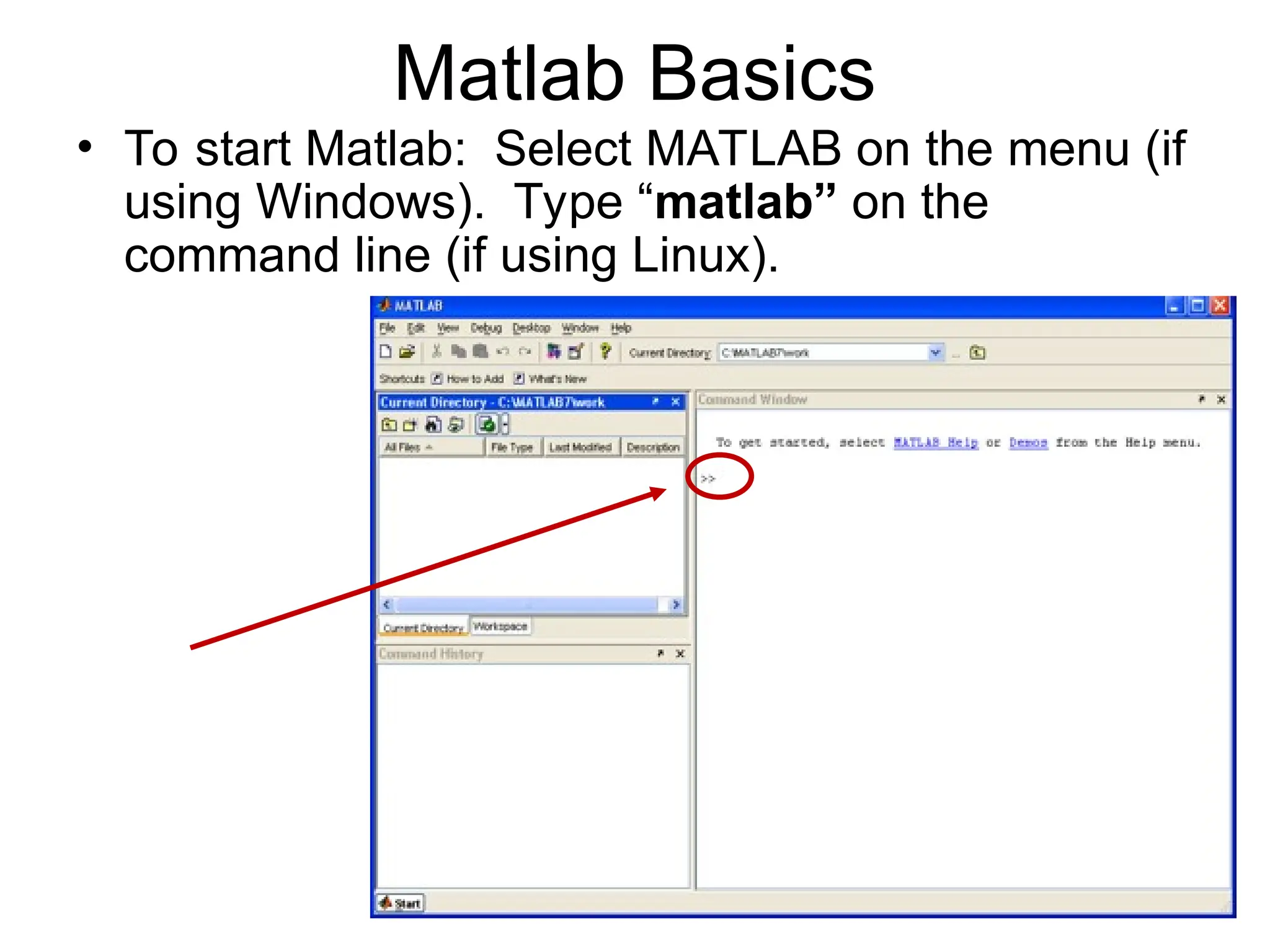
Matlab Basics • Tostart Matlab: Select MATLAB on the menu (if using Windows). Type “matlab” on the command line (if using Linux).
3.
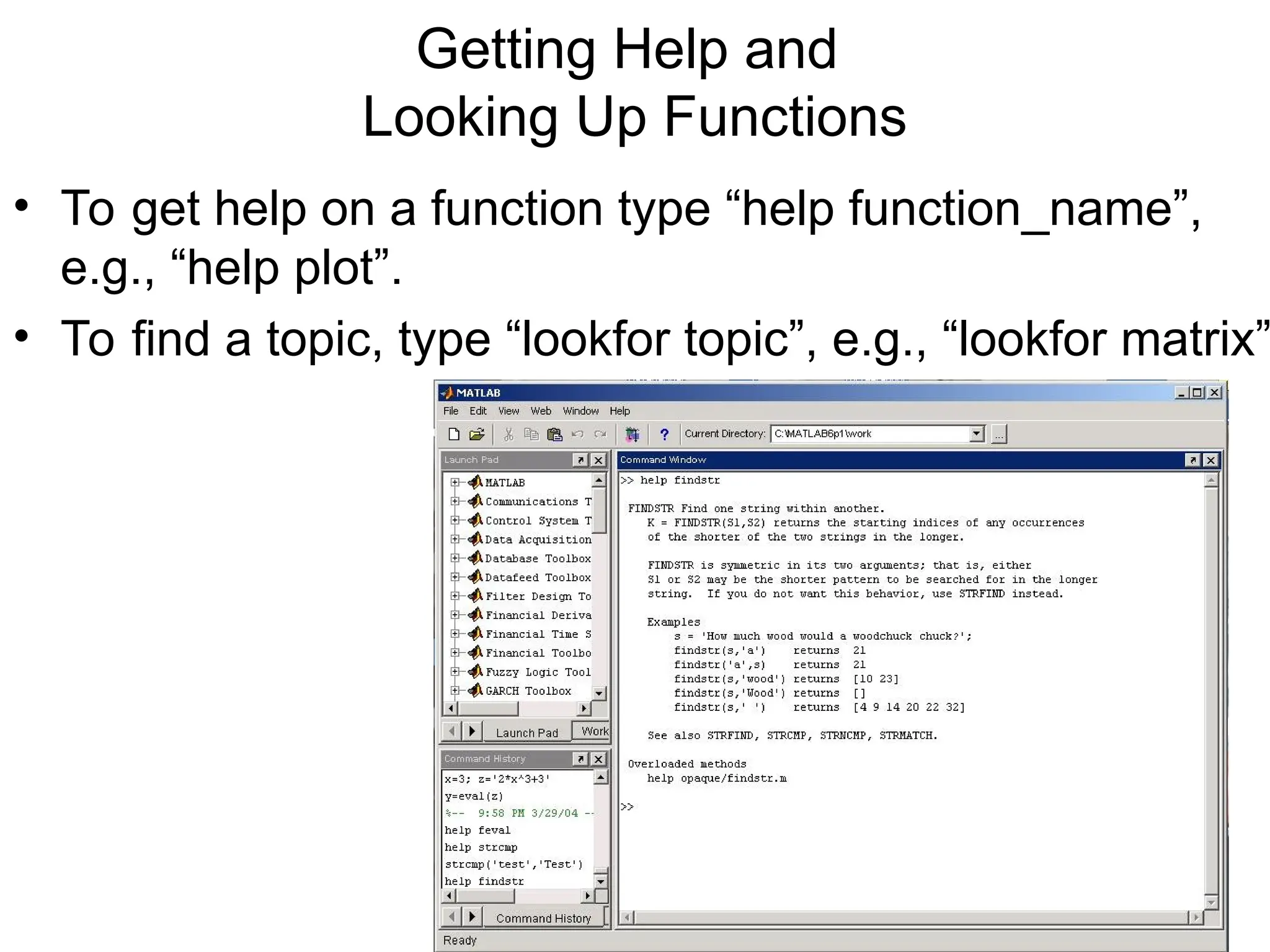
Getting Help and LookingUp Functions • To get help on a function type “help function_name”, e.g., “help plot”. • To find a topic, type “lookfor topic”, e.g., “lookfor matrix”
4.
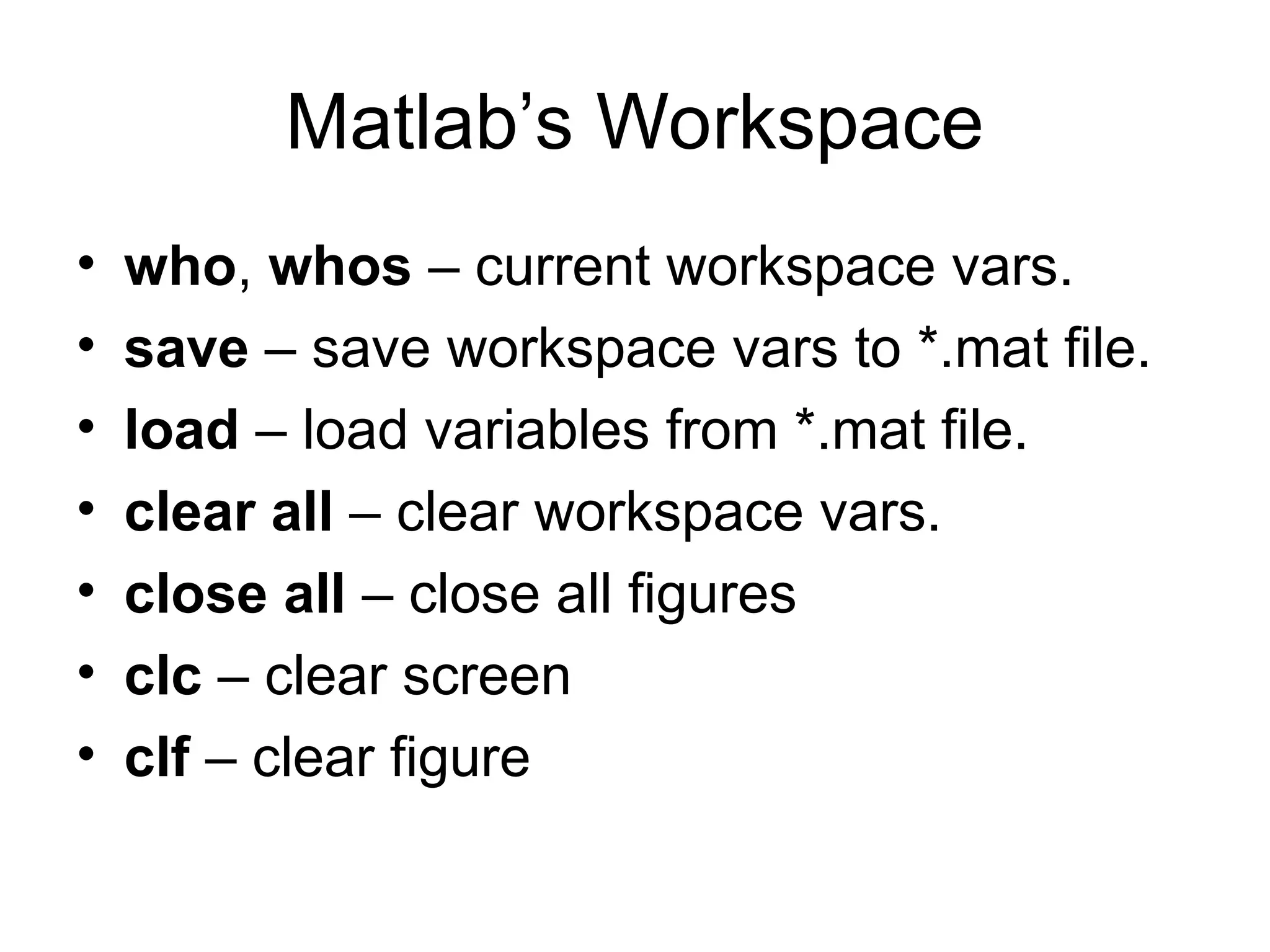
Matlab’s Workspace • who,whos – current workspace vars. • save – save workspace vars to *.mat file. • load – load variables from *.mat file. • clear all – clear workspace vars. • close all – close all figures • clc – clear screen • clf – clear figure
5.
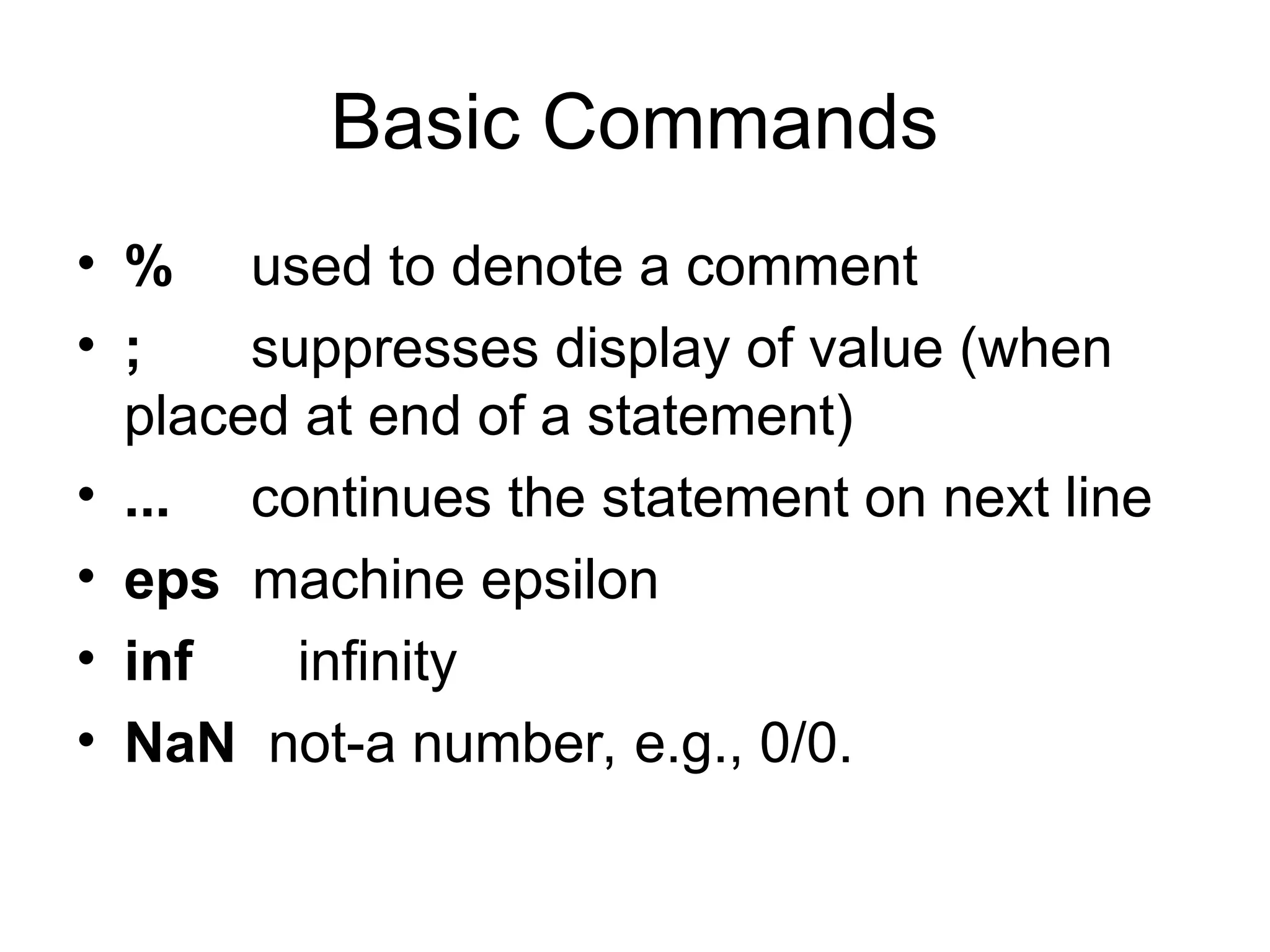
Basic Commands • %used to denote a comment • ; suppresses display of value (when placed at end of a statement) • ... continues the statement on next line • eps machine epsilon • inf infinity • NaN not-a number, e.g., 0/0.
6.
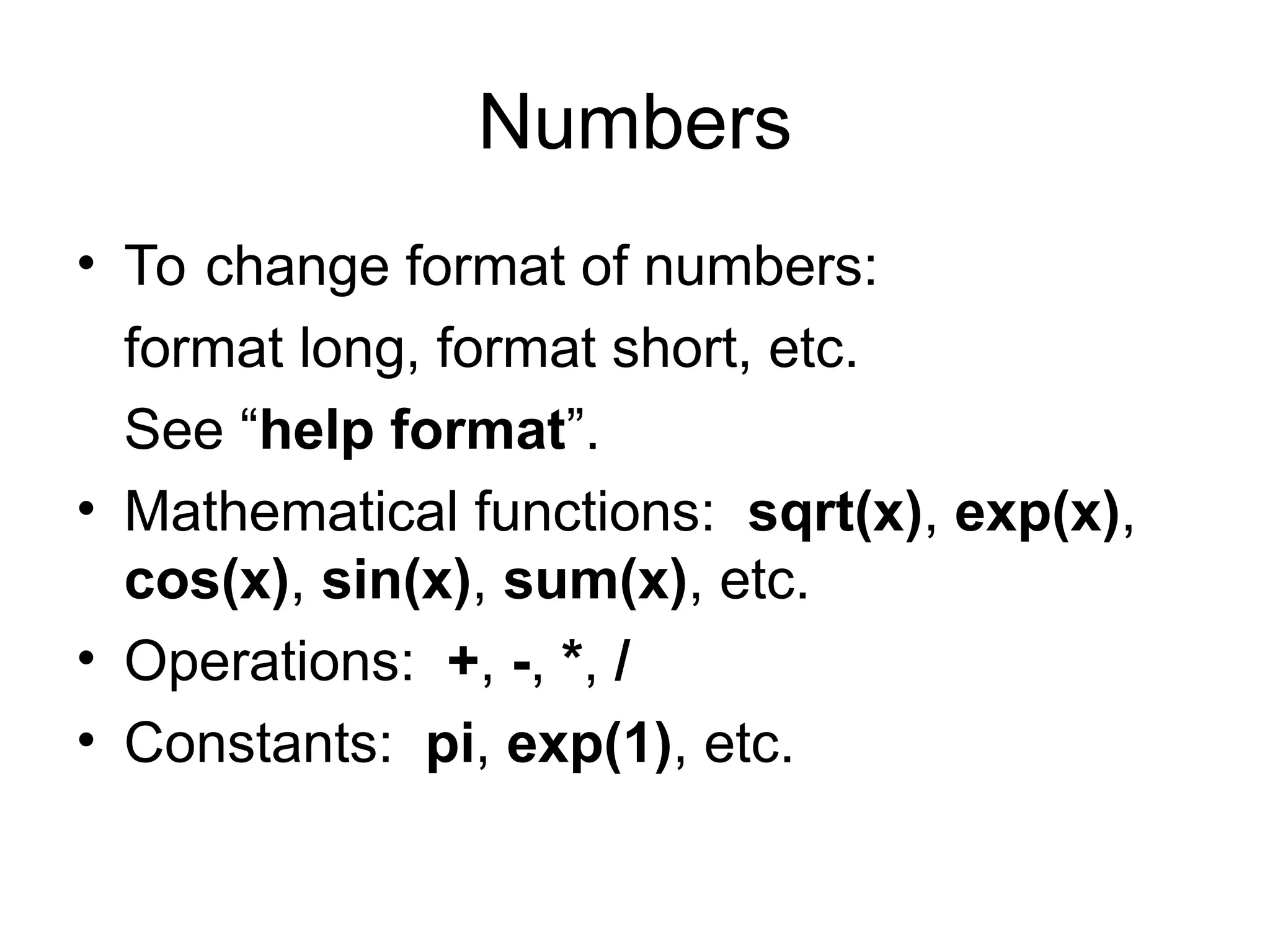
Numbers • To changeformat of numbers: format long, format short, etc. See “help format”. • Mathematical functions: sqrt(x), exp(x), cos(x), sin(x), sum(x), etc. • Operations: +, -, *, / • Constants: pi, exp(1), etc.
7.
Arrays and Matrices •v = [-2 3 0 4.5 -1.5]; % length 5 row vector. • v = v’; % transposes v. • v(1);% first element of v. • v(2:4); % entries 2-4 of v. • v([3,5]); % returns entries 3 & 5. • v=[4:-1:2]; % same as v=[4 3 2]; • a=1:3; b=2:3; c=[a b]; c = [1 2 3 2 3];
8.
Arrays and Matrices(2) • x = linspace(-pi,pi,10); % creates 10 linearly-spaced elements from –pi to pi. • logspace is similar. • A = [1 2 3; 4 5 6]; % creates 2x3 matrix • A(1,2) % the element in row 1, column 2. • A(:,2) % the second column. • A(2,:) % the second row.
9.
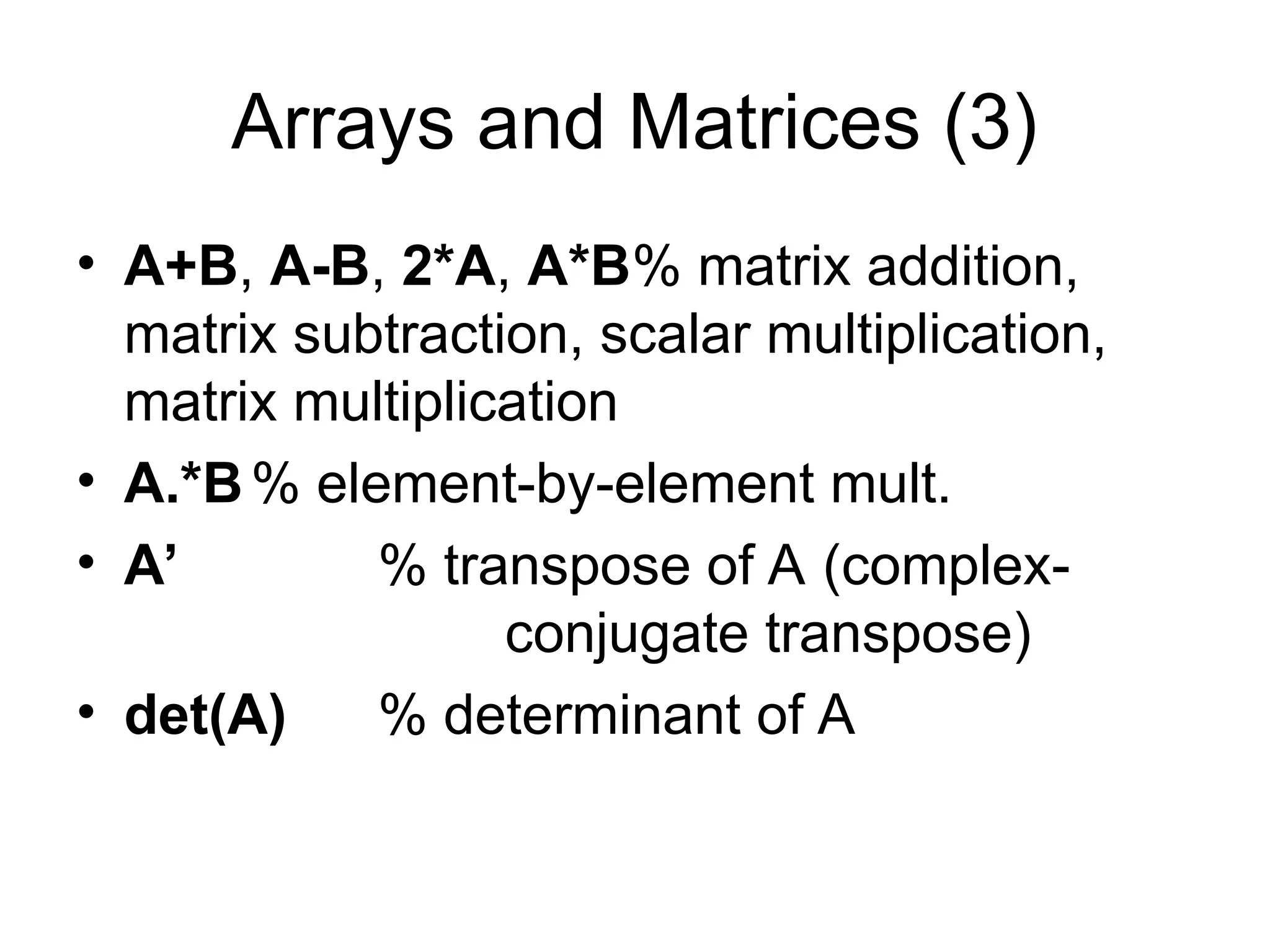
Arrays and Matrices(3) • A+B, A-B, 2*A, A*B% matrix addition, matrix subtraction, scalar multiplication, matrix multiplication • A.*B% element-by-element mult. • A’ % transpose of A (complex- conjugate transpose) • det(A) % determinant of A
10.
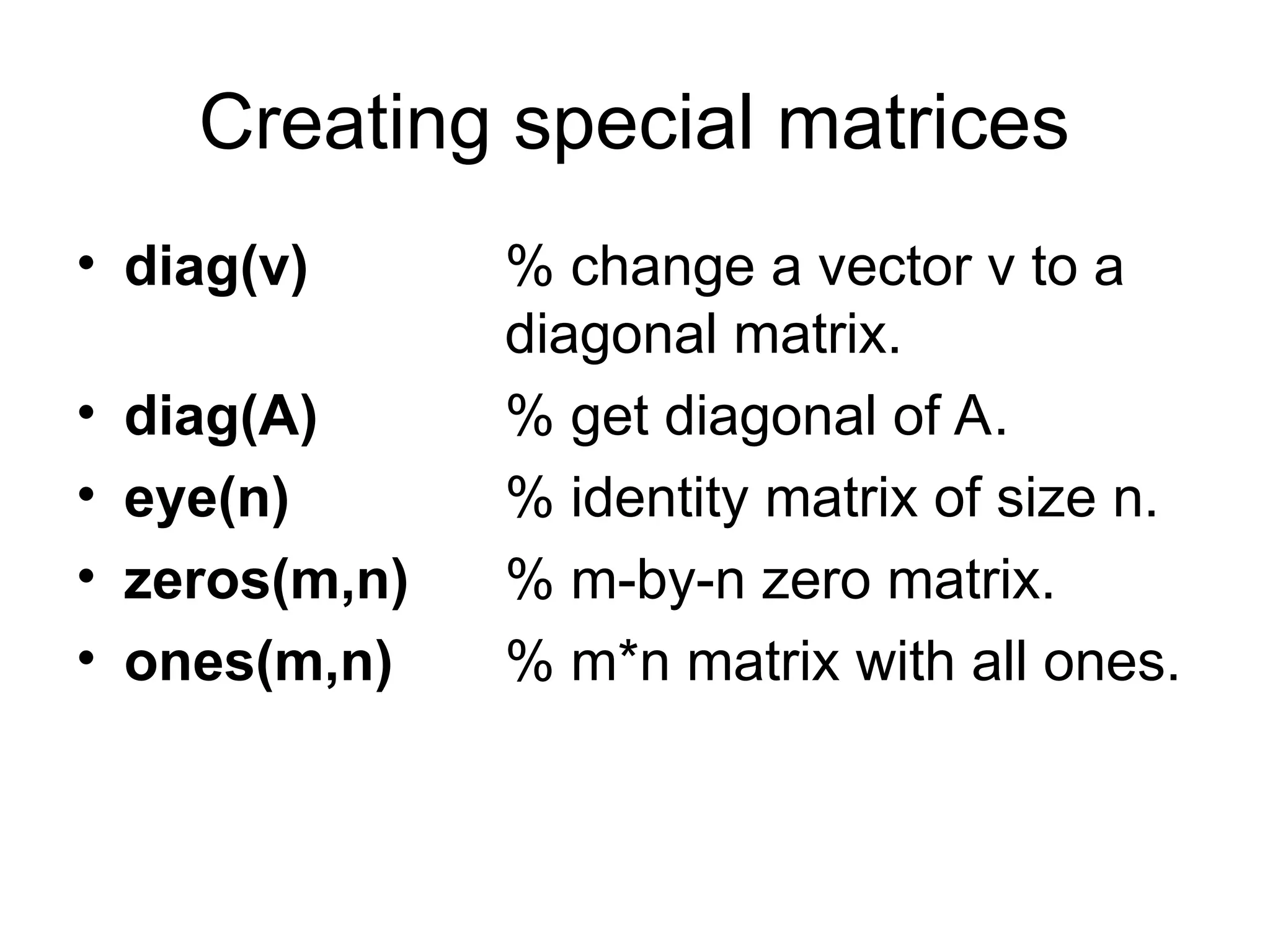
Creating special matrices •diag(v) % change a vector v to a diagonal matrix. • diag(A) % get diagonal of A. • eye(n) % identity matrix of size n. • zeros(m,n) % m-by-n zero matrix. • ones(m,n) % m*n matrix with all ones.
11.
Logical Conditions • ==,<, >, <=, >=, ~= (not equal), ~ (not) • & (element-wise logical and), | (or) • find(‘condition’) – Return indices of A’s elements that satisfies the condition. • Example: A = [7 6 5; 4 3 2]; find (‘A == 3’); --> returns 5.
12.
Solving Linear Equations •A = [1 2 3; 2 5 3; 1 0 8]; • b = [2; 1; 0]; • x = inv(A)*b; % solves Ax=b if A is invertible. (Note: This is a BAD way to solve the equations!!! It’s unstable and inefficient.) • x = Ab; % solves Ax = b. (Note: This way is better, but we’ll learn how to program methods to solve Ax=b.) Do NOT use either of these commands in your codes!
13.
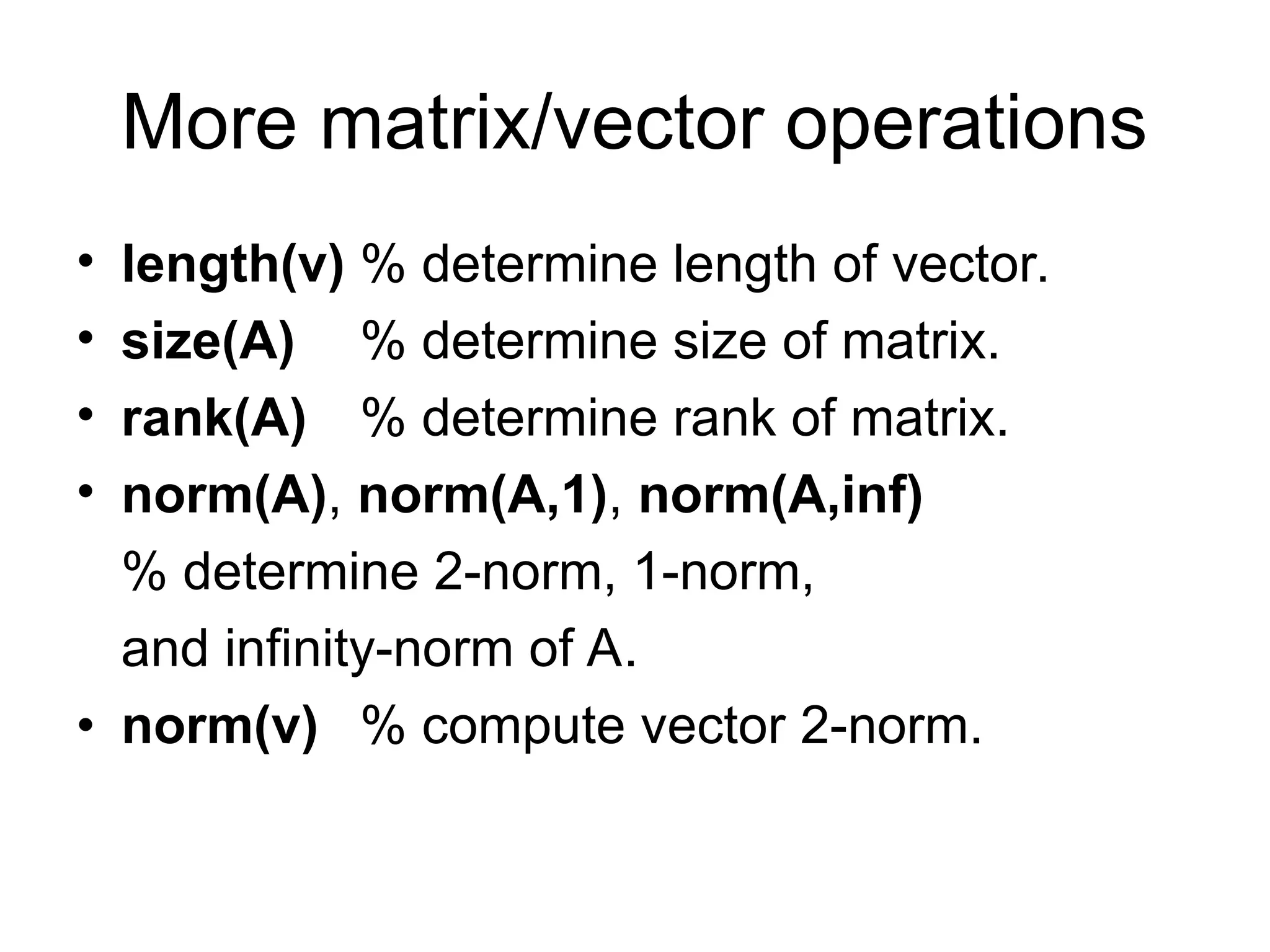
More matrix/vector operations •length(v) % determine length of vector. • size(A) % determine size of matrix. • rank(A) % determine rank of matrix. • norm(A), norm(A,1), norm(A,inf) % determine 2-norm, 1-norm, and infinity-norm of A. • norm(v) % compute vector 2-norm.
14.
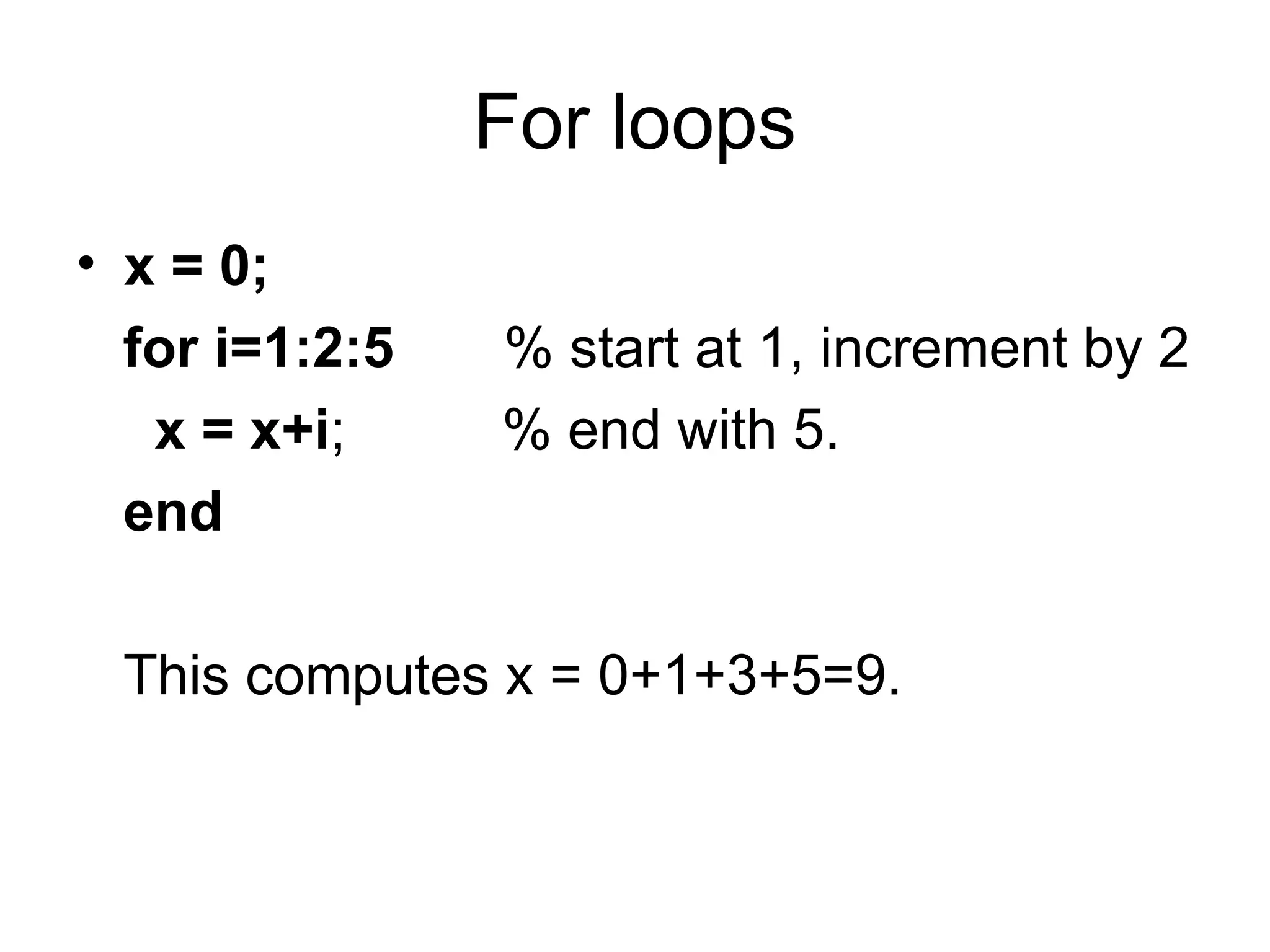
For loops • x= 0; for i=1:2:5 % start at 1, increment by 2 x = x+i; % end with 5. end This computes x = 0+1+3+5=9.
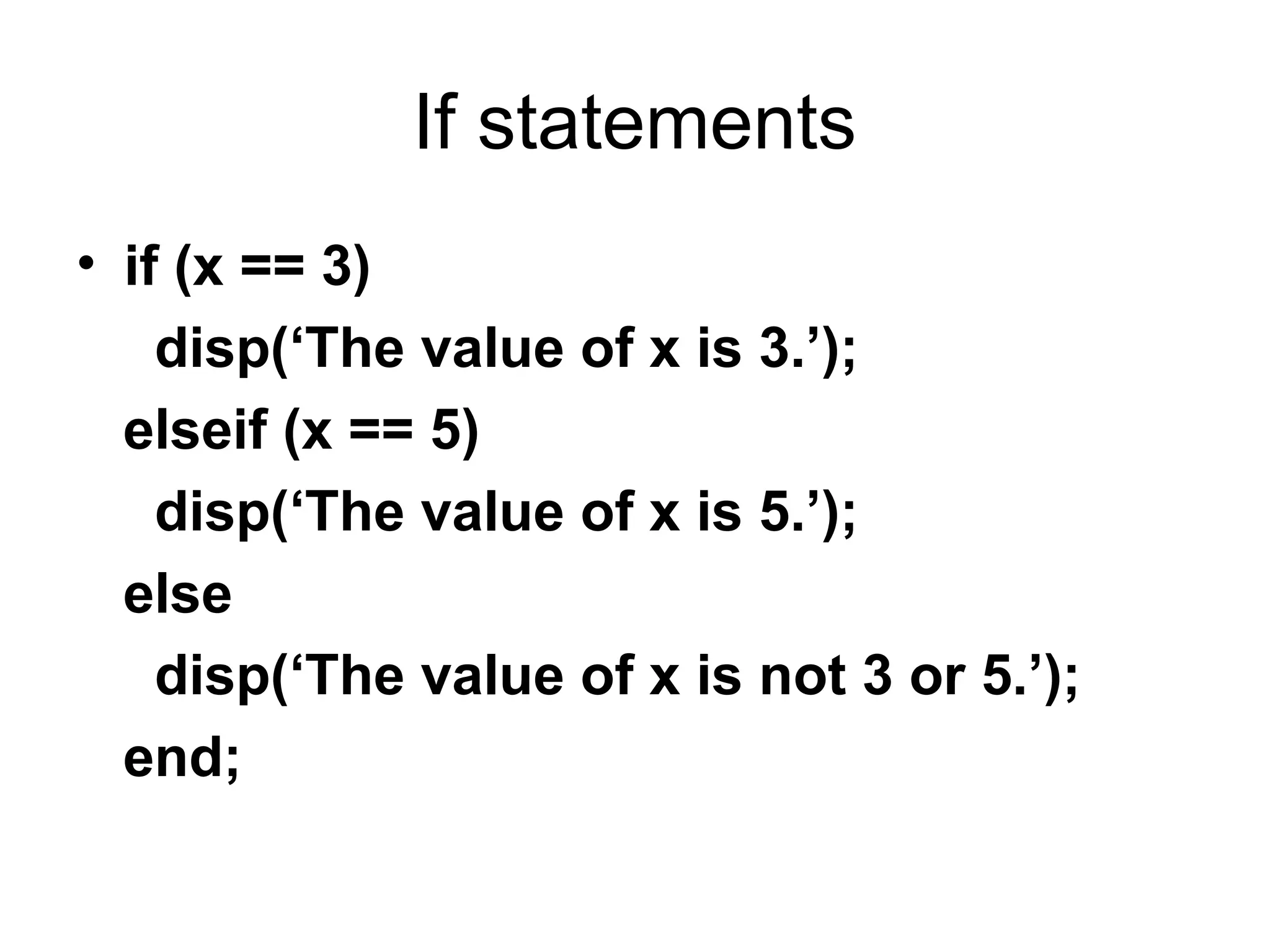
If statements • if(x == 3) disp(‘The value of x is 3.’); elseif (x == 5) disp(‘The value of x is 5.’); else disp(‘The value of x is not 3 or 5.’); end;
17.
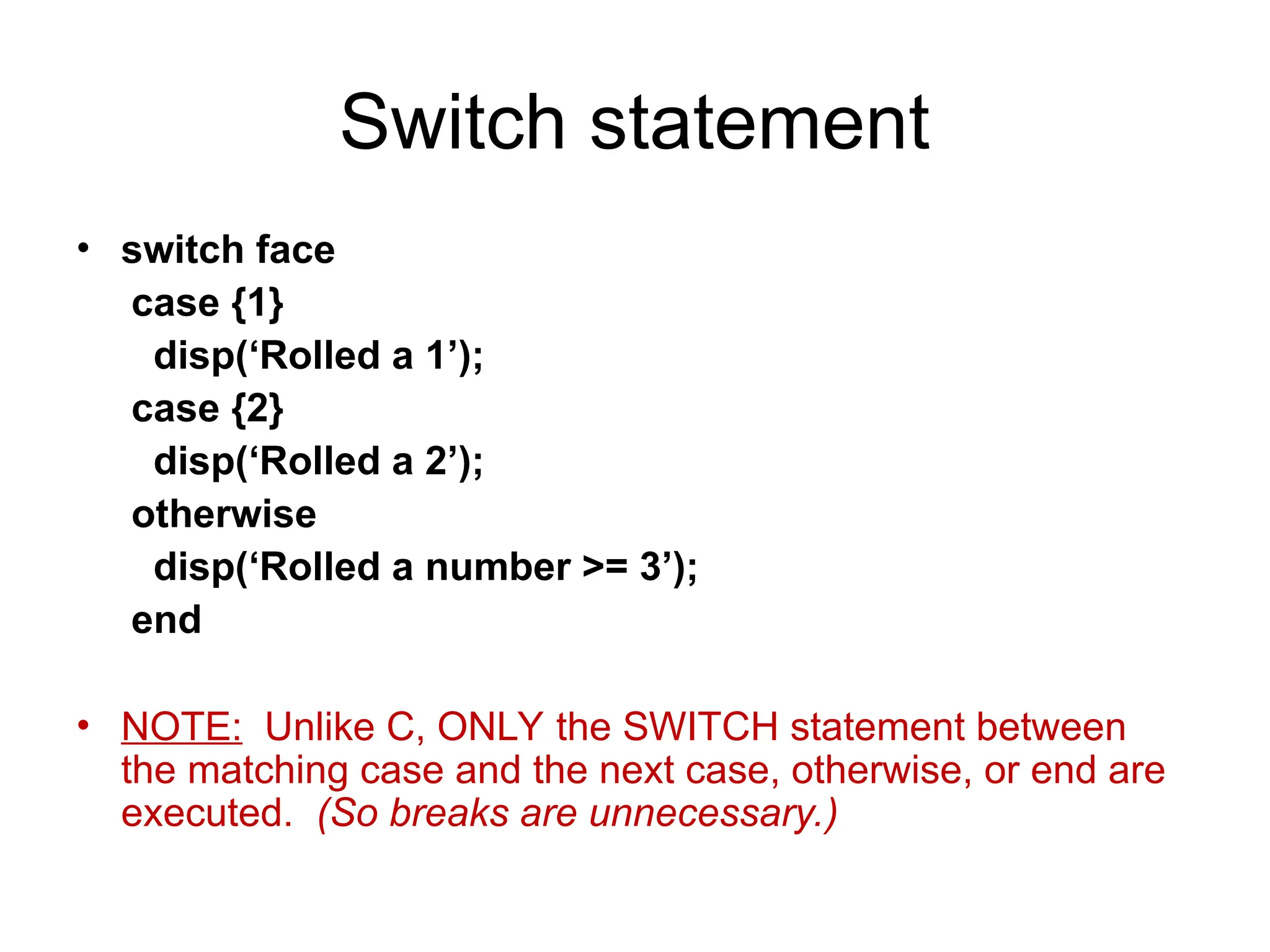
Switch statement • switchface case {1} disp(‘Rolled a 1’); case {2} disp(‘Rolled a 2’); otherwise disp(‘Rolled a number >= 3’); end • NOTE: Unlike C, ONLY the SWITCH statement between the matching case and the next case, otherwise, or end are executed. (So breaks are unnecessary.)
18.
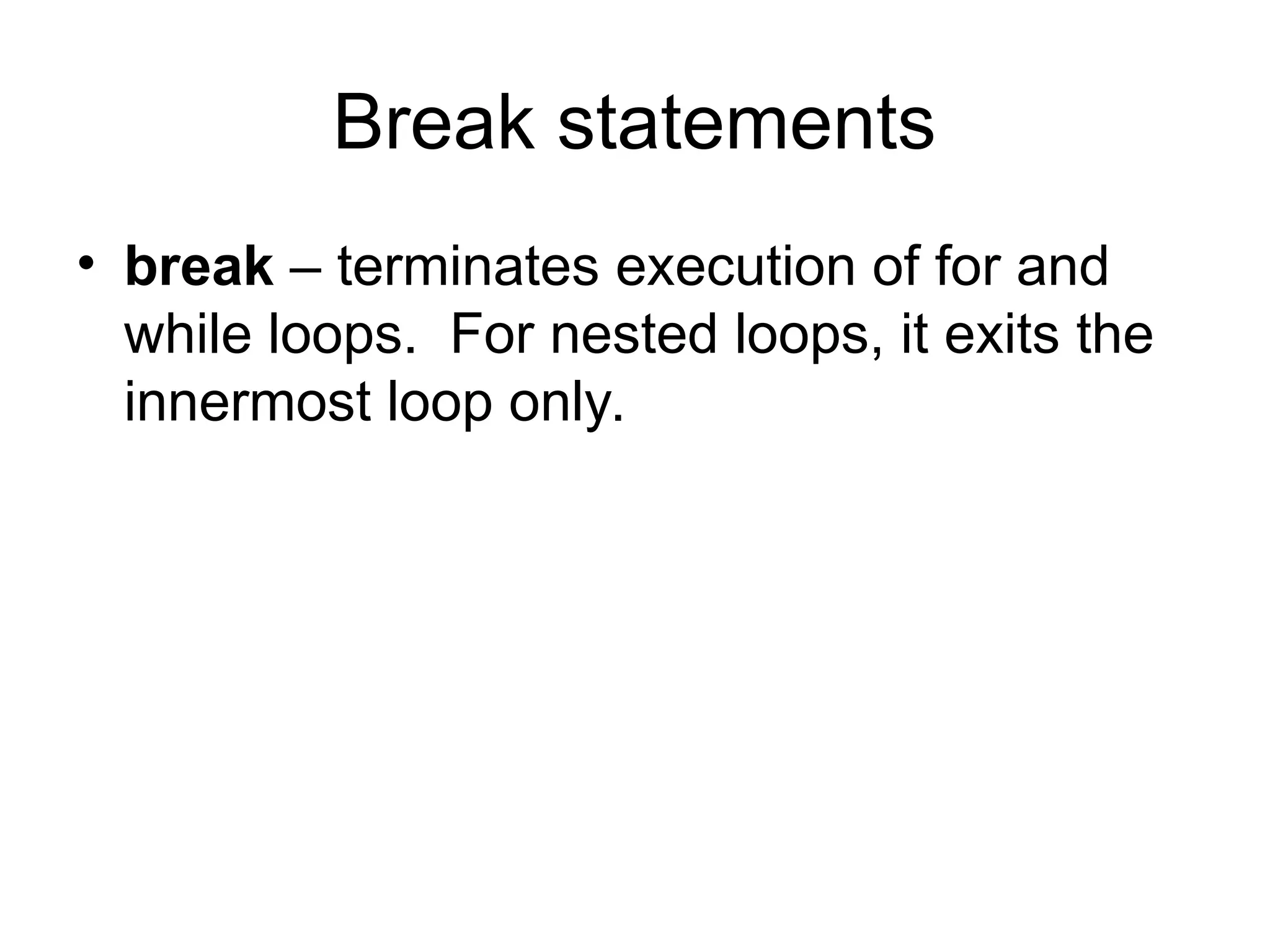
Break statements • break– terminates execution of for and while loops. For nested loops, it exits the innermost loop only.
19.
Vectorization • Because Matlabis an interpreted language, i.e., it is not compiled before execution, loops run slowly. • Vectorized code runs faster in Matlab. • Example: x=[1 2 3]; for i=1:3 Vectorized: x(i) = x(i)+5; VS. x = x+5; end;
20.
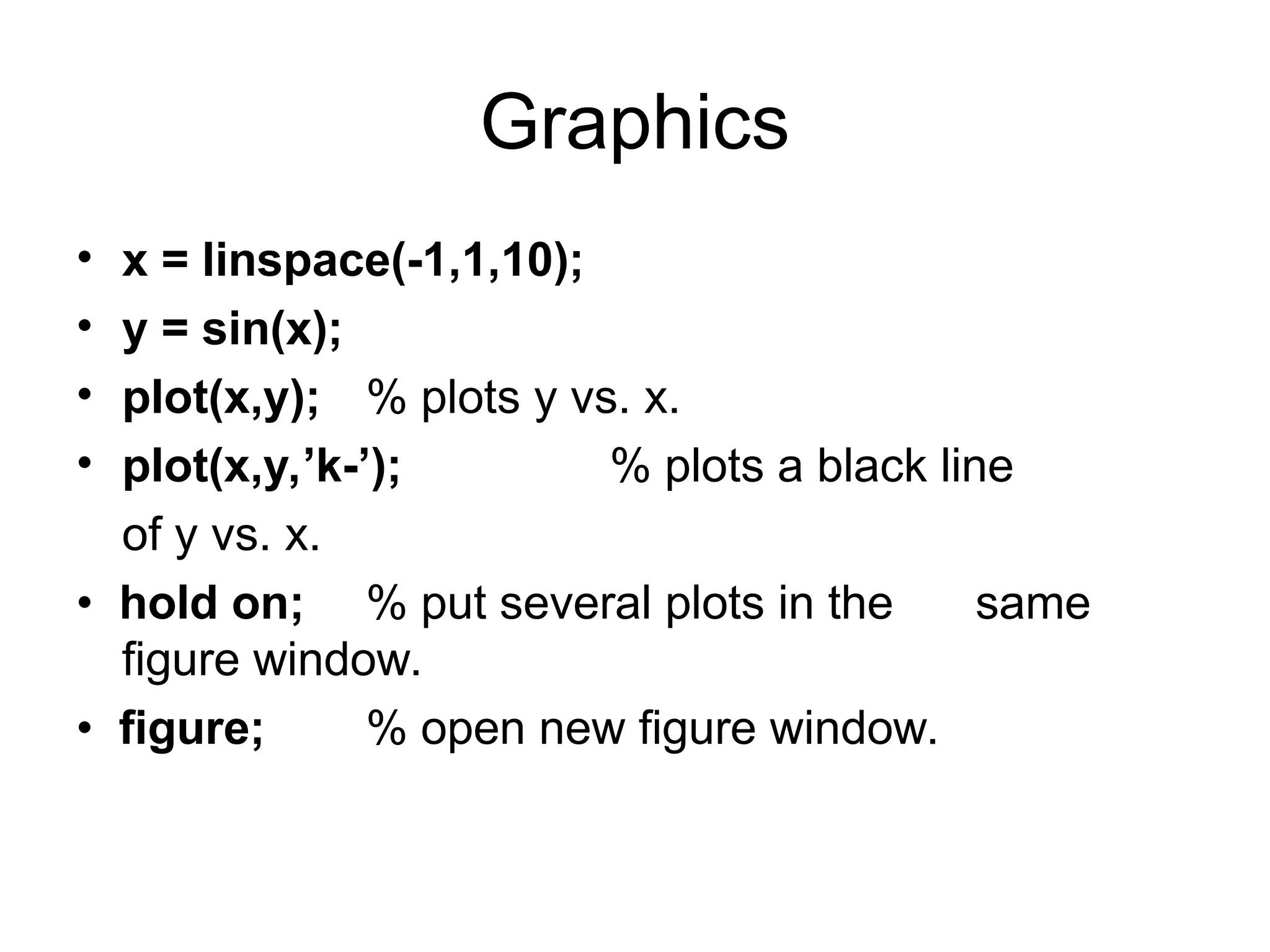
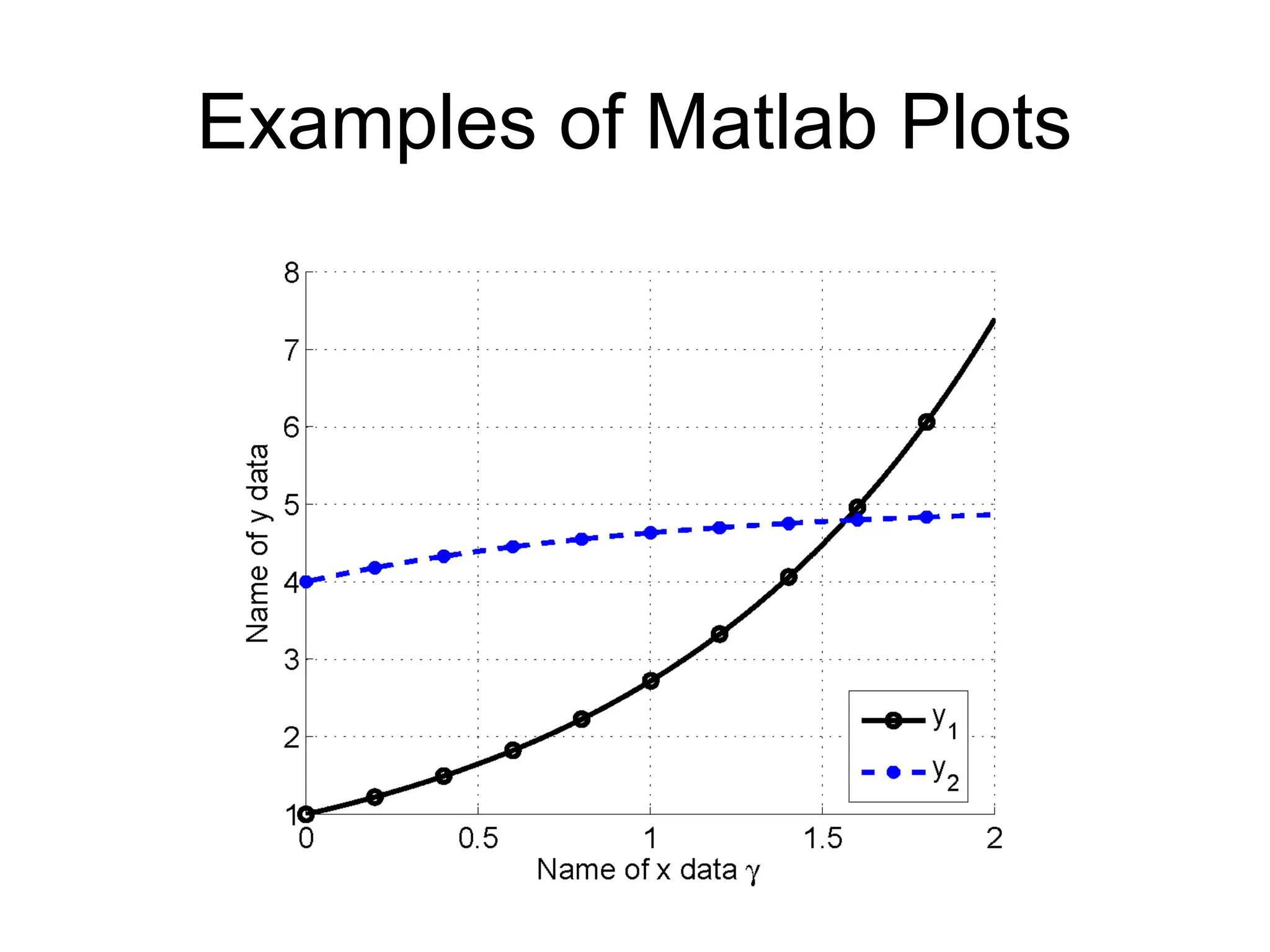
Graphics • x =linspace(-1,1,10); • y = sin(x); • plot(x,y); % plots y vs. x. • plot(x,y,’k-’); % plots a black line of y vs. x. • hold on; % put several plots in the same figure window. • figure; % open new figure window.
21.
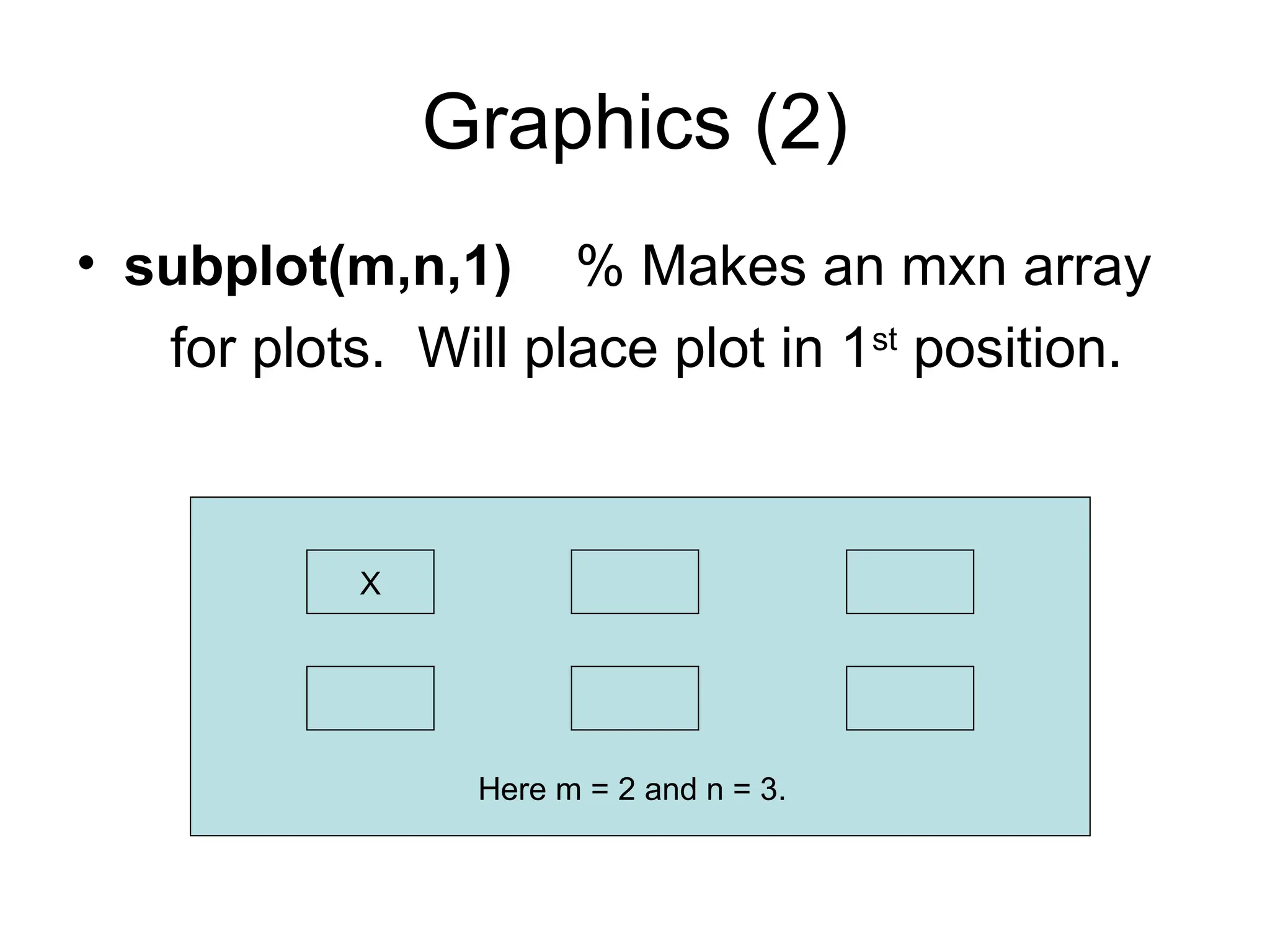
Graphics (2) • subplot(m,n,1)% Makes an mxn array for plots. Will place plot in 1st position. X Here m = 2 and n = 3.
22.
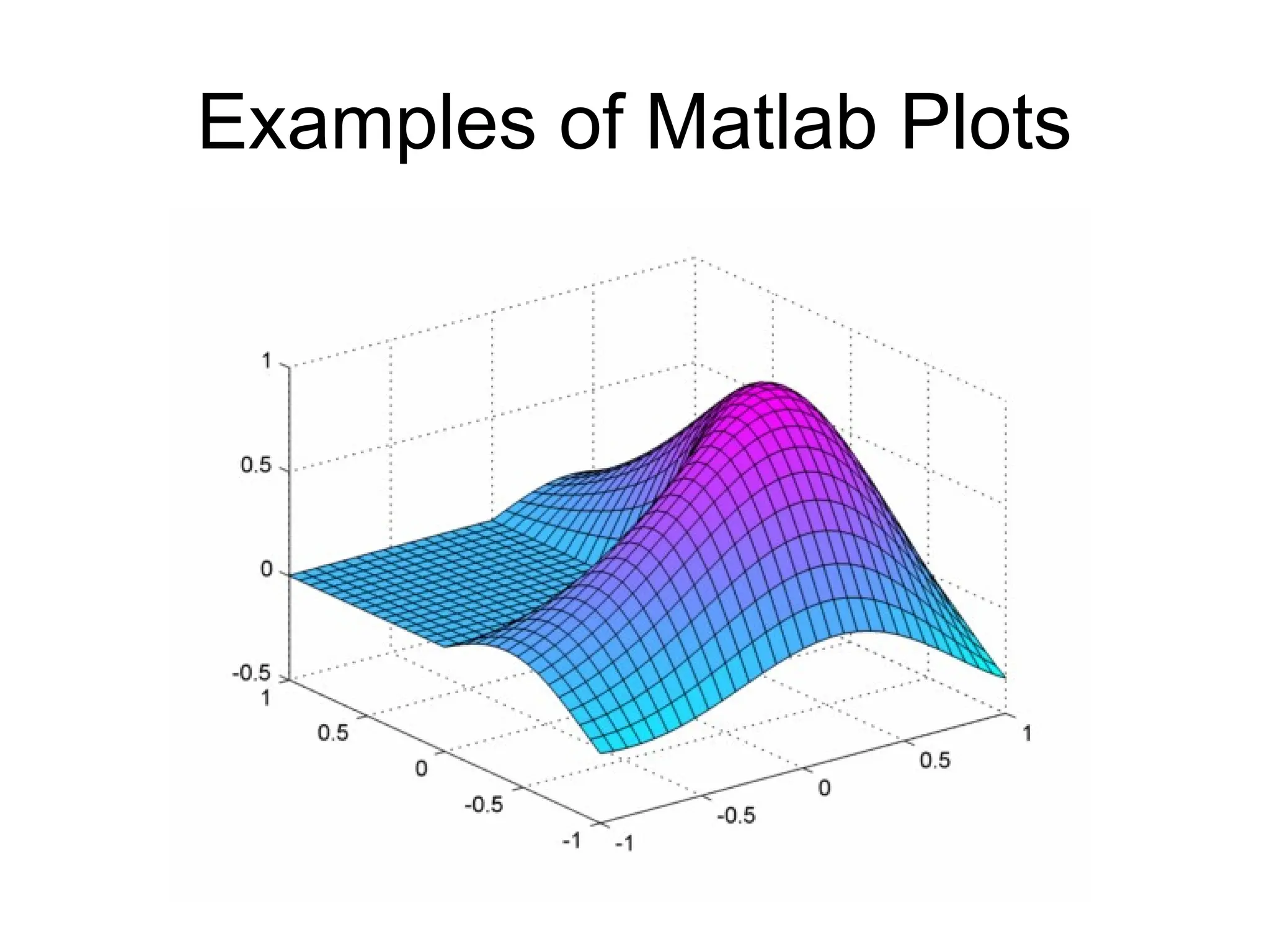
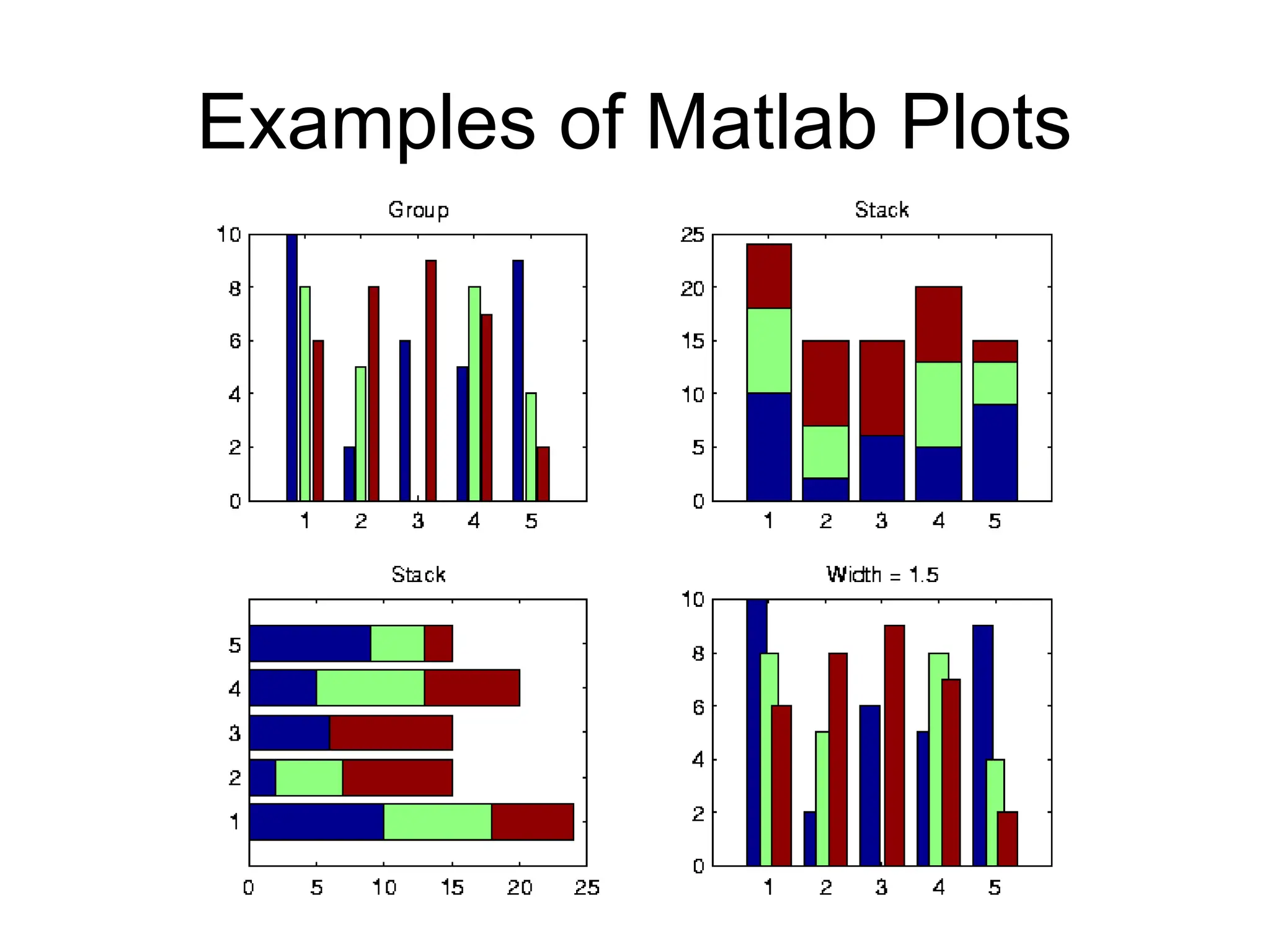
Graphics (3) • plot3(x,y,z)% plot 2D function. • mesh(x_ax,y_ax,z_mat) – surface plot. • contour(z_mat) – contour plot of z. • axis([xmin xmax ymin ymax]) – change axes • title(‘My title’); - add title to figure; • xlabel, ylabel – label axes. • legend – add key to figure.
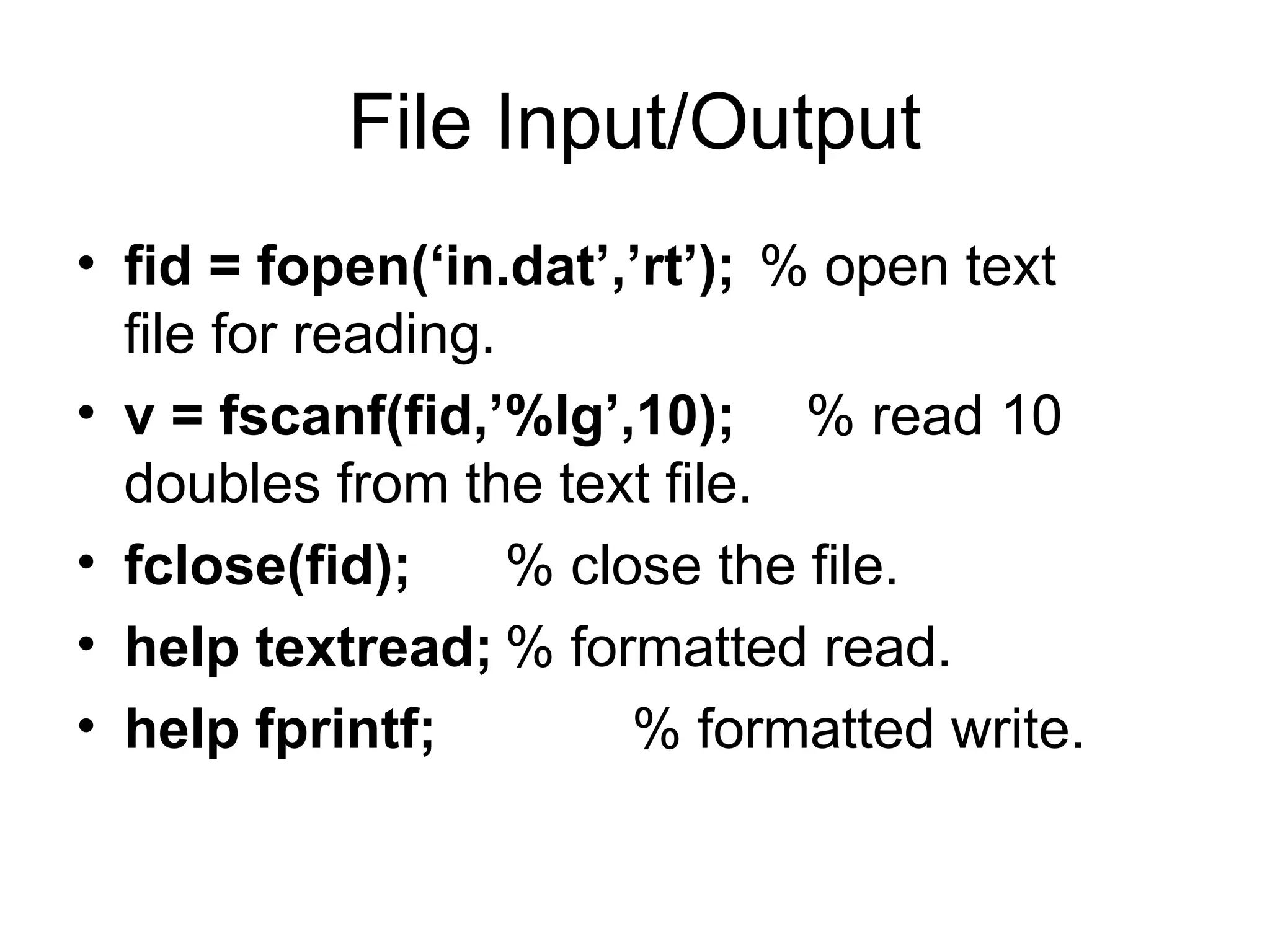
File Input/Output • fid= fopen(‘in.dat’,’rt’); % open text file for reading. • v = fscanf(fid,’%lg’,10); % read 10 doubles from the text file. • fclose(fid); % close the file. • help textread; % formatted read. • help fprintf; % formatted write.
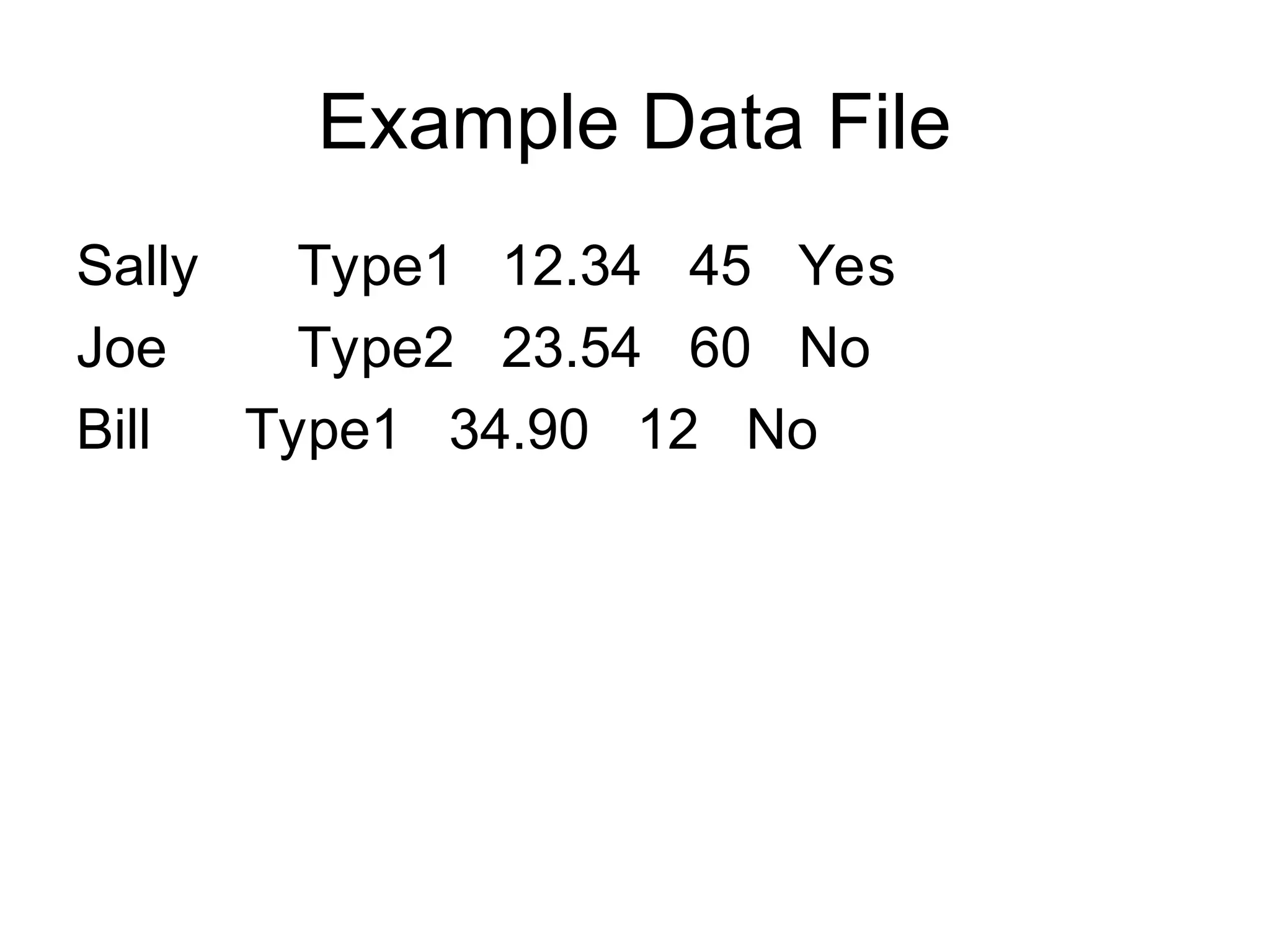
Read Entire Dataset fid= fopen(‘mydata.dat’, ‘r’); % open file for reading. % Read-in data from mydata.dat. [names,types,x,y,answer] = textread(fid,’%s%s%f%d%s’); fclose(fid); % close file.
29.
Read Partial Dataset fid= fopen(‘mydata.dat’, ‘r’); % open file for reading. % Read-in first column of data from mydata.dat. [names] = textread(fid,’%s %*s %*f %*d %*s’); fclose(fid); % close file.
30.
Read 1 Lineof Data fid = fopen(‘mydata.dat’, ‘r’); % open file % for reading. % Read-in one line of data corresponding % to Joe’s entry. [name,type,x,y,answer] =… textread(fid,’%s%s %f%d%s’,1,… ’headerlines’,1); fclose(fid); % close file.
31.
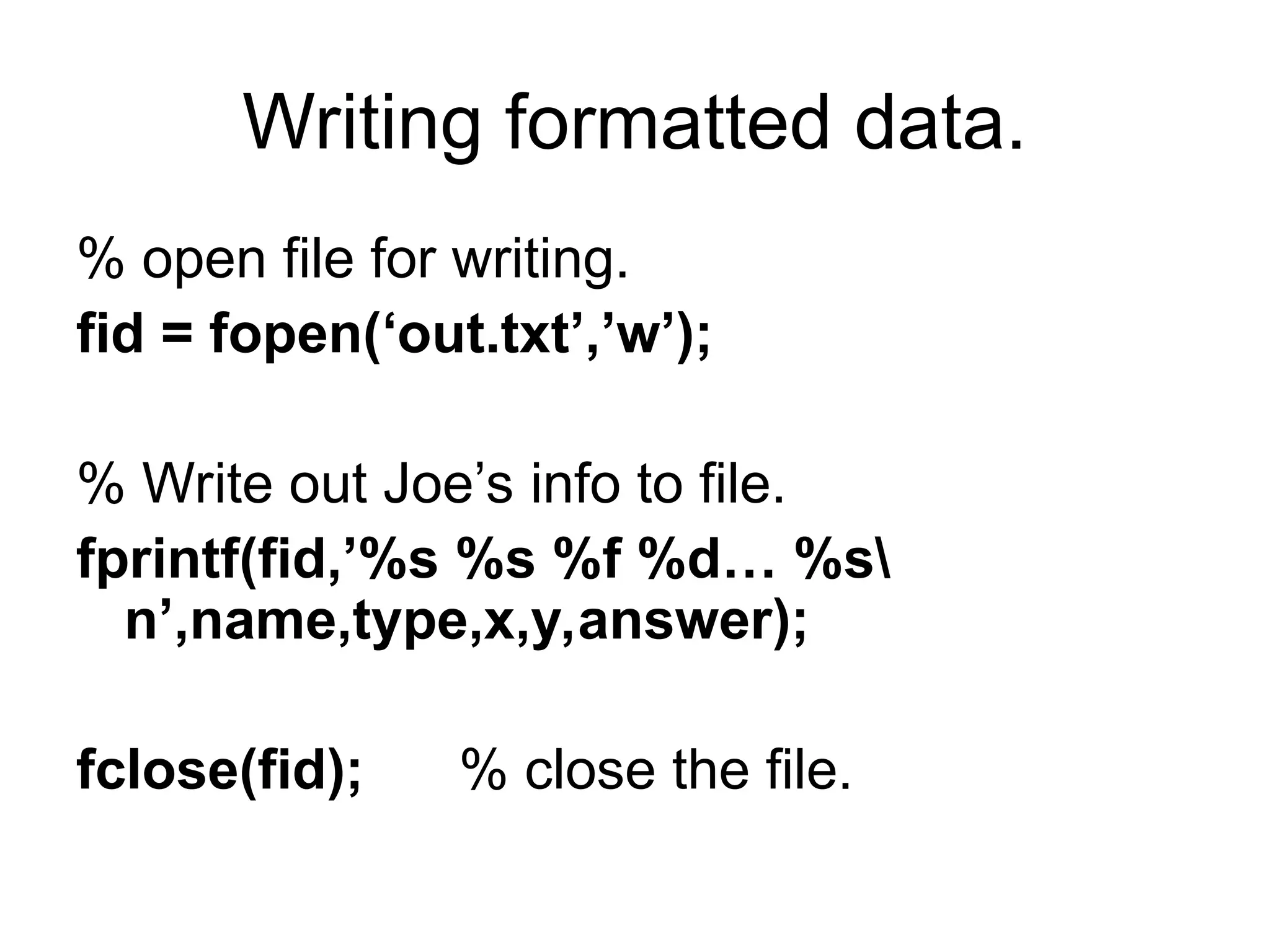
Writing formatted data. %open file for writing. fid = fopen(‘out.txt’,’w’); % Write out Joe’s info to file. fprintf(fid,’%s %s %f %d… %s n’,name,type,x,y,answer); fclose(fid); % close the file.
32.
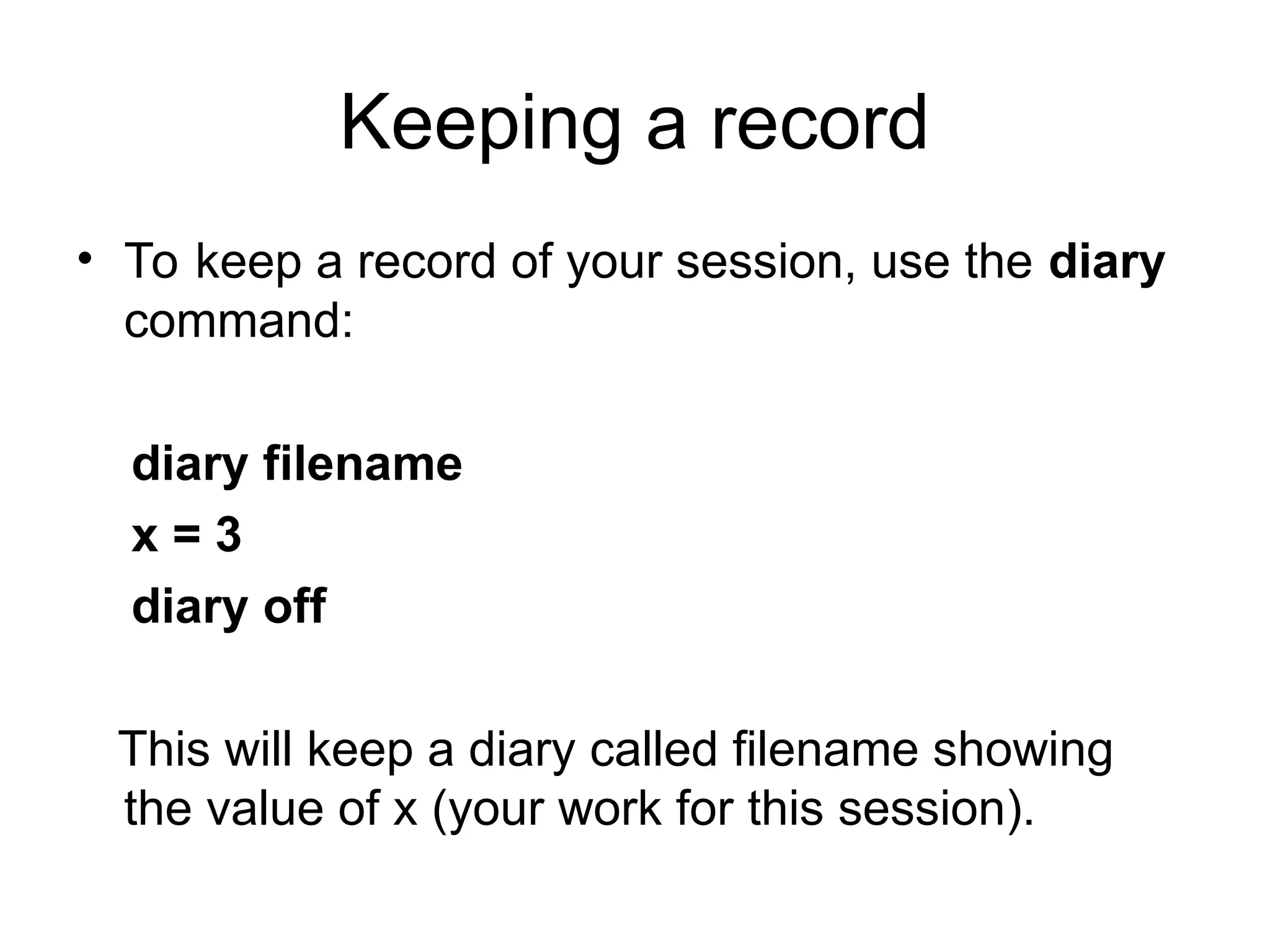
Keeping a record •To keep a record of your session, use the diary command: diary filename x = 3 diary off This will keep a diary called filename showing the value of x (your work for this session).
33.
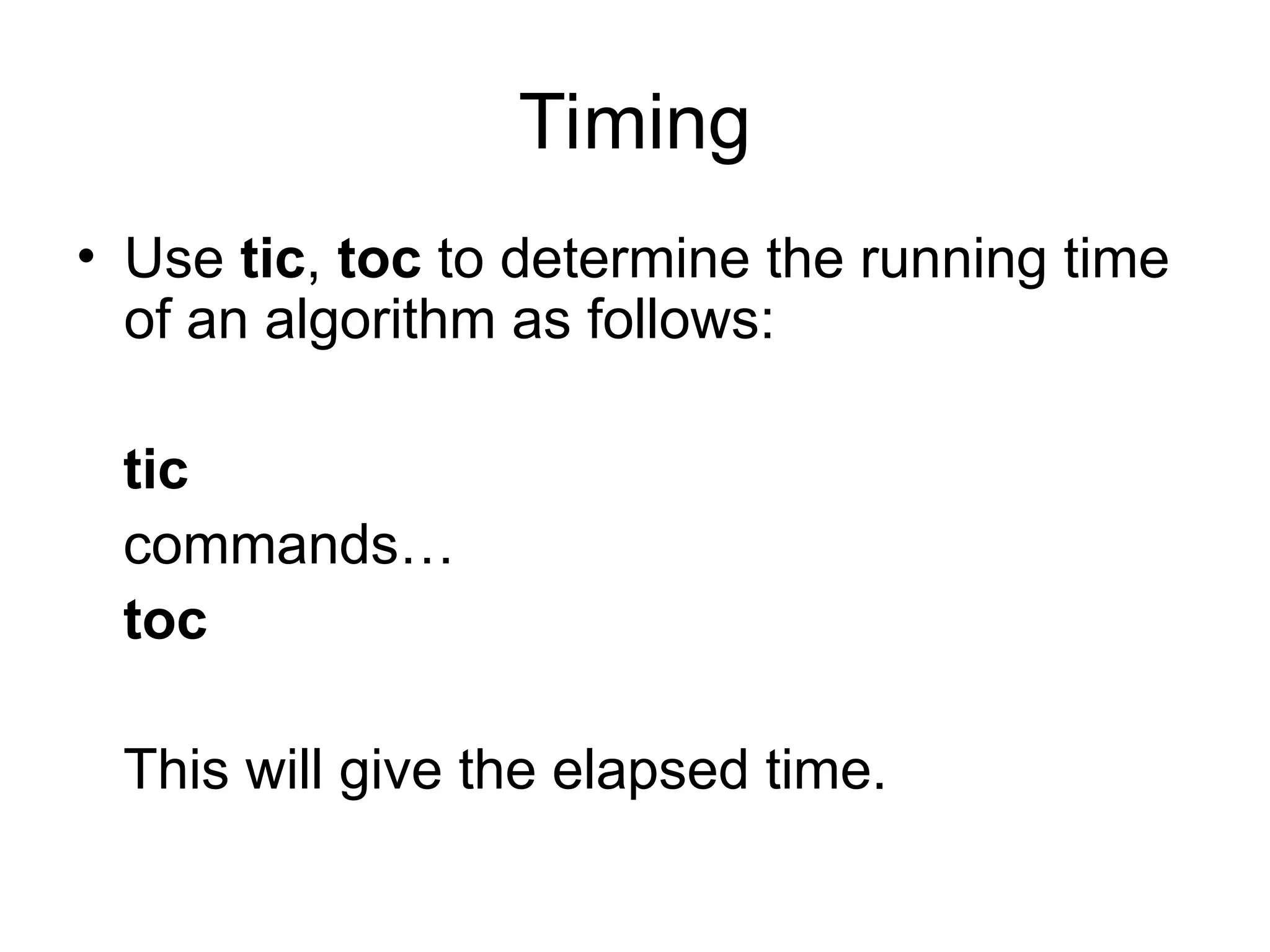
Timing • Use tic,toc to determine the running time of an algorithm as follows: tic commands… toc This will give the elapsed time.
34.
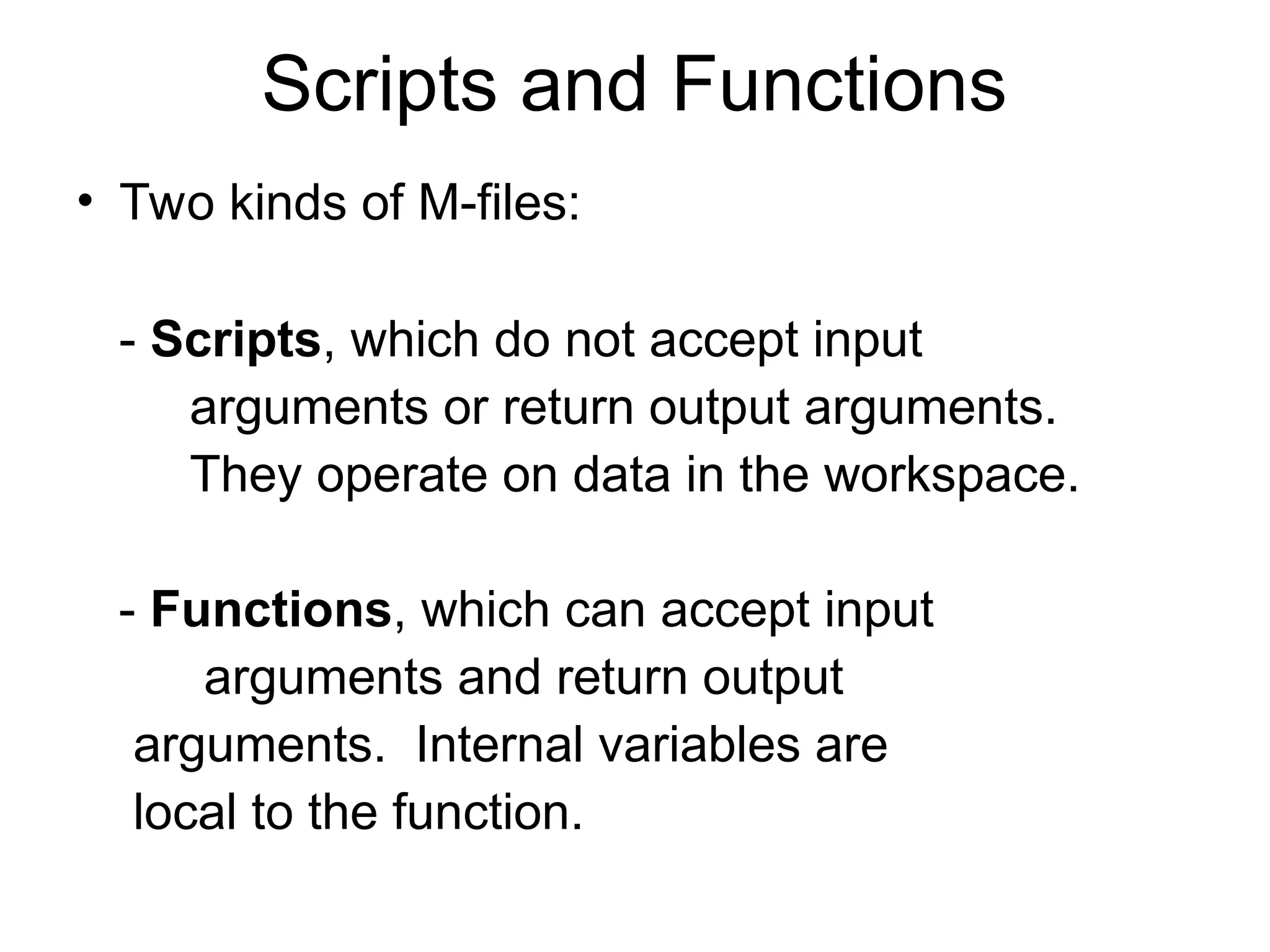
Scripts and Functions •Two kinds of M-files: - Scripts, which do not accept input arguments or return output arguments. They operate on data in the workspace. - Functions, which can accept input arguments and return output arguments. Internal variables are local to the function.
35.
M-file functions • function[area,circum] = circle(r) % [area, circum] = circle(r) returns the % area and circumference of a circle % with radius r. area = pi*r^2; circum = 2*pi*r; • Save function in circle.m.
36.
M-file scripts • r= 7; [area,circum] = circle(r); % call our circle function. disp([‘The area of a circle having… radius ‘ num2str(r) ‘ is ‘… num2str(area)]); • Save the file as myscript.m.
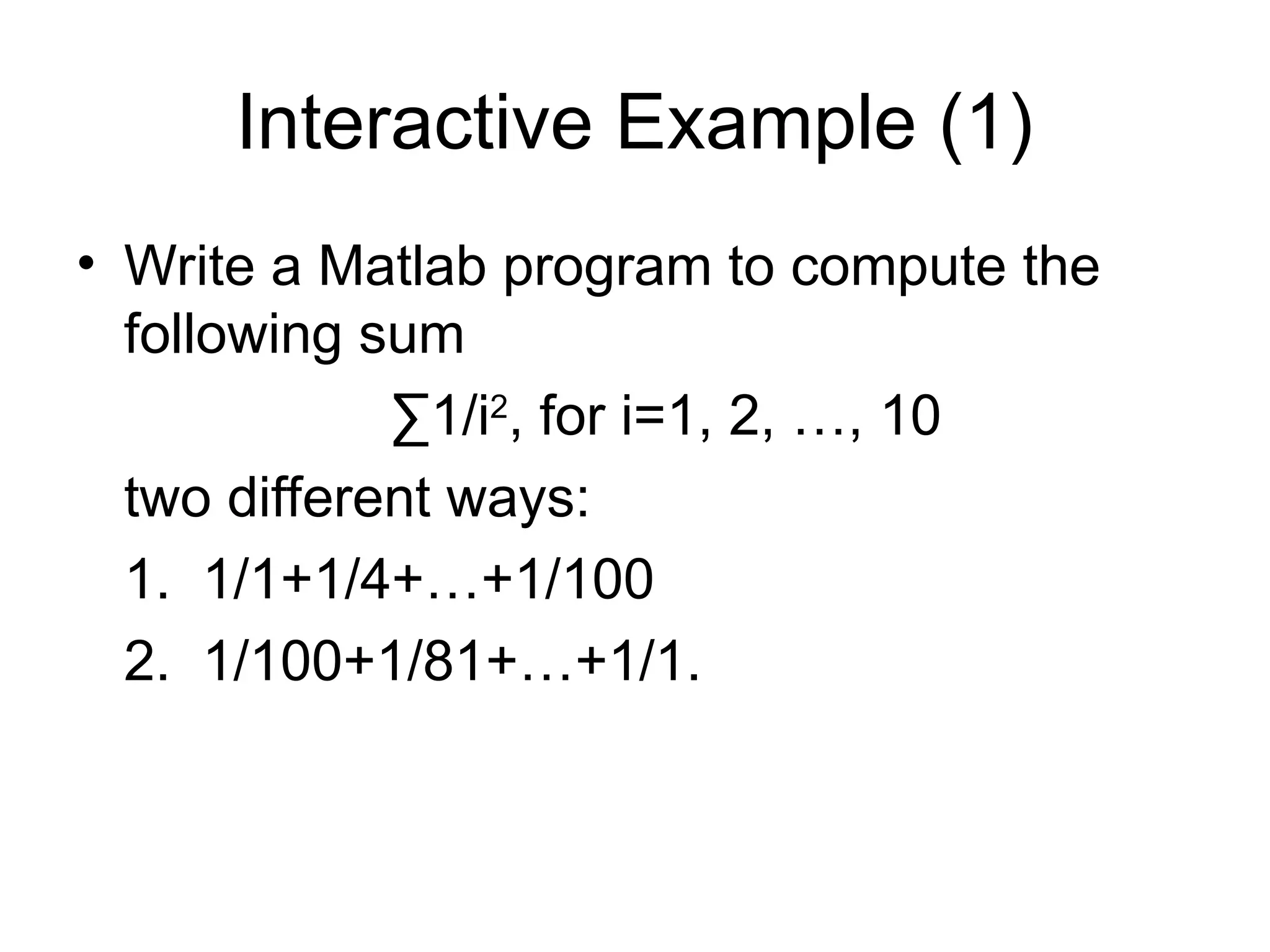
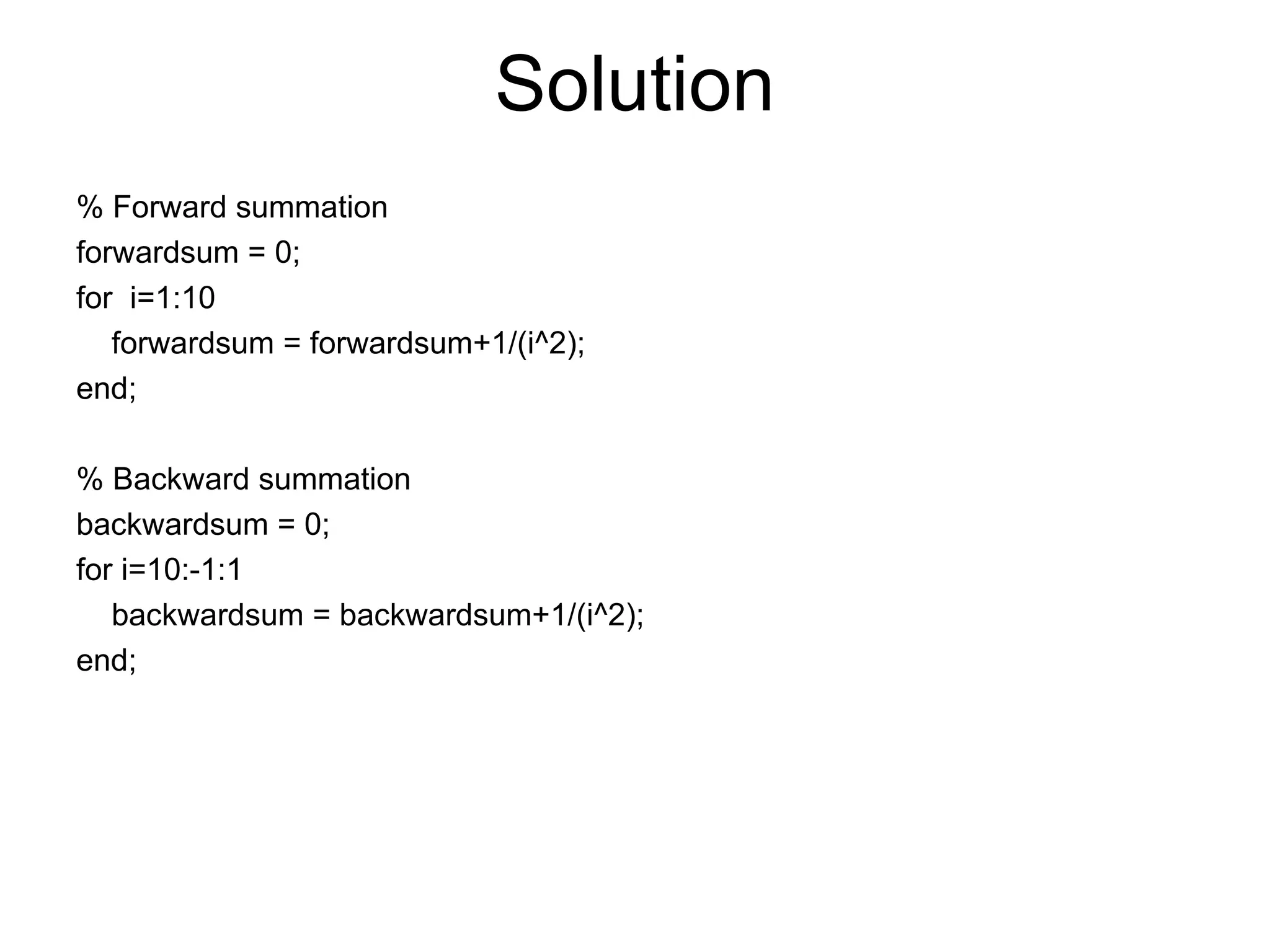
Interactive Example (1) •Write a Matlab program to compute the following sum ∑1/i2 , for i=1, 2, …, 10 two different ways: 1. 1/1+1/4+…+1/100 2. 1/100+1/81+…+1/1.
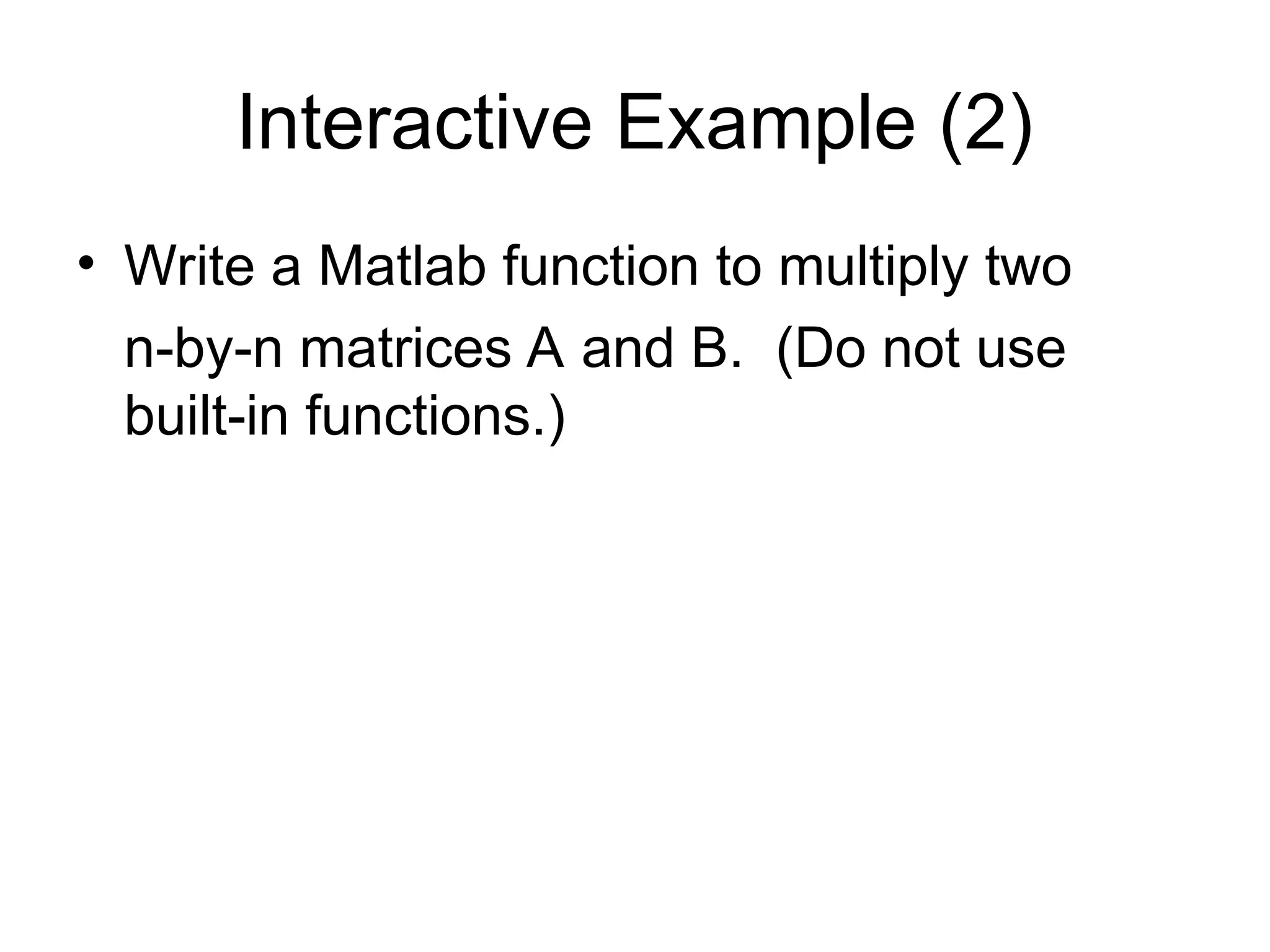
Interactive Example (2) •Write a Matlab function to multiply two n-by-n matrices A and B. (Do not use built-in functions.)
41.
Solution function [C] =matrix_multiply(A,B,n) C = zeros(n,n); for i=1:n for j=1:n for k=1:n C(i,j) = C(i,j) + A(i,k)*B(k,j); end; end; end; Can this code be written so that it runs faster? Hint: Use vectorization.
42.
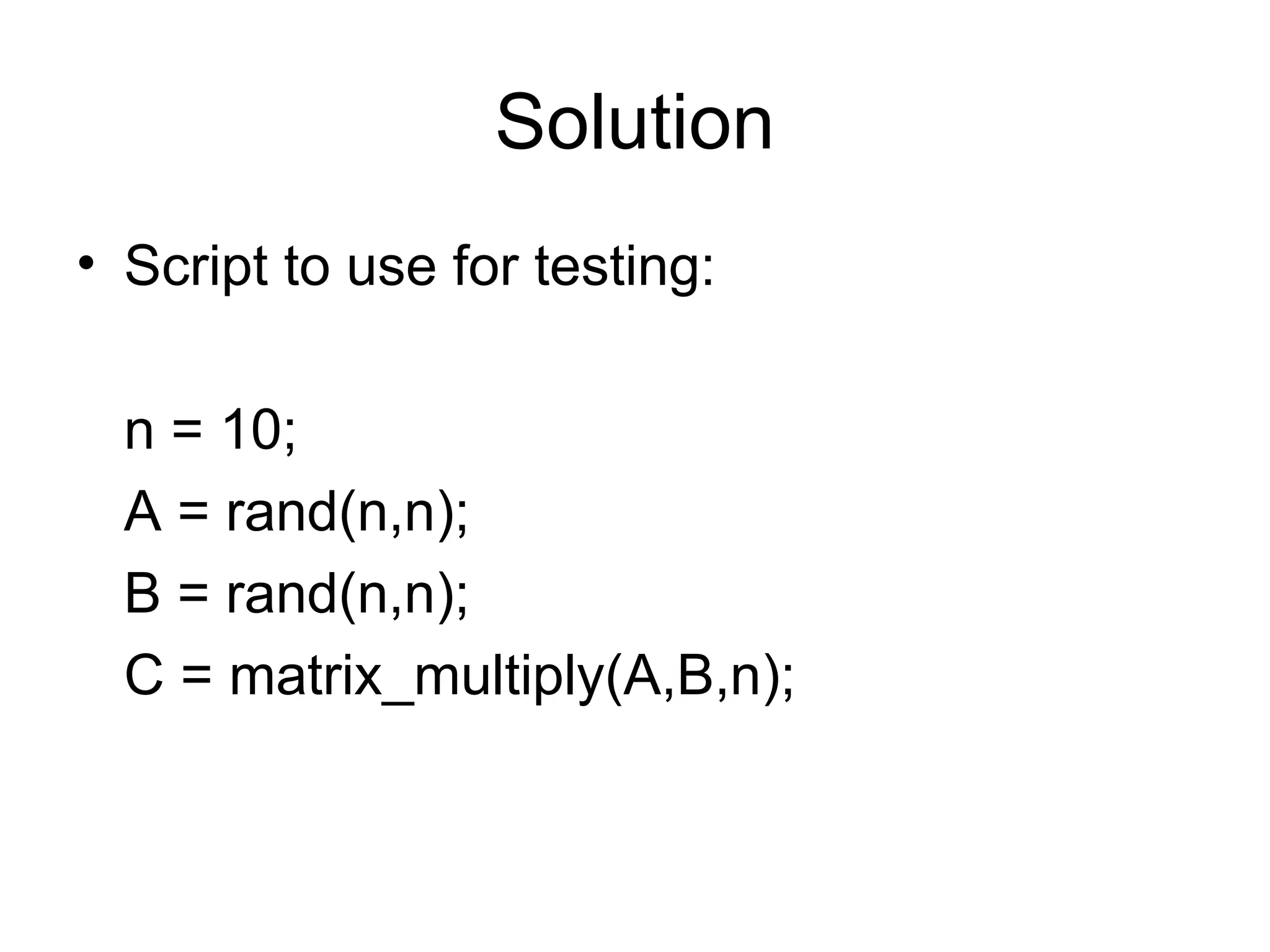
Solution • Script touse for testing: n = 10; A = rand(n,n); B = rand(n,n); C = matrix_multiply(A,B,n);
![Arrays and Matrices • v = [-2 3 0 4.5 -1.5]; % length 5 row vector. • v = v’; % transposes v. • v(1);% first element of v. • v(2:4); % entries 2-4 of v. • v([3,5]); % returns entries 3 & 5. • v=[4:-1:2]; % same as v=[4 3 2]; • a=1:3; b=2:3; c=[a b]; c = [1 2 3 2 3];](https://image.slidesharecdn.com/matlabtutorial-250320101322-0ea4f9fc/75/matlab-tutorial-with-separate-function-description-and-handson-learning-7-2048.jpg)
![Arrays and Matrices (2) • x = linspace(-pi,pi,10); % creates 10 linearly-spaced elements from –pi to pi. • logspace is similar. • A = [1 2 3; 4 5 6]; % creates 2x3 matrix • A(1,2) % the element in row 1, column 2. • A(:,2) % the second column. • A(2,:) % the second row.](https://image.slidesharecdn.com/matlabtutorial-250320101322-0ea4f9fc/75/matlab-tutorial-with-separate-function-description-and-handson-learning-8-2048.jpg)
![Logical Conditions • ==, <, >, <=, >=, ~= (not equal), ~ (not) • & (element-wise logical and), | (or) • find(‘condition’) – Return indices of A’s elements that satisfies the condition. • Example: A = [7 6 5; 4 3 2]; find (‘A == 3’); --> returns 5.](https://image.slidesharecdn.com/matlabtutorial-250320101322-0ea4f9fc/75/matlab-tutorial-with-separate-function-description-and-handson-learning-11-2048.jpg)
![Solving Linear Equations • A = [1 2 3; 2 5 3; 1 0 8]; • b = [2; 1; 0]; • x = inv(A)*b; % solves Ax=b if A is invertible. (Note: This is a BAD way to solve the equations!!! It’s unstable and inefficient.) • x = Ab; % solves Ax = b. (Note: This way is better, but we’ll learn how to program methods to solve Ax=b.) Do NOT use either of these commands in your codes!](https://image.slidesharecdn.com/matlabtutorial-250320101322-0ea4f9fc/75/matlab-tutorial-with-separate-function-description-and-handson-learning-12-2048.jpg)
![Vectorization • Because Matlab is an interpreted language, i.e., it is not compiled before execution, loops run slowly. • Vectorized code runs faster in Matlab. • Example: x=[1 2 3]; for i=1:3 Vectorized: x(i) = x(i)+5; VS. x = x+5; end;](https://image.slidesharecdn.com/matlabtutorial-250320101322-0ea4f9fc/75/matlab-tutorial-with-separate-function-description-and-handson-learning-19-2048.jpg)
![Graphics (3) • plot3(x,y,z) % plot 2D function. • mesh(x_ax,y_ax,z_mat) – surface plot. • contour(z_mat) – contour plot of z. • axis([xmin xmax ymin ymax]) – change axes • title(‘My title’); - add title to figure; • xlabel, ylabel – label axes. • legend – add key to figure.](https://image.slidesharecdn.com/matlabtutorial-250320101322-0ea4f9fc/75/matlab-tutorial-with-separate-function-description-and-handson-learning-22-2048.jpg)
![Read Entire Dataset fid = fopen(‘mydata.dat’, ‘r’); % open file for reading. % Read-in data from mydata.dat. [names,types,x,y,answer] = textread(fid,’%s%s%f%d%s’); fclose(fid); % close file.](https://image.slidesharecdn.com/matlabtutorial-250320101322-0ea4f9fc/75/matlab-tutorial-with-separate-function-description-and-handson-learning-28-2048.jpg)
![Read Partial Dataset fid = fopen(‘mydata.dat’, ‘r’); % open file for reading. % Read-in first column of data from mydata.dat. [names] = textread(fid,’%s %*s %*f %*d %*s’); fclose(fid); % close file.](https://image.slidesharecdn.com/matlabtutorial-250320101322-0ea4f9fc/75/matlab-tutorial-with-separate-function-description-and-handson-learning-29-2048.jpg)
![Read 1 Line of Data fid = fopen(‘mydata.dat’, ‘r’); % open file % for reading. % Read-in one line of data corresponding % to Joe’s entry. [name,type,x,y,answer] =… textread(fid,’%s%s %f%d%s’,1,… ’headerlines’,1); fclose(fid); % close file.](https://image.slidesharecdn.com/matlabtutorial-250320101322-0ea4f9fc/75/matlab-tutorial-with-separate-function-description-and-handson-learning-30-2048.jpg)
![M-file functions • function [area,circum] = circle(r) % [area, circum] = circle(r) returns the % area and circumference of a circle % with radius r. area = pi*r^2; circum = 2*pi*r; • Save function in circle.m.](https://image.slidesharecdn.com/matlabtutorial-250320101322-0ea4f9fc/75/matlab-tutorial-with-separate-function-description-and-handson-learning-35-2048.jpg)
![M-file scripts • r = 7; [area,circum] = circle(r); % call our circle function. disp([‘The area of a circle having… radius ‘ num2str(r) ‘ is ‘… num2str(area)]); • Save the file as myscript.m.](https://image.slidesharecdn.com/matlabtutorial-250320101322-0ea4f9fc/75/matlab-tutorial-with-separate-function-description-and-handson-learning-36-2048.jpg)
![Solution function [C] = matrix_multiply(A,B,n) C = zeros(n,n); for i=1:n for j=1:n for k=1:n C(i,j) = C(i,j) + A(i,k)*B(k,j); end; end; end; Can this code be written so that it runs faster? Hint: Use vectorization.](https://image.slidesharecdn.com/matlabtutorial-250320101322-0ea4f9fc/75/matlab-tutorial-with-separate-function-description-and-handson-learning-41-2048.jpg)