
 Chameera Dulanga
TL;DR: Struggling with laggy dashboards and delayed updates? Traditional REST APIs can’t handle real-time data efficiently. This guide shows how Blazor with gRPC streaming delivers lightning-fast, server-driven updates for responsive dashboards. Learn implementation steps, performance tuning, and best practices for scalable .NET apps.
Real-time dashboards aren’t optional, they’re critical for applications where every second counts. Think stock trading, health monitoring, or delivery tracking. A single missed update can cost money, jeopardize safety, or delay shipments.
Traditional REST APIs struggle with continuous updates because they rely on polling, which adds latency and overhead. gRPC server-streaming solves this by pushing low-latency updates directly to the browser over an always-open connection.
In this guide, you’ll combine Blazor’s component model with gRPC server-streaming to build dashboards that stay in sync with live data. We’ll cover
- Setting up a secure HTTP/2 streaming environment
- Implementing server-streaming in gRPC
- Connecting Blazor UI to the stream
- Optimizing performance and reliability
Step 1: Setting up the development environment
Real-time streaming requires two parts working together:
- Blazor UI to display data
- gRPC service to send updates
You’ll create both projects, add references, and configure Kestrel for HTTP/2 with TL.
Creating the projects
Open a new terminal in an empty directory and run these commands to scaffold your solution: a Blazor Server front-end for the UI and a gRPC back-end for real-time data streaming:
dotnet new sln -n RealTimeDashboard dotnet new blazorserver -n DashboardApp dotnet new grpc -n DashboardGrpc dotnet sln add DashboardApp/DashboardApp.csproj dotnet sln add DashboardGrpc/DashboardGrpc.csproj Your folder structure will look like this:
RealTimeDashboard/ ├─ DashboardApp/ # Blazor UI │ └─ Program.cs ├─ DashboardGrpc/ # gRPC back end │ └─ Program.cs └─ RealTimeDashboard.sln You can find the complete codebase of this application in this GitHub repository.
Reference the gRPC project
Blazor needs access to gRPC message types. Add a reference in DashboardGrpc.csproj file:

Configure protobuf generation
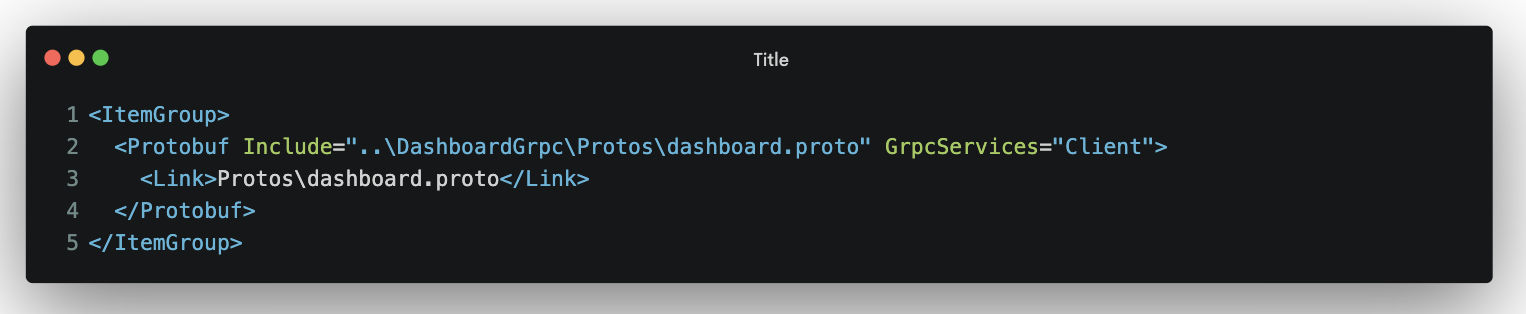
In the DashboardApp.csproj file, we need to configure Protobuf generation so the client and server code are auto-generated from your .proto file:
In DashboardGrpc.csproj file, add this code:

These settings instruct the build process to:
- Generate client-side code in DashboardApp (GrpcServices=”Client”)
- Generate server-side code in DashboardGrpc (GrpcServices=”Server”)
- Share the .proto file from the gRPC project to prevent duplication
Enable HTTP/2 and TLS on the gRPC host
gRPC requires HTTP/2, and browsers demand TLS for it. Update Program.cs in the gRPC project to enable HTTPS and HTTP/2. Then run:
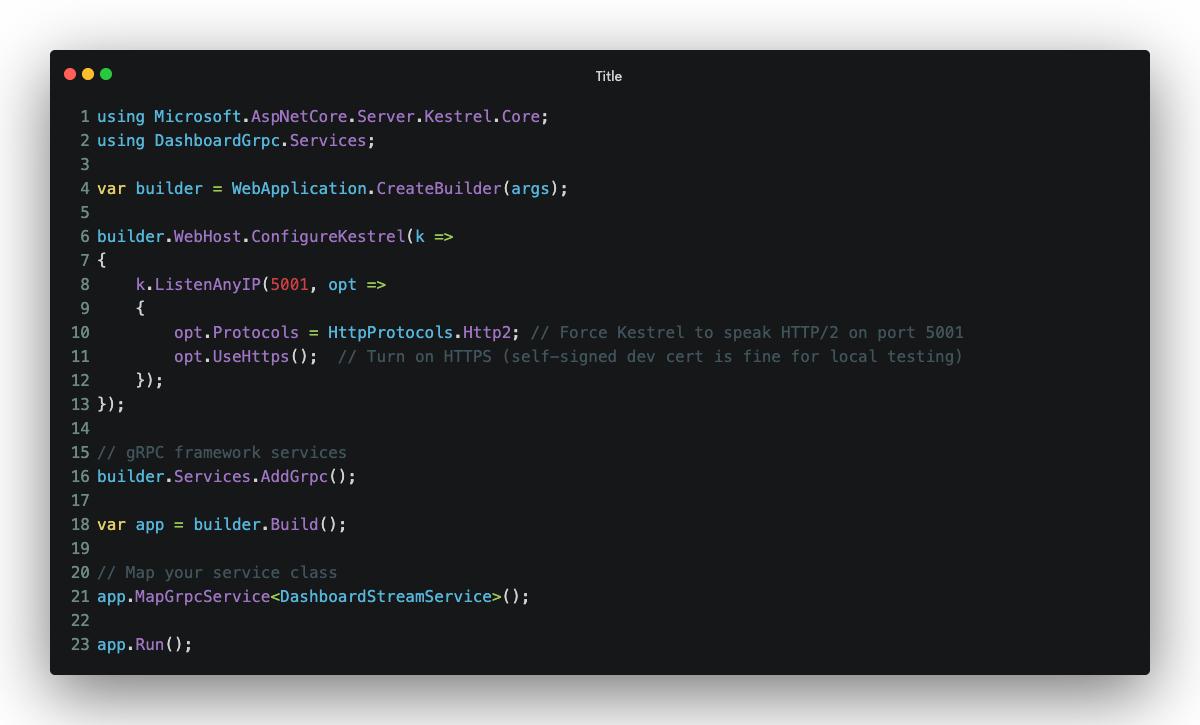
Note: Run dotnet run inside DashboardGrpc to confirm the server starts with no errors.
Step 2: Add gRPC Client to Blazor
To enable the Blazor UI to communicate with the gRPC service, you need a typed client. Follow these steps:
1. Install the gRPC client package
From the solution root, run:
cd DashboardApp dotnet add package Grpc.Net.Client cd ..2. Register the gRPC client in Blazor
Open DashboardApp/Program.cs and add the following client configuration:
// DashboardApp/Program.cs builder.Services.AddGrpcClient<DashboardService.DashboardServiceClient>(options => { // The same HTTPS address you opened in Program.cs of the gRPC host options.Address = new Uri("https://localhost:5001"); });3. Run both projects
When you press F5 (or dotnet run in the solution root), both projects start:
- DashboardGrpc launches on https://localhost:5001 with HTTP/2.
- DashboardApp launches on its default port (usually https://localhost:5002) and connects to the gRPC endpoint you just registered.
At this point, your environment supports a secure, always‑on stream from the gRPC server to any Blazor component. Next, you’ll add the .proto file, implement the service logic, and bind the UI to live data.
Step 3: Implement gRPC server-streaming
Real-time dashboards need a communication pattern that supports continuous updates without constant polling. gRPC offers four call patterns:
- Unary: client sends one request; server returns one reply.
- Server‑streaming: client sends one request; server keeps sending multiple responses.
- Client‑streaming: client streams multiple requests, server returns one response.
- Bidirectional: both sides send multiple messages at the same time.
Here, we focus on server‑streaming because dashboards mostly consume continuous data but rarely need to push large amounts back.
Define the proto contract
Create a new file at DashboardGrpc/Protos/dashboard.proto and add the following:
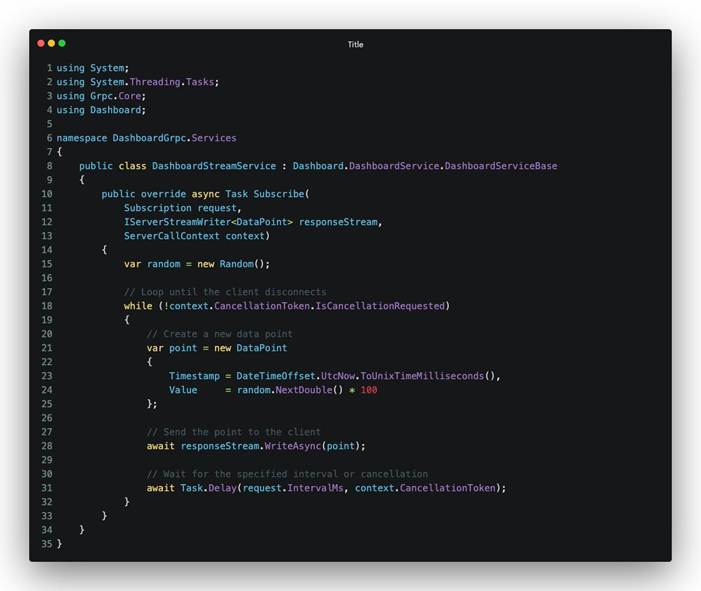
- Use a while loop to keep sending updates until the client disconnects.
- Handle cancellation with
context.CancellationTokenfor clean shutdown. - Use
Task.Delay(..., context.CancellationToken)to control update intervals and break out on cancellation.
Keep-alive and connection health
- gRPC over HTTP/2 uses built-in keep-alive pings to prevent idle timeouts.
- You can adjust Kestrel’s keep-alive settings in
program.csif your network drops idle connections. - For most development scenarios, the defaults work fine.
Step 4: Building an interactive dashboard UI
Now it’s time to connect your Blazor UI to the gRPC stream, consume each incoming DataPoint, and update the page in real time. You’ll start by rendering raw values, then upgrade to a chart without changing the underlying data flow.
Register and inject the gRPC client
Make sure you’ve already registered the client in Program.cs. In any Razor component, inject it like this:
@using DashboardGrpc @inject DashboardService.DashboardServiceClient GrpcCreate a basic razor page
Add a new component at DashboardApp/Components/Pages/LiveData.razor:
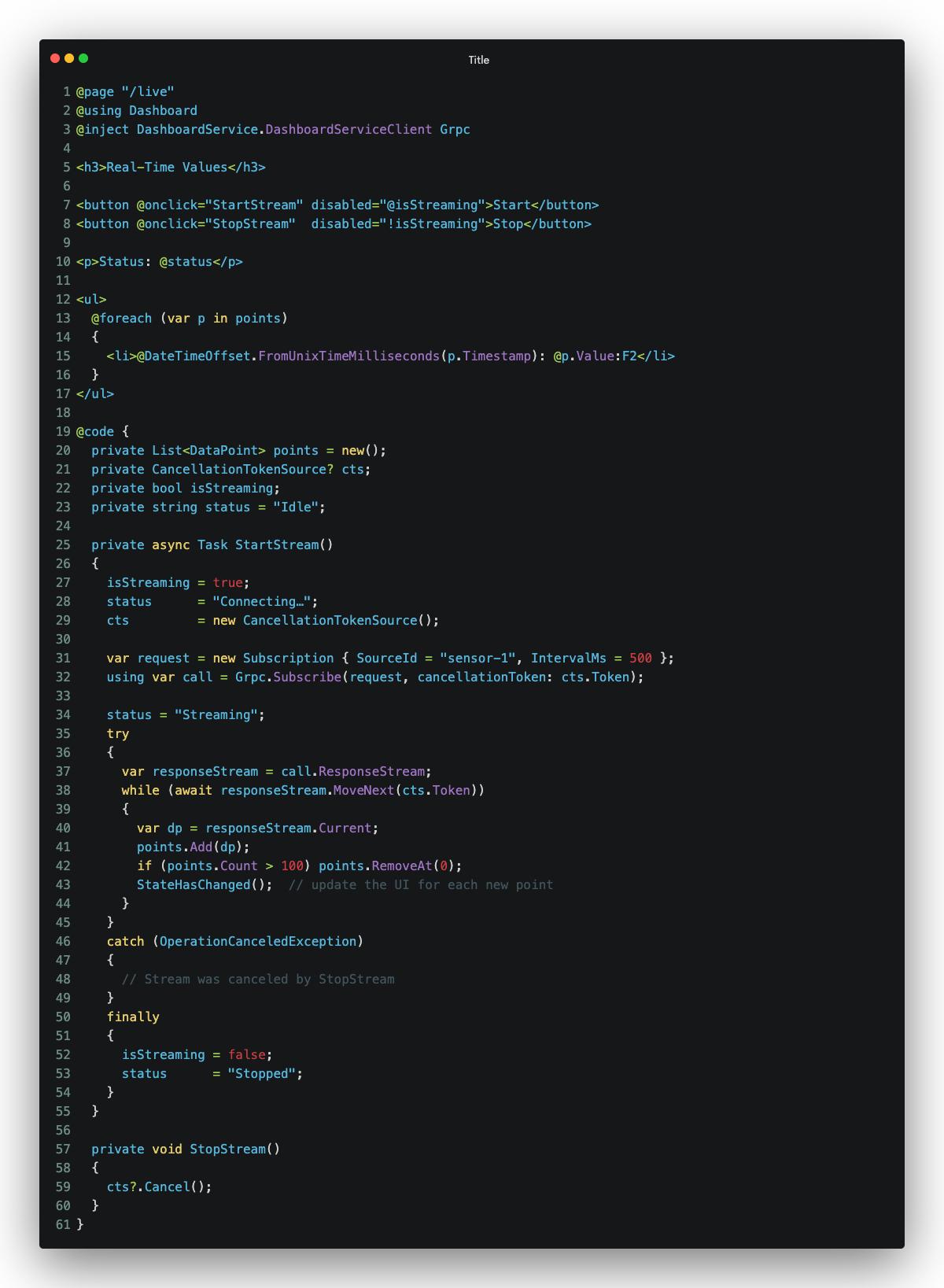
- StartStream opens the gRPC call and loops through incoming messages.
- Each DataPoint is added to a list, trimmed to the last 100 items.
- StateHasChanged() refreshes the UI.
- StopStream cancels the token for a clean disconnect.
Upgrade to Charts
You can plug in any Blazor chart library. For example, install Syncfusion Blazor Charts.
dotnet add package Syncfusion.Blazor.ChartsUpdate the Razor page to render charts instead of raw lists. You can find the updated Razor component here.
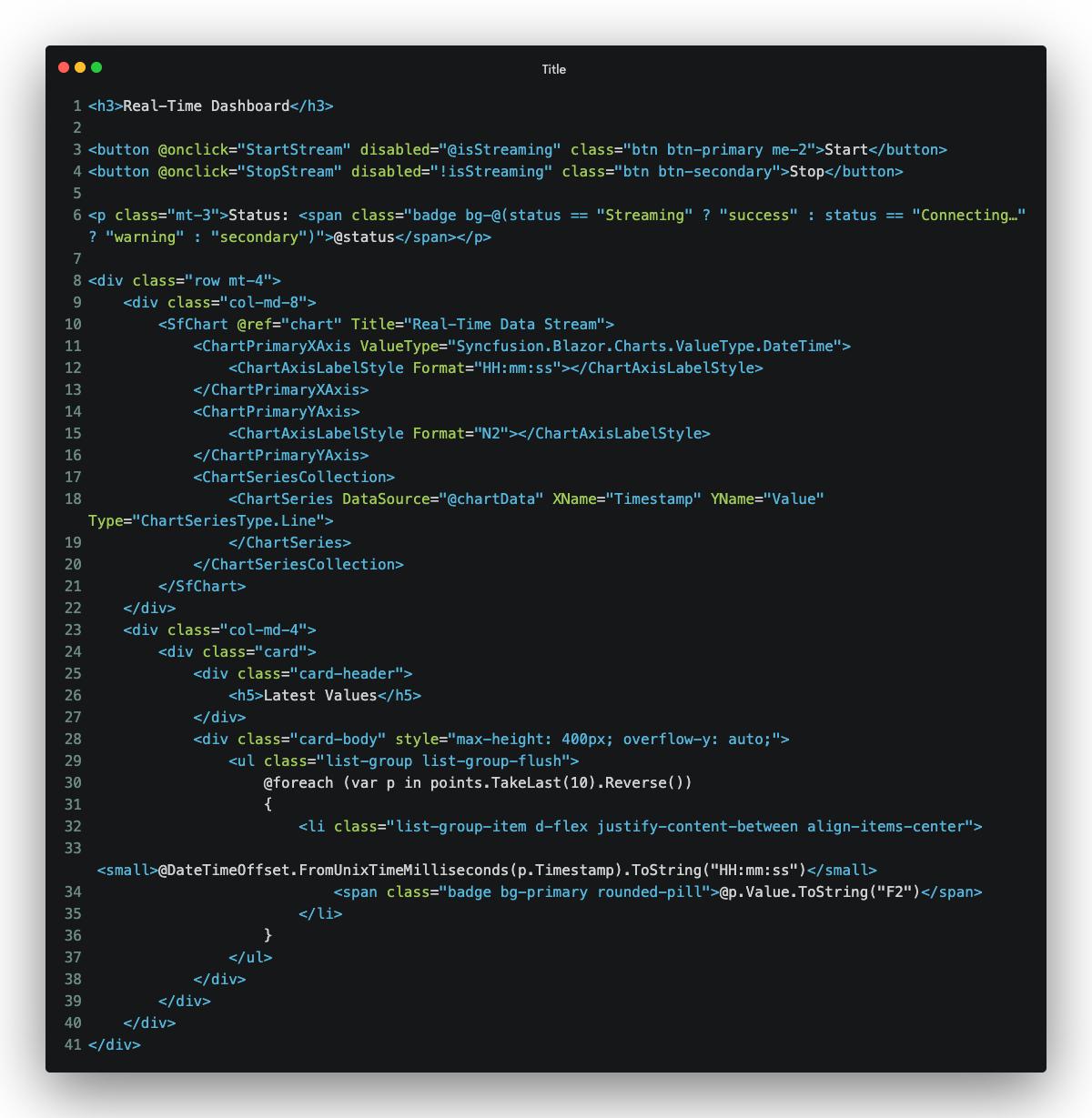
In StartStream, replace StateHasChanged() with await RenderChart() to redraw the chart for each new batch of points. By separating data collection from rendering, you can switch between raw lists, tables, or charts without changing the streaming logic.
Optimizing performance
Enable gzip compression in the Program.cs:
builder.Services.AddGrpc(options => { options.ResponseCompressionAlgorithm = "gzip"; options.ResponseCompressionLevel = CompressionLevel.Fastest; });Automatic reconnect with exponential back‑Off
Wrap your streaming call in a helper that retries on failures:
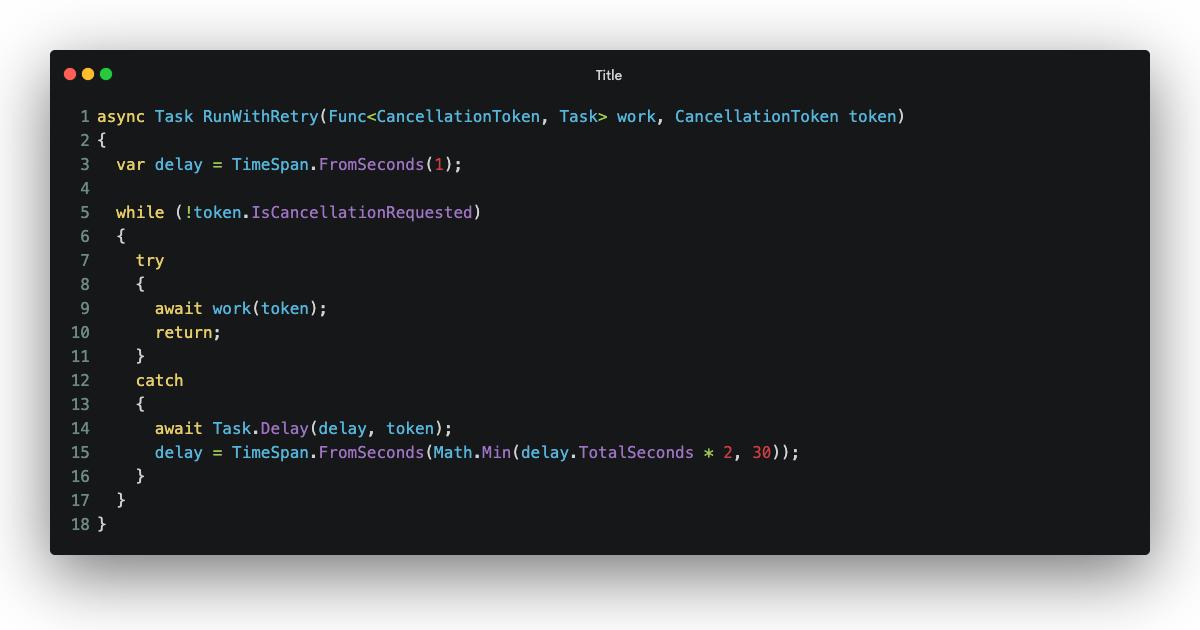
Use it in place of StartStream:
await RunWithRetry(ct => StartStream(ct), cts.Token);This ensures short network blips do not break your dashboard. I have already implemented this in the LiveData.razor page.
Scaling and profiling
- Deploy multiple gRPC servers behind a layer‑4 load balancer. If each UI instance must remain sticky, enable source‑IP or cookie affinity.
- Monitor with dotnet-counters monitor grpc to track call counts, latencies, and thread usage in real time.
- Load-test with k6-grpc or ghz to simulate thousands of parallel clients:
brew install k6 # macOS choco install k6 # Windows k6 install xk6-grpcCreate a load test file load-test.js:
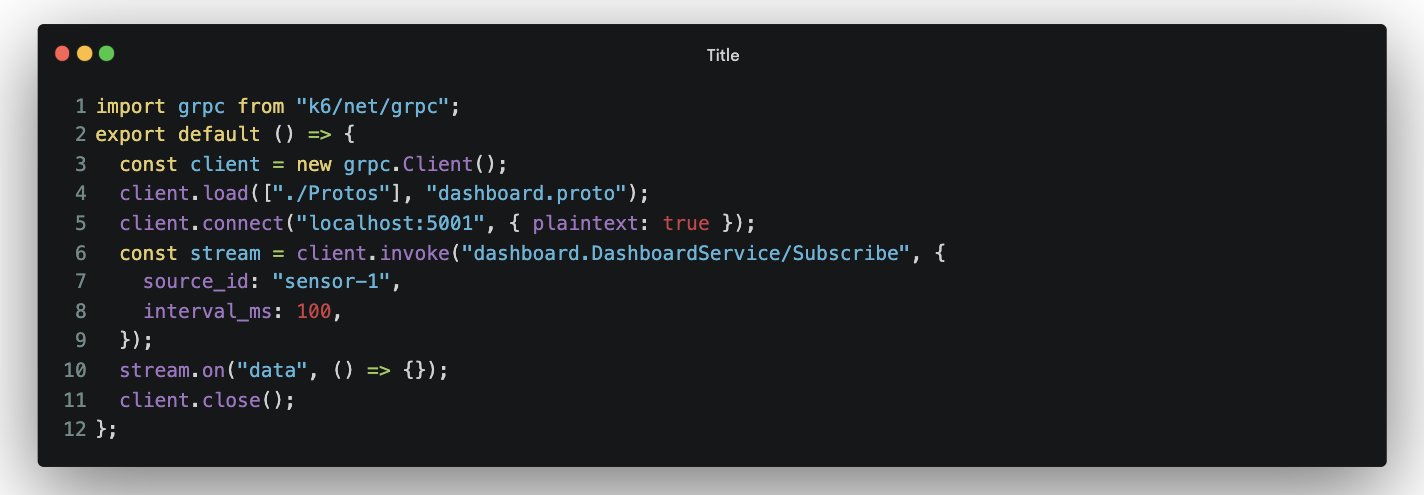
Run the load test:
k6 run load-test.js --vus 100 --duration 30sThis simulates 100 virtual users connecting to your gRPC service for 30 seconds.

Conclusion
Thanks for reading! In this guide, you’ve built an end-to-end solution:
- Environment: Blazor UI and gRPC host configured for HTTP/2 + TLS.
- Streaming: proto definitions and server‑streaming implementation.
- UI binding: consuming IAsyncEnumerable and rendering as lists or charts.
- Optimization: compression, batching, reconnect logic, scaling, and profiling.
To take this further:
- Secure the stream with JWT tokens or mutual TLS so only authorized clients can subscribe.
- Compare with SignalR if you need bidirectional messaging or legacy browser support without a proxy.
- Extend your proto to support multiple data sources, alerts, or user commands for richer interactivity.
Apply these patterns in your next project to deliver responsive dashboards that keep pace with real‑world data.
If you’re a Syncfusion user, you can download the setup from the license and downloads page. Otherwise, you can download a free 30-day trial.
You can also contact us through our support forum, support portal, or feedback portal for queries. We are always happy to assist you!





 No spam, just valuable updates.