WPF OLAP Client Control for slice and dice
- Slice and dice an OLAP cube and its data.
- Integrate with OLAP Chart and OLAP Grid controls for better visualization.
- Add, edit, rename, remove, save, and load pivot reports at runtime.

.NET 10 support now available
Trusted by the world’s leading companies

Overview
Browse multidimensional data (OLAP) organized into dimensions, measures, named sets, and KPIs in a cube format with the WPF OLAP Browser. You can visualize the results in graphical (OLAP Chart) and table (OLAP Grid) formats. The control can also be used to create and edit reports at runtime that can be stored for later use.
Data binding
The WPF OLAP Browser control enables you to retrieve multidimensional data (OLAP) from SSAS or any XML/A provider. The data sources supported are SSAS, Mondrian, ActivePivot, and Oracle.

WPF OLAP Grid
End users can enable built-in features in the OLAP Grid either through UI or a simple, user-friendly API in the code-behind.
For more details about the built-in OLAP Grid features, check out the documentation
WPF OLAP Chart
End users can enable built-in features of the OLAP Chart either through UI or a simple, user-friendly API in the code-behind.
For more details about the built-in OLAP Chart features, check out the documentation

Slice and dice
Slice and dice creates a new view for end users by selecting limited dimensions and measures from the cube and filtering them.
KPIs

Predefined KPIs
KPIs are a collection of calculations associated with a measure group that evaluates business success. A few KPIs are defined and listed when the OLAP Cube is created.

Virtual KPIs
Users can create their own KPIs at runtime and write expressions as well. In an expression, positive numbers will be represented by a green light or up arrow, and negative numbers will be represented by a red light or down arrow, depending on the users preferences.
Named sets
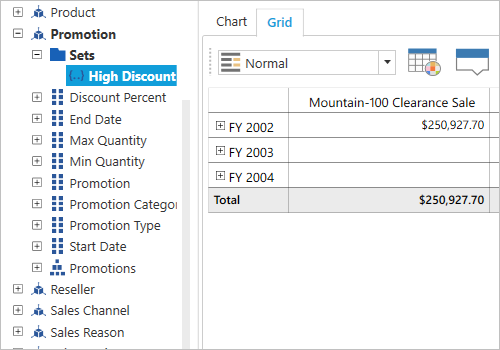
The named sets simplify MDX queries and provide useful aliases for complex, commonly used set expressions.

Calculated members and measures
You can create and display your own dimensions and measures at runtime.
Member properties
Member properties provide basic information about each member in each tuple, including member name, parent level, and number of children. These member properties are available for all members at any given level, and can be enabled in reports programmatically.

Drill-down and drill-up
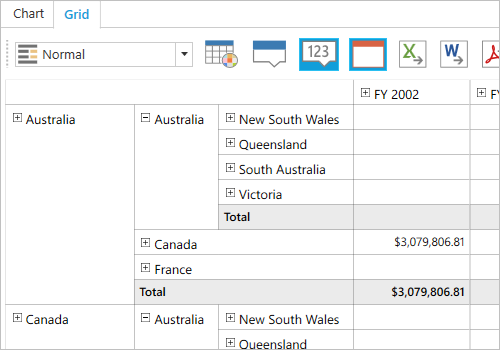
There is built-in support for drilling down (expand) and drilling up (collapse) to visualize the OLAP Grid and OLAP Chart information in both abstract and detailed views.
Drill member
This option delivers a detailed view of any selected member while drilling down and shows an abstract view after drilling up.

Drill position
You can choose to drill only at the current position of a selected member.
Axis element builder
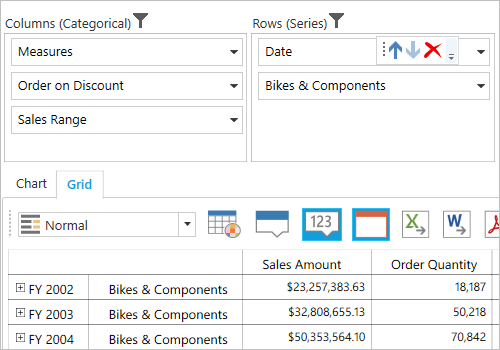
The axis element builder is similar to the pivot table field list in Excel, and allows you to create and manage the control with multidimensional (OLAP) data sources. End users can drag hierarchies and filter them to create reports at runtime.
Cube browser
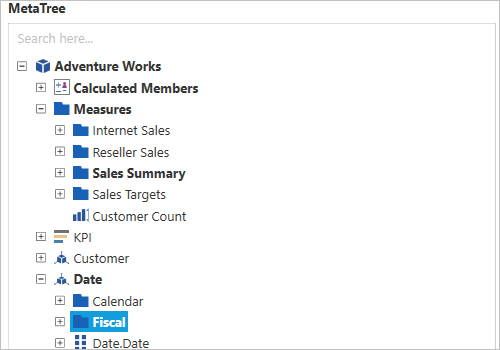
Organizes the selected OLAP cube’s elements such as dimensions, hierarchies, measures, KPIs, named sets, and more in a tree-like structure.
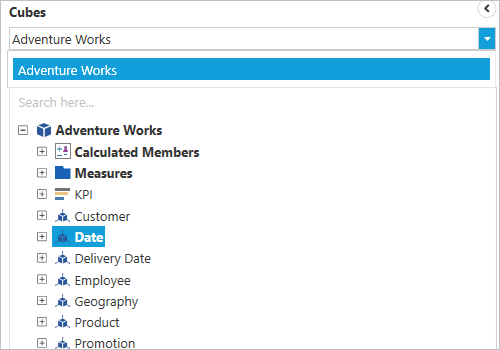
Cube selector
Allows you to select any of the cubes available in the connected database. Based on the selected cube, the corresponding cube element is loaded into the control.
Filtering
With built-in filtering options, you can easily filter and visualize data. It is also possible to filter programmatically.
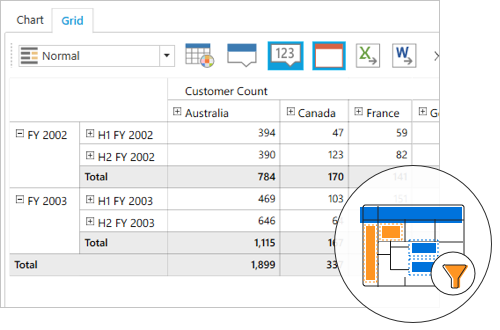
Filtering by member
You can filter the headers in rows and columns based on hierarchy members to selectively display records.
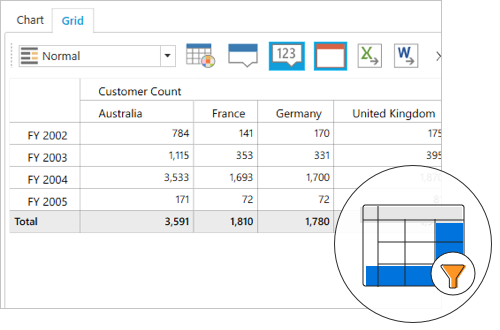
Filtering by value
You can filter the results in rows and columns based on active measures to selectively display records.


Paging
Extensive support has been provided to load and render a large amount of data without any performance constraints through paging.
Member editor
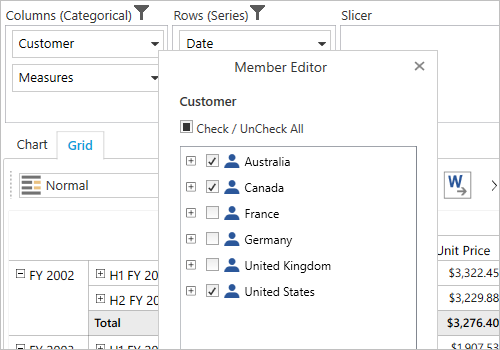
The member editor dialog displays members of the selected hierarchy in a tree-like structure for easy filtering. When a large number of members is bound to the member editor, lazy loading is enabled automatically.

Measure editor
The measure editor dialog displays a collection of measures from the current report. You can apply filters, reorder them, and remove a specific measure from the current report at runtime.
Report manipulation
- New: Create a new report collection.
- Add: Add a new report in the current report collection.
- Rename: Individual report names can be modified in the current report collection.
- Remove: Individual reports can be removed from the current report collection.
- Save: Save the current report collection in XML format.
- Save as: Save the current report by different names in XML format.
- Load: Load back a report collection saved in XML format.


Toolbar
The following options are available in the toolbar to perform common reporting operations:
- Connect to server: Connect a data source with the WPF OLAP browser through offline cube, online server, or connection string.
- Report options: Add, rename, save, load, and remove reports at runtime.
- Report list: Select any report from the report collection bound to the control.
- Toggle axis: Toggle the hierarchies in the row axis and column axis.
- Show or hide expanders: Toggle the visibility of expanders used for drill operations.
- MDX: Show the MDX query of the current report.
- Paging: Enable or disable the paging option to the control.
- Calculated members and measures: Create a new calculated member or measure at runtime.
- Virtual KPI: Create a new virtual KPI element at runtime.
- Filtering: Filter members based on the grand total of a specific measure.
- Sorting: Sort headers based on the grand total of a specific measure.
- Full screen: View the OLAP Chart and OLAP Grid in full-screen mode.
Layout customization
Allows users to render the control in different layouts with the help of the following built-in features:
- During initial loading, the default view can be either the OLAP Grid or OLAP Chart.
- Display either the OLAP Chart or OLAP Grid alone.
- Show or hide the cube selector.
- Show or hide columns, rows, and slicer axes at runtime.
- User can show or hide the search box in the cube browser and also expand or collapse its view.
- Show or hide the OLAP Chart and OLAP Grid toolbar.
- Show or hide subset filters, cube connections, loaded reports, saved reports, expanders, the report list, and the MDX dialog in the main toolbar at runtime.
- Customize the layout’s size through the control’s API.


Save and load reports
You can save reports from the current session in XML format for later use. You can also save and load reports from databases programmatically.
Custom style and themes

Built-in themes
Ships with built-in themes like Blend, Office 2010, Office 2007, Office 2003, Transparent, and Metro.

Custom styling
You can customize the control’s appearance to any extent in code-behind.
Developer-friendly API
For a great developer experience, flexible built-in APIs are available to define and customize the WPF OLAP Browser. Developers can optimize the data bound to the control and customize the user interface (UI) completely using code with ease.
Globalization and localization

Globalization
Allows users from different locales to use the control by applying appropriate date formats, currency formats, and number formats.

Right to left (RTL)
The text direction and layout of the control can be displayed in from right-to-left(RTL).

145+ WPF CONTROLS
ALL CONTROLS
DATA VISUALIZATION
MODERN THEMES
LAYOUT
NAVIGATION
INPUT CONTROLS
BUTTONS
BUSINESS INTELLIGENCE
DATA SCIENCE
MISCELLANEOUS
LISTS & DROPDOWN
NOTIFICATION
FILE VIEWERS & EDITORS
CONVERSATIONAL UI
Our Customers Love Us
Having an excellent set of tools and a great support team, Syncfusion® reduces customers’ development time.Here are some of their experiences.

Excellent experience with Syncfusion!
Syncfusion is a product that makes life easier! I use it to create Blazor applications (server side and webassembly) and the controls speed up development a lot. Furthermore, if needed, it is possible to ask for direct support that is never long in coming!

Andrea Scarpante, 
Sydea srl
The complete component set
It is the most complete component set available. Also very handy is the fact that there is a community edition, this gives me the opportunity to test thing at home without buying a separate license.

Johan Visser, 
H and T Pawnbrokers
Rated by users across the globe



Syncfusion WPF Resources
Learning  Documentation
Documentation 


Awards
Greatness—it’s one thing to say you have it, but it means more when others recognize it. Syncfusion® is proud to hold the following industry awards.