WPF Range Slider control
- A single slider can be used either as a vertical or horizontal slider.
- A single value or a range can be selected by providing a single thumb or two thumbs, respectively.
- Customizing ticks, thumbs, and tracking can easily adapt the control to your app’s design.

.NET 10 support now available
Trusted by the world’s leading companies

Overview
The Range Slider control allows you select a range of values within a specified minimum and maximum limit. The range can be selected by moving the thumb control along a track. The control is intended to provide a UI to filter collection items within a range.
Range value
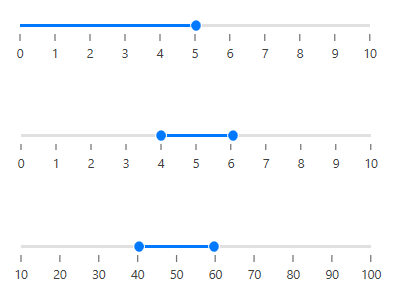
Choose a single or a range of values (start and end) between minimum and maximum.
Custom values
The range slider control supports number, float, and negative values.
Tick frequency
Split the range of values into equal intervals to help users choose the required values easily.

Snapping
While sliding, snap to visualize tick frequency or programmatic snap frequency.

Custom labels
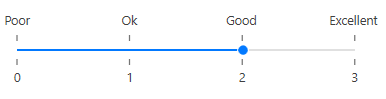
The Range Slider is not restricted to numeric values, so you can visualize values as text, like: Low, Medium, High; or Bad, Good, Excellent.
Major and minor ticks
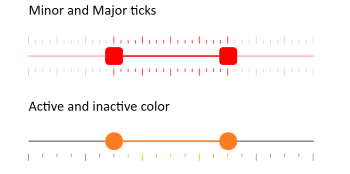
Supports major and minor ticks representation and can be easily customized as active and inactive ticks based on the range.
Tick and label placement
Place or align ticks and labels in a different direction or orientation.

Vertical slider
You can control the orientation of a slider to render it in a vertical direction.

Keyboard interaction
Use arrow keys to adjust the value of a slider.

Tooltip
The value of the pointer or range is shown in a tooltip. You can control the placement of tooltips.

Orientation
The WPF Range Slider’s orientation can be set to horizontal or vertical. The default option is horizontal.

Reverse direction
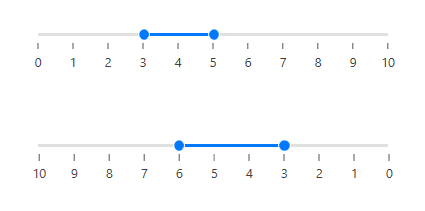
Reverse the direction of a slider as needed.
Customization
Customize each element of the Range Slider in easy ways like thumb, active and inactive tracks, ticks and tooltips.

WPF Range Slider Code Example
Easily get started with the WPF Range Slider using a few simple lines of XAML or C# code example as demonstrated below. Also explore our WPF Range Slider Example that shows you how to render and configure the WPF Range Slider in WPF.
<Grid> <syncfusion:SfRangeSlider Minimum="100" Maximum="500" ShowValueLabels="True" TickFrequency="50" Width="400"/> </Grid>public MainWindow() { InitializeComponent(); Grid grid = new Grid(); SfRangeSlider sfRangeSlider = new SfRangeSlider(); sfRangeSlider.Minimum = 100; sfRangeSlider.Maximum = 500; sfRangeSlider.ShowValueLabels = true; sfRangeSlider.TickFrequency = 50; sfRangeSlider.Width = 400; grid.Children.Add(sfRangeSlider); this.Content = grid; }Not sure how to create your first WPF Range Slider? Our documentation can help.
I’d love to read it now145+ WPF CONTROLS
ALL CONTROLS
DATA VISUALIZATION
MODERN THEMES
LAYOUT
NAVIGATION
INPUT CONTROLS
BUTTONS
BUSINESS INTELLIGENCE
DATA SCIENCE
MISCELLANEOUS
LISTS & DROPDOWN
NOTIFICATION
FILE VIEWERS & EDITORS
CONVERSATIONAL UI
Frequently Asked Questions
Why should you choose Syncfusion WPF Range Slider?
Syncfusion WPF Range Slider provides the following:
- Can be used as either a Slider or a Range Slider.
Has rich UI interaction and keyboard navigation to interact with the software.
- Is packed with a bunch of features with customization options suitable for building complex, large-scale applications.
- Has a simple configuration and APIs.
- Is touch-friendly and responsive.
Learn quickly and get started with WPF Range Slider using its extensive demos and documentation.
Can I download and utilize the Syncfusion WPF Range Slider for free?
No, this is a commercial product and requires a paid license. However, a free community license is also available for companies and individuals whose organizations have less than $1 million USD in annual gross revenue, 5 or fewer developers, and 10 or fewer total employees.
How do I get started with Syncfusion WPF Range Slider?
A good place to start would be our comprehensive getting started documentation.
Our Customers Love Us
Having an excellent set of tools and a great support team, Syncfusion® reduces customers’ development time.Here are some of their experiences.

Excellent experience with Syncfusion!
Syncfusion is a product that makes life easier! I use it to create Blazor applications (server side and webassembly) and the controls speed up development a lot. Furthermore, if needed, it is possible to ask for direct support that is never long in coming!

Andrea Scarpante, 
Sydea srl
The complete component set
It is the most complete component set available. Also very handy is the fact that there is a community edition, this gives me the opportunity to test thing at home without buying a separate license.

Johan Visser, 
H and T Pawnbrokers
Rated by users across the globe



Syncfusion WPF Resources
Learning  Documentation
Documentation 


Awards
Greatness—it’s one thing to say you have it, but it means more when others recognize it. Syncfusion® is proud to hold the following industry awards.