


When I first started building WordPress websites, I didn’t realize how useful a contact form could be. It’s not just a way for people to reach you. It also keeps your email address private, cuts down on spam, and makes it easier to stay organized.
Once I added a proper contact form, everything felt smoother. Visitors could get in touch without hassle, and I could manage messages all in one place.
That’s why I use WPForms. It’s simple, reliable, and takes care of the details so you can focus on your website.
In this guide, I’ll show you how to create a professional contact form in WordPress using WPForms. 🚀
Why Add a Contact Form in WordPress?
Adding a contact form to your WordPress site is a simple way to make it easier for people to reach you. Instead of copying your email address and opening their mail app, visitors can just send a message right from your website.
I’ve seen how something this small can make a big difference.
When people can easily ask questions, request quotes, or share feedback, your site feels more approachable. And you’re more likely to start real conversations and new business opportunities.
Here are a few key benefits of adding a contact form to your WordPress site:
- Cut down on spam and stay organized — A contact form helps block most automated spam that targets public email addresses, so you only get genuine messages.
- Ask for the right details upfront — You can display fields for things like position and experience level for job application forms, or product type and quantity for order forms. This helps you understand what visitors need and respond more effectively.
- Get more leads without losing visitors — People are much more likely to fill out a quick form than leave your site to send an email, especially on mobile devices.
- Look more professional — A simple, well-designed contact form feels more trustworthy than just posting your email address.
- See what people care about most — Forms help you spot patterns, like which pages visitors contact you from or what topics they ask about. This can help you adjust your content and make your site work better for your audience.
The best part? WordPress makes it simple to add professional contact forms without any coding knowledge. For more advanced form strategies, check out our ultimate guide to using WordPress forms.
With that said, I’ll walk you through how to add a contact form in WordPress.
Here’s a quick overview of what I’ll cover in this guide:
- Step 1: Install and Activate the WPForms Plugin
- Step 2: Select the Simple Contact Form Template
- Step 3: Customize Your Contact Form
- Step 4: Set Up Contact Form Notification and Confirmation
- Step 5: Test Your New Contact Form
- Step 6: Embed Your Simple Contact Form on a WordPress Page
- Bonus Tip: Set Up WordPress Form Tracking to Improve Conversions
- FAQs: Creating and Adding Contact Forms in WordPress
- Video Tutorial: How to Create Contact Forms in WordPress
- Further Reading for Using Forms in WordPress
Step 1: Install and Activate the WPForms Plugin
For creating contact forms in WordPress, I recommend WPForms, which is the best contact form plugin for WordPress. It’s easy to use, yet powerful enough to handle just about anything you need.
I’ve personally used it on many sites over the years, and it’s always been reliable. Plus, we also use it to create our contact form here at WPBeginner.
See our detailed WPForms review to learn more about the plugin.
💡 Note: WPForms comes in both free and Pro versions. The WPForms Pro version includes over 2,000 form templates, conditional logic, and priority support.
But if you just need a basic contact form, WPForms Lite works perfectly, and you can upgrade later if you need more features
To get started, you need to go to the WPForms website to sign up for an account.
Just click on the ‘Get WPForms Now’ button, choose a plan, and complete the registration process. This will bring you to the WPForms dashboard, where you can access your WPForms Pro zip files and license key.

From here, you can then go to your WordPress admin area to install and activate the WPForms plugin.
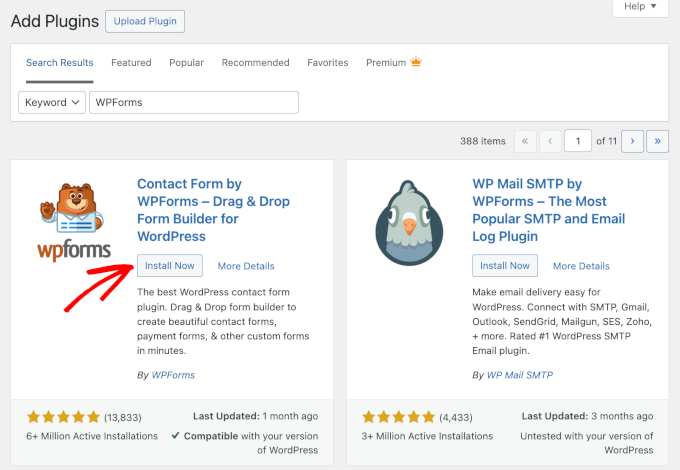
To do this, simply navigate to Plugins » Add New Plugin.

On the next screen, I recommend using the search bar to quickly find the WPForms plugin.
Click the ‘Install Now’ button on the search result, and then ‘Activate.’ If you want more detailed instructions, you can check out our guide on how to install a WordPress plugin.
If you’ve purchased WPForms Pro, you’ll also need to activate your license key.
After installing the plugin, go to WPForms » Settings in your admin dashboard and enter your license key. This unlocks the Pro features and ensures you’ll get regular updates and support.
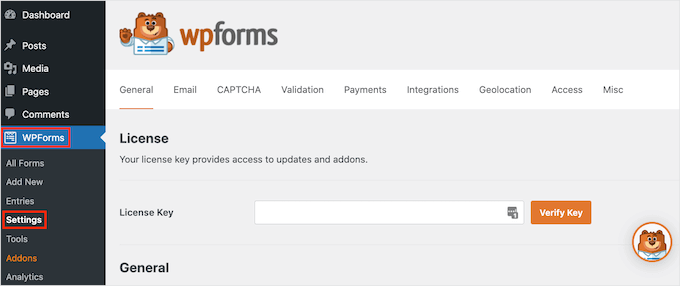
Once it’s activated, you’ll see a new WPForms menu in your WordPress dashboard.
Step 2: Select the Simple Contact Form Template
Now that you have activated WPForms, you are ready to create a contact form in WordPress.
When you first access WPForms, the setup wizard will guide you through creating your form.
If you don’t see a setup wizard, you can navigate to WPForms » All Forms in your WordPress admin panel and then click the ‘Add New’ button.
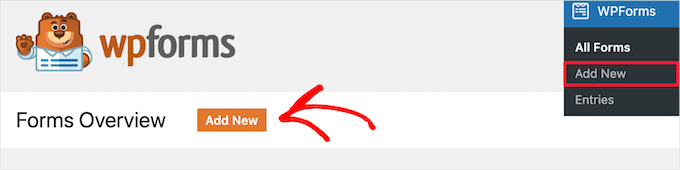
This will take you to the Setup page, where you can start by giving your form a descriptive name like “Contact Form” or “Get in Touch.”
This is for your reference only, but having clear names helps you stay organized if you create multiple forms later.
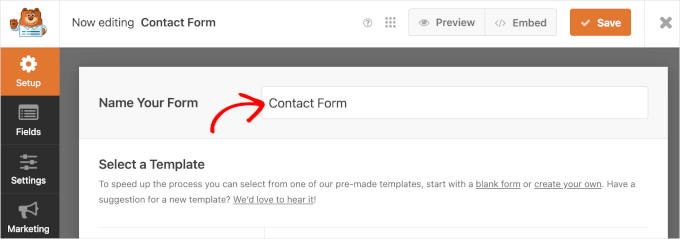
Next, you’ll choose how you will build your contact form:
- Start from scratch – Build your form on a blank canvas for complete control over the layout and fields.
- Use a pre-made template – With WPForms Pro, you get access to over 2,000 ready-made templates you can customize in minutes. WPForms Lite comes with over 60+ free form templates.
- Generate a form with AI – Let the WPForms AI Form Builder create a customizable form for you. Just describe what you need in a simple prompt, and it’ll handle the setup automatically.
If you want to use WPForms AI, you can hover over the ‘Generate With AI’ box and click the ‘Generate Form’ button.
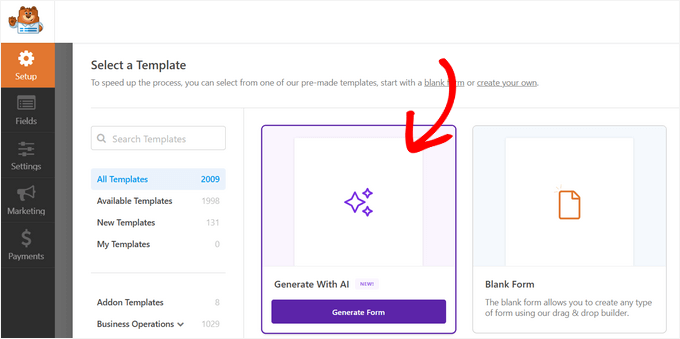
On the next screen, you can either select from the available prompt examples or add your own custom prompt for the AI.
It will then generate the form for you, which you can see in the preview area.

🧑💻 Insider Tip: In addition to the AI-powered form builder, WPForms also has:
- AI Choices: Automatically generate options for fields like multiple choice, radio buttons, checkboxes, and dropdown menus.
- AI Calculations: Instantly generate AI-powered calculation formulas for fields like sales tax, eliminating the need for manual calculations.
Note that these are Pro features available with WPForms’ paid plans.
For this guide, though, I’ll show you the steps using the ‘Simple Contact Form’ template. It includes all the essential fields most websites need.
While you’re browsing the templates, you might notice other popular options that could be useful for your site:
- User Registration Forms — Perfect for membership or community sites that let users sign up and create accounts.
- Online Order Forms — Great for restaurants, online shops, or service providers who want to take product or custom orders directly on their site.
- Booking Forms — Ideal for consultants, salons, or rental businesses that need to schedule appointments or reservations.
- Survey Forms — Handy for collecting customer feedback or running quick polls.
- Conversational Forms — Offer a modern, chat-like experience that boosts engagement and completion rates.
Once you’ve found the template you want to work on, you can hover over it and click ‘Use Template.’

This will take you to the WPForms drag-and-drop editor.
Step 3: Customize Your Contact Form
Now comes the fun part: making your contact form work precisely how you want it.
WPForms’ drag-and-drop builder makes this incredibly easy, even if you’ve never built a form before. Here, you can see the customization options on the left and the form preview on the right.
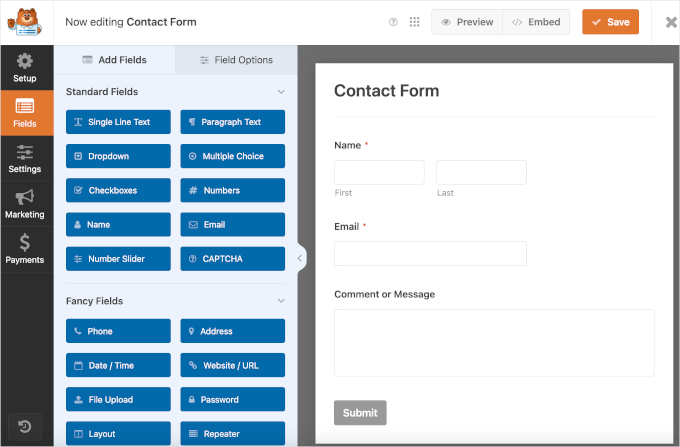
Now, you may notice that the Simple Contact Form template includes the Name, Email, and Comment or Message fields.
You can rearrange fields by dragging them up or down to change their order. This flexibility means you can collect exactly the information you need without overwhelming visitors.
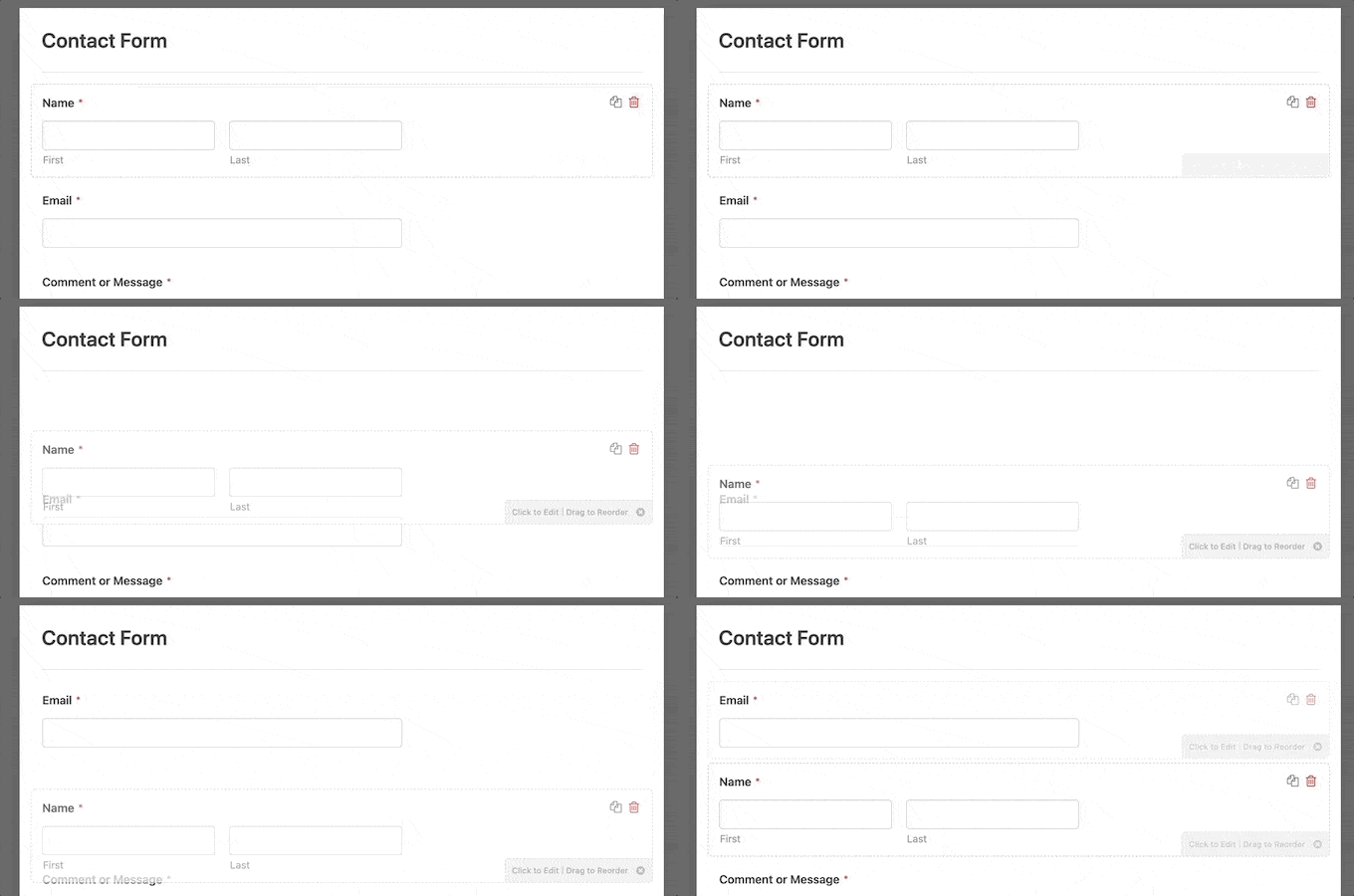
Then, for each of those fields, you can click on it to modify its settings, change the label text, or mark it as required.
Here, I changed the Email field’s label to Email Address and enabled the email confirmation feature. This allows users to check if they have added the correct email.
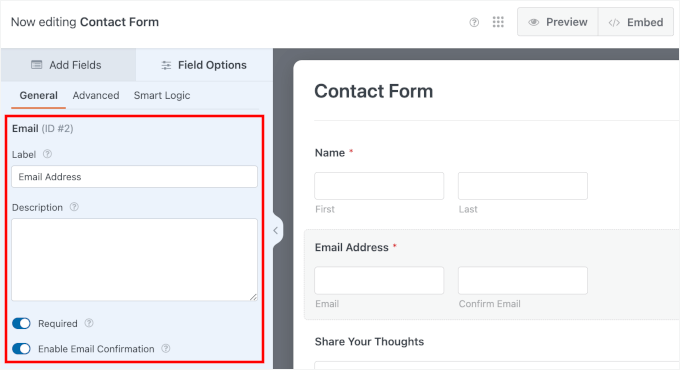
To add new fields, simply drag them from the left panel onto your form. Here are some popular field additions I recommend considering:
- Phone Number field — Useful if you prefer calling leads back directly
- Dropdown menu — Great for categorizing inquiries (like “Sales,” “Support,” or “General Question”)
- Checkbox field — Perfect for newsletter signups or consent confirmations
Including a checkbox with a label like “Subscribe to our newsletter” or “Send me occasional news and updates” is a smart move. It helps you grow your email list while visitors are already engaged with your contact form.
Keep in mind that you will also need to connect your form to an email marketing service. For details, see our tutorial on how to use your contact form to grow your email list.
🧑💻 Pro Tip: If you’re using your contact form to collect subscribers, this step is crucial. It helps you get clear consent from users before sending them regular updates, which also keeps your site compliant with privacy laws like GDPR.
To add this, simply drag the Checkbox field and drop it into your form preview.

In the customization panel, you can remove the other two default choices by clicking the ‘–’ button.
Then, add your message to the remaining choice box.
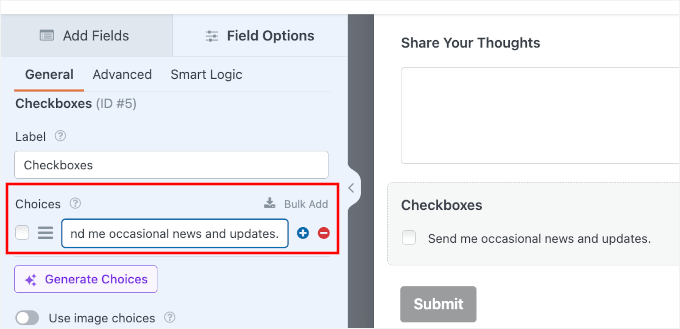
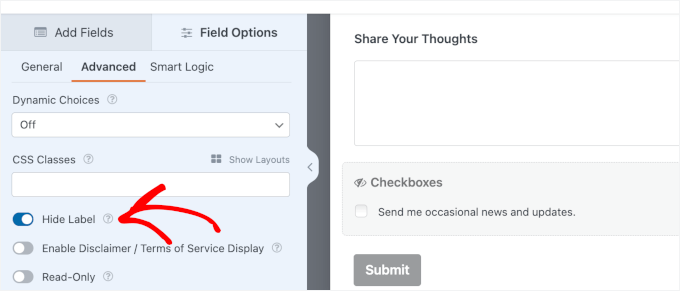
Next, you’ll want to hide the ‘Checkbox’ label.
By hiding it, only your intended “Send me occasional news and updates” text appears next to the checkbox, keeping the form clean and easy to read.
To do that, you can switch to the ‘Advanced’ tab and toggle on ‘Hide Label.’
For Pro users, WPForms offers other powerful advanced options that can make your forms even more effective:
- Conditional Logic — Show or hide fields based on previous answers.
- File Upload fields — Let visitors attach documents or images.
- Payment fields — Accept payments directly through your form.
When you’re satisfied with your form fields and layout, click the ‘Save’ button.
🧑💻 Pro Tip: When you’re customizing, remember that less is often more. A shorter form is less intimidating and can lead to more submissions. I recommend only asking for the information you absolutely need.
Step 4: Set Up Contact Form Notification and Confirmation
Now that you have created your contact form, it’s essential to properly configure the form notification and form confirmation options.
Here’s a quick breakdown of each setting:
- Form notification is the email you get after someone submits the contact form on your WordPress blog.
- Form confirmation is what your website visitor sees after they submit the form. This can be a simple thank you message, a follow-up page where you’ve uploaded downloadable PDFs, or anything you’d like.
The good news is that WPForms automatically configures your form notifications right out of the box. This means you’ll start receiving email alerts as soon as someone submits your contact form, without any additional setup required.
That said, you still can configure these settings to cater to your needs.
So, let’s go to Settings » Notifications. By default, you’ll see that WPForms sends notifications to your WordPress admin email address.
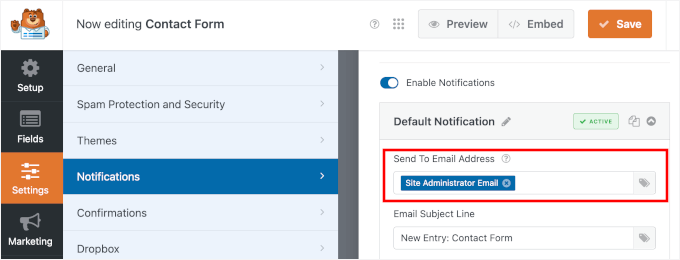
You can also send notifications to multiple email addresses, so different team members get the correct inquiries. For example, sales messages can go to your sales team, while support requests go to customer service.
When adding email addresses, just be sure to separate each with a comma.
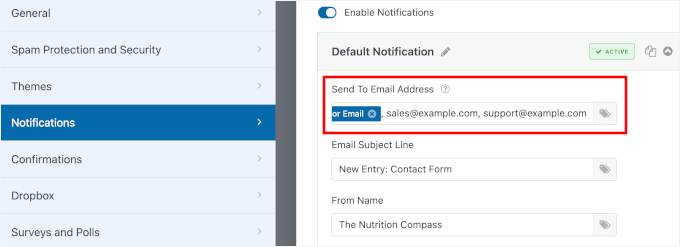
Learn more about this in our guide on how to create a contact form with multiple recipients.
On this page, you can also see other customization fields. For example, the ‘Email Subject Line’ is pre-filled with your form name. While the ‘From Name’ field is automatically populated with your site name.
Don’t forget to click the ‘Save’ button if you make changes here.
🧑💻 Pro Tip: If you’re having trouble receiving form submissions, see our guide on how to fix WordPress not sending email issues. It shows you how to use WP Mail SMTP, the best SMTP plugin for WordPress, to make sure your emails are delivered reliably every time.
Next, let’s switch to the ‘Confirmation’ tab to choose how visitors know you’ve received their message.
WPForms gives you three main options:
- Show a message — Display a thank-you message right on the same page.
- Show page — Send users back to the previous page or any existing page on your site, such as a custom thank-you page.
- Go to URL (Redirect) — Send visitors to any URL, on or off your site.
I recommend using a custom message for most simple contact forms since it’s immediate and doesn’t require visitors to load a new page.
If this sounds good to you, you can select ‘Message’ from the confirmation type dropdown and write your custom message in the available field.
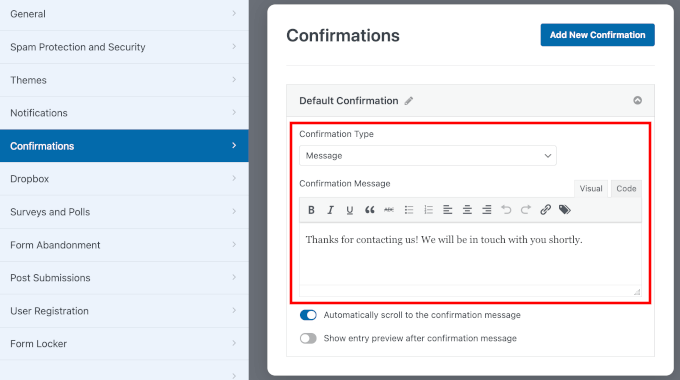
Now, a great confirmation message doesn’t just say ‘thanks’ – it sets expectations. You can try something like: ‘Thanks for contacting us! We’ve received your message and will get back to you within 1-2 business days.’
This reassures the user that their submission was successful and informs them when to expect a response. Plus, it helps make your business feel more responsive and trustworthy.
However, redirecting users to a special page works well if you want to show related content, offer a free resource, or track conversions in Google Analytics.
And for service-based businesses, you might send users to a page that explains your typical response time and next steps.
Online stores, on the other hand, can redirect to product pages or special offers to keep the engagement going.
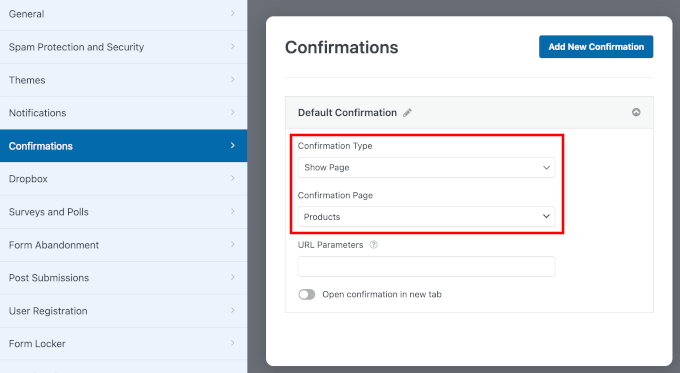
If you make any changes here, then make sure to click the ‘Save’ button.
Step 5: Test Your New Contact Form
Once you’ve set up your contact form, it’s time to give it a quick test.
At the top of the WPForms builder, you can click the ‘Preview’ button to see how your form will look to visitors.
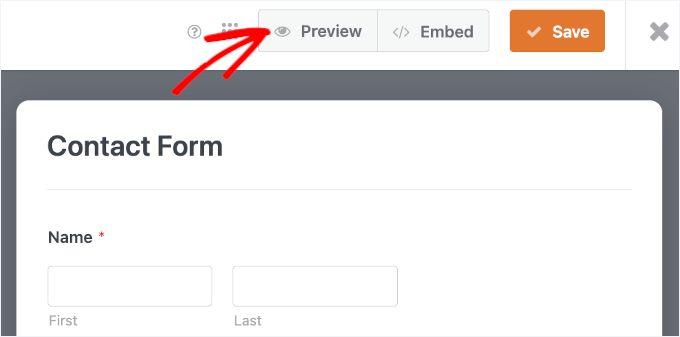
On the preview screen, let’s first check that all your fields show up correctly and are easy to understand.
Then, go ahead and fill out the form using some test information. You can try skipping a required field or typing your email address incorrectly to make sure the form validation works as it should.
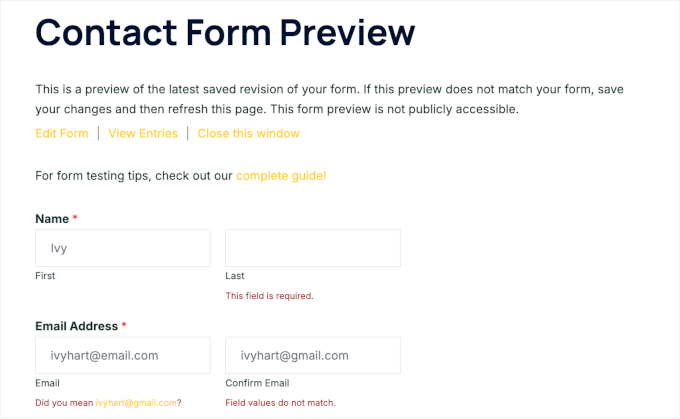
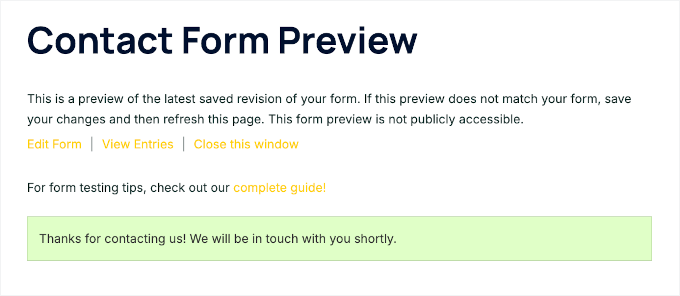
When everything looks good, click ‘Submit’ to see your thank-you message or confirmation page appear as expected.
Here’s what it looks like on my demo site:
Step 6: Embed Your Simple Contact Form on a WordPress Page
Now that everything is set up, it’s time to make your contact form live on your WordPress website. WPForms makes this step incredibly straightforward with its built-in embedding feature.
To get started, go ahead and click the ‘Embed’ button at the top of the form builder.

This will show you an Embed in a Page popup.
Here, you can choose between ‘Select Existing Page’ and ‘Create New Page.’

For a brand new contact page, you can select the ‘Create New Page’ option.
After that, type in a page name like “Contact Us” or “Get in Touch,” and then click ‘Let’s Go!’.

WPForms will then create the page and automatically embed your form in one smooth step. You can then write all the content you need to add context, preview the page, and publish it.
If you already have a Contact page on your site, you can simply choose ‘Select Existing Page.’
Then, in the next popup, you’ll choose where you want to add the contact form from the dropdown menu and click ‘Let’s Go!’.

This will open the page’s content editor.
From here, you can click ‘+’ to add the WPForms block.
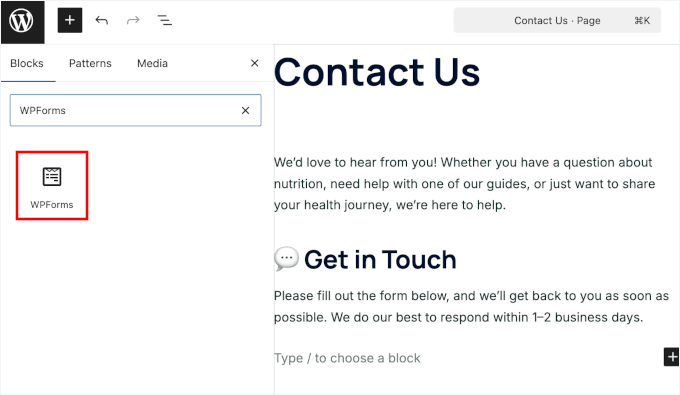
Next, you’ll see the WPForms block added to your editor.
Simply click on the dropdown and choose the form you want to add.
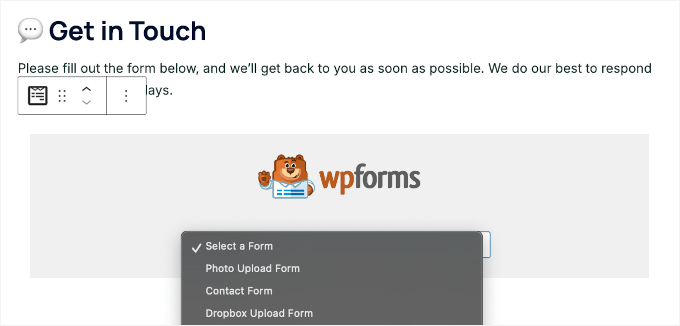
WPForms will then load your contact form preview inside the block editor.
Before publishing, you can preview the page to see how it looks. Most modern WordPress themes will display the form nicely without any additional styling needed.
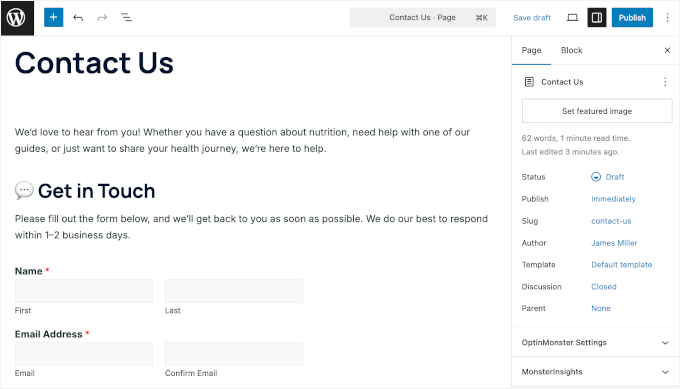
That said, you can also apply a theme to your form. For more information about this, see our guide on how to style and customize your WordPress form.
When you’re happy with everything, you can click the ‘Publish’ or ‘Update’ button to save your form. Then, you can visit your website to see it in action.
Here’s what the form looked like on a sample WordPress contact page:
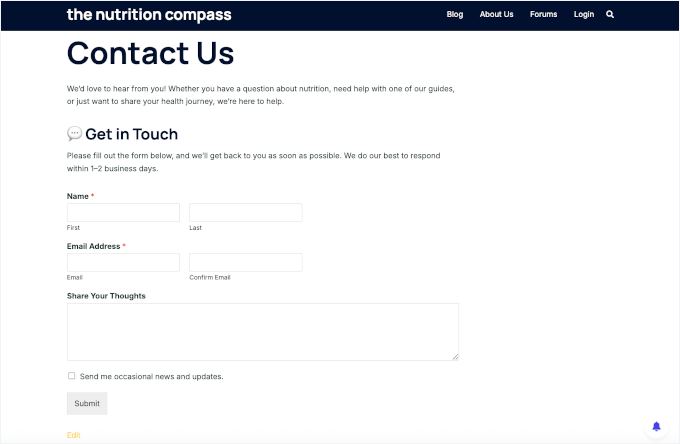
For more details, see our guide on how to embed forms in WordPress.
Show Your Contact Form Across Your Site
For even better visibility, consider adding your contact form to your website’s sidebar or any other widget-ready area in your WordPress theme. This gives visitors easy access to contact you from any page on your site.
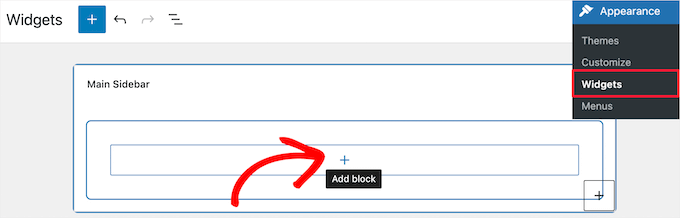
To do this, you need to go to Appearance » Widgets and then click the ‘Plus’ add block icon in the widget area you want to add your form.
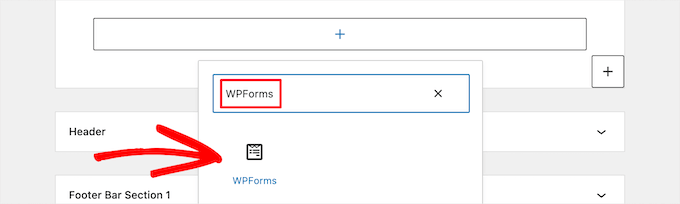
Next, let’s search for ‘WPForms.’
Then, you can click on the ‘WPForms’ block to add it to your sidebar.
After that, you need to select your contact form from the drop-down.
This will automatically load a preview of your form.
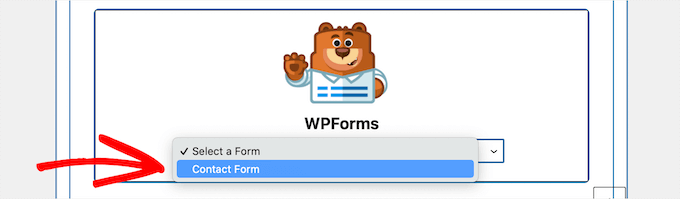
Next, let’s click the ‘Update’ button to save your changes.
Now, you can visit your site to see your contact form live in your sidebar or other widget area.

To learn more about widgets, see our guide on how to add and use widgets in WordPress.
Add Your Contact Form Using a Shortcode
WPForms also comes with a WordPress contact form shortcode.
You can use this by visiting WPForms » All Forms and then copying the shortcode next to your form.

Then, all you need to do is open up the page where you want to add it and click the ‘Plus’ add block button and search for ‘Shortcode’.
Next, let’s click the ‘Shortcode’ block.
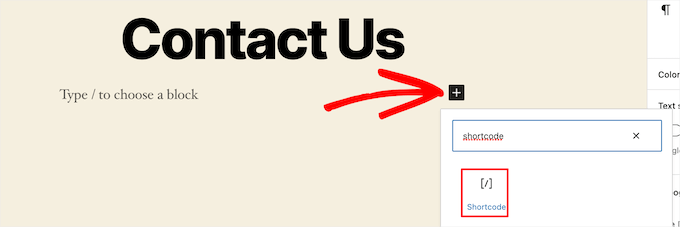
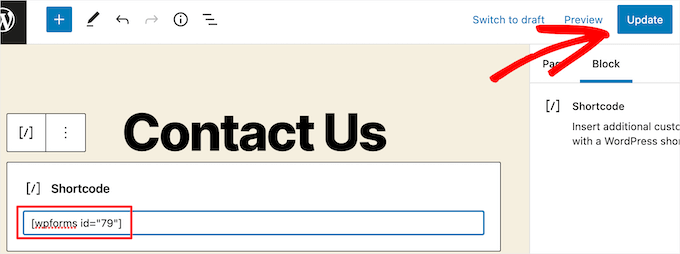
In the block, go ahead and paste the shortcode that you copied above into the box.
After that, you can click on ‘Update’ or ‘Publish,’ and your contact form will be live on your website, just like above.
To learn more about shortcodes, you’ll want to see our ultimate guide on how to add a shortcode in WordPress.
🔗 Alternative: If you’d like more advanced features or added flexibility, you can check out Formidable Forms. For a detailed comparison of top solutions, see our guide on the best contact form plugins for WordPress.
Bonus Tip: Set Up WordPress Form Tracking to Improve Conversions
Once your contact form is up and running, the next step is to understand how it’s performing so you can make it even better.
By tracking your forms, you can see, for example, which ones get the most submissions, where your visitors come from, and which pages encourage them to reach out.
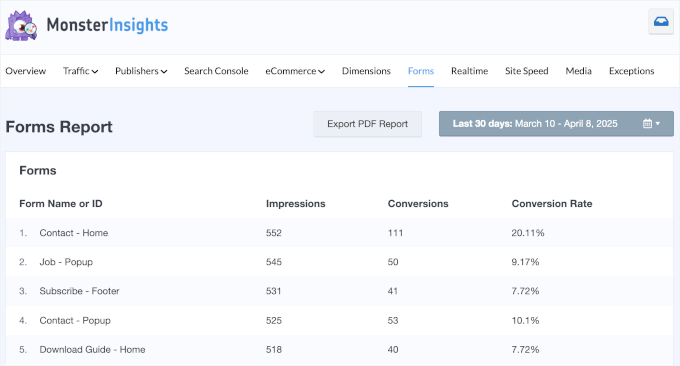
This information helps you improve forms that aren’t doing as well, reduce form abandonment, and fine-tune your marketing to reach the right audience.
For instance, you might find that visitors from social media are more likely to submit your contact form than those from search engines. Or that people who visit your About page first are more likely to get in touch.
Insights like these show you where to focus your time and effort.
Form tracking can also help you spot technical issues early. If submissions suddenly drop, you’ll know it’s time to check whether your form or website is having problems.
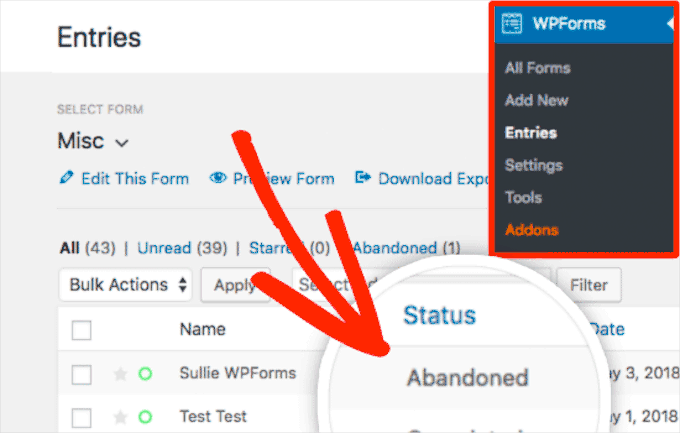
The good news is that setting up form tracking is easier than you might think, especially with the right tools and guidance.
To get started, you can follow our step-by-step tutorial on how to set up WordPress form tracking in Google Analytics.
FAQs: Creating and Adding Contact Forms in WordPress
What’s the best contact form plugin for WordPress?
WPForms is my top pick for the best WordPress contact form plugin. It’s beginner-friendly, easy to use, and packed with helpful features and addons. You can easily build any type of form using its AI tools and drag-and-drop builder.
If you’re looking for more advanced options, Formidable Forms and Gravity Forms are great alternatives for things like multi-page forms or complex calculations.
How can I add a fillable form to my website?
The easiest way is to use a form builder plugin like WPForms. Once you install and activate it, you can choose a template, customize the fields, and then embed the form on any page or post using a shortcode or block.
Where does data from my WordPress contact form go?
That depends on the plugin you’re using. With WPForms, all form entries are saved inside your WordPress dashboard under WPForms » Entries, and you can also get them sent directly to your email. This way, you never miss a message from a visitor.
Why isn’t my WordPress contact form working?
Common reasons for contact forms not working include incorrect email settings, plugin conflicts, or missing SMTP configuration. If you’re not receiving emails, I recommend using WP Mail SMTP to make sure messages from your forms are delivered properly.
Can I add a contact form in WordPress without using a plugin?
Yes, but it involves adding custom HTML and PHP code to your theme files, which isn’t ideal for beginners. You’d also have to manage things like spam filtering, email delivery, and form styling yourself – and that can get time-consuming fast.
Using a plugin like WPForms is much safer and more reliable since it handles all of that for you automatically.
Video Tutorial: How to Create Contact Forms in WordPress
If you learn by watching, you’ll enjoy our video tutorial on how to create a contact form in WordPress:
Further Reading for Using Forms in WordPress
I hope this article helped you create a simple contact form in WordPress.
To help you get even more out of your WordPress contact forms and website, here are some related guides that build on what you’ve just learned:
- How to Create a Secure Contact Form in WordPress
- How to Use Dynamic Field Population in WordPress to Auto-Fill Forms
- How to Add Save & Continue Functionality in WordPress Forms
- How to Block Contact Form Spam in WordPress
- How to Export WordPress Form Entries to CSV and Excel
- WordPress Form Does Not Work: Troubleshooting Tips
If you liked this article, then please subscribe to our YouTube Channel for WordPress video tutorials. You can also find us on Twitter and Facebook.




Shamli
Hi, I’ve done all the steps as mentioned above, but I cannot see the Contact page when I preview.
Please help me to solve.
Thank you.
WPBeginner Support
Hi Shamli,
You need to edit the page, insert the form, and then click on the preview button. Your contact form will only appear on the page where you insert the form.
Admin
Brenda
HI – We are using this contact form and it’s fine but I would like to add Captcha and, more importantly, some text that can be overwritten in the message box. There is a local company with a very similar name so we are constantly receiving messages which relate to this other company. We want to have some text, that has to be overwritten, to reiterate what our company is to try and reduce these messages. Is this possible?
Brenda Donovan
I redid the form and rechecked the add recaptcha on the confirmation settings and it worked this time. I had done it before but somehow didn’t take.
now on to the mail problem. thanks
safi
sir how can i know which email system notify or receive message i did everything but don,t which i will receive the email from client i am beginner with wp
WPBeginner Support
Hi Safi,
Please see how to fix WordPress not sending emails issue
Admin
Yamin Kamboh
Thank you, was really helpful.
Sarah Zubair
So how do I access the library of media (if I’ve an option of attaching some files in my WP forms) then where do they all get stored?
WPBeginner Support
Hi Sarah,
By default, the user-uploaded files are stored in the WPForms folder inside the Uploads directory of your site.
If you’d prefer to upload the files to the WordPress Media Library, click on the File Upload field in the form builder. Then, under Advanced Options, check the box next to Store file in WordPress Media Library.
For more details see this guide.
Admin
marypeter
This is truly helpful. I can say it is my first time to leave a review in any website. The information you have provided has prompted me to do this. Thank you a thousand times!!
Eston
Hi
how do i set it up that i recieve emails in Gmail, and be able to reply to customers right there in Gmail.com?
WPBeginner Support
Hi Eston,
You can go to settings section of any form and click on the confirmation tab. From here you can add any email address where you want to be notified.
Admin
Cathy
I found this very helpful in setting up, however, after completion I ran a test, so did a friend of mine, I cannot figure out why we are not receiving the email tests sent from the web site? Although I’ve gone through the steps a second time to be sure all was correctly set up, I am not receiving messages from the web site, I hope you can assist with constructive suggestions to aid in problem solving, much appreciate the assistance…
Lori Jo
I am very new, easily confused! Regarding the assigned admin email address in my WP blog site, can that actually be used to receive messages from the contact form? I think the address looks more professional and it would be nice to have all site messages responding back to the actual site instead of an outside email like my Gmail. I did a test and I could not find the reply, installed Flamingo and I did see it but there is no reply option like regular email.
Please let me know, thanks!
Ron Isaac
Thanks, this was a great help to me!
Yoshi
I’m looking to build my own contact form plugin because the contact forms in the market I’ve tried slow down my site. Is this the best alternative?
Srinivas Goud
What is the easiest way to add products in wp
Shirley
Thank you so much! Your help saved my hours of banging my head against the wall.
Eslam Tolba
Hi,
Is there a way to add onClick code for the submit button for WpForms lite?
Thanks
gigi
hi, i have key in my email address in the notification but i’m yet to get any notification from my email even though i have done few testing.. how do i solve this matter? please guide, thanks
Al Kadam
I have contact form plugin installed but customization is very limited and the code is too long and complicated. Now I plan to copy a simpler .php code and install it myself. is it better to do it this way? is there security issue accessing the .php file from the page where the contact form is placed?
Ashley
Hi, I have tried several different forms and this keeps happening. Whenever I go to the contact page, under the title it says “>contact”. I can remove the word “contact” by removing the page title, but that little carrot ( > ) is still there. how do I get rid of that? Thanks.
Joe Tittiger
The mail does not arrive from this form.
Is there a video on how WP handles email so that I can fix this?
Keith
Thanks guys, a real easy process that let me set up my first contact form in like 10 minutes; tested and works
Dave
Hello. I’ve had wpforms set up for a couple weeks and have tried to send to it from two other email accounts, from two separate login locations….but I’ve yet to receive an email to my admin email account. Please help.
WPBeginner Support
Hi Dave,
Please take a look at our guide on how to fix WordPress not sending email issue. If that doesn’t help, then please contact WPForms support and they’ll be able to help you fix it.
Admin
olx
Hello
i tried inserting form after creating it but on the add page the form did not insert. my wordpress seems to be limited and cant add and form. please help
pratima Shrivastav
Hi,
I have created the Wp form as mentioned but when I test it out I am receiving any email notifications. i have turned on the notifications by clicking on email Notification section of the form. Am I missing any other settings? Please guide me to this
WPBeginner Support
Hi Pratima,
Please see our article on fixing WordPress not sending email issue.
Admin
Yvonne
I have set up the form, just like it was explained, but it isn’t showing up on the page I told to add the form.
Rodrigo
Hello, is it possible to use html / css in forms construction?
WPBeginner Support
Hi Rodrigo,
Yes, you can add HTML and custom CSS with WPForms.
Admin
david
Can I export this contact form to an Excel file?
Rebecca Yurkanin
WP forms is super easy to set up, but DOES NOT work. I tried several times to send an email to myself. It worked once! The other 20 times did not. I went back and tried to change things around. It still did nothing. I am familiar with shortcodes, so that wasn’t the problem. And never saw a recaptcha. And wpforms doesn’t even have a contact form to fill out so I can contact them! What a joke!
WPBeginner Support
Hi Rebecca,
To fix the email issue, please take a look at our guide on how to fix WordPress not sending email issue.
If you are using the free version of the plugin, then you can ask for support on the plugin’s support page on WordPress.org. If you are using the paid version of the plugin then you can contact support on plugin’s website.
Hope this helps.
Admin
Brenda
My blog isn’t even launched yet. I have a Coming Soon Page. I have been working on getting a Contact Form to appear for what seems like hours. I had added a new Contact Page on my menu. I saved the code on my Contact Page. Published. And, The Contact Form is not showing up when I live preview Contact on my primary menu. I’m following your tutorial. This seems so easy, and yet…not so much! Does this work with Genesis child? I’ve tried WPForms and Contact Form. I don’t know what I’m doing wrong. Since I’m a newbie, I’m having trouble with menu + page connection and menu category drop downs. This blog setup is more difficult than I thought. Any advice?
zelda zerafa
When I go on SETTINGS it looks different to your video.
I get 3 tabs : General, Integrations and System Info as follows:
General > Form Styling/ Email/Re Captcha/Validations
Integrations > Integrate Constant Contact with WP forms
System info
I have no idea what to fill in for Validations and Email.
Under validations there are also two mysterious fields : Number and Confirm Value
Please help!
WPBeginner Support
Hey Zelda,
The screen you are viewing is for the plugin settings. Click on WPForms » All Forms and then edit a form or go to WPForms » Add New to launch the WPForms’ form builder interface. There you will see a screen like the screenshot above with a Settings tab. These settings are specific to the form you are creating.
Admin
MAINUDDIN
When i instal wpforms another page not working only wpforms page is showing
WPBeginner Support
Hi,
Can you please share the link of your website? You can also contact WPForms support.
Admin
Maciej
Hi,
Is it possible to add a simple text to the form like: “The file must be max 2mb”?
Saumya
Please help me to resolve the issue of email,i am not getting e-mail notification.
Myri
Is this setup (Form plugin) recommended for creating a form with ~500 entries per month where users upload images + complete payments. Eg. Now I am using contact form 7 plus cc7 paypal addon to create a “submit your images + pay” type form. Is this sustainable or is it better to use a professional form builder service?
Catherine O
Thanks for this. Easy to follow!
Dock
excellent blog, very rich in content and correctly thought out, personally I found
here much interesting and useful…..Well! let know my friend as well.
Heather Pooley
I followed this tutorial and I got the contact form working. But when I tried to send a test email through it to my blog email address from my personal one, it didn’t get to me. Any advice on how I can fix this?
WPBeginner Support
Hi Heather,
Please see our guide on how to fix WordPress not sending email issue.
Admin
Prats
Unable to add contact form as sidebar. Already created form using WPforms, added to Wordpress widgets (Appearance-widgets) but unable to see the form on page (But getting the title form the form on the sidebar widget area). Tried several times, so frustrated, Can you help ?
FYI, I am using live composure and beaver page builder to design page.
Thanks in advance
WPBeginner Support
Hi,
Try adding a form to a post or page to see if it appears correctly there.
Admin
Kathy Broyles
Hi! created the form and linked the page – works great! but… when i do a test and hit submit, I get this:
how do I fix that?
thanks,
Kathy
Kathy Broyles
think I’ve got it!
WPBeginner Support
Hi Kathy,
You are seeing this error because you have set an invalid email as the from email address in your form settings. You can fix it by adding a valid email address.
Admin
Calli Jacobs
Hello,
For some reason, the shortcode doesn’t work, and the “add form” button doesn’t, either. It just gives me the shortcode in both “text” and “visual.” What am I doing wrong?
Asking you because I used the suggested plugin.
WPBeginner Support
Try to deactivate all other WordPress plugins on your site and then test. If it works, then probably a plugin on your site is causing the conflict.
Admin
Roxanne
Thank you, this was super helpful!
Joe Andrews
How long does it take for the wpforms contact me plugin to work? I set it up on my wordpress site and the submit appears to work and the reply message appeared as expected. I have tested it 3 times (now an hour later on the last one) and have yet to receive any of the notices. I tried it first to the admin, and then changed it to my regular email. 0-3 have been received. I have checked the spam folder.
WPBeginner Support
Hi Joe,
If you are using the PRO version of WPForms, then you can go to WPForms » Entries to confirm that the message you submitted using contact form was actually submitted.
In most cases it is the problem with how your WordPress hosting provider handles emails generated from WordPress. Please take a look at our guide on how to fix WordPress not sending email issue.
Admin
Ediwin
Thanks for sharing.
stephen thomas
how do I use the same form but know what page it has come from automatically. I want to design a simple form and have custom made a few for every page I place it on. I’d rather it just emailed me and somewhere tells me ‘came from contact us page’ or ‘enquiry came from price list page’
Kevin
Hello thanks for the post. Is there away to change the font color? The font is black and our web page, thus you can’t see the words.
Thanks
WPBeginner Support
Hi Kevin,
Please see this guide to learn how to change colors and style your form.
Admin
The Mayflower
This is awesome information. Thank you so so much.
Neil Hanes
I’m brand new to blogging and this guide is fantastic! Thank you. I have a couple of follow up queries:
– If I fill in a custom email address, can I respond to the inquiry through my website? If so, how?
– Is there any way to change the font of the form to be more in line with my website theme? I’m thinking maybe I just want to unbold the title and field headings.
Thanks
Neil
WPBeginner Support
You can respond to emails using an email service. Yes you can use custom CSS to adjust fonts and styles.
Admin
Alicia
After building up the contact form, (yes, i did add the email address for notification) do not receive any notification. I had trouble with Contact Form 7 so I am now trying WPForms and it shows the same problem! How to make WPForms work? Thx.
WPBeginner Support
Please see our guide on how to fix WordPress not sending email issue.
Admin
Saher
From:domain name [mailto:info@domain name]
Sent: Sunday, May 15, 2016 4:53 AM
To: info@domain name
Subject: Contact from domain name
Name : XYZ
Email :]xyz@gmail.com
Message :This is testing email
Hi ,
when I used short code of contact form & send testing email to check I got email with 1st paragraph . I don’t need this info can you help how can I stop it ?
WPBeginner Support
We are not sure we understand your question. The first part is added by your email client. It shows you where this email message is coming from.
Admin
Harsha
I installed. I filled info in the form to test it and clicked “sumbit”. It said “Thank you, will be in touch with you” And nowhere it appeared in the mail. Where to see that info???
WPBeginner Support
Please see Step 4: Configuring Form Notification and Confirmations in the article. By default the plugin will send email to the admin address provided in WordPress settings, you can add more email addresses in the notifications.
If you still don’t receive email, then please take a look at our guide on how to fix WordPress not sending email issue.
Admin
Harsha
I have set up email using go daddy C panel. Is it same for WordPress also? Or Do I have to setup a different admin email id in WordPress? Please guide me.
However I have included all email ids in the notification settings separated by commas (Cpannel id & personal gmail id)
But nowhere I received any mail regarding the info I filled in the contact form for testing purpose.
Also, I went through the link “how to fix WordPress not sending email issue” and installed Gmail SMTP it didn’t work either. I tried troubleshooting by configuring port with 587 (with TLS encryption), 465 (with SSL encryption). 25 with TLS first and then SSL. Nothing worked.
Lesley Jackson
Hi,
This all looks very useful but when I want to use some of this I can’t seem to find it on my admin site. I wanted to create a contact form but can’t find any way to add a new plug in. Are these tips and suggestions just for people who have a self hosted Wordpress blog?
WPBeginner Support
Yes, these are just for people using self hosted WordPress blog. Please see our guide on the difference between self hosted WordPress.org vs free WordPress.com blog.
Admin
jo dewberry
Thank you so much. I am new to blogging and your step by step information was easy to understand and I installed my Contact plug in first time.
WPBeginner Support
Glad you found it helpful.
Admin
Jayne Bodell
Thanks for the information. I installed the form, easy peasy.