


Nothing makes your heart sink quite like logging into your WordPress dashboard to find a jumbled mess of text and broken links. That familiar, clean interface is suddenly gone, replaced by something that looks completely unusable.
Before you panic, take a deep breath. Here at WPBeginner, we’ve seen this exact issue countless times, and it’s almost always easier to fix than it looks.
It’s usually a simple problem caused by a plugin conflict or a caching glitch. We’ve developed a step-by-step checklist to help you find the source of the problem quickly and safely.
The Quick Fix for Broken Admin CSS
Broken CSS in the WordPress admin is almost always caused by a plugin conflict, a caching issue, or an HTTPS/SSL misconfiguration. The solution is a process of elimination: disable plugins, clear all caches, and verify your site’s URL settings.
We’ll guide you through each troubleshooting step to get your admin area back to normal so you can get back to work.
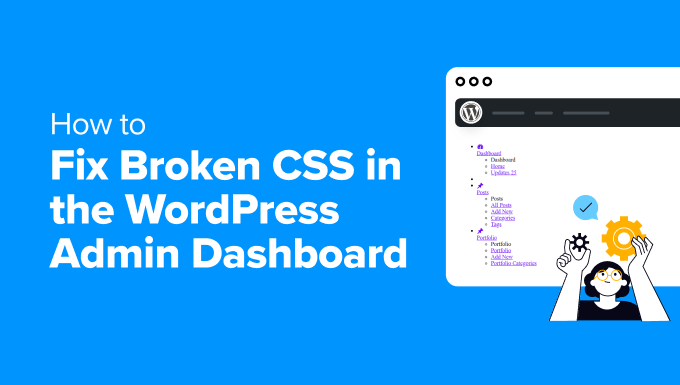
Here is a quick overview of topics and troubleshooting steps we will cover in this article:
- What Causes Broken CSS in the WordPress Admin Area?
- Troubleshooting Tips
- Frequently Asked Questions (FAQ)
What Causes Broken CSS in the WordPress Admin Area?
In our experience helping thousands of users, broken CSS in the WordPress admin area almost always traces back to a few common issues. It can be frustrating, but understanding the root cause is the first step to fixing it.
| Common Cause | Why It Breaks CSS |
|---|---|
| Plugin Conflicts | Poorly coded plugins can load their own stylesheets that override or interfere with the default WordPress admin styles. |
| HTTP/HTTPS Mismatch | If your site uses HTTPS but some files try to load over insecure HTTP, browsers will block them, causing broken styles. This is a “mixed content” error. |
| Theme Interference | Some themes improperly load their CSS in the admin area. Custom admin themes can also be a source of styling conflicts. |
| Cache Problems | Your browser or a caching plugin might be serving an old, outdated version of a CSS file, leading to display issues. |
| CDN Issues | A misconfigured Content Delivery Network (CDN) can also serve outdated CSS files, causing broken or missing styles. |
| Incorrect File Permissions | If CSS files have the wrong permissions, your server may not be able to read them, preventing them from loading. |
| Corrupted Files | Core WordPress CSS files can sometimes become corrupted or go missing during an update or file transfer. |
| Browser Extensions | Ad blockers or other security-focused browser extensions can sometimes interfere with how CSS is loaded and displayed. |
Understanding these causes will help you identify why your WordPress admin area is experiencing broken CSS so you can actually fix it.
Fixing Broken CSS in WordPress Admin Area
Here are the step by step instructions you can follow to troubleshoot and easily fix broken CSS in WordPress admin area.
Step 1: Check for Plugin Conflicts
In our experience, poorly coded WordPress plugins are often the culprits behind broken CSS in the admin area. However, sometimes, even well-coded plugins may run into issues with your specific WordPress site or server setup.
Here’s how you can identify and resolve plugin conflicts.
Deactivate All Plugins
First, you need to go to your WordPress admin dashboard and navigate to the Plugins » Installed Plugins page.
Now, select all plugins and choose ‘Deactivate’ from the ‘Bulk actions’ dropdown menu, then click ‘Apply.’
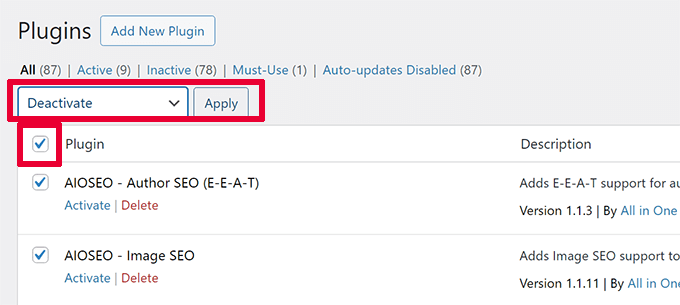
After that, simply refresh your admin area or reload the page to see if the CSS issue is resolved. If the CSS is fixed, then the problem lies with one of the plugins.
Reactivate Plugins One by One
To determine which plugin is causing the issue, you need to reactivate each one individually. You can do this by simply clicking on the ‘Activate’ link underneath the plugin.
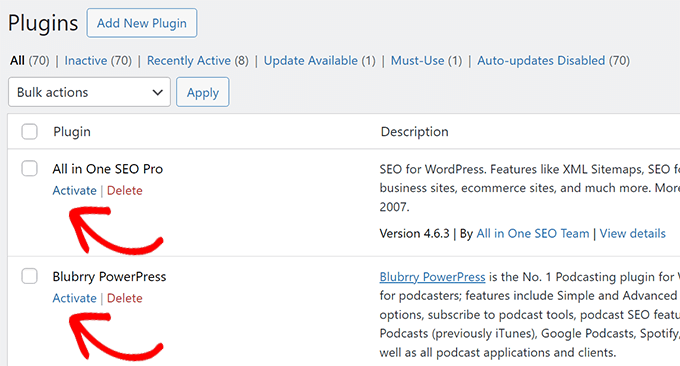
After activating each plugin, you have to refresh the admin area to check if the CSS breaks again.
This will help you identify the specific plugin causing the issue.
Find an Alternative or Update the Plugin
Once you’ve identified the conflicting plugin, you can check if an update is available for it. If updating doesn’t resolve the issue, then consider finding an alternative plugin or contacting the plugin developer for support.
For detailed instructions, see our tutorial on how to deactivate plugins. This tutorial also shows how to deactivate plugins using FTP in case your WordPress admin area isn’t accessible.
Step 2: Loading Insecure Files on HTTPS
Another common cause of broken CSS that our users have come across is that they have improperly configured secure URLs, leading to mixed content issues.
This happens when your website is set to use the HTTPS secure protocol, but CSS is served from HTTP or the insecure protocol.
When this happens, popular browsers like Google Chrome will automatically block insecure resources, resulting in broken CSS in your WordPress admin area.
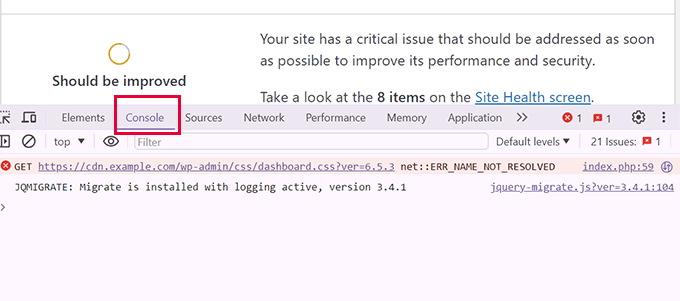
This issue can be confirmed by using the Inspect tool in your browser. Simply switch to the Console tab, and you will see the Mixed Content error.
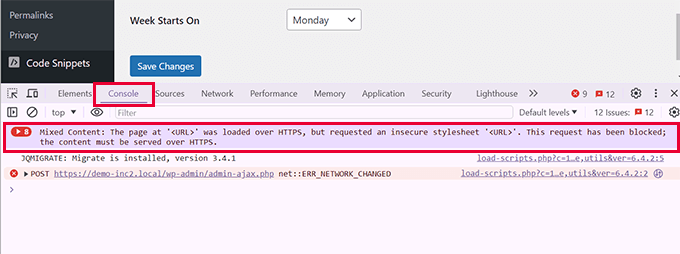
To fix this issue, you need to first make sure that your WordPress settings have the correct URLs.
Go to the Settings » General page and ensure that both WordPress Address and Site Address have HTTPS in the URLs.
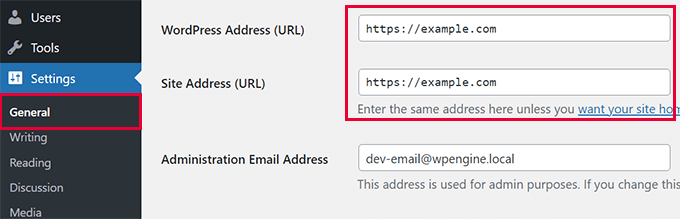
If you already have HTTPS in both URLs, then you can manually force WordPress to use the HTTPS protocol.
Simply edit your wp-config.php file and add the following code. This snippet tells WordPress to always use a secure connection for the admin area and helps servers correctly identify that secure connection, which often fixes the issue.
define('FORCE_SSL_ADMIN', true); if (strpos($_SERVER['HTTP_X_FORWARDED_PROTO'], 'https') !== false) { $_SERVER['HTTPS'] = 'on'; } Alternatively, you can use plugins like Really Simple SSL to enforce HTTPS for all URLs.
For more details, see our tutorial on how to fix the mixed content error in WordPress.
Step 3: Check for Theme Interference
We have found that unnecessary theme interference is also a common cause of broken CSS in the WordPress admin area.
Here’s how you can identify and resolve theme-related issues.
Switch to a Default Theme
To see if your WordPress theme is causing the broken CSS, you first need to switch to a default WordPress theme.
Go to your WordPress dashboard and navigate to the Appearance » Themes page.
Here, you need to activate a default WordPress theme, such as Twenty Twenty-Four.
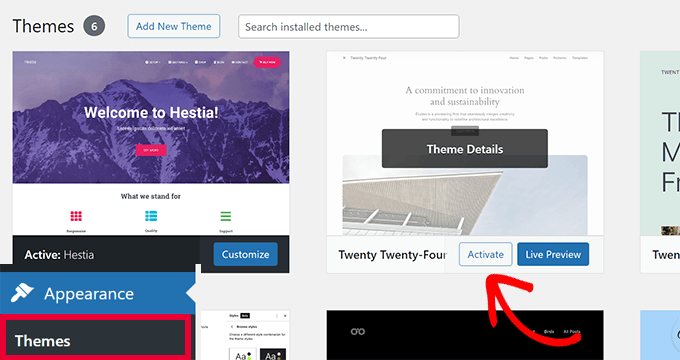
Note: If you don’t have any default themes installed, then you can install one by clicking on the ‘Add New Theme’ button at the top. Default WordPress themes are named after years.
Refresh your admin area after switching to a default theme to see if the CSS issue has been fixed.
If the CSS is now loading correctly, then the problem lies with your previous theme.
Fixing Theme Conflict
To fix this, you first need to check if an update is available for your theme.
Go to Appearance » Themes, select your theme, and click ‘Update now’.
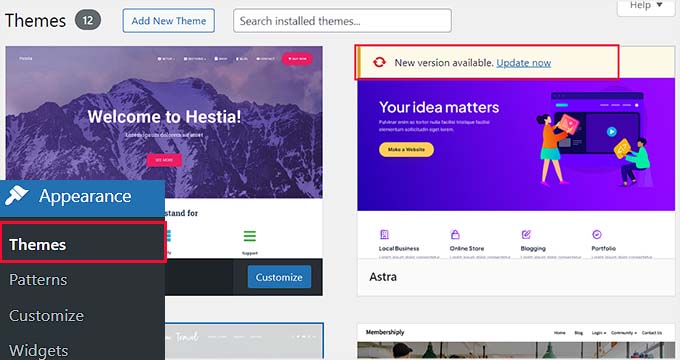
If this doesn’t solve the problem, then you will need to review any changes you have made to your theme. Check for all the theme customizations that could cause the broken CSS issue.
In particular, you will want to check any additional CSS or custom code in the functions.php file for mistakes.
As a last resort, contact the theme developer for support or consider switching to a different theme.
We recommend using WPCode to avoid these kinds of mistakes in the future. It is the best WordPress code snippets plugin that allows you to manage all your custom CSS in one place and doesn’t require editing the functions.php file.
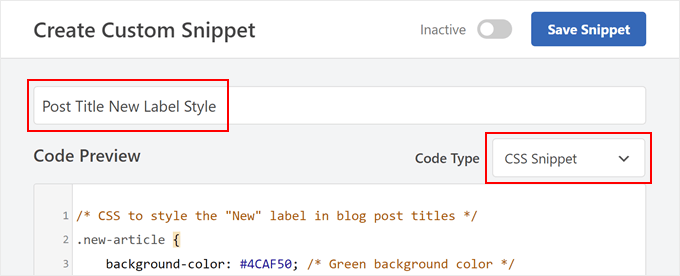
Here are some of the benefits of WPCode:
- You can save and manage your custom CSS code more easily.
- WPCode includes built-in checks to look for errors.
- You don’t lose your custom CSS when switching themes.
A free version of WPCode is also available with limited features.
We use WPCode on our websites to manage custom code snippets, including custom CSS. To learn more, see our full WPCode review.
Step 4: Fix Caching Issues
Caching issues are a common source of broken CSS. To fix this, you must first clear your browser’s cache. If the problem persists, you will then need to clear the cache generated by your WordPress caching plugin.
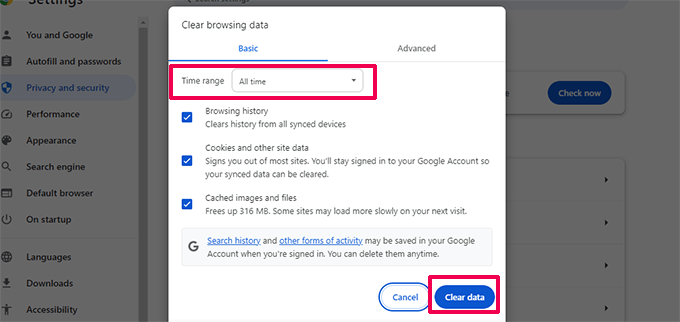
Most WordPress caching plugins don’t cache the WordPress admin area by default, but incorrect settings can sometimes cause conflicts. Clearing the cache ensures that your browser is loading the freshest version of all your site’s files.
We have a detailed tutorial on how to clear the cache in different WordPress caching plugins.
Step 5: Fix CDN Issues
If you are using a Content Delivery Network (CDN) service, then a misconfiguration can sometimes cause broken CSS issues in the WordPress admin area.
Here’s how to identify and resolve these issues.
First, you need to use the Inspect tool in your browser and switch to the ‘Console’ tab. Here, you will see errors if your CSS files are blocked or not found.
Next, you need to switch to your CDN service website and log in to your account dashboard.
From here, navigate to the Caching » Configuration section and click on the ‘Purge Everything’ button under the Purge Cache option.
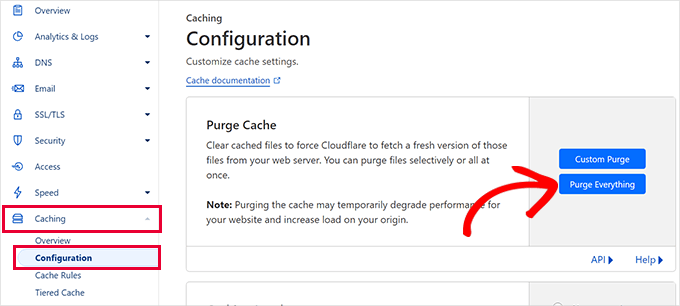
Note: We are showing you the screenshot of Cloudflare CDN. However, you will easily be able to locate the option to purge the cache in all CDN providers.
After that, you need to return to your website and reload the admin area to see if the issue is fixed now.
If that didn’t do the trick, let’s look at another common cause.
Step 6: Fix Incorrect File Permissions
We have also found incorrect file permissions that prevent the server from reading CSS files, leading to broken CSS in the WordPress admin area.
Think of file permissions as security settings that tell the server who can read, write, and execute files. If these are set incorrectly, the server can’t access the CSS files it needs to display the admin area properly.
Here’s how to check and fix them.
First, you need to connect to your WordPress site using FTP.
Once connected, you must navigate to your WordPress root directory. This is the directory that contains the wp-admin, wp-includes, and wp-content folders.
Now, right-click on the wp-admin folder and select ‘File permissions’ or ‘Properties.’
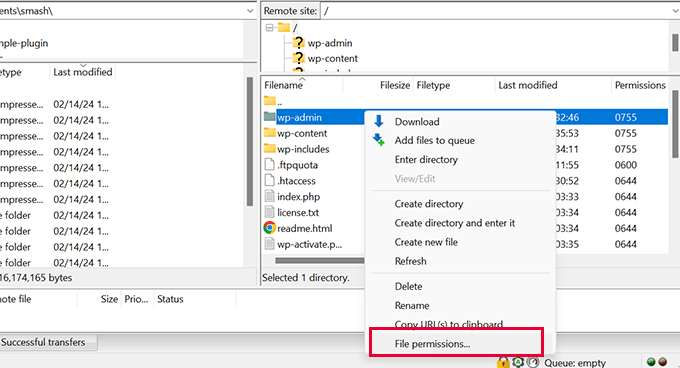
The standard, secure setting for all WordPress folders is 755. You need to ensure all directories are set to this value.
If they are not, then change the permissions and apply them recursively to all subdirectories.
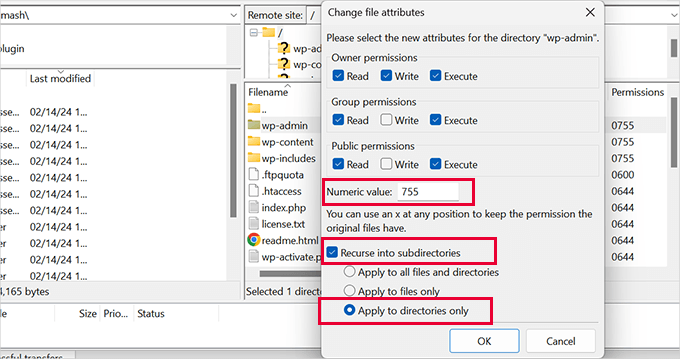
Next, you will repeat the process for files. The correct permission for all files is 644. Apply this recursively to all files only.
For more details, see our tutorial on how to set file permissions in WordPress.
After that, visit the admin area to see if the broken CSS issue has been resolved. Still seeing the issue? Don’t worry, we have a few more steps to try.
Step 7: Repair Corrupt Files
Corrupted files can cause broken CSS in the WordPress admin area.
Your WordPress files can become corrupted even without any action on your part. This can happen due to an incomplete WordPress update, accidental file deletion, or a misconfiguration by your WordPress hosting provider.
Here’s how to repair or replace corrupted files.
First, you need to download a fresh copy of WordPress from WordPress.org.
Then, extract the downloaded ZIP file to your computer.
Next, you need to connect to your WordPress using FTP and upload the fresh WordPress files from your computer.
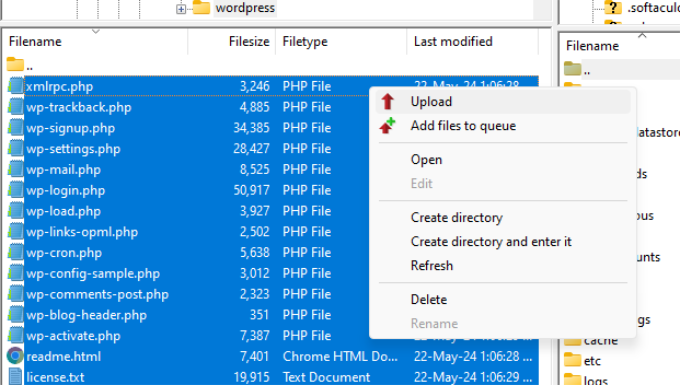
Choose ‘Overwrite’ when prompted to ensure the new, clean files replace any corrupted ones on your website.
Once finished, you can visit your WordPress admin area to see if this has resolved the broken CSS issue.
If the problem continues, let’s investigate your browser.
Step 8: Check Browser Extensions
Browser extensions, especially those related to content and ad blocking, can interfere with how CSS is displayed in the WordPress admin area.
Here’s how to identify and resolve issues caused by browser extensions.
First, you need to open your browser and navigate to the extensions/add-ons menu.
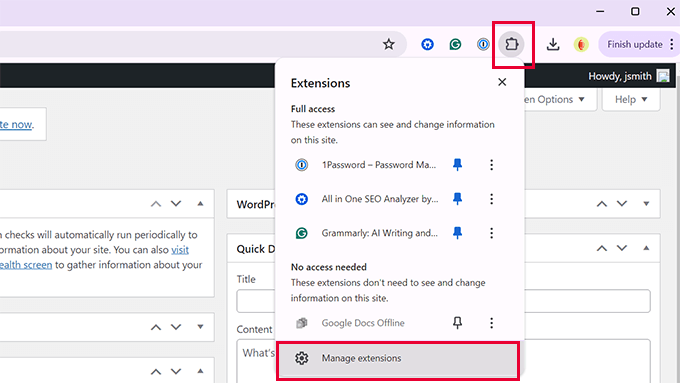
Temporarily disable all extensions, especially ad blockers and security add-ons.
You can simply disable extensions or completely remove them.
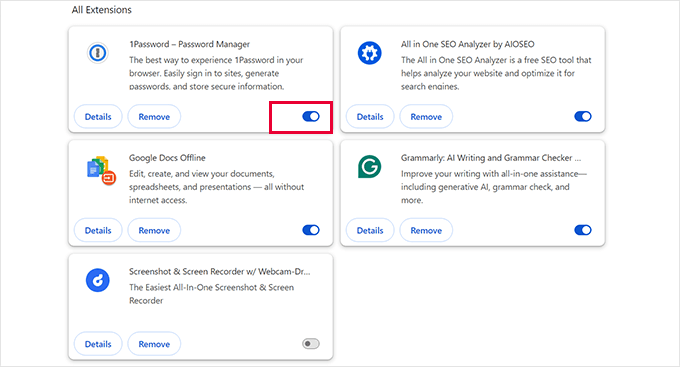
Once that’s finished, you can go to the WordPress admin area to see if the CSS issue is resolved.
If the issue is resolved, then you need to find out which extension caused the issue.
Reactivate each extension individually and refresh the admin area after enabling each extension to identify the one causing the issue.
Once you have identified the problem extensions, you can check the extension settings to avoid blocking WordPress admin CSS.
If that doesn’t work, then try to find an alternative extension.
Troubleshooting Tips
Hopefully, the steps above have resolved the CSS issues in your WordPress admin area. However, if you’re still having trouble, here are a few more tips to try:
- Update Permalinks: Refresh your WordPress permalinks to reset the
.htaccessfile. This can fix URL rewrite rules that may prevent CSS from loading. - Scan for Malware: Malicious code can break your admin area. We strongly recommend you scan your WordPress site and clean any infections.
Frequently Asked Questions (FAQ)
What if I can’t access my admin dashboard at all to deactivate plugins?
If the broken CSS is so severe that you can’t even log in, you can still deactivate your plugins. You will need to connect to your site using an FTP client, navigate to the /wp-content/ folder, and rename the /plugins/ folder to something like plugins_old. This will deactivate all plugins, allowing you to access your admin area.
Could a recent WordPress update have caused this problem?
It’s possible, but not common. While WordPress updates themselves are very reliable, the issue can happen if the update process is interrupted. This can lead to corrupted core files, which is what Step 7 of our guide helps you fix.
How can I prevent this from happening again in the future?
The best prevention is to follow good website management practices. Always back up your site before making changes, test plugin and theme updates on a staging site first, and only use plugins and themes from reputable sources with good reviews and recent updates.
Does clearing the cache affect my website’s visitors?
No, it is a safe and common troubleshooting step. Clearing your browser cache only affects your own computer. Clearing your WordPress caching plugin might cause the next visitor’s page load to be slightly slower (as the cache rebuilds), but it will not break anything or negatively impact their experience.
Additional Resources
We hope this article helped you fix the broken CSS issue in the WordPress admin area. You may also want to see our other guides for more troubleshooting help:
- Beginner’s Guide to Troubleshooting WordPress Errors (Step by Step)
- How to Properly Ask for WordPress Support and Get It
- Most Common WordPress Errors and How to Fix Them
If you liked this article, then please subscribe to our YouTube Channel for WordPress video tutorials. You can also find us on Twitter and Facebook.




Have a question or suggestion? Please leave a comment to start the discussion.