155

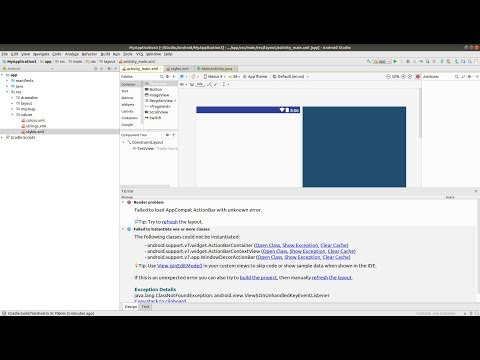
Below is my xml file. In preview there is two error'Failed to load AppCompat ActionBar with unknown error' & 'Failed to instaniate more than one class'. How ever am able to run the app.But the app crashes and in Logcat no errors are shown.

This is my preview screen shotenter image description here

<?xml version="1.0" encoding="utf-8"?> <android.support.v4.widget.DrawerLayout xmlns:android="http://schemas.android.com/apk/res/android" xmlns:app="http://schemas.android.com/apk/res-auto" xmlns:tools="http://schemas.android.com/tools" android:id="@+id/drawer_layout" android:layout_width="match_parent" android:layout_height="match_parent" android:fitsSystemWindows="true" tools:openDrawer="start"> <include layout="@layout/app_bar_main" android:layout_width="match_parent" android:layout_height="506dp" /> <LinearLayout android:id="@+id/layout_main" android:orientation="vertical" xmlns:android="http://schemas.android.com/apk/res/android" xmlns:app="http://schemas.android.com/apk/res-auto" xmlns:tools="http://schemas.android.com/tools" android:layout_width="match_parent" android:layout_height="match_parent" android:weightSum="1" tools:context=".Activity.MainActivity"> <LinearLayout android:id="@+id/main_layout" android:orientation="vertical" xmlns:android="http://schemas.android.com/apk/res/android" xmlns:app="http://schemas.android.com/apk/res-auto" xmlns:tools="http://schemas.android.com/tools" android:layout_width="match_parent" android:layout_height="match_parent" android:layout_weight="0.7" tools:context=".Activity.MainActivity"> <!-- our tablayout to display tabs --> <android.support.design.widget.TabLayout android:id="@+id/tabLayout" android:layout_width="match_parent" android:layout_height="wrap_content" android:layout_marginTop="50dp" app:tabMode="scrollable" app:tabSelectedTextColor="@color/colorBlack" app:tabTextColor="@color/colorWhite" android:background="@color/colorOran" android:minHeight="?attr/actionBarSize" /> <!-- View pager to swipe views --> <android.support.v4.view.ViewPager android:id="@+id/pager" android:layout_width="match_parent" android:layout_height="match_parent"/> </LinearLayout> <LinearLayout android:id="@+id/ll" android:layout_width="match_parent" android:layout_height="64dp" android:layout_alignParentBottom="true" android:background="#ffffff" android:orientation="horizontal" android:layout_weight="0.3" android:weightSum="4" tools:layout_editor_absoluteX="8dp" android:layout_marginBottom="8dp" android:layout_alignParentLeft="true" android:layout_alignParentStart="true"> <ImageView android:id="@+id/btn_home" android:layout_width="wrap_content" android:layout_height="match_parent" android:layout_weight="1" android:src="@drawable/ta_home_icon" android:background="@color/colorOran" android:layout_marginRight="1dp" android:scaleType="fitCenter"/> <ImageView android:id="@+id/btn_new" android:layout_width="wrap_content" android:layout_height="match_parent" android:layout_weight="1" android:src="@drawable/ta_todaydeals_icon" android:background="@color/colorOran" android:layout_marginRight="1dp" android:scaleType="fitCenter"/> <ImageView android:id="@+id/btn_fav" android:layout_width="wrap_content" android:layout_height="match_parent" android:layout_weight="1" android:src="@drawable/ta_fav_icon" android:background="@color/colorOran" android:layout_marginRight="1dp" android:scaleType="fitCenter"/> <ImageView android:id="@+id/btn_auth" android:layout_width="wrap_content" android:layout_height="match_parent" android:layout_weight="1" android:src="@drawable/ta_franchie_icon" android:background="@color/colorOran" android:scaleType="fitCenter" android:layout_marginRight="1dp" /> </LinearLayout> </LinearLayout> <android.support.design.widget.NavigationView android:id="@+id/nav_view" android:layout_width="wrap_content" android:layout_height="match_parent" android:layout_gravity="start" android:fitsSystemWindows="true" app:headerLayout="@layout/nav_header_main" app:menu="@menu/activity_main_drawer" /> </android.support.v4.widget.DrawerLayout> 

Below is appbar_main

<?xml version="1.0" encoding="utf-8"?> <android.support.design.widget.CoordinatorLayout xmlns:android="http://schemas.android.com/apk/res/android" xmlns:app="http://schemas.android.com/apk/res-auto" xmlns:tools="http://schemas.android.com/tools" android:layout_width="match_parent" android:layout_height="match_parent" tools:context="com.jeyashri.kitchen.jeyashriskitchen.Activity.MainActivity"> <android.support.design.widget.AppBarLayout android:layout_width="match_parent" android:layout_height="wrap_content" android:theme="@style/AppTheme.AppBarOverlay"> <android.support.v7.widget.Toolbar android:id="@+id/toolbar" android:layout_width="match_parent" android:layout_height="?attr/actionBarSize" android:background="@color/colorOran" app:popupTheme="@style/AppTheme.PopupOverlay"> <ImageView android:id="@+id/app_logo" android:layout_width="80dp" android:layout_height="match_parent" android:src="@drawable/img"/> <ImageView android:id="@+id/btn_social" android:layout_width="75dp" android:layout_height="35dp" android:layout_marginRight="1dp" android:src="@drawable/share_icon" /> </android.support.v7.widget.Toolbar> </android.support.design.widget.AppBarLayout> <include layout="@layout/content_main" /> </android.support.design.widget.CoordinatorLayout> 
6
  • Try with changing android version. Commented Jun 9, 2017 at 5:15
  • tried changing the version.. Not helping Commented Jun 9, 2017 at 6:47
  • For a solution without changing the appcompat library, see: stackoverflow.com/questions/44223687#45002903 Commented Nov 26, 2017 at 14:51
  • Possible duplicate of Android Studio rendering problems Commented Aug 18, 2018 at 6:13
  • Make sure your Gradle version is up to date. Commented Nov 7, 2018 at 16:50

15 Answers 15

326

The solution to this problem depends on the version of the Android support library you're using:

Support library 26.0.0-beta2

This android support library version has a bug causing the mentioned problem

In your Gradle build file use:

compile 'com.android.support:appcompat-v7:26.0.0' 

with:

buildToolsVersion '26.0.0' 

and

classpath 'com.android.tools.build:gradle:3.0.0-alpha8' 

everything should work fine now.


Library version 28 (beta)

These new versions seem to suffer from similar difficulties again.

In your res/values/styles.xml modify the AppTheme style from

<style name="AppTheme" parent="Theme.AppCompat.Light.DarkActionBar"> 

to

<style name="AppTheme" parent="Base.Theme.AppCompat.Light.DarkActionBar"> 

(note the added Base.)

Or alternatively downgrade the library until the problem is fixed:

implementation 'com.android.support:appcompat-v7:28.0.0-alpha1' 
Sign up to request clarification or add additional context in comments.

11 Comments

Thank you! that did it. BTW for us Android dev newbiew is worh saying that change should be performed on build.gradle(Module: app) file
I just started today. I came across this issue. This answer asks to compile something, of which I have no idea as it does not explain how to do it. But the answer by tanchap solves issue. He/She clearly explained what to do. It was a simple task fora fresher like me. So I think that should be the answer.
Newb error for me! When I set up my new project, I forgot to uncheck the "Backwards Compatibility" option (I don't need backwards compatibility). I re-created the project with this unchecked and all is good!
Just curious: how does one go about figuring something like this out? I would never have guessed...
Thanks, but why this bug still exists in 2018? For an Android newbie, I cannot create a "Hello World" project because of this bug.
|
277

found it on this site, it works on me. Modify /res/values/styles.xml from:

<style name="AppTheme" parent="Theme.AppCompat.Light.DarkActionBar"> </style> 

to:

<style name="AppTheme" parent="Base.Theme.AppCompat.Light.DarkActionBar"> </style> 

12 Comments

Can you add an explanation of why this works? It will help people who revisit this in the future.
March 1st, 2018 confirmed this fixed my issue.
Just note that, if it doesn't work after adding "Base" in your AppTheme, just goto Theme Option from top of your layout preview,Click on Menifest Themes From Left side options and then select your AppTheme. It will automatically refresh the layout.
This also worked for me. Does anyone know why this is necessary, though? I've been away from Android for a few years and I cannot believe how much finagling I've had to do to get a simple project up and running. (This includes trying to build/run some of the sample projects provided by Android Studio.)
July, 16th, 2018, works for me too with 'com.android.support:appcompat-v7:28.0.0-alpha3'.
|
26

June 2018 Issue fixed by using a different appcompact version. Use these codes onto your project dependencies...

In build.gradle(Module: app) add this dependency

implementation 'com.android.support:appcompat-v7:28.0.0-alpha1' 

Happy Coding... :)

1 Comment

It's again broken in beta :(
17

Method 1:

Locate /res/values/styles.xml

Change

<style name="AppTheme" parent="Theme.AppCompat.Light.DarkActionBar"> 

To

<style name="AppTheme" parent="Base.Theme.AppCompat.Light.DarkActionBar"> 

Method 2:

Modify template file(locate: android-studio/plugins/android/lib/templates/gradle-projects/NewAndroidModule/root/res/values/styles.xml.ftl)

Change

backwardsCompatibility!true>Theme.AppCompat<#else><#if 

To

backwardsCompatibility!true>Base.Theme.AppCompat<#else><#if 

Watch Solution On YouTube

Solution

Comments

17

I also had this problem and it's solved as change line from res/values/styles.xml

<style name="AppTheme" parent="Theme.AppCompat.Light.DarkActionBar"> 

to

  1. <style name="AppTheme" parent="Theme.AppCompat.Light.NoActionBar">
  2. <style name="AppTheme" parent="Base.Theme.AppCompat.Light.DarkActionBar">

both solutions worked

1 Comment

happy coding :)
7

Faced the same problem in Android Studio 3.1.3

Just go to style.xml file

and replace Theme name

<style name="AppTheme" parent="Theme.AppCompat.Light.DarkActionBar"> 

with

<style name="AppTheme" parent="Base.Theme.AppCompat.Light.DarkActionBar"> 

Then clean and rebuild the project.This will solve the error.

Comments

6

Open preview mode

follow the below link to fix the issue

Fix - Rendering Problems The Following classes could not be found : android.support.v7.internal

goto appTheme ----> select Holo Theme ---> refresh

https://www.youtube.com/watch?v=4MxBnwpcUjA

2 Comments

just changing theme from preview pane to some theme other than AppTheme worked
It worked for me, just changing the theme other than AppTheme
5

Try this:

Just change:

compile 'com.android.support:appcompat-v7:26.0.0-beta2' 

to:

compile 'com.android.support:appcompat-v7:26.0.0-beta1' 

Reference

Comments

5

Replace implementation 'com.android.support:appcompat-v7:28.0.0-beta01' with

implementation 'com.android.support:appcompat-v7:28.0.0-alpha1' 

in build.gradle (Module:app). It fixed my red mark in Android Studio 3.1.3

2 Comments

Great happy coding
Is there a way to change this at the app level? So that this need not be replicated for every project that I have.
4

in android 3.0.0 canary 6 you must change all 2.6.0 beta2 to beta1 (appcompat,design,supportvector)

Comments

3

This is Worked for me i have made the following changes in Style.xml

Change the Following Code:

<style name="AppTheme" parent="Theme.AppCompat.Light.DarkActionBar"> 

With

<style name="AppTheme" parent="Base.Theme.AppCompat.Light.DarkActionBar"> 

Comments

2

Use this one:

implementation 'com.android.support:appcompat-v7:26.0.0-beta1' implementation 'com.android.support:design:26.0.0-beta1' 

instead of

implementation 'com.android.support:appcompat-v7:26.0.0-beta2' implementation 'com.android.support:design:26.0.0-beta2' 

In my case it removed the rendering problem.

Comments

1

This is the minimum configuration that solves the problem.

use:

dependencies { ... implementation 'com.android.support:appcompat-v7:26.1.0' ... } 

with:

 compileSdkVersion 26 buildToolsVersion "26.0.1" 

and into the build.gradle file located inside the root of the proyect:

buildscript { ... .... dependencies { classpath 'com.android.tools.build:gradle:3.0.1' ... ... } } 

Comments

0

I was also facing the same problem. Nothing like changing theme from Layout preview window helped me.

What helped me was adding this to Apptheme in styles.xml:

dependencies { implementation 'com.android.support:appcompat-v7:27.0.2' implementation 'com.android.support:design:27.0.2' } 

Still it was giving me the error: "cannot resolve symbol widget...coordinatorLayout". Then I updated my build.gradle(app) with:

dependencies { implementation 'com.android.support:appcompat-v7:27.0.2' implementation 'com.android.support:design:27.0.2' } 

One more thing:

compileSdkVersion 27 targetSdkVersion 27 

Comments

0

I also had this problem with implementation 'com.android.support:appcompat-v7:28.0.0-alpha3'.

The solution for me was to go File -> Invalidate Caches / Restart -> Invalidate -> Close Project -> Remove project from project window -> Open Project (from project window).

Comments

Start asking to get answers

Find the answer to your question by asking.

Ask question

Explore related questions

See similar questions with these tags.