Checkbox and Radio in DataTable
You can add any HTML into Datatable cells. There are several ready-to-use solutions for checkboxes, radio buttons, and icons.
These controls and any other HTML elements are set with the template attribute of the columns parameter.
webix.ui({ view:"datatable", ... columns:[ { id:"ch1", header:"", template:"{common.checkbox()}" }, { id:"ra1", header:"", template:"{common.radio()}" } ] });
Сheckbox
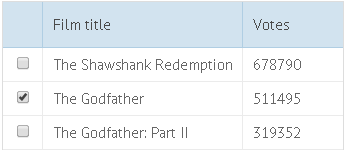
To fill a column with checkboxes, set the template attribute to "{common.checkbox()}":
Creating a checkbox column
columns:[ { id:"ch1", header:"", template:"{common.checkbox()}"} ... ]
Related sample: Checkbox and Radio in a DataTable
Radio buttons
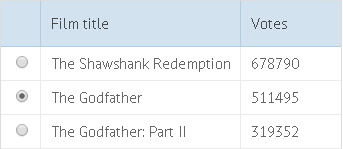
To fill a column with radio buttons, set the template attribute to "{common.radio()}":
Creating a radio column
columns:[ { id:"r1", header:"", template:"{common.radio()}"} ]
Related sample: Using "Inline" Editors
Catching Changes of Checkbox and Radio States
You can catch the change in the state of a checkbox or a radio button with the help of the onCheck event.
webix.ui({ view:"datatable", columns:[ { id:"ch1", header:"", checkValue:'on', uncheckValue:'off', template:"{common.checkbox()}"}, { id:"ra1", header:"", checkValue:'on', uncheckValue:'off', template:"{common.radio()}"}, // other columns ], data: grid_data, on:{ onCheck:function(rowId, colId, state){ console.log(state); } } });
Custom Checkbox
You can create a custom checkbox following these steps:
- Define the template attribute as a function that creates and returns a checkbox.
- Set the checkboxRefresh:true to make the table refresh after each change of the checkbox value.
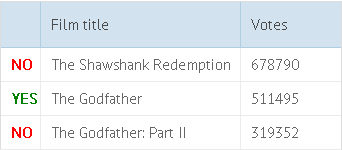
1. Define a function that creates and returns a checkbox
The function must return two strings with HTML: 1. for the checked checkbox 2. for the unchecked checkbox
The function will receive 3 parameters and will be called for each data item:
- obj - (object) the data item object
- common - (object) the predefined checkbox template
- value - (boolean) the value of the checkbox. true if the box is checked, otherwise false. Initially, the parameter is null, and it becomes boolean only after the user clicks the checkbox.
Important!: the 'webix_table_checkbox' CSS class.
The 'webix_table_checkbox' class makes an arbitrary HTML element behave as a checkbox. So don't forget to add 'webix_table_checkbox' to the class attribute among other classes.
Function that defines a custom checkbox
function custom_checkbox(obj, common, value){ if (value) return "<div class='webix_table_checkbox custom checked'> YES </div>"; else return "<div class='webix_table_checkbox custom notchecked'> NO </div>"; }; webix.ui({ view:"datatable", columns:[ { id: "ch1", header: "", template: custom_checkbox }, // ... ] });
custom, checked, and unchecked are custom CSS classes, e.g.:
.custom{ font-weight: bold; cursor:pointer; } .checked{ color:green; } .notchecked{ color:red; }
2. Specify the 'checkboxRefresh' parameter and set it to true.
With the checkboxRefresh parameter, each time the checkbox value is changed, the table repaints the related data record.
Refresh table rows after each click on a checkbox
webix.ui({ view:"datatable", ... columns:[ { id:"ch1", header:"", template:custom_checkbox }, ... ], checkboxRefresh:true });
Related sample: Custom Checkbox and Radio in DataTable
Custom Radio
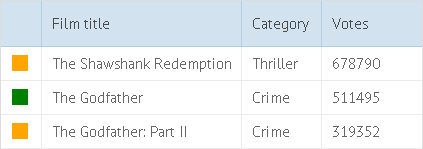
To create a custom radio, define the template attribute as a function that creates s radio button.
The function must return two strings with HTML: 1. for the checked radio button 2. for the unchecked radio button
The function will take 3 parameters and be called for each data item:
- obj - (object) the data item object
- common - (object) the predefined radio template
- value - (boolean) the value of the radio. true, if the radio is checked. Otherwise, false. Initially, the parameter is null and take the boolean value just when you check the radio.
Important!: the 'webix_table_radio' CSS class.
The 'webix_table_radio' class makes an arbitrary HTML element behave as a radio. So don't forget to add 'webix_table_radio' to the class attribute among other classes.
Function defining a custom radio
function custom_radio(obj, common, value){ if (value) return "<div class='webix_table_radio custom checked'></div>"; else return "<div class='webix_table_radio custom notchecked'></div>"; }; webix.ui({ view:"datatable", columns:[ { id: "ch1", header: "", template: custom_radio }, // ... ] });
custom, checked, and unchecked are custom CSS classes, e.g.:
.custom{ width:16px; height:16px; margin-top:3px; } .checked{ background:green; } .notchecked{ background:orange; }
Related sample: Custom Checkbox and Radio in DataTable
Back to topIf you have not checked yet, be sure to visit site of our main product Webix open source html5 framework and page of web datagrid product.