Discord bot made with Cloudinary that able to edit your images on the fly, with capabilities to generate from local files by drag'n'drop, using this tool you can get inmediately results
By accessing to the user Avatar, this action is called with the next command in the Discord chat input:
/av member: @username: discord.Member - Sepia
- Whitify
- Colorful
Where /av is the call to action member= is the param, @username is the username of a Discord member and ==discord.Member== is the Type of Data it's support
Its recover your avatar and then we can transform it on the fly with many options:
Any interaction Have the form drag'n'drop [^1] option with any command You call with the specific argument
The name of the user you want to access need to be with ==natural characters== and words, cloudinary don't support special char in the name that its used for store the image for a while during the transformation is made
Example with my discord username =="𝕯𝖎𝖊𝖌𝖆𝖙𝖔#4880"==, since its contain special chars, cloudinary service denied the access to save the files and throw ExceptionError like the image below:

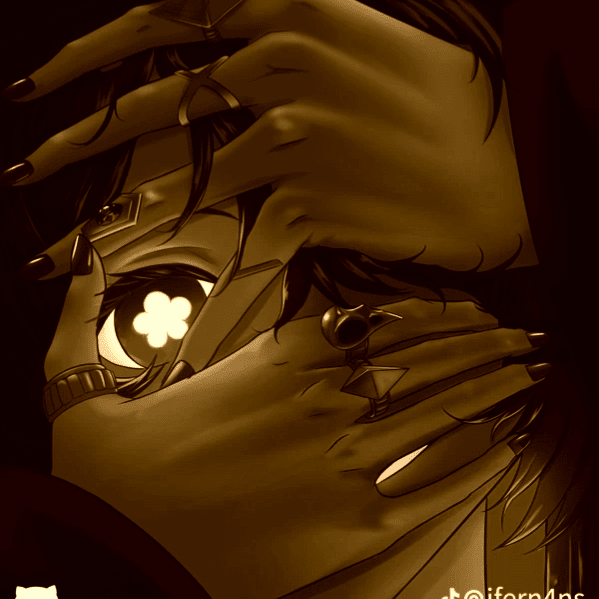
This feature use Drag'n'drop to upload files in the input of the Discord chat, the command to the action is:
/sepia_effect drag: FileAttachment, description: str | None Where /sepia_effect is the call to action drag is the file form directory or clipboard and description is a little words to describe the image, this param is optional
Example Result:
This feature use Drag'n'drop to upload files in the input of the Discord chat, the command to the action is:
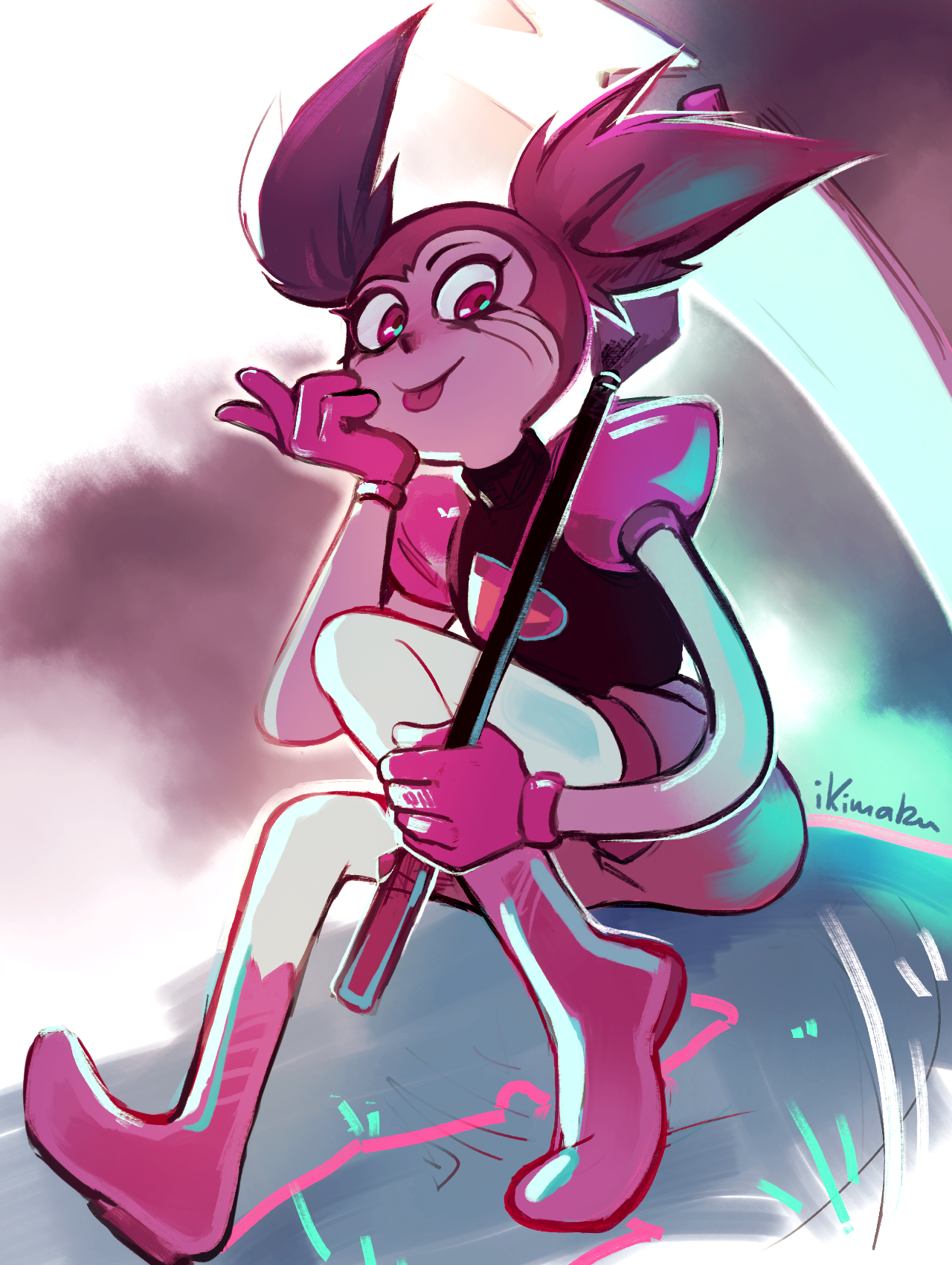
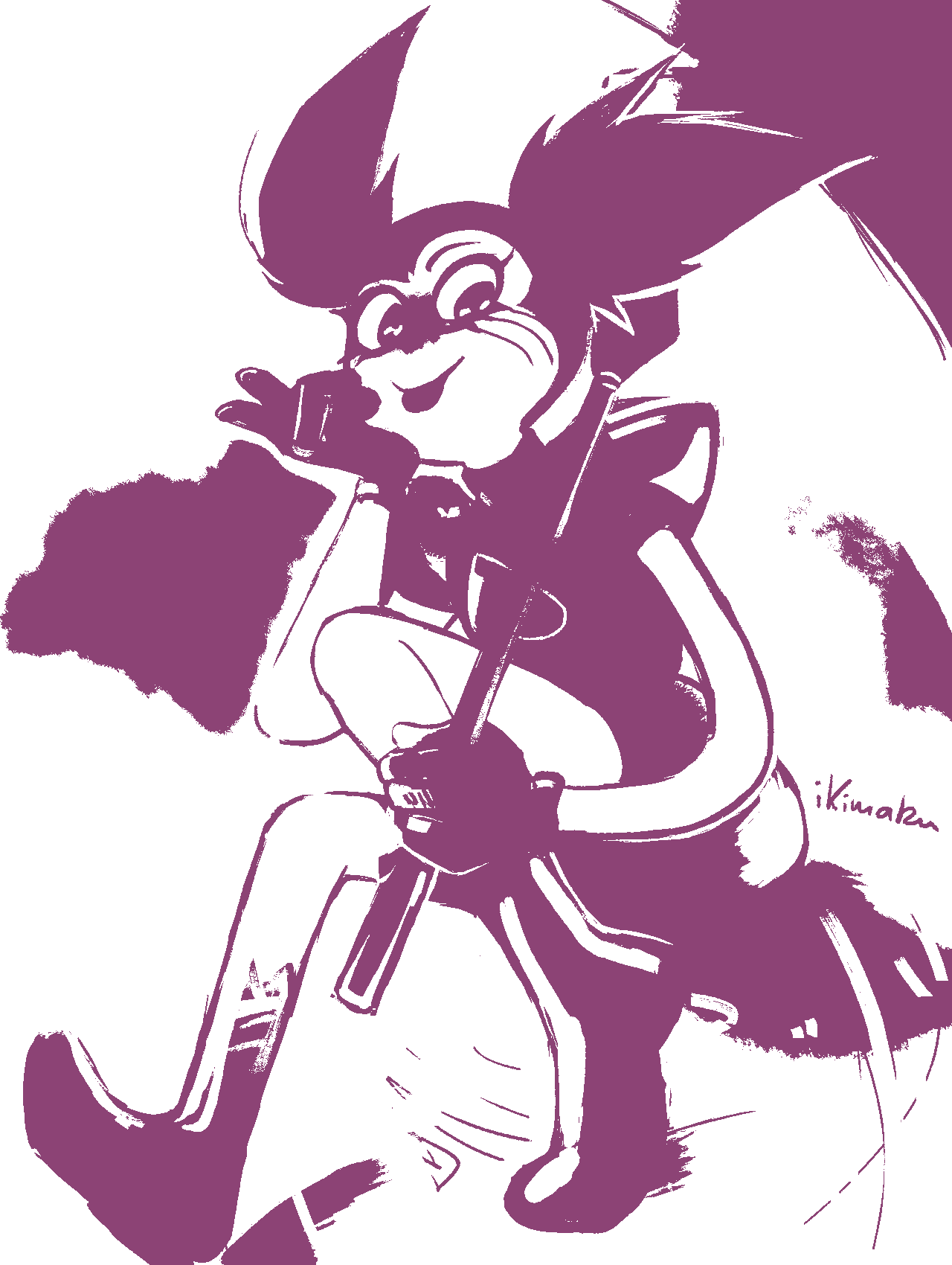
/color_silhouette drag: FileAttachment, color: Options.Color[🟥,🟧,🟨,🟩,🟦,🟪,] [max=1] , description: str | None Where /color_silhouette is the call to action drag is the file form directory or clipboard, color have variety options where you can choice what the color you want to transform the picture, and description is a little words to describe the image, this param is optional
example of color choice:

And a quick example of the results where we drop this image:
This feature use Drag'n'drop to upload files in the input of the Discord chat, the command to the action is:
/color_silhouette drag: FileAttachment, color: Options.Color[🟥,🟧,🟨,🟩,🟦,🟪,] [max=2] , description: str | None Where /two_color_silhouette is the call to action drag is the file form directory or clipboard, color have variety options where you can choice what the color you want to transform the picture, the first color will be set in the left place and the second in the right place, and description is a little words to describe the image, this param is optional
Example:

This feature use Drag'n'drop to upload files in the input of the Discord chat, the command to the action is:
/whitify drag: FileAttachment, description: str | None Where /whitify is the call to action drag is the file form directory or clipboard and description is a little words to describe the image, this param is optional
Effect: This effect lowered the color and saturation and give a white bright light to the skin and the enviroment.
This feature use Drag'n'drop to upload files in the input of the Discord chat, the command to the action is:
/black_and_white drag: FileAttachment, description: str | None Where /black_and_white is the call to action drag is the file form directory or clipboard and description is a little words to describe the image, this param is optional
Example Result:
This feature use Drag'n'drop to upload files in the input of the Discord chat, the command to the action is:
/high_contrast drag: FileAttachment, description: str | None Where /high_contrast is the call to action drag is the file form directory or clipboard and description is a little words to describe the image, this param is optional
This feature use Drag'n'drop to upload files in the input of the Discord chat, the command to the action is:
/colorful drag: FileAttachment, description: str | None Where /colorful is the call to action drag is the file form directory or clipboard and description is a little words to describe the image, this param is optional
This feature use 2 Drag'n'drop, you might to upload in the first drag the desire profile picture and in the second drag yout desire Banner.

call to action:
/layout_of drag_pfp: FileAttachment, drag_banner: FileAttachment After the call to action you can set the option of the social media you want to see the result by clicking in any button:

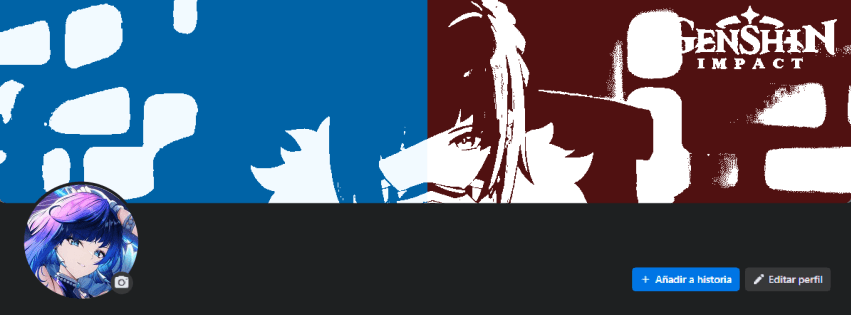

By clicking in the Download Button, You will see the Image With the size perfectly for the social media, for avatar and for banner individually
This feature use Drag'n'drop to upload files in the input of the Discord chat, the command to the action is:
/cartoonify drag: FileAttachment, description: str | None Where /cartoonify is the call to action drag is the file form directory or clipboard and description is a little words to describe the image, this param is optional

- This feature have an issue related to the response time of Discord and with the generation image of cloudinary, since the image take 30s or more to generate but Discord cancel the response after trying to get the data in 3 seconds, this action might not render the image with the removed background in the Discord chat, Also you have the button to download the result of the image that will force the load of it and shown in the browser to download. see more.
call to action:
/background_removal drag: FileAttachment, description: str | None Simple: from a normal image it will transform and with AI remove those that consider "background"
Complex: This action is heavy to make, so the content may late a bit to render but with the link you can shown the result in the browser.
You can apply a curious effect by using the command /texturize, this command will convert your image to be like in some plain areas like a wall, underwater or in cobblestones!
call to action:
/texturize drag: Fileattachment, strength: Choice[int], effect: Choice[str] Example of the result:

Sometimes When you call an action with the slash command, may throw an error application don't response

This might happen for Some reason:
1.- Connection error with the platform
2.- Discord TimeOut (tried more than 3 seconds to call the command)
3.- Internet too Slow
4.- I Hate You (jk)
5.- Cloudinary Service Might be Down for a while
There's not a directly solution for this error, just only retry to use the command in a few seconds
The estimated result looks like:

But sometimes you wouldn't see the image instantly, so you can try to reload the image in 30 seconds by clicking again the "load Btn"
or trying to download directly with the "Download Button" and its will redirect to the browser