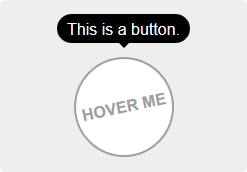



Easy tooltips, popovers and dropdown with Popper.js





Useful Links
Table of Contents
This package offers two different usages: directive or component. You can use them to create tooltips, popovers or all kinds of dropdowns.
- Install the plugin:
npm install --save v-tooltip - Add the plugin into your app:
import Vue from 'vue' import VTooltip from 'v-tooltip' Vue.use(VTooltip)-
Add some style to your liking.
-
Use the
v-tooltipdirective:
<button v-tooltip="'You have ' + count + ' new messages.'">- Use the
v-popovercomponent:
<v-popover> <!-- This will be the popover target (for the events and position) --> <button>Click me</button> <!-- This will be the content of the popover --> <MyAwesomeComponent slot="popover"/> </v-popover>npm install --save v-tooltip Install the plugin into Vue:
import Vue from 'vue' import VTooltip from 'v-tooltip' Vue.use(VTooltip)Or use the directives and components directly:
import Vue from 'vue' import { VTooltip, VPopover, VClosePopover } from 'v-tooltip' Vue.directive('tooltip', VTooltip) Vue.directive('close-popover', VClosePopover) Vue.component('v-popover', VPopover)Include v-tooltip in the page.
<script src="https://unpkg.com/v-tooltip"></script>If Vue is detected in the Page, the plugin is installed automatically.
Manually install the plugin into Vue:
Vue.use(VTooltip)Or use the directives and components directly:
Vue.directive('tooltip', VTooltip.VTooltip) Vue.directive('close-popover', VTooltip.VClosePopover) Vue.component('v-popover', VTooltip.VPopover)In the template, use the v-tooltip directive:
<button v-tooltip="'You have ' + count + ' new messages.'">Of course, you can use a reactive property:
<button v-tooltip="tooltipContent">You can specify the tooltip position as a modifier:
<button v-tooltip.bottom-start="'You have ' + count + ' new messages.'">The available positions are:
'auto''auto-start''auto-end''top''top-start''top-end''right''right-start''right-end''bottom''bottom-start''bottom-end''left''left-start''left-end'
You can use an object instead of a simple string:
<button v-tooltip="{ content: 'You have ' + count + ' new messages.' }">You can set the tooltip css classes dynamically with the object notation:
<button v-tooltip="{ content: 'You have ' + count + ' new messages.', classes: ['a', 'b'] }">This will replace the default CSS classe with 'a b' on the tooltip element.
You can also use the standard class notation:
<button v-tooltip="{ content: 'You have ' + count + ' new messages.', classes: 'a b' }">Or a reactive property:
<button v-tooltip="{ content: 'You have ' + count + ' new messages.', classes: tooltipClasses }"><button v-tooltip="options">content- HTML text to be displayed in the tooltip. Can also be a function that returns the content or a Promise.classes- (see above)targetClasses- CSS classes added to the target element of the tooltip.html- Boolean: allow HTML tooltip content.delay- Show/Hide delay, or object:{ show: 500, hide: 100 }(ms).placement- (see above)trigger- Events triggering the tooltip separated with spaces:'hover','click','focus'or'manual'('manual'can't be combined with any other event).show- Boolean to manually open or hide the tooltip.offset- Offset of the position (px).container- Selector: Container where the tooltip will be appended (e.g.'body').boundariesElement- DOM element for the tooltip boundaries.template- HTML template of the tooltip.arrowSelector- CSS selector to get the arrow element in the tooltip template.innerSelector- CSS selector to get the inner content element in the tooltip template.autoHide- Boolean: automatically close the tooltip on mouseover.hideOnTargetClick- Boolean: automatically close the tooltip on target click.loadingClass- CSS classes added to the tooltip when content is loading.loadingContent- Same ascontent, used when the actual tooltip content is loading.popperOptions- Other Popper.js options.
You can change the default values in the Global options.
The content option accepts a promise:
<button v-tooltip="{ content: asyncMethod(), loadingContent: 'Please wait...', loadingClass: 'content-is-loading', }" >Hover me!</button>Use the trigger and show options:
<button v-tooltip="{ content: 'Tooltip content here', show: isOpen, trigger: 'manual', }" >A button</button>By default, if trigger contains 'hover', the tooltip is automatically hidden on hover or click. To disable this, set the autoHide option to false:
VTooltip.options.autoHide = falseOn mobile, you can disable the tooltips with the VTooltip.enabled property:
VTooltip.enabled = window.innerWidth > 768If you need to display components inside the tooltip (or popover/dropdown, technically it's the same 😄), use the v-popover component:
<v-popover offset="16" > <!-- This will be the popover target (for the events and position) --> <button class="tooltip-target b3">Click me</button> <!-- This will be the content of the popover --> <template slot="popover"> <input class="tooltip-content" v-model="msg" placeholder="Tooltip content" /> <p> {{ msg }} </p> <!-- You can put other components too --> <ExampleComponent char="=" /> </template> </v-popover>By default, the popover will have the tooltip and popover classes, so you can easily override the style:
.tooltip { // ... &.popover { $color: #f9f9f9; .popover-inner { background: $color; color: black; padding: 24px; border-radius: 5px; box-shadow: 0 5px 30px rgba(black, .1); } .popover-arrow { border-color: $color; } } }z-index CSS property:
.tooltip-arrow { z-index: 1; }Props:
open- Boolean that shows or hide the popover.disabled- Boolean that disables the popover. If it was already open, it will be closed.placement- (see above)delay- (see above)trigger- (see above)offset- (see above)container- (see above)boundariesElement- (see above)popperOptions- (see above)popoverClass- Classes applied to the popover element. Use this to apply different themes to the popover.popoverBaseClass- Base classes applied to the popover element (defaults to'tooltip popover').popoverWrapperClass- Class of the element that contains the arrow and inner content.popoverArrowClass- Class of the arrow element.popoverInnerClass- Class of the inner content element.autoHide- Hide the popover if clicked outside.handleResize- Automatically update the popover position if its size changes.openGroup- If set, will close all the open popovers that have a differentopen-groupvalue or unset.openClass- Class put on the popover when it's open.
You can change the default values in the Global options.
Events:
update:open(Boolean)- This allow you to use the.syncmodifier on theopenprop.showapply-show- Emitted after the show delayhideapply-hide- Emitted after the hide delaydisposeauto-hide- Emitted when the popover is closed if clicked outside.close-directive- Emitted when the popover is closed with the Close directive.close-group- Emitted when the popover is closed because a popover of anotheropen-groupwas shown.resize- Emitted when the content size changes. You must set thehandleResizeprop totrue.
<v-popover :disabled="isDisabled"></v-popover>data () { return { isDisabled: true, } }Use the v-close-popover directive on an element inside the popover to close it when the element is clicked (or touched on mobile):
<v-popover> <button>Click me</button> <template slot="popover"> <a v-close-popover>Close</a> </template> </v-popover>You can also set it to true or false to enable or disable the directive (enabled by default):
<a v-close-popover="false">Close</a> <a v-close-popover="true">Close</a>You can also use a property:
<a v-close-popover="myBooleanProp">Close</a>data () { return { myBooleanProp: true, } }Close all the popovers in the page with the all modifier:
<a v-close-popover.all>Close All</a>The default global options are:
{ // Default tooltip placement relative to target element defaultPlacement: 'top', // Default CSS classes applied to the tooltip element defaultClass: 'vue-tooltip-theme', // Default CSS classes applied to the target element of the tooltip defaultTargetClass: 'has-tooltip', // Is the content HTML by default? defaultHtml: true, // Default HTML template of the tooltip element // It must include `tooltip-arrow` & `tooltip-inner` CSS classes (can be configured, see below) // Change if the classes conflict with other libraries (for example bootstrap) defaultTemplate: '<div class="tooltip" role="tooltip"><div class="tooltip-arrow"></div><div class="tooltip-inner"></div></div>', // Selector used to get the arrow element in the tooltip template defaultArrowSelector: '.tooltip-arrow, .tooltip__arrow', // Selector used to get the inner content element in the tooltip template defaultInnerSelector: '.tooltip-inner, .tooltip__inner', // Delay (ms) defaultDelay: 0, // Default events that trigger the tooltip defaultTrigger: 'hover focus', // Default position offset (px) defaultOffset: 0, // Default container where the tooltip will be appended defaultContainer: 'body', defaultBoundariesElement: undefined, defaultPopperOptions: {}, // Class added when content is loading defaultLoadingClass: 'tooltip-loading', // Displayed when tooltip content is loading defaultLoadingContent: '...', // Hide on mouseover tooltip autoHide: true, // Close tooltip on click on tooltip target? defaultHideOnTargetClick: true, // Auto destroy tooltip DOM nodes (ms) disposeTimeout: 5000, // Options for popover popover: { defaultPlacement: 'bottom', // Use the `popoverClass` prop for theming defaultClass: 'vue-popover-theme', // Base class (change if conflicts with other libraries) defaultBaseClass: 'tooltip popover', // Wrapper class (contains arrow and inner) defaultWrapperClass: 'wrapper', // Inner content class defaultInnerClass: 'tooltip-inner popover-inner', // Arrow class defaultArrowClass: 'tooltip-arrow popover-arrow', // Class added when popover is open defaultOpenClass: 'open', defaultDelay: 0, defaultTrigger: 'click', defaultOffset: 0, defaultContainer: 'body', defaultBoundariesElement: undefined, defaultPopperOptions: {}, // Hides if clicked outside of popover defaultAutoHide: true, // Update popper on content resize defaultHandleResize: true, }, }You can change the options during install with the arguments:
import VTooltip from 'v-tooltip' Vue.use(VTooltip, options)Or directly on package:
import VTooltip from 'v-tooltip' // Set custom CSS class VTooltip.options.defaultClass = 'my-tooltip'Bellow are some examples of style you need. Here is another example, used in the live demo.
.tooltip { display: block !important; z-index: 10000; .tooltip-inner { background: black; color: white; border-radius: 16px; padding: 5px 10px 4px; } .tooltip-arrow { width: 0; height: 0; border-style: solid; position: absolute; margin: 5px; border-color: black; z-index: 1; } &[x-placement^="top"] { margin-bottom: 5px; .tooltip-arrow { border-width: 5px 5px 0 5px; border-left-color: transparent !important; border-right-color: transparent !important; border-bottom-color: transparent !important; bottom: -5px; left: calc(50% - 5px); margin-top: 0; margin-bottom: 0; } } &[x-placement^="bottom"] { margin-top: 5px; .tooltip-arrow { border-width: 0 5px 5px 5px; border-left-color: transparent !important; border-right-color: transparent !important; border-top-color: transparent !important; top: -5px; left: calc(50% - 5px); margin-top: 0; margin-bottom: 0; } } &[x-placement^="right"] { margin-left: 5px; .tooltip-arrow { border-width: 5px 5px 5px 0; border-left-color: transparent !important; border-top-color: transparent !important; border-bottom-color: transparent !important; left: -5px; top: calc(50% - 5px); margin-left: 0; margin-right: 0; } } &[x-placement^="left"] { margin-right: 5px; .tooltip-arrow { border-width: 5px 0 5px 5px; border-top-color: transparent !important; border-right-color: transparent !important; border-bottom-color: transparent !important; right: -5px; top: calc(50% - 5px); margin-left: 0; margin-right: 0; } } &.popover { $color: #f9f9f9; .popover-inner { background: $color; color: black; padding: 24px; border-radius: 5px; box-shadow: 0 5px 30px rgba(black, .1); } .popover-arrow { border-color: $color; } } &[aria-hidden='true'] { visibility: hidden; opacity: 0; transition: opacity .15s, visibility .15s; } &[aria-hidden='false'] { visibility: visible; opacity: 1; transition: opacity .15s; } }.tooltip { display: block !important; z-index: 10000; } .tooltip .tooltip-inner { background: black; color: white; border-radius: 16px; padding: 5px 10px 4px; } .tooltip .tooltip-arrow { width: 0; height: 0; border-style: solid; position: absolute; margin: 5px; border-color: black; z-index: 1; } .tooltip[x-placement^="top"] { margin-bottom: 5px; } .tooltip[x-placement^="top"] .tooltip-arrow { border-width: 5px 5px 0 5px; border-left-color: transparent !important; border-right-color: transparent !important; border-bottom-color: transparent !important; bottom: -5px; left: calc(50% - 5px); margin-top: 0; margin-bottom: 0; } .tooltip[x-placement^="bottom"] { margin-top: 5px; } .tooltip[x-placement^="bottom"] .tooltip-arrow { border-width: 0 5px 5px 5px; border-left-color: transparent !important; border-right-color: transparent !important; border-top-color: transparent !important; top: -5px; left: calc(50% - 5px); margin-top: 0; margin-bottom: 0; } .tooltip[x-placement^="right"] { margin-left: 5px; } .tooltip[x-placement^="right"] .tooltip-arrow { border-width: 5px 5px 5px 0; border-left-color: transparent !important; border-top-color: transparent !important; border-bottom-color: transparent !important; left: -5px; top: calc(50% - 5px); margin-left: 0; margin-right: 0; } .tooltip[x-placement^="left"] { margin-right: 5px; } .tooltip[x-placement^="left"] .tooltip-arrow { border-width: 5px 0 5px 5px; border-top-color: transparent !important; border-right-color: transparent !important; border-bottom-color: transparent !important; right: -5px; top: calc(50% - 5px); margin-left: 0; margin-right: 0; } .tooltip.popover .popover-inner { background: #f9f9f9; color: black; padding: 24px; border-radius: 5px; box-shadow: 0 5px 30px rgba(black, .1); } .tooltip.popover .popover-arrow { border-color: #f9f9f9; } .tooltip[aria-hidden='true'] { visibility: hidden; opacity: 0; transition: opacity .15s, visibility .15s; } .tooltip[aria-hidden='false'] { visibility: visible; opacity: 1; transition: opacity .15s; }LICENCE MIT - Created by Guillaume CHAU (@Akryum)