systemd provides journalctl to display and analyze its journal. Think of the journal as a giant log file for the whole system. Different programs (like e.g. different software/services on your system, but also the kernel) write their log entries into systemd's journal. journalctl supports a few flags/parameters to specify what should be displayed. QJournalctl is just a graphical user interface which displays the journal and lets the user simply change the parameters to check the log quickly for specific reports or errors.
Maybe you want to checkout the Changelog.
QJournalctl is available in the community repository of Archlinux and Manjaro:
sudo pacman -S qjournalctlFor other distributions, it is at the moment required to build it from sources.
- Make sure your compiler supports (at least) C++11 (E.g.
g++≥ 4.8.1,clang≥ 3.3) - QJournalctl relies on Qt5, please ensure to have the Qt5 development libraries installed, when compiling! (E.g.
qtbase5-devfor Debian/Ubuntu; on macOS these come with theqtHomebrew tap) - To access remote hosts QJournalctl heavily relies on
libssh≥ 0.8.7
Your distribution's supplied version of libssh might be too old for a successful build. You need to build and install libssh yourself (< 2 minutes!)
sudo apt-get install qtbase5-dev cmake libssl-dev pkg-config
wget https://www.libssh.org/files/0.9/libssh-0.9.5.tar.xz
tar xf libssh-0.9.5.tar.xz ; cd libssh-0.9.5
mkdir build ; cd build
cmake .. && sudo make install
cd ../..
- Download the source code and extract it (or use
git clone https://github.com/pentix/qjournalctl.git) - Run
./autogen.sh - Run
make -j$(nproc)to compile qjournalctl - Run
sudo make install
To handle dependencies of macOS, we're going to use homebrew. brew install qt libssh As indicated in the caveats:
qt is keg-only, which means it was not symlinked into /usr/local, because Qt 5 has CMake issues when linked. If you need to have qt first in your PATH run: echo 'export PATH="/usr/local/opt/qt/bin:$PATH"' >> /Users/user_name/.bash_profile before building QJournalctl you'll indeed need to run: export PATH="/usr/local/opt/qt/bin:$PATH" (no need to make it persistent by using .bash_profile)
- Download the source code and extract it (or use
git clone https://github.com/pentix/qjournalctl.git) - Run
./autogen.sh - Run
make -j$(nproc)to compile qjournalctl - Run
sudo make install
To build QJournalctl for Windows, it is needed
- MSVC 2017 C++ Build Tools for x64/x86 (>=
v141). They are part of the Microsoft Visual Studio Community 2017 and can be also installed in the version 2019 (https://docs.microsoft.com/en-us/cpp/build/vscpp-step-0-installation?view=vs-2019) - Qt >=
5.13.2 - vcpkg >=
2020.01(https://github.com/microsoft/vcpkg)
- Checkout the vcpkg github repository within the folder of the
qjournalctlrepository (<qjournalctlfoldr>/vcpkg/) from https://github.com/microsoft/vcpkg - Open a
cmdand go to<qjournalctlfoldr>/vcpkg/ - run
./bootstrap-vcpkg.bat. With this, you will get vcpkg ready to be used
QJournalctl is based on libssh. It is possible to obtain it using vcpkg:
- Navigate to the
vcpkgfolder (<qjournalctlfoldr>/vcpkg/) - Get the
libsshdependencies for the target needed:
vcpkg install libssh:x64-windows Now, the libssh binaries as well as its dependencies can be found at <repository_root>/vcpkg/packages/
It is possible to build QJournalctl using two different manners
- Using QtCreator.
- Using the
autogen_and_build.batscript.
Considering that the Install the QJournalctl Dependencies steps are already performed, first adjust autogen_and_build.bat with your own paths
- Set the value of
ARCHto eitherx86to compile for a x86 32 bit target or tox86_64for a x86 64 bit target - Modify the variable
VCPKG_INSTALL_FOLDERdefined in theautogen_and_build.batwith the path where you have vcpkg, (i.e. setVCPKG_INSTALL_FOLDER= <yourqjournalctlrepopath>\vcpkg) - Modify the path where Qt for the given toolchain path is found (
QTDIRmay be for instanceC:\Qt\Qt5.14.1\5.14.1\msvc2017_64) - Run
autogen_and_build.bat. The application can be found atrelease/folder.
First, it is needed to configure QtCreator by enabling the MSVC toolchain. Configure it for 32 and 64 bit, release and debug by navigating to Projects > Manage Kits > add ...
Once it is set up
- Click in the "screen" icon and select the MSVC 2017 64 bit release configuration
- Now, Start the build process using
Build > Build project "qjournalctl"
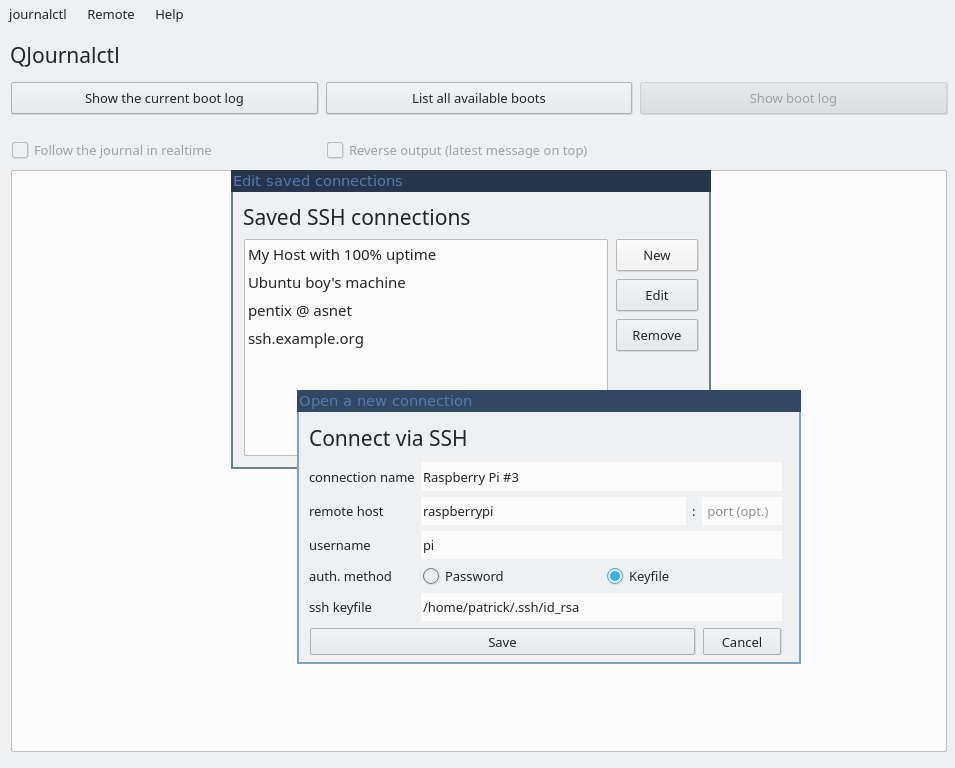
Use the ssh feature to connect to remote hosts and read their logs; Save frequently used connections and benefit from password or (encrypted) keyfile support


The current boot is not enough? Search the entire (!) journal of all boots or select a previous boot
