- Python 3.9.18
- glfw 2.6.2
- Pillow 10.0.1
- PyOpenGL 3.1.7
- PyOpenGL-accelerate 3.1.7
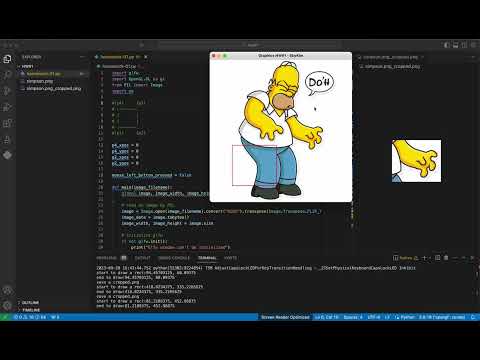
- Load an image file from disk (simpson.png) and create and display a window the same size as the original resolution.
- Select a rectangular area with the mouse in the displayed window to specify the area to be saved.
- Press the Spacebar key and save only the selected area of the image as a new image file on the disk (simpson.png_cropped.png).
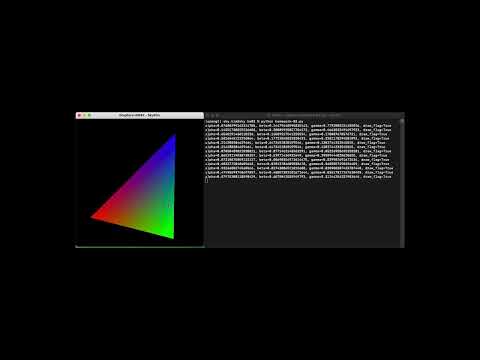
- Create an OpenGL window with a resolution of 512x512
- Select 3 points (pixels) within the window by clicking on them, corresponding to the vertices of the triangle.
- Once the 3rd point is selected, a triangle is drawn, with the 1st vertex assigned the color red, the 2nd green, and the 3rd blue.
- For every pixel in the window, a calculation is performed using the barycentric coordinate to determine whether the point is inside or outside the triangle.
- Be sure to use dot product and cross product for the calculation.
- Based on the calculation result, the inside pixels are painted with the interpolated color of the vertex, and the outside pixels are assigned black.
- Each pixel must be drawn using the glPoints() function, not glPolygons(), glTriangles(), etc.
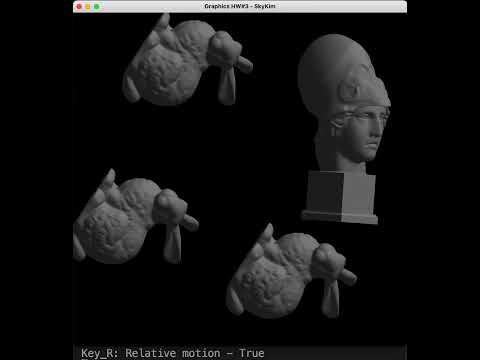
Write an OpenGL program to load the attached OBJ data file and create a carousel.
- Press the down key on the keyboard to perform the corresponding motion.
- l : local motion (local motion)
- g : Global Motion * The default rotor object for Global Motion is Athena.obj.
- r: relative motion
- Pressing the down key on the keyboard will perform the function immediately.
- w: wireframe
- p: polygon
- i: initialization
- q: quit
- Use the attached OBJ graphical models (Athena.obj Bunny.obj Dragon.obj) to test your program.