
Duo Central
Duo Central is a web portal where you can access all your organization's applications.
Contents
Browser Support
Duo Central supports Chrome (Desktop and Mobile), Firefox, Safari (Desktop and Mobile), and Microsoft Edge. Not all browsers support all Duo authentication methods equally, so for the widest compatibility we recommend Chrome, Edge, or Safari.
Check the table below for supported browser versions.
| Browser | Recommended Version |
|---|---|
| Chrome | latest |
| Safari | latest |
| Firefox | latest |
| Edge | latest |
| Internet Explorer | None. Duo Central support for Internet Explorer 11 is deprecated and ends in April 2026. |
Log In To Duo Central
Access Duo Central by navigating to your organization's Duo Central URL. Learn how to log in to Duo Central.
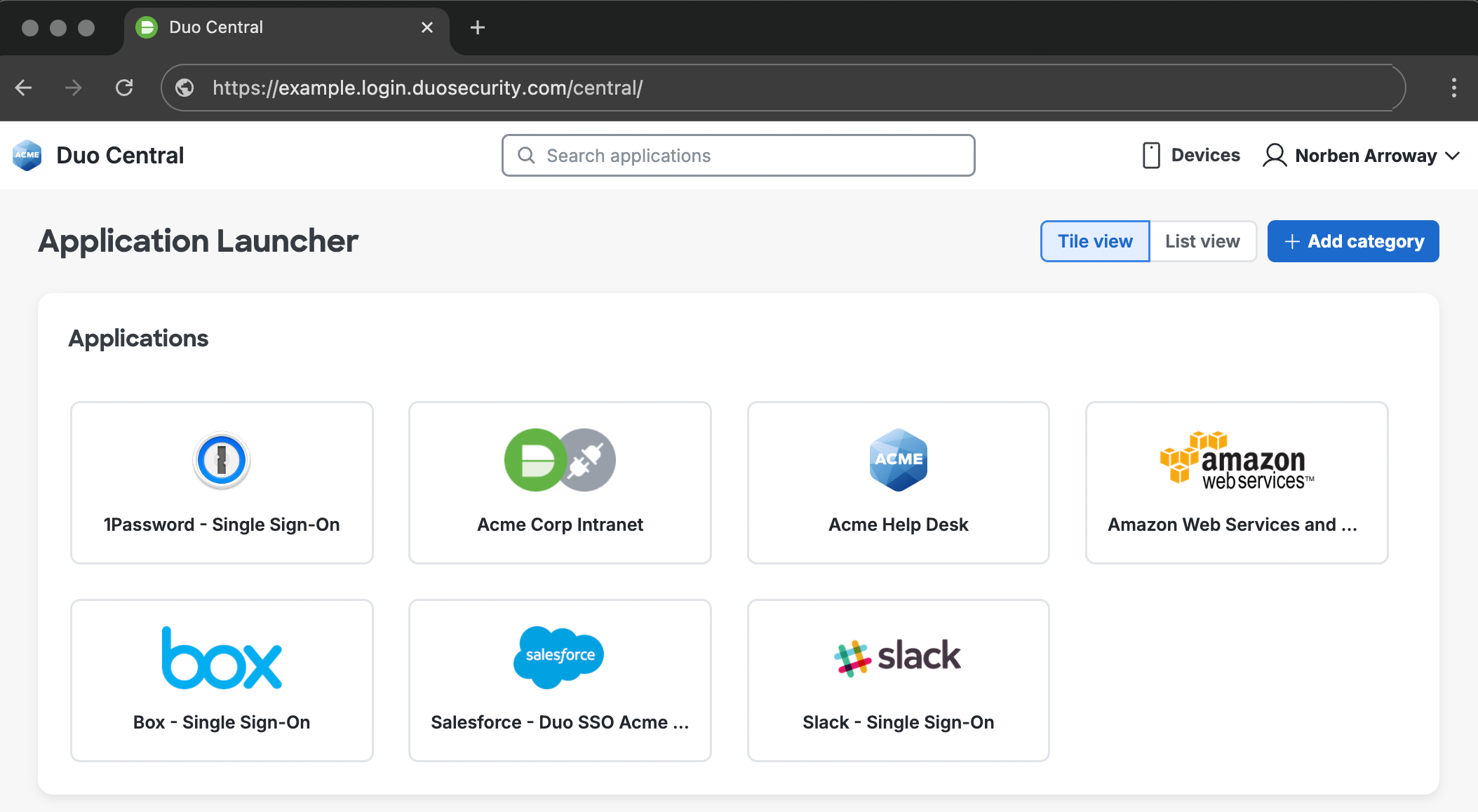
The Duo Central Application Launcher shows your available applications. Your organization's Duo administrator determines which applications you can access. If you don't see an application you need, contact your help desk.
Launch Applications
Click on an application tile in the Duo Central window to access that application. The application site opens in a new browser tab.
There are three different types of application links your organization may assign to you:
Single Sign-On Applications
These applications are configured for primary and secondary single sign-on (SSO) login. SSO applications are typically cloud apps, like Salesforce or Office 365.
When you launch an SSO app from Duo Central you won't need to enter your username and password again, as you already entered them when you logged in to Duo Central.
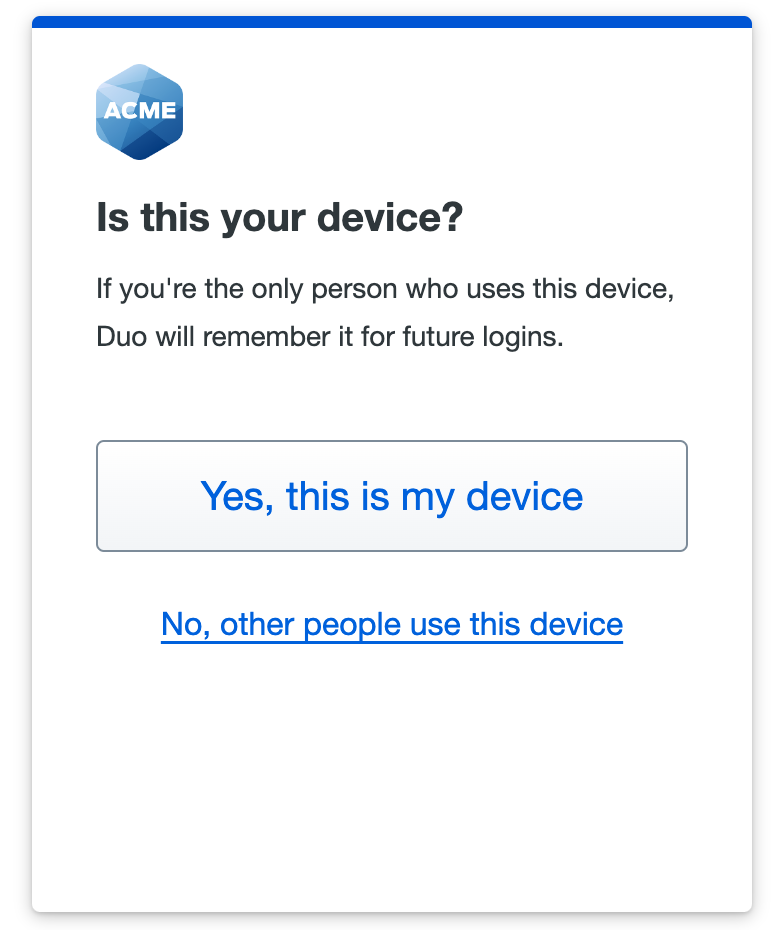
You may need to complete Duo authentication again, depending on how your administrator configured the application. If you see a Trust this browser... option from Duo, check that box to skip the Duo prompt when you launch additional SSO applications.
Do not trust the browser when using a public or shared computer! This could leave your Duo session available to other users. Trust the browser only when you access applications from your own computer.
Web Applications
These applications aren't set up for primary SSO, but are protected by Duo two-factor authentication.
When you launch one of these applications you'll have to enter your username and password for that application, which may be different from the credentials you used to log in to Duo Central.
You may need to complete Duo authentication again, depending on how your administrator configured the application. If you see a Trust this browser... option from Duo, check that box to skip the Duo prompt when you launch additional web or SSO applications.
Do not trust the browser when using a public or shared computer! This could leave your Duo session available to other users. Trust the browser only when you access applications from your own computer.
Application Bookmarks
These applications do not require Duo authentication for access. Your organization's Duo administrator linked these applications in Duo Central for your convenience.
You may need to provide login information when you launch a bookmarked application, but you won't need to authenticate with Duo again.
Customize Duo Central
Change Application View
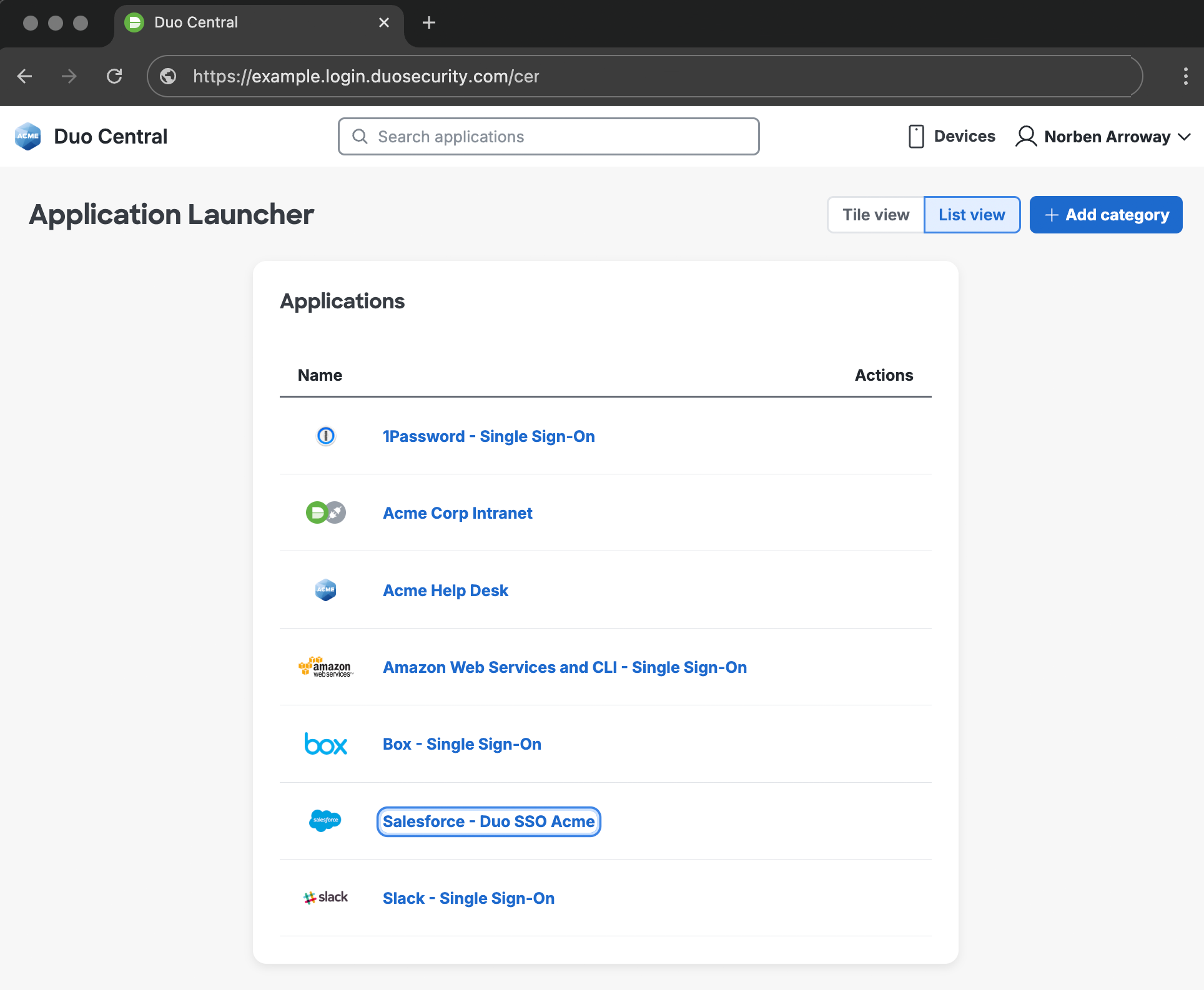
Use the Tile view and List view buttons at the top of the Duo Central page to change how you view your applications. Smaller screens automatically show the list view.
Application Categories
Organize your applications into categories to make them easier to find. This helps you quickly access the applications you use most often. You can create up to 20 application categories.
To create a category and assign applications to it:
- Click the + Add category button at the top of the Duo Central page.
- Enter a unique name for your category and click Save.
Duo Central adds the new category to the top of the Application Launcher, with uncategorized applications in the "Other applications" section of the page.
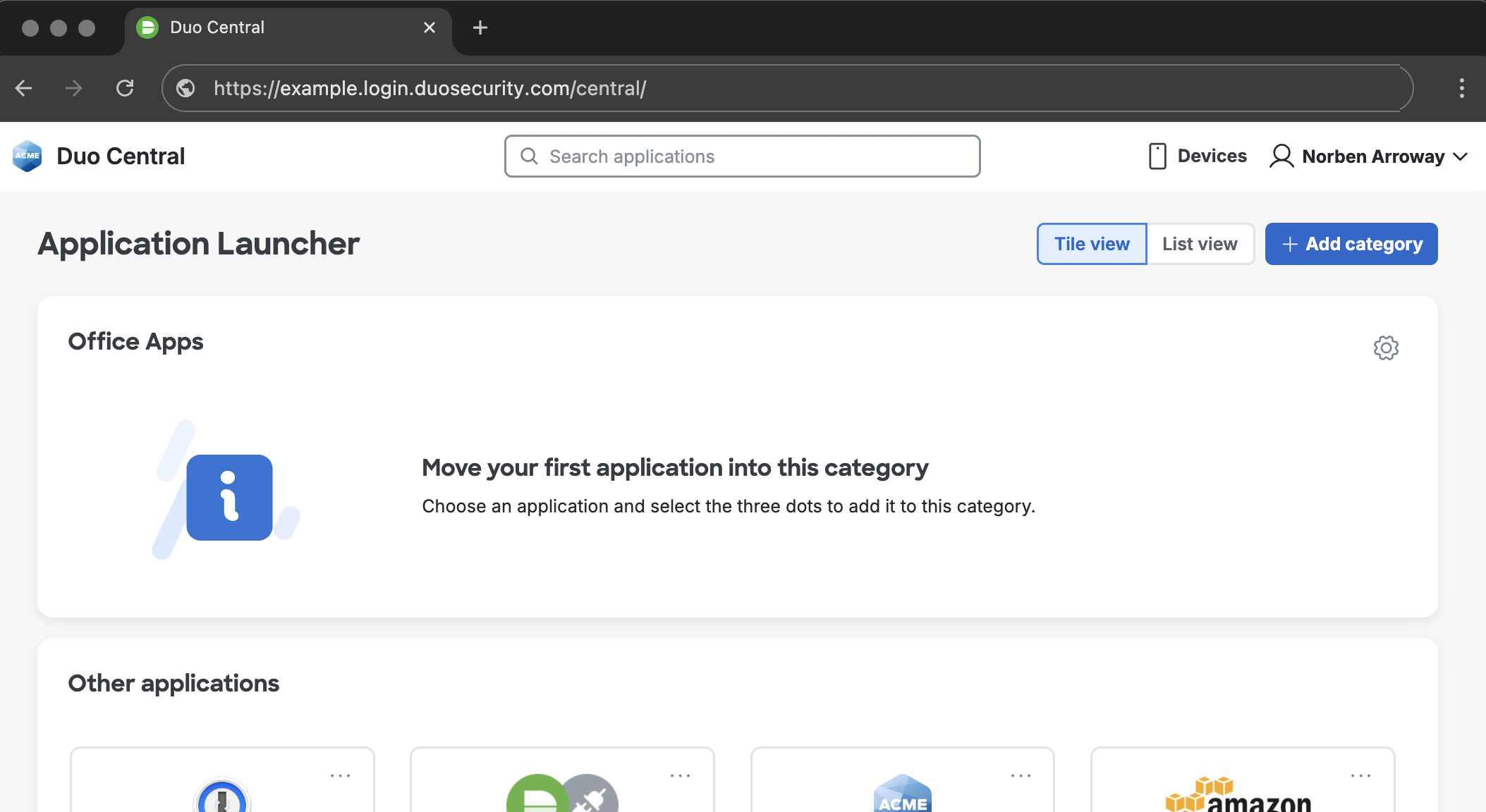
- Add applications to a category by clicking the three dots ... shown in each application's tile in tile view, or in the "Actions" column in list view. Choose the category you want to move the application to from the drop-down menu.

- The application moves to the selected category.
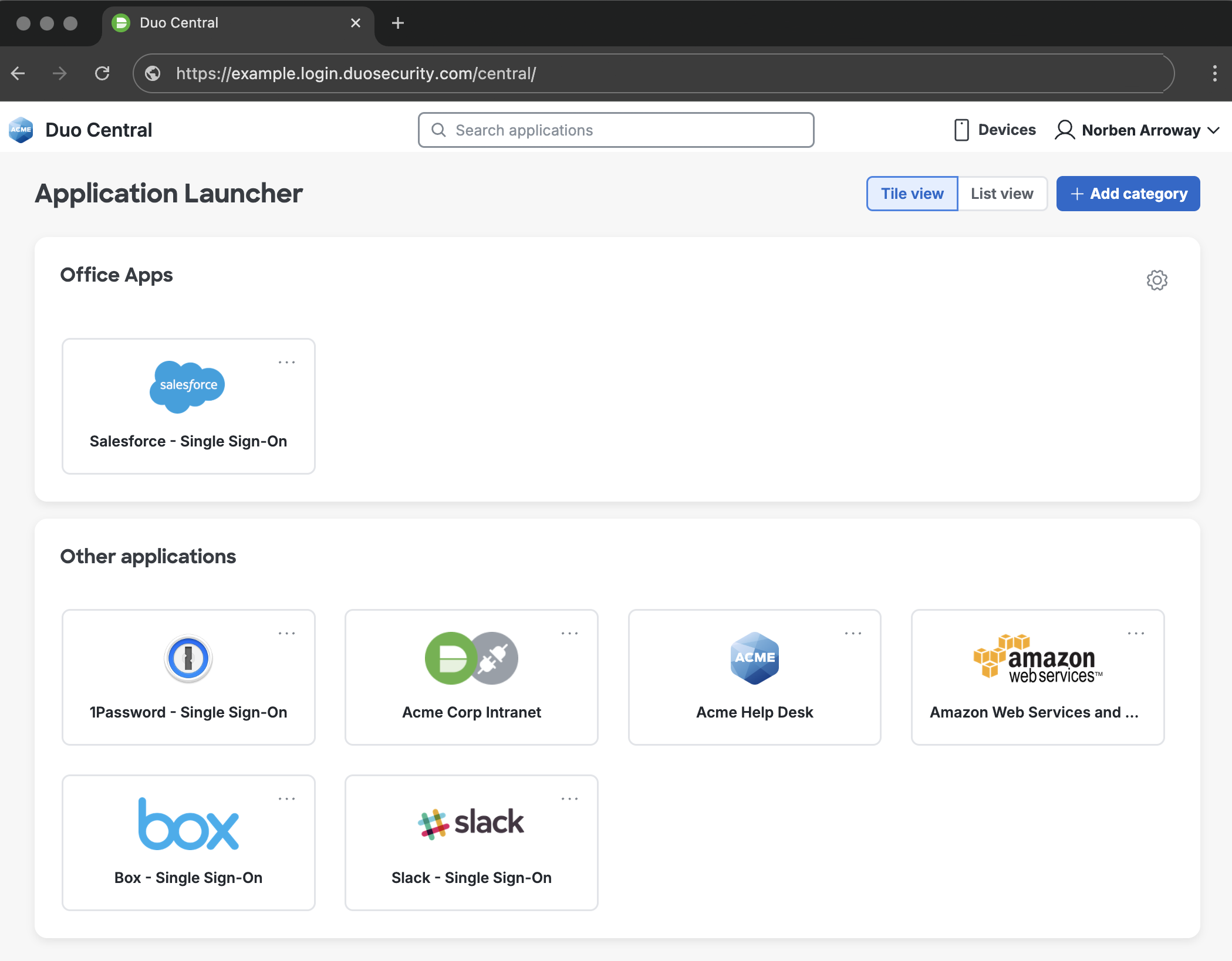
Click the settings icon on the category to Rename category or Remove category. Removing a category moves the applications that were in it back to the uncategorized application section.
Manage Devices
If your organization allows it, you can add, update, and remove Duo authentication devices from Duo Central. Look for the Devices link at the top of the Duo Central page. Clicking this link takes you to self-service device management.
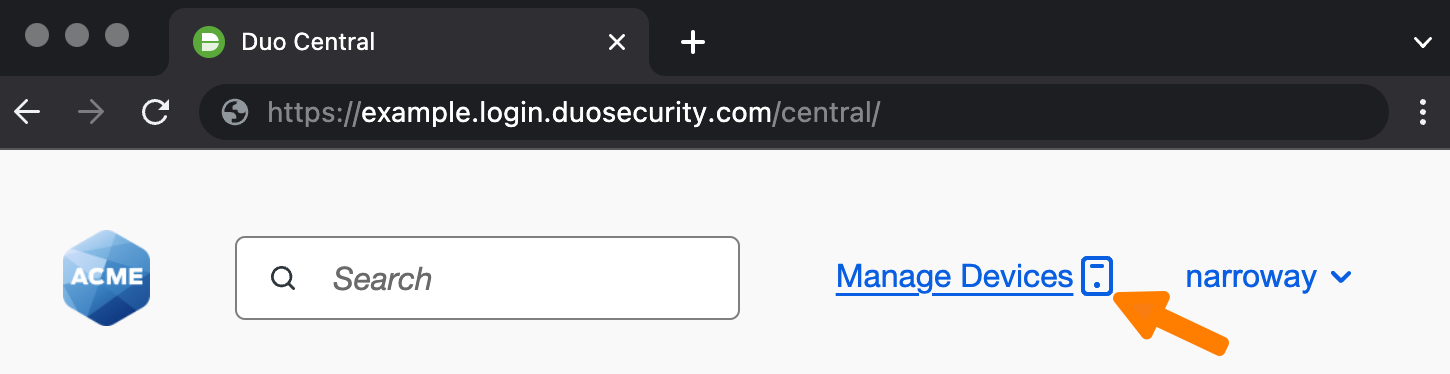
If it's been more than five minutes since you logged into Duo Central then you will be prompted to log in again with Duo before you can manage your devices.
When you access device management from Duo Central and use it to add platform authenticators, like Touch ID or Windows Hello, then you'll be able to use that authentication method to log in to Duo Single Sign-On applications without a password if your organization has enabled Duo Passwordless.
Additional Information
Click your name in the upper-right corner of Duo Central to reveal the settings menu. You can switch between "Tiles" to "List" view for your applications, visit your organization's help site if a link was provided, or log out of Duo Central.