tuns
Host public web services on localhost using SSH
tuns.sh is a pico+ service
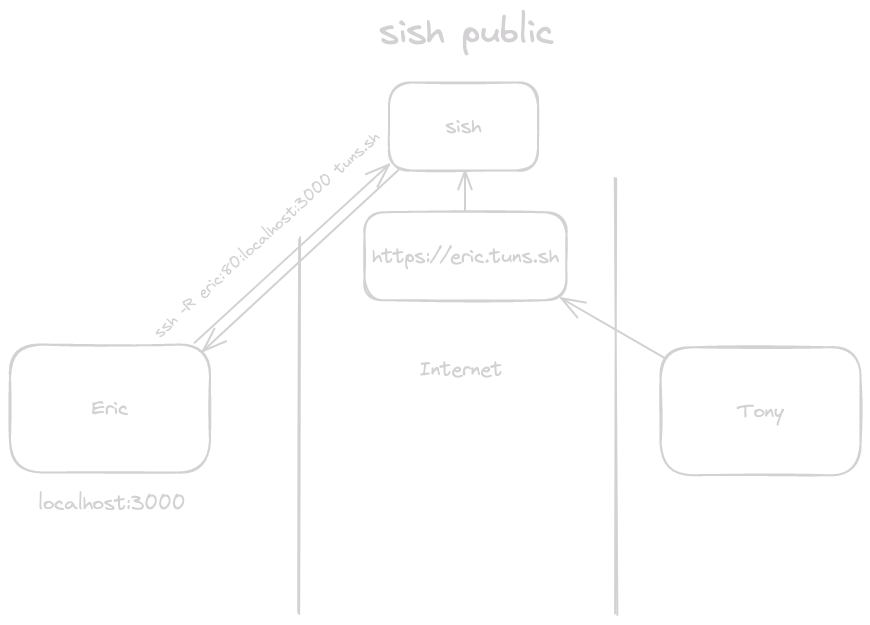
Share your localhost with the world in one ssh command.
1ssh -R dev:80:localhost:3000 tuns.sh 2# Your local server is now live at https://{user}-dev.tuns.sh No installs. No configuration. No cloud deployment. Just SSH.
Why tuns? #
Skip the deployment dance. You're building something locally and need to share it -- with a client, a teammate, or a webhook. Normally you'd have to deploy to staging, configure DNS, set up TLS, and wait. With tuns, you run one command and you're live.
Zero infrastructure overhead. No nginx configs. No Let's Encrypt certificates. No cloud VMs. Your laptop is the server; tuns handles the rest.
Works everywhere SSH works. If you can SSH, you can use tuns. No CLI to install, no daemon to run, no firewall rules to configure.
What can you do with it? #
- Demo a prototype to a client without deploying to production
- Test webhooks from services like Stripe, GitHub, or Twilio against your local server
- Collaborate in real-time by sharing your dev environment with a teammate
- Host services from home without exposing your network or configuring port forwarding
- Debug mobile apps against your local API
- Run integration tests against external services that need to call back to you
Features #
| Feature | What it means for you |
|---|---|
| Zero install | Uses ssh, which you already have |
| Automatic HTTPS | TLS certificates handled for you |
| Custom domains | Use your own domain with simple DNS setup |
| HTTP, WSS, and TCP tunnels | Not just web traffic |
| Multi-region support | Global edge locations for low latency |
| Per-site analytics | See who's accessing your tunnels |
| Connection alerts | Get notified via RSS when tunnels connect or disconnect |
| Private sharing | Share your local server with specific users only |
Quick start #
1# Expose a local web server on port 8000 2ssh -R dev:80:localhost:8000 tuns.sh 3# → https://{user}-dev.tuns.sh 4 5# Expose a TCP service (e.g., database, game server) 6ssh -R 0:5432:localhost:5432 tuns.sh 7# → tuns.sh:{assigned-port} How is tuns different? #
| tuns | ngrok | Cloudflare Tunnels | |
|---|---|---|---|
| Install | None (uses ssh) | Requires CLI | Requires CLI |
| Auth | SSH keys you already have | Separate account + token | Cloudflare account + token |
| Pricing | Included with pico+ | Free tier + paid plans | Free (with Cloudflare DNS) |
| TCP tunnels | Yes | Paid only | Yes |
| Custom domains | Yes (via DNS) | Paid only | Cloudflare DNS only |
| Connection alerts | Yes (via RSS) | Paid only | No |
| Site analytics | Yes | Paid only | Requires Cloudflare dashboard |
| Open source | Yes (sish) | No | No |
For deeper configuration and advanced usage:
Read the sish docsTUI #
We have a TUI viewer to you can see all your active tunnels for monitoring.
1ssh pico.sh 2# -> tuns 
Alerts #
We provide notifications for connect and disconnect events using our pico+ RSS feed.
You can also see the alerts into our tuns TUI.
Regions #
tuns.sh is a global service!
See our regions page to learn more about our geographical service coverage.
User namespace #
When creating a tunnel to tuns we always prefix the name with your username:
{user}-{name}.tuns.sh This includes when a client is using tuns as a ProxyJump:
1ssh -R foobar:22:localhost:22 tuns.sh 2# On the client side 3ssh -J tuns.sh {user}-foobar Custom Domains #
All we require for custom domains is (2) DNS records, there is no extra configuration within our system as it is automatic.
We require you to set up CNAME and TXT records for the domain/subdomain you would like to use for your forwarded connection. The CNAME record must point to tuns.sh. The TXT record name must be _sish.customdomain and contain the SSH key fingerprint used for creating the tunnel. This key must also be linked to your pico+ account.
You can retrieve your key fingerprint by running:
ssh-keygen -lf ~/.ssh/id_rsa | awk '{print $2}' Example:
customdomain.example.com. 300 IN CNAME tuns.sh. _sish.customdomain.example.com 300 IN TXT "SHA256:mVPwvezndPv/ARoIadVY98vAC0g+P/5633yTC4d/wXE" Once set up, you can then create tunnels via your custom domain like this:
ssh -R customdomain.example.com:80:localhost:8000 tuns.sh Make sure to select the correct (closest) tuns instance. You can find the instance you're connected to from the connection output from tuns:
You are connected to tuns.sh. The following tunnels are only accessible on this instance. In this case, my CNAME would use tuns.sh
You may want to pre-select the region you connect to. Try pinging ash.tuns.sh or nue.tuns.sh to find the instance closest to you (lowest latency), and use that for both your SSH connection and CNAME.
Debug custom domains #
First check the main record:
1dig customdomain.example.com 2 3; <<>> DiG 9.18.36 <<>> customdomain.example.com 4;; QUESTION SECTION: 5;customdomain.example.com. IN A 6 7;; ANSWER SECTION: 8customdomain.example.com. 60 IN A 141.148.85.124 Then check the TXT record:
1dig -t txt +short _sish.customdomain.example.com 2 3SHA256:mVPwvezndPv/ARoIadVY98vAC0g+P/5633yTC4d/wXE tunmgr #
A tunnel manager for docker services.
tunmgr automatically sets up tunnels for docker services. It utilizes Expose ports as well as DNSNames (and the container name/id) to setup different permutations of tunnels.
1services: 2 tunmgr: 3 image: ghcr.io/picosh/tunmgr:latest 4 restart: always 5 volumes: 6 - /var/run/docker.sock:/var/run/docker.sock:ro 7 - $HOME/.ssh/id_ed25519:/key:ro 8 healthcheck: 9 test: ["CMD", "curl", "-f", "http://localhost:8080/health"] 10 interval: 2s 11 timeout: 5s 12 retries: 5 13 start_period: 1s 14 httpbin: 15 image: kennethreitz/httpbin 16 depends_on: 17 tunmgr: 18 condition: service_healthy 19 # labels: # or provide tunnel names and ports explicitly 20 # tunmgr.names: httpbin # Comma separated list of names. Can be an empty 21 # tunmgr.ports: 80:80 $ Comma separated list of port maps. (remote:local) 22 command: gunicorn -b 0.0.0.0:80 httpbin:app -k gevent --access-logfile - With that docker compose file httpbin will be exposed as a public service on tuns.
How do I keep a tunnel open? #
If you don't want to use tunmgr then we highly recommend using a tool like autossh to automatically restart a SSH tunnel if it exits.
1autossh -M 0 -R dev:80:localhost:8000 tuns.sh Bash script #
Here's a helper script that should make it easier to create tunnels.
1tunnel() { 2 TUNNEL_TYPE="" 3 TUNNEL_ENDPOINT="" 4 TUNNEL_ARGS="" 5 6 case $1 in 7 http|https) 8 TUNNEL_TYPE="-R" 9 TUNNEL_ENDPOINT="$([[ $1 == "http" ]] && echo "80" || echo "443"):" 10 11 if [ -z $2 ]; then 12 echo "Tunnel provided incorrect port. Usage: tunnel $1 <port>" 13 return 14 fi 15 16 if [ ! -z $3 ]; then 17 TUNNEL_ENDPOINT="$3:${TUNNEL_ENDPOINT}" 18 fi 19 20 LOCAL_PORT=$2 21 if [[ $LOCAL_PORT != *":"* ]]; then 22 LOCAL_PORT="localhost:$2" 23 fi 24 25 TUNNEL_ENDPOINT+="$LOCAL_PORT" 26 echo "Starting ${1^^} tunnel to $LOCAL_PORT" 27 ;; 28 tcp) 29 TUNNEL_TYPE="-R" 30 TUNNEL_ENDPOINT="${3:-0}:" 31 32 if [ -z $2 ]; then 33 echo "Tunnel provided incorrect port. Usage: tunnel $1 <port>" 34 return 35 fi 36 37 LOCAL_PORT=$2 38 if [[ $LOCAL_PORT != *":"* ]]; then 39 LOCAL_PORT="localhost:$2" 40 fi 41 42 TUNNEL_ENDPOINT+="$LOCAL_PORT" 43 echo "Starting ${1^^} tunnel to $LOCAL_PORT" 44 ;; 45 *) 46 echo "unknown tunnel" 47 return 48 ;; 49 esac 50 51 ssh $TUNNEL_TYPE $TUNNEL_ENDPOINT tuns.sh $TUNNEL_ARGS 52} Example usage:
1./tunnel.sh https 3000 2./tunnel.sh tcp 1337 UDP Tunneling #
Easy (-o Tunnel=point-to-point) #
Using tuns, you have the ability to tunnel UDP traffic without any external binary, meaning all using SSH. This makes use of the SSH tunneling functionality and a tun interface. To get started, you need to follow a few steps:
-
Start some UDP service that you want to forward. For example, a simple socat echo server:
1socat -v PIPE udp-recvfrom:5553,fork -
SSH into tuns requesting a
tuninterface with the information of where the service is running. This needs to be done as root. Replacelocal-ip-of-machines-main-interfacewith the ip address of the main interface for proper routing.1sudo ssh -w 0:0 tuns.sh \ 2 udp-forward=10000:local-ip-of-machines-main-interface:5553 -
Bring the tunnel interface up and assign an ip that is link local (also as root):
1ip link set tun0 up; ip r a 10.1.0.1 dev tun0 -
Start a udp client to tuns.sh:10000. Here's one with netcat:
1nc -u tuns.sh 10000
Hard (-o Tunnel=ethernet) #
You can also use an ethernet tunnel for UDP forwarding. This makes a tap interface. This is considered "hard mode" since you'll also need to handle ARP. We don't process ARP packets, but we expect you to be an expert to be able to make this work! The SRC interface MAC is 00:00:00:00:00:01, while the DST interface MAC is 00:00:00:00:00:02
-
Start some UDP service that you want to forward. For example, a simple socat echo server:
1socat -v PIPE udp-recvfrom:5553,fork -
SSH into tuns requesting a
tapinterface with the information of where the service is running. This needs to be done as root. Replacelocal-ip-of-machines-main-interfacewith the ip address of the main interface for proper routing.1sudo ssh -o Tunnel=ethernet -w 0:0 tuns.sh \ 2 udp-forward=10000:local-ip-of-machines-main-interface:5553 -
Bring the tunnel interface up and assign an ip that is link local (also as root). You need to set the ARP entry and interface
MACas well:1ip link set dev tap0 address 00:00:00:00:00:02 2ip link set tap0 up 3ip r a 10.1.0.1 dev tap0 4ip neigh add 10.1.0.1 lladdr 00:00:00:00:00:01 dev tap0 nud permanent -
Start a udp client to tuns.sh:10000. Here's one with netcat:
1nc -u tuns.sh 10000
Create an account using only your SSH key.
Get Started