125

The short version of the question: I am looking for a speech recognition software that runs on Linux and has decent accuracy and usability. Any license and price is fine. It should not be restricted to voice commands, as I want to be able to dictate text.


More details:

I have unsatisfyingly tried the following:

All the above-mentioned native Linux solutions have both poor accuracy and usability (or some don't allow free-text dictation but only voice commands). By poor accuracy, I mean an accuracy significantly below the one the speech recognition software I mentioned below for other platforms have. As for Wine + Dragon NaturallySpeaking, in my experience it keeps crashing, and I don't seem to be the only one to have such issues unfortunately.

On Microsoft Windows I use Dragon NaturallySpeaking, on Apple Mac OS X I use Apple Dictation and DragonDictate, on Android I use Google speech recognition, and on iOS I use the built-in Apple speech recognition.

Baidu Research released yesterday the code for its speech recognition library using Connectionist Temporal Classification implemented with Torch. Benchmarks from Gigaom are encouraging as shown in the table below, but I am not aware of any good wrapper around to make it usable without quite some coding (and a large training data set):

System Clean (94) Noisy (82) Combined (176)
Apple Dictation 14.24 43.76 26.73
Bing Speech 11.73 36.12 22.05
Google API 6.64 30.47 16.72
wit.ai 7.94 35.06 19.41
Deep Speech 6.56 19.06 11.85

Table 4: Results (%WER) for 3 systems evaluated on the original audio. All systems are scored only on the utterances with predictions given by all systems. The number in the parentheses next to each dataset, e.g. Clean (94), is the number of utterances scored.

There exist some very alpha open-source projects:

I am also aware of this attempt at tracking states of the arts and recent results (bibliography) on speech recognition. as well as this benchmark of existing speech recognition APIs.


I am aware of Aenea, which allows speech recognition via Dragonfly on one computer to send events to another, but it has some latency cost:

enter image description here

I am also aware of these two talks exploring Linux option for speech recognition:

6
  • 2
    Some detail about what you found "unsatisfying" might advance your otherwise interesting but rather general posting topic. For example: what specifically did you find unsatisfying about the "Wine + Dragon NaturallySpeaking" combination? (how did it fail to replicate your Windows experience?) Commented Jan 18, 2016 at 18:20
  • 1
    @Theophrastus Basically all native Linux solutions have both poor accuracy and usability. By poor accuracy, I mean an accuracy significantly below the one the speech recognition software I mentioned for other platforms have. As for Wine + Dragon NaturallySpeaking, in my experience it keeps crashing, and I don't seem to be the only one to have such issues unfortunately (appdb.winehq.org/…) Commented Jan 18, 2016 at 18:24
  • 1
    I haven't tried these, but in case someone finds it useful: github.com/Uberi/speech_recognition and jasperproject.github.io and github.com/benoitfragit/google2ubuntu Commented Jan 6, 2017 at 18:18
  • Is there one of these software that has a command-line tool? It would be very interesting to combine speech recognition to a keypress and mousemove tool like xdotool (github.com/jordansissel/xdotool) or xsendkey (github.com/kyoto/sendkeys). Commented Mar 5, 2019 at 14:15
  • 1
    @baptx, github.com/MycroftAI/mycroft-core/issues/2600 Commented Jun 7, 2020 at 17:06

13 Answers 13

33

OpenAI Whisper (fully offline and MIT licensed)

This option was previously mentioned at: https://unix.stackexchange.com/a/718354/32558 In this answer I just want to provide slightly more direct usage instructions, possibly because the package was further streamlined.

Project page: https://github.com/openai/whisper

Tested on Ubuntu 24.04, install:

sudo apt install ffmpeg pipx install openai-whisper==20231117 

Sample usage:

wget https://upload.wikimedia.org/wikipedia/commons/f/f6/Appuru.wav time whisper Appuru.wav 

Terminal output with this perfectly clean en-US demo: https://commons.wikimedia.org/wiki/File:Appuru.wav

/home/ciro/.local/pipx/venvs/openai-whisper/lib/python3.12/site-packages/whisper/transcribe.py:115: UserWarning: FP16 is not supported on CPU; using FP32 instead warnings.warn("FP16 is not supported on CPU; using FP32 instead") Detecting language using up to the first 30 seconds. Use `--language` to specify the language Detected language: English [00:00.000 --> 00:03.000] The apple does not fall far from the tree. real 0m7.516s user 0m31.209s sys 0m4.194s 

and cwd now contains several output files such as Appuru.srt:

1 00:00:00,000 --> 00:00:03,000 The apple does not fall far from the tree. 

so it worked perfectly.

Vosk

https://github.com/alphacep/vosk-api/

It supports 20+ languages.

Tested on Ubuntu 23.10 install the software and English model with:

pipx install vosk mkdir -p ~/var/lib/vosk cd ~/var/lib/vosk wget https://alphacephei.com/vosk/models/vosk-model-en-us-0.22.zip unzip vosk-model-en-us-0.22.zip cd - 

and then use as:

wget -O think.ogg https://upload.wikimedia.org/wikipedia/commons/4/49/Think_Thomas_J_Watson_Sr.ogg vosk-transcriber -m ~/var/lib/vosk/vosk-model-en-us-0.22 -i think.ogg -o think.srt -t srt 

NERD dictation (uses the VOSK-API)

https://github.com/ideasman42/nerd-dictation and see also: https://unix.stackexchange.com/a/651454/32558

Vosk case studies

The sections below are about me playing around with Vosk with some cute inputs.

test.wav case study

The test.wav example given in the repository says in perfect American English accent and perfect sound quality three sentences which I transcribe as:

one zero zero zero one nine oh two one oh zero one eight zero three 

The "nine oh two one oh" is said very fast, but still clear. The "z" of the before last "zero" sounds a bit like an "s".

The SRT generated above reads:

1 00:00:00,870 --> 00:00:02,610 what zero zero zero one 2 00:00:03,930 --> 00:00:04,950 no no to uno 3 00:00:06,240 --> 00:00:08,010 cyril one eight zero three 

so we can see that several mistakes were made, presumably in part because we have the understanding that all words are numbers to help us.

Next I also tried with the vosk-model-en-us-aspire-0.2 which was a 1.4GB download compared to 36MB of vosk-model-small-en-us-0.3 and is listed at https://alphacephei.com/vosk/models:

mv model model.vosk-model-small-en-us-0.3 wget https://alphacephei.com/vosk/models/vosk-model-en-us-aspire-0.2.zip unzip vosk-model-en-us-aspire-0.2.zip mv vosk-model-en-us-aspire-0.2 model 

and the result was:

1 00:00:00,840 --> 00:00:02,610 one zero zero zero one 2 00:00:04,026 --> 00:00:04,980 i know what you window 3 00:00:06,270 --> 00:00:07,980 serial one eight zero three 

which got one more word correct.

IBM "Think" Speech case study

Now let's have some fun, shall we. From https://en.wikipedia.org/wiki/Think_(IBM) (public domain in the USA):

wget https://upload.wikimedia.org/wikipedia/commons/4/49/Think_Thomas_J_Watson_Sr.ogg ffmpeg -i Think_Thomas_J_Watson_Sr.ogg -ar 16000 -ac 1 think.wav time python3 ./test_srt.py think.wav > think.srt 

The sound quality is not great, with a lot of microphone hissing noise due to the technology of the time. The speech is however very clear and paused. The recording is 28 seconds long, and the wav file is 900KB large.

Conversion took 32 seconds. Sample output of the three first sentences:

1 00:00:00,299 --> 00:00:01,650 and we must study 2 00:00:02,761 --> 00:00:05,549 reading listening name scott 3 00:00:06,300 --> 00:00:08,820 observing and thank you 

and the Wikipedia transcription for the same segment reads:

1 00:00:00,518 --> 00:00:02,513 And we must study 2 00:00:02,613 --> 00:00:08,492 through reading, listening, discussing, observing, and thinking. 

"We choose to go to the Moon" case study

https://en.wikipedia.org/wiki/We_choose_to_go_to_the_Moon (public domain)

OK, one more fun one. This audio has good sound quality, with occasional approval screams by the crowd, and a slight echo of the venue:

wget -O moon.ogv https://upload.wikimedia.org/wikipedia/commons/1/16/President_Kennedy%27s_Speech_at_Rice_University.ogv ffmpeg -i moon.ogv -ss 09:12 -to 09:29 -q:a 0 -map a -ar 16000 -ac 1 moon.wav time python3 ./test_srt.py moon.wav > moon.srt 

Audio duration: 17s, wav file size 532K, conversion time 22s, output:

1
00:00:01,410 --> 00:00:16,800
we choose to go to the moon in this decade and do the other things not because they are easy but because they are hard because that goal will serve to organize and measure the best of our energies and skills

and the corresponding Wikipedia captions:

89 00:09:06,310 --> 00:09:18,900 We choose to go to the moon in this decade and do the other things, 90 00:09:18,900 --> 00:09:22,550 not because they are easy, but because they are hard, 91 00:09:22,550 --> 00:09:30,000 because that goal will serve to organize and measure the best of our energies and skills, 

Perfect except for a missing "the" and punctuation!

Tested on vosk-api 7af3e9a334fbb9557f2a41b97ba77b9745e120b3, Ubuntu 20.04, Lenovo ThinkPad P51.

This answer is based on https://askubuntu.com/a/423849/52975 by Nikolay Shmyrev with additions by me.

Speech Note

https://github.com/mkiol/dsnote

This project is a front-end for a bunch of possible backend TTS and STT models on multiple languages. Install and launch:

flatpak install flathub net.mkiol.SpeechNote flatpak run net.mkiol.SpeechNote 

opens a GUI:

enter image description here

Then under:

  • Languages
  • English
  • Text to Speech

I can download a model:

enter image description here

They have both Whisper and Vosk and a few others.

Then you can either:

  • Click "Listen" to take voice input from the microphone
  • File > Import from a file to select a sound file containing the speech

and the recognized text will appear in the text box.

CLI-only usage is limited unfortunately: https://github.com/mkiol/dsnote/issues/83

Tested on Speech Note 4.7.0, Ubuntu 24.10.

Benchmarks

https://github.com/Picovoice/speech-to-text-benchmark mentions a few:

It would be interesting to run/find results of VOSK vs other software on those.

Related:

13
  • 1
    @creativecoding if someone tries to scam you, show them this file and fork ;-) Commented Mar 21, 2021 at 8:20
  • 2
    The VOSK-API is excellent, but doesn't provide basic integration try github.com/ideasman42/nerd-dictation - a utility the integrate it with pulse audio and X11. Commented May 25, 2021 at 17:45
  • 1
    Added a video demo, linked from the repo. Commented Jun 1, 2021 at 19:43
  • 1
    Hi Ciri here it is a 3mn wav and the srt obtained thru Vosk mega.nz/folder/BkgwlbaL#bEwX-i5Np1fpC6anZG_O8Q Commented Jun 17, 2021 at 15:46
  • 3
    I write emails for a living basically, and have been a long-time user of Dragon, first directly in Windows for a few years, and then via Swype/KDE Connect (most-upvoted answer) for maybe 6 months. I tried VOSK today w/ big static daanzu model and found it to be about as good. Accuracy for ordinary English is super-high, with most errors of the picked-the-wrong-homophone variety. A few annoyances but Dragon also had a few annoyances. I miss punctuation but can probably hack that in somehow via nerd-dictation config. Nerd-dictation is convenient UI w/ Gnome keyboard bindings. Worth a try. Commented Jun 24, 2021 at 0:39
28

Try nerd-dictation, it's a simple way to access VOSK-API, which is a high quality offline, open-source speech to text engine which works with both X11 and Wayland.

See demo video.


full disclosure, I couldn't find any solutions that suited my use case, so I wrote this small utility to scratch my own itch.

2
  • 1
    This works great for me for so far! I added the example script to use the start/stop phrases and then added it to my startup. Using it for working from home. Commented Nov 5, 2021 at 19:33
  • 1
    Also use it working from home (might be a bit odd using it in an office :) ), although I managed to setup my keyboard (with QMK) so I can hold a key while speaking for dictation. Commented Nov 6, 2021 at 2:00
26

Right now I'm experimenting with using KDE connect in combination with Google speech recognition on my android smartphone.

KDE connect allows you to use your android device as an input device for your Linux computer (there are also some other features). You need to install the KDE connect app from the Google play store on your smartphone/tablet and install both kdeconnect and indicator-kdeconnect on your Linux computer. For Ubuntu systems the install goes as follows:

sudo add-apt-repository ppa:vikoadi/ppa sudo apt update sudo apt install kdeconnect indicator-kdeconnect 

The downside of this installation is that it installs a bunch of KDE packages that you don't need if you don't use the KDE desktop environment.

Once you pair your android device with your computer (they have to be on the same network) you can use the android keyboard and then click/press on the mic to use Google speech recognition. As you talk, text will start to appear where ever your cursor is active on your Linux computer.

As for the results, they are a bit mixed for me as I'm currently writing some technical astrophysics document and Google speech recognition is struggling with the jargon that you don't typically read. Also forget about it figuring out punctuation or proper capitalization.

enter image description here

enter image description here

9
  • 21
    The problem with google is it's not text to speech, it sends it back to google. This is bad for privacy. Commented Dec 12, 2019 at 15:33
  • After struggling with audio-to-text utilities on Linux for a long time, I solved the problem with a trivial hack: just play the audio over my laptop speakers and put my phone next to it, with Google Docs in text-to-speech mode. Stupid but it worked :) Commented Mar 7, 2020 at 0:34
  • 4
    I am surprised that this is still the "best" answer, and continues to slowly accumulate votes. Commented Jan 13, 2021 at 17:58
  • This screenshot actually shows Swype, which is Nuance (now owned by Microsoft), not Google voice typing. Google voice typing on Android (GBoard, and I think many "stock" keyboards include it) does not work with KDE Connect, as far as I can tell because KDE Connect asks the keyboard for single-press type input, rather than free-form text. This puts Gboard into a mode where voice typing is not available. See KDE bug 365305 bugs.kde.org/show_bug.cgi?id=365305 If someone finds Google voice typing that works with KDE Connect, please say how! Commented Apr 20, 2021 at 18:42
  • 1
    @joseph_morris When I first posted this answer (4.5 years ago), it did work with GBoard. I have not tried it since then. The attached photos were added by the OP as I had insufficient reputation at the time to post photos. Commented Apr 21, 2021 at 18:39
8

OpenAI's Whisper (MIT license, Python 3.9, CLI) yields some highly accurate transcription. To use it (tested on Ubuntu 20.04 x64 LTS):

conda create -y --name whisperpy39 python==3.9 conda activate whisperpy39 pip install git+https://github.com/openai/whisper.git sudo apt update && sudo apt install ffmpeg whisper recording.wav whisper recording.wav --model large 

If using an Nvidia 3090 GPU, add the following after conda activate whisperpy39

pip install -f https://download.pytorch.org/whl/torch_stable.html conda install pytorch==1.10.1 torchvision torchaudio cudatoolkit=11.0 -c pytorch 

Performance info below.

Model inference time:

Size Parameters English-only model Multilingual model Required VRAM Relative speed
tiny 39 M tiny.en tiny ~1 GB ~32x
base 74 M base.en base ~1 GB ~16x
small 244 M small.en small ~2 GB ~6x
medium 769 M medium.en medium ~5 GB ~2x
large 1550 M N/A large ~10 GB 1x

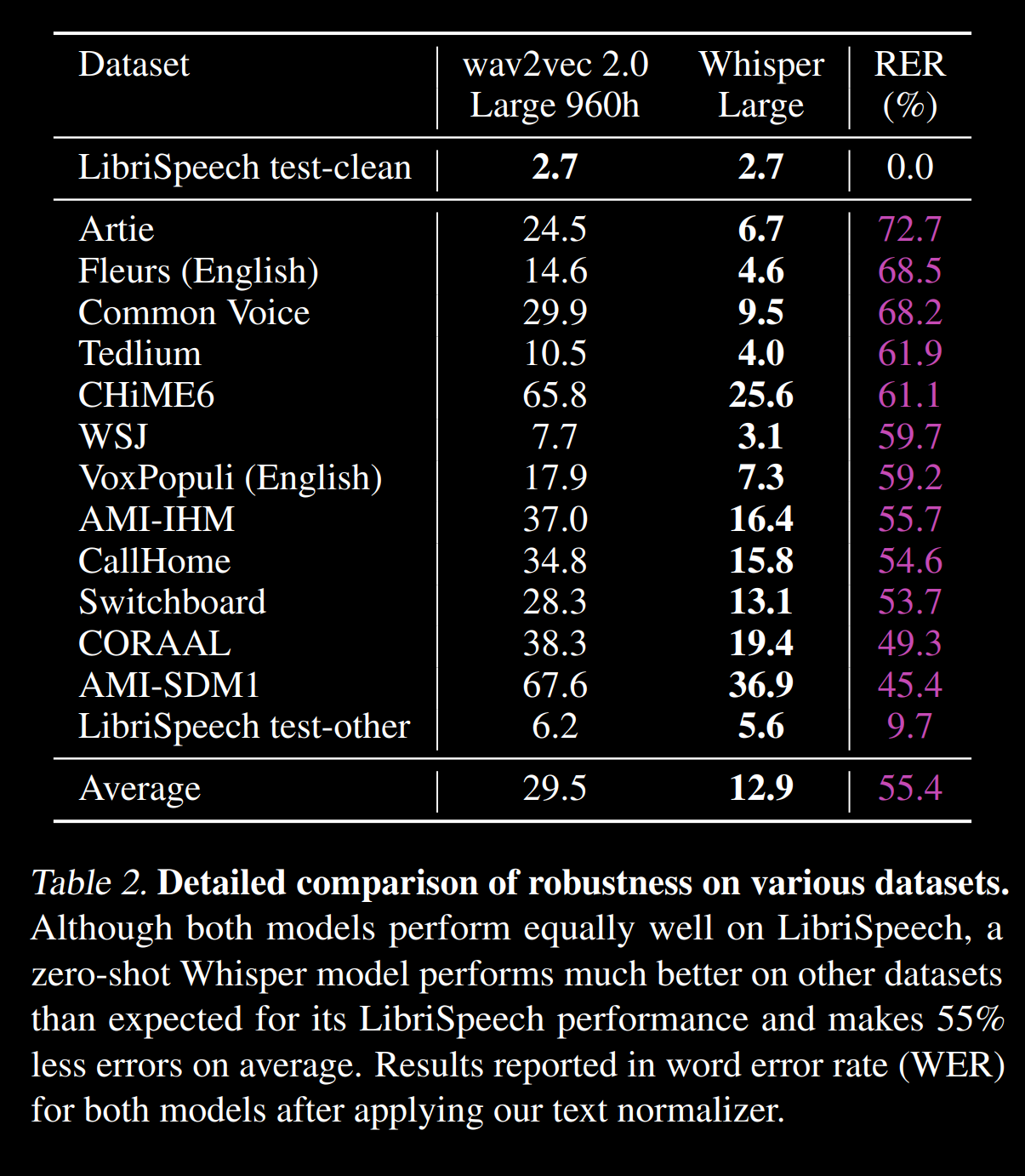
WER on several corpus from https://cdn.openai.com/papers/whisper.pdf:

enter image description here

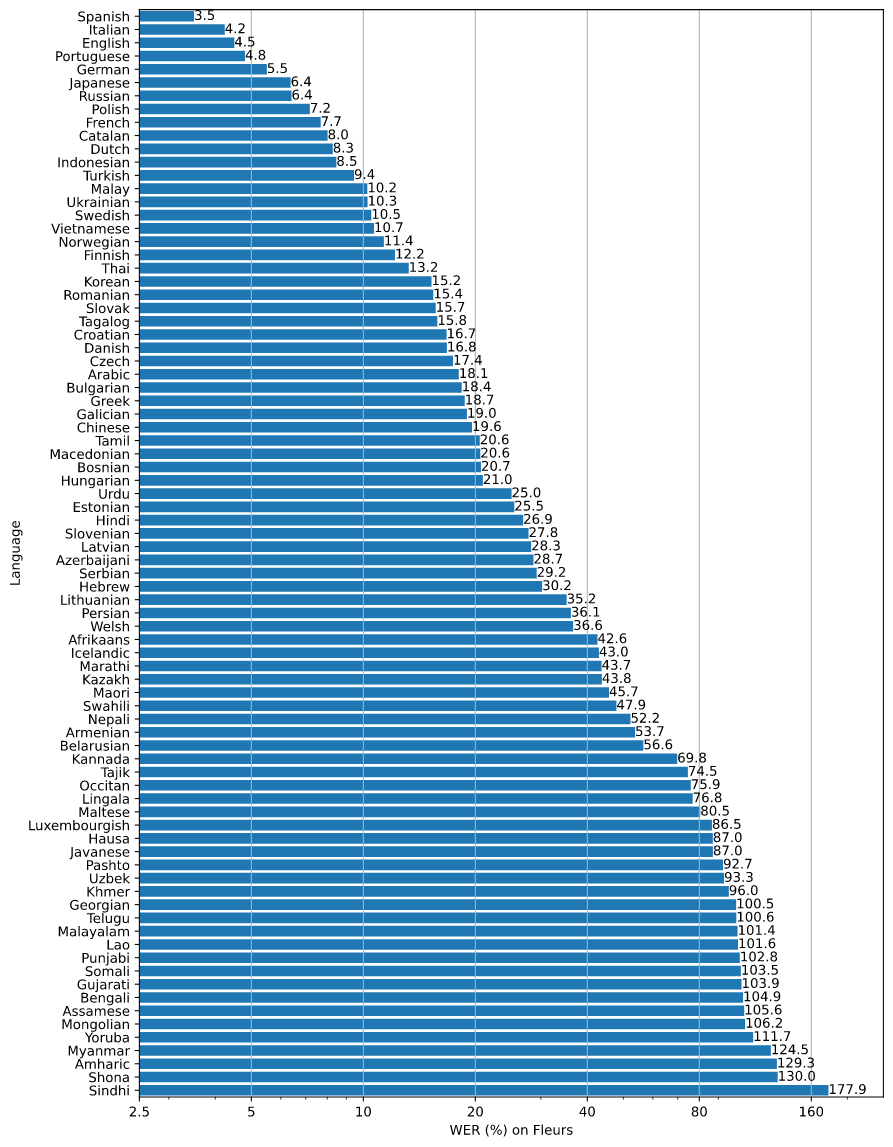
WER on several languages from https://github.com/openai/whisper/blob/main/language-breakdown.svg:

enter image description here

5

After trying Simon and Julius on Kubuntu, which I wasnt able to install properly, I stumbled on the idea to try using Mycroft, the open source AI Assistant (competing with Google Home and Amazon Alexa).

After having the KDE Plasmoid install fail, I was able to get pretty good speech recognition going with the regular install. It has a mycroft-cli-client to view debugging messages in and a somewhat active community forum. Some of the docs are a little out of date, but I have noted that on the forum and in GitHub where applicable.

The speech rec is really pretty good and you can install Mimic, a local recognition engine. And it is cross-platform and saw an Android app I havent tried yet. My next step is reproduce some of the basic desktop shortcut commands I was hoping for in the Plasmoid, and a dictation Skill for large text fields.

https://github.com/MycroftAI/mycroft-core

https://community.mycroft.ai/

5

You might be interested in Numen, which is voice input for desktop computing without a keyboard or mouse. It's another project that uses the vosk-api speech recognition.

I'm the creator of Numen and you can find a short demonstration here.

3

As one more Linuxer searching for a useful speech-to-text (dictation) program, I took a look into speechpad.pw:

  • it recognizes my mother tongue very well
  • it works fast and very reliable

Downsides:

  • of course it is proprietary and closed software from Google
  • a Google service will listen to, process and supposedly store every word you speak
  • audio and text will be processed and obviously stored by Google
  • speechpad.pw requires a monthly / quaterly / yearly subscription fee
  • speechpad.pw only runs as an addon to Google Chrome browser - no other browser

So, speechpad.pw is very proprietary and also closed source and also bound to Google which we all know as a sleepless meta data, personal information and personal contents collector.

These downsides make it a no-go application for me though the speech recognition itself works very well - much better than anything else I have seen so far.

2
  • Thanks, yes significant downsides, especially that it only works in the Chrome browser. Commented Oct 28, 2016 at 22:45
  • 2
    You could use Google Docs on Chrome and use their "Tools" » "Voices Typing ..." option. Probably exact same speech recognition software, but it's free. Then copy paste the results from your doc to wherever you need the text. Commented Nov 10, 2017 at 20:19
3

I'd recommend Mozilla DeepSpeech. It's an opensource speech to text tool. But you will need to train the tool.

You can download the pre-trained model or use Mozilla Common Voice DataSets to create your own. For very clear recordings accuracy rate is good. For my transcription projects, it was still not sufficient, as the recordings had lots of background noises, and were not of great quality.

I used Transcribear instead, a browser based speech to text tool. You will need to be connected online to upload recordings to the Transcribear server.

2
  • 1
    AFAIK Mozilla DeepSpeech only works for utterances shorter than a few seconds. Commented May 18, 2020 at 17:40
  • ah, that might explain why my results were so poor! Commented May 9, 2021 at 18:56
3

I'm using the KDE Connect app.

It is working quite effectively! I am able to keep my eyes on the monitor while speaking with the phone on the desk.

The only downside is that this is being done through Google keyboard. It is neither free, native, nor open source.

2

The Chrome App "VoiceNote II" (http://voicenote.in/) is working great on my Xubuntu 16.04 machine. No voice-training required, and set-up was simple. One search to find it, one click to install, one click to create a shortcut and to the Desktop bind it.

2
  • 1
    Thanks, works only in Google Chrome though Commented Aug 8, 2017 at 14:37
  • This Chrome app isn't available anymore Commented Sep 2, 2022 at 9:04
2

A post I created recently had some of this information answered in a little more detail (credit to geb and adabru for some of the information below) which may be helpful to read, bookmark and check back for updates: Eye Gaze Tracking With Head Tracking Solutions On Linux

One of the more productive and easier options to set up according to adabru, https://handsfreecoding.org/ and many others I've come across online: https://talonvoice.com

Appears to work offline for analysing spoken words (see 7. Privacy): https://talonvoice.com/EULA.txt

You can use the Vosk engine in Talon for other language support if you pay $25/month, at the time of writing this, for the Beta version (see Vosk and the Talon community wiki for languages supported):

https://alphacephei.com/vosk/

https://talon.wiki/speech_engines/

https://talon.wiki/faq/#are-languages-other-than-english-supported

There is also a free version of Talon but keep in mind that Talon isn't all open source code.

I would give Numen a hard look. It's free and open source software that uses Vosk which supports other languages. Looks like a very good option if you primarily use keyboard-centric programs (some are listed in the link): https://git.sr.ht/%7Egeb/numen

1

I would suggest using dragon on your phone or tablet, then emailing the text to yourself. Its a drag but it works and is very accurate. If you insist on using Linux for this, getting a second display will make life much easier to copy and past.

I haven't tried this but you might be able to use or adapt the Python Bluetooth Chat program with dragon on your tablet/phone. There may also be remote-keyboard apps for mobile devices that may support dictation input.

I shall experiment and try to get back to you with something more definitive.

0

Deepspeech

To install it:

# Create and activate a virtualenv virtualenv -p python3 $HOME/tmp/deepspeech-venv/ source $HOME/tmp/deepspeech-venv/bin/activate # Install DeepSpeech pip3 install deepspeech # Download pre-trained English model files curl -LO https://github.com/mozilla/DeepSpeech/releases/download/v0.9.3/deepspeech-0.9.3-models.pbmm curl -LO https://github.com/mozilla/DeepSpeech/releases/download/v0.9.3/deepspeech-0.9.3-models.scorer # Download example audio files curl -LO https://github.com/mozilla/DeepSpeech/releases/download/v0.9.3/audio-0.9.3.tar.gz tar xvf audio-0.9.3.tar.gz # Transcribe an audio file deepspeech --model deepspeech-0.9.3-models.pbmm --scorer deepspeech-0.9.3-models.scorer --audio audio/2830-3980-0043.wav 

I recorded verse of the dhammapada and put it into deepspeech and it got it with 100% accuracy.

You must log in to answer this question.

Start asking to get answers

Find the answer to your question by asking.

Ask question

Explore related questions

See similar questions with these tags.