Setting up a serial console
Many modern motherboards support remote console access. Intel calls their solution Baseboard Management Controller. Apart from the friendly webinterface BMC also offers a facility called SOL SSH. With this it is possible to access the first serial port (ttya/com1) over ssh. When you configure it you can access BIOS settings and other boot time things like boot media selection over ssh which is quite nice in it self. But even better, you can also configure OmniOS to provide access to a serial console over this path. Which is a great recovery option. Here is how to set this up.
The following examples are screenshots from an Intel S2600ST Motherboard.
Configuring the BMC
Configure the SSH SOL Port
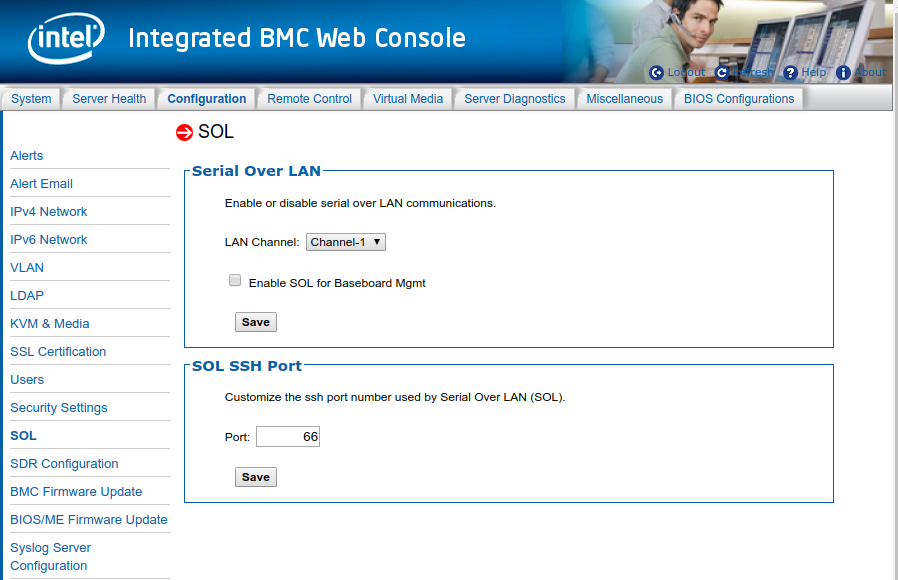
Enable SSH SOL
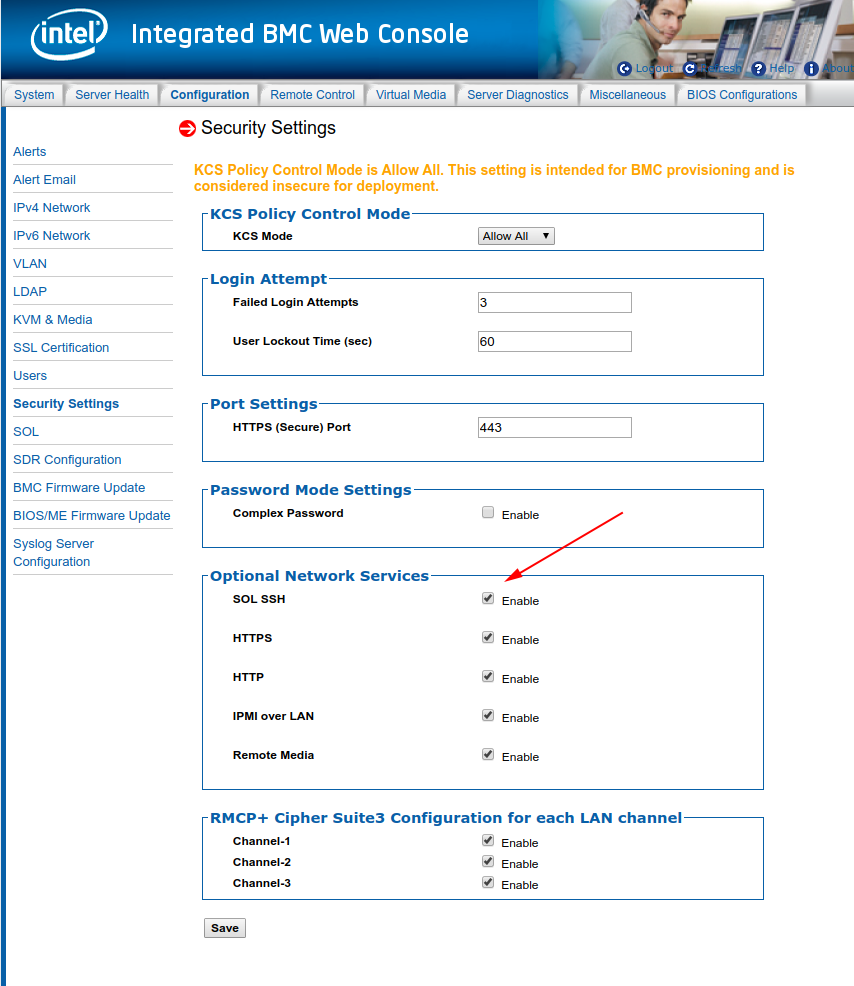
BIOS Settings
Enable the Serial Port
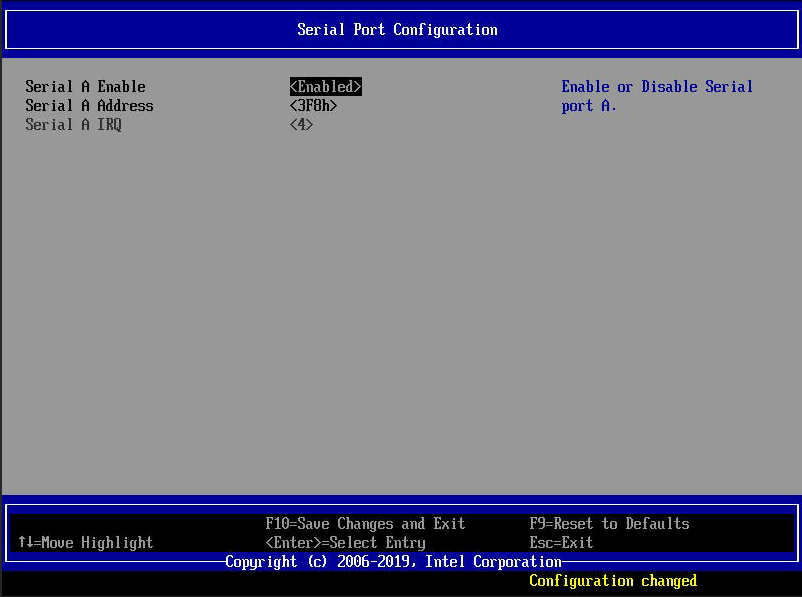
Enable Console Redirection. Since we are running the console on a dedicated ethernet interface I enable SOL only there.

Setup the Serial Console in OmniOS
Setup the ttya port
sttydefs -r ttya sttydefs -a ttya -i '115200 hupcl opost onlcr ofill' -f '115200' Configure a new console-login instance
svccfg -s svc:/system/console-login delete -f ttya svccfg -f - <<EOF select svc:/system/console-login add ttya select svc:/system/console-login:ttya addpg ttymon application setprop ttymon/device = astring: /dev/term/a setprop ttymon/terminal_type = astring: xterm setprop ttymon/label = astring: ttya setprop ttymon/modules = astring: ldterm,ttcompat setprop ttymon/nohangup = boolean: true setprop ttymon/prompt = astring: "`uname -n` ttya login:" addpg general framework EOF and enable the new console login
svcadm enable svc:/system/console-login:ttya Allow root logins on all consoles
perl -i -p -e 's/\s*(CONSOLE.+)/# $1/' /etc/default/login Get the Loader to use the Serial Console
You can also make the omnios loader talk over serial:
cat >/boot/conf.d/serial <<EOF boot_multicons="YES" boot_serial="YES" comconsole_speed="115200" os_console="text" console="ttya,text" ttya-mode="115200,8,n,1,-" EOF Finally update the boot archive and reboot
bootadm update-archive reboot Trying it out
Now you can ssh into your server by simply doing:
ssh -p 66 server-console-ip Console Resizing
If you tried vim on your new serial console, you were probably in for a disapointed — somehow it jumbled up the screen. The reason for this is, that over the serial console connection stty does not seem to get properly informed about screen size and screen size changes. Run stty and it will report rows and cols as 0 which is not ideal. There is a way to fix this though.
The easiest is to just type resize to get things fixed … unfortunately the resize comand is part of the xterm package which is probably not installed on your omnios GZ. There is another way though. If you are running bash, a little shell function will do:
resize() { old=$(stty -g) stty -echo printf '\033[18t' IFS=';' read -d t _ rows cols _ stty "$old" stty cols "$cols" rows "$rows" } I have put the following into ~root/.bash_profile to make it all automatic:
if [ ! -f /usr/bin/resize ]; then resize() { old=$(stty -g) stty -echo printf '\033[18t' IFS=';' read -d t _ rows cols _ stty "$old" stty cols "$cols" rows "$rows" } fi # resize terminal if [ "$(tty)" = '/dev/term/a' ]; then resize fi Now whenever I login on ttya the screen gets automatically resized.
The SMASH-CLP Console
Maybe your system has a SMASH console. This also lets you connect to the serial port. Just type:
start /system1/sol1 to get started and ^. to disconnect. (^ is not the control key, but the little hat above the 6 key on a US keyboard).
Help making this better
If you have figured out how to make the SOL SSH console work on another motherboard, please provide a PR.