Building faster websites Web performance with WordPress Johannes Siipola / Wordpress Meetup Helsinki 4.4.2018
Why web performance matters Web performance with WordPress
Why web performance matters Web performance with WordPress Why performance matters • Web page size and complexity is increasing every year • More and more people are browsing the web on phones and 3g connections • You need to have empathy for your users. Not everyone is visiting your site on a MacBook pro with a fiber optic connection
Why web performance matters Web performance with WordPress Performance business impact • More performance means happier users • Google’s research says that 50% of users abandon site if it takes more than 3 seconds to load • Fast loading increases conversions and revenue, can improve your SEO • For more statistics visit https://wpostats.com
Web server performance Web performance with WordPress
Use a VPS or Managed WordPress hosting instead of shared hosting Web performance with WordPress
Web server performance / Upgrade your hosting Web performance with WordPress Shared hosting • Slow performance • Often no caching on the server level • Limited configuration options
Web server performance / Upgrade your hosting Web performance with WordPress VPS (Virtual Private Server) • You can configure it however you like • Server side caching, Gzip, Expires… • You need sysadmin skills (or hire someone who does)
Web server performance / Upgrade your hosting Web performance with WordPress Managed WordPress hosting • WP-Palvelu, WP Engine, WordPress VIP, Kinsta, Pantheon… • Optimized for WordPress • Very little configuration options • Optimized for performance: Server side caching, CDN, HTTP2, Gzip
Caching Web performance with WordPress
Web server performance / Caching Web performance with WordPress Time to first byte • Time to first byte: how much server processing and network latency before first byte is transferred • Critical because no other resources can be downloaded before this is done
Web server performance / Caching Web performance with WordPress Caching • Generating page in WordPress is slow: you need to process PHP, do SQL queries • Caching generates static copies of your pages and bypasses all this • Don’t optimise you code, just add caching
Web server performance / Caching Web performance with WordPress Why cache? • In addition to speed, caching is also important for scalability. If you end up on the front page of Reddit with no caching, most servers won’t be able to handle it if all requests go to WordPress
Web server performance / Caching Web performance with WordPress Cache plugins • Caching is most effective when implemented server side: Nginx, Varnish • There are dozens of caching plugins for WordPress: W3 Total Cache, WP Super Cache etc. • By default cache plugins still execute PHP - bad • In some plugins you can configure enhanced caching so cached pages are server by web server instead of PHP • At least it’s better than nothing
Web server performance / Caching Web performance with WordPress Caching problems • Caching works well for blogs and news sites • Problematic if your site has logged in users (non-admins), shopping carts, geolocation • You can exclude pages from cache using paths or cookies or use cache bins to isolate by geolocation or device type (mobile, desktop) • Or use Javascript and AJAX to implement user-specific features • Make sure to switch to a real cron if you use caching so your cron jobs run on time
Use HTTP/2 Web performance with WordPress
Web server performance / HTTP2 Web performance with WordPress HTTP/2 • Browsers communicate with servers using HTTP protocol • HTTP/2 is the latest version of the protocol • Allows connection multiplexing and HTTP header compression • Supported in recent Nginx and Apache versions - but you need HTTPS
Use compression Web performance with WordPress
Web server performance / Compression Web performance with WordPress Compression • Makes resources smaller by formatting them differently • Text files like HTML, CSS and JS compress well, images or files don’t • Gzip compression is supported by all browsers since IE6 • Enable in Nginx or Apache and it just works
Optimize asset delivery Web performance with WordPress
Don’t load unnessary resources Web performance with WordPress
Optimize asset delivery / Don’t load unnessary resources Web performance with WordPress Don’t load unnessary resources • Less resources, faster the site • Don’t load anything you don’t use • Disable plugins you don’t use
Optimize asset delivery / Don’t load unnessary resources Web performance with WordPress Don’t load unnessary resources • Audit your CSS with unCSS • If you use Bootstrap or Foundation, use sass to comment out parts you don’t use • Avoid using ready-made themes or plugins with front end dependencies • Don’t use a plugin if you don’t have to
Minify assets Web performance with WordPress
Optimize asset delivery / Minify assets Web performance with WordPress What is minification? • CSS and js files contain data that is useful to humans but not computers • Minification makes files smaller but doesn’t change it’s meaning • Use Source maps to debug minified files in production
Optimize asset delivery / Minify assets Web performance with WordPress How to minify? • Use UglifyJS for JavaScript files • Use Clean CSS or CSSNano for CSS files • These are command line tools you can integrate into your workflow using Gulp or Webpack
Optimize asset delivery / Minify assets Web performance with WordPress What about files added by plugins? • You can use Autoptimize plugin to automatically minify and bundle assets added by themes or plugins • Exclude your own files if you want the source maps to work
Cache assets Web performance with WordPress
Optimize asset delivery / Cache assets Web performance with WordPress Cache assets • When browser downloads an asset like image, CSS or JavaScript file, it’s cached in the browser • Loading file from cache is much faster than downloading it again • Caching in controlled according to cache control HTTP headers sent by the server
Optimize asset delivery / Cache assets Web performance with WordPress How to set cache control headers? • Cache control is configured in server settings: nginx.conf or .htaccess • For example configurations, go to https://github.com/h5bp/server-configs • Some plugins like W3 total cache can write these config files for you
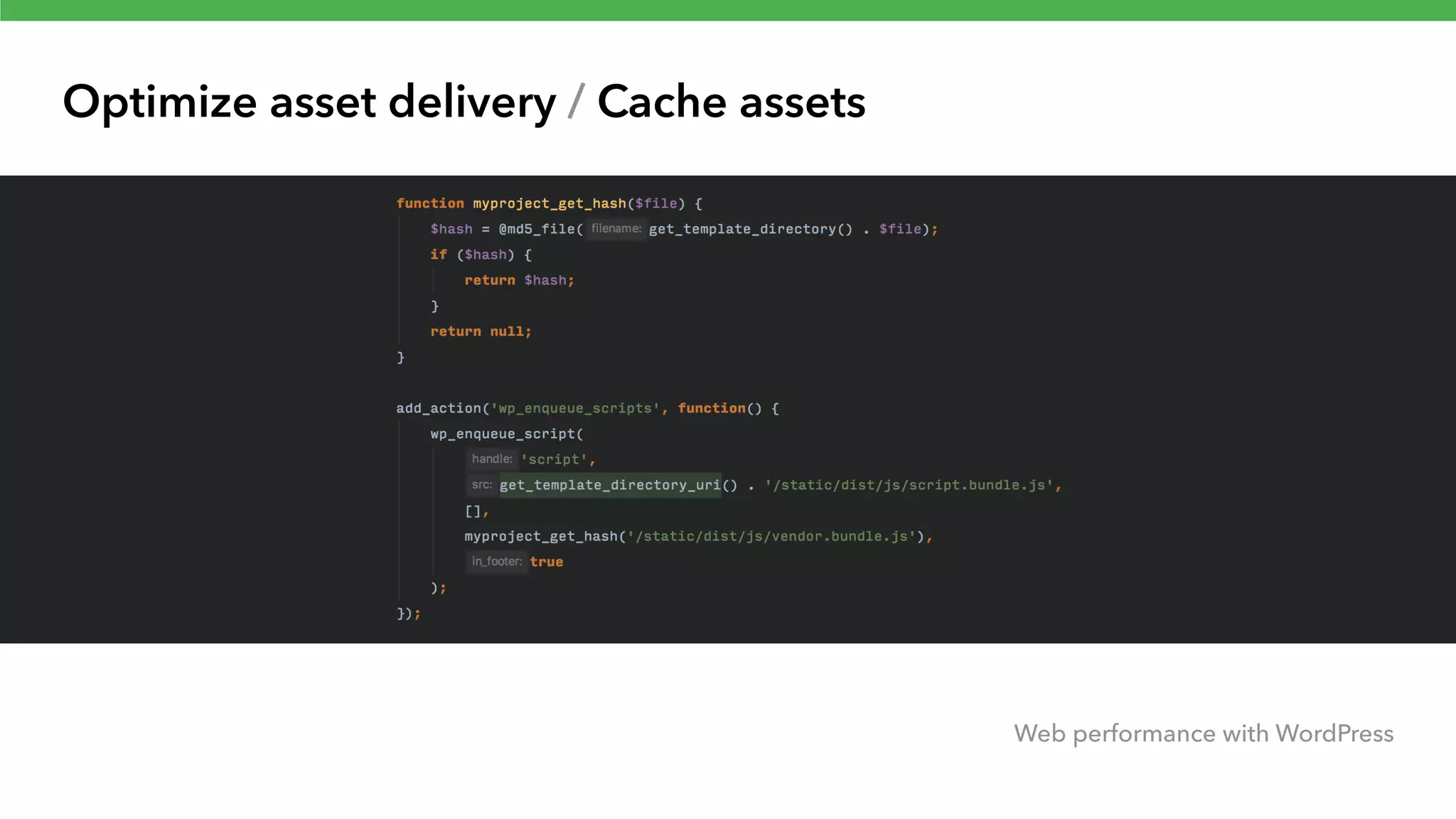
Optimize asset delivery / Cache assets Web performance with WordPress Cache busting • Expires are great for performance but if CSS and JavaScript files are updated but user have older versions in their cache, it can break your site • This can be fixed by changing the file every time the file is updated • With cache busting, you can use far future expires, cache assets up to a year
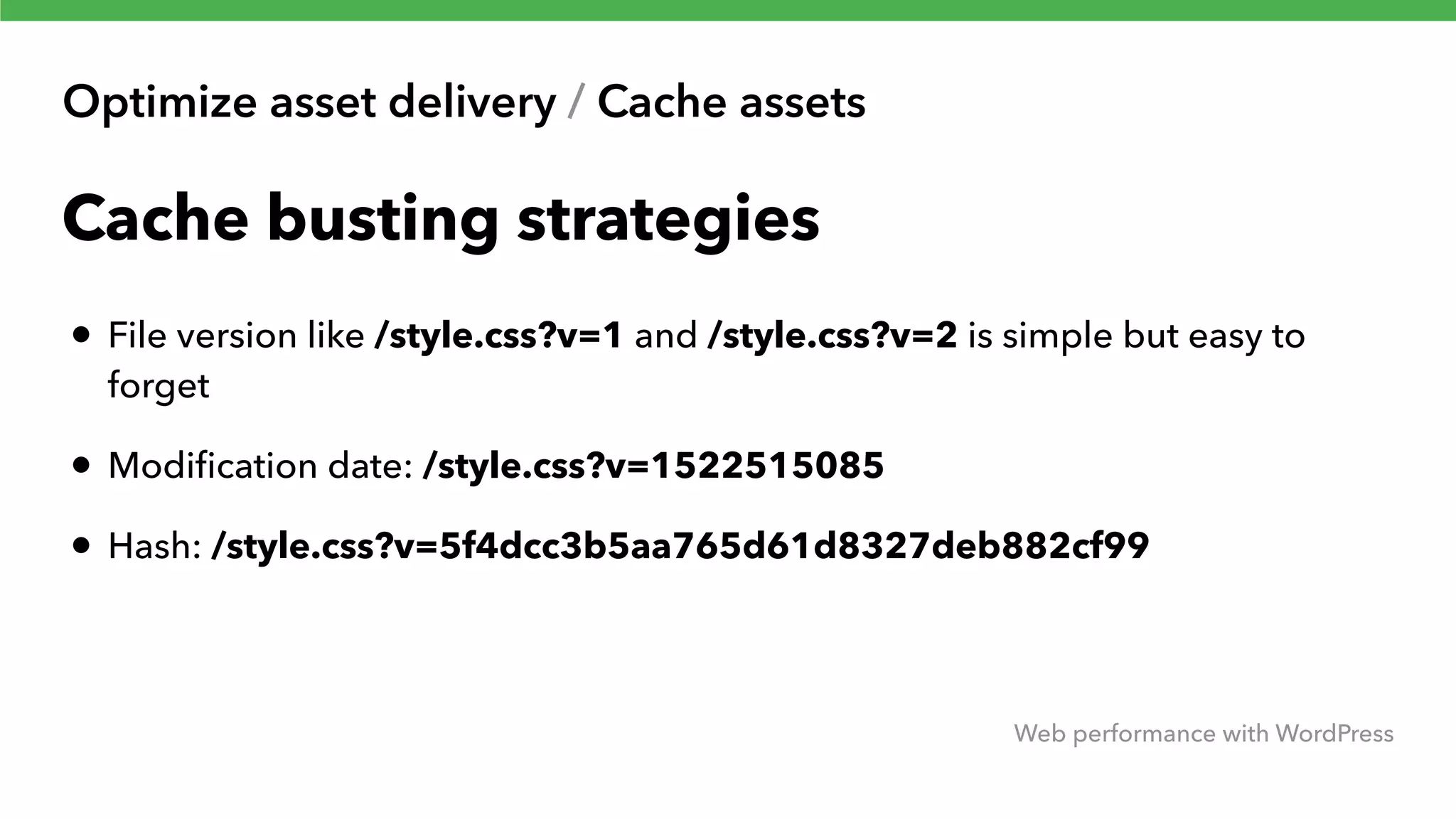
Optimize asset delivery / Cache assets Web performance with WordPress Cache busting strategies • File version like /style.css?v=1 and /style.css?v=2 is simple but easy to forget • Modification date: /style.css?v=1522515085 • Hash: /style.css?v=5f4dcc3b5aa765d61d8327deb882cf99
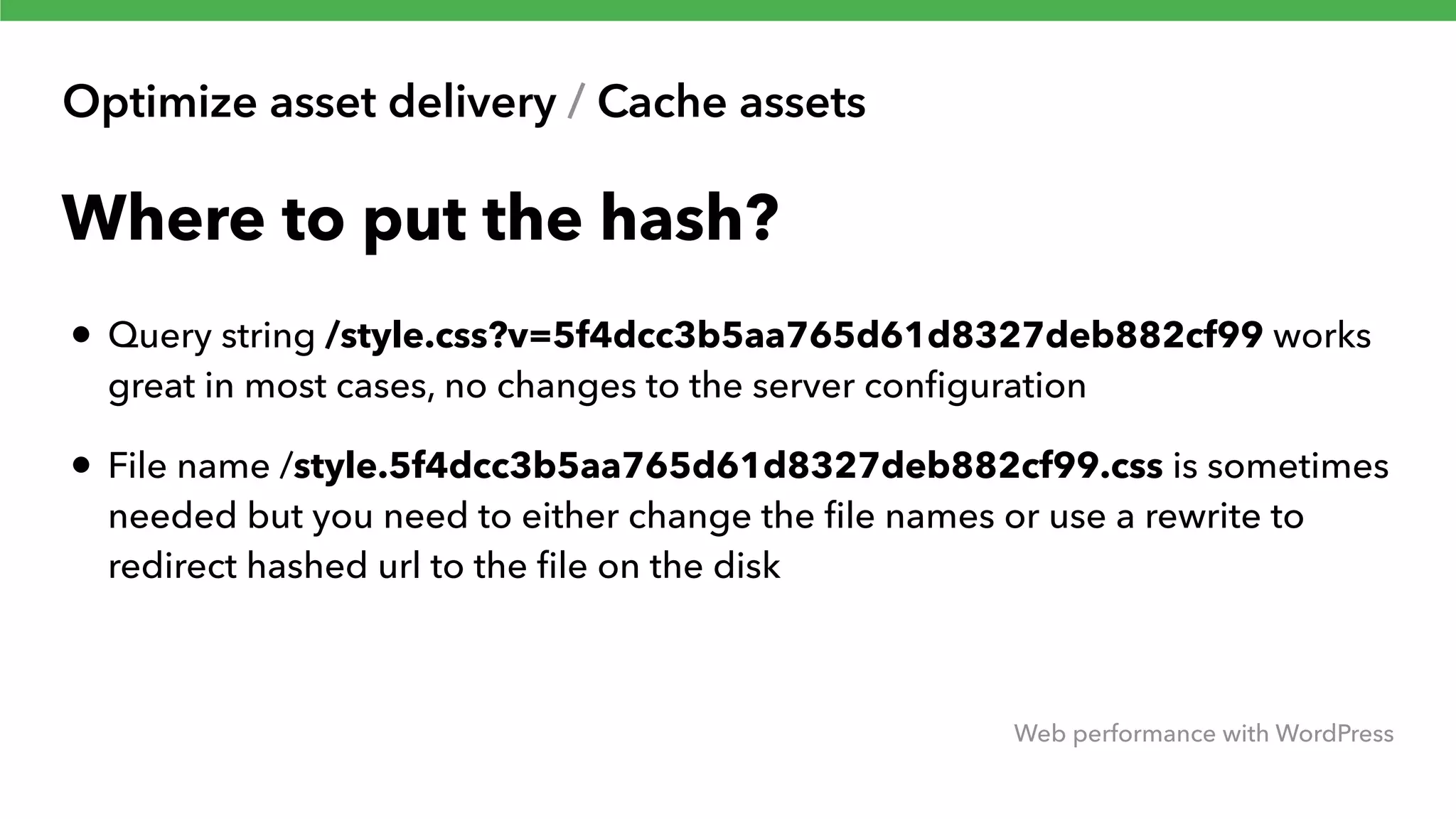
Optimize asset delivery / Cache assets Web performance with WordPress Where to put the hash? • Query string /style.css?v=5f4dcc3b5aa765d61d8327deb882cf99 works great in most cases, no changes to the server configuration • File name /style.5f4dcc3b5aa765d61d8327deb882cf99.css is sometimes needed but you need to either change the file names or use a rewrite to redirect hashed url to the file on the disk
Optimize asset delivery / Cache assets Web performance with WordPress
Content Delivery Network (CDN) Web performance with WordPress
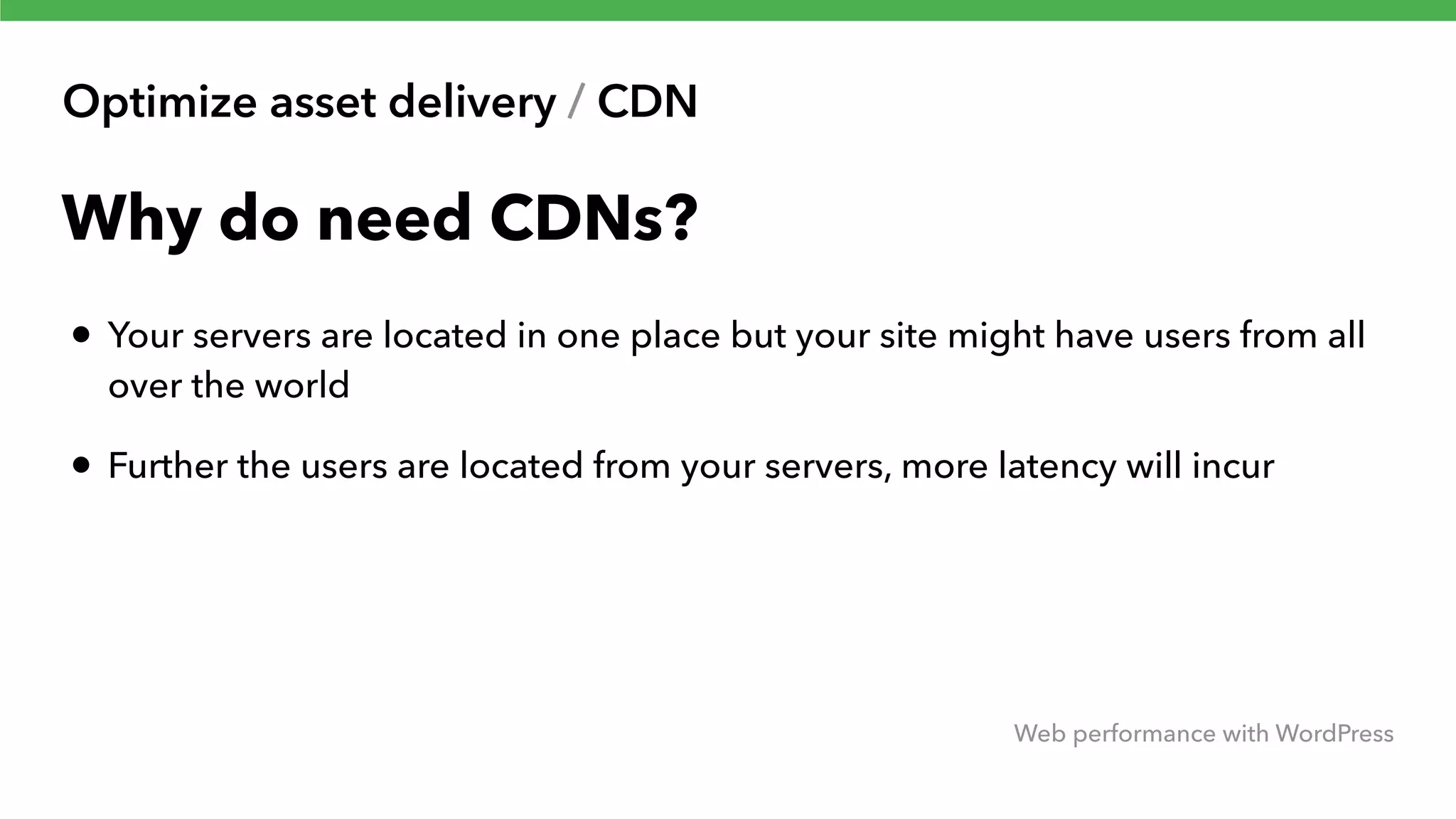
Optimize asset delivery / CDN Web performance with WordPress Why do need CDNs? • Your servers are located in one place but your site might have users from all over the world • Further the users are located from your servers, more latency will incur
Optimize asset delivery / CDN Web performance with WordPress What is a CDN? • CDN is geographically distributed cache that serves content close to your users • Most CDNs only cache static content
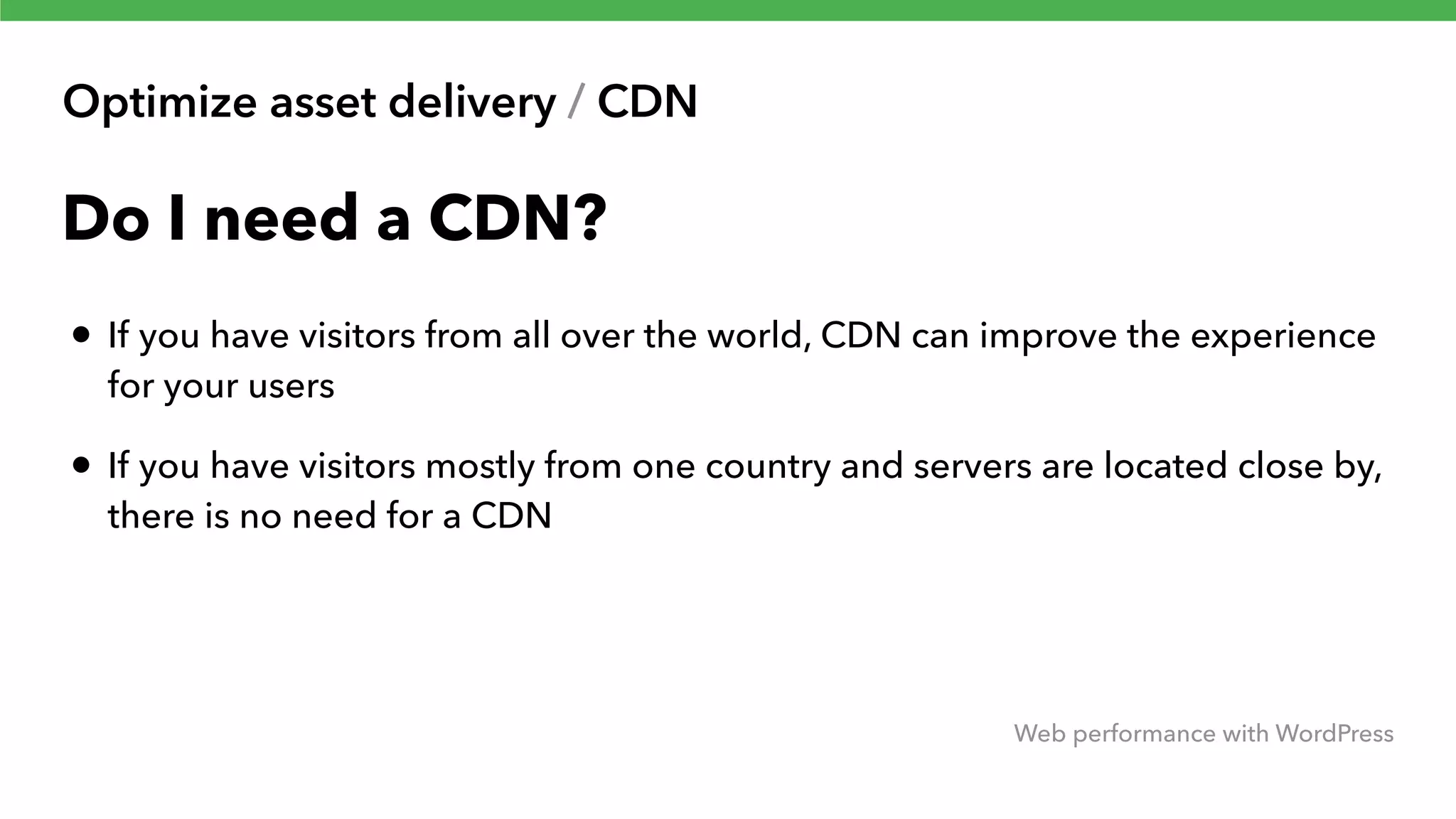
Optimize asset delivery / CDN Web performance with WordPress Do I need a CDN? • If you have visitors from all over the world, CDN can improve the experience for your users • If you have visitors mostly from one country and servers are located close by, there is no need for a CDN
Optimize asset delivery / CDN Web performance with WordPress How to use CDN • Sign up for a CDN and enter your origin URL • Just change the assets paths • CDN enabler plugin from KeyCDN • Some caching plugins like W3 total cache have CDN support built in
Optimize images Web performance with WordPress
Responsive images Web performance with WordPress
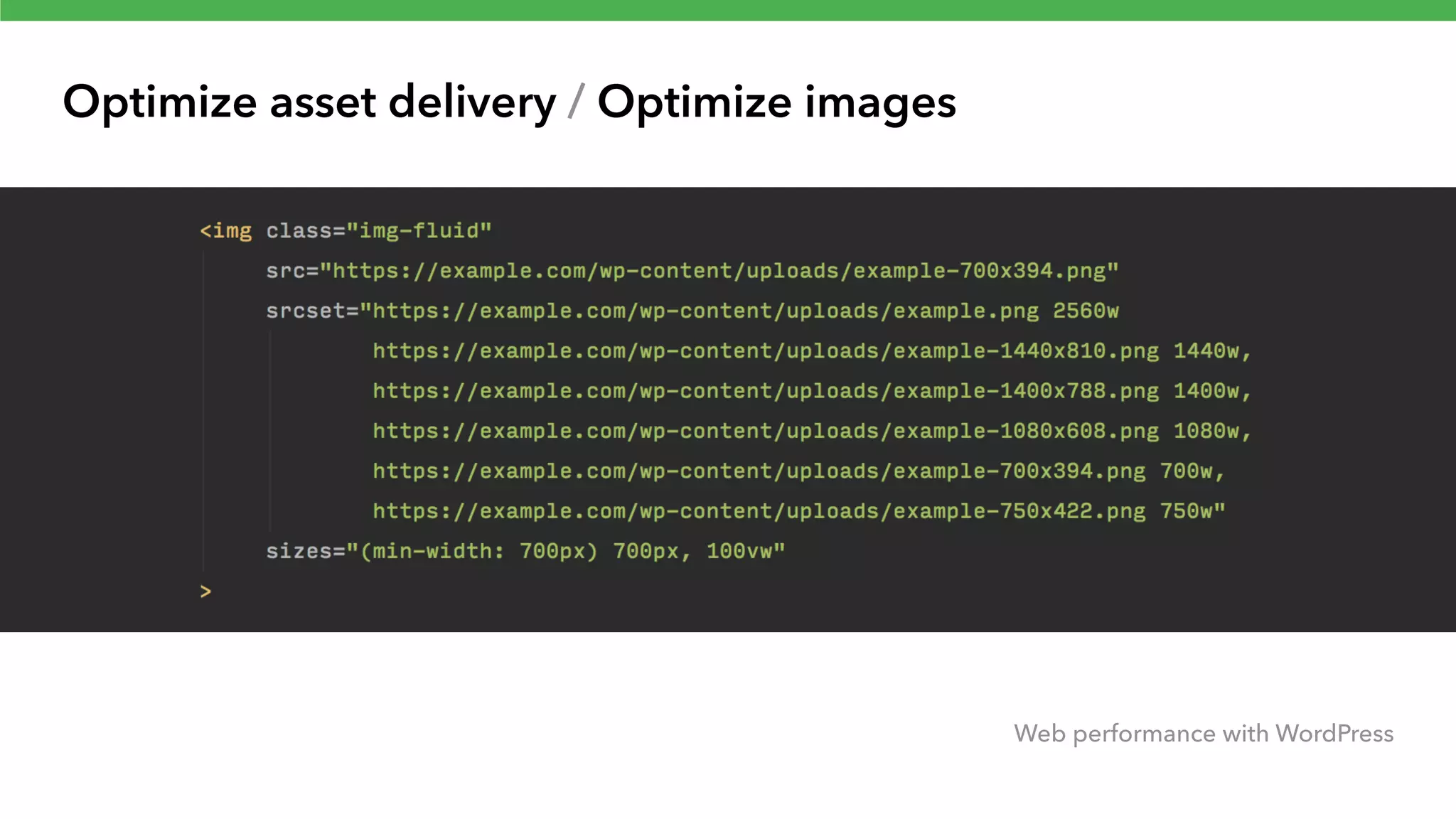
Optimize asset delivery / Optimize images Web performance with WordPress Responsive images • High resolution screens on devices like phones and Retina Macs • Normal resolution images look bad on high res screens • Doubling the image resolution is wasteful for normal resolution displays • Responsive images with scrset and sizes solve this problem. Serve right image to the right screen
Optimize asset delivery / Optimize images Web performance with WordPress How to use responsive images? • Srcset is the standard for responsive images • Srcset support is baked into WordPress since 4.4 - but just for images in the content area
Optimize asset delivery / Optimize images Web performance with WordPress
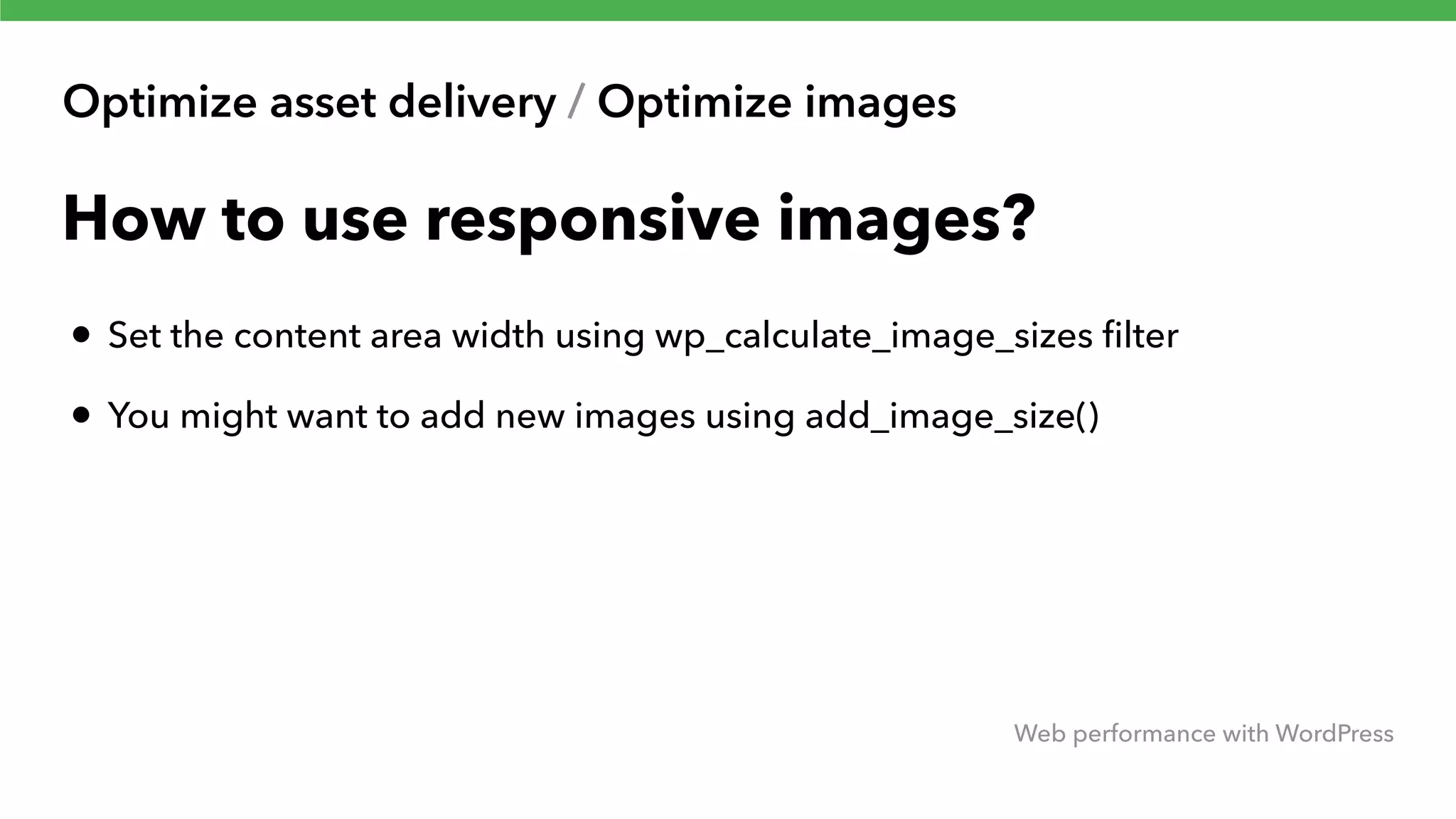
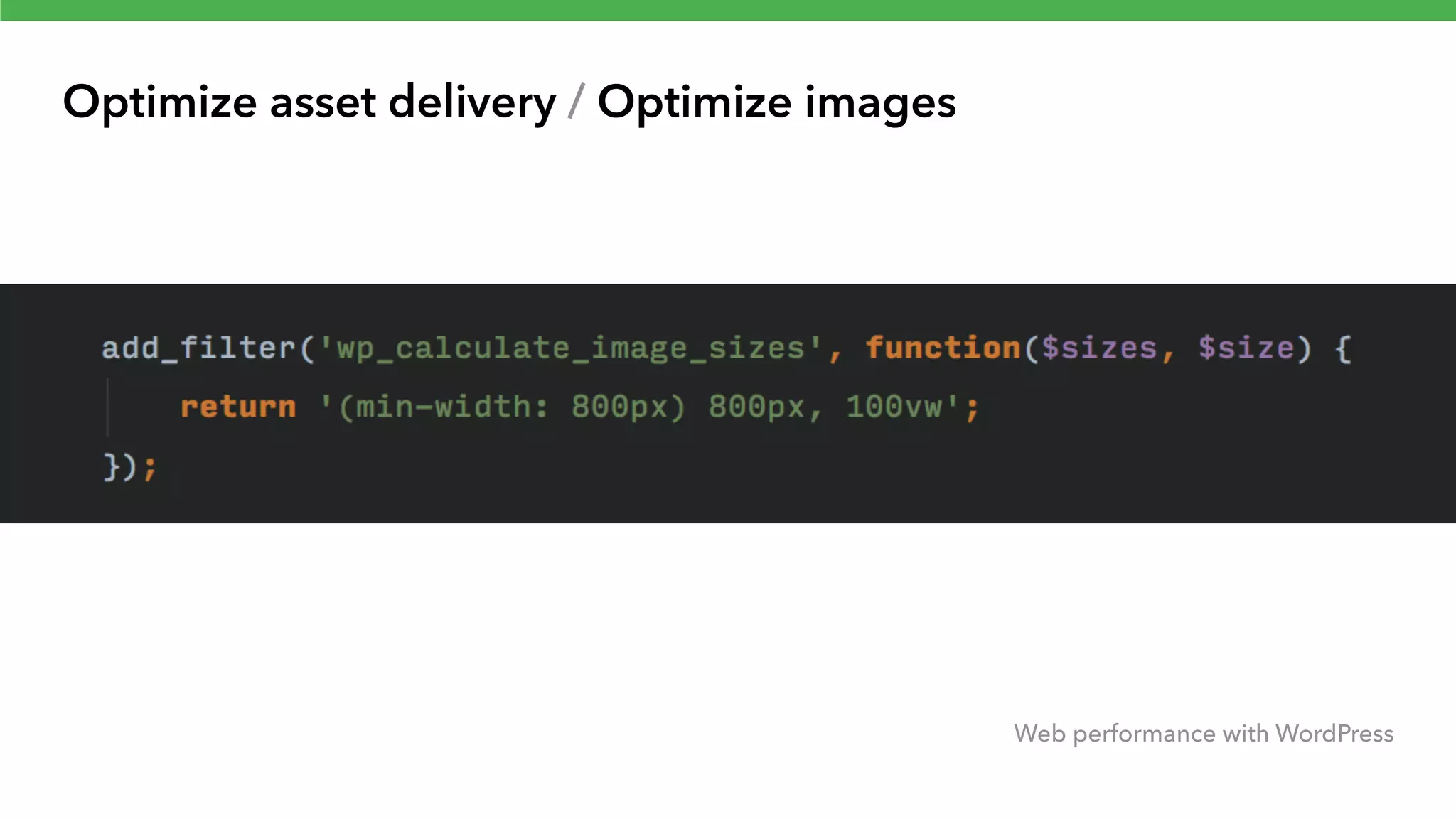
Optimize asset delivery / Optimize images Web performance with WordPress How to use responsive images? • Set the content area width using wp_calculate_image_sizes filter • You might want to add new images using add_image_size()
Optimize asset delivery / Optimize images Web performance with WordPress
Optimize image file size Web performance with WordPress
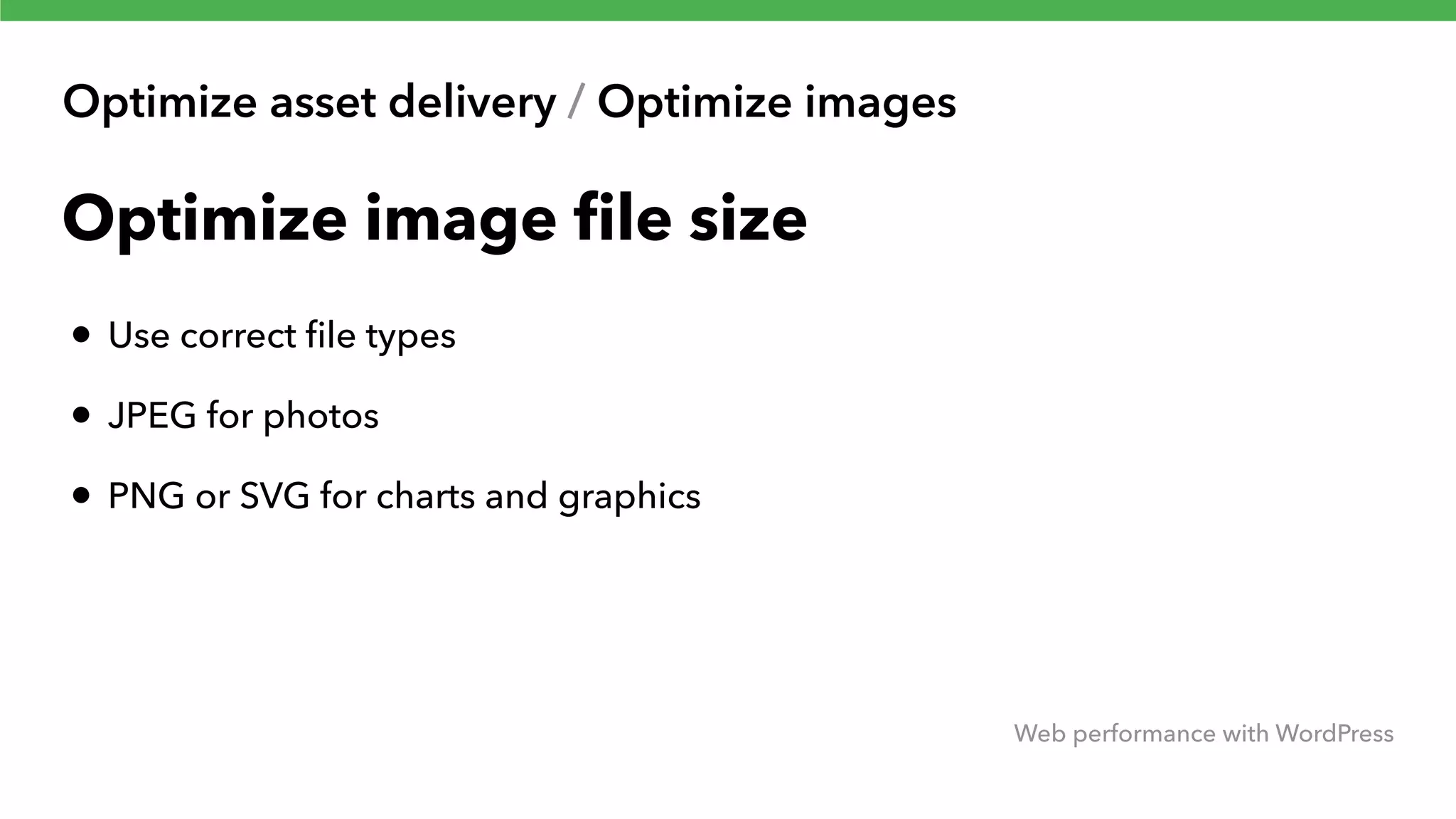
Optimize asset delivery / Optimize images Web performance with WordPress Optimize image file size • Use correct file types • JPEG for photos • PNG or SVG for charts and graphics
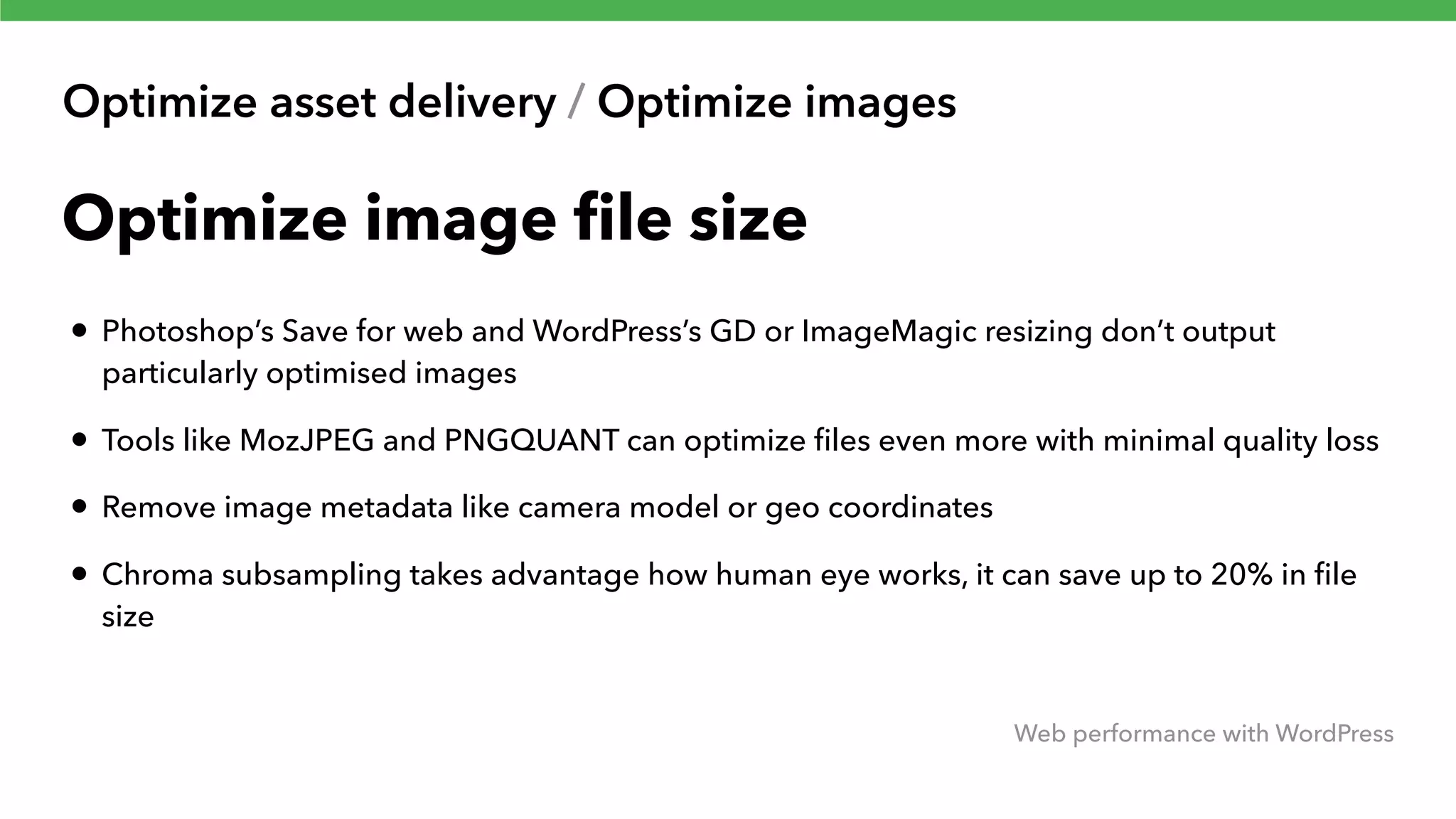
Optimize asset delivery / Optimize images Web performance with WordPress Optimize image file size • Photoshop’s Save for web and WordPress’s GD or ImageMagic resizing don’t output particularly optimised images • Tools like MozJPEG and PNGQUANT can optimize files even more with minimal quality loss • Remove image metadata like camera model or geo coordinates • Chroma subsampling takes advantage how human eye works, it can save up to 20% in file size
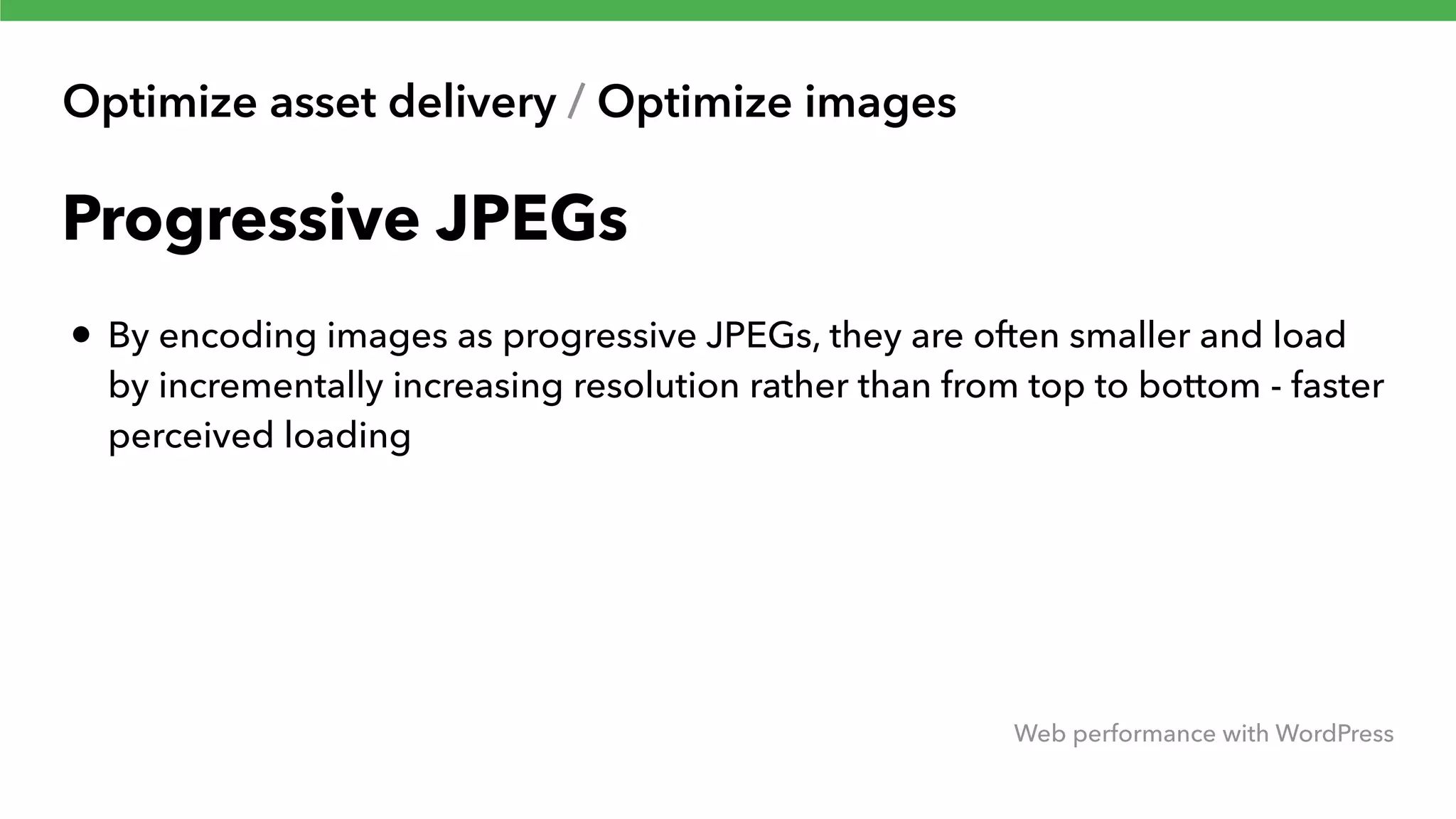
Optimize asset delivery / Optimize images Web performance with WordPress Progressive JPEGs • By encoding images as progressive JPEGs, they are often smaller and load by incrementally increasing resolution rather than from top to bottom - faster perceived loading
Source: http://bbshowcase.org/ progressive/
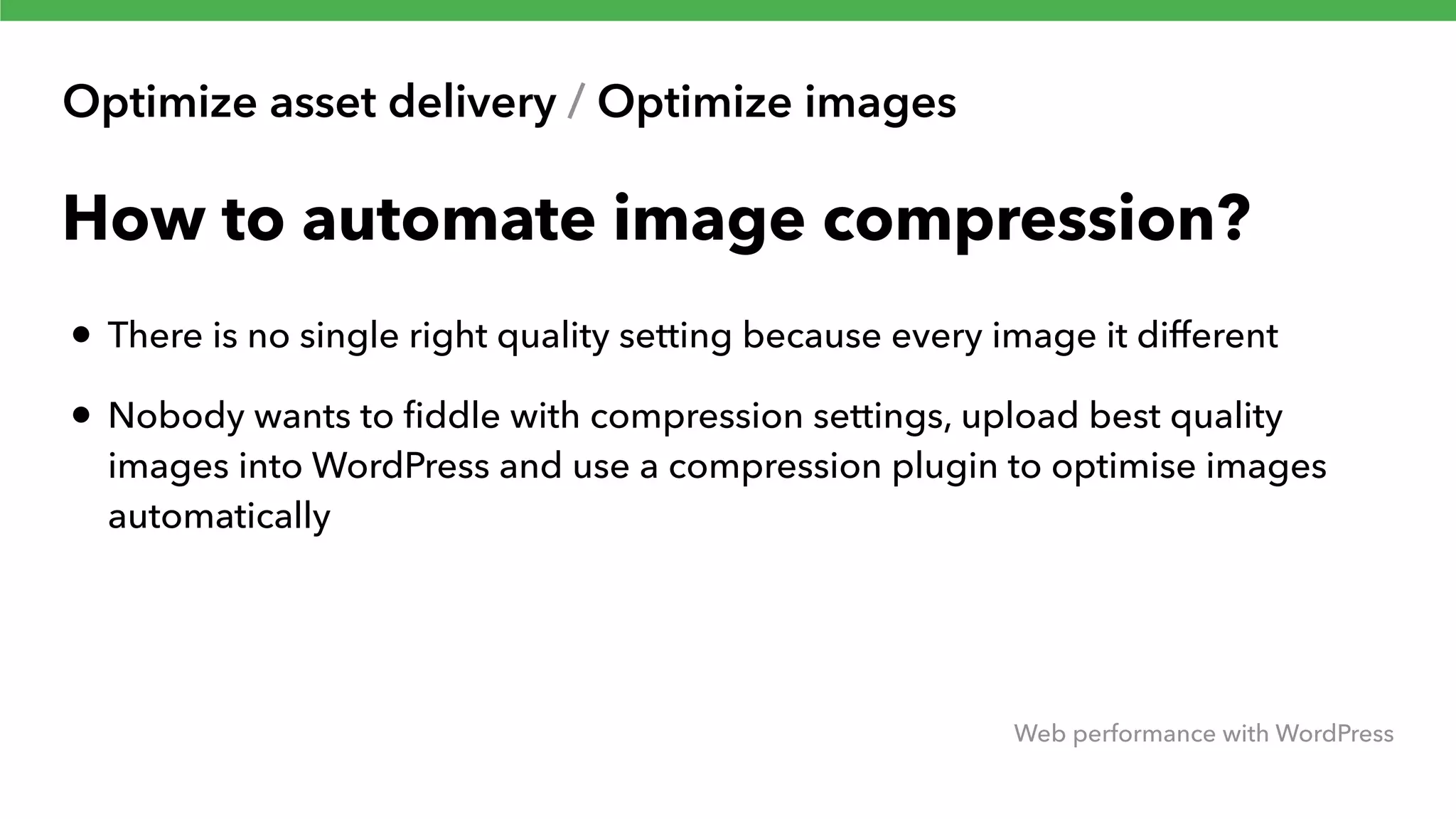
Optimize asset delivery / Optimize images Web performance with WordPress How to automate image compression? • There is no single right quality setting because every image it different • Nobody wants to fiddle with compression settings, upload best quality images into WordPress and use a compression plugin to optimise images automatically
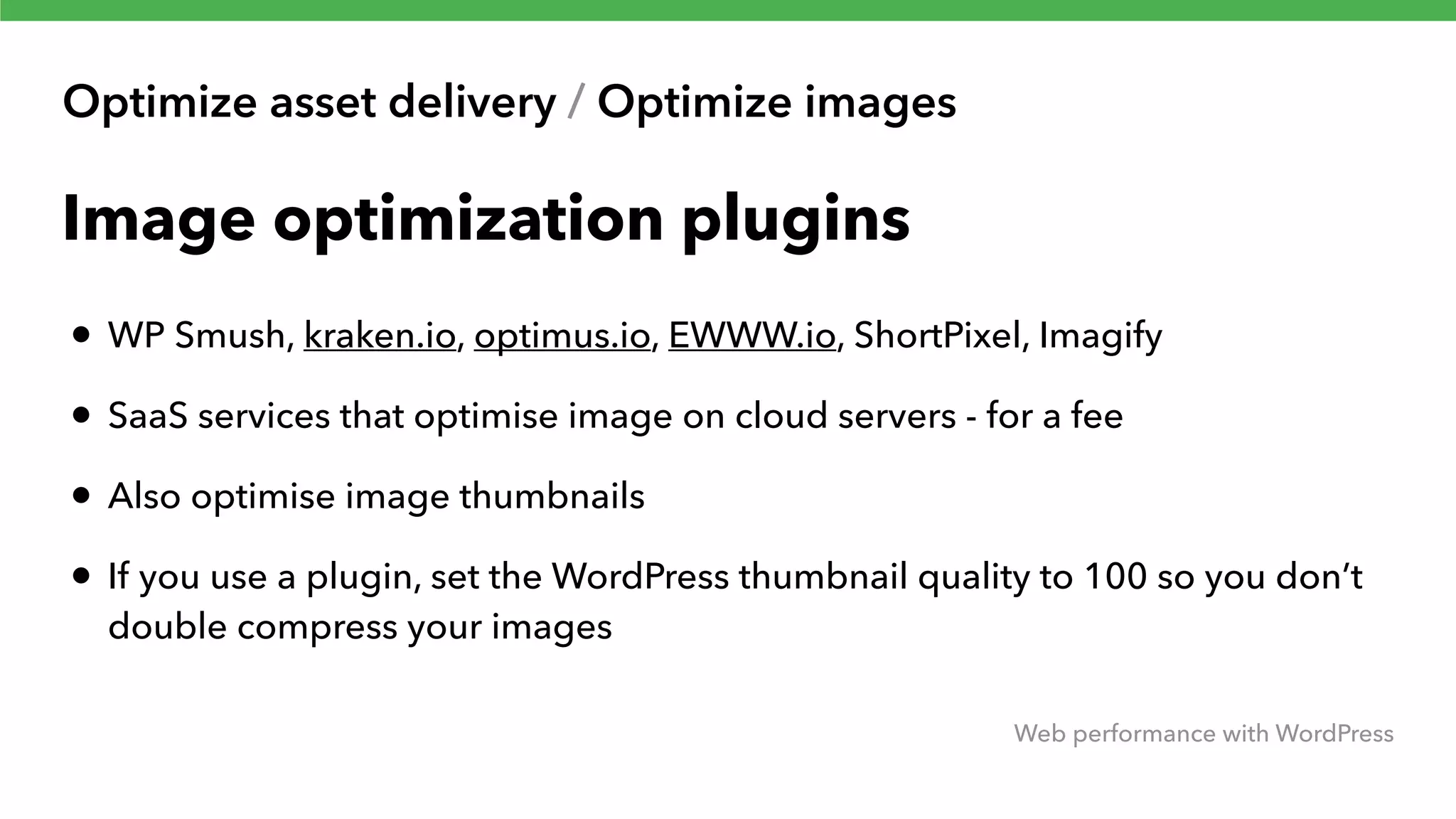
Optimize asset delivery / Optimize images Web performance with WordPress Image optimization plugins • WP Smush, kraken.io, optimus.io, EWWW.io, ShortPixel, Imagify • SaaS services that optimise image on cloud servers - for a fee • Also optimise image thumbnails • If you use a plugin, set the WordPress thumbnail quality to 100 so you don’t double compress your images
Optimize web fonts Web performance with WordPress
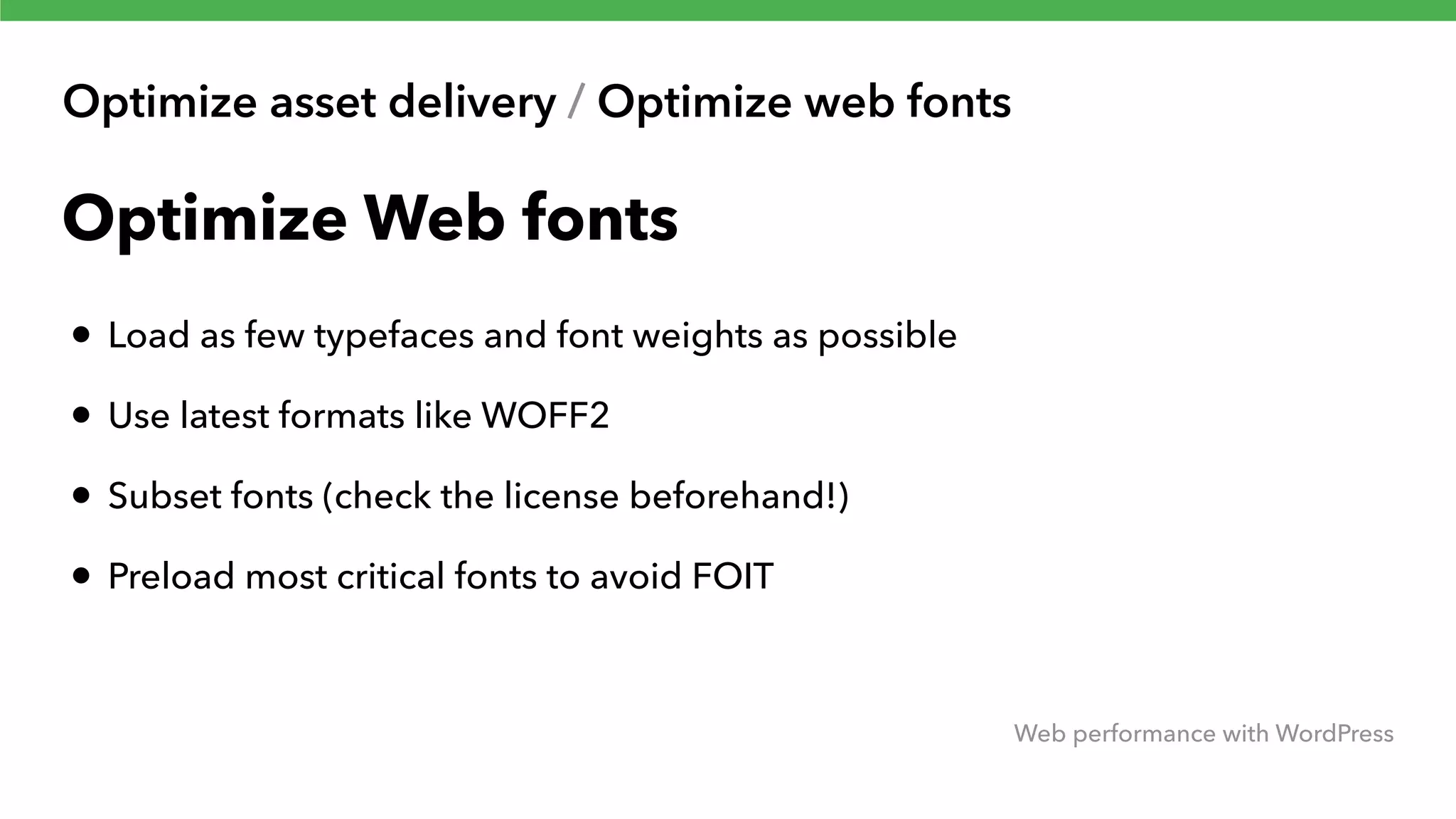
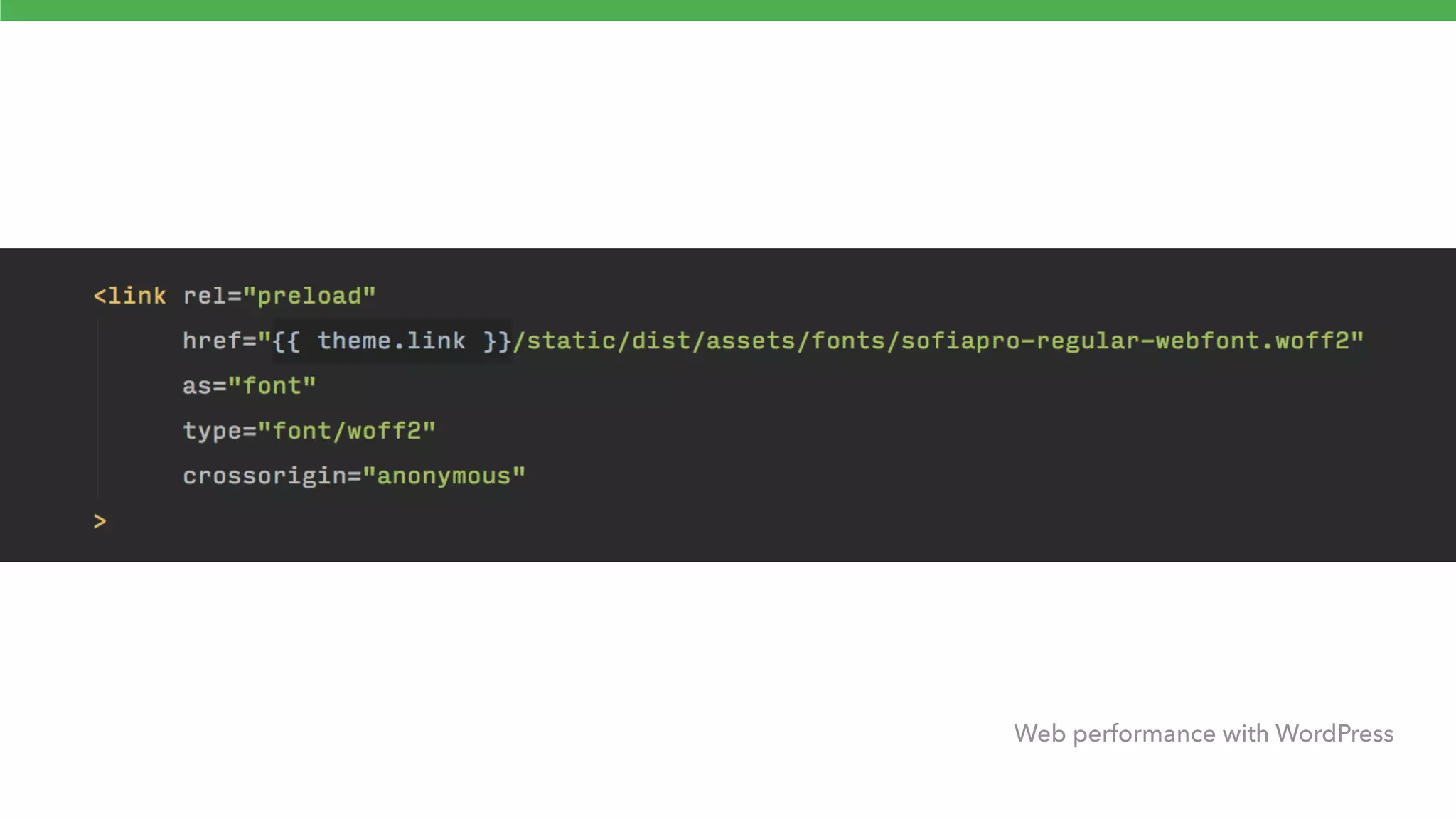
Optimize asset delivery / Optimize web fonts Web performance with WordPress Optimize Web fonts • Load as few typefaces and font weights as possible • Use latest formats like WOFF2 • Subset fonts (check the license beforehand!) • Preload most critical fonts to avoid FOIT
Web performance with WordPress
Optimize JavaScript loading Web performance with WordPress
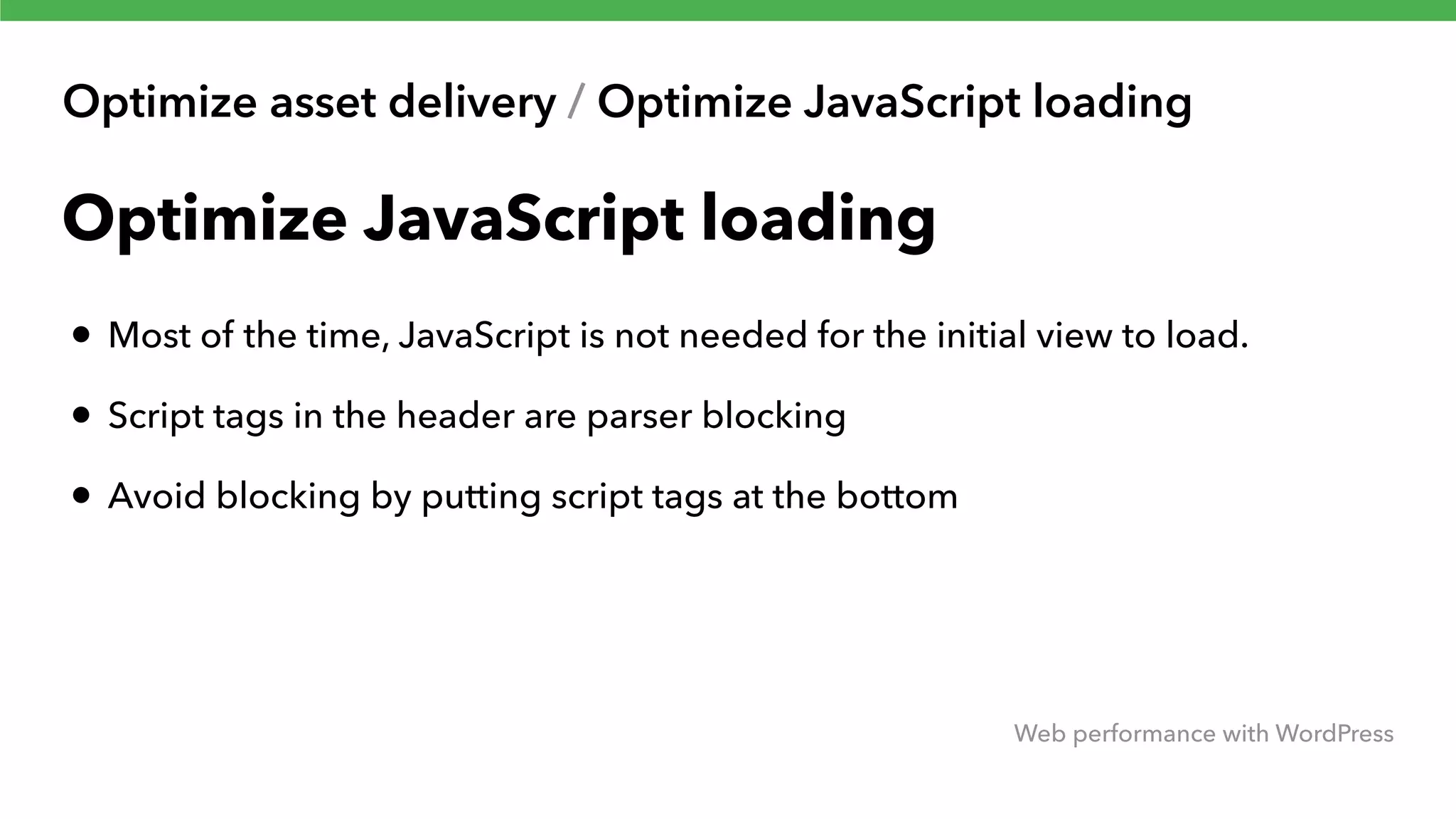
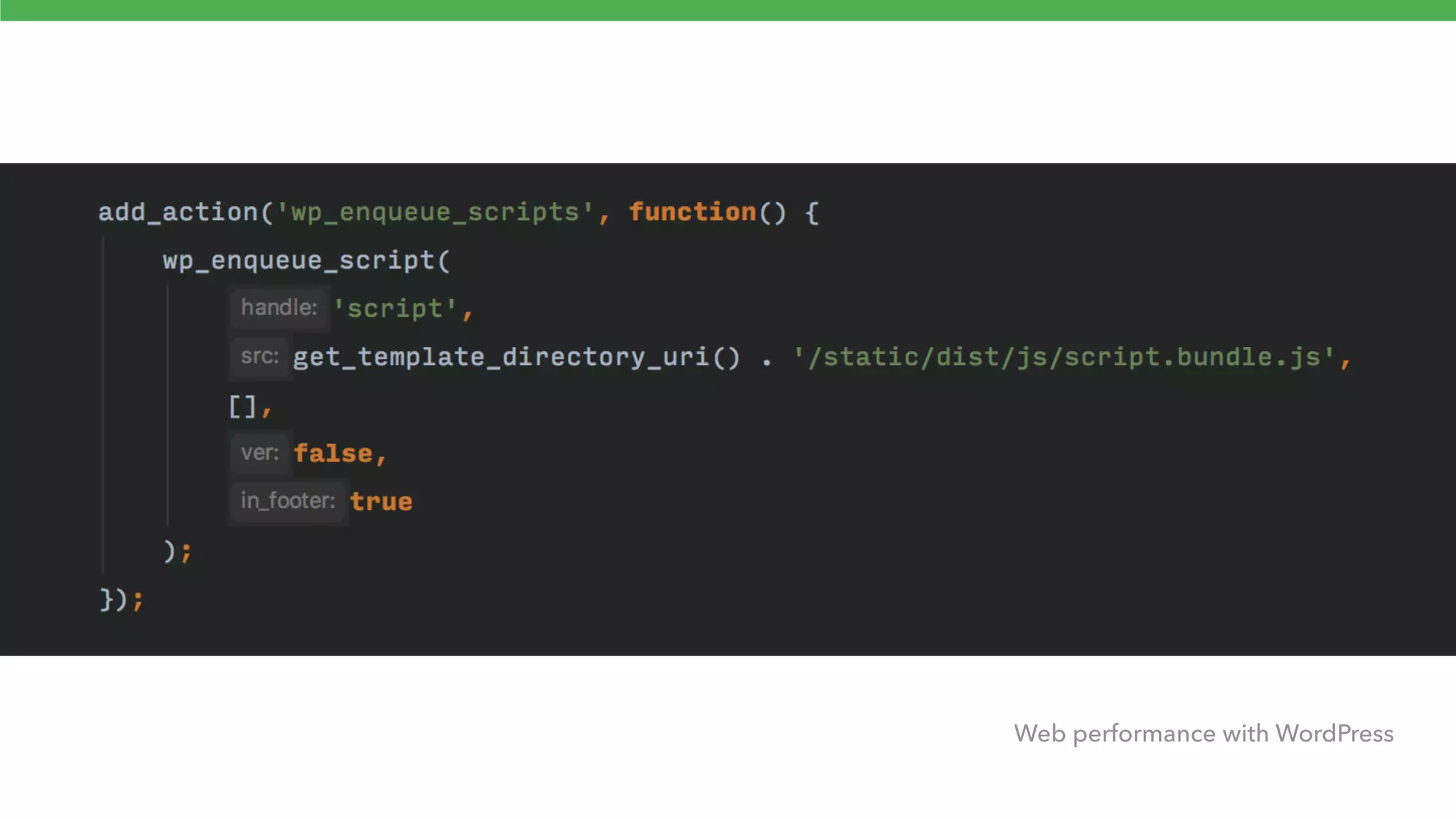
Optimize asset delivery / Optimize JavaScript loading Web performance with WordPress Optimize JavaScript loading • Most of the time, JavaScript is not needed for the initial view to load. • Script tags in the header are parser blocking • Avoid blocking by putting script tags at the bottom
Web performance with WordPress
Optimize asset delivery / Optimize JavaScript Web performance with WordPress Optimize JavaScript • Some plugins add scripts to document head but you can use Scripts to footer plugin to force them to footer • Some scripts in the head like Google Analytics are actually asynchronous so they don’t benefit from moving them to the footer
Optimize CSS loading Web performance with WordPress
Optimize asset delivery / Optimize CSS loading Web performance with WordPress Optimize CSS loading • Google recommends inlining critical CSS and deferring rest - but this only works for simple and static sites • Split CSS based on page templates or elements, this way you don’t load unnessary CSS rules on a page.

Web performance tools Web performance with WordPress
Auditing tools Web performance with WordPress
Web performance tools / Auditing tools Web performance with WordPress Browser developer tools • Browser timeline tool is your best friend to see what resources are being loaded and how fast • Latest versions of Chrome also include auditing tool you can use to measure your site performance
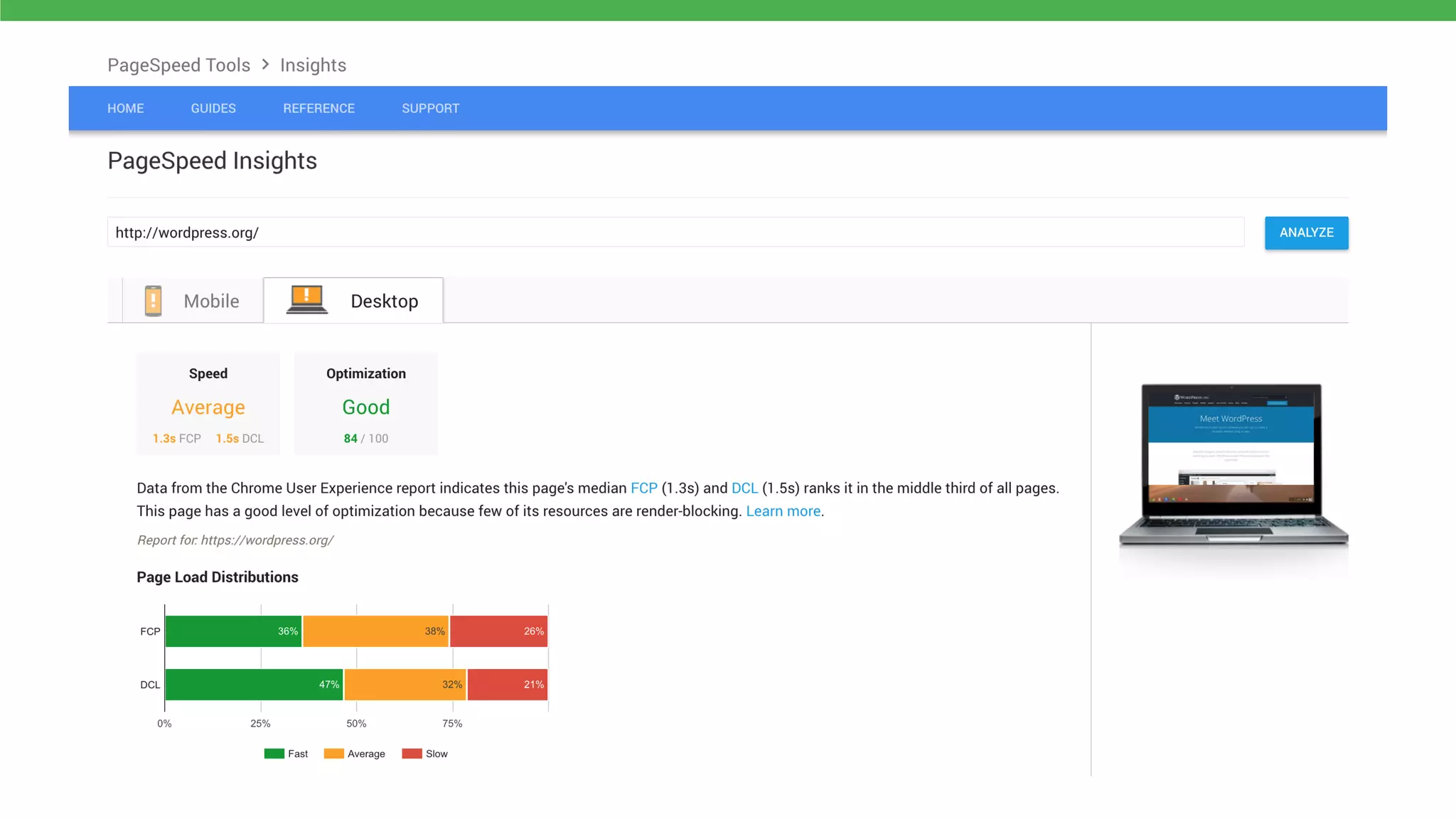
Web performance tools / Auditing tools Web performance with WordPress Google PageSpeed Insights • Scans your page, assigns a score and offers performance improvement suggestions • PageSpeed score is a meaningless number - focus of fast site rather than high score • PSI nowadays also offers RUM statistics in addition to synthetic score
Web performance tools / Auditing tools Web performance with WordPress WebPageTest • Loads your site in real / VM browser from locations all around the world • Waterfall charts, timelines, video recordings, speed scores • Can also emulate mobile browsers, different network conditions
Monitoring tools Web performance with WordPress
Web performance tools / Monitoring tools Web performance with WordPress Pingdom • Monitor real life loading times from all over the world • Compare desktop and mobile browsers • Can also do synthetic benchmarks over time
Web performance tools / Monitoring tools Web performance with WordPress New Relic • Similar to Pingdom with additional features, for example monitoring for AJAX and SPA applications - but more expensive • New Relic also offers APM tool that you can use to monitor WordPress backend performance
How to get started with web performance optimization? Web performance with WordPress
1. Audit your site using
 PageSpeed insights / WebPageTest Web performance with WordPress
2. Follow suggestions, start with easy wins like minification, GZIP, image optimisation and HTTP2 Web performance with WordPress
3. Monitor performance over time Web performance with WordPress
4. Consider advanced performance techiques Web performance with WordPress
Thank you! Questions? Web performance with WordPress

Building faster websites: web performance with WordPress

  • 1.
    Building faster websites Webperformance with WordPress Johannes Siipola / Wordpress Meetup Helsinki 4.4.2018
  • 2.
    Why web performancematters Web performance with WordPress
  • 3.
    Why web performancematters Web performance with WordPress Why performance matters • Web page size and complexity is increasing every year • More and more people are browsing the web on phones and 3g connections • You need to have empathy for your users. Not everyone is visiting your site on a MacBook pro with a fiber optic connection
  • 4.
    Why web performancematters Web performance with WordPress Performance business impact • More performance means happier users • Google’s research says that 50% of users abandon site if it takes more than 3 seconds to load • Fast loading increases conversions and revenue, can improve your SEO • For more statistics visit https://wpostats.com
  • 5.
    Web server performance Webperformance with WordPress
  • 6.
    Use a VPSor Managed WordPress hosting instead of shared hosting Web performance with WordPress
  • 7.
    Web server performance/ Upgrade your hosting Web performance with WordPress Shared hosting • Slow performance • Often no caching on the server level • Limited configuration options
  • 8.
    Web server performance/ Upgrade your hosting Web performance with WordPress VPS (Virtual Private Server) • You can configure it however you like • Server side caching, Gzip, Expires… • You need sysadmin skills (or hire someone who does)
  • 9.
    Web server performance/ Upgrade your hosting Web performance with WordPress Managed WordPress hosting • WP-Palvelu, WP Engine, WordPress VIP, Kinsta, Pantheon… • Optimized for WordPress • Very little configuration options • Optimized for performance: Server side caching, CDN, HTTP2, Gzip
  • 10.
  • 11.
    Web server performance/ Caching Web performance with WordPress Time to first byte • Time to first byte: how much server processing and network latency before first byte is transferred • Critical because no other resources can be downloaded before this is done
  • 12.
    Web server performance/ Caching Web performance with WordPress Caching • Generating page in WordPress is slow: you need to process PHP, do SQL queries • Caching generates static copies of your pages and bypasses all this • Don’t optimise you code, just add caching
  • 13.
    Web server performance/ Caching Web performance with WordPress Why cache? • In addition to speed, caching is also important for scalability. If you end up on the front page of Reddit with no caching, most servers won’t be able to handle it if all requests go to WordPress
  • 14.
    Web server performance/ Caching Web performance with WordPress Cache plugins • Caching is most effective when implemented server side: Nginx, Varnish • There are dozens of caching plugins for WordPress: W3 Total Cache, WP Super Cache etc. • By default cache plugins still execute PHP - bad • In some plugins you can configure enhanced caching so cached pages are server by web server instead of PHP • At least it’s better than nothing
  • 15.
    Web server performance/ Caching Web performance with WordPress Caching problems • Caching works well for blogs and news sites • Problematic if your site has logged in users (non-admins), shopping carts, geolocation • You can exclude pages from cache using paths or cookies or use cache bins to isolate by geolocation or device type (mobile, desktop) • Or use Javascript and AJAX to implement user-specific features • Make sure to switch to a real cron if you use caching so your cron jobs run on time
  • 16.
  • 17.
    Web server performance/ HTTP2 Web performance with WordPress HTTP/2 • Browsers communicate with servers using HTTP protocol • HTTP/2 is the latest version of the protocol • Allows connection multiplexing and HTTP header compression • Supported in recent Nginx and Apache versions - but you need HTTPS
  • 18.
  • 19.
    Web server performance/ Compression Web performance with WordPress Compression • Makes resources smaller by formatting them differently • Text files like HTML, CSS and JS compress well, images or files don’t • Gzip compression is supported by all browsers since IE6 • Enable in Nginx or Apache and it just works
  • 20.
    Optimize asset delivery Webperformance with WordPress
  • 21.
    Don’t load unnessaryresources Web performance with WordPress
  • 22.
    Optimize asset delivery/ Don’t load unnessary resources Web performance with WordPress Don’t load unnessary resources • Less resources, faster the site • Don’t load anything you don’t use • Disable plugins you don’t use
  • 23.
    Optimize asset delivery/ Don’t load unnessary resources Web performance with WordPress Don’t load unnessary resources • Audit your CSS with unCSS • If you use Bootstrap or Foundation, use sass to comment out parts you don’t use • Avoid using ready-made themes or plugins with front end dependencies • Don’t use a plugin if you don’t have to
  • 24.
  • 25.
    Optimize asset delivery/ Minify assets Web performance with WordPress What is minification? • CSS and js files contain data that is useful to humans but not computers • Minification makes files smaller but doesn’t change it’s meaning • Use Source maps to debug minified files in production
  • 26.
    Optimize asset delivery/ Minify assets Web performance with WordPress How to minify? • Use UglifyJS for JavaScript files • Use Clean CSS or CSSNano for CSS files • These are command line tools you can integrate into your workflow using Gulp or Webpack
  • 27.
    Optimize asset delivery/ Minify assets Web performance with WordPress What about files added by plugins? • You can use Autoptimize plugin to automatically minify and bundle assets added by themes or plugins • Exclude your own files if you want the source maps to work
  • 28.
  • 29.
    Optimize asset delivery/ Cache assets Web performance with WordPress Cache assets • When browser downloads an asset like image, CSS or JavaScript file, it’s cached in the browser • Loading file from cache is much faster than downloading it again • Caching in controlled according to cache control HTTP headers sent by the server
  • 30.
    Optimize asset delivery/ Cache assets Web performance with WordPress How to set cache control headers? • Cache control is configured in server settings: nginx.conf or .htaccess • For example configurations, go to https://github.com/h5bp/server-configs • Some plugins like W3 total cache can write these config files for you
  • 31.
    Optimize asset delivery/ Cache assets Web performance with WordPress Cache busting • Expires are great for performance but if CSS and JavaScript files are updated but user have older versions in their cache, it can break your site • This can be fixed by changing the file every time the file is updated • With cache busting, you can use far future expires, cache assets up to a year
  • 32.
    Optimize asset delivery/ Cache assets Web performance with WordPress Cache busting strategies • File version like /style.css?v=1 and /style.css?v=2 is simple but easy to forget • Modification date: /style.css?v=1522515085 • Hash: /style.css?v=5f4dcc3b5aa765d61d8327deb882cf99
  • 33.
    Optimize asset delivery/ Cache assets Web performance with WordPress Where to put the hash? • Query string /style.css?v=5f4dcc3b5aa765d61d8327deb882cf99 works great in most cases, no changes to the server configuration • File name /style.5f4dcc3b5aa765d61d8327deb882cf99.css is sometimes needed but you need to either change the file names or use a rewrite to redirect hashed url to the file on the disk
  • 34.
    Optimize asset delivery/ Cache assets Web performance with WordPress
  • 35.
    Content Delivery Network (CDN) Webperformance with WordPress
  • 36.
    Optimize asset delivery/ CDN Web performance with WordPress Why do need CDNs? • Your servers are located in one place but your site might have users from all over the world • Further the users are located from your servers, more latency will incur
  • 39.
    Optimize asset delivery/ CDN Web performance with WordPress What is a CDN? • CDN is geographically distributed cache that serves content close to your users • Most CDNs only cache static content
  • 40.
    Optimize asset delivery/ CDN Web performance with WordPress Do I need a CDN? • If you have visitors from all over the world, CDN can improve the experience for your users • If you have visitors mostly from one country and servers are located close by, there is no need for a CDN
  • 41.
    Optimize asset delivery/ CDN Web performance with WordPress How to use CDN • Sign up for a CDN and enter your origin URL • Just change the assets paths • CDN enabler plugin from KeyCDN • Some caching plugins like W3 total cache have CDN support built in
  • 42.
  • 44.
  • 45.
    Optimize asset delivery/ Optimize images Web performance with WordPress Responsive images • High resolution screens on devices like phones and Retina Macs • Normal resolution images look bad on high res screens • Doubling the image resolution is wasteful for normal resolution displays • Responsive images with scrset and sizes solve this problem. Serve right image to the right screen
  • 46.
    Optimize asset delivery/ Optimize images Web performance with WordPress How to use responsive images? • Srcset is the standard for responsive images • Srcset support is baked into WordPress since 4.4 - but just for images in the content area
  • 47.
    Optimize asset delivery/ Optimize images Web performance with WordPress
  • 48.
    Optimize asset delivery/ Optimize images Web performance with WordPress How to use responsive images? • Set the content area width using wp_calculate_image_sizes filter • You might want to add new images using add_image_size()
  • 49.
    Optimize asset delivery/ Optimize images Web performance with WordPress
  • 50.
    Optimize image filesize Web performance with WordPress
  • 51.
    Optimize asset delivery/ Optimize images Web performance with WordPress Optimize image file size • Use correct file types • JPEG for photos • PNG or SVG for charts and graphics
  • 52.
    Optimize asset delivery/ Optimize images Web performance with WordPress Optimize image file size • Photoshop’s Save for web and WordPress’s GD or ImageMagic resizing don’t output particularly optimised images • Tools like MozJPEG and PNGQUANT can optimize files even more with minimal quality loss • Remove image metadata like camera model or geo coordinates • Chroma subsampling takes advantage how human eye works, it can save up to 20% in file size
  • 53.
    Optimize asset delivery/ Optimize images Web performance with WordPress Progressive JPEGs • By encoding images as progressive JPEGs, they are often smaller and load by incrementally increasing resolution rather than from top to bottom - faster perceived loading
  • 54.
  • 55.
    Optimize asset delivery/ Optimize images Web performance with WordPress How to automate image compression? • There is no single right quality setting because every image it different • Nobody wants to fiddle with compression settings, upload best quality images into WordPress and use a compression plugin to optimise images automatically
  • 56.
    Optimize asset delivery/ Optimize images Web performance with WordPress Image optimization plugins • WP Smush, kraken.io, optimus.io, EWWW.io, ShortPixel, Imagify • SaaS services that optimise image on cloud servers - for a fee • Also optimise image thumbnails • If you use a plugin, set the WordPress thumbnail quality to 100 so you don’t double compress your images
  • 57.
    Optimize web fonts Webperformance with WordPress
  • 58.
    Optimize asset delivery/ Optimize web fonts Web performance with WordPress Optimize Web fonts • Load as few typefaces and font weights as possible • Use latest formats like WOFF2 • Subset fonts (check the license beforehand!) • Preload most critical fonts to avoid FOIT
  • 59.
  • 60.
    Optimize JavaScript loading Webperformance with WordPress
  • 61.
    Optimize asset delivery/ Optimize JavaScript loading Web performance with WordPress Optimize JavaScript loading • Most of the time, JavaScript is not needed for the initial view to load. • Script tags in the header are parser blocking • Avoid blocking by putting script tags at the bottom
  • 62.
  • 63.
    Optimize asset delivery/ Optimize JavaScript Web performance with WordPress Optimize JavaScript • Some plugins add scripts to document head but you can use Scripts to footer plugin to force them to footer • Some scripts in the head like Google Analytics are actually asynchronous so they don’t benefit from moving them to the footer
  • 64.
    Optimize CSS loading Webperformance with WordPress
  • 65.
    Optimize asset delivery/ Optimize CSS loading Web performance with WordPress Optimize CSS loading • Google recommends inlining critical CSS and deferring rest - but this only works for simple and static sites • Split CSS based on page templates or elements, this way you don’t load unnessary CSS rules on a page.
  • 66.
    Web performance tools Webperformance with WordPress
  • 67.
  • 68.
    Web performance tools/ Auditing tools Web performance with WordPress Browser developer tools • Browser timeline tool is your best friend to see what resources are being loaded and how fast • Latest versions of Chrome also include auditing tool you can use to measure your site performance
  • 69.
    Web performance tools/ Auditing tools Web performance with WordPress Google PageSpeed Insights • Scans your page, assigns a score and offers performance improvement suggestions • PageSpeed score is a meaningless number - focus of fast site rather than high score • PSI nowadays also offers RUM statistics in addition to synthetic score
  • 71.
    Web performance tools/ Auditing tools Web performance with WordPress WebPageTest • Loads your site in real / VM browser from locations all around the world • Waterfall charts, timelines, video recordings, speed scores • Can also emulate mobile browsers, different network conditions
  • 72.
  • 73.
    Web performance tools/ Monitoring tools Web performance with WordPress Pingdom • Monitor real life loading times from all over the world • Compare desktop and mobile browsers • Can also do synthetic benchmarks over time
  • 74.
    Web performance tools/ Monitoring tools Web performance with WordPress New Relic • Similar to Pingdom with additional features, for example monitoring for AJAX and SPA applications - but more expensive • New Relic also offers APM tool that you can use to monitor WordPress backend performance
  • 75.
    How to getstarted with web performance optimization? Web performance with WordPress
  • 76.
    1. Audit yoursite using
 PageSpeed insights / WebPageTest Web performance with WordPress
  • 77.
    2. Follow suggestions,start with easy wins like minification, GZIP, image optimisation and HTTP2 Web performance with WordPress
  • 78.
    3. Monitor performanceover time Web performance with WordPress
  • 79.
    4. Consider advanced performancetechiques Web performance with WordPress
  • 80.
    Thank you! Questions? Webperformance with WordPress