The document discusses various controls in VB.NET including list boxes, combo boxes, picture boxes, and timers. It provides properties and methods for each control as well as code examples of how to implement and use the controls. List boxes allow selection of one or more items from a list. Combo boxes combine a text box and drop down list. Picture boxes display images. Timers allow running code at set time intervals without threading.
Shri Shivaji ScienceCollege, Amravati Department of Computer Science Topic-VB.NET Prepared By Dr. Ujwala S. Junghare Assistant Professor Dept. of Computer Science
List Boxes: • Listboxes display a list of items from which the user can select one or more. If there are too many items to display at once, a scroll bar automatically appears to let the user scroll through the list. In Visual Basic .NET , each item in a list box is itself an object. • It allows the programmer to add items at design time by using the properties window or at the runtime. • You can create a list box by dragging a ListBox control from the Toolbox and dropping it on the form.
4.
You can populatethe list box items either from the properties window or at runtime. Properties of the ListBox Control: Sr.No . Property & Description 1 AllowSelection Gets a value indicating whether the ListBox currently enables selection of list items. 2 BorderStyle Gets or sets the type of border drawn around the list box. 3 ColumnWidth Gets of sets the width of columns in a multicolumn list box. 4 HorizontalExtent Gets or sets the horizontal scrolling area of a list box. 5 HorizontalScrollBar Gets or sets the value indicating whether a horizontal scrollbar is displayed in the list box.
5.
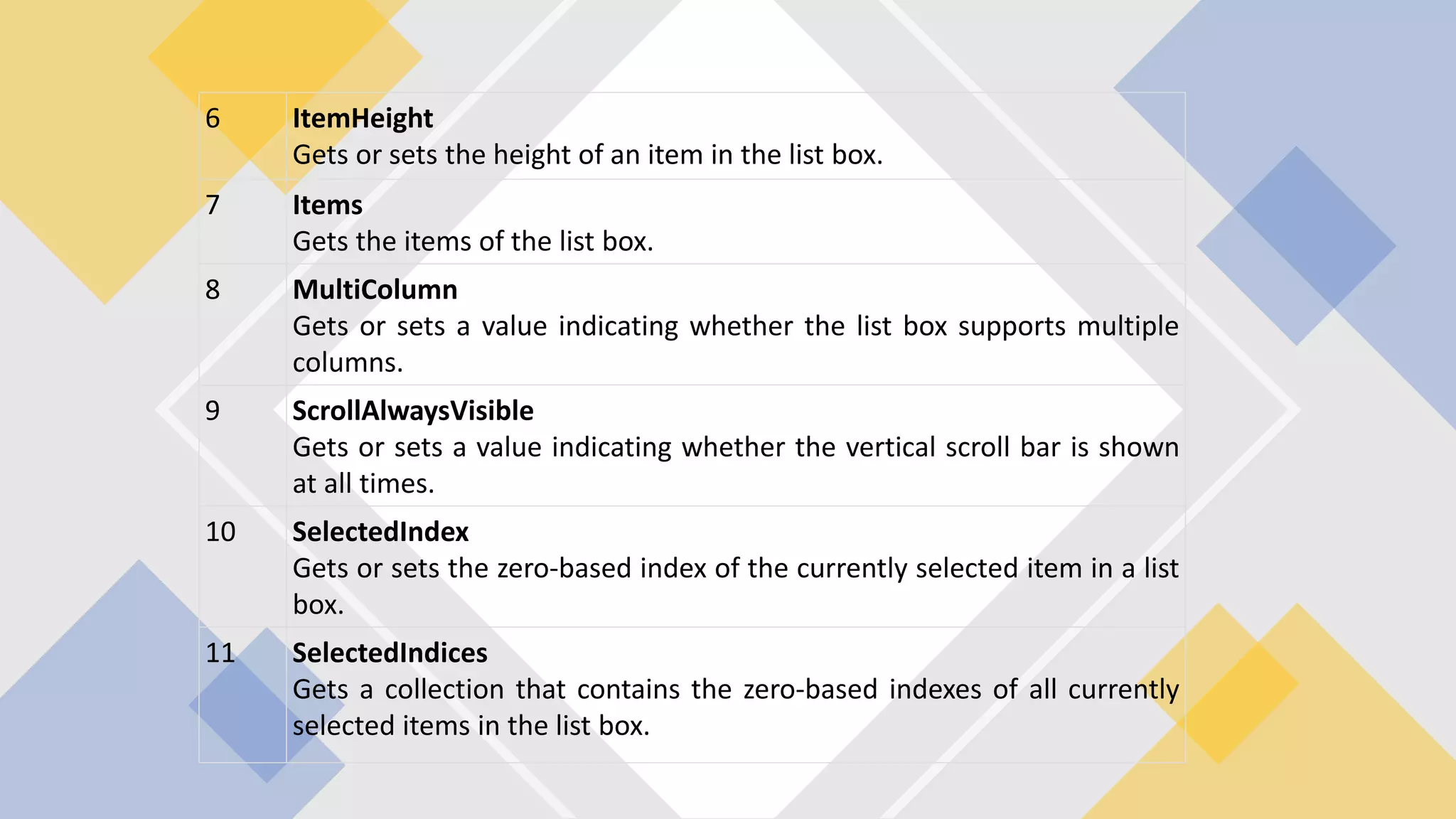
6 ItemHeight Gets orsets the height of an item in the list box. 7 Items Gets the items of the list box. 8 MultiColumn Gets or sets a value indicating whether the list box supports multiple columns. 9 ScrollAlwaysVisible Gets or sets a value indicating whether the vertical scroll bar is shown at all times. 10 SelectedIndex Gets or sets the zero-based index of the currently selected item in a list box. 11 SelectedIndices Gets a collection that contains the zero-based indexes of all currently selected items in the list box.
6.
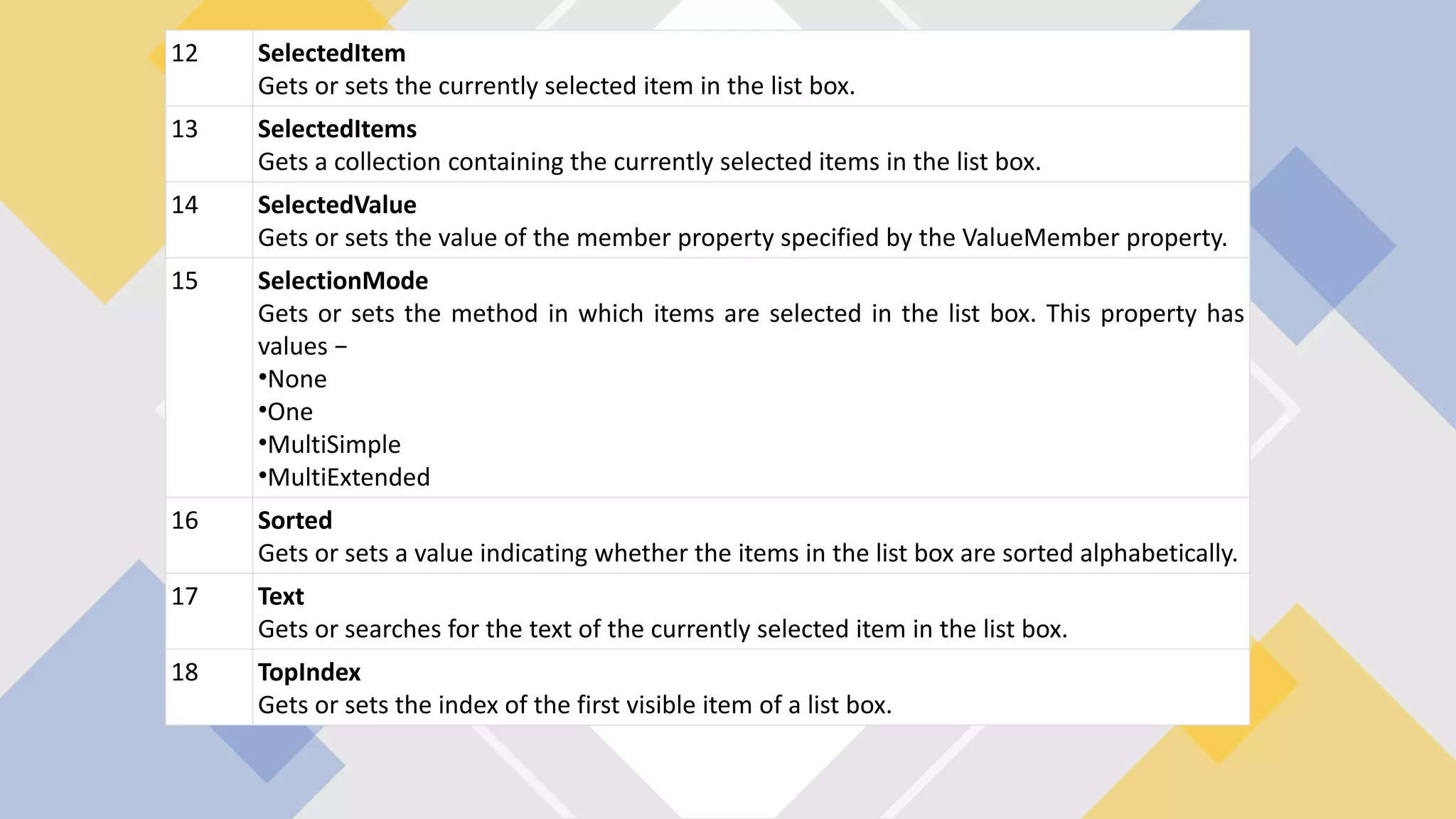
12 SelectedItem Gets orsets the currently selected item in the list box. 13 SelectedItems Gets a collection containing the currently selected items in the list box. 14 SelectedValue Gets or sets the value of the member property specified by the ValueMember property. 15 SelectionMode Gets or sets the method in which items are selected in the list box. This property has values − •None •One •MultiSimple •MultiExtended 16 Sorted Gets or sets a value indicating whether the items in the list box are sorted alphabetically. 17 Text Gets or searches for the text of the currently selected item in the list box. 18 TopIndex Gets or sets the index of the first visible item of a list box.
7.
Public Class Form1 PrivateSub Form1_Load(sender As Object, e As EventArgs) Handles MyBase.Load ' Set the caption bar text of the form. Me.Text = "tutorialspont.com" ListBox1.Items.Add("Canada") ListBox1.Items.Add("USA") ListBox1.Items.Add("UK") ListBox1.Items.Add("Japan") ListBox1.Items.Add("Russia") ListBox1.Items.Add("China") ListBox1.Items.Add("India") End Sub Private Sub Button1_Click(sender As Object, e As EventArgs) Handles Button1.Click MsgBox("You have selected " + ListBox1.SelectedItem.ToString()) End Sub Private Sub ListBox1_SelectedIndexChanged(sender As Object, e As EventArgs) Handles ListBox1.SelectedIndexChanged Label2.Text = ListBox1.SelectedItem.ToString() End Sub End Class
8.
Private Sub Button1_Click(ByValsender As System.Object, _ ByVal e As System.EventArgs) Handles Button1.Click ListBox1.BeginUpdate() Dim intLoopIndex As Integer For intLoopIndex = 1 To 20 ListBox1.Items.Add("Item " &intLoopIndex.ToString()) Next intLoopIndex ListBox1.EndUpdate() End Sub
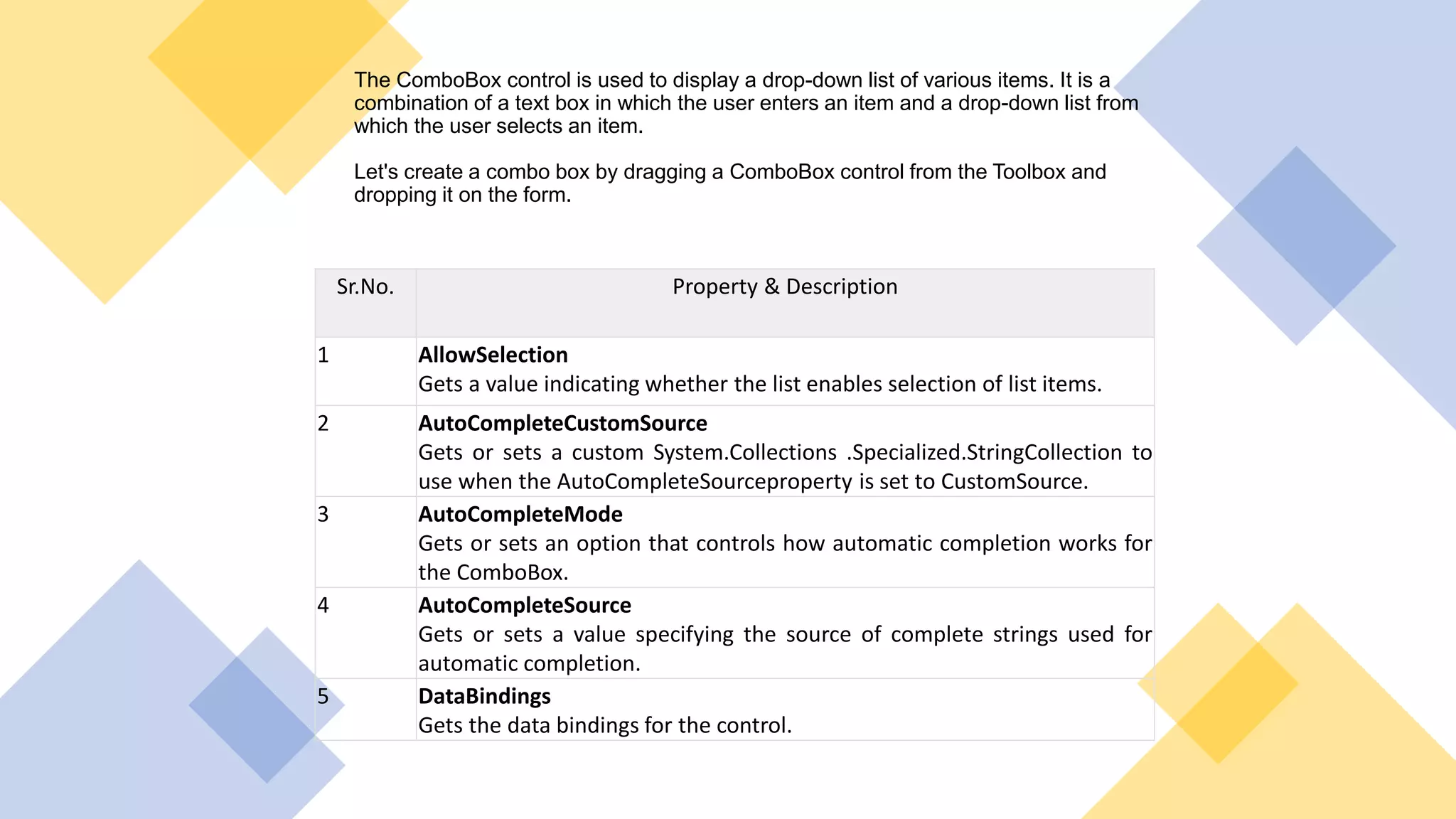
The ComboBox controlis used to display a drop-down list of various items. It is a combination of a text box in which the user enters an item and a drop-down list from which the user selects an item. Let's create a combo box by dragging a ComboBox control from the Toolbox and dropping it on the form. Sr.No. Property & Description 1 AllowSelection Gets a value indicating whether the list enables selection of list items. 2 AutoCompleteCustomSource Gets or sets a custom System.Collections .Specialized.StringCollection to use when the AutoCompleteSourceproperty is set to CustomSource. 3 AutoCompleteMode Gets or sets an option that controls how automatic completion works for the ComboBox. 4 AutoCompleteSource Gets or sets a value specifying the source of complete strings used for automatic completion. 5 DataBindings Gets the data bindings for the control.
11.
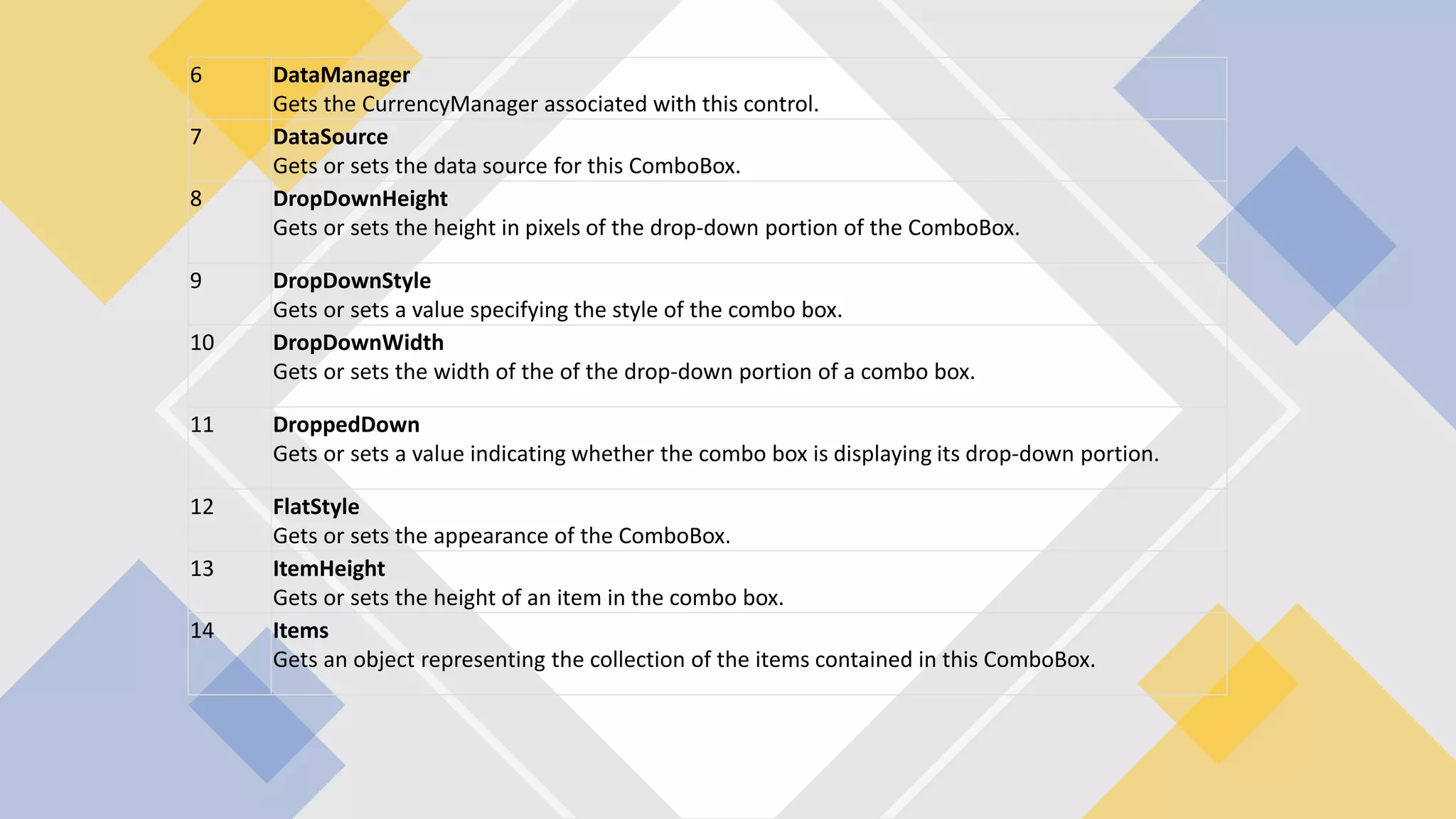
6 DataManager Gets theCurrencyManager associated with this control. 7 DataSource Gets or sets the data source for this ComboBox. 8 DropDownHeight Gets or sets the height in pixels of the drop-down portion of the ComboBox. 9 DropDownStyle Gets or sets a value specifying the style of the combo box. 10 DropDownWidth Gets or sets the width of the of the drop-down portion of a combo box. 11 DroppedDown Gets or sets a value indicating whether the combo box is displaying its drop-down portion. 12 FlatStyle Gets or sets the appearance of the ComboBox. 13 ItemHeight Gets or sets the height of an item in the combo box. 14 Items Gets an object representing the collection of the items contained in this ComboBox.
12.
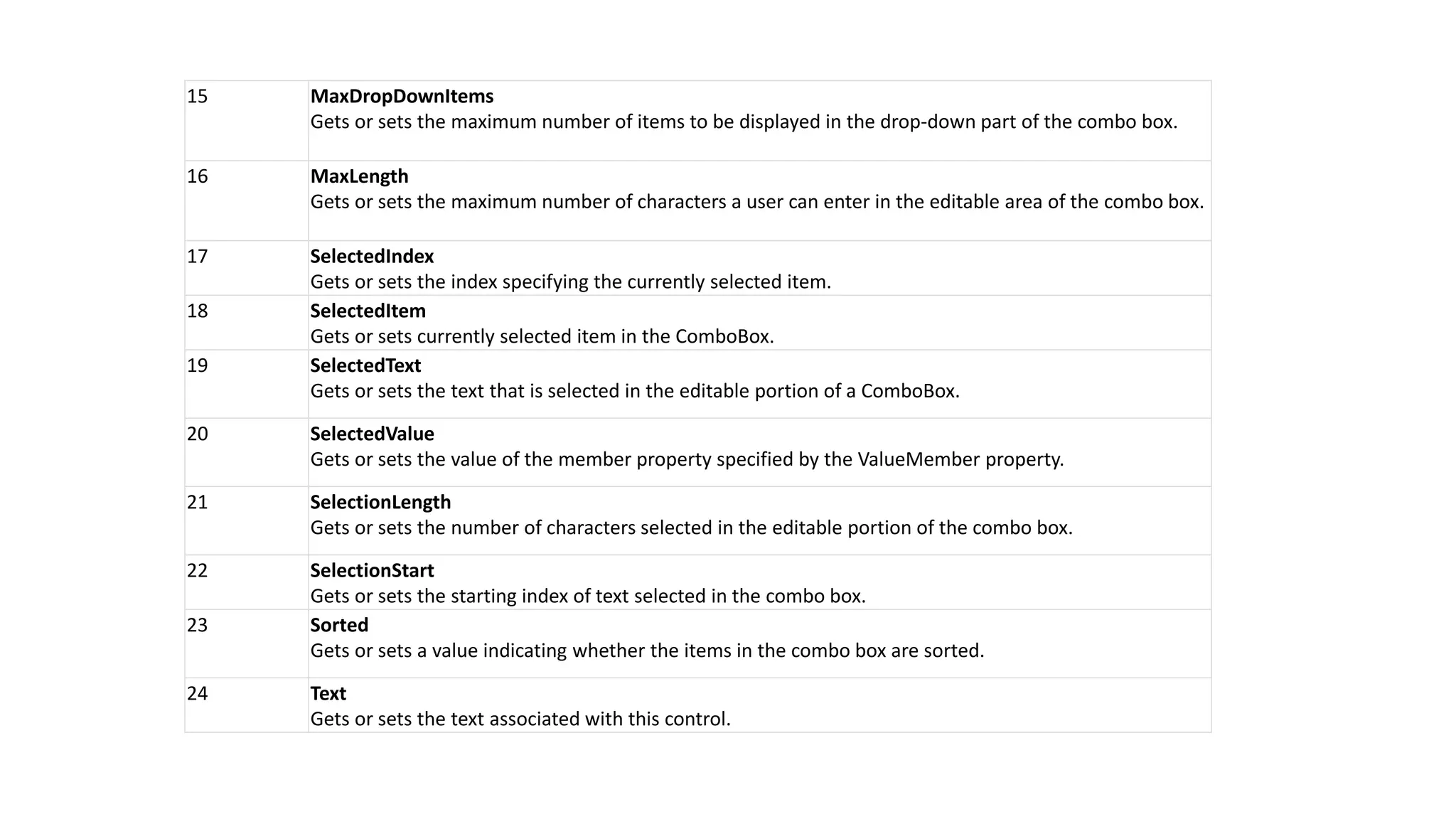
15 MaxDropDownItems Gets orsets the maximum number of items to be displayed in the drop-down part of the combo box. 16 MaxLength Gets or sets the maximum number of characters a user can enter in the editable area of the combo box. 17 SelectedIndex Gets or sets the index specifying the currently selected item. 18 SelectedItem Gets or sets currently selected item in the ComboBox. 19 SelectedText Gets or sets the text that is selected in the editable portion of a ComboBox. 20 SelectedValue Gets or sets the value of the member property specified by the ValueMember property. 21 SelectionLength Gets or sets the number of characters selected in the editable portion of the combo box. 22 SelectionStart Gets or sets the starting index of text selected in the combo box. 23 Sorted Gets or sets a value indicating whether the items in the combo box are sorted. 24 Text Gets or sets the text associated with this control.
13.
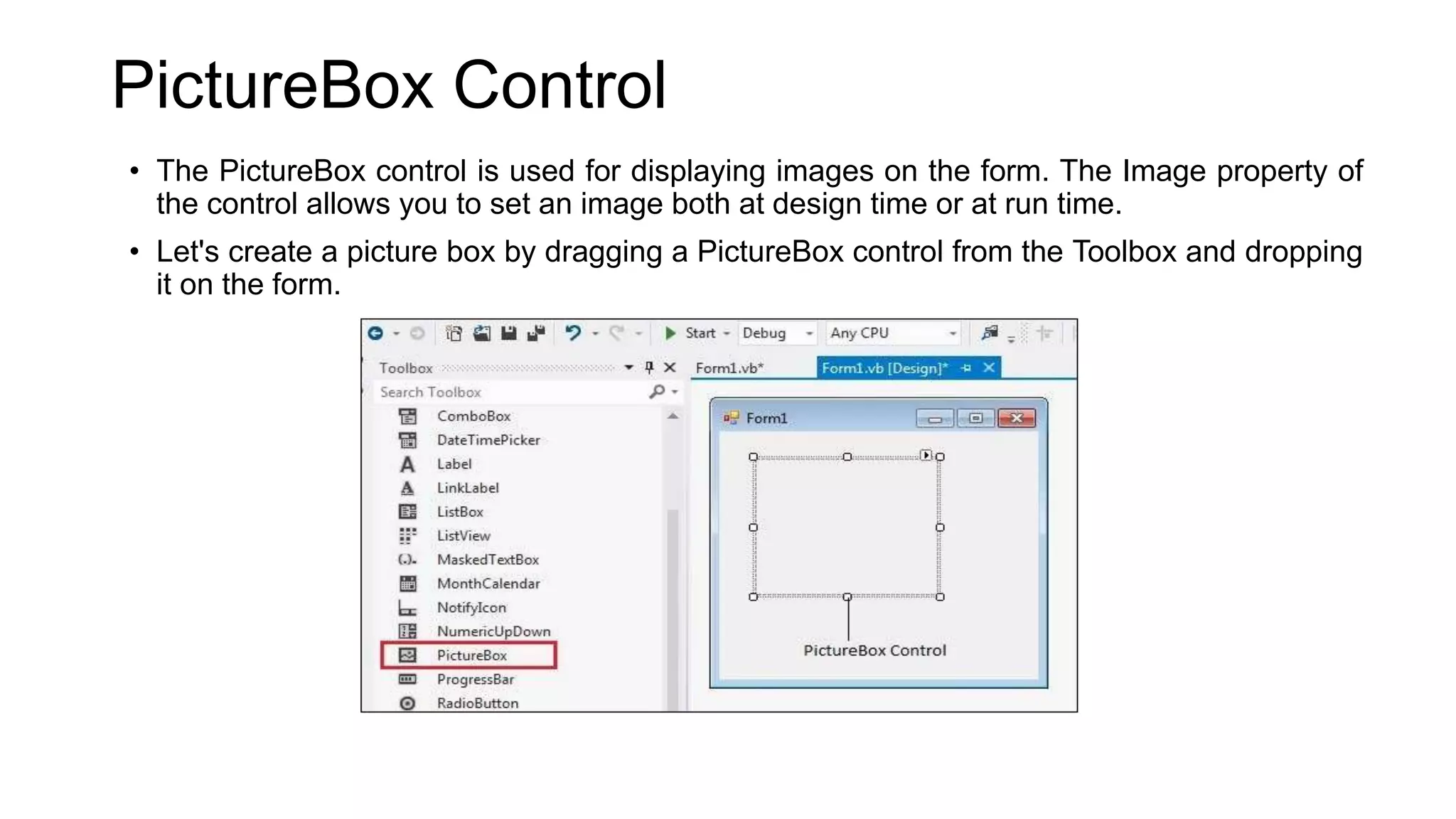
PictureBox Control • ThePictureBox control is used for displaying images on the form. The Image property of the control allows you to set an image both at design time or at run time. • Let's create a picture box by dragging a PictureBox control from the Toolbox and dropping it on the form.
14.
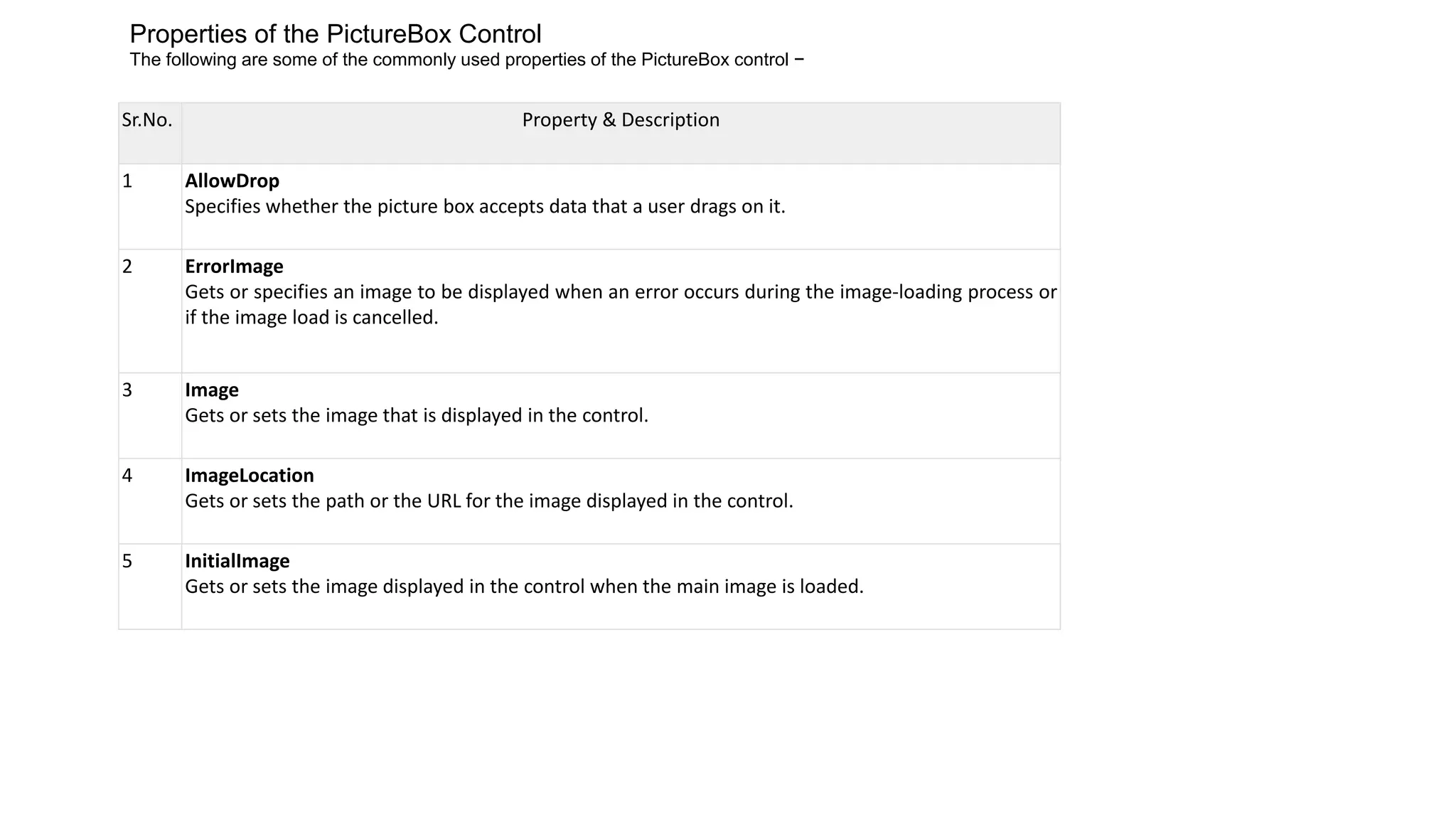
Sr.No. Property &Description 1 AllowDrop Specifies whether the picture box accepts data that a user drags on it. 2 ErrorImage Gets or specifies an image to be displayed when an error occurs during the image-loading process or if the image load is cancelled. 3 Image Gets or sets the image that is displayed in the control. 4 ImageLocation Gets or sets the path or the URL for the image displayed in the control. 5 InitialImage Gets or sets the image displayed in the control when the main image is loaded. Properties of the PictureBox Control The following are some of the commonly used properties of the PictureBox control −
15.
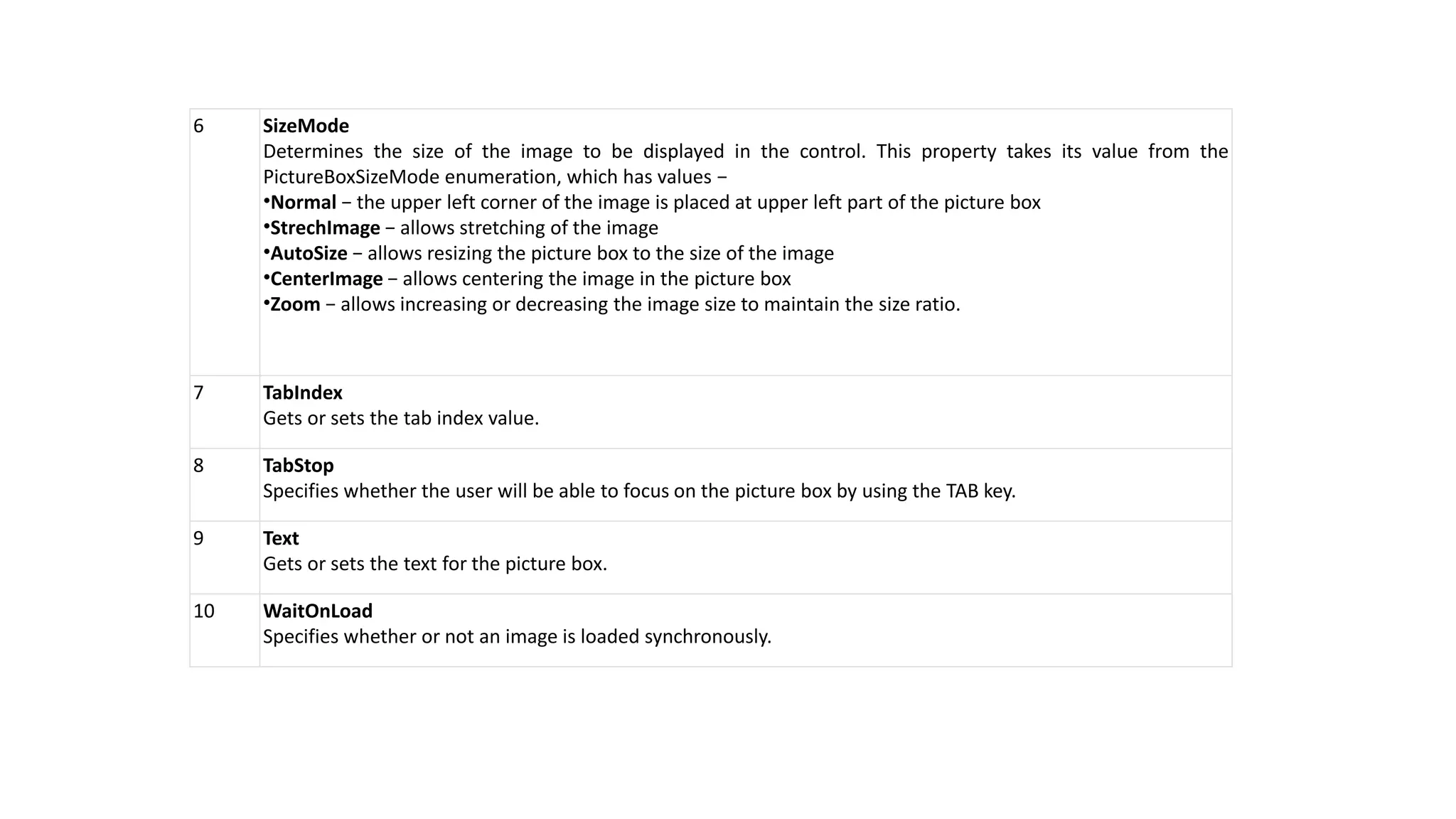
6 SizeMode Determines thesize of the image to be displayed in the control. This property takes its value from the PictureBoxSizeMode enumeration, which has values − •Normal − the upper left corner of the image is placed at upper left part of the picture box •StrechImage − allows stretching of the image •AutoSize − allows resizing the picture box to the size of the image •CenterImage − allows centering the image in the picture box •Zoom − allows increasing or decreasing the image size to maintain the size ratio. 7 TabIndex Gets or sets the tab index value. 8 TabStop Specifies whether the user will be able to focus on the picture box by using the TAB key. 9 Text Gets or sets the text for the picture box. 10 WaitOnLoad Specifies whether or not an image is loaded synchronously.
16.
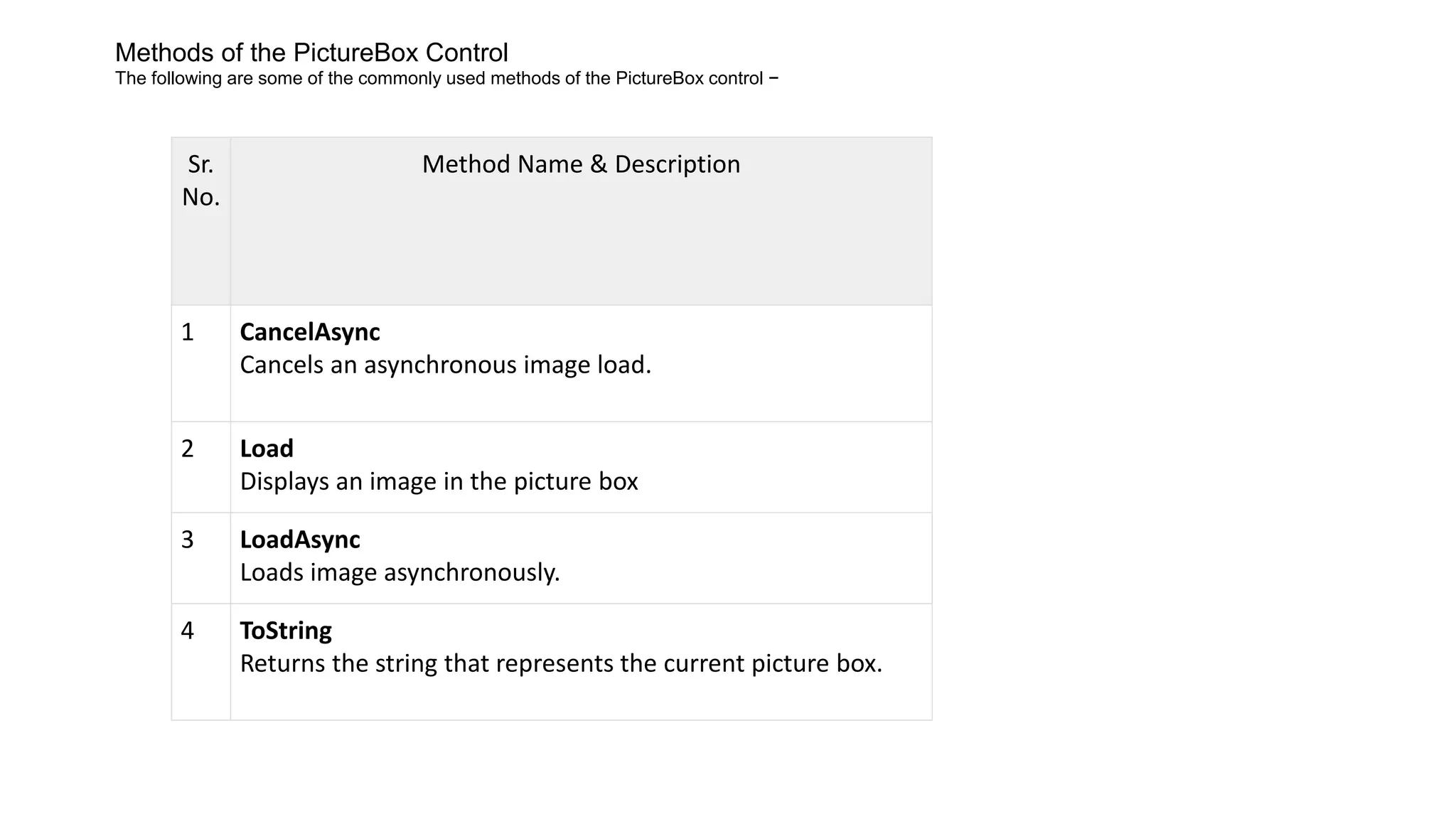
Sr. No. Method Name &Description 1 CancelAsync Cancels an asynchronous image load. 2 Load Displays an image in the picture box 3 LoadAsync Loads image asynchronously. 4 ToString Returns the string that represents the current picture box. Methods of the PictureBox Control The following are some of the commonly used methods of the PictureBox control −
17.
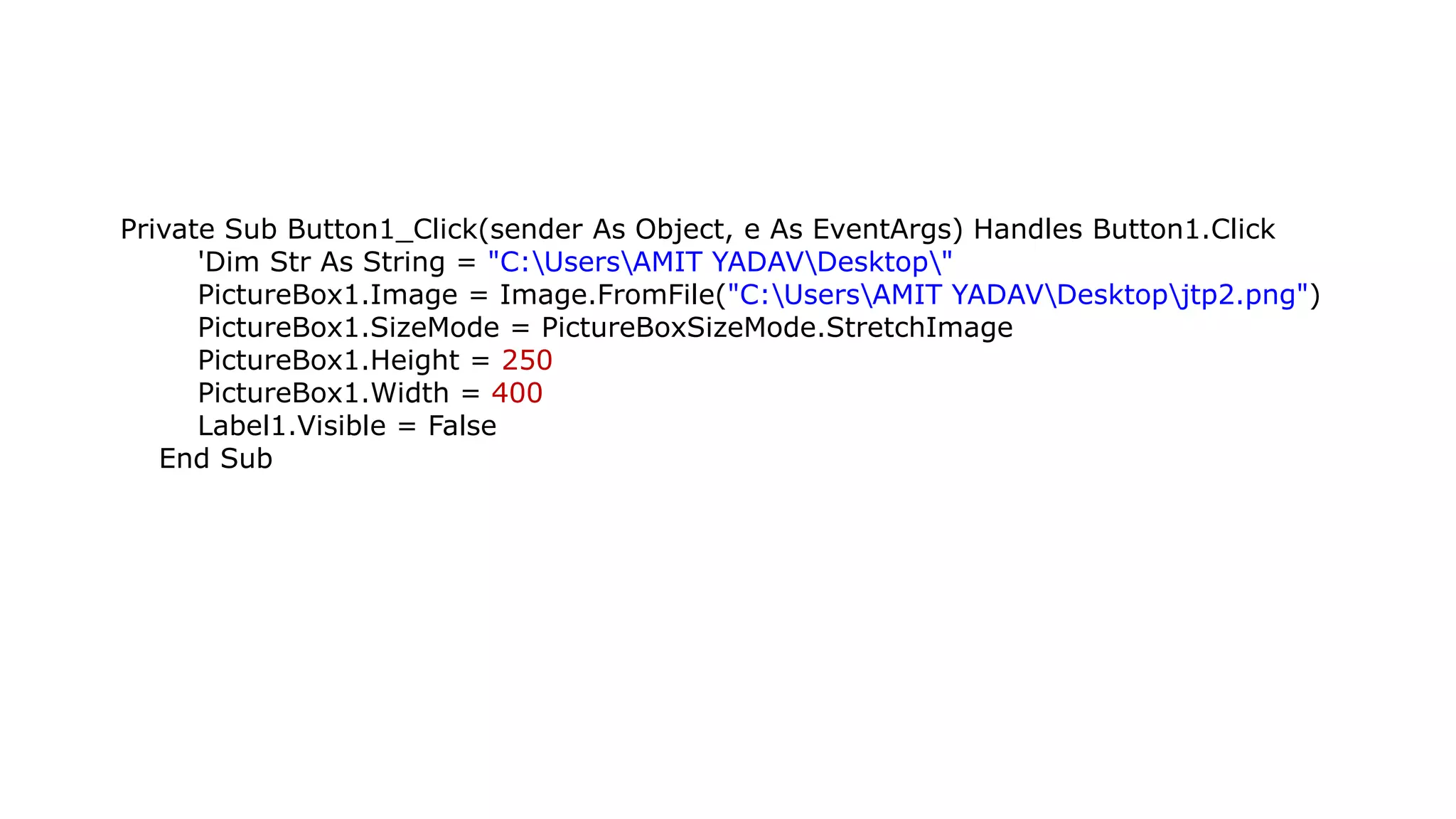
Private Sub Button1_Click(senderAs Object, e As EventArgs) Handles Button1.Click 'Dim Str As String = "C:UsersAMIT YADAVDesktop" PictureBox1.Image = Image.FromFile("C:UsersAMIT YADAVDesktopjtp2.png") PictureBox1.SizeMode = PictureBoxSizeMode.StretchImage PictureBox1.Height = 250 PictureBox1.Width = 400 Label1.Visible = False End Sub
18.
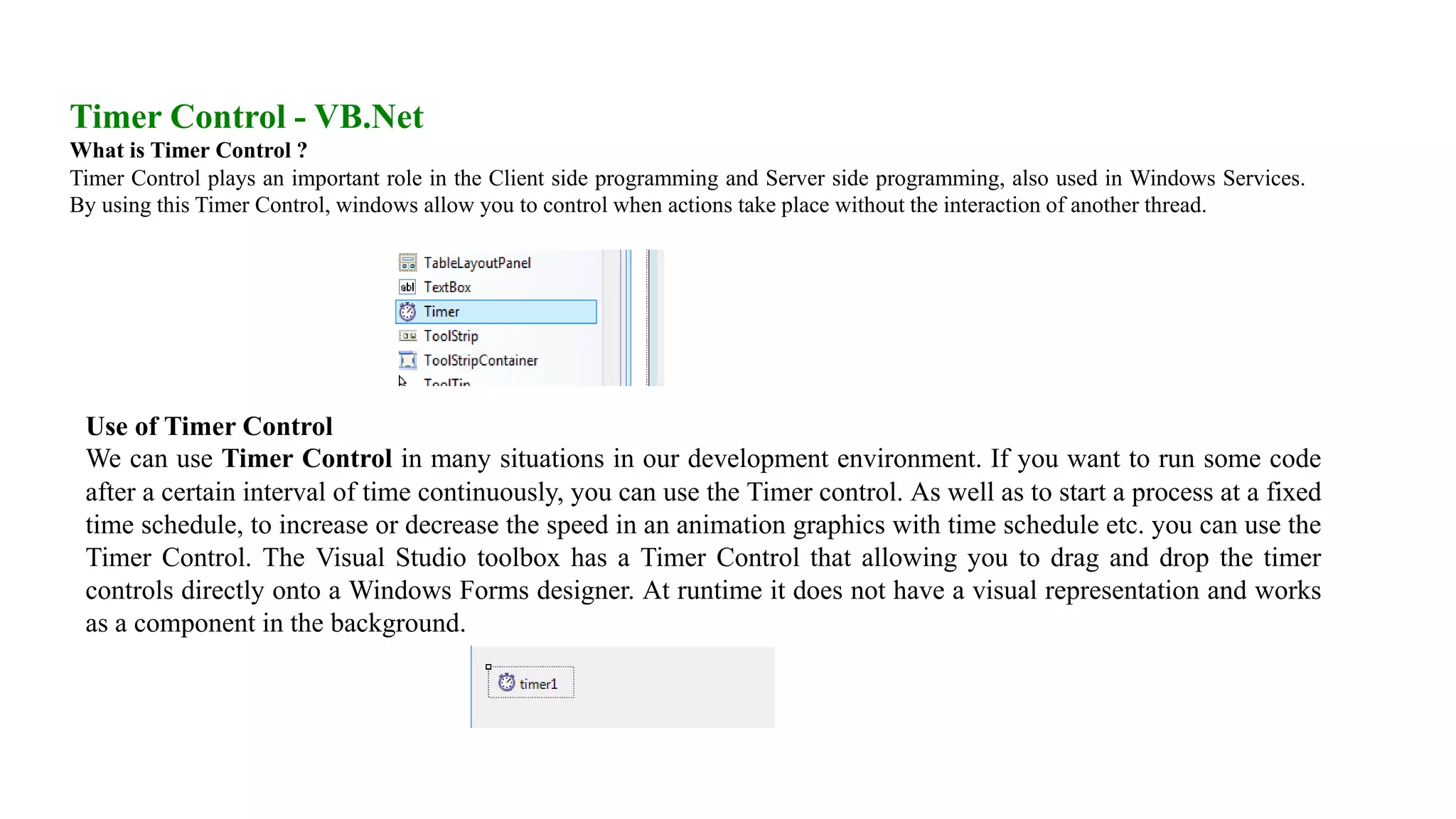
Timer Control -VB.Net What is Timer Control ? Timer Control plays an important role in the Client side programming and Server side programming, also used in Windows Services. By using this Timer Control, windows allow you to control when actions take place without the interaction of another thread. Use of Timer Control We can use Timer Control in many situations in our development environment. If you want to run some code after a certain interval of time continuously, you can use the Timer control. As well as to start a process at a fixed time schedule, to increase or decrease the speed in an animation graphics with time schedule etc. you can use the Timer Control. The Visual Studio toolbox has a Timer Control that allowing you to drag and drop the timer controls directly onto a Windows Forms designer. At runtime it does not have a visual representation and works as a component in the background.
19.
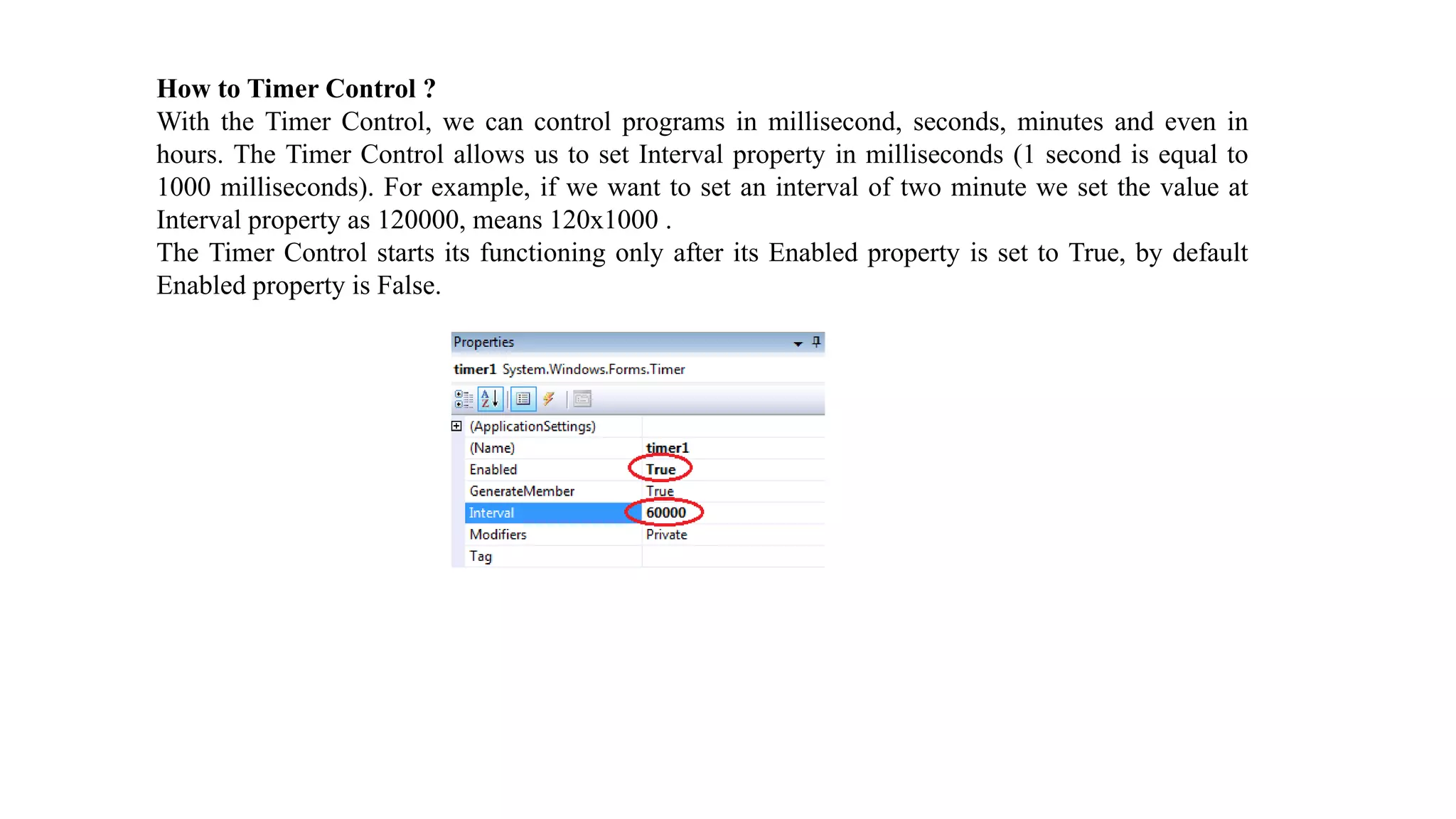
How to TimerControl ? With the Timer Control, we can control programs in millisecond, seconds, minutes and even in hours. The Timer Control allows us to set Interval property in milliseconds (1 second is equal to 1000 milliseconds). For example, if we want to set an interval of two minute we set the value at Interval property as 120000, means 120x1000 . The Timer Control starts its functioning only after its Enabled property is set to True, by default Enabled property is False.