Kubernetes is an open-source container cluster manager that was originally developed by Google. It was created as a rewrite of Google's internal Borg system using Go. Kubernetes aims to provide a declarative deployment and management of containerized applications and services. It facilitates both automatic bin packing as well as self-healing of applications. Some key features include horizontal pod autoscaling, load balancing, rolling updates, and application lifecycle management.
Introduction to Kubernetes as an open-source container cluster manager, established by Google for cloud-native computing.
Definition of Kubernetes, its Greek etymology, and its evolution from Google's internal Borg software.
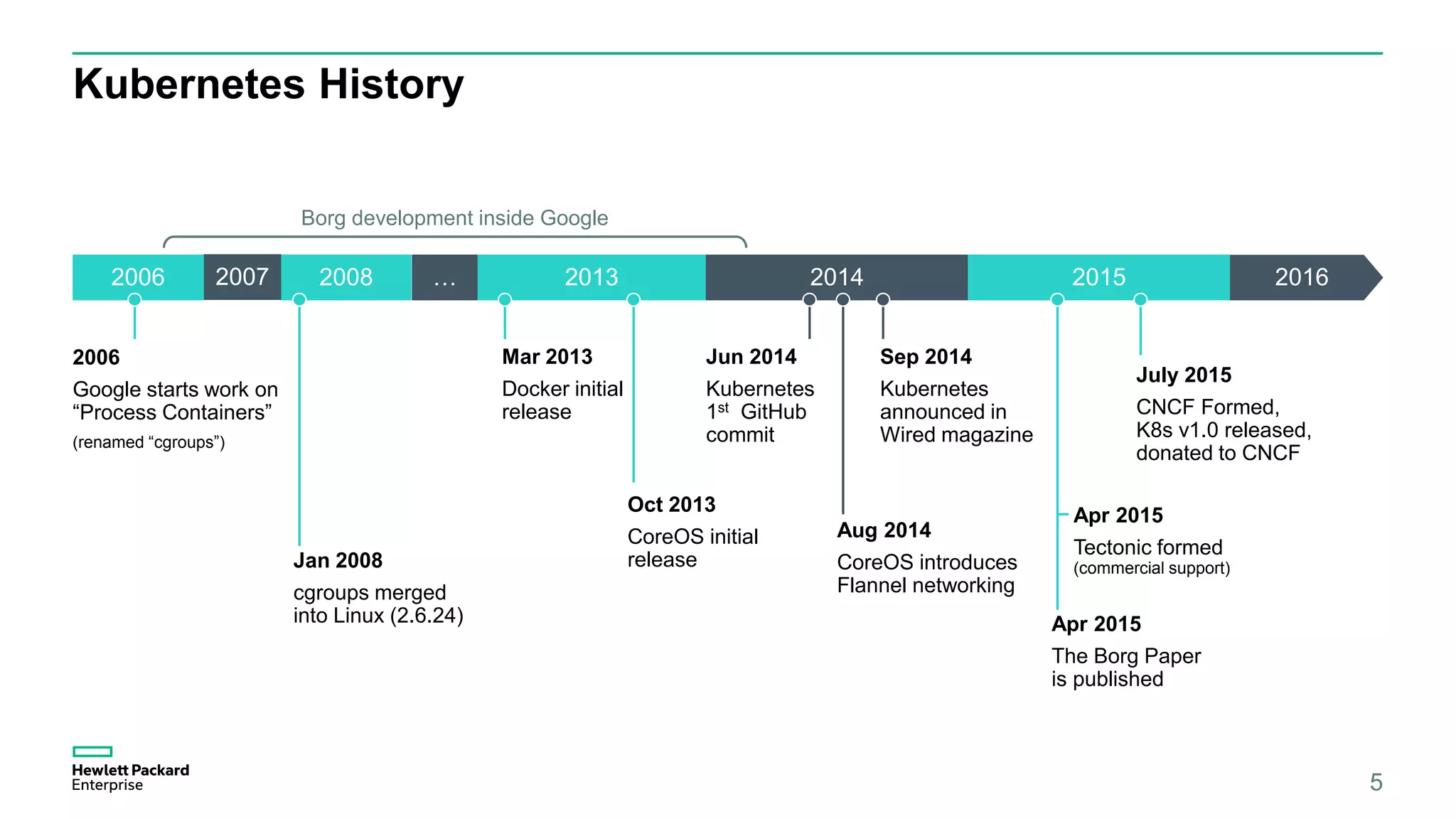
Kubernetes history from its inception in 2013, including key milestones and the formation of CNCF.
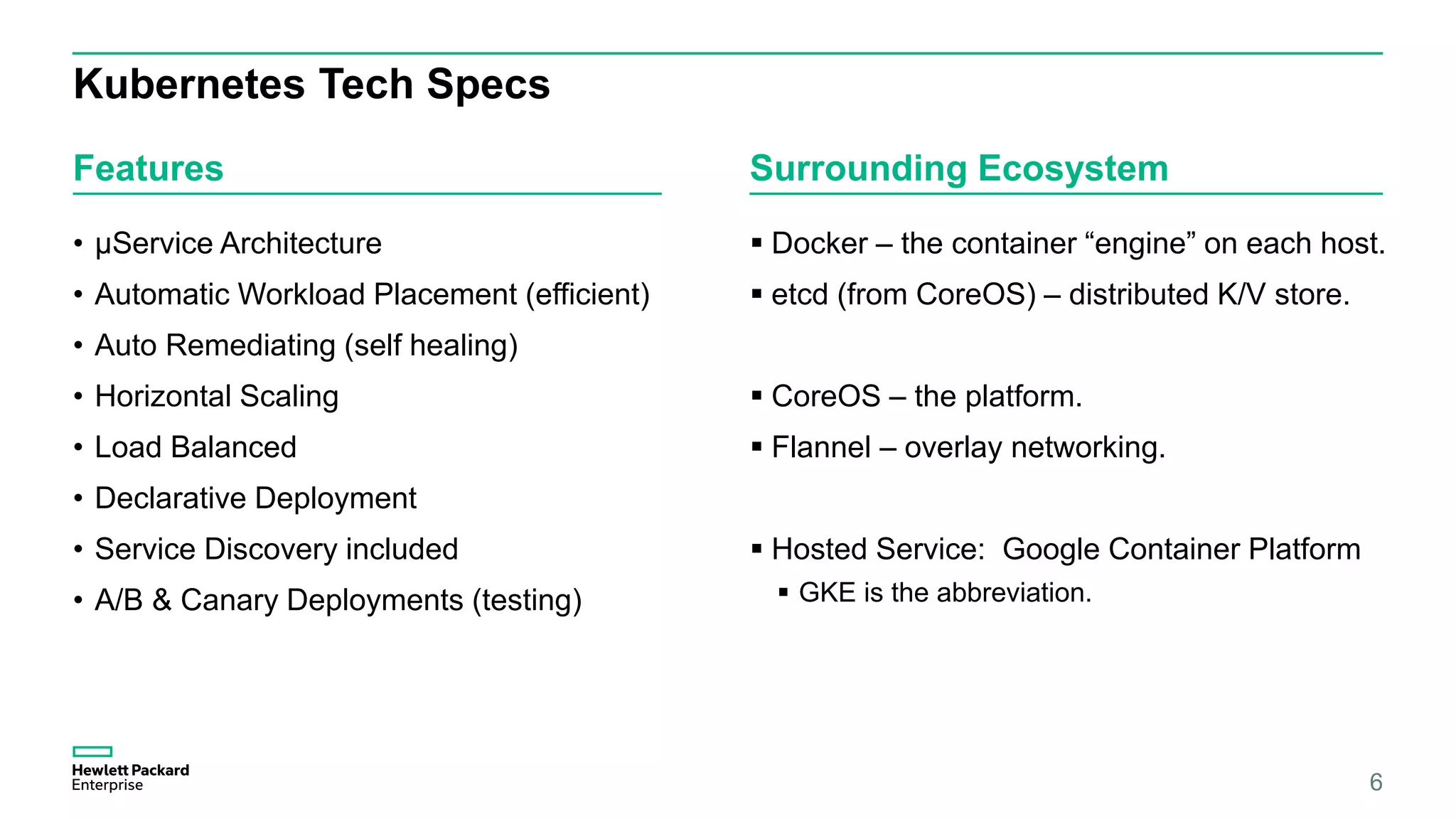
Overview of Kubernetes's technical specifications and ecosystem, highlighting its capabilities like microservice architecture and self-healing features.
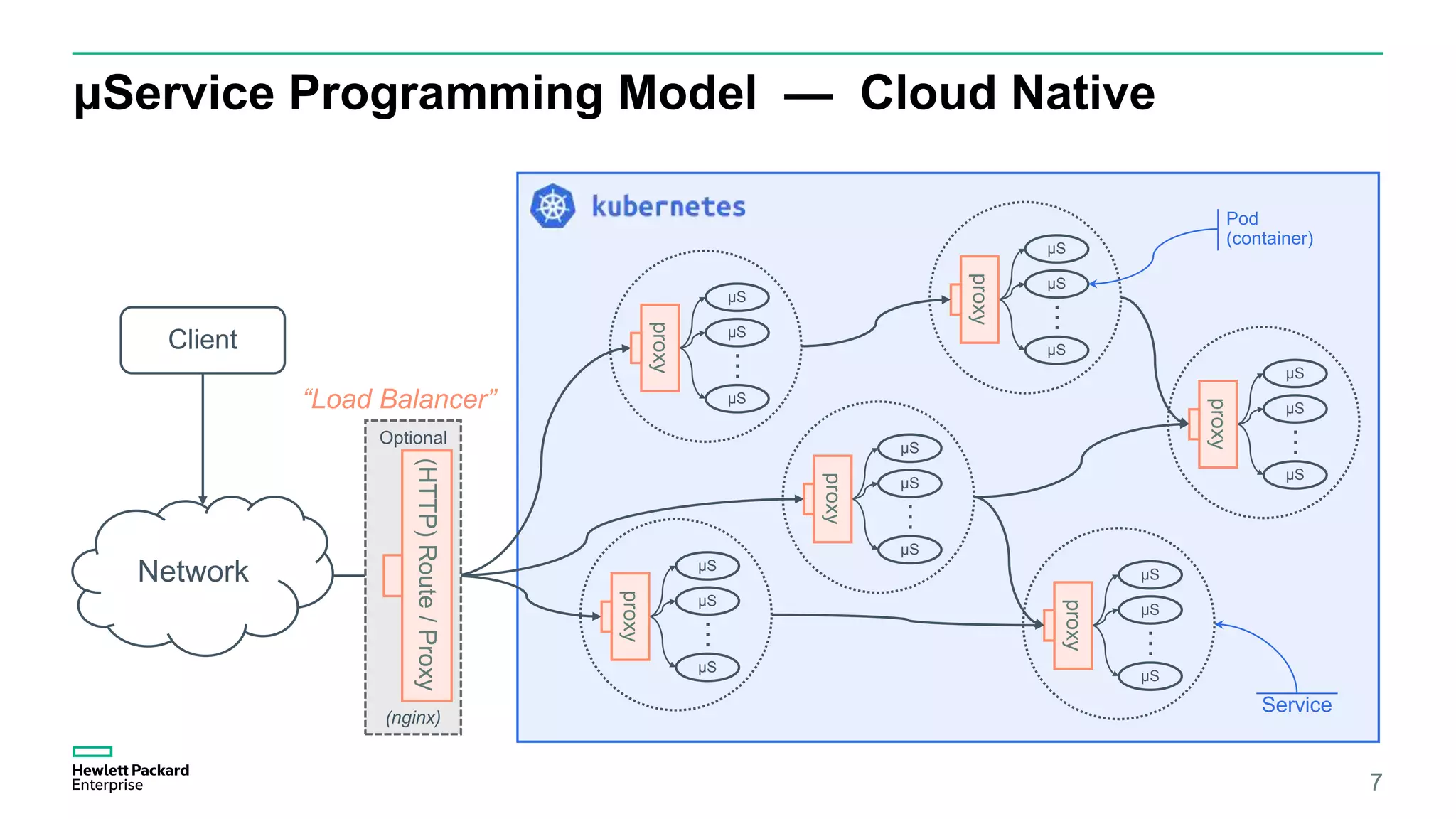
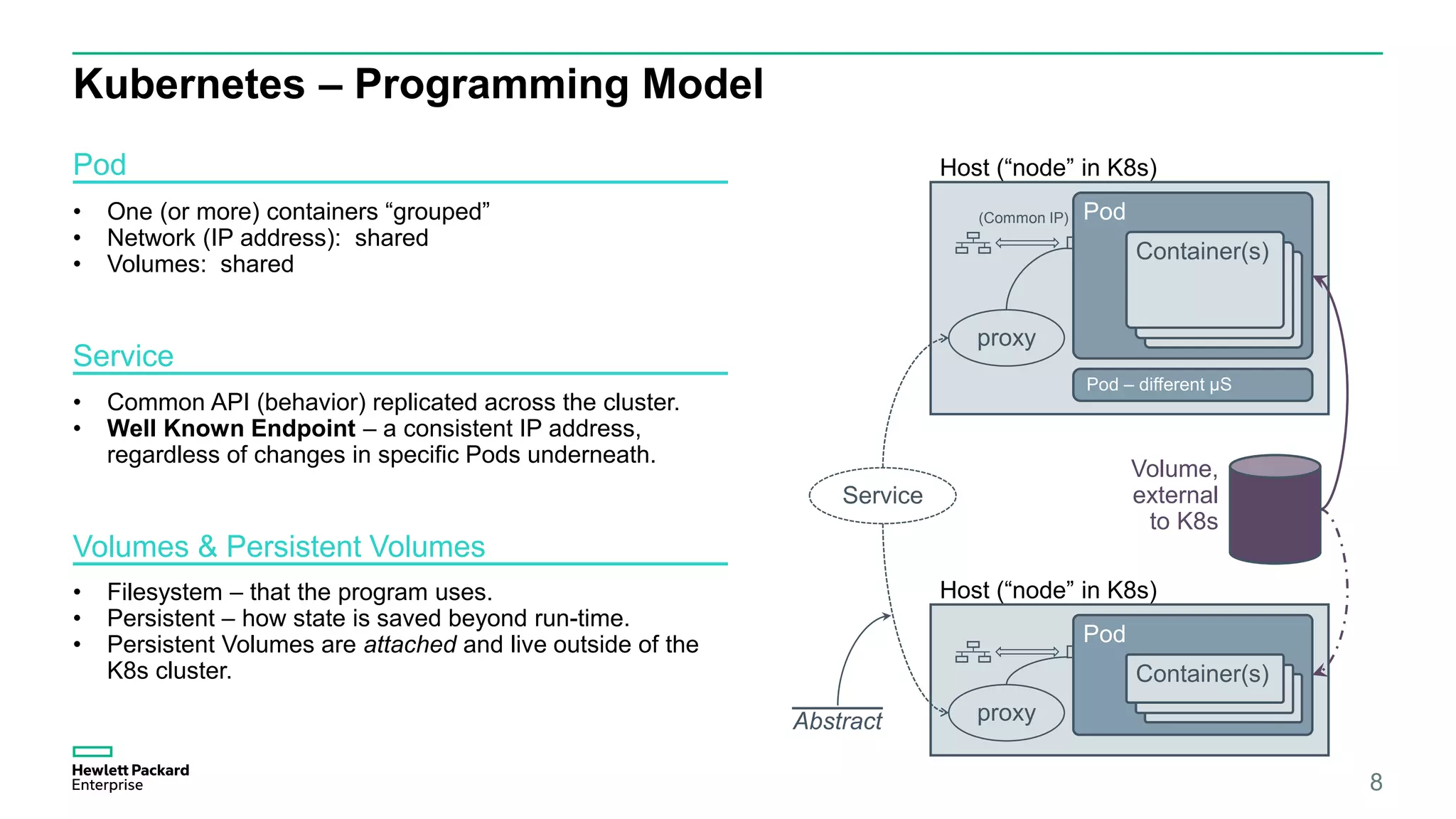
Details on the microservice programming model, including pod management, service behavior, and the extensible nature of Kubernetes architecture.
The declarative deployment model in Kubernetes, emphasizing the use of manifest files and replication controllers.
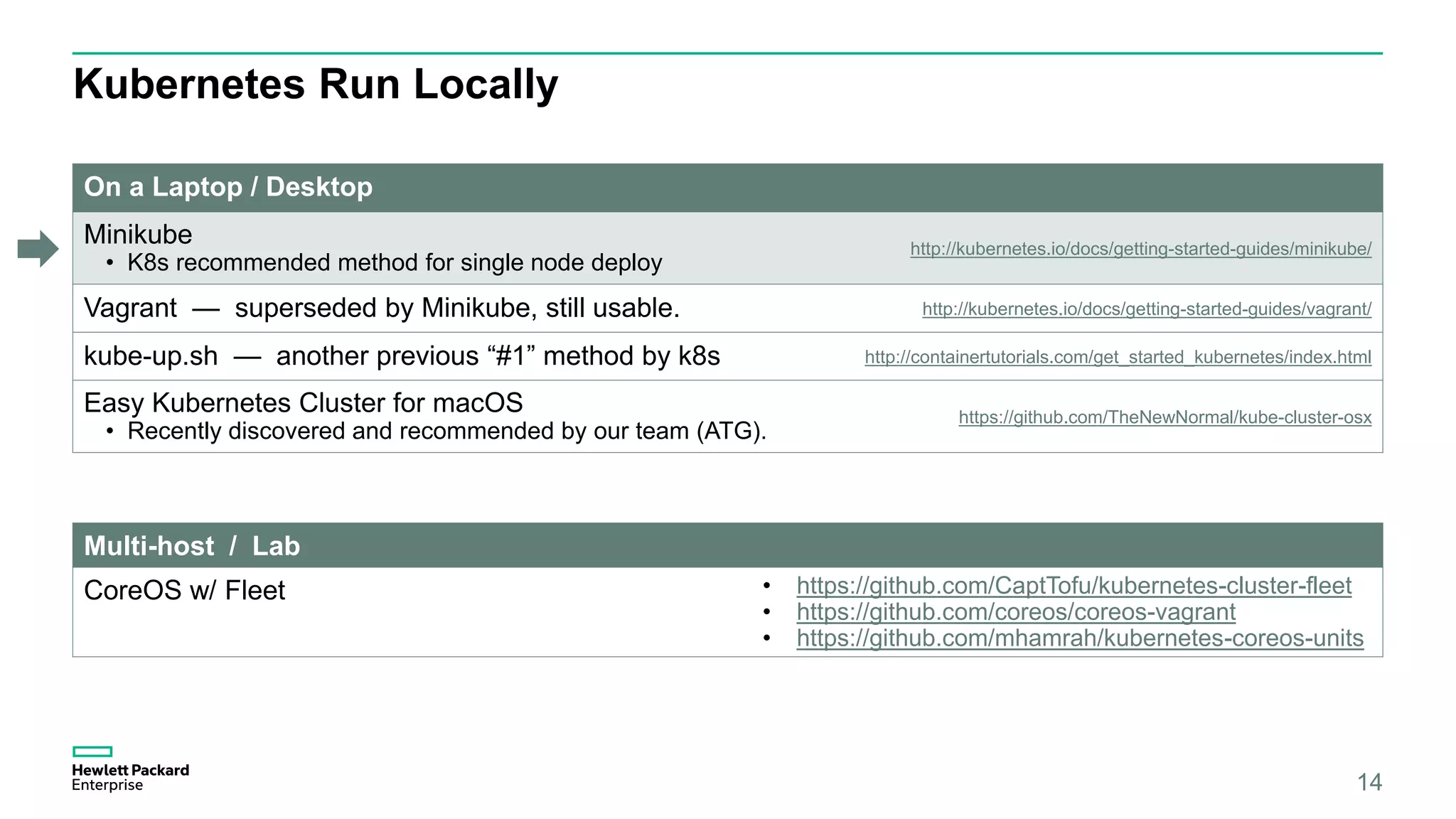
Various methods to run a Kubernetes cluster, emphasizing flexibility in deployment.
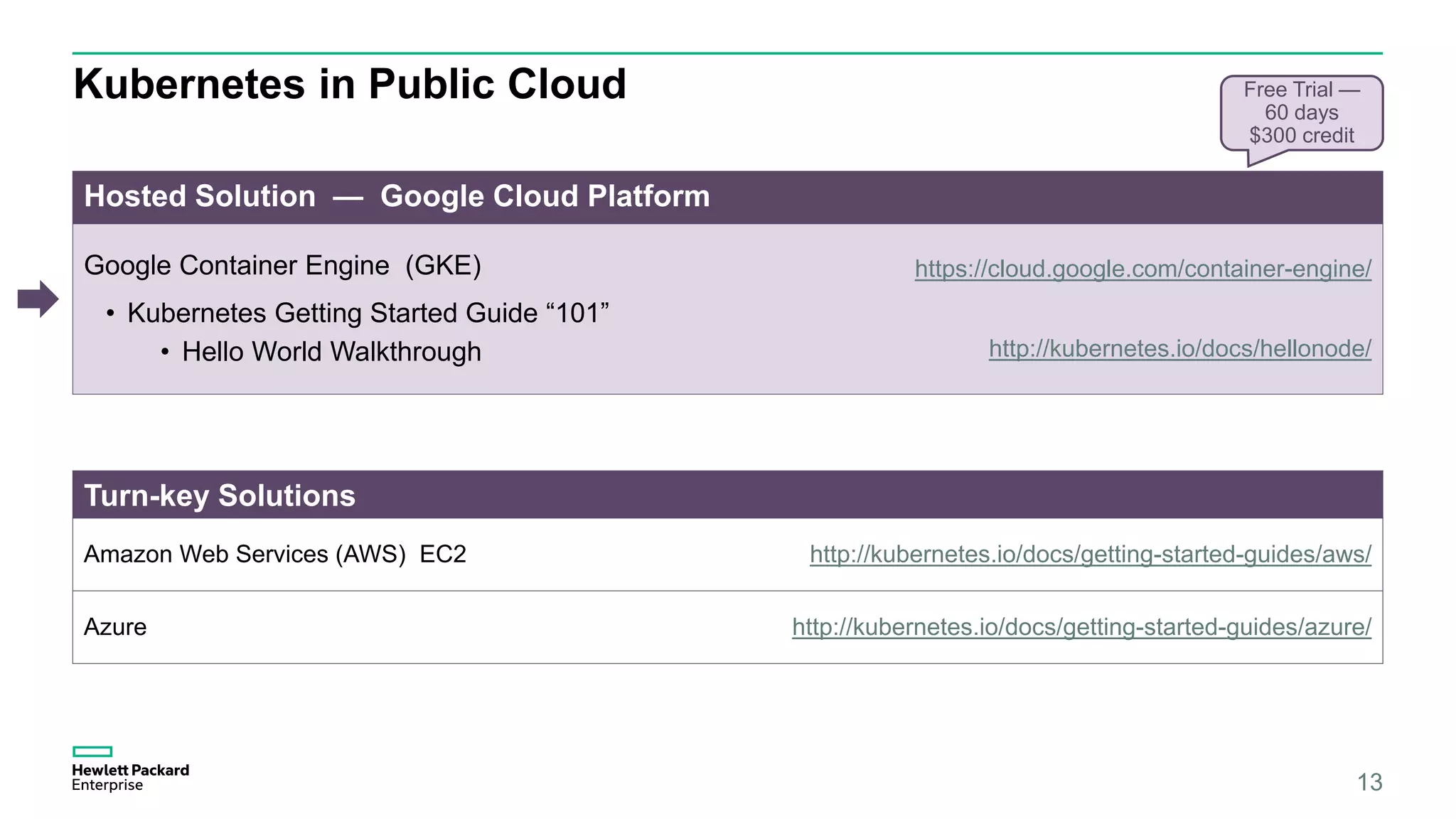
Hosted Kubernetes solutions on public cloud platforms like Google GKE, AWS, and Azure, including a 60-day free trial.
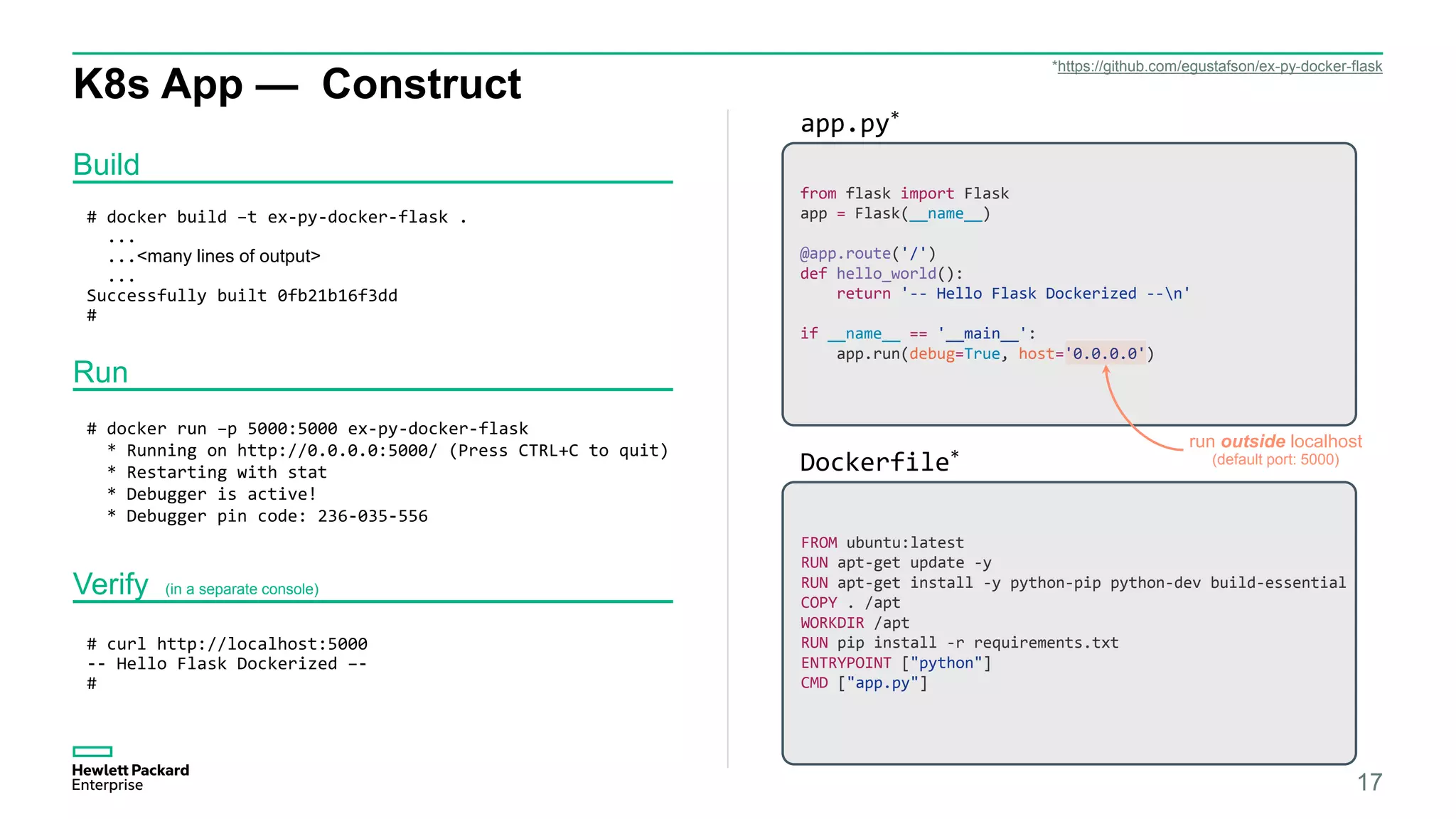
Steps to construct, deploy, and run a Kubernetes application using a Flask-based example.
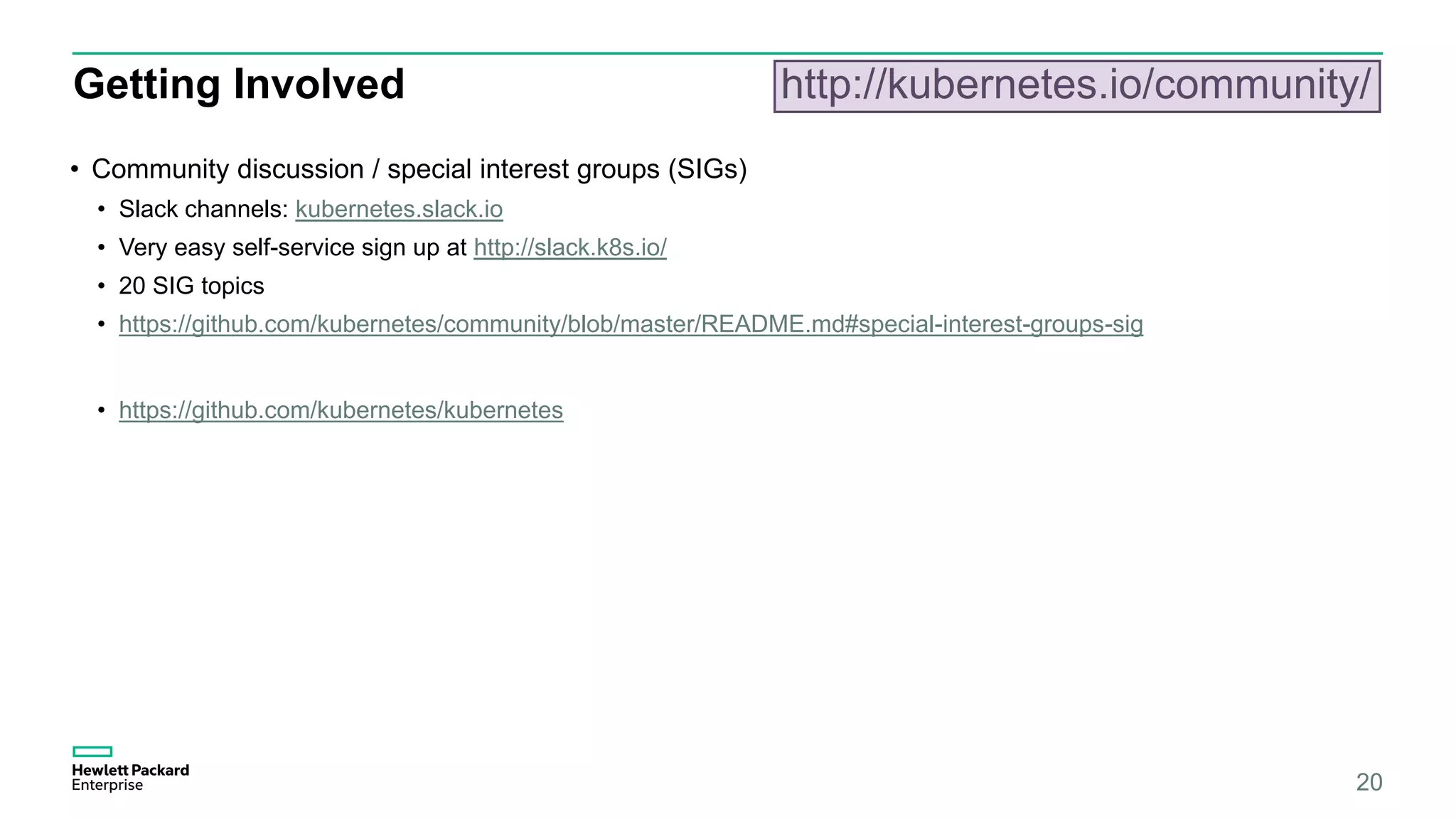
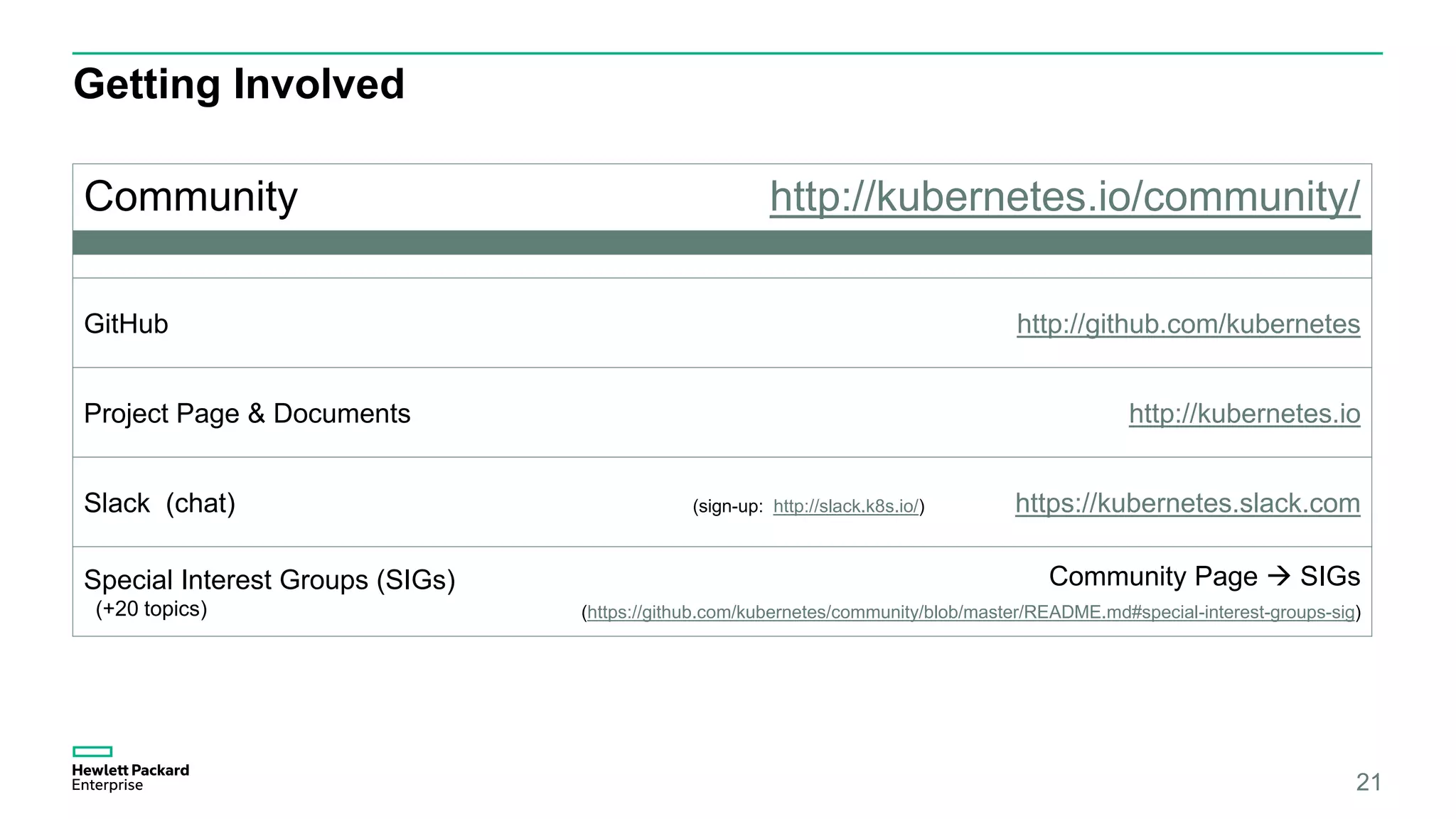
Information on getting involved with the Kubernetes community, including links to GitHub, Slack, and Special Interest Groups.
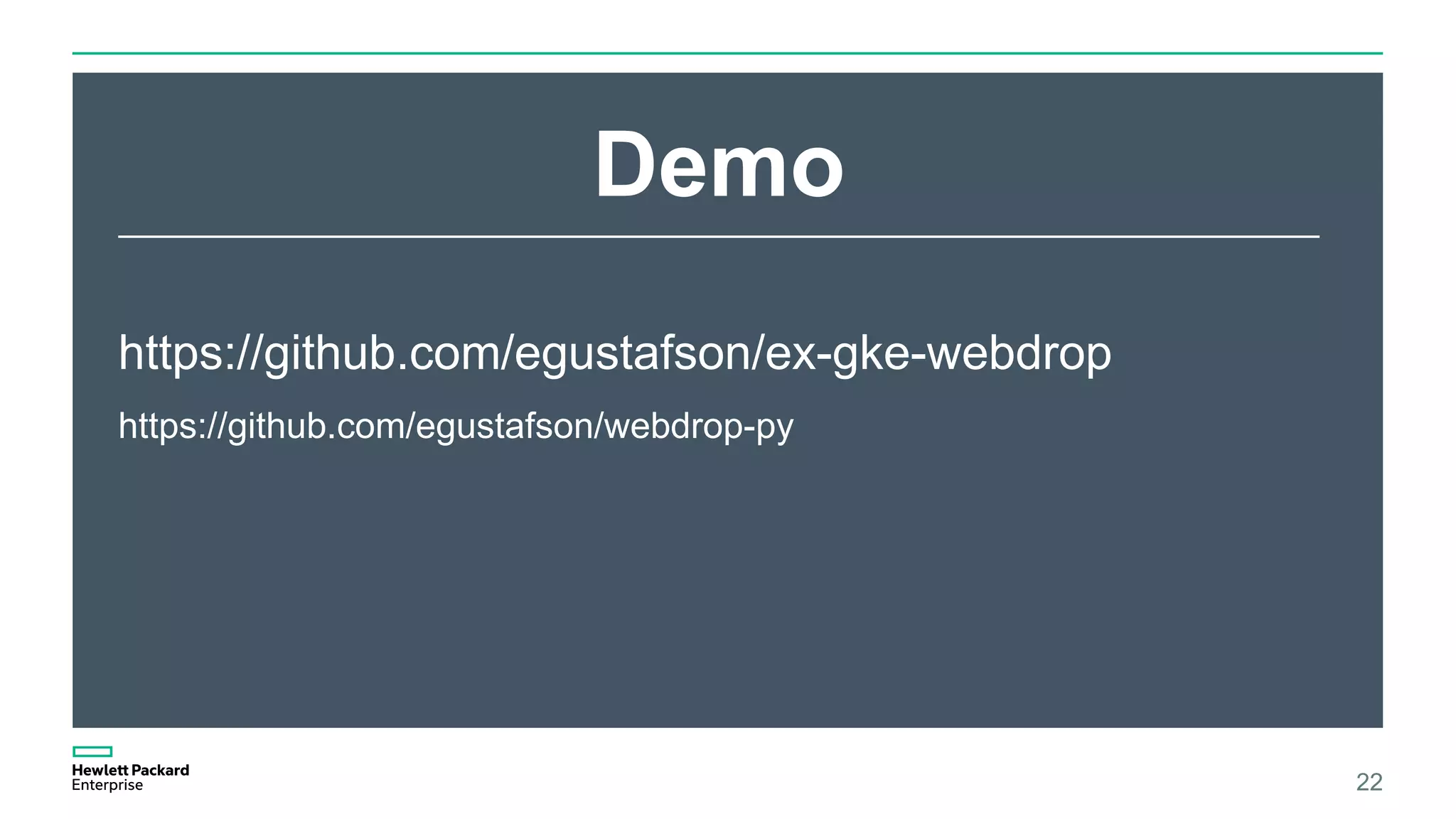
Links to demo projects and thanks to contributors from the Advanced Technology Group.
Backup slides presenting further details on Kubernetes introduction, organizational information, and references to scholarly articles.
Kubernetes “Open Source ContainerCluster Manager” • Google — Architect and creator. • Borg — Google’s internal cluster management software. Kubernetes – complete rewrite, (in Go). • Google partnered with Linux Foundation to form: Cloud Native Computing Foundation (CNCF) offered Kubernetes as a seed technology 3
4.
Kubernetes History 2013 20142015 2016 Apr 2015 Tectonic formed (commercial support) Apr 2015 The Borg Paper is published Sep 2014 Kubernetes announced in Wired magazine Jun 2014 Kubernetes 1st GitHub commit Mar 2013 Docker initial release Aug 2014 CoreOS introduces Flannel networking Oct 2013 CoreOS initial release 4 2008 …2006 2006 Google starts work on “Process Containers” (renamed “cgroups”) Jan 2008 cgroups merged into Linux (2.6.24) 2007 July 2015 CNCF Formed, K8s v1.0 released, donated to CNCF Borg development inside Google
5.
Kubernetes Tech Specs Features •μService Architecture • Automatic Workload Placement (efficient) • Auto Remediating (self healing) • Horizontal Scaling • Load Balanced • Declarative Deployment • Service Discovery included • A/B & Canary Deployments (testing) Surrounding Ecosystem Docker – the container “engine” on each host. etcd (from CoreOS) – distributed K/V store. CoreOS – the platform. Flannel – overlay networking. Hosted Service: Google Container Platform GKE is the abbreviation. 5
Kubernetes – ProgrammingModel 7 • Filesystem – that the program uses. • Persistent – how state is saved beyond run-time. • Persistent Volumes are attached and live outside of the K8s cluster. Volumes & Persistent Volumes Pod • One (or more) containers “grouped” • Network (IP address): shared • Volumes: shared Service • Common API (behavior) replicated across the cluster. • Well Known Endpoint – a consistent IP address, regardless of changes in specific Pods underneath. Service proxy Host (“node” in K8s) Pod – different μS Pod Container(s) proxy Host (“node” in K8s) Pod Container(s) Volume, external to K8s Abstract (Common IP)
8.
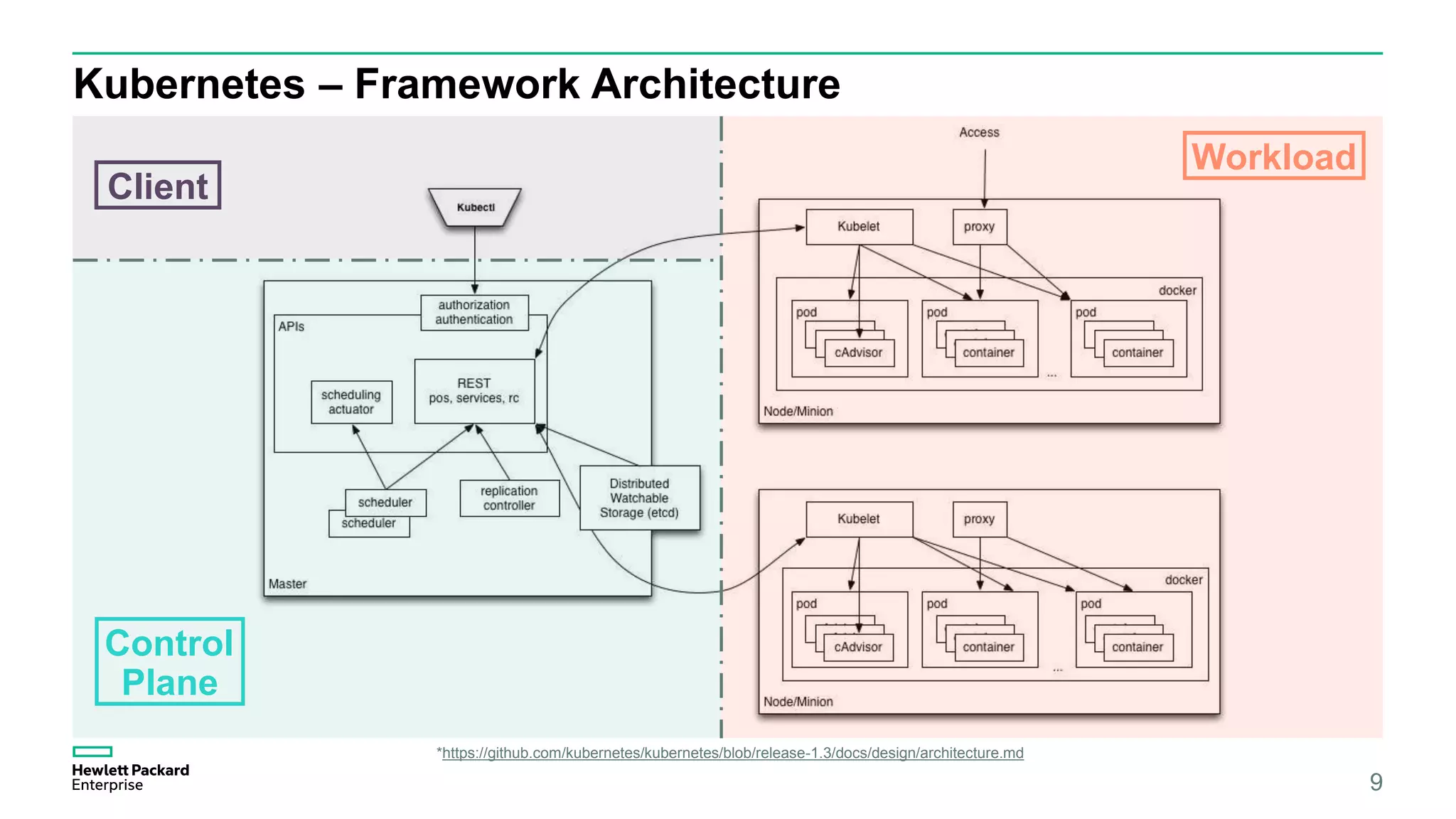
Kubernetes – FrameworkArchitecture 8 Client Control Plane Workload *https://github.com/kubernetes/kubernetes/blob/release-1.3/docs/design/architecture.md
9.
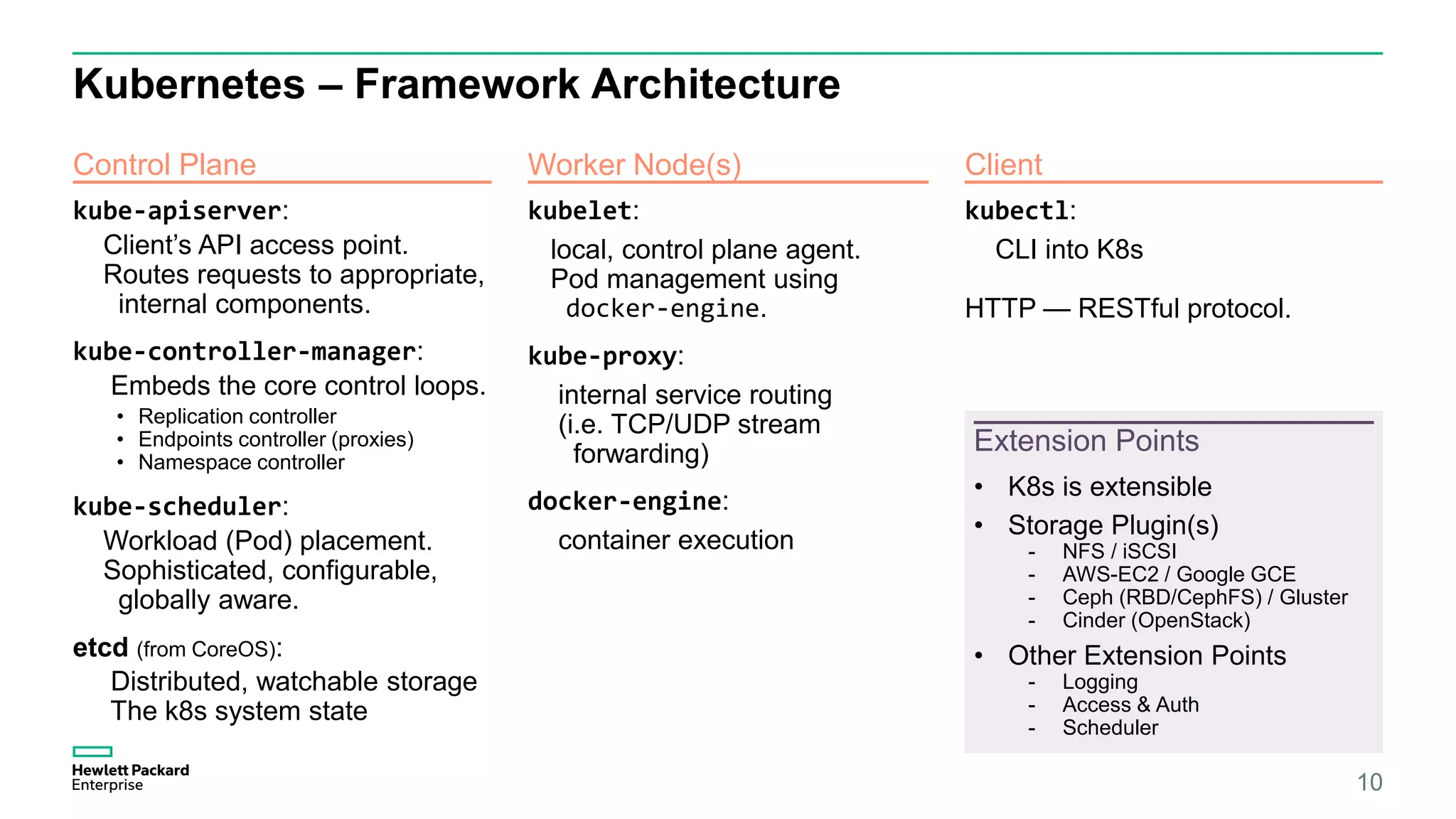
Kubernetes – FrameworkArchitecture 9 • K8s is extensible • Storage Plugin(s) - NFS / iSCSI - AWS-EC2 / Google GCE - Ceph (RBD/CephFS) / Gluster - Cinder (OpenStack) • Other Extension Points - Logging - Access & Auth - Scheduler Control Plane Worker Node(s) Client Extension Points kubelet: local, control plane agent. Pod management using docker-engine. kube-proxy: internal service routing (i.e. TCP/UDP stream forwarding) docker-engine: container execution kube-apiserver: Client’s API access point. Routes requests to appropriate, internal components. kube-controller-manager: Embeds the core control loops. • Replication controller • Endpoints controller (proxies) • Namespace controller kube-scheduler: Workload (Pod) placement. Sophisticated, configurable, globally aware. etcd (from CoreOS): Distributed, watchable storage The k8s system state kubectl: CLI into K8s HTTP — RESTful protocol.
10.
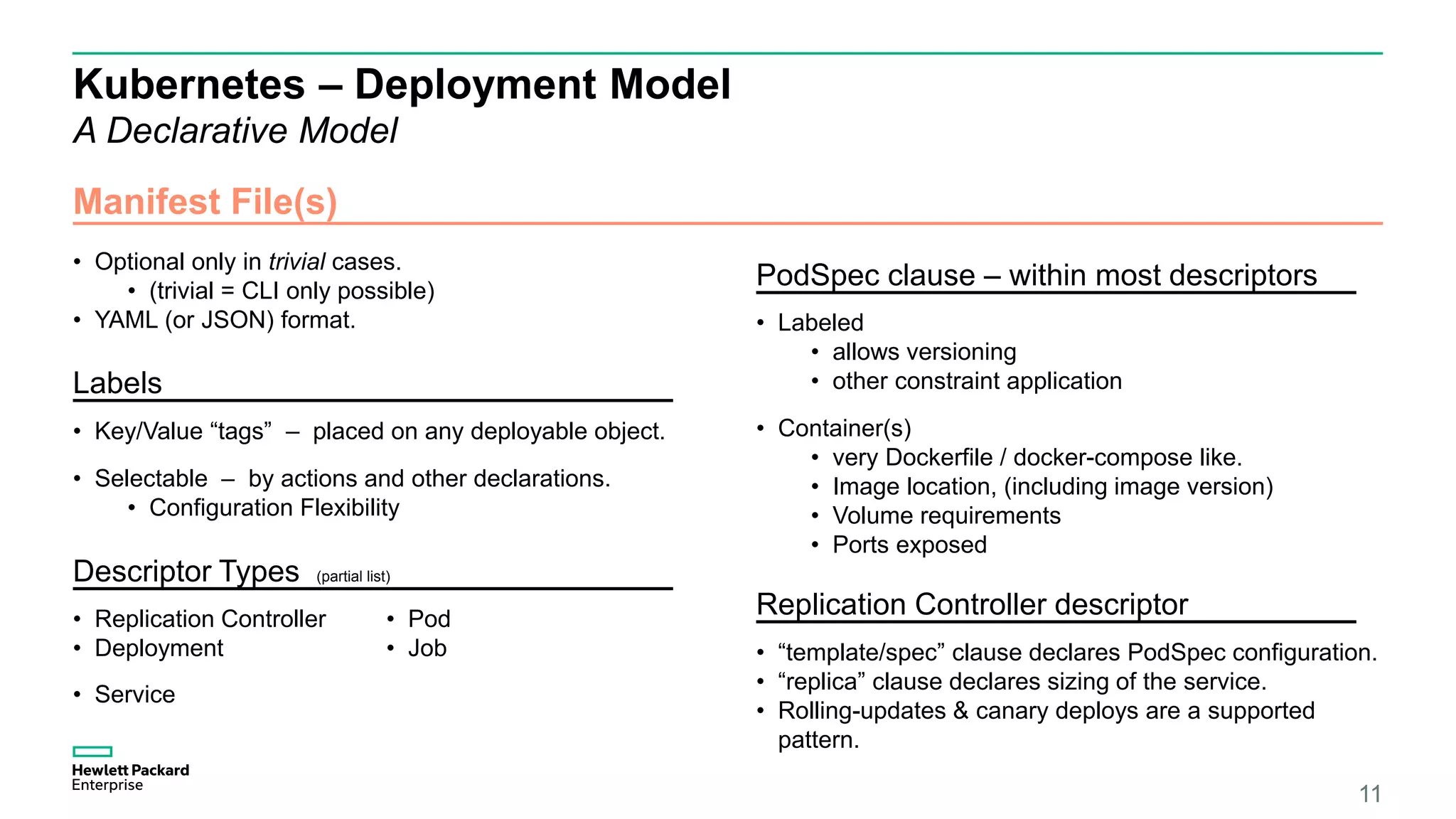
Kubernetes – DeploymentModel A Declarative Model 10 Manifest File(s) Labels PodSpec clause – within most descriptors Replication Controller descriptor • Optional only in trivial cases. • (trivial = CLI only possible) • YAML (or JSON) format. • Key/Value “tags” – placed on any deployable object. • Selectable – by actions and other declarations. • Configuration Flexibility • Labeled • allows versioning • other constraint application • Container(s) • very Dockerfile / docker-compose like. • Image location, (including image version) • Volume requirements • Ports exposed • “template/spec” clause declares PodSpec configuration. • “replica” clause declares sizing of the service. • Rolling-updates & canary deploys are a supported pattern. Descriptor Types (partial list) • Replication Controller • Deployment • Pod • Job • Service
11.
Running a KubernetesCluster 11 “There’s more than one way to do it” – Larry Wall
12.
Kubernetes in PublicCloud 12 Hosted Solution — Google Cloud Platform Google Container Engine (GKE) • Kubernetes Getting Started Guide “101” • Hello World Walkthrough https://cloud.google.com/container-engine/ http://kubernetes.io/docs/hellonode/ Turn-key Solutions Amazon Web Services (AWS) EC2 http://kubernetes.io/docs/getting-started-guides/aws/ Azure http://kubernetes.io/docs/getting-started-guides/azure/ Free Trial — 60 days $300 credit
13.
Kubernetes Run Locally 13 Ona Laptop / Desktop Minikube • K8s recommended method for single node deploy http://kubernetes.io/docs/getting-started-guides/minikube/ Vagrant — superseded by Minikube, still usable. http://kubernetes.io/docs/getting-started-guides/vagrant/ kube-up.sh — another previous “#1” method by k8s http://containertutorials.com/get_started_kubernetes/index.html Easy Kubernetes Cluster for macOS • Recently discovered and recommended by our team (ATG). https://github.com/TheNewNormal/kube-cluster-osx Multi-host / Lab CoreOS w/ Fleet • https://github.com/CaptTofu/kubernetes-cluster-fleet • https://github.com/coreos/coreos-vagrant • https://github.com/mhamrah/kubernetes-coreos-units
Kubernetes Application – minimalistapplication – 15 1. Construct • Create a standard Docker application, a μService. • Package it as a Docker Image. 2. Deploy • Deploy the Docker Image to a Docker Repository. 3. Run • kubectl run … --image=<Image-Repository-Path>
16.
K8s App —Construct 16 app.py* from flask import Flask app = Flask(__name__) @app.route('/') def hello_world(): return '-- Hello Flask Dockerized --n' if __name__ == '__main__': app.run(debug=True, host='0.0.0.0') Dockerfile* FROM ubuntu:latest RUN apt-get update -y RUN apt-get install -y python-pip python-dev build-essential COPY . /apt WORKDIR /apt RUN pip install -r requirements.txt ENTRYPOINT ["python"] CMD ["app.py"] *https://github.com/egustafson/ex-py-docker-flask Build Run Verify (in a separate console) # docker build –t ex-py-docker-flask . ... ...<many lines of output> ... Successfully built 0fb21b16f3dd # # docker run –p 5000:5000 ex-py-docker-flask * Running on http://0.0.0.0:5000/ (Press CTRL+C to quit) * Restarting with stat * Debugger is active! * Debugger pin code: 236-035-556 # curl http://localhost:5000 -- Hello Flask Dockerized –- # run outside localhost (default port: 5000)
17.
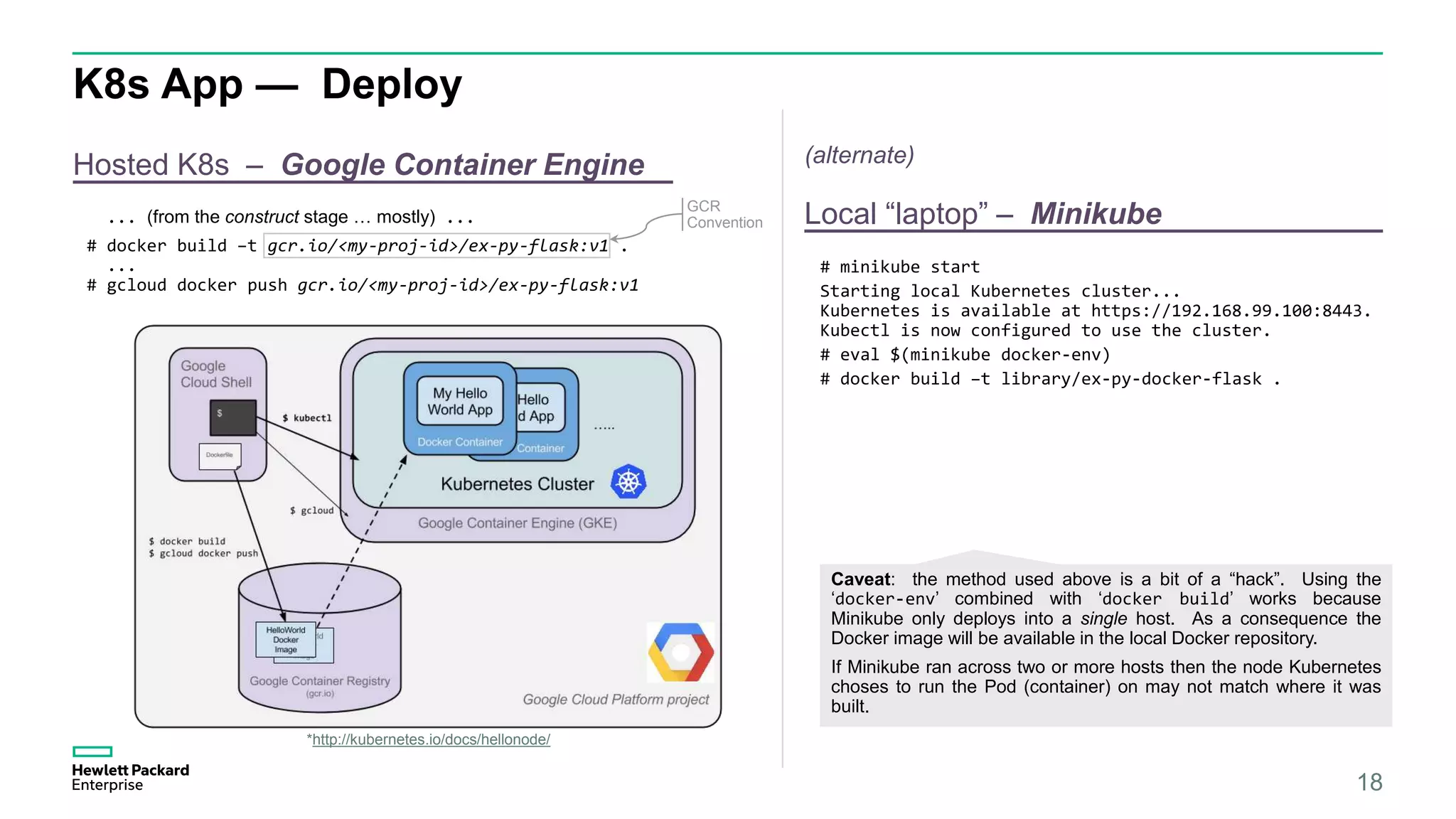
K8s App —Deploy 17 Hosted K8s – Google Container Engine Local “laptop” – Minikube... (from the construct stage … mostly) ... # docker build –t gcr.io/<my-proj-id>/ex-py-flask:v1 . ... # gcloud docker push gcr.io/<my-proj-id>/ex-py-flask:v1 # minikube start Starting local Kubernetes cluster... Kubernetes is available at https://192.168.99.100:8443. Kubectl is now configured to use the cluster. # eval $(minikube docker-env) # docker build –t library/ex-py-docker-flask . Caveat: the method used above is a bit of a “hack”. Using the ‘docker-env’ combined with ‘docker build’ works because Minikube only deploys into a single host. As a consequence the Docker image will be available in the local Docker repository. If Minikube ran across two or more hosts then the node Kubernetes choses to run the Pod (container) on may not match where it was built. *http://kubernetes.io/docs/hellonode/ GCR Convention (alternate)
18.
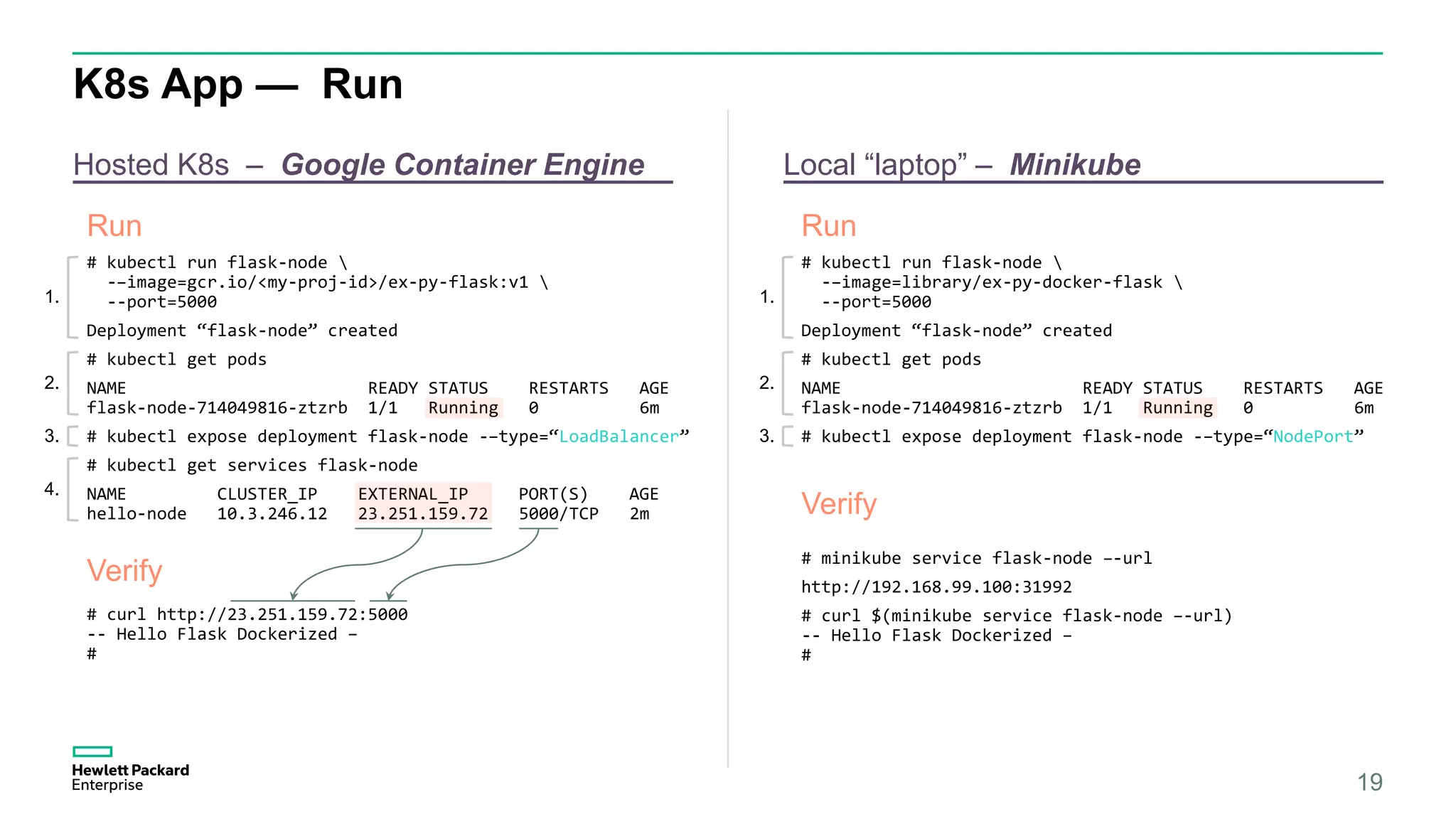
K8s App —Run 18 Hosted K8s – Google Container Engine Local “laptop” – Minikube # kubectl run flask-node -–image=gcr.io/<my-proj-id>/ex-py-flask:v1 --port=5000 Deployment “flask-node” created # kubectl get pods NAME READY STATUS RESTARTS AGE flask-node-714049816-ztzrb 1/1 Running 0 6m # kubectl expose deployment flask-node -–type=“LoadBalancer” # kubectl get services flask-node NAME CLUSTER_IP EXTERNAL_IP PORT(S) AGE hello-node 10.3.246.12 23.251.159.72 5000/TCP 2m Run Verify Run Verify # curl http://23.251.159.72:5000 -- Hello Flask Dockerized – # 1. 2. 3. 4. # kubectl run flask-node -–image=library/ex-py-docker-flask --port=5000 Deployment “flask-node” created # kubectl get pods NAME READY STATUS RESTARTS AGE flask-node-714049816-ztzrb 1/1 Running 0 6m # kubectl expose deployment flask-node -–type=“NodePort” 1. 2. 3. # minikube service flask-node –-url http://192.168.99.100:31992 # curl $(minikube service flask-node –-url) -- Hello Flask Dockerized – #
19.
Getting Involved 19 Community http://kubernetes.io/community/ GitHubhttp://github.com/kubernetes Project Page & Documents http://kubernetes.io Slack (chat) (sign-up: http://slack.k8s.io/) https://kubernetes.slack.com Special Interest Groups (SIGs) (+20 topics) Community Page SIGs (https://github.com/kubernetes/community/blob/master/README.md#special-interest-groups-sig)
Thank you Advanced TechnologyGroup for Open Source and Cloud Eric Gustafson gustafson@hpe.com Patrick Galbraith patg@hpe.com Clare Springer clarissa.springer@hpe.com 21
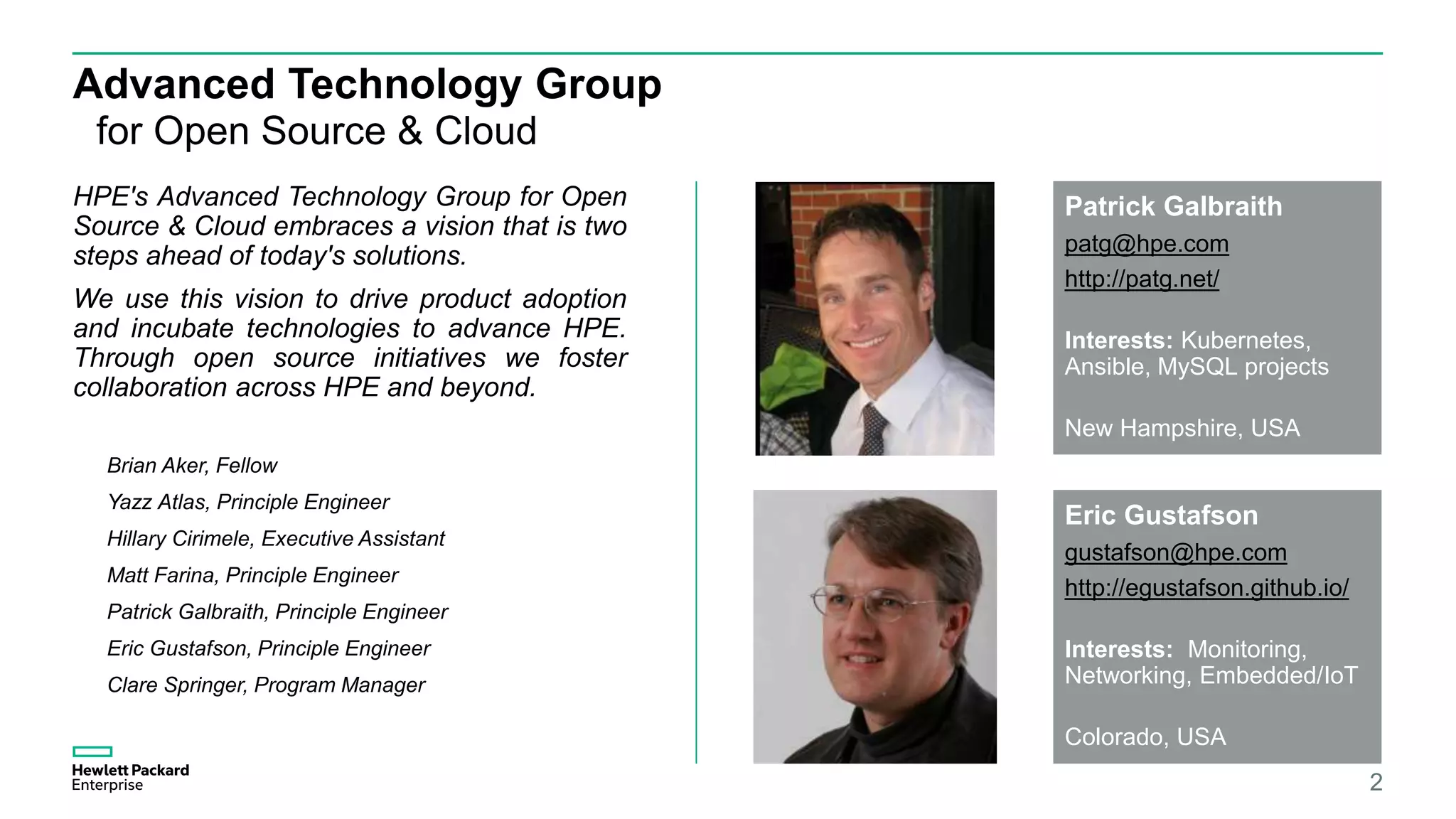
Advanced Technology Group forOpen Source & Cloud HPE's Advanced Technology Group for Open Source & Cloud embraces a vision that is two steps ahead of today's solutions. We use this vision to drive product adoption and incubate technologies to advance HPE. Through open source initiatives we foster collaboration across HPE and beyond. 23 Patrick Galbraith patg@hpe.com http://patg.net/ Interests: Kubernetes, Ansible, MySQL projects New Hampshire, USA Eric Gustafson gustafson@hpe.com http://egustafson.github.io/ Interests: Monitoring, Networking, Embedded/IoT Colorado, USA Brian Aker, Fellow Yazz Atlas, Principle Engineer Hillary Cirimele, Executive Assistant Matt Farina, Principle Engineer Patrick Galbraith, Principle Engineer Eric Gustafson, Principle Engineer Clare Springer, Program Manager
24.
References – KubernetesIntroduction • “Large-scale cluster management at Google with Borg” • https://static.googleusercontent.com/media/research.google.com/en//pubs/archive/43438.pdf • “Omega: flexible, scalable schedulers for large compute clusters” • https://static.googleusercontent.com/media/research.google.com/en//pubs/archive/41684.pdf • “Borg, Omega, and Kubernetes” • https://static.googleusercontent.com/media/research.google.com/en//pubs/archive/44843.pdf • “Jupiter Rising: A Decade of Clos Topologies and Centralized Control in Google’s Datacenter Network” • http://conferences.sigcomm.org/sigcomm/2015/pdf/papers/p183.pdf 24
Editor's Notes
#24 This is a sample Picture Right with Caption slide ideal for including a picture with a brief descriptive statement. To Replace the Picture on this Sample Slide (this applies to all slides in this template that contain replaceable pictures) Select the sample picture and press Delete. Click the icon inside the shape to open the Insert Picture dialog box. Navigate to the location where the picture is stored, select desired picture and click on the Insert button to fit the image proportionally within the shape. Note: Do not right-click the image to change the picture inside the picture placeholder. This will change the frame size of the picture placeholder. Instead, follow the steps outlined above. Tip: use the Crop tool to reposition a picture within a placeholder. From the Picture Tools Format tab on the ribbon, click the Crop button. Click and drag the picture within the placeholder to reposition. To scale the picture within the placeholder (while Crop is active), grab a round corner handle and drag to resize. Hold Shift key to constrain picture aspect ratio when resizing.