2
Jetpack Compose UI Android Jetpack Compose UI is a clean and first of its kind of Jetpack UI kit. Considering the most latest design standards, trends and practices, Jetpack Compose UI Kit offers the most authentic UI set to create a unique and futuristic mobile app. The clean coded structure and modern design makes this UI kit the easiest and user-friendly tool to create any app project. Quickly bring your app to life with less code, powerful tools, and intuitive Kotlin APIs. 3
User Interface 4 Your app's user interface is everything that the user can see and interact with. Android provides a variety of pre-built UI components such as structured layout objects and UI controls that allow you to build the graphical user interface for your app. Android also provides other UI modules for special interfaces such as dialogs, notifications, and menus.
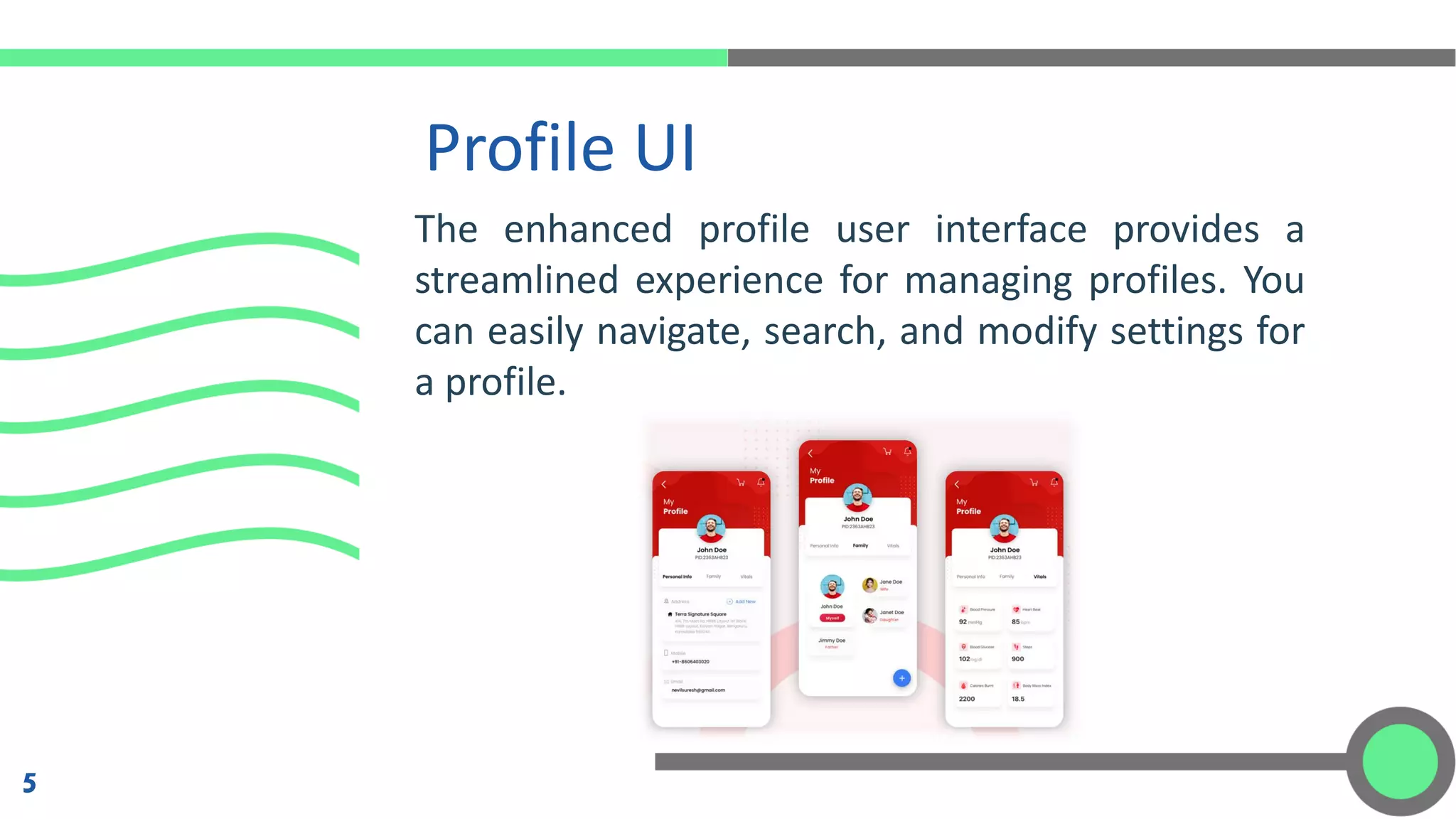
Profile UI 5 The enhanced profile user interface provides a streamlined experience for managing profiles. You can easily navigate, search, and modify settings for a profile.
UI Tips Interface design, which focuses on the layout of interfaces functionality, is a subset of user experience design. 4 essential UI (user-interface) design tips: 1. Define how people use your interface 2. Think carefully about element placement and size 3. Make your interfaces easy to learn 4. Make decision-making simple 6
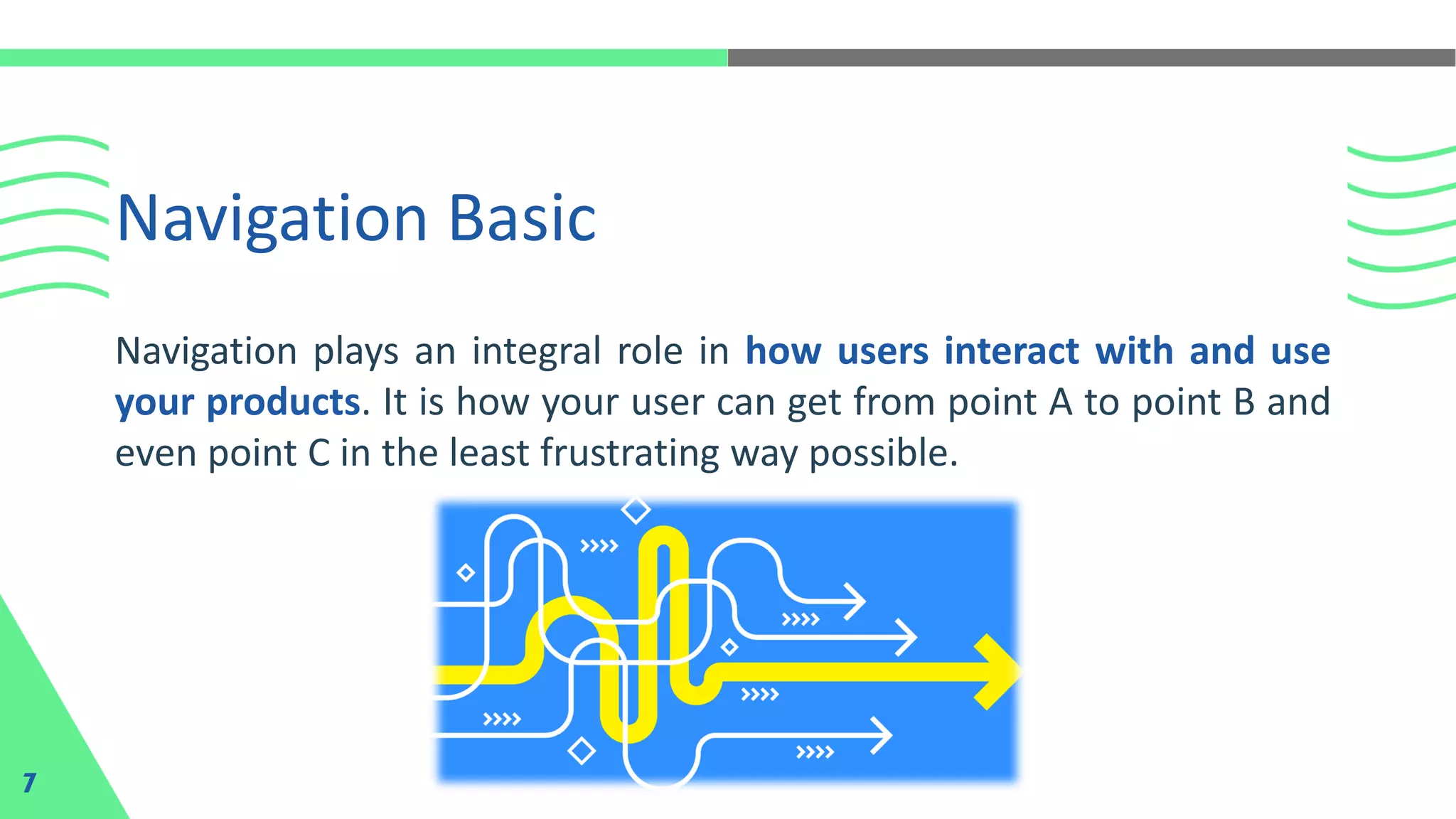
Navigation Basic 7 Navigation plays an integral role in how users interact with and use your products. It is how your user can get from point A to point B and even point C in the least frustrating way possible.
To make these delightful interactions, designers employ a combination of design patterns including links, labels and other UI elements. Good navigation design can: 1. Enhance a user’s understanding 2. Give them confidence using your product 3. Provide credibility to a product Navigation Tips 8
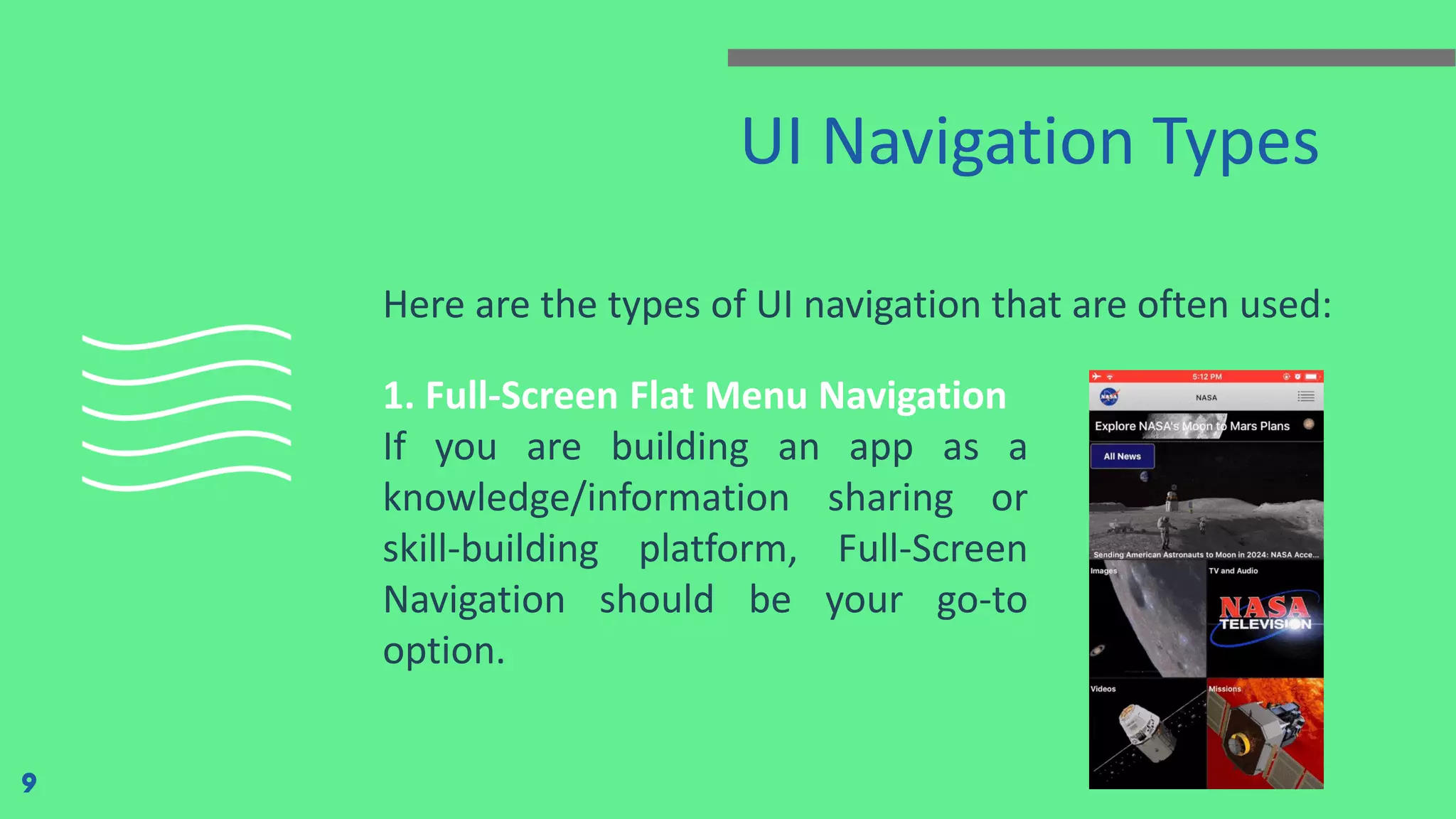
UI Navigation Types Here are the types of UI navigation that are often used: 9 1. Full-Screen Flat Menu Navigation If you are building an app as a knowledge/information sharing or skill-building platform, Full-Screen Navigation should be your go-to option.
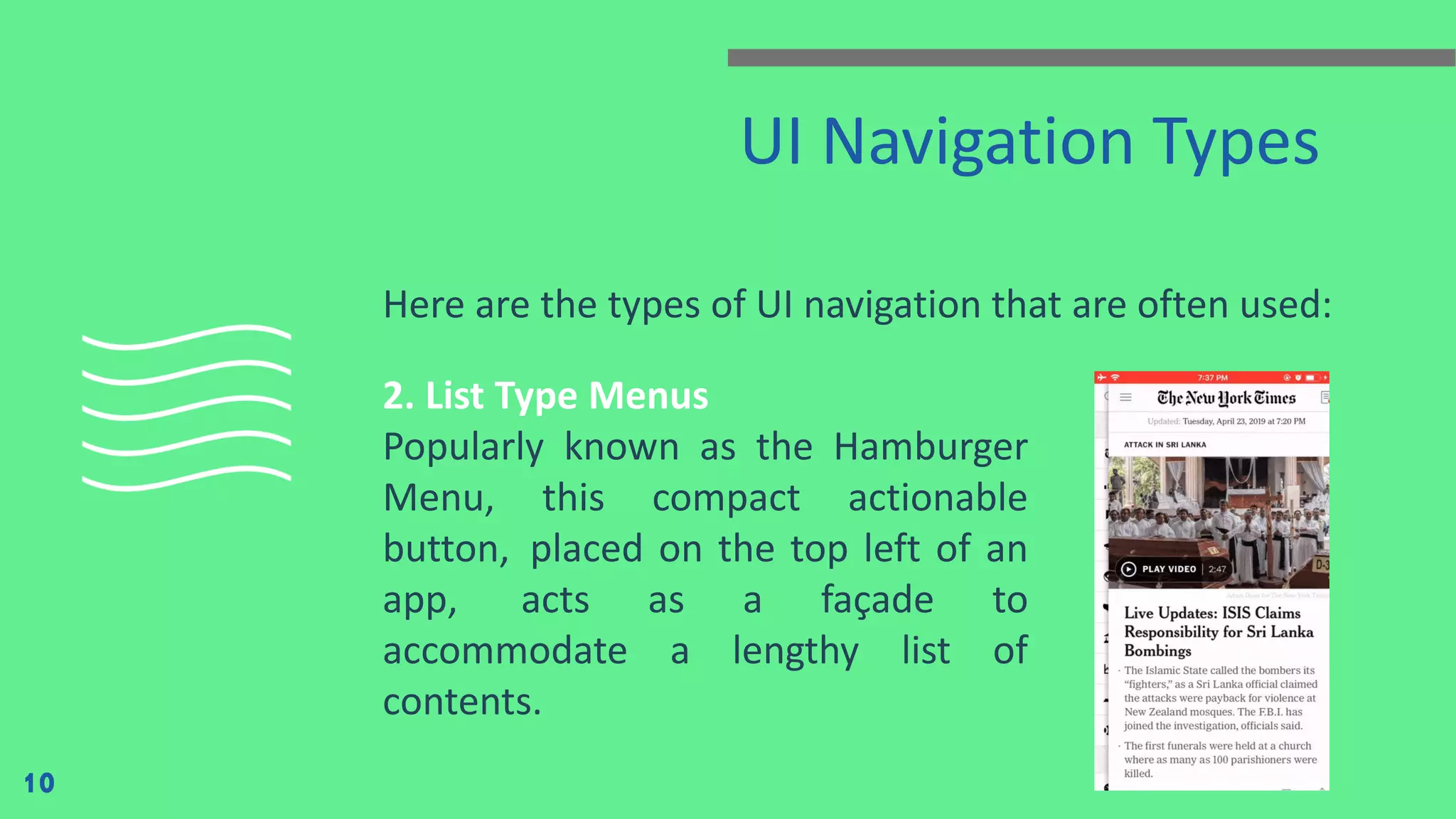
UI Navigation Types Here are the types of UI navigation that are often used: 10 2. List Type Menus Popularly known as the Hamburger Menu, this compact actionable button,  placed on the top left of an app,  acts as a façade to accommodate a lengthy list of contents.
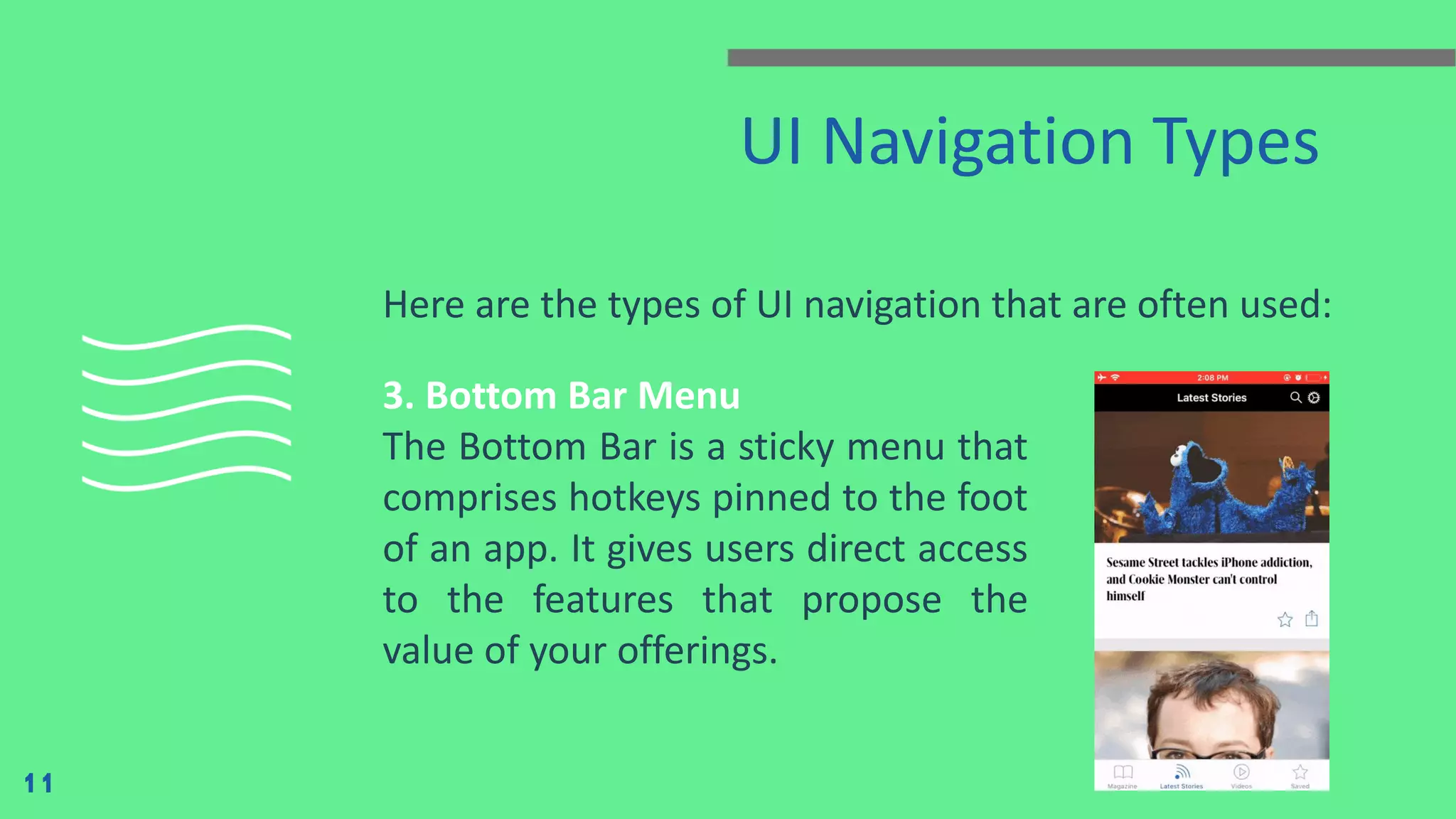
UI Navigation Types Here are the types of UI navigation that are often used: 11 3. Bottom Bar Menu The Bottom Bar is a sticky menu that comprises hotkeys pinned to the foot of an app. It gives users direct access to the features that propose the value of your offerings.
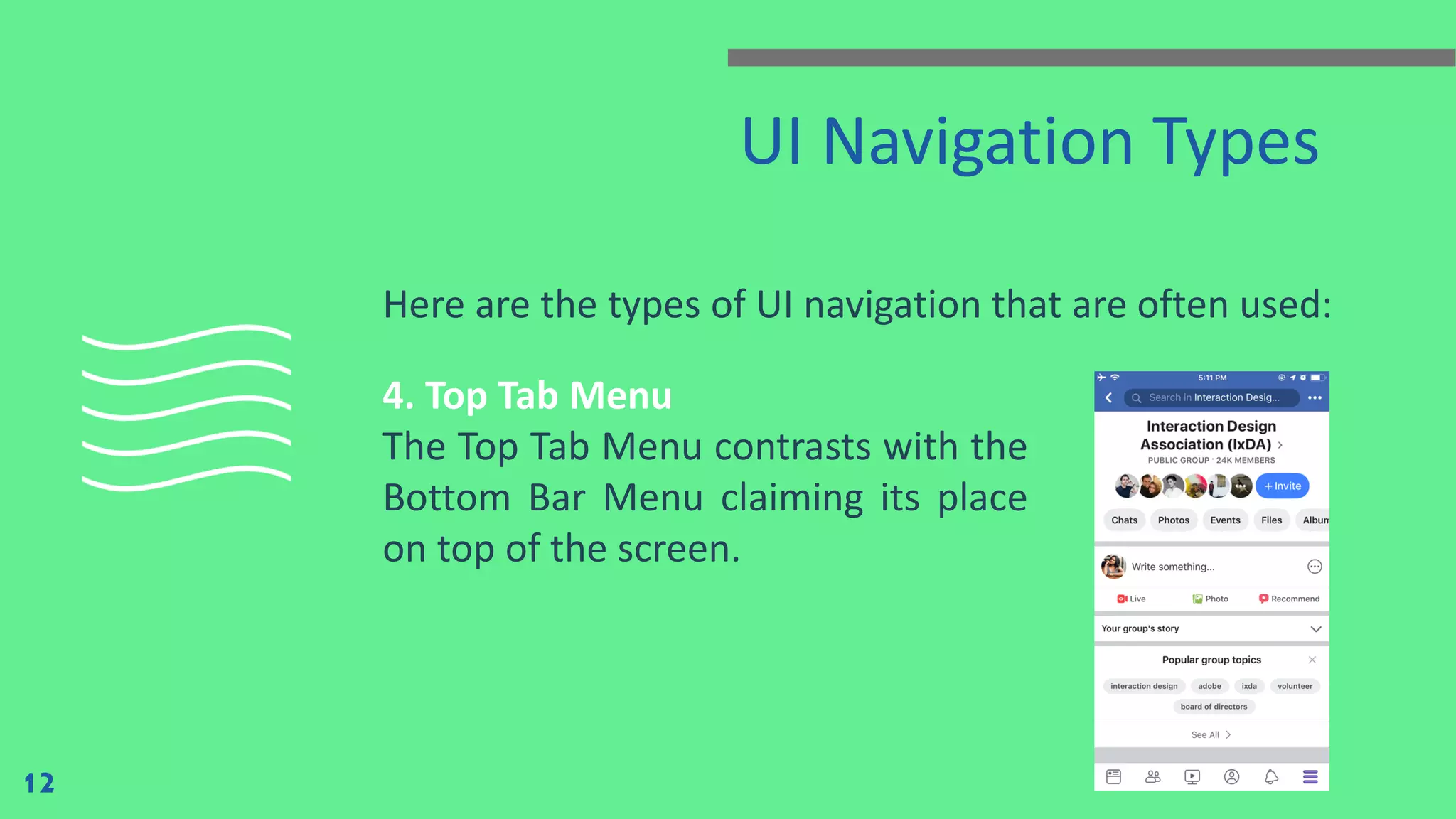
UI Navigation Types Here are the types of UI navigation that are often used: 12 4. Top Tab Menu The Top Tab Menu contrasts with the Bottom Bar Menu claiming its place on top of the screen.
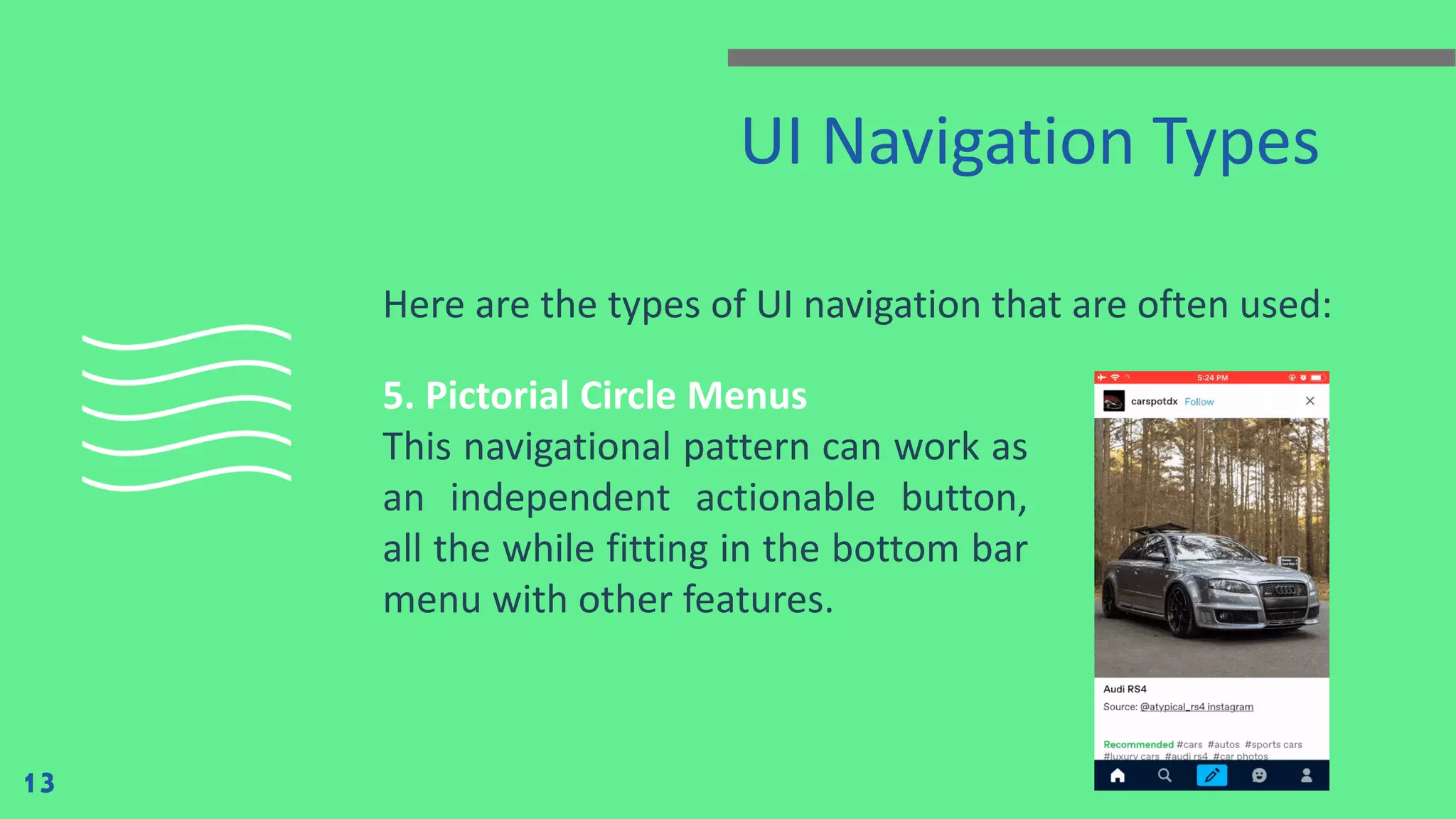
UI Navigation Types Here are the types of UI navigation that are often used: 13 5. Pictorial Circle Menus This navigational pattern can work as an independent actionable button, all the while fitting in the bottom bar menu with other features.
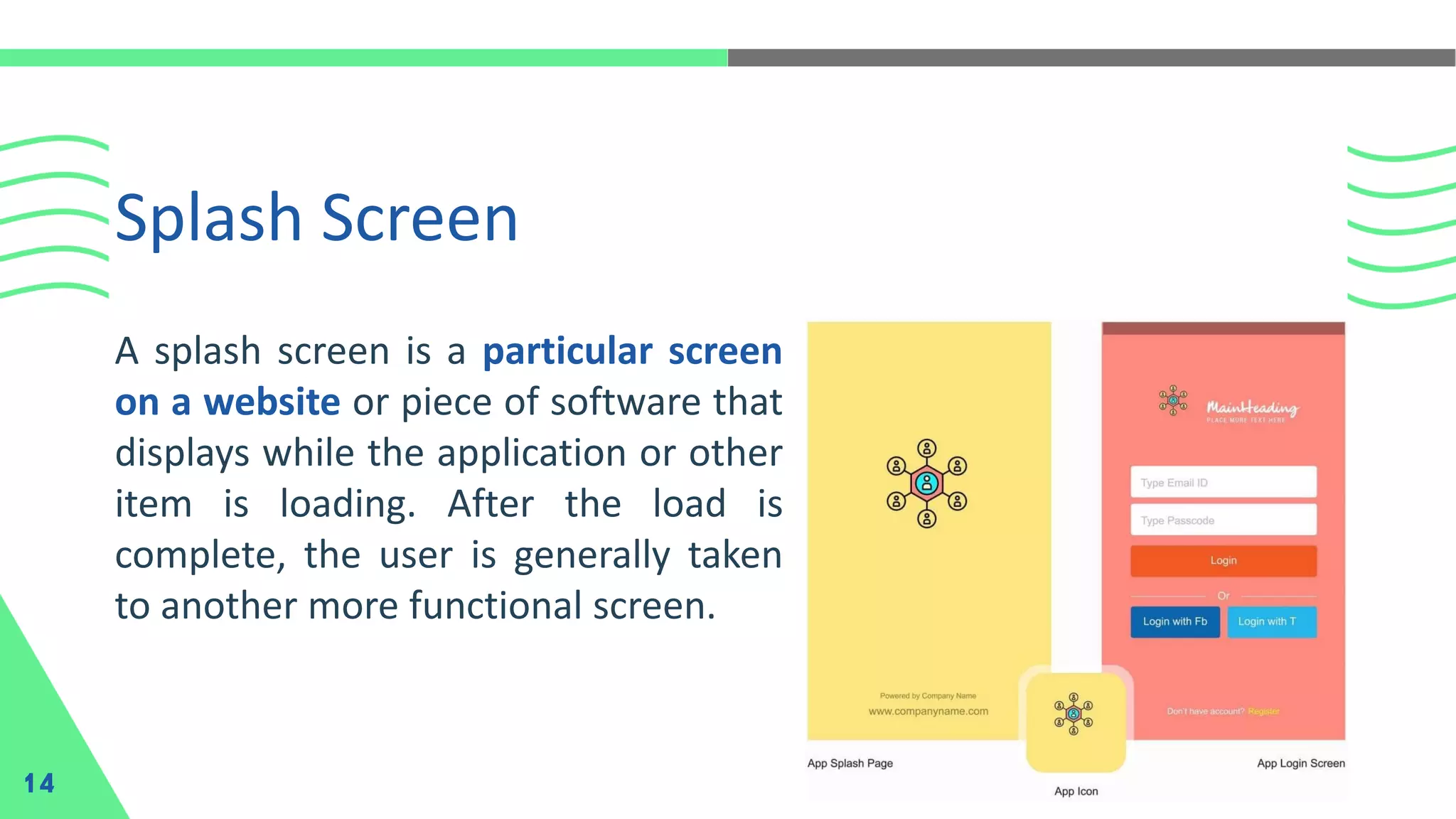
Splash Screen 14 A splash screen is a particular screen on a website or piece of software that displays while the application or other item is loading. After the load is complete, the user is generally taken to another more functional screen.
Android 12 adds the SplashScreen API, which enables a new app launch animation for all apps when running on a device with Android 12 or higher. This includes an into-app motion at launch, a splash screen showing your app icon, and a transition to your app itself. In addition to using the SplashScreen API directly, you can also use the SplashScreen compat library, which wraps the SplashScreen API. Android Splash Screen 15
How Splash Screen Works? 16 When a user launches an app while the app's process is not running (a cold start) or the Activity has not been created (a warm start), the following events occur. 1. The system shows the splash screen using themes and any animations that you've defined. 2. When the app is ready, the splash screen is dismissed and the app is displayed.
Mobile Programming - 9 Profile UI, Navigation Basic and Splash Screen

Mobile Programming - 9 Profile UI, Navigation Basic and Splash Screen

  • 2.
  • 3.
    Jetpack Compose UI AndroidJetpack Compose UI is a clean and first of its kind of Jetpack UI kit. Considering the most latest design standards, trends and practices, Jetpack Compose UI Kit offers the most authentic UI set to create a unique and futuristic mobile app. The clean coded structure and modern design makes this UI kit the easiest and user-friendly tool to create any app project. Quickly bring your app to life with less code, powerful tools, and intuitive Kotlin APIs. 3
  • 4.
    User Interface 4 Your app'suser interface is everything that the user can see and interact with. Android provides a variety of pre-built UI components such as structured layout objects and UI controls that allow you to build the graphical user interface for your app. Android also provides other UI modules for special interfaces such as dialogs, notifications, and menus.
  • 5.
    Profile UI 5 The enhancedprofile user interface provides a streamlined experience for managing profiles. You can easily navigate, search, and modify settings for a profile.
  • 6.
    UI Tips Interface design,which focuses on the layout of interfaces functionality, is a subset of user experience design. 4 essential UI (user-interface) design tips: 1. Define how people use your interface 2. Think carefully about element placement and size 3. Make your interfaces easy to learn 4. Make decision-making simple 6
  • 7.
    Navigation Basic 7 Navigation playsan integral role in how users interact with and use your products. It is how your user can get from point A to point B and even point C in the least frustrating way possible.
  • 8.
    To make thesedelightful interactions, designers employ a combination of design patterns including links, labels and other UI elements. Good navigation design can: 1. Enhance a user’s understanding 2. Give them confidence using your product 3. Provide credibility to a product Navigation Tips 8
  • 9.
    UI Navigation Types Hereare the types of UI navigation that are often used: 9 1. Full-Screen Flat Menu Navigation If you are building an app as a knowledge/information sharing or skill-building platform, Full-Screen Navigation should be your go-to option.
  • 10.
    UI Navigation Types Hereare the types of UI navigation that are often used: 10 2. List Type Menus Popularly known as the Hamburger Menu, this compact actionable button,  placed on the top left of an app,  acts as a façade to accommodate a lengthy list of contents.
  • 11.
    UI Navigation Types Hereare the types of UI navigation that are often used: 11 3. Bottom Bar Menu The Bottom Bar is a sticky menu that comprises hotkeys pinned to the foot of an app. It gives users direct access to the features that propose the value of your offerings.
  • 12.
    UI Navigation Types Hereare the types of UI navigation that are often used: 12 4. Top Tab Menu The Top Tab Menu contrasts with the Bottom Bar Menu claiming its place on top of the screen.
  • 13.
    UI Navigation Types Hereare the types of UI navigation that are often used: 13 5. Pictorial Circle Menus This navigational pattern can work as an independent actionable button, all the while fitting in the bottom bar menu with other features.
  • 14.
    Splash Screen 14 A splashscreen is a particular screen on a website or piece of software that displays while the application or other item is loading. After the load is complete, the user is generally taken to another more functional screen.
  • 15.
    Android 12 addsthe SplashScreen API, which enables a new app launch animation for all apps when running on a device with Android 12 or higher. This includes an into-app motion at launch, a splash screen showing your app icon, and a transition to your app itself. In addition to using the SplashScreen API directly, you can also use the SplashScreen compat library, which wraps the SplashScreen API. Android Splash Screen 15
  • 16.
    How Splash ScreenWorks? 16 When a user launches an app while the app's process is not running (a cold start) or the Activity has not been created (a warm start), the following events occur. 1. The system shows the splash screen using themes and any animations that you've defined. 2. When the app is ready, the splash screen is dismissed and the app is displayed.