Ahsan Kabir MVP Step by Step Design Cube in SSAS
Step 1: Creating an SSAS Project in SSDT Step 1.1: Open the SQL Server Data Tools (SSDT).Go to File >New > Project….. Step 1.2: Now Select Analysis Services from Business Intelligence. Step 1.3: In the main pane, select Analysis Services Multidimensional and Data Mining Project
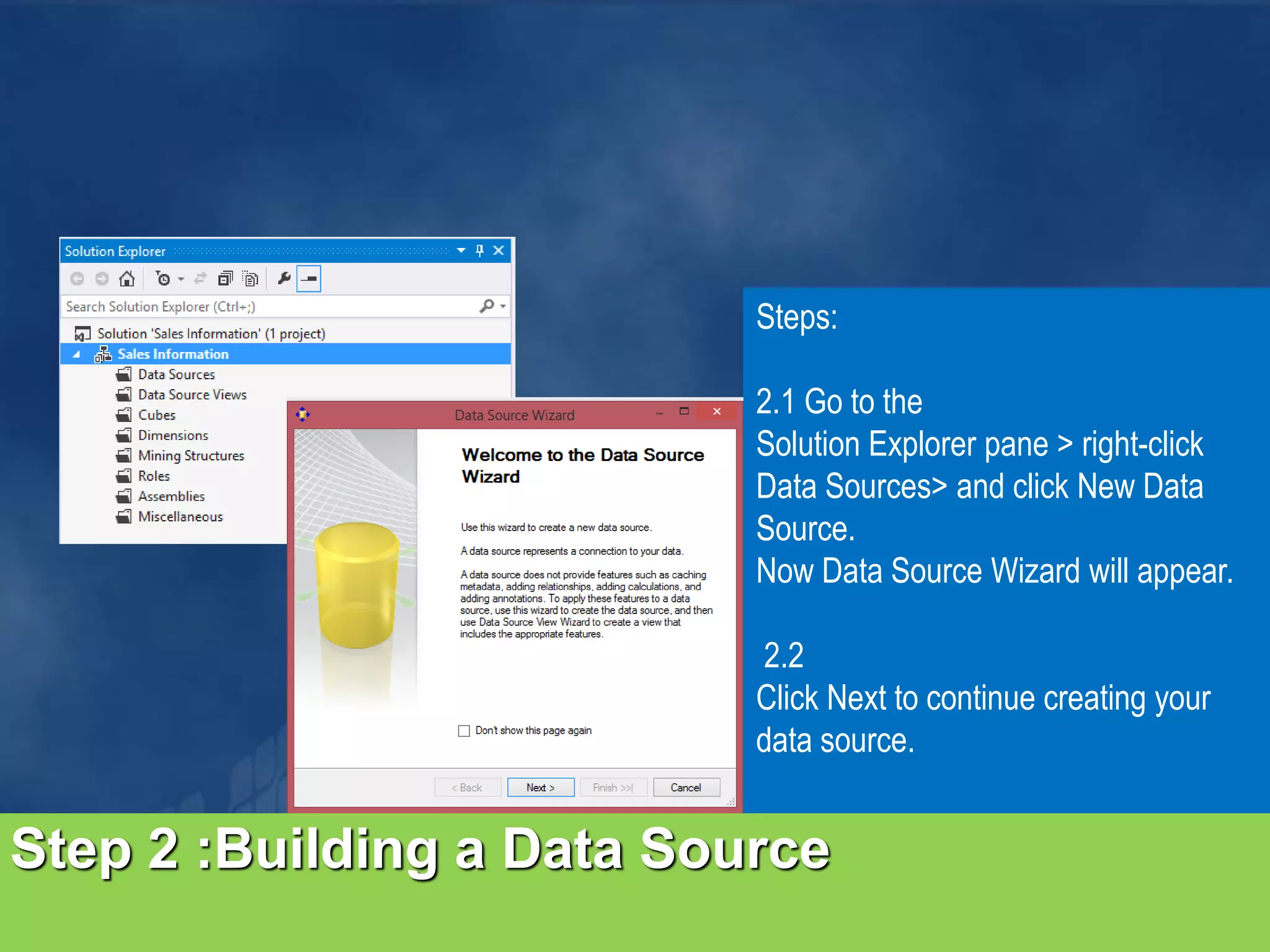
Step 2 :Building a Data Source Steps: 2.1 Go to the Solution Explorer pane > right-click Data Sources> and click New Data Source. Now Data Source Wizard will appear. 2.2 Click Next to continue creating your data source.
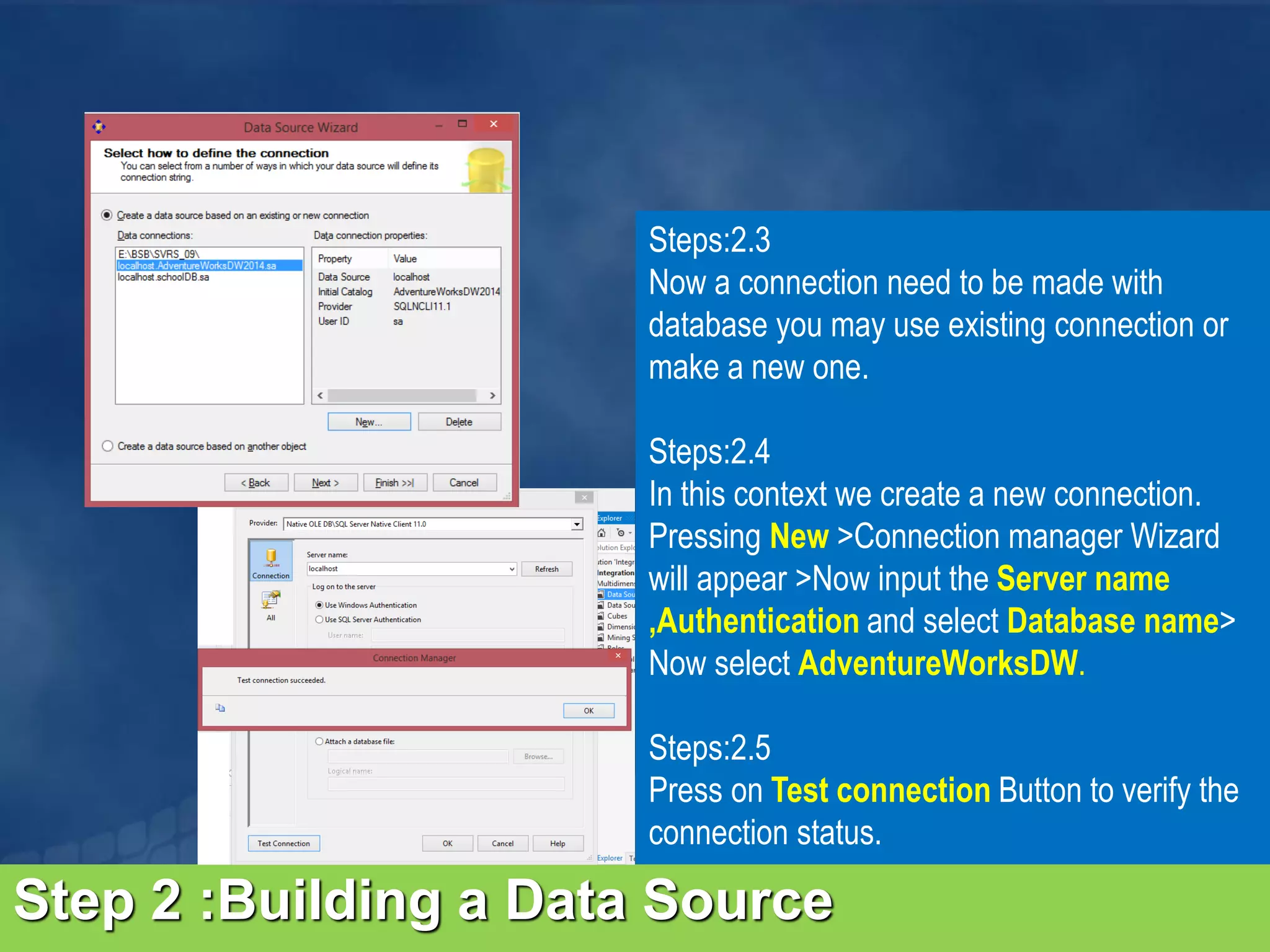
Step 2 :Building a Data Source Steps:2.3 Now a connection need to be made with database you may use existing connection or make a new one. Steps:2.4 In this context we create a new connection. Pressing New >Connection manager Wizard will appear >Now input the Server name ,Authentication and select Database name> Now select AdventureWorksDW. Steps:2.5 Press on Test connection Button to verify the connection status.
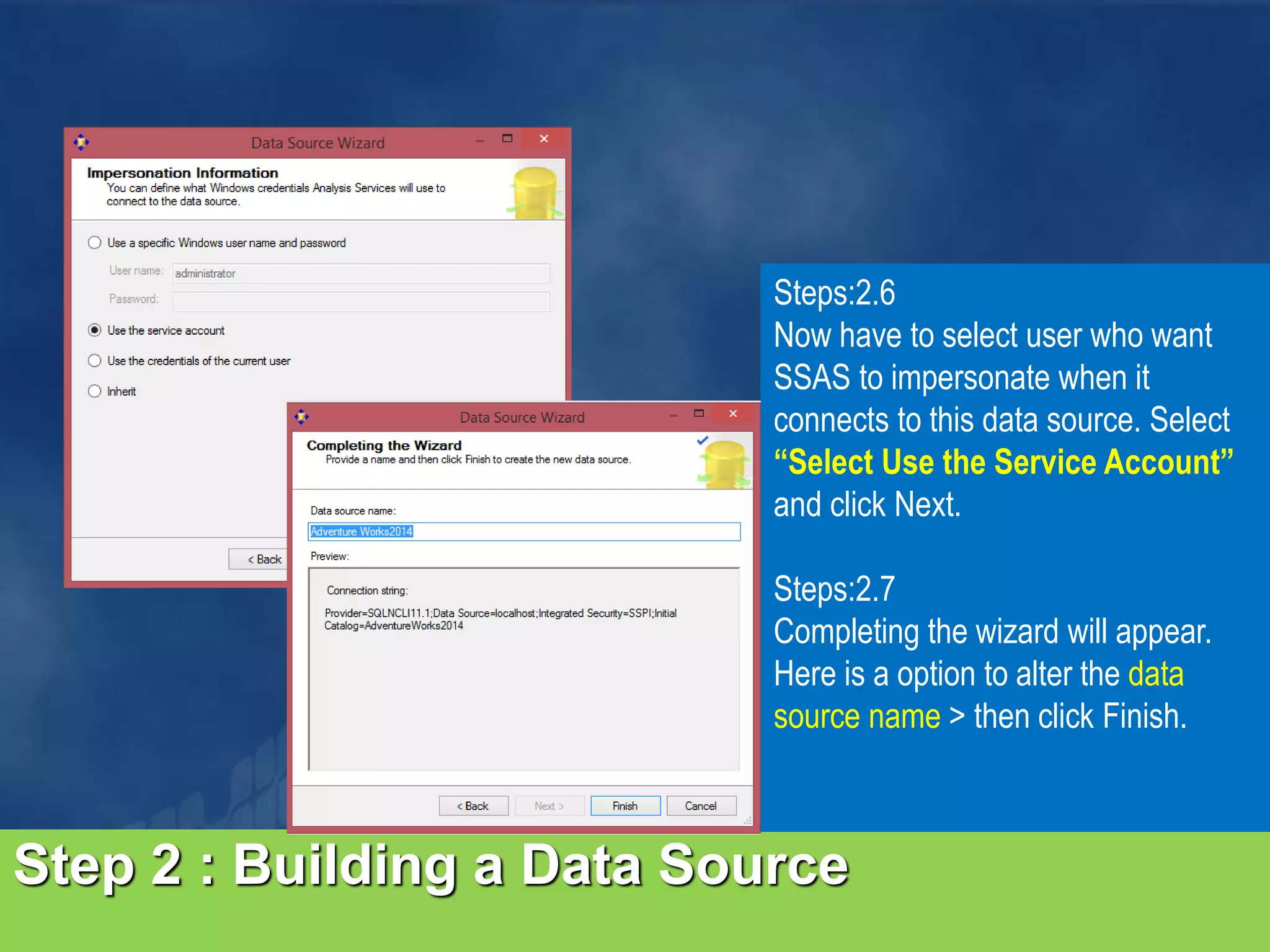
Step 2 : Building a Data Source Steps:2.6 Now have to select user who want SSAS to impersonate when it connects to this data source. Select “Select Use the Service Account” and click Next. Steps:2.7 Completing the wizard will appear. Here is a option to alter the data source name > then click Finish.
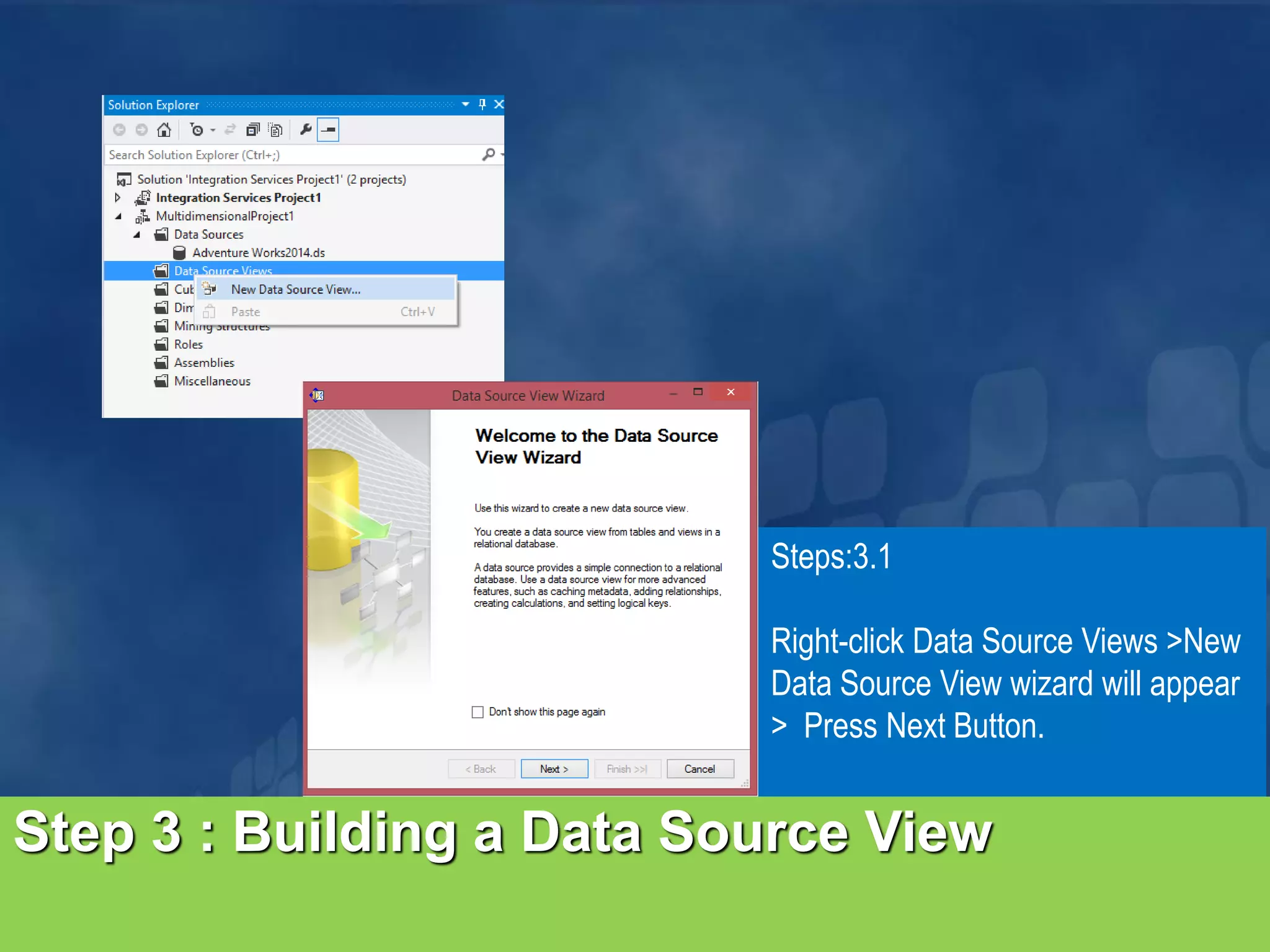
Step 3 : Building a Data Source View Steps:3.1 Right-click Data Source Views >New Data Source View wizard will appear > Press Next Button.
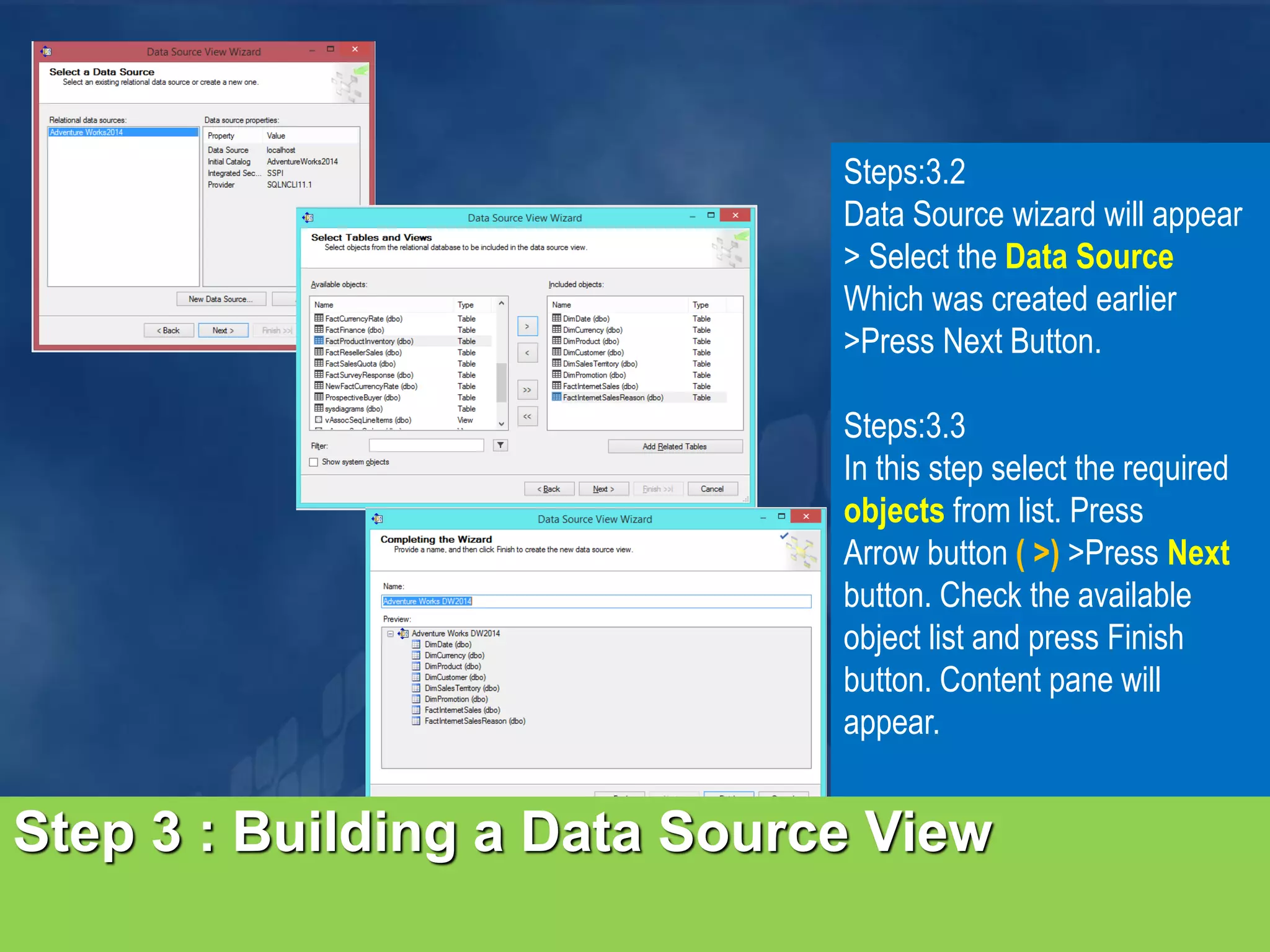
Step 3 : Building a Data Source View Steps:3.2 Data Source wizard will appear > Select the Data Source Which was created earlier >Press Next Button. Steps:3.3 In this step select the required objects from list. Press Arrow button ( >) >Press Next button. Check the available object list and press Finish button. Content pane will appear.
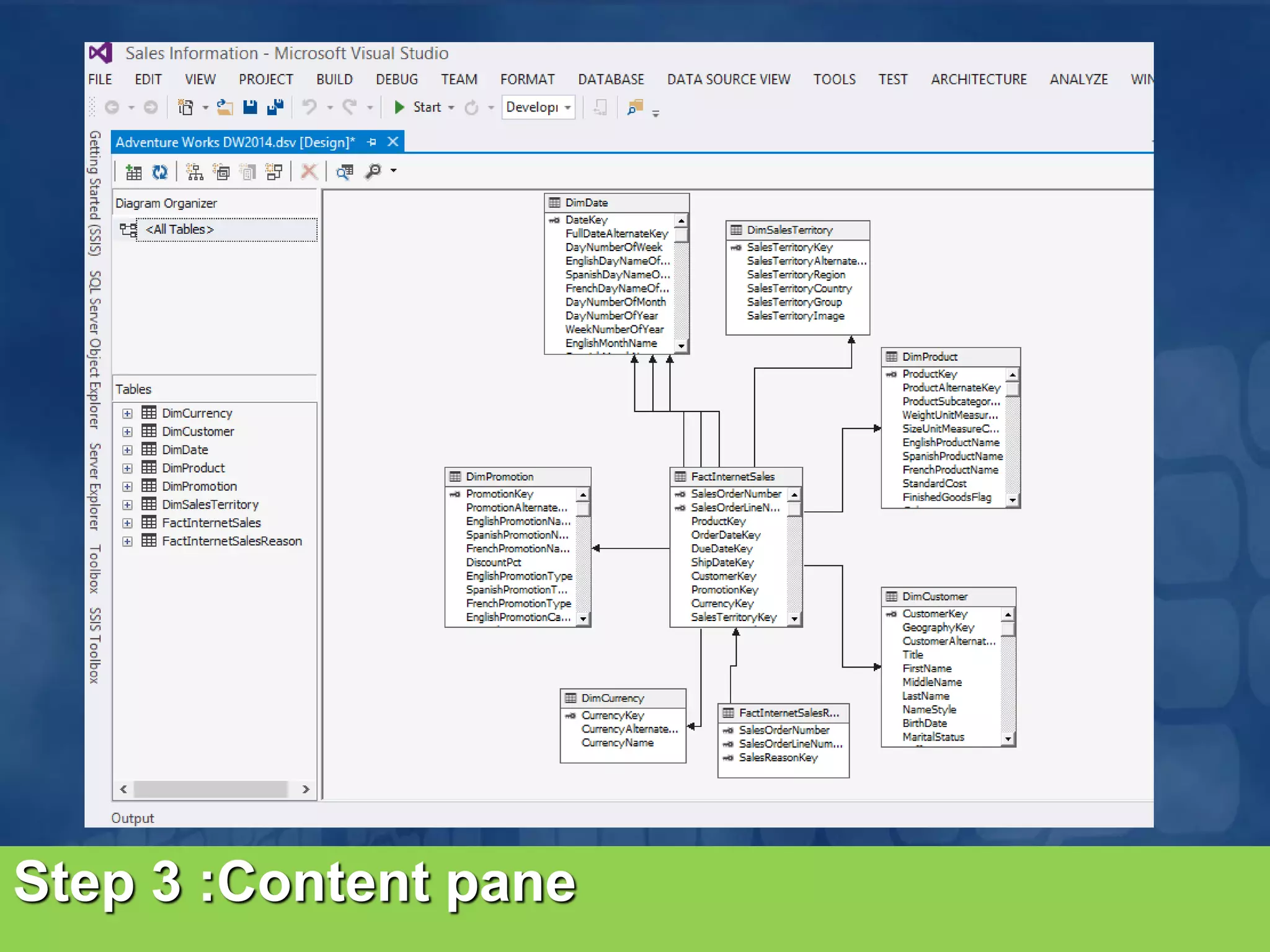
Step 3 :Content pane
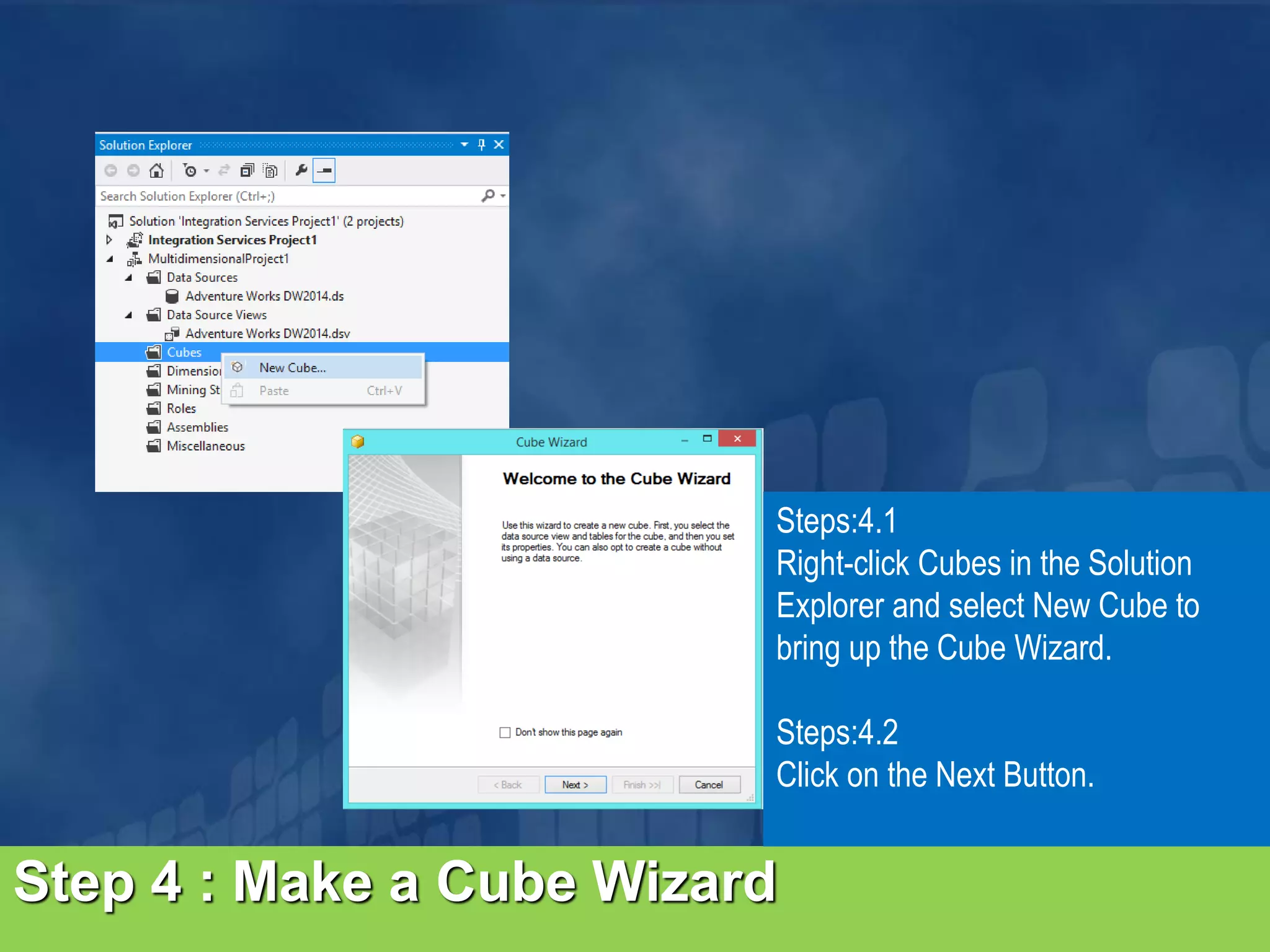
Step 4 : Make a Cube Wizard Steps:4.1 Right-click Cubes in the Solution Explorer and select New Cube to bring up the Cube Wizard. Steps:4.2 Click on the Next Button.
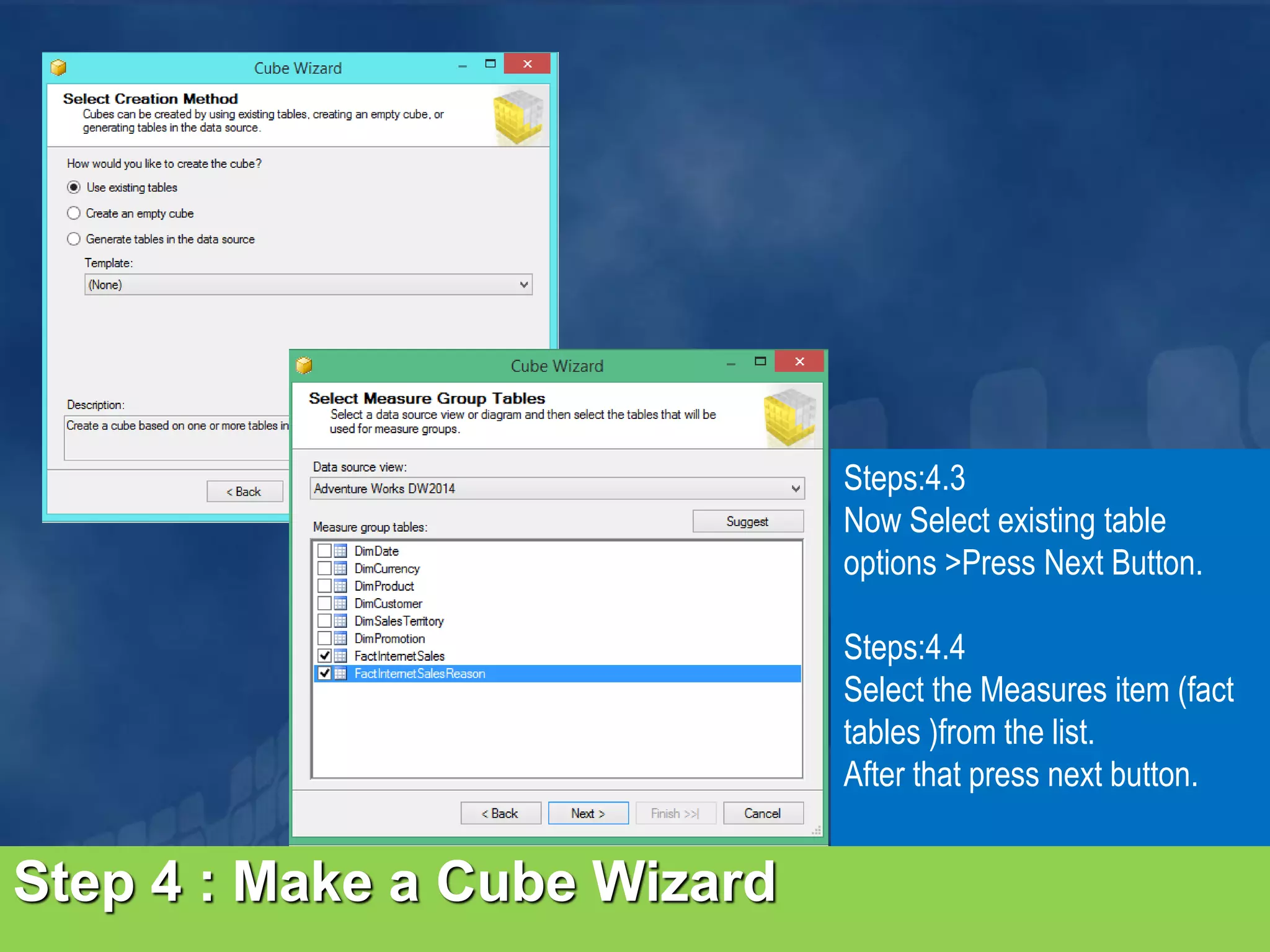
Steps:4.3 Now Select existing table options >Press Next Button. Steps:4.4 Select the Measures item (fact tables )from the list. After that press next button. Step 4 : Make a Cube Wizard
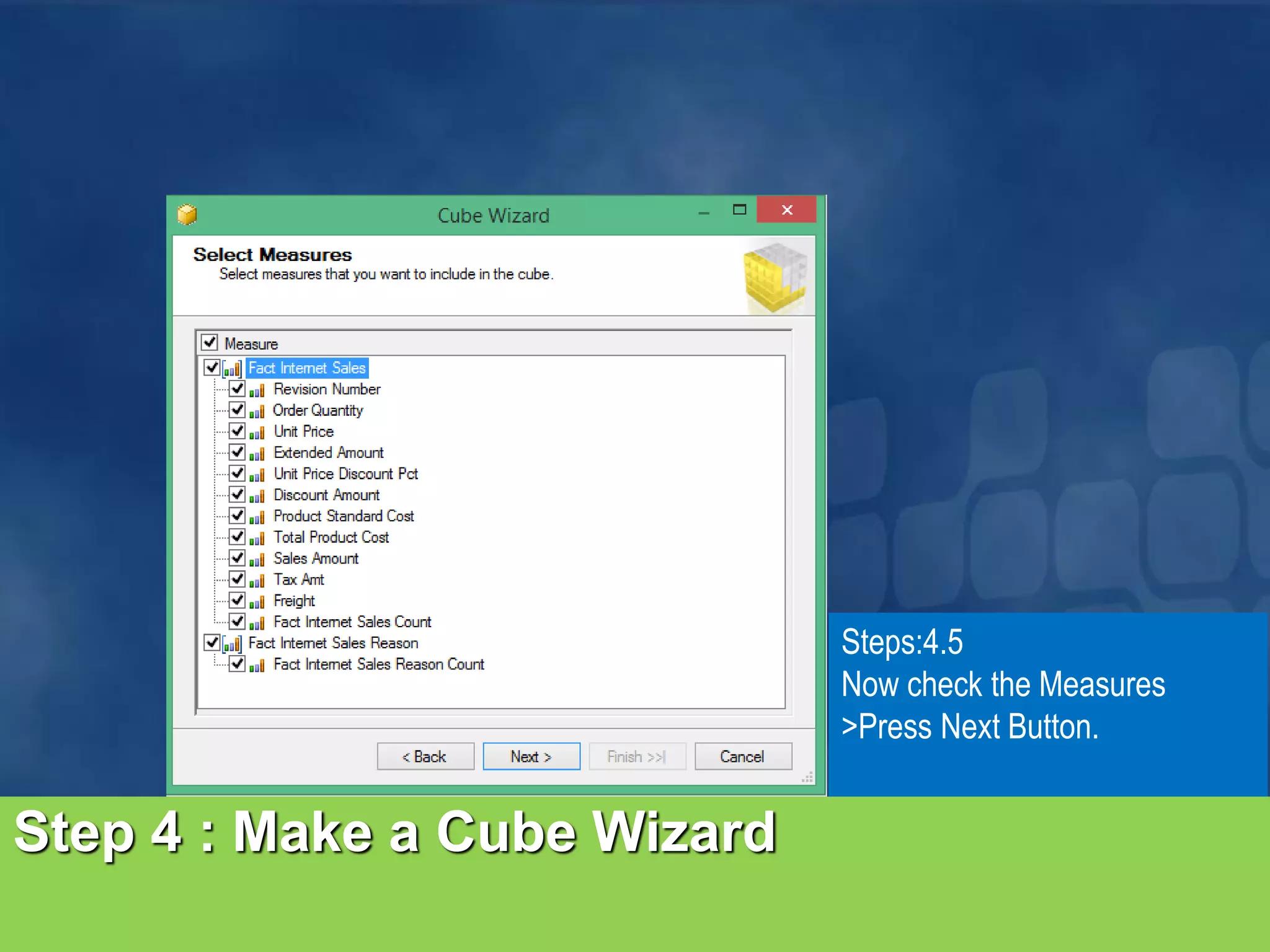
Steps:4.5 Now check the Measures >Press Next Button. Step 4 : Make a Cube Wizard
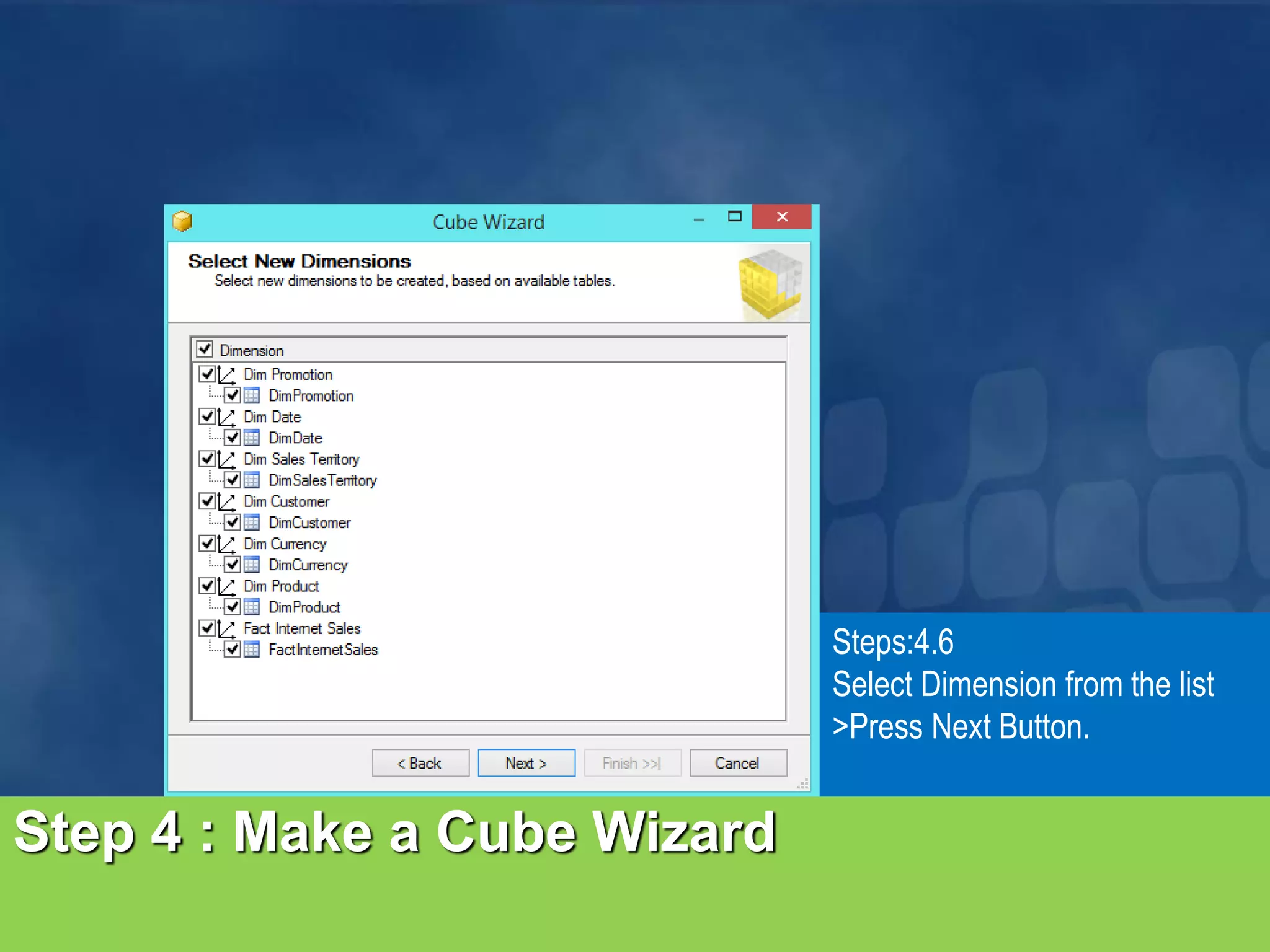
Step 4 : Make a Cube Wizard Steps:4.6 Select Dimension from the list >Press Next Button.
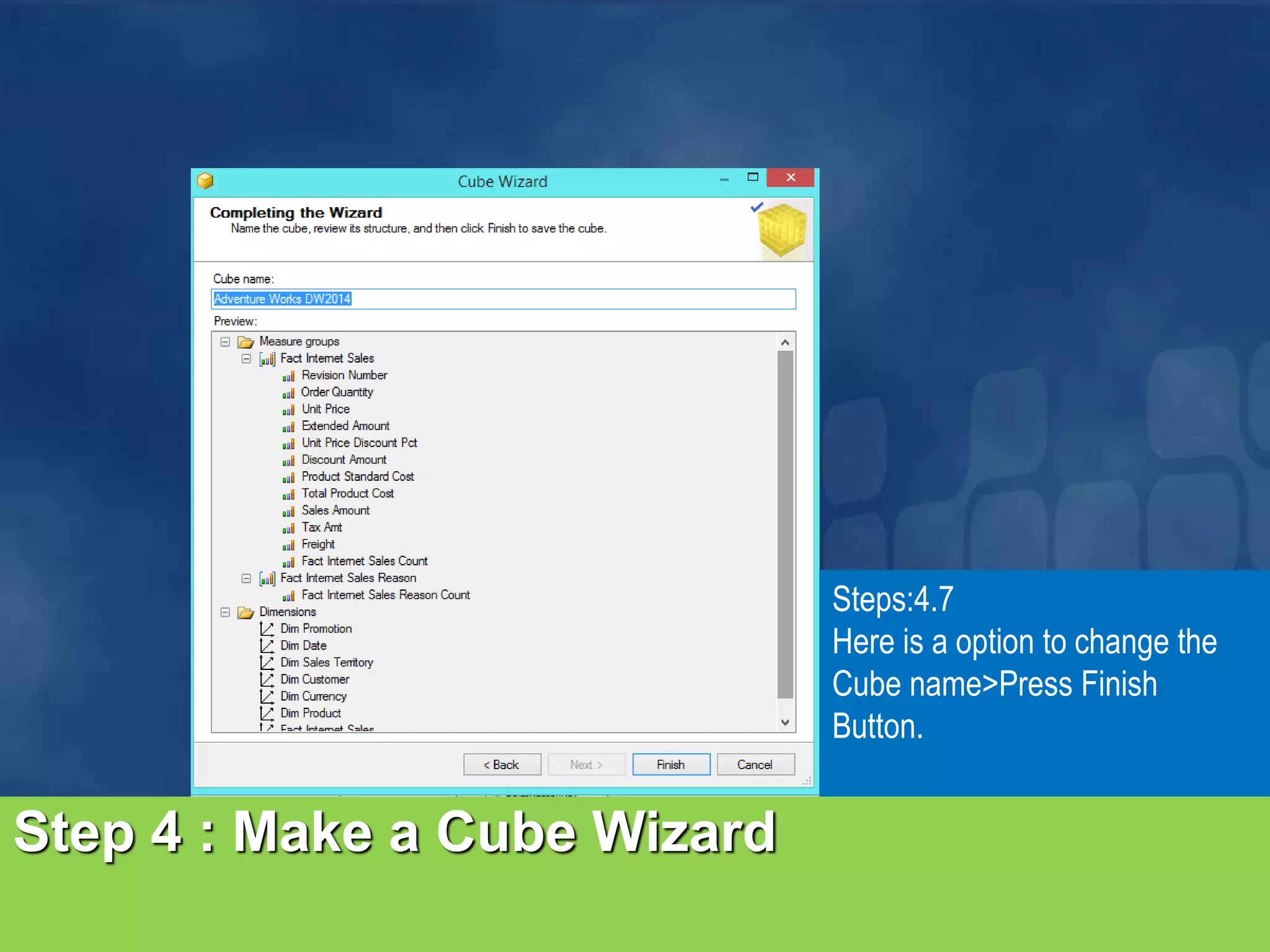
Step 4 : Make a Cube Wizard Steps:4.7 Here is a option to change the Cube name>Press Finish Button.
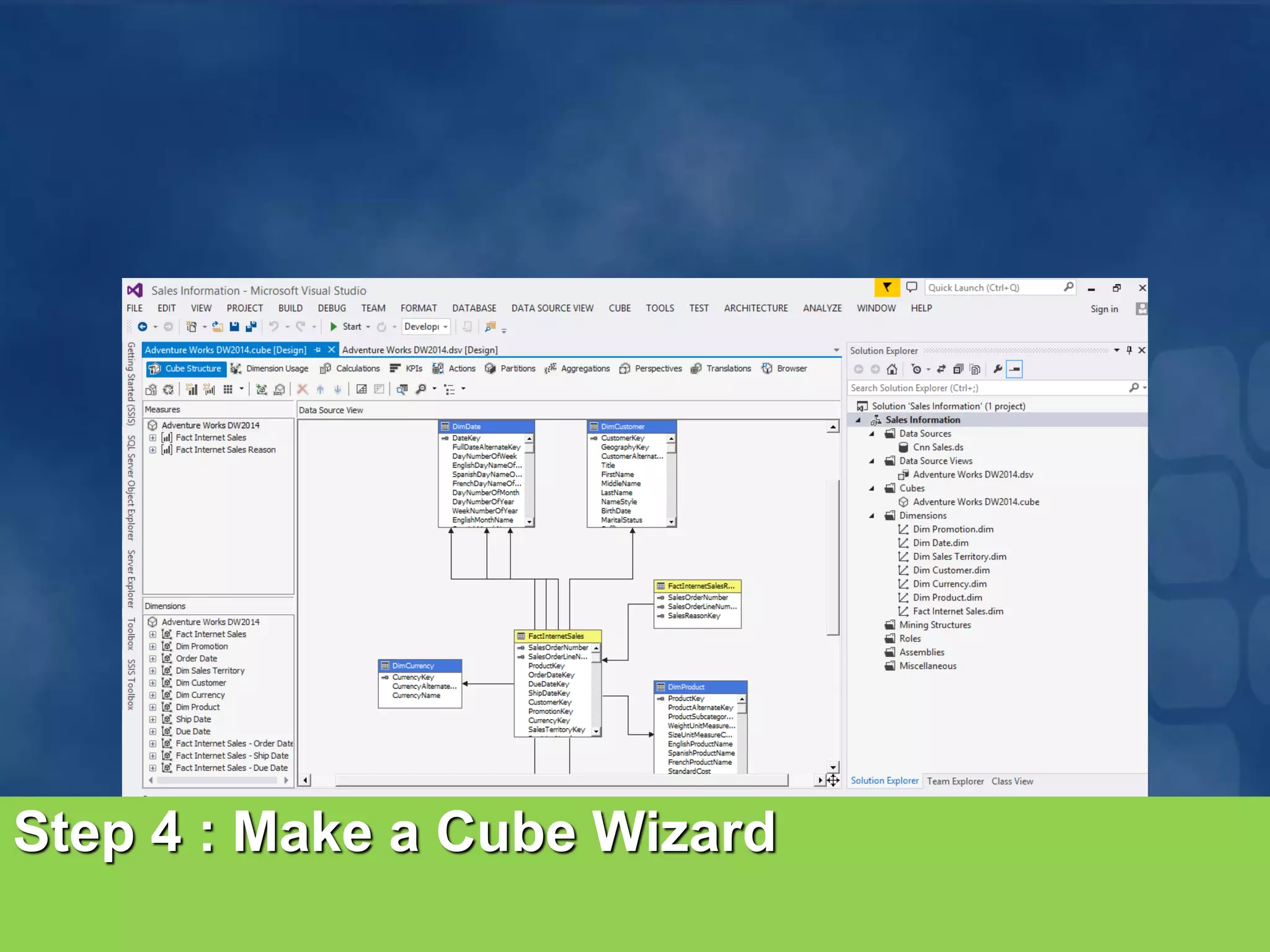
Step 4 : Make a Cube Wizard
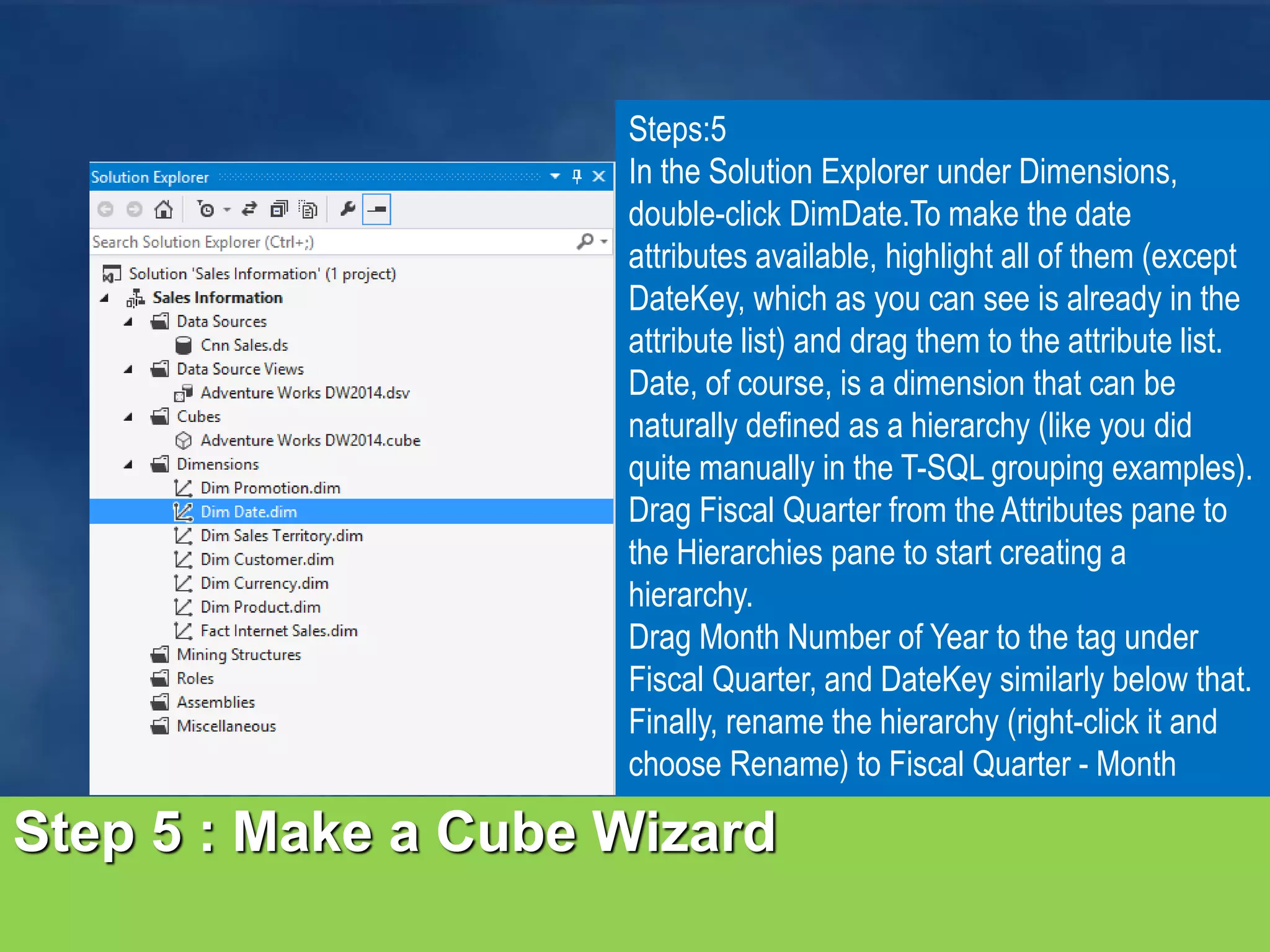
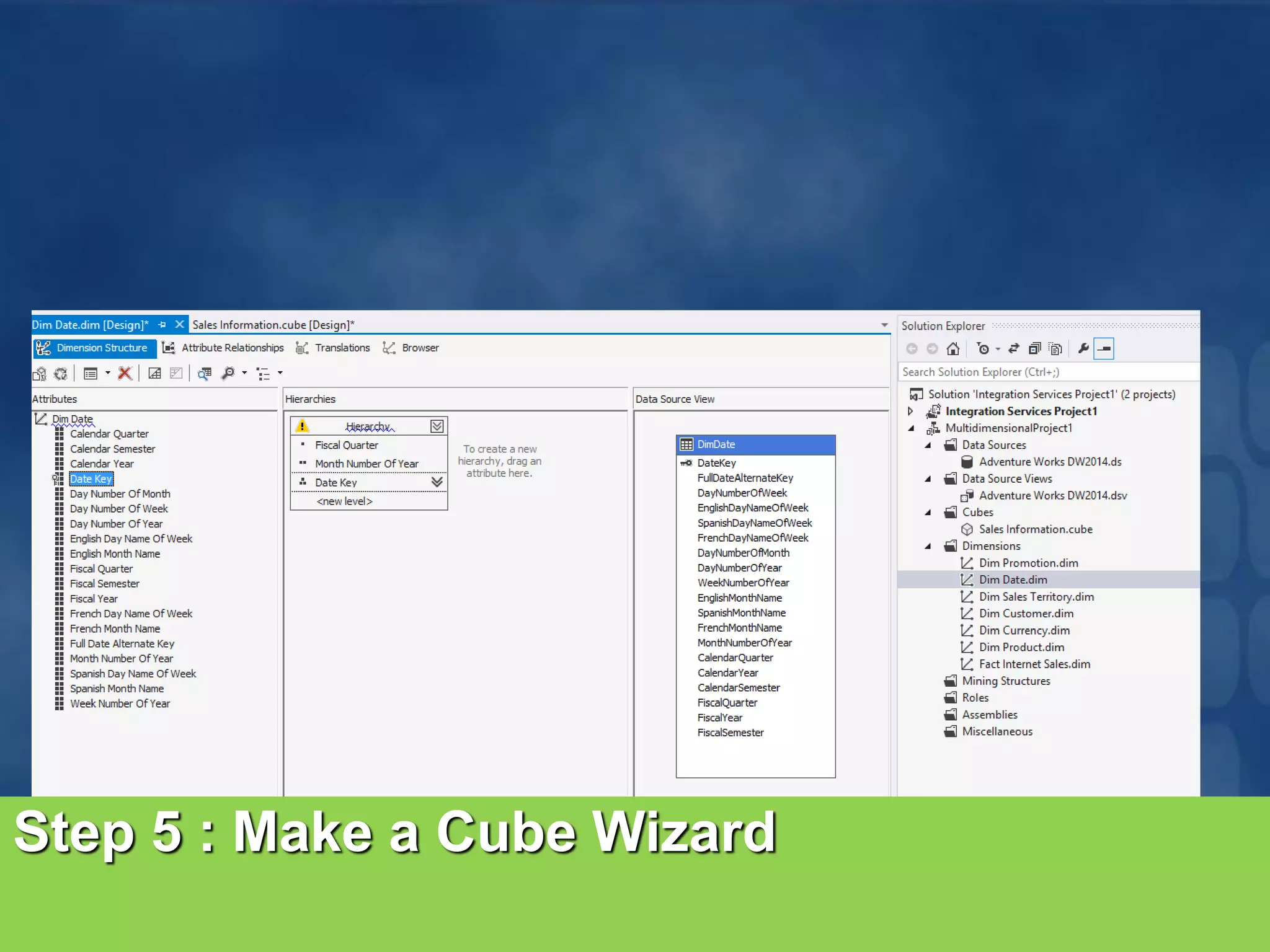
Step 5 : Make a Cube Wizard Steps:5 In the Solution Explorer under Dimensions, double-click DimDate.To make the date attributes available, highlight all of them (except DateKey, which as you can see is already in the attribute list) and drag them to the attribute list. Date, of course, is a dimension that can be naturally defined as a hierarchy (like you did quite manually in the T-SQL grouping examples). Drag Fiscal Quarter from the Attributes pane to the Hierarchies pane to start creating a hierarchy. Drag Month Number of Year to the tag under Fiscal Quarter, and DateKey similarly below that. Finally, rename the hierarchy (right-click it and choose Rename) to Fiscal Quarter - Month
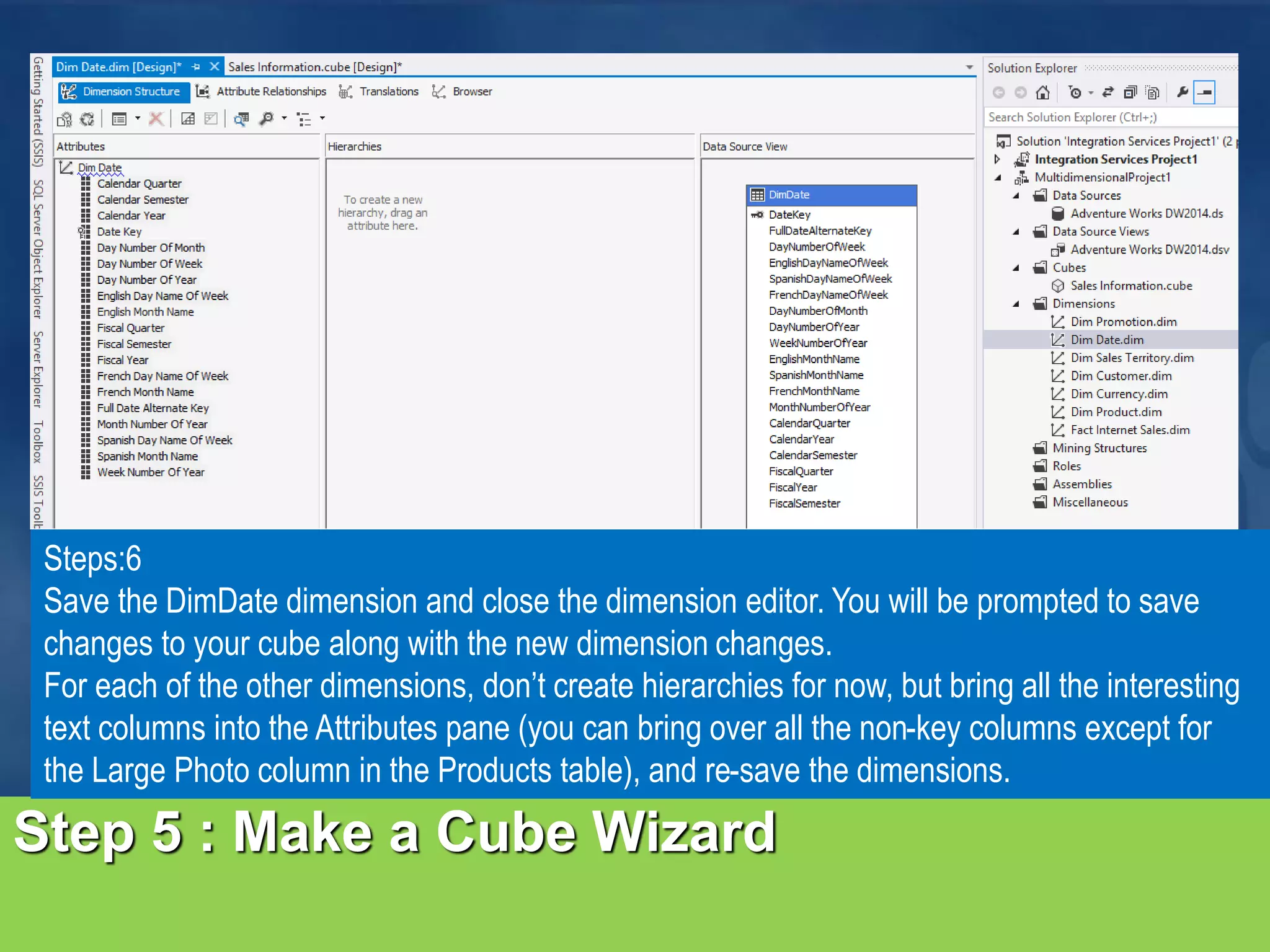
Step 5 : Make a Cube Wizard Steps:6 Save the DimDate dimension and close the dimension editor. You will be prompted to save changes to your cube along with the new dimension changes. For each of the other dimensions, don’t create hierarchies for now, but bring all the interesting text columns into the Attributes pane (you can bring over all the non-key columns except for the Large Photo column in the Products table), and re-save the dimensions.
Step 5 : Make a Cube Wizard
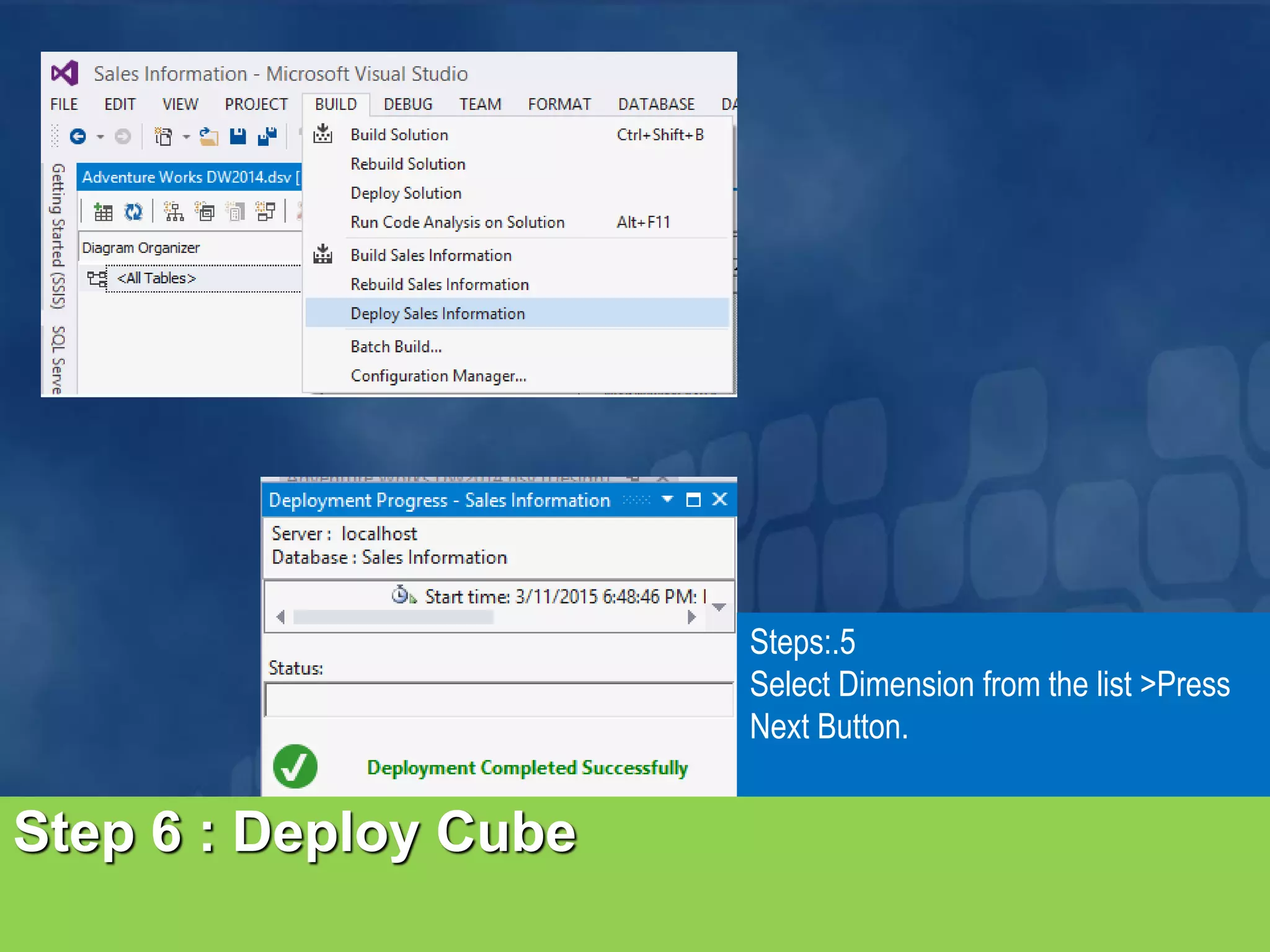
Step 6 : Deploy Cube Steps:.5 Select Dimension from the list >Press Next Button.
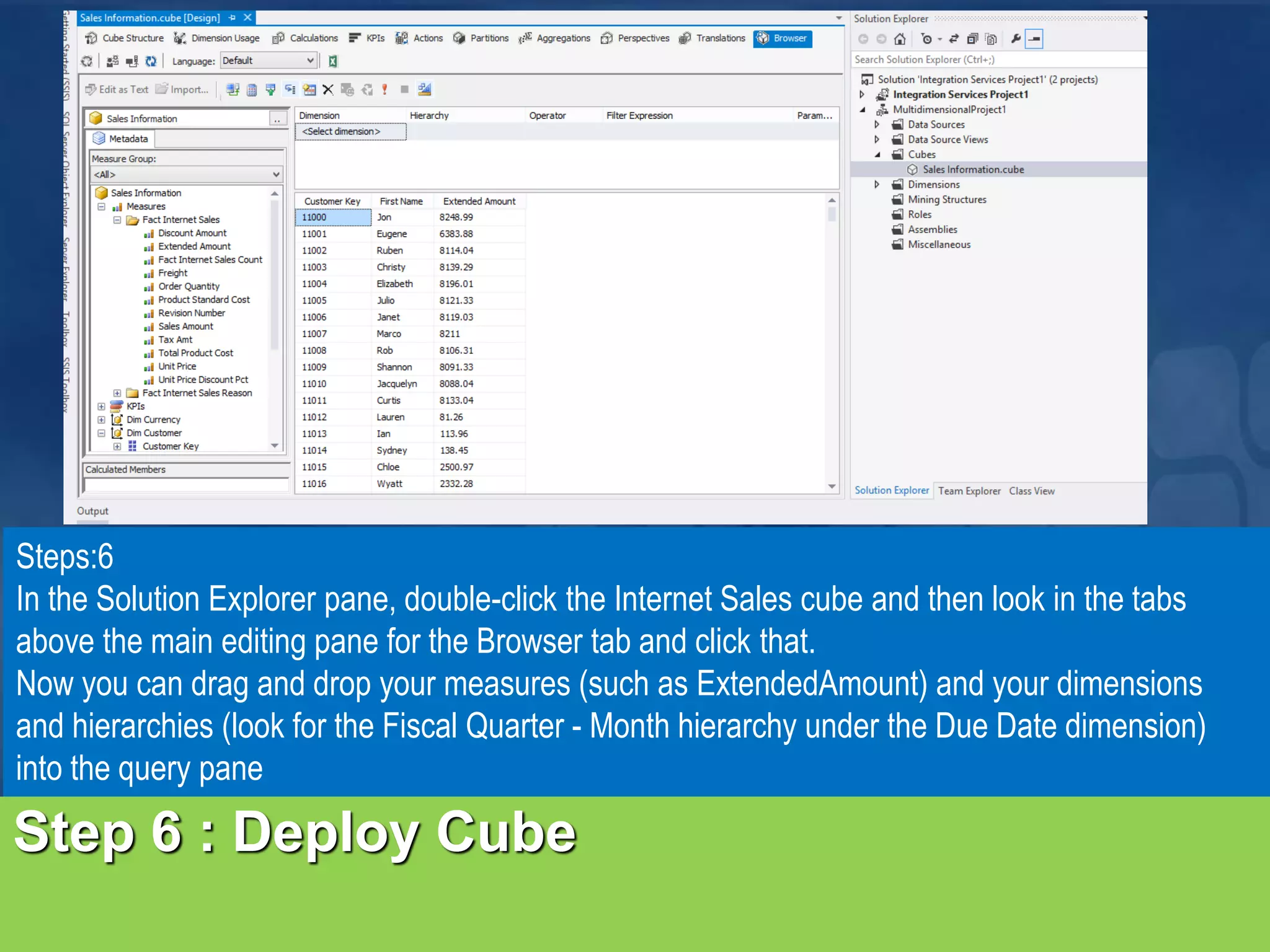
Step 6 : Deploy Cube Steps:6 In the Solution Explorer pane, double-click the Internet Sales cube and then look in the tabs above the main editing pane for the Browser tab and click that. Now you can drag and drop your measures (such as ExtendedAmount) and your dimensions and hierarchies (look for the Fiscal Quarter - Month hierarchy under the Due Date dimension) into the query pane
Thanks

Step by Step design cube using SSAS

  • 1.
    Ahsan Kabir MVP Stepby Step Design Cube in SSAS
  • 2.
    Step 1: Creatingan SSAS Project in SSDT Step 1.1: Open the SQL Server Data Tools (SSDT).Go to File >New > Project….. Step 1.2: Now Select Analysis Services from Business Intelligence. Step 1.3: In the main pane, select Analysis Services Multidimensional and Data Mining Project
  • 3.
    Step 2 :Buildinga Data Source Steps: 2.1 Go to the Solution Explorer pane > right-click Data Sources> and click New Data Source. Now Data Source Wizard will appear. 2.2 Click Next to continue creating your data source.
  • 4.
    Step 2 :Buildinga Data Source Steps:2.3 Now a connection need to be made with database you may use existing connection or make a new one. Steps:2.4 In this context we create a new connection. Pressing New >Connection manager Wizard will appear >Now input the Server name ,Authentication and select Database name> Now select AdventureWorksDW. Steps:2.5 Press on Test connection Button to verify the connection status.
  • 5.
    Step 2 :Building a Data Source Steps:2.6 Now have to select user who want SSAS to impersonate when it connects to this data source. Select “Select Use the Service Account” and click Next. Steps:2.7 Completing the wizard will appear. Here is a option to alter the data source name > then click Finish.
  • 6.
    Step 3 :Building a Data Source View Steps:3.1 Right-click Data Source Views >New Data Source View wizard will appear > Press Next Button.
  • 7.
    Step 3 :Building a Data Source View Steps:3.2 Data Source wizard will appear > Select the Data Source Which was created earlier >Press Next Button. Steps:3.3 In this step select the required objects from list. Press Arrow button ( >) >Press Next button. Check the available object list and press Finish button. Content pane will appear.
  • 8.
  • 9.
    Step 4 :Make a Cube Wizard Steps:4.1 Right-click Cubes in the Solution Explorer and select New Cube to bring up the Cube Wizard. Steps:4.2 Click on the Next Button.
  • 10.
    Steps:4.3 Now Select existingtable options >Press Next Button. Steps:4.4 Select the Measures item (fact tables )from the list. After that press next button. Step 4 : Make a Cube Wizard
  • 11.
    Steps:4.5 Now check theMeasures >Press Next Button. Step 4 : Make a Cube Wizard
  • 12.
    Step 4 :Make a Cube Wizard Steps:4.6 Select Dimension from the list >Press Next Button.
  • 13.
    Step 4 :Make a Cube Wizard Steps:4.7 Here is a option to change the Cube name>Press Finish Button.
  • 14.
    Step 4 :Make a Cube Wizard
  • 15.
    Step 5 :Make a Cube Wizard Steps:5 In the Solution Explorer under Dimensions, double-click DimDate.To make the date attributes available, highlight all of them (except DateKey, which as you can see is already in the attribute list) and drag them to the attribute list. Date, of course, is a dimension that can be naturally defined as a hierarchy (like you did quite manually in the T-SQL grouping examples). Drag Fiscal Quarter from the Attributes pane to the Hierarchies pane to start creating a hierarchy. Drag Month Number of Year to the tag under Fiscal Quarter, and DateKey similarly below that. Finally, rename the hierarchy (right-click it and choose Rename) to Fiscal Quarter - Month
  • 16.
    Step 5 :Make a Cube Wizard Steps:6 Save the DimDate dimension and close the dimension editor. You will be prompted to save changes to your cube along with the new dimension changes. For each of the other dimensions, don’t create hierarchies for now, but bring all the interesting text columns into the Attributes pane (you can bring over all the non-key columns except for the Large Photo column in the Products table), and re-save the dimensions.
  • 17.
    Step 5 :Make a Cube Wizard
  • 18.
    Step 6 :Deploy Cube Steps:.5 Select Dimension from the list >Press Next Button.
  • 19.
    Step 6 :Deploy Cube Steps:6 In the Solution Explorer pane, double-click the Internet Sales cube and then look in the tabs above the main editing pane for the Browser tab and click that. Now you can drag and drop your measures (such as ExtendedAmount) and your dimensions and hierarchies (look for the Fiscal Quarter - Month hierarchy under the Due Date dimension) into the query pane
  • 20.