Getting Started with PowerShell and PowerCLI for Your VMware Environment Kyle Ruddy, VMware, Inc Chris Wahl, Rubrik INF8038 #INF8038
• This presentation may contain product features that are currently under development. • This overview of new technology represents no commitment from VMware to deliver these features in any generally available product. • Features are subject to change, and must not be included in contracts, purchase orders, or sales agreements of any kind. • Technical feasibility and market demand will affect final delivery. • Pricing and packaging for any new technologies or features discussed or presented have not been determined. Disclaimer CONFIDENTIAL 2
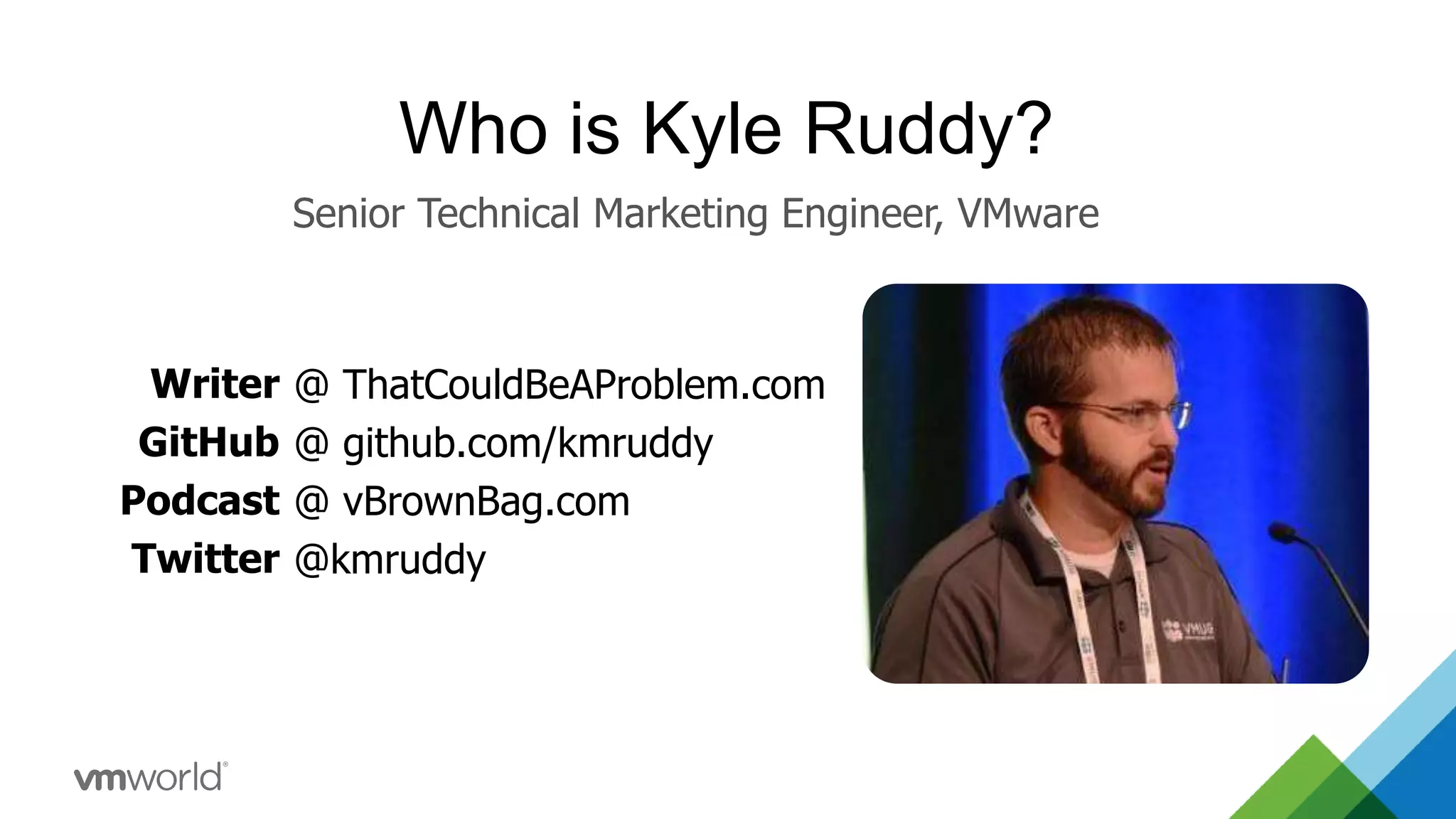
Who is Kyle Ruddy? Writer GitHub Podcast Twitter @ ThatCouldBeAProblem.com @ github.com/kmruddy @ vBrownBag.com @kmruddy Senior Technical Marketing Engineer, VMware
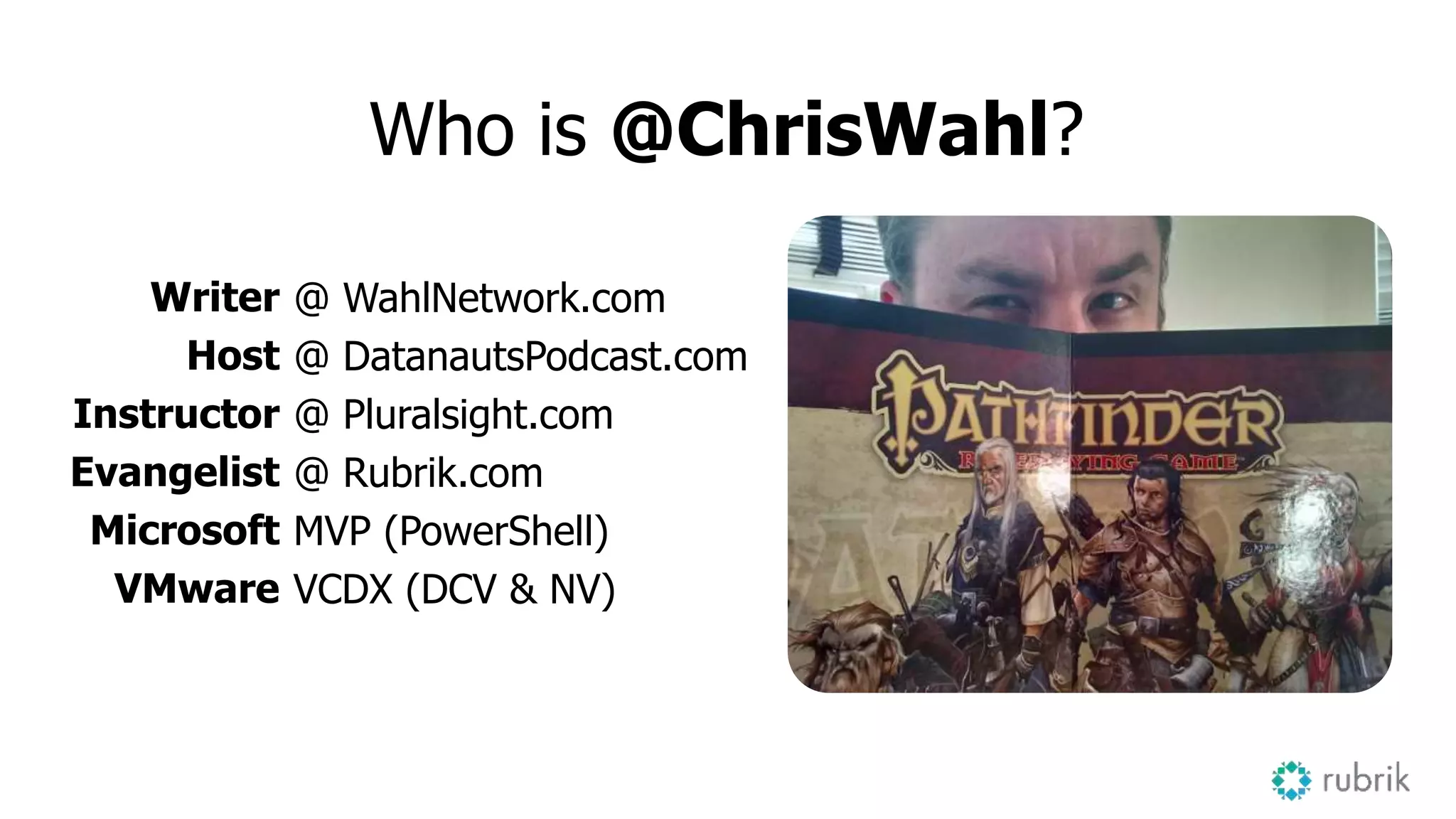
Who is @ChrisWahl? Writer Host Instructor Evangelist Microsoft VMware @ WahlNetwork.com @ DatanautsPodcast.com @ Pluralsight.com @ Rubrik.com MVP (PowerShell) VCDX (DCV & NV)
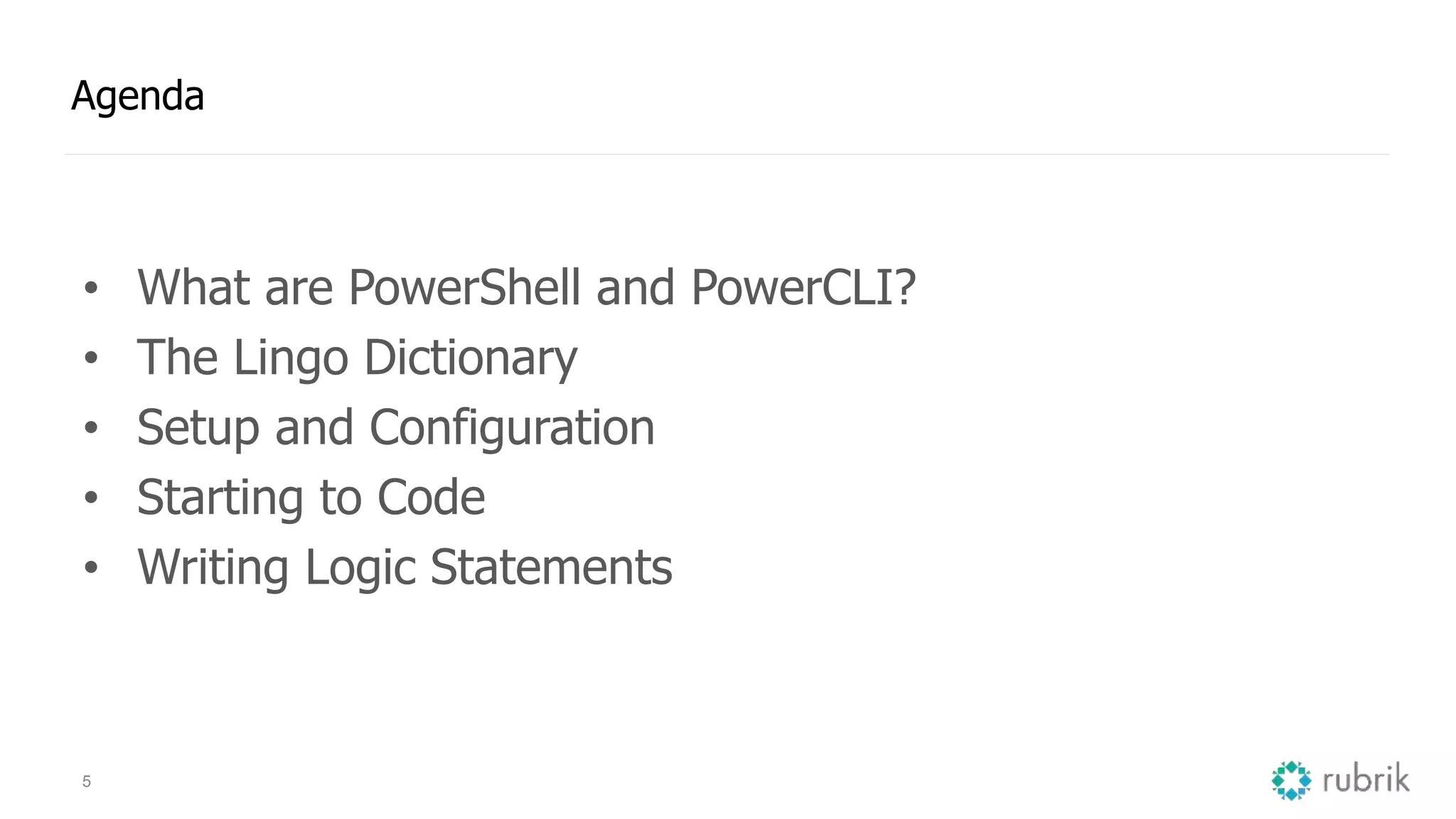
5 Agenda • What are PowerShell and PowerCLI? • The Lingo Dictionary • Setup and Configuration • Starting to Code • Writing Logic Statements
What are PowerShell and PowerCLI? 6
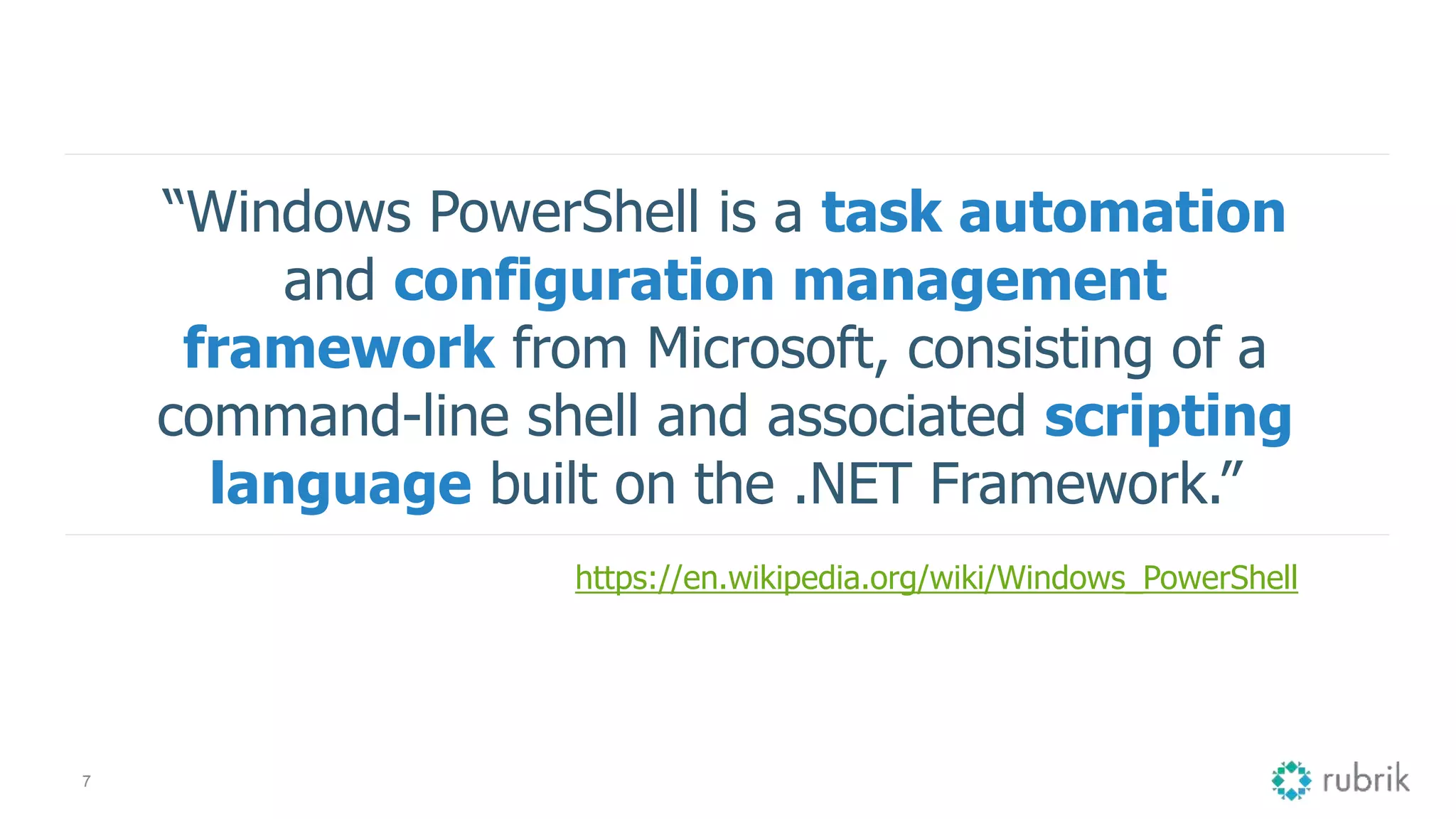
7 “Windows PowerShell is a task automation and configuration management framework from Microsoft, consisting of a command-line shell and associated scripting language built on the .NET Framework.” https://en.wikipedia.org/wiki/Windows_PowerShell
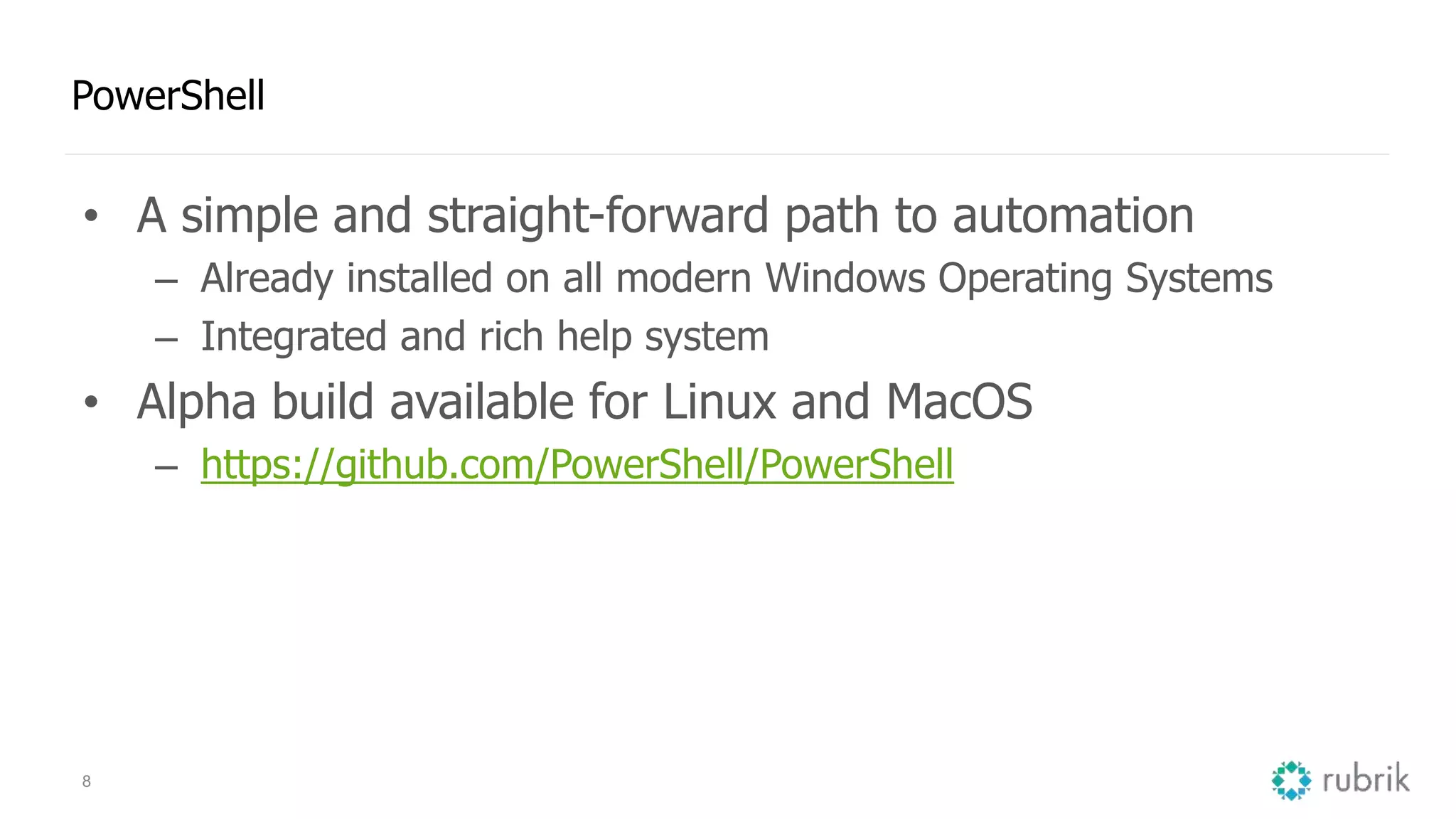
8 PowerShell • A simple and straight-forward path to automation – Already installed on all modern Windows Operating Systems – Integrated and rich help system • Alpha build available for Linux and MacOS – https://github.com/PowerShell/PowerShell
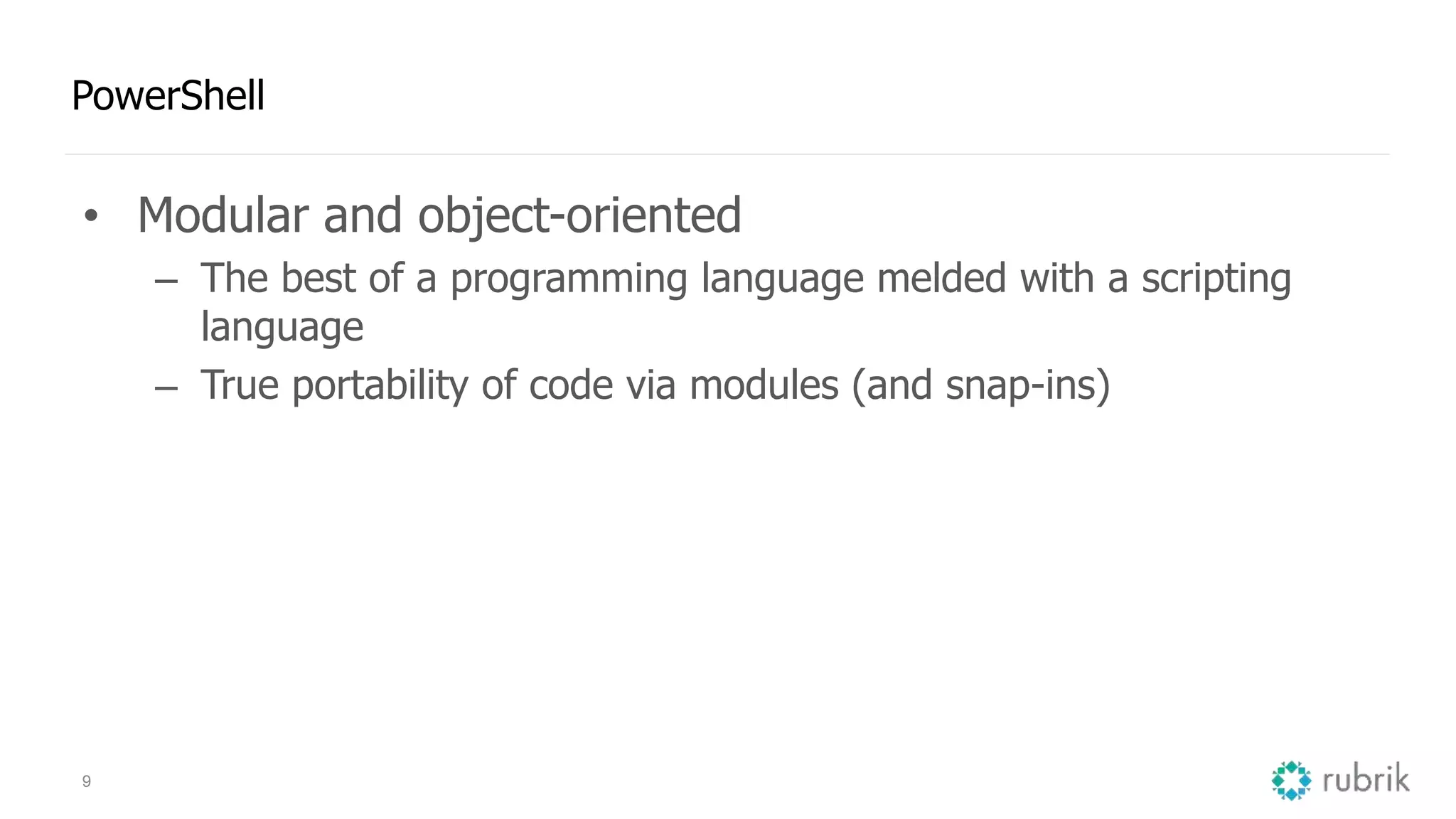
9 PowerShell • Modular and object-oriented – The best of a programming language melded with a scripting language – True portability of code via modules (and snap-ins)
10 VMware vSphere PowerCLI • VMware’s command-line and scripting tool built on Windows PowerShell • Features more than 500 cmdlets for managing and automating vSphere, vCloud, and Horizon environments • One of the most robust and complete PowerShell deployments in the world
The Lingo Dictionary
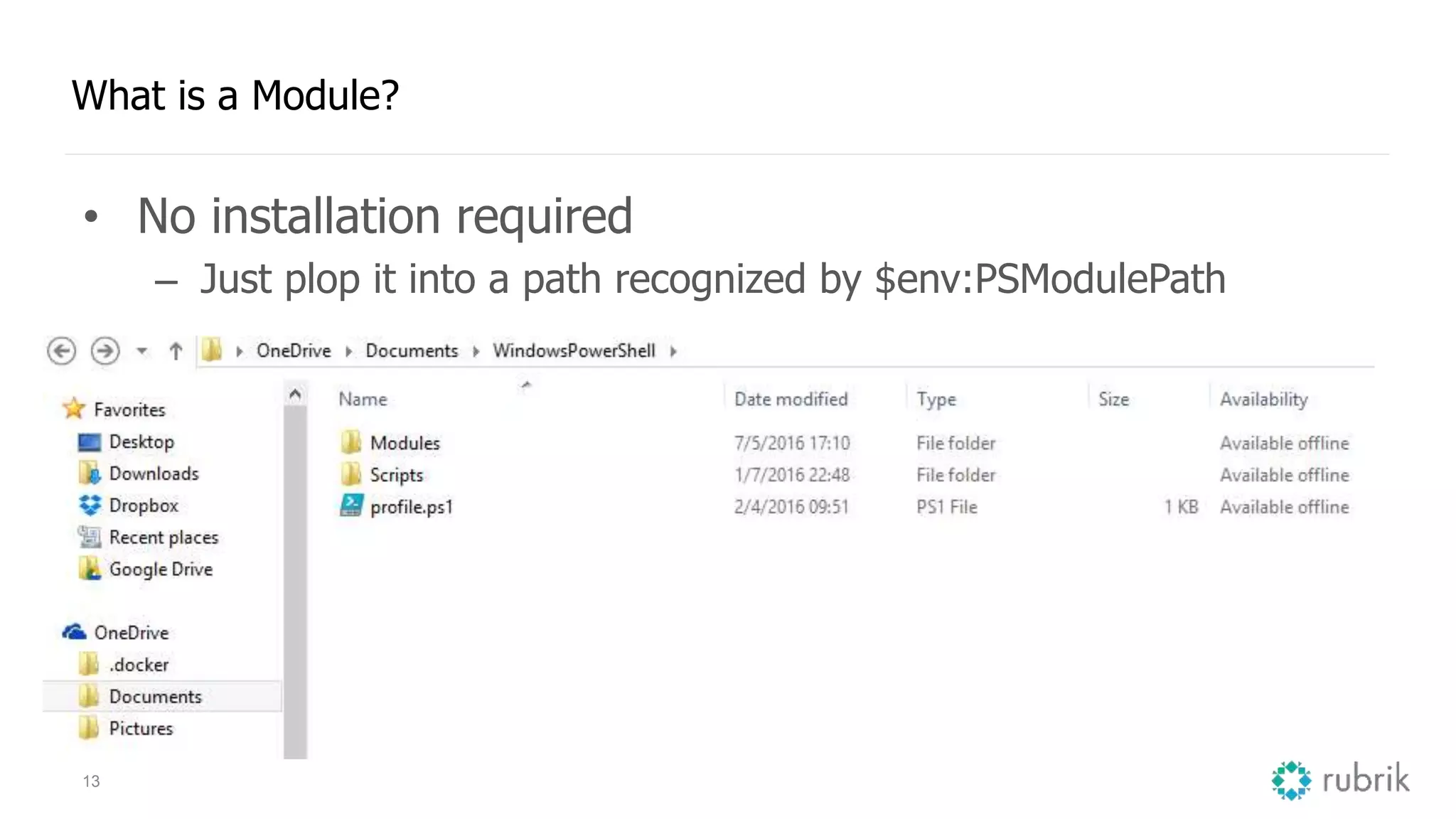
12 What is a Module? • Set of related Windows PowerShell functionalities, grouped together as a convenient unit • Usually saved in a single directory • Example Locations: – DocumentsWindowsPowerShellModules – Program FilesWindowsPowerShellModules – Windowssystem32WindowsPowerShellv1.0Modules
13 What is a Module? • No installation required – Just plop it into a path recognized by $env:PSModulePath
14 What is a Module Manifest? • PSD1 extension • Describes how the module was constructed • Identifies functions / cmdlets / variables / aliases to export • DSC resources • PowerShell Gallery data
15
Module Manifests 16
17 What is a snap-in? • For our intents and purposes … • Precursor to Modules – Must be written in .NET – Must be available as an Assembly – Installed (not copied) – Puts keys in the registry • Try to avoid them!
18 What is a Function? • List of Windows PowerShell statements that has a name that you assign • Can be called by name – Define a function named “Get-SquarePants” • Load it in a module or dot source it – Dot sourcing = . .Get-SquarePants.ps1 – Now you can type Get-SquarePants and it will execute
19 Function – Descriptive Details <# .SYNOPSIS <Overview of script> .DESCRIPTION <Brief description of script> .PARAMETER <Parameter_Name> <Brief description of parameter input required. Repeat this attribute if required> .INPUTS <Inputs if any, otherwise state None> .OUTPUTS <Outputs if any, otherwise state None - example: Log file stored in C:WindowsTemp<name>.log> .NOTES Version: 1.0 Author: <Name> Creation Date: <Date> Purpose/Change: Initial script development .EXAMPLE <Example goes here. Repeat this attribute for more than one example> #>
20 Function – The Meat and Potatoes Function <FunctionName>{ Param() Begin{ Do this stuff first } Process{ Do this stuff as much as desired } End{ Do this stuff last } }
21 What is a Script? • A much less fancy version of a function – Just the “Do this stuff as much as desired” part • Cannot be called by name like a function can • Handy for ad-hoc work • Suggestion! – Focus on writing functions, not scripts – Use scripts in the ISE for testing code snipets
Setup and Configuration
23 Setting up PowerShell • Native to all modern Windows deployments • Latest version is 5.0 – Use $PSVersionTable to see what you’re running
24 Update using Windows Management Framework 5.0 • https://www.microsoft.com/en-us/download/details.aspx?id=50395
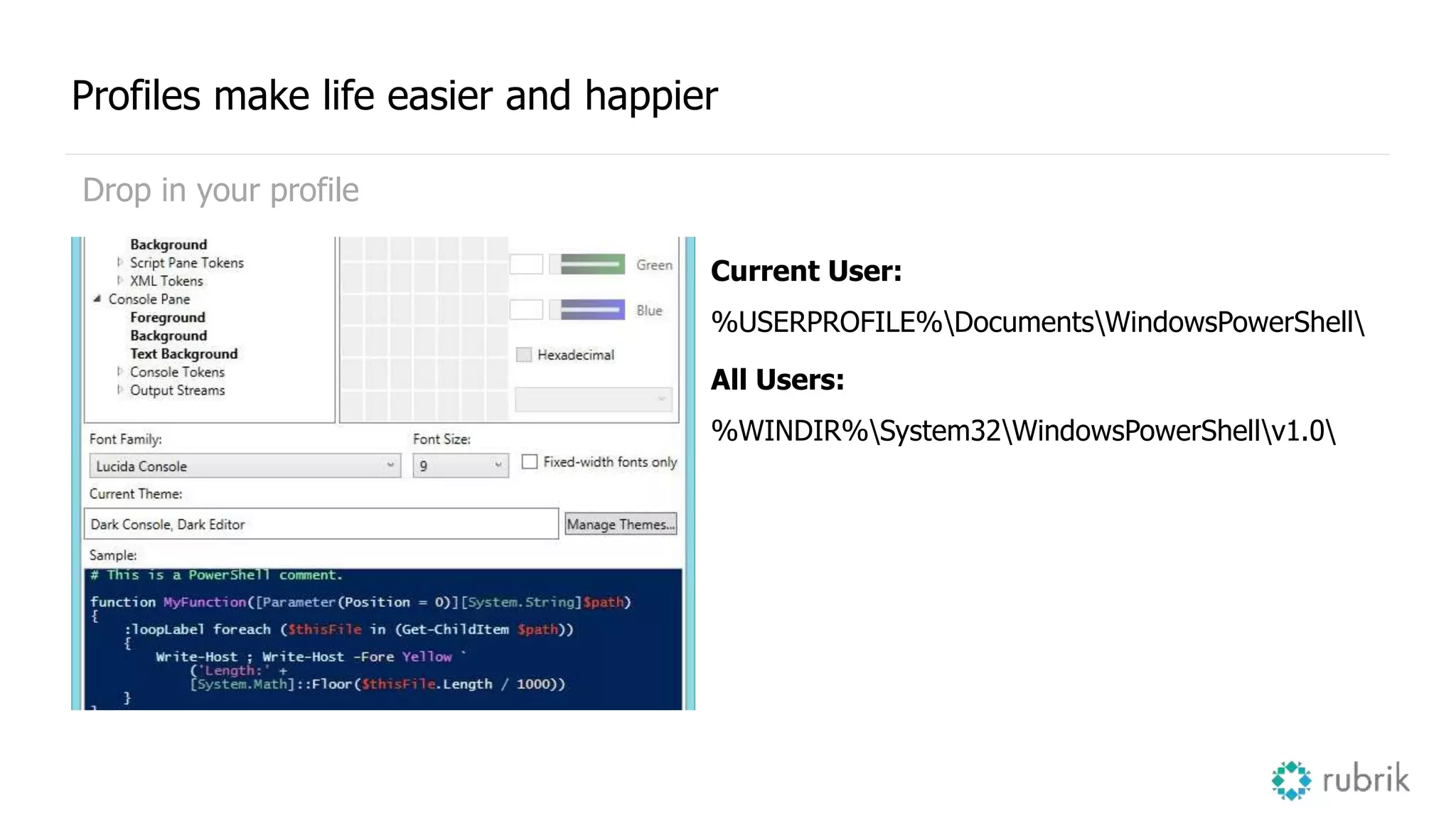
 Console  The command line interface  Microsoft.PowerShell_profile.ps1  ISE  Integrated Scripting Environment  Microsoft.PowerShellISE_profile.ps1  Console + ISE  profile.ps1 Profiles make life easier and happier Set up your profile
 Current User: %USERPROFILE%DocumentsWindowsPowerShell  All Users: %WINDIR%System32WindowsPowerShellv1.0 Profiles make life easier and happier Drop in your profile
Set-ExecutionPolicy Bypass Set-Location C:DropboxCode if ($psISE) { Start-Steroids Clear-Host Write-Host 'BEAST MODE (╯°□°)╯︵ ┻━┻' } Write yourself fun messages Self motivation for the win!
29 Where do I get PowerCLI from? Start at: vmware.com/go/powercli
30 What version of PowerShell and PowerCLI do I want? • PowerShell – Version 5 recommended – Version 3 minimum • PowerCLI – Newest version is always recommended • Prerequisites – .NET Framework 4.5.x
31 How do I install PowerCLI? What about updates? • Download the newest version of VMware vSphere PowerCLI • Execute the downloaded PowerCLI installer file • If upgrading: – Acknowledge an earlier version of PowerCLI exists, click OK
32 How do I install PowerCLI? What about updates? • On the Welcome page, click Next. • Accept the license agreement terms, click Next. • On the Custom Setup page: – Select the PowerCLI components you want to install. – (Optional) To change the default install location for VMware vSphere PowerCLI, click Change and select a different Destination Folder. – Click Next.
33 How do I install PowerCLI? What about updates? • On the Ready to Install the Program page, click Install to proceed with the installation. • Click Finish to complete the installation process.
34 Initialization of PowerCLI • Shortcuts vs native PowerShell console • PCLI Initialization script
35 Flings • PowerActions: – https://labs.vmware.com/flings/poweractions-for-vsphere-web- client • Onyx – https://labs.vmware.com/flings/onyx-for-the-web-client
Starting to Code
37 Identify safe cmdlets and begin pulling data from vSphere • Safe = Does not modify data
38 Safe vs Non-safe cmdlets • Suggest starting with cmdlets that pull or display data – These are “Safe” in that they are unable to modify data • This is helpful for learning the PowerShell syntax – Never ending journey 
39 WhatIf and Confirm • Extra safeguards for you to use! • Whatif – Shows you what WOULD happen without actually modifying data – Switch • Confirm – Asks you to confirm before any changes are made – Boolean ($true or $false)
40 WhatIf and Confirm
41 Common Verbs • Cmdlets use properly formatted verbs – Use Get-Verb to see the available options • Most features follow a very simple pattern – Get = Gather data – Set = Change data – New = Create data – Remove = Delete data
Writing Logic Statements
43 Sample Use Case • Cluster configuration – What values are currently configured? – Let’s change a few of them to match our desired state • DRS Settings – HA is Enabled – DRS Automation Level is Fully Automated
44 Gather the Data # Variables $cluster = 'Demo' # Gather Cluster Data $clusterConfig = Get-Cluster -Name $cluster
45 Results are Stored as Objects
46 Decision Making Process • Add logic to test these values! if ($clusterConfig.DrsAutomationLevel -ne 'FullyAutomated') { Write-Warning -Message 'DRS Automation Level is wrong!' }
47 Decision Making Process • Add logic to test these values! if ($clusterConfig.DrsAutomationLevel -ne 'FullyAutomated') { Write-Warning -Message 'DRS Automation Level is wrong!' Set-Cluster -DrsAutomationLevel FullyAutomated }
48 Reference Links • The Complete Guide to PowerShell Punctuation – https://www.simple-talk.com/sysadmin/powershell/the-complete- guide-to-powershell-punctuation/ • PowerCLI 6.3 R1 Reference Poster – http://vmware.com/go/posters
Thank you! Kyle Ruddy – Tech Marketing Ninja, VMware Chris Wahl – Technical Evangelist, Rubrik
VMworld 2016: Getting Started with PowerShell and PowerCLI for Your VMware Enviornment

VMworld 2016: Getting Started with PowerShell and PowerCLI for Your VMware Enviornment

  • 1.
    Getting Started withPowerShell and PowerCLI for Your VMware Environment Kyle Ruddy, VMware, Inc Chris Wahl, Rubrik INF8038 #INF8038
  • 2.
    • This presentationmay contain product features that are currently under development. • This overview of new technology represents no commitment from VMware to deliver these features in any generally available product. • Features are subject to change, and must not be included in contracts, purchase orders, or sales agreements of any kind. • Technical feasibility and market demand will affect final delivery. • Pricing and packaging for any new technologies or features discussed or presented have not been determined. Disclaimer CONFIDENTIAL 2
  • 3.
    Who is KyleRuddy? Writer GitHub Podcast Twitter @ ThatCouldBeAProblem.com @ github.com/kmruddy @ vBrownBag.com @kmruddy Senior Technical Marketing Engineer, VMware
  • 4.
    Who is @ChrisWahl? Writer Host Instructor Evangelist Microsoft VMware @WahlNetwork.com @ DatanautsPodcast.com @ Pluralsight.com @ Rubrik.com MVP (PowerShell) VCDX (DCV & NV)
  • 5.
    5 Agenda • What arePowerShell and PowerCLI? • The Lingo Dictionary • Setup and Configuration • Starting to Code • Writing Logic Statements
  • 6.
    What are PowerShelland PowerCLI? 6
  • 7.
    7 “Windows PowerShell isa task automation and configuration management framework from Microsoft, consisting of a command-line shell and associated scripting language built on the .NET Framework.” https://en.wikipedia.org/wiki/Windows_PowerShell
  • 8.
    8 PowerShell • A simpleand straight-forward path to automation – Already installed on all modern Windows Operating Systems – Integrated and rich help system • Alpha build available for Linux and MacOS – https://github.com/PowerShell/PowerShell
  • 9.
    9 PowerShell • Modular andobject-oriented – The best of a programming language melded with a scripting language – True portability of code via modules (and snap-ins)
  • 10.
    10 VMware vSphere PowerCLI •VMware’s command-line and scripting tool built on Windows PowerShell • Features more than 500 cmdlets for managing and automating vSphere, vCloud, and Horizon environments • One of the most robust and complete PowerShell deployments in the world
  • 11.
  • 12.
    12 What is aModule? • Set of related Windows PowerShell functionalities, grouped together as a convenient unit • Usually saved in a single directory • Example Locations: – DocumentsWindowsPowerShellModules – Program FilesWindowsPowerShellModules – Windowssystem32WindowsPowerShellv1.0Modules
  • 13.
    13 What is aModule? • No installation required – Just plop it into a path recognized by $env:PSModulePath
  • 14.
    14 What is aModule Manifest? • PSD1 extension • Describes how the module was constructed • Identifies functions / cmdlets / variables / aliases to export • DSC resources • PowerShell Gallery data
  • 15.
  • 16.
  • 17.
    17 What is asnap-in? • For our intents and purposes … • Precursor to Modules – Must be written in .NET – Must be available as an Assembly – Installed (not copied) – Puts keys in the registry • Try to avoid them!
  • 18.
    18 What is aFunction? • List of Windows PowerShell statements that has a name that you assign • Can be called by name – Define a function named “Get-SquarePants” • Load it in a module or dot source it – Dot sourcing = . .Get-SquarePants.ps1 – Now you can type Get-SquarePants and it will execute
  • 19.
    19 Function – DescriptiveDetails <# .SYNOPSIS <Overview of script> .DESCRIPTION <Brief description of script> .PARAMETER <Parameter_Name> <Brief description of parameter input required. Repeat this attribute if required> .INPUTS <Inputs if any, otherwise state None> .OUTPUTS <Outputs if any, otherwise state None - example: Log file stored in C:WindowsTemp<name>.log> .NOTES Version: 1.0 Author: <Name> Creation Date: <Date> Purpose/Change: Initial script development .EXAMPLE <Example goes here. Repeat this attribute for more than one example> #>
  • 20.
    20 Function – TheMeat and Potatoes Function <FunctionName>{ Param() Begin{ Do this stuff first } Process{ Do this stuff as much as desired } End{ Do this stuff last } }
  • 21.
    21 What is aScript? • A much less fancy version of a function – Just the “Do this stuff as much as desired” part • Cannot be called by name like a function can • Handy for ad-hoc work • Suggestion! – Focus on writing functions, not scripts – Use scripts in the ISE for testing code snipets
  • 22.
  • 23.
    23 Setting up PowerShell •Native to all modern Windows deployments • Latest version is 5.0 – Use $PSVersionTable to see what you’re running
  • 24.
    24 Update using WindowsManagement Framework 5.0 • https://www.microsoft.com/en-us/download/details.aspx?id=50395
  • 25.
     Console  Thecommand line interface  Microsoft.PowerShell_profile.ps1  ISE  Integrated Scripting Environment  Microsoft.PowerShellISE_profile.ps1  Console + ISE  profile.ps1 Profiles make life easier and happier Set up your profile
  • 26.
     Current User: %USERPROFILE%DocumentsWindowsPowerShell All Users: %WINDIR%System32WindowsPowerShellv1.0 Profiles make life easier and happier Drop in your profile
  • 27.
    Set-ExecutionPolicy Bypass Set-Location C:DropboxCode if($psISE) { Start-Steroids Clear-Host Write-Host 'BEAST MODE (╯°□°)╯︵ ┻━┻' } Write yourself fun messages Self motivation for the win!
  • 28.
    Set-ExecutionPolicy Bypass Set-Location C:DropboxCode if($psISE) { Start-Steroids Clear-Host Write-Host 'BEAST MODE (╯°□°)╯︵ ┻━┻' } Write yourself fun messages Self motivation for the win!
  • 29.
    29 Where do Iget PowerCLI from? Start at: vmware.com/go/powercli
  • 30.
    30 What version ofPowerShell and PowerCLI do I want? • PowerShell – Version 5 recommended – Version 3 minimum • PowerCLI – Newest version is always recommended • Prerequisites – .NET Framework 4.5.x
  • 31.
    31 How do Iinstall PowerCLI? What about updates? • Download the newest version of VMware vSphere PowerCLI • Execute the downloaded PowerCLI installer file • If upgrading: – Acknowledge an earlier version of PowerCLI exists, click OK
  • 32.
    32 How do Iinstall PowerCLI? What about updates? • On the Welcome page, click Next. • Accept the license agreement terms, click Next. • On the Custom Setup page: – Select the PowerCLI components you want to install. – (Optional) To change the default install location for VMware vSphere PowerCLI, click Change and select a different Destination Folder. – Click Next.
  • 33.
    33 How do Iinstall PowerCLI? What about updates? • On the Ready to Install the Program page, click Install to proceed with the installation. • Click Finish to complete the installation process.
  • 34.
    34 Initialization of PowerCLI •Shortcuts vs native PowerShell console • PCLI Initialization script
  • 35.
  • 36.
  • 37.
    37 Identify safe cmdletsand begin pulling data from vSphere • Safe = Does not modify data
  • 38.
    38 Safe vs Non-safecmdlets • Suggest starting with cmdlets that pull or display data – These are “Safe” in that they are unable to modify data • This is helpful for learning the PowerShell syntax – Never ending journey 
  • 39.
    39 WhatIf and Confirm •Extra safeguards for you to use! • Whatif – Shows you what WOULD happen without actually modifying data – Switch • Confirm – Asks you to confirm before any changes are made – Boolean ($true or $false)
  • 40.
  • 41.
    41 Common Verbs • Cmdletsuse properly formatted verbs – Use Get-Verb to see the available options • Most features follow a very simple pattern – Get = Gather data – Set = Change data – New = Create data – Remove = Delete data
  • 42.
  • 43.
    43 Sample Use Case •Cluster configuration – What values are currently configured? – Let’s change a few of them to match our desired state • DRS Settings – HA is Enabled – DRS Automation Level is Fully Automated
  • 44.
    44 Gather the Data #Variables $cluster = 'Demo' # Gather Cluster Data $clusterConfig = Get-Cluster -Name $cluster
  • 45.
  • 46.
    46 Decision Making Process •Add logic to test these values! if ($clusterConfig.DrsAutomationLevel -ne 'FullyAutomated') { Write-Warning -Message 'DRS Automation Level is wrong!' }
  • 47.
    47 Decision Making Process •Add logic to test these values! if ($clusterConfig.DrsAutomationLevel -ne 'FullyAutomated') { Write-Warning -Message 'DRS Automation Level is wrong!' Set-Cluster -DrsAutomationLevel FullyAutomated }
  • 48.
    48 Reference Links • TheComplete Guide to PowerShell Punctuation – https://www.simple-talk.com/sysadmin/powershell/the-complete- guide-to-powershell-punctuation/ • PowerCLI 6.3 R1 Reference Poster – http://vmware.com/go/posters
  • 49.
    Thank you! Kyle Ruddy– Tech Marketing Ninja, VMware Chris Wahl – Technical Evangelist, Rubrik