50
$\begingroup$

Blender comes with Python, and includes a stand-alone Python executable. However pip is not part of the official Python distribution so it needs to be added separately.

  • How do you setup pip with Blender's bundled Python so it can be used to install Python packages from Pypi which are then available from inside Blender?
  • How would you use it to install a package?

Note, this is related to this question, but not a duplicate since its not about using pip as a library.

$\endgroup$
1
  • $\begingroup$ If you are using PyCharm for development, simply select Blender’s python.exe as your interpreter and manage your packages through the Python Packages pane. i.sstatic.net/Xj2Bm.png $\endgroup$ Commented Jan 11, 2023 at 7:39

6 Answers 6

54
$\begingroup$

First of all, pip is not part of Python so it doesn't come by default with Blender.

It has to be installed for Blender's bundled Python even if you already have pip for some other version of Python on your system.
For this get the get-pip.py file from the pip documentation

You'll find the blender python binary at:

/blender-path/2.xx/python/bin/python 

Use this binary to run the get-pip.py. If you have it saved in your home directory the command to use should look something like this:

$ /path/to/blender/blender-path/2.xx/python/bin/python3 ~/get-pip.py 

You should now have pip installed for blender. You use it with blenders python too and you have to point to the pip that was installed for blenders python. Both are in blenders folder tree and you use them like this:

$ /blender-path/2.xx/python/bin/python /blender-version/2.xx/python/local/lib/python3.5/dist-packages/pip install scipy 

This installs scipy for your blenders python. Of course you have to adjust names according to the version you use, but it worked for me for 2.77.


I just tried to do this again and with a recent build I did not have to point to he installed pip, calling blenders python was enough, my command looked like:

/path/to/blenderspython/python pip install module 

blender-2.8: pip is already included so the only step to do this for blender-2.8 is:

$ /path/to/blenderspython/pip install module 
$\endgroup$
2
  • 11
    $\begingroup$ On blender-2.8 you need to run ensurepip beforehand: path/to/blender-2.8/2.80/python/bin/python3.7m -m ensurepip and then I would recommend upgrading pip: path/to/blender-2.8/2.80/python/bin/python3.7m -m pip install -U pip $\endgroup$ Commented Aug 21, 2019 at 15:05
  • 1
    $\begingroup$ This did not work for me on my Windows 7 box. After successfully installing pip as above, I get 'Defaulting to user installation because normal site-packages is not writeable (sic)'...I guess I need to add my appdata folder to my blender python path now? $\endgroup$ Commented Jul 6, 2020 at 21:13
12
$\begingroup$

Pip can be installed into blender's bundled python using a package that is already in blender's bundled python, called 'ensurepip'. I did this on linux, using a direct download of blender from the site, rather than a linux distro packaged version. Open a terminal in this location /path-to-blender-download/blender-2.xxetc/2.80/python. Then run this command from the terminal, (not the blender console, not from a python session):

 bin/python3.6m lib/python3.6/ensurepip 

this tells the blender python to run the ensurepip package. This installed pip into blender-2.80etc/2.80/python/bin. So then using that version of pip:

bin/pip3 install --target lib/python3.6 packageName 

So that then installs packageName into blender's bundled python, using a version of pip that is now in blender's bundled python.

The target option can be used with pip from another source on your system, to tell it to install the package into blender's python instead of the system python. For that to work, the system pip needs to be a compatible version to the blender python. The above method ensures they are compatible.

$\endgroup$
0
9
$\begingroup$

Since PIP is included with Blender from ~2.8 onward you can install things via pip directly from the Blender scripting workspace eg

#For Blender 2.92: #You have to have admininistor priviledges so for Windows users #JUST THIS ONCE open Blender by R-clicking on it in the start menu and select"Run as Administrator" #Open up the System Console (under the Window menu) #Then paste and run the following into the scripting workspace and run it # After it has run, then close and reopen Blender normally # You can then then use the module as normal with # import MODULE #--- FROM HERE ---# import subprocess import sys import os # path to python.exe python_exe = os.path.join(sys.prefix, 'bin', 'python.exe') # upgrade pip subprocess.call([python_exe, "-m", "ensurepip"]) subprocess.call([python_exe, "-m", "pip", "install", "--upgrade", "pip"]) # install required packages subprocess.call([python_exe, "-m", "pip", "install", "PACKAGE_TO_INSTALL"]) print("DONE") ``` 
$\endgroup$
3
  • 1
    $\begingroup$ Alas 2.93 gave this error ... Looking in links: d:\Temp\tmpipdns5nf Requirement already satisfied: setuptools in c:\program files\blender foundation\blender 2.93\2.93\python\lib\site-packages (49.2.1) Requirement already satisfied: pip in c:\users\ME\appdata\roaming\python\python39\site-packages (21.1.2) Requirement already satisfied: pip in c:\users\ME\appdata\roaming\python\python39\site-packages (21.1.2) ERROR: Could not find a version that satisfies the requirement PACKAGE_TO_INSTALL (from versions: none) ERROR: No matching distribution found for PACKAGE_TO_INSTALL DONE $\endgroup$ Commented Jun 10, 2021 at 18:10
  • 1
    $\begingroup$ Blender 3.0.0 alpha gives me the same error as @Henrik. And after running these commands Blender crashes on startup with folliwng error. Internal error initializing Python! $\endgroup$ Commented Jun 26, 2021 at 6:00
  • 1
    $\begingroup$ This occurs even when you run pip upgrade from the command prompt (eg using the Blender generated recommendation in the error message. So it's a deeper issue than my script. I'd suggest you report it as a Blender bug if it's causing you issues. $\endgroup$ Commented Jun 27, 2021 at 9:37
6
$\begingroup$

Using pip by blender --python-expr

# Get pip: equl to /blender-path/2.xx/python/bin/python3.7m -m ensurepip blender -b --python-expr "__import__('ensurepip')._bootstrap()" # Update pip toolchain blender -b --python-expr "__import__('pip._internal')._internal.main(['install', '-U', 'pip', 'setuptools', 'wheel'])" # pip install numpy (or any package) blender -b --python-expr "__import__('pip._internal')._internal.main(['install', 'numpy'])" ``` 
$\endgroup$
0
6
$\begingroup$

For Blender 2.93.5, this is what worked for me:

Note: I'm on Linux (Manjaro), adjust accordingly. Also, I download and use Blender directly from its folder, along with its shipped version of Python. More on that below**.

Installing pip and packages:

Ensure pip is installed, using ensurepip - more on ensurepip

./path/to/blender-2.93.5-linux-x64/2.93/python/bin/python3.9 -m ensurepip

Note: ensurepip has an --upgrade flag, but I like upgrading the traditional way; see next step. What about that -m flag?

Upgrade pip:

./path/to/blender-2.93.5-linux-x64/2.93/python/bin/python3.9 -m pip install -U pip

Install your package using pip via Python:

./path/to/blender-2.93.5-linux-x64/2.93/python/bin/python3.9 -m pip install packagename

Or install your package using pip directly:

./path/to/blender-2.93.5-linux-x64/2.93/python/bin/pip3 install packagename

Note: change packagename to an actual package name you'd like to install.

*Also note: running pip, pip3 or pip3.9 is all the same, in this case; under this context; but not if running directly from python (only use pip, in that case.) If you open these three files up in an editor you'll see they are "shortcuts" for calling the pip module.

** I like keeping separate version copies of Blender and directly using the version of Python that ships with them. I don't use the Blender from my package manager, in other words. This keeps things self contained and I don't have to mess with pyenv/virtualenv for the separate blender version of python or pollute my main system setups etc. Partly why I needed to know how to use pip directly from Blender in the first place.

Aside:

If you use VS Code to edit your python scripts for Blender and have Pylance installed, you can add this to your settings.json or *.code-workspace file:

"python.analysis.extraPaths": [ "./path/to/blender-2.93.5-linux-x64/2.93/scripts/modules", "./path/to/blender-2.93.5-linux-x64/2.93/python/lib/python3.9/site-packages" ], 

Used to specify extra search paths for import resolution. source

This will turn off the warnings about not finding imports for bpy and pip installed packages, if any (adjust accordingly.)

Also, one might consider fake-bpy-module for code completions.

$\endgroup$
2
$\begingroup$

Introduction to pip

The Python package manager pip is used to install Python libraries, such as numpy. It downloads packages from the Python Package Index (PyPI), the official repository for Python libraries. When you run a pip command, it retrieves the specified package from PyPI and installs it into your Python environment.

Installing pip in Blender's Python

First, make sure your System Console is open by selecting Window > Toggle System Console from the menu. This will allow you to view the installation progress.
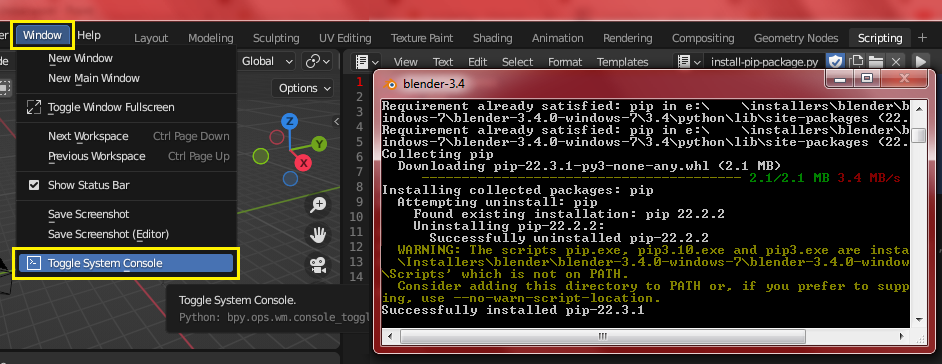
System Console

Open the Scripting Tab in Blender and run the following script. It retrieves the path to your current Python executable (python_exe) and installs the ensurepip module, which sets up pip in your Python environment. This can take a while, so check your System Console to see the progress.

import subprocess import sys python_exe = str(sys.executable) subprocess.call([python_exe, '-m', 'ensurepip']) subprocess.call([python_exe, '-m', 'pip', 'install', '--upgrade', 'pip']) 

Installing Python Packages in Blender's Python

Once pip is installed, you can run the following script to install any Python package. In this example, we install the scipy library. Replace scipy with any other package you wish to install.

import subprocess import sys python_exe = str(sys.executable) subprocess.call([python_exe, '-m', 'pip', 'install', '--upgrade', 'scipy']) 
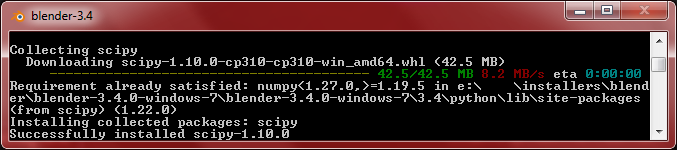
Normal Successful Installation

Forcing Package Installation in Blender's Python

Sometimes, Blender's lib and site-packages folders are not writable due to system permissions. On Windows, these folders might look like:

C:\Program Files\Blender Foundation\Blender 5.0\5.0\python\lib C:\Program Files\Blender Foundation\Blender 5.0\5.0\python\lib\site-packages 

In such cases, pip may install packages to a different location, such as a user-specific directory (e.g., AppData on Windows). Blender might not recognize modules installed this way, which can cause import errors or other issues. To resolve this, run a Command Prompt as Administrator and use Blender's Python executable directly. You can find the path to Blender's Python executable using print(sys.executable), which will output a path like this:

C:\Program Files\Blender Foundation\Blender 5.0\5.0\python\bin\python.exe 

You can then use this path in the Administrator Command Prompt to install packages directly into Blender's Python environment. Run it with the following arguments and options, replacing <package-name> with the library you want to install (e.g., scipy):

-m pip install --ignore-installed --upgrade --force-reinstall <package-name> 

To install a package (e.g., scipy) directly into Blender's bundled Python, make sure to close all Blender windows, then run the following command. This ensures the package is installed into Blender's Python environment rather than a user-specific site directory:

"C:\Program Files\Blender Foundation\Blender 5.0\5.0\python\bin\python.exe" -m pip install --ignore-installed --upgrade --force-reinstall scipy 

Forced Installation Success

$\endgroup$
0

You must log in to answer this question.

Start asking to get answers

Find the answer to your question by asking.

Ask question

Explore related questions

See similar questions with these tags.