1 ARDUINO A Seminar Report Submitted by: GEET PATEL (13BEC072) DARP RAITHATHA (13BEC084) Guided by:- HARDIK JOSHI Bachelor of Technology Electronics and Communication Department SEMESTER : IV Institute of Technology NIRMA UNIVERSITY MAY, 2015.
2 Abstract:- This is a report about Arduino board and programming environment. It contains basic working of Arduino, different types of Arduino boards, interfacing with Arduino programming environment, how to program, basic instructions regarding that and interfacing of a few sensors is shown in the content. In third chapter a small project regarding Home Automation using android app is explored. Outcome of this report is learning to program in Arduino programming environment and understanding concepts behind its working. Interfacing different sensor modules with Arduino is also included. This report will help you making your project much easier using Arduino.
3 Acknowledgements:- We would like to express our special thanks of gratitude to our guide Prof. Hardik Joshi as well as our director Dr. Ketan Kotecha, our HOD Dr. P.N Tekwani and our section head Dr. D.K Kothari who gave us the golden opportunity to do this wonderful research on the topic “Arduino” which also helped us in doing a lot of research and we came to know about so many new things that we are really thankful to them. Secondly we would like to thank our parents and friends who helped us a lot in finalizing this project within the time frame.
4 Table of contents Sr. no. Chapter Page no. i. Abstract 2 ii. Acknowledgement 3 1. Arduino 5 1.1 What is Arduino? 5 1.2 Arduino boards 6 1.2.1 Parts of Arduino UNO 6 1.3 Parts of Arduino board 7 1.3.1 Controller 7 1.3.2 Power supply 8 1.3.3 USB to serial converter 8 1.4 Arduino programming environment 9 2. Sensors 10 2.1 What are sensors? 10 2.2 Types 10 2.3 Interfacing 10 2.3.1 Tracking sensor 10 2.3.2 Hall sensor 11 2.3.3 Joy-stick module 13 2.3.4 Temperature sensor 14 3. Home Automation Project 15 4 Conclusion 15 5 References 16
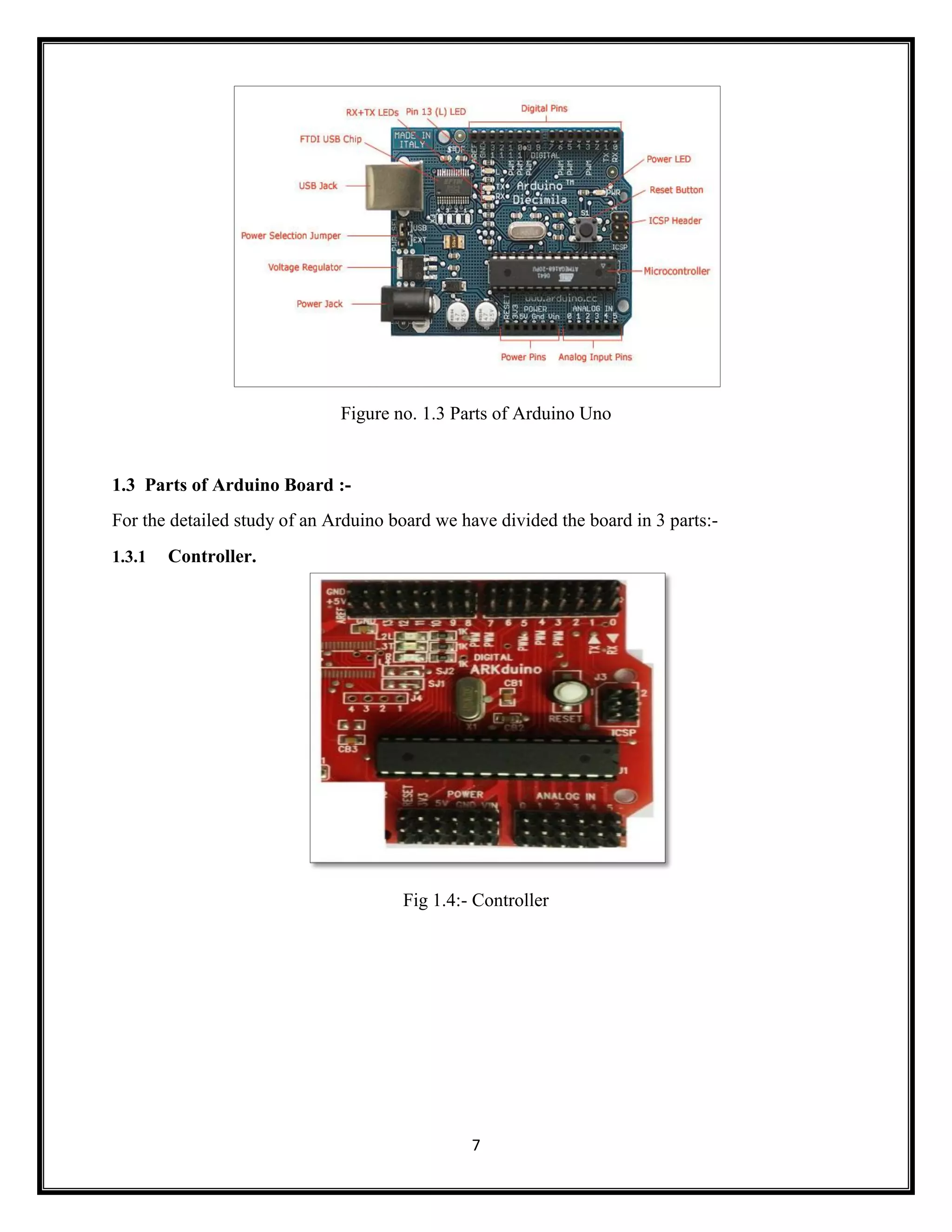
5 1.1 WHAT IS ARDUINO? Arduino is an open-source electronics platform based on easy-to-use hardware and software. It's intended for anyone making interactive projects. Arduino can take the input from many sensors attached to it & can give the output to many lights, motors etc. There is no prerequisite knowledge of Advance electronics for operating Arduino. All you should know is basic electronics and C programming language. Arduino platform mainly contains a Hardware Board called Arduino Board & software Arduino IDE to program it. Other external hardware like Sensor Modules, Motors, lights etc. could be attached with the board. 1.2 ARDUINO BOARDS:-  Arduino UNO.  Arduino MEGA.  Arduino MINI.  Arduino DUE.  Arduino YUN.  Arduino Lily pad.  Arduino Duemilanova. Apart from this there are many more boards that can be used. As it’s open source instead of Arduino you can also find, Freeduino, Arkduino etc. available in the market. Selection of Board should be done according to the application. The most common Board used is Arduino UNO
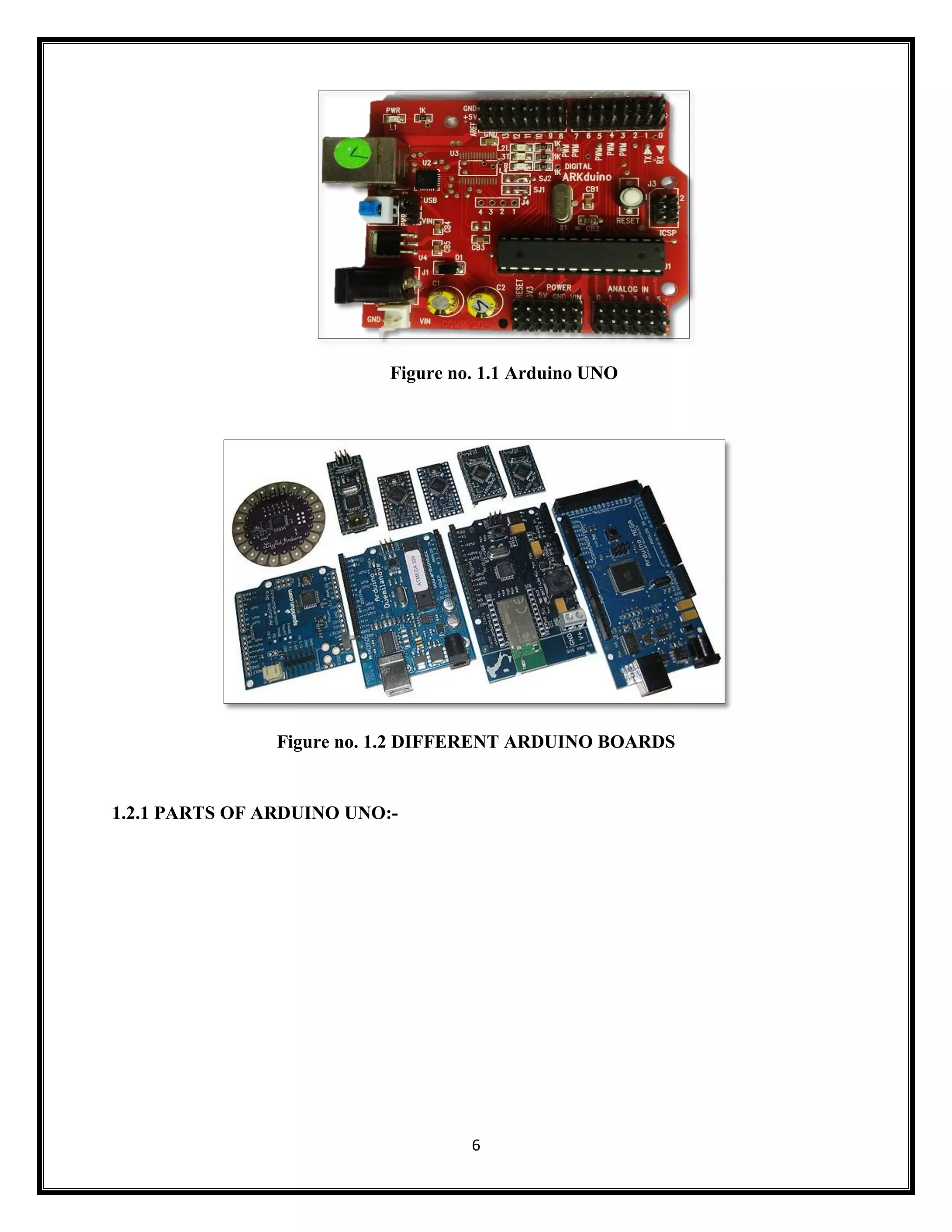
6 Figure no. 1.1 Arduino UNO Figure no. 1.2 DIFFERENT ARDUINO BOARDS 1.2.1 PARTS OF ARDUINO UNO:-
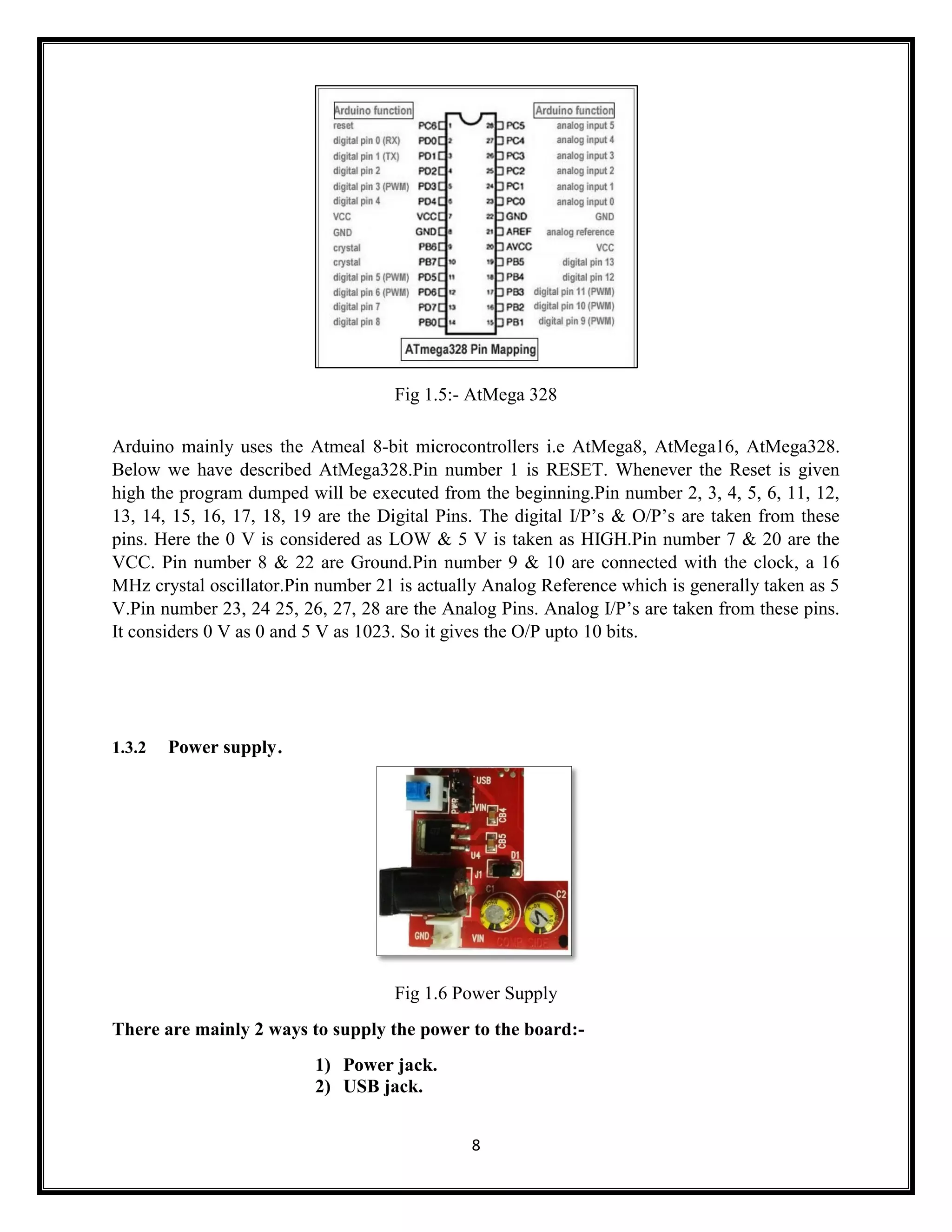
7 Figure no. 1.3 Parts of Arduino Uno 1.3 Parts of Arduino Board :- For the detailed study of an Arduino board we have divided the board in 3 parts:- 1.3.1 Controller. Fig 1.4:- Controller
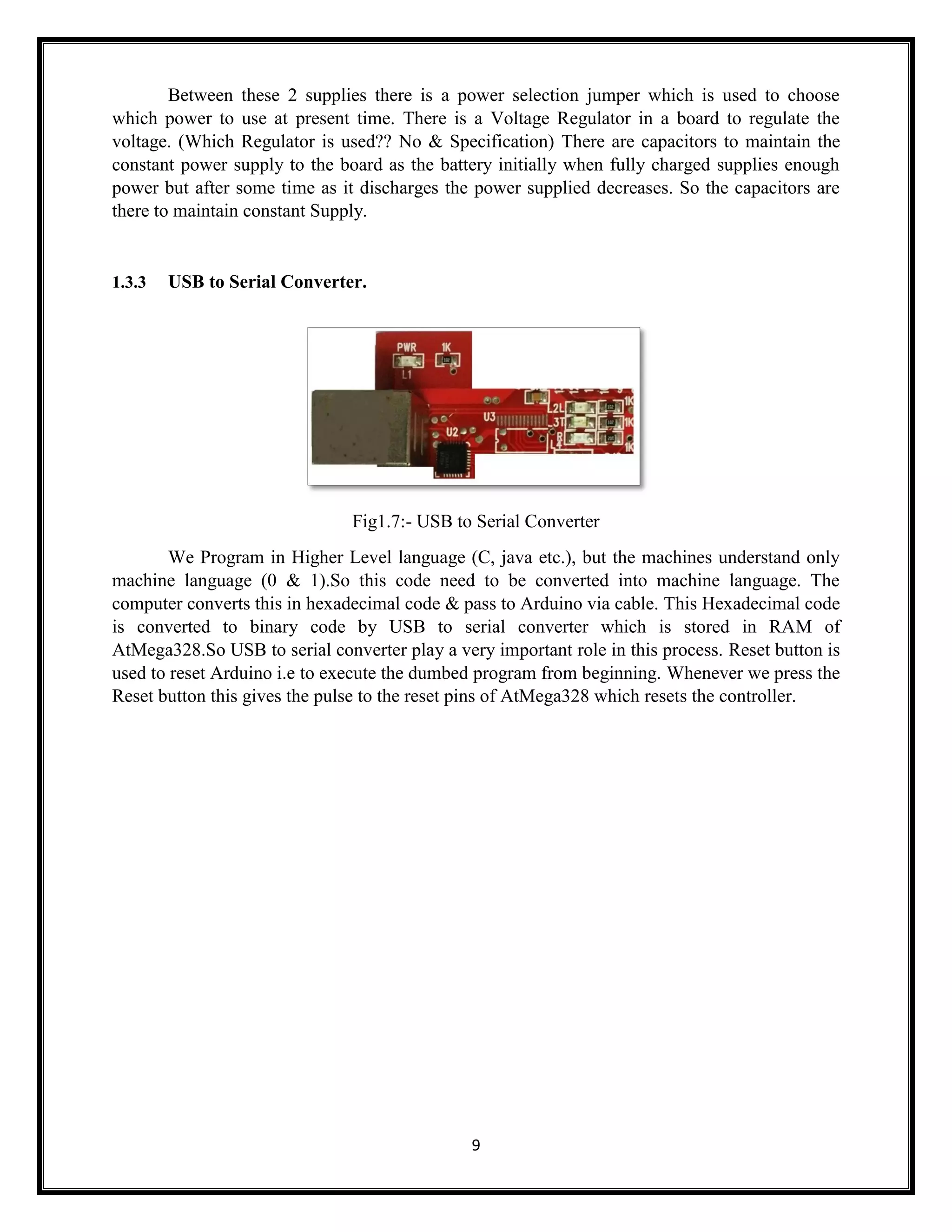
8 Fig 1.5:- AtMega 328 Arduino mainly uses the Atmeal 8-bit microcontrollers i.e AtMega8, AtMega16, AtMega328. Below we have described AtMega328.Pin number 1 is RESET. Whenever the Reset is given high the program dumped will be executed from the beginning.Pin number 2, 3, 4, 5, 6, 11, 12, 13, 14, 15, 16, 17, 18, 19 are the Digital Pins. The digital I/P’s & O/P’s are taken from these pins. Here the 0 V is considered as LOW & 5 V is taken as HIGH.Pin number 7 & 20 are the VCC. Pin number 8 & 22 are Ground.Pin number 9 & 10 are connected with the clock, a 16 MHz crystal oscillator.Pin number 21 is actually Analog Reference which is generally taken as 5 V.Pin number 23, 24 25, 26, 27, 28 are the Analog Pins. Analog I/P’s are taken from these pins. It considers 0 V as 0 and 5 V as 1023. So it gives the O/P upto 10 bits. 1.3.2 Power supply. Fig 1.6 Power Supply There are mainly 2 ways to supply the power to the board:- 1) Power jack. 2) USB jack.
9 Between these 2 supplies there is a power selection jumper which is used to choose which power to use at present time. There is a Voltage Regulator in a board to regulate the voltage. (Which Regulator is used?? No & Specification) There are capacitors to maintain the constant power supply to the board as the battery initially when fully charged supplies enough power but after some time as it discharges the power supplied decreases. So the capacitors are there to maintain constant Supply. 1.3.3 USB to Serial Converter. Fig1.7:- USB to Serial Converter We Program in Higher Level language (C, java etc.), but the machines understand only machine language (0 & 1).So this code need to be converted into machine language. The computer converts this in hexadecimal code & pass to Arduino via cable. This Hexadecimal code is converted to binary code by USB to serial converter which is stored in RAM of AtMega328.So USB to serial converter play a very important role in this process. Reset button is used to reset Arduino i.e to execute the dumbed program from beginning. Whenever we press the Reset button this gives the pulse to the reset pins of AtMega328 which resets the controller.
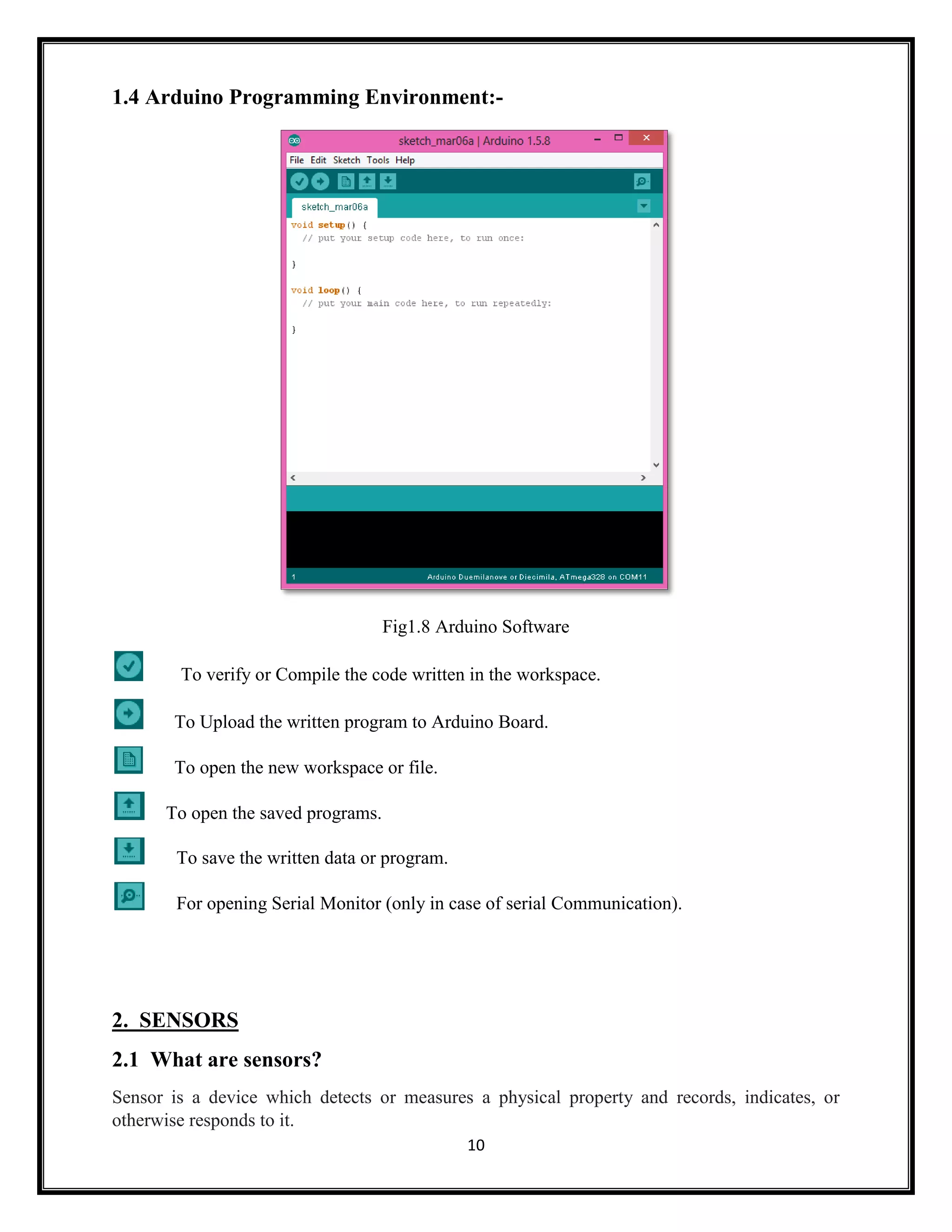
10 1.4 Arduino Programming Environment:- Fig1.8 Arduino Software To verify or Compile the code written in the workspace. To Upload the written program to Arduino Board. To open the new workspace or file. To open the saved programs. To save the written data or program. For opening Serial Monitor (only in case of serial Communication). 2. SENSORS 2.1 What are sensors? Sensor is a device which detects or measures a physical property and records, indicates, or otherwise responds to it.
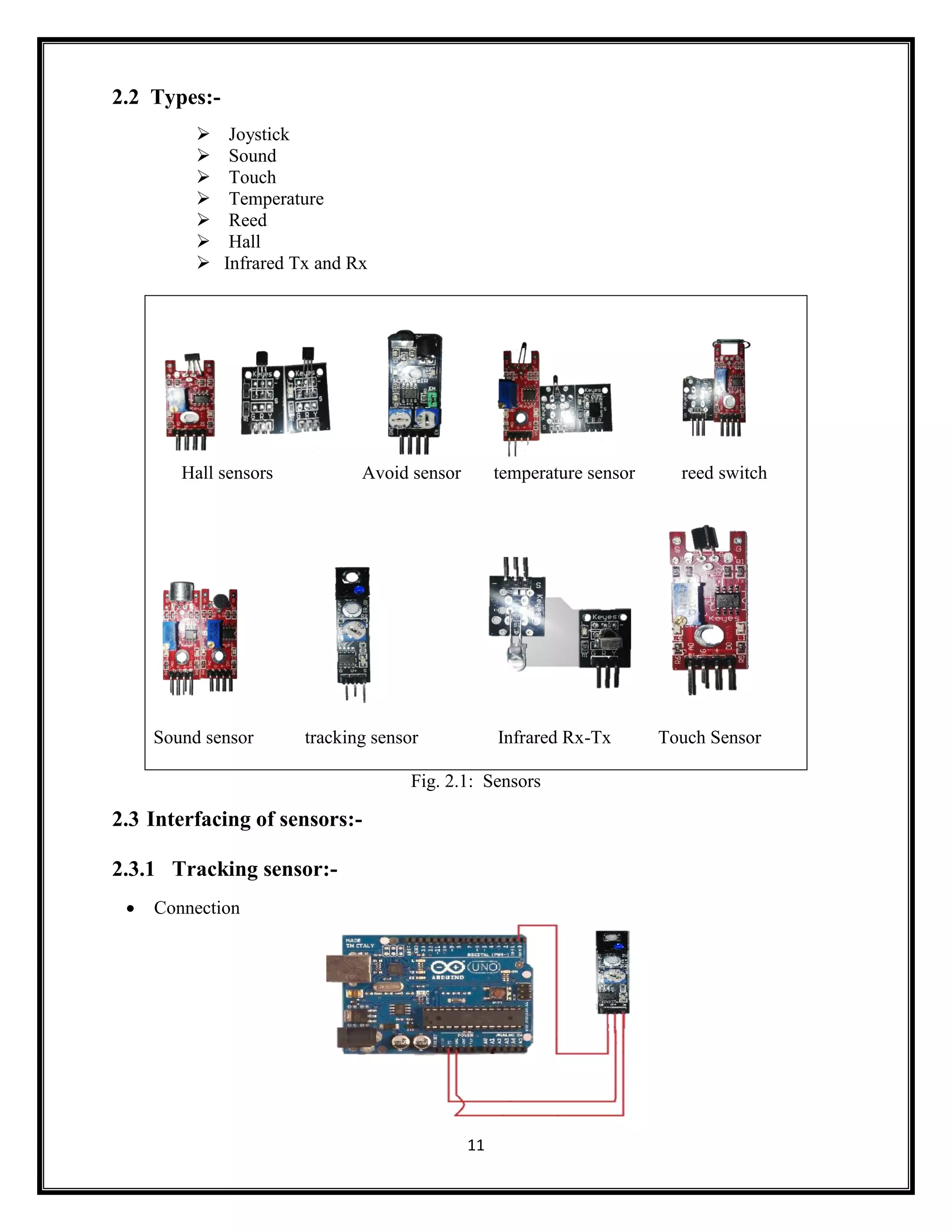
11 2.2 Types:-  Joystick  Sound  Touch  Temperature  Reed  Hall  Infrared Tx and Rx Hall sensors Avoid sensor temperature sensor reed switch Sound sensor tracking sensor Infrared Rx-Tx Touch Sensor Fig. 2.1: Sensors 2.3 Interfacing of sensors:- 2.3.1 Tracking sensor:-  Connection
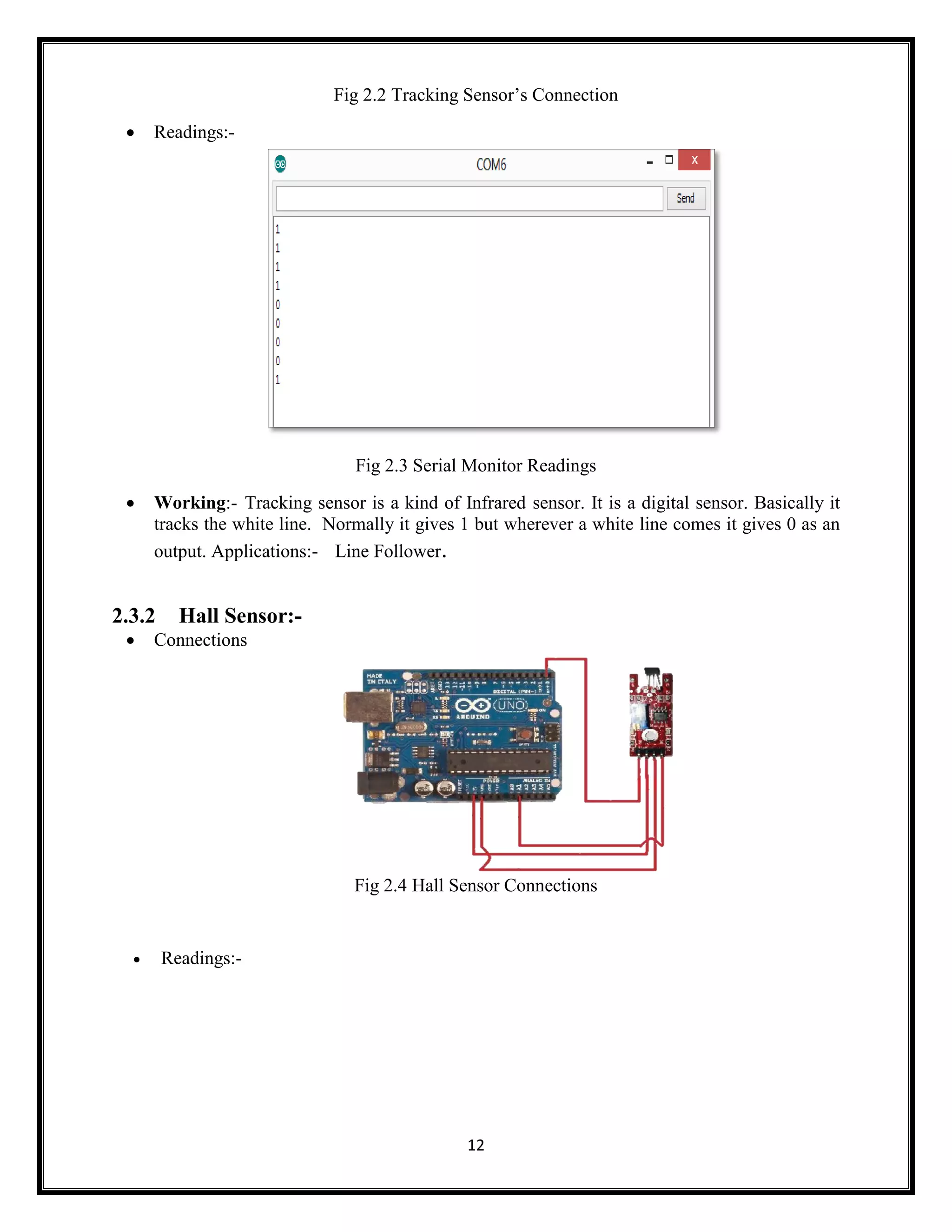
12 Fig 2.2 Tracking Sensor’s Connection  Readings:- Fig 2.3 Serial Monitor Readings  Working:- Tracking sensor is a kind of Infrared sensor. It is a digital sensor. Basically it tracks the white line. Normally it gives 1 but wherever a white line comes it gives 0 as an output. Applications:- Line Follower. 2.3.2 Hall Sensor:-  Connections Fig 2.4 Hall Sensor Connections  Readings:-
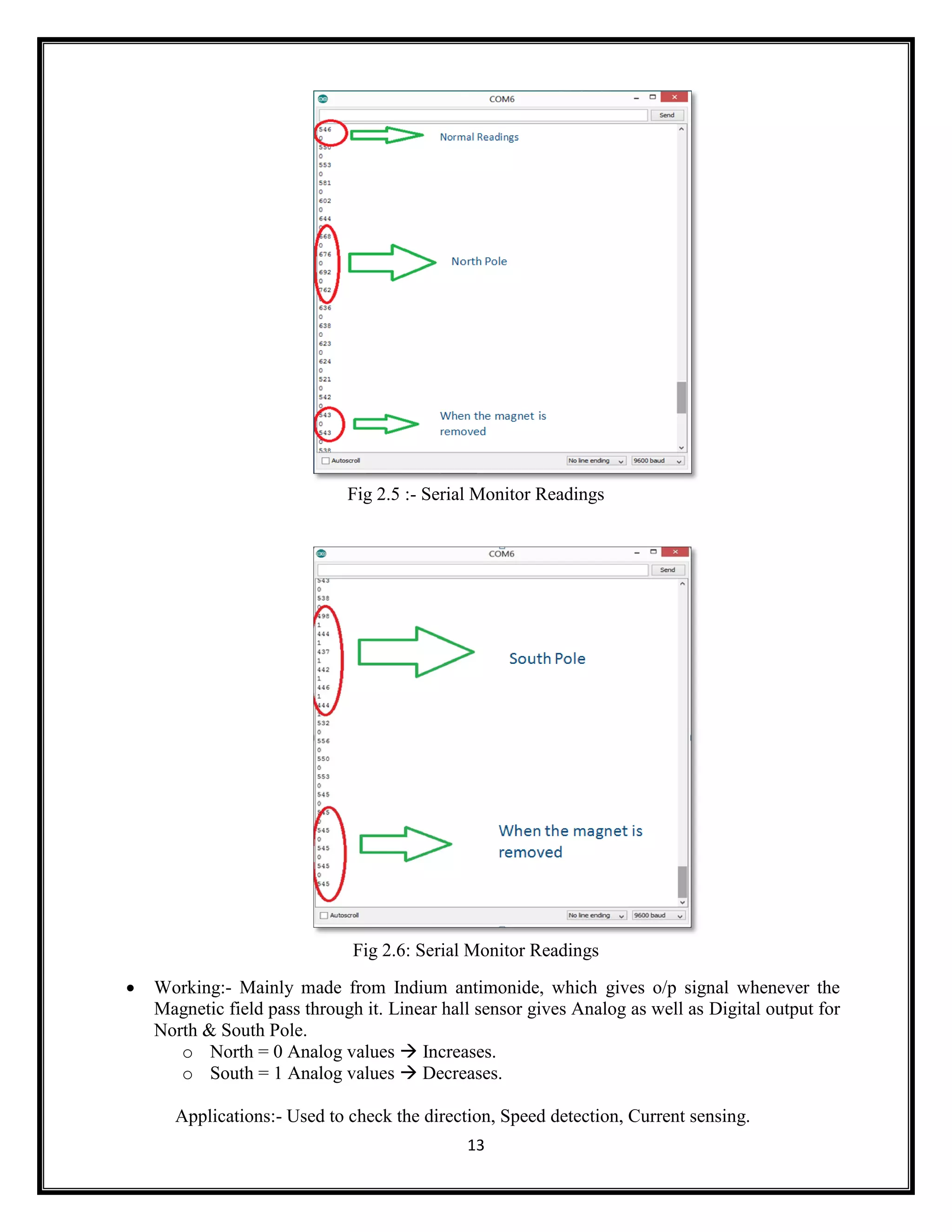
13 Fig 2.5 :- Serial Monitor Readings Fig 2.6: Serial Monitor Readings  Working:- Mainly made from Indium antimonide, which gives o/p signal whenever the Magnetic field pass through it. Linear hall sensor gives Analog as well as Digital output for North & South Pole. o North = 0 Analog values  Increases. o South = 1 Analog values  Decreases. Applications:- Used to check the direction, Speed detection, Current sensing.
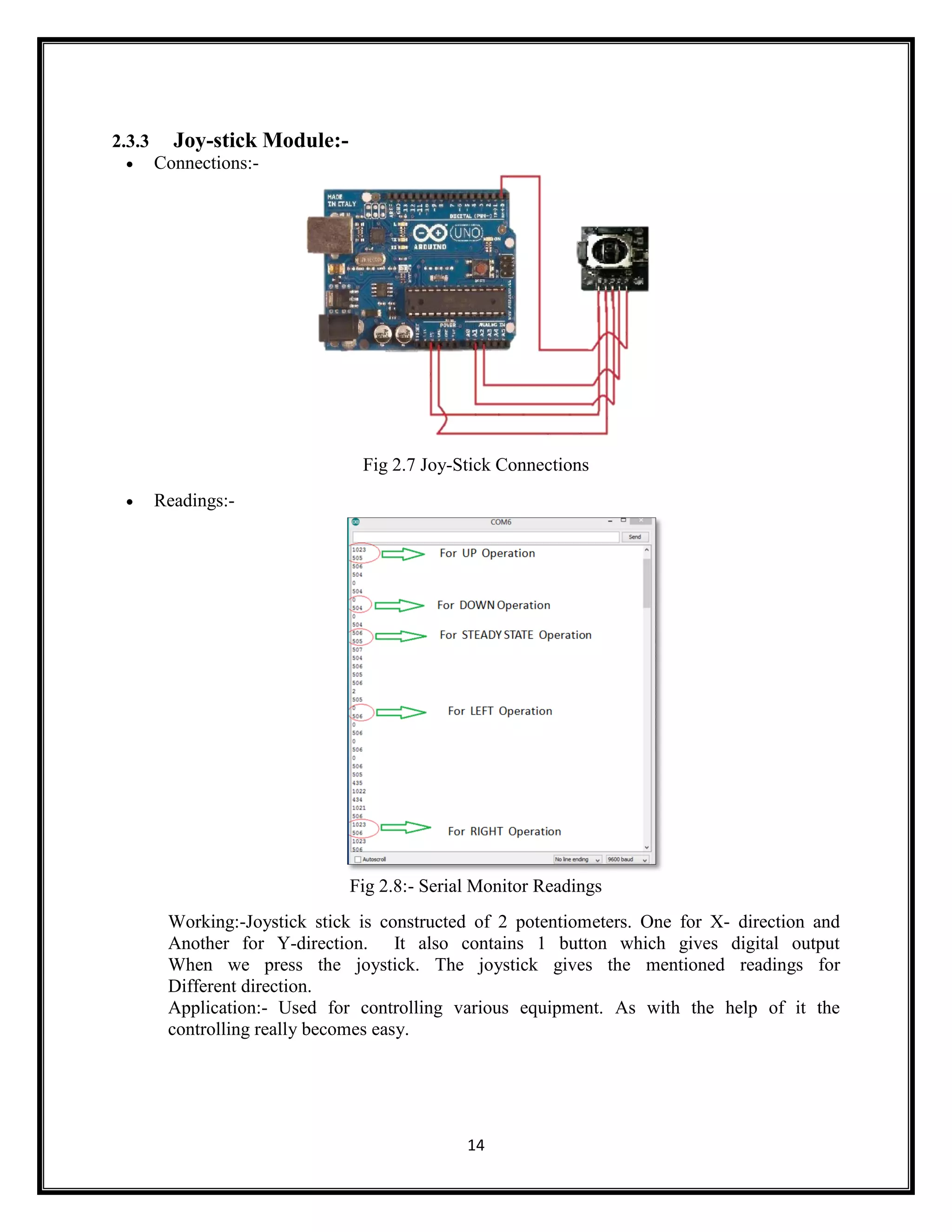
14 2.3.3 Joy-stick Module:-  Connections:- Fig 2.7 Joy-Stick Connections  Readings:- Fig 2.8:- Serial Monitor Readings Working:-Joystick stick is constructed of 2 potentiometers. One for X- direction and Another for Y-direction. It also contains 1 button which gives digital output When we press the joystick. The joystick gives the mentioned readings for Different direction. Application:- Used for controlling various equipment. As with the help of it the controlling really becomes easy.
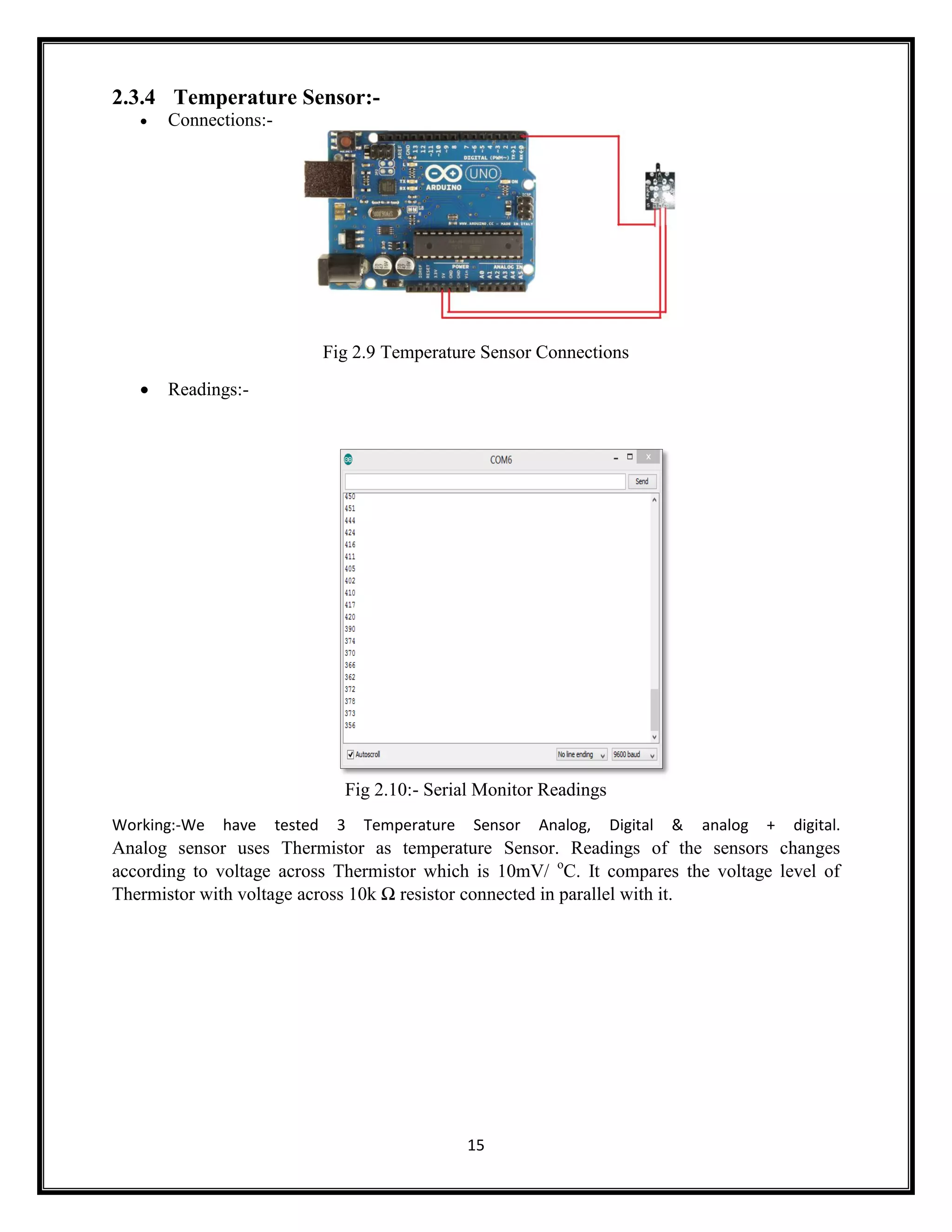
15 2.3.4 Temperature Sensor:-  Connections:- Fig 2.9 Temperature Sensor Connections  Readings:- Fig 2.10:- Serial Monitor Readings Working:-We have tested 3 Temperature Sensor Analog, Digital & analog + digital. Analog sensor uses Thermistor as temperature Sensor. Readings of the sensors changes according to voltage across Thermistor which is 10mV/ o C. It compares the voltage level of Thermistor with voltage across 10k Ω resistor connected in parallel with it.
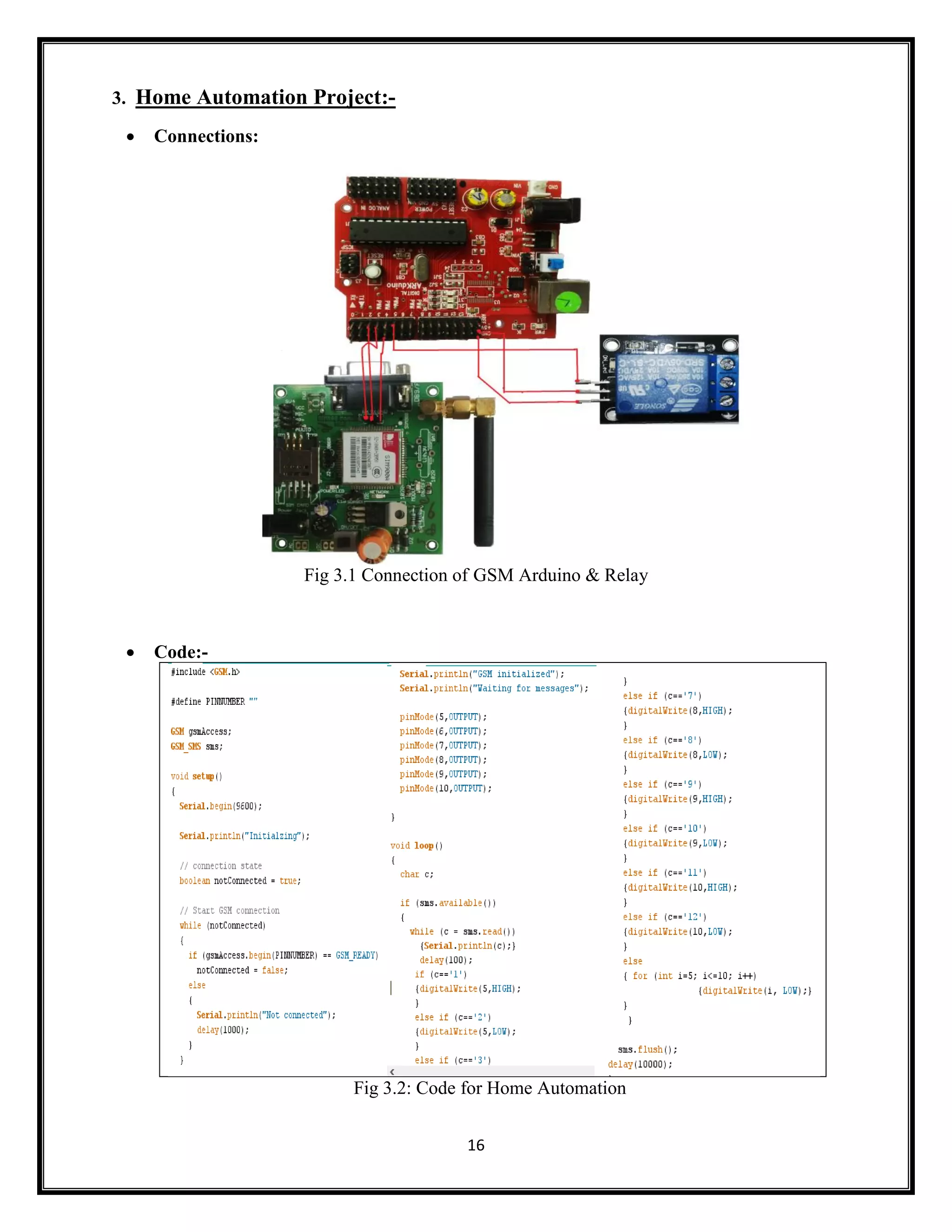
16 3. Home Automation Project:-  Connections: Fig 3.1 Connection of GSM Arduino & Relay  Code:- Fig 3.2: Code for Home Automation
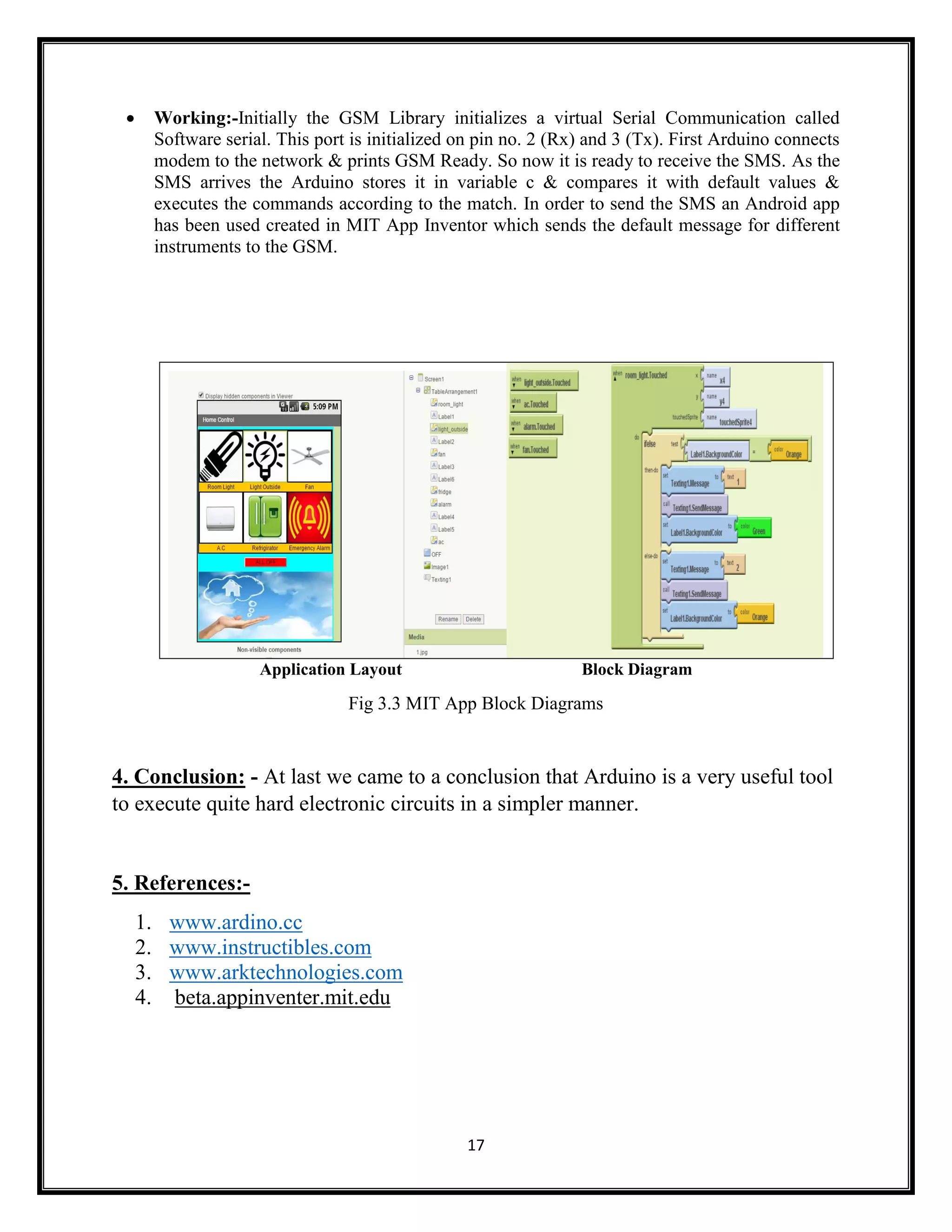
17  Working:-Initially the GSM Library initializes a virtual Serial Communication called Software serial. This port is initialized on pin no. 2 (Rx) and 3 (Tx). First Arduino connects modem to the network & prints GSM Ready. So now it is ready to receive the SMS. As the SMS arrives the Arduino stores it in variable c & compares it with default values & executes the commands according to the match. In order to send the SMS an Android app has been used created in MIT App Inventor which sends the default message for different instruments to the GSM. Application Layout Block Diagram Fig 3.3 MIT App Block Diagrams 4. Conclusion: - At last we came to a conclusion that Arduino is a very useful tool to execute quite hard electronic circuits in a simpler manner. 5. References:- 1. www.ardino.cc 2. www.instructibles.com 3. www.arktechnologies.com 4. beta.appinventer.mit.edu

Arduino

  • 1.
    1 ARDUINO A Seminar Report Submittedby: GEET PATEL (13BEC072) DARP RAITHATHA (13BEC084) Guided by:- HARDIK JOSHI Bachelor of Technology Electronics and Communication Department SEMESTER : IV Institute of Technology NIRMA UNIVERSITY MAY, 2015.
  • 2.
    2 Abstract:- This is areport about Arduino board and programming environment. It contains basic working of Arduino, different types of Arduino boards, interfacing with Arduino programming environment, how to program, basic instructions regarding that and interfacing of a few sensors is shown in the content. In third chapter a small project regarding Home Automation using android app is explored. Outcome of this report is learning to program in Arduino programming environment and understanding concepts behind its working. Interfacing different sensor modules with Arduino is also included. This report will help you making your project much easier using Arduino.
  • 3.
    3 Acknowledgements:- We would liketo express our special thanks of gratitude to our guide Prof. Hardik Joshi as well as our director Dr. Ketan Kotecha, our HOD Dr. P.N Tekwani and our section head Dr. D.K Kothari who gave us the golden opportunity to do this wonderful research on the topic “Arduino” which also helped us in doing a lot of research and we came to know about so many new things that we are really thankful to them. Secondly we would like to thank our parents and friends who helped us a lot in finalizing this project within the time frame.
  • 4.
    4 Table of contents Sr.no. Chapter Page no. i. Abstract 2 ii. Acknowledgement 3 1. Arduino 5 1.1 What is Arduino? 5 1.2 Arduino boards 6 1.2.1 Parts of Arduino UNO 6 1.3 Parts of Arduino board 7 1.3.1 Controller 7 1.3.2 Power supply 8 1.3.3 USB to serial converter 8 1.4 Arduino programming environment 9 2. Sensors 10 2.1 What are sensors? 10 2.2 Types 10 2.3 Interfacing 10 2.3.1 Tracking sensor 10 2.3.2 Hall sensor 11 2.3.3 Joy-stick module 13 2.3.4 Temperature sensor 14 3. Home Automation Project 15 4 Conclusion 15 5 References 16
  • 5.
    5 1.1 WHAT ISARDUINO? Arduino is an open-source electronics platform based on easy-to-use hardware and software. It's intended for anyone making interactive projects. Arduino can take the input from many sensors attached to it & can give the output to many lights, motors etc. There is no prerequisite knowledge of Advance electronics for operating Arduino. All you should know is basic electronics and C programming language. Arduino platform mainly contains a Hardware Board called Arduino Board & software Arduino IDE to program it. Other external hardware like Sensor Modules, Motors, lights etc. could be attached with the board. 1.2 ARDUINO BOARDS:-  Arduino UNO.  Arduino MEGA.  Arduino MINI.  Arduino DUE.  Arduino YUN.  Arduino Lily pad.  Arduino Duemilanova. Apart from this there are many more boards that can be used. As it’s open source instead of Arduino you can also find, Freeduino, Arkduino etc. available in the market. Selection of Board should be done according to the application. The most common Board used is Arduino UNO
  • 6.
    6 Figure no. 1.1Arduino UNO Figure no. 1.2 DIFFERENT ARDUINO BOARDS 1.2.1 PARTS OF ARDUINO UNO:-
  • 7.
    7 Figure no. 1.3Parts of Arduino Uno 1.3 Parts of Arduino Board :- For the detailed study of an Arduino board we have divided the board in 3 parts:- 1.3.1 Controller. Fig 1.4:- Controller
  • 8.
    8 Fig 1.5:- AtMega328 Arduino mainly uses the Atmeal 8-bit microcontrollers i.e AtMega8, AtMega16, AtMega328. Below we have described AtMega328.Pin number 1 is RESET. Whenever the Reset is given high the program dumped will be executed from the beginning.Pin number 2, 3, 4, 5, 6, 11, 12, 13, 14, 15, 16, 17, 18, 19 are the Digital Pins. The digital I/P’s & O/P’s are taken from these pins. Here the 0 V is considered as LOW & 5 V is taken as HIGH.Pin number 7 & 20 are the VCC. Pin number 8 & 22 are Ground.Pin number 9 & 10 are connected with the clock, a 16 MHz crystal oscillator.Pin number 21 is actually Analog Reference which is generally taken as 5 V.Pin number 23, 24 25, 26, 27, 28 are the Analog Pins. Analog I/P’s are taken from these pins. It considers 0 V as 0 and 5 V as 1023. So it gives the O/P upto 10 bits. 1.3.2 Power supply. Fig 1.6 Power Supply There are mainly 2 ways to supply the power to the board:- 1) Power jack. 2) USB jack.
  • 9.
    9 Between these 2supplies there is a power selection jumper which is used to choose which power to use at present time. There is a Voltage Regulator in a board to regulate the voltage. (Which Regulator is used?? No & Specification) There are capacitors to maintain the constant power supply to the board as the battery initially when fully charged supplies enough power but after some time as it discharges the power supplied decreases. So the capacitors are there to maintain constant Supply. 1.3.3 USB to Serial Converter. Fig1.7:- USB to Serial Converter We Program in Higher Level language (C, java etc.), but the machines understand only machine language (0 & 1).So this code need to be converted into machine language. The computer converts this in hexadecimal code & pass to Arduino via cable. This Hexadecimal code is converted to binary code by USB to serial converter which is stored in RAM of AtMega328.So USB to serial converter play a very important role in this process. Reset button is used to reset Arduino i.e to execute the dumbed program from beginning. Whenever we press the Reset button this gives the pulse to the reset pins of AtMega328 which resets the controller.
  • 10.
    10 1.4 Arduino ProgrammingEnvironment:- Fig1.8 Arduino Software To verify or Compile the code written in the workspace. To Upload the written program to Arduino Board. To open the new workspace or file. To open the saved programs. To save the written data or program. For opening Serial Monitor (only in case of serial Communication). 2. SENSORS 2.1 What are sensors? Sensor is a device which detects or measures a physical property and records, indicates, or otherwise responds to it.
  • 11.
    11 2.2 Types:-  Joystick Sound  Touch  Temperature  Reed  Hall  Infrared Tx and Rx Hall sensors Avoid sensor temperature sensor reed switch Sound sensor tracking sensor Infrared Rx-Tx Touch Sensor Fig. 2.1: Sensors 2.3 Interfacing of sensors:- 2.3.1 Tracking sensor:-  Connection
  • 12.
    12 Fig 2.2 TrackingSensor’s Connection  Readings:- Fig 2.3 Serial Monitor Readings  Working:- Tracking sensor is a kind of Infrared sensor. It is a digital sensor. Basically it tracks the white line. Normally it gives 1 but wherever a white line comes it gives 0 as an output. Applications:- Line Follower. 2.3.2 Hall Sensor:-  Connections Fig 2.4 Hall Sensor Connections  Readings:-
  • 13.
    13 Fig 2.5 :-Serial Monitor Readings Fig 2.6: Serial Monitor Readings  Working:- Mainly made from Indium antimonide, which gives o/p signal whenever the Magnetic field pass through it. Linear hall sensor gives Analog as well as Digital output for North & South Pole. o North = 0 Analog values  Increases. o South = 1 Analog values  Decreases. Applications:- Used to check the direction, Speed detection, Current sensing.
  • 14.
    14 2.3.3 Joy-stick Module:- Connections:- Fig 2.7 Joy-Stick Connections  Readings:- Fig 2.8:- Serial Monitor Readings Working:-Joystick stick is constructed of 2 potentiometers. One for X- direction and Another for Y-direction. It also contains 1 button which gives digital output When we press the joystick. The joystick gives the mentioned readings for Different direction. Application:- Used for controlling various equipment. As with the help of it the controlling really becomes easy.
  • 15.
    15 2.3.4 Temperature Sensor:- Connections:- Fig 2.9 Temperature Sensor Connections  Readings:- Fig 2.10:- Serial Monitor Readings Working:-We have tested 3 Temperature Sensor Analog, Digital & analog + digital. Analog sensor uses Thermistor as temperature Sensor. Readings of the sensors changes according to voltage across Thermistor which is 10mV/ o C. It compares the voltage level of Thermistor with voltage across 10k Ω resistor connected in parallel with it.
  • 16.
    16 3. Home AutomationProject:-  Connections: Fig 3.1 Connection of GSM Arduino & Relay  Code:- Fig 3.2: Code for Home Automation
  • 17.
    17  Working:-Initially theGSM Library initializes a virtual Serial Communication called Software serial. This port is initialized on pin no. 2 (Rx) and 3 (Tx). First Arduino connects modem to the network & prints GSM Ready. So now it is ready to receive the SMS. As the SMS arrives the Arduino stores it in variable c & compares it with default values & executes the commands according to the match. In order to send the SMS an Android app has been used created in MIT App Inventor which sends the default message for different instruments to the GSM. Application Layout Block Diagram Fig 3.3 MIT App Block Diagrams 4. Conclusion: - At last we came to a conclusion that Arduino is a very useful tool to execute quite hard electronic circuits in a simpler manner. 5. References:- 1. www.ardino.cc 2. www.instructibles.com 3. www.arktechnologies.com 4. beta.appinventer.mit.edu