ARDUINO PROGRAMMING ARDUINO PROGRAMMING Working with the Arduino microcontroller
2 Project Idea: Automated Mini City 2
3 Mini City • Light sensitive street lights • Timed Traffic Lights • Automated Gates using proximity sensor • Cars that drive the City streets 3
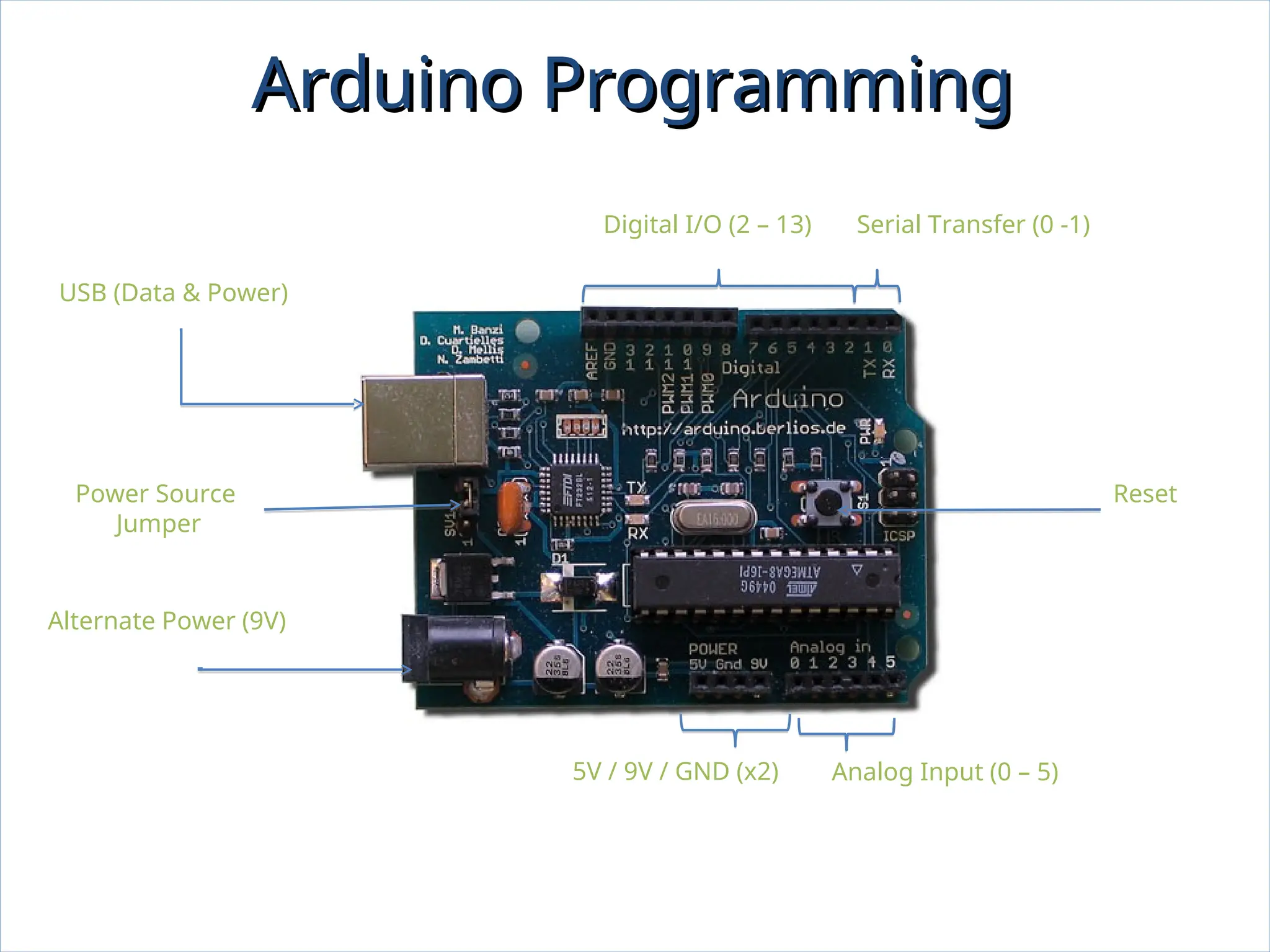
Arduino Programming Arduino Programming USB (Data & Power) Alternate Power (9V) Digital I/O (2 – 13) Serial Transfer (0 -1) Analog Input (0 – 5) 5V / 9V / GND (x2) Power Source Jumper Reset
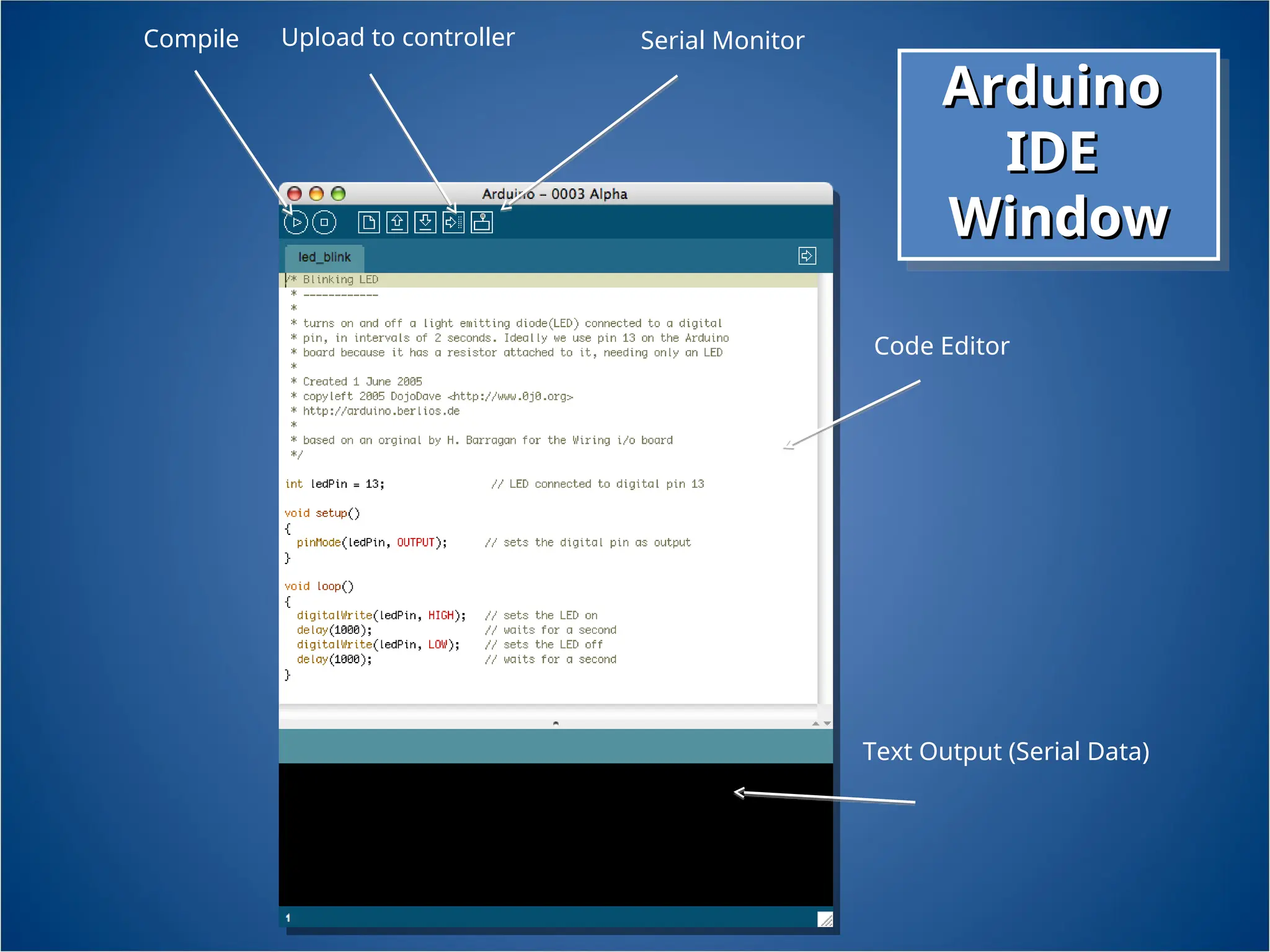
Compile Upload to controller Text Output (Serial Data) Code Editor Serial Monitor Arduino Arduino IDE IDE Window Window
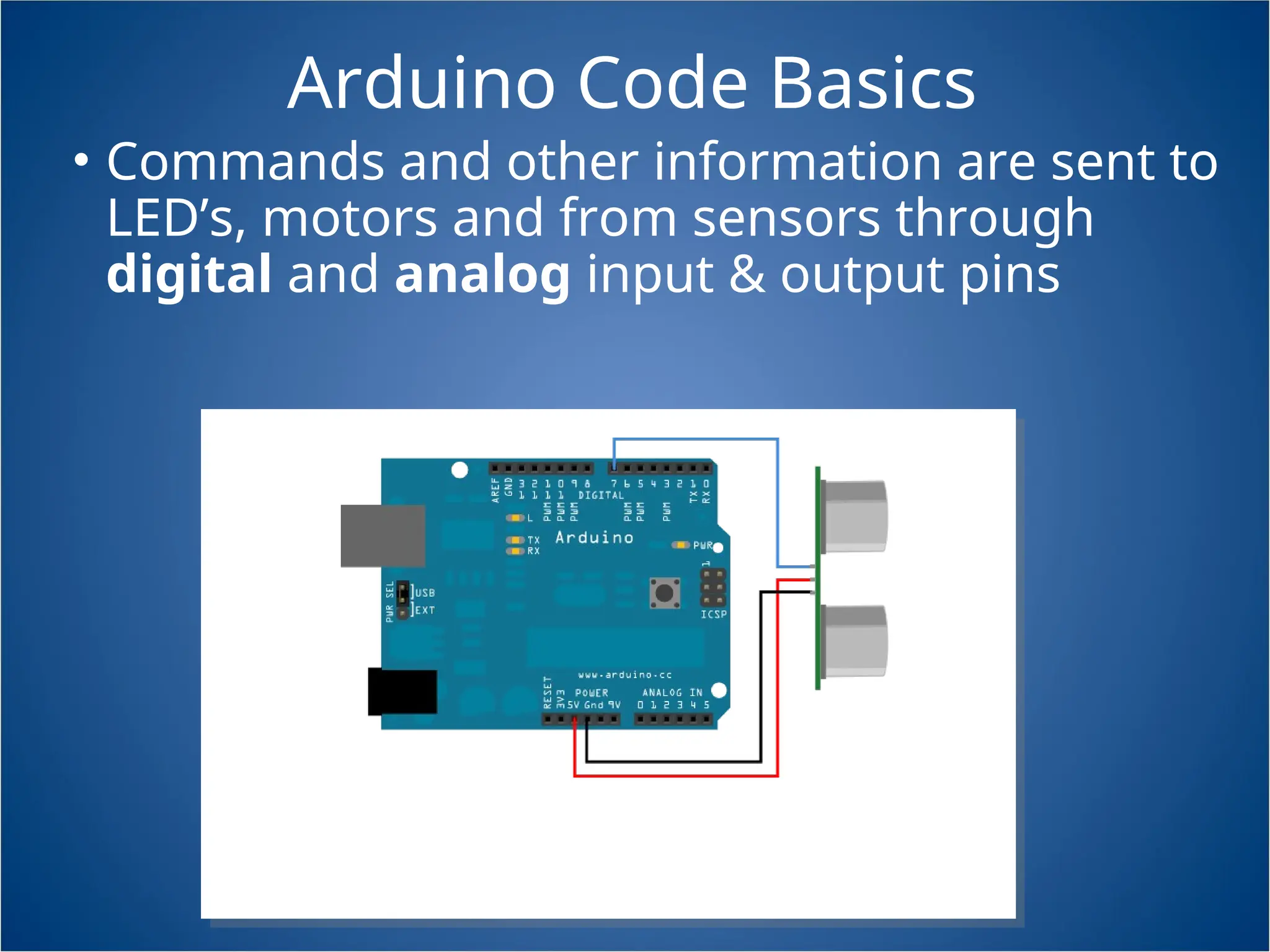
Arduino Code Basics • Commands and other information are sent to LED’s, motors and from sensors through digital and analog input & output pins
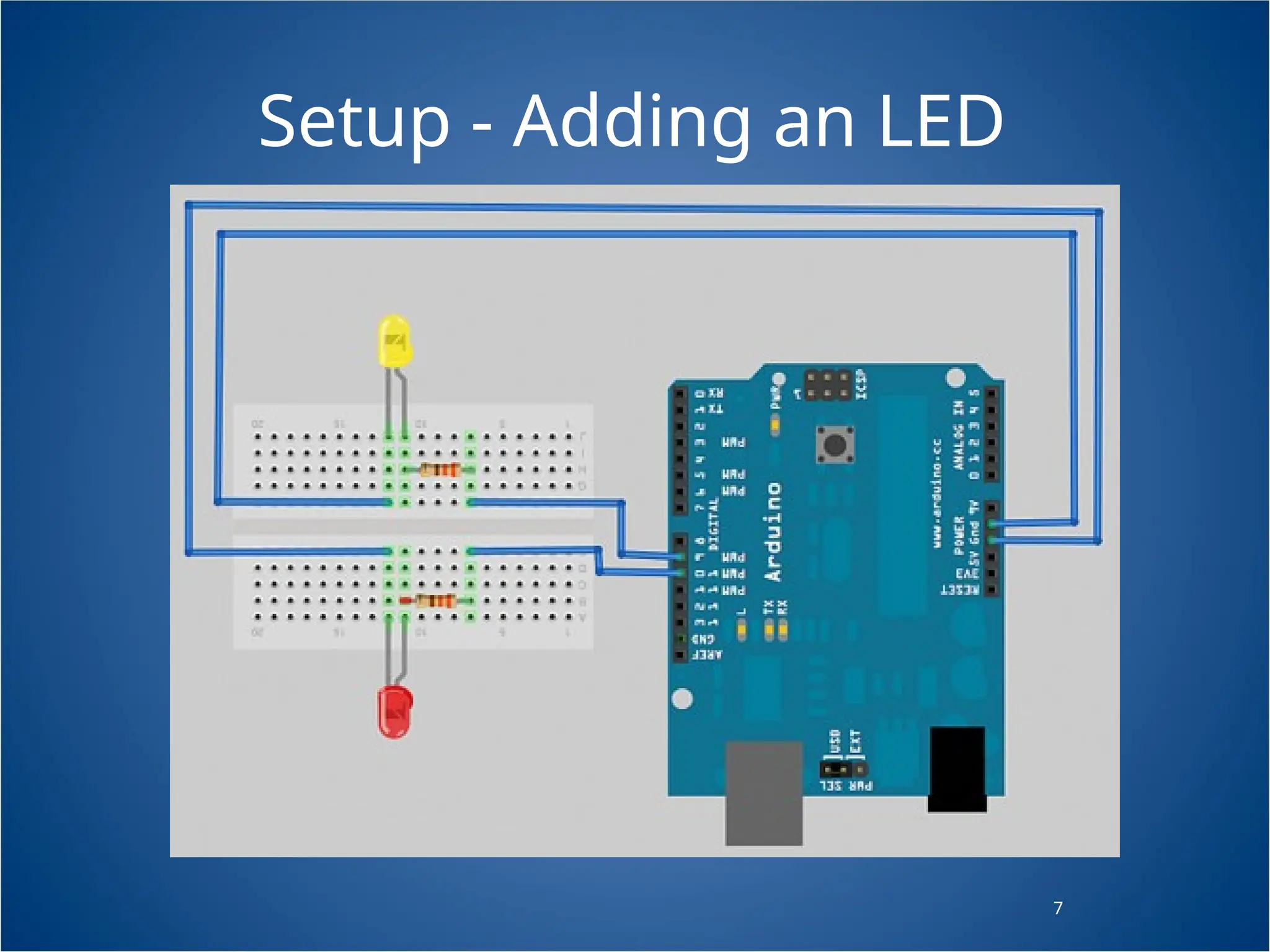
7 Setup - Adding an LED
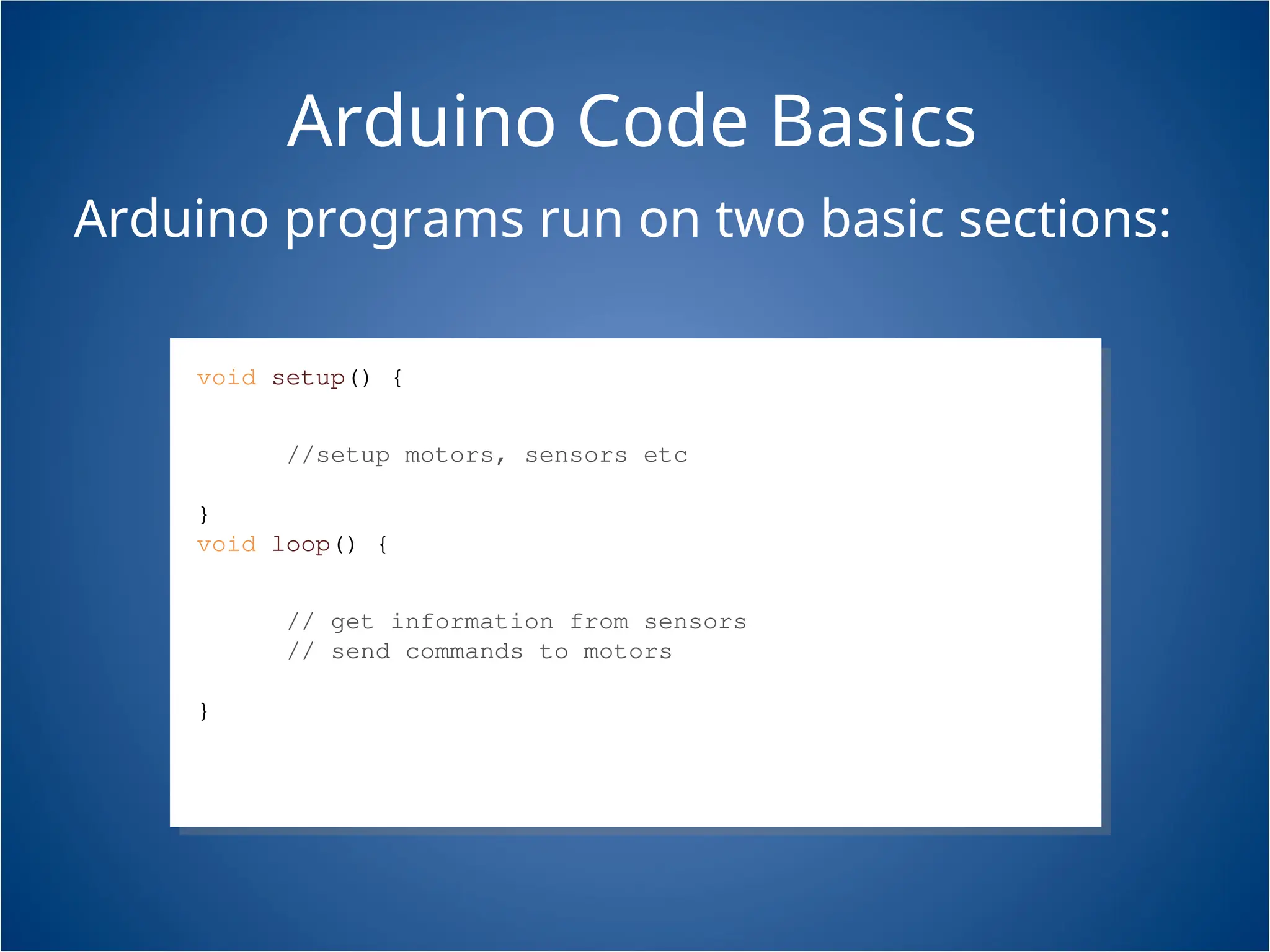
Arduino Code Basics Arduino programs run on two basic sections: void setup() { //setup motors, sensors etc } void loop() { // get information from sensors // send commands to motors }
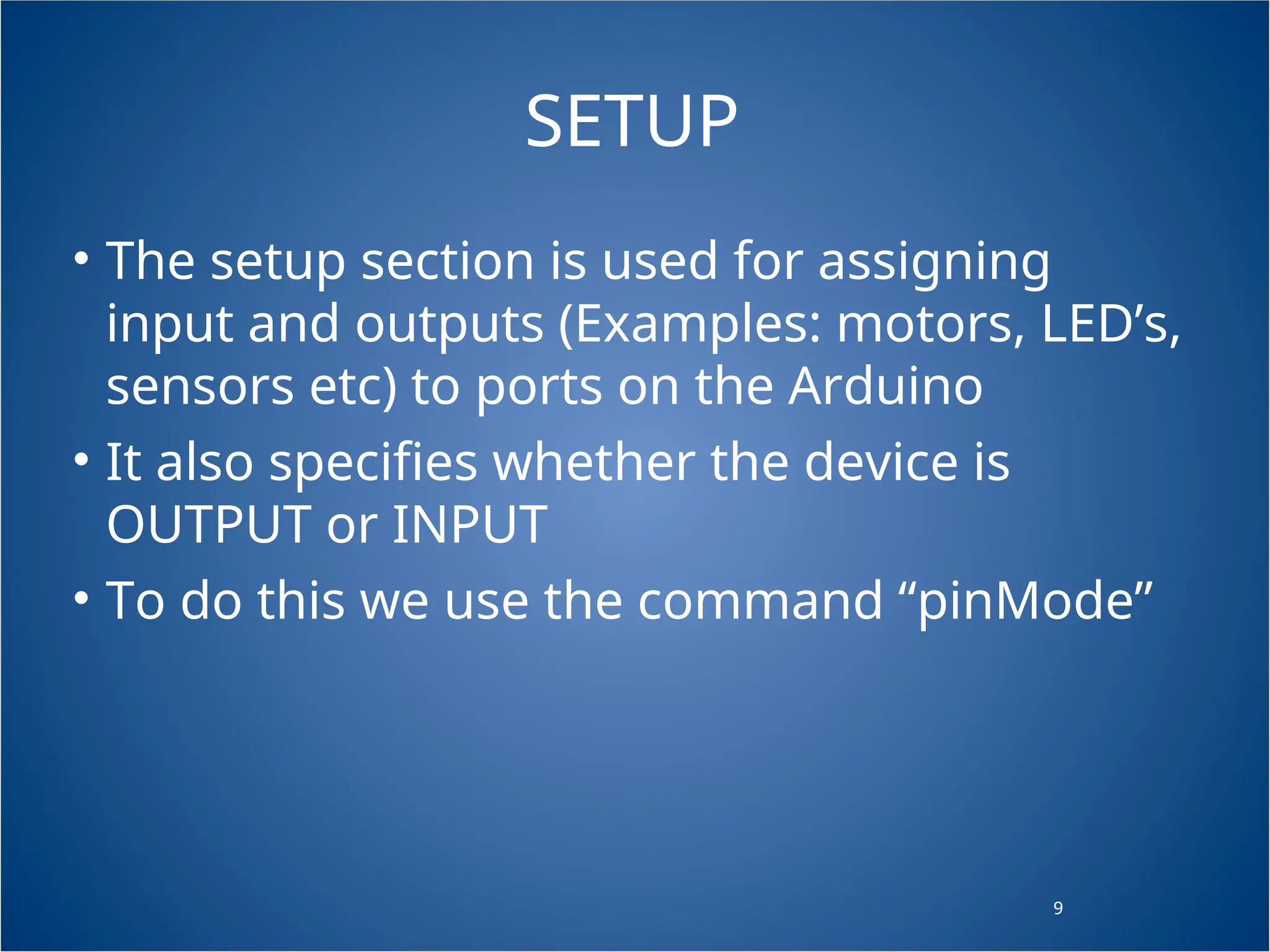
9 SETUP • The setup section is used for assigning input and outputs (Examples: motors, LED’s, sensors etc) to ports on the Arduino • It also specifies whether the device is OUTPUT or INPUT • To do this we use the command “pinMode” 9
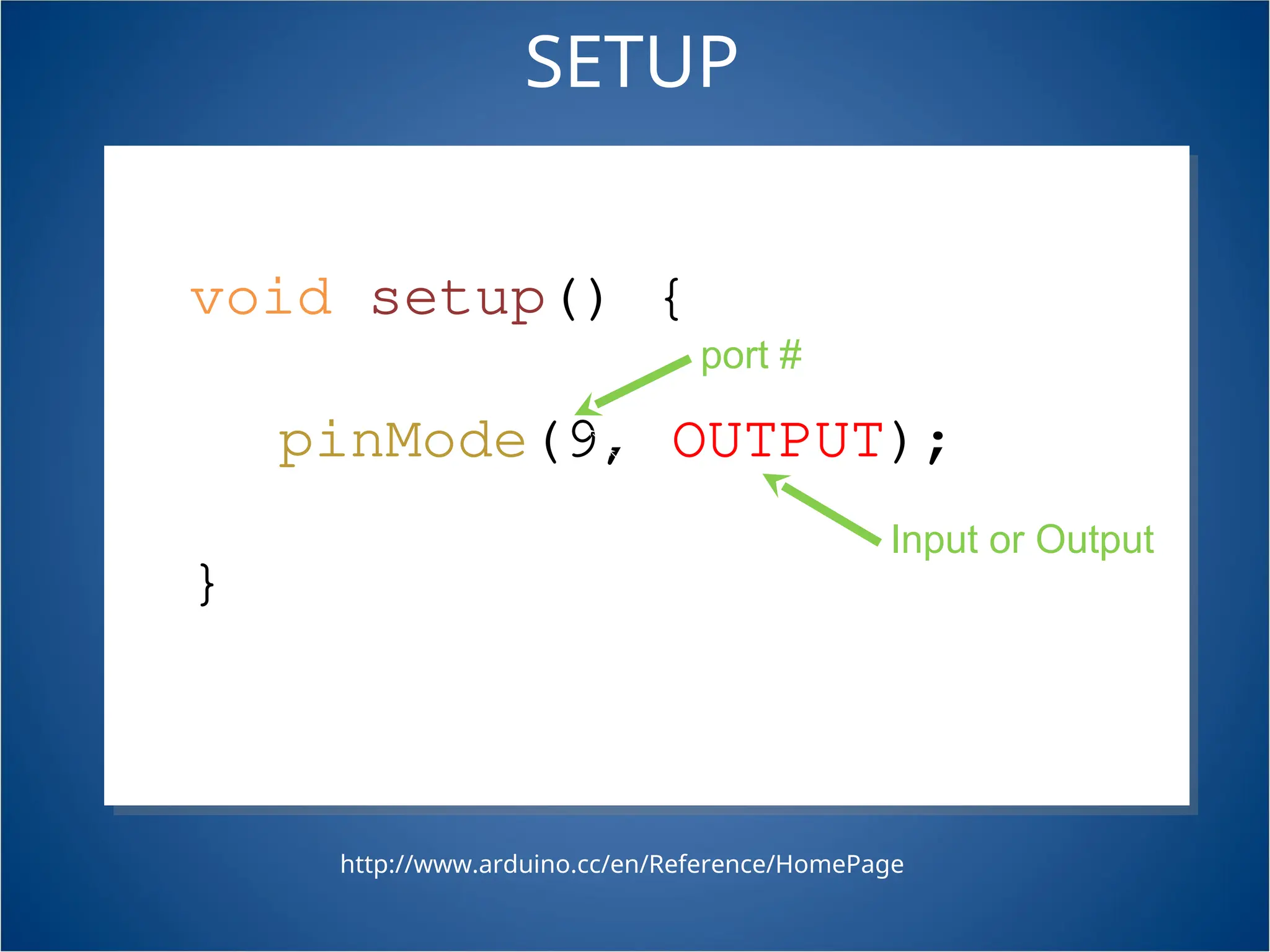
SETUP void setup() { pinMode(9, OUTPUT); } http://www.arduino.cc/en/Reference/HomePage port # Input or Output
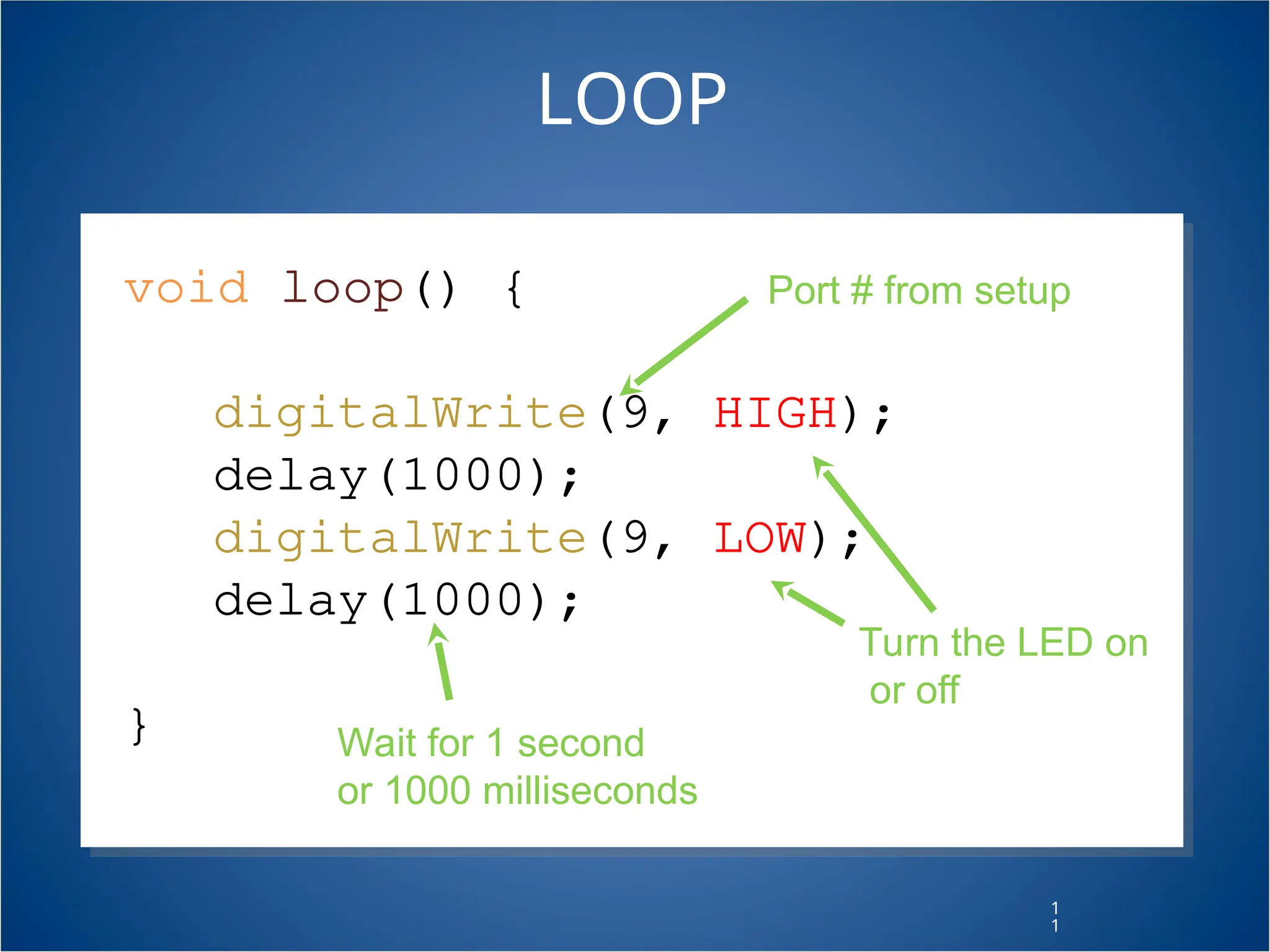
1 1 void loop() { digitalWrite(9, HIGH); delay(1000); digitalWrite(9, LOW); delay(1000); } LOOP Port # from setup Turn the LED on or off Wait for 1 second or 1000 milliseconds
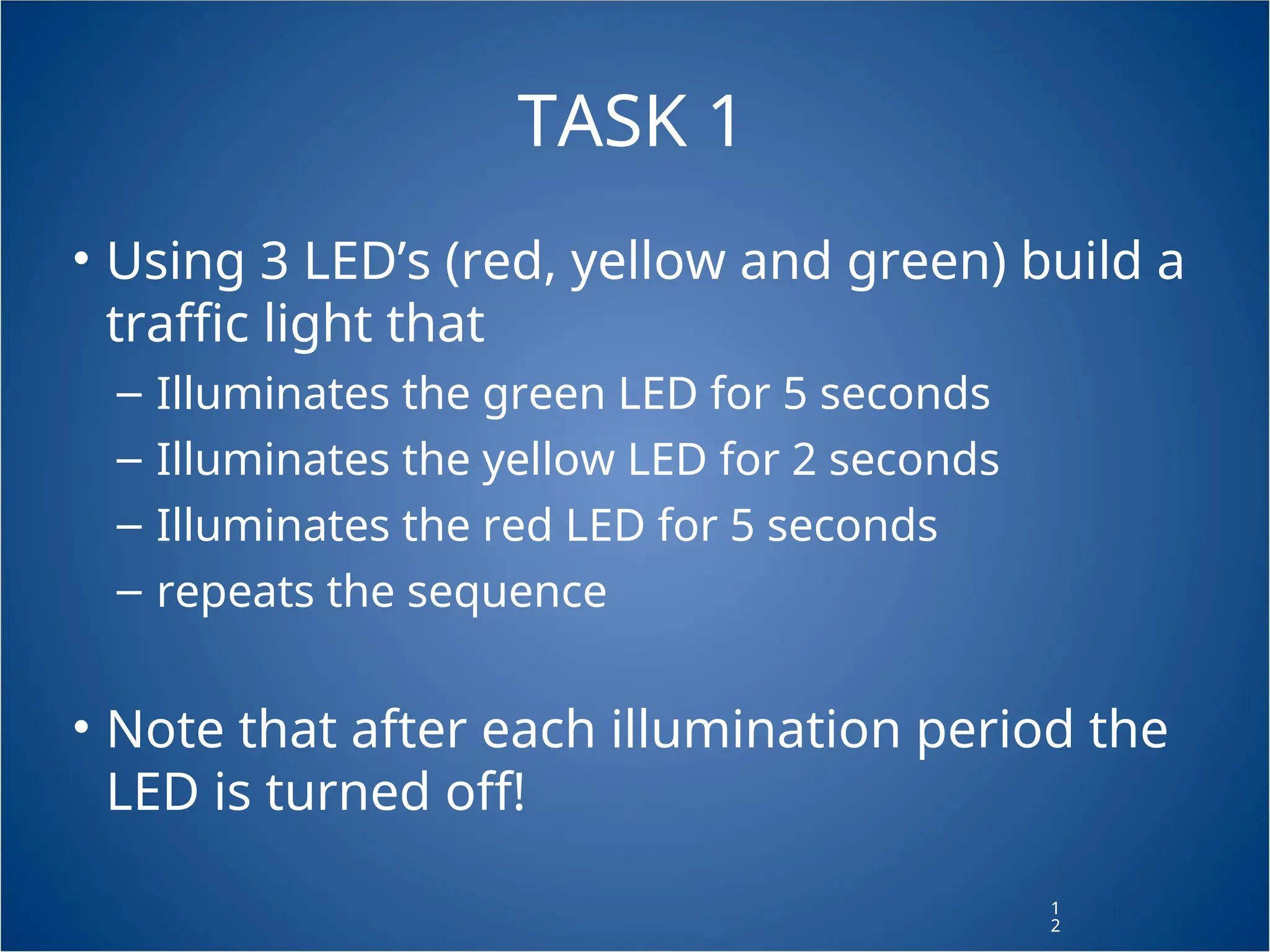
1 2 TASK 1 • Using 3 LED’s (red, yellow and green) build a traffic light that – Illuminates the green LED for 5 seconds – Illuminates the yellow LED for 2 seconds – Illuminates the red LED for 5 seconds – repeats the sequence • Note that after each illumination period the LED is turned off! 1 2
1 3 TASK 2 • Modify Task 1 to have an advanced green (blinking green LED) for 3 seconds before illuminating the green LED for 5 seconds 1 3
1 4 Variables • A variable is like “bucket” • It holds numbers or other values temporarily 1 4 value
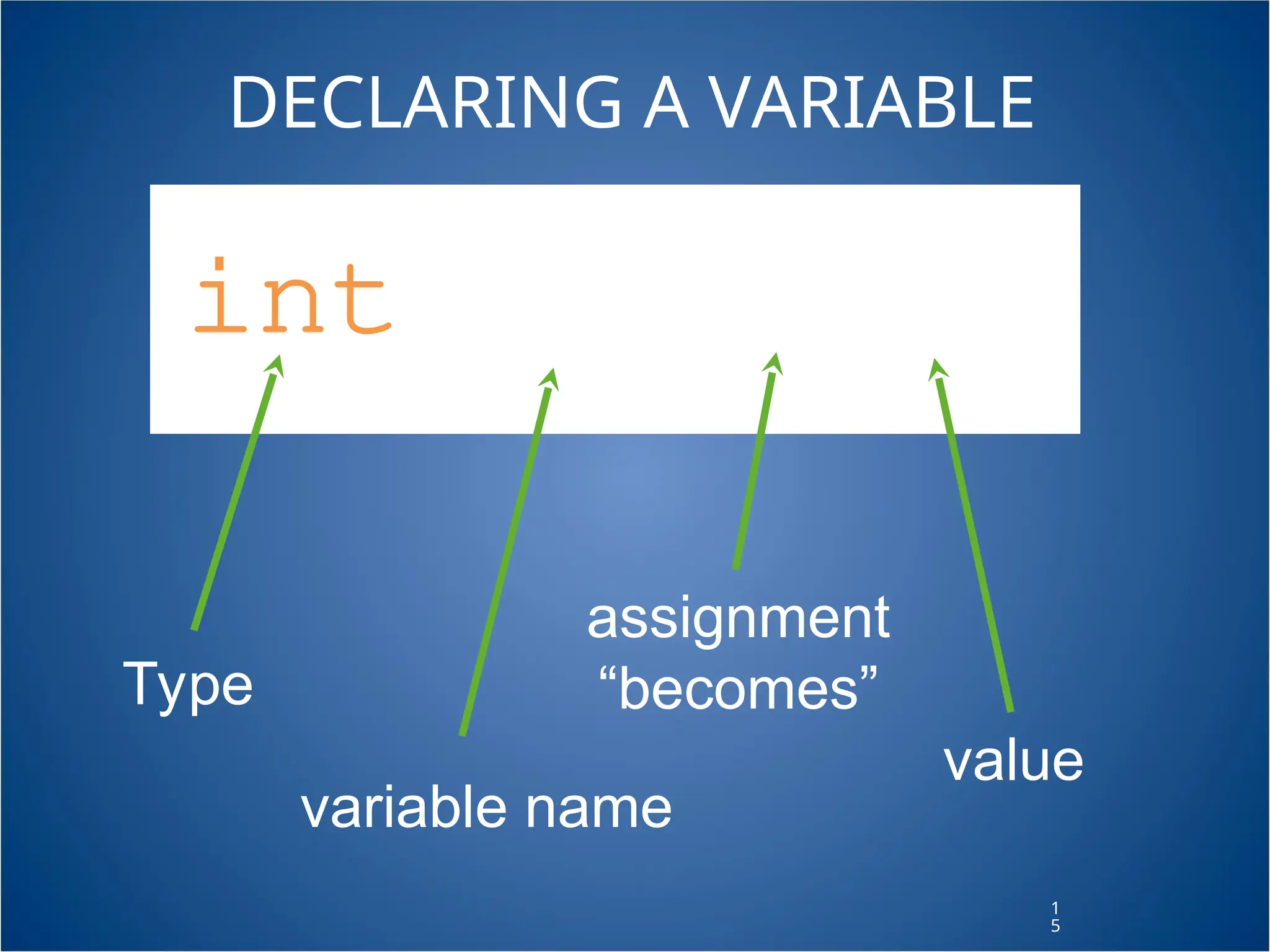
1 5 int val = 5; DECLARING A VARIABLE Type variable name assignment “becomes” value
1 6 Task • Replace all delay times with variables • Replace LED pin numbers with variables 1 6
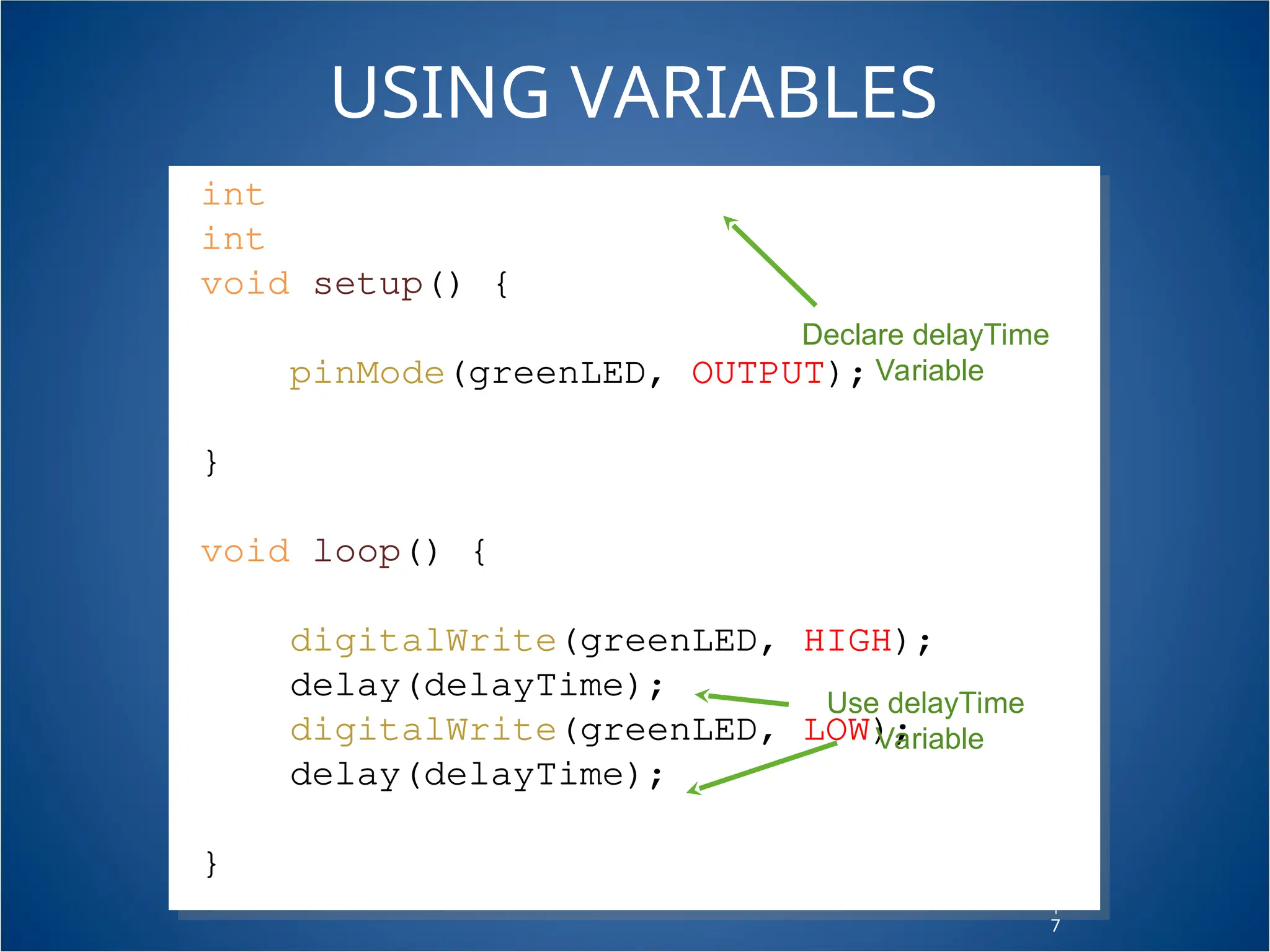
1 7 USING VARIABLES int delayTime = 2000; int greenLED = 9; void setup() { pinMode(greenLED, OUTPUT); } void loop() { digitalWrite(greenLED, HIGH); delay(delayTime); digitalWrite(greenLED, LOW); delay(delayTime); } Declare delayTime Variable Use delayTime Variable
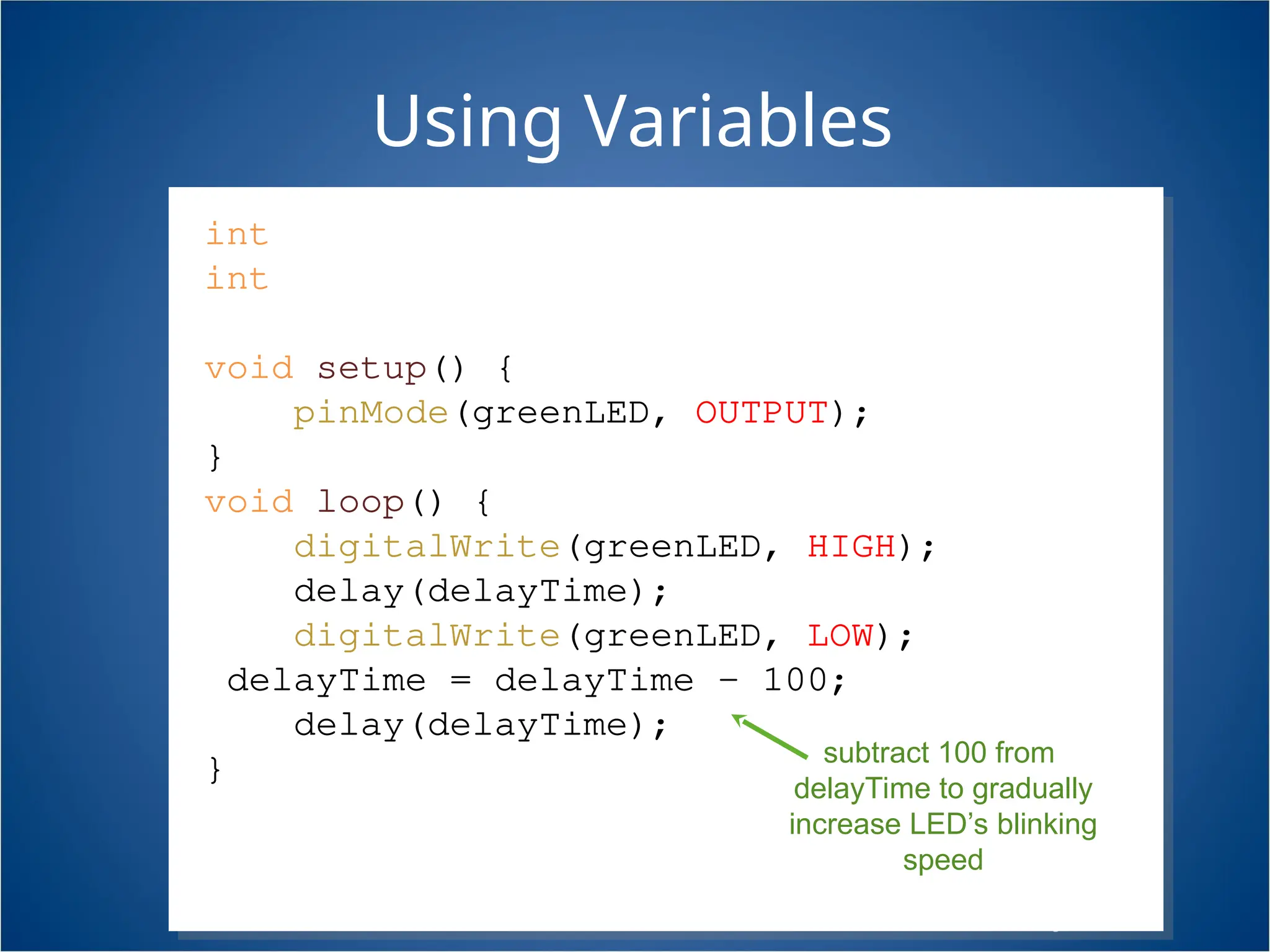
1 8 Using Variables int delayTime = 2000; int greenLED = 9; void setup() { pinMode(greenLED, OUTPUT); } void loop() { digitalWrite(greenLED, HIGH); delay(delayTime); digitalWrite(greenLED, LOW); delayTime = delayTime - 100; delay(delayTime); } subtract 100 from delayTime to gradually increase LED’s blinking speed
Conditions •To make decisions in Arduino code we use an ‘if’ statement •‘If’ statements are based on a TRUE or FALSE question
2 0 VALUE COMPARISONS GREATER THAN a > b LESS a < b EQUAL a == b GREATER THAN OR EQUAL a >= b LESS THAN OR EQUAL a <= b NOT EQUAL a != b
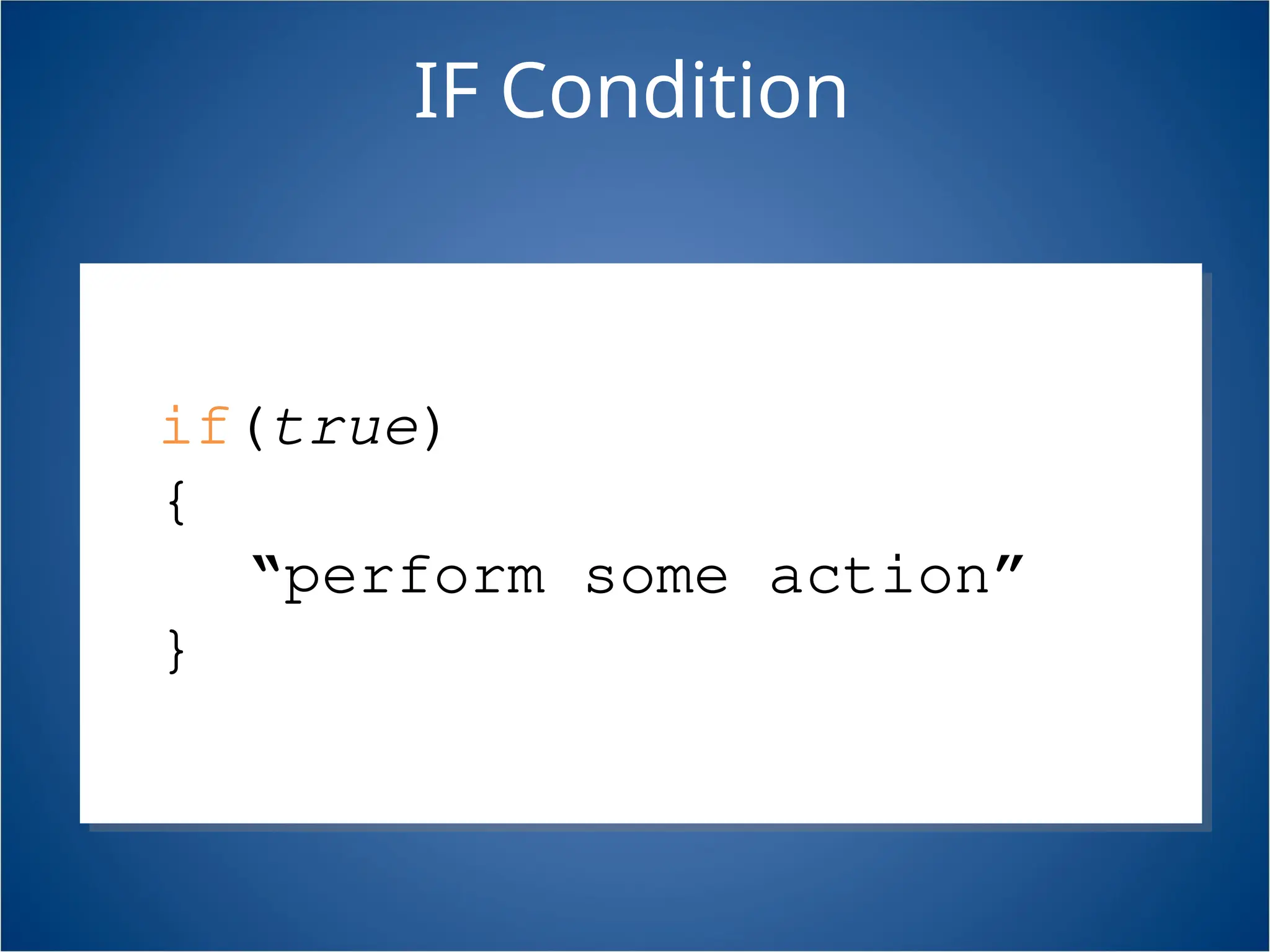
IF Condition asdfadsf if(true) { “perform some action” }
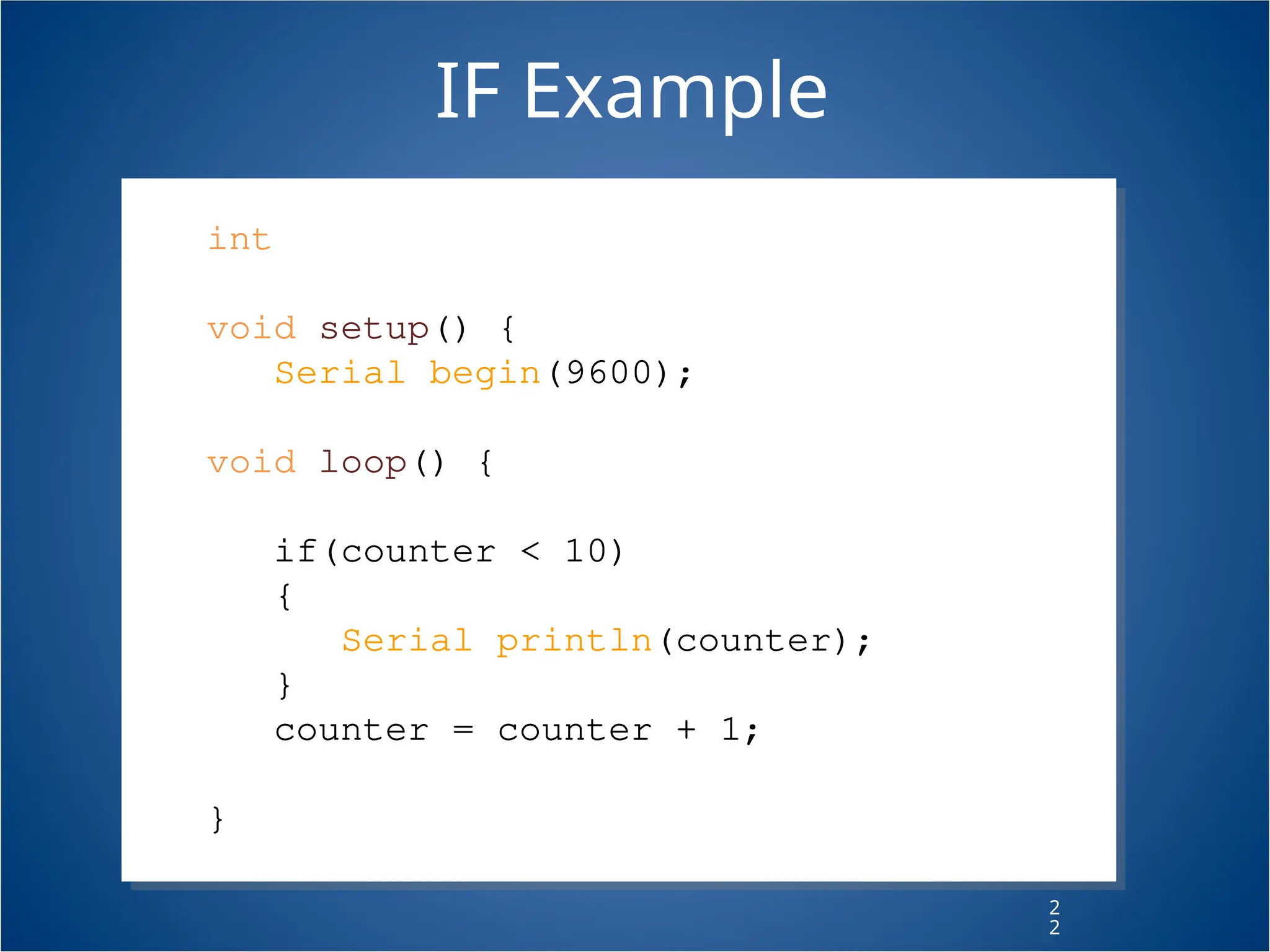
2 2 int counter = 0; void setup() { Serial.begin(9600); } void loop() { if(counter < 10) { Serial.println(counter); } counter = counter + 1; } IF Example
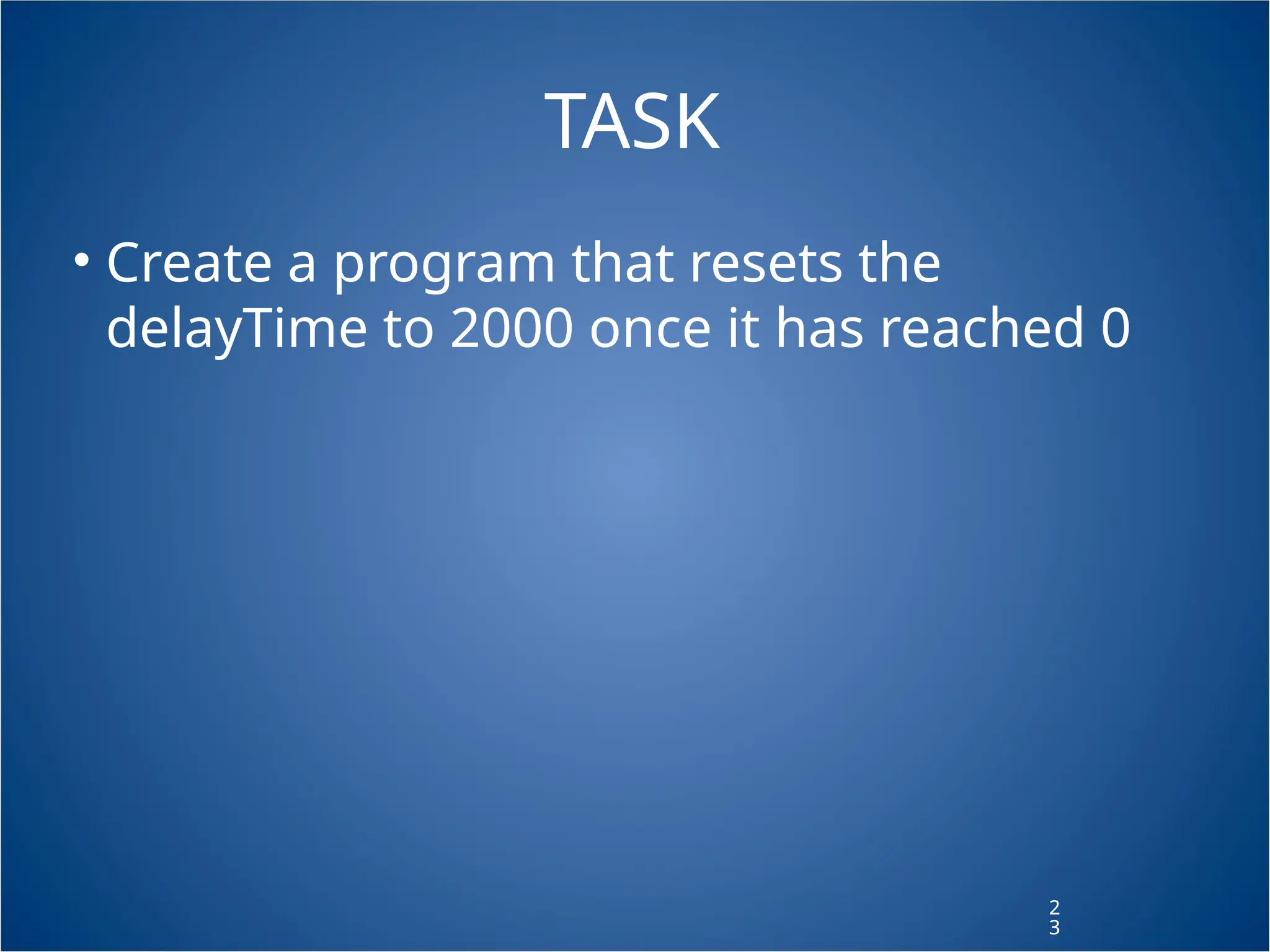
2 3 TASK • Create a program that resets the delayTime to 2000 once it has reached 0 2 3
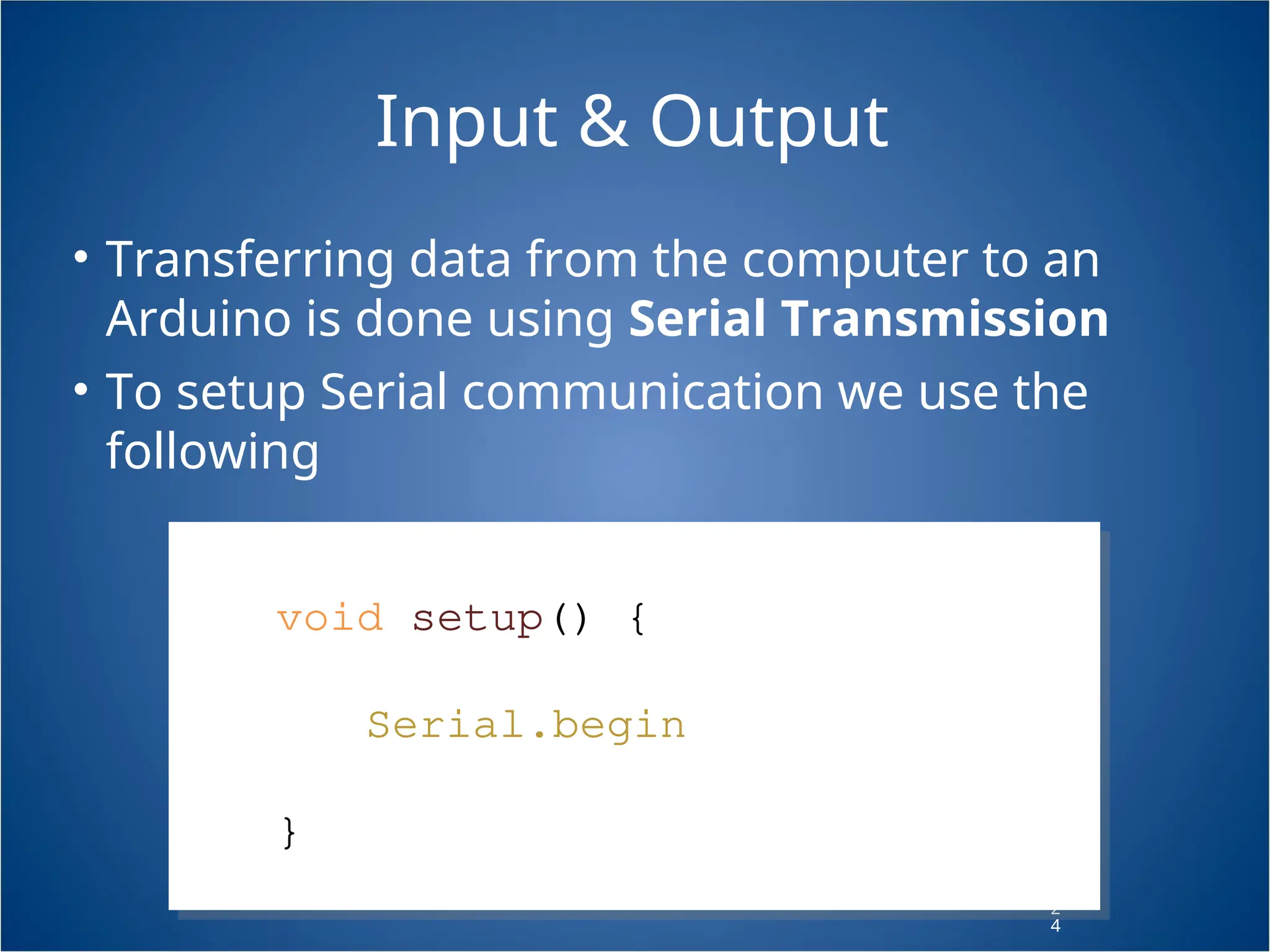
2 4 Input & Output • Transferring data from the computer to an Arduino is done using Serial Transmission • To setup Serial communication we use the following 2 4 void setup() { Serial.begin(9600); }
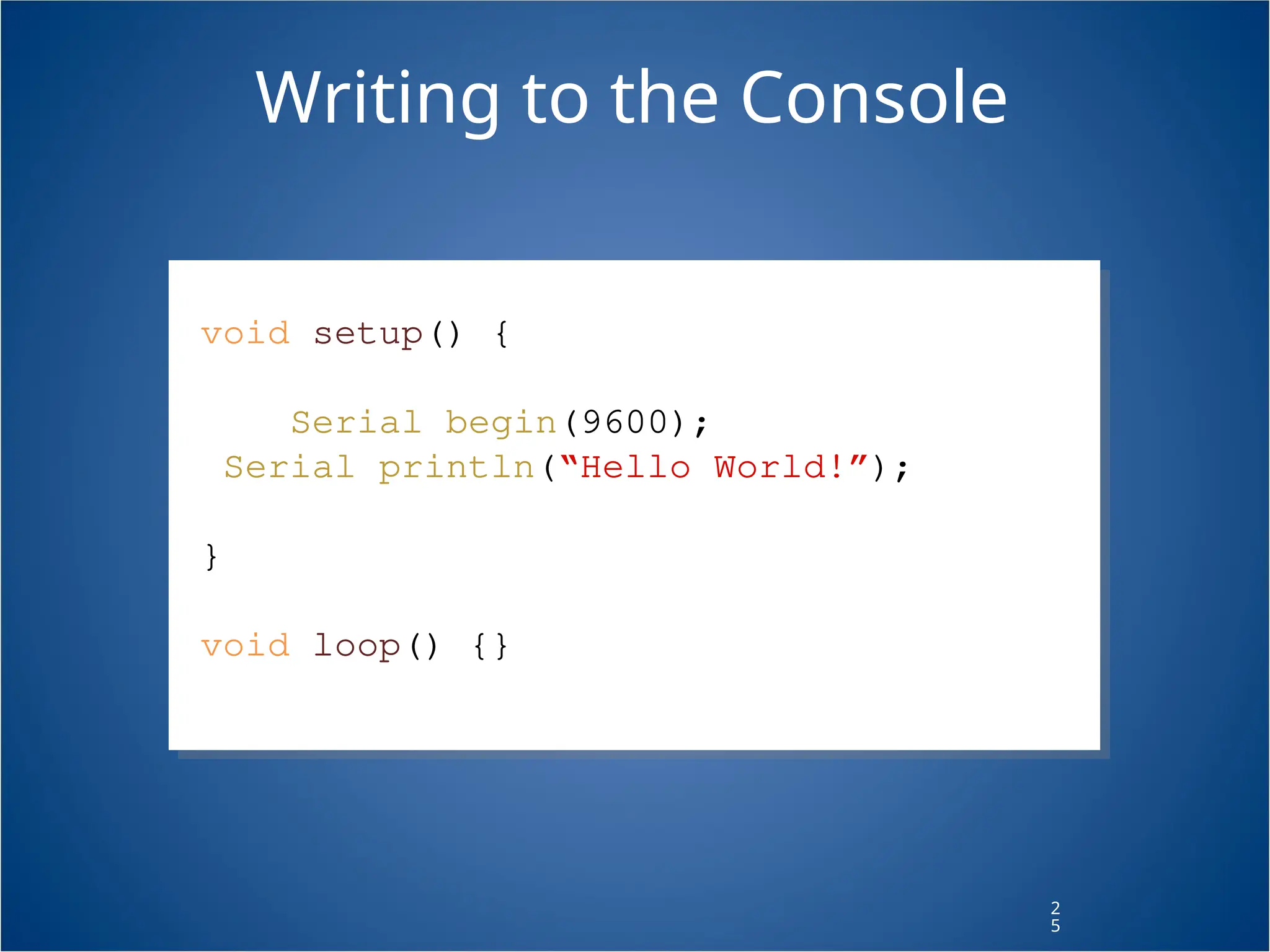
2 5 Writing to the Console void setup() { Serial.begin(9600); Serial.println(“Hello World!”); } void loop() {}
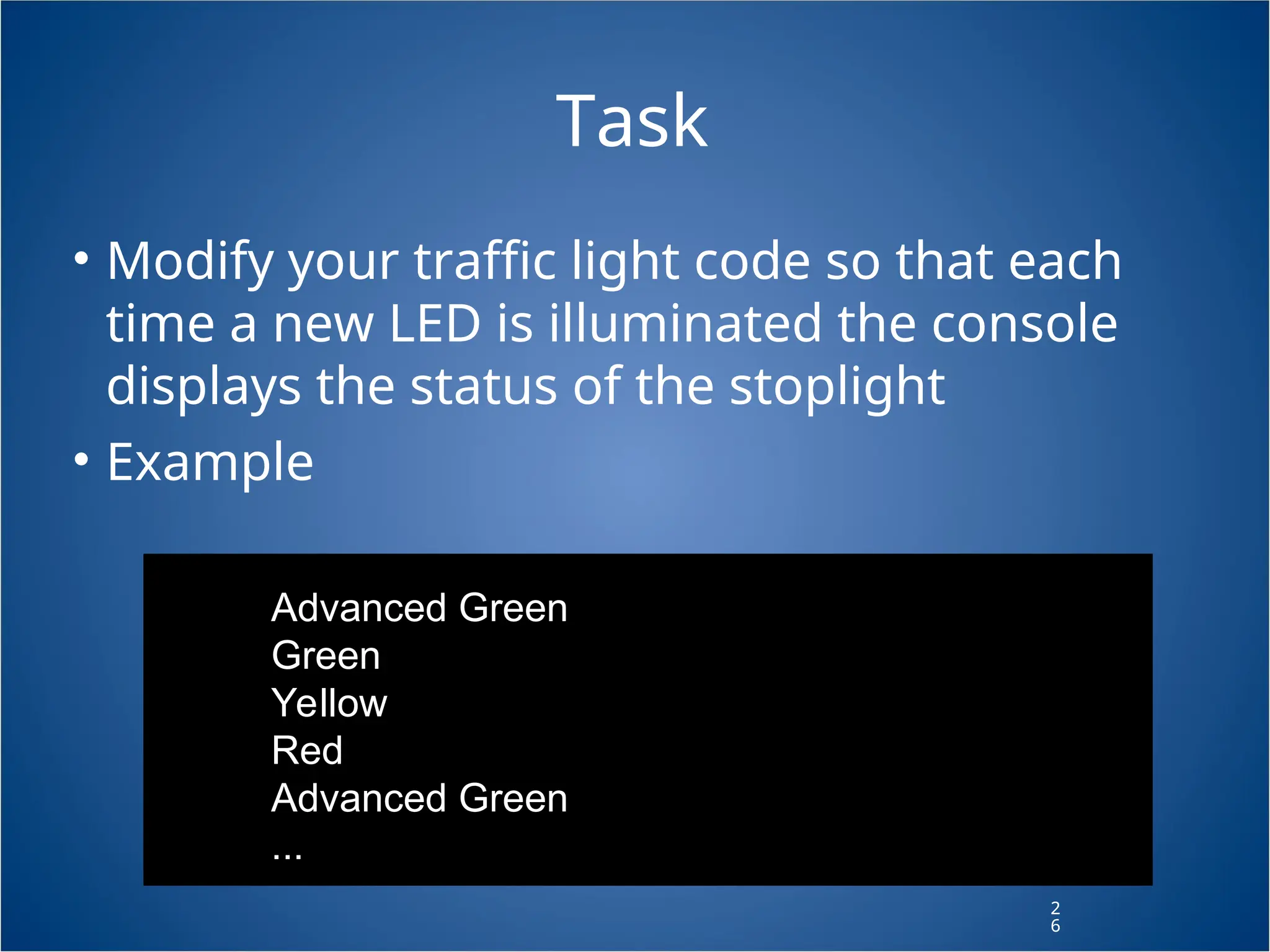
2 6 Task • Modify your traffic light code so that each time a new LED is illuminated the console displays the status of the stoplight • Example 2 6 Advanced Green Green Yellow Red Advanced Green ...

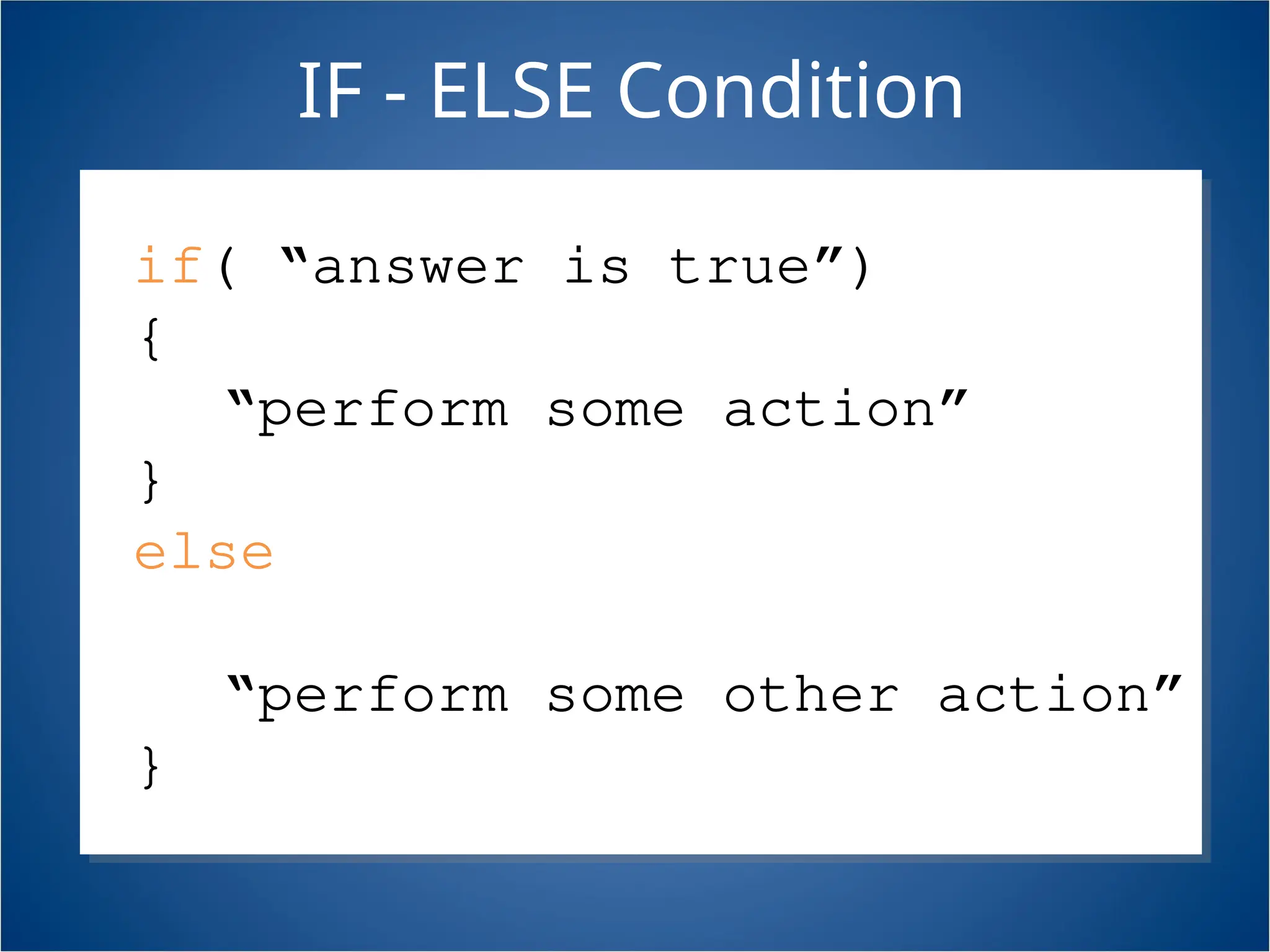
IF - ELSE Condition asdfadsf if( “answer is true”) { “perform some action” } else { “perform some other action” }
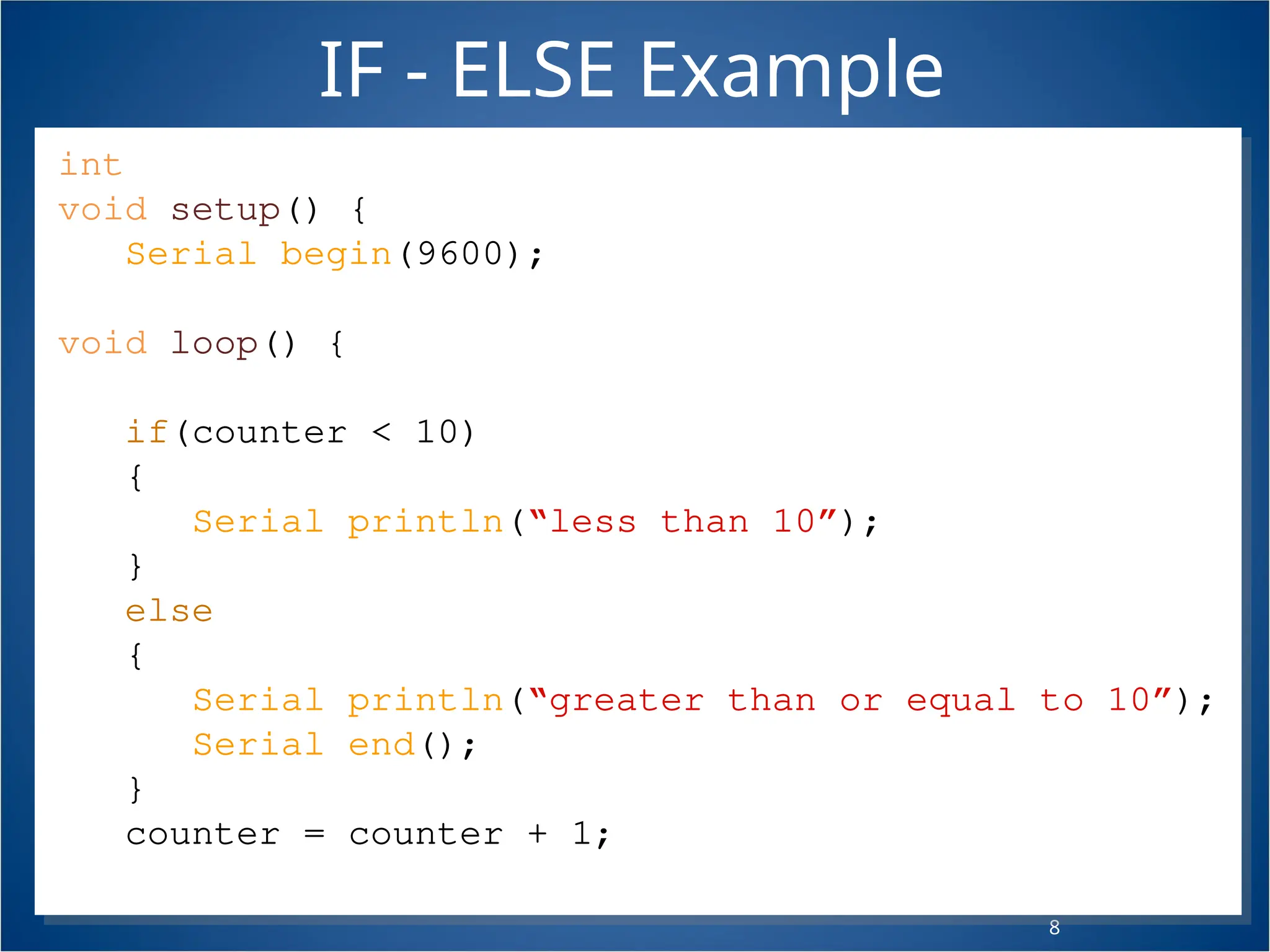
2 8 int counter = 0; void setup() { Serial.begin(9600); } void loop() { if(counter < 10) { Serial.println(“less than 10”); } else { Serial.println(“greater than or equal to 10”); Serial.end(); } counter = counter + 1; } IF - ELSE Example
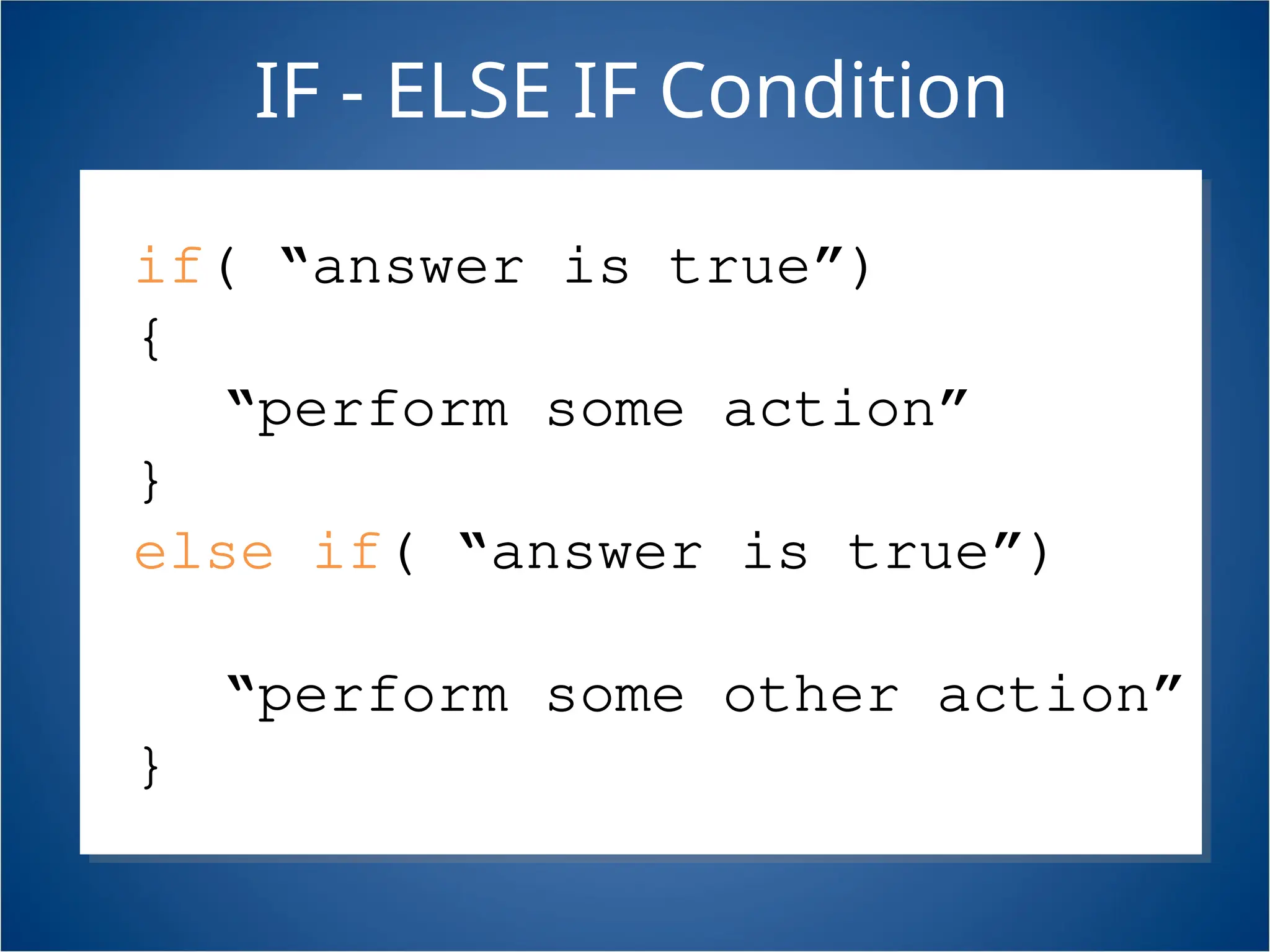
IF - ELSE IF Condition asdfadsf if( “answer is true”) { “perform some action” } else if( “answer is true”) { “perform some other action” }
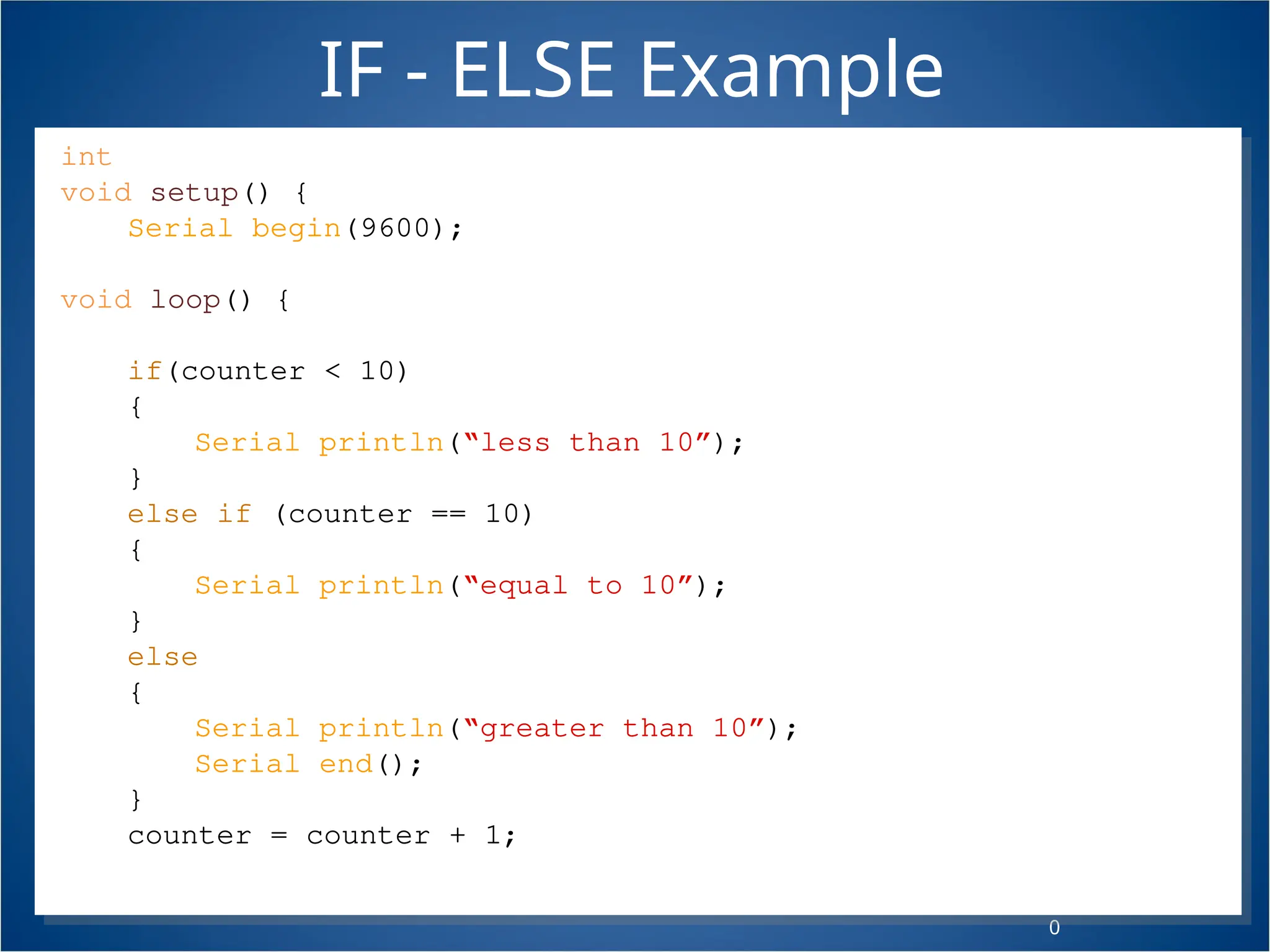
3 0 int counter = 0; void setup() { Serial.begin(9600); } void loop() { if(counter < 10) { Serial.println(“less than 10”); } else if (counter == 10) { Serial.println(“equal to 10”); } else { Serial.println(“greater than 10”); Serial.end(); } counter = counter + 1; } IF - ELSE Example
3 1 BOOLEAN OPERATORS - AND • If we want all of the conditions to be true we need to use ‘AND’ logic (AND gate) • We use the symbols && –Example 3 1 if ( val > 10 && val < 20)
3 2 BOOLEAN OPERATORS - OR • If we want either of the conditions to be true we need to use ‘OR’ logic (OR gate) • We use the symbols || –Example 3 2 if ( val < 10 || val > 20)
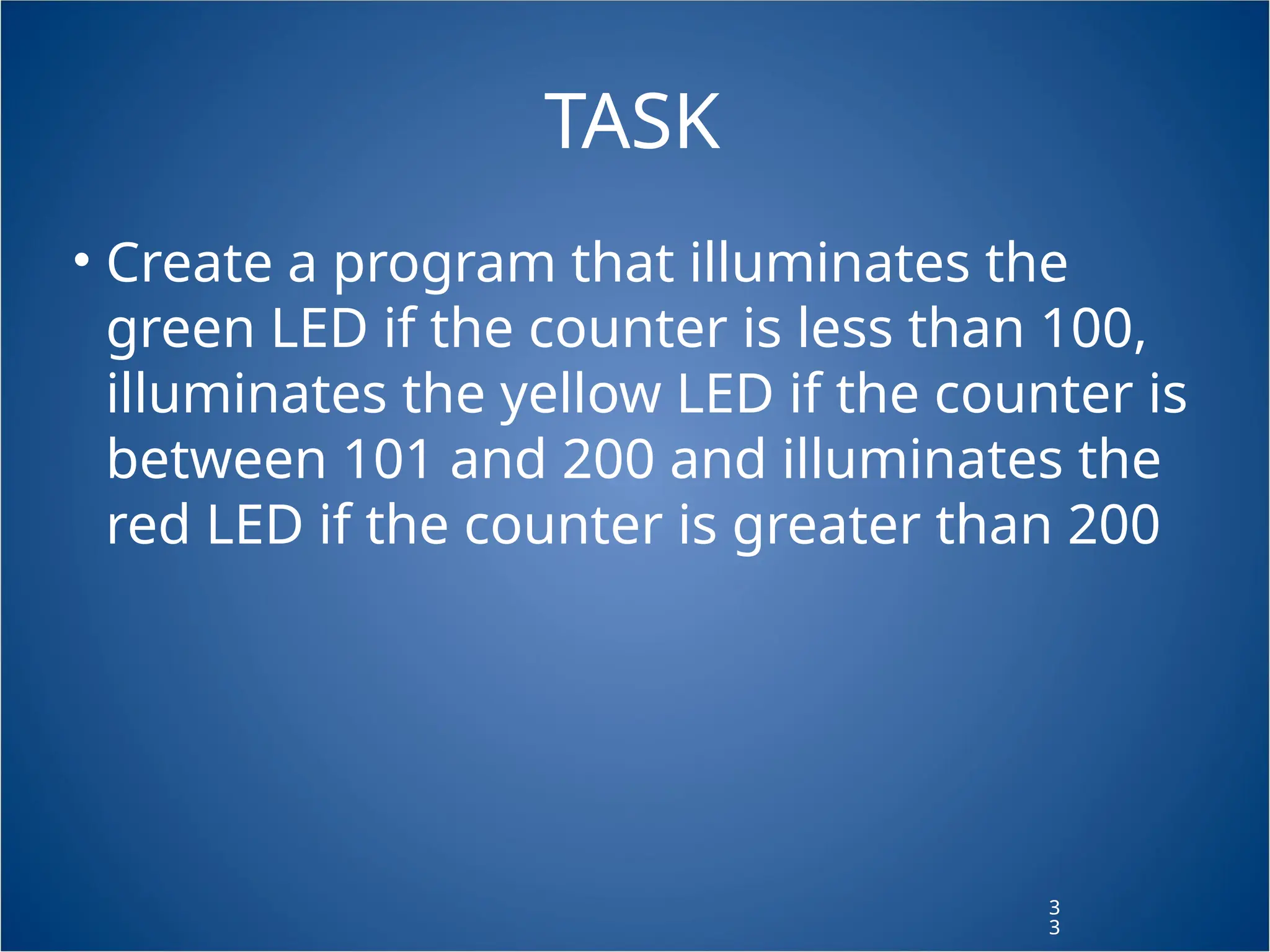
3 3 TASK • Create a program that illuminates the green LED if the counter is less than 100, illuminates the yellow LED if the counter is between 101 and 200 and illuminates the red LED if the counter is greater than 200 3 3
3 4 INPUT • We can also use our Serial connection to get input from the computer to be used by the Arduino int val = 0;void setup() { Serial.begin(9600); }void loop() { if(Serial.available() > 0) { val = Serial.read(); Serial.println(val); } }
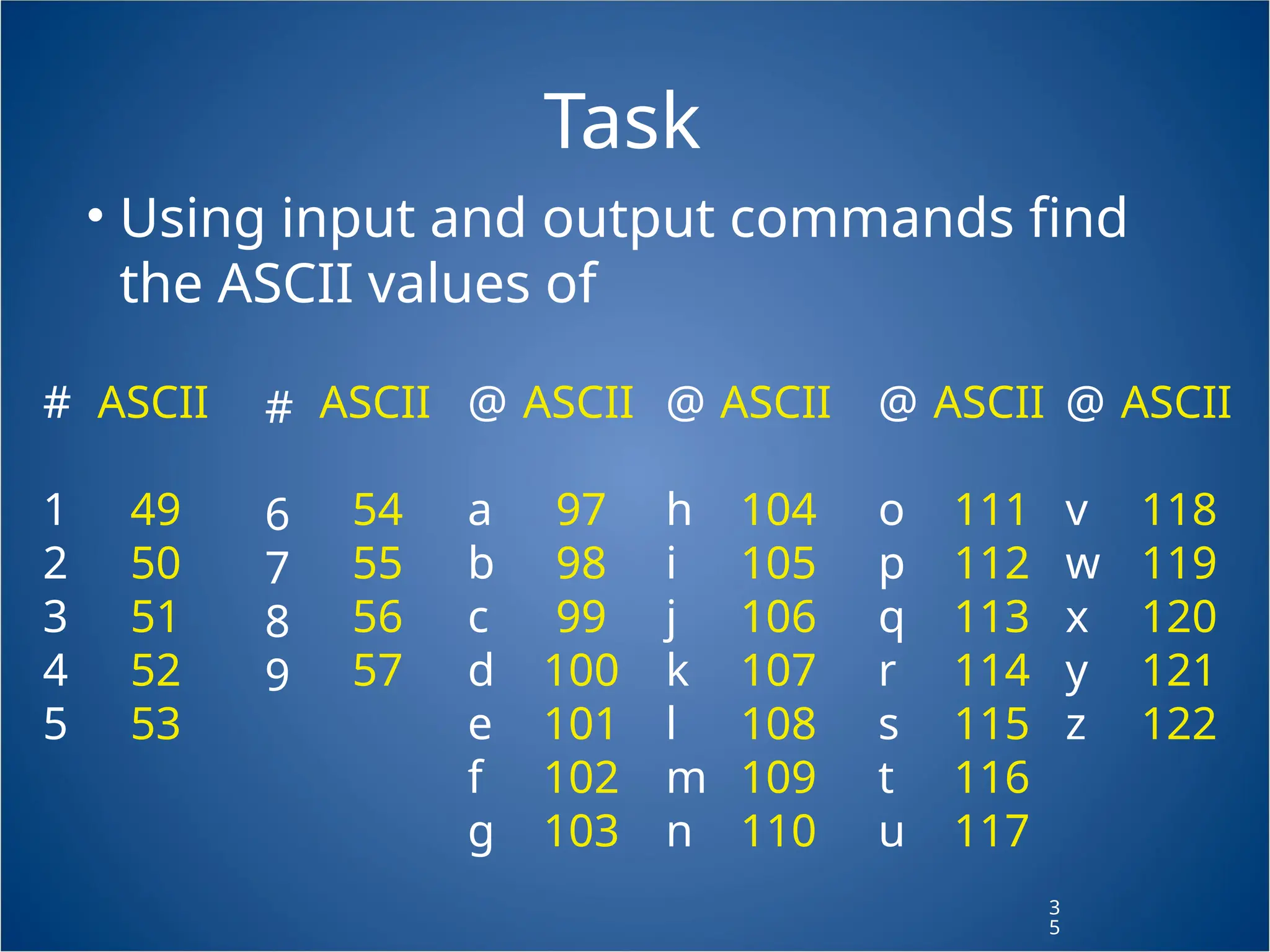
3 5 Task • Using input and output commands find the ASCII values of # 1 2 3 4 5 ASCII 49 50 51 52 53 # 6 7 8 9 ASCII 54 55 56 57 @ a b c d e f g ASCII 97 98 99 100 101 102 103 @ h i j k l m n ASCII 104 105 106 107 108 109 110 @ o p q r s t u ASCII 111 112 113 114 115 116 117 @ v w x y z ASCII 118 119 120 121 122
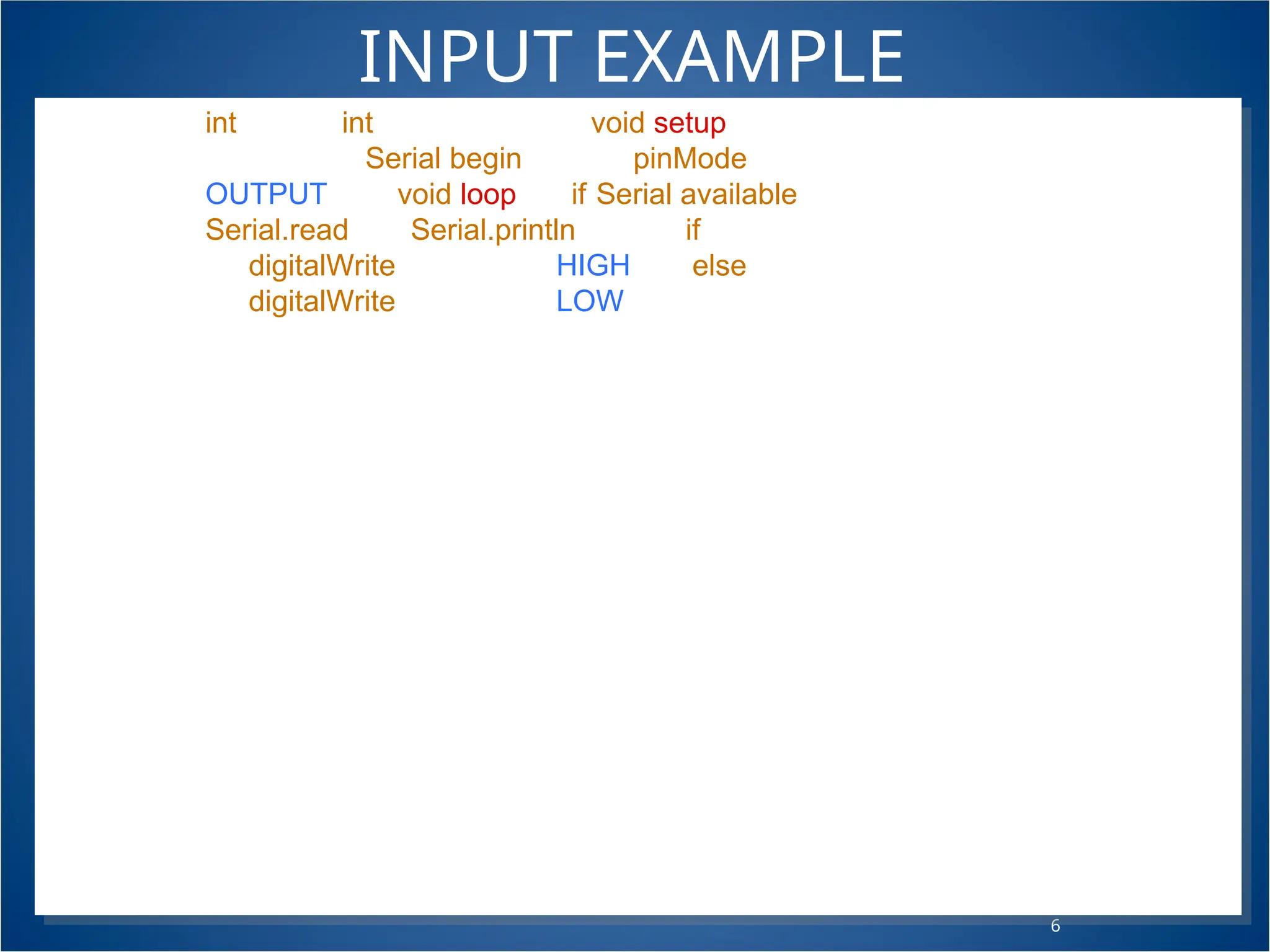
3 6 INPUT EXAMPLE int val = 0;int greenLED = 13;void setup() { Serial.begin(9600); pinMode(greenLED, OUTPUT); }void loop() { if(Serial.available()>0) { val = Serial.read(); Serial.println(val); } if(val == 53) { digitalWrite(greenLED, HIGH); } else { digitalWrite(greenLED, LOW); }}
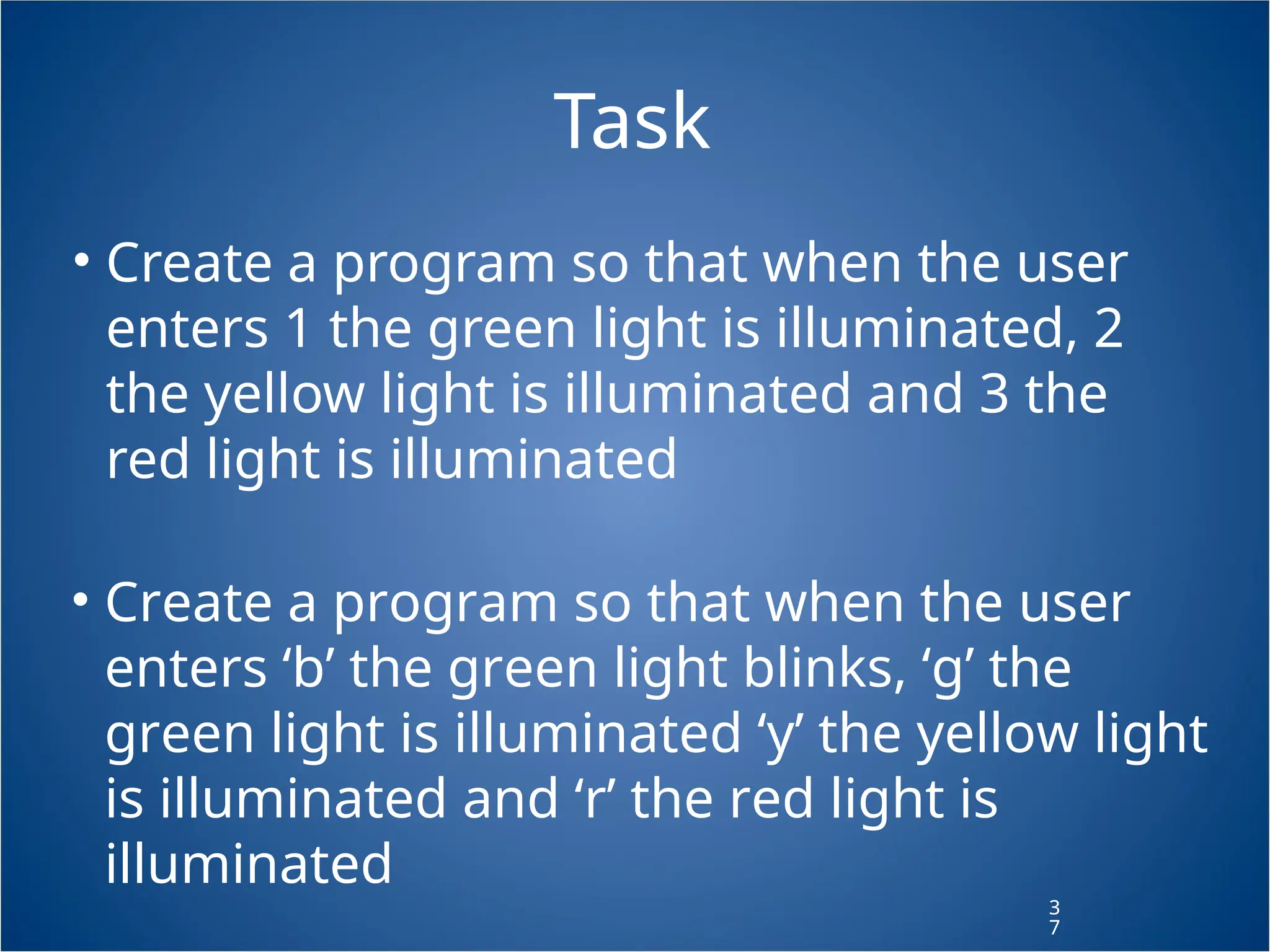
3 7 Task • Create a program so that when the user enters 1 the green light is illuminated, 2 the yellow light is illuminated and 3 the red light is illuminated 3 7 • Create a program so that when the user enters ‘b’ the green light blinks, ‘g’ the green light is illuminated ‘y’ the yellow light is illuminated and ‘r’ the red light is illuminated
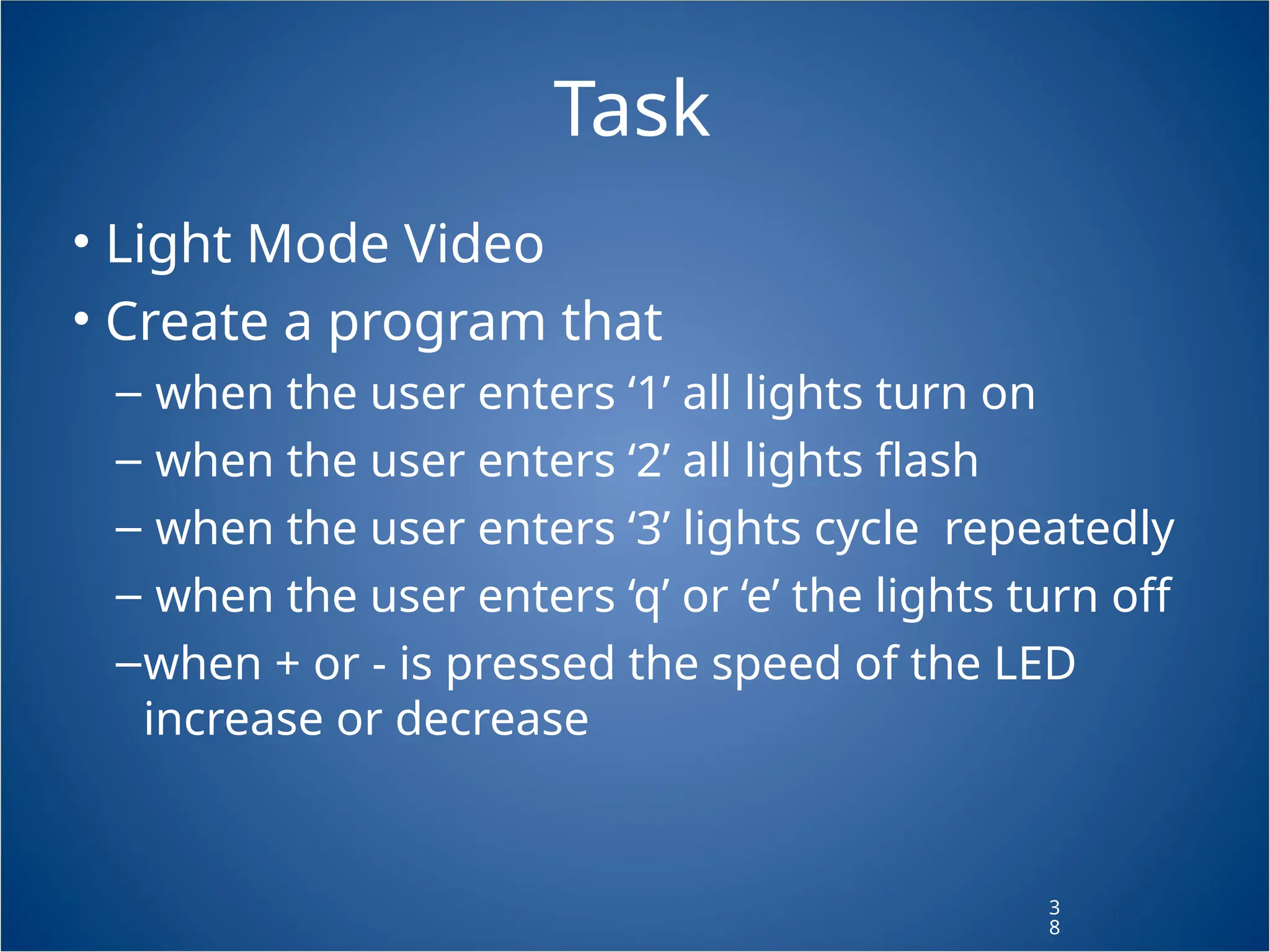
3 8 Task • Light Mode Video • Create a program that – when the user enters ‘1’ all lights turn on – when the user enters ‘2’ all lights flash – when the user enters ‘3’ lights cycle repeatedly – when the user enters ‘q’ or ‘e’ the lights turn off –when + or - is pressed the speed of the LED increase or decrease
3 9 BOOLEAN VARIABLES boolean done = true;
4 0 Run-Once Example 4 0 boolean done = false;void setup() { Serial.begin(9600);}void loop() { if(!done) { Serial.println(“HELLO WORLD”); done = true; } }
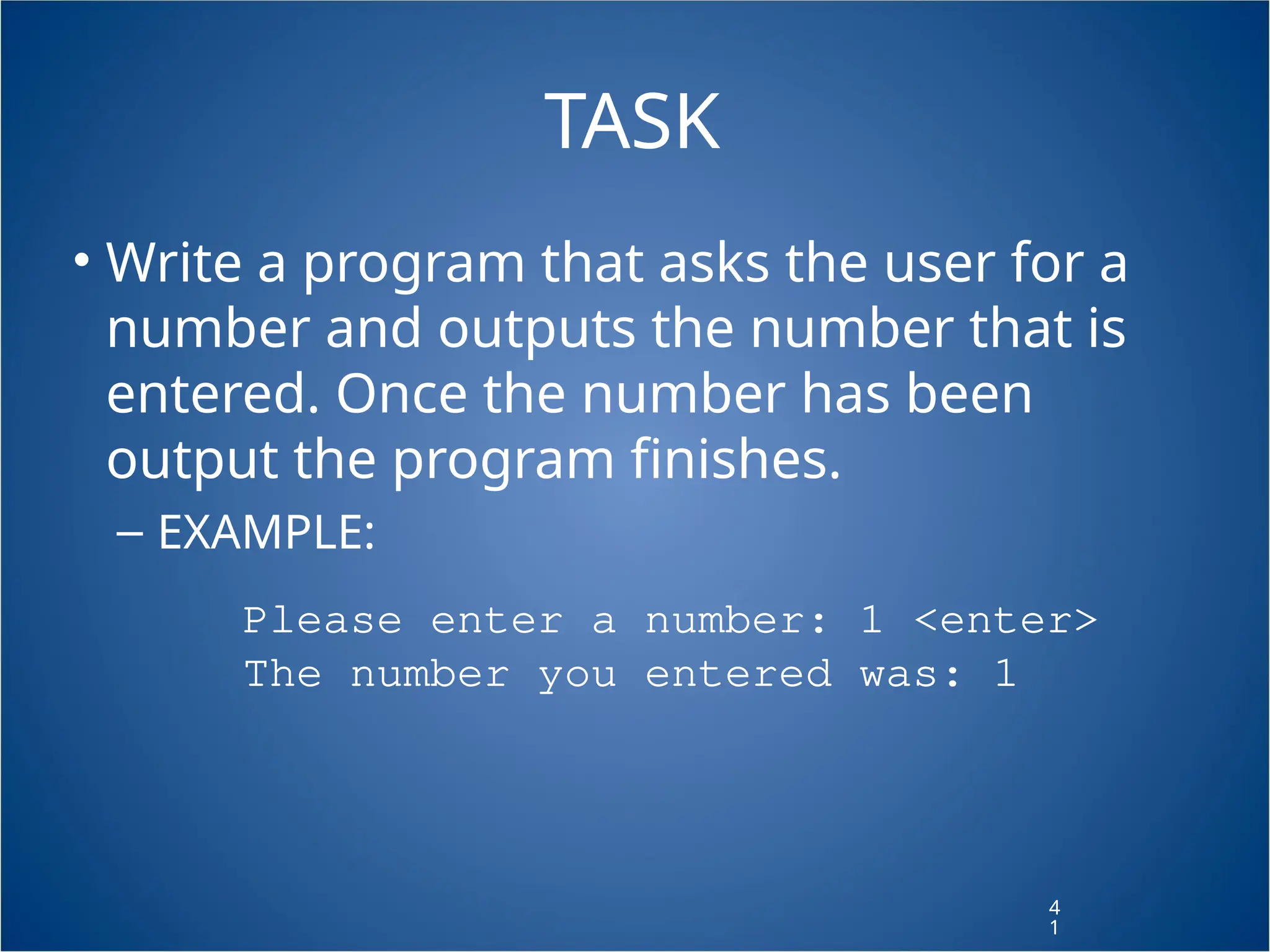
4 1 TASK • Write a program that asks the user for a number and outputs the number that is entered. Once the number has been output the program finishes. – EXAMPLE: 4 1 Please enter a number: 1 <enter> The number you entered was: 1
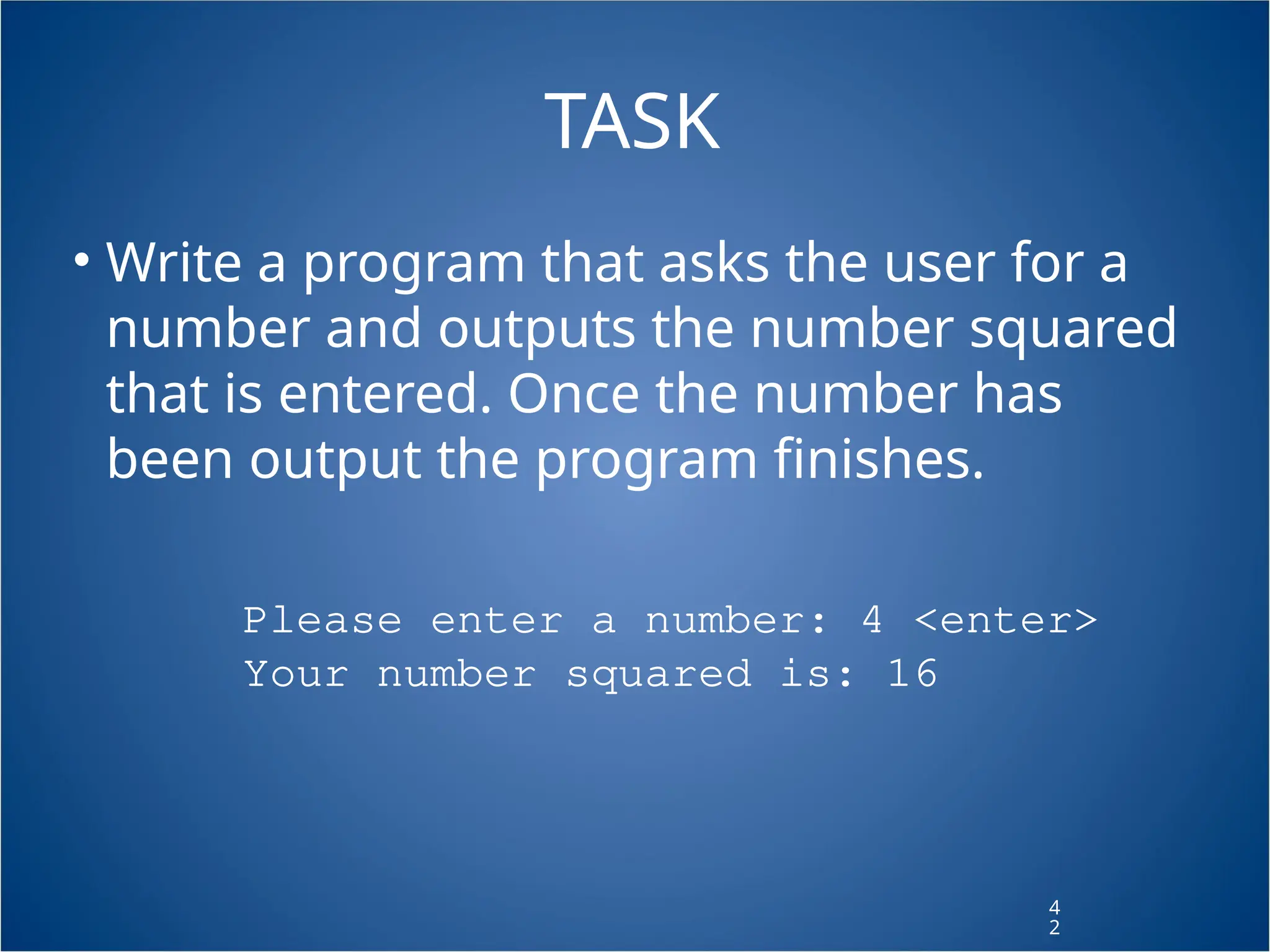
4 2 TASK • Write a program that asks the user for a number and outputs the number squared that is entered. Once the number has been output the program finishes. Please enter a number: 4 <enter> Your number squared is: 16
4 3 Christmas Light Assignment • Using at least 5 LEDs create a program that has at least 4 different modes • Must use if statements and user input to switch modes • Marks: – Creativity [4 Marks] – Working user input [2 Marks] – Four Working modes [2 Marks] – Instructions [1 Mark] 4 3

Arduino-arduino arduino programming hhhh

  • 1.
    ARDUINO PROGRAMMING ARDUINO PROGRAMMING Workingwith the Arduino microcontroller
  • 2.
  • 3.
    3 Mini City • Lightsensitive street lights • Timed Traffic Lights • Automated Gates using proximity sensor • Cars that drive the City streets 3
  • 4.
    Arduino Programming Arduino Programming USB(Data & Power) Alternate Power (9V) Digital I/O (2 – 13) Serial Transfer (0 -1) Analog Input (0 – 5) 5V / 9V / GND (x2) Power Source Jumper Reset
  • 5.
    Compile Upload tocontroller Text Output (Serial Data) Code Editor Serial Monitor Arduino Arduino IDE IDE Window Window
  • 6.
    Arduino Code Basics •Commands and other information are sent to LED’s, motors and from sensors through digital and analog input & output pins
  • 7.
  • 8.
    Arduino Code Basics Arduinoprograms run on two basic sections: void setup() { //setup motors, sensors etc } void loop() { // get information from sensors // send commands to motors }
  • 9.
    9 SETUP • The setupsection is used for assigning input and outputs (Examples: motors, LED’s, sensors etc) to ports on the Arduino • It also specifies whether the device is OUTPUT or INPUT • To do this we use the command “pinMode” 9
  • 10.
    SETUP void setup() { pinMode(9,OUTPUT); } http://www.arduino.cc/en/Reference/HomePage port # Input or Output
  • 11.
    1 1 void loop() { digitalWrite(9,HIGH); delay(1000); digitalWrite(9, LOW); delay(1000); } LOOP Port # from setup Turn the LED on or off Wait for 1 second or 1000 milliseconds
  • 12.
    1 2 TASK 1 • Using3 LED’s (red, yellow and green) build a traffic light that – Illuminates the green LED for 5 seconds – Illuminates the yellow LED for 2 seconds – Illuminates the red LED for 5 seconds – repeats the sequence • Note that after each illumination period the LED is turned off! 1 2
  • 13.
    1 3 TASK 2 • ModifyTask 1 to have an advanced green (blinking green LED) for 3 seconds before illuminating the green LED for 5 seconds 1 3
  • 14.
    1 4 Variables • A variableis like “bucket” • It holds numbers or other values temporarily 1 4 value
  • 15.
    1 5 int val =5; DECLARING A VARIABLE Type variable name assignment “becomes” value
  • 16.
    1 6 Task • Replace alldelay times with variables • Replace LED pin numbers with variables 1 6
  • 17.
    1 7 USING VARIABLES int delayTime= 2000; int greenLED = 9; void setup() { pinMode(greenLED, OUTPUT); } void loop() { digitalWrite(greenLED, HIGH); delay(delayTime); digitalWrite(greenLED, LOW); delay(delayTime); } Declare delayTime Variable Use delayTime Variable
  • 18.
    1 8 Using Variables int delayTime= 2000; int greenLED = 9; void setup() { pinMode(greenLED, OUTPUT); } void loop() { digitalWrite(greenLED, HIGH); delay(delayTime); digitalWrite(greenLED, LOW); delayTime = delayTime - 100; delay(delayTime); } subtract 100 from delayTime to gradually increase LED’s blinking speed
  • 19.
    Conditions •To make decisionsin Arduino code we use an ‘if’ statement •‘If’ statements are based on a TRUE or FALSE question
  • 20.
    2 0 VALUE COMPARISONS GREATER THAN a> b LESS a < b EQUAL a == b GREATER THAN OR EQUAL a >= b LESS THAN OR EQUAL a <= b NOT EQUAL a != b
  • 21.
  • 22.
    2 2 int counter =0; void setup() { Serial.begin(9600); } void loop() { if(counter < 10) { Serial.println(counter); } counter = counter + 1; } IF Example
  • 23.
    2 3 TASK • Create aprogram that resets the delayTime to 2000 once it has reached 0 2 3
  • 24.
    2 4 Input & Output •Transferring data from the computer to an Arduino is done using Serial Transmission • To setup Serial communication we use the following 2 4 void setup() { Serial.begin(9600); }
  • 25.
    2 5 Writing to theConsole void setup() { Serial.begin(9600); Serial.println(“Hello World!”); } void loop() {}
  • 26.
    2 6 Task • Modify yourtraffic light code so that each time a new LED is illuminated the console displays the status of the stoplight • Example 2 6 Advanced Green Green Yellow Red Advanced Green ...
  • 27.
    IF - ELSECondition asdfadsf if( “answer is true”) { “perform some action” } else { “perform some other action” }
  • 28.
    2 8 int counter =0; void setup() { Serial.begin(9600); } void loop() { if(counter < 10) { Serial.println(“less than 10”); } else { Serial.println(“greater than or equal to 10”); Serial.end(); } counter = counter + 1; } IF - ELSE Example
  • 29.
    IF - ELSEIF Condition asdfadsf if( “answer is true”) { “perform some action” } else if( “answer is true”) { “perform some other action” }
  • 30.
    3 0 int counter =0; void setup() { Serial.begin(9600); } void loop() { if(counter < 10) { Serial.println(“less than 10”); } else if (counter == 10) { Serial.println(“equal to 10”); } else { Serial.println(“greater than 10”); Serial.end(); } counter = counter + 1; } IF - ELSE Example
  • 31.
    3 1 BOOLEAN OPERATORS -AND • If we want all of the conditions to be true we need to use ‘AND’ logic (AND gate) • We use the symbols && –Example 3 1 if ( val > 10 && val < 20)
  • 32.
    3 2 BOOLEAN OPERATORS -OR • If we want either of the conditions to be true we need to use ‘OR’ logic (OR gate) • We use the symbols || –Example 3 2 if ( val < 10 || val > 20)
  • 33.
    3 3 TASK • Create aprogram that illuminates the green LED if the counter is less than 100, illuminates the yellow LED if the counter is between 101 and 200 and illuminates the red LED if the counter is greater than 200 3 3
  • 34.
    3 4 INPUT • We canalso use our Serial connection to get input from the computer to be used by the Arduino int val = 0;void setup() { Serial.begin(9600); }void loop() { if(Serial.available() > 0) { val = Serial.read(); Serial.println(val); } }
  • 35.
    3 5 Task • Using inputand output commands find the ASCII values of # 1 2 3 4 5 ASCII 49 50 51 52 53 # 6 7 8 9 ASCII 54 55 56 57 @ a b c d e f g ASCII 97 98 99 100 101 102 103 @ h i j k l m n ASCII 104 105 106 107 108 109 110 @ o p q r s t u ASCII 111 112 113 114 115 116 117 @ v w x y z ASCII 118 119 120 121 122
  • 36.
    3 6 INPUT EXAMPLE int val= 0;int greenLED = 13;void setup() { Serial.begin(9600); pinMode(greenLED, OUTPUT); }void loop() { if(Serial.available()>0) { val = Serial.read(); Serial.println(val); } if(val == 53) { digitalWrite(greenLED, HIGH); } else { digitalWrite(greenLED, LOW); }}
  • 37.
    3 7 Task • Create aprogram so that when the user enters 1 the green light is illuminated, 2 the yellow light is illuminated and 3 the red light is illuminated 3 7 • Create a program so that when the user enters ‘b’ the green light blinks, ‘g’ the green light is illuminated ‘y’ the yellow light is illuminated and ‘r’ the red light is illuminated
  • 38.
    3 8 Task • Light ModeVideo • Create a program that – when the user enters ‘1’ all lights turn on – when the user enters ‘2’ all lights flash – when the user enters ‘3’ lights cycle repeatedly – when the user enters ‘q’ or ‘e’ the lights turn off –when + or - is pressed the speed of the LED increase or decrease
  • 39.
  • 40.
    4 0 Run-Once Example 4 0 boolean done= false;void setup() { Serial.begin(9600);}void loop() { if(!done) { Serial.println(“HELLO WORLD”); done = true; } }
  • 41.
    4 1 TASK • Write aprogram that asks the user for a number and outputs the number that is entered. Once the number has been output the program finishes. – EXAMPLE: 4 1 Please enter a number: 1 <enter> The number you entered was: 1
  • 42.
    4 2 TASK • Write aprogram that asks the user for a number and outputs the number squared that is entered. Once the number has been output the program finishes. Please enter a number: 4 <enter> Your number squared is: 16
  • 43.
    4 3 Christmas Light Assignment •Using at least 5 LEDs create a program that has at least 4 different modes • Must use if statements and user input to switch modes • Marks: – Creativity [4 Marks] – Working user input [2 Marks] – Four Working modes [2 Marks] – Instructions [1 Mark] 4 3