Name : Md. Ashraful Alam Email : emdashrafulalam@gmail.com Phone : +8801638618802
Arduino Programming Course Learning  Module-01: Introduction  Module-02: Get started with programming  Module 3 – Digital and analog input receive  Module -4 – Let’s learn about the condition  Module -5 – Let’s learn about loop  Module-6 – How to use an array  Module -7 – All about the LCD display  Module-8 – How to code Servo Motor
Module-01: Introduction Arduino is an open source programmable circuit board that can be integrated into a wide variety of makerspace projects both simple and complex. This board contains a microcontroller which is able to be programmed to sense and control objects in the physical world. By responding to sensors and inputs, the Arduino is able to interact with a large array of outputs such as LEDs, motors and displays. Because of it’s flexibility and low cost, Arduino has become a very popular choice for makers and makerspaces looking to create interactive hardware projects.
Arduino Types There are various types of Arduino Boards such as Arduino Uno, Arduino MEGA, Arduino NANO, Arduino Mini, Arduino Leonardo etc. are common. Among them Arduino Uno, Arduino MEGA and Arduino NANO are most common. Arduino MEGA has large number of input/output pins. It has 54 input / output pins , 16 analog pins, 256 KB flash memory and 8 KB RAM. It is larger than other Arduino Boards. Arduino NANO is used in case of managing spaces . Besides , it has some special features such as it’s pins can be taken off. However , Arduino Uno is the mostly used Arduino.
Types of Arduino Boards
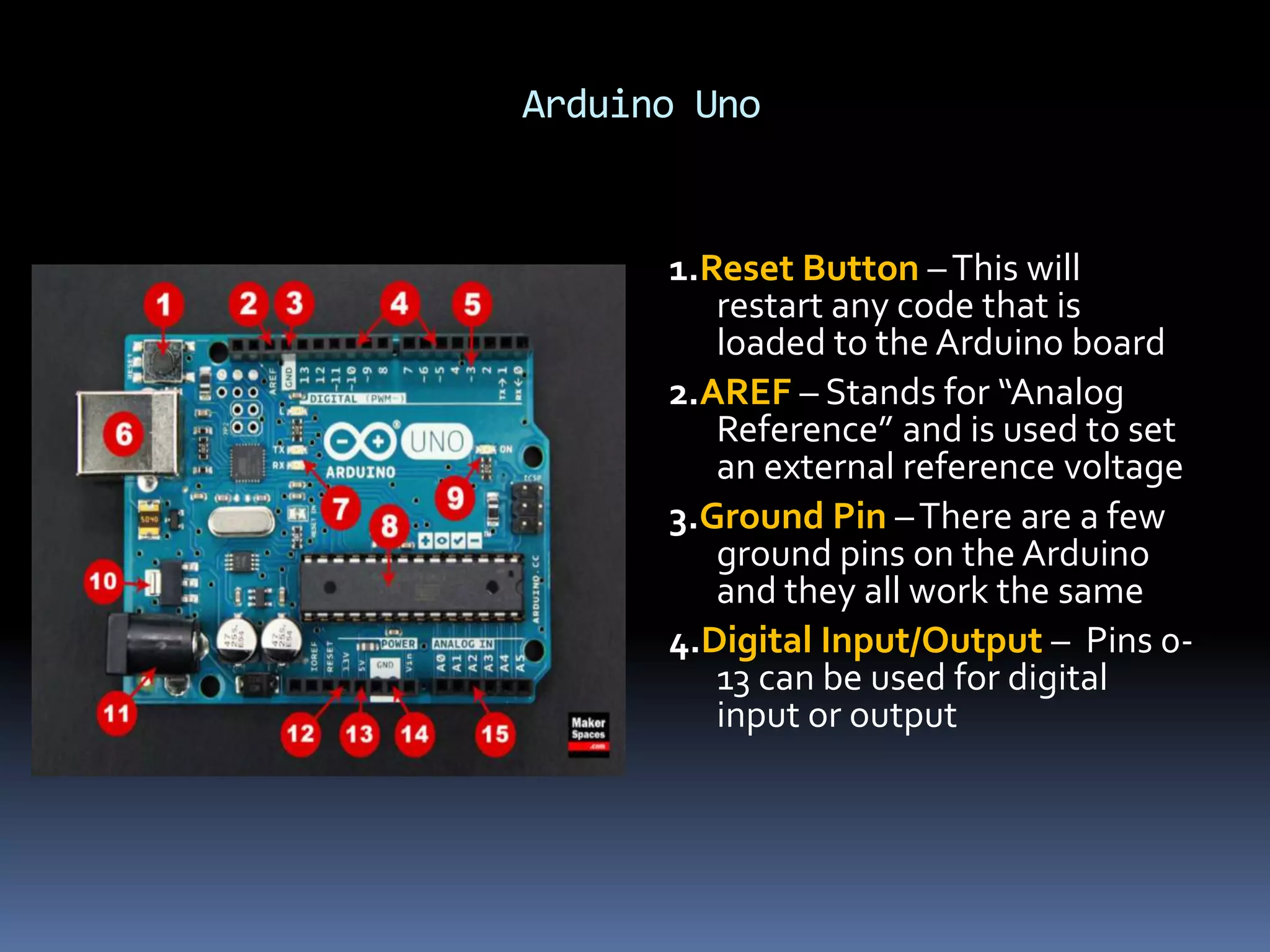
Arduino Uno 1.Reset Button –This will restart any code that is loaded to the Arduino board 2.AREF – Stands for “Analog Reference” and is used to set an external reference voltage 3.Ground Pin –There are a few ground pins on the Arduino and they all work the same 4.Digital Input/Output – Pins 0- 13 can be used for digital input or output
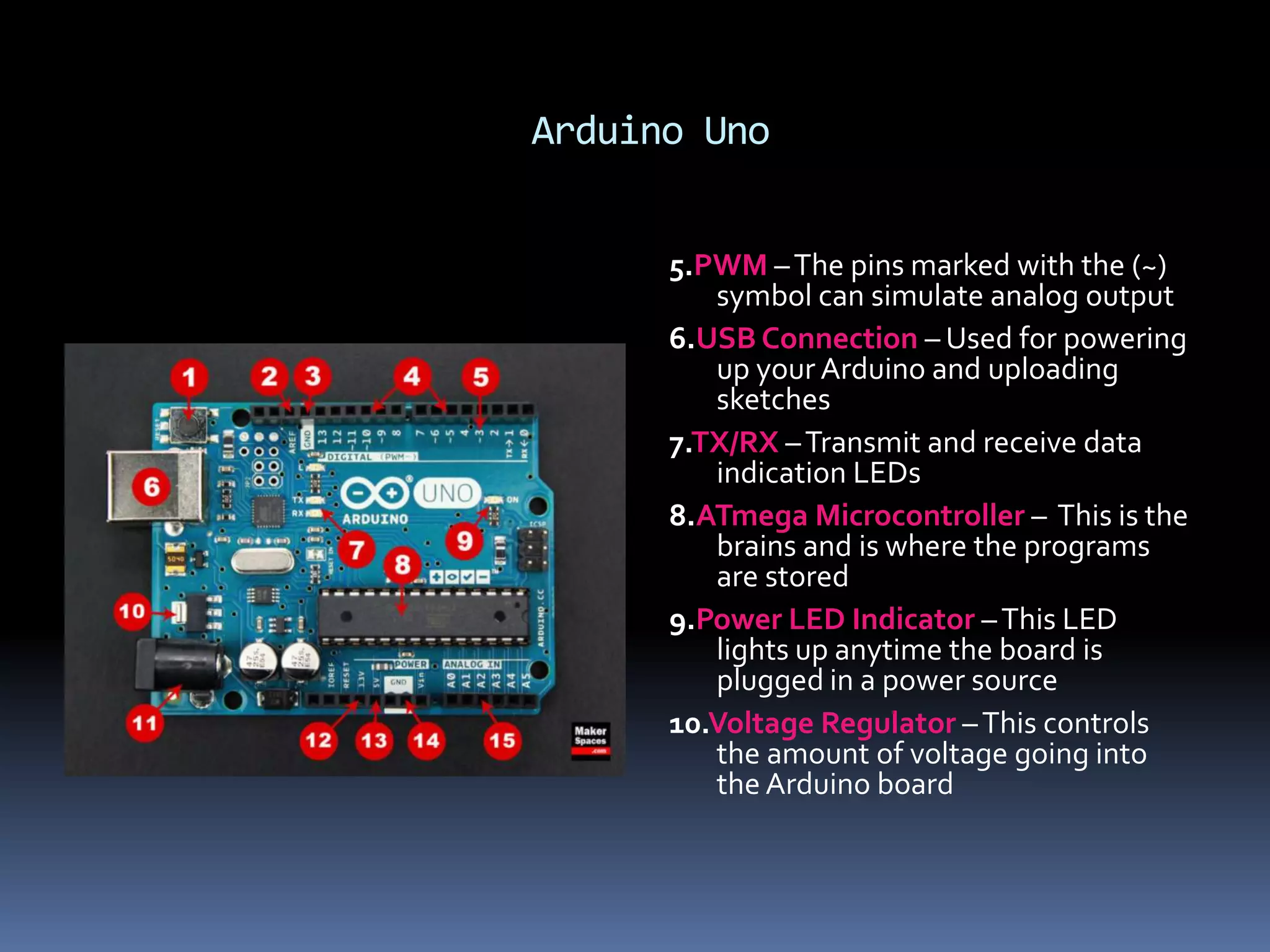
Arduino Uno 5.PWM –The pins marked with the (~) symbol can simulate analog output 6.USB Connection – Used for powering up your Arduino and uploading sketches 7.TX/RX –Transmit and receive data indication LEDs 8.ATmega Microcontroller – This is the brains and is where the programs are stored 9.Power LED Indicator –This LED lights up anytime the board is plugged in a power source 10.Voltage Regulator –This controls the amount of voltage going into the Arduino board
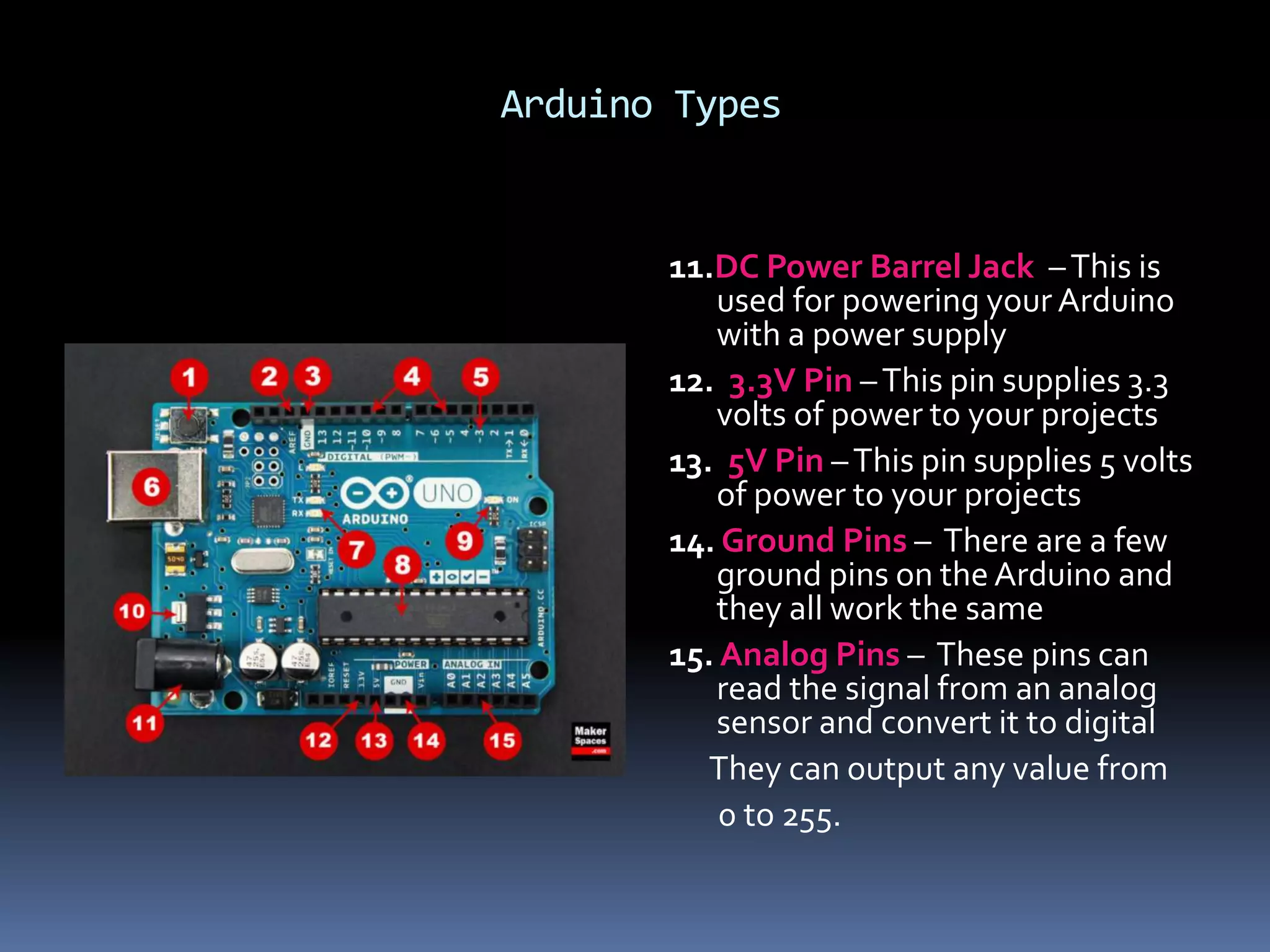
Arduino Types 11.DC Power Barrel Jack –This is used for powering your Arduino with a power supply 12. 3.3V Pin –This pin supplies 3.3 volts of power to your projects 13. 5V Pin –This pin supplies 5 volts of power to your projects 14. Ground Pins – There are a few ground pins on the Arduino and they all work the same 15. Analog Pins – These pins can read the signal from an analog sensor and convert it to digital They can output any value from 0 to 255.
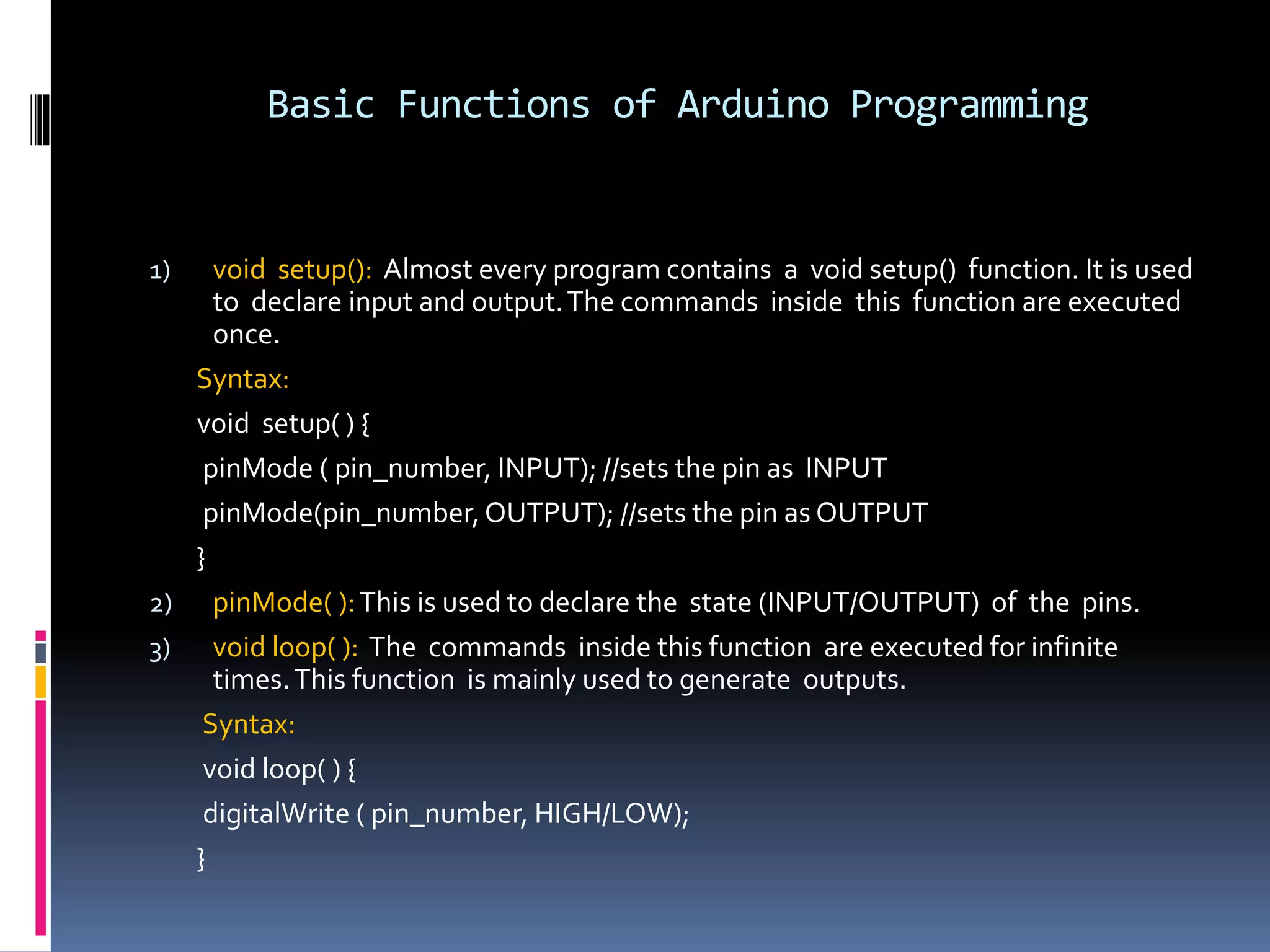
Basic Functions of Arduino Programming 1) void setup(): Almost every program contains a void setup() function. It is used to declare input and output.The commands inside this function are executed once. Syntax: void setup( ) { pinMode ( pin_number, INPUT); //sets the pin as INPUT pinMode(pin_number,OUTPUT); //sets the pin as OUTPUT } 2) pinMode( ):This is used to declare the state (INPUT/OUTPUT) of the pins. 3) void loop( ): The commands inside this function are executed for infinite times.This function is mainly used to generate outputs. Syntax: void loop( ) { digitalWrite ( pin_number, HIGH/LOW); }
Basic Functions of Arduino Programming 4) digitalWrite( ):This function is used to give digital outputs. Digital outputs have only two values – HIGH or LOW. HIGH means 5V and LOW means 0V 5) analogWrite: This function is used to generate analog outputs. Analog outputs have values from 0 to 255 and this values are scaled between 0V to 5V.That is, analog-255=5V. So, analog-1=(5/255)V If, n is the analog output , then it’s value in volt is n*(5/255)V. 6) digitalRead( ): It is used to take digital input. It takes only two value as input(HIGH/LOW). 7) analogRead( ): It is used to take analog input. It takes input value from 0 to 1023.
Basic Functions of Arduino Programming 8) delay( ):This function is used to pause the work of Arduino . For example, if a LED is lighting and at that moment delay(1000); instruction is added , then the LED will be in HIGH state for 1000 miliseconds or 1 second. Example: void loop( ) { digitalWrite(5,HIGH); delay( 1000); digitalWrite(5,LOW); } এই ক্ষেত্রে ৫ম পিত্রে connected LED টি ১০০০ পমপিত্রেত্রেন্ড জ্বত্রি থােত্রে এেং ১০০০ পমপিত্রেত্রেন্ড ো ১ ক্ষেত্রেন্ড ির LED টি পেত্রে যাত্রে । 9) Comments: Comments are used to make the program easy to understand for others. It doesn’t perform anything.
Basic Functions of Arduino Programming Must be included in every Program 1) Semicolons (;) after every statement. 2) Parenthesis( ) with every function. 3) Curly braces after every function declaration to write codes inside it. 4) Some blue keywords such as INPUT,OUTPUT, HIGH, LOW etc.
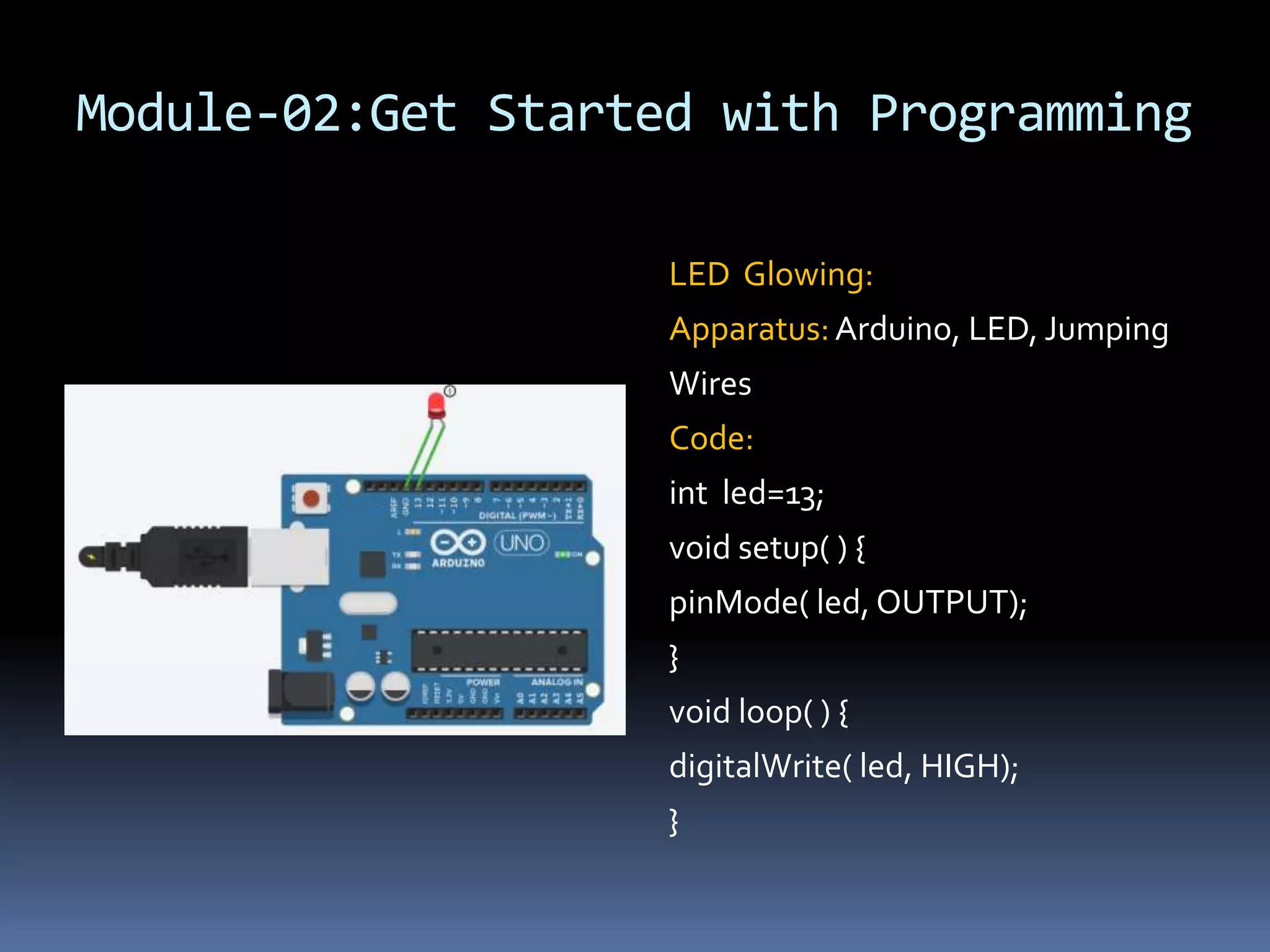
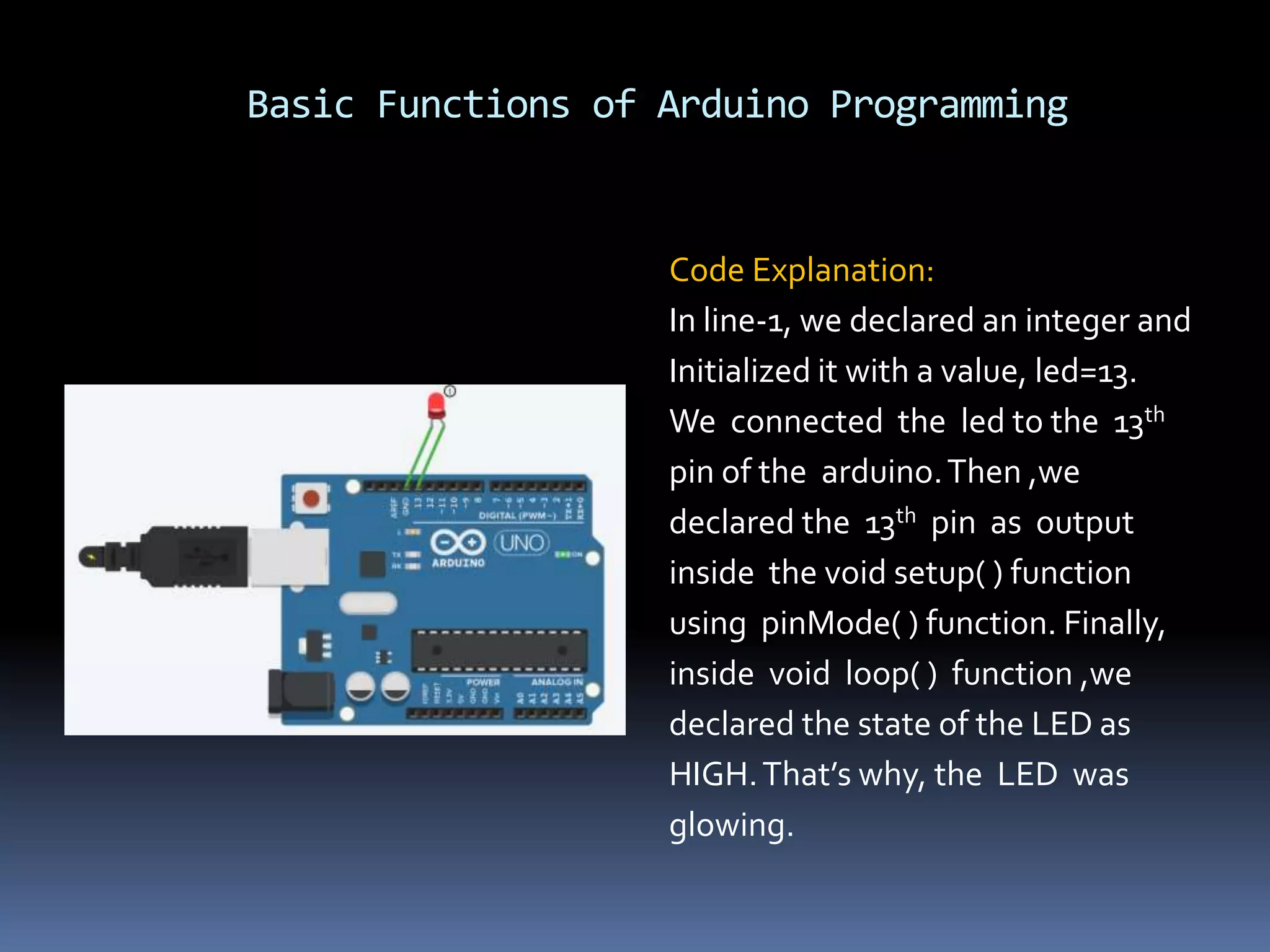
Module-02:Get Started with Programming LED Glowing: Apparatus:Arduino, LED, Jumping Wires Code: int led=13; void setup( ) { pinMode( led, OUTPUT); } void loop( ) { digitalWrite( led, HIGH); }
Basic Functions of Arduino Programming Code Explanation: In line-1, we declared an integer and Initialized it with a value, led=13. We connected the led to the 13th pin of the arduino.Then ,we declared the 13th pin as output inside the void setup( ) function using pinMode( ) function. Finally, inside void loop( ) function ,we declared the state of the LED as HIGH.That’s why, the LED was glowing.
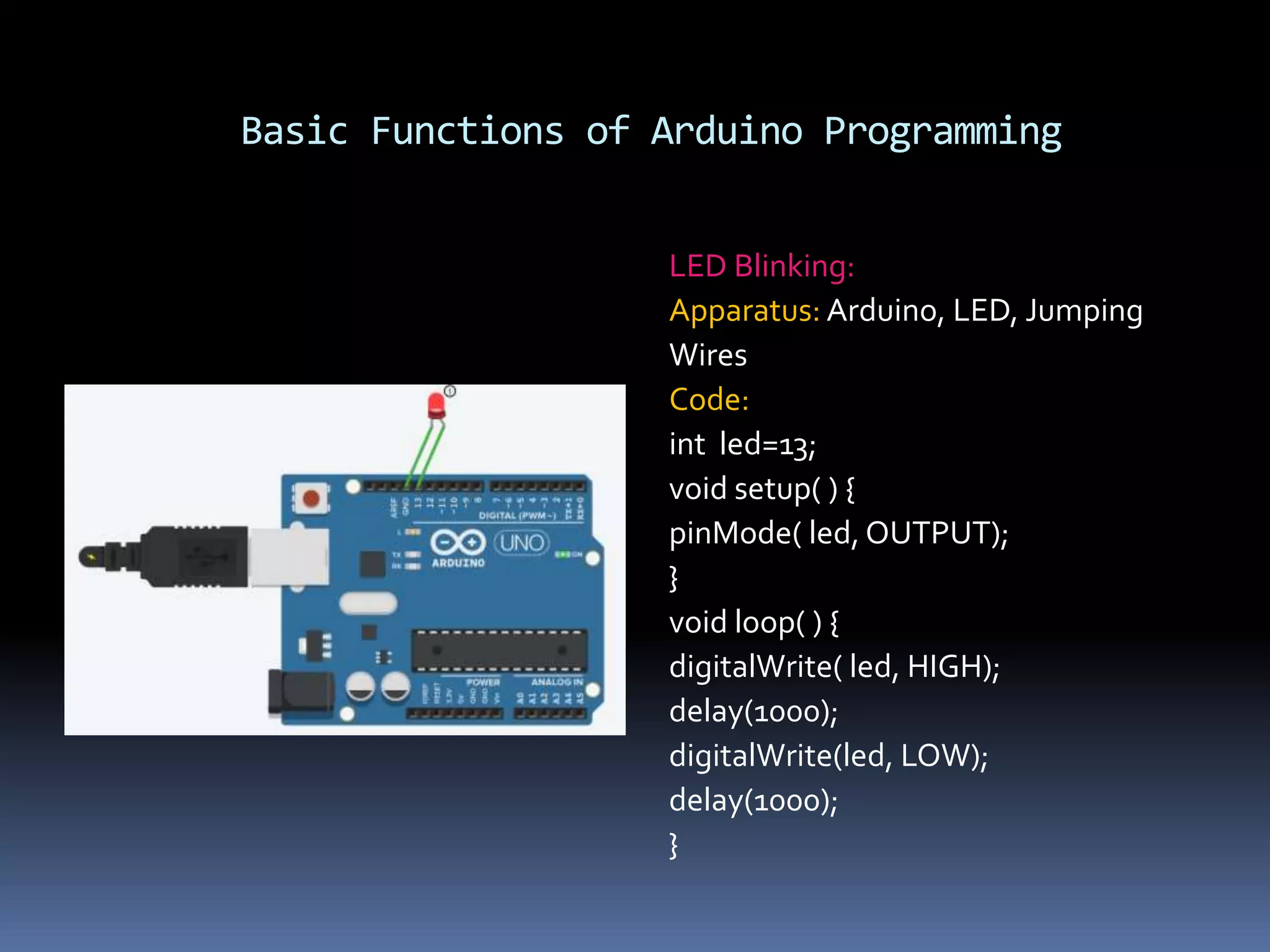
Basic Functions of Arduino Programming LED Blinking: Apparatus: Arduino, LED, Jumping Wires Code: int led=13; void setup( ) { pinMode( led, OUTPUT); } void loop( ) { digitalWrite( led, HIGH); delay(1000); digitalWrite(led, LOW); delay(1000); }
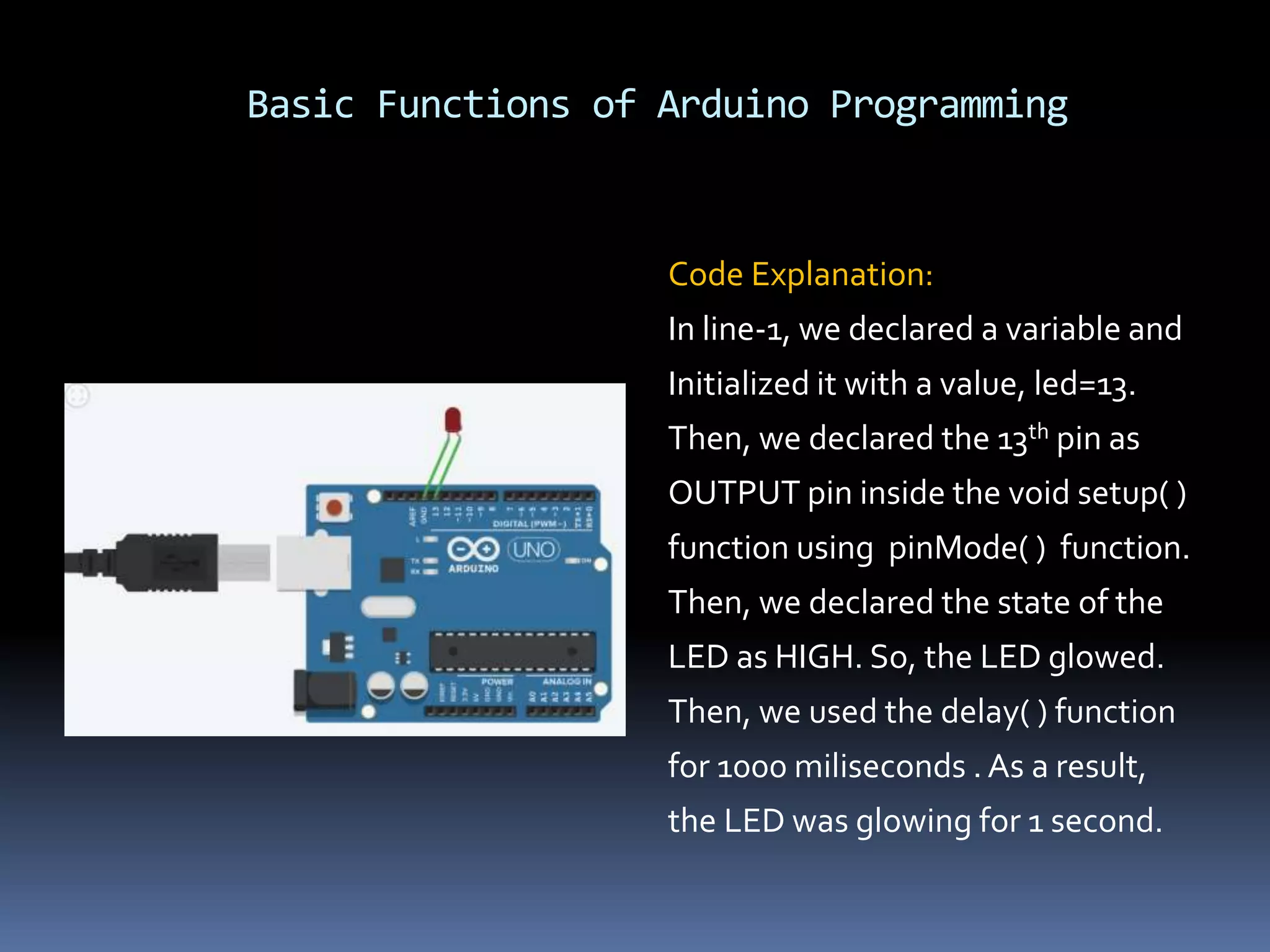
Basic Functions of Arduino Programming Code Explanation: In line-1, we declared a variable and Initialized it with a value, led=13. Then, we declared the 13th pin as OUTPUT pin inside the void setup( ) function using pinMode( ) function. Then, we declared the state of the LED as HIGH. So, the LED glowed. Then, we used the delay( ) function for 1000 miliseconds .As a result, the LED was glowing for 1 second.
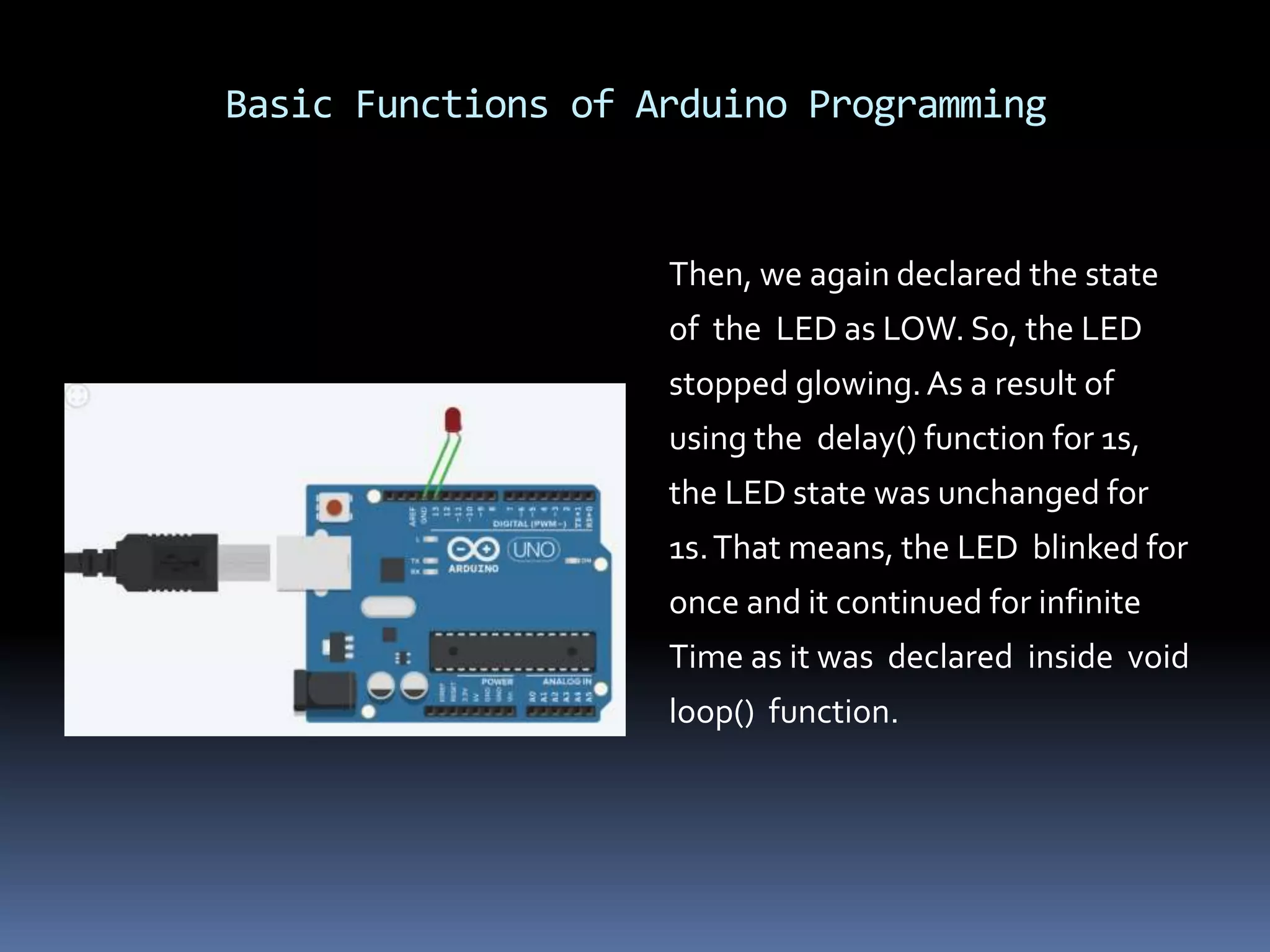
Basic Functions of Arduino Programming Then, we again declared the state of the LED as LOW. So, the LED stopped glowing.As a result of using the delay() function for 1s, the LED state was unchanged for 1s.That means, the LED blinked for once and it continued for infinite Time as it was declared inside void loop() function.
Basic Functions of Arduino Programming Work of delay( ) function: delay( ) function is used to declare a time duration for an instruction to be executed. If we don’t initialize it with a value, it will take 0 miliseconds as a default value.
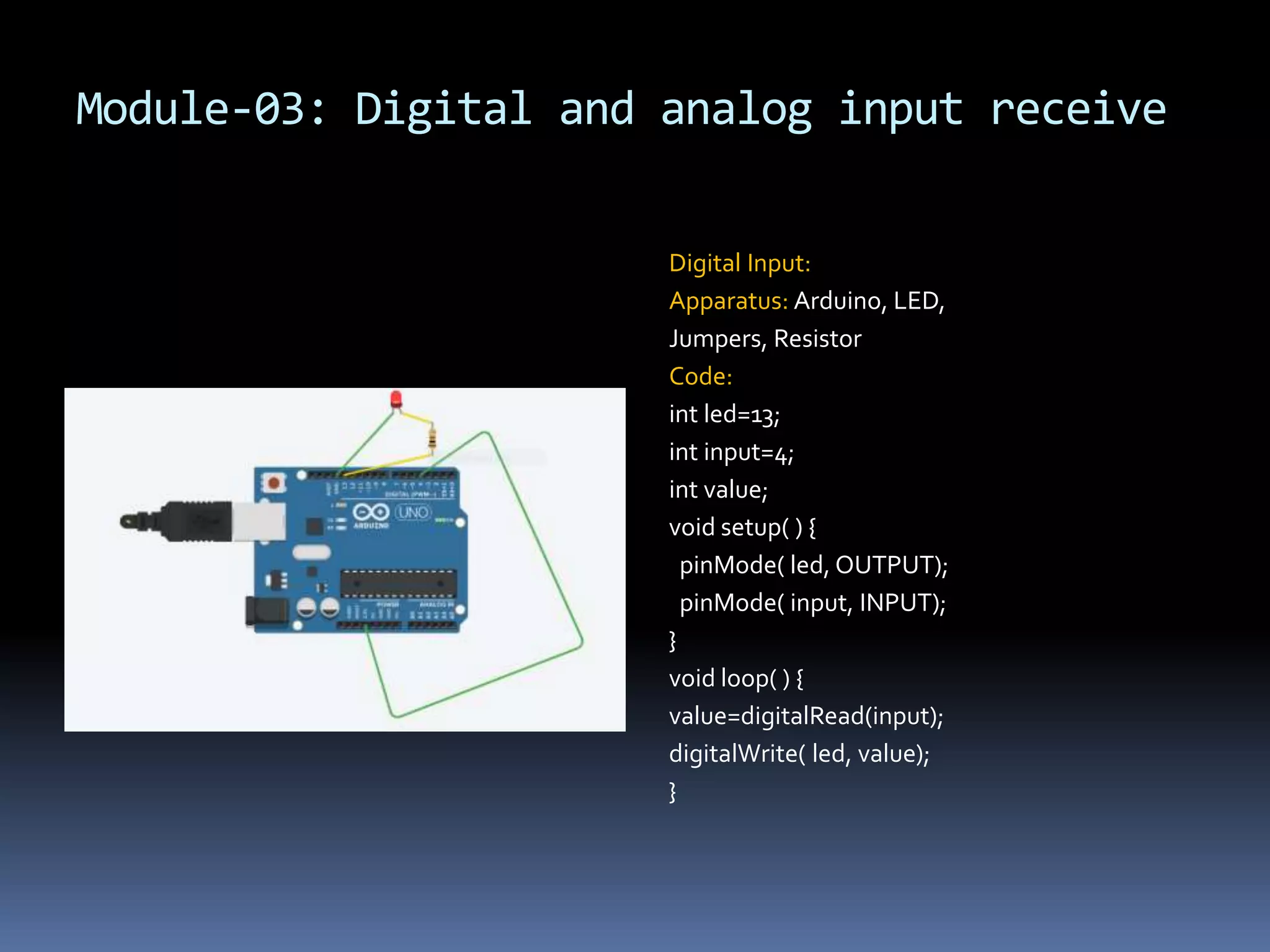
Module-03: Digital and analog input receive Digital Input: Apparatus: Arduino, LED, Jumpers, Resistor Code: int led=13; int input=4; int value; void setup( ) { pinMode( led, OUTPUT); pinMode( input, INPUT); } void loop( ) { value=digitalRead(input); digitalWrite( led, value); }
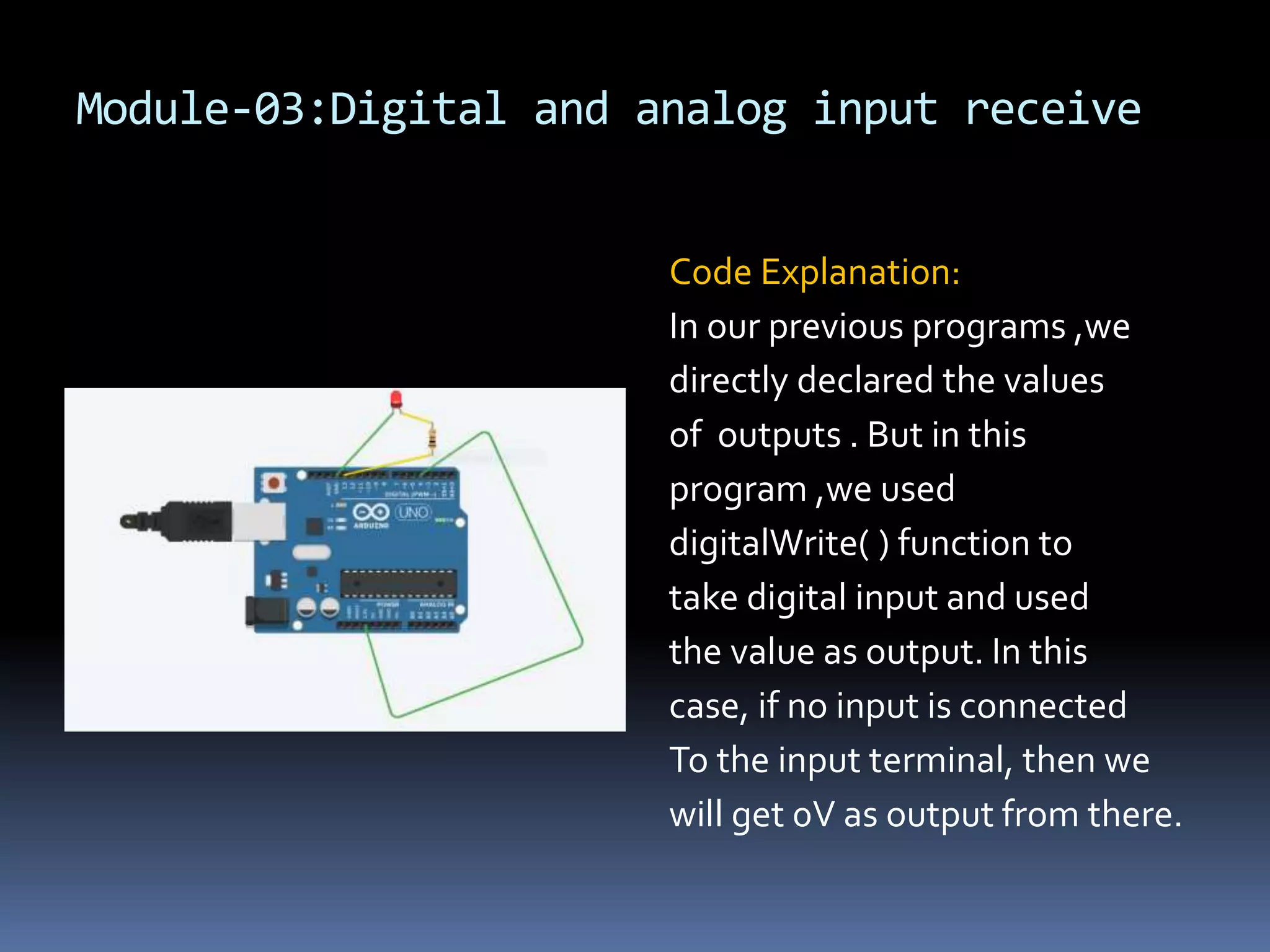
Module-03:Digital and analog input receive Code Explanation: In our previous programs ,we directly declared the values of outputs . But in this program ,we used digitalWrite( ) function to take digital input and used the value as output. In this case, if no input is connected To the input terminal, then we will get 0V as output from there.
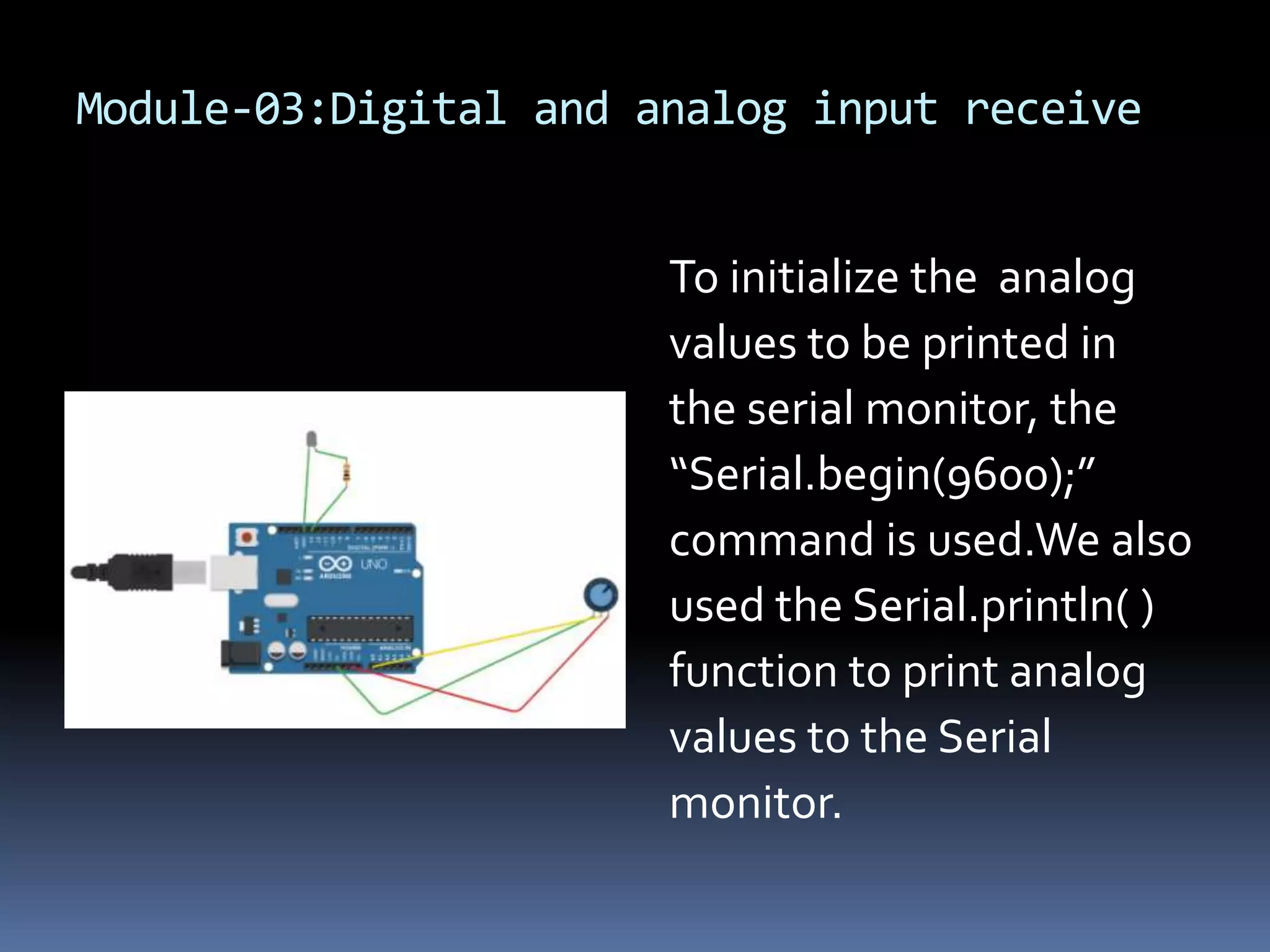
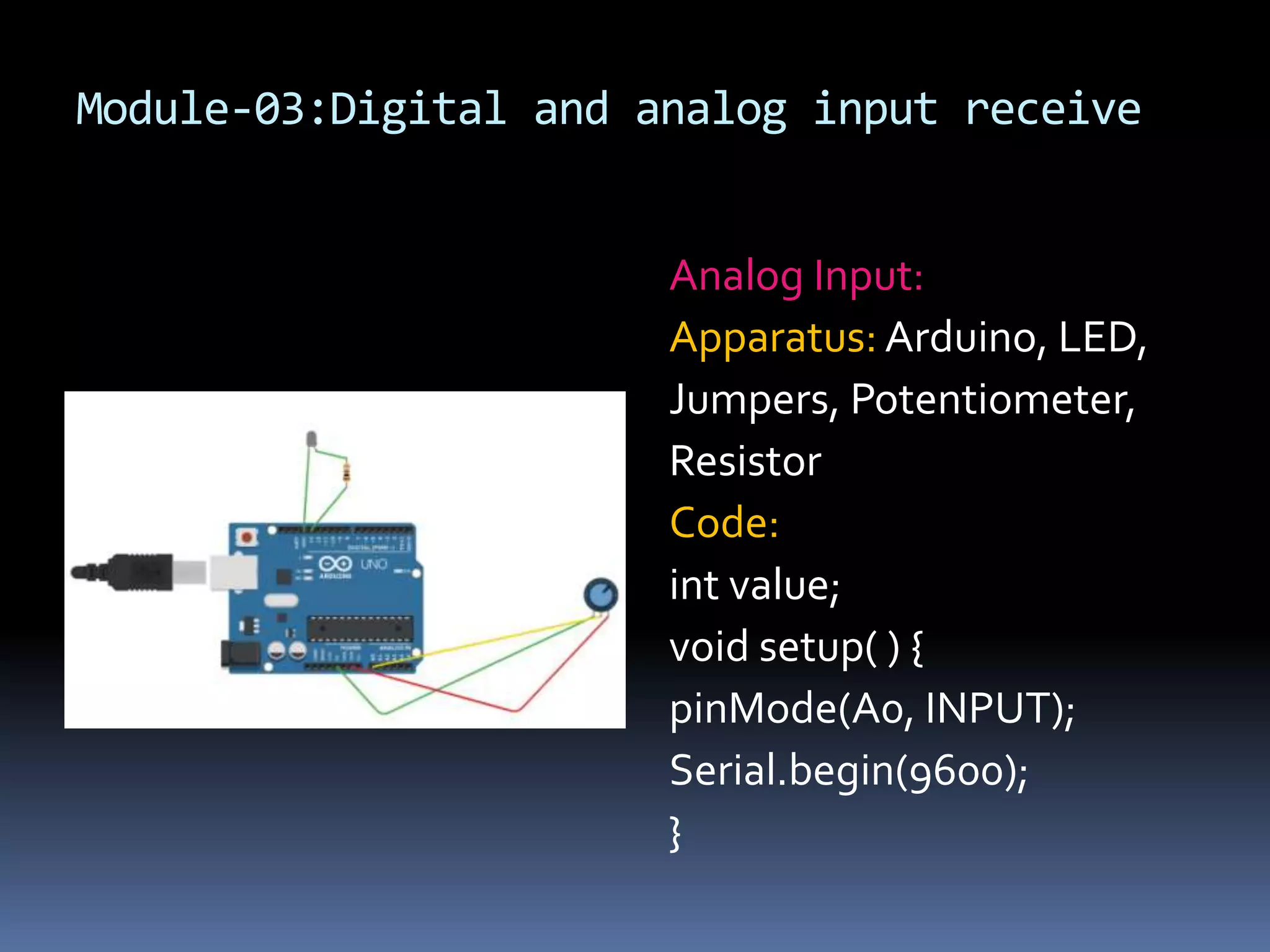
Module-03:Digital and analog input receive Analog Input: Apparatus: Arduino, LED, Jumpers, Potentiometer, Resistor Code: int value; void setup( ) { pinMode(A0, INPUT); Serial.begin(9600); }
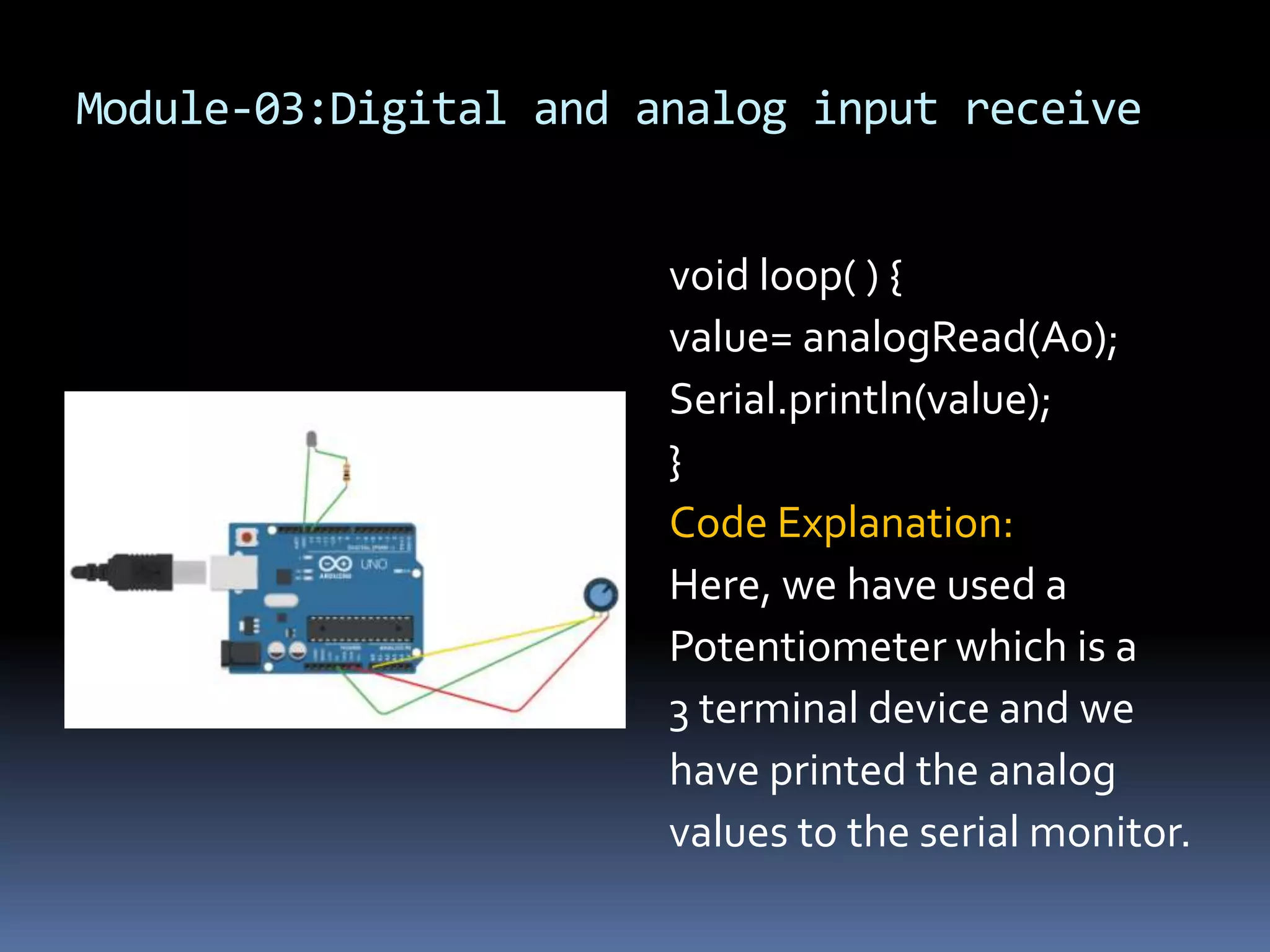
Module-03:Digital and analog input receive void loop( ) { value= analogRead(A0); Serial.println(value); } Code Explanation: Here, we have used a Potentiometer which is a 3 terminal device and we have printed the analog values to the serial monitor.
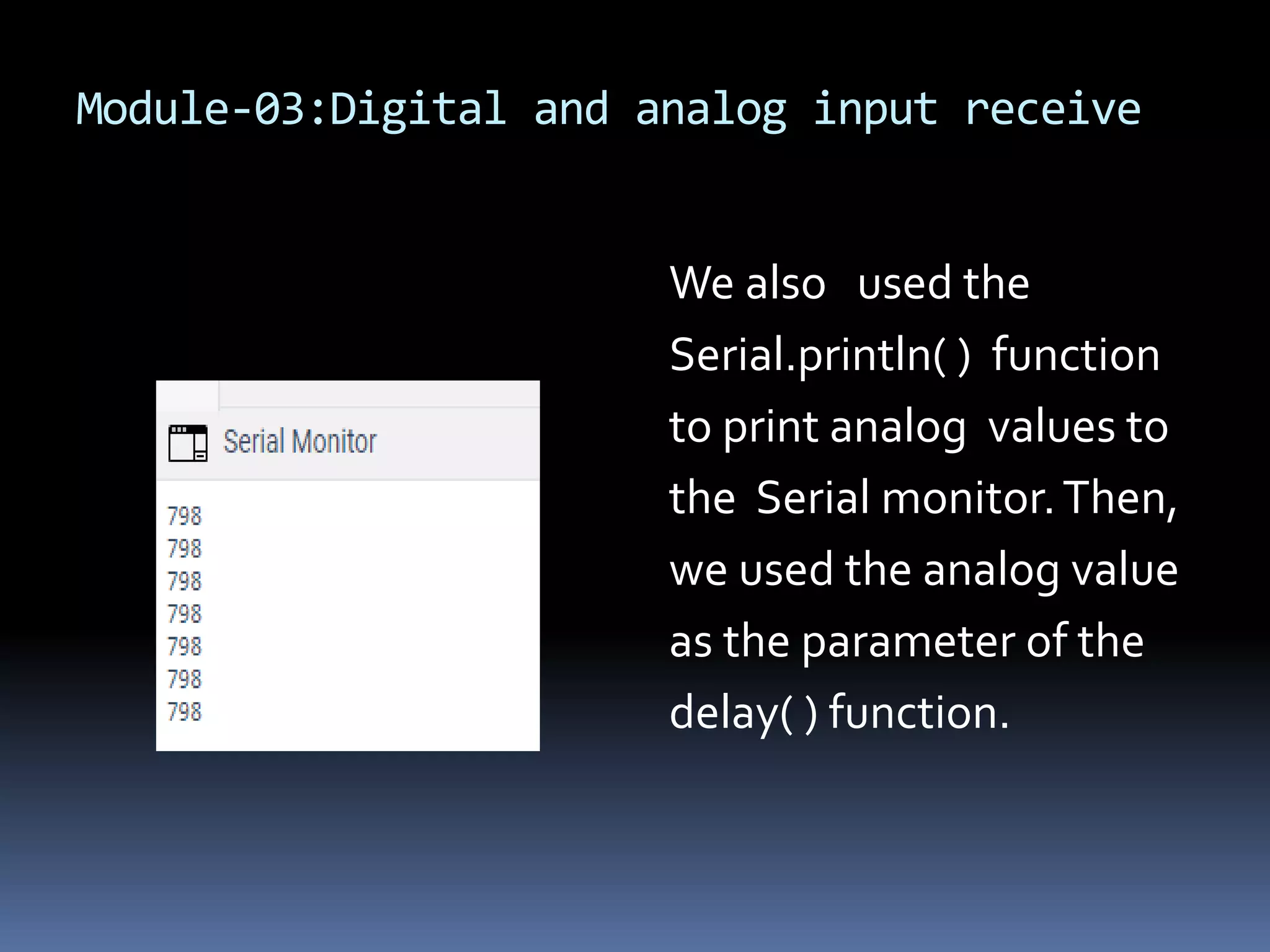
Module-03:Digital and analog input receive To initialize the analog values to be printed in the serial monitor, the “Serial.begin(9600);” command is used.We also used the Serial.println( ) function to print analog values to the Serial monitor.
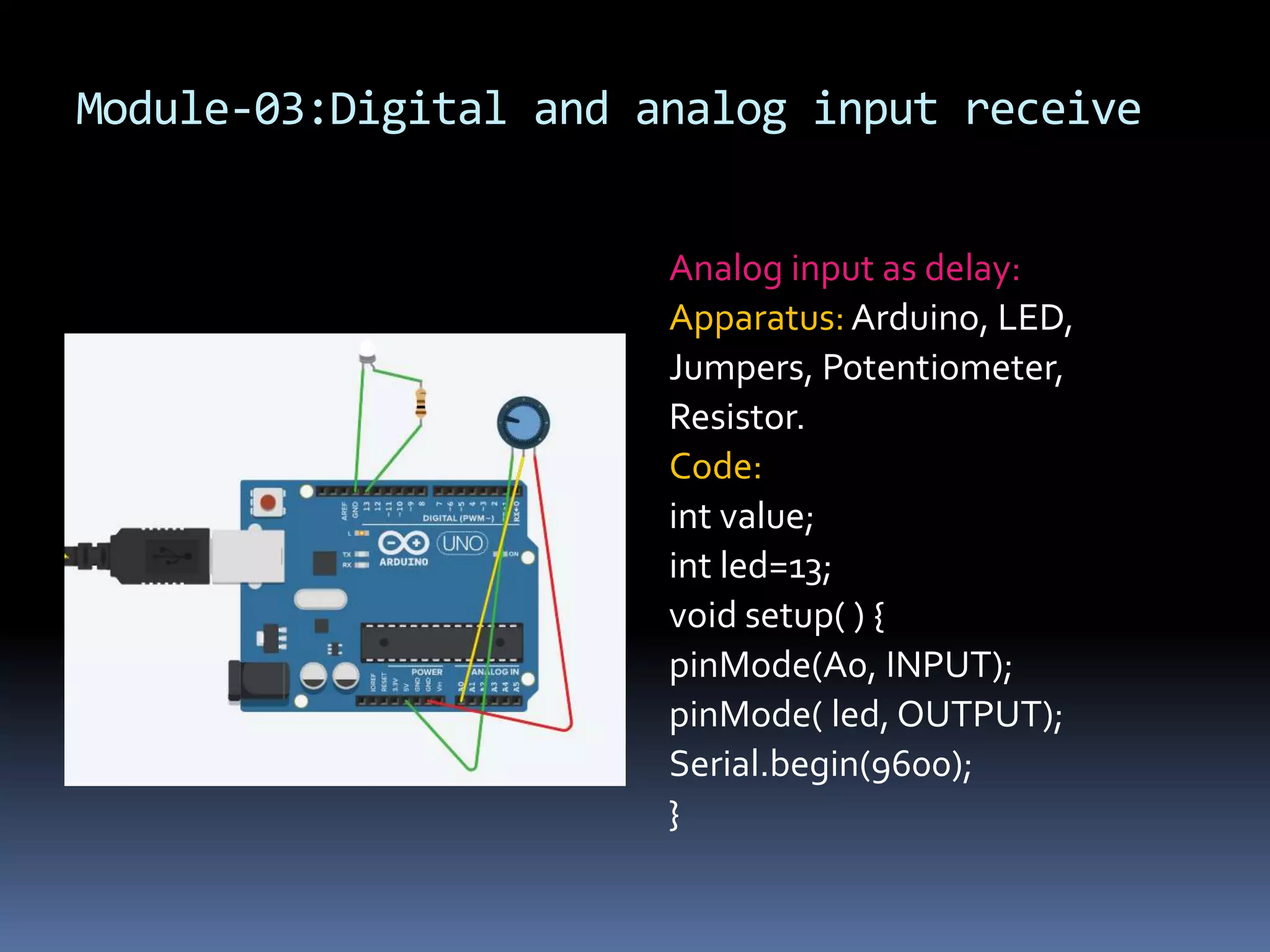
Module-03:Digital and analog input receive Analog input as delay: Apparatus: Arduino, LED, Jumpers, Potentiometer, Resistor. Code: int value; int led=13; void setup( ) { pinMode(A0, INPUT); pinMode( led, OUTPUT); Serial.begin(9600); }
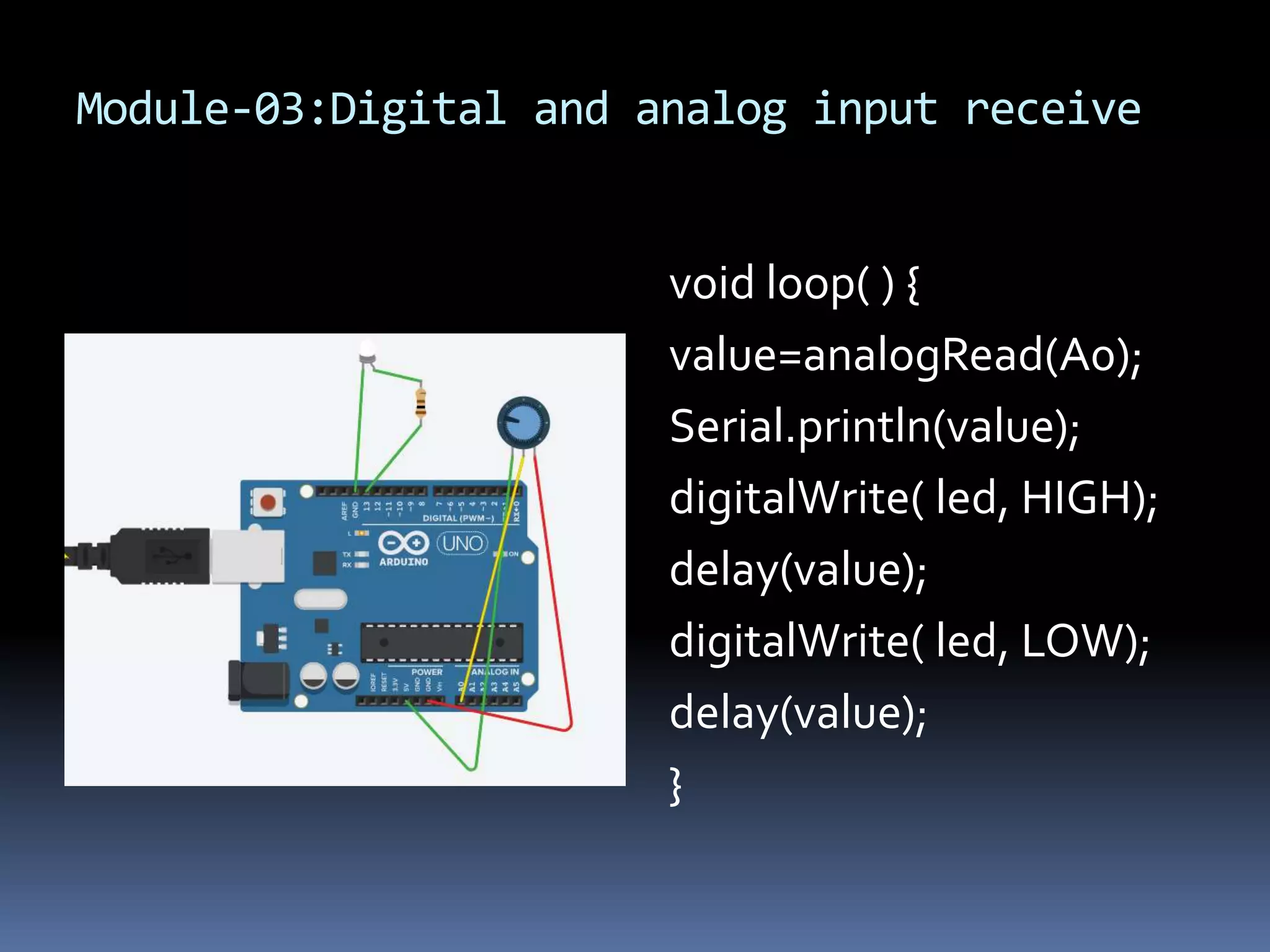
Module-03:Digital and analog input receive void loop( ) { value=analogRead(A0); Serial.println(value); digitalWrite( led, HIGH); delay(value); digitalWrite( led, LOW); delay(value); }
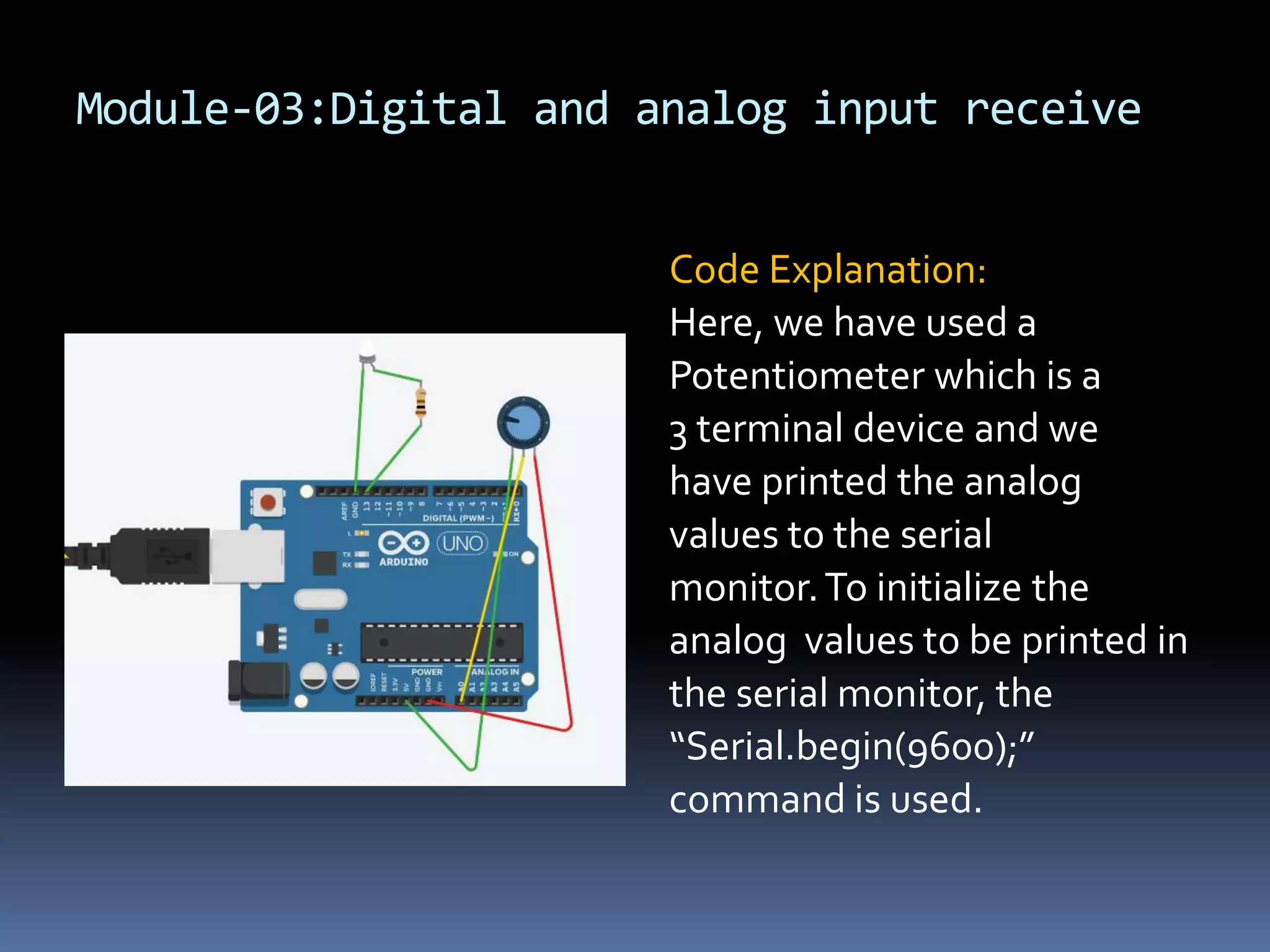
Module-03:Digital and analog input receive Code Explanation: Here, we have used a Potentiometer which is a 3 terminal device and we have printed the analog values to the serial monitor.To initialize the analog values to be printed in the serial monitor, the “Serial.begin(9600);” command is used.
Module-03:Digital and analog input receive We also used the Serial.println( ) function to print analog values to the Serial monitor.Then, we used the analog value as the parameter of the delay( ) function.
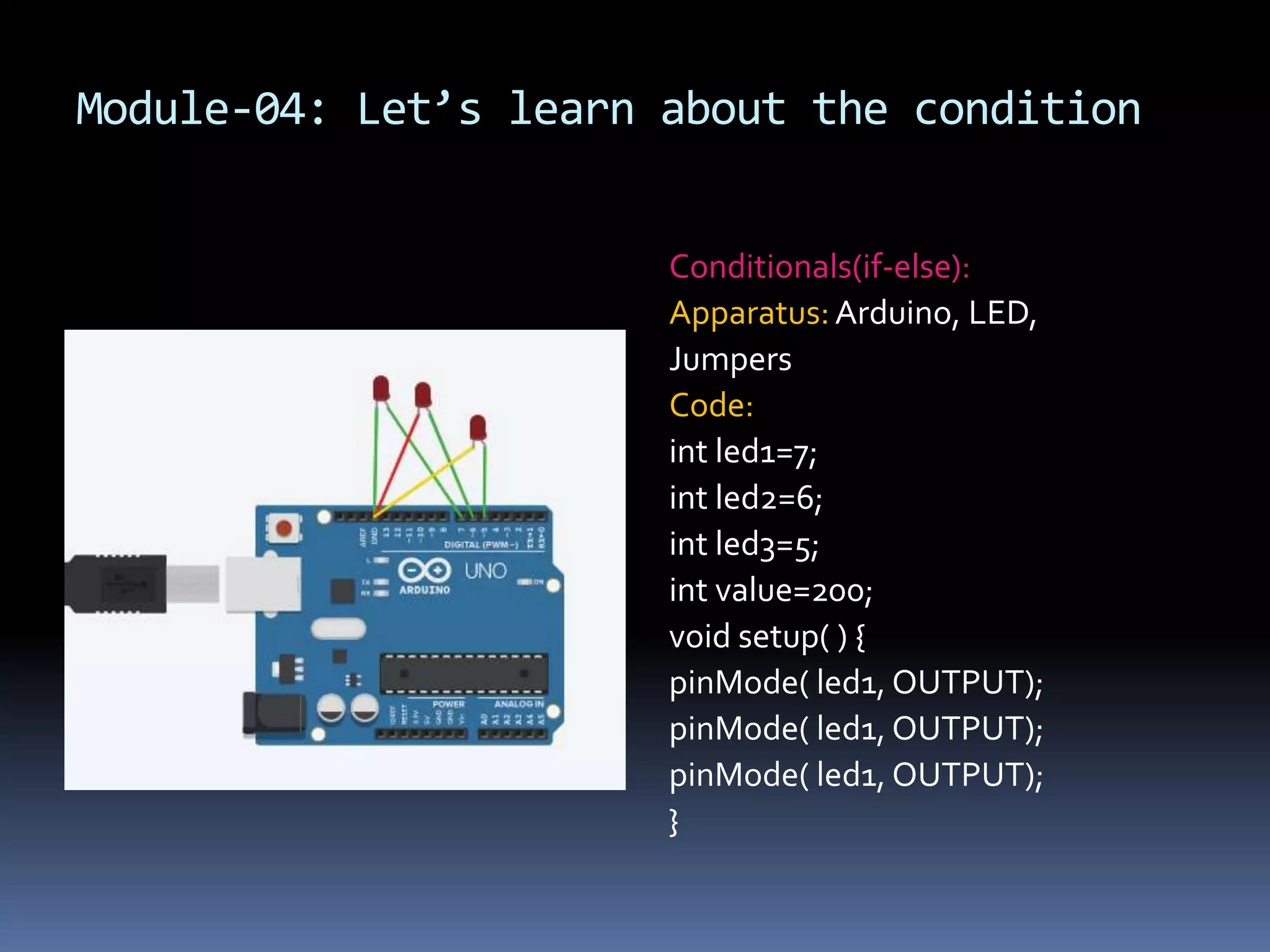
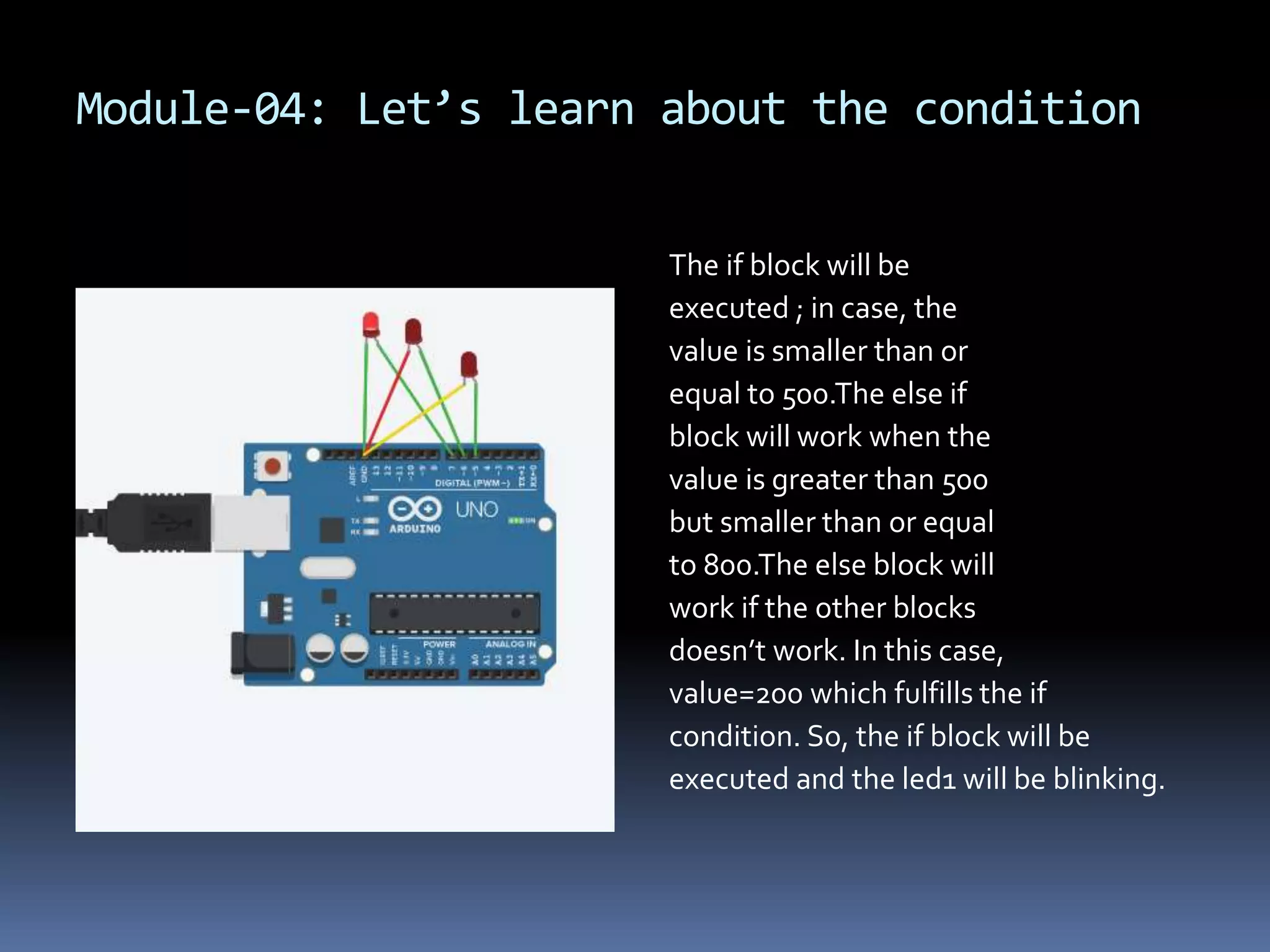
Module-04: Let’s learn about the condition Conditionals(if-else): Apparatus:Arduino, LED, Jumpers Code: int led1=7; int led2=6; int led3=5; int value=200; void setup( ) { pinMode( led1, OUTPUT); pinMode( led1, OUTPUT); pinMode( led1, OUTPUT); }
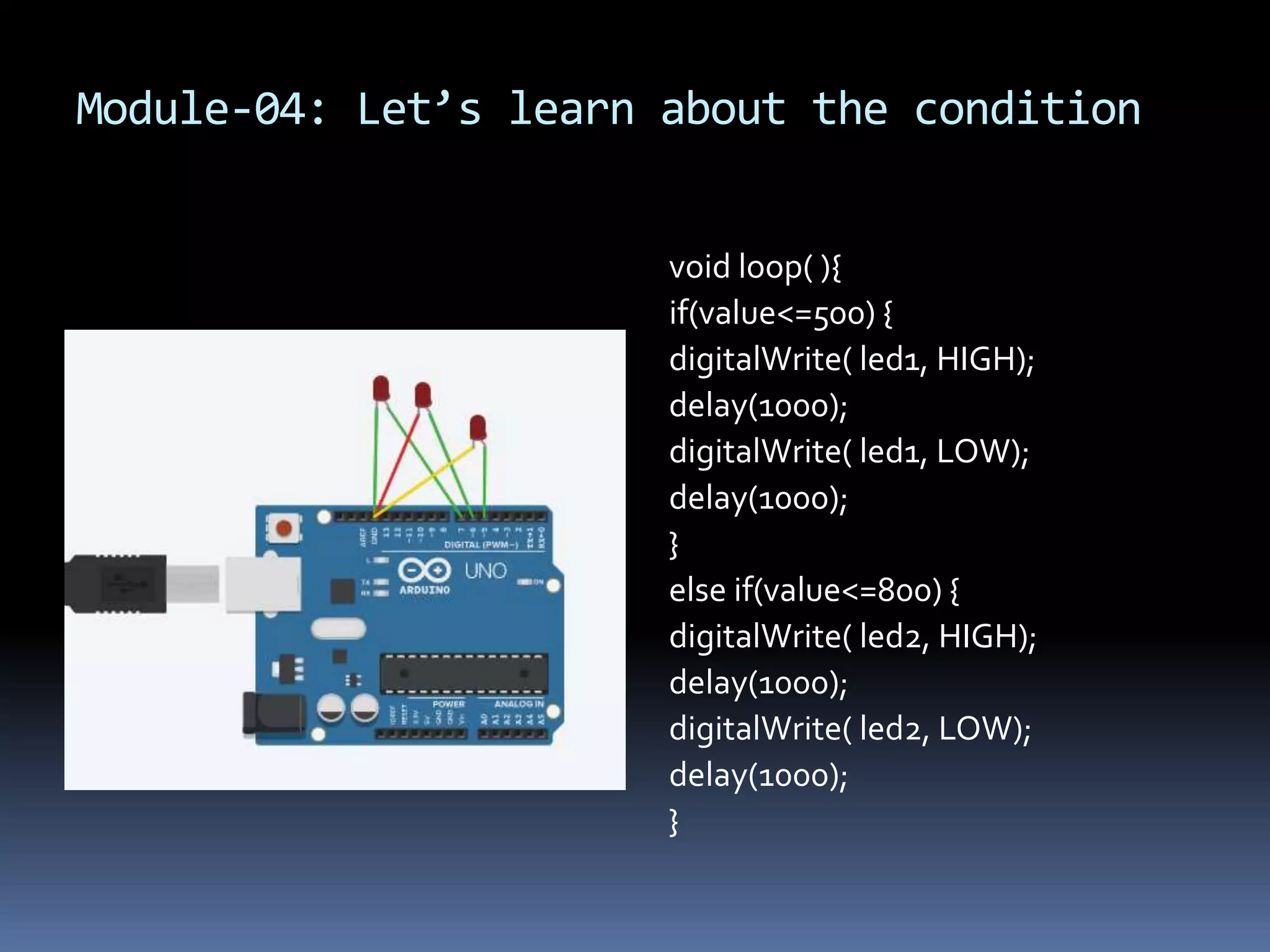
Module-04: Let’s learn about the condition void loop( ){ if(value<=500) { digitalWrite( led1, HIGH); delay(1000); digitalWrite( led1, LOW); delay(1000); } else if(value<=800) { digitalWrite( led2, HIGH); delay(1000); digitalWrite( led2, LOW); delay(1000); }
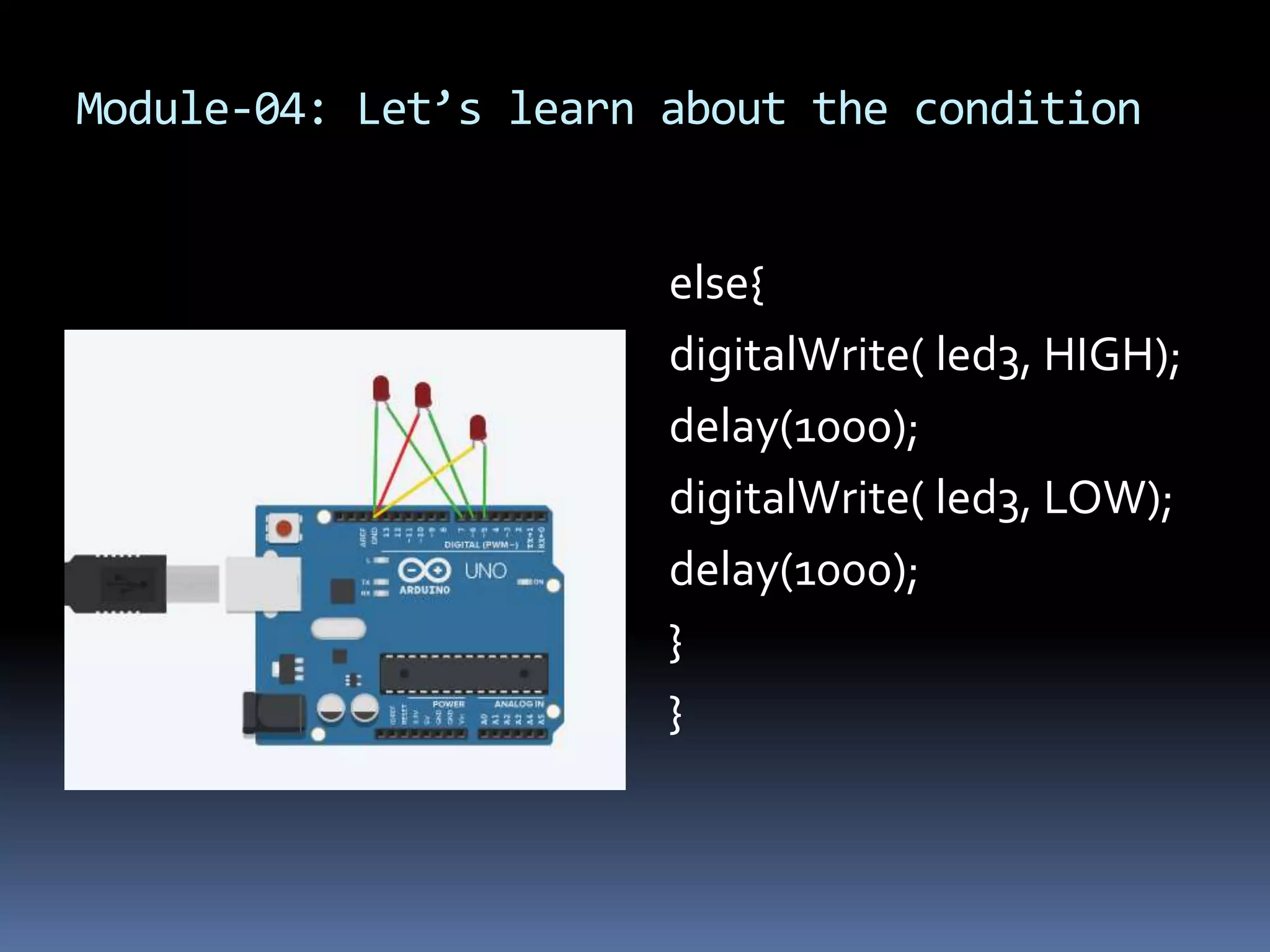
Module-04: Let’s learn about the condition else{ digitalWrite( led3, HIGH); delay(1000); digitalWrite( led3, LOW); delay(1000); } }
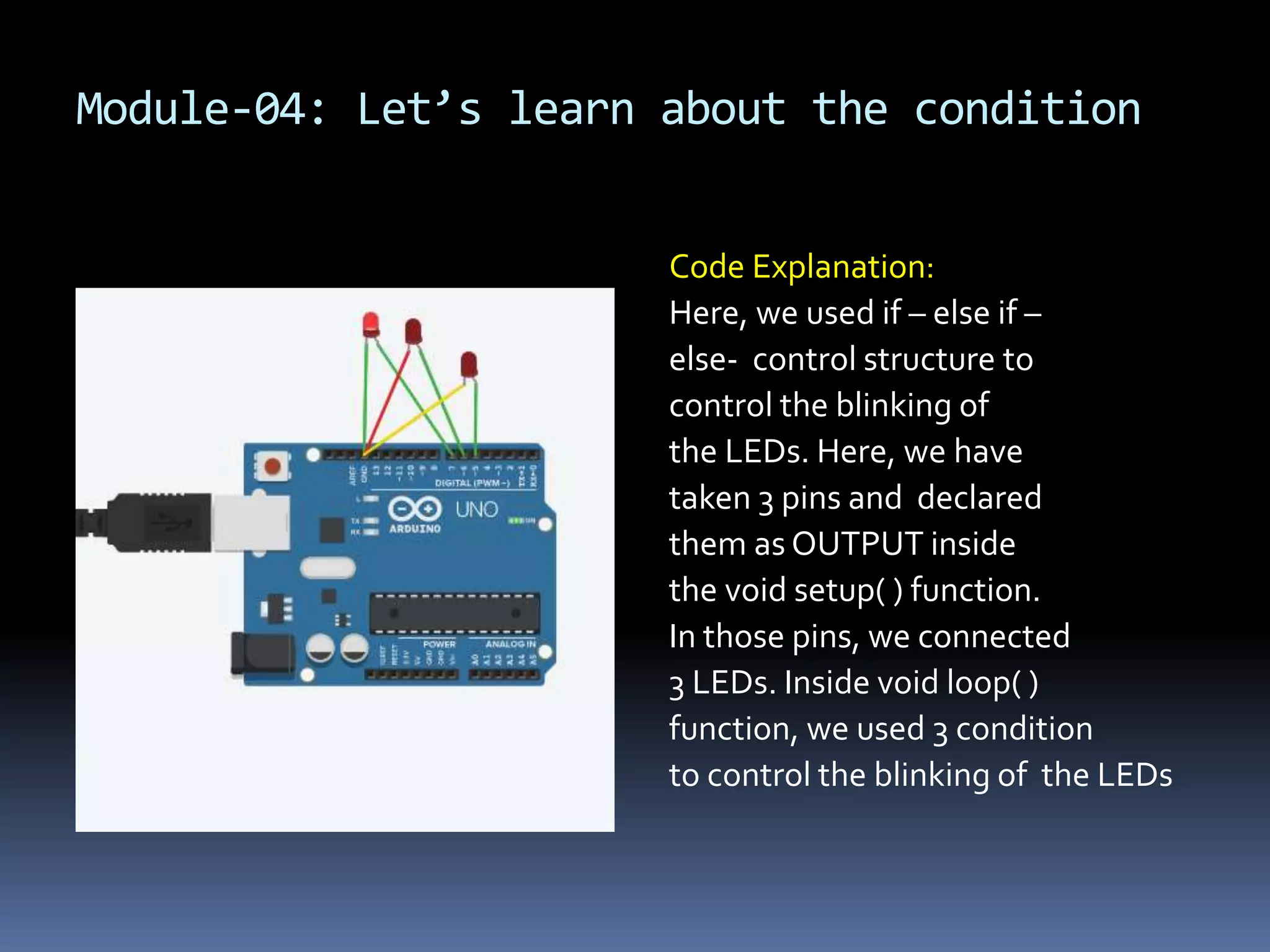
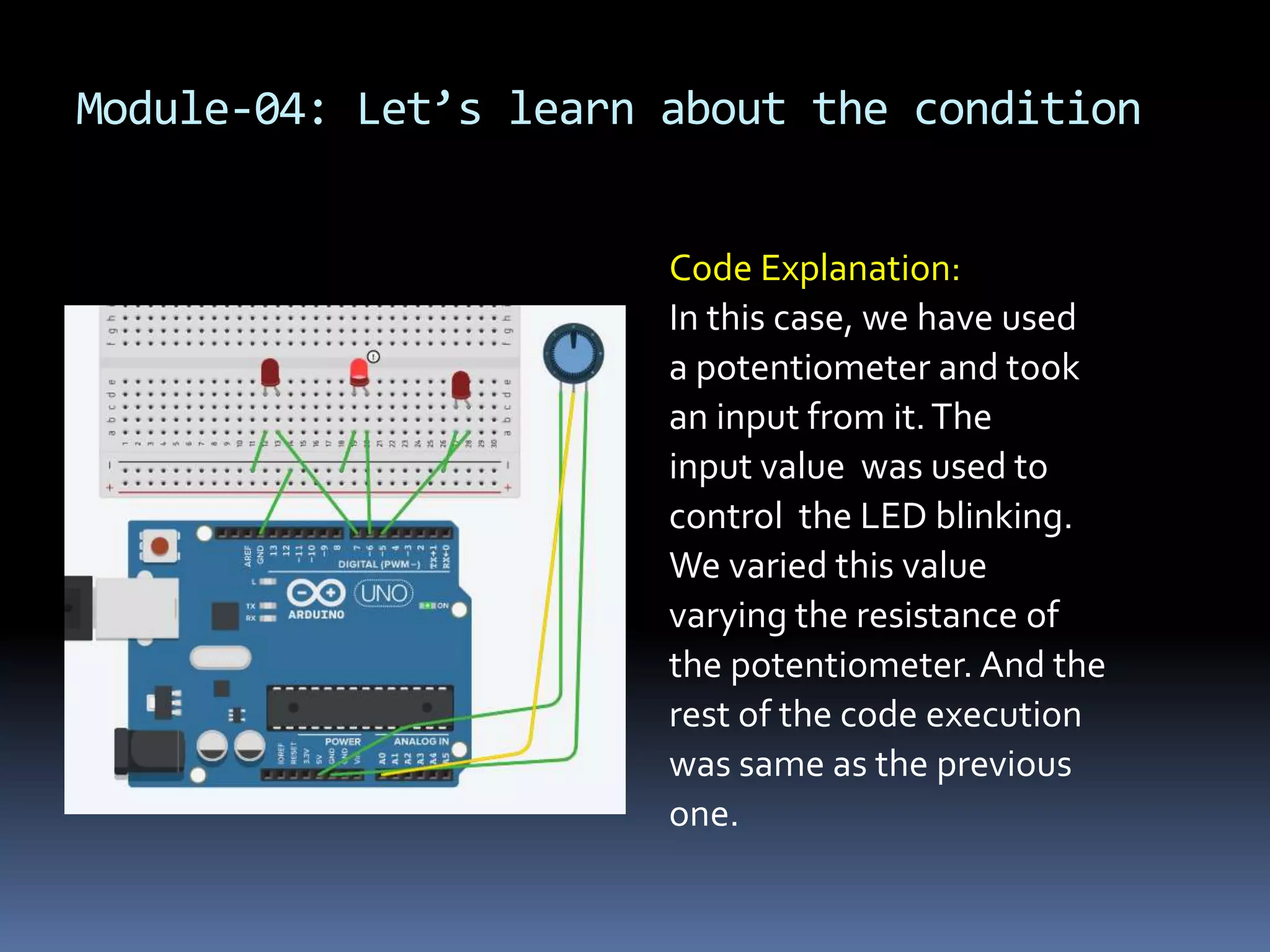
Module-04: Let’s learn about the condition Code Explanation: Here, we used if – else if – else- control structure to control the blinking of the LEDs. Here, we have taken 3 pins and declared them as OUTPUT inside the void setup( ) function. In those pins, we connected 3 LEDs. Inside void loop( ) function, we used 3 condition to control the blinking of the LEDs
Module-04: Let’s learn about the condition The if block will be executed ; in case, the value is smaller than or equal to 500.The else if block will work when the value is greater than 500 but smaller than or equal to 800.The else block will work if the other blocks doesn’t work. In this case, value=200 which fulfills the if condition. So, the if block will be executed and the led1 will be blinking.
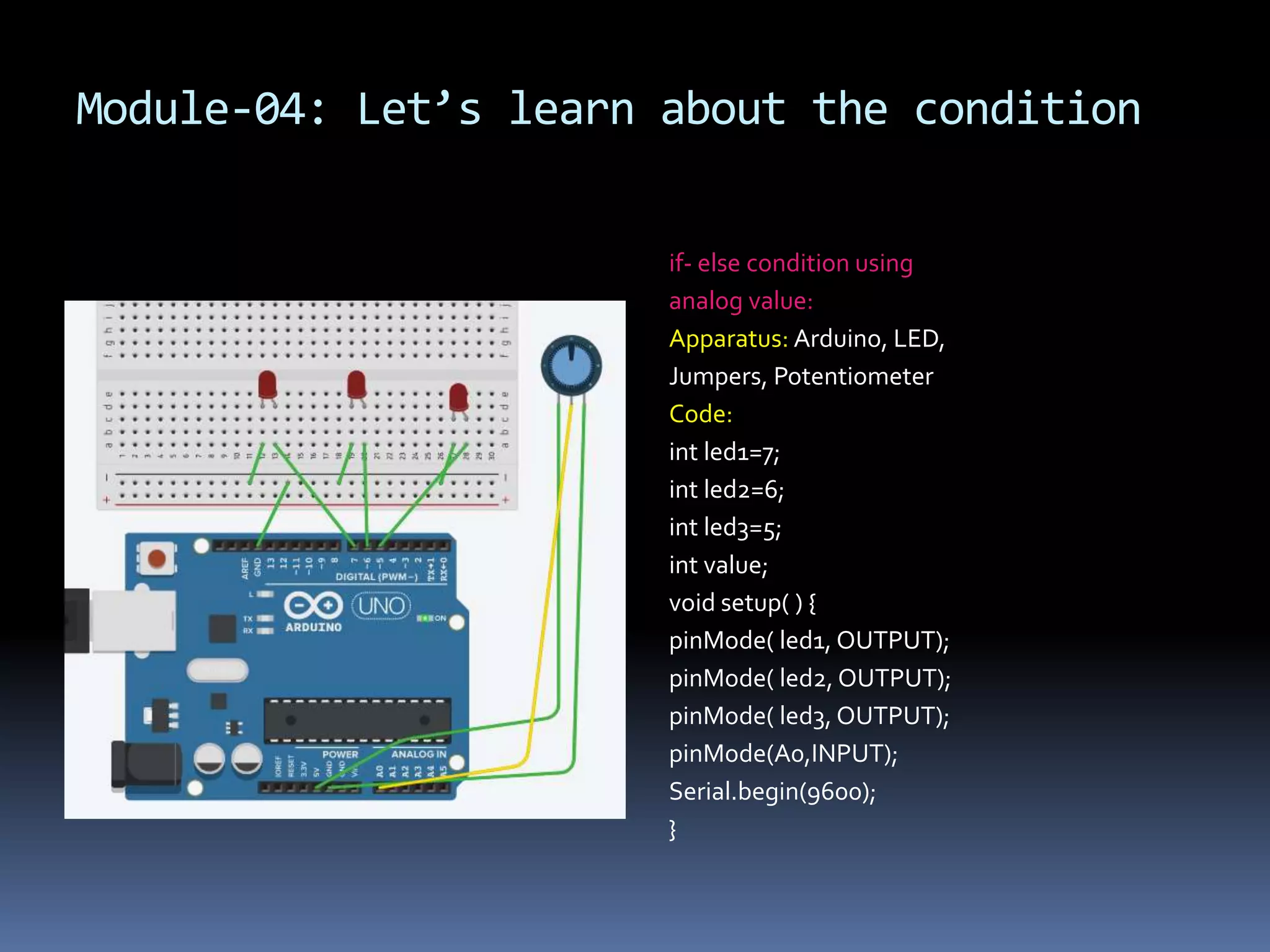
Module-04: Let’s learn about the condition if- else condition using analog value: Apparatus: Arduino, LED, Jumpers, Potentiometer Code: int led1=7; int led2=6; int led3=5; int value; void setup( ) { pinMode( led1, OUTPUT); pinMode( led2, OUTPUT); pinMode( led3, OUTPUT); pinMode(A0,INPUT); Serial.begin(9600); }
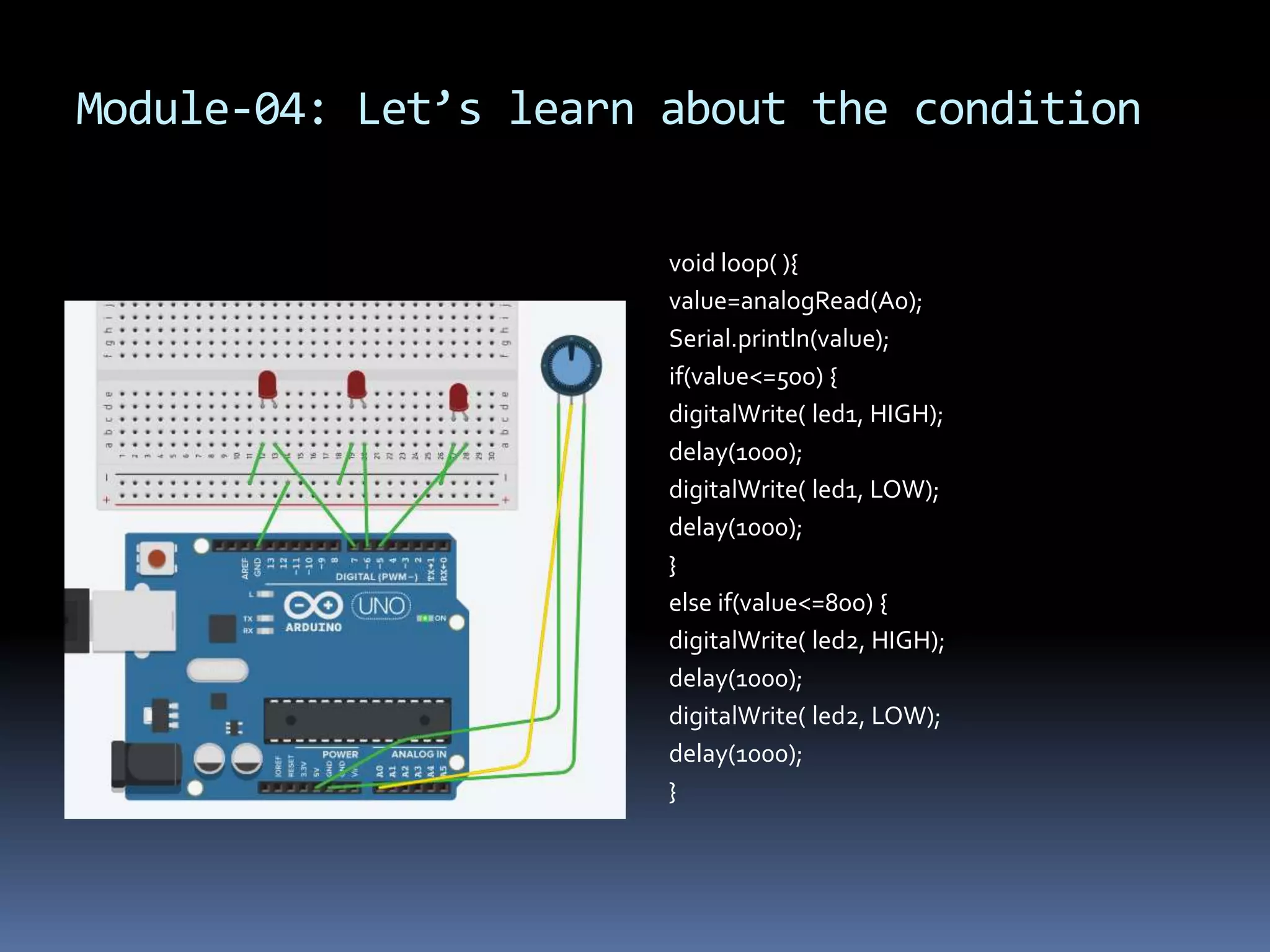
Module-04: Let’s learn about the condition void loop( ){ value=analogRead(A0); Serial.println(value); if(value<=500) { digitalWrite( led1, HIGH); delay(1000); digitalWrite( led1, LOW); delay(1000); } else if(value<=800) { digitalWrite( led2, HIGH); delay(1000); digitalWrite( led2, LOW); delay(1000); }
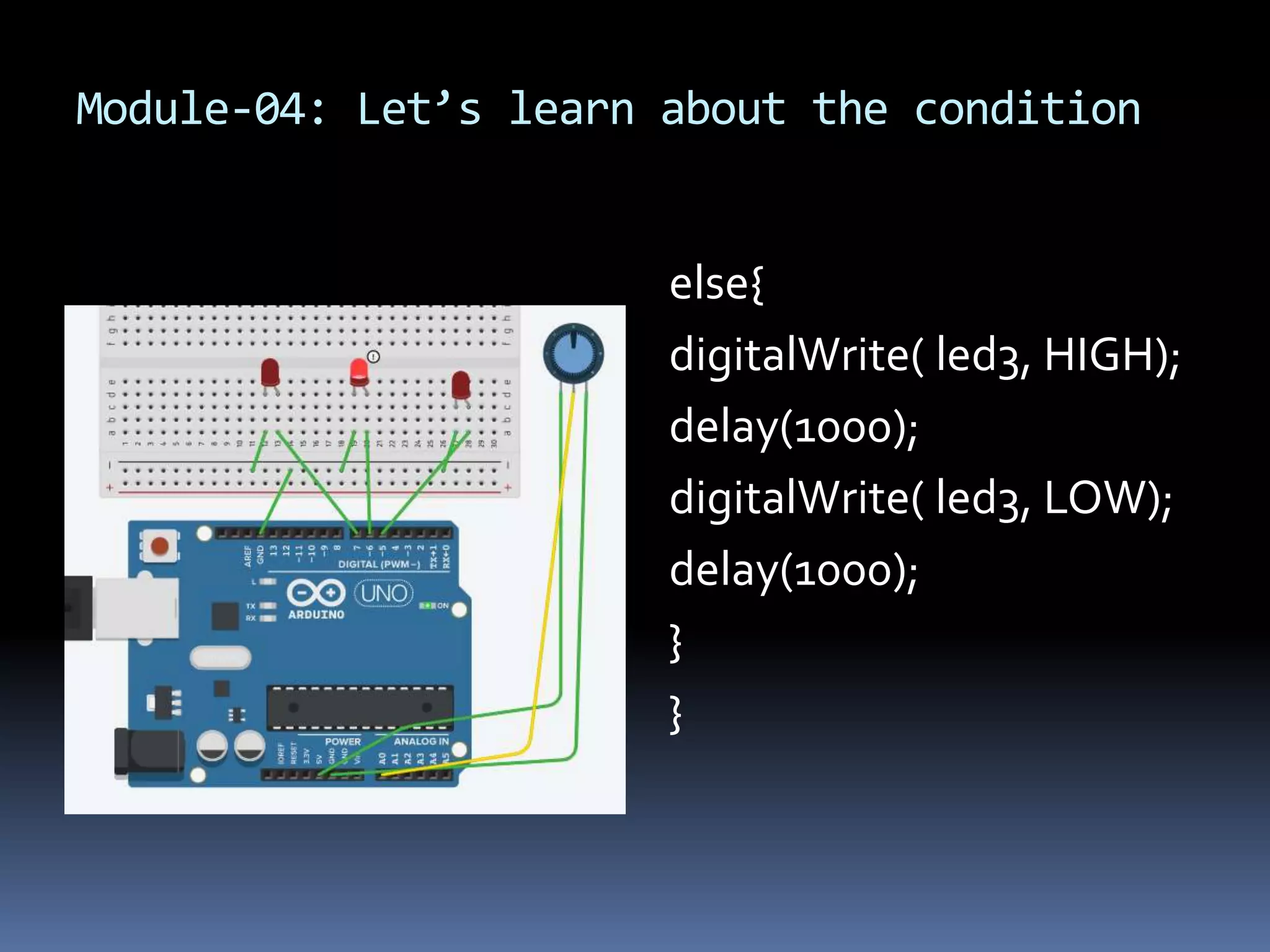
Module-04: Let’s learn about the condition else{ digitalWrite( led3, HIGH); delay(1000); digitalWrite( led3, LOW); delay(1000); } }
Module-04: Let’s learn about the condition Code Explanation: In this case, we have used a potentiometer and took an input from it.The input value was used to control the LED blinking. We varied this value varying the resistance of the potentiometer. And the rest of the code execution was same as the previous one.
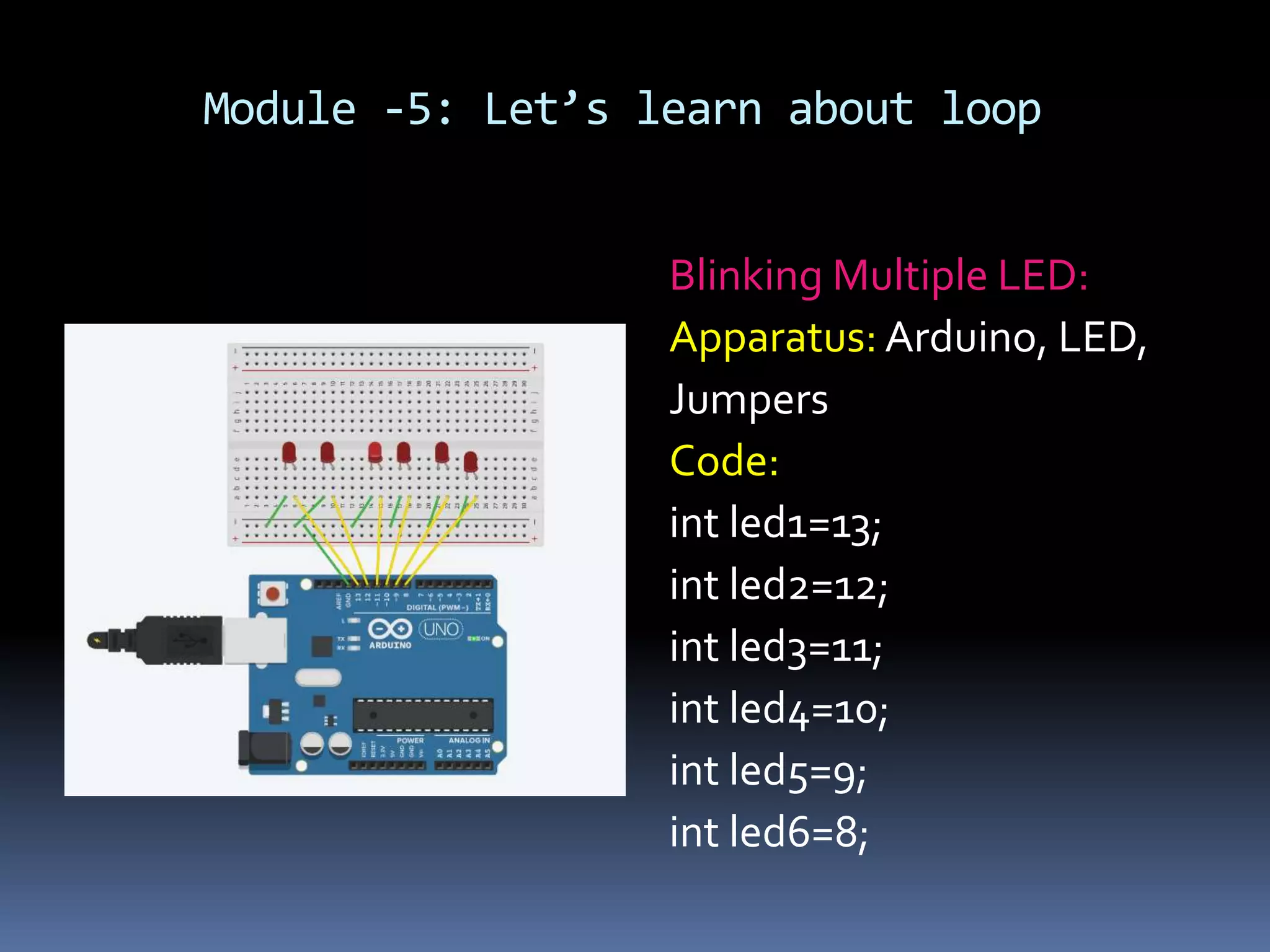
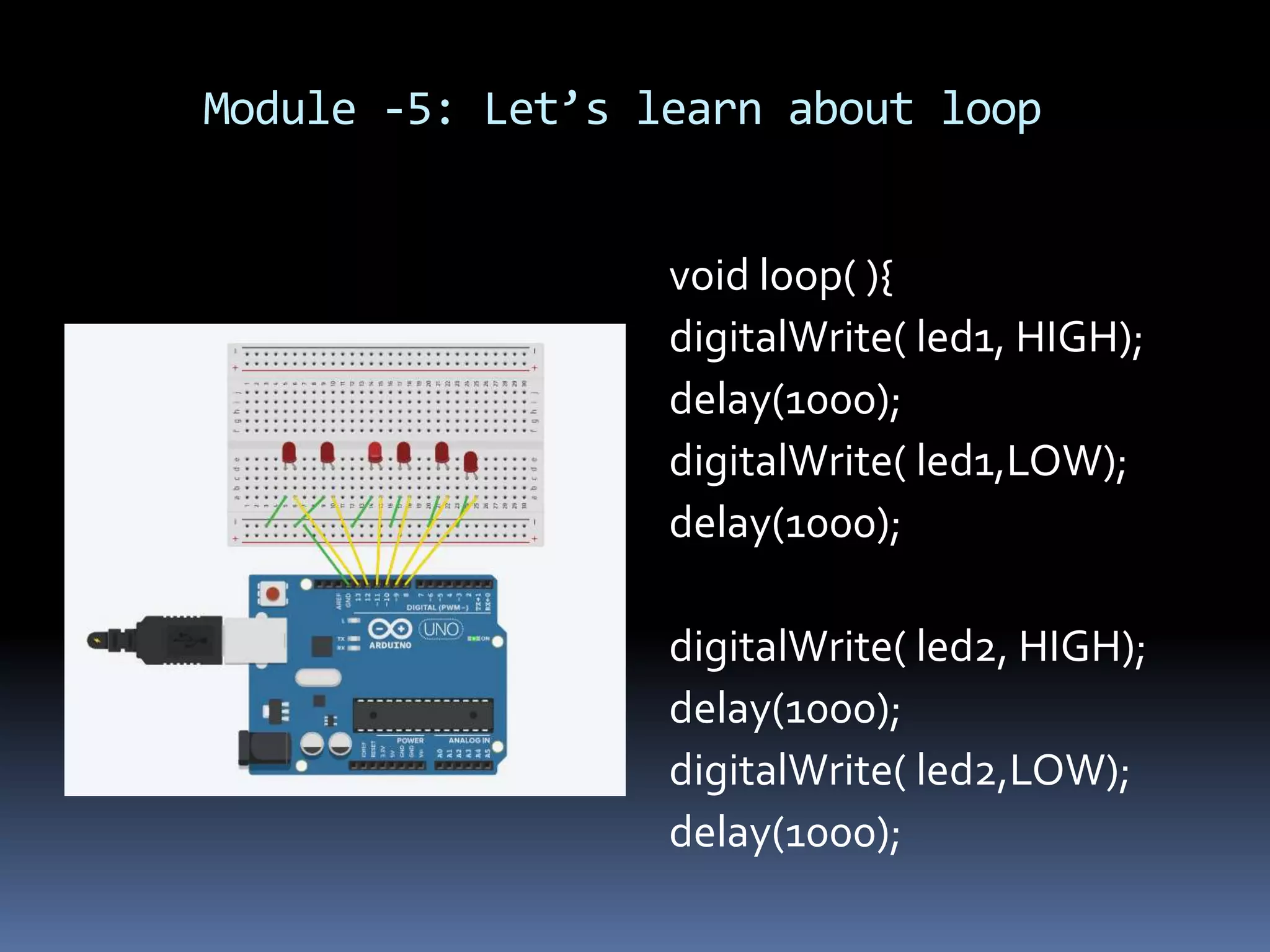
Module -5: Let’s learn about loop Blinking Multiple LED: Apparatus: Arduino, LED, Jumpers Code: int led1=13; int led2=12; int led3=11; int led4=10; int led5=9; int led6=8;
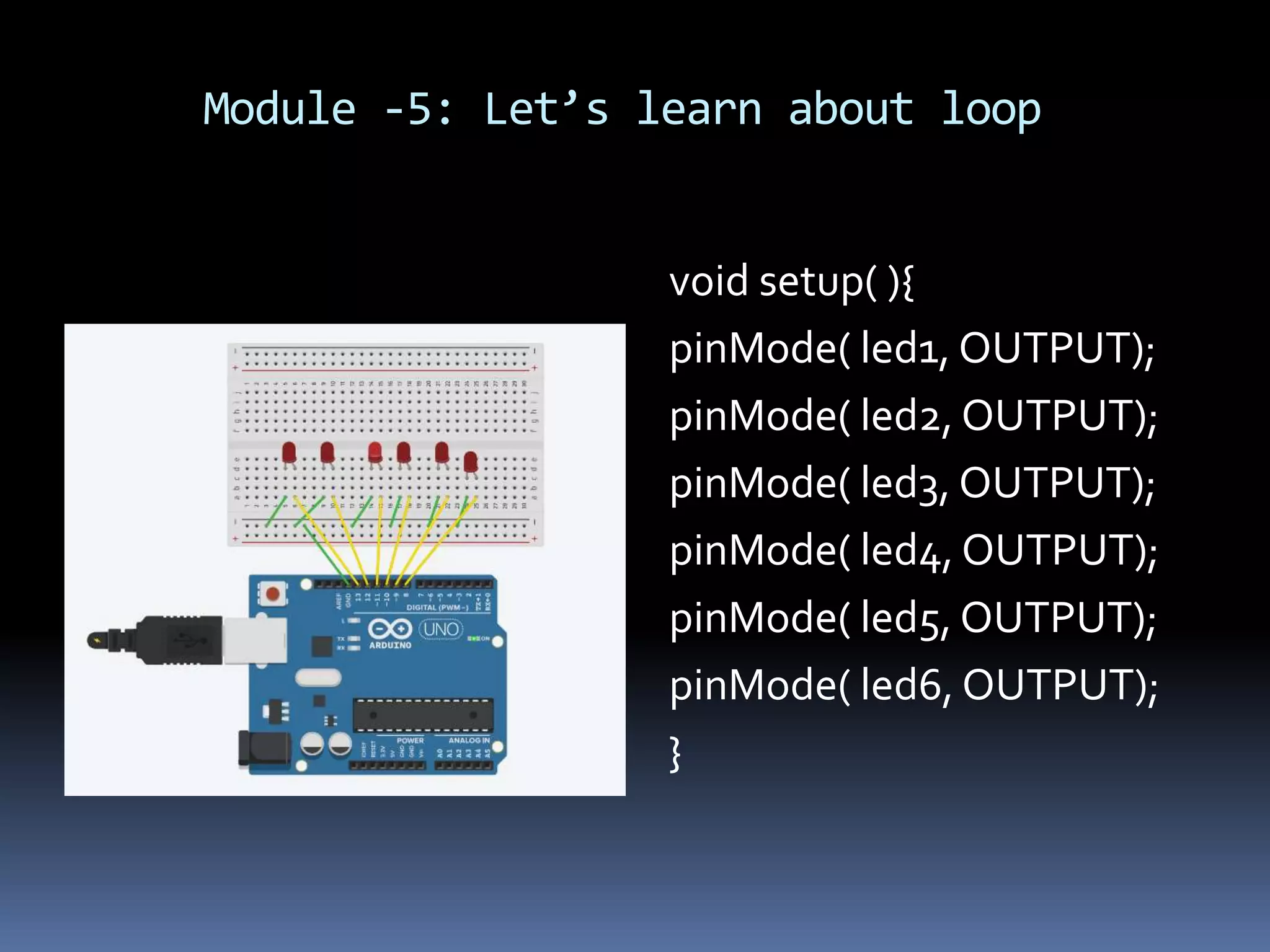
Module -5: Let’s learn about loop void setup( ){ pinMode( led1, OUTPUT); pinMode( led2, OUTPUT); pinMode( led3, OUTPUT); pinMode( led4, OUTPUT); pinMode( led5, OUTPUT); pinMode( led6, OUTPUT); }
Module -5: Let’s learn about loop void loop( ){ digitalWrite( led1, HIGH); delay(1000); digitalWrite( led1,LOW); delay(1000); digitalWrite( led2, HIGH); delay(1000); digitalWrite( led2,LOW); delay(1000);
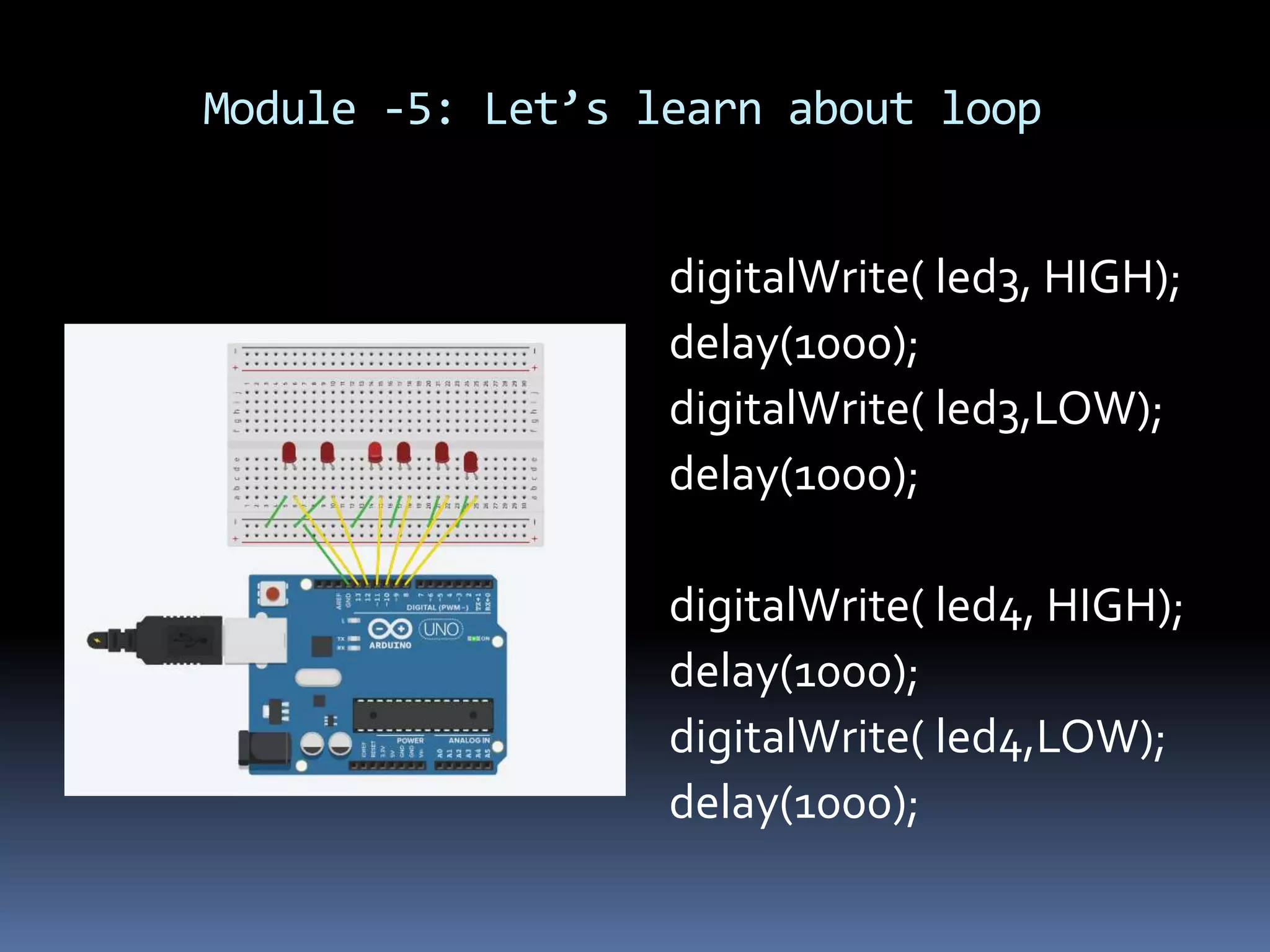
Module -5: Let’s learn about loop digitalWrite( led3, HIGH); delay(1000); digitalWrite( led3,LOW); delay(1000); digitalWrite( led4, HIGH); delay(1000); digitalWrite( led4,LOW); delay(1000);
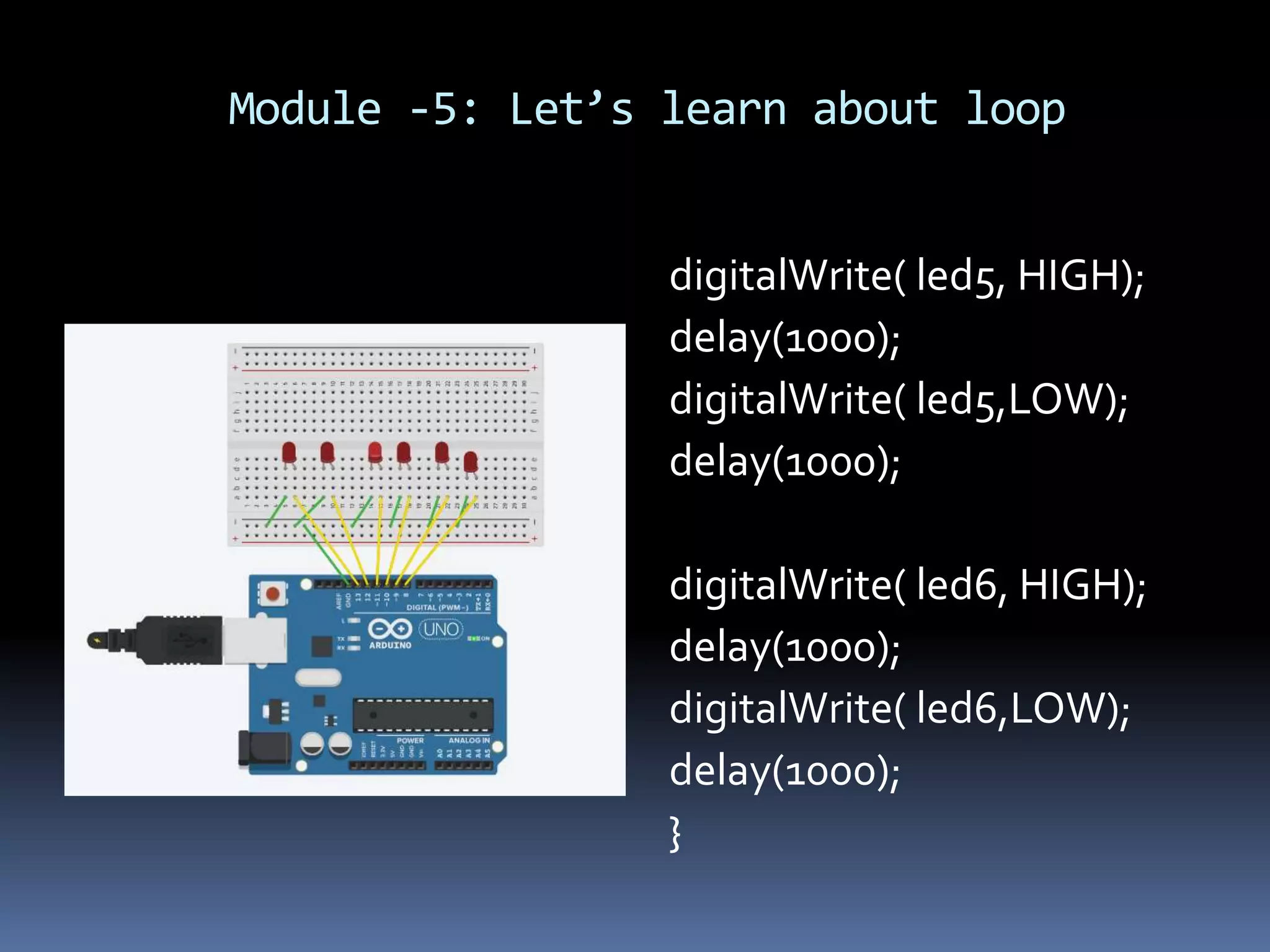
Module -5: Let’s learn about loop digitalWrite( led5, HIGH); delay(1000); digitalWrite( led5,LOW); delay(1000); digitalWrite( led6, HIGH); delay(1000); digitalWrite( led6,LOW); delay(1000); }
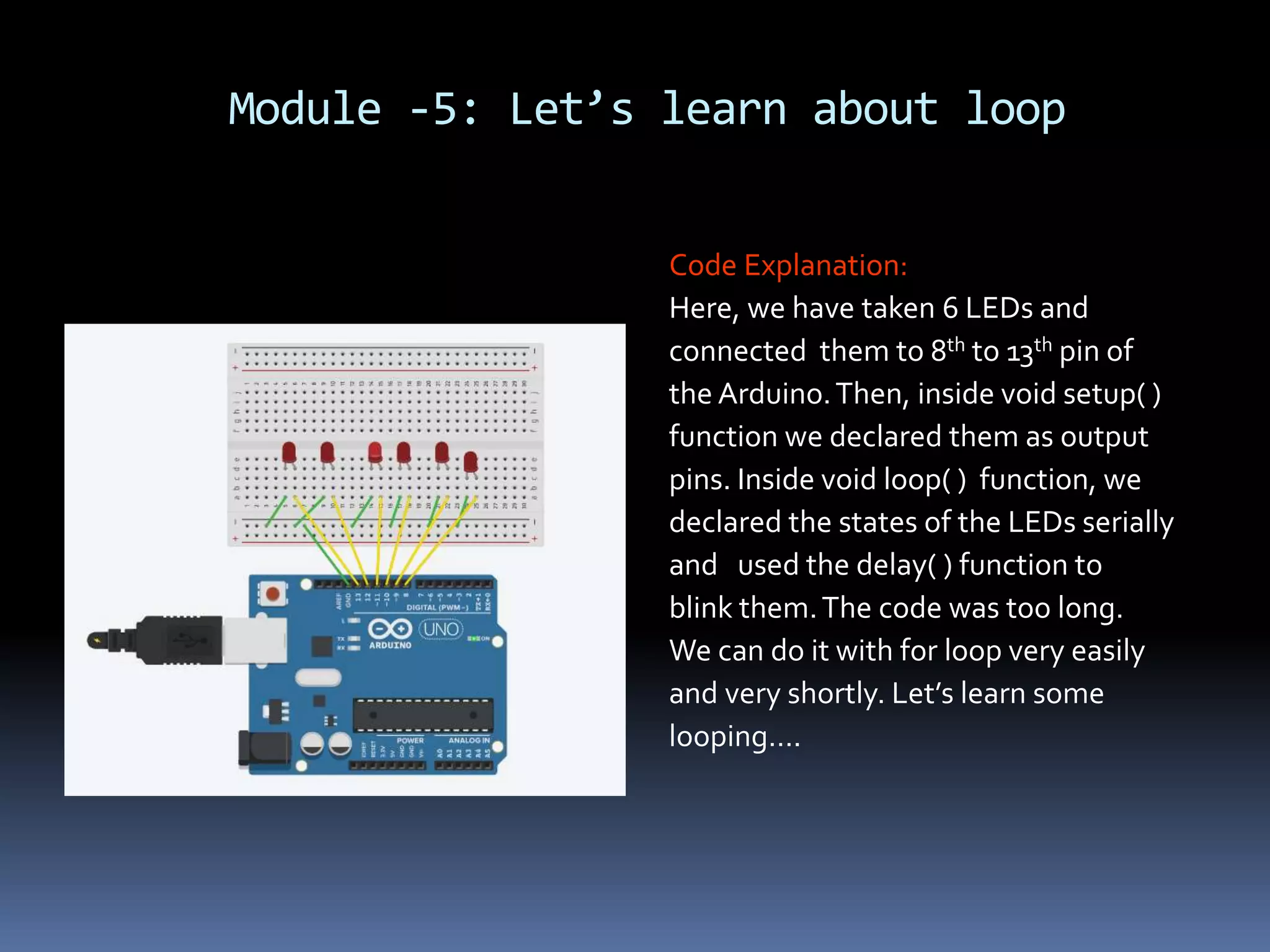
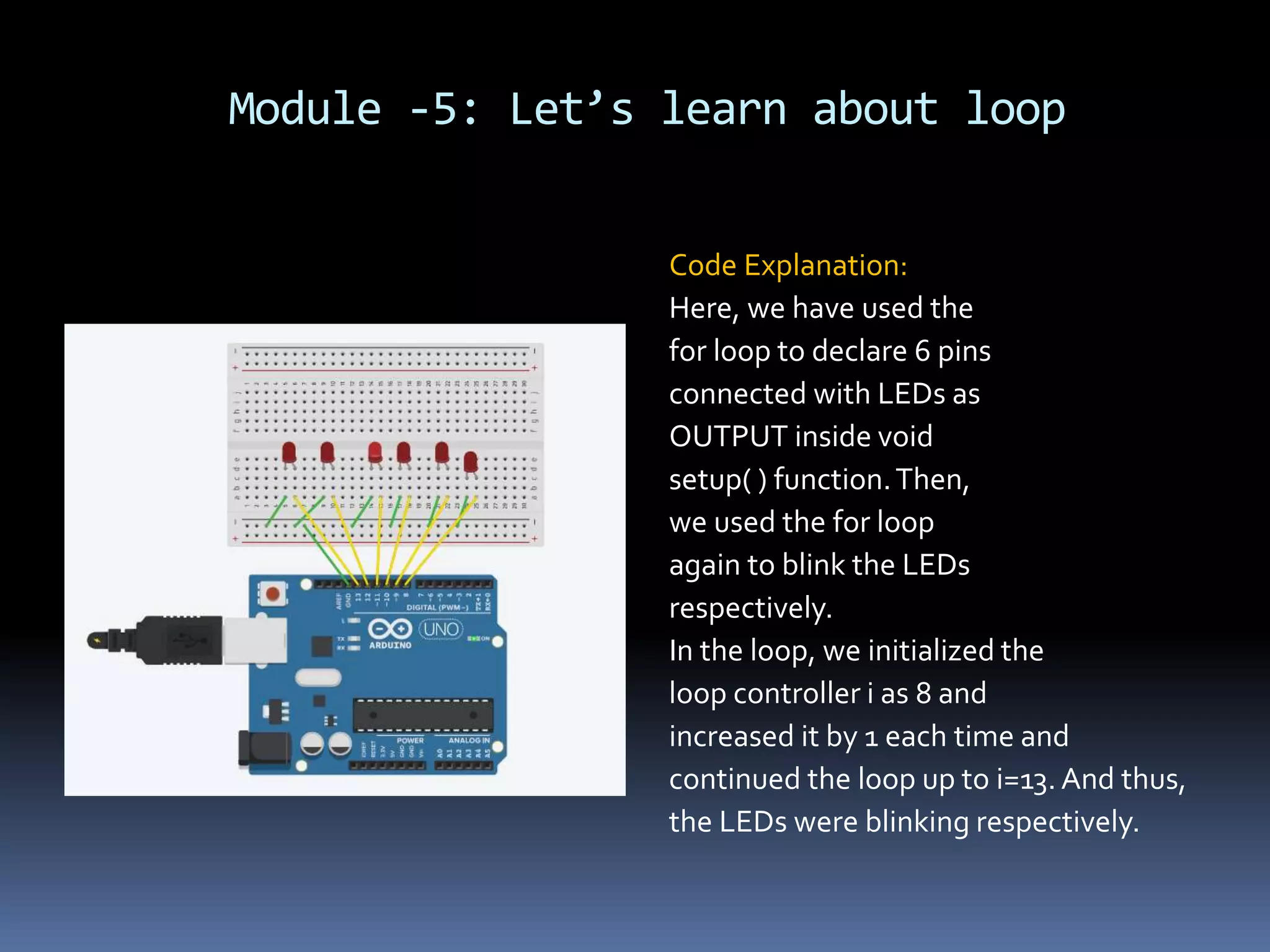
Module -5: Let’s learn about loop Code Explanation: Here, we have taken 6 LEDs and connected them to 8th to 13th pin of the Arduino.Then, inside void setup( ) function we declared them as output pins. Inside void loop( ) function, we declared the states of the LEDs serially and used the delay( ) function to blink them.The code was too long. We can do it with for loop very easily and very shortly. Let’s learn some looping….
Module -5: Let’s learn about loop Structure of ‘for loop’: for( initialization; condition ; increment /decrement) { //Statements } Here, the ‘for’ keyword defines the for loop.Then, we have to initialize a value of the loop controller variable.Then, we have the loop terminating condition which is very important ; otherwise, the loop will turn into an infinite loop.Then, we have the statement that will change the value of the loop controlling variable.This is also important to control the loop execution.
Module -5: Let’s learn about loop For example: for( i=0;i<9; i++) { print(“Bangladesh); } Here, the loop controlling variable is i. We have initialized it with a value, i=0.The loop terminating condition is ,i<9.That means, the loop will be executed for i=0 to i=8.Then, we have used the increment statement that increases the value of i by 1 each time.And thus, the loop will be executed for 9 times.
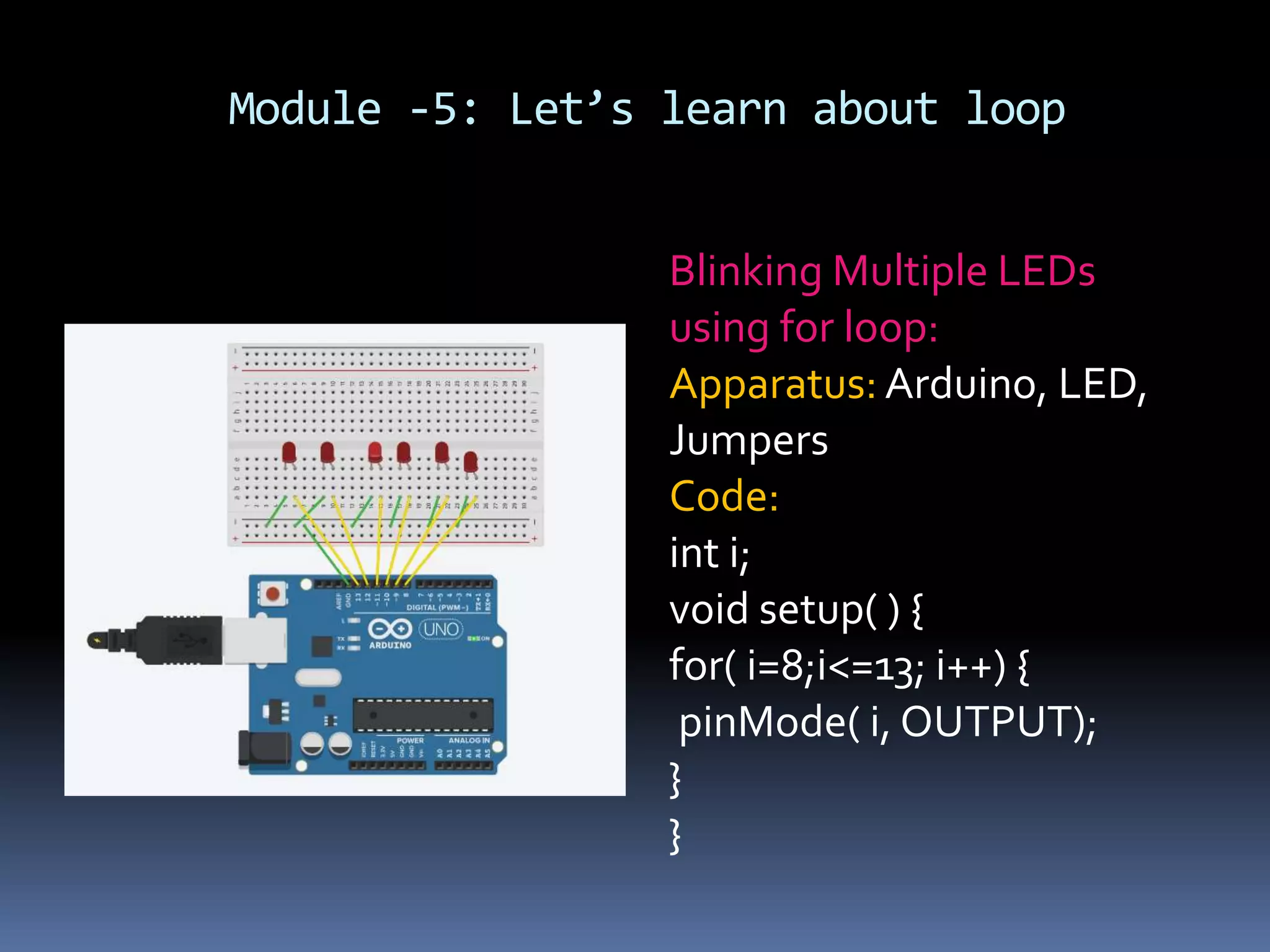
Module -5: Let’s learn about loop Blinking Multiple LEDs using for loop: Apparatus: Arduino, LED, Jumpers Code: int i; void setup( ) { for( i=8;i<=13; i++) { pinMode( i, OUTPUT); } }
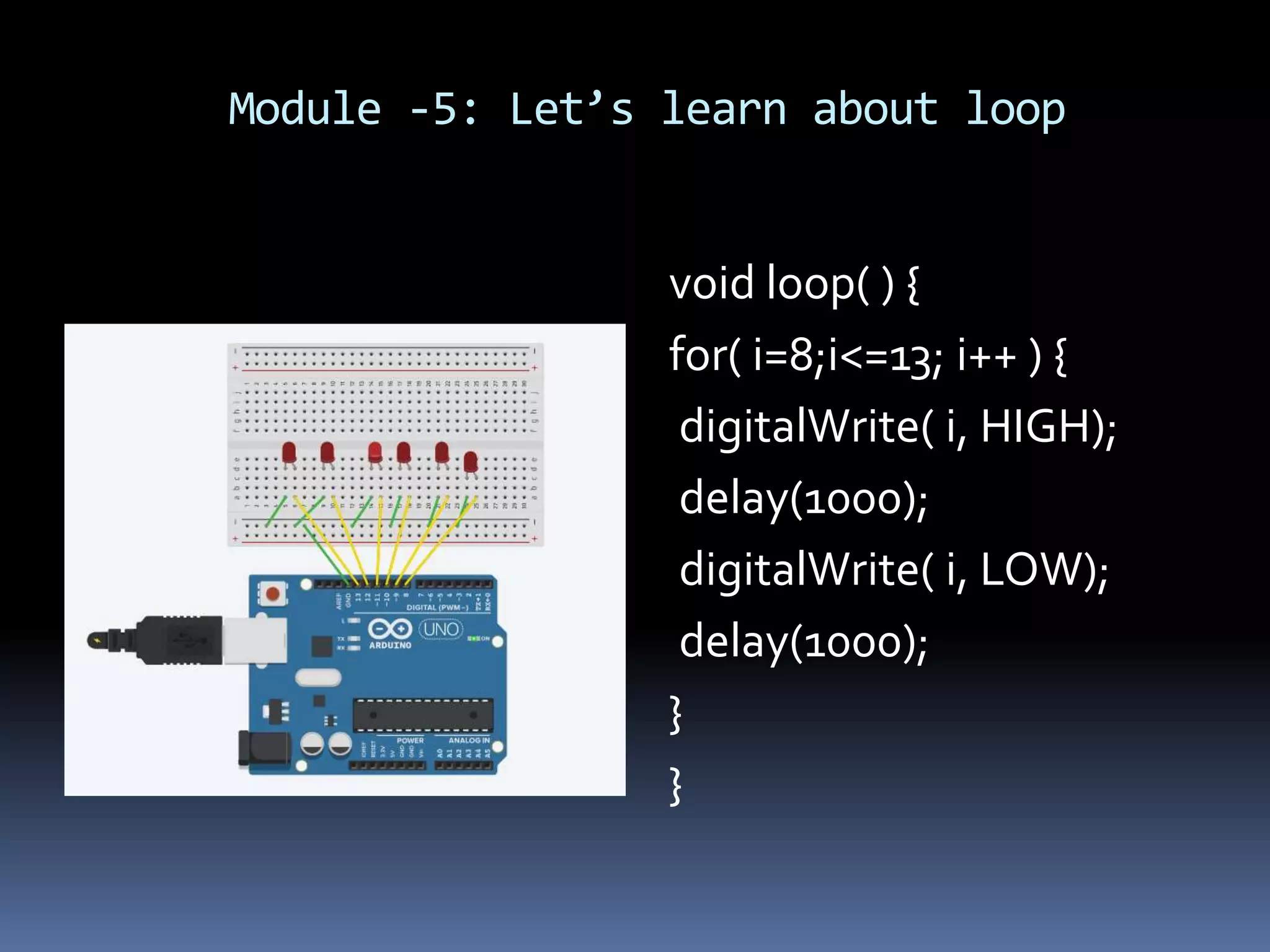
Module -5: Let’s learn about loop void loop( ) { for( i=8;i<=13; i++ ) { digitalWrite( i, HIGH); delay(1000); digitalWrite( i, LOW); delay(1000); } }
Module -5: Let’s learn about loop Code Explanation: Here, we have used the for loop to declare 6 pins connected with LEDs as OUTPUT inside void setup( ) function.Then, we used the for loop again to blink the LEDs respectively. In the loop, we initialized the loop controller i as 8 and increased it by 1 each time and continued the loop up to i=13. And thus, the LEDs were blinking respectively.
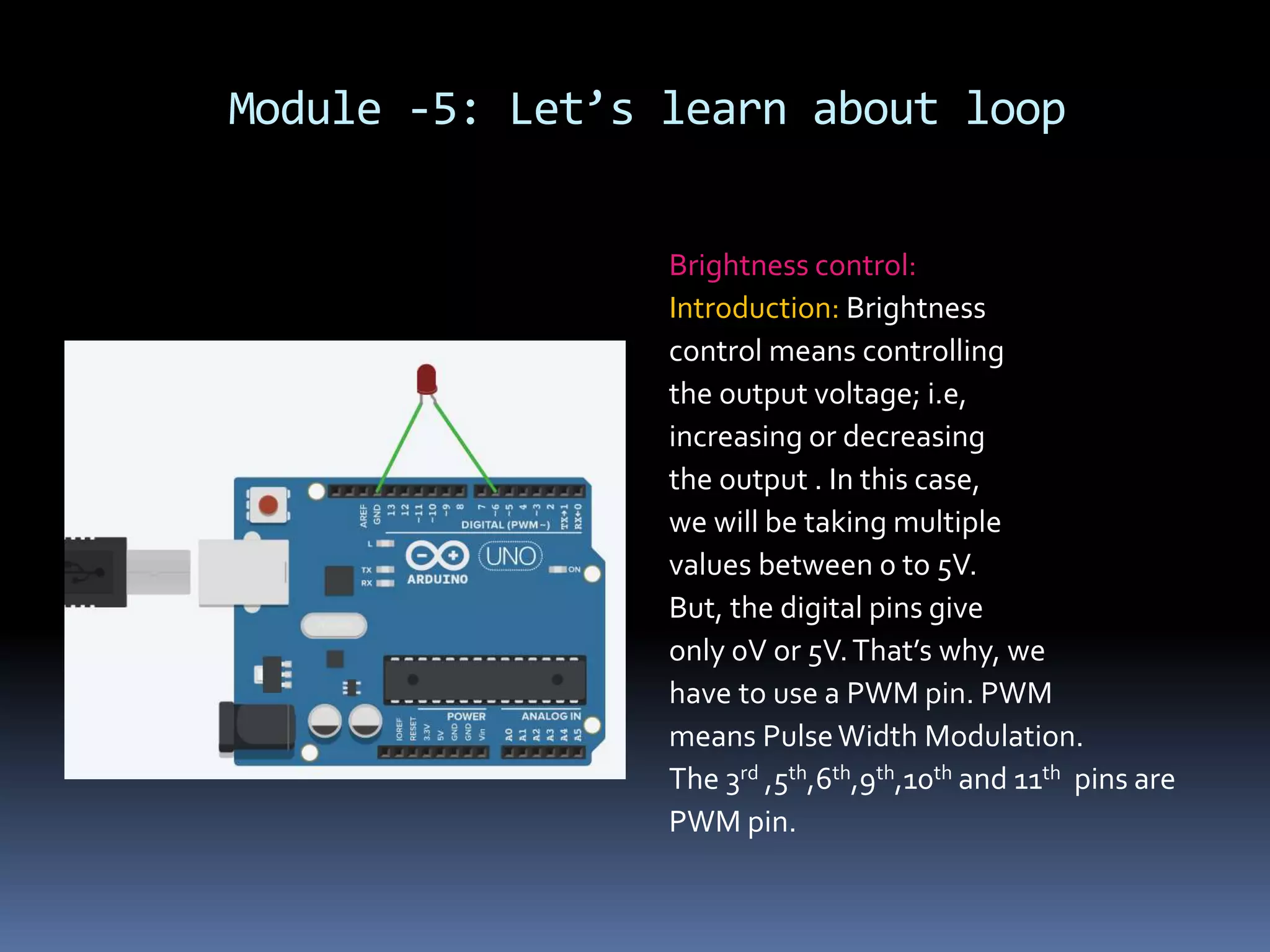
Module -5: Let’s learn about loop Brightness control: Introduction: Brightness control means controlling the output voltage; i.e, increasing or decreasing the output . In this case, we will be taking multiple values between 0 to 5V. But, the digital pins give only 0V or 5V.That’s why, we have to use a PWM pin. PWM means PulseWidth Modulation. The 3rd ,5th,6th,9th,10th and 11th pins are PWM pin.
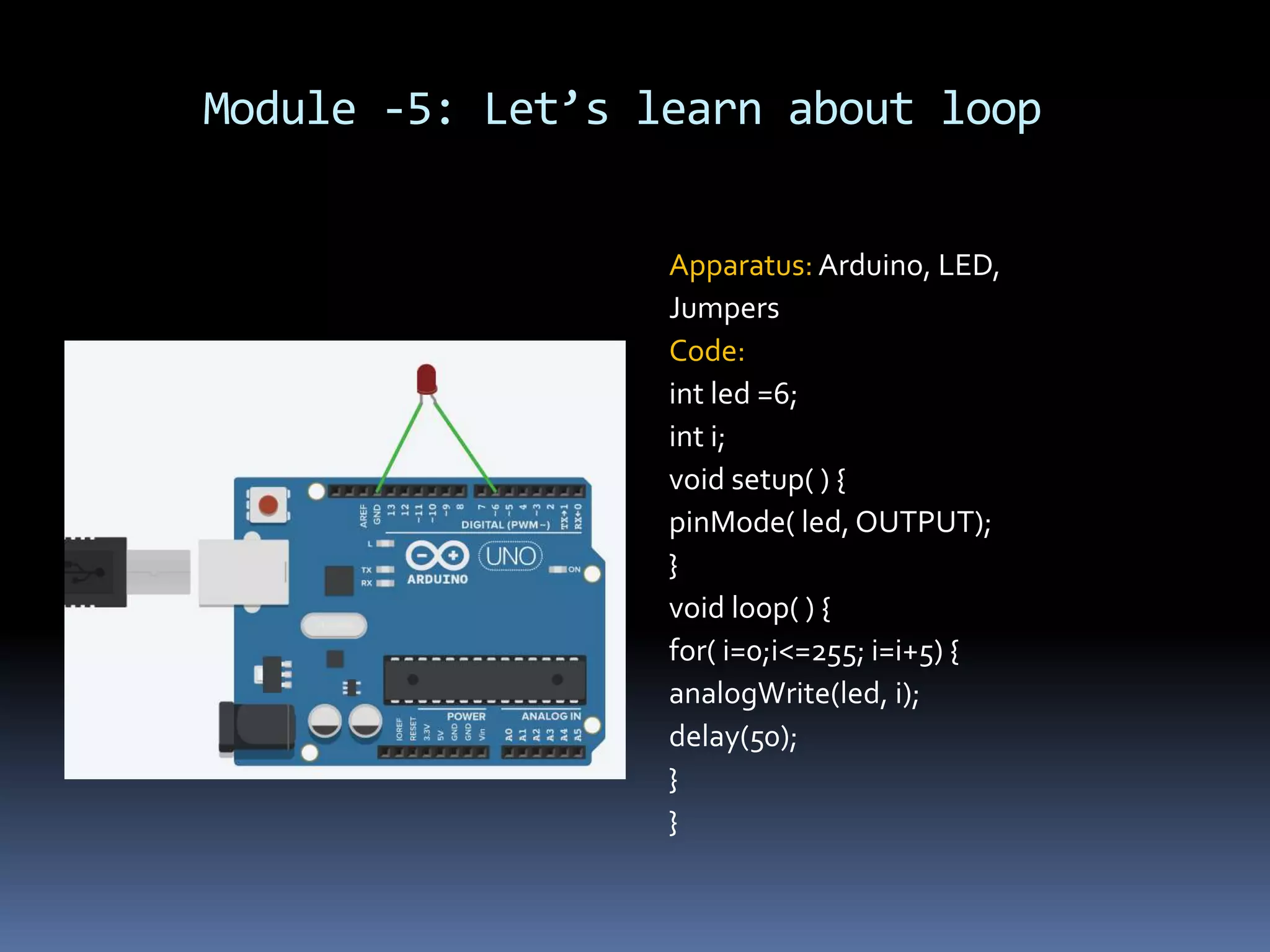
Module -5: Let’s learn about loop Apparatus: Arduino, LED, Jumpers Code: int led =6; int i; void setup( ) { pinMode( led, OUTPUT); } void loop( ) { for( i=0;i<=255; i=i+5) { analogWrite(led, i); delay(50); } }
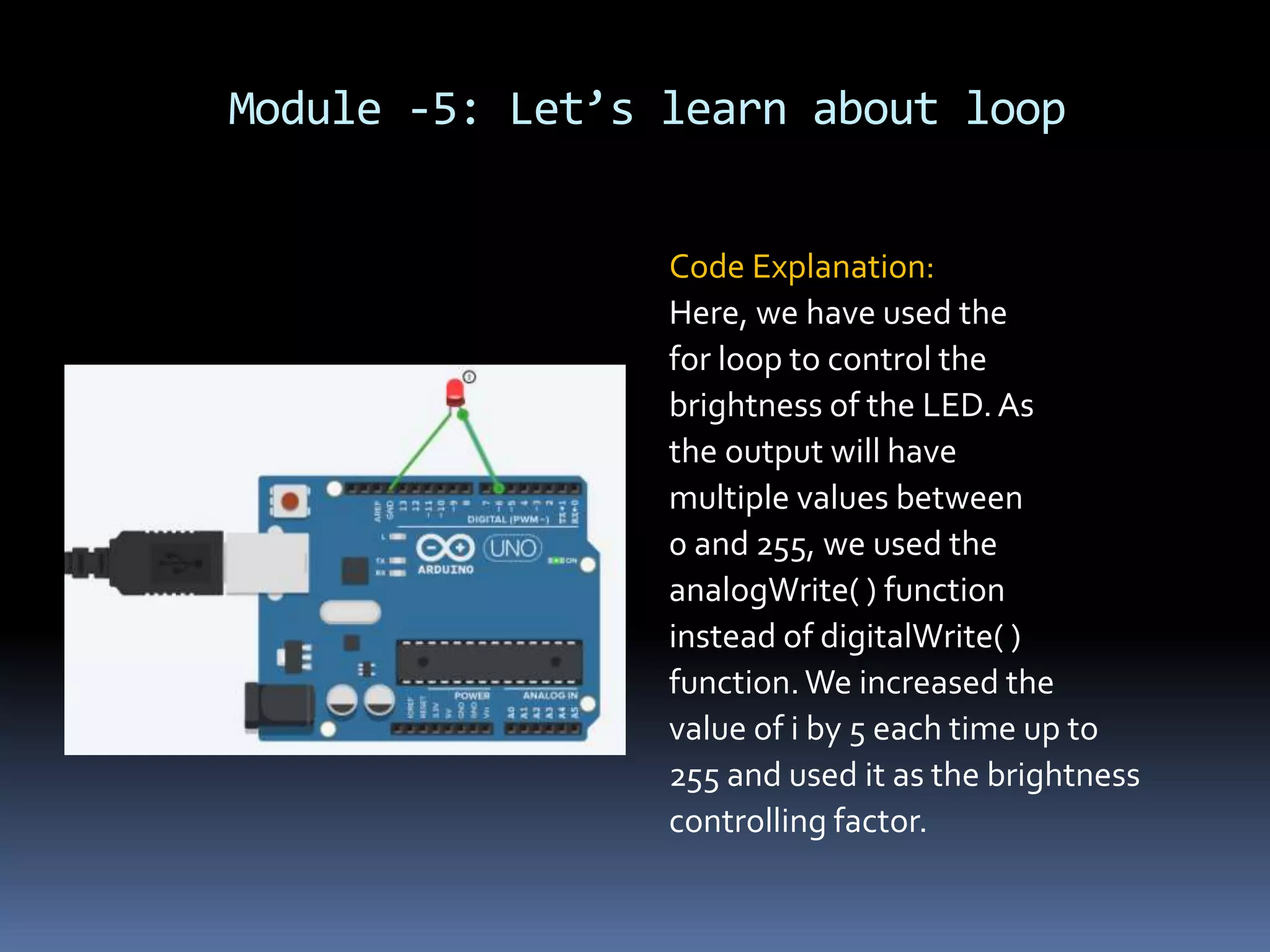
Module -5: Let’s learn about loop Code Explanation: Here, we have used the for loop to control the brightness of the LED.As the output will have multiple values between 0 and 255, we used the analogWrite( ) function instead of digitalWrite( ) function.We increased the value of i by 5 each time up to 255 and used it as the brightness controlling factor.
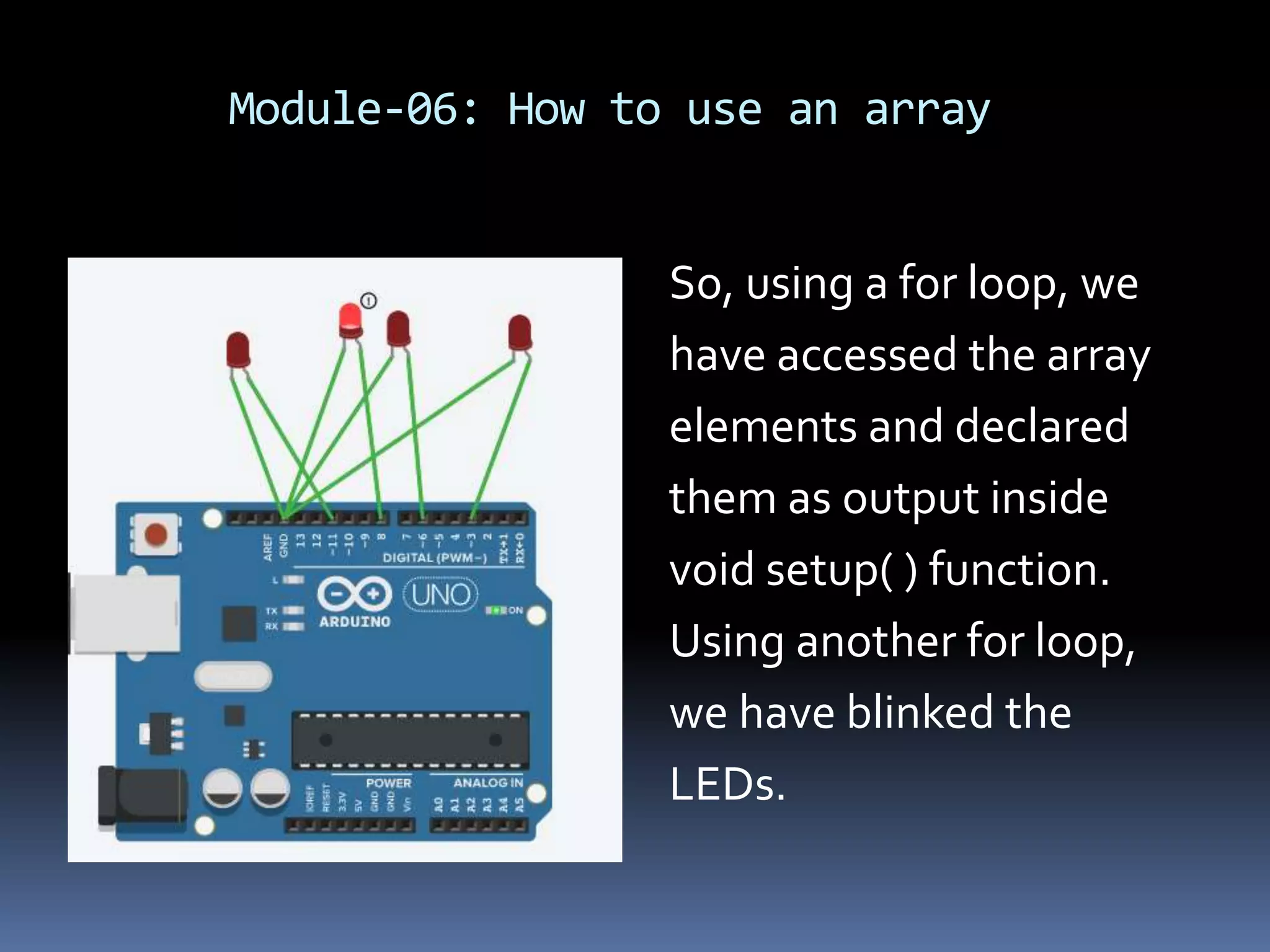
Module-06: How to use an array Array Declaration: Array is a collection of same type of data. It is a derived data type and has a huge area of use in programming. It’s structure is as below: Array_name[size]={ }; Size means number of elements of the array. For example: Arduino[6]={ 4,5,6,3,8,7}; Here, we have an array named ‘Arduino’ and it has 6 elements. This elements are connected to the 4th,5th,6th,3rd,8th, and 7th pin of the Arduino respectively. The advantage of using array is – we can change the order of the LEDs very easily.
Module-06: How to use an array Blinking LED using Array: Apparatus: Arduino, LED, Jumpers Code: int array[4]={3,6,8,11}; int i; void setup( ) { for( i=o ; i<4; i++){ pinMode(array[i],OUTPUT); } }
Module-06: How to use an array void loop( ) { for( i=0; i<4; i++) { digitalWrite( array[i], HIGH); delay(1000); digitalWrite( array[i], LOW); } } Code Explanation: To access array elements, we use array indexing.
Module-06: How to use an array The indexing starts from 0 and the last index of an array is (size-1). In this case the last index of the array is 3.We can access the elements using indexing as below: array[0]=3; array[1]=6; array[2]=8; array[3]=11;
Module-06: How to use an array So, using a for loop, we have accessed the array elements and declared them as output inside void setup( ) function. Using another for loop, we have blinked the LEDs.
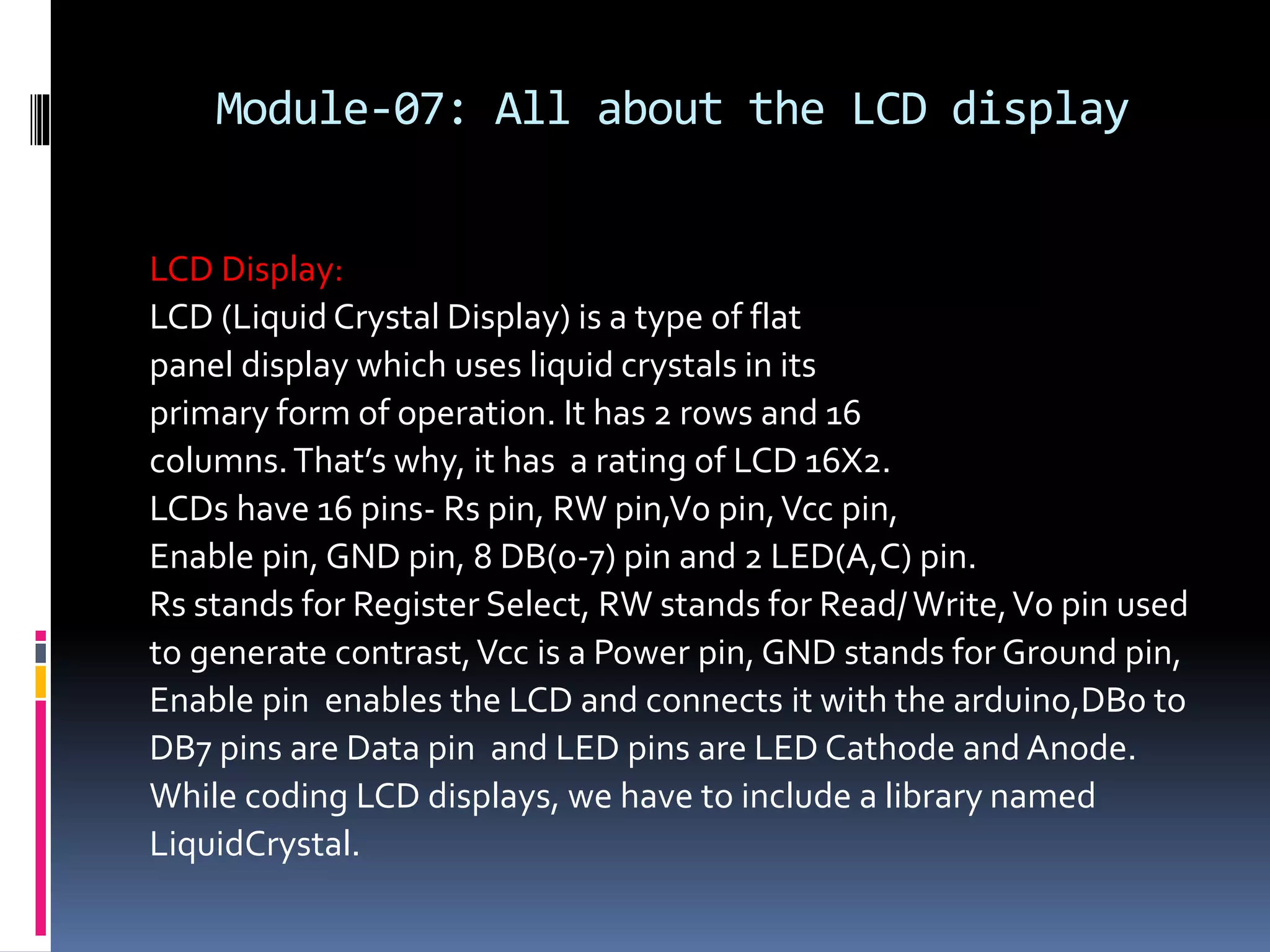
Module-07: All about the LCD display LCD Display: LCD (Liquid Crystal Display) is a type of flat panel display which uses liquid crystals in its primary form of operation. It has 2 rows and 16 columns.That’s why, it has a rating of LCD 16X2. LCDs have 16 pins- Rs pin, RW pin,V0 pin,Vcc pin, Enable pin, GND pin, 8 DB(0-7) pin and 2 LED(A,C) pin. Rs stands for Register Select, RW stands for Read/Write,V0 pin used to generate contrast,Vcc is a Power pin, GND stands for Ground pin, Enable pin enables the LCD and connects it with the arduino,DB0 to DB7 pins are Data pin and LED pins are LED Cathode and Anode. While coding LCD displays, we have to include a library named LiquidCrystal.
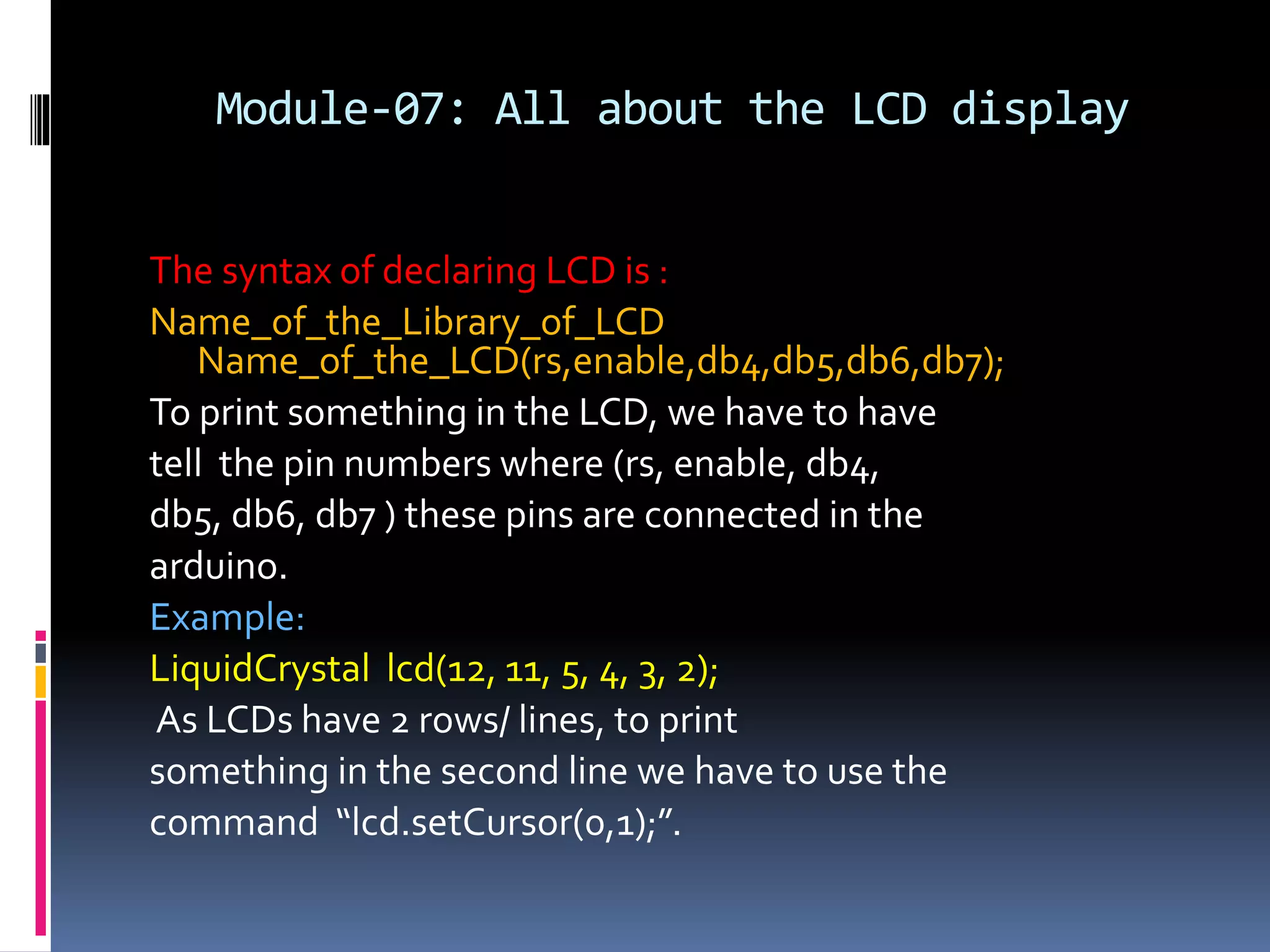
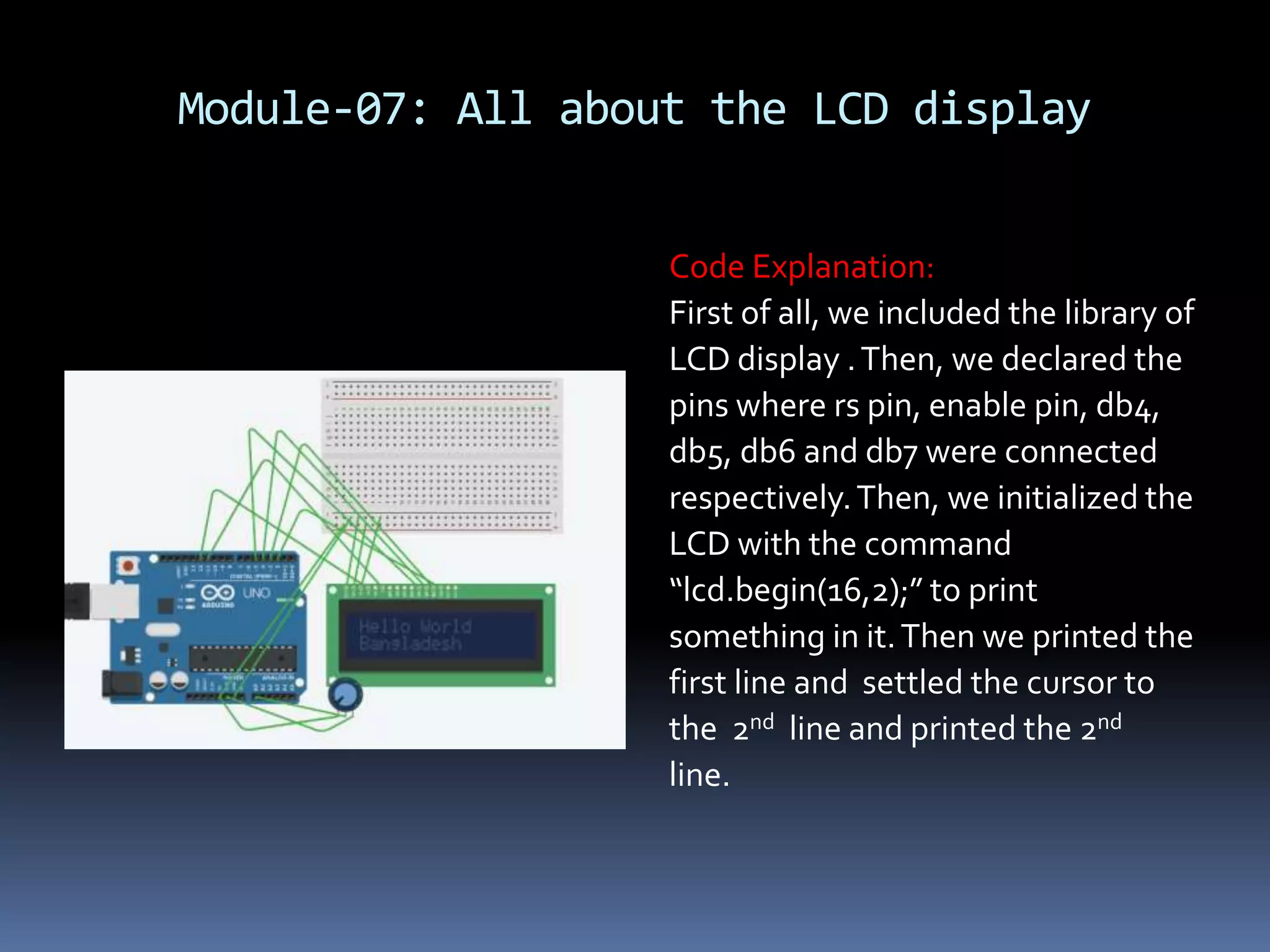
Module-07: All about the LCD display The syntax of declaring LCD is : Name_of_the_Library_of_LCD Name_of_the_LCD(rs,enable,db4,db5,db6,db7); To print something in the LCD, we have to have tell the pin numbers where (rs, enable, db4, db5, db6, db7 ) these pins are connected in the arduino. Example: LiquidCrystal lcd(12, 11, 5, 4, 3, 2); As LCDs have 2 rows/ lines, to print something in the second line we have to use the command “lcd.setCursor(0,1);”.
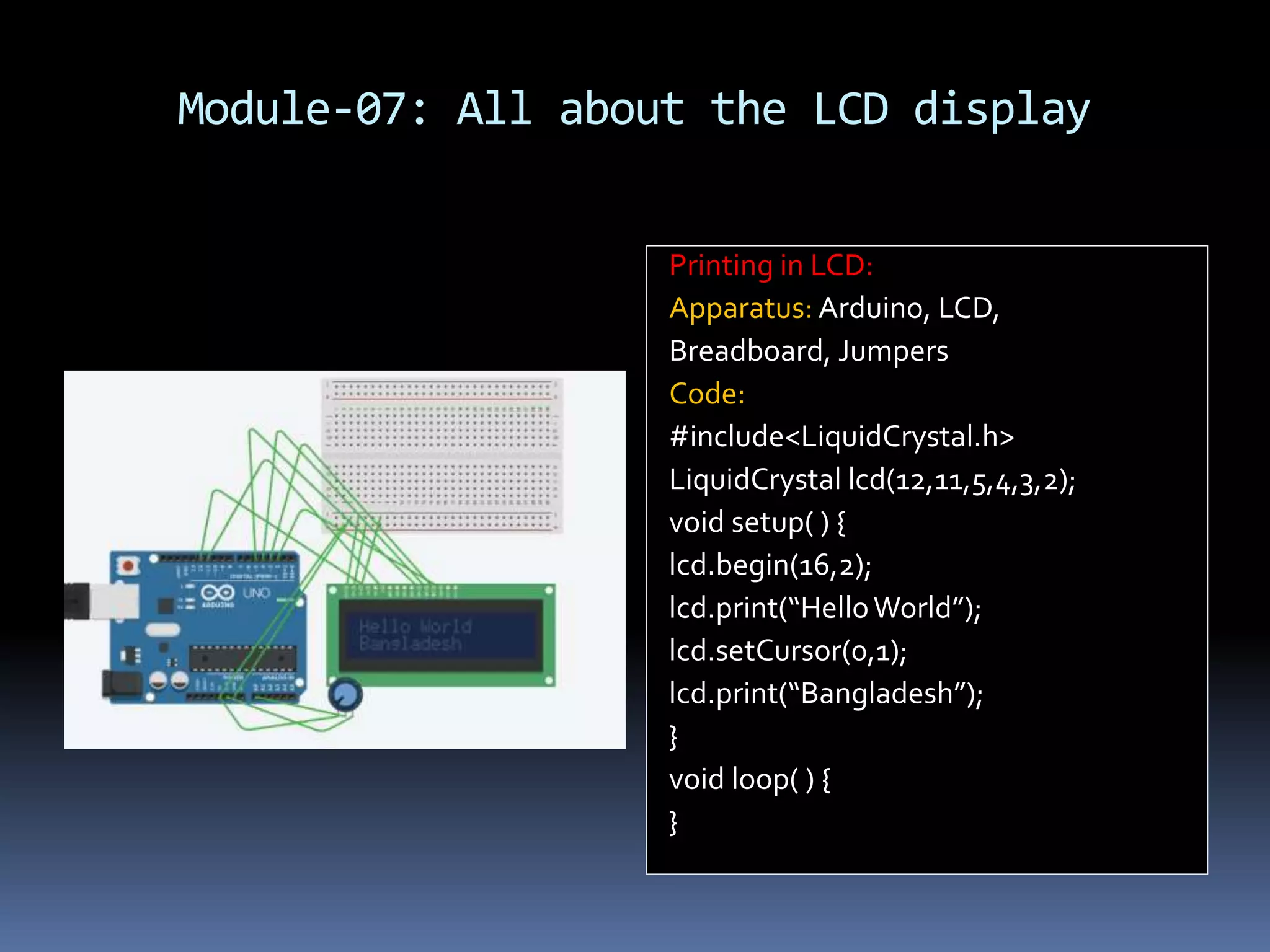
Module-07: All about the LCD display Printing in LCD: Apparatus: Arduino, LCD, Breadboard, Jumpers Code: #include<LiquidCrystal.h> LiquidCrystal lcd(12,11,5,4,3,2); void setup( ) { lcd.begin(16,2); lcd.print(“HelloWorld”); lcd.setCursor(0,1); lcd.print(“Bangladesh”); } void loop( ) { }
Module-07: All about the LCD display Code Explanation: First of all, we included the library of LCD display .Then, we declared the pins where rs pin, enable pin, db4, db5, db6 and db7 were connected respectively.Then, we initialized the LCD with the command “lcd.begin(16,2);” to print something in it.Then we printed the first line and settled the cursor to the 2nd line and printed the 2nd line.
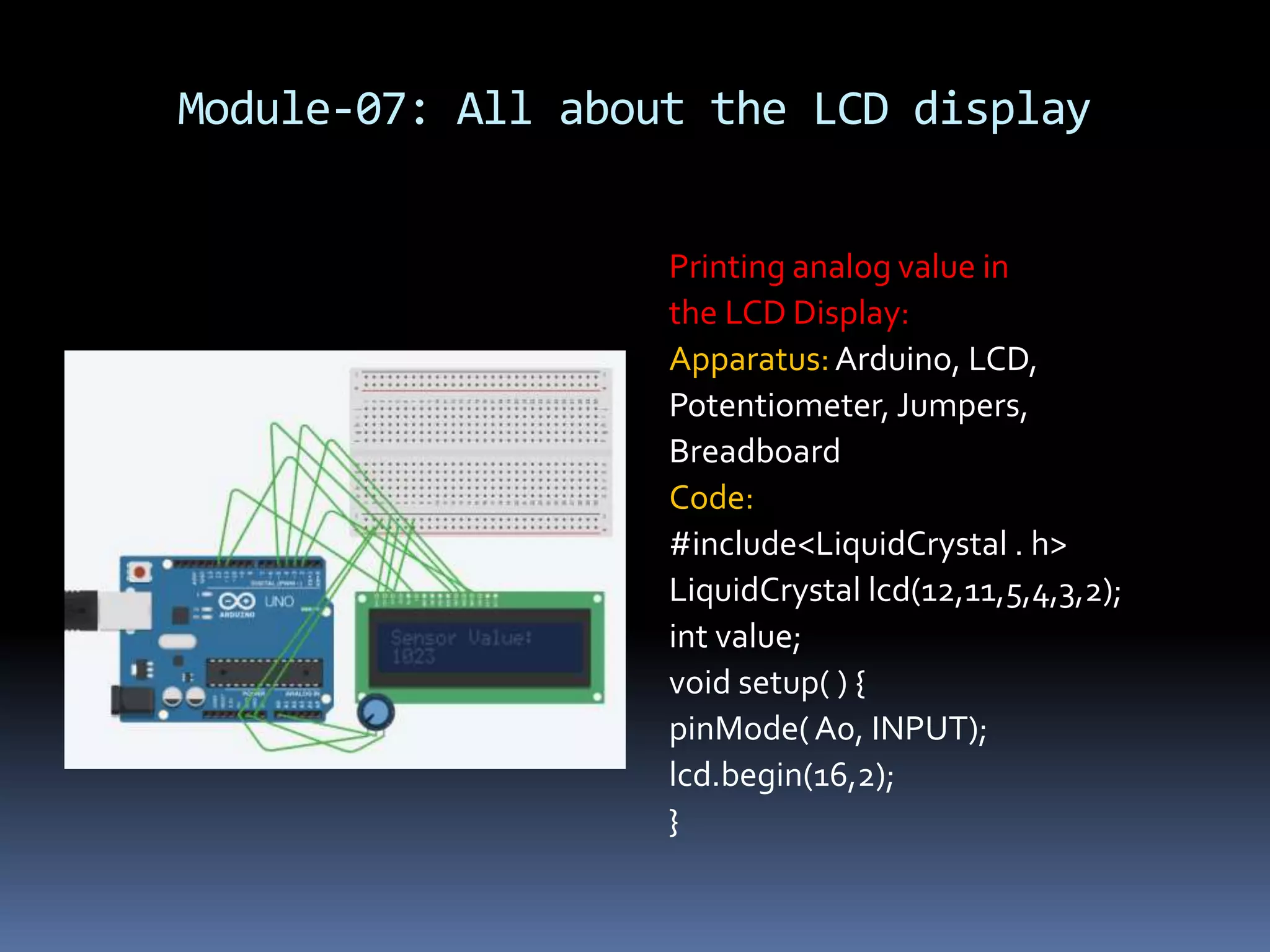
Module-07: All about the LCD display Printing analog value in the LCD Display: Apparatus:Arduino, LCD, Potentiometer, Jumpers, Breadboard Code: #include<LiquidCrystal . h> LiquidCrystal lcd(12,11,5,4,3,2); int value; void setup( ) { pinMode(A0, INPUT); lcd.begin(16,2); }
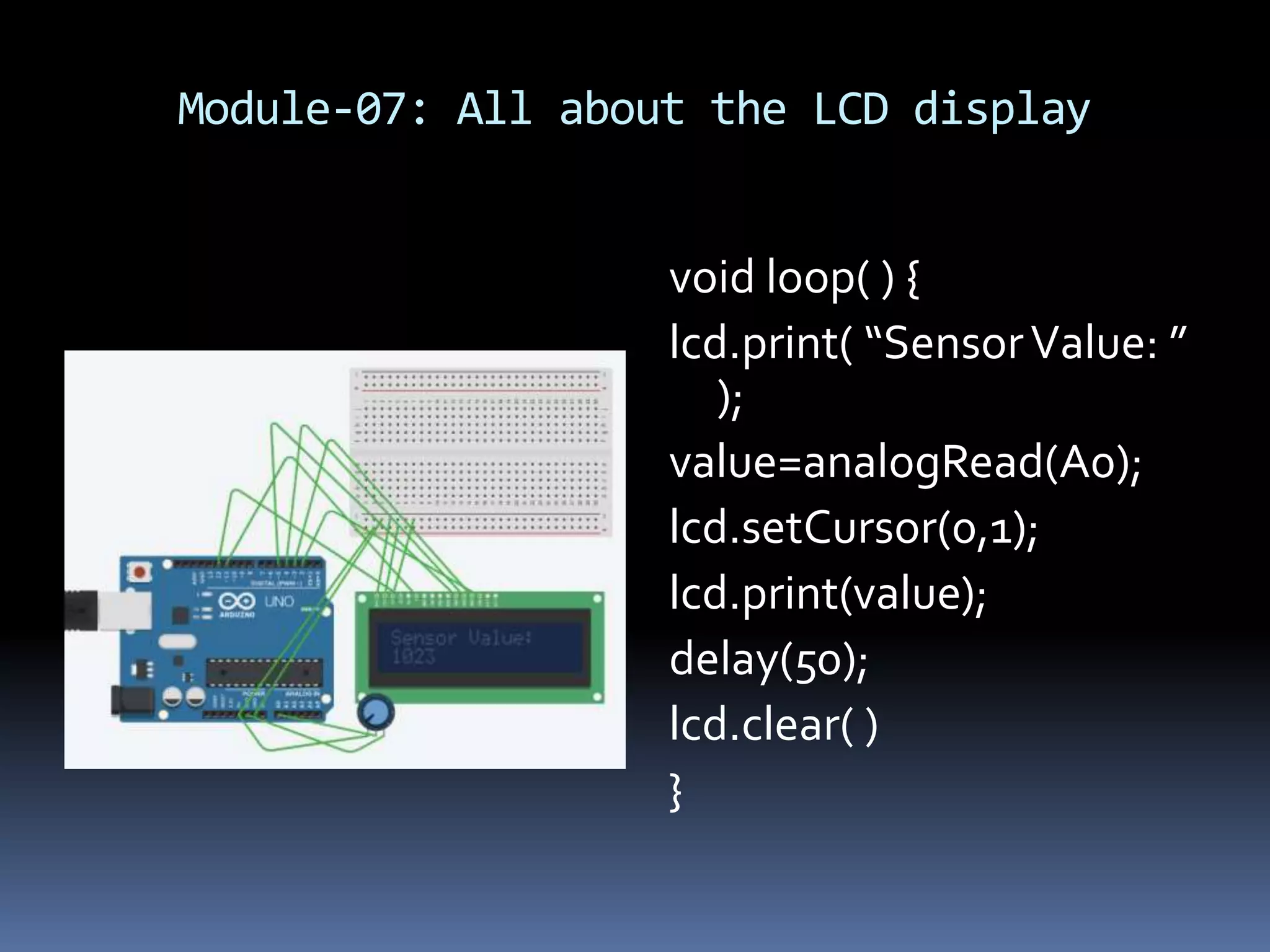
Module-07: All about the LCD display void loop( ) { lcd.print( “SensorValue: ” ); value=analogRead(A0); lcd.setCursor(0,1); lcd.print(value); delay(50); lcd.clear( ) }
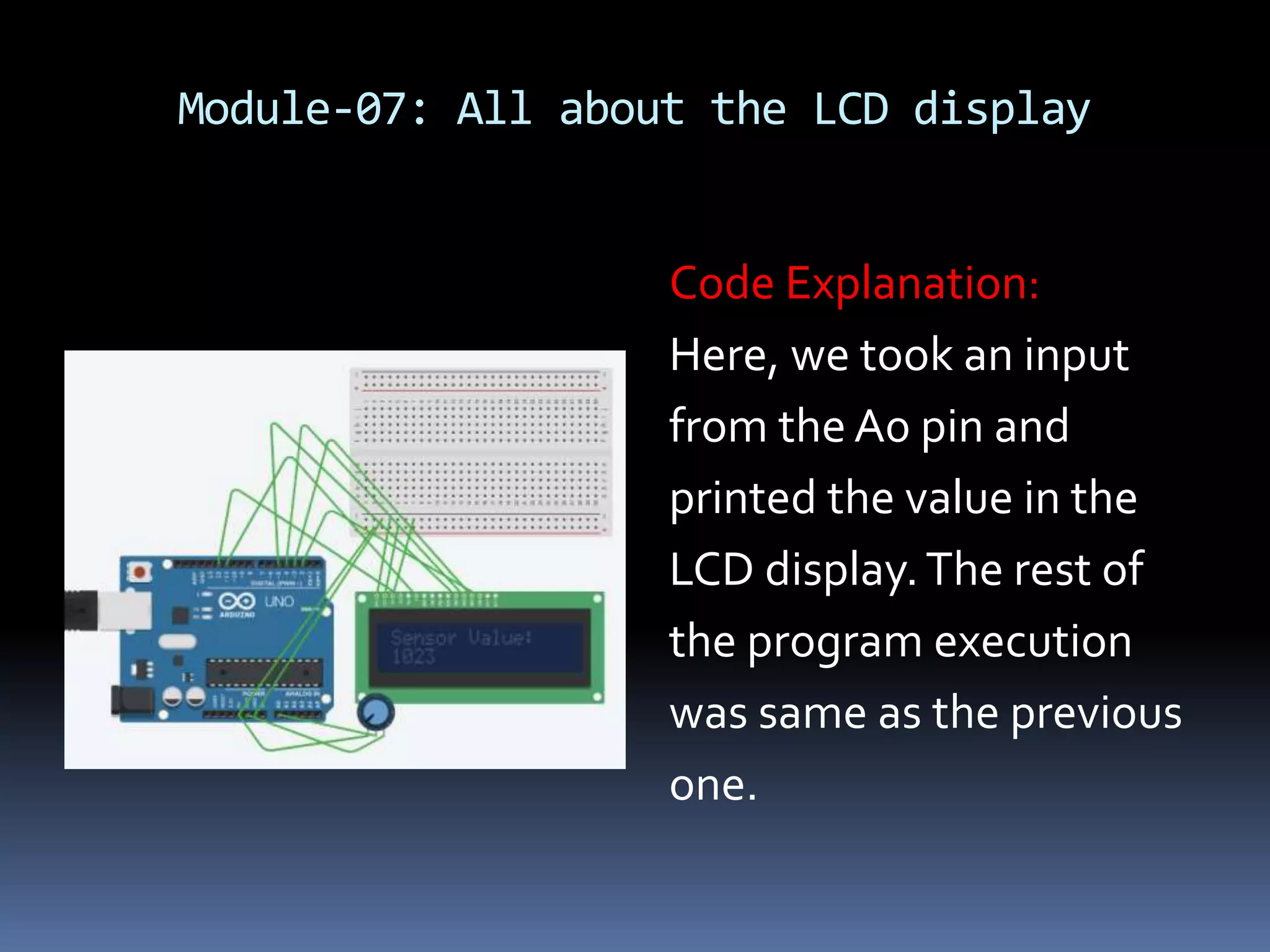
Module-07: All about the LCD display Code Explanation: Here, we took an input from the A0 pin and printed the value in the LCD display.The rest of the program execution was same as the previous one.
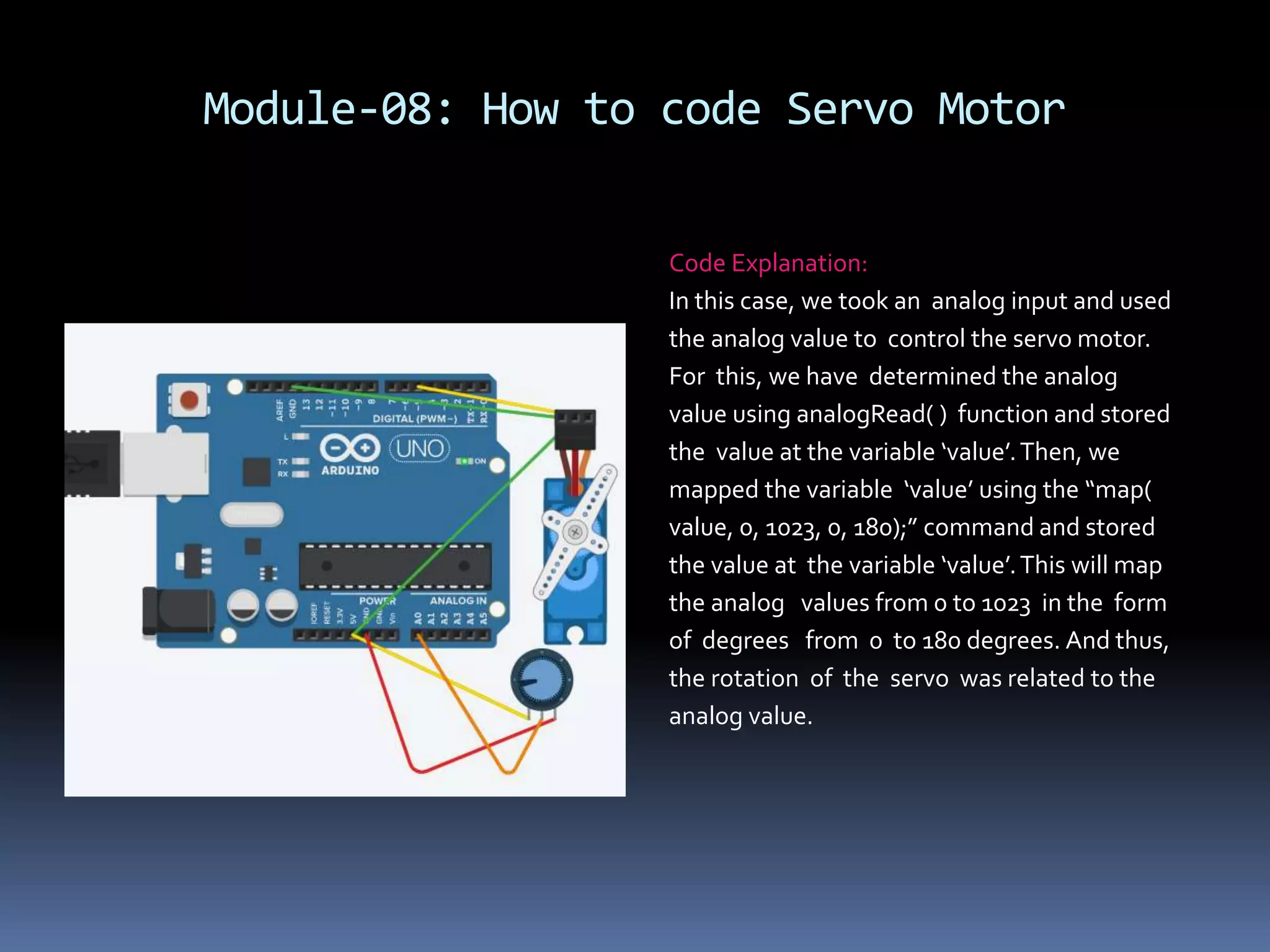
Module-08: How to code Servo Motor Servo Motor: A servo motor is an electrical device which can push or rotate an object with great precision. If you want to rotate and object at some specific angles or distance, then you use servo motor. It is just made up of simple motor which run through servo mechanism. Normal motors continuously moves around 360 degrees where servo motors rotation angle can be controlled. Some of them can rotate up to 180 degrees and some of them can rotate up to 360 degrees. It has 3 pins- GND pin, Power pin and Signal pin. Signal pin is used to give commands from Arduino.
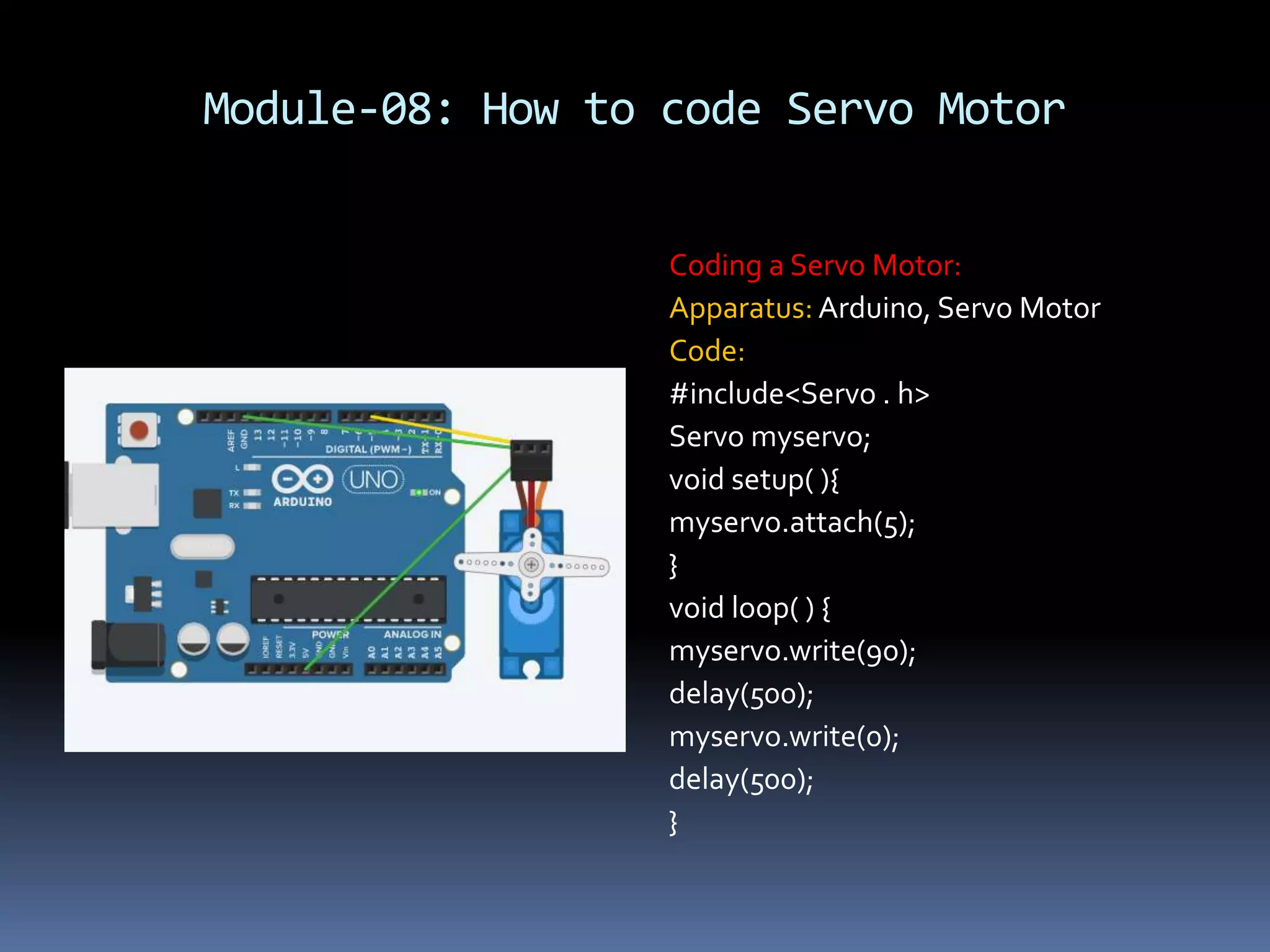
Module-08: How to code Servo Motor Coding a Servo Motor: Apparatus: Arduino, Servo Motor Code: #include<Servo . h> Servo myservo; void setup( ){ myservo.attach(5); } void loop( ) { myservo.write(90); delay(500); myservo.write(0); delay(500); }
Module-08: How to code Servo Motor Code Explanation: First of all, a library(Servo . h) for coding a servo motor has been included.Then, we have declared a servo motor named ‘myservo’ and then we declared it’s connecting point in the Arduino.Then, we used the “myservo.write(90);” command to rotate it by 90 degrees.Then, after delaying for 0.5s, we rotated back to 0 degree. Finally, we created a loop of rotation between 0 to 90 degrees in every 0.5s.
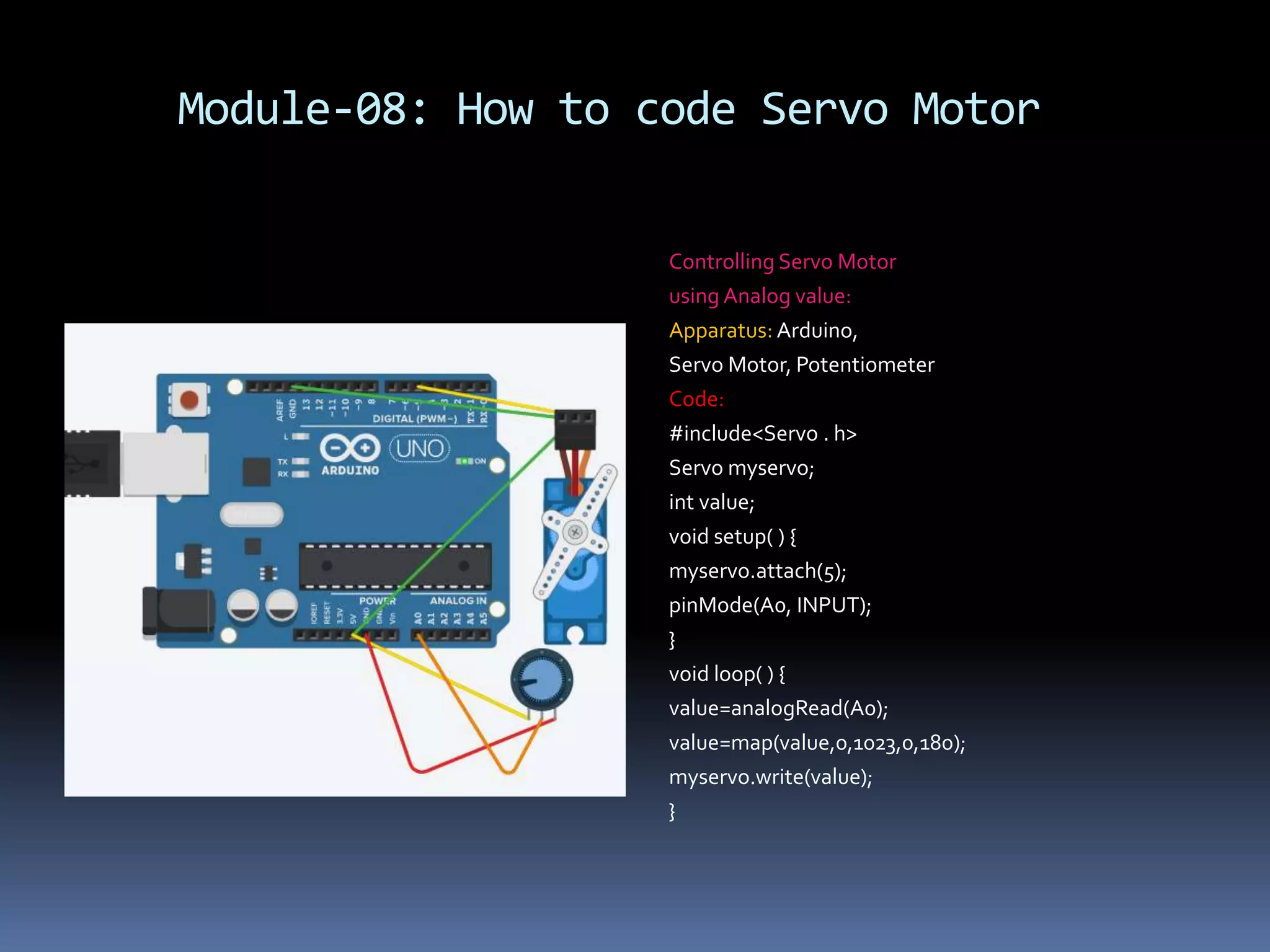
Module-08: How to code Servo Motor Controlling Servo Motor using Analog value: Apparatus: Arduino, Servo Motor, Potentiometer Code: #include<Servo . h> Servo myservo; int value; void setup( ) { myservo.attach(5); pinMode(A0, INPUT); } void loop( ) { value=analogRead(A0); value=map(value,0,1023,0,180); myservo.write(value); }
Module-08: How to code Servo Motor Code Explanation: In this case, we took an analog input and used the analog value to control the servo motor. For this, we have determined the analog value using analogRead( ) function and stored the value at the variable ‘value’.Then, we mapped the variable ‘value’ using the “map( value, 0, 1023, 0, 180);” command and stored the value at the variable ‘value’.This will map the analog values from 0 to 1023 in the form of degrees from 0 to 180 degrees. And thus, the rotation of the servo was related to the analog value.
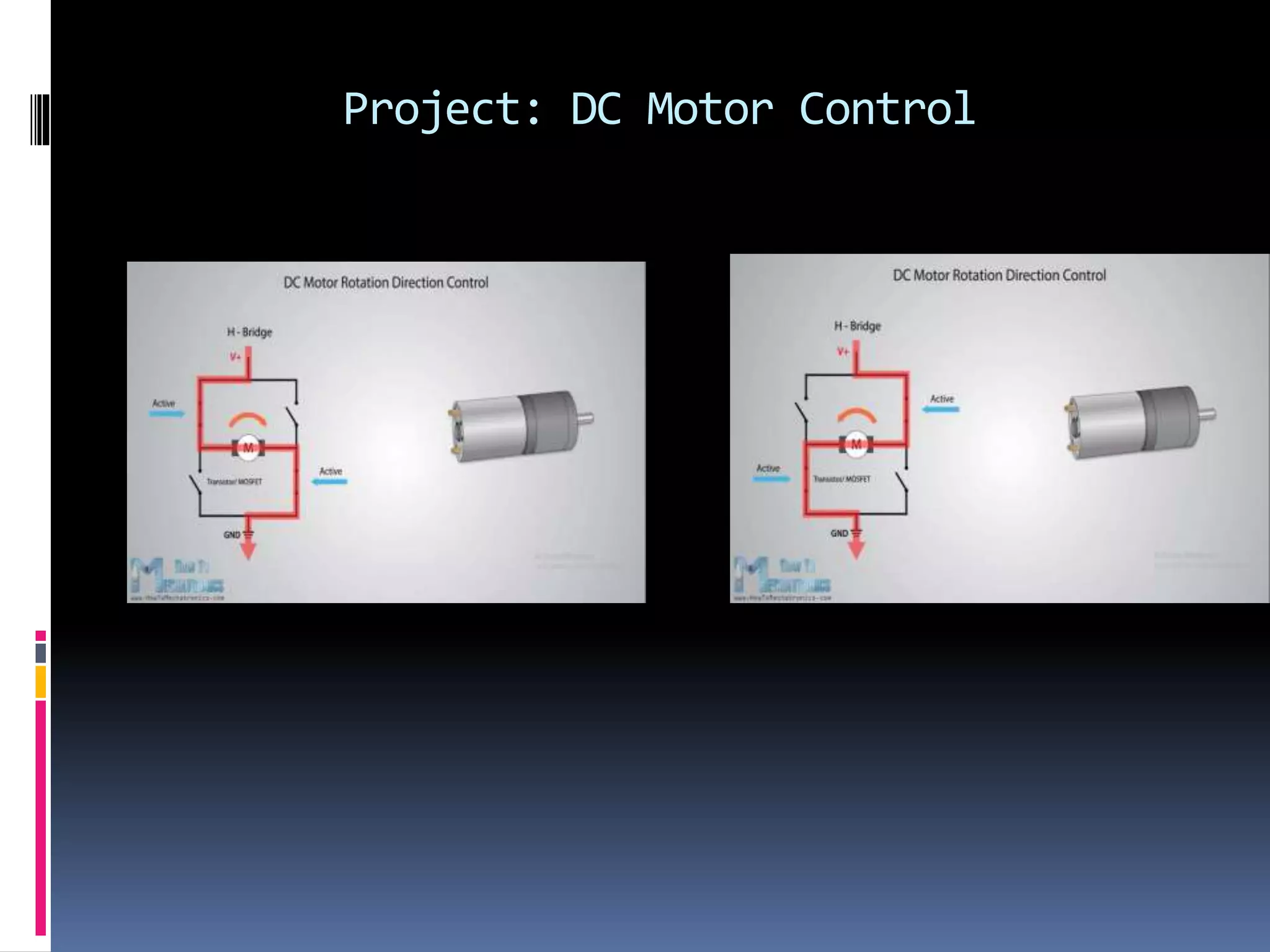
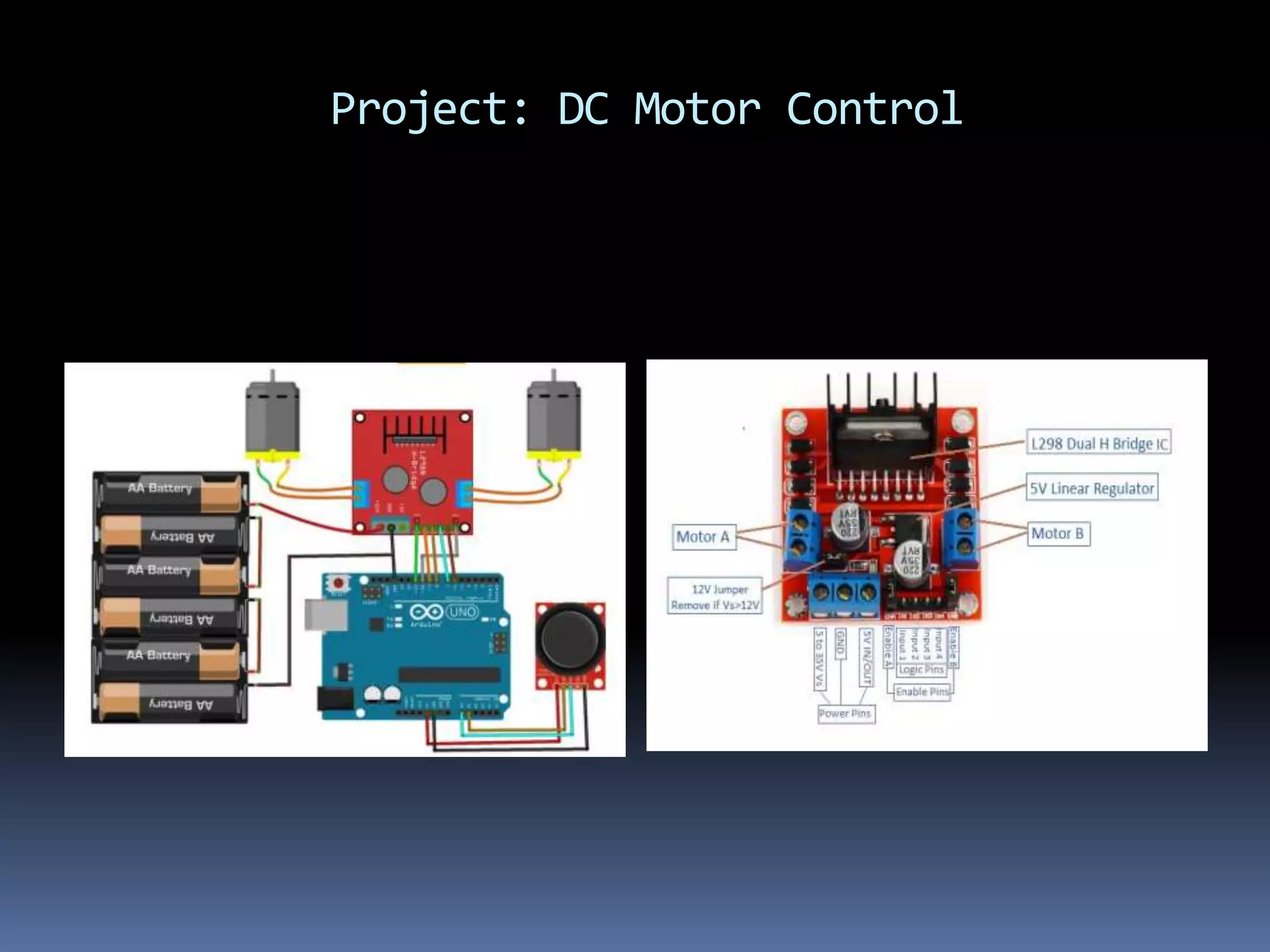
Project: DC Motor Control DC Motor Control: DC Motor controlling means controlling both speed and direction of it’s rotation. We can do it by controlling it’s input voltage and changing the direction of entering current.To do this, we will use PWM pins and a L298N DC Motor Driver. PWM pins controls the input voltage and motor driver controls both voltage and direction of rotation of the motor by applying H-bridge method. H- bridge has 4 switching elements.
Project: DC Motor Control
Project: DC Motor Control By activating two different switches from opposite sides, we can change the direction of current flow; and thus, we can control the direction of rotation. In the motor driver, there are two pins- ENA,ENB which are used to enable and control the speed of the motor.There are 4 more pins- IN1,IN2,IN3 and IN4 which are used to control the rotation of the motor. If IN1 is LOW and IN2 is HIGH, the motor will move forward; in case, IN1 is HIGH and IN2 is LOW the motor will move backward. If, both inputs are same(LOW/HIGH) ,the motor will stop.
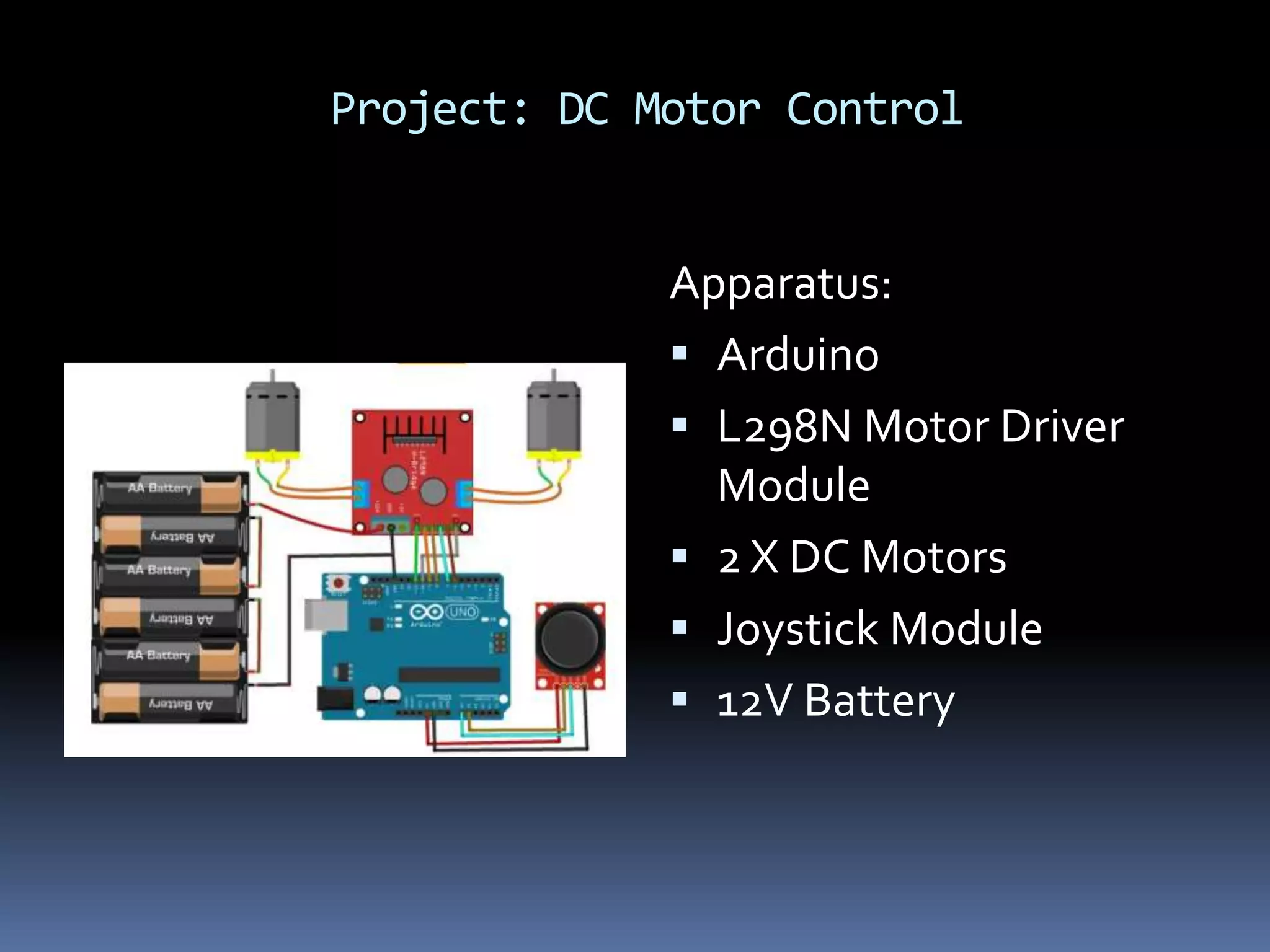
Project: DC Motor Control Apparatus:  Arduino  L298N Motor Driver Module  2 X DC Motors  Joystick Module  12V Battery
Project: DC Motor Control
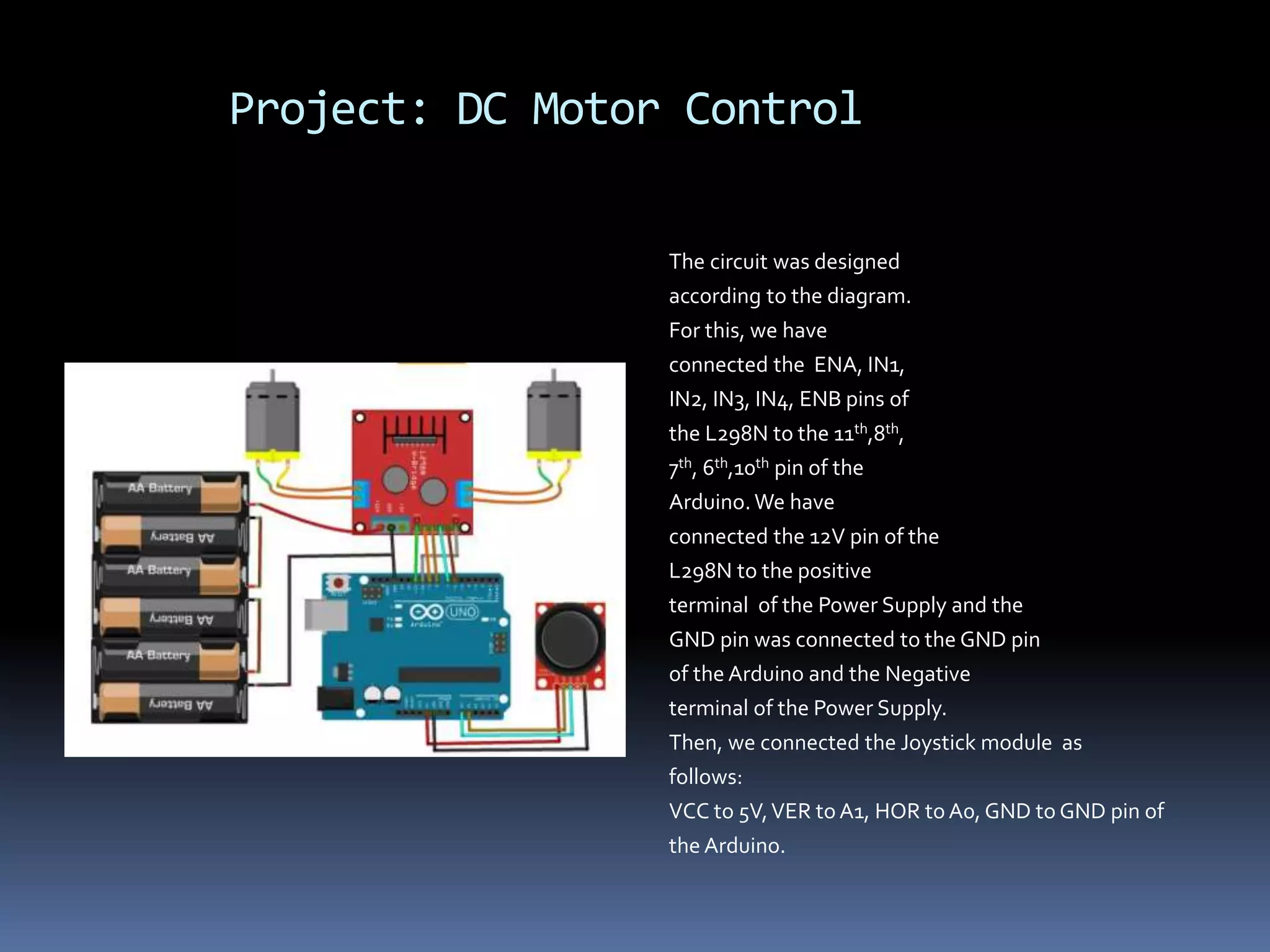
Project: DC Motor Control The circuit was designed according to the diagram. For this, we have connected the ENA, IN1, IN2, IN3, IN4, ENB pins of the L298N to the 11th,8th, 7th, 6th,10th pin of the Arduino. We have connected the 12V pin of the L298N to the positive terminal of the Power Supply and the GND pin was connected to the GND pin of the Arduino and the Negative terminal of the Power Supply. Then, we connected the Joystick module as follows: VCC to 5V,VER to A1, HOR to A0, GND to GND pin of the Arduino.
Project: DC Motor Control
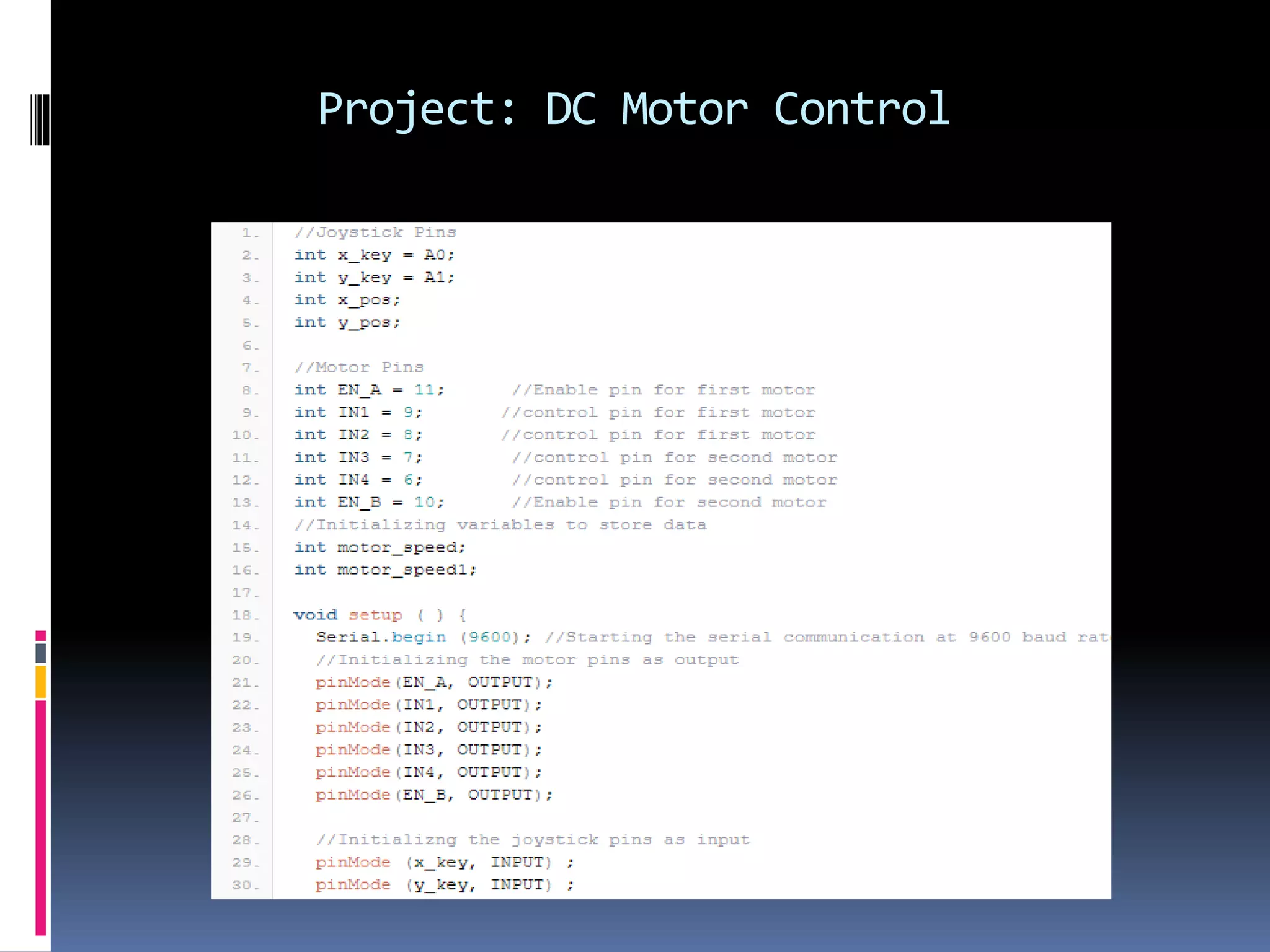
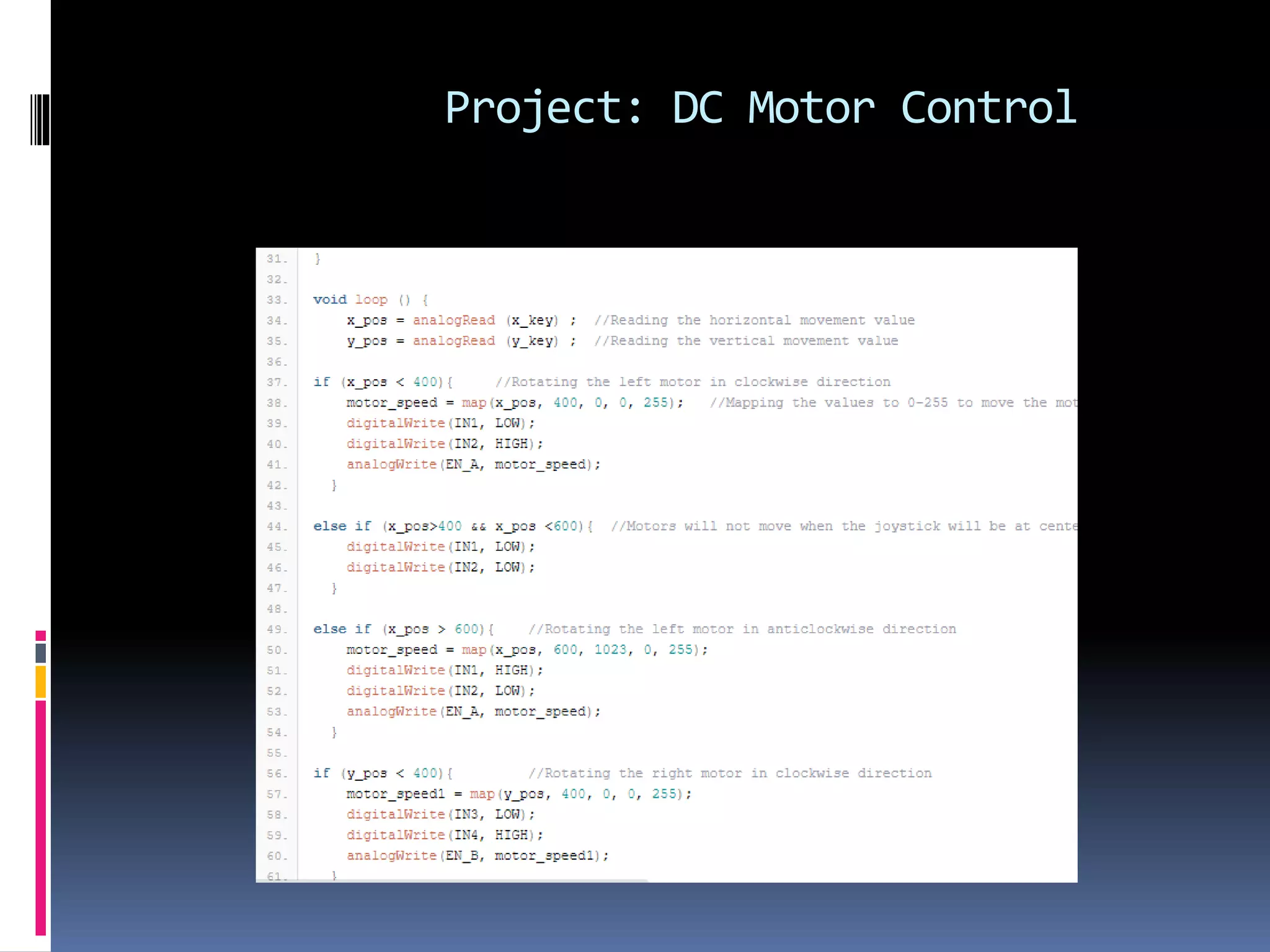
Project: DC Motor Control Code Explanation: First of all, we have declared the pins of the Joystick module and the motor driver .We also declared four other variables for taking the input values.Then, we declared the pins mode inside the void setup( ) function.Then inside void loop( ) function, we have used analogRead( ) function to take the input values.Then using this values in conditional statements, we have controlled the rotation of the motors. For this, we have used the map( ) function to map the x_pos values less than 400 in the form of values between 0 to 255. And, rotated the left motor in clockwise direction making IN1 as LOW and IN2 as HIGH .
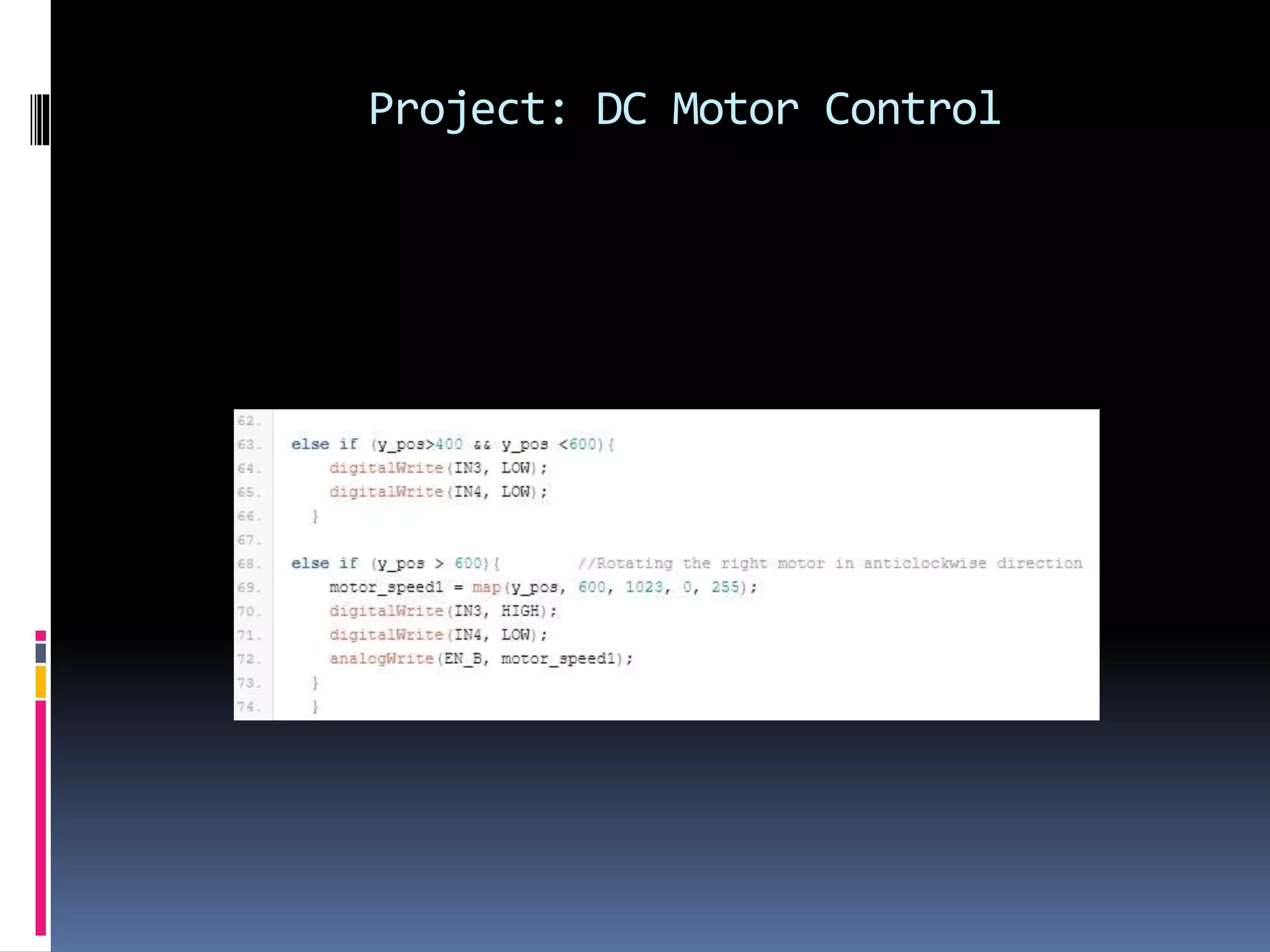
Project: DC Motor Control Then, for x_pos values between 400 and 600, stopped the left motor making both the inputs LOW.Then, for x_pos values greater than 600, we have rotated the left motor in anti-clockwise direction making IN1 as HIGH and IN2 as LOW. Similarly, for y_pos values less than 400, we have rotated the right motor in clockwise direction by making IN3 as LOW and IN4 as HIGH. For y_pos values between 400 and 600, we have stopped the right motor by making both the inputs LOW. And for y_pos values greater than 600, we have rotated the right motor in anti-clockwise direction by making IN3 as HIGH and IN4 as LOW.
Thanks Everyone ( THE END )

Arduino programming

  • 1.
    Name : Md.Ashraful Alam Email : emdashrafulalam@gmail.com Phone : +8801638618802
  • 2.
    Arduino Programming CourseLearning  Module-01: Introduction  Module-02: Get started with programming  Module 3 – Digital and analog input receive  Module -4 – Let’s learn about the condition  Module -5 – Let’s learn about loop  Module-6 – How to use an array  Module -7 – All about the LCD display  Module-8 – How to code Servo Motor
  • 3.
    Module-01: Introduction Arduino isan open source programmable circuit board that can be integrated into a wide variety of makerspace projects both simple and complex. This board contains a microcontroller which is able to be programmed to sense and control objects in the physical world. By responding to sensors and inputs, the Arduino is able to interact with a large array of outputs such as LEDs, motors and displays. Because of it’s flexibility and low cost, Arduino has become a very popular choice for makers and makerspaces looking to create interactive hardware projects.
  • 4.
    Arduino Types There arevarious types of Arduino Boards such as Arduino Uno, Arduino MEGA, Arduino NANO, Arduino Mini, Arduino Leonardo etc. are common. Among them Arduino Uno, Arduino MEGA and Arduino NANO are most common. Arduino MEGA has large number of input/output pins. It has 54 input / output pins , 16 analog pins, 256 KB flash memory and 8 KB RAM. It is larger than other Arduino Boards. Arduino NANO is used in case of managing spaces . Besides , it has some special features such as it’s pins can be taken off. However , Arduino Uno is the mostly used Arduino.
  • 5.
  • 6.
    Arduino Uno 1.Reset Button–This will restart any code that is loaded to the Arduino board 2.AREF – Stands for “Analog Reference” and is used to set an external reference voltage 3.Ground Pin –There are a few ground pins on the Arduino and they all work the same 4.Digital Input/Output – Pins 0- 13 can be used for digital input or output
  • 7.
    Arduino Uno 5.PWM –Thepins marked with the (~) symbol can simulate analog output 6.USB Connection – Used for powering up your Arduino and uploading sketches 7.TX/RX –Transmit and receive data indication LEDs 8.ATmega Microcontroller – This is the brains and is where the programs are stored 9.Power LED Indicator –This LED lights up anytime the board is plugged in a power source 10.Voltage Regulator –This controls the amount of voltage going into the Arduino board
  • 8.
    Arduino Types 11.DC PowerBarrel Jack –This is used for powering your Arduino with a power supply 12. 3.3V Pin –This pin supplies 3.3 volts of power to your projects 13. 5V Pin –This pin supplies 5 volts of power to your projects 14. Ground Pins – There are a few ground pins on the Arduino and they all work the same 15. Analog Pins – These pins can read the signal from an analog sensor and convert it to digital They can output any value from 0 to 255.
  • 9.
    Basic Functions ofArduino Programming 1) void setup(): Almost every program contains a void setup() function. It is used to declare input and output.The commands inside this function are executed once. Syntax: void setup( ) { pinMode ( pin_number, INPUT); //sets the pin as INPUT pinMode(pin_number,OUTPUT); //sets the pin as OUTPUT } 2) pinMode( ):This is used to declare the state (INPUT/OUTPUT) of the pins. 3) void loop( ): The commands inside this function are executed for infinite times.This function is mainly used to generate outputs. Syntax: void loop( ) { digitalWrite ( pin_number, HIGH/LOW); }
  • 10.
    Basic Functions ofArduino Programming 4) digitalWrite( ):This function is used to give digital outputs. Digital outputs have only two values – HIGH or LOW. HIGH means 5V and LOW means 0V 5) analogWrite: This function is used to generate analog outputs. Analog outputs have values from 0 to 255 and this values are scaled between 0V to 5V.That is, analog-255=5V. So, analog-1=(5/255)V If, n is the analog output , then it’s value in volt is n*(5/255)V. 6) digitalRead( ): It is used to take digital input. It takes only two value as input(HIGH/LOW). 7) analogRead( ): It is used to take analog input. It takes input value from 0 to 1023.
  • 11.
    Basic Functions ofArduino Programming 8) delay( ):This function is used to pause the work of Arduino . For example, if a LED is lighting and at that moment delay(1000); instruction is added , then the LED will be in HIGH state for 1000 miliseconds or 1 second. Example: void loop( ) { digitalWrite(5,HIGH); delay( 1000); digitalWrite(5,LOW); } এই ক্ষেত্রে ৫ম পিত্রে connected LED টি ১০০০ পমপিত্রেত্রেন্ড জ্বত্রি থােত্রে এেং ১০০০ পমপিত্রেত্রেন্ড ো ১ ক্ষেত্রেন্ড ির LED টি পেত্রে যাত্রে । 9) Comments: Comments are used to make the program easy to understand for others. It doesn’t perform anything.
  • 12.
    Basic Functions ofArduino Programming Must be included in every Program 1) Semicolons (;) after every statement. 2) Parenthesis( ) with every function. 3) Curly braces after every function declaration to write codes inside it. 4) Some blue keywords such as INPUT,OUTPUT, HIGH, LOW etc.
  • 13.
    Module-02:Get Started withProgramming LED Glowing: Apparatus:Arduino, LED, Jumping Wires Code: int led=13; void setup( ) { pinMode( led, OUTPUT); } void loop( ) { digitalWrite( led, HIGH); }
  • 14.
    Basic Functions ofArduino Programming Code Explanation: In line-1, we declared an integer and Initialized it with a value, led=13. We connected the led to the 13th pin of the arduino.Then ,we declared the 13th pin as output inside the void setup( ) function using pinMode( ) function. Finally, inside void loop( ) function ,we declared the state of the LED as HIGH.That’s why, the LED was glowing.
  • 15.
    Basic Functions ofArduino Programming LED Blinking: Apparatus: Arduino, LED, Jumping Wires Code: int led=13; void setup( ) { pinMode( led, OUTPUT); } void loop( ) { digitalWrite( led, HIGH); delay(1000); digitalWrite(led, LOW); delay(1000); }
  • 16.
    Basic Functions ofArduino Programming Code Explanation: In line-1, we declared a variable and Initialized it with a value, led=13. Then, we declared the 13th pin as OUTPUT pin inside the void setup( ) function using pinMode( ) function. Then, we declared the state of the LED as HIGH. So, the LED glowed. Then, we used the delay( ) function for 1000 miliseconds .As a result, the LED was glowing for 1 second.
  • 17.
    Basic Functions ofArduino Programming Then, we again declared the state of the LED as LOW. So, the LED stopped glowing.As a result of using the delay() function for 1s, the LED state was unchanged for 1s.That means, the LED blinked for once and it continued for infinite Time as it was declared inside void loop() function.
  • 18.
    Basic Functions ofArduino Programming Work of delay( ) function: delay( ) function is used to declare a time duration for an instruction to be executed. If we don’t initialize it with a value, it will take 0 miliseconds as a default value.
  • 19.
    Module-03: Digital andanalog input receive Digital Input: Apparatus: Arduino, LED, Jumpers, Resistor Code: int led=13; int input=4; int value; void setup( ) { pinMode( led, OUTPUT); pinMode( input, INPUT); } void loop( ) { value=digitalRead(input); digitalWrite( led, value); }
  • 20.
    Module-03:Digital and analoginput receive Code Explanation: In our previous programs ,we directly declared the values of outputs . But in this program ,we used digitalWrite( ) function to take digital input and used the value as output. In this case, if no input is connected To the input terminal, then we will get 0V as output from there.
  • 21.
    Module-03:Digital and analoginput receive Analog Input: Apparatus: Arduino, LED, Jumpers, Potentiometer, Resistor Code: int value; void setup( ) { pinMode(A0, INPUT); Serial.begin(9600); }
  • 22.
    Module-03:Digital and analoginput receive void loop( ) { value= analogRead(A0); Serial.println(value); } Code Explanation: Here, we have used a Potentiometer which is a 3 terminal device and we have printed the analog values to the serial monitor.
  • 23.
    Module-03:Digital and analoginput receive To initialize the analog values to be printed in the serial monitor, the “Serial.begin(9600);” command is used.We also used the Serial.println( ) function to print analog values to the Serial monitor.
  • 24.
    Module-03:Digital and analoginput receive Analog input as delay: Apparatus: Arduino, LED, Jumpers, Potentiometer, Resistor. Code: int value; int led=13; void setup( ) { pinMode(A0, INPUT); pinMode( led, OUTPUT); Serial.begin(9600); }
  • 25.
    Module-03:Digital and analoginput receive void loop( ) { value=analogRead(A0); Serial.println(value); digitalWrite( led, HIGH); delay(value); digitalWrite( led, LOW); delay(value); }
  • 26.
    Module-03:Digital and analoginput receive Code Explanation: Here, we have used a Potentiometer which is a 3 terminal device and we have printed the analog values to the serial monitor.To initialize the analog values to be printed in the serial monitor, the “Serial.begin(9600);” command is used.
  • 27.
    Module-03:Digital and analoginput receive We also used the Serial.println( ) function to print analog values to the Serial monitor.Then, we used the analog value as the parameter of the delay( ) function.
  • 28.
    Module-04: Let’s learnabout the condition Conditionals(if-else): Apparatus:Arduino, LED, Jumpers Code: int led1=7; int led2=6; int led3=5; int value=200; void setup( ) { pinMode( led1, OUTPUT); pinMode( led1, OUTPUT); pinMode( led1, OUTPUT); }
  • 29.
    Module-04: Let’s learnabout the condition void loop( ){ if(value<=500) { digitalWrite( led1, HIGH); delay(1000); digitalWrite( led1, LOW); delay(1000); } else if(value<=800) { digitalWrite( led2, HIGH); delay(1000); digitalWrite( led2, LOW); delay(1000); }
  • 30.
    Module-04: Let’s learnabout the condition else{ digitalWrite( led3, HIGH); delay(1000); digitalWrite( led3, LOW); delay(1000); } }
  • 31.
    Module-04: Let’s learnabout the condition Code Explanation: Here, we used if – else if – else- control structure to control the blinking of the LEDs. Here, we have taken 3 pins and declared them as OUTPUT inside the void setup( ) function. In those pins, we connected 3 LEDs. Inside void loop( ) function, we used 3 condition to control the blinking of the LEDs
  • 32.
    Module-04: Let’s learnabout the condition The if block will be executed ; in case, the value is smaller than or equal to 500.The else if block will work when the value is greater than 500 but smaller than or equal to 800.The else block will work if the other blocks doesn’t work. In this case, value=200 which fulfills the if condition. So, the if block will be executed and the led1 will be blinking.
  • 33.
    Module-04: Let’s learnabout the condition if- else condition using analog value: Apparatus: Arduino, LED, Jumpers, Potentiometer Code: int led1=7; int led2=6; int led3=5; int value; void setup( ) { pinMode( led1, OUTPUT); pinMode( led2, OUTPUT); pinMode( led3, OUTPUT); pinMode(A0,INPUT); Serial.begin(9600); }
  • 34.
    Module-04: Let’s learnabout the condition void loop( ){ value=analogRead(A0); Serial.println(value); if(value<=500) { digitalWrite( led1, HIGH); delay(1000); digitalWrite( led1, LOW); delay(1000); } else if(value<=800) { digitalWrite( led2, HIGH); delay(1000); digitalWrite( led2, LOW); delay(1000); }
  • 35.
    Module-04: Let’s learnabout the condition else{ digitalWrite( led3, HIGH); delay(1000); digitalWrite( led3, LOW); delay(1000); } }
  • 36.
    Module-04: Let’s learnabout the condition Code Explanation: In this case, we have used a potentiometer and took an input from it.The input value was used to control the LED blinking. We varied this value varying the resistance of the potentiometer. And the rest of the code execution was same as the previous one.
  • 37.
    Module -5: Let’slearn about loop Blinking Multiple LED: Apparatus: Arduino, LED, Jumpers Code: int led1=13; int led2=12; int led3=11; int led4=10; int led5=9; int led6=8;
  • 38.
    Module -5: Let’slearn about loop void setup( ){ pinMode( led1, OUTPUT); pinMode( led2, OUTPUT); pinMode( led3, OUTPUT); pinMode( led4, OUTPUT); pinMode( led5, OUTPUT); pinMode( led6, OUTPUT); }
  • 39.
    Module -5: Let’slearn about loop void loop( ){ digitalWrite( led1, HIGH); delay(1000); digitalWrite( led1,LOW); delay(1000); digitalWrite( led2, HIGH); delay(1000); digitalWrite( led2,LOW); delay(1000);
  • 40.
    Module -5: Let’slearn about loop digitalWrite( led3, HIGH); delay(1000); digitalWrite( led3,LOW); delay(1000); digitalWrite( led4, HIGH); delay(1000); digitalWrite( led4,LOW); delay(1000);
  • 41.
    Module -5: Let’slearn about loop digitalWrite( led5, HIGH); delay(1000); digitalWrite( led5,LOW); delay(1000); digitalWrite( led6, HIGH); delay(1000); digitalWrite( led6,LOW); delay(1000); }
  • 42.
    Module -5: Let’slearn about loop Code Explanation: Here, we have taken 6 LEDs and connected them to 8th to 13th pin of the Arduino.Then, inside void setup( ) function we declared them as output pins. Inside void loop( ) function, we declared the states of the LEDs serially and used the delay( ) function to blink them.The code was too long. We can do it with for loop very easily and very shortly. Let’s learn some looping….
  • 43.
    Module -5: Let’slearn about loop Structure of ‘for loop’: for( initialization; condition ; increment /decrement) { //Statements } Here, the ‘for’ keyword defines the for loop.Then, we have to initialize a value of the loop controller variable.Then, we have the loop terminating condition which is very important ; otherwise, the loop will turn into an infinite loop.Then, we have the statement that will change the value of the loop controlling variable.This is also important to control the loop execution.
  • 44.
    Module -5: Let’slearn about loop For example: for( i=0;i<9; i++) { print(“Bangladesh); } Here, the loop controlling variable is i. We have initialized it with a value, i=0.The loop terminating condition is ,i<9.That means, the loop will be executed for i=0 to i=8.Then, we have used the increment statement that increases the value of i by 1 each time.And thus, the loop will be executed for 9 times.
  • 45.
    Module -5: Let’slearn about loop Blinking Multiple LEDs using for loop: Apparatus: Arduino, LED, Jumpers Code: int i; void setup( ) { for( i=8;i<=13; i++) { pinMode( i, OUTPUT); } }
  • 46.
    Module -5: Let’slearn about loop void loop( ) { for( i=8;i<=13; i++ ) { digitalWrite( i, HIGH); delay(1000); digitalWrite( i, LOW); delay(1000); } }
  • 47.
    Module -5: Let’slearn about loop Code Explanation: Here, we have used the for loop to declare 6 pins connected with LEDs as OUTPUT inside void setup( ) function.Then, we used the for loop again to blink the LEDs respectively. In the loop, we initialized the loop controller i as 8 and increased it by 1 each time and continued the loop up to i=13. And thus, the LEDs were blinking respectively.
  • 48.
    Module -5: Let’slearn about loop Brightness control: Introduction: Brightness control means controlling the output voltage; i.e, increasing or decreasing the output . In this case, we will be taking multiple values between 0 to 5V. But, the digital pins give only 0V or 5V.That’s why, we have to use a PWM pin. PWM means PulseWidth Modulation. The 3rd ,5th,6th,9th,10th and 11th pins are PWM pin.
  • 49.
    Module -5: Let’slearn about loop Apparatus: Arduino, LED, Jumpers Code: int led =6; int i; void setup( ) { pinMode( led, OUTPUT); } void loop( ) { for( i=0;i<=255; i=i+5) { analogWrite(led, i); delay(50); } }
  • 50.
    Module -5: Let’slearn about loop Code Explanation: Here, we have used the for loop to control the brightness of the LED.As the output will have multiple values between 0 and 255, we used the analogWrite( ) function instead of digitalWrite( ) function.We increased the value of i by 5 each time up to 255 and used it as the brightness controlling factor.
  • 51.
    Module-06: How touse an array Array Declaration: Array is a collection of same type of data. It is a derived data type and has a huge area of use in programming. It’s structure is as below: Array_name[size]={ }; Size means number of elements of the array. For example: Arduino[6]={ 4,5,6,3,8,7}; Here, we have an array named ‘Arduino’ and it has 6 elements. This elements are connected to the 4th,5th,6th,3rd,8th, and 7th pin of the Arduino respectively. The advantage of using array is – we can change the order of the LEDs very easily.
  • 52.
    Module-06: How touse an array Blinking LED using Array: Apparatus: Arduino, LED, Jumpers Code: int array[4]={3,6,8,11}; int i; void setup( ) { for( i=o ; i<4; i++){ pinMode(array[i],OUTPUT); } }
  • 53.
    Module-06: How touse an array void loop( ) { for( i=0; i<4; i++) { digitalWrite( array[i], HIGH); delay(1000); digitalWrite( array[i], LOW); } } Code Explanation: To access array elements, we use array indexing.
  • 54.
    Module-06: How touse an array The indexing starts from 0 and the last index of an array is (size-1). In this case the last index of the array is 3.We can access the elements using indexing as below: array[0]=3; array[1]=6; array[2]=8; array[3]=11;
  • 55.
    Module-06: How touse an array So, using a for loop, we have accessed the array elements and declared them as output inside void setup( ) function. Using another for loop, we have blinked the LEDs.
  • 56.
    Module-07: All aboutthe LCD display LCD Display: LCD (Liquid Crystal Display) is a type of flat panel display which uses liquid crystals in its primary form of operation. It has 2 rows and 16 columns.That’s why, it has a rating of LCD 16X2. LCDs have 16 pins- Rs pin, RW pin,V0 pin,Vcc pin, Enable pin, GND pin, 8 DB(0-7) pin and 2 LED(A,C) pin. Rs stands for Register Select, RW stands for Read/Write,V0 pin used to generate contrast,Vcc is a Power pin, GND stands for Ground pin, Enable pin enables the LCD and connects it with the arduino,DB0 to DB7 pins are Data pin and LED pins are LED Cathode and Anode. While coding LCD displays, we have to include a library named LiquidCrystal.
  • 57.
    Module-07: All aboutthe LCD display The syntax of declaring LCD is : Name_of_the_Library_of_LCD Name_of_the_LCD(rs,enable,db4,db5,db6,db7); To print something in the LCD, we have to have tell the pin numbers where (rs, enable, db4, db5, db6, db7 ) these pins are connected in the arduino. Example: LiquidCrystal lcd(12, 11, 5, 4, 3, 2); As LCDs have 2 rows/ lines, to print something in the second line we have to use the command “lcd.setCursor(0,1);”.
  • 58.
    Module-07: All aboutthe LCD display Printing in LCD: Apparatus: Arduino, LCD, Breadboard, Jumpers Code: #include<LiquidCrystal.h> LiquidCrystal lcd(12,11,5,4,3,2); void setup( ) { lcd.begin(16,2); lcd.print(“HelloWorld”); lcd.setCursor(0,1); lcd.print(“Bangladesh”); } void loop( ) { }
  • 59.
    Module-07: All aboutthe LCD display Code Explanation: First of all, we included the library of LCD display .Then, we declared the pins where rs pin, enable pin, db4, db5, db6 and db7 were connected respectively.Then, we initialized the LCD with the command “lcd.begin(16,2);” to print something in it.Then we printed the first line and settled the cursor to the 2nd line and printed the 2nd line.
  • 60.
    Module-07: All aboutthe LCD display Printing analog value in the LCD Display: Apparatus:Arduino, LCD, Potentiometer, Jumpers, Breadboard Code: #include<LiquidCrystal . h> LiquidCrystal lcd(12,11,5,4,3,2); int value; void setup( ) { pinMode(A0, INPUT); lcd.begin(16,2); }
  • 61.
    Module-07: All aboutthe LCD display void loop( ) { lcd.print( “SensorValue: ” ); value=analogRead(A0); lcd.setCursor(0,1); lcd.print(value); delay(50); lcd.clear( ) }
  • 62.
    Module-07: All aboutthe LCD display Code Explanation: Here, we took an input from the A0 pin and printed the value in the LCD display.The rest of the program execution was same as the previous one.
  • 63.
    Module-08: How tocode Servo Motor Servo Motor: A servo motor is an electrical device which can push or rotate an object with great precision. If you want to rotate and object at some specific angles or distance, then you use servo motor. It is just made up of simple motor which run through servo mechanism. Normal motors continuously moves around 360 degrees where servo motors rotation angle can be controlled. Some of them can rotate up to 180 degrees and some of them can rotate up to 360 degrees. It has 3 pins- GND pin, Power pin and Signal pin. Signal pin is used to give commands from Arduino.
  • 64.
    Module-08: How tocode Servo Motor Coding a Servo Motor: Apparatus: Arduino, Servo Motor Code: #include<Servo . h> Servo myservo; void setup( ){ myservo.attach(5); } void loop( ) { myservo.write(90); delay(500); myservo.write(0); delay(500); }
  • 65.
    Module-08: How tocode Servo Motor Code Explanation: First of all, a library(Servo . h) for coding a servo motor has been included.Then, we have declared a servo motor named ‘myservo’ and then we declared it’s connecting point in the Arduino.Then, we used the “myservo.write(90);” command to rotate it by 90 degrees.Then, after delaying for 0.5s, we rotated back to 0 degree. Finally, we created a loop of rotation between 0 to 90 degrees in every 0.5s.
  • 66.
    Module-08: How tocode Servo Motor Controlling Servo Motor using Analog value: Apparatus: Arduino, Servo Motor, Potentiometer Code: #include<Servo . h> Servo myservo; int value; void setup( ) { myservo.attach(5); pinMode(A0, INPUT); } void loop( ) { value=analogRead(A0); value=map(value,0,1023,0,180); myservo.write(value); }
  • 67.
    Module-08: How tocode Servo Motor Code Explanation: In this case, we took an analog input and used the analog value to control the servo motor. For this, we have determined the analog value using analogRead( ) function and stored the value at the variable ‘value’.Then, we mapped the variable ‘value’ using the “map( value, 0, 1023, 0, 180);” command and stored the value at the variable ‘value’.This will map the analog values from 0 to 1023 in the form of degrees from 0 to 180 degrees. And thus, the rotation of the servo was related to the analog value.
  • 68.
    Project: DC MotorControl DC Motor Control: DC Motor controlling means controlling both speed and direction of it’s rotation. We can do it by controlling it’s input voltage and changing the direction of entering current.To do this, we will use PWM pins and a L298N DC Motor Driver. PWM pins controls the input voltage and motor driver controls both voltage and direction of rotation of the motor by applying H-bridge method. H- bridge has 4 switching elements.
  • 69.
  • 70.
    Project: DC MotorControl By activating two different switches from opposite sides, we can change the direction of current flow; and thus, we can control the direction of rotation. In the motor driver, there are two pins- ENA,ENB which are used to enable and control the speed of the motor.There are 4 more pins- IN1,IN2,IN3 and IN4 which are used to control the rotation of the motor. If IN1 is LOW and IN2 is HIGH, the motor will move forward; in case, IN1 is HIGH and IN2 is LOW the motor will move backward. If, both inputs are same(LOW/HIGH) ,the motor will stop.
  • 71.
    Project: DC MotorControl Apparatus:  Arduino  L298N Motor Driver Module  2 X DC Motors  Joystick Module  12V Battery
  • 72.
  • 73.
    Project: DC MotorControl The circuit was designed according to the diagram. For this, we have connected the ENA, IN1, IN2, IN3, IN4, ENB pins of the L298N to the 11th,8th, 7th, 6th,10th pin of the Arduino. We have connected the 12V pin of the L298N to the positive terminal of the Power Supply and the GND pin was connected to the GND pin of the Arduino and the Negative terminal of the Power Supply. Then, we connected the Joystick module as follows: VCC to 5V,VER to A1, HOR to A0, GND to GND pin of the Arduino.
  • 74.
  • 75.
  • 76.
  • 77.
    Project: DC MotorControl Code Explanation: First of all, we have declared the pins of the Joystick module and the motor driver .We also declared four other variables for taking the input values.Then, we declared the pins mode inside the void setup( ) function.Then inside void loop( ) function, we have used analogRead( ) function to take the input values.Then using this values in conditional statements, we have controlled the rotation of the motors. For this, we have used the map( ) function to map the x_pos values less than 400 in the form of values between 0 to 255. And, rotated the left motor in clockwise direction making IN1 as LOW and IN2 as HIGH .
  • 78.
    Project: DC MotorControl Then, for x_pos values between 400 and 600, stopped the left motor making both the inputs LOW.Then, for x_pos values greater than 600, we have rotated the left motor in anti-clockwise direction making IN1 as HIGH and IN2 as LOW. Similarly, for y_pos values less than 400, we have rotated the right motor in clockwise direction by making IN3 as LOW and IN4 as HIGH. For y_pos values between 400 and 600, we have stopped the right motor by making both the inputs LOW. And for y_pos values greater than 600, we have rotated the right motor in anti-clockwise direction by making IN3 as HIGH and IN4 as LOW.
  • 79.