Showing posts with label hardware. Show all posts

2026-01-28

The European Schuko socket bothers me

Because it isn't polarized, and that can lead to a situation where something is switched "off" but there's 230V of electricity still present. Take a look at this thing:


At the bottom you have a standard European Schuko socket and Plugged into the socket is the power strip on the right. Plugged into the power strip is the lightbulb on the left that I've mounted and wired so I can measure the voltages between live, neutral and earth. 

Above the power is on to the strip, but the switch in the power strip for the light off. Unsurprisingly, the lightbulb is lit off. Even less of a surprise is that turning the switch to on lights the light.


For the rest of the blog I'll remove the lightbulb and just concentrate on what voltages are present at the lightbulb holder. When off there's no voltage (or rather a tiny phantom voltage) between live and neutral (brown and blue).


But when the switch is on, the multimeter is showing 230V AC between live and neutral. So, no surprise that the light comes on when the switch is on!


The same voltage is present between live and earth. In a standard European or UK house the earth and neutral wires are joined together (called "bonded") somewhere close to where the power comes into the house. The live and neutral wires are two halves of the circuit and electricity needs to flow from one to the other for the light to come on. In this standard set up the neutral and earth have (theoretically) the same "potential" of 0V. When the light is on the idea is that electricity flows from the live to the neutral.

If you touch live and neutral you'll electrocute yourself, but also if you just touch live because the electricity will run through you to earth. 


Between neutral and earth there's close to 0V of difference. The multimeter is showing tiny phantom voltages induced in the wires.


The important thing to remember is that the voltage in a home is "referenced to earth" and thus will run to earth (potentially through you) given the chance. That's why you get an electric shock if you touch a live wire. The current flows through you to earth. You do not want that to happen. In theory you could touch the neutral wire and not get electrocuted because it's at the same voltage/potential as earth: 0V. BUT DO NOT DO THIS EVER. EVER. YOU DO NOT KNOW THAT NEUTRAL IS ACTUALLY 0V.

Take a look at this; all I've done is unplugged the power strip at the bottom and plugged it back in the other way around. Suddenly, there's apparently 230V between neutral and earth, and that's with the power strip turned off!


That's because the little power switch on the strip does not cut both the live and neutral wires when turned off; it cuts off one of them. If you plug the strip in one way you might get lucky and cut live, but you can easily plug it in the other way round and find that what looks like it's neutral as actually live and has 230V. THIS IS ANOTHER REASON NEVER TO TOUCH SOMETHING YOU THINK IS NEUTRAL. Also, imagine you've turned this off and are changing the lightbulb. The same 230V is present inside the light fitting just waiting for a human finger to become a conductor!

You can see that despite there being 230V present the lightbulb does not glow. But there are dangerous voltages present. In fact, with the lightbulb present it's even worse, because the "live" and "neutral" wires coming out of the light fitting are 230V because the 230V has passed through the light and is now present on the wire on the other side of it.


(Ignore the multimeter here as it's not connected).

So, in summary:

1. DO NOT TOUCH WIRES IN HOUSEHOLD WIRING EVER.

2. Do not trust power strip switches to actually remove all dangerous voltages from a device.

3. Do unplug things when working on them (e.g. changing a lightbulb)

4. Do buy power strips which have switches that cut both wires when off (such as this Brennenstuhl power strip; not an affiliate link or anything, I just use this one in my lab.).

5. Move to a country that uses the one true great power socket of all time 

OK, that last one's in jest because there are reasonable criticisms of the British plug design, but it, perhaps unreasonably, bothers me that it's possible to turn something off and discover there's 230V present.

2026-01-08

There's a ridiculous amount of tech in a disposable vape

So, I'm walking through a park when I see this thing lying on the ground:

It's a disposable vape that someone has discarded because it's empty. Specifically, it's a "Fizzy Max III 60K Rechargeable Disposable Vape" and I was about to take it to a bin to throw away when I noticed it had USB-C. I know nothing about vapes so that was a total WTF moment. 

Naturally, I took it home, sanitized it, and plugged it in. Not only did this thing have USB-C and a rechargeable battery, it had a small display showing battery percentage and poison vape fluid percentage. It looks kind of cyberpunk.


I ripped the thing apart and discarded the now empty chambers that had contained the fluid. At the bottom there are two circuit boards and a battery. 


The battery is an 800 mAh lipo.


So, wait? This is a disposable device. After 60,000 sucks on the teat you're meant to throw away a battery, display, microprocessor etc. WTF? Turns out that you're meant to recycle it, but it's crazy large amount of technology for nicotine sucking. 

On one side you've got three pairs of pins that are inserted into the chambers containing the vape fluid and are controlled by three transistors on the other PCB. These pins heat the fluid making the vape's vapour. They are activated by the three microphones seen in this picture.

The vape knows you're sucking on the teat in one of six positions by which combination of microphones sense the sucking. This allows it to heat one or two of the chambers providing six flavour combinations.


Three transistors and a small chip that controls charging of the battery. 


Sadly, despite there being some pretty obvious pads connected to the microprocessor (labelled B0081S1) and the fact that those pads are also connected to the USB-C connecter, I have been unable to talk to it via PyOCD or other tools. I was hoping this was a small ARM device that I might be able to hack.

2025-10-20

A couple of handy KNX gadgets

KNX is a European standard used in home automation. It's primarily based around a twisted pair bus transporting DC power (30V) and data at 9600 bits/second. Devices attached to this KNX bus draw power for their operation and receive and send messages called telegrams. The devices are typically things like switches, relays, dimmers, HVAC interfaces, small displays, and blind/shutter controllers.

If you're working with a KNX bus you connect a computer to it via bus interface. These are commonly either a USB interface or an Ethernet/WiFi connection. Either way the computer is able to send and receive telegrams and monitor the bus for debugging. This interface is also used for programming the various KNX devices on the bus (for example, associating pressing a button on a particular switch with a particular light circuit going on or off).

Sometimes it's useful to program devices "off the bus" (i.e. away from the actual installation). For this purpose I put together the simplest of minimal KNX buses: a power supply to inject the necessary 30V, a USB bus interface, and a dangling KNX connector (the red and black thing in this photo) that can be plugged into the device to be programmed.


Normally the power supply (on the left) would be wired in permanently, but here I am just using a standard power cord for desktop programming. The USB bus interface is in the middle. There's nothing special about these devices, there are hundreds of KNX manufacturers that interoperate; I just happen to be using an ABB power supply and ABB bus interface.

This works great: plug the device to be programmed into the connector on the right and hook the PC running the KNX programming software ETS into the bus interface via USB. And apart from the two ABB boxes, all that's needed is a power cord, three WAGO 243-211 connectors, and some twisted pair. I used random wires that were lying around, in the real world of KNX installations you'd use proper shielded twisted pair cables!

The other gadget I built is this custom PCB (possibly the world's simplest PCB):


It just connects four KNX terminals together in parallel. The pins at the top are the standard WAGO 243-131 pins compatible with the WAGO 243-211 connector. When soldered together it looks like this:


In conjunction with a bus interface it lets you tap into an existing KNX bus if there's no bus interface present. Or if it's just more convenient to connect where you are working. You simply unplug some device from the bus, plug the bus into this PCB and then plug the device into the dangling connector.

The bus will work normally and you'll have access for debugging and programming. (Note: you can do this because the KNX bus can be a tree and so it's acceptable to plug in a spur of a couple of devices to the main bus line).


The PCB design is based on Matthias Kleine's KNX Distributor; my version can be found here. (If you build this you'll also need Matthias Kleine's footprint library).

2025-07-18

Pimping my Casio: Part Deux

Close to three years ago I wrote about using Oddly Specific Objects' alternate "motherboard" to modify a classic Casio F-91W watch: Pimping my Casio with Oddly Specific Objects' alternate motherboard and firmware. That blog post goes into the detail of swapping out the guts of the Casio and building and uploading the firmware. 

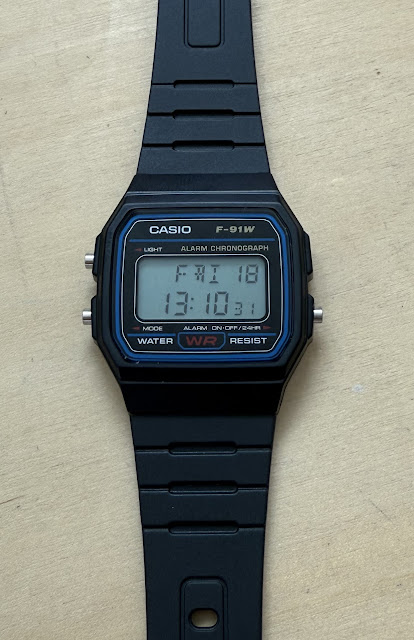
Happily, Oddly Specific Objects is back with a "Pro" version of their alternative Casio internals which now features an accelerometer and an alternative LCD. The original Sensor Watch used the existing Casio LCD display but the custom LCD allows for more complicated text to be displayed on screen. It's not a dot-matrix display so there are lots of limitations but it's still a fun upgrade.

Also, the Sensor Watch Pro, as it's called, requires no soldering (unlike the original version). Here's one I prepared earlier (that is a Casio F-91W with new internals):


You can see the new display in action there showing the day as FRI. As with the original Sensor Watch there's a browser-based emulator that uses emscripten to get the watch running on your computer. This is pretty important because flashing new firmware to the watch requires dismantling it.


Since there's no soldering the process of upgrading your Casio is simply take it apart and put back in the parts that came in the kit (along with a small piece of metal that's transferred from the original Casio watch to make the battery connection):


Since I bought the optional accelerometer add on it's necessary to put in place a little piece of Kapton tape (you can see if covering the five pads on the image above) and the insert the accelerometer board itself:


The five vertical traces at the top are the micro USB interface used for flashing the firmware. 


I modified the firmware to remove Imperial units and 12 hour clock (which I never want) and to choose my own selection of screens (I added the tally, accelerometer and light sensor screens).

The complete sequence of commands needed to build the firmware was:

brew install --cask gcc-arm-embedded
git clone https://github.com/joeycastillo/second-movement
cd second-movement
git submodule update --init --recursive
make BOARD=sensorwatch_pro DISPLAY=custom

And then to upload to the watch you connect the micro USB, click the tiny switch on the back twice very rapidly and a volume called WATCHBOOT appears on your machine. You can copy the firmware over to the watch with make install

To run the emulator you build with emscripten:

brew install emscripten
emmake make BOARD=sensorwatch_pro DISPLAY=custom
python3 -m http.server -d build-sim

And then visit localhost:8000/firmware.html in your browser.

2025-06-01

It was time for a dim bulb current limiter

One of my Minitels (the one that I modified a few years ago to run new firmware) started having power supply problems: the LED was on but nothing else was working. I suspected that the main power/CRT board needed new capacitors and so I recapped it:


Alas, despite some of the older capacitors measuring poorly compared to their specs, that wasn't the problem and so I need to go deeper. The only problem is there are a ton of nasty voltages on this board. Notably the 230V AC input and then the tens of kilovolts generated for the CRT.

Also the board seems to have a short somewhere.

So, it's time to a dim bulb current limiter. Which I didn't have. So I made one. Here it is:


It's a remarkably simple device which plugs into a standard power outlet (230V AC) and puts a lightbulb in series with one of the connections. The two wires coming in then go to a standard socket. Thus you plug your device (e.g. my Minitel) into the socket and the lightbulb limits the current.

These things were super common in the past for anyone working with mains voltages.

Works great if you have an incandescent bulb at, say, 100W. A 100W bulb on 230V AC would have a current running through it of I = V/P -> I = 100/230 (approximately 430mA). Limiting the current that way means you're less likely to damage the device you're working on if there's a short. Naturally, using a different bulb would give you a different current. 60W would give you around 230mA. 150W around 650mA. 

As the Minitel's input fuse is 630mA, my current limiter will keep things well under its blowing current. Also, if there's a complete short then the bulb will glow brightly. 

Here's a look inside:


Power comes in at the top, and goes to a DPST switch. I'm using DPST because it's not easy to know which input wire is live and which is neutral because the European Schuko/Type F plug/socket is not polarized and I like knowing that when I switch something off, it's off! And the DPST has an integrated lamp that gives me a visual reminder that it's on.


Because local power sockets aren't polarised, the power strip I am using for my bench gear uses DPST switches for each socket. It's relatively hard to find one that does this (and says it does). Thanks, Brennenstuhl!


But I digress.

To make my dim bulb current limiter do the right thing, I need a 100W incandescent bulb. These have been on their way to oblivion in the EU since 2009 and were, I believe, eliminated for home use in 2016. It is still possible to buy them, labelled for "industrial use", from some locations.
 

So, that limits the current and protects the device I'm working on, but what about protecting me? For that, I pair it with an isolating transformer. If you're not familiar with this then here's the basics. In a house the neutral line is connected to ground (typically at the point at which power comes into your house). This means that the 230V coming out the live wire is relative to ground. If I touch it the power will flow through me to ground. 

The isolating transformer eliminates the link between live, neutral and ground. It's still outputting 230V but that voltage isn't relative to ground and so I won't get a shock if I touch one of the wires coming from the transformer's socket. Of course, touching both would send 230V through me.


So, having built that I can go back to understanding why my Minitel isn't powering on.

2025-02-10

Archiving hardware projects

From time to time I do some project involving old hardware that requires connecting it to a modern computer. For example,

    Getting the KIM-1 to talk to my Mac

    Resurrecting a Dataman S4 PROM programmer

    Ripping old mini DV video tapes on a Mac

And I've come to the conclusion that archiving the related hardware is important. For example, I got this Dataman S4 talking to my Mac using a few different cables. I bought a set of cables and archived them in a bag for the next time I need to do this.


The Dataman S4 project required three things: a USB-C to USB-A adapter, a USB-A to RS-232 adapter and a 9 pin to 25 pin serial cable. 


These things are fairly inexpensive making it viable to archive them. Now I only have to worry about the drivers being available!

2024-06-19

Two ways to use an LED as a light sensor with Arduino

I needed to log when a light switched on and off during the night as part of debugging an oddly behaving movement sensor. To do that I built a really simple light sensor logger using an Arduino Leonardo, a large LED and a resistor or three. Here it is:


And here's the entire Arduino code:

void setup() {
  Serial.begin(9600);
  analogReference(EXTERNAL);
}

void loop() {
  Serial.println(analogRead(A1));
  delay(1000);
}

The main loop() just reads the voltage across the LED from analog input A1 and writes it to the serial port. Then it waits for a second. The setup() routine tells the ADC converter to use the voltage on AREF as the reference maximum voltage for the ADC.

The LED has a voltage of between about 0mV and 400mV depending on the amount of light. 


By default the voltage range of the ADC on the Arduino Leonardo is 0V to 5V but it's possible to scale it with a call to analogReference().Calling analogReference(INTERNAL) would set the range to 0V to 2.56V which is still a bit large given the small voltage across the LED. AREF to the rescue!

The AREF pin allows a range to be set for the ADC. It has an internal resistance of 32K and I added a 66K resistor (made from three resistors I had lying around) connected to the Arduino's 3.3V pin. The 66K and 32K form a voltage divider giving an AREF of 1.1V (which is the low end of valid AREF values). Then it's just necessary to call analogReference(EXTERNAL).

Here's the output of the program when I had covered the LED with my hand and then uncovered it.


You can also use the built in Arduino Serial Plotter to get an instant chart. Here I covered the LED with my hand, took my hand away and then shone a torch directly into the LED.


To get timestamped output I am using CoolTerm which will automatically save to a file and add timestamps. 


That light sensor via LED relies on the photovoltaic effect: when light strikes the PN junction inside the LED it creates a voltage (albeit a small one). But there's another way to measure the light hitting an LED.


Reverse bias


If the LED is reverse biased (i.e. connected to a voltage source the wrong way round) then it won't light up but it will act as a capacitor that charges when light hits it. So the idea is to reverse bias the LED using two digital pins on the Arduino (one set HIGH and one set LOW) and then remove the bias and measure how long the LED (acting as a capacitor) takes to discharge. The brighter the light the faster the discharge.

This can be achieved with a single LED connected between two digital pins like this: the +ve lead of the LED goes into the pin identified by LED_P and the -ve into the pin identified by LED_N.


And here's the code.

#define LED_N 4
#define LED_P 5

void setup()
{
  Serial.begin(9600);
}

void loop()
{
  unsigned long maxtime = 5000;
  
  pinMode(LED_N, OUTPUT);
  pinMode(LED_P, OUTPUT);
  digitalWrite(LED_N, HIGH);
  digitalWrite(LED_P, LOW);

  pinMode(LED_N, INPUT);
  digitalWrite(LED_N,LOW);

  unsigned long elapsed = 0;
  unsigned long start = millis();
  while ((digitalRead(LED_N) != 0) && (elapsed < maxtime)) {
    elapsed = millis() - start;
  }
  
  Serial.println(elapsed);

  if (elapsed < maxtime) {
    delay(maxtime - elapsed);
  }
}

I found this worked better than the first version with more sensitive output. Note that smaller numbers mean brighter here (whereas in the previous code smaller meant darker). Here's a plot showing me covering the LED twice with my hand, followed by shining a torch at it. Each time I let the LED be exposed to ambient light between tests.


In action


Certainly looks like that motion sensor is turning the light on in the night uselessly.

2024-02-04

Repairing (sort of) a Dyson fan remote control

I have a couple of fancy Dyson fans that do cooling (or at least blowing air around) and heating. They use a little IR remote control that attaches to the top with magnets. One of the remotes decided to stop working; its failure mode was: consume an entire CR2032 battery in a few days. Apparently, I'm not alone in experiencing this problem.

Before seeing if I could repair it, I made a backup of the IR codes from the remote using my Flipper Zero:

Dyson were good enough to replace the remote but I began to wonder why this was happening and so I opened it. Here's the little circuit board inside. The pads are the underside of the buttons.


Using a multimeter I discovered that the resistance across the battery terminals was 2.5kΩ when I was expecting it to be very, very high or even infinite.

And that the remote control was drawing 1.1mA when doing nothing. 

A quick check of Ohm's law gives I = V/R, I = 3V/2500Ω, I = 1.2mA. Close enough. 

The capacity of a CR2032 battery varies a lot from manufacturer to manufacturer but seems to be between 150mAh and 250mAh (roughly). At 1.2mA constant current that's between 125h and 208h to drain the battery (about 5 to 7 days). 

But why was there 2.5kΩ across the battery? The culprit is the capacitor C1 which is in parallel with the CR2032. It's decided that it would prefer to be a resistor! Sometimes capacitors fail like this.

Aside: why is there a capacitor in parallel with the battery? Almost certainly because it's the capacitor that powers the remote when a button is pressed. Most of the time no button is pressed and the capacitor will sit charged fully. When a button is pressed a load is applied to the battery/capacitor combination and it's the capacitor which will provide the needed current. This will likely prolong the life of the battery as it will slowly charge a capacitor and not have to provide a sudden larger current when a button is pressed.

I didn't have a spare surface mount capacitor around so I simply removed C1. With C1 removed there's no current drain when idle and the remote works fine. Unfortunately, Dyson didn't design the remote to be opened and so the case didn't survive. Also, I'm sure I've shortened the life of the CR2032 battery by removing C1, but at least it'll last longer than a week!

I fixed the remote up so I could use it by printing a picture of what it should look like and taping the paper into place. You may also notice the small felt pad. That's there to make it pleasant to hold prevent you from being stabbed by the mechanism that connects to the +ve terminal of the battery.


As good as new! Or at least it works and I can keep using the fan until the replacement Dyson is sending arrives.